

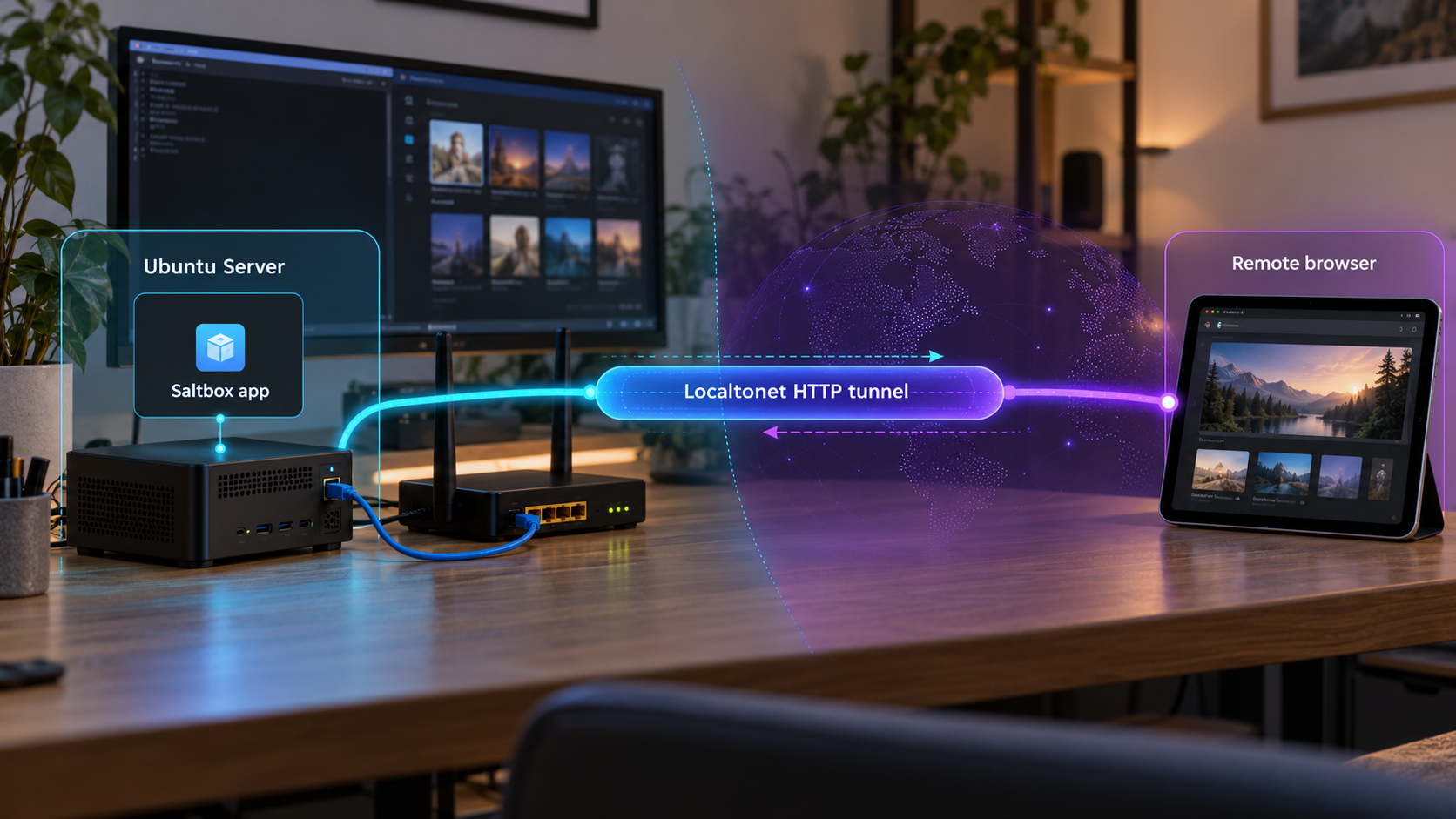
Build the media stack first, verify one application locally, then publish only the interface you intend to use
Saltbox uses Ansible to deploy and manage a Docker-containerized media server stack on supported Ubuntu Server systems. This guide explains the supported operating system requirements, the command-line management model, configuration validation, local application verification, and the information you must collect before enabling remote access. After the selected application works locally, we show how to point a Localtonet HTTP tunnel at its verified address and port without configuring inbound router port forwarding, a public IP address, or a VPN. Because Saltbox does not assign one universal web port and has no dashboard of its own, the workflow deliberately avoids guessing an application endpoint.
📋 What's in this guide
What Saltbox installs and how the workflow fits together
Saltbox is an Ansible-based solution for rapidly deploying a Docker-containerized cloud media server. Its primary use cases include acquiring media automatically, playing that media from different devices, and, to a lesser extent, storing media in cloud-backed locations. The project includes or references applications such as Plex, Emby, Sonarr, Radarr, Lidarr, Rclone, SABnzbd, Tautulli, NZBHydra2, Jackett, Overseerr, Autoscan, Cloudplow, Organizr, Portainer, Traktarr, and other optional components.
The most important architectural detail is that Saltbox itself does not have a dashboard or graphical user interface. Saltbox-specific setup and management happen in text editors and on the command line. The applications deployed by Saltbox may provide their own web interfaces, but those interfaces are separate services with separate configurations, ports, authentication settings, and operational purposes.
This distinction determines how remote access should be designed. There is no single “Saltbox web port” that we can safely publish. Instead, you must choose one deployed application, confirm that it is running, identify the actual local IP address and port through the current Saltbox or application configuration, and test that endpoint from the machine that will run our client. Only then should you create a Localtonet HTTP tunnel for that target.
A sensible installation and access sequence therefore has two distinct phases. First, install and operate Saltbox according to its supported Ubuntu and Ansible workflow. Second, after one application has passed a local test, use Localtonet to expose that application. Keeping the phases separate prevents tunnel troubleshooting from being confused with container, application, or Saltbox configuration problems.
The Localtonet target must be a specific application interface that is reachable from the device running our client. Do not enter a guessed “Saltbox port.” Saltbox does not document one universal dashboard, URL, port, or protocol because it has no GUI of its own.
Check the supported platform and prerequisites
Start with the operating system boundary published by the Saltbox project. Fresh installations are supported on x64 machines running Ubuntu Server 24.04 LTS or Ubuntu Server 26.04 LTS. Ubuntu Server 22.04 LTS remains supported for existing installations, but it is not listed as a supported target for a new installation.
Saltbox does not support ARM processors, Ubuntu Desktop installations, non-LTS Ubuntu releases, or Linux distributions other than Ubuntu. These restrictions are not cosmetic recommendations. An unsupported processor architecture, distribution, or Ubuntu edition can change package availability, service behavior, filesystem conventions, and automation assumptions. Resolve platform compatibility before diagnosing individual Ansible or Docker failures.
| Platform | Fresh installation status | What to do |
|---|---|---|
| x64 Ubuntu Server 24.04 LTS | Supported | Suitable for a fresh Saltbox installation. |
| x64 Ubuntu Server 26.04 LTS | Supported | Suitable for a fresh Saltbox installation. |
| Ubuntu Server 22.04 LTS | Existing installations only | Do not treat continued support for an existing system as approval for a new deployment. |
| Ubuntu Desktop or non-LTS Ubuntu | Unsupported | Reinstall with a supported Ubuntu Server LTS release before proceeding. |
| Other Linux distributions | Unsupported | Use a supported Ubuntu Server release rather than adapting commands from another distribution. |
| ARM hardware | Unsupported | Use an x64 machine for the Saltbox host. |
Prepare a clean server
The Saltbox project specifies fresh installations for its supported Ubuntu Server releases. Before beginning, confirm that the machine is an x64 system, that the installed edition is Ubuntu Server rather than Ubuntu Desktop, and that the release is an eligible LTS version. Also make sure you have administrative access to the host and a reliable way to recover the system if configuration changes fail.
Plan storage before deploying applications. Media automation systems can involve application configuration, downloads, libraries, caches, and optional remote storage integrations. The extracted official material identifies Rclone and cloud-oriented workflows, but it does not establish one mandatory disk layout, capacity requirement, mount path, or cloud provider configuration. Those choices must come from your selected Saltbox configuration and the requirements of the applications you intend to install.
Decide which application you actually need
Avoid installing components only because they appear in the featured application list. Select applications according to a defined purpose. A playback server such as Plex or Emby serves a different role from an automation application such as Sonarr or Radarr. Overseerr is different again, while Portainer provides container-oriented administration. Every additional web interface expands the number of services that must be configured, updated, authenticated, and monitored.
For this guide, choose one application whose web interface you eventually want to reach remotely. Record its name, but do not choose a port from a blog post, memory, or another deployment. The actual endpoint will be collected after Saltbox installs the selected role and the resulting container is running.
Prepare Localtonet only after defining the local target
The Localtonet client must run on a device that can reach the chosen application. Running it directly on the Saltbox host is one possible topology. Running it on another machine in the same network can also work if that machine can connect to the application’s verified IP address and port. The target address is interpreted from the Localtonet client device, so an address that works on your laptop does not automatically work from a different server.
ARM, Ubuntu Desktop, non-LTS Ubuntu, and non-Ubuntu distributions are outside the documented Saltbox support boundary. A tunnel cannot correct an unsupported operating system, failed Ansible run, stopped container, or invalid application configuration.
Install Saltbox without inventing bootstrap commands
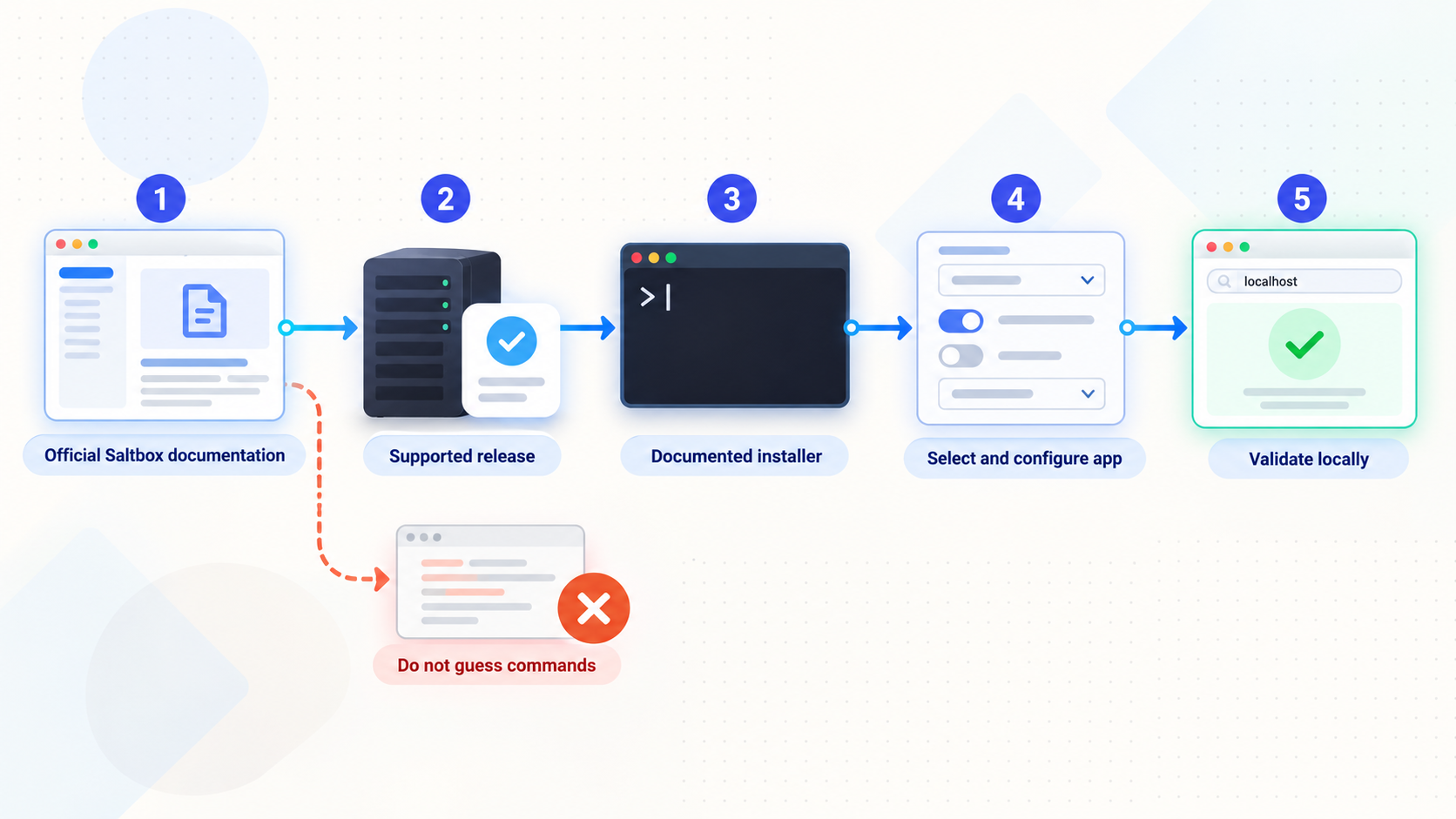
Saltbox’s documented installation model is Ansible-based, and its official documentation is the authoritative location for the current bootstrap procedure. The approved project evidence available for this article confirms the supported platforms and the installed sb command interface, but it does not include the bootstrap shell commands, repository path, prerequisite package commands, installer prompts, or initial configuration filenames.
We will not fabricate those details. Installation bootstrap commands can change, and using an outdated repository path or installer invocation can damage a new server or leave it in a partially configured state. On a fresh, supported Ubuntu Server installation, open the current Saltbox documentation, follow its current Install workflow exactly, and return to this guide once the sb command is present.
The official material supplied for this draft does not reproduce Saltbox’s current installer commands. This guide can accurately document compatibility, the verified CLI surface, validation, application selection, endpoint discovery, local testing, and Localtonet integration, but it cannot safely provide a copy-and-paste bootstrap command that is absent from that material.
Confirm that the Saltbox CLI is available
After completing the current official installation workflow, ask the installed CLI to display its help output:
sb --helpA working help command should list the supported top-level commands. The documented CLI includes commands for installing selected tags, listing available tags, editing configuration, validating configuration, updating Saltbox, displaying the installed version, running diagnostics, viewing managed systemd service logs, and managing Docker containers through Saltbox.
If the shell reports that sb cannot be found, do not proceed to application installation or remote access. Recheck the official bootstrap workflow, the current shell session, and any installation error output. Do not replace the missing command by downloading an unverified script or creating your own alias.
Understand the documented command surface
| Command | Documented purpose | Safe use in this workflow |
|---|---|---|
sb --help |
Displays Saltbox CLI help | Use it first to confirm that the CLI is installed and to inspect current syntax. |
sb version |
Prints the Saltbox CLI version | Record the version when troubleshooting or documenting a deployment. |
sb list |
Lists available Saltbox, Sandbox, or Saltbox-mod tags | Use current output to find valid installable tags rather than guessing a tag name. |
sb edit |
Edits Saltbox configuration files | Inspect its help before choosing a configuration target or subcommand. |
sb validate-config |
Validates Saltbox configuration files | Run it after configuration changes and before an installation run. |
sb install |
Runs Ansible playbooks with specified tags | Use only with valid tags and flags shown by the installed CLI and current documentation. |
sb update |
Updates Saltbox and Sandbox | Review the current command help and backup implications before updating a working host. |
sb diag |
Runs Saltbox diagnostics | Collect diagnostic information when installation or managed-service behavior is unclear. |
sb logs |
Displays logs of managed systemd services | Use it when the problem concerns a service managed at the systemd level. |
sb role docker |
Manages Docker containers managed by Saltbox | Inspect its command help before issuing a container-management action. |
The documented usage syntax also shows optional queries, tags, commands, and flags. Bracketed words in help syntax are placeholders, not literal text to paste. For example, the published form sb install [tags] [--flags] means that valid tags and supported flags may follow the command. It does not mean that the square brackets should be entered literally.
List valid tags before installing an application
Saltbox installs components through Ansible tags. Because the available tag set can depend on the current Saltbox, Sandbox, or Saltbox-mod configuration, use the CLI’s list function and help output to discover valid choices:
sb list
sb install --help
Select the tag documented for the application you intend to deploy. Do not infer a tag solely from a marketing name, container image name, or a command copied from an unrelated release. Once you have confirmed the valid tag and completed the application’s required configuration, invoke sb install using the syntax shown by your installed CLI.
This guide intentionally does not provide a fabricated command such as sb install APP with an assumed application tag. The official CLI confirms that installation accepts tags, but the supplied evidence does not map every featured application name to an exact tag or establish which flags are required.
Configure and validate the selected Saltbox application
Saltbox configuration is performed in text editors and through command-line tools. There is no Saltbox setup wizard or dashboard to complete this phase. The exact values depend on the application, storage plan, account integrations, and the current Saltbox schema.
Use the documented configuration editor interface to inspect available targets:
sb edit --helpFollow the current Saltbox documentation for the selected application and supply only values you understand. Keep passwords, API keys, authentication tokens, and private service URLs out of shell history, screenshots, issue reports, and public configuration repositories. If an application requires credentials, use the storage mechanism specified by its current Saltbox documentation rather than creating an undocumented environment variable or file.
Validate before applying the Ansible role
Run the documented validator after editing Saltbox configuration:
sb validate-configTreat validation failures as configuration failures. Read the reported file, field, or schema problem, correct it, and validate again. Repeatedly running an installation playbook does not make an invalid value become valid, and adding Localtonet at this stage would only introduce another layer to diagnose.
After validation succeeds, use the current CLI help and the application’s documented tag to run the required installation. Ansible output matters. Review failed tasks rather than relying only on the final lines, and preserve enough context to identify which role and task failed. If the run does not complete successfully, resolve that condition before expecting a container or web interface to exist.
Keep the responsibilities separate
This separation is useful during maintenance. If an application works locally but not through its public URL, investigate the client, tunnel, and target mapping. If it does not work locally, investigate Saltbox, Docker, and the application before changing the tunnel.
Verify one media application locally
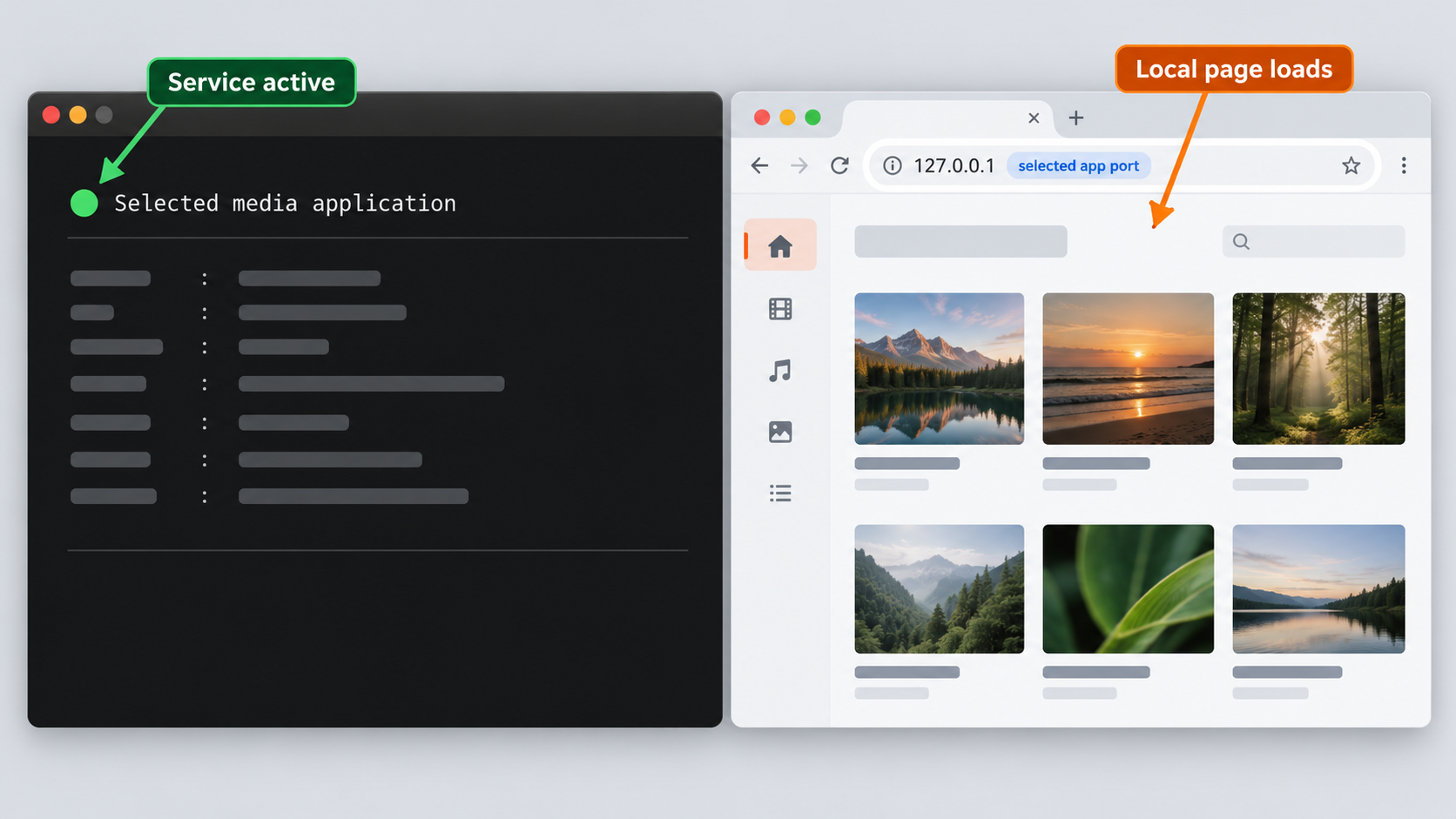
Local verification is the handoff point between the Saltbox installation and Localtonet integration. The goal is to prove that the selected application responds through a specific address and port from the exact device that will run our client.
Confirm the Saltbox environment
Record the installed Saltbox version and validate the configuration:
sb version
sb validate-config
These checks do not prove that an individual web application is healthy, but they establish useful deployment context. If you later request support, the version and validation result help distinguish configuration issues from runtime issues.
Confirm that the selected container is running
Saltbox documents a Docker role command for managing containers. Inspect its current help before performing an action:
sb role docker --helpYou can also inspect the Docker environment with standard Docker tooling when it is available to your administrative account:
docker psLocate the selected application in the output and examine its current status and published port information. Do not assume that a container name or port from another Saltbox installation applies to yours. If the application is absent, stopped, restarting, or has no reachable interface, fix that state before continuing.
Identify the actual local endpoint
Obtain the application’s listening address and port from the current Saltbox configuration, the application-specific documentation, or the runtime container information. Record both parts. A port number without an address is not a complete target, and an address without a port is not enough to configure an HTTP tunnel.
Address selection matters. If our client runs on the Saltbox host, a loopback endpoint may be reachable from that host. If our client runs on another device, a service listening only on the Saltbox host’s loopback interface will not be reachable over the LAN. In that topology, use an application endpoint that is intentionally available to the client device and permitted by your local network policy.
The official Saltbox overview names many applications but does not establish a universal local URL, port, or protocol for them. Verify the deployed endpoint. A guessed value can target the wrong service, expose an administrative interface unintentionally, or produce a tunnel that is online but cannot reach its destination.
Test from the Localtonet client device
Open the verified URL in a browser on the device that will run our client. For a command-line header check, replace the placeholder with the real endpoint you just verified:
curl -I http://127.0.0.1:<verified-port>The example uses loopback only as a testing pattern for a client running on the same host. Do not paste the placeholder literally, and do not use loopback when our client runs on a different device. In that case, test the Saltbox host’s reachable local address and the verified application port from the client device.
A successful result can be a normal page, login screen, or expected HTTP response. A redirect may also be intentional, depending on the application. What matters is that the endpoint responds consistently and that you understand which service answered. Complete the application’s initial setup and enable its own authentication before making it public.
Create a simple verification record
Before opening the Localtonet dashboard, write down the following deployment-specific facts:
- The selected application name.
- The device on which the application runs.
- The device on which the Localtonet client will run.
- The exact local IP address or hostname reachable from that client device.
- The verified application port.
- Whether the local service expects HTTP or HTTPS.
- The application login or access-control state, without copying credentials into the record.
- The result of a browser or
curltest from the client device.
This short record prevents a common failure pattern in which administrators change the application, container networking, firewall, and tunnel simultaneously without knowing which layer caused the problem.
Publish the verified application with a Localtonet HTTP tunnel
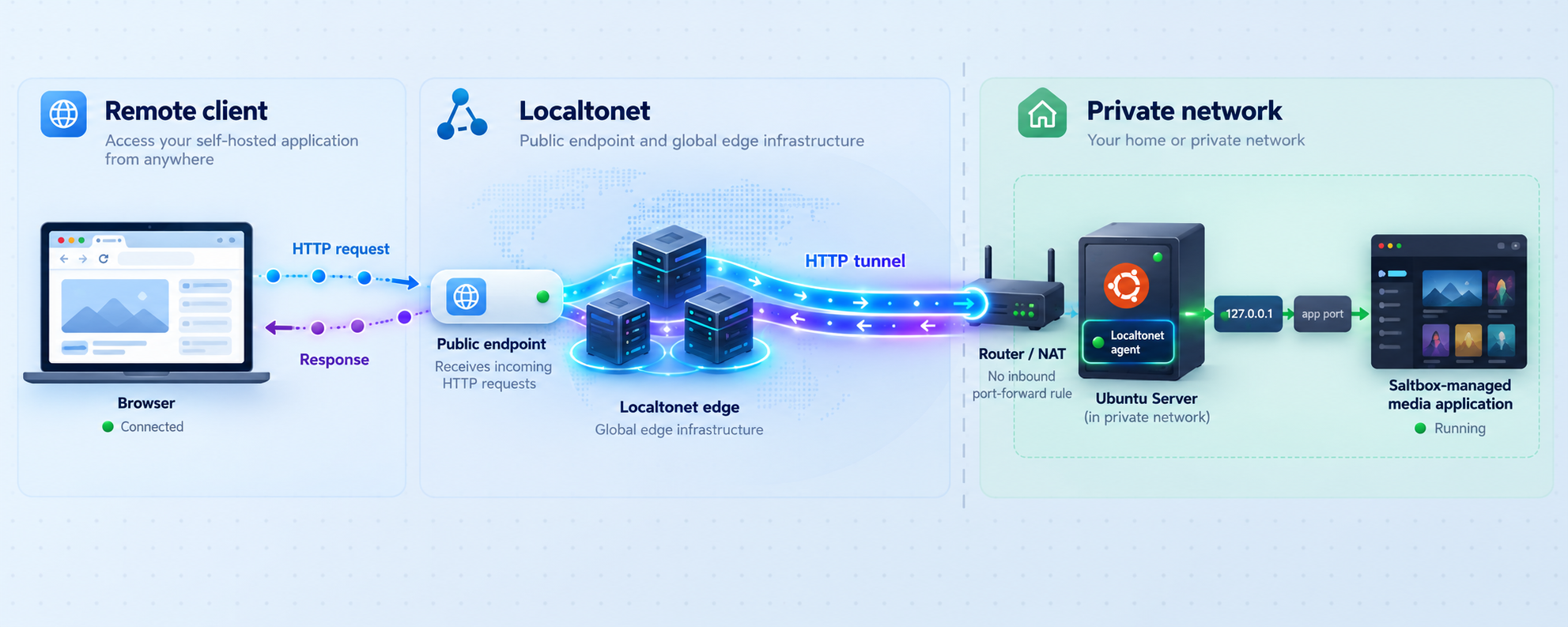
Once the application responds locally, an HTTP tunnel is the appropriate Localtonet family for a browser-based web interface. Our client establishes an outbound connection to a Localtonet relay server. This makes it possible to expose the service without inbound router port forwarding, firewall changes for an inbound internet connection, VPN setup, or a public IP address.
The tunnel points to the application’s local IP address and port as seen from the client device. Creating the tunnel does not start it. The selected client must be connected, and the tunnel must be started before the assigned public address becomes available.
Install and run our client on a device that reaches the app
Use the Saltbox host or another device that can successfully connect to the verified application endpoint. Complete the current Localtonet client installation for that device’s operating system, then run the client.
Authenticate and select the client device
Use the device-specific authentication token through the supported client workflow, then select that connected device when creating the tunnel. Treat the token as a secret. Do not place it in screenshots, commands shared publicly, application configuration, or this article’s example values.
Select an available relay server
Choose a server or region currently available in the dashboard. Availability can vary, so use the current product choices rather than a server code copied from an older tutorial.
Create an HTTP tunnel for the verified target
Select the HTTP tunnel family and enter the local IP address and port that passed your local test. HTTP tunnels can use Random Sub Domain, Custom Sub Domain, or Custom Domain process types. All three serve the target at a public HTTPS address, but availability can depend on the current product configuration or plan.
Start the tunnel
Use the Start button after reviewing the target. Merely creating the tunnel does not make it run. Confirm that the selected client remains connected and that the tunnel reports a running state.
Test the public address and manage its lifecycle
Open the assigned public URL from a separate connection and confirm that it reaches the intended application and its authentication screen. Stop the tunnel when public access is not needed, or delete it when the configuration is no longer required.
For the current dashboard workflow and field names, consult our HTTP tunnel documentation. If you choose a custom domain, check the current documentation for its DNS requirements rather than applying a record type or destination copied from an unrelated guide.
Choose the target according to the client location
| Client topology | Target to verify | Common concern |
|---|---|---|
| Client on the Saltbox host | The application endpoint reachable locally on that host | Confirm that the selected port belongs to the intended application. |
| Client on another LAN device | The Saltbox host address and app port reachable from that device | A loopback-only application listener cannot be reached from another machine. |
| Client in a separate network | An endpoint already reachable from the client device | Local routing and policy must work before tunneling can work. |
Do not configure a raw TCP tunnel merely because a port is involved. Browser-based HTTP applications normally belong behind an HTTP tunnel. Raw TCP and UDP tunnels serve different protocol requirements. Use the protocol actually spoken by the selected service, not the protocol name that seems most general.
The public endpoint is available only while the selected Localtonet client is connected and the tunnel is running. The Saltbox application must also remain healthy and reachable at the configured local target.
Secure the application before and after publication
A public URL changes the exposure boundary of the selected application. A service previously reachable only from the host or LAN may now receive internet traffic through the tunnel. Localtonet removes the need for inbound router port forwarding, but it does not replace application authentication, authorization, updates, or safe administrative practices.
Require application authentication
Complete the selected application’s own authentication setup before starting the tunnel. Use a strong, unique password and any additional access controls officially supported by that application. Do not expose an initial setup wizard, unauthenticated administrative console, or interface that assumes every visitor is trusted.
Expose only the service you selected
Point the tunnel at one verified application endpoint. Do not publish the Docker daemon, a host administration port, or an unrelated service merely to make troubleshooting easier. If several applications need remote access, evaluate each one independently and create only the configurations that are necessary.
Protect the Localtonet device token
A Localtonet authentication token identifies the client device that runs the tunnel. It is device-specific and must not be guessed, reused in examples, committed to a repository, or included in support screenshots. If a token may have been disclosed, handle it through the current account and device-management workflow rather than continuing to use a potentially exposed secret.
Use least privilege inside the media stack
Application accounts should have only the permissions required for their intended users. An ordinary remote media user does not necessarily need access to container administration, automation settings, download clients, or storage-management interfaces. Separating playback, request, automation, and infrastructure administration reduces the impact of a compromised account.
Stop access when it is no longer needed
A tunnel can be stopped without deleting its configuration. Use that lifecycle control when remote access is temporary. Delete obsolete tunnels so they are not accidentally restarted against a repurposed port later.
The HTTP tunnel can provide a public HTTPS address for the selected local service, but the application must still enforce who is permitted to sign in and what each user can do. Test unauthenticated behavior before sharing the URL.
Operate and maintain the deployment
Once installation and remote access work, keep Saltbox operation, application operation, and tunnel operation observable. Record the Saltbox version, the installed roles, the selected application endpoint, and the device running our client. Avoid recording secret token values or passwords.
Validate after configuration changes
Run Saltbox’s configuration validator whenever you modify its managed configuration:
sb validate-configValidation is especially useful before applying another application role or updating an existing role. It cannot guarantee that an external account or storage provider will work, but it can detect configuration problems recognized by Saltbox’s current schema.
Use diagnostics and logs for their documented purposes
Saltbox provides a diagnostics command:
sb diagIt also provides a command that displays logs for managed systemd services:
sb logsUse these as part of diagnosis, but distinguish systemd service logs from application container logs. The supplied evidence does not establish exact per-application log commands, paths, or retention behavior, so inspect the installed CLI and current application documentation rather than guessing.
Review updates before applying them
The CLI includes sb update for updating Saltbox and Sandbox. Before updating a working system, check current release guidance, confirm that your platform remains supported, and verify that you have an appropriate recovery or backup plan. The project also contains backup and restore documentation, but the supplied evidence does not define one universal backup command or guarantee that every application’s data uses the same location.
After an update, validate the configuration, confirm the selected container is healthy, repeat the local HTTP test, and then test the public URL. This order quickly shows whether a failure belongs to Saltbox, the application, or the tunnel.
Troubleshoot Saltbox and Localtonet by layer
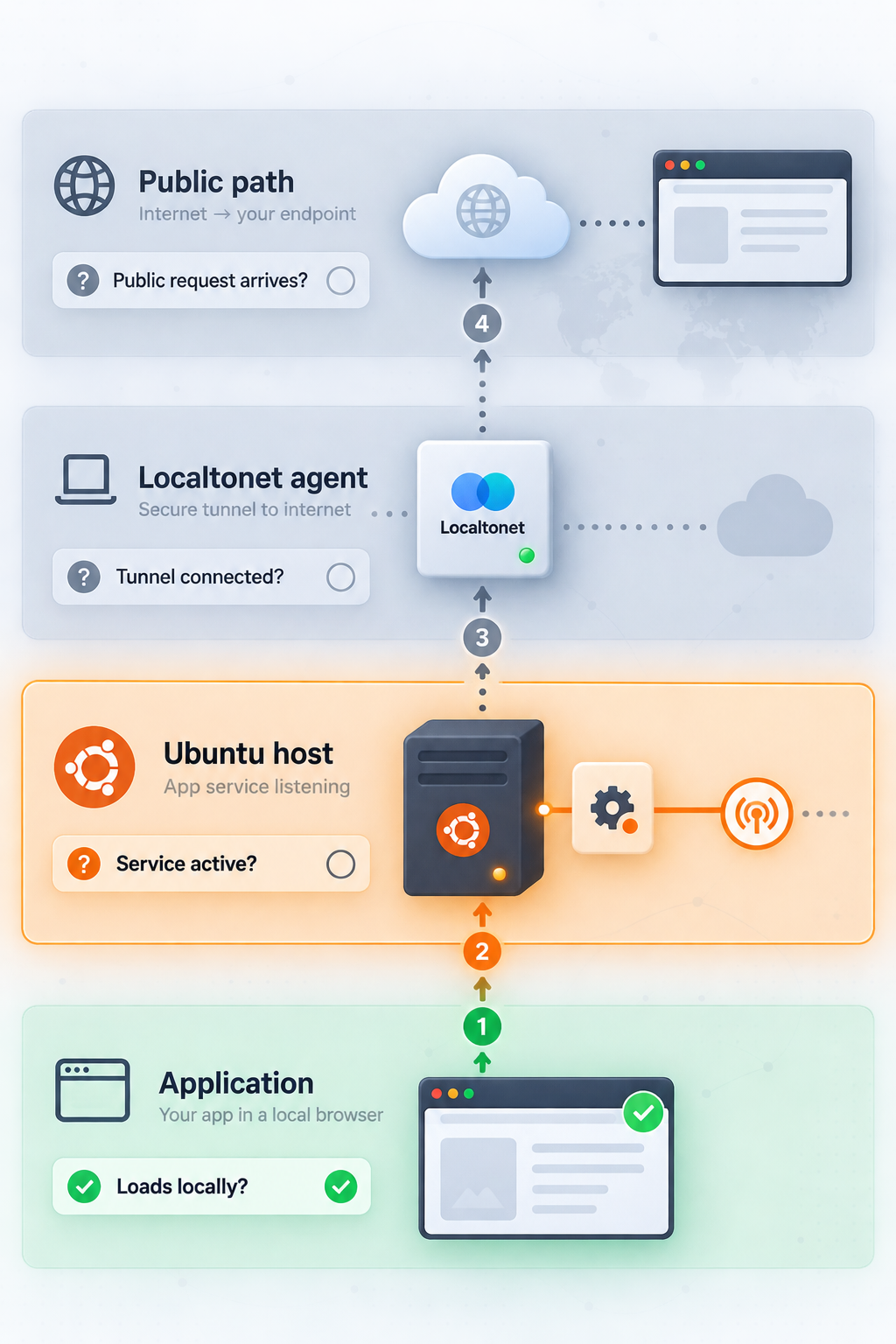
Troubleshooting is faster when you begin at the application and move outward. The expected chain is: application process, Docker container, local address and port, Localtonet client reachability, running tunnel, and public URL. Test each link once and avoid changing several layers at the same time.
| Symptom | Likely layer | What to check |
|---|---|---|
sb is not found |
Saltbox bootstrap or shell environment | Recheck the current official installation workflow and any bootstrap errors. Do not proceed to tunnel setup. |
| Configuration validation fails | Saltbox configuration | Correct the reported configuration problem, then rerun sb validate-config. |
| The selected application is absent | Ansible role selection or installation | Confirm the valid tag through sb list, review the installation output, and verify that the intended role completed. |
| The container repeatedly restarts | Application or container runtime | Review current container status, application configuration, and relevant logs before creating a tunnel. |
| The app works on the host but not from the client device | Listener address or local routing | Confirm that the service is reachable from the device running our client. Do not use the Saltbox host’s loopback address from another device. |
| The tunnel exists but has no public response | Tunnel lifecycle or client connectivity | Confirm that the selected device is connected, the tunnel was started, and the configured local target still responds from that device. |
| The public URL reaches the wrong service | Incorrect target port | Stop the tunnel immediately and verify which process owns the configured port before restarting it. |
| The login page appears, but authentication fails | Application authentication | Check the application’s own account and access-control configuration. The tunnel does not create or reset application users. |
| Access stops after a reboot | Application, client, or tunnel runtime | Check each component separately: the application container, local endpoint, Localtonet client connection, and tunnel state. |
When local access fails
Stop working on the public tunnel. Confirm the supported operating system, run configuration validation, inspect the Ansible result, check whether the application container is running, and identify its current endpoint. A Localtonet configuration cannot make a stopped or unreachable application healthy.
When local access works but public access fails
Test the exact target from the device running our client. If that succeeds, verify that the correct device and relay server were selected, then confirm that the tunnel was started. Compare the configured IP address and port character by character with the locally verified endpoint.
Also consider whether the application generates redirects to an internal hostname or port. That behavior belongs to the application or its local proxy configuration. The correct remedy depends on the application’s documented external URL or proxy settings, which are not universal across the Saltbox application catalog.
When public access reaches an unexpected page
Stop the tunnel before investigating. An unexpected page strongly suggests that the configured port belongs to another local service or proxy route. Recheck the runtime port mapping and test the endpoint locally. Do not leave an unknown administrative or setup interface publicly reachable.
When the platform itself is unsupported
Do not attempt to solve ARM, Ubuntu Desktop, non-LTS Ubuntu, or another Linux distribution by modifying arbitrary Ansible tasks. Rebuild on a supported x64 Ubuntu Server release. A clean supported foundation is more reliable than maintaining undocumented compatibility changes through every Saltbox update.
Frequently asked questions
Which Ubuntu versions support a fresh Saltbox installation?
Fresh Saltbox installations are supported on x64 Ubuntu Server 24.04 LTS and Ubuntu Server 26.04 LTS. Ubuntu Server 22.04 LTS remains supported for existing installations only. Ubuntu Desktop, non-LTS Ubuntu releases, other Linux distributions, and ARM processors are not supported.
Does Saltbox have its own dashboard?
No. Saltbox-specific setup and commands are handled in text editors and on the command line. Individual applications deployed by Saltbox can provide web interfaces, but those interfaces belong to the applications rather than to Saltbox itself.
What port should I enter in the Localtonet HTTP tunnel?
Enter the actual port of the selected application after verifying it from the current Saltbox or application configuration and testing it from the device running our client. There is no universal Saltbox web port, and this guide intentionally does not guess ports for Plex, Emby, Sonarr, Radarr, Overseerr, Organizr, Portainer, or any other application.
Can the Localtonet client run on a different device from Saltbox?
Yes, provided that the client device can reach the selected application’s local address and port. Test the application from that device before configuring the tunnel. A service bound only to loopback on the Saltbox host will not be reachable from another machine.
Do I need router port forwarding or a public IP address?
No. Our client establishes an outbound connection to a Localtonet relay server, so this workflow does not require inbound router port forwarding, inbound firewall changes, VPN setup, or a public IP address. The selected client must remain connected and the tunnel must be running.
Does creating a Localtonet tunnel start it automatically?
No. Creating a tunnel and running it are separate lifecycle actions. After creating and reviewing the configuration, use the Start button. You can later stop the tunnel without deleting it, or delete it when the configuration is no longer needed.
Does the tunnel replace the media application's login?
No. Configure and test the application’s own authentication and authorization before public access is enabled. The tunnel transports requests to the selected service, but it does not create users, reset passwords, or determine what authenticated users can access.
Why does this guide not include a complete Saltbox bootstrap command?
The approved official evidence for this draft confirms Saltbox’s supported systems, Ansible deployment model, and CLI commands, but it does not contain the current bootstrap invocation or prerequisite package sequence. Rather than inventing or publishing an outdated installer command, the guide directs readers to the current Saltbox Install workflow and documents the verified steps that follow installation.
Connect your verified Saltbox application with Localtonet
Once the selected application works from the device running our client, create an HTTP tunnel for that exact local address and port. Keep application authentication enabled, start the tunnel only when you are ready, and test the public URL from a separate connection.
Get Started Free →

