

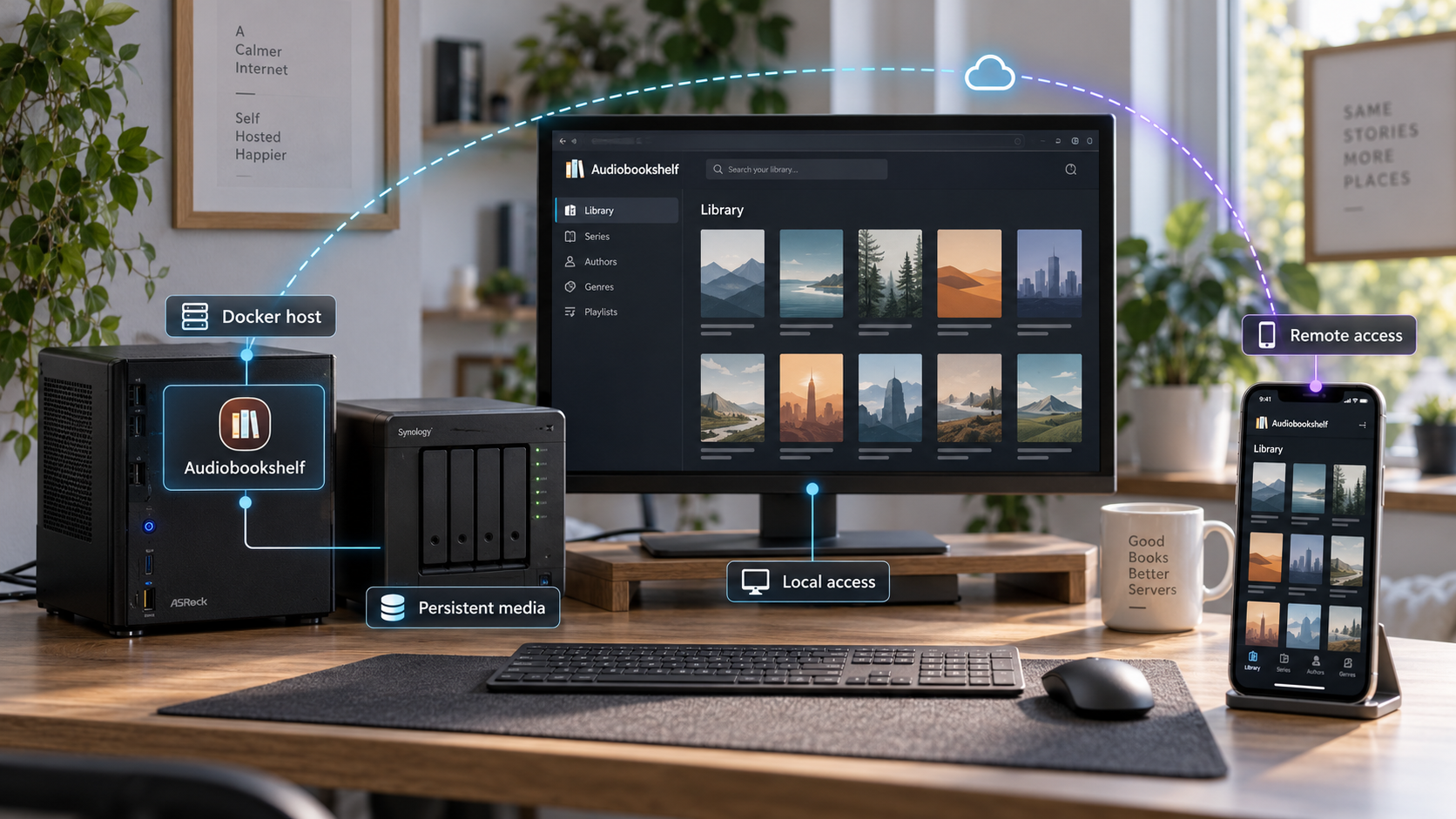
Install Audiobookshelf with Docker Compose, protect its persistent data, and prepare it for carefully tested remote access
Audiobookshelf is an open-source, self-hosted server for organizing and streaming audiobooks and podcasts. This Docker-focused guide explains how to prepare storage, choose a safe port binding, start the container, complete local setup, and prove that application data survives container recreation. It also covers backups, upgrades, troubleshooting, and the network differences between running Localtonet on the Docker host and running it on another LAN device. Because Audiobookshelf requires WebSockets, remote access should not be considered complete until current tunnel compatibility and application behavior have been verified.
📋 What's in this guide
Why self-host Audiobookshelf with Docker?
Audiobookshelf is a self-hosted audiobook and podcast server with a browser-based client. It can stream audio, maintain listening progress for individual users, synchronize progress across devices, organize multiple libraries, download podcast episodes, and manage metadata and cover images. Its multi-user model supports custom permissions, which is useful when a household or small group needs separate accounts instead of one shared administrative login.
Self-hosting keeps the server close to media stored on hardware you control. Audiobook and podcast directories can remain on a workstation, home server, or storage system accessible to the Docker host. Docker bind mounts then make selected directories available inside the container without copying the entire media collection into the container's disposable writable layer.
This guide specifically covers the Docker installation path. Audiobookshelf documents other installation choices, but identifies Docker as the recommended way to run the server. Review the project's official installation choices if Docker is not appropriate for your environment. The commands and persistence model in this article should not be applied unchanged to a native Linux, Windows, Podman, or community-managed deployment.
/config and /metadata keep the database, migrations, metadata, images, logs, and backups outside the replaceable container.
The installation has two distinct networking stages. First, Audiobookshelf must work as a local HTTP service with valid storage mappings. Second, if remote access is required, that known-good endpoint can be published through a tunnel. A tunnel cannot correct an inaccessible container, an incorrect host path, a missing library, or an application that is failing during startup.
Audiobookshelf also documents metadata and cover-art retrieval, chapter editing, metadata backups, podcast management, bulk uploads, a Progressive Web App, basic ebook support, and open RSS feeds. Features and authentication behavior can change between releases, so review the official Audiobookshelf release notes before upgrading.
Complete the Docker installation, create a library, and test playback through the local address before adding Localtonet. This gives you a known-good endpoint and keeps storage, application, and tunnel problems separate.
Prerequisites for the Docker installation
Prepare a machine that can remain powered on whenever the library should be available. It needs enough storage for the media and application data, permission to read the media directories, and permission to write to the configuration and metadata directories.
Required software and access
- Docker installed and running on the host.
- Docker Compose available through the
docker composecommand. - Permission to create host directories and start containers.
- A local directory for Audiobookshelf configuration.
- A separate local directory for Audiobookshelf metadata.
- One or more directories containing audiobooks, podcasts, or other supported media.
- An available host TCP port, with
13378used in the official Docker example. - For remote access, a Localtonet client on the Docker host or on another device that can deliberately reach the published service.
Confirm that Docker and Compose are available:
docker --version
docker compose version
Docker installation differs by operating system and distribution. Use the Docker installation procedure appropriate for the host, start its service where required, and rerun both checks. This guide does not provide a universal package command because package repositories, service managers, and supported versions vary.
Create a deployment location
Create a dedicated directory for the Compose file. Decide separately where configuration, metadata, audiobooks, and podcasts will live. Media can be stored elsewhere as long as the Docker host can access it reliably, but the configuration database has a stricter requirement.
Audiobookshelf stores its SQLite database in /config. The project's
official Docker installation documentation
requires this directory to be directly accessible on the same machine running the server. A database accessed over a network mount can suffer poor performance and eventual corruption. Media can follow a different storage design, but the host directory bound to /config should remain local to the Docker host.
Do not depend on the container writable layer for settings, users, databases, or metadata. An ordinary container restart preserves that layer, but removing and recreating the container does not. Persistent data must be stored in correctly resolved bind mounts.
Plan storage, ports, and image versions
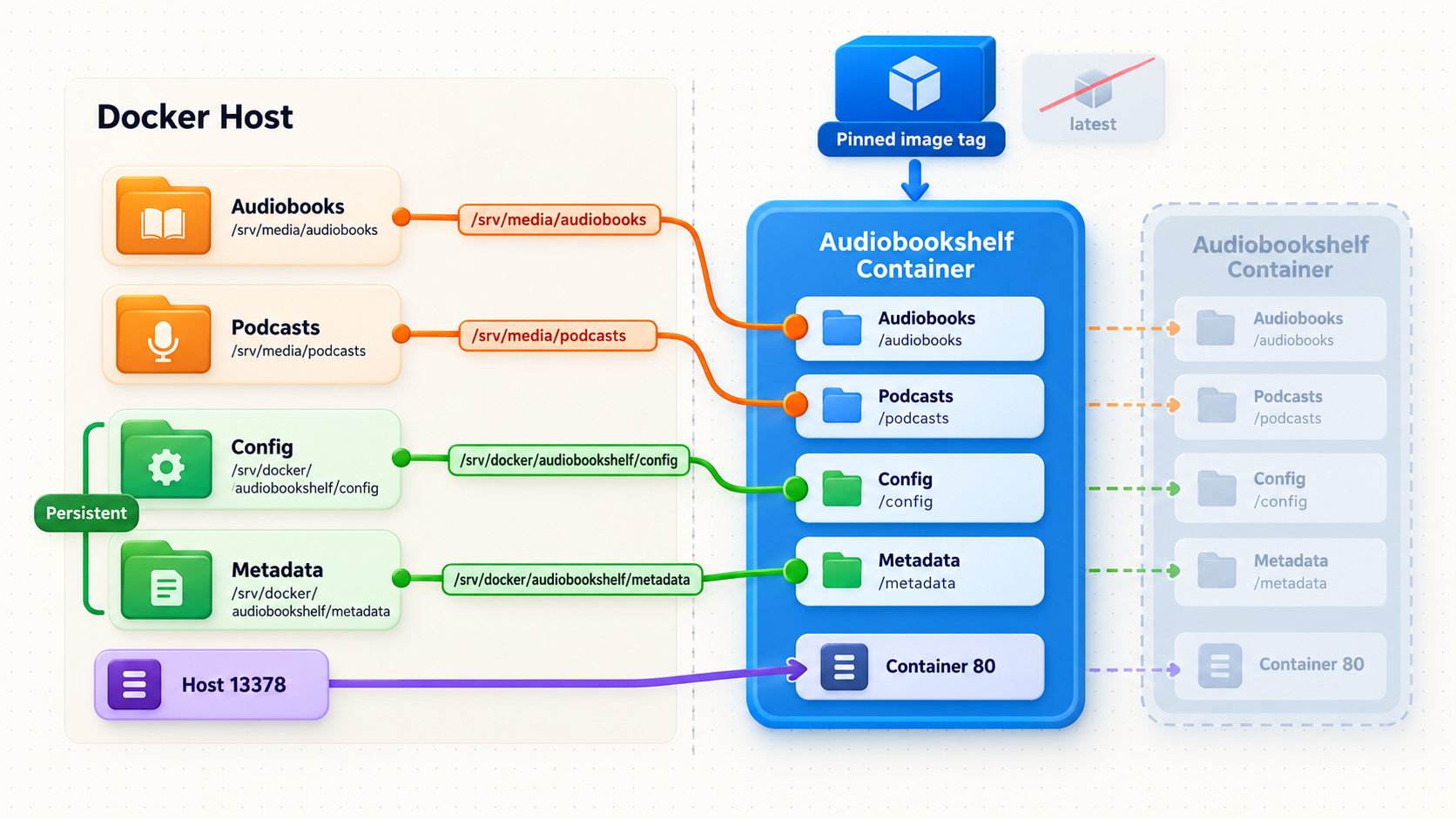
Audiobookshelf listens on port 80 inside its Docker container. The official example publishes that service on host port 13378. Docker port mappings use the form host-address:host-port:container-port, with the host address omitted when the port should be published on all host interfaces.
The short mapping 13378:80 normally publishes port 13378 on every host interface. That may be useful for LAN access, but it is broader than necessary when the Localtonet client and Audiobookshelf run on the same machine. For a same-host deployment, this guide uses 127.0.0.1:13378:80. That makes the service reachable through the Docker host's loopback interface without exposing it directly to other LAN devices.
| Port mapping | Reachability | Appropriate use |
|---|---|---|
127.0.0.1:13378:80 |
Docker host only | Preferred when the Localtonet client and browser tests run on the Docker host. |
13378:80 |
Normally all host interfaces | Needed only when other devices must connect, and then only with deliberate firewall and network controls. |
HOST_LAN_IP:13378:80 |
One selected host address | A conceptual pattern for binding to a specific reachable LAN address where the Docker platform supports it. Replace the label with the host's actual address. |
If port 13378 is occupied, change the host-side port while retaining container port 80. For example, a loopback-only mapping can use another available host port in the form 127.0.0.1:HOST_PORT:80. Use the selected host port consistently in browser tests and in the Localtonet tunnel target.
Understand the persistent paths
| Container path or setting | Purpose | Operational guidance |
|---|---|---|
/config |
SQLite database and database migration scripts | Bind to persistent storage directly on the Docker host and include it in backups. |
/metadata |
Book metadata, cover and author images, logs, and backups | Bind to a persistent writable directory and include it in recovery planning. |
/audiobooks |
Example container path for audiobook media | Map it to the host directory containing audiobooks, then select this container path when creating the library. |
/podcasts |
Example container path for podcast media | Map it to the intended podcast directory. Write permission may be required for downloaded episodes. |
TZ |
Container time zone | Replace the example value with the correct time zone for the deployment. |
restart: unless-stopped |
Container restart policy | Allows Docker to restart the service after ordinary host or Docker restarts unless an operator explicitly stopped it. |
Every mount point should be a separate directory and should not be contained within another mount point. Overlapping mounts can hide files and make backup or recovery behavior difficult to understand.
Directory structure and folder names are important to how Audiobookshelf identifies media. Before importing a large collection, review the project's media organization guidance and test a small representative library. Correcting a consistent folder layout before a full scan is usually easier than repairing a large set of incorrectly matched items later.
Select an image tag
| Tag style | Behavior | Best fit |
|---|---|---|
:latest |
Points to the most recent stable release when the image is pulled | Installations intended to follow stable releases through controlled pulls |
:#.#.# |
Selects a specific released version | Deployments that need reviewed, repeatable version changes |
:edge |
Tracks commits to the master branch and may introduce new behavior before a stable release | Testing and issue reporting rather than conservative operation |
The example below uses :latest, matching the official minimal example. If controlled change is more important, replace it with a specific released version and update that value intentionally. Check the
current release history
rather than copying an old version number from an unrelated guide.
Install Audiobookshelf with Docker Compose
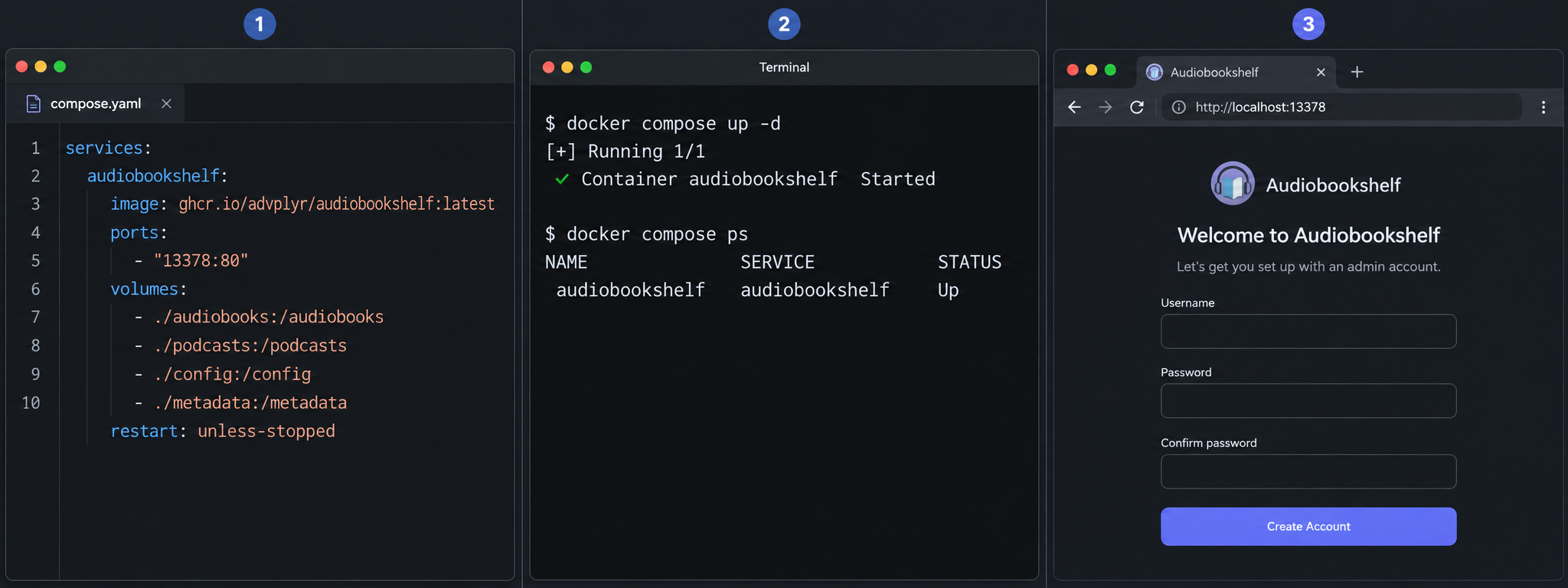
The following workflow follows the structure in the official Audiobookshelf Docker guide. It uses a loopback-only port binding because that is the smallest practical exposure when Localtonet runs on the same host.
Create the host directories
Prepare separate directories for configuration, metadata, audiobooks, and podcasts. Configuration and metadata must be writable by the container. Media must be readable, and the podcast directory may need write access if Audiobookshelf will download episodes there.
Create the Compose file
Create docker-compose.yml in the deployment directory. Add the service definition below, replace every host-path placeholder, and set the correct time zone.
Validate the resolved configuration
Run docker compose config. This checks the YAML and displays the resolved Compose configuration before a container is created.
Pull the selected image
Run docker compose pull. Pulling separately makes image download and registry errors visible before startup.
Start Audiobookshelf
Run docker compose up --detach. Detached mode starts the container in the background using the declared volume, network, environment, and restart settings.
Inspect status and logs
Use docker compose ps and docker compose logs. Resolve path, permission, image, or port errors before proceeding to first-run configuration.
services:
  audiobookshelf:
    image: ghcr.io/advplyr/audiobookshelf:latest
    ports:
      - "127.0.0.1:13378:80"
    volumes:
      - </path/to/config>:/config
      - </path/to/metadata>:/metadata
      - </path/to/audiobooks>:/audiobooks
      - </path/to/podcasts>:/podcasts
    environment:
      - TZ=America/Toronto
    restart: unless-stopped
Replace all four left-side path placeholders with absolute paths that exist on the Docker host. Replace America/Toronto with the correct time zone. Do not leave angle-bracket placeholders in the live file.
Run the deployment commands from the directory containing the Compose file:
docker compose config
docker compose pull
docker compose up --detach
docker compose ps
docker compose logs --tail 100
Additional media libraries can use additional bind mounts. Give each one a distinct host directory and container path, then select that container path when configuring the corresponding Audiobookshelf library.
Do not add PUID or GUID expecting Audiobookshelf to change its runtime identity. The documented approach is the Compose user directive, such as user: 1000:1000. Use it only after verifying that the selected numeric user and group can read or write every required host directory.
When the Localtonet client runs on another device
A loopback binding cannot be reached from another LAN device. If Localtonet will run on a separate machine, change the Docker publication so the Audiobookshelf port is reachable through a suitable Docker host LAN address. The official short mapping is:
ports:
  - "13378:80"
This normally publishes the port on all host interfaces, so accompany it with a host firewall rule that permits only the intended Localtonet client or trusted network. Where supported by the Docker host, binding to one specific LAN address is narrower than binding to every interface. Do not publish the port broadly and then rely on obscurity.
After changing the mapping, recreate the container with docker compose up --detach and test the Docker host's LAN address from the separate Localtonet device. If that device cannot open the endpoint directly, a tunnel running there will not be able to forward traffic to it.
Docker CLI alternative
Compose is easier to review and maintain, but the official documentation also provides a direct Docker command. This same-host version adds a loopback-only binding:
docker pull ghcr.io/advplyr/audiobookshelf
docker run -d \
  -p 127.0.0.1:13378:80 \
  -v /path/to/config:/config \
  -v /path/to/metadata:/metadata \
  -v /path/to/audiobooks:/audiobooks \
  -v /path/to/podcasts:/podcasts \
  --name audiobookshelf \
  -e TZ="America/Toronto" \
  ghcr.io/advplyr/audiobookshelf:latest
On Windows, the project's documented Docker command must be entered on one line after removing the backslash continuations. Host-path syntax depends on the shell and Docker environment, so use paths that Docker can access rather than copying Unix placeholders literally.
Complete the first-run application setup
From the Docker host, open:
http://127.0.0.1:13378Complete the setup flow presented by the installed Audiobookshelf release. Current release information notes that a new authentication system was introduced in version 2.26.0, but the supplied official evidence does not establish stable labels and an exact screen-by-screen sequence for the current first-run interface. For that reason, this guide does not invent button names or claim that every release displays the same screens.
Create the initial administrative credentials when prompted and use a unique password. Do not reuse a password from another service. After entering the application, create libraries using the container paths rather than the original host paths. For the example Compose file, the relevant paths are /audiobooks and /podcasts.
Create and test a small library first
- Select the correct library type for the content being added.
- Choose the in-container media path that corresponds to the bind mount.
- Scan a small representative set before importing the full collection.
- Confirm that expected titles, authors, cover images, and audio files appear.
- Open an item, begin playback, pause, seek, and resume.
- Create separate non-administrative users if other people need access, and give them only the permissions required.
If media is visible but matched incorrectly, review Audiobookshelf's official media organization guidance. Folder structure, names, and embedded audio metadata affect how a library is identified. Recreating the Docker container will not fix an unsuitable media layout.
Verify the local service and persistent mounts
A valid verification process must prove more than an ordinary restart. Files in a container's writable layer survive docker compose restart, so a restart alone does not demonstrate that users, settings, and metadata are stored in the host bind mounts.
Check the running service
docker compose ps
docker compose logs --tail 100
The container should remain running rather than repeatedly restarting or exiting. Review the logs for database, mount, permission, port, or startup errors.
Inspect the resolved mounts
Ask Docker which sources are actually mounted into the running container:
docker inspect "$(docker compose ps -q audiobookshelf)" \
  --format '{{range .Mounts}}{{println .Source "->" .Destination .Type}}{{end}}'
Confirm that the resolved output maps the intended host directories to /config, /metadata, and each media path. The mount type should reflect the storage configuration you intended. A correct-looking Compose file is not enough if variable expansion, relative paths, or an edited deployment directory resolved somewhere unexpected.
Also inspect the host-side configuration and metadata directories. They should contain application-created data after first-run setup. Do not edit database files manually.
Perform a controlled container recreation test
Container recreation removes anything stored only in the disposable container filesystem. Before running this test, inspect the active mounts, verify that the host directories contain expected data, and make a recoverable backup of the configuration and metadata directories.
Create recognizable application state before the test. For example, create the administrator account, add a small library, scan an item, and record playback progress. Then capture the current container ID, remove the Compose-managed container, create a new one from the same configuration, and compare the IDs:
OLD_CONTAINER_ID="$(docker compose ps -q audiobookshelf)"

docker compose down
docker compose up --detach

NEW_CONTAINER_ID="$(docker compose ps -q audiobookshelf)"

printf 'Old container: %s\nNew container: %s\n' \
  "$OLD_CONTAINER_ID" "$NEW_CONTAINER_ID"

docker compose ps
docker compose logs --tail 100
The new container ID should differ from the old one. Open Audiobookshelf again and confirm that the administrator account, libraries, metadata, and recorded progress remain available. This is meaningful persistence evidence because the original container was removed and replaced.
If data disappears, stop and investigate. Compare docker compose config, the inspected mounts, and the host directories. Common causes include a changed path, a relative path resolved from the wrong directory, missing permissions, or configuration that was never mounted to /config and /metadata.
Audiobookshelf documents localhost:3333 for its default source-development client and localhost:3000 for a separate live-reloading client. The Docker deployment in this guide publishes container port 80 on host port 13378.
Operate, back up, and upgrade Audiobookshelf
A self-hosted media server needs a repeatable operating routine. Know how to view logs, stop and start the service, verify backups, and recreate the container from an updated image.
Common Compose operations
docker compose ps
docker compose logs
docker compose logs --tail 100
docker compose restart
docker compose stop
docker compose start
docker compose down
docker compose up --detach
docker compose down removes the Compose-managed container and network. Correctly configured bind-mounted host directories remain outside the container. Avoid volume-removal options unless you understand exactly which storage Docker will delete.
Back up persistent data
The /config mount contains the SQLite database and migration information. The /metadata mount contains metadata, images, logs, and backups. Both should be included in the host backup strategy. Protect the media directories according to how difficult the source files would be to replace.
The exact snapshot or copy method depends on the filesystem and backup product. For a simple conservative file-copy backup, stop Audiobookshelf during the copy so the SQLite database is not changing:
docker compose stop
# Run the host's established backup procedure for config and metadata.
docker compose start
docker compose ps
The comment is intentionally not a universal copy command. A safe destination, retention policy, ownership handling, and snapshot method depend on the host. Validate restoration to a separate test location. The presence of backup files alone does not prove that a recovery will work.
Upgrade the container
Review the Audiobookshelf release notes, confirm a recoverable backup, and then use the documented Compose upgrade sequence:
docker compose pull
docker compose down
docker compose up --detach
After recreation, inspect the service and repeat a real playback test:
docker compose ps
docker compose logs --tail 100
If the Compose file uses a fixed version, change the image tag to the intended release before pulling. If it uses :latest, the pull retrieves the image currently associated with the stable tag.
Avoid unnecessary health-check loops
Audiobookshelf does not recommend health checks unless external monitoring is already in place. Repeatedly pinging and restarting the container can be redundant when a restart policy is configured, and it can add log noise. If you deliberately implement a check, the official Docker documentation notes that the container includes wget but not curl.
Add remote access with Localtonet
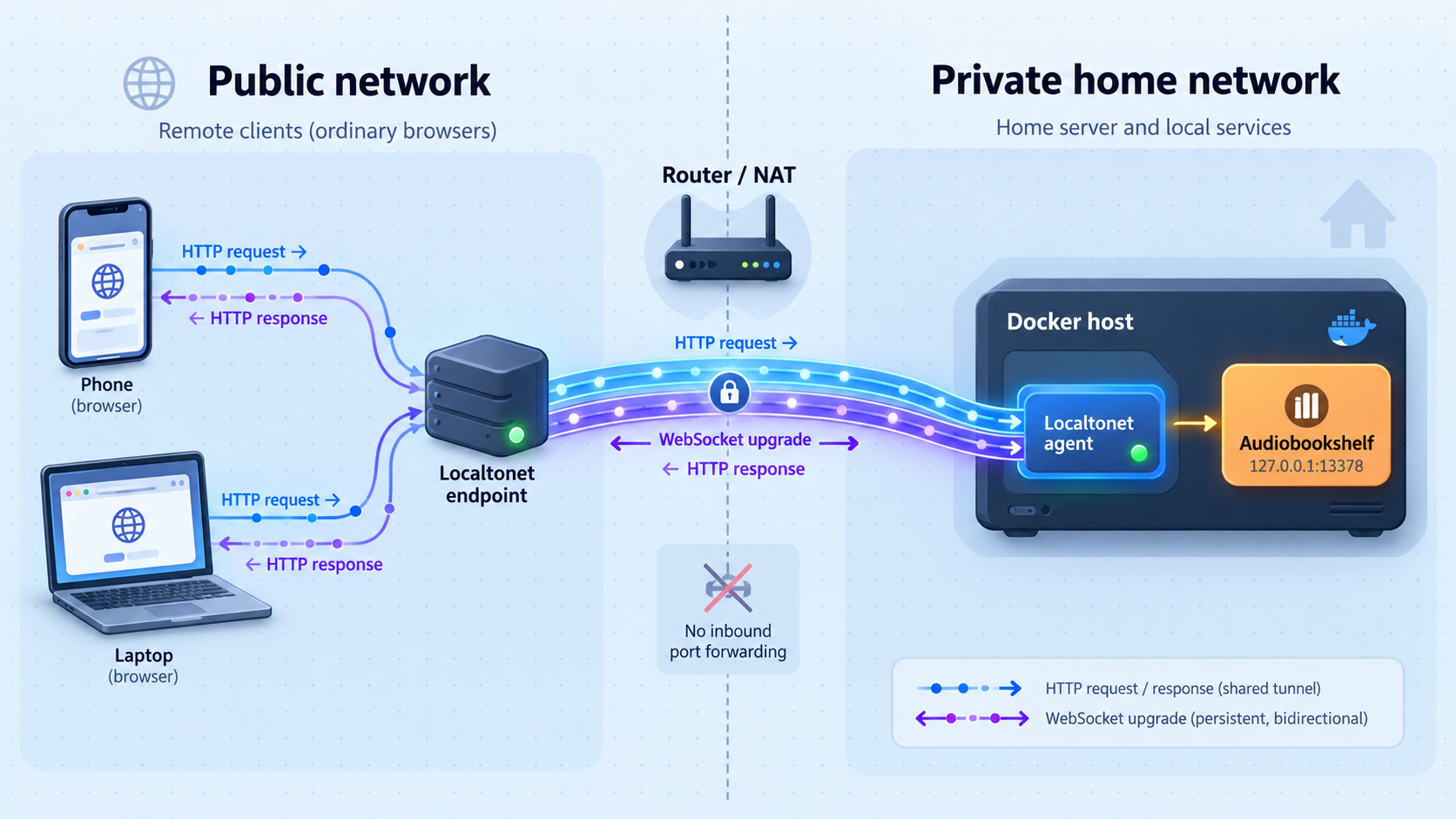
Once Audiobookshelf works locally and survives controlled recreation, remote access can be added as a separate layer. The Localtonet client establishes an outbound connection to our relay server and provides a public URL without inbound router port forwarding, firewall-wide changes, VPN setup, or a public IP address.
Audiobookshelf is an HTTP application, so an HTTP tunnel is the relevant Localtonet tunnel family. The client can run on the Docker host or on another device that can reach the published port.
Audiobookshelf explicitly requires WebSockets, as stated in its reverse-proxy requirements. The authoritative Localtonet product evidence supplied for this revision documents HTTP tunnels, but it does not explicitly establish WebSocket upgrade support. We therefore cannot promise compatibility from the available evidence. Confirm WebSocket support in the current Localtonet HTTP tunnel documentation or with Localtonet support before relying on this architecture, then complete the external functional tests below. A page that merely loads is not sufficient verification.
Consult the current Localtonet HTTP tunnel documentation for the current interface and available settings. Do not copy another user's relay server code, authentication token, domain configuration, or private endpoint.
Choose the correct local target
| Client placement | Docker publication | Localtonet target |
|---|---|---|
| Localtonet and Docker on the same host | 127.0.0.1:13378:80 |
Local IP 127.0.0.1, port 13378 |
| Localtonet on another LAN device | A reachable Docker host LAN binding | The Docker host's reachable LAN address and published port |
| Custom host port | Selected host port mapped to container port 80 |
The same selected host port, not container port 80 |
Install and run the Localtonet client
Install the client on the Docker host or another device that can reach Audiobookshelf. The client must remain connected whenever the public address should be available.
Authenticate or select the client device
Use the device-specific authentication token provided through your Localtonet account. Treat it as a secret and never place it in the Compose file, screenshots, logs, repositories, or public instructions.
Select an available relay server
Select a relay server or region currently available in the dashboard. Obtain current values from the product instead of hardcoding a server code from an article.
Create the HTTP tunnel
Set the local target to the address Audiobookshelf exposes to the Localtonet client. Use 127.0.0.1 and port 13378 for the same-host example. For a separate client device, use the Docker host LAN address that the client has already tested directly.
Start the tunnel
Creating a tunnel does not start it. Use the Start control after verifying the target. The public address works only while the selected device is connected and the tunnel is running.
Test the public address externally
Use a device outside the server's LAN. Sign in, browse a library, start playback, seek, pause, resume, and confirm progress-related or real-time behavior. Treat any failed WebSocket upgrade as a compatibility or proxy-path problem that must be resolved before routine use.
HTTP tunnels may use Random Sub Domain, Custom Sub Domain, or Custom Domain process types, with each serving the same local content through a public HTTPS address. Availability can vary by current product configuration or plan. Follow current Localtonet documentation for custom-domain DNS requirements rather than guessing records.
If an additional reverse proxy sits between Localtonet and Audiobookshelf, it becomes another possible failure point. Audiobookshelf's official reverse-proxy guidance requires preservation of the WebSocket HTTP upgrade. Check the reverse proxy's current documentation and avoid assuming that a successful login page proves the upgrade path works.
Secure the Docker and tunnel deployment
Publishing Audiobookshelf creates an internet-reachable authentication surface. Use the smallest practical local exposure, protect accounts and tokens, maintain the application, and stop remote access when it is not required.
127.0.0.1:13378:80 when Localtonet runs on the Docker host so the service is not needlessly published to the LAN.
Do not disable the host firewall to make a separate-device setup work. Determine which address and port the Localtonet client needs, allow the narrowest practical source, and test that unrelated LAN devices do not receive broader access than intended.
Review Audiobookshelf releases before upgrades, maintain recoverable backups, and repeat both local and remote playback tests after meaningful changes. If current Localtonet documentation does not explicitly confirm the WebSocket behavior required by Audiobookshelf, keep the server local until compatibility has been established.
Troubleshooting common installation and access problems
The container exits or repeatedly restarts
docker compose ps
docker compose logs --tail 200
docker compose config
Check for malformed YAML, inaccessible host paths, permission failures, an unavailable image, or a port conflict. Resolve the local container problem before changing Localtonet settings.
Port 13378 is already in use
Change only the host-side port. Retain container port 80. For a same-host deployment, use a mapping in the form 127.0.0.1:NEW_PORT:80, then use NEW_PORT in the browser address and Localtonet target.
The service works on the host but not from another LAN device
A mapping beginning with 127.0.0.1 is intentionally limited to the Docker host. If the Localtonet client runs on another device, publish Audiobookshelf on a reachable Docker host LAN address and add a narrow firewall rule. Test the LAN endpoint directly from the client device before creating the tunnel.
A mounted library appears empty
Inspect the active mounts and verify that the host source points to the intended directory:
docker inspect "$(docker compose ps -q audiobookshelf)" \
  --format '{{range .Mounts}}{{println .Source "->" .Destination .Type}}{{end}}'
Confirm that Audiobookshelf uses the container-side path, such as /audiobooks, rather than the host path. Check read permissions and ensure that mount points do not overlap.
Files are visible but titles are identified incorrectly
Review the project's media organization recommendations. Directory structure, folder names, and embedded metadata affect identification. Repeated container recreation does not correct inconsistent library organization.
Settings disappear after container recreation
This usually means /config or /metadata was not mapped to the intended persistent directory, or the source path changed. Compare docker compose config with the inspected mounts and actual host directories. A successful restart does not rule out this problem because the same container writable layer survives a restart.
The Localtonet client cannot reach Audiobookshelf
Open the exact target from the device running Localtonet. For same-host deployments, test http://127.0.0.1:13378. For a separate device, test the Docker host's reachable LAN address and published port. If the direct request fails, correct the Docker binding, firewall, route, or service state before troubleshooting the tunnel.
The public login page loads but playback or live updates fail
Audiobookshelf requires WebSockets. Ordinary HTTP can succeed while the WebSocket upgrade fails. Inspect browser developer tools for failed upgrade requests or repeated reconnect attempts, review Audiobookshelf logs, and confirm current Localtonet HTTP tunnel compatibility. If another reverse proxy is present, verify its WebSocket configuration against Audiobookshelf's official reverse-proxy requirements.
An upgrade reports a missing /index.js module
Audiobookshelf documents Error: Cannot find module '/index.js' as a common problem when some container managers cache an old container version during an update. Recreate the container from the newly pulled image. In Synology Container Manager, the documented remedy is to stop and reset the container. In Portainer, recreate the container or stack.
Before resetting or recreating a container, inspect and back up the host directories mapped to /config and /metadata. Files stored only inside the disposable container filesystem will be lost.
Frequently asked questions
What port does Audiobookshelf use with Docker?
Audiobookshelf listens on port 80 inside the container. The official Docker example publishes it on host port 13378. This guide uses 127.0.0.1:13378:80 for a same-host Localtonet deployment so the port is available only through the Docker host's loopback interface.
Is Docker the recommended Audiobookshelf installation method?
Yes. Audiobookshelf's installation documentation identifies Docker as the recommended way to run the server. Other installation choices exist, but this guide covers Docker Compose and should not be treated as instructions for every supported method.
Does restarting the container prove that persistence works?
No. Files in the container writable layer survive an ordinary restart. Inspect Docker's resolved mounts, verify the host directories, make a backup, and perform a controlled docker compose down followed by docker compose up --detach. Confirm that application state remains after Docker creates a different container.
Can the Audiobookshelf configuration directory be stored on a NAS?
The host directory mapped to /config should not be stored on network storage. It contains the SQLite database, which Audiobookshelf requires to be directly accessible on the same machine running the server. Network access can cause poor performance and eventual database corruption.
Can the Localtonet client run on another device?
Yes, provided that device can reach the Docker host and published port. A loopback binding cannot be reached from another machine, so a separate-device setup requires a reachable LAN binding and a deliberate firewall rule. Test the endpoint directly from the Localtonet device before creating the tunnel.
Does Audiobookshelf require WebSockets?
Yes. Audiobookshelf explicitly requires a WebSocket connection. Every tunnel or reverse proxy in the request path must preserve the HTTP upgrade. Test authentication, navigation, playback, seeking, progress, and real-time behavior rather than relying on the login page alone.
Is Localtonet HTTP tunnel WebSocket support guaranteed by this guide?
No. The authoritative Localtonet evidence supplied for this revision establishes HTTP tunnels but does not explicitly confirm WebSocket upgrade support. Confirm compatibility in current Localtonet documentation or with support before depending on the public endpoint, and verify the complete Audiobookshelf workflow from an external network.
Do I need router port forwarding to use Localtonet?
No. The Localtonet client establishes an outbound connection to our relay server, so the workflow does not require inbound router port forwarding or a public IP address. The selected client must remain connected and the tunnel must be running.
Should I use latest, edge, or a fixed Docker image?
Use :latest when you intentionally want the current stable release after each pull. Use a fixed version tag for controlled and repeatable upgrades. Use :edge for testing master-branch changes and reporting issues rather than as the conservative default for a production library.
Why do some Audiobookshelf instructions mention ports 3333 or 3000?
Those ports belong to source-development workflows. The documented Docker deployment discussed here maps container port 80 to host port 13378.
Connect your verified Audiobookshelf server with Localtonet
After Audiobookshelf works locally, its mounts survive controlled recreation, and current WebSocket compatibility has been confirmed, create a Localtonet HTTP tunnel for remote access without inbound router port forwarding. Use a loopback target for same-host deployments or a deliberately restricted LAN target when the client runs elsewhere.
Get Started Free →

