

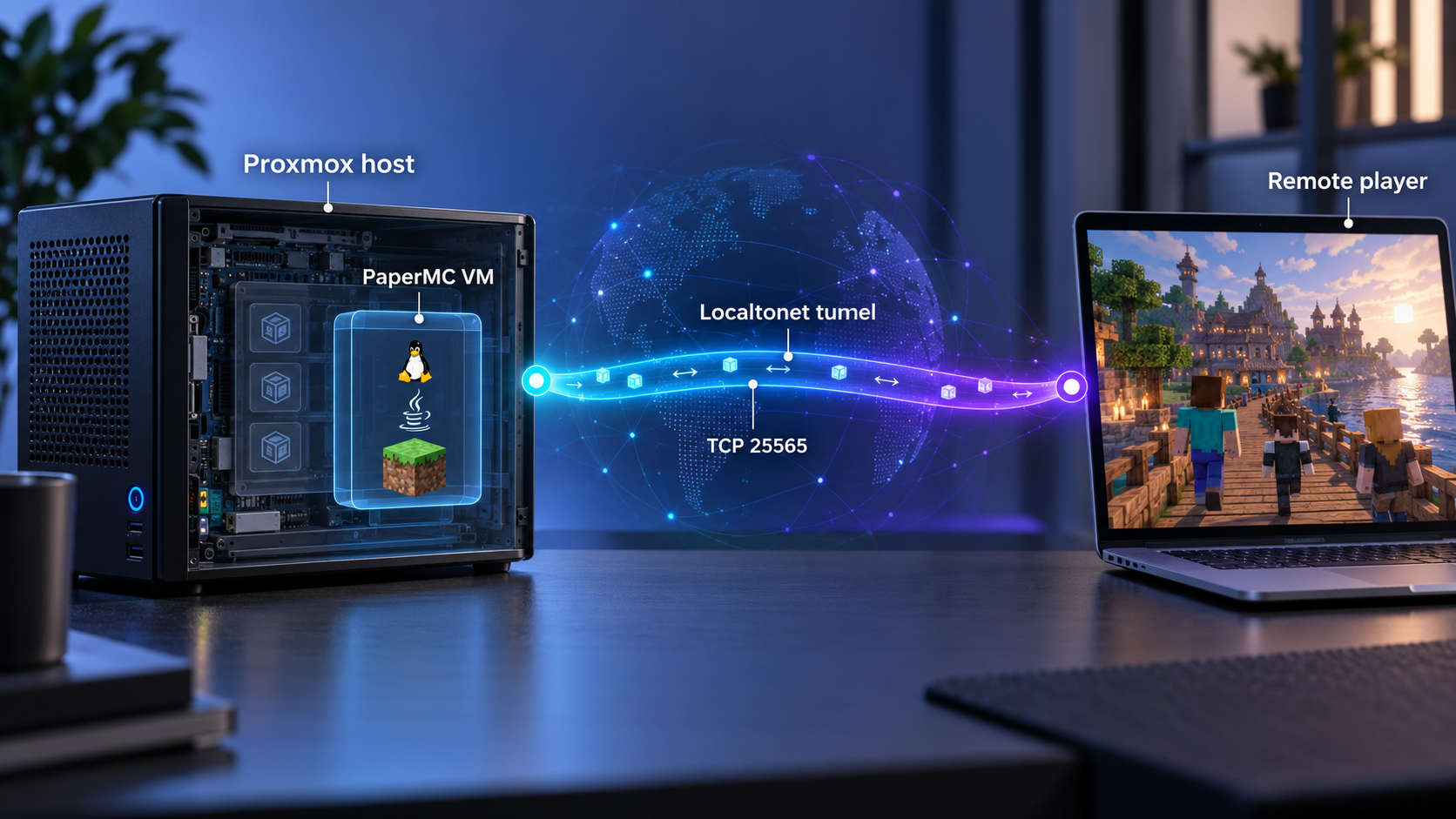
Build a PaperMC server in an isolated VM, verify every local layer, and publish it through a controlled TCP tunnel
Running Minecraft Java in a Proxmox virtual machine separates the game workload from the hypervisor and gives you clear control over compute, storage, networking, updates, and recovery. This guide uses the third-party community project minecraft-server-Proxmox to install PaperMC in a supported Debian or Ubuntu guest. It then installs the Localtonet Linux client as a systemd service, verifies PaperMC locally, and publishes TCP port 25565 without inbound router port forwarding or a public IP address. Project-specific details in this tutorial were checked against release v3.0.0 and its documentation updated June 8, 2026.
📋 What's in this guide
How the Proxmox, PaperMC, and Localtonet architecture works
This deployment has three distinct layers. Proxmox VE provides the virtualization platform, a Debian or Ubuntu guest runs PaperMC, and a Localtonet client establishes the outbound connection that publishes the game service. Keeping those roles separate lets you test each layer independently instead of treating every connection failure as a tunnel problem.
Minecraft Java clients communicate with the game server over TCP. The minecraft-server-Proxmox v3.0.0 documentation identifies 25565/TCP for its Java and PaperMC deployment. Its separate Bedrock workflow uses 19132/UDP. This tutorial follows the Java path, so the Localtonet configuration must use a TCP tunnel, not HTTP or UDP.
Two valid Localtonet client placements
The simplest arrangement is to install our client in the Minecraft VM. PaperMC and Localtonet then share the same network namespace, so 127.0.0.1:25565 is a valid target if PaperMC accepts that local connection. A listener on all VM interfaces can also be addressed through the VM's own local address.
You can instead install Localtonet on another LAN device. In that arrangement, the target must be the Minecraft VM's reachable bridged address, such as an address assigned to its ens18 interface, plus TCP port 25565. The address 127.0.0.1 is not valid from the separate device because loopback always refers to the device on which the client process is running.
| Client placement | Local target | Required path |
|---|---|---|
| Inside the Minecraft VM | 127.0.0.1:25565 or another local address that reaches PaperMC |
PaperMC must accept the connection inside the same network namespace. |
| Separate LAN device | VM bridged address plus 25565/TCP |
The client device must reach the VM through local routing and firewall policy. |
| Separate VLAN or routed segment | Routed VM address plus 25565/TCP |
Inter-segment routing and a narrow firewall rule must permit the client-to-VM connection. |
Follow the path in order: make the VM healthy, install PaperMC, confirm the service and listener, connect over the LAN, start Localtonet, and finally test from outside the LAN. A tunnel cannot repair a stopped Java process, a failed VM network interface, or a firewall rule that blocks the final local hop.
Localtonet forwards connections to an existing service. Creating a TCP tunnel does not install PaperMC, start Java, generate a world, or change Minecraft configuration. PaperMC must already be running and reachable from the device on which our client runs.
Prerequisites and version-specific resource planning
The following project requirements were published for minecraft-server-Proxmox v3.0.0 and verified against the repository documentation updated June 8, 2026. They are not timeless compatibility promises for future releases. Review a newer release before substituting different guest versions, Java releases, or installer behavior.
| Component | v3.0.0 documented requirement | Why it matters |
|---|---|---|
| Proxmox VE | 7.4+, 8.x, or 9.x | Provides the virtualization environment tested by the community project. |
| Guest operating system | Debian 12/13 or Ubuntu 22.04/24.04 | The scripts expect a supported Debian-family package environment. |
| CPU | At least 2 vCPU | PaperMC needs CPU capacity for ticks, entities, plugins, and world generation. |
| Memory | At least 2 to 4 GB for Java | The installer derives initial and maximum JVM heap values from available RAM. |
| Storage | At least 10 GB SSD-backed storage | Worlds, logs, plugins, updates, and backups consume additional space over time. |
| Java | Java 21 | The reviewed release states that current PaperMC builds require Java 21. |
| VM networking | Bridged NIC, commonly through vmbr0 |
The guest needs internet access and a path for LAN or tunnel-client testing. |
| Minecraft endpoint | 25565/TCP |
This is the default local Java endpoint forwarded by the tunnel in this guide. |
Actual capacity depends on player count, world size, view distance, plugin behavior, backups, and competing workloads on the Proxmox host. Treat the documented CPU, memory, and storage values as a starting floor rather than a performance guarantee.
The v3.0.0 installer attempts to use OpenJDK 21. If it is unavailable through the guest's configured repositories, the project documents a fallback to Amazon Corretto 21 through an APT repository using a signed keyring. Do not plan this reviewed deployment around Java 17.
Before installation, confirm that the VM can resolve DNS names, reach package repositories over HTTPS, and maintain a correct system clock. The installer retrieves packages and PaperMC metadata, so a guest without outbound connectivity cannot complete the documented workflow.
DHCP is supported by the quick-start path. A DHCP reservation on your router or DHCP server is often easier to maintain than an address configured manually in the guest. A predictable VM address is particularly important when Localtonet runs on a separate LAN device.
minecraft-server-Proxmox is not an official Proxmox, PaperMC, Mojang, Microsoft, or Localtonet component. Inspect its scripts before execution and decide whether they meet your security and change-control requirements. For reproducibility, use a reviewed release such as v3.0.0 or pin a reviewed commit instead of automatically executing whatever is currently on the moving main branch.
Prepare the Proxmox virtual machine
Create a VM using your normal Proxmox administration process and install one of the guest releases documented for the reviewed project version. Assign at least 2 vCPU, 2 to 4 GB of RAM, and 10 GB of SSD-backed storage. Connect the virtual network adapter to a bridge that can reach your LAN and the internet, commonly vmbr0.
Storage pools, firmware mode, disk controllers, VLAN tags, bridges, gateways, and DNS policy differ between Proxmox environments. The project does not prescribe one universal value for those fields. Select settings that match your existing infrastructure rather than copying an example address or interface name without review.
Update and inspect the guest
sudo apt update
sudo apt upgrade
Resolve package, DNS, clock, or disk-space errors before continuing. Then inspect the VM's interfaces and addresses:
ip -br address
ip route
Record the address assigned to the bridged interface. Ignore loopback and unrelated container interfaces. An address beginning with 127. cannot be used as the target from a different machine.
Confirm the architecture
Architecture matters later when you select the Localtonet DEB package. Check it now:
dpkg --print-architecture
uname -m
A typical x64 VM reports amd64 through dpkg and x86_64 through uname. An ARM64 guest normally reports arm64 and aarch64. Download only the package matching the VM architecture.
Decide where Localtonet will run
Installing our client in the Minecraft VM usually creates the shortest local path and lets systemd manage both services in one guest. A dedicated LAN device is also valid, but that device must be able to reach the VM on TCP port 25565. Installing application software directly on the Proxmox host is not required and weakens the separation between the hypervisor and the workload.
Run setup_minecraft.sh inside the supported Debian or Ubuntu VM. Keep game-server dependencies and third-party scripts off the Proxmox host unless you have deliberately designed and reviewed a different architecture.
Install PaperMC with the community project
The repository provides setup_minecraft.sh for VM deployments. It also contains separate LXC and Bedrock scripts, but those workflows are not interchangeable with this tutorial.
The repository quick start downloads from main. For repeatable deployment, this guide pins the download to release v3.0.0, the version reviewed for the project-specific statements in this article. A release tag improves reproducibility, but it does not replace inspection or establish trust by itself.
Download the reviewed installer without executing it
Save the v3.0.0 script to the VM. Do not pipe an unreviewed remote response directly into a shell.
wget https://raw.githubusercontent.com/TimInTech/minecraft-server-Proxmox/v3.0.0/setup_minecraft.shInspect the downloaded script
Review package installation, repository changes, users, paths, permissions, services, downloads, and network actions before granting execution permission.
less setup_minecraft.shMake the installer executable
Continue only after the downloaded content matches the release and behavior you intended to review.
chmod +x setup_minecraft.shRun the installer inside the VM
Monitor its output for package, Java, download, integrity, ownership, or startup errors.
./setup_minecraft.shAttach to the Minecraft console
Use the dedicated minecraft account and the named screen session created by the default project workflow.
sudo -u minecraft screen -r minecraft
Commands such as downloading a remote script and piping it directly to bash remove the opportunity to inspect what will execute. Download first, review the exact release or commit, and keep a record of the version used. If you choose main, understand that its contents can change between installations.
What v3.0.0 does
The reviewed project release uses PaperMC's Fill v3 API, selects builds from the stable channel, reads download URLs from the API response, and validates downloaded data with size and SHA-256 information. It also supplies a project-specific User-Agent because the API can reject or rate-limit requests without an appropriate one.
The installer sizes JVM memory from available system RAM. The documented calculation uses an initial heap of approximately one quarter of RAM and a maximum heap of approximately one half, with the maximum capped at 16 GB. This is automated initial sizing, not a promise that every plugin set or player population will perform well with those values.
These Fill v3, Java 21, stable-channel, and memory-sizing statements describe v3.0.0 as reviewed on June 8, 2026. If you install a later release or a different commit, inspect its documentation and script rather than assuming identical behavior.
Verify PaperMC before exposing it
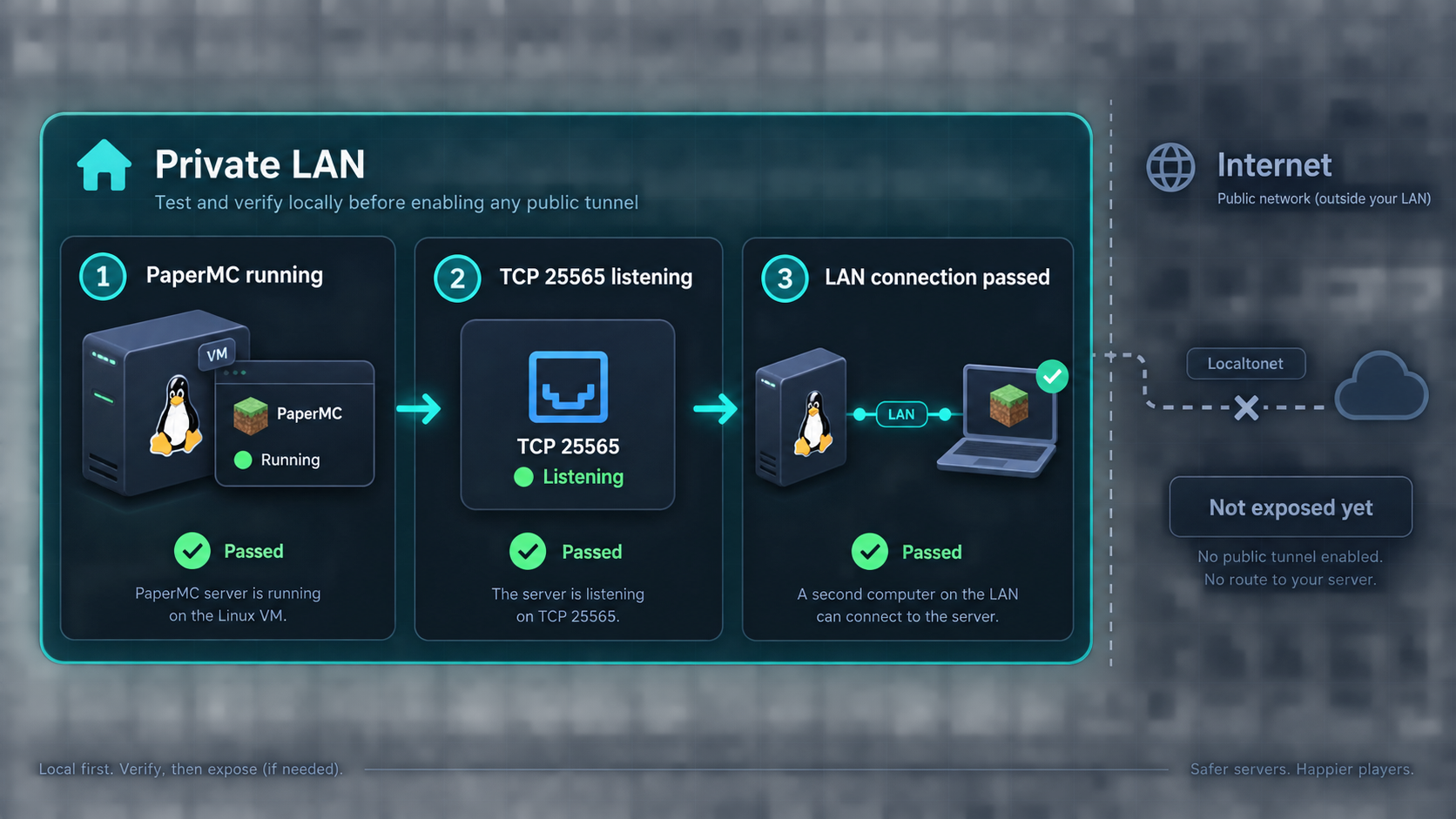
Verify from the inside out. Check the systemd unit, inspect the game console, identify the actual TCP 25565 listener, and then join from a LAN client. Each test isolates a different layer.
Check the systemd service
sudo systemctl status minecraft.service --no-pager
sudo systemctl is-active minecraft.service
sudo systemctl is-enabled minecraft.service
The default project workflow installs minecraft.service. An active state confirms that systemd considers the process running. An enabled state confirms that the unit is configured to start at boot. Neither result alone proves that a player can complete a Minecraft connection.
If the unit failed, inspect its journal:
sudo journalctl -u minecraft.service -n 100 --no-pagerInspect the PaperMC console
sudo -u minecraft screen -r minecraftLook for completed startup and review errors related to Java, world loading, plugins, ownership, memory, or malformed server files. To detach from GNU Screen without stopping the game process, use the screen detach sequence rather than closing the server abruptly.
Identify the exact TCP listener
A focused socket query is more useful than listing every TCP service in the VM:
sudo ss -ltnp 'sport = :25565'The output should identify a listening socket on port 25565 and, when permissions allow, its associated Java process. You can also confirm the process separately:
pgrep -a java
A listener on 0.0.0.0:25565 or the VM's bridged address can normally accept traffic addressed to that interface, subject to firewall rules. A listener only on 127.0.0.1:25565 is reachable within the VM but not from a separate LAN device.
Join from the LAN
From a compatible Minecraft Java client, connect to the VM's bridged address and port 25565. This verifies PaperMC, the VM bridge, local routing, and applicable guest or network firewalls. If Localtonet will run on another device, perform this test from that device's network segment whenever possible.
If the service is inactive, nothing listens on TCP 25565, or a LAN client cannot connect, repair the VM or PaperMC path first. Recreating the public tunnel cannot correct a failed local service.
Operate, update, back up, and recover the default installation
The commands in this section apply to the repository's default v3.0.0 VM layout and service names. A customized installation may use different paths, units, users, screen names, or backup tooling. Confirm those differences before running commands that stop services or modify files.
Start, stop, restart, and inspect PaperMC
sudo systemctl start minecraft.service
sudo systemctl stop minecraft.service
sudo systemctl restart minecraft.service
sudo systemctl status minecraft.service --no-pager
sudo journalctl -u minecraft.service -n 100 --no-pager
Prefer a clean in-game or console shutdown when you are performing planned administration. The Minecraft console provides server-level control, while systemd manages the operating-system process lifecycle. Avoid powering off the VM while world data is being written.
Use the administrative console
sudo -u minecraft screen -r minecraftFrom the server console, standard administrative actions include saving world state and stopping cleanly:
save-all
stop
After stop, verify that the systemd unit reflects the expected state before manipulating world files. If systemd is configured to restart the process automatically in a customized installation, stop the unit through systemd before maintenance.
Repair the Debian screen socket when necessary
The v3.0.0 project documentation specifically calls out Debian 12 and 13 screen socket requirements. If attaching reports a missing socket directory or no usable screen socket, ensure that /run/screen exists with owner root, group utmp, and mode 0775:
sudo install -d -o root -g utmp -m 0775 /run/screen
sudo -u minecraft screen -ls
sudo -u minecraft screen -r minecraft
The /run filesystem is normally recreated at boot, so check this condition again if console attachment fails after a reboot. A missing screen session can also mean that PaperMC never started, so inspect minecraft.service and its journal rather than treating every screen error as a directory-permission problem.
Update PaperMC using the project updater
The default project installs an update.sh workflow under the Minecraft installation. Before updating, create and validate a backup, stop PaperMC cleanly, run the reviewed updater as the dedicated account, restart the unit, and verify the service and listener.
sudo systemctl stop minecraft.service
sudo -u minecraft /opt/minecraft/update.sh
sudo systemctl start minecraft.service
sudo systemctl status minecraft.service --no-pager
sudo ss -ltnp 'sport = :25565'
If your installation placed update.sh elsewhere, do not copy it blindly into /opt/minecraft. Find the installed script and compare it with the release you reviewed:
sudo find /opt/minecraft -maxdepth 2 -type f -name update.sh -lsThe v3.0.0 updater uses the Fill v3 API, selects the stable channel, consumes the API-provided download URL, and performs size and SHA-256 validation. Do not manually reconstruct a download URL from an obsolete API pattern.
Create an application-consistent backup
The repository provides backup examples and uses /opt/minecraft as the default source layout. A simple maintenance backup can stop the service, archive the directory, validate the archive listing, and then restart the service. Choose a destination with enough space and preferably copy completed backups outside the VM.
sudo mkdir -p /var/backups/minecraft
sudo systemctl stop minecraft.service
sudo tar -C /opt -czf /var/backups/minecraft/minecraft-backup.tar.gz minecraft
sudo tar -tzf /var/backups/minecraft/minecraft-backup.tar.gz > /dev/null
sudo systemctl start minecraft.service
sudo systemctl status minecraft.service --no-pager
Using a fixed archive name replaces the previous archive. For routine operation, use the repository's documented systemd backup example or your existing backup platform to create dated archives, enforce retention, report failures, and copy backups to separate storage. Do not let backup archives fill the VM disk.
Validate restore data without overwriting the live server
An archive is not proven recoverable merely because the backup command exited. List it, extract it into a staging directory, and inspect the expected world and configuration data:
sudo tar -tzf /var/backups/minecraft/minecraft-backup.tar.gz
sudo rm -rf /var/tmp/minecraft-restore-test
sudo mkdir -p /var/tmp/minecraft-restore-test
sudo tar -C /var/tmp/minecraft-restore-test -xzf /var/backups/minecraft/minecraft-backup.tar.gz
sudo find /var/tmp/minecraft-restore-test -maxdepth 3 -type f | head
Do not extract a backup over the running installation as a test. A real recovery should stop the service, preserve the failed installation separately, restore the selected archive, correct ownership if required, start PaperMC, inspect the journal, confirm port 25565, and test with a client. Practice that procedure in a disposable VM before relying on it during an incident.
Verify both services after reboot
Reboot testing catches missing enablement, transient /run/screen problems, changed addresses, and tunnel-client startup failures:
sudo rebootAfter the VM returns, reconnect and run:
sudo systemctl is-active minecraft.service
sudo systemctl is-enabled minecraft.service
sudo systemctl status minecraft.service --no-pager
sudo ss -ltnp 'sport = :25565'
sudo -u minecraft screen -ls
ip -br address
After Localtonet is installed, include its service and journal in the same reboot check. Also confirm in the dashboard that the selected device is connected and that the tunnel itself is running.
Install Localtonet and publish the Minecraft TCP service
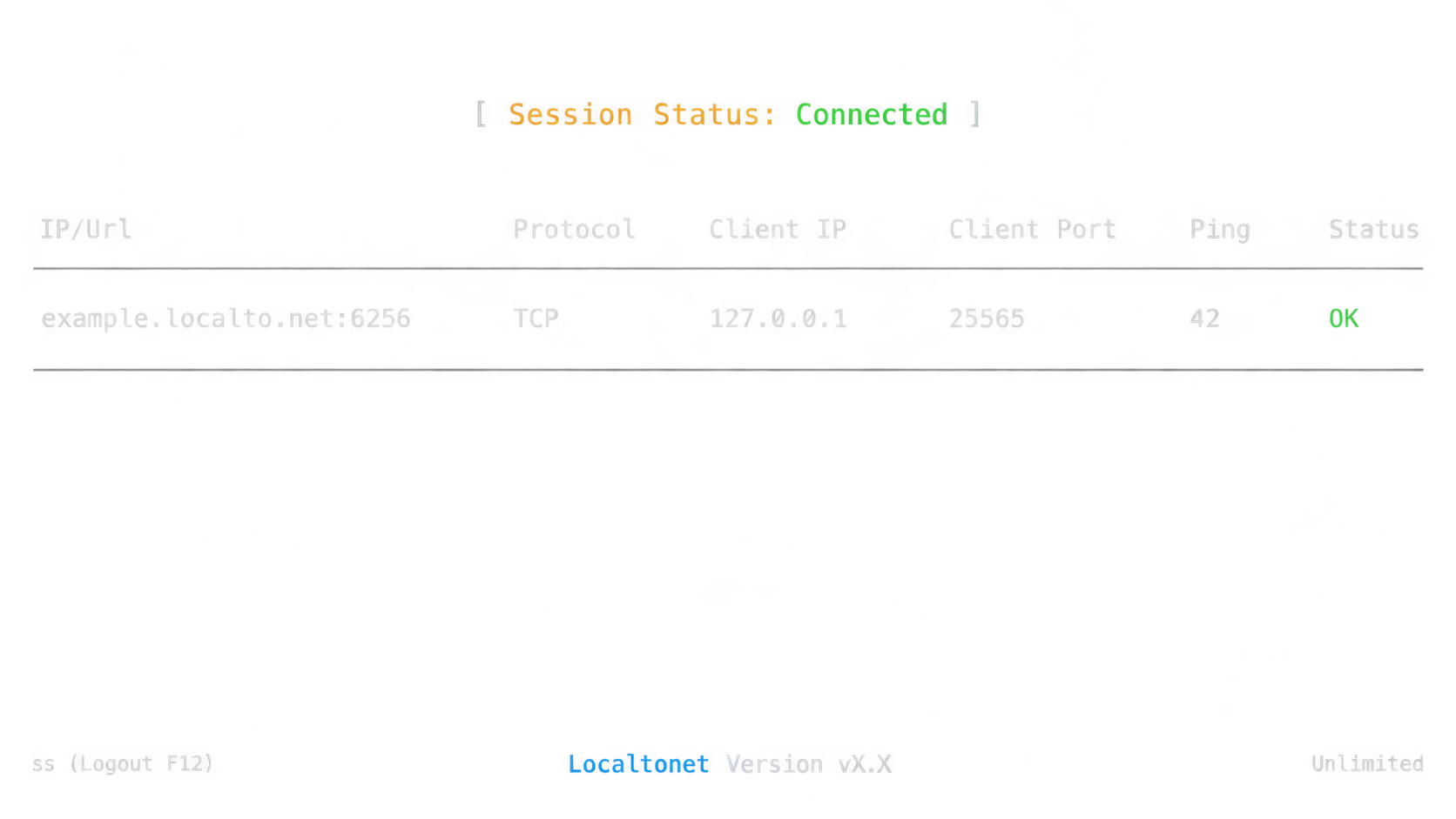
The reviewed Debian and Ubuntu guests support our current installable DEB packages when they meet the documented requirements of systemd 247 or newer and OpenSSL 3. Localtonet provides separate x64 and ARM64 packages. Select the package matching the architecture reported by dpkg --print-architecture.
Install the Localtonet DEB package
Download the matching package
From the Localtonet documentation and download page, choose localtonet-linux-x64.deb for an x64 VM or localtonet-linux-arm64.deb for an ARM64 VM. Open a terminal in the directory containing the downloaded file.
Install the downloaded package
Use the command matching the file you downloaded.
sudo apt install ./localtonet-linux-x64.debFor an ARM64 VM, use:
sudo apt install ./localtonet-linux-arm64.debSet and validate the device token
Edit /etc/localtonet/auth-token as root. Replace the package placeholder with your actual device-specific token on one line. The value below is intentionally a placeholder and must not be used as a real token.
sudoedit /etc/localtonet/auth-tokenYOUR_LOCALTONET_DEVICE_TOKENProtect the token file and run the documented configuration check:
sudo chmod 600 /etc/localtonet/auth-token
sudo localtonet --headless --authtoken-file /etc/localtonet/auth-token --check-configEnable and start the Localtonet service
Start the standard tunnel client only after the configuration check succeeds.
sudo systemctl enable --now localtonet.service
sudo systemctl status localtonet.service --no-pager
sudo journalctl -u localtonet.service
The token identifies the Localtonet client device. Never publish it in a guide, shell history example, screenshot, repository, server message, or support post. Keep the token file restricted to mode 600. If a token is exposed, replace it through your account rather than continuing to use it.
Create and start the Minecraft TCP tunnel
Confirm that the device is connected
Verify that localtonet.service is active and that the expected device appears connected in the Localtonet dashboard.
Select an available relay server
Choose an available server or region displayed by the current dashboard. Do not copy a server code from an older tutorial because available values can vary.
Create a TCP tunnel
Select TCP and target port 25565. If our client runs inside the Minecraft VM, use an address that reaches PaperMC within that VM. If our client runs elsewhere, use the VM's reachable LAN address. Minecraft Java is not an HTTP application, so do not select an HTTP tunnel.
Start the tunnel
Review the device, relay, local IP address, and local port, then press Start. Creating a tunnel record does not make it active. The tunnel forwards traffic only while the selected device is connected and the tunnel is running.
Record the assigned public endpoint
Use the public host and port displayed for the running TCP tunnel. Do not substitute the private VM address or assume that the public port is also 25565.
Test from outside the LAN
From a compatible Minecraft Java client on another internet connection, connect to the assigned public host and port. An off-LAN test verifies the player, relay, Localtonet client, local target, and PaperMC path together.
PaperMC listens locally on TCP port 25565 in this deployment. Localtonet can assign a different public port. Players must enter the public host and public port displayed for the active tunnel, while the tunnel continues forwarding to local port 25565.
Verify the complete remote path
Before declaring the server available, check every state explicitly:
sudo systemctl is-active minecraft.service
sudo ss -ltnp 'sport = :25565'
sudo systemctl is-active localtonet.service
sudo journalctl -u localtonet.service -n 100 --no-pager
Then confirm all of the following in the Localtonet dashboard:
- The expected device is connected.
- The tunnel type is TCP.
- The local target points to the correct address and port 25565.
- The tunnel state is running.
- The player is using the displayed public host and port.
Finally, connect from outside the server's LAN. Testing only from inside the same network can hide routing, address-selection, or endpoint-entry mistakes.
Upgrade the Localtonet package
Download the new package matching the VM architecture and install it with apt as before. The documented package upgrade preserves the configuration. Restart the standard service and inspect it:
sudo apt install ./localtonet-linux-x64.deb
sudo systemctl restart localtonet.service
sudo systemctl status localtonet.service --no-pager
sudo journalctl -u localtonet.service -n 100 --no-pager
Substitute the ARM64 filename when applicable. This tutorial uses standard TCP tunneling, not Localtonet VPN Manager, so localtonet.service is the relevant unit.
Verify Localtonet after reboot
sudo systemctl is-enabled localtonet.service
sudo systemctl is-active localtonet.service
sudo systemctl status localtonet.service --no-pager
sudo journalctl -u localtonet.service -b --no-pager
Service startup does not by itself prove that the Minecraft tunnel is running. Also check the dashboard tunnel state and perform an off-LAN Minecraft connection using the current public endpoint.
Apply least-privilege access controls
Avoiding router port forwarding removes one configuration requirement, but it does not make an internet-reachable Minecraft server risk-free. Treat PaperMC as a public-facing service and control access at the Minecraft, guest, network, Proxmox, and Localtonet account layers.
Enable the Minecraft allowlist
For a private community, use the PaperMC console to enable the built-in allowlist and add each approved player:
whitelist on
whitelist add PlayerName
whitelist list
Remove access when it is no longer needed:
whitelist remove PlayerName
Replace PlayerName with the actual account name. Do not publish the endpoint as a substitute for access control. Endpoint secrecy can reduce casual discovery, but it is not authorization.
Restrict administrative privileges
Grant operator status only to a trusted administrative account:
op AdminNameRemove it when the account no longer needs elevated rights:
deop AdminNameAvoid granting operator permissions to every regular player. Review plugin permissions separately because plugins can introduce their own privileged commands and access models.
Preserve normal account authentication
For an ordinary internet-facing server, keep Minecraft's normal authenticated-account behavior enabled unless you fully understand the identity and impersonation consequences of changing it. A TCP tunnel transports packets and does not replace Minecraft authentication, allowlists, operator controls, or plugin authorization.
Use a narrow firewall policy
The community project provides UFW guidance, but UFW must be installed before using ufw commands. Firewall requirements depend on client placement. If Localtonet runs inside the VM and targets loopback, you do not need to expose TCP 25565 broadly to every LAN segment. If it runs on a separate device, permit only the required device-to-VM path where your firewall supports source restrictions.
Do not create an inbound router forwarding rule for TCP 25565 as part of this Localtonet workflow. Also do not disable the guest firewall merely to make a connection test pass. Identify the exact source, destination, protocol, and port required by your chosen architecture.
Plugins execute inside the server environment, and installation scripts can modify the guest. Use maintained sources, inspect changes, pin versions when repeatability matters, and back up before upgrades. Localtonet connectivity does not validate or sandbox Minecraft plugins.
Troubleshoot the complete connection path
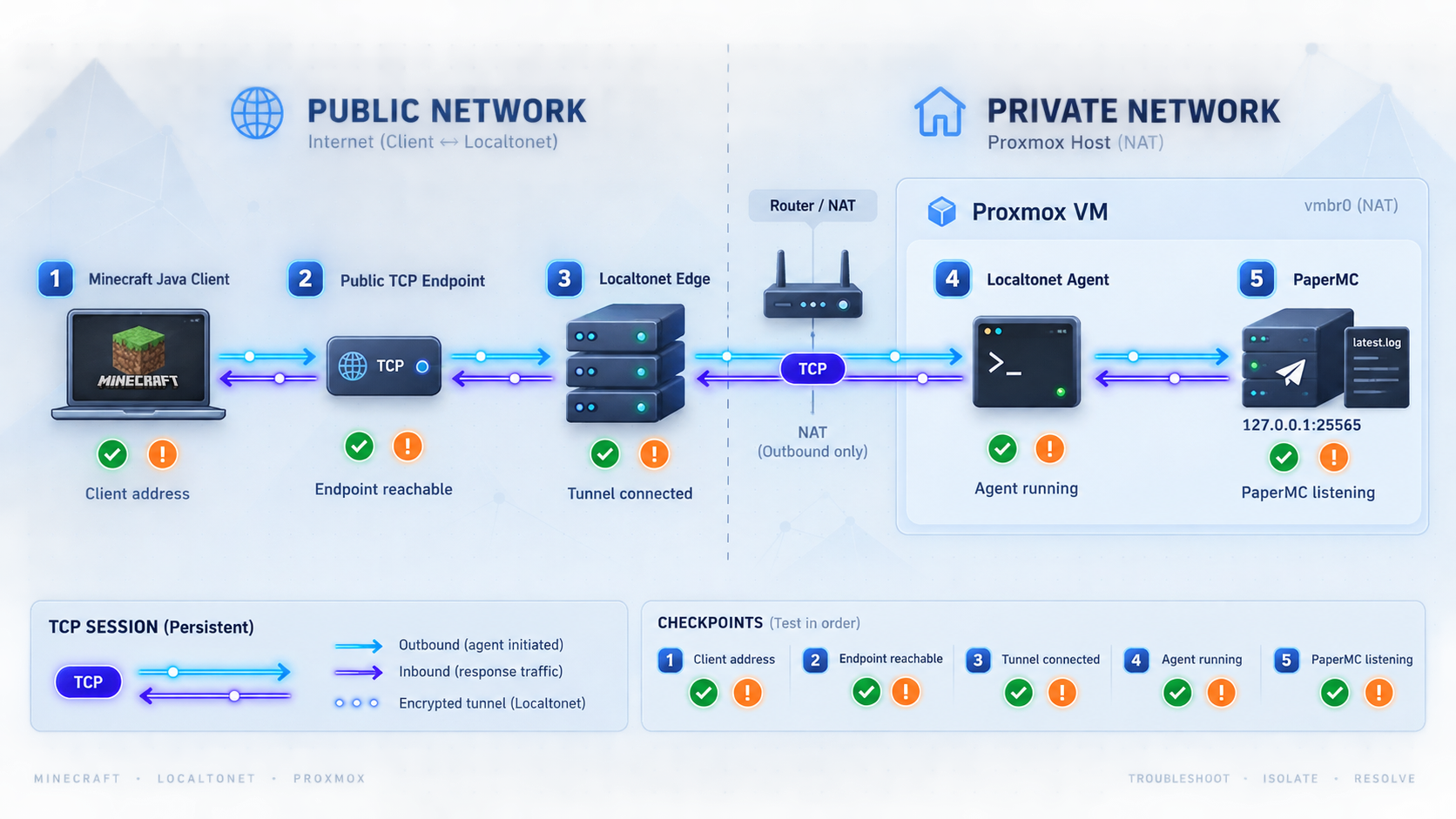
The installer cannot download PaperMC
Confirm DNS resolution, system time, outbound HTTPS, and free storage. If an old script reports PaperMC v2 API errors, invalid version objects, or HTTP 404 responses from a manually constructed URL, compare it with v3.0.0 or a newer reviewed release that uses Fill v3.
The reviewed v3.0.0 scripts select a real patch version, filter for the stable channel, send a project User-Agent, consume the API-provided download URL, and validate size and SHA-256 metadata. Repeatedly editing a retired URL pattern is not a reliable fix.
Java reports an unsupported version
java -version
sudo journalctl -u minecraft.service -n 100 --no-pager
The reviewed project version requires Java 21 for its current PaperMC workflow. If Java 21 is installed but an older runtime remains the active default, PaperMC can still fail. Review installer output for OpenJDK or Amazon Corretto repository and package errors.
The Minecraft service is failed
sudo systemctl status minecraft.service --no-pager
sudo journalctl -u minecraft.service -b --no-pager
Look for the first meaningful error rather than only the final failure line. Common categories include an unavailable Java runtime, incorrect ownership, missing files, insufficient memory, disk exhaustion, plugin errors, or world-loading failures.
No process listens on TCP 25565
sudo ss -ltnp 'sport = :25565'
pgrep -a java
sudo -u minecraft screen -ls
If all three checks are empty, PaperMC is not running. Inspect the systemd journal and console setup. A running Localtonet service cannot forward to a missing listener.
Screen cannot find the Minecraft session
On Debian 12 or 13, verify the socket directory:
ls -ld /run/screen
sudo install -d -o root -g utmp -m 0775 /run/screen
sudo -u minecraft screen -ls
If the directory is correct but no session exists, check minecraft.service. Do not create an unrelated screen session and assume that it replaces the project's service workflow.
LAN players cannot connect
ip -br address
ip route
sudo ss -ltnp 'sport = :25565'
Confirm that the player uses the VM's bridged address rather than loopback. Check the selected Proxmox bridge, VLAN placement, guest firewall, and any firewall between network segments. A loopback-only listener cannot accept a connection from another LAN device.
Localtonet fails its configuration check
Confirm that the token file contains exactly the intended device token on one line, that it is not still set to the placeholder, and that permissions are restricted:
sudo stat /etc/localtonet/auth-token
sudo chmod 600 /etc/localtonet/auth-token
sudo localtonet --headless --authtoken-file /etc/localtonet/auth-token --check-config
Do not print the token to the terminal or include its contents in diagnostic output shared with others.
The Localtonet service does not start
sudo systemctl status localtonet.service --no-pager
sudo journalctl -u localtonet.service -b --no-pager
Check package architecture, required dependencies, token configuration, network access, and the configuration-check result. If the wrong DEB architecture was selected, install the package matching the guest architecture.
The tunnel exists but the public endpoint does not work
Confirm that the tunnel was started, not merely created. Verify that the selected device is connected, the tunnel type is TCP, the current relay is available, and the target points to the correct address and port 25565.
A frequent mistake is using 127.0.0.1 when Localtonet runs on another machine. On that machine, loopback points back to the Localtonet client device, not to the Minecraft VM. Use the VM's reachable LAN address instead.
The Minecraft client times out remotely
Repeat the local connection test from the Localtonet client device. Then verify both services and inspect the tunnel state:
sudo systemctl is-active minecraft.service
sudo ss -ltnp 'sport = :25565'
sudo systemctl is-active localtonet.service
sudo journalctl -u localtonet.service -n 100 --no-pager
Confirm that the player entered both the current public host and current public port. Test from a true off-LAN connection. If the local path works but the remote path fails, change one component at a time so that useful diagnostic evidence is not lost.
The server fails after a reboot
Check whether both units are enabled and active:
sudo systemctl is-enabled minecraft.service
sudo systemctl is-active minecraft.service
sudo systemctl is-enabled localtonet.service
sudo systemctl is-active localtonet.service
sudo ss -ltnp 'sport = :25565'
sudo -u minecraft screen -ls
Also confirm that the VM retained the expected address, repair the Debian screen socket if required, and verify the tunnel's running state in the dashboard. A connected Localtonet client and a running tunnel are related but separate states.
Players report poor performance
Separate game-server performance from network connectivity. High tick time, world generation, plugins, CPU contention, memory pressure, and storage latency can affect LAN and remote players alike. A route or relay issue is more likely when LAN play remains healthy but remote play is consistently delayed.
Compare tests using the same world and workload. Monitor VM and host resources, and avoid changing JVM, plugin, storage, firewall, and tunnel settings simultaneously. No specific latency, throughput, or performance result is guaranteed because the outcome depends on the Proxmox host, guest allocation, network path, relay selection, player location, and Minecraft workload.
Frequently asked questions
Which Localtonet tunnel type should I use for Minecraft Java?
Use a TCP tunnel. The reviewed PaperMC deployment listens on TCP port 25565. HTTP is for web applications, and UDP is not the correct protocol for this Minecraft Java workflow.
Do I need to forward port 25565 on my router?
No. Our client establishes an outbound connection to a Localtonet relay, so this workflow does not require inbound router port forwarding or a public IP address. A local firewall must still permit the client-to-PaperMC path when the two processes run on different devices.
Can Localtonet run inside the Minecraft VM?
Yes. Running our client in the same VM simplifies the local path and allows a same-namespace target such as 127.0.0.1:25565 when PaperMC accepts that connection. A separate LAN device also works if it can reach the VM on TCP 25565.
Does the public port have to be 25565?
No. Port 25565 is the local PaperMC target in this deployment. Players must use the public host and public port assigned to the running Localtonet TCP tunnel.
Can I use Java 17?
Not for the v3.0.0 workflow reviewed here. Its documentation, updated June 8, 2026, specifies Java 21 for current PaperMC builds. Recheck the requirements if you use another project release or PaperMC version.
Is minecraft-server-Proxmox an official Localtonet or PaperMC installer?
No. It is a third-party community project and is not an official component of Localtonet, PaperMC, Mojang, Microsoft, or Proxmox. Review its scripts, pin a release or commit when reproducibility matters, and avoid executing an unreviewed remote script directly through a shell pipeline.
Can I use an LXC container instead of a VM?
The community repository provides a separate setup_minecraft_lxc.sh workflow. This tutorial uses the VM installer setup_minecraft.sh. Do not mix the VM and LXC installation procedures.
Is the same tunnel configuration correct for Minecraft Bedrock?
No. The reviewed repository documents Bedrock separately on port 19132 over UDP and provides a different installer. This article covers Minecraft Java and PaperMC on TCP port 25565.
Will the tunnel remain online when the VM is shut down?
Not when our client runs in that VM, and PaperMC will also be unavailable. In every placement, the selected Localtonet device must remain connected, the tunnel must be running, and PaperMC must remain available at the configured local target.
Does Localtonet replace Minecraft access controls or backups?
No. A TCP tunnel provides connectivity. You still need authenticated player accounts, an allowlist where appropriate, restricted operator permissions, plugin review, guest hardening, updates, monitoring, and tested backups.
Connect your verified Minecraft Java server with Localtonet
Once minecraft.service is healthy, PaperMC is listening on TCP port 25565, and LAN testing succeeds, install our Linux client, create a TCP tunnel, and share the assigned public host and port only with your approved players.


