

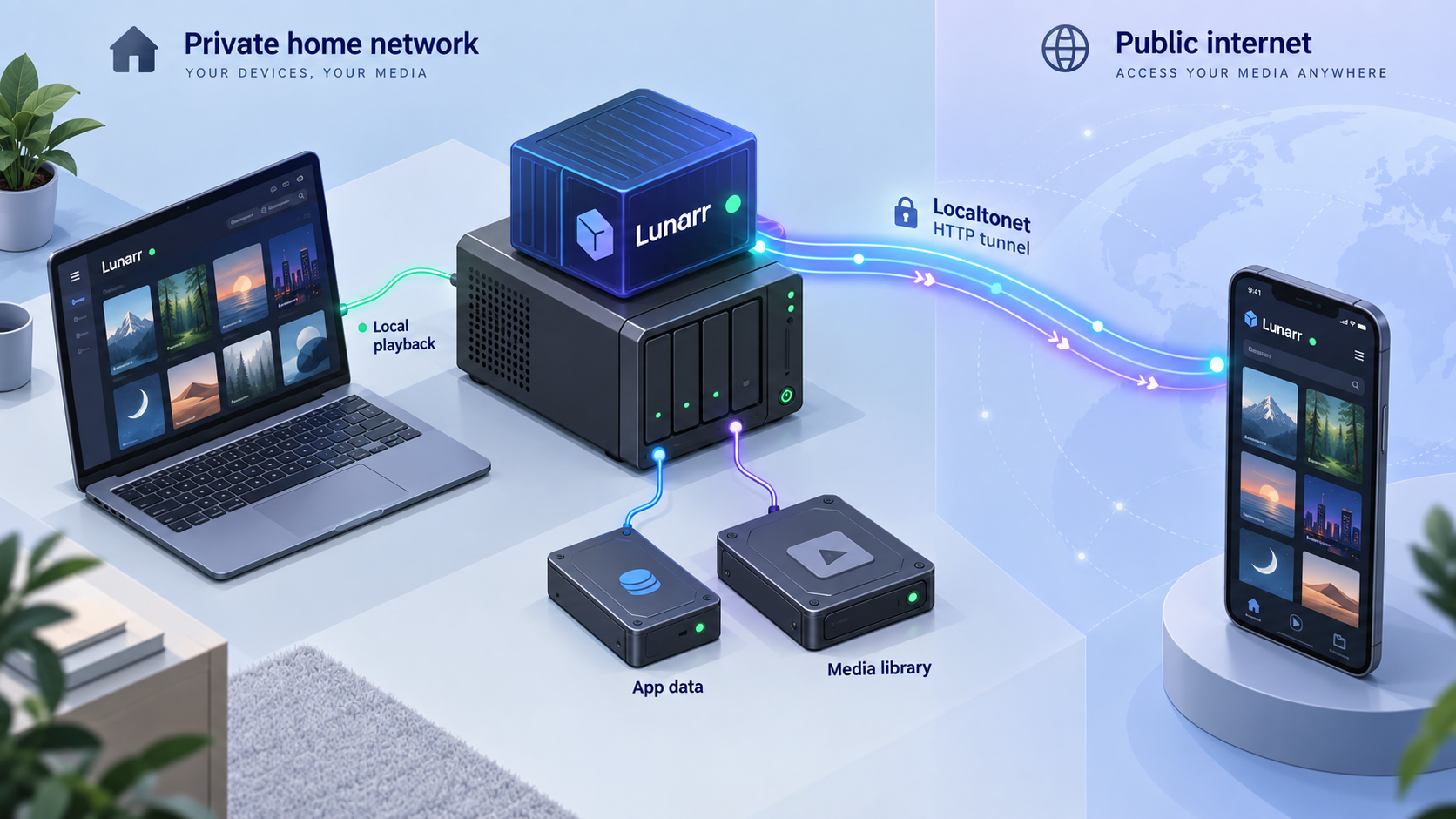
Build a persistent Lunarr media server, verify playback locally, then make it available through a controlled public endpoint
Lunarr is a self-hosted media server for movie and television libraries stored on local disks, SFTP servers, or WebDAV services. In this guide, we install the published Lunarr Docker image, preserve its database and playback data, mount a local media directory safely, create the first administrator, scan a library, and verify the service at its documented local address. After the local installation works, we connect it to a Localtonet HTTP tunnel for remote browser access without inbound router port forwarding, firewall changes, VPN setup, or a public IP address.
📋 What's in this guide
What Lunarr is and how this Docker deployment works
Lunarr is designed to organize and stream movie and television files from a server you control. It scans supported media files, associates them with TMDb metadata, and presents the resulting library through a browser-based interface. Playback can use direct streaming when the media and client are compatible, or on-the-fly HLS transcoding through FFmpeg when conversion is required.
The server supports three library sources: local filesystem paths, SFTP locations, and WebDAV locations. A local library in this context means a path visible to the Lunarr process. Because we are running Lunarr inside Docker, the application cannot automatically see arbitrary directories on the host. We must explicitly mount a host directory into the container and then enter the container-side path when creating the library.
The published sayem314/lunarr:latest image includes system FFmpeg and verifies baseline FFmpeg requirements during its image build. Normal users of this image therefore do not need to install FFmpeg manually inside the container. Lunarr also uses SQLite for its application database and keeps playback-related data under its persistent data directory.
/data, preserving the SQLite database, HLS playlists, shared playback cache, and authentication secret data across container replacement.
For this installation, Docker publishes container port 3000 as host port 3000. The documented local endpoint is therefore http://127.0.0.1:3000. The separate port 5173 appears in Lunarr's local development workflow and is not the endpoint used by the published production Docker image in this guide.
Lunarr also documents AUR and Homebrew installation paths, as well as a source-based development workflow. Those paths have different service-management and startup procedures. The instructions below intentionally focus on the published Docker image because it provides the documented production-oriented setup with FFmpeg included.
Prerequisites for self-hosting Lunarr
Prepare the host before creating the container. The host may be a server, workstation, NAS environment, or another Docker-capable system, but this guide does not assume support for a particular processor architecture or Docker platform beyond what the current published image provides. Confirm image compatibility with your host rather than assuming that every architecture is available.
You need the following:
- A working Docker installation with permission to create containers, networks, named volumes, and bind mounts.
- Host port
3000available, unless you deliberately choose another host-side port mapping. - A stable random value of at least 32 characters for
AUTH_SECRET. - Enough persistent storage for Lunarr's database, HLS playlists, shared encoded segments, and other application data.
- Read access to a media directory if you plan to use local movie or television files.
- A modern browser for first-run administration and playback testing.
- For remote access, a Localtonet client installed on the Docker host or another device that can reach the published Lunarr port.
No fixed CPU, memory, or disk-capacity requirement is established by the supplied official Lunarr documentation. Actual requirements depend heavily on library size, concurrent playback, file formats, direct-play compatibility, and whether FFmpeg must transcode. Transcoding is generally more computationally demanding than direct play, but this guide does not assign an unsupported minimum hardware specification.
Confirm that Docker is available
Run the following commands on the intended host. The first confirms that the Docker client is installed, and the second checks whether the client can communicate with the Docker service.
docker --version
docker ps
If docker --version is unavailable, install Docker using the supported process for your operating system. If the command exists but docker ps reports a permission or daemon connection error, resolve that Docker-level problem before proceeding. Lunarr cannot start until Docker can create and run containers.
Choose the media directory
The documented Docker example uses /mnt/media as the host media path and exposes it as /media inside the container. Replace /mnt/media with the real path on your host. If all libraries will come from SFTP or WebDAV, the local media bind mount is optional and can be removed.
The example mounts local media read-only by adding :ro. This gives Lunarr permission to scan and play files without giving the container permission to modify the mounted library. Keep this read-only setting unless you have a specific, reviewed reason to allow writes.
The first user registered on a new Lunarr installation becomes the administrator. Complete first-run account creation locally before exposing the service publicly. Do not start a public tunnel to an uninitialized instance, because an unexpected visitor could reach the setup flow before you create the administrator.
Plan persistent data, media mounts, and core environment variables
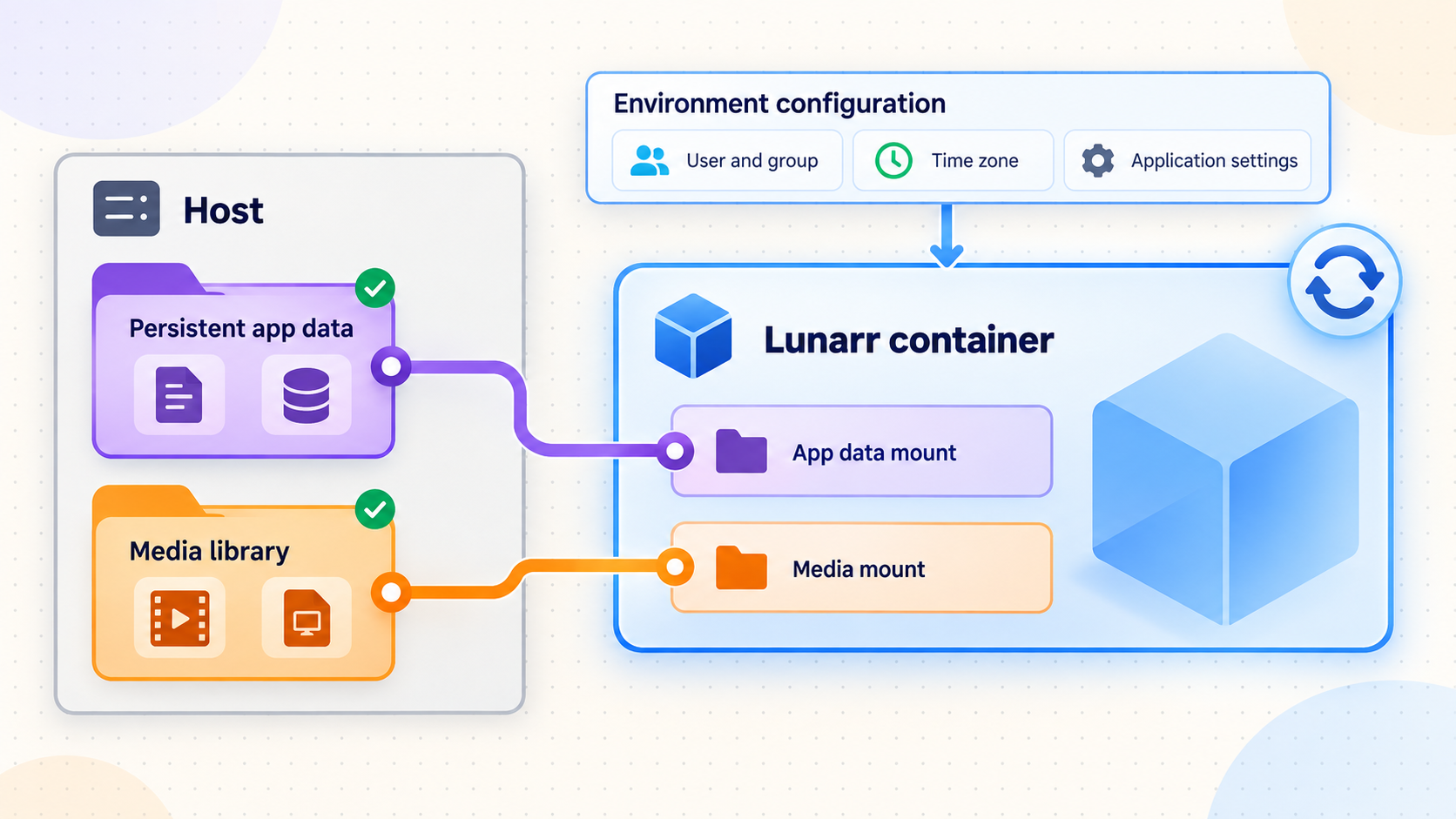
A reliable container deployment separates replaceable application code from persistent state. The Lunarr image can be downloaded again, but the database, sessions, encrypted settings, and library configuration need durable storage. The official Docker command maps the named volume lunarr-data to /data in the container.
| Setting or mount | Purpose | Required handling |
|---|---|---|
AUTH_SECRET |
Supports authentication, encrypted stored secrets, and signed playback URLs | Use at least 32 characters, keep it private, and keep it stable between restarts |
ORIGIN |
Defines the URL users open and scopes cookies and signed URLs | Set it to the actual browser-facing URL, including scheme and port where applicable |
lunarr-data:/data |
Persists the SQLite database, playback sessions, shared HLS cache, and related state | Retain and back up the named volume rather than deleting it during routine updates |
/mnt/media:/media:ro |
Makes a host media directory visible to Lunarr | Replace the host path and enter the container path, such as /media, in Lunarr |
3000:3000 |
Publishes Lunarr's container port to the Docker host | Use http://127.0.0.1:3000 for the documented local verification flow |
Why AUTH_SECRET must remain stable
AUTH_SECRET is not merely a disposable container password. Lunarr uses it for login-related behavior, server-side encryption helpers, encrypted API keys, share and device-pairing tokens, and signed remote playback URLs for features including Cast, AirPlay, HLS, and subtitles.
Changing the secret after the service has been used invalidates existing sessions, encrypted secrets, and signed playback tokens. Generate a strong value with a trusted random-secret mechanism, store it in a password manager or secret-management system, and reuse that exact value whenever the container is recreated.
Lunarr can generate and persist a secret under its data directory if AUTH_SECRET is unset. For a deliberate Docker deployment, setting it explicitly makes the configuration clear and avoids accidental differences between environments. Do not paste the real value into documentation, shell history shared with others, screenshots, tickets, or public repositories.
Why ORIGIN must match the access URL
ORIGIN tells Lunarr where users access the service. It affects cookies, login sessions, and signed playback links. For the initial local-only setup in this guide, use http://127.0.0.1:3000. If you later make Lunarr available at a Localtonet public HTTPS address, update ORIGIN to that exact public address and recreate the container with the same data volume and authentication secret.
A changed AUTH_SECRET invalidates sessions, encrypted secrets, and signed playback tokens. An incorrect ORIGIN can cause login, cookie, session, and remote playback failures. Treat both values as production configuration, not temporary examples.
Install Lunarr with Docker
The following procedure follows the documented Docker quick-start workflow. It creates a persistent named volume, publishes port 3000, supplies the required core configuration, and optionally mounts local media read-only.
Choose the host media path and create a stable secret
Identify the host directory containing your movies or television files. Generate a private random value containing at least 32 characters for AUTH_SECRET. Keep the value available for future container recreation, but do not publish it or use the placeholder from this article.
Run the published Lunarr image
Replace the authentication placeholder and /mnt/media before running the command. The named volume preserves application data, and the media mount is read-only.
Confirm that the container is running
Inspect Docker's container list and Lunarr logs. Resolve startup errors before opening the application or configuring remote access.
Open the documented local endpoint
On the Docker host, open http://127.0.0.1:3000. A new installation should redirect to Lunarr's setup flow.
Run the documented image with a local media directory:
docker run -d \
  --name lunarr \
  --restart unless-stopped \
  -p 3000:3000 \
  -e AUTH_SECRET=replace-with-a-random-secret-at-least-32-chars \
  -e ORIGIN=http://127.0.0.1:3000 \
  -v lunarr-data:/data \
  -v /mnt/media:/media:ro \
  sayem314/lunarr:latest
If you will use only SFTP or WebDAV libraries, remove the local media mount:
docker run -d \
  --name lunarr \
  --restart unless-stopped \
  -p 3000:3000 \
  -e AUTH_SECRET=replace-with-a-random-secret-at-least-32-chars \
  -e ORIGIN=http://127.0.0.1:3000 \
  -v lunarr-data:/data \
  sayem314/lunarr:latest
The --restart unless-stopped policy asks Docker to restart the container after a daemon or host restart unless you intentionally stopped it. This does not replace application monitoring, but it supports routine unattended recovery from host restarts.
Check the current container state:
docker ps --filter name=lunarrThen inspect the startup output:
docker logs lunarrDocker should show the container as running. If it exits or repeatedly restarts, inspect the logs before proceeding. Do not assume a created container is a healthy application.
Lunarr's repository contains a Compose example built around Lunarr and a Traefik reverse proxy with automatic HTTPS for a user-controlled domain. That example requires replacing its domain, email address, media path, AUTH_SECRET, and ORIGIN. For the Localtonet workflow in this guide, the direct Docker command is simpler because it first establishes a verified service on host port 3000.
Create the administrator and add the first library
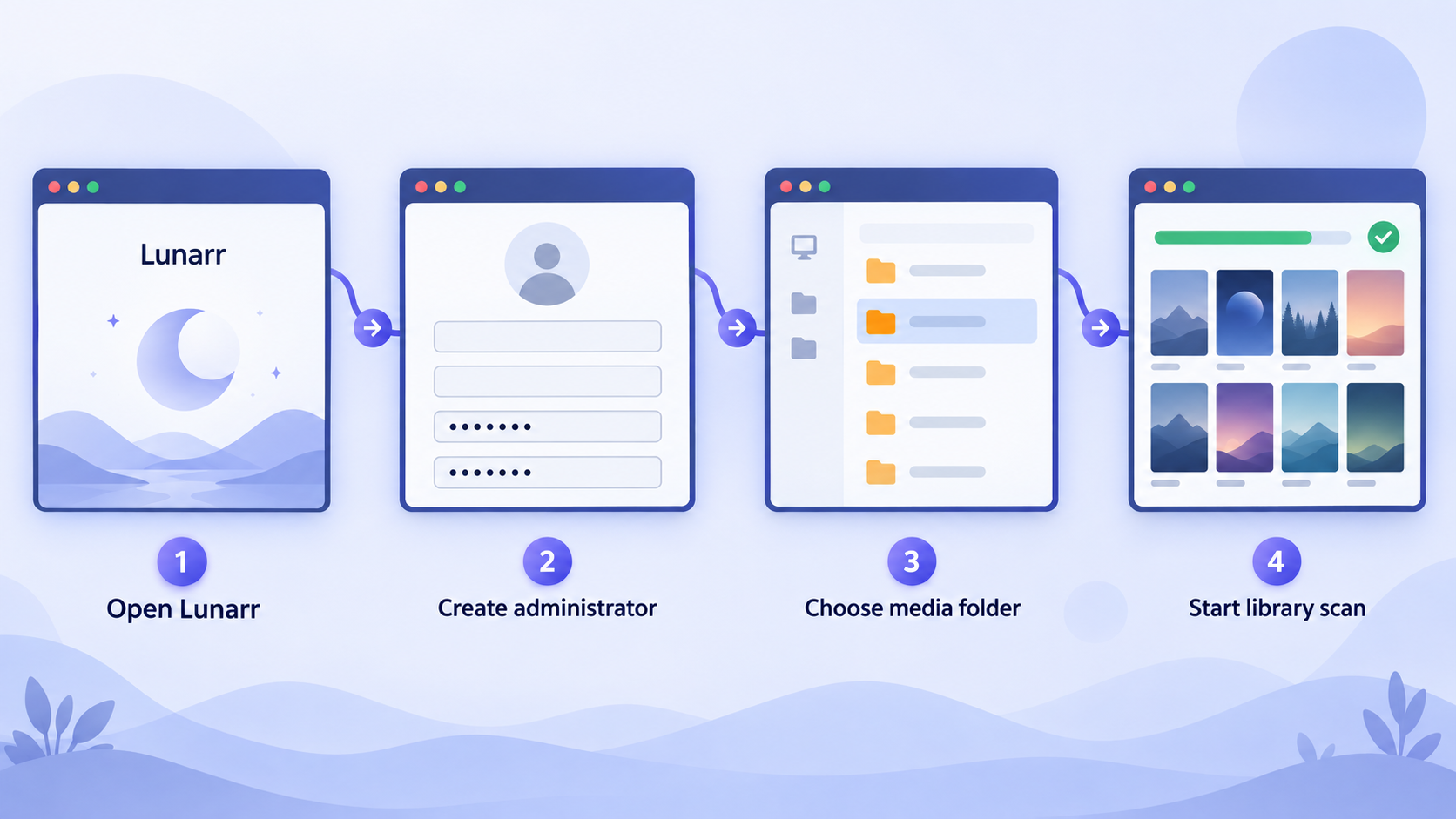
Open http://127.0.0.1:3000 from the Docker host. If the host has no desktop environment, you can use a browser on a trusted machine that can reach the host, but the URL and Docker port exposure may need to reflect that network path. Complete administrator creation on a trusted network before introducing public access.
Create the first administrator
Follow Lunarr's new-install setup screen and register the first account. The first registered user becomes the administrator. Use a strong, unique password.
Review TMDb configuration
Lunarr includes a bundled public TMDb fallback token, so metadata can work without immediate credential setup. To use your own TMDb access token or API key, save it in Settings and use the Test TMDb action before a large scan.
Add a local, SFTP, or WebDAV library
Open Libraries, choose movie or television content, and enter the source details. For a Docker-mounted local library, use the container-visible path such as /media or /media/movies, not the original host path.
Run the first scan
Click Scan from Libraries. Lunarr reads and probes the supported files, creates or updates media records, and removes library-view entries when no remaining file points to the media item.
Local library paths inside Docker
Suppose the host directory /mnt/media is mounted as /media. Lunarr sees only /media. If movies are under /mnt/media/movies on the host, enter /media/movies when creating the movie library. Entering /mnt/media/movies in Lunarr will fail unless that exact path was also mounted into the container.
SFTP and WebDAV libraries
An SFTP library requires its host, port, username, password, and remote root. Lunarr tests the remote root before saving it. A WebDAV library similarly requires its host, port, username, password, remote root, and an HTTPS selection. For services such as Nextcloud, the WebDAV path prefix can be included in the host field, such as the service path leading to the user's files.
Local libraries use native file watching by default and trigger debounced background scans for future media or subtitle changes. SFTP and WebDAV sources cannot be watched live, so use manual scans or optional scheduled rescans. Documented scheduling intervals range from five minutes through 30 days.
Supported media and subtitle files
| Content | Supported examples | Scanning behavior |
|---|---|---|
| Video | .mp4, .mkv, .mov, .avi, .webm |
Detected during library scans and organized as movie or television content |
| WebVTT subtitles | .vtt |
Matched as a sidecar when its base name corresponds to the video |
| SubRip subtitles | .srt |
Detected during scans and normalized to WebVTT for playback |
| Language-labeled subtitles | Movie Name.en.vtt or Movie Name.english.srt |
The optional language or label suffix distinguishes subtitle tracks |
The first subtitle track, or a track without a language or label suffix, is treated as the default. Matching depends on the subtitle base name corresponding to the video filename.
Useful movie and television layouts
Common movie arrangements include:
Movie Name (2024).mkv
Movie.Name.2024.1080p.mkv
The Movie (2024)/The Movie (2024).mkv
Movies/Movie Name (2024)/Movie Name.mkv
Common television arrangements include:
Show Name/Season 01/Show Name - S01E02 - Episode Title.mkv
Show.Name.S01E02.mkv
Show Name/Show Name 1x02.mkv
Show Name/Season 1/02 - Episode Title.mkv
Show Name/Specials/S00E01.mkv
Lunarr stores shows, seasons, and episodes separately. TMDb matching operates at the show and season level, and episode records can fall back to filename metadata if TMDb is unavailable or a particular episode is missing. Anime absolute numbering, alternate episode orders, automatic renaming, and subtitle downloading are documented as not implemented in the current project material.
Verify the local server, library scan, and playback
Do not configure remote exposure until the local service is demonstrably working. Separating local application troubleshooting from tunnel troubleshooting makes failures much easier to isolate.
Verify the web interface
Reload http://127.0.0.1:3000 and confirm that you can sign in with the administrator account. Browse between the main interface, Libraries, and administrative settings. If login repeatedly returns to the sign-in page, inspect the configured ORIGIN and confirm it matches the URL in the browser.
Verify the library scan
Open Libraries and review the scan result. A successful result should populate supported files from the configured source. If a local library appears empty, compare the path entered in Lunarr with the container mount, then inspect the directory from inside the container:
docker exec lunarr ls /media
This command assumes that the host media directory was mounted at /media, as shown in the installation command. If you selected a different container path, inspect that path instead.
If files are visible to Docker but absent from the library, check their extensions and naming. Confirm that the library kind is correct, then run another manual scan. For SFTP or WebDAV, use the source test during library creation and verify the remote root and credentials.
Verify playback
Select a known media item and begin playback in the browser. Testing at least one item confirms more than page availability. It exercises file access, media probing, authentication, and either direct streaming or the HLS playback path.
If one file fails while others play, investigate that file's format, permissions, and probing or transcoding output. If every item fails, inspect the container logs while initiating playback:
docker logs --follow lunarrStop following the logs with your terminal's normal interrupt action after capturing the relevant output. Avoid posting logs publicly without reviewing them for filenames, local paths, user information, tokens, or other private details.
Optional health monitoring
Lunarr documents a health endpoint for monitoring, but the supplied evidence does not establish its exact path or response format. We therefore do not invent a URL or health-check command here. Use the current Lunarr documentation or application OpenAPI information before configuring an automated monitor against that endpoint.
Continue only after the administrator can sign in, the intended library can be scanned, and at least one representative media item can play locally. A tunnel can carry traffic to a working service, but it cannot correct an invalid media mount, incorrect credentials, a failed scan, or a broken Lunarr configuration.
Routine Docker operations, backups, and updates
Containerized services still need lifecycle management. Keep the authentication secret and persistent volume under your control, monitor storage consumption, and inspect logs when behavior changes.
Start, stop, and restart Lunarr
docker stop lunarr
docker start lunarr
docker restart lunarr
Stopping the container does not delete it or its named volume. Starting it again uses the existing configuration. A restart is useful after a transient problem, but repeatedly restarting without checking logs can conceal an underlying storage, configuration, or media-access issue.
Inspect container status and recent logs
docker ps -a --filter name=lunarr
docker logs --tail 200 lunarr
Understand what must be backed up
The lunarr-data volume is the critical application-state location in this deployment. Lunarr stores its SQLite database under its data directory, along with per-session HLS playlists and shared encoded HLS cache segments. The data directory also supports persistence of a generated authentication secret when one is not supplied explicitly.
Back up persistent application data using a Docker-volume backup method appropriate for your platform. Coordinate backups so the SQLite database is captured consistently. The supplied project evidence does not define a canonical live-backup command, retention policy, or restore procedure, so this guide does not invent one. Test your chosen backup and restore process before relying on it.
Your original media library requires its own backup strategy. A read-only Docker mount does not create a backup. It only limits writes from this container.
Update the Docker image carefully
The installation uses the moving latest image tag documented by Lunarr. The supplied evidence does not establish a release cadence or a particular stable version tag, so check current project information and review changes before updating.
A common Docker replacement sequence is:
docker pull sayem314/lunarr:latest
docker stop lunarr
docker rm lunarr
Then run the original docker run command again with the same AUTH_SECRET, ORIGIN, named data volume, port mapping, and media mount. Removing the container does not remove the separately named lunarr-data volume, but avoid commands that explicitly delete volumes.
Lunarr documents that database migrations run automatically on startup. Even so, back up the persistent data before updating and review the logs after the replacement starts.
Recreating the container with an empty data volume creates a separate application state. Recreating it with a different AUTH_SECRET invalidates sessions, encrypted secrets, and signed playback tokens. Save the exact deployment configuration securely before replacing the container.
Enable remote Lunarr access with Localtonet
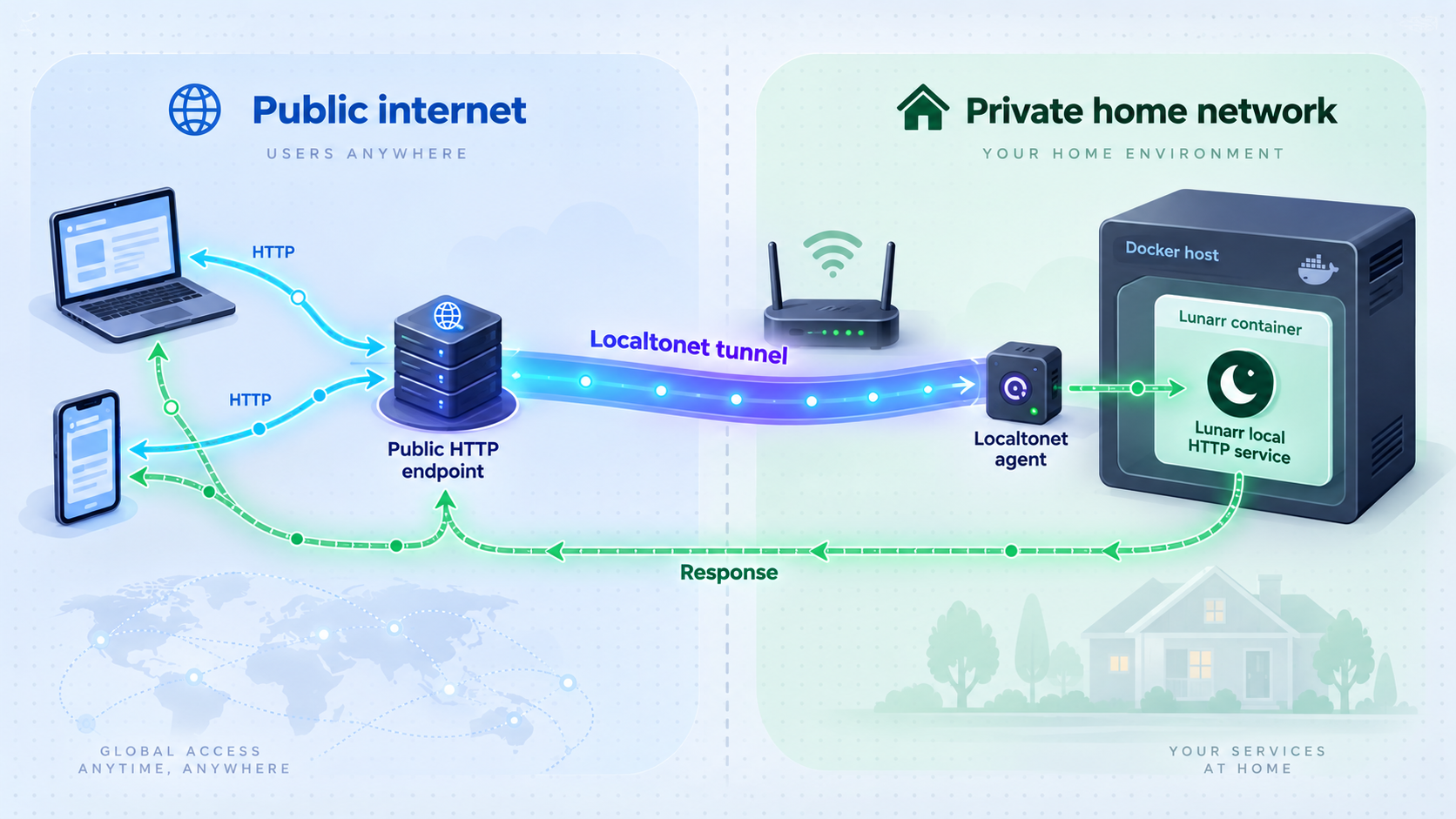
Once local operation is verified, Localtonet can expose the HTTP service through an outbound tunnel. The Localtonet client on the selected device connects to one of our relay servers, so the workflow does not require inbound router port forwarding, firewall changes, a VPN, or a public IP address.
An HTTP tunnel is appropriate because Lunarr presents a browser-accessible HTTP service on local port 3000. The tunnel points to the local IP address and port reachable from the Localtonet client. When the client runs on the Docker host, the target for this guide is 127.0.0.1 and port 3000.
Creating a tunnel does not automatically mean that it is running. It must be started, and remote access remains available only while both the selected Localtonet client and the tunnel are running.
Install and run the Localtonet client
Install the Localtonet client on the Docker host or on another device that can reach Lunarr's published HTTP port. Keep the client running for as long as remote access is required. Current installation details vary by operating system and client version, so use the current Localtonet download and installation flow rather than an unverified command.
Authenticate or select the client device
Use the device-specific authentication token through the supported Localtonet workflow, then select that device for the tunnel. Treat the token as a credential. Never paste it into an article, screenshot, public repository, or shared command transcript.
Select an available relay server
Choose a currently available server or region from the Localtonet dashboard. Available values can vary, so obtain them from the current product instead of copying a hardcoded server code from a tutorial.
Create an HTTP tunnel to Lunarr
Create an HTTP tunnel with local target IP 127.0.0.1 and local target port 3000 when the client runs on the Docker host. If the client runs elsewhere, use an address that the client device can actually reach and verify that network path first.
Start the tunnel and obtain its public address
Use the Start action after creating the tunnel. An HTTP tunnel can use a generated subdomain, a supported selected subdomain, or a custom domain configuration. This guide does not prescribe custom-domain DNS records because those requirements must be checked against the current Localtonet documentation.
Update Lunarr ORIGIN and verify the public URL
Set Lunarr's ORIGIN to the exact public HTTPS address users will open, recreate the container with the same AUTH_SECRET, data volume, and media mount, then test authentication and playback through the public address. Stop or delete the tunnel when remote access is no longer required.
Recreate Lunarr with the public ORIGIN
After Localtonet assigns the public address, stop and remove only the container:
docker stop lunarr
docker rm lunarr
Run it again using the original installation command, but replace the local ORIGIN value with the exact assigned public HTTPS address. The following intentionally uses a placeholder rather than inventing a real endpoint:
docker run -d \
  --name lunarr \
  --restart unless-stopped \
  -p 3000:3000 \
  -e AUTH_SECRET=use-the-same-existing-secret \
  -e ORIGIN=https://your-assigned-public-address \
  -v lunarr-data:/data \
  -v /mnt/media:/media:ro \
  sayem314/lunarr:latest
Replace every placeholder with your actual existing configuration. The public address must be exactly the address users open, including the https:// scheme. Do not create a new authentication secret during this change.
After the recreated container starts, first confirm that the local service still responds. Then open the Localtonet public address in a private browser window or from an external network, sign in, browse the library, and play a representative item.
A public URL can be reached from outside your LAN. Keep Lunarr authentication enabled, use strong unique passwords, leave later signup disabled unless it is intentionally required, limit administrative accounts, and stop the tunnel when it is not needed. Do not expose an uninitialized server or assume that an unguessable URL replaces authentication.
What Localtonet changes and what it does not change
Localtonet supplies the public route to the local HTTP service. It does not move the Lunarr database or media files into the tunnel, repair an unhealthy container, change media permissions, or configure Lunarr users. Lunarr continues running on your device, and the Localtonet client forwards requests to its reachable local target.
This standard HTTP tunneling workflow is not a VPN. Localtonet also has a separate VPN Manager feature, but it is not needed for publishing this individual web service.
Troubleshoot installation, scanning, playback, and remote access
The container exits immediately
Inspect its state and logs:
docker ps -a --filter name=lunarr
docker logs lunarr
Check for an invalid command, unavailable image, conflicting container name, storage problem, malformed environment value, or host port conflict. If another process already uses host port 3000, Docker cannot publish the requested mapping. Do not change ports at random without also accounting for the local browser URL, Localtonet target, and ORIGIN.
The page does not open at 127.0.0.1:3000
Confirm that the container is running and that Docker lists the port mapping. Test from the Docker host first. If Docker runs inside a virtual machine or managed NAS environment, 127.0.0.1 may refer to a different network context from your browser. Determine the supported address for that platform rather than assuming loopback crosses machine boundaries.
Login loops or remote playback URLs fail
Compare ORIGIN with the exact address in the browser. Local access in the initial installation uses http://127.0.0.1:3000. Remote access should use the assigned public HTTPS address. A mismatch can break cookies, sessions, and signed playback links.
Also verify that AUTH_SECRET did not change during container recreation. If it changed, existing sessions and signed tokens are invalid, and encrypted stored secrets can no longer be treated as if the previous key still exists.
The library is empty
For local media, verify that the host path exists and was mounted into the container. Then make sure the library uses the container path. If the mapping is /mnt/media:/media:ro, Lunarr must use /media or a directory below it.
Confirm that the files use supported video extensions and recognizable movie or television names. Trigger a manual scan after correcting the path or naming. For SFTP and WebDAV, retest the source root and review its credentials and network reachability.
New remote files do not appear automatically
SFTP and WebDAV libraries do not support live file watching. Use manual scans or configure scheduled rescans. Local libraries use native file events by default, but mounted or remote filesystems may not reliably deliver those events.
Lunarr documents optional polling controls for unreliable mounts, including polling intervals, binary polling intervals, debounce timing, and write-stability timing. Polling remains best-effort and can miss remote-side cache changes, so manual or scheduled scans remain the source of truth. Because these values affect workload and responsiveness, tune them only after confirming that native events are actually unreliable.
The public URL does not connect
Check the layers in order:
- Confirm Lunarr still works locally on the Docker host.
- Confirm the Localtonet client is connected.
- Confirm the tunnel is running, not merely created.
- Confirm the selected device is the one that can reach Lunarr.
- Confirm the tunnel target is the correct local IP address and port.
- Confirm Lunarr's
ORIGINmatches the public address.
If the Localtonet client runs on the Docker host, 127.0.0.1:3000 is the straightforward target from this installation. If it runs on another machine, 127.0.0.1 points back to that other machine, not to the Docker host. In that topology, select a network address that is reachable from the client and apply appropriate local access controls.
The interface works remotely but playback does not
Test the same item locally. If it also fails locally, troubleshoot Lunarr, file access, or transcoding first. If playback works locally but not through the public address, verify ORIGIN, restart the container after correcting it, sign in again, and request playback again so Lunarr generates URLs and tokens for the correct origin.
Lunarr's signed remote playback tokens have a documented default lifetime of eight hours, with configurable limits from 300 to 604800 seconds. A long-running playback session may need to request playback again after its token expires. Avoid increasing the lifetime without considering the security impact of longer-lived signed URLs.
Frequently asked questions
What URL should I use for a Docker installation of Lunarr?
With the documented 3000:3000 port mapping, use http://127.0.0.1:3000 on the Docker host. Port 5173 belongs to Lunarr's local development workflow and is not the production Docker endpoint used in this guide.
Does the Lunarr Docker image include FFmpeg?
Yes. The published Docker image includes system FFmpeg from its runtime distribution packages, and its image build verifies baseline FFmpeg playback requirements. Normal users of the published image do not need to install FFmpeg manually inside the container.
Why does Lunarr not see my host media directory?
Docker isolates the container from unmounted host paths. Mount the host directory into the container, such as /mnt/media:/media:ro, and configure Lunarr with the container-visible path /media or a directory below it. Do not enter the host-only path unless it is also the container mount destination.
Can Lunarr use SFTP or WebDAV instead of local storage?
Yes. Lunarr supports local, SFTP, and WebDAV libraries. SFTP and WebDAV sources are tested before saving, but they cannot use live filesystem watching. Use manual scans or optional scheduled rescans for remote library changes.
Can I change AUTH_SECRET after installation?
You should keep it stable. Changing AUTH_SECRET invalidates existing sessions, encrypted secrets, and signed playback tokens. Store the original value securely and reuse it whenever you recreate or update the container.
Who becomes the administrator on a new Lunarr server?
The first registered user becomes the administrator. Later signup is disabled by default unless an administrator enables it in Settings. For this reason, complete first-run account creation before exposing the server publicly.
Do I need router port forwarding to access Lunarr with Localtonet?
No. The Localtonet client establishes an outbound connection to our relay server, so this workflow does not require inbound router port forwarding, firewall changes, VPN setup, or a public IP address. The selected client and HTTP tunnel must remain running for the public address to work.
Should ORIGIN use the local URL or the Localtonet URL?
It should match the URL users actually open. Use http://127.0.0.1:3000 during the local-only installation and verification phase. When remote users will open the assigned Localtonet public HTTPS address, update ORIGIN to that exact address and recreate the container with the same secret and persistent volume.
Does deleting the Lunarr container delete the library database?
Removing the container does not remove the separately named lunarr-data volume unless you explicitly delete that volume. Recreate the container with -v lunarr-data:/data to reconnect the existing state. Maintain tested backups because accidental volume deletion or storage failure can still cause data loss.
Connect your verified Lunarr server with Localtonet
After Lunarr works locally, create an HTTP tunnel to the reachable port, update Lunarr's ORIGIN to the assigned public address, and verify authenticated playback from outside your local network.


