

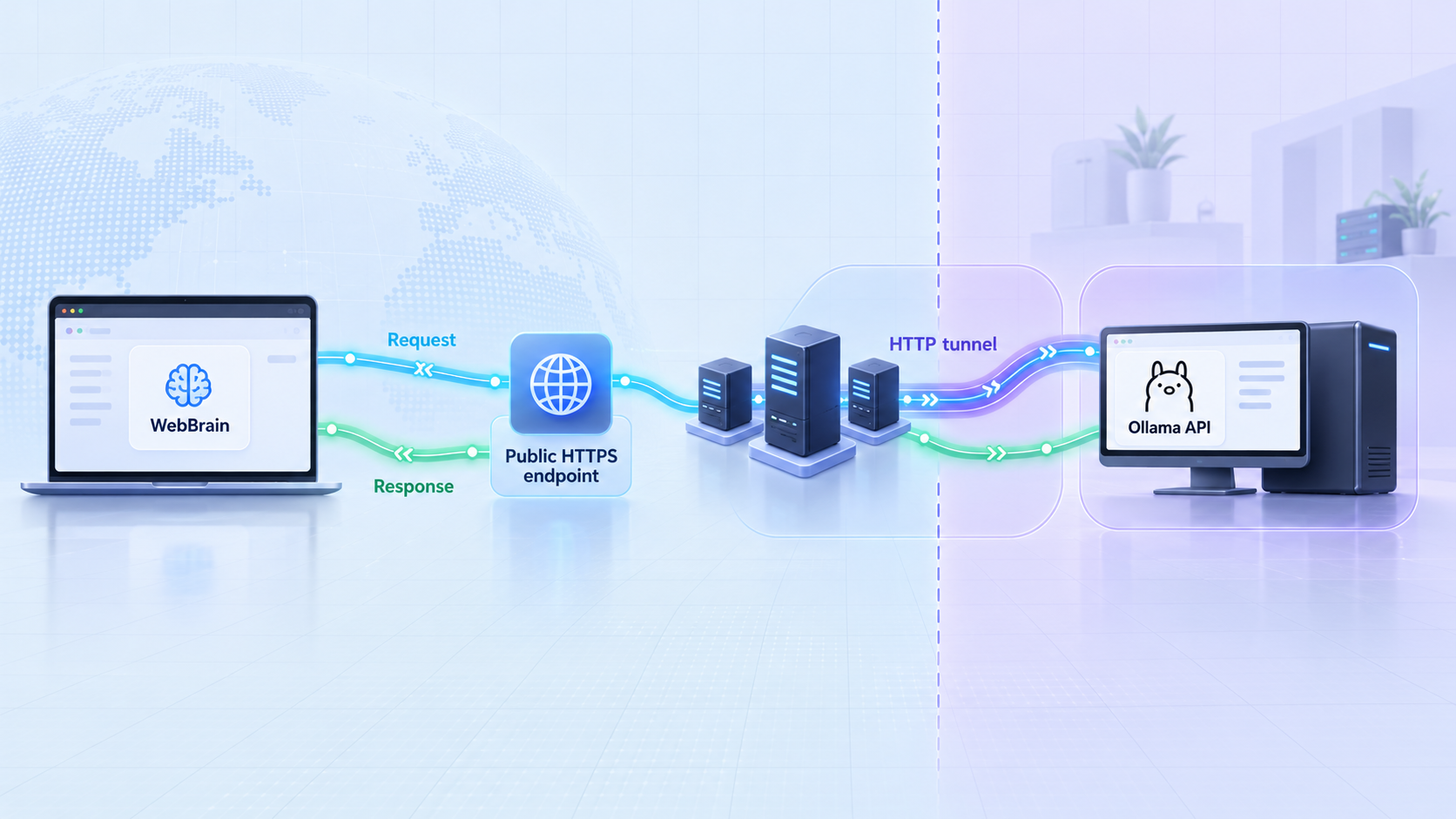
Run a browser AI agent with your own Ollama model, even when the browser and model server are on different networks
WebBrain is an open-source browser extension for Chrome, Firefox, and compatible Chromium browsers. It can read pages, answer questions, and perform browser actions using either its managed default model or an OpenAI-compatible model server such as Ollama. This guide installs and verifies WebBrain first, prepares an existing Ollama server, and then uses a Localtonet HTTP tunnel when the browser cannot reach that server directly. WebBrain itself is not a web server, so the tunnel publishes Ollama rather than the extension.
📋 What's in this guide
How WebBrain, Ollama, and Localtonet fit together
WebBrain runs inside the browser as an extension. It presents an AI agent in a side panel next to the active tab and can use page content as context for questions and workflows. Its documented operating modes include Ask, Act, and Dev. Ask is read-only and can inspect pages, answer questions, and fetch URLs. Act can interact with pages by clicking, typing, navigating, uploading, downloading, and filling forms. Dev adds development-oriented context such as page source, styles, console information, network information, and reversible page edits.
The extension can use the managed WebBrain Compass model without local setup, but it also supports OpenAI-compatible model servers. Documented local options include Ollama, llama.cpp, vLLM, SGLang, LM Studio, LocalAI, Jan, GPT4All, and other compatible implementations. In this guide, Ollama supplies the model inference service.
Ollama and WebBrain have separate roles. Ollama listens for HTTP requests on the computer running the model, while WebBrain sends model requests from the browser. If both run on the same computer, WebBrain can normally use the local Ollama address. If the browser runs on another computer or outside the Ollama host's LAN, that loopback address no longer points to the model server. It points to the browser's own computer instead.
With Localtonet, our client runs on the Ollama computer or on another device that can reach Ollama. The client establishes an outbound connection to one of our relay servers. An HTTP tunnel then supplies a public HTTPS address that forwards requests to Ollama's local IP address and port. This avoids inbound router port forwarding, firewall changes, VPN setup, and the need for a public IP address.
/v1 path for this integration.
A common architecture mistake is to look for a WebBrain port to expose. There is no WebBrain service port in this workflow. Configure the Localtonet HTTP tunnel for the machine and port where Ollama is listening, then give WebBrain the resulting public endpoint.
Prerequisites and decisions to make first
Complete the following checks before installing or configuring anything. They help distinguish extension problems from model-server or tunnel problems later.
- A supported browser, with Chrome or Firefox used for the documented installation paths in this guide.
- Permission to install browser extensions or enable the browser's extension development features.
- An Ollama installation on the computer that will run the model.
- A model already available to that Ollama installation. The supplied project evidence does not establish which model you should install or the exact model installation command, so this guide does not invent one.
- A Localtonet account and client device that can reach the Ollama service.
- The device-specific Localtonet authentication token for that client. Keep it private and never place it in WebBrain, a screenshot, a public configuration file, or the tunnel URL.
- A decision about whether the Ollama endpoint may safely be reachable through a public URL.
For the simplest topology, install the Localtonet client on the same computer as Ollama. In that arrangement, the tunnel can target Ollama through the loopback interface and its documented port. A more advanced topology can place the client on another machine that can reach the Ollama host over a private network, but the target must then be an IP address that is actually reachable from the client device.
Do not assume that creating a Localtonet tunnel immediately makes it available. A tunnel must be started, and it remains available only while the selected Localtonet client is connected and the tunnel is running. Ollama must also remain active and have the requested model available.
| Component | Where it runs | What must be verified |
|---|---|---|
| WebBrain | Inside Chrome or Firefox | The extension opens, its side panel appears, and its operating mode is appropriate for the task. |
| Ollama | On the model-server computer | The server is running, a suitable model is available, and the OpenAI-compatible endpoint responds locally. |
| Localtonet client | On the Ollama host or a device that can reach it | The client is connected using the intended device token. |
| Localtonet HTTP tunnel | Configured in our dashboard and carried by the client | The local IP and port point to Ollama, and the tunnel has been explicitly started. |
Install WebBrain on Chrome or Firefox
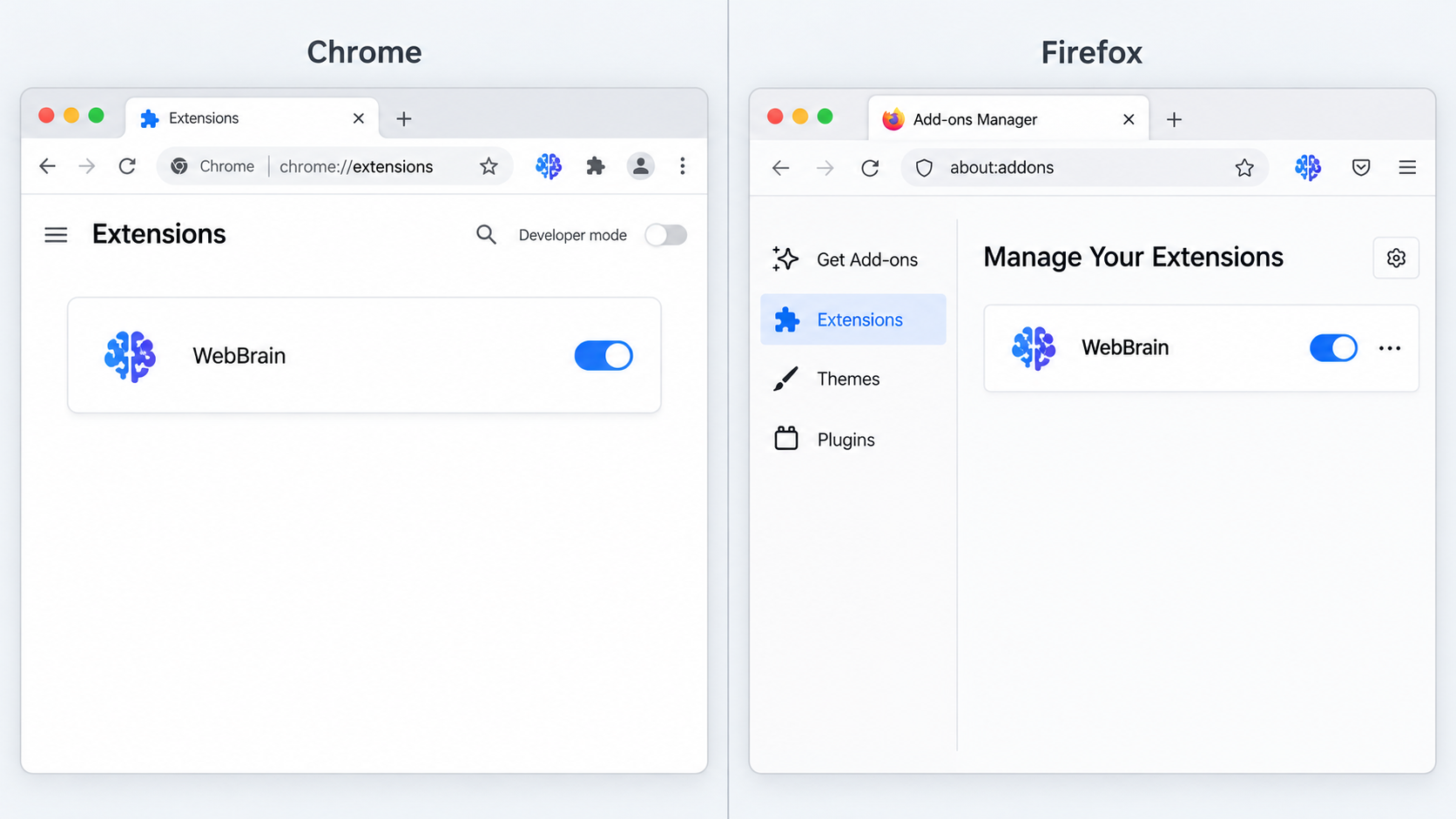
WebBrain offers two installation approaches. Most readers should use the official browser marketplace listing because it provides the normal browser-managed extension lifecycle. Developers, reviewers, and contributors can instead clone the repository and load the browser-specific source directory.
Option 1: Install from an official browser marketplace
WebBrain documents releases through the Chrome Web Store, Firefox Add-ons, and Microsoft Edge Add-ons. Visit the official WebBrain website and follow the installation link for your browser. Review the listing carefully, confirm that it is the intended WebBrain extension, inspect the requested permissions, and use the browser's normal installation confirmation.
After installation, pinning the extension can make its icon easier to find, although pinning is not required for operation. Click the WebBrain icon to open its side panel. If your browser asks for site access when WebBrain first examines or acts on a page, review that request in the context of the task you intend to perform.
Option 2: Load WebBrain from source in Chrome
Loading from source is useful when you want to inspect the code or test a repository checkout. It also transfers update responsibility to you. A manually loaded copy does not automatically become equivalent to the marketplace-managed release lifecycle.
Clone the official repository:
git clone https://github.com/webbrain-one/webbrain.gitIn Chrome, open the extension management page:
chrome://extensions/Enable Developer mode using the control at the top right. Select Load unpacked, browse to the cloned repository, and choose:
webbrain/src/chromeWebBrain also documents an isolated Chrome build that avoids including stray working-tree files. From the repository, the documented build command is:
npm run build:chromeAfter a successful build, load this directory instead:
webbrain/build/chrome
The available evidence establishes the Chrome build command and output directory, but it does not establish a complete operating-system-specific Node.js installation procedure or dependency-bootstrap command. If the build command reports missing tools or packages, follow the repository's current development instructions rather than substituting an unverified command. Loading src/chrome is the documented direct source path when an isolated build is not required.
Option 3: Load WebBrain temporarily in Firefox
Clone the repository using the same command shown above. In Firefox, open:
about:debugging#/runtime/this-firefoxSelect Load Temporary Add-on and choose:
src/firefox/manifest.jsonIf you have created the documented Firefox build, choose this manifest instead:
build/firefox/manifest.jsonThe documented Firefox build command is:
npm run build:firefoxFirefox removes temporary add-ons when the browser restarts. Permanent Firefox installation requires signing through addons.mozilla.org. For ordinary daily use, the official Firefox Add-ons release is therefore more convenient than repeatedly loading a temporary checkout.
Avoid duplicate extension installations
Before testing, check whether both a store release and a source-loaded copy are enabled. Duplicate copies can create multiple toolbar icons, separate settings, or uncertainty about which version is handling a request. Disable the copy you are not testing. If you switch from source installation to the marketplace release, verify the provider settings again rather than assuming that browser extension storage moved between installations.
Verify WebBrain before adding Ollama or Localtonet
Verify the browser extension independently before changing its model provider. WebBrain's managed default, Compass 1.0, is documented as requiring no API key or local model setup. That makes it useful for confirming that the extension UI itself opens and can process a basic request before a remote endpoint adds more variables.
Open a normal webpage
Choose a non-sensitive page with enough readable text to summarize. Avoid account pages, private dashboards, payment forms, or confidential documents during initial testing.
Open the WebBrain side panel
Click the WebBrain extension icon. Confirm that the side panel appears next to the active page and that you can access its prompt input.
Stay in Ask mode
Use the read-only Ask mode for the first check. This separates basic page reading from higher-impact browser actions such as clicking, typing, uploading, downloading, or submitting forms.
Submit a simple page question
Ask WebBrain to summarize the current page or identify its main headings. Confirm that the answer relates to the open page rather than returning an extension error.
This test does not prove that Ollama or the future tunnel works. It proves that the extension loaded, the side panel is usable, and basic page interaction is functioning. If this stage fails, troubleshoot the extension installation before introducing a custom provider.
When you later test Act or Dev mode, begin with a disposable page and a reversible task. WebBrain can perform consequential browser actions in those modes. Review any generated plan and permission prompt before allowing the extension to interact with accounts, files, or forms.
Prepare and verify the Ollama model server
This workflow assumes Ollama is already installed and that the intended model has already been made available to it. The supplied evidence documents how WebBrain addresses the service, but it does not provide a complete operating-system-specific Ollama installation procedure or establish which model is suitable for your hardware and browser tasks. We therefore do not guess those commands.
Start the Ollama service using the documented command:
ollama serve
WebBrain documents Ollama at port 11434 and uses the /v1 path for its OpenAI-compatible interface. When WebBrain and Ollama are on the same machine, the base URL has the following form:
http://127.0.0.1:11434/v1Before creating a tunnel, verify Ollama locally using a client or diagnostic method appropriate for your installation. At minimum, establish that the process remains running, port 11434 is listening where expected, and the configured model can handle a request through the OpenAI-compatible interface. A process starting successfully is not sufficient if no model is available or if requests fail during inference.
If WebBrain runs on a laptop and Ollama runs on a server, entering 127.0.0.1:11434 in WebBrain points to the laptop, not the server. Use the local address only when the browser and Ollama share a machine. Otherwise, use a reachable private address or the Localtonet public URL created later in this guide.
WebBrain can also connect to other documented OpenAI-compatible servers. The following reference helps identify which service is actually being exposed if you adapt the architecture.
| Model server | Documented port | WebBrain endpoint note |
|---|---|---|
| Ollama | 11434 |
Use the /v1 path. |
| llama.cpp | 8080 |
Start llama-server with the selected model and port. |
| vLLM | 8000 |
Use the OpenAI-compatible endpoint with /v1. |
| SGLang | 30000 |
The documented launch server uses this example port. |
| LM Studio | 1234 |
Use the /v1 path. |
| LocalAI | 8080 |
Use the /v1 path. |
Do not expose a port merely because it appears in this table. Confirm the actual listening address and port in your model-server installation. A service configured with a different port must be represented accurately in the Localtonet tunnel.
Create a Localtonet HTTP tunnel for Ollama
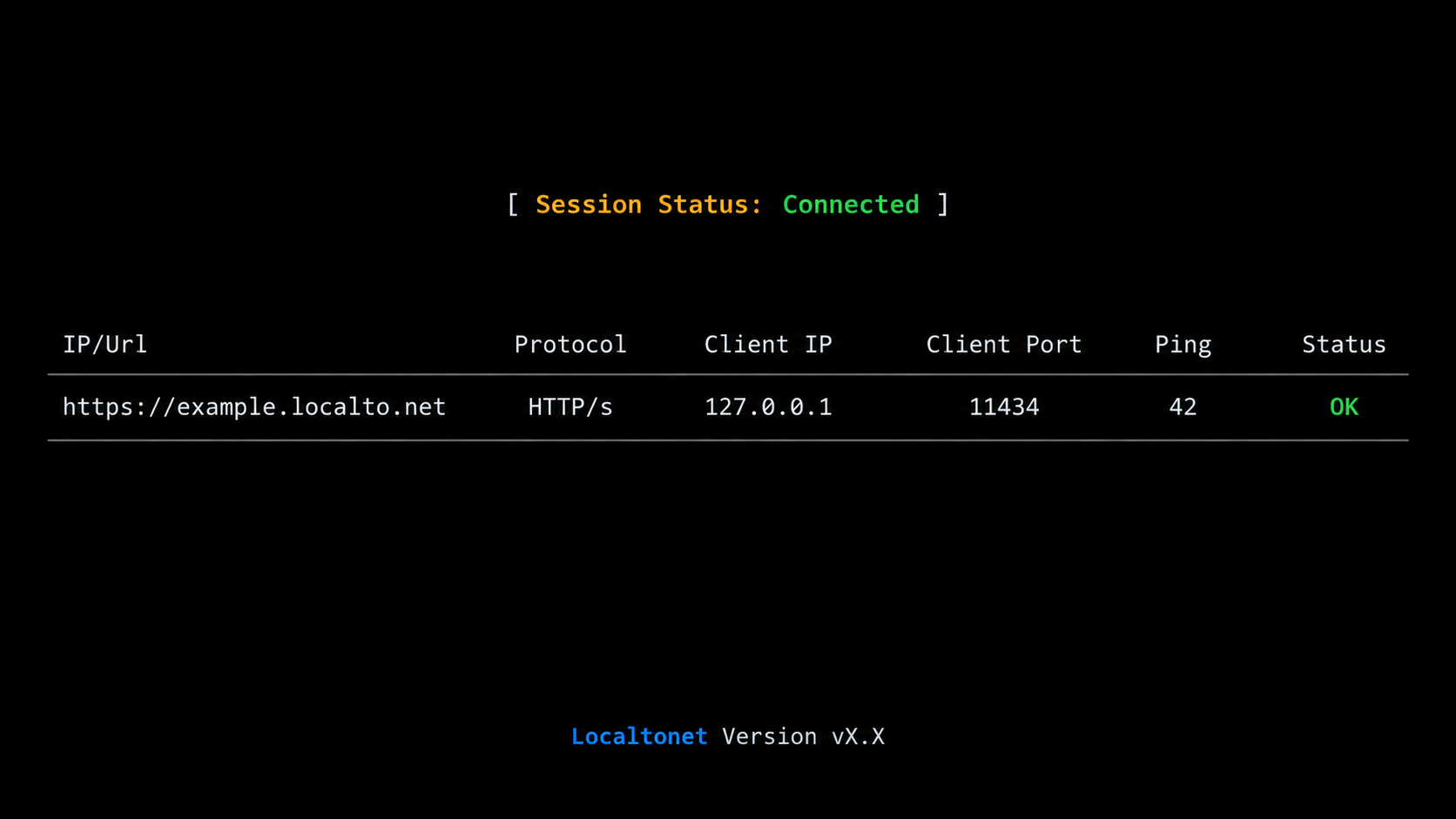
Create the tunnel only after Ollama works locally. This ordering keeps troubleshooting clear: first the model service, then the network path, and finally WebBrain's provider configuration.
An HTTP tunnel is appropriate because WebBrain communicates with Ollama through an OpenAI-compatible HTTP API. Do not use File Server, a proxy tunnel, or VPN Manager for this specific forwarding workflow. Those features solve different problems.
Install and run the Localtonet client
Run our client on the Ollama computer or on a device that can reach the Ollama address and port. The client establishes the outbound connection required for the tunnel.
Authenticate or select the client device
Use the device-specific authentication token for the intended client. Tokens identify client devices and must remain private. Confirm that the expected device is connected before continuing.
Select an available relay server
Choose from the relay servers or regions currently available in our dashboard. Availability can vary, so this guide does not hardcode a server code or region name.
Create the HTTP tunnel configuration
Select an HTTP tunnel and set its local target to the IP address and port where the Localtonet client can reach Ollama. When both run on the same machine and Ollama is available on loopback, the target is 127.0.0.1 on port 11434. Choose the required HTTP Process Type from the currently available Random Sub Domain, Custom Sub Domain, or Custom Domain options.
Start the tunnel and record its public URL
Creating a tunnel does not start it. Press Start, wait for the tunnel to run, and copy the assigned public HTTPS address. The tunnel remains usable only while the selected client is connected and the tunnel is running.
Stop or delete the tunnel when it is no longer needed
Stop the tunnel to end remote reachability while retaining the configuration, or delete it when the configuration is no longer required. Do not leave an Ollama endpoint publicly reachable by habit.
For the current dashboard workflow, consult our HTTP tunnel documentation while selecting values. Exact relay availability, domains, and account-specific options must come from the live dashboard rather than an article.
Ollama is commonly used as a local service, and WebBrain documents local models as requiring no API key. A Localtonet HTTP tunnel gives the target a public HTTPS address, but that does not automatically mean the model API has application-level authorization. Before sharing or retaining the URL, determine whether the service has suitable authentication and least-privilege controls. If it does not, place a properly configured authenticated gateway in front of Ollama or limit the tunnel to a short testing window. This guide does not invent gateway commands or claim that an unspecified Localtonet plan supplies endpoint authentication.
Connect WebBrain to Ollama through the public endpoint
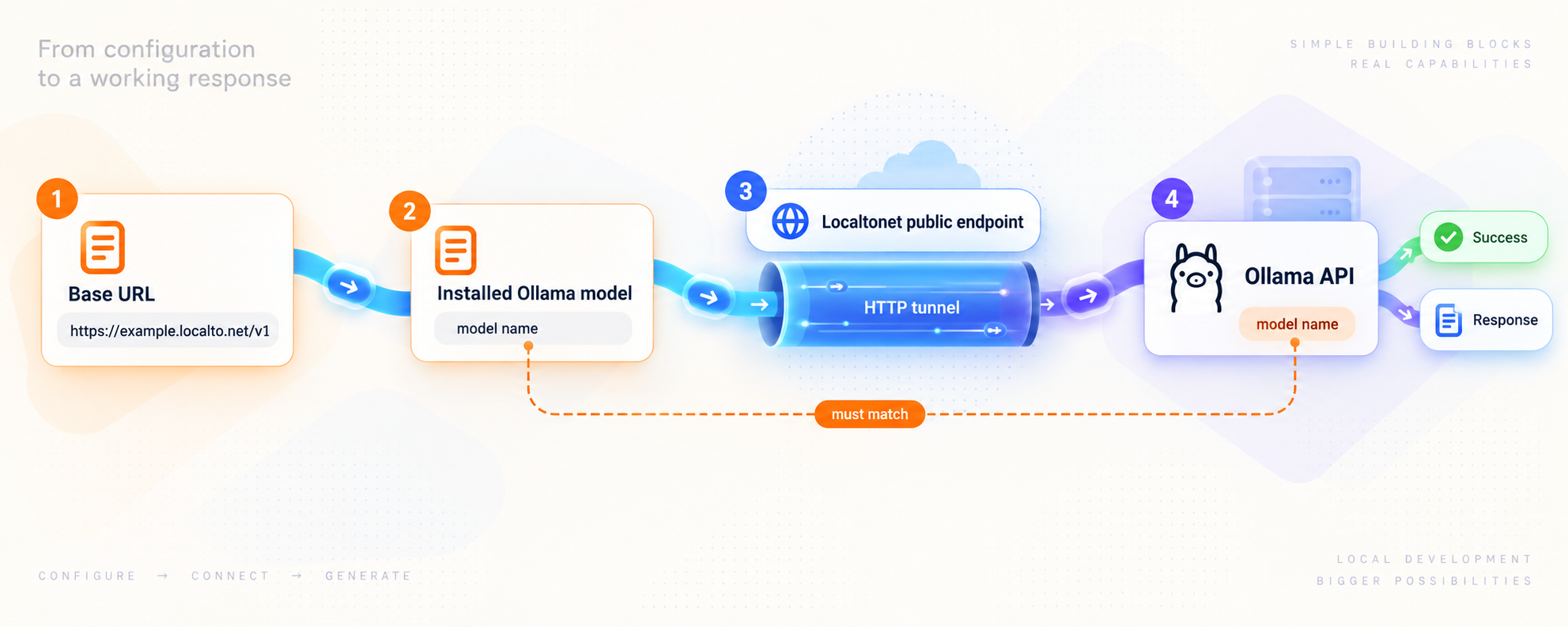
Once the HTTP tunnel is running, combine its public HTTPS address with Ollama's documented OpenAI-compatible path. For example, if the assigned address were represented as https://your-assigned-address, the base URL entered for the provider would have this form:
https://your-assigned-address/v1The value above is deliberately a placeholder, not a working hostname. Use only the exact public URL assigned to your running tunnel. Do not add Ollama's local port to the public URL unless our dashboard explicitly gives you a public host-and-port endpoint. An HTTP tunnel normally supplies a public URL while forwarding internally to the configured local port.
Open WebBrain's Settings and choose its Ollama provider or an appropriate OpenAI-compatible provider configuration. Enter the Localtonet public address with /v1 as the endpoint. Local Ollama use does not require an API key according to WebBrain's documentation. If you intentionally placed an authenticated gateway in front of Ollama, use only the credentials and provider configuration required by that gateway.
WebBrain documents an optional Model field. When that field is blank, it rechecks the loaded-model capability on each user turn so that a server-side model change can take effect. If you explicitly enter a model, the name must match one exposed by your Ollama installation. The supplied evidence does not establish a universal model name, so this guide does not provide a fabricated default.
WebBrain also documents automatic context-window detection for Ollama, llama.cpp, and LM Studio, as well as automatic conversation compaction as the session fills. That does not remove the need to select a model with enough context capacity for WebBrain's instructions, tool schemas, page content, conversation history, and requested output. The project's documented 16k value is a fallback, not a guaranteed minimum, and larger operating tiers can exceed that amount before conversation history accumulates.
Perform a controlled remote test
- Confirm that Ollama is still running.
- Confirm that the Localtonet client shows as connected.
- Confirm that the HTTP tunnel has been started.
- Open a non-sensitive webpage in the browser running WebBrain.
- Select Ask mode.
- Ask for a short summary of the page.
- Confirm that the request reaches the selected Ollama model and returns a relevant answer.
Test the final topology from the network where WebBrain will actually be used. A request made from inside the Ollama host does not prove that a remote browser can reach the public endpoint. Conversely, a successful request to the tunnel URL proves network reachability but does not necessarily prove that WebBrain has selected the correct model or supplied enough context.
Security and privacy considerations
A local model can keep model inference on hardware you control, but remote access changes the threat model. Page content sent to the model travels from the browser to the public tunnel endpoint and then through the tunnel to Ollama. Treat the model endpoint as infrastructure that may receive webpage text, prompts, tool descriptions, and other task context.
Use the least capable WebBrain mode
Begin in Ask mode whenever a task only requires reading and explanation. Move to Act only when clicking, typing, navigation, file handling, or form interaction is necessary. Use Dev when development-specific context and page modification are genuinely required. A working model connection is not a reason to grant broader browser capabilities than the task needs.
Protect the model endpoint separately from the device token
A Localtonet device token authenticates the client device to our platform. It is not an Ollama API credential and must never be entered into WebBrain. Likewise, the public tunnel URL is not the device token. Keep both private, but do not confuse their purposes.
Avoid sensitive validation pages
Use public, non-sensitive content during installation and connectivity testing. Do not validate the workflow using financial dashboards, private source code, health information, authentication pages, or production administration panels. First prove the architecture with low-risk data, then evaluate whether the intended use is compatible with your security requirements.
Keep exposure temporary when authorization is absent
If the Ollama-facing service has no authentication, start the tunnel only for the period needed and stop it immediately afterward. A hard-to-guess URL should not be treated as a complete authorization design. For ongoing access, use an authenticated gateway that is compatible with WebBrain's provider configuration, and apply least privilege, logging, credential rotation, and any network restrictions required by your environment.
Review extension permissions and source provenance
Install from the official marketplace links presented by the project or clone the official repository at webbrain-one/webbrain. Review extension permissions, especially before enabling Act or Dev workflows. When loading from source, update intentionally and inspect repository changes before replacing a working checkout.
Troubleshooting WebBrain, Ollama, and the tunnel
The WebBrain icon or side panel does not appear
Open the browser's extension manager and confirm that WebBrain is installed and enabled. If you loaded it from source, confirm that Chrome points to src/chrome or build/chrome, or that Firefox loaded the correct manifest. Remember that Firefox temporary add-ons disappear after a browser restart. Also check for duplicate store and source installations.
WebBrain works with its default model but not with Ollama
This usually narrows the fault to the provider configuration, Ollama, or the network path. Recheck the endpoint scheme, hostname, and /v1 suffix. Confirm that the selected model exists on the Ollama server and that Ollama can answer locally before testing the public URL.
The local Ollama endpoint works, but the public endpoint does not
Confirm that the Localtonet client is running on the intended device and is connected with the correct device token. Then confirm that the tunnel has been started. Review the configured local target from the perspective of the client device. If the client and Ollama are on different machines, 127.0.0.1 points to the client machine and is incorrect unless Ollama also runs there.
The public endpoint responds, but WebBrain reports a model error
Network success does not guarantee provider compatibility. Confirm that WebBrain is using the Ollama or appropriate OpenAI-compatible provider configuration, that the URL ends in /v1, and that any explicitly entered model name is valid on the server. If an authenticated gateway was added, confirm that WebBrain is sending the credential format expected by that gateway.
The tunnel worked and then stopped
Check all three lifecycle dependencies: Ollama must remain running, the Localtonet client must remain connected, and the tunnel must remain started. Restarting the server, closing the client, losing network connectivity, or stopping the tunnel ends the path even if the saved tunnel configuration still exists.
Firefox loses the extension after restarting
This is expected for an extension loaded with Load Temporary Add-on. Reload the manifest for development testing, or install the signed release from Firefox Add-ons for persistent use. Permanent Firefox installation from a custom build requires signing through addons.mozilla.org.
A source build command fails
Verify that you are running the command from the cloned repository and that the required development environment is present. The evidence supplied for this article establishes npm run build:chrome and npm run build:firefox, but not a complete dependency setup sequence for every operating system. Use the repository's current contributor instructions for any missing prerequisites rather than repeatedly trying unrelated package commands.
Responses fail on large or complicated pages
Model context capacity may be insufficient for WebBrain's fixed instructions, tool schemas, page content, history, and requested output. Automatic compaction can reduce accumulated conversation material, but it cannot shrink fixed instructions or schemas. Try a model with a larger usable context window, shorten the conversation, reduce the requested scope, or test on a smaller page.
The request reaches Ollama but generation is too slow
Separate transport delay from model inference. Test the same model locally using the same approximate request complexity. If local inference is already slow, changing the tunnel will not resolve insufficient compute or an oversized model. If local requests are responsive but remote requests fail, inspect endpoint configuration, connectivity, and gateway behavior without assuming a particular performance guarantee from any component.
Routine operation and safe shutdown
A repeatable operating sequence reduces accidental exposure and makes failures easier to locate:
- Start Ollama and confirm that the required model is available.
- Run the Localtonet client on the device that can reach Ollama.
- Start the saved HTTP tunnel.
- Confirm that WebBrain still uses the assigned endpoint with the
/v1path. - Begin with a low-risk Ask-mode request.
- Use Act or Dev only when the task requires those capabilities.
- Stop the tunnel when remote model access is no longer needed.
- Stop Ollama as appropriate for your local operating policy.
If you change the Ollama port, move the service to another machine, or move the Localtonet client, update the tunnel target before restarting it. If the public URL changes, update WebBrain's provider endpoint. Do not assume that an old endpoint continues to identify the current tunnel.
For long-running use, document which machine owns the model, which device owns the Localtonet token, which local address the tunnel targets, and who is authorized to use the public endpoint. Keep credentials out of shared screenshots and troubleshooting transcripts.
Frequently asked questions
Does WebBrain itself need a Localtonet tunnel?
No. WebBrain is a browser extension and does not expose a local server port in this workflow. The Localtonet tunnel targets Ollama or an authenticated gateway in front of Ollama. WebBrain then connects to the resulting public endpoint as a client.
What Ollama URL should I enter in WebBrain?
For Ollama on the same computer, WebBrain documents port 11434 with the /v1 path, giving a typical local base URL of http://127.0.0.1:11434/v1. For remote access through Localtonet, use the exact public HTTPS URL assigned to the running HTTP tunnel and append /v1.
Does Ollama require an API key for WebBrain?
WebBrain documents local Ollama models as not requiring an API key. That convenience also means you must make an explicit security decision before publishing the service through a public URL. For ongoing remote access, consider a compatible authenticated gateway rather than relying on URL secrecy.
Can the Localtonet client run on a different machine from Ollama?
Yes, provided the client device can reach Ollama's listening IP address and port. Configure the tunnel with that reachable private address. Do not use 127.0.0.1 unless Ollama runs on the same device as the Localtonet client.
Why does the tunnel not work immediately after I create it?
Creating a Localtonet tunnel saves its configuration but does not start it. The selected client must be connected, and you must press Start. Ollama must also be running and reachable at the configured local target.
Can I install WebBrain without a browser marketplace?
Yes. Chrome can load the cloned repository's src/chrome directory or the generated build/chrome directory as an unpacked extension. Firefox can temporarily load src/firefox/manifest.json or build/firefox/manifest.json. Firefox removes temporary add-ons after restart, and permanent installation requires signing through addons.mozilla.org.
Must I use Ollama with WebBrain?
No. WebBrain includes a managed default and supports many cloud and OpenAI-compatible providers. Documented local server options include llama.cpp, Ollama, vLLM, SGLang, LM Studio, LocalAI, Jan, and GPT4All. Use the endpoint and port documented for the selected server rather than copying Ollama's settings to a different implementation.
Will Localtonet make Ollama faster?
The purpose of this workflow is reachability, not model acceleration. Ollama's generation speed still depends on the server hardware, model, context size, and workload. We do not claim a performance improvement or fixed latency for the tunnel.
Connect your working Ollama server with Localtonet
After WebBrain and Ollama work locally, create an HTTP tunnel to make the OpenAI-compatible endpoint reachable from your remote browser. Keep the device token private, verify the target carefully, and stop the tunnel when remote access is no longer required.
Get Started Free →

