

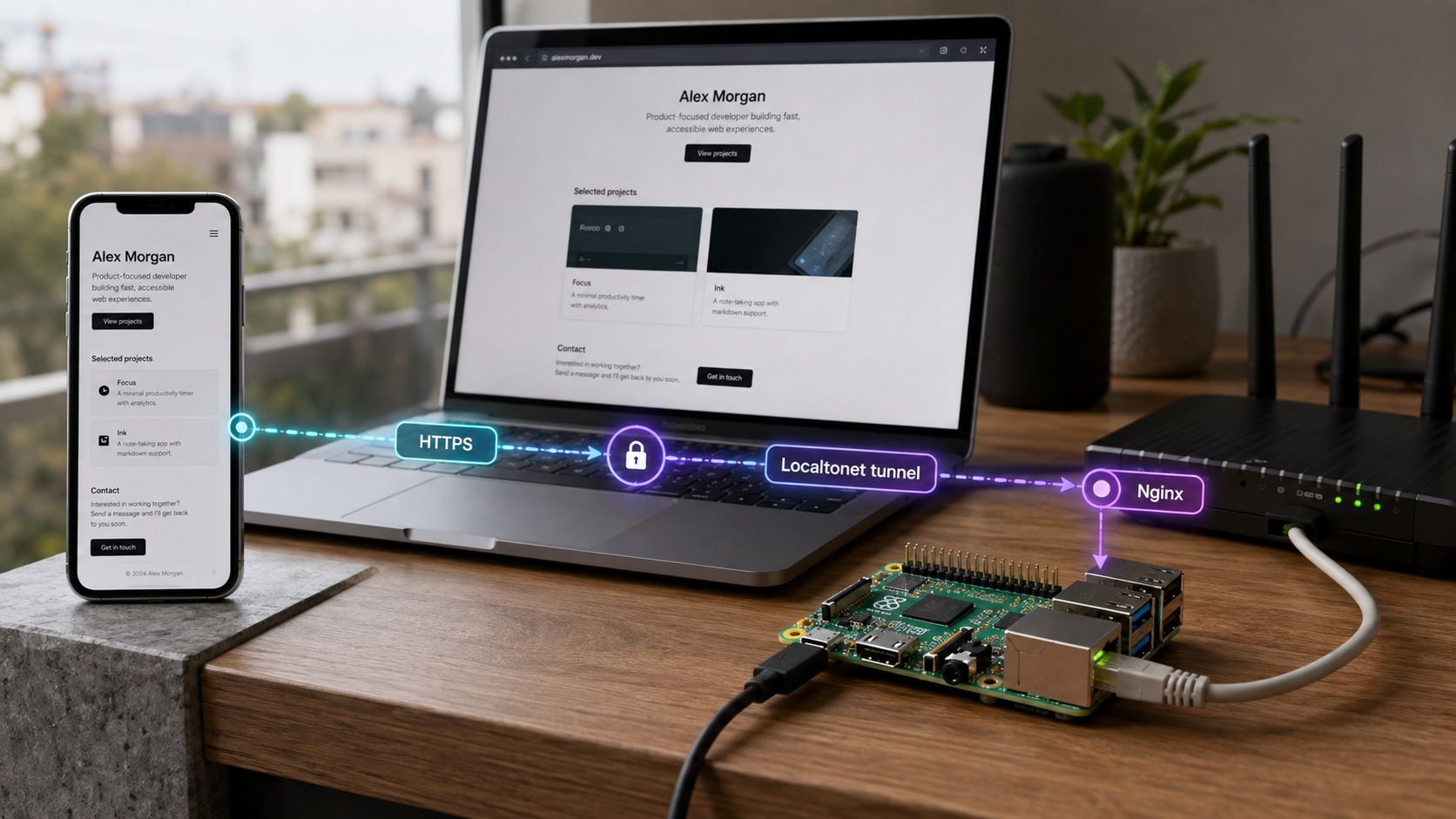
Turn a small Linux computer into a public portfolio server
This tutorial builds a static portfolio, serves it with Nginx on a Raspberry Pi, and publishes it through a Localtonet HTTP tunnel. You will configure the Pi for headless administration, deploy files without unsafe permissions, verify the site locally, and then test the public HTTPS address from outside your home network. The tunnel uses an outbound connection, so you do not need inbound router port forwarding or a public IP address. Availability, bandwidth, and cost still depend on your hardware, internet connection, electricity rate, and current Localtonet plan.
📋 What's in this guide
How the Raspberry Pi portfolio setup works
A static portfolio consists of files such as HTML, CSS, images, and optional browser-side JavaScript. Nginx reads those files from a directory on the Raspberry Pi and serves them over a local HTTP port. In this tutorial, Nginx listens on port 80, and the Localtonet HTTP tunnel points to 127.0.0.1:80.
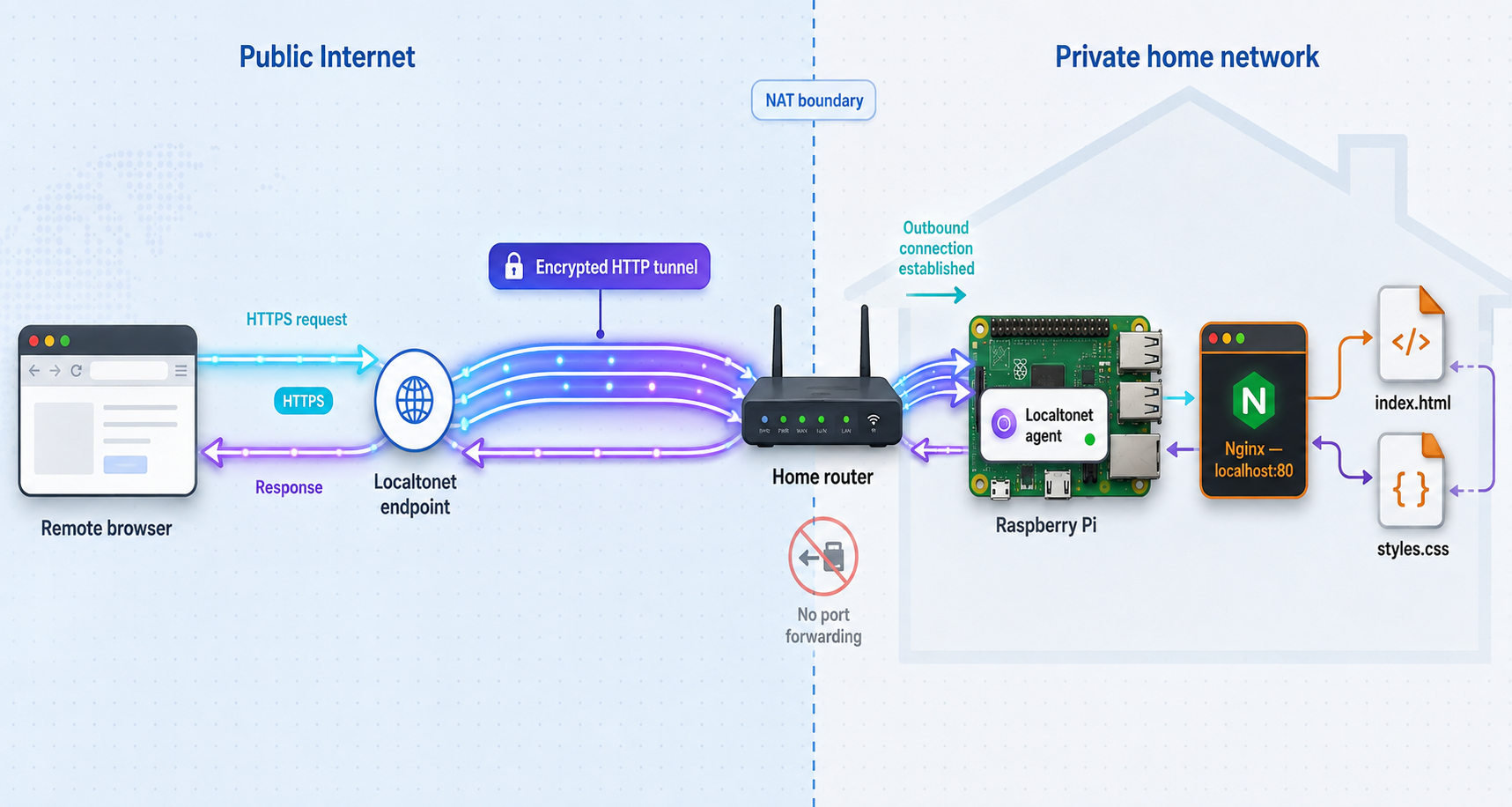
The Localtonet client running on the Pi establishes an outbound connection to a Localtonet relay server. A visitor opens the public HTTPS address assigned to the tunnel, the relay accepts that public connection, and traffic travels through the established tunnel to Nginx on the Pi. This model does not require an inbound router rule, firewall change, VPN setup, or public IP address.
Visitor browser
    |
    | HTTPS
    v
Localtonet public relay
    |
    | Outbound tunnel established by the Raspberry Pi client
    v
Localtonet client on Raspberry Pi
    |
    | HTTP to 127.0.0.1:80
    v
Nginx
    |
    v
/var/www/portfolioCreating a tunnel does not start it. The selected Localtonet client must be connected, and you must press Start for the tunnel. The public address stops working if the client disconnects, the tunnel is stopped, the Pi is offline, Nginx is unavailable, or a plan limit ends the session.
This arrangement is suitable for a personal project when you accept that availability depends on a home device, local power, storage health, internet upload capacity, and the selected tunnel plan. Do not promise a particular visitor capacity or uptime without measuring the complete system under realistic traffic. A lightweight static site is generally less demanding than an application server, but images, downloads, traffic spikes, and network conditions can still become bottlenecks.
Prerequisites and decisions to make first
Gather the following items before changing the Pi. Exact hardware capacity is workload-dependent, so this tutorial does not require a particular performance claim or Raspberry Pi model. Use a Raspberry Pi supported by the current Raspberry Pi OS release and capable of running its 64-bit edition if you select that image.
pi username exists.
An owned domain is optional. A generated Localtonet subdomain is enough to complete and test the tutorial. Custom-domain availability can depend on the current plan, and DNS changes require access to the domain registrar.
Electricity cost varies by Pi model, connected storage, workload, local tariffs, and operating time. Tunnel terms also vary by plan. At the time of the supplied product review, the free Localtonet offering listed one tunnel, 1 GB of monthly bandwidth, and a 30-minute tunnel timeout. Paid tunnels listed unlimited bandwidth, no tunnel timeout, and custom domains. Check the current pricing and dashboard before treating the site as continuously available because plan details can change.
Choose a safe public scope
Publish only the portfolio. Do not place private backups, SSH keys, environment files, source-control metadata, database exports, or administrative dashboards in the web root. Static sites usually need no server-side credentials. If you later add forms, analytics, an application runtime, or an administration interface, perform a new security review rather than assuming the static-site setup remains sufficient.
Treat the Localtonet AuthToken as a secret. It identifies the device that connects to our platform. Do not paste it into a public repository, screenshot, portfolio page, shell transcript, or support post. Use only the token shown in your authenticated Localtonet account.
Prepare Raspberry Pi OS and secure SSH access
Write the current Raspberry Pi OS image
Install Raspberry Pi Imager on your workstation. Select the current Raspberry Pi OS edition appropriate for your hardware. Raspberry Pi OS Lite is sufficient for a headless web server because a desktop environment is not required.
Configure the username, hostname, network, and SSH
In Imager customization, create your own username and a strong password. Configure a hostname, Wi-Fi details if needed, locale settings, and SSH access. Record the username because every SSH and deployment example must use that configured value instead of assuming pi.
Boot and locate the Pi
Insert the storage, connect Ethernet if used, apply power, and allow the first boot to finish. Find the assigned address in your router's client list, or try the configured hostname with the .local suffix if multicast DNS works on your network.
Connect with the username created in Imager
Replace portfolioadmin and the hostname or address below with your actual values. Confirm the SSH host fingerprint through a trusted local method before accepting it.
Install operating-system updates
Refresh package metadata, install available upgrades, and reboot if the update indicates that a reboot is required. Reconnect after the Pi returns.
ssh portfolioadmin@portfolio-pi.local

sudo apt update
sudo apt full-upgrade -y
sudo reboot
Use SSH keys for routine administration
A strong password is still important, but public-key authentication reduces repeated password entry and is preferable for routine deployments. Generate a key on your workstation if you do not already have an appropriate key, copy its public half to the Pi, and test it in a second terminal before changing any SSH authentication setting.
# Run on your workstation, not on the Pi
ssh-keygen -t ed25519
ssh-copy-id portfolioadmin@portfolio-pi.local

# Test before closing the original session
ssh portfolioadmin@portfolio-pi.local
Keep the private key on the workstation and protect it with an appropriate passphrase. Do not copy the private key to the Pi or include it in a website backup. If your workstation does not provide ssh-copy-id, add the public key using the SSH tooling supported by that operating system.
Give the Pi a stable local address
A router DHCP reservation is the preferred method for this tutorial. It keeps address management in one place and avoids applying a static address that conflicts with the router's DHCP pool. In the router interface, find the Pi by hostname or MAC address, reserve its current address, and then renew the connection or reboot the Pi.
Current Raspberry Pi OS releases use NetworkManager by default, so old instructions that edit /etc/dhcpcd.conf are not a reliable current method. If a router reservation is unavailable, NetworkManager can configure a manual address. First identify the active connection profile and collect the correct subnet, gateway, and DNS settings from your network administrator or router.
nmcli connection show
ip address
ip route
The following is an example for a connection profile named Wired connection 1. Replace the profile name, address, prefix, gateway, and DNS values. An incorrect value can disconnect SSH, so use local console access or a tested recovery path when changing remote networking.
sudo nmcli connection modify "Wired connection 1" \
  ipv4.method manual \
  ipv4.addresses "192.168.1.100/24" \
  ipv4.gateway "192.168.1.1" \
  ipv4.dns "192.168.1.1"

sudo nmcli connection up "Wired connection 1"The example assumes a specific private subnet and connection name. Your network can be different. Avoid selecting an address already in use, and do not place a manual address inside a DHCP range unless the router explicitly reserves it for the Pi.
Install and configure Nginx
Install Nginx
Install the web server from the Raspberry Pi OS package repositories, enable it at boot, and start it now.
Create a deployment-owned web root
Create /var/www/portfolio and assign it to your configured deployment user. Nginx only needs read and directory traversal access. It does not need to own the content.
Create the portfolio server block
Configure Nginx to listen on port 80, serve index.html, and return a real 404 response when a requested file does not exist.
Enable and validate the configuration
Enable the site, remove the packaged default link, test the complete Nginx configuration, and reload only after the test succeeds.
sudo apt install -y nginx
sudo systemctl enable --now nginx
sudo systemctl status nginx --no-pager

sudo mkdir -p /var/www/portfolio
sudo chown -R "$USER":"$USER" /var/www/portfolio
sudo find /var/www/portfolio -type d -exec chmod 755 {} \;
sudo find /var/www/portfolio -type f -exec chmod 644 {} \;
Create the Nginx configuration:
sudo nano /etc/nginx/sites-available/portfolioserver {
listen 80;
listen [::]:80;
server_name _;
root /var/www/portfolio;
index index.html;
location / {
try_files $uri $uri/ =404;
}
gzip on;
gzip_types text/plain text/css application/javascript application/json image/svg+xml;
}sudo ln -s /etc/nginx/sites-available/portfolio \
/etc/nginx/sites-enabled/portfolio
sudo rm -f /etc/nginx/sites-enabled/default
sudo nginx -t
sudo systemctl reload nginx
This configuration intentionally avoids an immutable 30-day asset policy. Long immutable caching is appropriate only when changed assets receive new fingerprinted filenames, such as style.a1b2c3.css. Without fingerprinting, a browser or intermediary can continue showing an old stylesheet, script, or image after deployment.
This tutorial uses one catch-all Nginx server on port 80. Additional sites can listen on separate ports, with a separate HTTP tunnel targeting each port. Name-based virtual hosts can share one port, but Nginx then selects a site from the HTTP Host header. Configure and test that routing deliberately rather than assuming that creating another directory creates another public site.
Build a small static portfolio
Plain HTML and CSS are a practical baseline because Nginx can serve them directly. The example includes an introduction, project cards, and contact links. Replace all placeholder text, URLs, and the profile image before publishing.
Project structure
portfolio/
├── index.html
├── style.css
└── assets/
    └── profile.jpg
Create the HTML document
<!doctype html>
<html lang="en">
<head>
  <meta charset="utf-8">
  <meta name="viewport" content="width=device-width, initial-scale=1">
  <meta name="description" content="Portfolio of Your Name, a web developer.">
  <title>Your Name | Web Developer</title>
  <link rel="stylesheet" href="/style.css">
</head>
<body>
  <header>
    <nav aria-label="Primary navigation">
      <a class="logo" href="#about">Your Name</a>
      <ul>
        <li><a href="#about">About</a></li>
        <li><a href="#projects">Projects</a></li>
        <li><a href="#contact">Contact</a></li>
      </ul>
    </nav>
  </header>

  <main>
    <section class="hero" id="about">
      <img
        class="avatar"
        src="/assets/profile.jpg"
        alt="Portrait of Your Name"
        width="120"
        height="120"
      >
      <h1>Hi, I am Your Name</h1>
      <p class="tagline">
        I build accessible and maintainable web applications.
      </p>
      <div class="links">
        <a href="https://github.com/REPLACE-WITH-YOUR-USERNAME">GitHub</a>
        <a href="https://www.linkedin.com/in/REPLACE-WITH-YOUR-USERNAME">LinkedIn</a>
        <a href="mailto:you@example.com">Email</a>
      </div>
    </section>

    <section class="projects" id="projects">
      <h2>Selected projects</h2>
      <div class="project-grid">
        <article class="card">
          <h3>Project One</h3>
          <p>
            Explain the problem, your contribution, and the result.
          </p>
          <a href="https://github.com/REPLACE-WITH-YOUR-USERNAME/project-one">
            View project
          </a>
        </article>

        <article class="card">
          <h3>Project Two</h3>
          <p>
            Describe the important technical choices without listing every tool.
          </p>
          <a href="https://github.com/REPLACE-WITH-YOUR-USERNAME/project-two">
            View project
          </a>
        </article>

        <article class="card">
          <h3>This portfolio server</h3>
          <p>
            A static site served by Nginx on a Raspberry Pi and published
            through a Localtonet HTTP tunnel.
          </p>
        </article>
      </div>
    </section>

    <section class="contact" id="contact">
      <h2>Contact</h2>
      <p>Tell visitors what kinds of conversations you welcome.</p>
      <a class="contact-button" href="mailto:you@example.com">
        Send an email
      </a>
    </section>
  </main>

  <footer>
    <p>Built with HTML and CSS. Hosted on a Raspberry Pi.</p>
  </footer>
</body>
</html>
Add the stylesheet
*, *::before, *::after {
  box-sizing: border-box;
}

html {
  scroll-behavior: smooth;
}

body {
  margin: 0;
  color: #172033;
  background: #f7f8fb;
  font-family: system-ui, sans-serif;
  line-height: 1.6;
}

header {
  position: sticky;
  top: 0;
  background: #ffffff;
  border-bottom: 1px solid #e5e7eb;
}

nav {
  max-width: 900px;
  margin: 0 auto;
  padding: 1rem 1.5rem;
  display: flex;
  justify-content: space-between;
  align-items: center;
}

nav ul {
  display: flex;
  gap: 1rem;
  margin: 0;
  padding: 0;
  list-style: none;
}

nav a {
  color: #334155;
  text-decoration: none;
}

.logo {
  font-weight: 700;
}

main {
  max-width: 900px;
  margin: 0 auto;
  padding: 2rem 1.5rem;
}

.hero {
  padding: 4rem 0;
  text-align: center;
}

.avatar {
  border: 3px solid #0284c7;
  border-radius: 50%;
  object-fit: cover;
}

.tagline {
  color: #475569;
  font-size: 1.1rem;
}

.links {
  display: flex;
  flex-wrap: wrap;
  justify-content: center;
  gap: 1rem;
}

.links a,
.contact-button {
  display: inline-block;
  padding: 0.65rem 1.1rem;
  color: #0369a1;
  background: #ffffff;
  border: 2px solid #0284c7;
  border-radius: 0.5rem;
  font-weight: 700;
  text-decoration: none;
}

.links a:hover,
.links a:focus,
.contact-button:hover,
.contact-button:focus {
  color: #ffffff;
  background: #0284c7;
}

.projects,
.contact {
  padding: 3rem 0;
}

.project-grid {
  display: grid;
  grid-template-columns: repeat(auto-fit, minmax(240px, 1fr));
  gap: 1.25rem;
}

.card {
  padding: 1.5rem;
  background: #ffffff;
  border: 1px solid #e5e7eb;
  border-radius: 0.75rem;
}

.contact,
footer {
  text-align: center;
}

footer {
  padding: 2rem 1rem;
  color: #64748b;
  border-top: 1px solid #e5e7eb;
}

@media (max-width: 600px) {
  nav {
    align-items: flex-start;
    gap: 1rem;
  }

  nav ul {
    flex-wrap: wrap;
    justify-content: flex-end;
  }

  .hero {
    padding: 2.5rem 0;
  }
}A public portfolio can be indexed, copied, and contacted by automated systems. Publish only the email address, employment history, location, résumé details, and photographs you are comfortable making public. Never expose home-network details, credentials, private repositories, or device tokens.
Deploy the files and verify Nginx locally
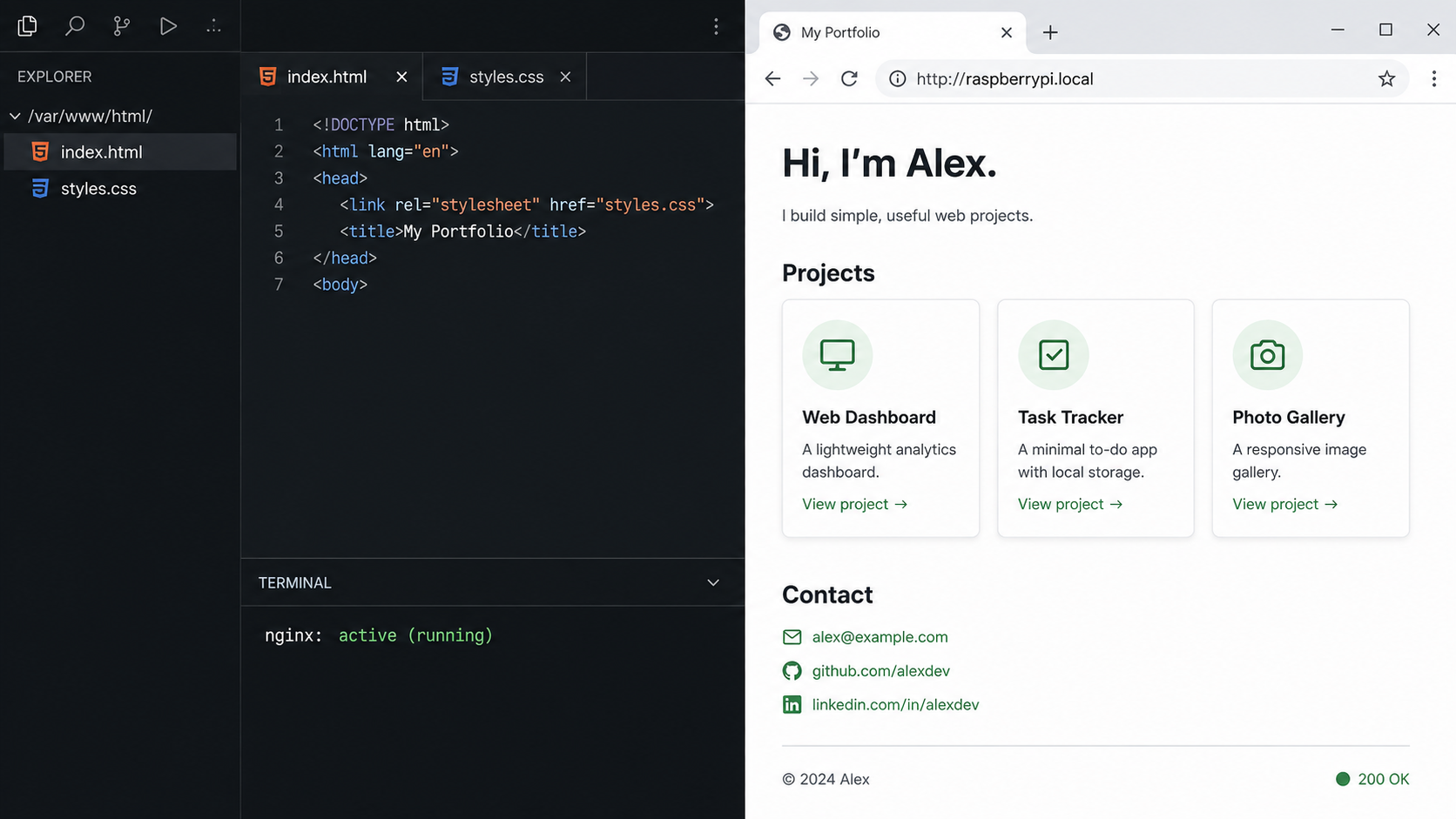
Keep the web root owned by the user that performs deployments. Nginx workers normally read public files without needing ownership. Directories need traversal permission, while ordinary HTML, CSS, JavaScript, and image files do not need executable permission.
Validate the project on your workstation
Confirm that index.html, style.css, and referenced assets exist. Open the page locally and replace all placeholders.
Copy the project with rsync
Run rsync from the workstation. Replace the username and address with the account created in Imager and the Pi's reserved local address.
Apply read and traversal permissions
Keep ownership with the deployment user. Set directories to 755 and ordinary files to 644. This avoids recursively marking every portfolio file executable.
Test from the Pi and another LAN device
Request the site through loopback on the Pi, then through the Pi's LAN address from another device. Both tests should return the portfolio before a public tunnel is created.
# Run from the workstation in the directory containing portfolio/
rsync -av ./portfolio/ \
  portfolioadmin@192.168.1.100:/var/www/portfolio/
# Run on the Pi after deployment
sudo find /var/www/portfolio -type d -exec chmod 755 {} \;
sudo find /var/www/portfolio -type f -exec chmod 644 {} \;
curl -I http://127.0.0.1/
curl http://127.0.0.1/ | head
From another device on the same LAN, open http://192.168.1.100/ or run:
curl -I http://192.168.1.100/A successful header check normally shows an HTTP success status and identifies Nginx as the server. Also load the complete page in a browser, inspect images, follow navigation links, and check the browser developer console for missing assets.
Adding --delete to rsync makes the destination mirror the source, but it also removes destination files not present locally. Use --dry-run first, and keep a backup before enabling deletion in a routine deployment command.
Publish the portfolio with a Localtonet HTTP tunnel
Do not use unverified shell installers, client flags, AuthToken commands, or hand-written systemd units copied from an old article. Client packaging and startup integration can change. Use the current installation path shown by Localtonet for Linux and the Raspberry Pi's processor architecture.
You can begin from the Localtonet download and platform page. Our current product page also offers a generated zero-install SSH command under Settings → SSH Command. If you use that route, copy the generated command from your authenticated dashboard rather than reconstructing it or embedding a token in this tutorial. For a continuously available portfolio, use the current supported Linux client installation and startup method presented for your client version, then verify its behavior after a real reboot.
Install the current Localtonet client
On the Pi, follow the current Linux installation path supplied by Localtonet for the device architecture. Do not substitute an old community command or an unverified installer URL.
Authenticate or select the Pi's AuthToken
In the Localtonet client, select the device-specific AuthToken provided by your account. The token identifies this client device and must remain secret.
Open the HTTP tunnel page
In the authenticated dashboard, open the HTTP tunnel page and begin creating a new HTTP tunnel.
Choose the Process Type
Select Random Sub Domain for the simplest first test. Custom Sub Domain and Custom Domain provide other public naming options where available. These Process Types serve the same local web content at a public HTTPS address.
Select the AuthToken and an available server
Select the AuthToken for the connected Raspberry Pi and choose a relay server from the options currently available in your dashboard. Server codes and availability can change, so do not copy a hardcoded value from an old tutorial.
Enter the local Nginx target
Set the listening IP to 127.0.0.1 and the port to 80. This targets Nginx on the same Pi as the Localtonet client. If the client runs on another device, use an address that device can actually reach instead.
Create the tunnel
Press Create after checking the Process Type, AuthToken, server, local IP, and port. Creation saves the tunnel configuration but does not make it active.
Press Start and copy the assigned URL
Find the new tunnel in the list and press Start. Once its state is connected, copy the public HTTPS URL displayed by the dashboard.
Verify from outside the home network
Disable Wi-Fi on a phone and open the public URL over mobile data, or test from another external network. Check the home page, stylesheet, profile image, project links, and a deliberately missing path.
# Run from an external system after replacing the placeholder
curl -I https://YOUR-ASSIGNED-PUBLIC-HOST/
curl -I https://YOUR-ASSIGNED-PUBLIC-HOST/path-that-does-not-exist
The first request should reach the portfolio. The deliberately missing path should return 404, confirming that Nginx is not silently serving unrelated content. If local requests work but the public request fails, investigate the Localtonet client, selected AuthToken, tunnel state, server selection, and target address before changing Nginx.
Search engines, scanners, and automated clients can reach the URL. Keep Raspberry Pi OS and Nginx updated, expose only the intended static directory, and avoid publishing administrative applications through the same unauthenticated site. Where appropriate, review the access-control options available to your current Localtonet plan, such as authentication or IP restrictions.
Add an optional custom domain
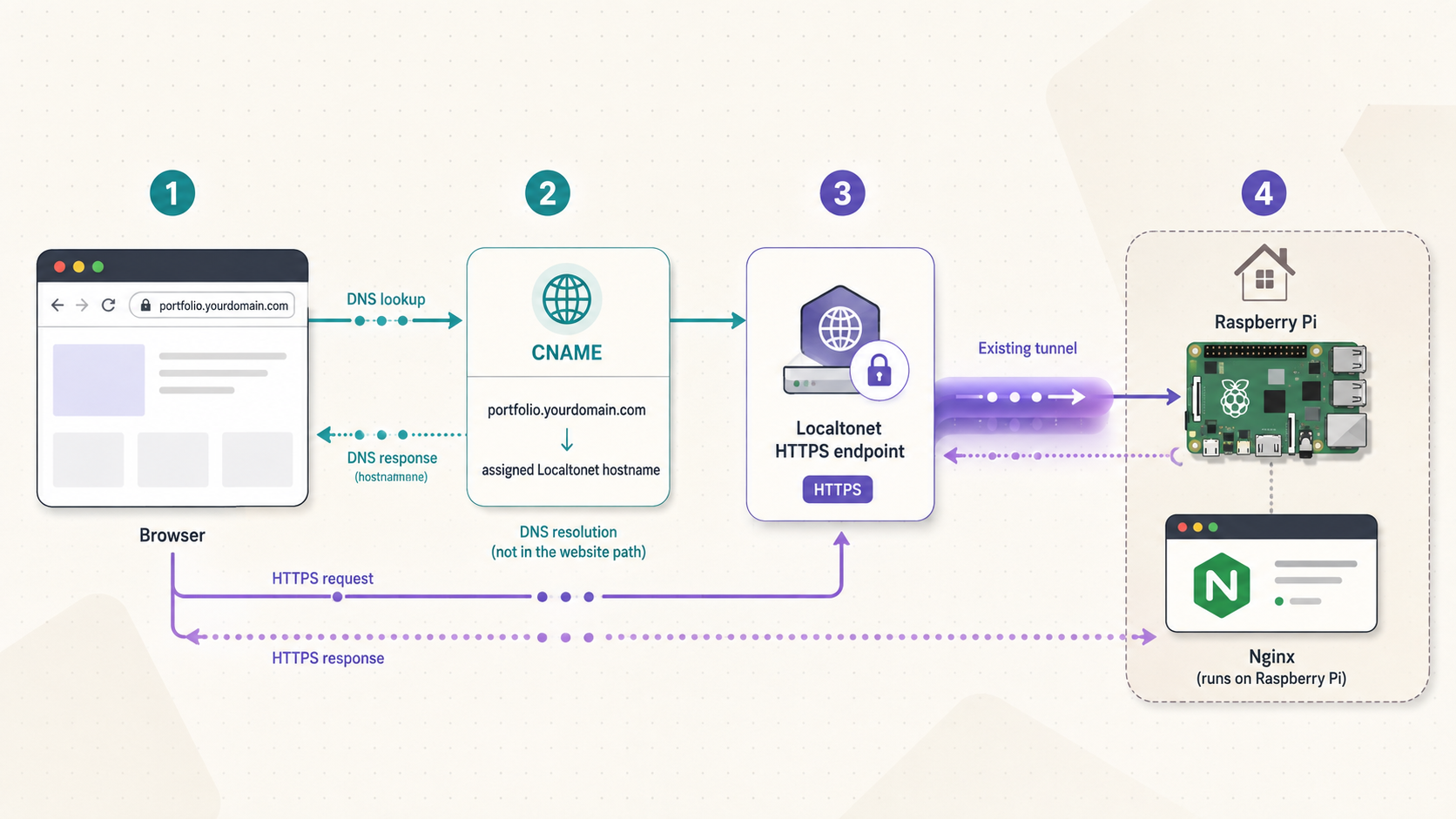
A custom domain is useful when you want a branded and stable portfolio address. You must own the domain, have access to its registrar, and use a Localtonet plan that currently includes custom domains. Check the current dashboard and pricing before changing authoritative nameservers.
Changing nameservers delegates DNS management for the whole domain. Review existing mail, verification, and application records before replacing the registrar's nameservers. Recreate any required records in the new DNS manager so unrelated services do not stop resolving.
Add the root domain to DNS Manager
Open the Localtonet DNS Manager, press Add Domain, and enter the root domain, such as example.com. Do not enter www or another subdomain at this stage.
Copy the displayed nameservers
After saving the domain, note the nameserver values displayed by DNS Manager. The currently documented values are ns1.localtonet.com and ns2.localtonet.com, but use the values shown in your account if the interface differs.
Replace nameservers at the registrar
In the registrar's nameserver settings, remove the previous authoritative nameservers and enter only the Localtonet values shown by DNS Manager. A mixture of old and new authoritative nameservers can produce inconsistent DNS answers.
Wait for global propagation
Nameserver changes can take from a few minutes to 48 hours to propagate globally. Do not repeatedly change the configuration while different recursive DNS resolvers are still updating.
Create a Custom Domain HTTP tunnel
Open the HTTP tunnel page and create a new tunnel. Select Custom Domain as the Process Type, choose the registered domain, and enter a subdomain such as portfolio, or leave the subdomain blank if you intend to use the root domain.
Select the device, server, and local target
Select the Pi's AuthToken, choose a currently available server, and set the local IP and port to 127.0.0.1 and 80.
Create, Start, and verify HTTPS
Press Create, then separately press Start in the tunnel list. Localtonet provisions HTTPS for the custom domain. Open the resulting address from an external network and confirm that the certificate is valid for the requested hostname.
The complete DNS workflow is also covered in our custom-domain configuration guide. Use that guide to compare the current dashboard with these steps before making a production DNS change.
Updates, backups, recovery, and troubleshooting
Use a repeatable update workflow
Keep the editable source on your workstation or in a private or public repository appropriate for its contents. Preview changes locally, deploy with rsync, and then perform both local and public checks. Nginx does not normally need a reload when only HTML, CSS, JavaScript, or image files change.
# Preview what rsync would transfer
rsync -avn ./portfolio/ \
  portfolioadmin@192.168.1.100:/var/www/portfolio/

# Deploy after reviewing the preview
rsync -av ./portfolio/ \
  portfolioadmin@192.168.1.100:/var/www/portfolio/

# Verify locally and publicly
curl -I http://192.168.1.100/
curl -I https://YOUR-PUBLIC-HOST/
Avoid an unauthenticated webhook that executes deployment commands. A secure automated deployment requires authenticated requests, signature validation, strict repository and branch selection, least-privilege execution, protected secrets, logging, and rollback behavior. For a personal portfolio, manual rsync over SSH is simpler to inspect and recover.
Back up content and configuration
Keep at least one copy outside the Pi. The source project is the primary content backup. Also retain the Nginx server block and a record of the intended tunnel settings without storing the AuthToken in the backup. A storage-card failure should require reinstalling the OS and client, restoring the Nginx configuration, redeploying the files, and selecting the existing device or replacement device configuration through your account.
# Example configuration backup from the Pi
cp /etc/nginx/sites-available/portfolio \
  "$HOME/portfolio-nginx.conf.backup"
Before a risky change, make a dated copy of the deployed site or ensure that the previous revision remains available on your workstation. A rollback can then consist of redeploying the previous files and verifying the response. For Nginx changes, always run sudo nginx -t before reloading.
Install routine operating-system updates
sudo apt update
apt list --upgradable
sudo apt upgrade
sudo nginx -t
sudo systemctl status nginx --no-pager
Review package changes rather than assuming every update is risk-free. If a reboot is required, plan a short outage. After rebooting, verify the Pi's address, Nginx, the Localtonet client connection, the tunnel's running state, and the external HTTPS URL.
Localtonet startup integration is client-version dependent. Use only the current supported startup option supplied with the installed client. After configuring it, perform a real reboot test. Do not assume that a tunnel automatically restarts merely because its configuration exists in the dashboard. The client must reconnect, and the tunnel must be running.
Check Nginx status and logs
sudo systemctl status nginx --no-pager
sudo nginx -t
sudo journalctl -u nginx --since "30 minutes ago"
sudo tail -n 100 /var/log/nginx/error.log
sudo tail -n 100 /var/log/nginx/access.log
Access logs show whether requests reached Nginx. Error logs provide details about configuration failures, missing files, and permission problems. If a public request never appears in the Nginx access log but a local request does, focus on the tunnel and target path rather than rewriting the website.
Focused troubleshooting table
| Symptom | Likely checks | Corrective action |
|---|---|---|
| SSH connection fails | Wrong username, changed address, Pi still booting, SSH not enabled, or local network isolation | Use the username configured in Imager, check the router client list, test local reachability, and use a local console if networking was changed incorrectly. |
nginx -t fails |
Syntax error, duplicate directive, missing brace, or invalid enabled-site link | Read the exact file and line in the error, correct it, rerun the test, and reload only after the test succeeds. |
| Nginx returns 403 | Missing index.html, unreadable file, or a parent directory without traversal permission |
Confirm the web root and index file, keep deployment-user ownership, set directories to 755, and set ordinary files to 644. |
| Nginx returns 404 | Wrong path, filename case mismatch, missing asset, or incomplete deployment | Compare HTML references with actual filenames, remember Linux paths are case-sensitive, and inspect the access and error logs. |
| Old CSS or images remain visible | Browser cache, intermediary cache, or a filename reused after content changed | Hard refresh during testing. For long cache lifetimes, adopt fingerprinted filenames before marking assets immutable. |
| Local site works but public URL fails | Client disconnected, wrong AuthToken, tunnel not started, unavailable relay selection, or incorrect local IP and port | Confirm the Pi client is connected, select its device token, verify the server, use 127.0.0.1:80, and press Start after Create. |
| Public page shows an upstream connection failure | Nginx stopped, wrong target port, Localtonet client running on another device, or service bound somewhere unexpected | Run curl -I http://127.0.0.1/ on the Pi, check Nginx, and ensure the tunnel client can reach the configured target. |
| Tunnel stops after a period | Free-plan timeout, bandwidth limit, client exit, reboot, power loss, or network interruption | Check current account limits and tunnel status, reconnect the client, restart the tunnel, and select a suitable plan if continuous operation is required. |
| Custom domain does not resolve everywhere | Nameserver propagation, mixed old and new nameservers, missing DNS records, or cached responses | Allow up to 48 hours, verify the authoritative nameserver delegation, and avoid repeated DNS changes during propagation. |
| Custom-domain certificate is not ready | DNS has not propagated, the hostname does not point through the configured domain, or the tunnel is not running | Verify DNS first, confirm the Custom Domain Process Type and hostname, then confirm that the client and tunnel are connected before retesting HTTPS. |
Framework-specific sites need a separate deployment plan
A framework can generate static files, but its output directory and routing behavior depend on the framework and version. If a React-based project produces a static build, deploy the generated output rather than the source directory. A single-page application that uses client-side routes may need an intentional Nginx fallback to index.html, which is different from the strict 404 behavior in this tutorial.
Next.js can produce different deployment forms. A fully static export can be served like the files above when supported by the project's features and current Next.js configuration. Server-side rendering requires a compatible Node.js runtime, process supervision, application updates, and an Nginx reverse-proxy configuration. Those requirements are outside this static-site tutorial and should not be reduced to copying a build directory.
Measure before deciding whether the Pi is adequate for a dynamic framework. CPU use, memory use, storage performance, upload bandwidth, image size, caching, and visitor behavior all affect capacity. No responsible configuration can guarantee thousands of simultaneous visitors or a specific response time without workload testing.
Frequently asked questions
Does this require router port forwarding?
No. The Localtonet client on the Raspberry Pi establishes an outbound connection to a relay. The public URL forwards requests through that tunnel to Nginx at the configured local IP address and port.
Is the portfolio continuously available on the free plan?
Do not assume so. At the time of the supplied review, the free plan listed a 30-minute tunnel timeout and 1 GB of monthly bandwidth. The public URL also depends on the Pi, Nginx, internet connection, Localtonet client, and tunnel remaining available. Check current plan terms before publishing a URL that must remain continuously online.
Why should Nginx not own the portfolio files?
Nginx only needs read and directory traversal access for a static site. Keeping ownership with the deployment user allows rsync updates without unnecessary privilege changes. Directories can normally use 755 and ordinary static files 644.
What happens after the Raspberry Pi reboots?
Nginx is enabled to start at boot in this tutorial. Localtonet client startup depends on the current supported installation and startup option for your client version. Test a real reboot and verify that the client reconnects and the tunnel is running. A saved tunnel configuration alone does not guarantee an active public endpoint.
Can I use a custom domain?
Yes, when custom domains are included in your current Localtonet plan. Add the root domain to DNS Manager, replace the registrar's authoritative nameservers with the values supplied by Localtonet, allow up to 48 hours for propagation, and create an HTTP tunnel with the Custom Domain Process Type. Press Create and then Start.
Can I host multiple sites on one Raspberry Pi?
Yes, but choose a routing model deliberately. Separate Nginx listening ports can map to separate Localtonet HTTP tunnels. Name-based Nginx virtual hosts can share a port and route by the HTTP Host header. Test each hostname and review the Localtonet virtual-host documentation before publishing multiple sites.
Can I deploy a React or Next.js portfolio?
You can deploy static output when the framework and project support it. Deploy the generated output directory, not raw source files. Client-side routing may require a different Nginx fallback. Next.js server-side rendering requires a Node.js service, process supervision, and reverse-proxy configuration beyond this static tutorial.
How much will the Raspberry Pi site cost to run?
There is no universal figure. Hardware purchase, storage, power supply, connected accessories, measured electricity use, local energy tariffs, domain registration, and the selected Localtonet plan all contribute. Measure power at the wall and apply your own tariff if an accurate annual estimate matters.
Publish your Raspberry Pi portfolio with Localtonet
Build and verify the site locally first, then create an HTTP tunnel that targets Nginx on 127.0.0.1:80. Review current plan limits before choosing a generated address or custom domain.


