

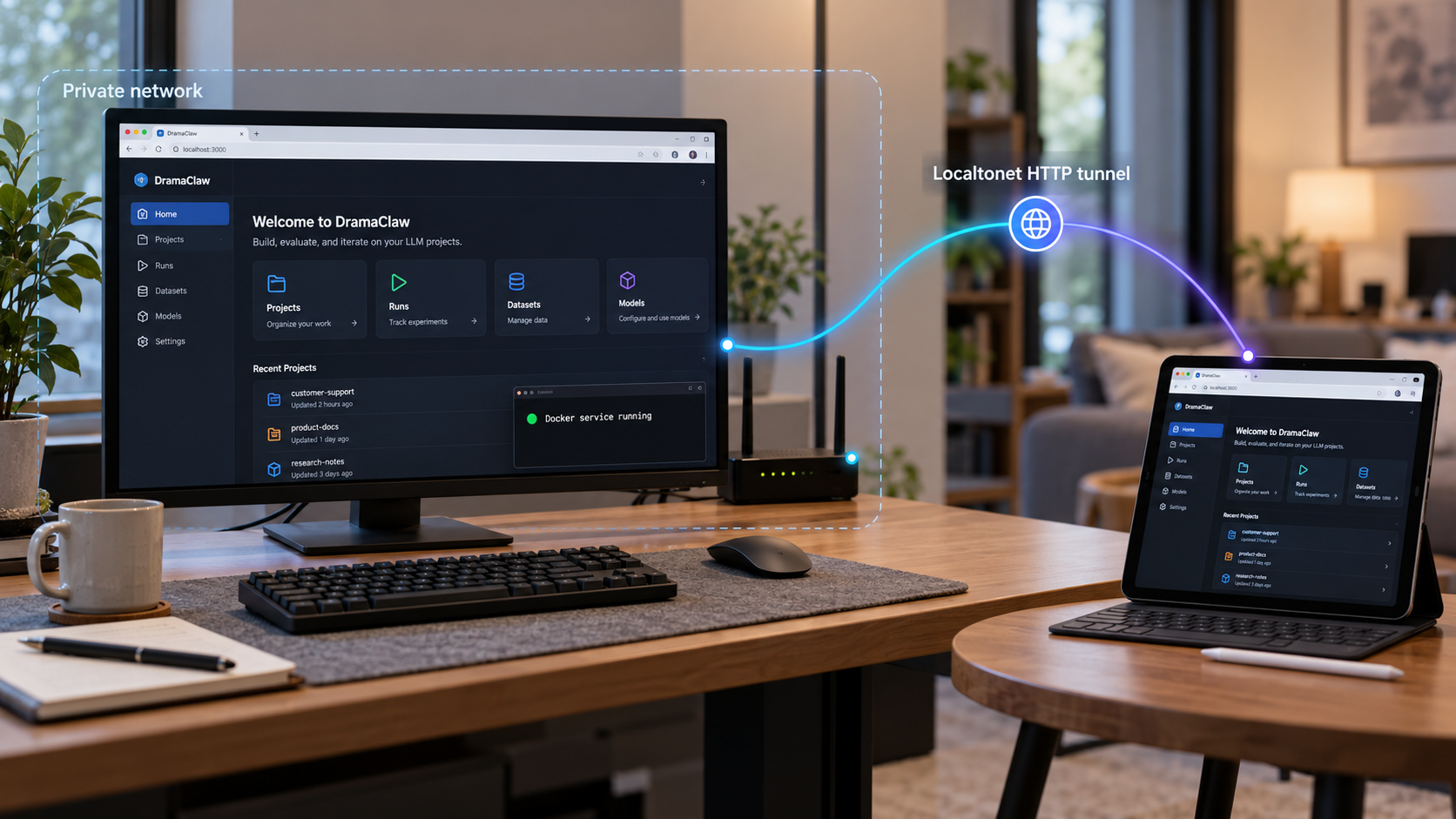
Build the creative pipeline locally, verify it in your browser, then make it available through a controlled public endpoint
DramaClaw is a source-available AI video-production platform with a browser-based canvas, an automated series pipeline, and an agent for coordinating creative workflows. This guide explains what is currently established about its Docker-based deployment, how to approach configuration without inventing undocumented values, and how to verify the application locally. Once the local interface works, we show how to connect it to a Localtonet HTTP tunnel for remote browser access without inbound router port forwarding, firewall changes, VPN setup, or a public IP address. Exact DramaClaw Docker commands, environment variables, and the local service port are intentionally not guessed because they were not included in the verified installation evidence available for this draft.
📋 What's in this guide
What you are self-hosting
DramaClaw is described by its project as a source-available, general-purpose AIGC video engine. Its purpose is broader than generating a single image or clip. It combines creative planning, reusable assets, generative media tasks, and video composition into a production workflow that can move from a script or manuscript toward a finished visual story.
The application has two main working surfaces that share an asset library and an agent. XiaHua is an infinite, node-based canvas for creating, editing, connecting, and arranging images, video, audio, scripts, and 3D material. Series, also called XiaJi, is the structured pipeline. It handles work such as story organization, episode planning, script development, storyboards, first frames, voice-over, and final assembly.
Xia Director operates across those surfaces. It can interpret a natural-language creative brief, help plan a workflow, coordinate nodes, inspect project progress, and drive supported pipeline tasks. The project also describes a workflow catalog with skills and recipes for formats including short drama, e-commerce advertising, character advertising, and social content. Some capabilities, including the in-browser 3D previs stage and interactive stories, are identified by the project as closed beta features. They should not be treated as generally available merely because they appear in the project overview.
A self-hosted deployment gives you operational control over the machine, container lifecycle, storage, and network exposure. It does not automatically make every connected AI model local. A workflow may still call model providers or other services according to the configuration you choose. Review every provider, credential, and data flow before processing confidential scripts, customer material, unreleased footage, or licensed assets.
The project currently identifies its license as Elastic License 2.0 and says the standalone version may be run, modified, and used commercially, subject to its stated requirements, including a small “Powered by DramaClaw” notice in the UI. It also says wrapping the project as a hosted SaaS for other people is not open under that permission. This guide covers operating your own instance and does not interpret the license or grant additional rights. Review the current repository license and notices before commercial deployment.
Prerequisites and decisions to make first
The verified project material establishes Docker as the documented deployment direction, but the supplied Quick Start excerpt does not establish an operating-system matrix, minimum Docker version, Compose version, CPU requirement, memory requirement, GPU requirement, supported accelerator, storage estimate, or service port. We therefore cannot safely publish numerical requirements or platform promises in this draft.
Before installation, prepare a host on which the current Docker and Docker Compose tooling works. You also need enough disk capacity for the application, container images, project assets, generated media, caches, and any model-related data used by your chosen workflow. Video production can create substantially larger working sets than a conventional web application, but no evidence-backed capacity estimate is available here. Size the host according to your own source media, output resolution, retention policy, and model configuration.
Confirm the following before proceeding:
- A host where you are authorized to install and run containers.
- A current copy of the official DramaClaw repository or a deliberately selected release.
- The current DramaClaw Quick Start open for the exact commands and values associated with that revision.
- Persistent storage and a backup plan for irreplaceable project material.
- Credentials for any external model or media services you elect to configure.
- A modern browser for testing the application locally.
- A Localtonet client device that can reach DramaClaw when remote access is required.
- Authority to expose the selected instance and its content beyond the local machine.
| Item | What is verified | What must be confirmed before use |
|---|---|---|
| Deployment method | The repository is described as Docker-ready and contains Docker and Compose files. | The exact current Quick Start command sequence. |
| Application endpoint | DramaClaw has an in-browser interface. | The published host address and port printed or documented for the selected release. |
| Configuration | The repository contains an environment example file. | Which variables are mandatory, optional, secret, or release-specific. |
| Compute | Generative workflows can depend on the selected models and integrations. | CPU, memory, GPU, accelerator, and model requirements for your intended workflow. |
| Storage | The application manages creative projects and generated media. | Volume paths, persistence behavior, capacity, backup coverage, and restore procedure. |
| Remote access | The browser interface is suitable for an HTTP tunnel after local verification. | The exact local IP address and port Localtonet must target. |
Model-provider keys and other secrets should be handled according to the current DramaClaw configuration instructions and the security requirements of each provider. Do not commit populated environment files to source control. Do not place secrets in a public URL, browser bookmark, tunnel name, container name, or article example.
Install DramaClaw with its official Docker workflow
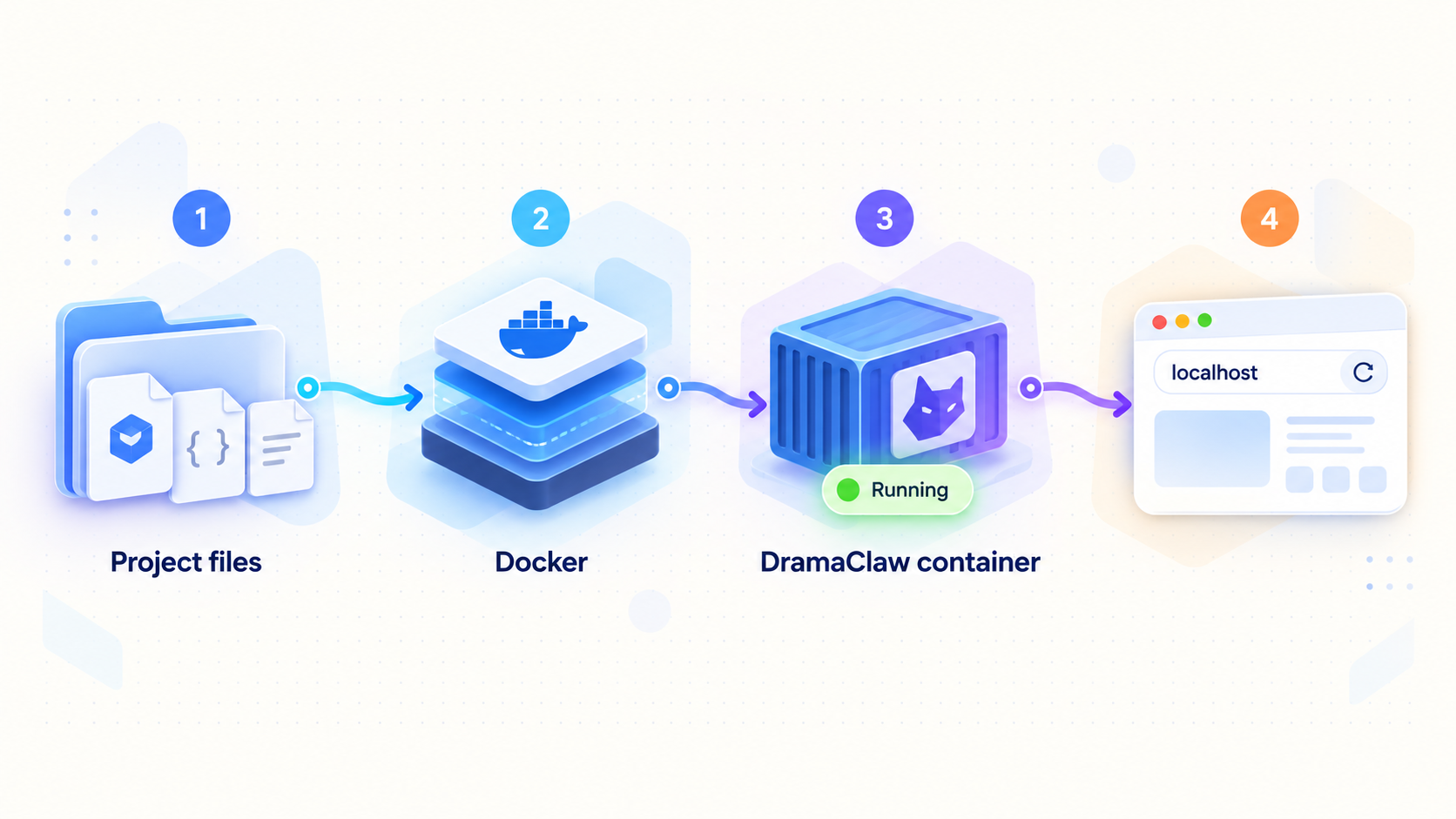
The safe installation path is to use the Quick Start that belongs to the exact DramaClaw revision you intend to run. The repository visibly contains a Dockerfile, docker-compose.yml, docker-compose.release.yml, docker-compose.brainclaw-evidence.yml, and .env.example. Their presence is useful evidence that the project supports container deployment, but it does not tell us which Compose file, profile, build argument, environment file, or command the current Quick Start selects.
This distinction is important. Running a plausible generic command against an arbitrary Compose file could build a development image instead of a release image, omit required services, use unintended defaults, or publish a different port. For that reason, this article does not substitute an invented docker compose command for the missing official instructions.
1. Choose a revision intentionally
Decide whether you want the project’s current default branch or a named release. A named release can make an installation easier to reproduce because the application code and deployment files remain tied to a specific revision. The supplied evidence identifies v2.0.6 as a release and describes user-facing changes such as canvas video extension, model-backed video resolution and frame-rate enhancement, and MP3 output from audio separation.
Those release features have configuration dependencies. Video extension requires a compatible configured model, and enhancement is model-backed. Installing the application alone does not guarantee that every workflow or release feature can run. Treat model setup as a separate configuration and validation task.
2. Obtain the official project files
Retrieve the repository using the method documented by the project for the chosen revision. Confirm that the expected Docker, Compose, environment example, source, and documentation files are present before running anything. If files are missing or differ materially from the Quick Start, stop and reconcile the revision rather than combining instructions from different versions.
3. Read the selected Compose definition before starting it
Inspect the exact Compose file named by the current Quick Start. Identify its services, image or build source, published ports, mounted directories, named volumes, environment inputs, restart behavior, dependencies, and any optional profiles. This review establishes what will run and where persistent data is expected to live.
In particular, record the host-side published port. A container’s internal port is not automatically the port that a browser or Localtonet should use. When a mapping contains two port values, the host-side value is the one reached from the host. Do not assume a conventional web port when the project documentation or container output provides the real value.
4. Create configuration only as directed
Use the project’s current Quick Start to determine whether .env.example should be copied, renamed, or used only as a reference. Review each documented setting before entering a value. Preserve variable names exactly, and do not add guessed variables copied from old issues, unofficial examples, or a different release.
Separate ordinary settings from credentials. If the selected model integration requires a key, limit its permissions and usage according to the provider’s controls. Avoid reusing credentials from a production environment while evaluating the application. Keep the populated configuration outside public repositories and backups that are not designed to protect secrets.
5. Run the exact Quick Start command
Execute the Docker command shown in the current official Quick Start for your selected revision. The exact command is a material installation detail, and it is absent from the supplied evidence, so it cannot be reproduced responsibly here. Watch the initial output for image download or build failures, missing variables, unavailable ports, volume permission errors, dependency failures, and the address exposed by the web service.
Do not create a Localtonet tunnel at this stage. First prove that the containers remain running and that the application can be opened from the same machine or local network. This separation makes troubleshooting much easier because it prevents an application problem from being mistaken for a tunnel problem.
The available project excerpt does not contain DramaClaw’s exact Docker commands, required environment variables, bind address, port, initial credentials, health-check path, or persistence layout. Publishing guessed values would make this tutorial unsafe and unreliable. A human editor should add those exact details from the current official Quick Start before publication. Until then, follow the Quick Start associated with the chosen revision and use the verification method below without substituting assumed values.
Configure the creative environment
A successful container start proves only that the application process launched. DramaClaw’s useful production capabilities depend on the models, services, storage, and workflow components selected for the project. Configure incrementally so that a failure can be traced to one integration instead of a large collection of changes.
Start with the smallest testable workflow
Open the local interface and create or select a non-sensitive test project. Confirm that the basic UI loads before adding external model credentials. Then configure one supported provider or model at a time, using the current project instructions for that integration. Run a minimal task and retain its logs until you know the integration works.
Avoid beginning with a full multi-stage production. A long workflow can involve script processing, image generation, audio synthesis, video generation, enhancement, and composition. If several integrations are introduced simultaneously, an error near the end may hide a much earlier configuration problem.
Separate application readiness from model readiness
Use three different readiness states when evaluating the deployment:
- Container readiness: the required containers start and remain running.
- Interface readiness: the browser UI loads at the documented local address.
- Workflow readiness: the configured model or provider successfully completes a small task and returns an expected asset.
This separation is particularly relevant to v2.0.6 features. The release says that video extension works when a compatible model is configured and that resolution or frame-rate enhancement is model-backed. If the interface offers a control but execution fails, investigate the selected model and its configuration before assuming that Docker networking or Localtonet is responsible.
Plan persistence before creating valuable work
Determine which host directory or Docker volume holds projects, assets, generated media, and application state. The verified excerpt does not identify those paths, so inspect the selected Compose definition and current documentation. Back up the persistent data rather than only the container image or repository checkout.
A useful recovery test is more valuable than an untested backup job. On an isolated host or temporary environment, confirm that the documented restore process recreates a project and its linked assets. Do not experiment with restoration against the only copy of active production data.
Verify DramaClaw locally before remote access
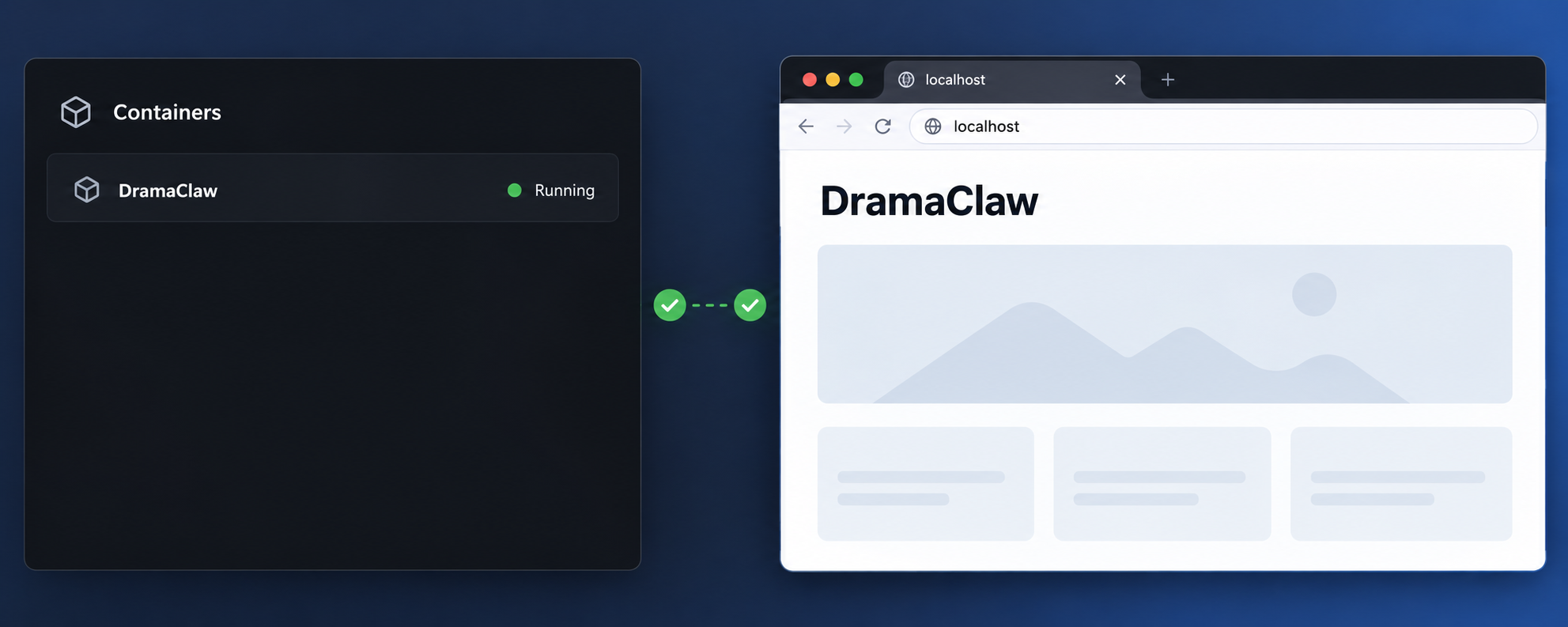
Local verification creates a clear boundary between DramaClaw setup and network publication. If the application does not work at its local address, an HTTP tunnel will not repair it. It will only forward requests toward an unhealthy, incorrect, or unreachable target.
Use the host address and published port established by the official Quick Start or the selected Compose configuration. Do not copy a port from an unrelated tutorial. Open that exact address in a browser from the DramaClaw host. If the service is deliberately bound to a LAN interface, you can also test from another authorized device on the same network.
Local acceptance checklist
- The expected containers are running rather than repeatedly restarting.
- The web address opens without a connection refusal or indefinite timeout.
- HTML, scripts, styles, icons, and other browser assets load correctly.
- Navigation within the canvas and project interface works after a refresh.
- A small test project can be created or opened according to the application workflow.
- At least one deliberately configured model integration completes a minimal test, if model execution is part of your intended use.
- Generated output is written to persistent storage rather than disappearing when a container is recreated.
- The browser developer console and container logs do not show recurring configuration or network failures.
Record the exact working local target as an IP address and port. For example, the target might be a loopback address when Localtonet runs on the same host, or a private LAN address when the Localtonet client runs on another device. These are architectural examples, not DramaClaw defaults. Use only the address and port proven in your environment.
Localtonet needs an address reachable from the device running our client. A container-only service name or an internal container address may not be reachable from that device. Test the same local IP address and port from the Localtonet client device before using them as the tunnel target.
Publish the verified interface with a Localtonet HTTP tunnel
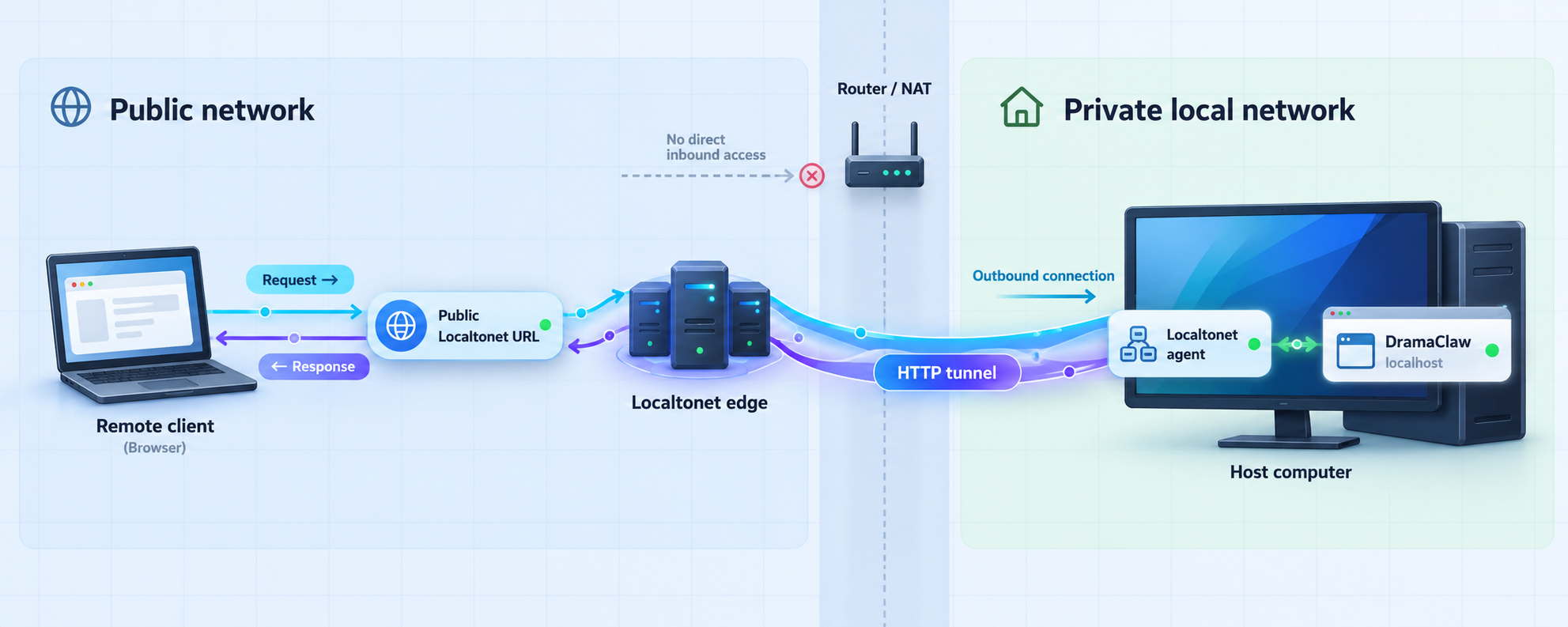
After DramaClaw works locally, an HTTP tunnel can expose its browser interface through a public HTTPS address. The Localtonet client establishes an outbound connection to one of our relay servers, so this workflow does not require inbound router port forwarding, firewall changes, VPN setup, or a public IP address.
The tunnel remains dependent on both sides of the local deployment. DramaClaw must be running, and the selected Localtonet client device must remain connected with the tunnel started. Creating a tunnel configuration does not start it automatically.
| HTTP process type | Public address behavior | When to consider it |
|---|---|---|
| Random Sub Domain | Serves the local HTTP content at an assigned public HTTPS address. | Useful for initial testing or access where a specific name is not required. |
| Custom Sub Domain | Serves the same local content through a selected subdomain where supported. | Useful when a stable, recognizable supported subdomain is needed. |
| Custom Domain | Serves the local content through a domain configured for the tunnel. | Useful when operating under a domain you control and after checking current DNS requirements. |
Availability can vary by plan, client version, region, and current product configuration. Obtain the available relay servers and options from the current dashboard instead of copying a server code from an article. For custom domains, check the current Localtonet documentation before making DNS changes because exact requirements are not established in the supplied context.
Configure and start the tunnel
Install and run the Localtonet client
Run our client on the DramaClaw host or on another authorized device that can reach the verified DramaClaw IP address and port. Keep the client running for as long as remote access is required.
Authenticate and select the client device
Use the device-specific authentication token through the supported client workflow, then select that device in the dashboard. Treat the token as a secret. Never place it in a public command example, repository, screenshot, or support post.
Select an available relay server
Choose from the relay servers or regions currently offered in your dashboard. Do not use a server code copied from another deployment because available values can change or differ between accounts and plans.
Create the HTTP tunnel configuration
Choose an HTTP tunnel and enter the local IP address and port that passed local verification. Select the appropriate process type: Random Sub Domain, Custom Sub Domain, or Custom Domain. All three expose the same local content through a public HTTPS address, but naming and configuration requirements differ.
Start the tunnel
Use the Start button after reviewing the target. A newly created tunnel is not active until it is started. Confirm that the selected Localtonet device is connected and that DramaClaw is still responding locally.
Test the assigned public address
Open the assigned public HTTPS address in a separate browser session and test the same basic navigation used during local verification. When access is no longer needed, stop the tunnel. Delete it if the endpoint should not be retained.
You can review the current workflow in the Localtonet HTTP tunnel documentation. Use the documentation and dashboard values that are current for your client and account rather than hardcoding an example relay server or public hostname.
Verify more than the landing page
A landing page can load even when interactive functions fail. After the public address opens, test project navigation, canvas loading, ordinary API requests initiated by the browser, and one small non-sensitive operation. Refresh a nested view to detect path-handling issues. If the UI uses long-running tasks, observe one test task without assuming that every external provider will behave identically over a remote session.
Keep the local browser test available during diagnosis. If an action fails locally and publicly, investigate DramaClaw or its model integration. If it succeeds locally but fails only through the public address, compare browser errors, request paths, application logs, and the local target selected in the tunnel.
Secure remote creative access
A public URL changes the risk profile of a self-hosted application. It can make the interface reachable from outside the trusted local network, so remote access should be a deliberate operational decision rather than the default state of every installation.
The supplied DramaClaw evidence does not establish whether the selected release provides built-in user authentication, role-based access, session controls, or network allowlists. Do not assume that these protections exist. Inspect the current application documentation and test the actual deployment before exposing projects or provider-backed actions.
If your DramaClaw deployment does not enforce suitable authentication and authorization, a public tunnel may expose project assets, generated media, workflow controls, and actions that consume provider resources. Keep the tunnel stopped until appropriate access controls are in place. Use least-privilege credentials, non-sensitive test data, and any applicable IP restrictions or access controls available in your current architecture.
Remote access also does not change the terms of the DramaClaw license. Operating your own remotely accessible instance is distinct from packaging the application as a hosted SaaS for other people. If the deployment is part of a commercial service, obtain a qualified review of the current license and project notices.
Routine operation, updates, and recovery
Starting a working session
Start the Docker deployment with the command documented for your installed revision. Confirm that all required containers remain healthy and open the local interface. Start the Localtonet client, verify that the correct device is connected, and then start the existing HTTP tunnel. Open the public address only after the local service is ready.
Ending a working session
Finish or pause active generation tasks according to DramaClaw’s current behavior before stopping containers. Confirm that project changes and generated assets have reached persistent storage. Stop the Localtonet tunnel when public access is no longer needed, then stop DramaClaw using the official command for the selected deployment.
Updating DramaClaw
Treat an update as a controlled change rather than replacing containers without preparation. Read the release notes between your current revision and the target revision. Back up persistent data and the active configuration, but keep secret-bearing files protected. Check for changes to Compose files, environment variables, volumes, provider integrations, workflow schemas, and browser behavior.
After the update, repeat local verification before restarting the public tunnel. Confirm that existing projects open, assets resolve, a minimal workflow completes, and the local address or published port has not changed. If the host port changed, update the Localtonet tunnel target only after testing the new endpoint locally.
Backing up the right material
A repository checkout is not necessarily a backup of creative work. Identify the persistent volumes and host directories used by the selected deployment. Include project metadata, source assets, generated outputs, reusable workflow definitions, and any other state required by the documented restore process.
Store credentials separately according to your security policy. A data restore may require secrets to be re-entered rather than copied from an old environment. Document that dependency without recording actual keys in the recovery checklist.
Monitoring availability
Remote availability depends on several independent components: the DramaClaw application, its containers and dependencies, the local host, the network path from the Localtonet client to the application, the connected Localtonet device, and the running tunnel. A failure in any one of these can make the public interface unavailable.
When diagnosing an outage, test from the inside outward. Check containers first, then the local browser endpoint, then reachability from the Localtonet client device, then device connectivity, tunnel state, and finally the public address. This order reduces guesswork and avoids recreating a correct tunnel to compensate for a stopped application.
Troubleshooting DramaClaw and remote access
| Symptom | Likely area | What to check |
|---|---|---|
| The containers do not start | Docker or application configuration | Use the exact Quick Start command, inspect container output, verify required variables, check port conflicts, and confirm storage permissions. |
| The local browser reports connection refused | Application process or port mapping | Confirm the expected service is running and use the host-side address and port established by the selected Compose configuration. |
| The UI opens but assets are missing | Web application paths or incomplete startup | Inspect browser network errors and container logs, refresh after startup completes, and verify that the installed files belong to one revision. |
| A generation task fails | Model or provider integration | Confirm the compatible model is configured, the credential is valid and permitted, and a minimal workflow succeeds locally. |
| Local access works, but the public URL does not | Localtonet device or tunnel lifecycle | Confirm our client is connected, the correct device and relay are selected, the tunnel has been started, and its target matches the verified local endpoint. |
| Localtonet cannot reach the target from another device | Local network reachability | Test the same IP and port from the client device. A loopback address refers to that device itself and should not be used for a service on a different host. |
| The public page loads, but an action fails | Application request or external dependency | Repeat the action locally, compare browser errors and application logs, and determine whether the failure is specific to the public request path. |
| The public endpoint stopped working later | Application, client, or tunnel state | Check that DramaClaw is running, the client device remains connected, and the tunnel is still running. A created tunnel is not permanently available by itself. |
Port conflicts
If Docker reports that a port is already allocated, identify the process or container using that host port. Do not choose an arbitrary replacement without checking how the project expects its browser endpoint and internal services to communicate. If the official documentation permits changing the host-side port, make the change there, restart, verify locally, and then update the Localtonet target.
Container restart loops
Repeated restarts commonly indicate that the main process exits during initialization. Read the first relevant error rather than only the final restart message. Check for missing configuration, inaccessible storage, incompatible files, or an unavailable dependency. Avoid deleting volumes as a first response because that can remove project state.
Model-backed feature failures
A visible feature does not prove that its supporting model is configured. For example, the v2.0.6 release describes video extension only when a compatible model is available and identifies enhancement as model-backed. Validate provider access and model compatibility using the current project instructions. Never send a real credential to an unknown diagnostic service.
Public endpoint shows the wrong service
Verify the local IP address and host port in the HTTP tunnel. On machines running several web applications, a nearby port can belong to an unrelated dashboard. Open the target directly from the Localtonet client device and confirm that it displays DramaClaw before restarting the tunnel.
Frequently asked questions
What port does DramaClaw use?
The supplied verified excerpt does not establish a default port, so this article does not guess one. Use the host-side port documented by the current DramaClaw Quick Start or shown by the selected Compose configuration. Verify that address locally before entering it as a Localtonet tunnel target.
Can I install DramaClaw without Docker?
Docker is the evidenced installation direction for this guide. The repository contains source and project tooling, but the supplied evidence does not establish a supported, complete non-Docker installation procedure. Use the official deployment path unless current project documentation explicitly supports another method.
Does DramaClaw require a GPU?
No universal GPU requirement is established in the supplied installation evidence. Requirements can depend on whether work is performed locally or through configured model services. Check the current Quick Start and the requirements of every model or integration used by your workflow rather than assuming a particular accelerator.
Which Localtonet tunnel type should I use for DramaClaw?
Use an HTTP tunnel for the browser-based interface. Point it to the exact local IP address and port that passed local verification. Do not use a raw port tunnel merely because the application is containerized. The protocol should match the service presented to the browser.
Do I need router port forwarding or a public IP address?
No. The Localtonet client creates an outbound connection to our relay server. This lets the tunnel provide a public URL without inbound router port forwarding, firewall changes, VPN setup, or a public IP address.
Does creating the tunnel make it immediately available?
No. A tunnel must be started after it is created. It is available only while the selected Localtonet device is connected, the tunnel is running, and DramaClaw remains reachable at the configured local target.
Does Localtonet add authentication to DramaClaw?
This guide does not claim that an HTTP tunnel supplies application-level DramaClaw authentication. Evaluate the authentication and authorization provided by your selected DramaClaw release and the access-control options available in your architecture. Do not expose a sensitive workspace until the resulting access model is appropriate.
Can the Localtonet client run on a different machine?
Yes, provided that the client device can reach DramaClaw at the configured local IP address and port. Test that endpoint directly from the client device first. If both run on the same host, a verified loopback target may be appropriate. If they run on different hosts, use an authorized reachable address instead of the client device’s loopback address.
Can I sell access to a hosted DramaClaw instance?
The project says the standalone version may be used commercially under its current Elastic License 2.0 terms, but it also states that wrapping DramaClaw as a hosted SaaS for other people is not open under that permission. Review the current license, required notices, and project guidance, and obtain qualified advice for your intended business model.
Connect your verified DramaClaw workspace with Localtonet
Once DramaClaw is working at a confirmed local HTTP address, create a Localtonet account, connect the authorized client device, and publish that specific endpoint through an HTTP tunnel. Keep the tunnel stopped until local verification and access controls are complete.
Get Started Free →

