

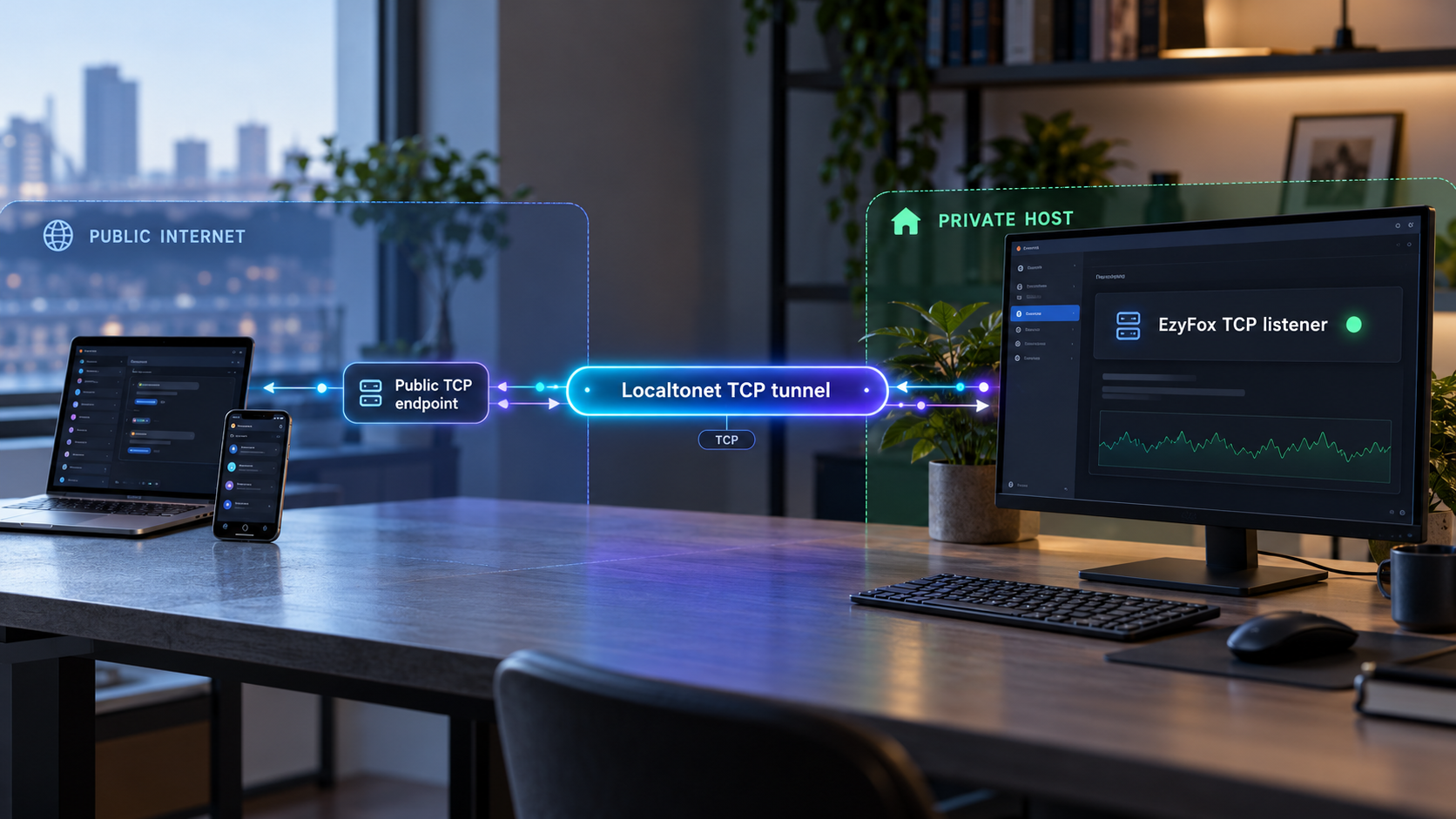
Build a local real-time socket service first, then make its TCP endpoint reachable from remote clients
EzyFox Server is a Java socket-server framework for real-time applications such as multiplayer games, messaging systems, chat services, MMORPG backends, and streaming-data workloads. This guide explains what the available project documentation establishes, how to prepare and validate an EzyFox development environment, and which deployment details must come from your own EzyFox application. After the server works locally, we show how to connect its TCP listener to a public Localtonet endpoint without inbound router port forwarding, firewall changes, VPN setup, or a public IP address.
📋 What's in this guide
Understand the EzyFox and Localtonet architecture
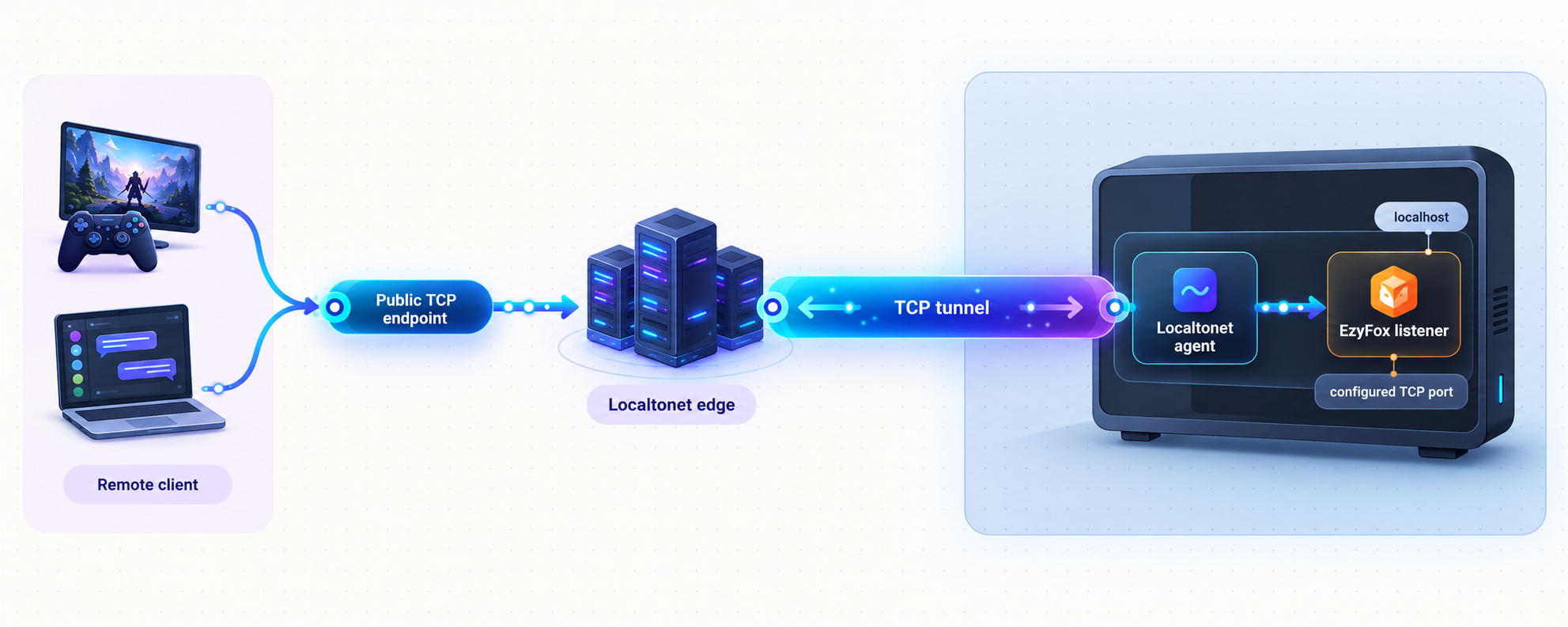
EzyFox Server is described by its project as a socket server that supports real-time applications over TCP, UDP, WebSocket, HTTP, and SSL. Typical use cases include multiplayer games, messaging, chat, MMORPG backends, and streaming data. It is better understood as a framework for building a server application than as a finished game server that can be installed and exposed without application-specific code or configuration.
That distinction affects every stage of self-hosting. EzyFox supplies server components, modules, examples, and client SDK support, but your application determines the protocol behavior that clients actually use. Your project also determines the listening address, port, authentication process, message schema, application startup command, persistence layer, and production security controls. A remote client cannot connect successfully merely because an EzyFox process is running. It must connect to the correct endpoint and speak the protocol expected by the deployed application.
Localtonet fits after that application has a functioning local network listener. Our client runs on the EzyFox host, or on another device that can reach it, and establishes an outbound connection to a Localtonet relay server. A TCP tunnel then maps an assigned public host and port to the EzyFox server's local IP address and TCP port. Remote game or messaging clients connect to that public endpoint, and their TCP traffic is forwarded to the local service.
Why TCP is the default choice in this guide
The project identifies EzyFox primarily as a socket server and explicitly includes TCP among its supported transports. TCP is therefore a reasonable default for a general remote-access tutorial involving game sessions, chat, or messaging clients. It provides an ordered byte stream, but it does not define the application's message format or authentication rules. Those remain part of your EzyFox implementation.
TCP is not automatically correct for every EzyFox application. If your client was written to use UDP, WebSocket, HTTP, or an SSL-enabled application endpoint, do not silently substitute a plain TCP tunnel and assume protocol compatibility. Match the tunnel family to the transport actually used by the client and server. This article documents the TCP workflow only.
| Layer | What it controls | What you must identify |
|---|---|---|
| EzyFox application | Handlers, application logic, sessions, messages, and authentication | The correct application build and configuration |
| Local operating system | Process execution, network interfaces, permissions, and local firewall behavior | The running process and its listening socket |
| Localtonet TCP tunnel | Public TCP forwarding to the selected local IP address and port | The reachable local target and assigned public endpoint |
| Remote client | Connection address, protocol implementation, credentials, and application messages | The Localtonet public host and port plus valid application credentials |
Localtonet transports connections to an existing local endpoint. It does not choose an EzyFox port, create application handlers, generate game logic, alter client protocol code, or make an incorrectly configured server work. Complete and verify the local application first.
Prepare the EzyFox development and hosting prerequisites
The EzyFox repository lists JDK 1.8 and Maven as development requirements. Before working with the source tree, install a compatible Java Development Kit and Maven using the supported package or installation method for your operating system. Confirm that both tools are available in the same terminal environment that will run the project.
java -version
mvn -version
The Java output should identify the runtime selected by your shell, while the Maven output should show both Maven and the Java runtime Maven is using. If multiple Java installations exist, these commands help reveal whether Maven is using a different runtime from the one you expected. The project evidence identifies JDK 1.8 for development, but it does not establish that every application built on every EzyFox release supports arbitrary newer Java versions. Use the version required by the EzyFox release and by your own project.
You also need an EzyFox application to run. That may be an existing application maintained by your team, a project created through the official EzyFox getting-started workflow, or a suitable example that you intentionally adapt. The framework repository by itself does not identify a universal production server command, default game implementation, fixed listener port, or default credentials.
Information to collect before starting
- The EzyFox Server release or commit required by your application.
- The Java version required by that specific application.
- The application's documented Maven build or packaging procedure.
- The application-specific startup command or launcher.
- The TCP bind address and port selected by the application.
- Any required configuration files, databases, certificates, secrets, or external services.
- A compatible EzyFox client or test client that can complete a real application connection.
- A Localtonet account and a device-specific auth token for the machine that will run our client.
The available repository evidence does not establish a universal EzyFox bind address or default application port. Use the value defined by your own application or its official example configuration. Forwarding a guessed port can produce a tunnel that appears to run but has no service behind it.
Decide where each component will run
The simplest arrangement is to run both EzyFox and the Localtonet client on the same machine. In that case, the tunnel can normally target a local address appropriate to the application's bind configuration. If the Localtonet client runs on a separate computer, that computer must be able to reach the EzyFox listener over the private network. Test that path before creating the tunnel.
Containerized deployments require the same reasoning. The target must be reachable from the environment in which the Localtonet client runs. A service bound only inside an isolated container network may not be reachable through the host's loopback address. Because the supplied EzyFox evidence does not define an official container image, container port mapping, or Docker Compose configuration, this guide does not invent one. Use the network model documented by your own container deployment.
Set up EzyFox Server without confusing tests with installation
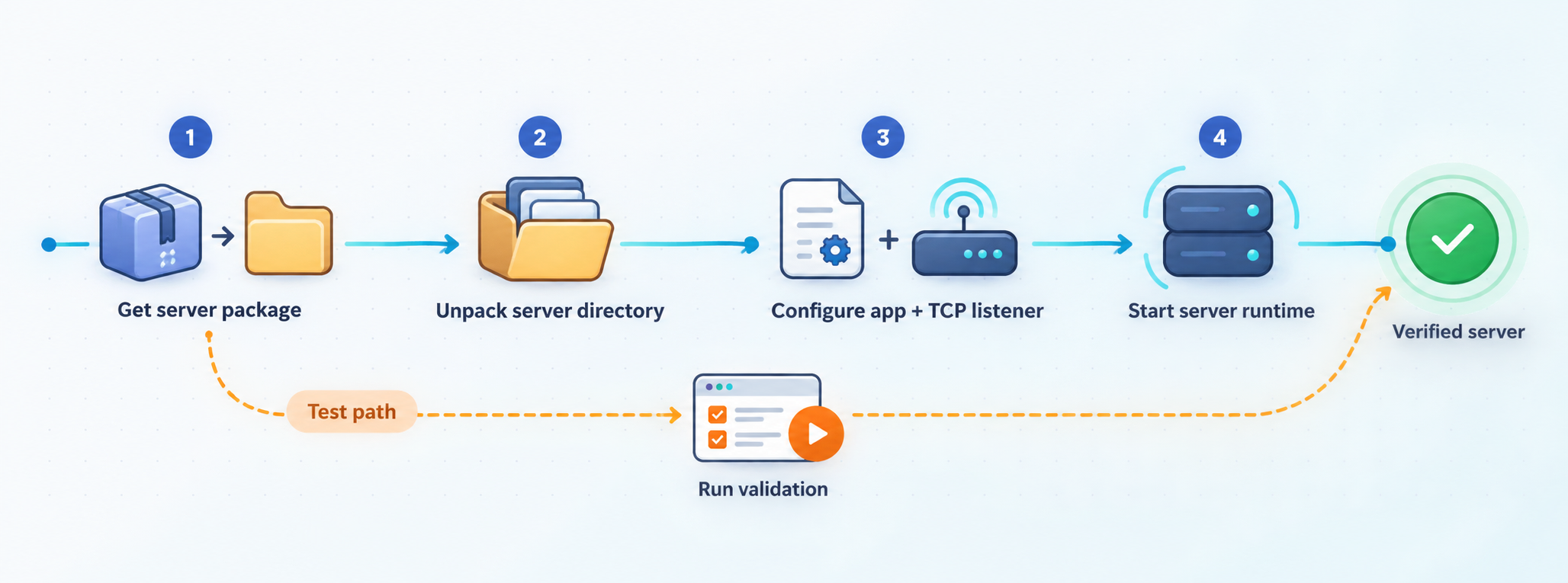
The EzyFox repository provides source code, Maven project files, modules, build scripts, examples, documentation links, and published releases. However, its README does not establish one complete, universal installation sequence for a deployable application. It points readers toward an official five-minute getting-started guide, while the repository-level Maven command is documented for tests rather than installation.
This means there are two separate workflows. Framework contributors can check out the repository and run its tests. Application operators should follow the installation, packaging, and startup process defined by the EzyFox application they intend to deploy. Treating a successful framework test as proof that a game server is installed would skip the application itself.
Select the EzyFox release required by your application
Start from your application's dependency or deployment documentation. The project publishes releases, including version 1.3.2.1, but a release being available does not prove that it is the correct version for your application. Avoid changing framework versions solely because a different release is marked as latest.
Obtain the framework or application source
For framework development, clone the official repository. For an existing game, chat, or messaging project, obtain that application's own source and configuration instead. Check out a deliberate release or commit where your deployment process requires reproducibility.
Confirm Java and Maven compatibility
Verify that the active JDK and Maven installation match the project's requirements. The framework repository lists JDK 1.8 and Maven for development. Application requirements can be more specific, so follow the application build definition rather than assuming all Java versions are interchangeable.
Run the documented framework test when working from the repository
The repository supplies mvn test for running tests. Use it as a source-tree validation step. It is not an installation command and does not, by itself, launch a remotely usable EzyFox application.
Build and start the actual application using its documented procedure
Use the packaging and launcher defined by your EzyFox application or by the official example you selected. The supplied repository evidence does not establish one command that safely starts every EzyFox-based server, so no universal startup command can be given here without guessing.
To obtain a framework development checkout, the repository exposes the following HTTPS clone URL:
git clone https://github.com/youngmonkeys/ezyfox-server.git
cd ezyfox-server
mvn test
The final command runs the repository's tests. It should not be represented as a server installation, production package, or startup command. A successful result tells you that the tested source tree and toolchain worked well enough to execute the configured test lifecycle. It does not tell you which network port an application will use or whether a compatible remote client can log in.
The available project evidence does not document one authoritative command, archive layout, executable path, configuration path, bind address, or listening port for all EzyFox applications. Supplying any of those values as defaults would risk directing readers to a nonexistent file or the wrong service. Use the startup procedure belonging to the application or official example you have selected.
Configure the EzyFox application for a known TCP endpoint
Before remote access can work, turn the application's network configuration into an explicit deployment record. At minimum, identify the transport, bind address, listening port, client protocol, authentication requirements, and any TLS behavior implemented by the application.
Choose the transport deliberately
Confirm that the server and client are configured for TCP. EzyFox supports several transports, but support at the framework level does not mean a particular application enables all of them. A WebSocket client cannot connect to an arbitrary raw TCP listener merely because both ultimately use network sockets. Likewise, a UDP client must not be pointed at a TCP endpoint.
Understand the bind address
A process can listen only on loopback, on one private interface, or on all configured interfaces. The appropriate choice depends on where the Localtonet client runs and on your security model. If both processes run on the same host, a loopback-only listener can reduce unnecessary LAN exposure when the application supports that arrangement. If the Localtonet client runs on another device, the EzyFox service must listen on an interface reachable from that device.
Do not change a bind address only to make remote access easier without considering local network exposure. A service listening on every interface may become reachable by other devices on the LAN. Prefer the narrowest binding that still permits the intended connection path.
Record the listening port
The local port must be the actual TCP port opened by the running application. Do not copy an unrelated example value from a different EzyFox project. Check the application's configuration and then confirm the operating system shows a listening socket on that port.
Keep application authentication in place
A public tunnel provides reachability, not application-level identity. Preserve login checks, session validation, authorization rules, input validation, rate controls, and any protocol-specific protections implemented by your server. Never embed Localtonet auth tokens, server secrets, database passwords, or private keys in game clients or public source repositories.
| Configuration item | Where it comes from | Why it matters |
|---|---|---|
| Transport | Your EzyFox application and client | Determines whether this TCP workflow is compatible |
| Bind address | Your application configuration | Determines which local devices can reach the listener |
| Local port | Your application configuration and runtime socket | Becomes the target port of the Localtonet tunnel |
| Authentication | Your application logic | Controls who can establish a valid application session |
| Client endpoint | Local address for initial tests, Localtonet address for remote tests | Tells the client where to open its connection |
| TLS or SSL behavior | Your application and client configuration | Must match at both ends of the connection |
Start and verify the EzyFox service locally
Local verification is the most important checkpoint in this workflow. If a compatible client cannot complete an application-level exchange directly with the EzyFox service, adding a public tunnel introduces another network layer without fixing the underlying issue.
Start the application with its documented launcher. Keep its logs visible during initial testing and look for a clean startup, successful loading of required modules, and confirmation that the intended listener opened. The exact log messages vary by application and are not established by the framework evidence, so do not rely on a phrase copied from an unrelated example.
Use a layered verification sequence
- Confirm that the Java process remains running rather than exiting immediately after startup.
- Confirm that the expected TCP port is in a listening state on the host.
- Connect from the same machine using a compatible application client.
- If the tunnel client will run on another LAN device, repeat the test from that device using the server's reachable private address.
- Complete an application-level action such as authentication, joining a test session, sending a message, or receiving a known response.
A basic port check can establish that something accepts TCP connections, but it cannot prove that the service is healthy. EzyFox applications use application-specific messages and session behavior. The strongest verification uses the same client library and connection sequence intended for production.
A socket can open even when authentication, message encoding, server handlers, or application modules are misconfigured. Verify a meaningful request and response before treating the local deployment as ready.
Establish a local baseline
Record the result of a known-good local session before creating the tunnel. Include the client build, server build, transport, target address, target port, authentication outcome, and one successful application action. If remote access later fails, this baseline lets you distinguish an EzyFox problem from a tunnel or client-address problem.
If local verification fails, stop here. Check the Java runtime, startup logs, application configuration, dependency services, listener state, protocol selection, and client compatibility. Localtonet should be added only after the service is reliably reachable from the device that will run our client.
Expose the verified EzyFox TCP listener with Localtonet
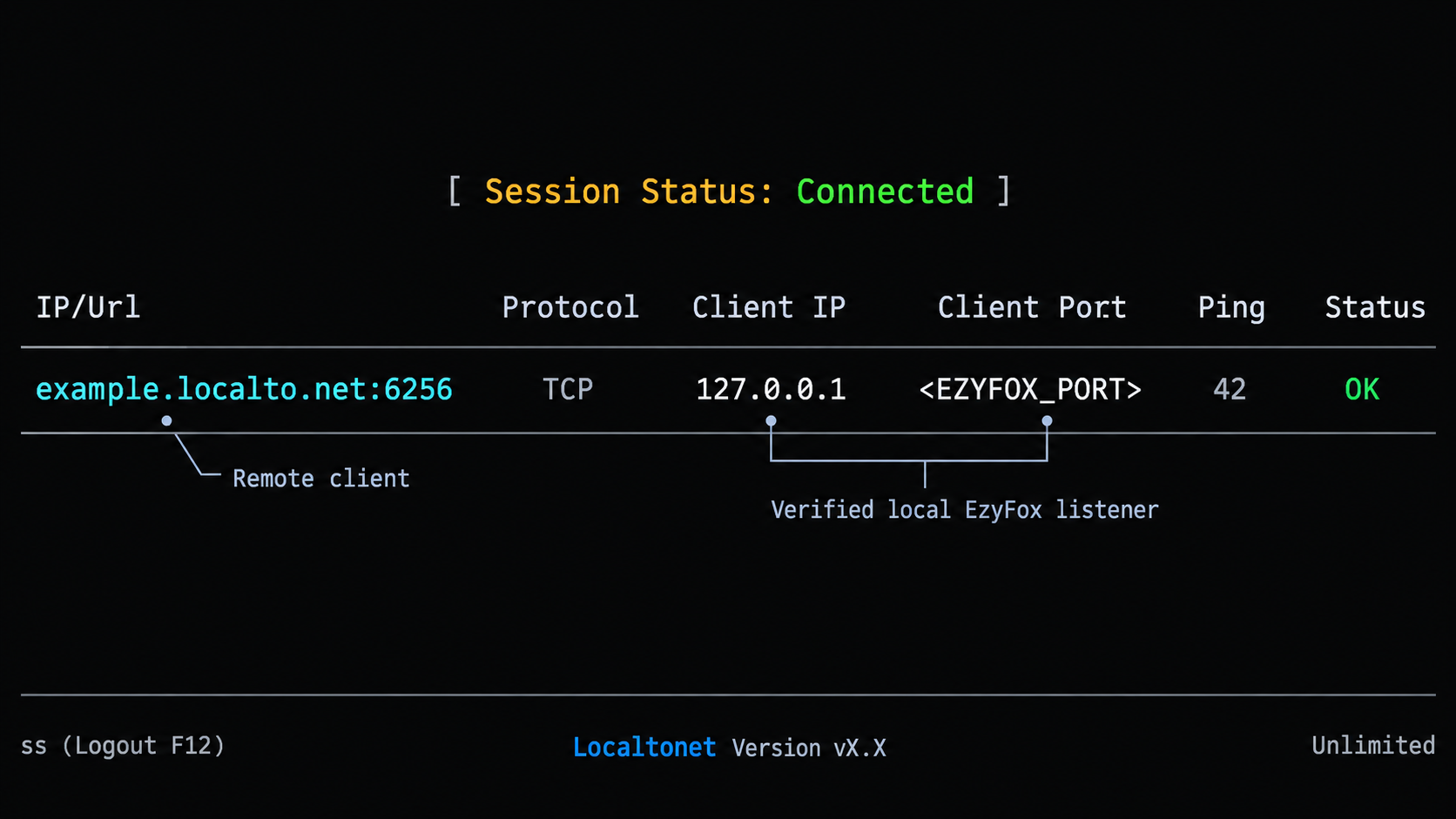
Once the EzyFox application works through its local TCP endpoint, configure a Localtonet TCP tunnel. Our client creates an outbound connection to a relay server, and the running tunnel supplies a public host and port for remote clients. The EzyFox machine does not need inbound router port forwarding, firewall changes, a VPN, or a public IP address for this workflow.
Current server or region choices must be taken from the Localtonet dashboard rather than copied from an article. Availability can vary, so this guide does not hardcode a server code or imply that every option is included in every subscription plan.
Install and run the Localtonet client
Install our client on the EzyFox host or on another device that can reach the verified TCP listener. Keep the client running whenever remote access is required.
Authenticate or select the correct device
Use the device-specific Localtonet auth token associated with the client that will run the tunnel. Treat the token as a secret. Do not place it in source code, screenshots, logs, client configuration, or public documentation.
Select an available relay server or region
Choose from the current options shown in the dashboard. Do not guess or hardcode a server code from an old tutorial because available values can change.
Create a TCP tunnel to the local EzyFox endpoint
Select the TCP tunnel type and enter the local IP address and port already verified for the EzyFox application. If our client runs on the same host, use the address appropriate to the application's local binding. If it runs elsewhere, use the EzyFox host address reachable from that device.
Start the tunnel
Creating a tunnel does not mean it is running. Use the Start button and confirm that the selected client device remains connected. The tunnel is available only while that device is connected and the tunnel is running.
Use the assigned public host and port
Update a remote test client to connect to the public host and port assigned to the TCP tunnel. Keep the application's protocol, authentication, and message handling unchanged unless your own deployment design explicitly requires a different configuration.
Publishing a TCP listener makes it reachable from the internet through the assigned endpoint. Use application authentication, least-privilege authorization, safe input handling, and any appropriate access restrictions. Do not expose development administration functions, test credentials, debug commands, or an unauthenticated game-control interface.
Update the remote client correctly
Change only the connection destination needed for the remote test. Replace the local or private server address with the Localtonet public host and replace the local destination port with the assigned public port. Do not configure remote users to connect to the private LAN address, and do not assume the public and local port values are identical.
Keep transport expectations consistent. A client built for an EzyFox TCP application should use the public TCP endpoint. If the application performs its own SSL negotiation, the client and server still need compatible SSL configuration. Do not claim that selecting a TCP tunnel automatically adds, removes, or reconfigures application-layer encryption.
Run the first remote test from another network
Test from a device that is not relying on the same local path as the server. Start with one known-compatible client and watch both the EzyFox logs and the Localtonet connection state. Confirm that the client can connect, authenticate, and perform the same application action used for the local baseline.
If the socket opens but the application fails afterward, compare the remote exchange with the local baseline. The likely investigation area is then protocol framing, authentication, client configuration, SSL expectations, application timeouts, or server-side handling rather than basic public reachability.
Operate the self-hosted service safely
A working first connection is only the beginning of operating a real-time server. Games and messaging systems often keep sessions open, maintain in-memory state, and depend on orderly startup and shutdown. Plan how the Java application and Localtonet client will be started, monitored, updated, and stopped on the host.
Use a predictable startup order
- Start any databases or application dependencies required by your EzyFox project.
- Start the EzyFox application using its documented launcher.
- Confirm the expected local TCP listener and complete a local health check.
- Start or confirm the Localtonet client connection.
- Start the TCP tunnel and verify its public endpoint.
- Allow remote clients to connect only after the application is ready.
This order prevents traffic from being directed toward a port with no healthy service behind it. During shutdown, stop new remote access where appropriate, allow the application to handle active sessions according to its own design, and then stop the server and dependencies.
Manage the tunnel lifecycle explicitly
A configured Localtonet tunnel and a running tunnel are different states. Use Start when remote access is needed. Stop the tunnel when the service should no longer be public, or delete it when the configuration is no longer required. The public endpoint is usable only while the selected client device is connected and the tunnel is running.
Keep secrets out of client builds
Never distribute the Localtonet device auth token with an EzyFox game client. The token identifies the device running our client and belongs only in the trusted hosting environment. The same principle applies to database credentials, administrative passwords, private signing material, and server-side application secrets.
Plan updates around compatibility
Test EzyFox framework upgrades and application releases in a non-production environment before changing a live server. A published framework release does not guarantee compatibility with an existing application's code, client SDK, message definitions, or deployment scripts. Pin deliberate versions, preserve configuration backups, and maintain a rollback path appropriate to your application.
The supplied release information identifies version 1.3.2.1 and notes a protocol-extension change, but a release tag alone does not establish ongoing maintenance cadence, support duration, or compatibility with your project. Review the release and application requirements before upgrading.
Troubleshoot local and remote EzyFox connections
The Java or Maven command is not found
Confirm that a JDK and Maven are installed and available through the terminal's executable search path. Open a new terminal after changing environment settings, then run java -version and mvn -version. If Maven reports an unexpected Java runtime, correct the environment according to your operating system and application requirements.
mvn test succeeds, but no server port is open
This can be expected. The command runs repository tests and is not documented as a universal server launcher. Start an actual EzyFox application using that application's documented command. Then verify the configured listener instead of assuming the test lifecycle starts a persistent service.
The server process exits immediately
Inspect the application's startup output before changing the tunnel. Common investigation areas include an incompatible Java runtime, missing configuration, an unavailable dependency, a port conflict, missing permissions, or an application exception. The exact resolution is project-specific because the framework evidence does not define one deployment layout or log format.
The expected TCP port is not listening
Confirm that you started the intended application rather than only building or testing the framework. Recheck its transport and port configuration, then inspect startup logs for binding failures. Another process may already use the selected port, or the application may have loaded a different configuration than expected.
Local clients connect, but the Localtonet client cannot reach EzyFox
Check where each process runs. If our client is on another device, a loopback-only EzyFox listener is not reachable from it. Test the EzyFox target IP and port directly from the Localtonet client device. Review host firewall rules and network segmentation, but make only the narrow changes permitted by your environment.
The tunnel exists, but the public endpoint is unavailable
Confirm that the selected device is connected and that the tunnel was explicitly started. Creating the configuration is not enough. Also verify that the EzyFox process is still running and that the tunnel targets the correct local IP address and TCP port.
The remote socket connects, but login or messaging fails
Basic TCP reachability is working, so compare the remote client's behavior with the known-good local baseline. Check protocol versions, client SDK compatibility, credentials, message encoding, SSL expectations, server handlers, and application-level authorization. Localtonet forwards the TCP connection but does not translate EzyFox application messages.
The client is using UDP, WebSocket, or HTTP
Do not point it at a raw TCP endpoint unless the application documentation explicitly says that is valid. Match the Localtonet tunnel family to the transport actually used by the application. This tutorial intentionally uses TCP and does not claim that one tunnel configuration covers every transport supported by the EzyFox framework.
Connections stop when the host sleeps or restarts
The tunnel is available only while the selected Localtonet client device is connected and the tunnel is running. The EzyFox application must also remain active. Configure service startup and power behavior according to your operating environment, but use application-specific launch instructions rather than inventing a generic EzyFox service command.
Check the application process first, then the local listening socket, then a local application session, then reachability from the Localtonet client device, then the running tunnel, and finally the remote client. This order isolates the failing layer faster than repeatedly recreating the tunnel.
Frequently asked questions
Is EzyFox Server a ready-made multiplayer game?
No. EzyFox Server is a socket-server framework for real-time applications, including games, messaging, chat, MMORPG backends, and streaming-data systems. You still need an EzyFox application that defines server logic, handlers, messages, authentication, configuration, and startup behavior.
What is the default EzyFox TCP port?
The supplied project evidence does not establish one universal bind address or TCP port for every EzyFox application. Use the port configured by your own application or selected official example, and verify that the running process actually listens on it.
Does running mvn test install or start EzyFox Server?
No. The repository documents mvn test for running tests. It should be treated as source-tree validation, not as a universal installation or server-start command. Build and start your actual EzyFox application using its documented procedure.
Does this workflow require router port forwarding?
No. Our client establishes an outbound connection to a Localtonet relay server. The resulting TCP tunnel provides a public host and port without requiring inbound router port forwarding, firewall changes, VPN setup, or a public IP address.
Must the Localtonet client run on the same machine as EzyFox?
No. It can run on another device that can reach the EzyFox service. In that arrangement, configure the tunnel with an IP address and port reachable from the Localtonet client device, and verify that private-network path before testing the public endpoint.
Does a Localtonet TCP tunnel add EzyFox authentication?
No. The tunnel provides network reachability to the configured local target. Your EzyFox application remains responsible for user authentication, authorization, session handling, input validation, and application-level access controls.
Can the same TCP tunnel serve an EzyFox WebSocket or UDP client?
Do not assume so. The client, application listener, and tunnel type must use compatible transports. This guide covers a raw TCP listener. A client configured for UDP, WebSocket, or HTTP requires the corresponding application endpoint and an appropriate Localtonet tunnel configuration.
Why does the public endpoint stop working when the host goes offline?
The tunnel is available only while the selected Localtonet client device is connected and the tunnel is running. The local EzyFox service must also remain active and reachable at the configured target address and port.
Connect your verified EzyFox TCP service with Localtonet
Once your EzyFox application accepts a complete local client session, create a Localtonet TCP tunnel and give remote test clients the assigned public host and port.
Get Started Free →

