

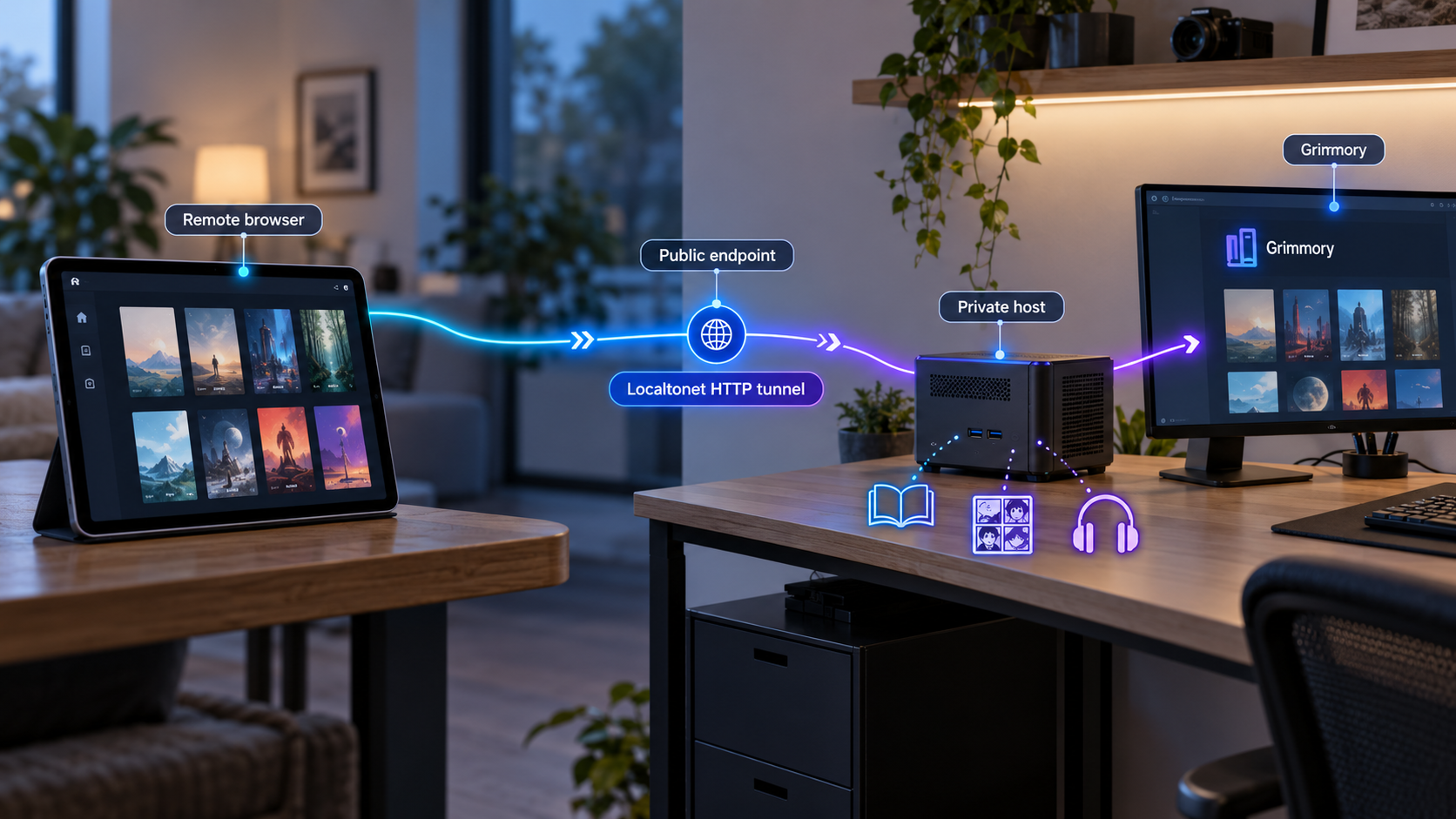
Build a private digital library at home, verify it locally, and make it available through a controlled public endpoint
Grimmory is a self-hosted web application for organizing and reading ebooks, comics, documents, and audiobooks. In this guide, we install Grimmory with Docker Compose, connect it to MariaDB, prepare persistent storage, create the initial administrator account, and verify both the browser interface and health-check endpoint. After the local installation works, we connect it to an HTTP tunnel with Localtonet so authorized readers can reach the library without inbound router port forwarding, firewall changes, a public IP address, or VPN setup.
📋 What's in this guide
How the Grimmory deployment works
Grimmory is designed for people who want to manage a digital reading collection on infrastructure they control. Its browser interface supports ebooks, documents, comics, and audiobooks, while its organizational features include shelves, filters, tagging, search, and rule-based collections. The application also provides a built-in reader for EPUB, PDF, and comic formats, with annotations, highlights, and reading-progress tracking.
The documented Docker Compose deployment uses two services. The first is the Grimmory application, published as the grimmory/grimmory container image. The second is MariaDB, which stores application data that belongs in the database. Grimmory connects to MariaDB through Docker Compose's internal service network, while port 6060 is published on the host for browser access.
Files that must survive container replacement are mounted from host directories. The sample deployment uses ./data for Grimmory application data, ./books for libraries, ./bookdrop for automatically detected incoming files, and ./mariadb/config for MariaDB's persistent configuration and database files. Because these paths are relative, they are created beneath the directory containing the Compose file unless you replace them with absolute host paths.
The order of operations matters. First, install and verify Grimmory entirely on the local machine. Only after the health check and browser interface work should you add the Localtonet tunnel. This separation makes troubleshooting much easier. If the local application fails, the problem is in the container, database, storage, or host configuration. If local access works but the public address does not, the investigation can focus on the Localtonet client and tunnel.
| Component | Role | Documented value or location |
|---|---|---|
| Grimmory | Web application, readers, library management, and API | grimmory/grimmory:latest, listening on port 6060 |
| MariaDB | Application database | lscr.io/linuxserver/mariadb:11.4.5 in the supplied Compose example |
| Books mount | Host-backed location for library files | ./books:/books |
| BookDrop mount | Watched directory for incoming files | ./bookdrop:/bookdrop |
| Local browser endpoint | Initial setup and local use | http://localhost:6060 |
| Health endpoint | Application health verification | http://localhost:6060/api/v1/healthcheck |
| Localtonet HTTP tunnel | Optional access from outside the local network | Targets the local Grimmory address and port from the connected client device |
Prerequisites and deployment decisions
You need a host that can run Docker and Docker Compose. The host also needs enough storage for your books, comics, audiobooks, Grimmory application data, and MariaDB data. Exact CPU, memory, and disk capacity requirements are not established by the supplied project documentation, so we will not invent minimum specifications. Plan capacity around the size of your collection, expected concurrent users, and whether the host will perform other work.
Run docker --version and docker compose version before continuing. Both commands should complete successfully. Docker Compose in this guide uses the modern space-separated form, docker compose. Installation of Docker itself varies by operating system and distribution, so use the supported installation procedure for your host rather than pasting an unverified package command.
docker --version
docker compose version
Choose a dedicated deployment directory before creating configuration files. The name and location are your choice. The commands below use a directory named grimmory under the current user's home directory:
mkdir -p ~/grimmory
cd ~/grimmory
The deployment also needs numeric user and group IDs for the application and database containers. Grimmory's example uses 1000 for all four values. That value is common for the first regular Linux account, but it is not correct for every host. On Linux, inspect the current account's values with:
id -u
id -g
Use IDs that are appropriate for the host directories the containers must access. On platforms where this mapping works differently, follow the container runtime's file-sharing and permission model. Incorrect ownership or permissions can prevent Grimmory from reading books, writing application data, processing BookDrop files, or allowing MariaDB to initialize.
Choose between a convenience tag and a pinned release
Stable Grimmory images are published from semantic release tags as versioned images and as latest. Nightly builds from the development branch use the nightly tag. The Compose example in this article follows the documented convenience tag, grimmory/grimmory:latest. For a controlled production deployment, consider replacing latest with a specific stable release tag that you have reviewed and tested.
A pinned version makes upgrades deliberate and makes rollback planning clearer. The convenience tag is simpler, but it can resolve to a newer image the next time it is pulled. Do not use the nightly image unless you intentionally want development builds and accept the additional change risk.
Plan the storage locations
The example uses relative bind mounts so that all data stays under one deployment directory. That is convenient for a small installation, but it is not mandatory. You can replace the left side of each volume mapping with an absolute host path if, for example, your library resides on a larger disk.
Grimmory libraries must be created within directories mounted into the application container. With the sample Compose file, library content belongs beneath /books inside Grimmory because that container path maps to the host's ./books directory. A host path that has not been mounted into the container will not become a usable library location merely because the host can see it.
If your books already exist elsewhere, either update the Compose volume mapping to point at that location or place them under the selected books directory. Confirm that the mapped files are readable by the configured application user. Avoid moving an established library casually after importing it, because application records can depend on the configured storage arrangement.
Prepare strong secrets
The project example contains obvious replacement passwords for the Grimmory database account and MariaDB root account. Never retain them. Generate separate, strong values for DB_PASSWORD and MYSQL_ROOT_PASSWORD. The same DB_PASSWORD is passed to both the Grimmory application and the MariaDB service, so those two references must match.
The .env file contains database credentials. Keep it out of shared repositories, chat messages, screenshots, support posts, and backups that are not protected appropriately. Restrict access to the deployment directory according to your host operating system's security model.
Install Grimmory with Docker Compose
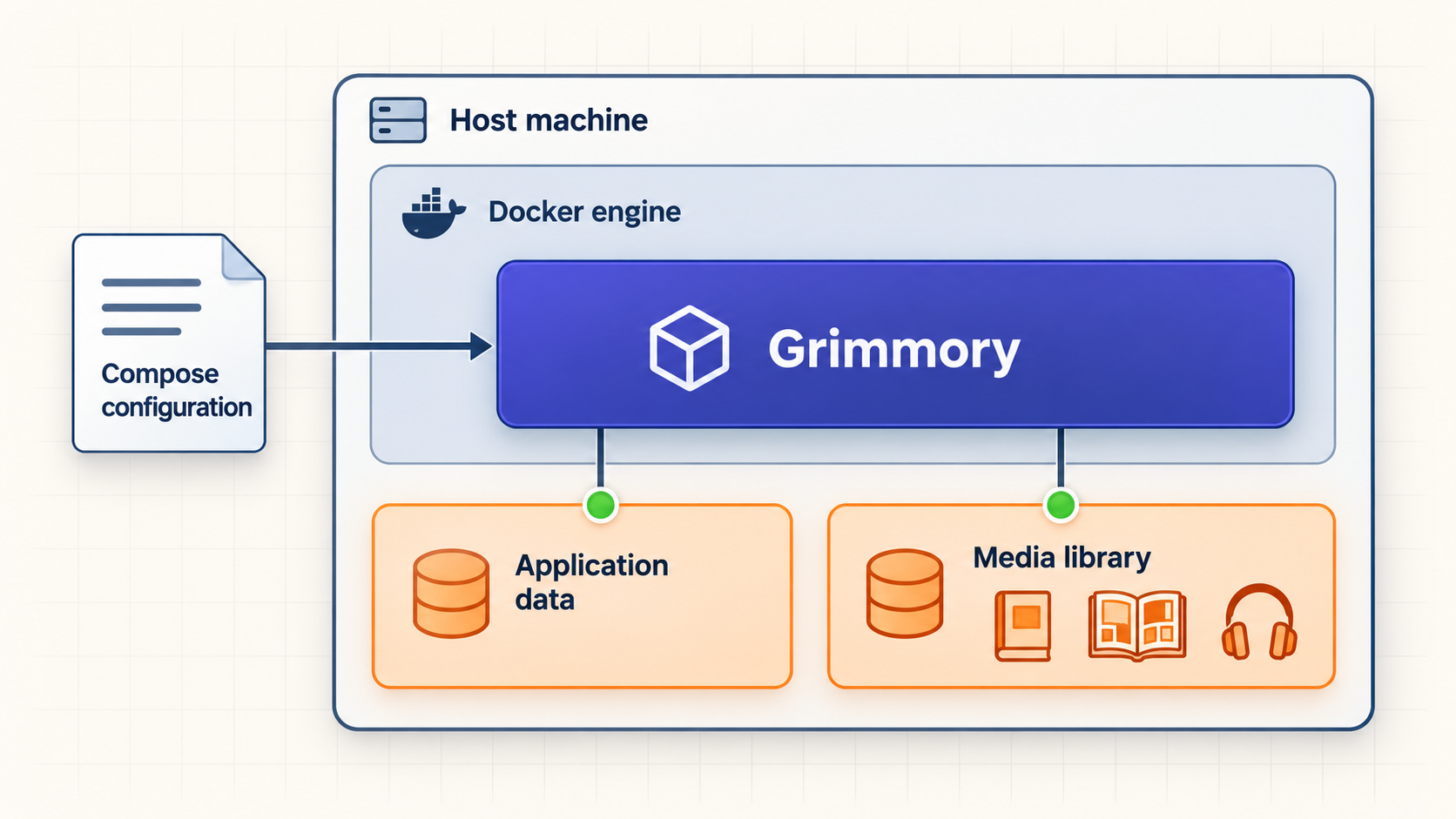
The official quick-start sequence has three parts: create the environment configuration, create the Compose definition, and launch the deployment. Complete them in that order.
Create the environment configuration
Create a .env file in the deployment directory. Set the application and database user IDs, time zone, database connection, unique passwords, API documentation preference, and storage mode. Replace every placeholder before starting the containers.
Create the Docker Compose definition
Create docker-compose.yml beside the .env file. Define the Grimmory and MariaDB services, publish port 6060, add persistent volume mounts, retain the health checks, and pass the environment values into both containers.
Launch Grimmory and complete initial setup
Run docker compose up -d, wait for MariaDB and Grimmory to become healthy, open http://localhost:6060, and create the initial administrator account.
Step 1: Create the .env file
Create a file named .env in ~/grimmory. The following structure matches the documented variables. Replace both password placeholders with different strong values. Change the numeric IDs if the IDs selected for your host are not 1000, and choose the correct time zone instead of leaving it unchanged without review.
# Application
APP_USER_ID=1000
APP_GROUP_ID=1000
TZ=Etc/UTC

# Database connection used by Grimmory
DATABASE_URL=jdbc:mariadb://mariadb:3306/grimmory
DB_USER=grimmory
DB_PASSWORD=REPLACE_WITH_A_STRONG_DATABASE_PASSWORD

# Optional API documentation
API_DOCS_ENABLED=false

# Storage mode: LOCAL or NETWORK
DISK_TYPE=LOCAL

# MariaDB
DB_USER_ID=1000
DB_GROUP_ID=1000
MYSQL_ROOT_PASSWORD=REPLACE_WITH_A_DIFFERENT_STRONG_ROOT_PASSWORD
MYSQL_DATABASE=grimmory
The database hostname in DATABASE_URL is mariadb, not localhost. Within the Compose network, the service name resolves to the MariaDB container. The database name is grimmory, and DB_USER is used both to create the MariaDB account and to authenticate the application.
Leave API_DOCS_ENABLED=false unless you specifically need Grimmory's API documentation. When enabled, the project documents API reference pages at /api/docs and an OpenAPI document at /api/openapi.json. These surfaces are publicly accessible through the application, so enabling them on a remotely exposed installation should be an intentional decision.
DISK_TYPE=LOCAL is the documented default. Grimmory also identifies NETWORK as an available mode that disables file operations, but a complete network-storage configuration procedure is not included in the supplied installation evidence. This guide therefore uses LOCAL and does not guess at network-storage settings.
Step 2: Create docker-compose.yml
Create docker-compose.yml in the same directory as .env:
services:
  grimmory:
    image: grimmory/grimmory:latest
    container_name: grimmory
    environment:
      - USER_ID=${APP_USER_ID}
      - GROUP_ID=${APP_GROUP_ID}
      - TZ=${TZ}
      - DATABASE_URL=${DATABASE_URL}
      - DATABASE_USERNAME=${DB_USER}
      - DATABASE_PASSWORD=${DB_PASSWORD}
      - API_DOCS_ENABLED=${API_DOCS_ENABLED}
      - DISK_TYPE=${DISK_TYPE}
    depends_on:
      mariadb:
        condition: service_healthy
    ports:
      - "6060:6060"
    volumes:
      - ./data:/app/data
      - ./books:/books
      - ./bookdrop:/bookdrop
    healthcheck:
      test: wget -q -O - http://localhost:6060/api/v1/healthcheck
      interval: 60s
      retries: 5
      start_period: 60s
      timeout: 10s
    restart: unless-stopped

  mariadb:
    image: lscr.io/linuxserver/mariadb:11.4.5
    environment:
      - PUID=${DB_USER_ID}
      - PGID=${DB_GROUP_ID}
      - TZ=${TZ}
      - MYSQL_ROOT_PASSWORD=${MYSQL_ROOT_PASSWORD}
      - MYSQL_DATABASE=${MYSQL_DATABASE}
      - MYSQL_USER=${DB_USER}
      - MYSQL_PASSWORD=${DB_PASSWORD}
    volumes:
      - ./mariadb/config:/config
    restart: unless-stopped
    healthcheck:
      test: ["CMD", "mariadb-admin", "ping", "-h", "localhost"]
      interval: 5s
      timeout: 5s
      retries: 10
Docker Compose substitutes values from .env into this definition. MariaDB starts first, and Grimmory's depends_on condition waits for the database health check. The Grimmory health check then requests /api/v1/healthcheck inside the application container.
The host mapping "6060:6060" publishes Grimmory on host port 6060. The first number is the host port, and the second is the container port. This guide retains the documented mapping so that the local endpoint remains http://localhost:6060 and the later Localtonet target is unambiguous.
Create the bind-mount directories before launch if you want to inspect their placement and permissions explicitly:
mkdir -p data books bookdrop mariadb/configYou can ask Docker Compose to render and validate the merged configuration before creating containers:
docker compose configReview the output carefully because it may contain the expanded database password. Do not post that output publicly. A validation error usually points to malformed YAML, an absent environment variable, or an incorrectly named file.
Keep the actual passwords in your local .env file. If you need help troubleshooting, redact the expanded values from command output, screenshots, and logs before sharing them. The MariaDB root password and application database password should be unique and should never be reused for the Grimmory administrator account.
Step 3: Start the containers
From the directory containing both files, launch the deployment in detached mode:
docker compose up -dThe first launch can take longer because Docker may need to download both images and MariaDB must initialize its data directory. Check service state with:
docker compose psDo not treat a running container as proof that the application is ready. MariaDB can still be initializing, or Grimmory can be waiting for its database. Continue to the explicit verification process before adding books or remote access.
Verify Grimmory locally before exposing it
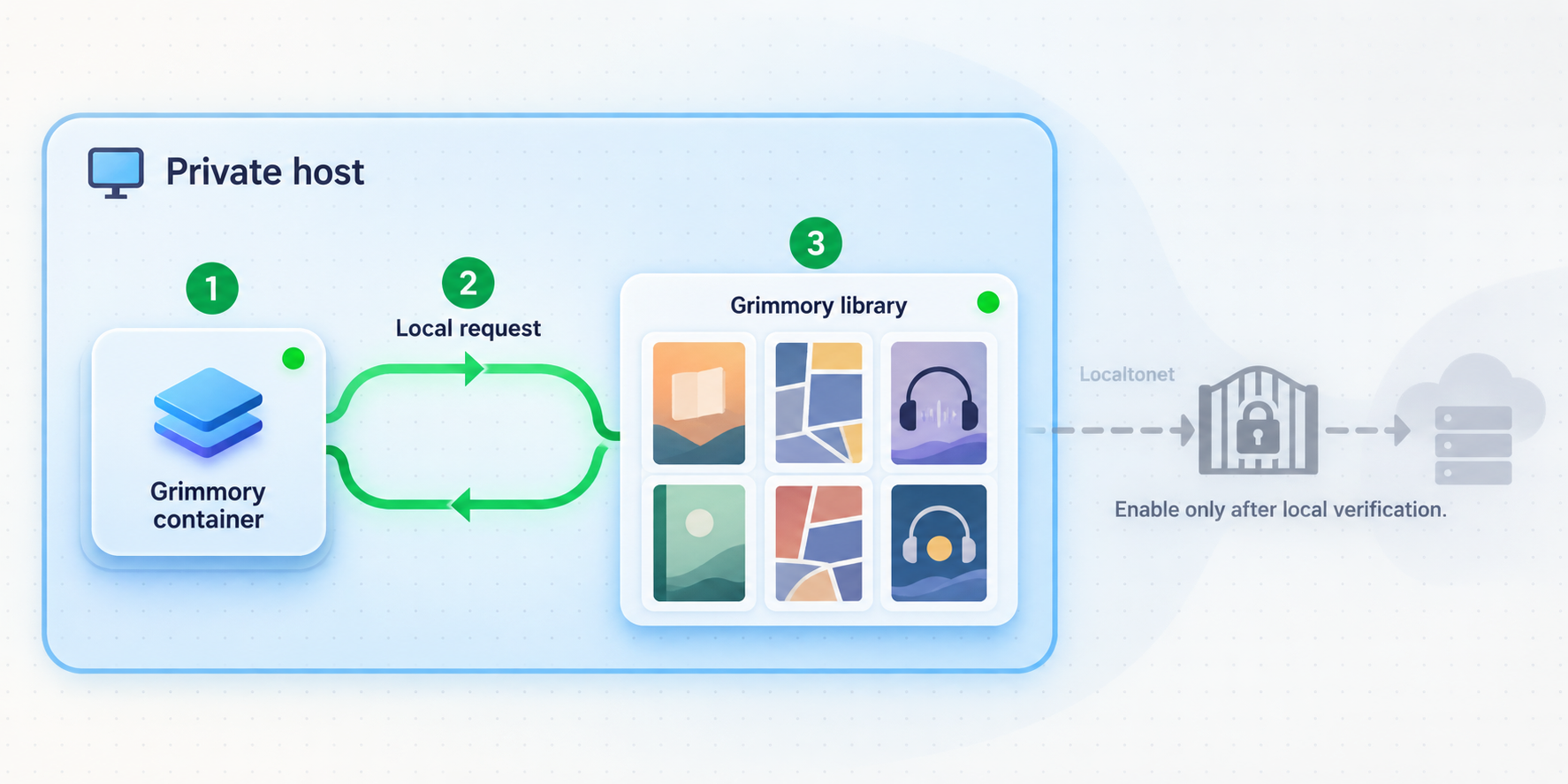
Local verification establishes a known-good baseline. Test the container state, health endpoint, browser interface, administrator setup, persistent mounts, and a small library operation while you are still working entirely inside the local network.
Check container and health status
Run docker compose ps and inspect both services. MariaDB needs to pass its health check before the application dependency is satisfied. Grimmory's configured health check allows a 60-second start period, checks every 60 seconds, and permits five retries with a 10-second timeout. Avoid repeatedly recreating containers simply because the first status check occurs during initialization.
If curl is installed on the host, request the documented health endpoint:
curl http://localhost:6060/api/v1/healthcheck
A successful HTTP response confirms that something is serving Grimmory's health route on port 6060. If curl is unavailable, open the same URL in a browser:
http://localhost:6060/api/v1/healthcheckThe extracted project evidence establishes the endpoint but does not specify a response body that should be copied into automation. Check the HTTP success result rather than relying on an invented JSON field or exact text value.
Open the web interface and create the administrator
On the host, open:
http://localhost:6060
If the server has no graphical browser, use its LAN address from another trusted device that can reach it, replacing localhost with the server's actual local address. The precise address depends on your network and is not something this guide can determine for you.
Follow Grimmory's initial interface to create the administrator account. Use a strong, unique password. Do not reuse either database password. The first administrative account controls a service that may later contain personal reading data, uploaded files, metadata, user accounts, and reading history.
Create the first library in the mounted path
When Grimmory asks for a library location, use a directory visible inside the container. With this Compose file, that means a path under /books. For example, you might organize content into subdirectories below that mount, but the names and structure are yours to choose. Do not enter the host-side path ~/grimmory/books in a container-facing field because the application sees the mounted destination, /books.
Start with a small sample whose format appears in Grimmory's documented support table. Confirm that the application can discover or import it, display its metadata, and open it in the appropriate interface. This tests more than the health endpoint: it checks that the books mount is visible and readable.
Test BookDrop separately
The host directory ./bookdrop appears inside the container as /bookdrop. Grimmory continuously monitors the BookDrop folder, detects new files, extracts information, retrieves metadata, and queues items for review and import. Copy a non-sensitive test file in a supported format into the host's bookdrop directory and confirm that it enters the expected review workflow.
BookDrop is an ingestion path, not a substitute for a backup. Keep original files or maintain a tested backup strategy appropriate for your collection.
Do not create a tunnel to compensate for a failing local installation. The Grimmory browser page and health endpoint should both work from the device that will run the Localtonet client. If the client runs on another device, that device must be able to reach the Grimmory host over the local network.
Access Grimmory remotely with a Localtonet HTTP tunnel
Once Grimmory is healthy locally, an HTTP tunnel is the appropriate Localtonet tunnel family for its browser interface. The Localtonet client establishes an outbound connection to one of our relay servers. The resulting tunnel provides a public address for the local web service without requiring an inbound router forwarding rule, a public IP address, firewall changes, or VPN setup.
The tunnel does not move the library or database into Localtonet. Grimmory and MariaDB continue running on your host, and the local storage mounts remain where you configured them. The tunnel forwards requests to the local target while it is running. Availability therefore depends on the Grimmory containers, the host, the Localtonet client, its network connection, and the selected tunnel all remaining active.
For the current dashboard workflow, you can also consult our Localtonet HTTP tunnel documentation. Available relay servers, regions, process options, and plan-dependent capabilities must be checked in the current dashboard rather than copied from an old list.
Install and run the Localtonet client
Install the Localtonet application on the Grimmory host or on another device that can reach the Grimmory service. Keep the client running because the tunnel is available only while the selected device is connected and the tunnel is active.
Authenticate and select the client device
Use the device-specific authentication token through the supported client and dashboard workflow. Treat the token as a secret. Never paste it into Compose files, screenshots, public issue reports, or article examples.
Select an available relay server
Choose a server or region currently offered in your dashboard. Do not rely on hardcoded server codes from another deployment because available values can vary.
Create an HTTP tunnel for Grimmory
Choose the HTTP tunnel family and set the local target to the IP address and port where the Localtonet client can reach Grimmory. Use port 6060 for the documented deployment. If the client runs on the Grimmory host, the local target can use that host's loopback address. If it runs elsewhere, use a reachable LAN address instead of loopback.
Start the tunnel
Creating the tunnel does not start it. Use the Start button after reviewing the selected device, relay server, process type, and local destination. The tunnel will then provide its assigned public URL.
Test the public address from outside the LAN
Open the assigned URL from a separate connection, such as a mobile device not using the home Wi-Fi. Confirm that Grimmory loads, authentication works, and a permitted book or comic can be opened. Stop the tunnel when remote access is no longer required.
Choose the correct local target
The correct target depends on where the Localtonet client runs. If it runs directly on the Grimmory host, target the local Grimmory service on port 6060. If it runs on another machine, localhost would refer to that other machine, not the Grimmory server. In that case, use the Grimmory host's reachable private network address and confirm that the client device can open the service locally first.
| Client placement | Target approach | Pre-tunnel test |
|---|---|---|
| On the Grimmory host | Loopback address with port 6060 |
Open http://localhost:6060 on that host |
| On another LAN device | Grimmory host's reachable LAN address with port 6060 |
Open the LAN URL from the Localtonet client device |
| Inside another container | Depends on the actual container networking arrangement | Verify reachability from inside that client environment before creating the tunnel |
Select a public address process type
Localtonet HTTP tunnels can use Random Sub Domain, Custom Sub Domain, or Custom Domain process types. All three serve the target content at a public HTTPS address. Availability can depend on current product configuration or plan, so use the options actually shown in your dashboard.
A generated address is usually the simplest way to validate the workflow. A selected subdomain can provide a more memorable address where supported. A custom domain introduces DNS requirements that must match current Localtonet documentation, so this article does not invent records or values.
Remote access means internet users can reach the Grimmory login surface. Use strong account passwords, create only the users you need, apply least-privilege permissions, keep Grimmory current, and disable API documentation unless it is required. Do not share the public URL as if it were a substitute for authentication.
Verify the public route without confusing it with local health
First open the assigned public root URL and confirm that the expected Grimmory interface appears. Then sign in with an authorized non-administrator account if you plan to provide access to other readers. This verifies the normal user journey rather than only the administrative account.
Avoid publishing the health-check endpoint or using it as an authentication test. A successful health response confirms application availability, while a successful login and content operation confirm that the full public workflow works. If local access succeeds but the public URL fails, keep the application running and inspect the tunnel state, selected device, and local target.
Routine operation, backups, and upgrades
Inspect status and logs
Run operational commands from the directory containing docker-compose.yml. Use the following commands to inspect service state and follow logs:
docker compose ps
docker compose logs --tail=200
docker compose logs -f grimmory
docker compose logs -f mariadb
Press Ctrl+C to stop following logs. This does not stop the containers. Redact private data before sharing logs because application diagnostics can reveal filenames, paths, usernames, metadata, or configuration details.
Stop and start the deployment
Stop the services without removing their containers:
docker compose stopStart them again with:
docker compose startTo remove and recreate the containers while retaining bind-mounted data, use:
docker compose down
docker compose up -d
Do not add volume-deletion options casually. This deployment uses host bind mounts, and those directories contain the state you need to protect. Understand exactly what a cleanup command will remove before running it.
Back up all state, not only the books
A useful backup plan covers the book files, BookDrop content you still need, Grimmory's application data, and MariaDB data. Copying only ./books protects original media but may not preserve users, settings, metadata, shelves, progress, and other database-backed state. Copying only the database does not preserve the actual library files.
Database-consistent backup procedures depend on MariaDB tooling and your recovery requirements. The supplied Grimmory quick start does not define a complete backup and restoration command sequence, so this guide does not invent one. Select and test a MariaDB-supported backup method, protect the resulting backup, and perform a trial restoration before relying on it.
Store at least one backup separately from the host. A backup located only on the same disk does not protect against disk failure, accidental deletion, theft, or severe filesystem corruption. Protect backup access because the data may include personal files, reading activity, user information, and credentials.
Upgrade deliberately
Read release notes before changing versions, especially when a release includes database migrations, configuration changes, or security fixes. Back up the deployment first. If you use latest, pull the current images and recreate the services:
docker compose pull
docker compose up -d
Then repeat the local verification checklist before relying on remote access. Check container health, open the application, sign in, open representative files, and test the Localtonet public route.
Grimmory's published releases can contain important security corrections. For example, a documented release addressed inappropriate access to sensitive settings, insufficient library-access checks during upload, and denial-of-service risk from a crafted EPUB. The practical lesson is to track stable security releases and not leave an internet-accessible installation indefinitely on an older image.
Use heap dumps only for temporary diagnostics
Grimmory documents an optional JVM setting for capturing heap dumps after an out-of-memory error. If project maintainers or your own diagnostic process requires it, add this environment entry under the Grimmory service:
environment:
  - JDK_JAVA_OPTIONS=-XX:+HeapDumpOnOutOfMemoryError -XX:HeapDumpPath=/app/data
The JVM writes a process-specific .hprof file into the mounted /app/data directory. Remove the option after collecting the required diagnostic data. Heap dumps can be large and can contain sensitive application data, so restrict access, transfer them securely, and delete them when they are no longer needed.
Security checklist for an internet-accessible library
Self-hosting gives you control over storage and deployment, but control also includes responsibility for updates, credentials, backups, account permissions, and public exposure. Apply the following controls before treating the public URL as a permanent service.
API_DOCS_ENABLED=false unless you need publicly reachable API documentation and understand the exposure.
Do not expose MariaDB directly. The browser needs access to Grimmory's HTTP port, not the database service. The supplied Compose file does not publish the MariaDB port to the host, and there is no reason to create a Localtonet tunnel to the database for this workflow.
Protect the Localtonet device token as a secret because it identifies the client device that can run the tunnel. Do not place it in this Compose stack or in a shared shell history. Use the supported client authentication flow and rotate or replace access through your account controls if you believe a token has been exposed.
Consider the sensitivity of the collection itself. Book titles, reading history, annotations, filenames, account details, and uploaded documents can reveal personal information. Use regular user accounts for day-to-day reading, review account access periodically, and remove accounts that no longer need the service.
Finally, ensure that you are entitled to store and share the content in your library. Remote technical access does not change copyright, licensing, or distribution obligations.
Troubleshooting common Grimmory and tunnel problems
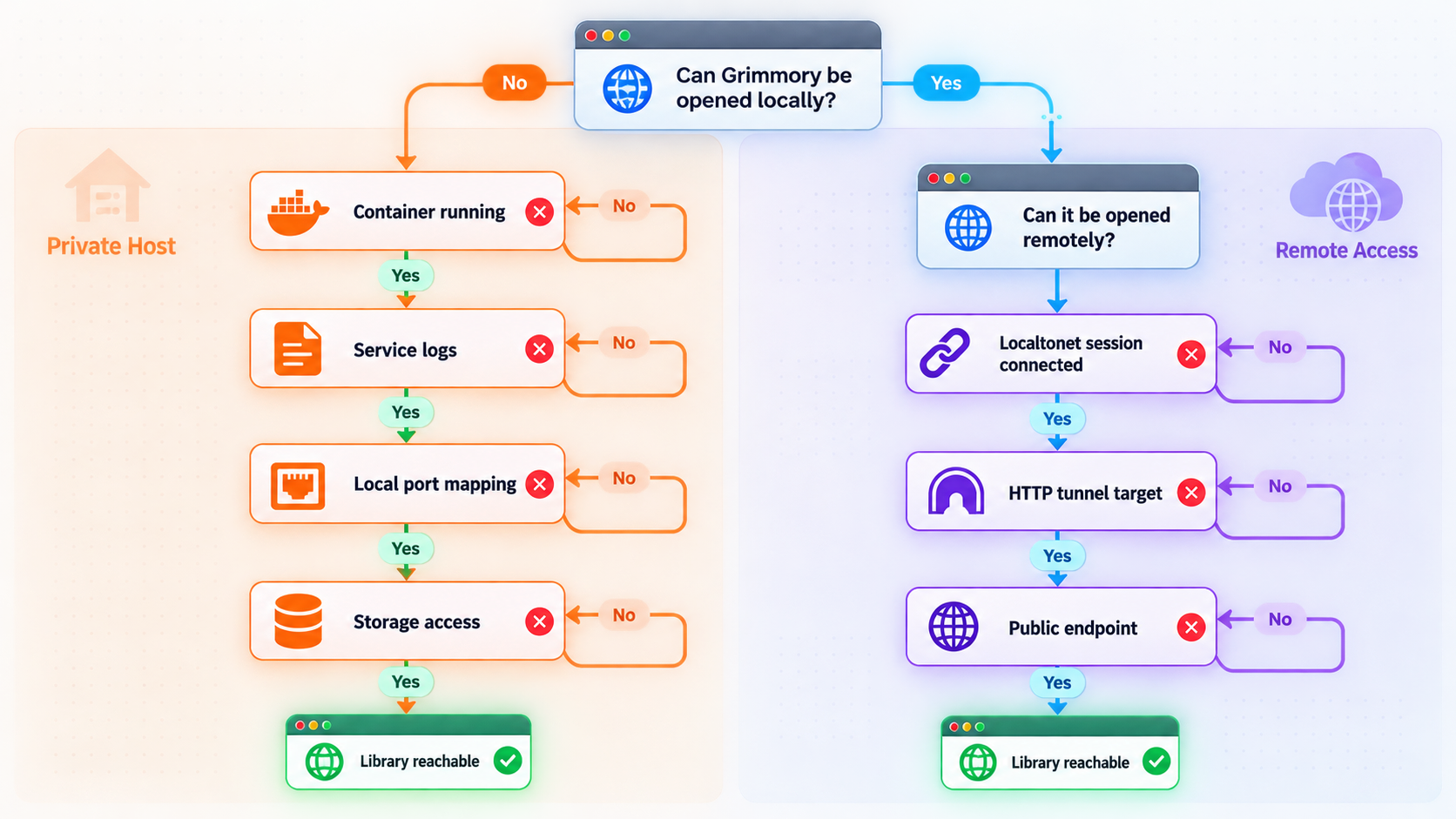
Docker Compose reports a configuration error
Run docker compose config from the deployment directory. Confirm that the files are named .env and docker-compose.yml, that YAML indentation uses spaces consistently, and that each referenced variable has a value. Remember that rendered output may expose passwords, so keep it private.
MariaDB is unhealthy or Grimmory never starts
Inspect both service logs:
docker compose logs --tail=200 mariadb
docker compose logs --tail=200 grimmory
Verify that DB_PASSWORD supplies the same application password to both services, MYSQL_DATABASE matches the database named in DATABASE_URL, and the database hostname remains mariadb. Also inspect host permissions on mariadb/config and verify that the configured IDs are appropriate.
If MariaDB initialized with one set of credentials and you later changed .env, changing the environment file alone may not rewrite credentials already stored in the persistent database directory. Do not delete that directory as an improvised fix if it contains data you need. Recover access using a database-aware procedure or restore from a verified backup.
The browser cannot open localhost:6060
Check docker compose ps, confirm the port mapping is 6060:6060, and request the health endpoint. If another process already uses host port 6060, Docker should report a bind error during startup. This guide keeps the documented port rather than proposing an arbitrary alternative, but Docker can map a different host port if you deliberately update both your local access URL and Localtonet target.
If you are browsing from another computer, localhost refers to that computer. Use the Grimmory server's LAN address and make sure local host security policy permits the connection. Do not disable broad firewall protections without understanding the impact.
Grimmory cannot see the books
Confirm the distinction between the host path and container path. The Compose line ./books:/books means the application sees /books. Create libraries under that container path, not under the host's textual path. Check filename permissions and configured application IDs if the directory appears empty or files cannot be read.
BookDrop files are not detected
Confirm that files are being copied to the host directory mapped as ./bookdrop, that Grimmory sees it as /bookdrop, and that the configured application user can read the files. Use a documented supported format for the test. Then inspect Grimmory logs for parsing or permission errors.
Local Grimmory works, but the public URL does not
Verify the issue in layers:
- Open
http://localhost:6060from the Grimmory host. - If the Localtonet client runs elsewhere, open Grimmory's LAN URL from that client device.
- Confirm that the Localtonet client shows as connected.
- Confirm that the correct device and currently available relay server are selected.
- Review the tunnel's local IP address and port 6060.
- Confirm that the tunnel was started, not merely created.
- Test the assigned URL from a genuinely external connection.
This sequence identifies the first failing boundary. If step one fails, troubleshoot Grimmory. If step one works but step two fails, troubleshoot LAN reachability. If both local checks work, focus on client connectivity and tunnel configuration.
The public URL opens the wrong application
Recheck the target port and address. Another service may be listening on the selected destination, particularly if you changed the documented host mapping. On a remote client device, remember that a loopback address points to the client device itself. Correct the target to the Grimmory host's reachable LAN address.
The tunnel disappears after a restart
The public route depends on the selected Localtonet client being connected and the tunnel running. Confirm that the Grimmory containers restarted successfully, then confirm client connectivity and tunnel state. Creating a tunnel does not by itself guarantee that it is running.
An upgrade completes, but the application behaves incorrectly
Inspect release notes and container logs, verify the currently selected image tag, and repeat the health, login, library, and reader tests. Do not immediately erase persistent directories. Preserve evidence and backups first. If rollback is appropriate, use a version you previously tested and account for any database migration implications documented by the project.
Frequently asked questions
What is the default local URL for Grimmory?
With the documented Docker Compose port mapping, Grimmory is available at http://localhost:6060 on the host. Its health-check endpoint is http://localhost:6060/api/v1/healthcheck. From another LAN device, replace localhost with the Grimmory host's reachable private address.
Which formats does Grimmory support?
Documented ebook formats are EPUB, MOBI, AZW, AZW3, and FB2. Documents include PDF. Comic formats are CBZ, CBR, and CB7. Audiobook formats are M4B, M4A, MP3, and OPUS. Built-in browser reading is specifically documented for EPUB, PDF, and comics.
Do I need router port forwarding to access Grimmory remotely?
No. With Localtonet, the client establishes an outbound connection to our relay service, so this workflow does not require inbound router port forwarding, firewall changes, a public IP address, or VPN setup. The client must remain connected and the HTTP tunnel must be running.
Should the Localtonet client run on the same host as Grimmory?
It can, and that arrangement makes the local target straightforward. The client may also run on another device that can reach Grimmory over the LAN. In that case, target the Grimmory host's reachable private address rather than the client device's loopback address.
Does Localtonet host my books or database?
No. In this workflow, Grimmory, MariaDB, and all mounted storage remain on your own host. The Localtonet HTTP tunnel provides a public route to the running local web service. It does not replace your application storage, database, or backup system.
Can I use a custom domain for Grimmory?
Localtonet HTTP tunnels support Random Sub Domain, Custom Sub Domain, and Custom Domain process types. Current availability and custom-domain DNS requirements should be checked in the dashboard and current documentation. Do not copy DNS values from an unrelated deployment.
Can I use Helm or Podman instead of Docker Compose?
Grimmory references deployment examples for Helm and Podman Quadlet, but their complete procedures are not established by the evidence used for this guide. This article therefore documents the complete Docker Compose quick-start path rather than guessing Helm values, Kubernetes requirements, or Quadlet configuration.
Should I enable Grimmory's API documentation?
Leave API_DOCS_ENABLED=false unless you need it. When enabled, Grimmory documents an API interface at /api/docs and OpenAPI JSON at /api/openapi.json. Because these become publicly accessible through the application, enable them only as an intentional operational choice.
Is copying the books folder enough for a backup?
No. The books folder protects media files, but the deployment also has Grimmory application data and MariaDB state. A complete recovery plan must account for all persistent paths and use a database-consistent backup method. Test restoration before considering the backup reliable.
Make your verified Grimmory library available with Localtonet
After Grimmory works at http://localhost:6060, connect the host to our platform, create an HTTP tunnel to the local service, start it, and test the assigned public address from outside your network.


