

Keep native Codex and Claude Code sessions on your own machines while controlling them through a private remote path
Harness Remote is a local-first control plane for discovering, observing, resuming, and handing off native Codex CLI, Claude Code, OpenCode, Oh My Pi, and PI sessions. This guide covers release selection, desktop and Node.js installation, gateway configuration, Android QR pairing, local verification, session operation, and private remote access. Because the Harness Remote project says to use a trusted LAN or VPN and not expose its gateway directly to the public internet, the recommended Localtonet workflow uses VPN Manager with a least-privilege firewall rule. Public HTTP tunneling is discussed only as a risk boundary, not as the deployment procedure.
📋 What's in this guide
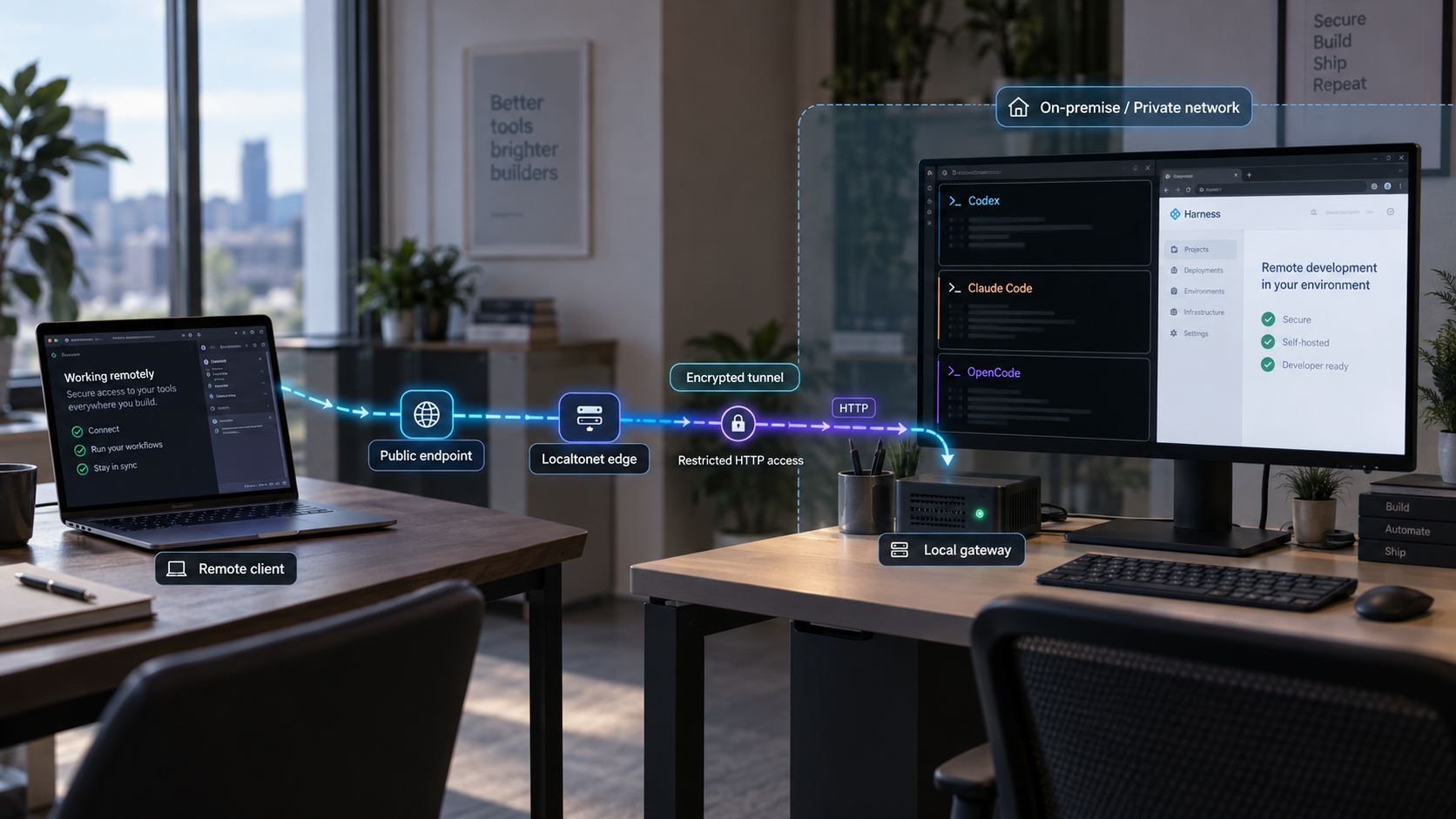
What Harness Remote does
Harness Remote is not another AI coding agent. It provides a coordination and remote-control layer around coding-agent sessions that run on computers you control. Its user-facing hierarchy is Machine, Project, and Native Session. The native agent remains responsible for the actual coding interaction, while Harness Remote presents machines, projects, sessions, capabilities, and continuation relationships through desktop, browser, PWA, or Android interfaces.
This ownership boundary is important for both operation and security. Codex CLI, Claude Code, OpenCode, Oh My Pi, or PI continues to own its transcript, reasoning and activity model, tool execution, permission requests, context management, compaction, cancellation, and resume behavior. Harness Remote does not flatten those implementations into a synthetic universal transcript. It discovers and presents native sessions and exposes only the controls advertised by the running harness.
Supported coding-agent integrations
| Coding agent | Documented integration | What to prepare |
|---|---|---|
| OpenCode | HTTP with a live event stream | Install and authenticate OpenCode on the machine running the gateway. |
| Claude Code | ACP adapter | Install Claude Code and complete its normal authentication before starting Harness Remote. |
| Codex CLI | ACP adapter | Install Codex CLI and authenticate it under the same user account that will launch the gateway. |
| Oh My Pi | ACP adapter | Install and configure the OMP CLI before expecting Harness Remote to detect it. |
| PI | ACP adapter | Install and authenticate PI locally before starting the Machine gateway. |
A continuation creates a real native session on the target harness. The handoff can carry bounded information such as the objective, decisions, unresolved work, and checks already run, but it does not transfer hidden vendor context or make two agents' internal state identical.
Prerequisites for self-hosting Harness Remote
Start by choosing where the control plane will run. The desktop release is the shortest installation path for a workstation because the application manages its local Machine runtime on Windows and macOS. The standalone Node.js gateway is appropriate when adding another computer, using a terminal-based workflow, or running Harness Remote separately from the desktop application.
Select and verify a release
The canonical project location is the official Harness Remote repository. Its quick-start instructions direct desktop users to the latest project release. For a reproducible installation, do not rely only on the phrase “latest release,” because that target changes over time. Record the release tag and inspect the release notes and attached artifact before installing it.
The current supplied release evidence identifies Harness Remote v3.1.1 as a stable maintenance release. It includes an Android APK and unsigned Windows, macOS, and Linux desktop builds. Version 3.1.1 updates the Claude Code integration, restores image attachments when the harness advertises that capability, and contains no intentional compatibility break from 3.1.0.
The project marketing page still contains a source checkout example for the older v3.1.0 tag. Treat that as a version-specific 3.1.0 instruction rather than proof that 3.1.0 remains the newest release. If you need a reproducible source checkout matching the newer evidence, pin the reviewed tag explicitly:
git clone https://github.com/giuliastro/harness-remote.git
cd harness-remote
git checkout v3.1.1
Following the repository's main branch or invoking an unpinned package can pick up later changes. That may be appropriate for evaluation, but it is not a reproducible release-selection strategy. For a controlled environment, record the tag, release commit, operating-system artifact, and any verification performed under your software supply-chain policy.
Windows, macOS, or Linux may display an operating-system warning. Confirm that the download came from the official repository release, review the release identity, and follow your organization's software approval process. Do not disable operating-system security controls globally merely to run an unsigned build.
Desktop installation prerequisites
Download the artifact for your operating system from the chosen official release. On Windows and macOS, opening the desktop application starts and supervises the local Machine runtime automatically. You do not need a second gateway terminal for that same local computer. This behavior concerns the desktop-managed local runtime only. Any additional computer still needs its own configured runtime.
The supplied project evidence does not establish a universal installer format or identical security-prompt sequence for every platform and release. Review the files attached to the selected release rather than following an old filename copied from another guide.
Standalone gateway prerequisites
A computer running the standalone Machine gateway needs Node.js 20 or newer. It also needs at least one supported coding-agent CLI installed and authenticated. Complete authentication through the agent's own workflow before launching Harness Remote. Harness Remote uses the locally installed agent and does not replace the agent's provider account, subscription, credentials, or authorization process.
Run the gateway under the operating-system account that has access to the intended repositories and agent CLI. Coding agents inherit that account's permissions. The Harness Remote --root option can limit which directories are offered for project selection, but it is not an operating-system sandbox and does not remove the account's underlying filesystem or process permissions.
A remote coding-agent control plane can initiate work in repositories and present permission prompts from a supported harness. Avoid an unnecessarily privileged administrator or root account. Keep unrelated sensitive directories outside the selected roots, review permission requests, and separate experimental development environments from production credentials and systems.
Decisions to make before startup
Identify the host containing the repository, the coding-agent CLI that will operate on it, and the client you intend to use. Decide whether the gateway should choose an available port automatically or use a fixed port. Automatic selection is convenient for local use and QR pairing. A fixed port simplifies private VPN firewall rules because the permitted destination does not change between gateway restarts.
Do not assume a bind-address default. The supplied Harness Remote material does not establish a universal interface binding that applies to every desktop build, gateway version, or operating system. The eventual private VPN test must confirm that the gateway is reachable through the host's actual private address, not merely through loopback on the same computer.
Install and start Harness Remote
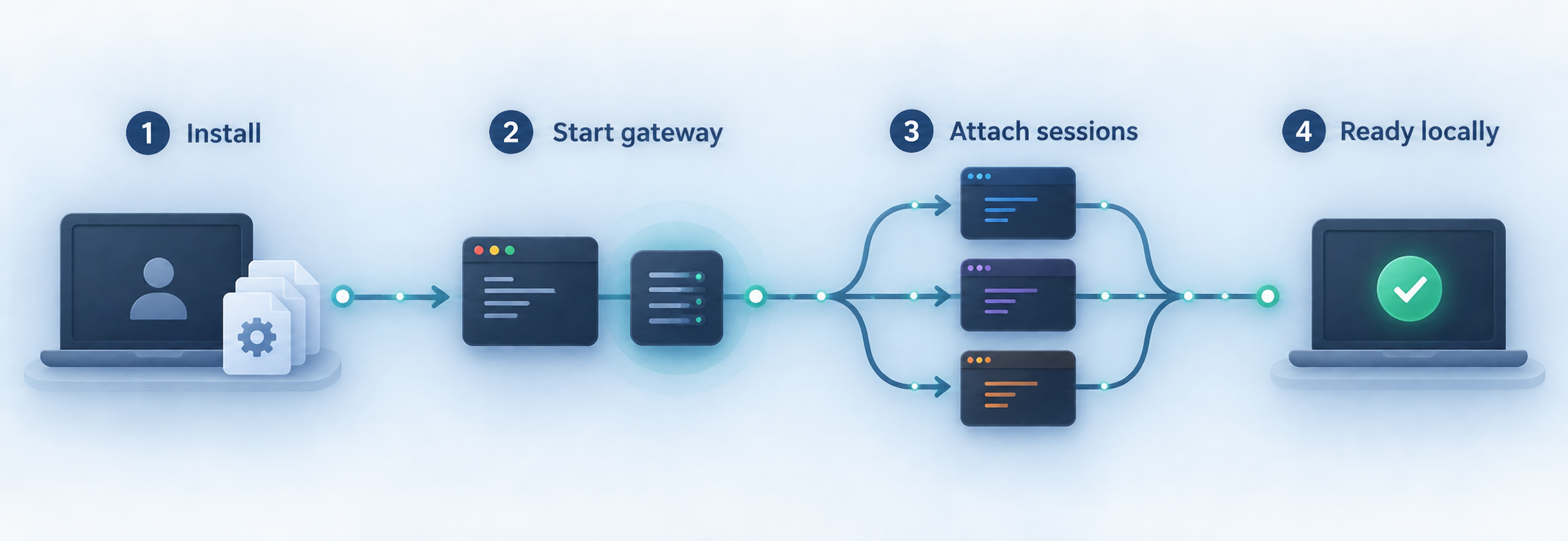
Option 1: Use the desktop application
Download the appropriate desktop artifact from the selected official release, inspect its release information, and open the application. On Windows and macOS, the desktop application starts and supervises the local Machine runtime automatically. This is the simplest path when the repository and coding-agent CLI are on the same workstation.
Because the supplied v3.1.1 builds are unsigned, an operating-system warning alone does not establish that a file is malicious or safe. Validate its origin against the official release and follow your normal review policy. The evidence does not establish code-signing status for future releases, so check the release you actually download.
Option 2: Add a computer with the Node.js gateway
Prepare Node.js and a supported coding agent
Install Node.js 20 or newer. Install and authenticate at least one supported CLI, such as Codex CLI, Claude Code, OpenCode, Oh My Pi, or PI, under the account that will run Harness Remote.
Start the Machine gateway
Run the documented npm package command. Harness Remote detects installed coding agents, chooses available ports, generates credentials, and starts one Machine gateway.
npx harness-remoteKeep the terminal open
Leave the process running while the computer should remain available. Closing the terminal or stopping the process stops that Machine gateway and its remote availability.
The ordinary npx harness-remote invocation resolves the package available through the package workflow at that time. The v3.1.1 release notes state that tagged releases publish the npm CLI automatically. If exact repeatability matters, verify the resolved package version before use rather than assuming an unpinned invocation will always install 3.1.1.
The project also documents a direct-from-GitHub fallback:
npx --yes github:giuliastro/harness-remoteThis fallback obtains the project from GitHub rather than relying on normal package resolution. As written, it is not pinned to a release tag, so review what revision it will execute before using it in a controlled environment. Prefer a reviewed tagged release when reproducibility is required.
The gateway generates credentials and can print pairing information. Do not copy unredacted output into tickets, logs, screenshots, repositories, shell examples, or shared chats. Generated credentials do not by themselves prove that direct public exposure is safe.
Configure the gateway for your workflow
The default command is sufficient for the basic terminal workflow. Harness Remote automatically selects available ports and detects supported agents. Optional arguments become useful when you need a stable VPN firewall target, a narrower project-selection boundary, or a specific browser origin.
Limit offered project roots
Harness Remote documents --root for limiting which directories it offers during project selection. Its example is:
npx harness-remote --root ~ /devReplace those example paths with directories appropriate to your environment. Keep the list narrow enough to avoid presenting unrelated files as selectable projects. This setting is a Harness Remote selection boundary, not an operating-system sandbox. The agent still runs with the permissions of the account that launched it.
Choose a fixed gateway port
By default, Harness Remote chooses available ports. The project provides the following fixed-port example:
npx harness-remote --port 4900
Port 4900 is an example, not a universal default. A stable port is useful for a least-privilege VPN rule because the rule can permit only that destination port. If you omit --port, use the port reported by the running gateway and update the VPN rule whenever the selected port changes.
Allow the hosted web application origin
Browser cross-origin rules require the gateway to allow the origin of the web client. For the project's hosted web application, the documented command is:
npx harness-remote --cors https://giuliastro.github.io
The value passed to --cors is an allowed browser origin. An origin includes its scheme, host, and port. CORS is not user authentication, authorization, a firewall, or a network privacy mechanism. It controls whether browser scripts loaded from an origin may read responses from the gateway. Non-browser clients are not constrained by browser CORS enforcement.
Run the web interface locally for development
Developers working from a project checkout can install the web application's dependencies and start its development server:
cd web
npm ci
npm run dev
The documented local development origin is http://localhost:5173. Start the gateway with that exact origin allowed:
npx harness-remote --cors http://localhost:5173
These commands assume the checkout contains the web directory and its dependency lockfile. They are for local web development, not for installing the packaged desktop application.
Do not invent missing production behavior
The supplied evidence does not define an official system service, background daemon installation, boot-persistence mechanism, universal bind-address default, or complete production-hardening profile. Keeping a terminal open is the documented standalone-gateway workflow. If you add operating-system service supervision, treat it as a separate deployment design that requires independent review.
The evidence also does not fully document the gateway's long-term authorization model after initial pairing. Generated credentials and a one-time Android pairing token are relevant connection controls, but they do not override the project's instruction to keep the gateway on a trusted LAN or VPN.
Pair the Android application with the gateway
Harness Remote documents Android as a supported control surface. The normal Android workflow uses a QR code printed by the gateway. Perform pairing locally or over an already trusted network before relying on the device through a remote VPN path.
Start the gateway on the computer to control
Launch the Harness Remote gateway and keep its terminal visible. Confirm that startup succeeds and that the expected coding agents are detected.
Open Machines on Android
Open the Harness Remote Android application and navigate to the Machines view.
Choose Scan machine QR code
Select the documented QR scanning action. Do not share a screenshot or recording containing the live QR code.
Scan the QR code printed by the gateway
The QR contains a short-lived, one-time pairing token. Scan it directly from the gateway output while it remains valid. If it expires or has already been consumed, generate a current pairing flow rather than reusing an old image.
Open View sessions
Tap View sessions and confirm that the intended Machine, Projects, and available native sessions appear.
Manual address and credential entry remains available as a fallback. Protect manually entered credentials just as carefully as the QR pairing data. A short-lived one-time token reduces the value of a copied pairing code, but it should still be treated as sensitive while active.
Pairing identifies and configures the machine connection. It does not create a network route from mobile data or an unrelated Wi-Fi network to the gateway. Localtonet VPN Manager supplies the private network path for an enrolled remote device.
Verify the installation locally
Verify Harness Remote before introducing a VPN or any other remote network path. This separates application failures from connectivity and firewall failures.
Confirm successful gateway startup
A successful terminal startup should remain active rather than immediately returning to the shell. Review the output for the selected port, connection details, and detected coding agents. If you requested a fixed port, confirm that the process accepted it. If automatic selection was used, record the current port without publishing credentials or pairing data.
Use the address and connection information reported by the running application. Do not infer a public endpoint from the port alone. Local success on the same host also does not prove that another device can reach the gateway.
Confirm agent detection
Verify that the expected coding agent appears. If it does not, stop the gateway and run that agent directly under the same operating-system account and terminal environment. Confirm that its executable is available and that its normal authentication has completed. Executable search paths and environment variables can differ between interactive shells, desktop applications, elevated accounts, and background processes.
Verify a native session
Open or create a project using a supported agent, then confirm that Harness Remote presents the corresponding native session. One useful end-to-end test is to start a session in the normal coding-agent CLI, open Harness Remote afterward, and verify that the existing session can be discovered.
Exercise a harmless session control
Send a low-risk prompt in a test repository or use a supported observation control. Confirm that activity appears in both Harness Remote and the native harness. If you test Stop or cancellation, remember that exact semantics belong to the agent. Do not begin with a production repository or a task that can deploy, delete, or rotate credentials.
Verify browser-origin configuration separately
If the gateway works through the desktop interface but not through a browser, check the exact origin supplied to --cors. The hosted HTTPS origin and the local HTTP development origin are different. Do not broaden CORS unnecessarily while troubleshooting, and do not interpret a successful CORS response as proof of authorization.
Test the coding-agent CLI first, the local Harness Remote gateway second, and the intended control surface third. Configure the private VPN only after those layers work. This sequence makes agent, port, pairing, CORS, routing, and firewall failures easier to distinguish.
Operate native sessions safely
Harness Remote presents work as Machines, Projects, and Native Sessions. The Machine is the computer running the gateway and agent tools. A Project identifies the working project. A Native Session is owned by the coding-agent harness that created it.
Start outside and continue inside
You can begin work with a normal supported CLI and open Harness Remote later. The control plane can discover and present that native session rather than requiring every task to start inside its interface. This is useful when terminal-first work later needs remote observation or control.
Review attention and permission states
Questions, permission requests, and other blocking states can remain visible even when a session is not open. Treat remote approval as a security-sensitive action. Read the requested operation and scope before approving it, particularly when it involves filesystem changes, shell commands, credentials, deployment systems, or production resources.
Use controls according to the native harness
Stop, cancellation, resume, model selection, image support, and other capabilities remain owned by the coding agent. Harness Remote surfaces advertised controls instead of inventing unsupported behavior. Do not assume that Codex CLI, Claude Code, OpenCode, OMP, and PI expose identical operations.
Continue with another agent
A cross-agent continuation creates a native target session and records its relationship to the source. Include a focused objective, relevant decisions, unresolved work, and checks already completed. The target agent owns its context and execution from that point. Review the handoff rather than assuming every source-session detail transferred.
Continue on another machine
Cross-machine continuation uses configured machines while preserving project identity and lineage. Destination matching is designed to fail closed when the project does not match. Confirm that the destination contains the intended repository, branch, dependencies, and development environment before authorizing work there.
End remote availability deliberately
Closing a browser tab or Android screen does not stop the gateway or remove VPN connectivity. At the end of a remote work period, close or stop the session as appropriate for the native agent, stop the Harness Remote gateway if it is no longer needed, and disconnect the remote device from the private VPN. Test that the gateway is no longer reachable through the former private path.
Choose the right remote-access model
Harness Remote's project guidance is explicit: use remote gateways over a trusted LAN or VPN, and do not expose a gateway directly to the public internet. The network architecture should follow that instruction.
| Access model | Fit for Harness Remote | Key consideration |
|---|---|---|
| Same computer | Best starting point | Verify the desktop-managed runtime or local gateway before adding networking. |
| Trusted LAN | Upstream-recommended model | Confirm the actual bind address and restrict the LAN to trusted devices and users. |
| Private mesh VPN | Upstream-recommended model | Permit only enrolled devices and only the required gateway port. |
| Public HTTP tunnel | Conflicts with upstream guidance | Creates a public internet endpoint and is not the procedure recommended in this guide. |
Localtonet VPN Manager is the Localtonet feature aligned with the trusted-VPN recommendation. It provides a private mesh VPN with granular firewall rules and can bridge local LANs. Standard Localtonet HTTP, TCP, UDP, TLS, and File Server tunnels are tunneling features, not VPN functionality.
The least-privilege design is direct: enroll the Harness Remote host and the remote control device in the private mesh, identify the host's private VPN address, and permit the intended remote device to reach only the gateway's TCP port. Do not grant broad access to every service on the host or entire LAN unless the use case genuinely requires it.
Configure private access with Localtonet VPN Manager
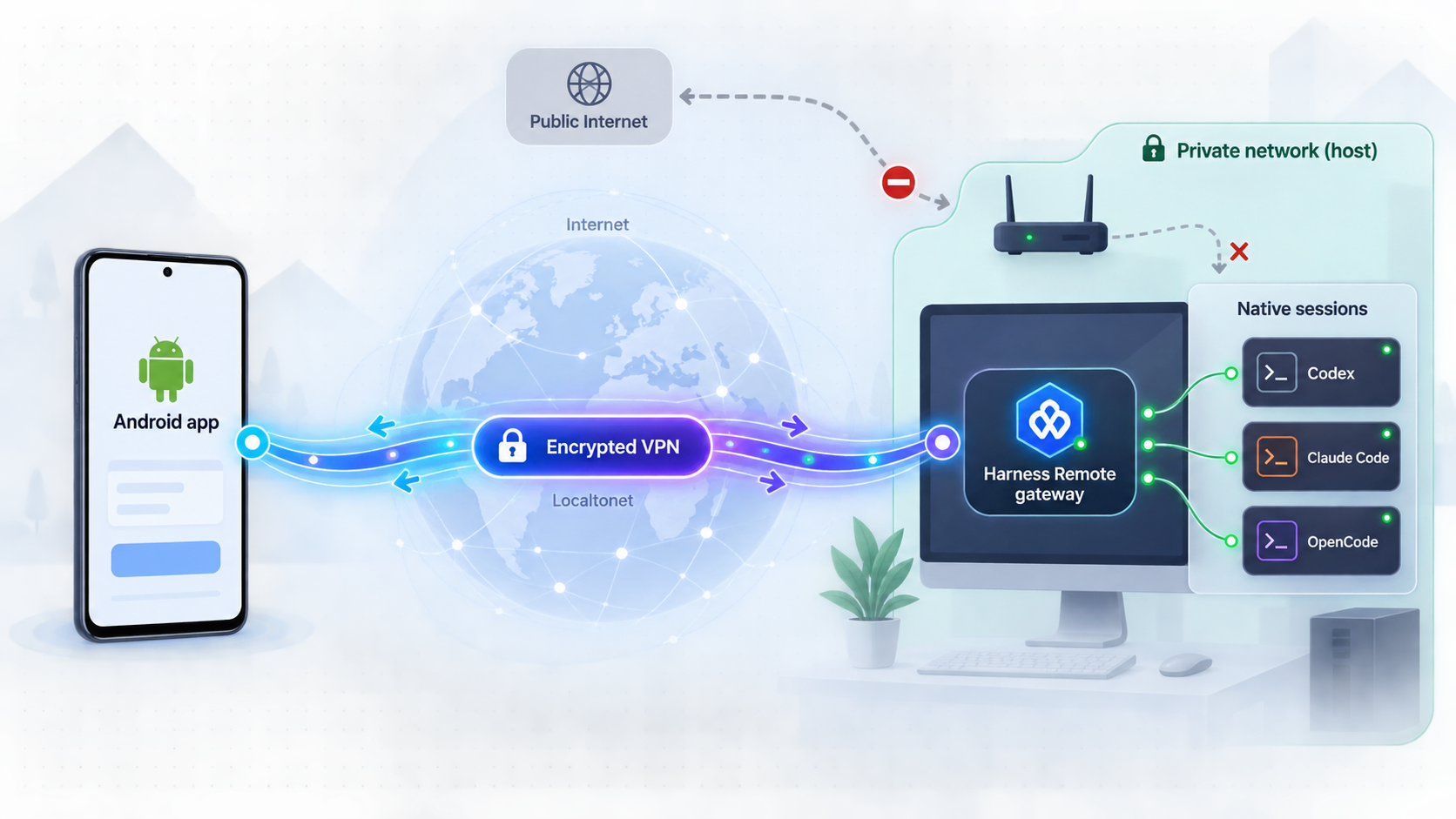
This is the recommended Localtonet workflow for Harness Remote. It assumes that the gateway already works locally, its actual listening address is known, and a stable port has been selected where practical. Current VPN Manager labels and availability can vary by client version or deployment, so use the values displayed in the current dashboard instead of copying identifiers from another account.
For product background and current interface guidance, see our Localtonet VPN Manager overview. The operational sequence below focuses on the security outcome required for Harness Remote: enrolled devices, private addressing, a narrow firewall rule, a remote-device test, and verified shutdown.
Verify the gateway and select its port
Start Harness Remote on the host and confirm that the intended client works locally. Record the actual gateway port. A fixed port such as the project's documented 4900 example makes the later firewall rule stable, but use the port accepted by your running gateway.
Install and connect Localtonet on the gateway side
Install the current Localtonet client on the Harness Remote host or on a device that can reach it through an intentionally configured private LAN route. Authenticate the intended client with its device-specific token and keep that token secret.
Create or select the private VPN mesh
Open VPN Manager and create or select the private mesh that will contain the Harness Remote host and approved remote devices. Do not substitute a standard public HTTP or TCP tunnel for this step.
Enroll the Harness Remote host
Add the connected host-side Localtonet device to the intended VPN configuration. Confirm that it appears connected and identify the private VPN address shown for it. Record the displayed address without exposing its device token or other credentials.
Enroll the remote control device
Install and connect the supported Localtonet client on the laptop, workstation, or other device that will control Harness Remote. Add only the intended device to the same private mesh and identify its private VPN identity or address as displayed by VPN Manager.
Apply a least-privilege firewall rule
Configure the VPN Manager firewall so the enrolled remote device can reach the Harness Remote host's private VPN address only on the gateway's TCP port. Avoid a broad allow rule for all sources, all destinations, all ports, or the entire host LAN. Preserve denial of unrelated services.
Connect through the private address
From the enrolled remote device, use the Harness Remote client with the host's private VPN address and verified gateway port. If using a browser client, also keep the exact required origin in the gateway's --cors configuration.
Validate the permitted and blocked paths
Confirm that the approved remote device can open the intended Machine and native session. Then verify that an unrelated device is not permitted and that unrelated ports or services on the host remain unreachable through the mesh.
Test session control remotely
In a non-sensitive test project, observe a native session and perform a harmless supported action. Confirm that the result appears in the native harness and that permission prompts remain explicit rather than being silently approved.
Disconnect and prove that access is gone
Disconnect the remote device from the private VPN and retry the private gateway address. It should no longer be reachable through that path. Reconnect if needed, stop the Harness Remote gateway, and test again to confirm the gateway port no longer answers even while VPN connectivity remains available.
What the firewall rule should accomplish
The exact editor names and rule controls must come from the current VPN Manager interface, but the intended policy is unambiguous. The source is the approved remote device, the destination is the Harness Remote host's private VPN address, the protocol is TCP, and the destination port is the actual gateway port. Unrelated source devices, destinations, and ports should remain denied.
If you intentionally place the Localtonet client on a different LAN device and use LAN bridging, limit the reachable destination to the Harness Remote host and gateway port. Bridging an entire LAN grants a larger network path than installing the client directly on the host, so review the scope carefully.
Private-path verification checklist
- The Harness Remote gateway works locally before VPN configuration.
- The host and remote device both appear connected in the intended private mesh.
- The client uses the private VPN address, not a public Localtonet URL.
- The approved remote device can reach the gateway port.
- An unrelated device cannot reach the gateway.
- Unrelated host ports are blocked by the VPN policy.
- A harmless session-control test reaches the native coding agent.
- Disconnecting the VPN removes private remote reachability.
- Stopping Harness Remote removes gateway reachability even if the VPN remains connected.
The available evidence does not establish a complete, independently reviewed authorization model suitable for direct internet deployment. Pairing tokens, generated credentials, and CORS settings do not change the upstream instruction to use a trusted LAN or VPN.
Lifecycle and shutdown
Harness Remote and Localtonet VPN Manager have separate lifecycles. Stopping the gateway removes the application listener but does not necessarily disconnect the private mesh. Disconnecting a remote VPN member removes that member's private path but does not stop the gateway for local users. Removing a firewall permission changes allowed network paths without necessarily stopping either process.
For a temporary session, disconnect the remote device after work and stop the gateway if it is no longer needed. For recurring use, retain only the minimum required enrollment and firewall rule. The supplied Harness Remote evidence does not define boot persistence or an official unattended service configuration, so verify process state after host restarts rather than assuming automatic startup.
Why this guide does not configure a public HTTP tunnel
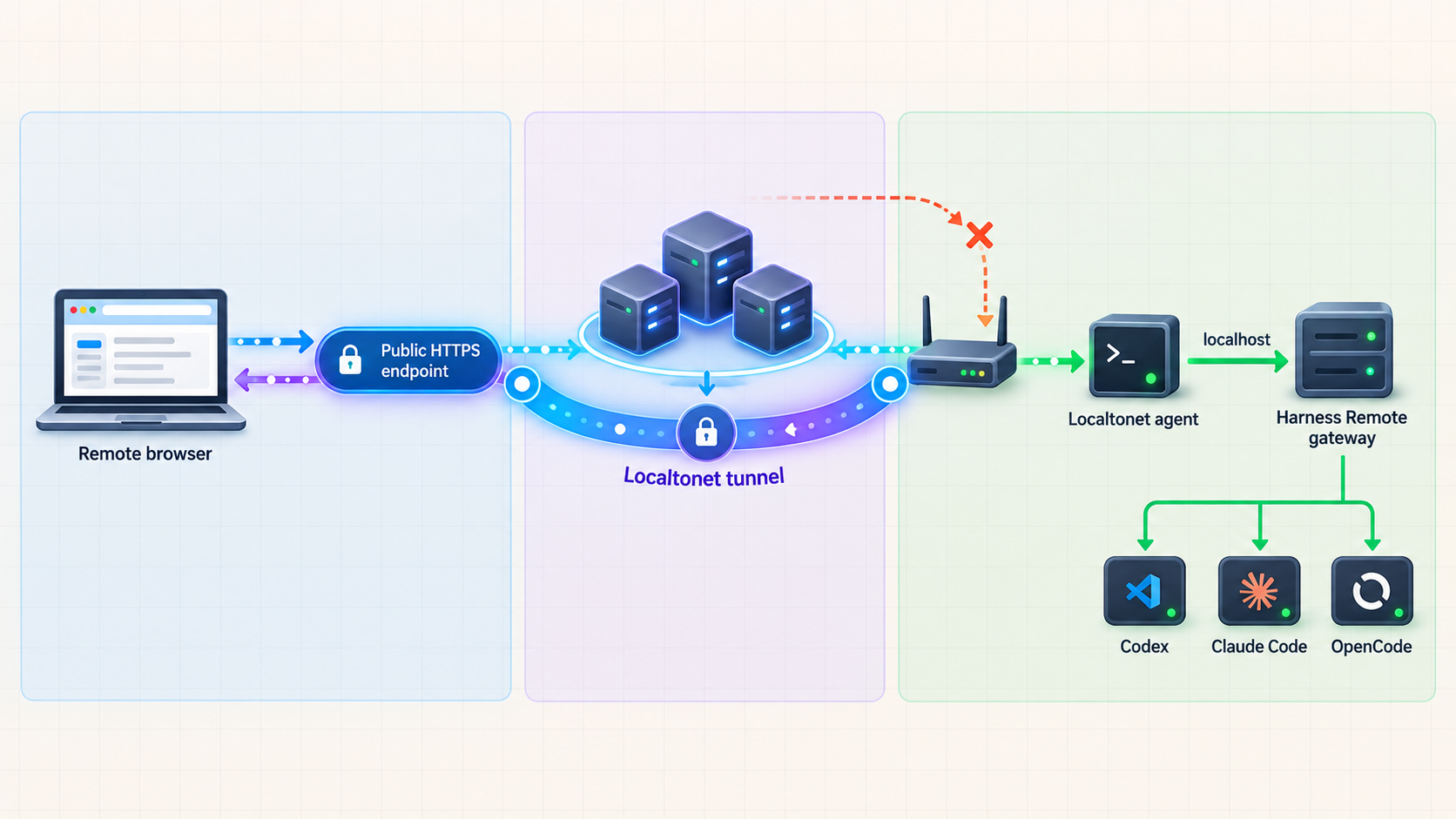
A Localtonet HTTP tunnel provides a public HTTPS address for a local HTTP target. That is useful for services intended to receive public web traffic, but Harness Remote explicitly says not to expose its gateway directly to the public internet. For that reason, this article does not provide a public-tunnel deployment recipe.
CORS would not resolve the conflict because CORS is enforced by browsers, not by arbitrary network clients. A generated gateway credential also does not establish that every endpoint, session action, recovery path, and credential lifecycle has been reviewed for hostile public traffic. Unless future upstream documentation defines and supports a public deployment model, keep the gateway behind a trusted LAN or private VPN.
Troubleshoot gateway and private VPN problems
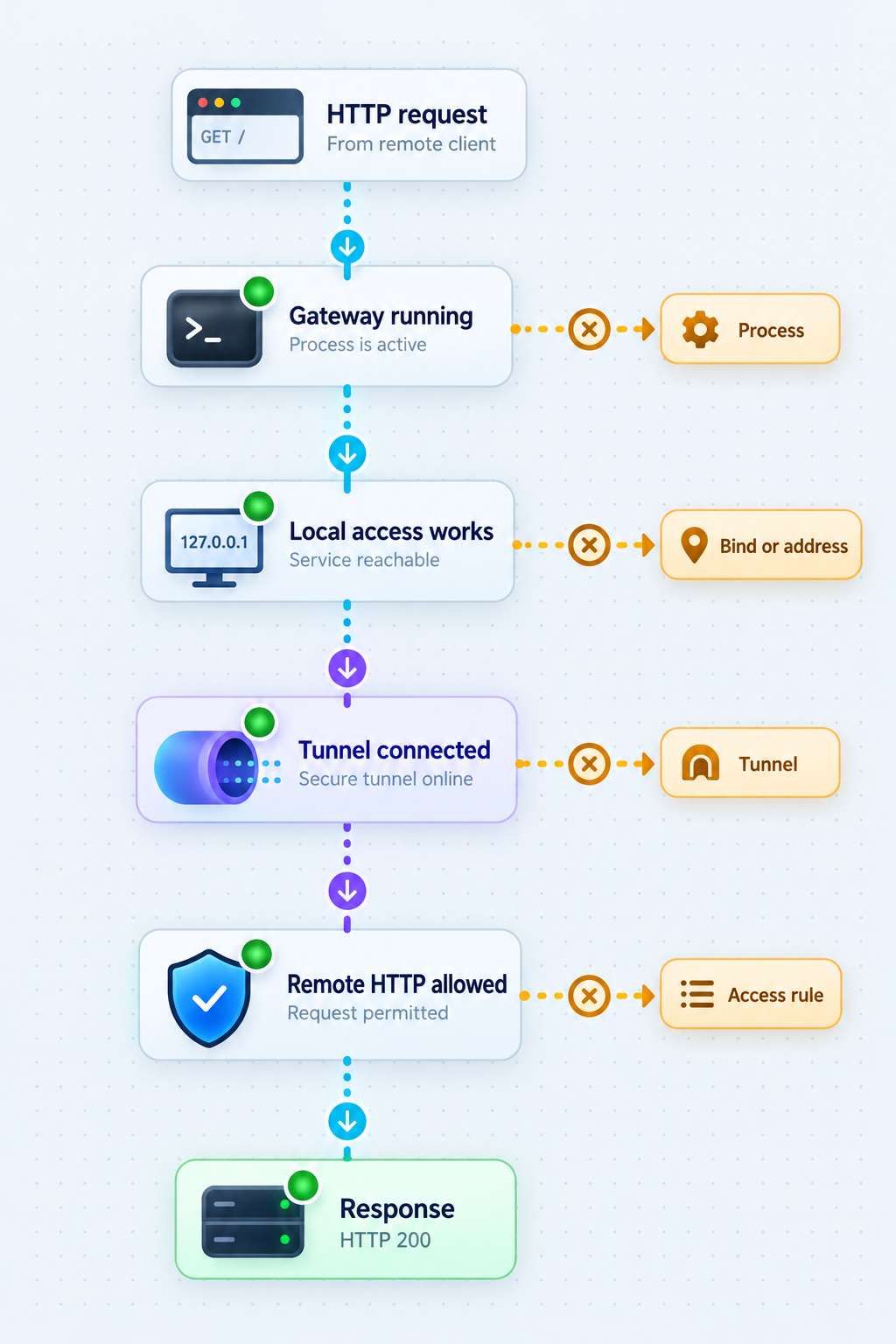
The gateway command does not start
Confirm that Node.js 20 or newer is installed. If npx harness-remote does not resolve, review the package error and try the documented direct-from-GitHub fallback only after considering its unpinned nature. Runtime compatibility, package resolution, and filesystem permission failures occur before Localtonet becomes relevant.
No coding agent is detected
Run the desired agent CLI directly under the same account and terminal environment. Confirm that the executable is available and that authentication has completed. A CLI available in one shell profile may be absent from another account, desktop process, restricted environment, or elevated session.
The fixed port is unavailable
Another process may already be listening on the requested port. Stop the conflicting process, choose a different available port, or return to automatic selection. If the port changes, update the VPN Manager firewall rule and the client connection details. Do not leave a broad temporary rule in place.
The gateway works on the host but not through its private VPN address
Confirm the gateway's actual bind address and selected port. Local loopback success does not prove that the process accepts connections addressed to the VPN interface. The supplied project evidence does not establish a universal bind-address default, so inspect the running application and host networking rather than assuming it listens on all interfaces.
The remote device cannot reach the host
Verify that both Localtonet devices are connected and enrolled in the same intended private mesh. Confirm that the remote client is using the host's current private VPN address. Then review the VPN Manager firewall rule for the correct source device, destination device or address, protocol, and gateway port.
The remote host is reachable, but Harness Remote is not
This usually separates network membership from application reachability. Confirm that the gateway process is still running, that the port did not change, and that the rule permits the current TCP destination port. Also check the host's own local firewall and actual interface binding. Do not add broad access until the failing layer is identified.
Harness Remote works, but unrelated services are also reachable
The VPN firewall policy is broader than necessary. Replace any all-port or whole-host permission with a rule limited to the approved remote source and Harness Remote gateway port. If LAN bridging was enabled, verify that it is truly required. Direct host enrollment generally provides a narrower target than exposing a routed LAN segment.
The browser reports a cross-origin failure
Restart the gateway with the exact web-client origin supplied through --cors. For the hosted client, the documented origin is https://giuliastro.github.io. For local development, it is http://localhost:5173. Use browser diagnostics to distinguish a CORS rejection from pairing, authorization, routing, or gateway availability failures.
Android cannot scan or complete pairing
Confirm that the QR code comes from the currently running gateway. The code contains a short-lived, one-time pairing token, so an old screenshot may be expired or already consumed. Generate a current pairing flow and scan it directly. If QR pairing remains unavailable, use the documented manual address and credential fallback without sharing those credentials.
The approved device connects, but session controls fail
Confirm that the native agent is still running or resumable and that Harness Remote advertises the requested capability. Different agents expose different controls. A functioning private network does not guarantee that a particular harness supports an identical Stop, resume, model, attachment, question, or permission workflow.
Sessions appear under the wrong project or destination
Confirm the selected Machine and Project before continuing a session. For cross-machine work, verify repository identity, branch, and destination environment. Do not force a continuation around a project mismatch. Fail-closed destination matching protects session lineage from being attached to an unintended project.
The gateway remains reachable after the remote work period
First determine which component is still active. Disconnect the remote device from VPN Manager and retry the private address. Then reconnect the VPN, stop Harness Remote, and retry the gateway port. These two tests distinguish an active network path from an active application listener. Closing only the browser or Android screen stops neither one.
The gateway remains reachable after VPN disconnection
Confirm that the client is not falling back to a trusted LAN route or another private network. Verify that it is testing the VPN address rather than a local address, cached hostname, or public endpoint. Also confirm that no public HTTP or TCP tunnel was created for the same gateway port.
Frequently asked questions
Does Harness Remote replace Codex CLI or Claude Code?
No. Harness Remote is a control and continuity layer around supported coding agents. The native harness continues to own its transcript, reasoning, tool execution, permissions, context, models, and resume semantics.
Which Harness Remote release should I install?
Use the official repository and review its current releases. The supplied current evidence identifies v3.1.1 as a stable maintenance release. Pin that tag if you need to reproduce this guide's reviewed version instead of following the changing main branch or an unspecified latest release.
Why does another page mention v3.1.0?
The Harness Remote marketing page contains a v3.1.0 checkout instruction, while the newer release evidence documents v3.1.1. Treat the v3.1.0 command as a version-specific older example rather than the current release-selection rule.
Are the Harness Remote v3.1.1 desktop builds signed?
The v3.1.1 release describes its Windows, macOS, and Linux desktop builds as unsigned. Validate downloads against the official release and follow your software approval policy. Signing status may change in later releases.
Which Node.js version is required?
The standalone gateway requires Node.js 20 or newer. The host must also have at least one supported coding-agent CLI installed and authenticated.
Do Windows and macOS users need a separate gateway terminal?
Not for the local computer managed by the desktop application. On Windows and macOS, the desktop application starts and supervises its local Machine runtime. Additional computers still need their own runtime.
What port does Harness Remote use?
By default, it chooses available ports. The project documents --port 4900 as an optional fixed-port example. Port 4900 is not a universal default.
How does Android QR pairing work?
Start the gateway, open Machines in the Android app, choose Scan machine QR code, scan the QR printed by the gateway, and tap View sessions. The QR uses a short-lived, one-time pairing token. Manual address and credential entry is available as a fallback.
Is the root option a security sandbox?
No. The --root option limits which directories Harness Remote offers for project selection. Coding agents still run with the operating-system permissions of the account that launched them.
Does CORS protect the gateway from unauthorized users?
No. CORS is a browser policy controlling which web origins may make script-based requests. It is not authentication, authorization, a firewall, or a private network.
Should I expose Harness Remote through a public HTTP tunnel?
No public-tunnel workflow is recommended here. Harness Remote says to use a trusted LAN or VPN and not expose its gateway directly to the public internet. A Localtonet HTTP tunnel creates a public URL, so VPN Manager is the appropriate Localtonet path for this use case.
How should I test the VPN firewall rule?
Confirm that the approved remote device can reach the host's private VPN address on the gateway port. Then verify that an unrelated device and unrelated host ports remain blocked. Finally, disconnect the VPN and prove that the private gateway address is no longer reachable.
Will Harness Remote or the VPN start automatically after a reboot?
Do not assume so. The supplied Harness Remote evidence documents keeping the standalone gateway terminal open but does not define a universal boot-persistence or service-supervision setup. Localtonet client behavior can vary by operating system and version. Verify both process states after every relevant restart.
Build a private remote development path with Localtonet
Verify Harness Remote locally, enroll only the devices that need access, and use VPN Manager firewall rules to permit the gateway port without publishing the control plane to the public internet.
Get Started Free →

