

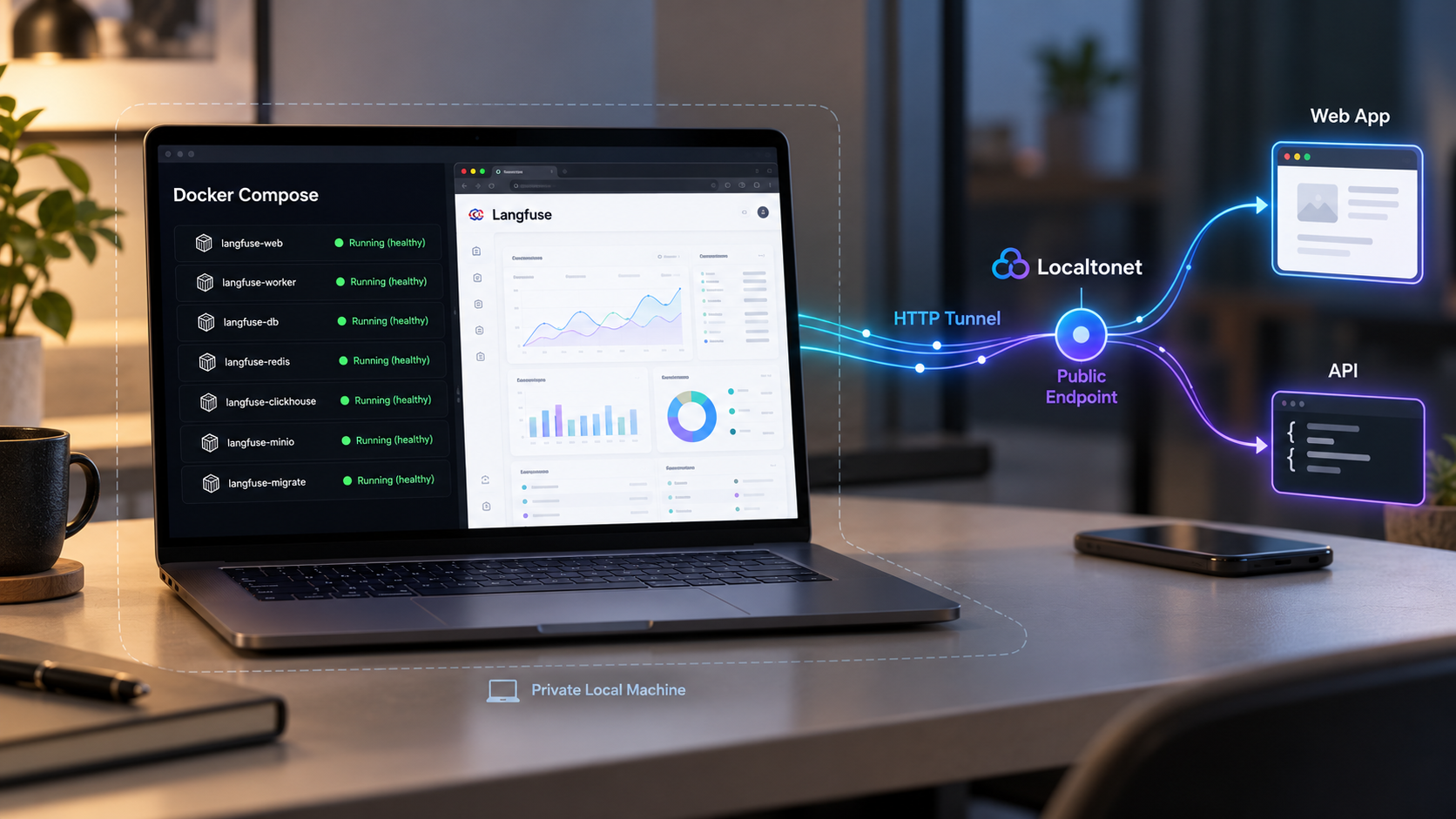
Run your own LLM observability platform, verify it locally, and make it reachable when your team needs remote access
Langfuse is an open-source LLM engineering platform for tracing, evaluation, prompt management, datasets, experiments, and related observability workflows. This guide starts with the supported local Docker Compose installation, explains how to inspect and verify the resulting deployment without assuming a port, and covers routine container operations and troubleshooting. Once Langfuse is working locally, we show how to publish its web application and HTTP API through a Localtonet HTTP tunnel without inbound router port forwarding, firewall changes, VPN setup, or a public IP address.
📋 What's in this guide
What you are deploying
Langfuse is an open-source platform designed to help teams develop, observe, evaluate, and debug applications built around language models and AI agents. Its tracing features can capture LLM calls as well as related application activity such as retrieval, embedding, tool invocation, and agent actions. Teams can inspect traces and sessions, evaluate outputs, manage prompts, create datasets, run experiments, and integrate Langfuse into custom workflows through its API and SDKs.
Self-hosting gives you responsibility for the infrastructure on which these services and their data run. That responsibility includes selecting releases, managing configuration and secrets, preserving persistent data, monitoring disk usage, applying updates, backing up data, and controlling who can reach the application. A working container is therefore only one part of a reliable deployment.
The Langfuse repository officially presents Docker Compose as its quick local installation path. It also identifies Docker Compose on a virtual machine, Kubernetes with Helm, and Terraform templates for AWS, Azure, and GCP as deployment choices. Kubernetes with Helm is identified by the project as the preferred production deployment. This guide deliberately focuses on the repository's local Docker Compose workflow and treats remote HTTP access as a separate step after local verification.
Separate installation from publishing
There are two distinct network paths in this workflow. First, Docker Compose starts Langfuse and its supporting containers on the host. You must verify that deployment directly from the host before introducing any tunnel. Second, the Localtonet client establishes an outbound connection from a device that can reach the Langfuse service to one of our relay servers. The resulting HTTP tunnel provides a public URL while the selected client is connected and the tunnel is running.
Keeping these stages separate makes diagnosis much easier. If the local endpoint does not respond, changing a tunnel cannot repair the Langfuse deployment. If the local endpoint works but the public URL does not, the investigation can focus on the Localtonet client, selected device, tunnel state, and local target.
The installation evidence for this guide establishes the Docker Compose commands but does not establish a fixed local hostname or host port. Compose files and deployment configuration can change between releases. Inspect the running deployment and use the host address and published port shown by your current Docker Compose configuration rather than copying an unverified value.
Prerequisites for the Docker Compose installation
Prepare the machine before cloning the repository. The host must have enough capacity for the application and its supporting services, but the evidence available for this guide does not establish universal CPU, memory, or disk minimums. Actual requirements depend on ingestion volume, retention, concurrent users, evaluation workloads, and the release being deployed. For anything beyond evaluation or light development, measure resource usage under a representative workload instead of treating a generic minimum as a production sizing recommendation.
| Requirement | Why it is needed | How to validate it |
|---|---|---|
| Git | Clones the current Langfuse repository used by the supported quick-start workflow. | Run git --version and confirm that the command completes successfully. |
| Docker | Runs the application and supporting services defined by the Compose project. | Run docker version and confirm that the client can communicate with the Docker engine. |
| Docker Compose | Creates and coordinates the multi-container deployment. | Run docker compose version. This guide uses the Compose plugin form with a space. |
| Image download access | Docker must be able to retrieve the container images referenced by the current Compose file. | Confirm that the host can reach the relevant container registries through any organizational proxy or egress controls. |
| Persistent disk capacity | Application and database data, container images, and logs consume storage over time. | Review free space before startup and monitor it after ingesting representative traces. |
| A Localtonet-capable device | The Localtonet client must run on a device that can reach the published Langfuse host port. | Verify the endpoint locally on that same device, or test connectivity from it if Docker runs elsewhere on the LAN. |
Check the Docker engine
The Docker command-line client may be installed even when the engine is stopped or inaccessible. Checking both the version and engine response catches that distinction before the installation begins.
git --version
docker version
docker compose version
Resolve any command-not-found, daemon connection, or permission problem before continuing. The precise Docker installation method depends on your operating system and environment, so this guide does not prescribe an unsupported package command or platform-specific path.
Choose a durable working location
Clone the repository into a location you can identify and maintain. Avoid treating a temporary directory as a permanent deployment location. The repository contains the Compose definition used to control the stack, and later commands should be run from its directory unless you explicitly point Docker Compose to another file.
Plan configuration before exposing anything
The supplied project evidence does not establish a complete, release-independent list of required environment variables, generated secrets, initial credentials, or external URL settings. Do not invent values or copy credentials from an unrelated tutorial. Before production use, inspect the configuration examples and self-hosting documentation that belong to the exact revision you deploy. Generate unique secrets where the current project instructions require them, store them outside source control, and avoid placing them in shell history or screenshots.
Starting the default Compose project for local evaluation does not by itself prove that the deployment is appropriately configured for public access. Complete local setup, establish application authentication and authorization, review secrets, and verify the intended endpoint before creating a public tunnel.
Install and start Langfuse with Docker Compose
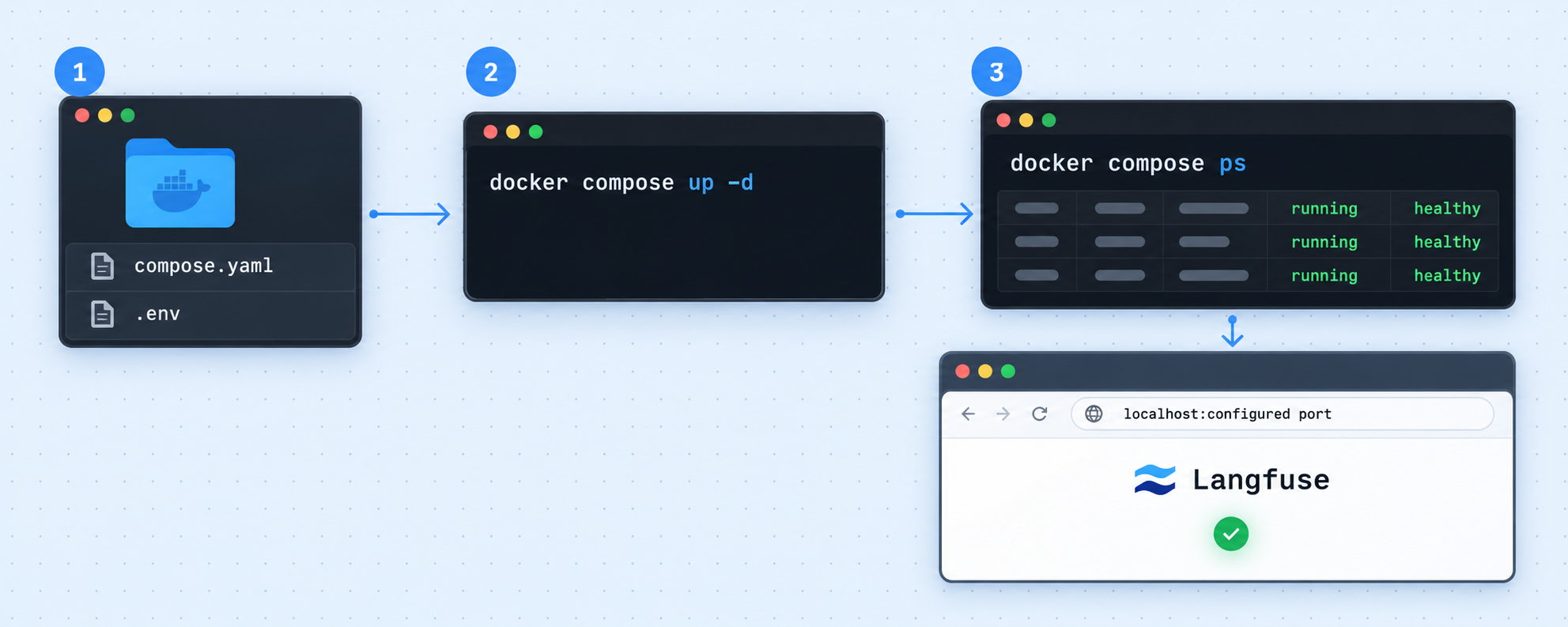
The official repository quick start consists of cloning the latest repository, entering the repository directory, and starting its Docker Compose project. These commands intentionally follow that documented sequence.
Clone the latest Langfuse repository
Use a shallow clone for the quick-start installation. This retrieves the current repository content without downloading its full commit history.
Enter the repository directory
Docker Compose needs to operate against the Compose definition in the cloned project. Run the remaining project commands from this directory.
Start the Docker Compose project
Run the documented Compose command. Docker may need time to download images, create networks and volumes, initialize supporting services, and start the application.
git clone --depth=1 https://github.com/langfuse/langfuse.git
cd langfuse
docker compose up
Running docker compose up without detached mode keeps the project attached to the terminal and displays container output. This is useful during the first startup because initialization errors are immediately visible. Do not interpret one container's “started” message as proof that the entire application is ready. Multi-container applications can have dependencies that need additional initialization time.
Keep the terminal open while performing the initial inspection. If the command exits, read the final output rather than immediately rerunning it. Typical categories to investigate include image download failures, unavailable host resources, invalid configuration, occupied host ports, failed health checks, or a supporting service that could not initialize.
Detached startup for later sessions
After the initial deployment works and you are comfortable monitoring it separately, Compose can run the project in the background:
docker compose up -dDetached mode changes how output is viewed, not what the application needs. Use Compose status and logs after a background start. A successful shell return means Docker accepted the request; it does not guarantee that every service remained healthy afterward.
Do not silently modify the stack during first diagnosis
If startup fails, preserve the original error and inspect the current repository configuration before adding arbitrary overrides. Unverified environment variable names, copied Compose fragments, guessed database credentials, and guessed ports often create a second problem on top of the first. Make one evidence-based change at a time and record it so the deployment remains reproducible.
Inspect and verify the local Langfuse service
Verification should answer four separate questions: Are the expected containers running? Are any containers repeatedly restarting or exiting? Which host address and port publish the web service? Does the HTTP endpoint actually respond from the device that will run Localtonet?
Inspect Compose service status
Open another terminal in the cloned langfuse directory and list the project services. Pay attention to running, exited, restarting, and health information, as well as published port mappings.
Read the application logs
Review the project output for initialization failures and repeated errors. If one service is failing, focus on that service and its dependencies rather than assuming the public endpoint is ready.
Identify the published HTTP endpoint
Use the port mapping reported by the current Compose deployment. The host-side port is the value a browser and Localtonet need. Do not confuse it with a container-only port.
Test the service locally
Open the discovered endpoint in a browser on the Docker host. Complete any legitimate application initialization presented by the current Langfuse release, then confirm that the web interface responds consistently.
Test from the Localtonet client device
If the Localtonet client will run somewhere other than the Docker host, open the same service from that device using a LAN-reachable address. The tunnel cannot forward to a target its client device cannot reach.
docker compose ps
docker compose logs
The PORTS information from docker compose ps is especially important. A mapping conceptually connects a host-side address and port to a container-side port. The Localtonet target must be the host-side endpoint reachable from the Localtonet client. Because this guide does not have verified evidence for a fixed Langfuse port, it intentionally does not provide a numeric value.
If the output is lengthy, inspect recent logs for the relevant service using the service name shown by your current Compose project:
docker compose logs --tail=200 <service-name>
Replace <service-name> with a real service name reported by your deployment. This is a diagnostic placeholder, not a Langfuse service name. Do not type angle brackets literally.
A browser test on the Docker host proves only that the host can reach the service. When the Localtonet client runs on another machine, also test from that machine. A service bound only to a loopback address may work on the Docker host but remain unreachable from a separate client device.
What counts as successful local verification?
A useful verification result is stronger than “the containers exist.” The relevant containers should remain running without a restart loop, logs should not show an unresolved fatal initialization problem, the published HTTP endpoint should load, and the application should remain responsive after a refresh. If you plan to send traces through an API, verify that the application setup needed to create a project and obtain legitimate integration credentials is complete according to the current Langfuse interface.
Never place Langfuse API credentials, application secrets, or Localtonet device tokens in a public test command, article, issue, screenshot, or chat transcript. Treat an API response such as an authorization error separately from a connection error. An authorization response can demonstrate that HTTP reached the application, while a timeout or refused connection points to a transport, binding, or service-state problem.
Routine Docker Compose operations
Once the stack is working, use Compose from the same repository directory to inspect, stop, and recreate the deployment. Understand the difference between stopping containers and deleting persistent data before running cleanup commands.
| Operation | Command | Purpose |
|---|---|---|
| Show status | docker compose ps |
Lists project containers, state, health information when available, and published ports. |
| Follow logs | docker compose logs -f |
Streams project output while you reproduce a startup, ingestion, or web request problem. |
| Stop services | docker compose stop |
Stops the running project containers without requesting removal of the project definition. |
| Start services | docker compose start |
Starts previously created, stopped project containers. |
| Stop and remove containers | docker compose down |
Stops and removes Compose-managed containers and networks while avoiding an implicit volume-deletion instruction. |
| Reconcile the project | docker compose up -d |
Creates or recreates services as required by the current Compose configuration and runs them in the background. |
Protect persistent data
Do not add a volume-removal option to a teardown command unless you have verified exactly which data it will destroy and have a tested backup. A container can be recreated from an image, but application and database data usually require persistent storage and an intentional recovery plan.
Control container log growth
The Langfuse repository specifically warns that its default Compose file inherits the Docker daemon's logging configuration. Docker's default json-file logging driver does not rotate logs unless rotation is configured, so logs can exhaust the host disk.
Configure appropriate max-size and max-file behavior for the Docker logging driver, or configure retention in the logging backend you intentionally use. Do not rotate or truncate Docker-managed JSON log files with external tools. When Docker daemon logging defaults change, restart Docker and recreate existing containers for the new settings to apply. Restarting containers alone is not sufficient. Plan this work for an interruption and preserve persistent data volumes.
Container stdout and stderr retention does not cover every storage concern. Database volumes and ClickHouse's internal logs require their own capacity and retention planning. Monitor the whole filesystem, not only the visible Compose logs.
Approach upgrades as controlled changes
A shallow clone of the latest repository is convenient for evaluation, but a production process should identify and record the exact revision or release in use. Before updating, read the release and migration guidance for the target version, back up persistent data, test the change in a non-production environment, and define a rollback path. Pulling new code or images without reviewing configuration and migration changes is not a backup strategy.
Expose the verified Langfuse endpoint with Localtonet
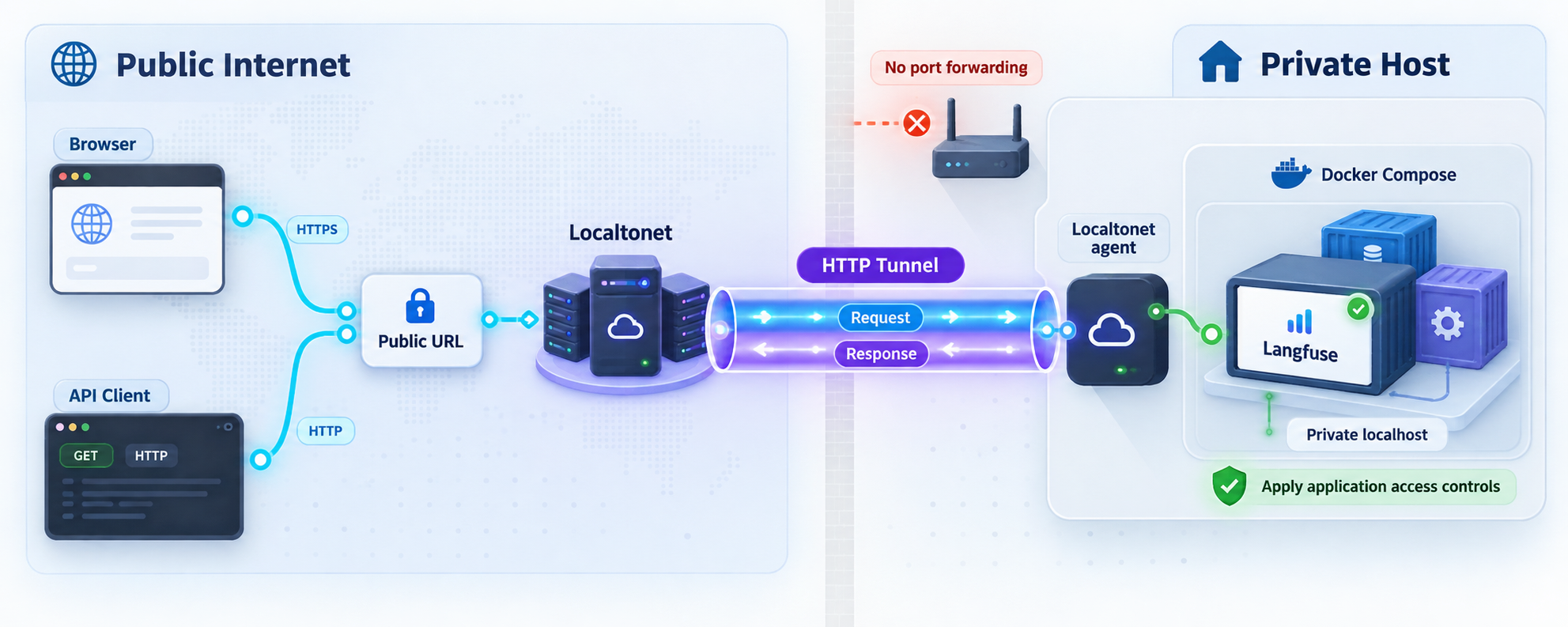
Once Langfuse responds through a known local HTTP endpoint, you can publish that endpoint using a Localtonet HTTP tunnel. Our client establishes an outbound connection to a Localtonet relay server, so this workflow does not require inbound router port forwarding, firewall changes, VPN setup, or a public IP address.
The Localtonet client should run on the Docker host or on another device that can reliably reach the verified host-side Langfuse endpoint. An HTTP tunnel points to a local IP address and port. It does not discover the Docker container automatically, repair an unhealthy service, or replace Langfuse authentication.
Install and run the Localtonet client
Run our client on the device that can reach the verified Langfuse HTTP endpoint. If Docker and Localtonet run on different devices, confirm LAN connectivity first.
Authenticate or select the client device
Use the device-specific authentication token supplied through your Localtonet account and select the corresponding device. Keep the token private and never place it in scripts, screenshots, or public documentation.
Select an available relay server or region
Choose from the values currently available in the Localtonet dashboard. Availability can vary, so this guide does not hardcode a server code or region.
Create an HTTP tunnel to Langfuse
Enter the local IP address and the host-side port discovered during verification. Use an address reachable from the Localtonet client, not a container-only address or an assumed port.
Start the tunnel
Creating a tunnel does not start it. Use the Start button and wait for the selected device and tunnel to be connected before testing the assigned public URL.
Test and later stop or delete the tunnel
Open the assigned public URL in a separate browser context and verify the intended Langfuse access flow. Stop the tunnel when remote access is no longer needed, or delete it when the configuration should not be retained.
For dashboard details associated with the current interface, consult our Localtonet HTTP tunnel documentation. Use the documentation together with the endpoint you verified locally. Never substitute an example address for your actual host-side Compose mapping.
Choose the local target correctly
When the client runs on the Docker host, the target can use the local endpoint that succeeded on that same machine. When the client runs elsewhere, use a LAN address for the Docker host that the client device can reach. The exact value depends on your network and Docker binding, so it cannot be safely guessed in a general tutorial.
Avoid targeting an internal container address unless you have intentionally placed the Localtonet client in a compatible container network and have verified that design. Container addresses may change when containers are recreated and are not normally reachable from an unrelated host process. The published host port is generally the clearer integration boundary for this workflow.
Understand the tunnel lifecycle
The public endpoint is available only while the selected Localtonet client or device is connected and the tunnel is running. If the host sleeps, the client exits, network connectivity fails, or the tunnel is stopped, remote users cannot reach Langfuse through that URL. This behavior is separate from the status of the Docker containers.
Treat the URL as internet-facing even if you plan to share it with only a few people. Require appropriate Langfuse authentication, use least-privilege accounts and API credentials, review application-level authorization, and stop the tunnel when public reachability is not needed. A tunnel provides connectivity and does not remove the need for application security.
Security and access planning
LLM observability data can include prompts, model responses, tool activity, metadata, user identifiers, retrieved content, and application errors. Depending on instrumentation, those records may contain confidential or personal information. Security planning therefore needs to cover ingestion, stored data, administrative access, backups, logs, and the public application endpoint.
Separate human access from API ingestion
A browser session and an application sending traces have different security needs. Human users need appropriate account controls and authorization inside Langfuse. Instrumented applications need only the valid project or API credentials required by the current Langfuse integration. Do not distribute an administrator's browser credentials to applications, and do not expose integration credentials in front-end code where an end user can retrieve them.
Review public URL and callback assumptions
Some web applications need an externally visible base URL for redirects, cookies, links, or callback behavior. The evidence supplied for this guide does not establish which Langfuse configuration value, if any, must be changed for every tunnel scenario. If the interface loads but login, redirects, generated links, or integrations use an unexpected origin, consult the configuration documentation for the exact Langfuse release and set only the documented external URL options.
Localtonet HTTP and File Server tunnels can use a generated subdomain, a selected subdomain where supported, or a custom domain. Exact custom-domain DNS requirements must be checked against current Localtonet documentation before configuration. Do not improvise DNS records from an unrelated service or assume every option is included with every plan.
Troubleshooting the installation and tunnel
Troubleshoot from the inside out: container state, local HTTP response, connectivity from the Localtonet client device, client connection, tunnel state, and finally the public URL. This sequence prevents a tunnel symptom from hiding an application problem.
The Docker Compose command cannot start
Confirm that Docker is running and that your account can communicate with the engine. Recheck docker version rather than relying only on docker --version, which can succeed even when the engine is unavailable. Then run the startup command from the cloned Langfuse directory so Compose can find the intended project definition.
Images do not download
Check DNS, outbound registry access, proxy configuration, available disk space, and any registry rate or authentication messages printed by Docker. Keep the original error text. Repeatedly rerunning the command without addressing an egress or storage failure will not make the deployment healthy.
A container exits or repeatedly restarts
Run docker compose ps and inspect logs for the failing service. Look for the first persistent error rather than only the last restart message. Common categories include invalid or missing configuration, an unavailable dependency, initialization failure, storage exhaustion, or a host port conflict. The exact remedy depends on the actual service and message, so do not replace a specific error with guessed credentials or ports.
No port appears for the web service
Inspect the current Compose definition and resolved project configuration. A container port that is not published to the host is not automatically available to a browser or a host-based Localtonet client. Do not guess a mapping. Follow the deployment configuration documented for the exact Langfuse revision you are using, then recreate the affected service and verify the resulting host-side port.
The browser cannot reach Langfuse locally
Verify that you are using the host side of the published mapping and the correct protocol. Check whether the relevant container remains running and whether logs show readiness or initialization errors. Also confirm that another process is not occupying the expected host port. A connection refusal usually indicates that nothing is listening at the target or that the binding is wrong. A timeout may indicate routing or filtering. An HTTP error page means the connection reached an HTTP-speaking endpoint and should be investigated at the application layer.
Langfuse works on the Docker host but not from the Localtonet device
This normally points to the boundary between those machines. Confirm that the service is bound to an address reachable from the LAN, use the Docker host's reachable LAN address rather than its loopback address, and test that exact IP and port from the Localtonet client device. Respect your organization's host firewall and network policy rather than disabling controls broadly.
The Localtonet public URL does not respond
Verify all of the following independently:
- The Langfuse endpoint still responds locally.
- The Localtonet client is running on the selected device.
- The device is connected with the intended device-specific token.
- The HTTP tunnel points to the verified local IP address and host-side port.
- The configured tunnel has been started, not merely created.
- The selected relay server or region is the current value chosen in the dashboard.
If local access fails, repair Langfuse first. If local access succeeds from the Localtonet client device but public access fails, focus on the client and tunnel state. Avoid deleting a working application stack while diagnosing a tunnel configuration.
The page loads but login, links, or redirects behave incorrectly
Record the browser's requested URL, redirect destination, and any cookie or origin-related message without exposing credentials. This pattern can indicate an application base-URL, proxy-awareness, or authentication configuration issue. The correct variable names and values can change, and they are not established by the evidence for this article. Use the configuration guidance for your exact Langfuse release rather than inventing environment variables.
Disk use continues to grow
Check container logs, database volumes, application data, Docker images, and ClickHouse internal logs separately. Configure Docker log rotation correctly, then restart Docker and recreate existing containers for changed daemon defaults to apply. Do not manually truncate Docker-managed JSON logs. Establish retention and backup policies based on your workload and recovery requirements.
Moving beyond a local evaluation deployment
Docker Compose is the supported quick local path and can also be used on a single virtual machine. Langfuse identifies Kubernetes with Helm as its preferred production deployment and provides Terraform templates for AWS, Azure, and GCP. The right choice depends on operational needs rather than only installation convenience.
| Deployment path | Appropriate context | Operational consideration |
|---|---|---|
| Local Docker Compose | Evaluation, development, and learning on one machine. | Simple to start, but the host remains responsible for resources, persistence, updates, and availability. |
| Docker Compose on a VM | A single-machine hosted deployment managed as a server. | Requires deliberate backup, monitoring, host hardening, log retention, upgrades, and failure recovery. |
| Kubernetes with Helm | The project's preferred production deployment path. | Requires Kubernetes operational capability and careful management of persistent dependencies and configuration. |
| Cloud Terraform templates | Infrastructure provisioning on AWS, Azure, or GCP. | Review the current template architecture, generated resources, credentials, networking, and ongoing cloud costs. |
Before calling any self-hosted installation production-ready, define service ownership, backups and restore tests, release management, monitoring, alerting, incident response, data retention, capacity planning, and access review. Also test the complete ingestion path from representative applications. A responsive dashboard does not prove that high-volume trace ingestion, evaluation jobs, or recovery procedures meet your requirements.
A Localtonet HTTP tunnel can remain useful when a deployment needs controlled remote reachability without inbound router configuration. It does not transform a development Compose stack into a highly available production architecture. Availability still depends on the Langfuse services, Docker host, Localtonet client device, outbound network connection, and running tunnel.
Frequently asked questions
What port does the self-hosted Langfuse web application use?
This guide does not state a numeric port because the supplied installation evidence does not establish a fixed local hostname or port. Run docker compose ps and use the host-side port published by the current Compose deployment. Verify that endpoint locally before entering it as the Localtonet HTTP target.
Does Localtonet need to run inside the Langfuse container?
No. The Localtonet client can run on the Docker host or another device that can reach the published Langfuse host endpoint. Using the verified host-side address and port usually provides a clearer boundary than depending on a changeable internal container address.
Does creating a Localtonet tunnel make it active immediately?
No. Creating a tunnel does not mean it is running. Select the correct client device, configure the verified local target, and use the Start button. The public URL is available only while that device is connected and the tunnel is running.
Does an HTTP tunnel replace Langfuse authentication?
No. The tunnel provides network reachability to the local HTTP service. Configure and maintain appropriate authentication, authorization, secret handling, and least-privilege credentials in Langfuse. Stop the tunnel whenever public access is not needed.
Can remote applications send traces through the public URL?
Langfuse includes an HTTP API and SDK integrations, so its endpoint can support application workflows when correctly configured. First verify the API locally, then use the assigned Localtonet public URL as appropriate for the current Langfuse SDK or integration. Keep project credentials private and confirm any external base-URL requirements in the documentation for your deployed release.
Is Docker Compose the recommended Langfuse production architecture?
Docker Compose is the documented local installation path and is also presented for deployment on a single virtual machine. Langfuse identifies Kubernetes with Helm as its preferred production deployment. Choose according to your availability, scaling, persistence, backup, and operational requirements.
Will the public Langfuse URL remain available if the host goes offline?
No. The Langfuse containers must be healthy, the Localtonet client device must be connected, its outbound network path must work, and the tunnel must be running. If any required part stops, the public endpoint will not reach the application.
How should I update a self-hosted Langfuse deployment?
Record the currently deployed revision, review the target release's migration and configuration guidance, back up persistent data, test the upgrade outside production, and prepare a rollback plan. Do not assume that pulling the latest repository or image is sufficient for every release transition.
Connect your verified Langfuse deployment with Localtonet
Start Langfuse locally, confirm its real host-side HTTP endpoint, and then create a Localtonet HTTP tunnel to give your authorized team or applications remote access without inbound router port forwarding.
Get Started Free →

