

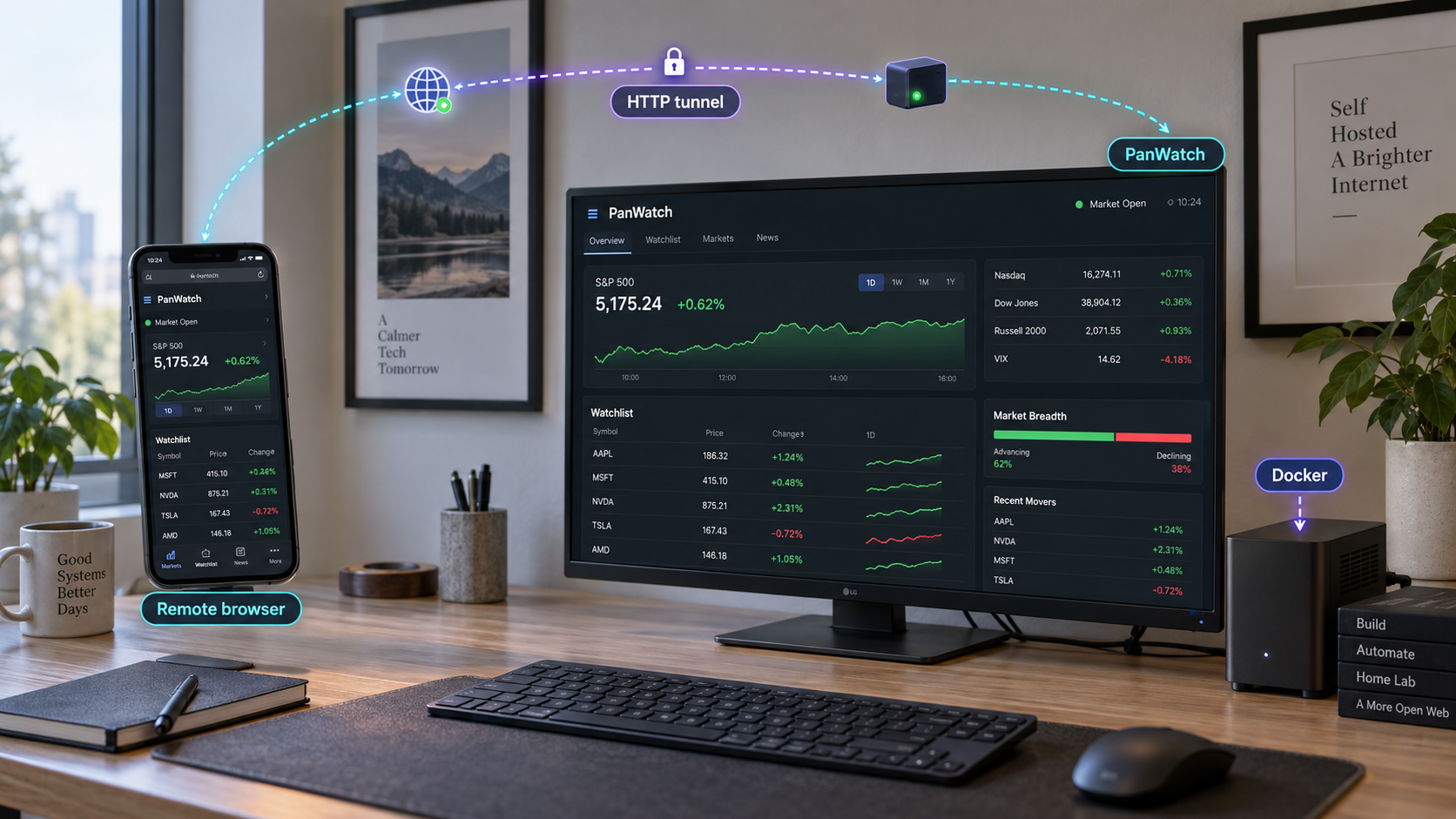
Run your own AI-assisted stock monitoring workspace and reach it securely from outside your local network
PanWatch is a self-hosted web application for monitoring stocks and listed ETFs, managing portfolios, creating alerts, running AI-assisted research, and reviewing automated reports. This guide first installs PanWatch with its published Docker image, preserves its application data, configures the correct timezone, completes the initial AI service setup, and verifies the dashboard locally. Once the application works on http://localhost:8000, we connect it to a Localtonet HTTP tunnel as a separate remote-access step. This keeps application troubleshooting distinct from tunnel troubleshooting and avoids requiring inbound router port forwarding, firewall changes, a VPN, or a public IP address.
📋 What's in this guide
How this PanWatch deployment works
PanWatch combines a browser-based workspace with portfolio management, market monitoring, alerts, reports, paper trading, and AI-assisted research. It covers mainland China, Hong Kong, and United States stocks, along with listed ETFs. Its workflows include watchlists, holdings, quotes, candlesticks, opportunities, and configurable notifications. PanWatch is also an installable Progressive Web App, so a compatible browser can add the interface to a mobile home screen after the site is reachable.
The deployment in this guide has two independent layers. Docker runs PanWatch on the host and maps the application to local TCP port 8000. The persistent named volume panwatch_data stores application data at /app/data inside the container. You first open the local service at http://localhost:8000, create login credentials, configure an AI provider, and confirm that the application works.
After local verification, the Localtonet client establishes an outbound connection from the machine to one of our relay servers. An HTTP tunnel points to the PanWatch service using a local IP address and port. Localtonet then provides the public address used by an authorized remote browser. Because the client initiates the connection outbound, this workflow does not require inbound router port forwarding, firewall changes, VPN setup, or a public IP address.
panwatch_data volume remains separate from the container lifecycle. Keep this volume when recreating or updating the container.
Why local verification comes first
A tunnel can make a reachable local service available remotely, but it cannot repair an application that is not running, listening on the wrong port, waiting for first-start initialization, or rejecting its own configuration. Testing PanWatch locally establishes a clear boundary. If http://localhost:8000 fails on the host, troubleshoot Docker and PanWatch. If the local page works but the public address fails, investigate the Localtonet client, selected device, tunnel state, and local target.
| Layer | Purpose | Verification point |
|---|---|---|
| Docker host | Runs the PanWatch container and retains its named data volume | The container appears as running |
| PanWatch web service | Provides the dashboard, onboarding, portfolios, alerts, and AI workflows | http://localhost:8000 opens successfully |
| PanWatch account | Protects access to the application workspace | You can sign in with the credentials created during setup |
| Localtonet client | Creates an outbound connection from the device to our relay server | The selected device is connected |
| Localtonet HTTP tunnel | Maps the assigned public address to the local PanWatch endpoint | The tunnel is started and the public address reaches the login page |
Prerequisites and deployment decisions
Use a machine that can run Docker and remain online whenever you need PanWatch. The supplied PanWatch quick-start path assumes a working Docker installation. The Compose alternative additionally requires the docker compose command. This guide does not claim a project-specific operating-system compatibility list because the available PanWatch installation evidence does not establish one. Confirm that Docker itself is supported and functioning on your chosen host before continuing.
You also need network access during installation. Docker must retrieve the PanWatch image. On first startup, the image can download Chromium's headless shell for browser-based features such as screenshots. That download is stored in the mounted data volume under the default path /app/data/playwright and can take several minutes.
For AI research, prepare access to a provider supported by PanWatch's AI Services interface. The project documents OpenAI-compatible providers and local models through Ollama. Provider addresses, model names, keys, usage costs, and availability vary, so this guide does not invent values for them. Obtain the exact configuration from the provider you choose and never put a real credential into a command, screenshot, public issue, or tunnel description.
For remote access, install the Localtonet client on the PanWatch host or on another device that can reach the PanWatch host over the local network. You need a device-specific Localtonet authentication token and must select a currently available relay server or region from our dashboard. Tokens and available server codes must come from your account and must never be guessed, copied into public documentation, or shared with another user.
Choose the correct timezone before creating schedules
PanWatch uses the container's TZ environment variable for background schedules and notification quiet hours. The image defaults to Asia/Shanghai and does not automatically detect the host timezone. Use an appropriate IANA timezone such as UTC or America/New_York if the default does not match your intended scheduling context.
The browser timezone separately controls interface timestamps and alert expiry inputs. This distinction matters when the Docker host, the exchange you monitor, and your browser are in different regions. Decide which wall-clock timezone should control scheduled automation, then set TZ deliberately during deployment.
Review existing cron-style schedules and notification quiet hours before changing TZ. A schedule configured for 09:00 will run at a different real-world instant after the timezone changes, even though the displayed wall-clock value remains 09:00.
Choose Docker Run or Docker Compose
Both documented methods use the same image, port, restart policy, timezone variable, and persistent volume. Docker Run is direct and convenient for a single command. Docker Compose stores the deployment definition in a file, which can make later review and recreation easier. Do not run both methods simultaneously with the same container name and host port.
| Method | Best fit | Important behavior |
|---|---|---|
| Docker Run | A direct, single-container deployment | Creates a container named panwatch from one command |
| Docker Compose | A file-based deployment definition | Recreates the service from the saved Compose configuration |
| Version-pinned image | Deployments that require an explicitly selected release | Uses a release tag instead of the moving latest tag |
The documented release evidence identifies both sunxiao0721/panwatch:latest and the versioned image sunxiao0721/panwatch:0.18.1. The commands below follow the official quick start and use latest. If your operational policy requires a fixed version, replace only the image tag with a release that you have reviewed and selected. Do not assume that a version shown in this article will remain the newest release.
Install PanWatch with Docker
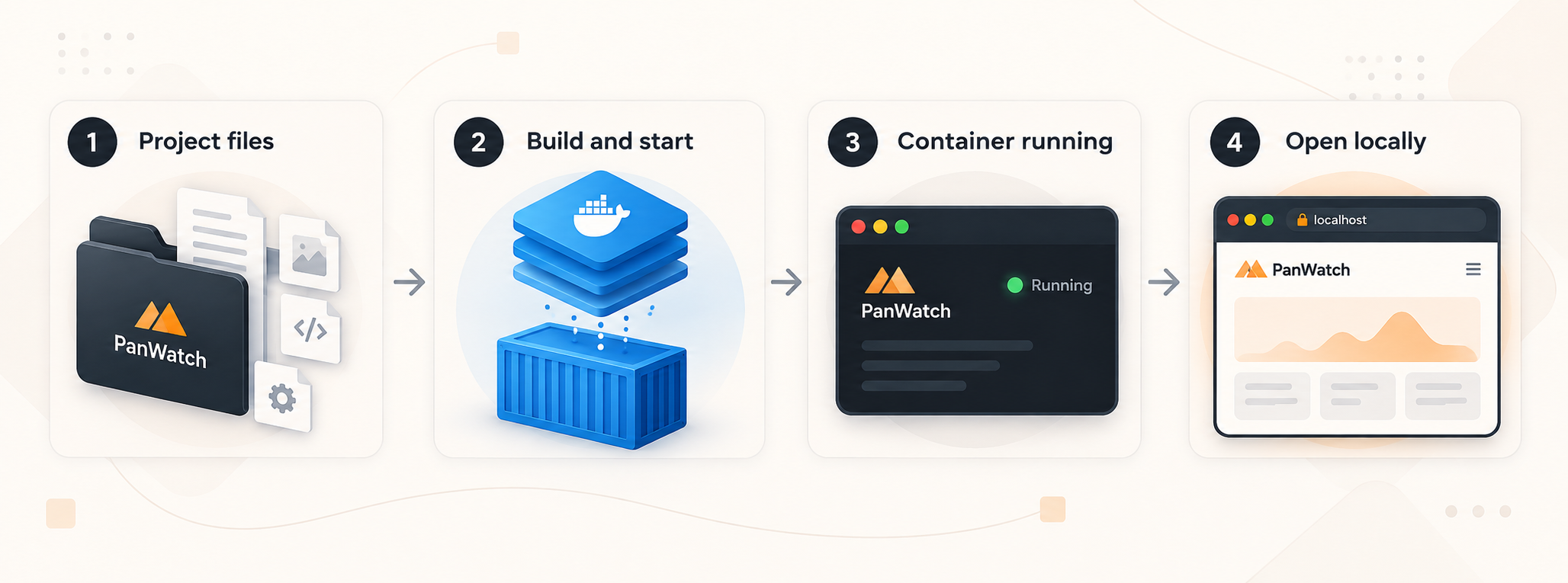
Use one of the following installation paths. Both publish PanWatch on host port 8000, mount the persistent volume at /app/data, and configure Docker to restart the container unless it was explicitly stopped.
Option A: Docker Run
Confirm Docker is available
Open a terminal on the intended host and confirm that Docker commands work for your user. Resolve Docker installation, daemon, or permission errors before starting PanWatch.
Select the container timezone
Decide which IANA timezone should control background schedules and notification quiet hours. The example uses Asia/Shanghai. Replace it with your chosen value when necessary.
Start the published PanWatch image
Run the documented command. It creates the panwatch container, publishes port 8000, and mounts the panwatch_data named volume.
docker run -d \
  --name panwatch \
  --restart unless-stopped \
  -e TZ=Asia/Shanghai \
  -p 8000:8000 \
  -v panwatch_data:/app/data \
  sunxiao0721/panwatch:latest
Docker may need time to download the image. The first application startup may take additional time while PanWatch downloads Chromium's headless shell into the mounted volume. Do not assume the service has failed merely because the web page is not available immediately after the container command returns.
Option B: Docker Compose
Create a Compose file in a directory you will retain for this deployment. The following configuration is the documented PanWatch Compose definition:
services:
  panwatch:
    image: sunxiao0721/panwatch:latest
    container_name: panwatch
    environment:
      TZ: "Asia/Shanghai"
    ports:
      - "8000:8000"
    volumes:
      - panwatch_data:/app/data
    restart: unless-stopped

volumes:
panwatch_data:Save the Compose definition
Save the configuration in your deployment directory. Change the TZ value to the IANA timezone chosen for PanWatch schedules and quiet hours.
Start the service
From the directory containing the Compose file, start PanWatch in detached mode.
docker compose up -d
Compose creates the service and the named data volume. If you later change environment.TZ, run docker compose up -d again to recreate the container with the updated definition. Keep the data volume during that recreation.
Optional: skip the first-start browser download
The PanWatch image contains Playwright's system dependencies, but Chromium's headless shell is downloaded on first startup. If you do not need browser features such as screenshots, PanWatch documents the environment variable PLAYWRIGHT_SKIP_BROWSER_INSTALL=1 to skip that download.
Add the variable only if you understand the resulting feature limitation. With Docker Run, add the following environment argument before the image name:
-e PLAYWRIGHT_SKIP_BROWSER_INSTALL=1
With Compose, add it under the service's existing environment section:
environment:
  TZ: "Asia/Shanghai"
  PLAYWRIGHT_SKIP_BROWSER_INSTALL: "1"
PanWatch stores persistent application data in panwatch_data, mounted at /app/data. Container recreation and image updates should retain that volume. Deleting the volume is materially different from deleting and recreating only the container.
Create your PanWatch account and configure AI
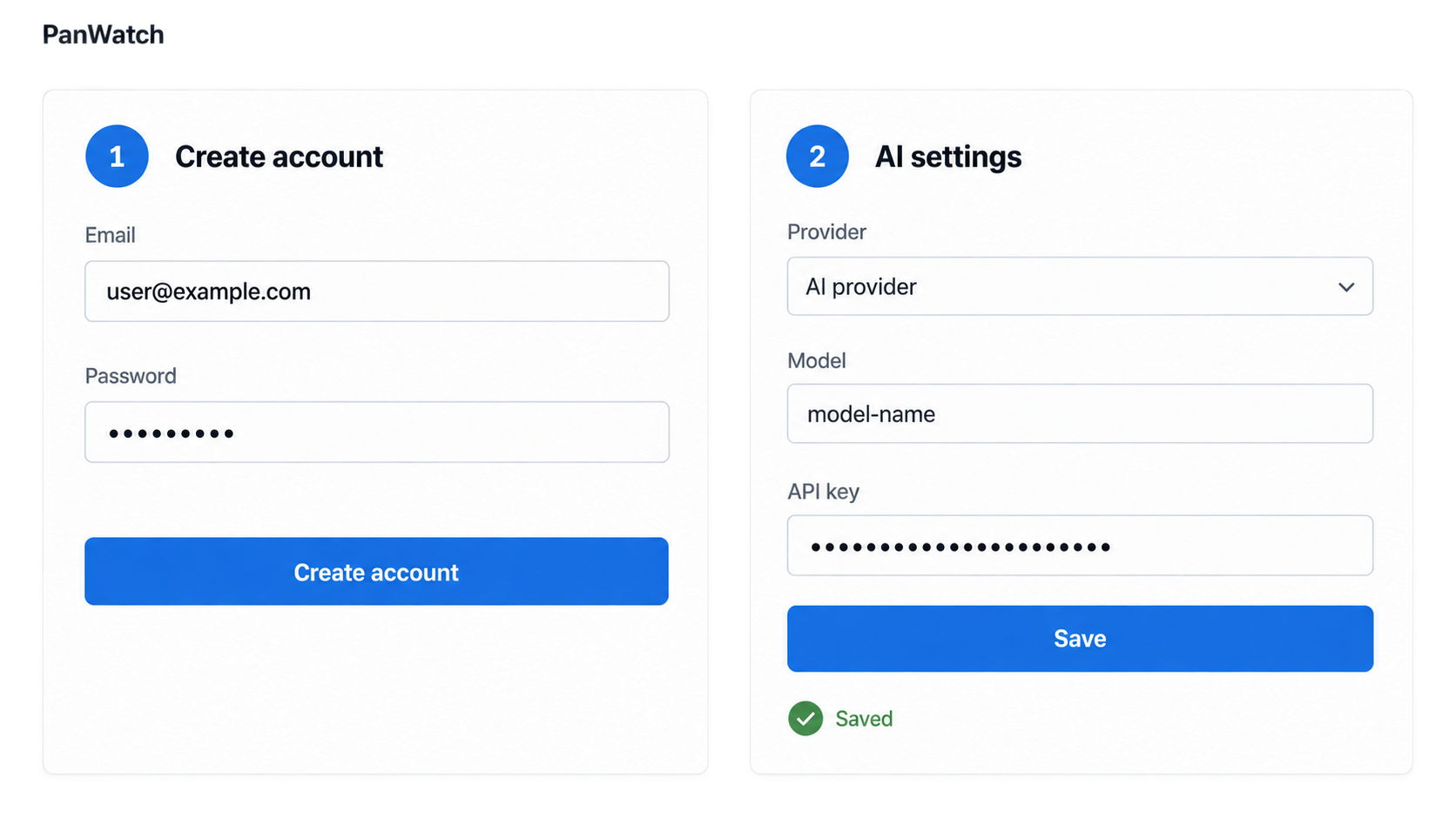
Open http://localhost:8000 in a browser on the Docker host. If the host has no graphical browser, use a browser on a trusted device that can already reach the host through the local network. The official quick start specifically establishes http://localhost:8000 as the local endpoint.
On first use, create your PanWatch login credentials. Use a strong, unique password. Complete this step before exposing the application remotely. PanWatch contains portfolio information, watchlists, alerts, provider configuration, research output, and potentially notification integrations, so the dashboard should not be treated as a public, anonymous website.
After the first sign-in, the main guided tour covers stocks, quotes, AI setup, and a first analysis. Required tour steps cannot be skipped, but the tour can be paused and resumed. Progress survives browser changes and service restarts. If you close it, reopen it from the Guide center.
Create login credentials
Open the local PanWatch interface and create the account credentials used to protect the workspace. Store the password using an appropriate password manager rather than embedding it in deployment files.
Follow the main tour
Use the highlighted controls in the interface. The main tour verifies saved actions or successful checks, while exploration routes record instructions that you acknowledge.
Configure an AI service
Go to Settings → AI Services, add the service details supplied by your selected OpenAI-compatible provider or Ollama deployment, and choose the default model.
Test the AI connection
Run the interface's connection test before requesting the first analysis. A changed model configuration requires another successful test.
Generate the first analysis explicitly
Start the first analysis through the guided workflow after the connection test succeeds. This operation uses the configured model's quota, and its result remains on the page.
Configure optional workflows afterward
Optionally create a price alert and test a notification channel. Scheduled agents and TradingAgents are configured separately from the first analysis, so enable them only after the basic installation and provider connection work.
The first analysis uses your configured model quota. Provider pricing, rate limits, data handling, and model availability are controlled by the provider you select, not by the Docker installation or the Localtonet tunnel. Review those terms before running automated or frequent analysis.
Understand the available PanWatch workflows
The Guide center includes guided material for opportunities, paper trading, the assistant, daily tasks, and data sources. Each guide keeps its own progress and can be replayed. You do not need to configure every feature before creating remote access. A safer deployment sequence is to establish login protection, verify basic market data and AI connectivity, and only then enable automation or external notification channels.
PanWatch can search stocks and listed ETFs by code or name. The asset type is stored with each instrument. For a fund whose provider name does not identify it as an ETF, select ETF explicitly. ETF deep analysis uses fund-specific context rather than substituting company financial statements. The documented implementation does not yet provide fund holdings, NAV, fees, and tracking error as structured data. Paper trading also retains its existing market rules and cost model and does not model ETF-specific T+0 exceptions or fee schedules.
These limitations are important when interpreting generated research and simulated performance. Self-hosting provides control over the application deployment, but it does not make incomplete market data complete or turn AI-generated output into guaranteed financial advice. Review results critically and verify material decisions independently.
Verify PanWatch before creating a tunnel
Verification should cover more than whether a page renders. Confirm the container state, local HTTP endpoint, authentication flow, data persistence, timezone choice, and AI connection. This gives you a known-good baseline before introducing remote networking.
Check the container
docker ps --filter name=panwatch
The result should show the panwatch container as running. If it is absent, include stopped containers:
docker ps -a --filter name=panwatchReview startup output when the container exits, repeatedly restarts, or remains unavailable:
docker logs panwatchOn first startup, allow time for the browser component download when it has not been skipped. The host needs outbound network access for that download.
Check the local web endpoint
Open the following address on the Docker host:
http://localhost:8000
Confirm that the login page loads, that you can sign in, and that navigation within the dashboard works. If you are using another trusted device on the same local network, use the Docker host's reachable local address with port 8000. The exact local address depends on your network and is not something this guide can safely guess.
Check account and provider behavior
Sign out and sign back in to confirm that the credentials work as expected. In Settings → AI Services, make sure the selected default model passes its test. If you changed a model or channel configuration, run its test again. Then execute the first analysis intentionally and confirm that the result remains visible on the page.
Check persistence
Create only non-sensitive test configuration or a temporary watchlist entry, then restart the container:
docker restart panwatchAfter the service returns, sign in and verify that the test data remains. This confirms that the named volume is mounted and being retained across a normal container restart. It is not a substitute for a backup. The supplied project evidence establishes the persistent volume location but does not define a complete backup and restore procedure, so use a Docker volume backup process appropriate to your environment and validate restoration separately.
Do not create the public tunnel until PanWatch loads locally, accepts your login, and completes the functions you intend to use. Local success followed by remote failure points toward tunnel configuration or reachability. Local failure means PanWatch or Docker needs attention first.
Expose PanWatch with a Localtonet HTTP tunnel
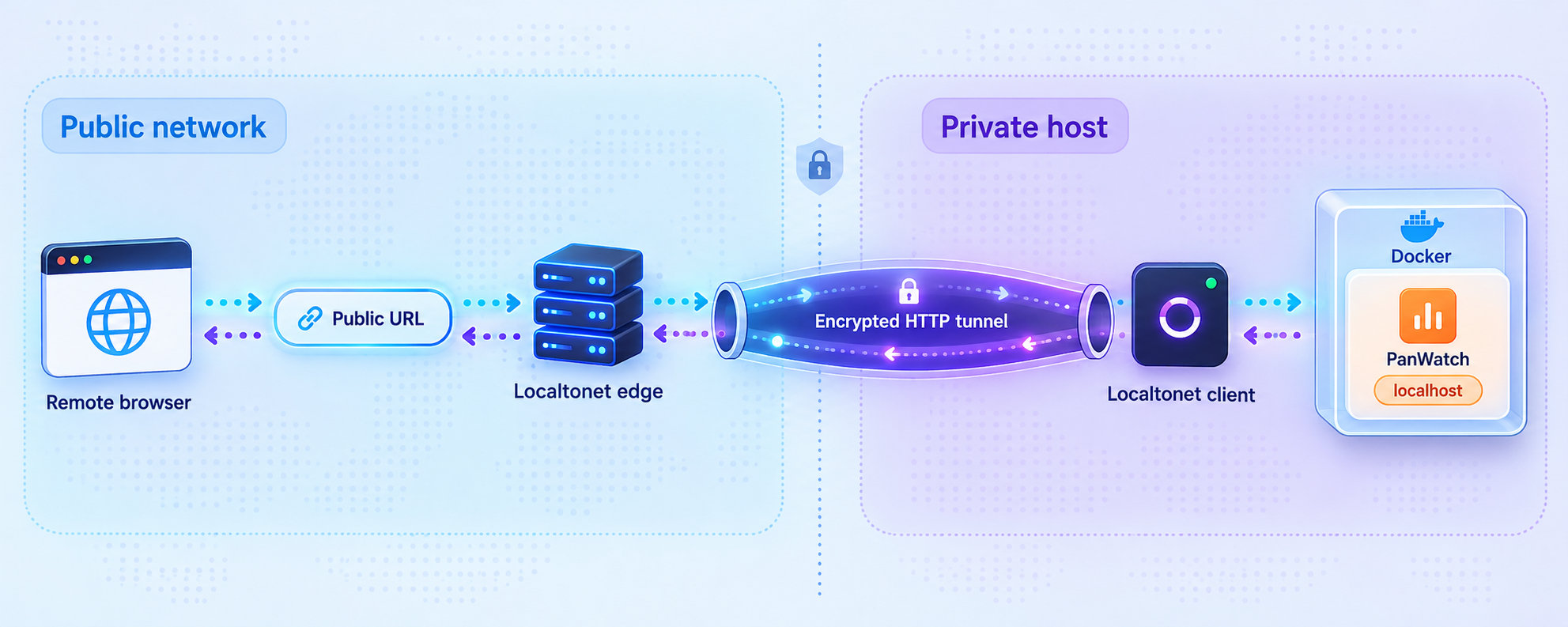
Once PanWatch works locally, add Localtonet as the remote-access layer. An HTTP tunnel is appropriate because PanWatch provides a browser-based HTTP service on port 8000. The tunnel points to a local IP address and port reachable from the Localtonet client device.
Install and run the Localtonet client on the PanWatch host whenever possible. That lets the tunnel target the local service directly. You may instead run our client on another device that can reach the host, but you must then use the PanWatch host's reachable local network address rather than localhost. On a separate device, localhost refers to that separate device itself.
Install and run the Localtonet client
Install our client on the PanWatch host or on a device that can reach the PanWatch service. Keep the client running whenever remote access is required.
Authenticate the intended device
Use the device-specific authentication token from your Localtonet account. Treat the token as a secret. Do not paste it into the PanWatch configuration, source code, screenshots, or shared terminal output.
Select an available relay server
Choose a currently available server or region from the Localtonet dashboard. Availability can vary, so obtain the value from the current product interface rather than copying a hardcoded server code from a tutorial.
Create an HTTP tunnel to PanWatch
Create the HTTP configuration and set its local target to the IP address and port where the Localtonet client can reach PanWatch. When both run on the same host, the service is available locally on port 8000. When they run on different devices, use the PanWatch host's reachable local address and port 8000.
Start the tunnel
Creating a tunnel does not start it. Press Start and wait for the tunnel to run. Use the assigned public address only after the selected Localtonet device is connected and the tunnel is active.
Test from an external network
Open the assigned public address from a trusted browser outside the PanWatch host's local network. Confirm that the PanWatch login page appears, authenticate, and verify the dashboard. Stop or delete the tunnel when public reachability is no longer required.
HTTP tunnels can use a generated subdomain, a selected subdomain where supported, or a custom domain. These process types serve the same content at a public HTTPS address. Custom-domain DNS details can change and are not established by the evidence supplied for this tutorial, so check the current Localtonet dashboard and documentation before changing DNS records.
For current product instructions, consult our Localtonet documentation. Use the dashboard values shown in your own account for the device token, relay server, assigned address, and any options that vary by plan or deployment.
Create and test strong PanWatch credentials before starting the tunnel. Share the public address only with intended users, keep AI provider keys private, and stop the tunnel when remote access is unnecessary. Do not interpret tunneling as a replacement for application authentication or access policy.
Understand the tunnel lifecycle
A configured tunnel is not automatically available. The selected Localtonet client must be connected, and the tunnel must be running. Remote access ends if the PanWatch container stops, the local host loses connectivity, the Localtonet client disconnects, or the tunnel is stopped. Deleting a tunnel removes that configuration, while stopping it preserves the configuration for later use.
This behavior is useful for controlled access. For example, you can leave PanWatch operating locally while stopping its public tunnel. The dashboard remains available on the host, scheduled PanWatch tasks can continue according to the application configuration, and the public address is no longer serving the local target through the stopped tunnel.
Routine operation, restart, and update workflow
A self-hosted monitoring service requires basic lifecycle management. Keep the host online, monitor available storage, retain the named volume, review logs when behavior changes, and test the local endpoint after updates before relying on remote access.
Start, stop, and restart Docker Run deployments
docker stop panwatch
docker start panwatch
docker restart panwatch
The unless-stopped restart policy allows Docker to restart the container after daemon or host restarts unless you explicitly stopped it. This policy does not guarantee that the host, Docker daemon, application, external market data, AI provider, or network will always be available.
Operate a Compose deployment
Run Compose commands from the directory containing the deployment definition:
docker compose stop
docker compose start
docker compose restart
If you edit the Compose file, apply the definition with:
docker compose up -dReview logs
docker logs --tail 200 panwatchTo follow new output while reproducing a problem:
docker logs -f panwatchAvoid sharing unreviewed logs publicly. Application logs can contain operational details, provider errors, instrument identifiers, or other information associated with your installation.
Update carefully
The latest image tag can point to a newer image over time. Pulling that tag and recreating the container is therefore an application update, not merely a restart. Review the selected PanWatch release before upgrading, preserve the panwatch_data volume, and establish a tested backup appropriate to your Docker environment.
For a Compose deployment using latest, the standard image refresh sequence is:
docker compose pull
docker compose up -d
For a deployment that requires change control, replace latest in the saved definition with a reviewed version tag, then recreate the service. The evidence for this guide confirms that version 0.18.1 was published as sunxiao0721/panwatch:0.18.1, but you should select the release appropriate at deployment time rather than assuming that version is current.
The named volume contains persistent PanWatch data. Pulling a new image and recreating a container should retain it. A command or cleanup operation that explicitly removes volumes can destroy persistent data, so inspect destructive Docker operations before approving them.
Recheck after every material change
After an image update, timezone change, model change, notification-channel change, or network reconfiguration, repeat the relevant checks. Open the local endpoint, sign in, test changed AI or notification settings, and only then test the Localtonet address. A changed model or channel requires a new successful test within PanWatch.
Troubleshooting PanWatch and remote access
The container name is already in use
The documented command creates a container named panwatch. If Docker reports that the name is already used, inspect the existing container before taking action:
docker ps -a --filter name=panwatchIt may be an earlier PanWatch installation that should be started, repaired, or intentionally replaced. Do not remove it until you understand whether it is connected to the persistent data volume and whether you need its current configuration.
Port 8000 is already allocated
The official command publishes host port 8000. If another process or container already uses that port, Docker cannot apply the mapping. Identify the existing listener and decide which service should use the port. This article does not prescribe an alternative PanWatch mapping because the documented quick start establishes port 8000 for this workflow. If you intentionally change the host-side mapping, the Localtonet tunnel target and local verification address must match your chosen host port.
The page is unavailable immediately after startup
Check that the container is running and review docker logs panwatch. First startup may take a few minutes because Chromium's headless shell is downloaded into /app/data/playwright. Confirm that the host has outbound network access. If you intentionally configured PLAYWRIGHT_SKIP_BROWSER_INSTALL=1, remember that browser features such as screenshots will not have the downloaded browser component.
The AI service test fails
Recheck the service configuration in Settings → AI Services. Confirm the provider endpoint, credentials, selected model, quota, and network reachability using the provider's current requirements. Do not assume that an HTTP tunnel affects outbound AI provider access. The Localtonet tunnel publishes the PanWatch web service, while PanWatch's provider connection is a separate outbound application request.
If you changed the model configuration, run a new connection test. Avoid repeatedly generating full analyses while diagnosing a failed configuration because successful analysis requests can consume provider quota.
Schedules run at the wrong time
Check the container's configured TZ value and compare it with the timezone used by the schedule. Remember that interface timestamps and alert expiry inputs use the browser timezone, while background schedules and quiet hours use the container timezone. After changing TZ, recreate the container and review every existing scheduled wall time.
PanWatch works locally but not through Localtonet
Confirm the following in order:
- The PanWatch page still opens locally on the target address and port.
- The Localtonet client is running on the selected device.
- The device shown in the dashboard is connected.
- The HTTP tunnel targets an address reachable from that client device.
- The local target port is
8000for the documented deployment. - The tunnel has been started rather than merely created.
- You are testing the currently assigned public address.
A frequent addressing mistake occurs when the Localtonet client runs on a different machine. In that arrangement, localhost points to the client machine, not the PanWatch host. Use a local network address through which the client machine can actually reach PanWatch.
The public login page loads, but the session behaves unexpectedly
First verify the same behavior locally. If it also occurs at http://localhost:8000, investigate PanWatch, the browser, or application state rather than the tunnel. If it occurs only through the public address, record the exact behavior without including credentials or tokens, confirm the tunnel type is HTTP, and compare tests from a clean browser session.
Remote access stopped after a restart
Check all lifecycle components. The host must be online, Docker must be running, the PanWatch container must be running, the Localtonet client must be connected, and the tunnel must be started. The container's unless-stopped policy governs Docker restart behavior, but it does not start a stopped Localtonet tunnel or authenticate a disconnected client.
Security and privacy checklist
Remote access changes the threat model of a local dashboard. PanWatch may contain portfolio details, alerts, model configuration, reports, and integration settings. Treat its public address and credentials as sensitive even when the application is intended only for personal use.
Apply least privilege to the host, Docker access, provider accounts, notification channels, and any users permitted to sign in. Docker control commonly carries extensive authority over the host, so do not give dashboard users or untrusted automation access to Docker merely because they need PanWatch access.
Keep provider credentials inside the intended PanWatch configuration interface and follow the provider's rotation practices. Never place credentials in the public URL, Localtonet tunnel name, shared Compose examples, shell history pasted into a support conversation, or screenshots.
Review application and image updates before applying them. A mutable image tag improves convenience but reduces version predictability. A versioned tag makes the selected release explicit, but it still requires active maintenance because pinning does not deliver later fixes automatically.
PanWatch offers AI research, technical indicators, opportunities, alerts, and paper trading, but these outputs remain dependent on data quality, model behavior, configuration, and documented market-model limitations. Validate important information independently before making financial decisions.
Frequently asked questions
What local port does PanWatch use in the documented Docker setup?
The documented deployment maps host port 8000 to container port 8000. After startup, open http://localhost:8000 on the Docker host. The Localtonet HTTP tunnel should target the same reachable service port.
Does Localtonet require router port forwarding for PanWatch?
No. Our client establishes an outbound connection to a Localtonet relay server. This provides remote access without inbound router port forwarding, firewall changes, VPN setup, or a public IP address. The selected client must remain connected and the tunnel must be running.
Should I use an HTTP or TCP tunnel for PanWatch?
Use an HTTP tunnel for the browser-based PanWatch service described in this guide. PanWatch exposes an HTTP endpoint on local port 8000, so an HTTP tunnel matches the application protocol and provides an assigned public web address.
Why must I set the PanWatch timezone explicitly?
The image does not detect the host timezone and defaults to Asia/Shanghai. The container timezone controls background schedules and notification quiet hours. Interface timestamps and alert expiry inputs use the browser timezone, so choose the container's IANA timezone deliberately and review schedules after changing it.
Where does PanWatch store persistent data?
The documented Docker configuration mounts the named volume panwatch_data at /app/data inside the container. Keep this volume when recreating or updating the container. A persistent volume is not itself a complete backup, so implement and test a backup process appropriate to your Docker environment.
Why can the first PanWatch startup take several minutes?
Chromium's headless shell is downloaded on first startup for browser-based features such as screenshots. The download requires network access and is stored in the mounted volume, by default under /app/data/playwright. If those browser features are unnecessary, PanWatch supports PLAYWRIGHT_SKIP_BROWSER_INSTALL=1.
Can PanWatch use a local AI model?
PanWatch documents support for local models through Ollama, as well as OpenAI-compatible providers. Configure the service under Settings → AI Services, choose the default model, and run the connection test. Exact model names and endpoints depend on your own provider or Ollama deployment.
Does creating a Localtonet tunnel make it active immediately?
No. Creating a tunnel and running it are separate lifecycle states. The selected Localtonet device must be connected, and you must press Start for the tunnel. You can later stop it without deleting its configuration, or delete it when it is no longer needed.
Can the Localtonet client run on a different machine from PanWatch?
Yes, if that device can reach the PanWatch host over the local network. In that case, configure the tunnel with the PanWatch host's reachable local address and port 8000. Do not use localhost, because it would refer to the separate Localtonet client device.
Can I install PanWatch as a mobile app?
PanWatch is an installable Progressive Web App and can be added to a mobile home screen using a compatible browser. The same workspace is used on desktop and mobile. Authenticate carefully on shared devices and avoid saving access credentials in an untrusted browser profile.
Connect your verified PanWatch dashboard with Localtonet
Install PanWatch, confirm it works locally on port 8000, secure the application with login credentials, and then create a Localtonet HTTP tunnel for controlled remote access without inbound router port forwarding.
Get Started Free →

