

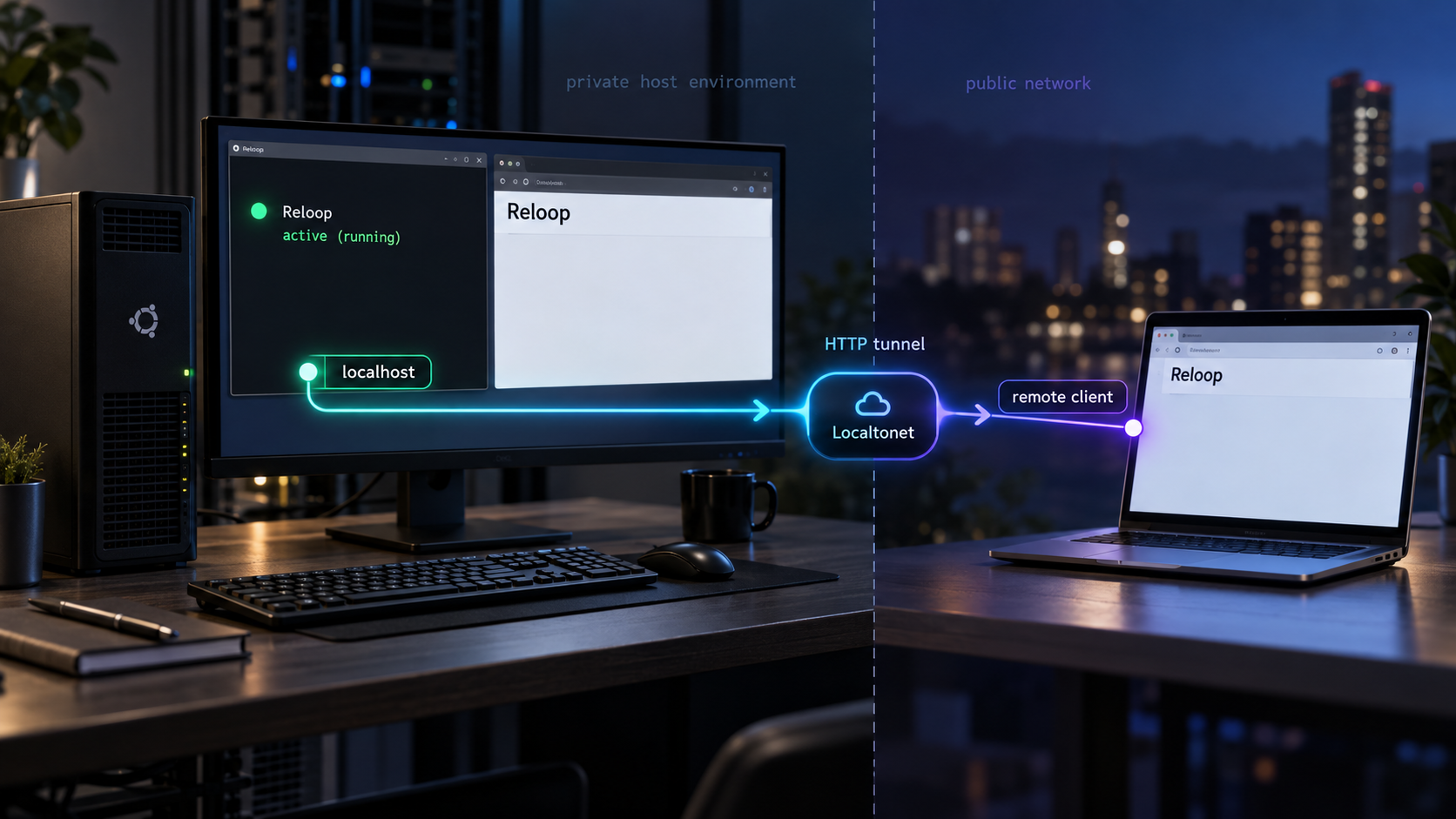
Build your email infrastructure locally, verify every service, and publish only the HTTP interface you need
Reloop is an open-source email infrastructure platform for transactional email, SMTP relay, campaigns, inbound mail, templates, analytics, webhooks, contacts, and automated workflows. This guide explains its documented production installer and Bun-based development workflow on Ubuntu or Debian. We will verify the deployment locally before connecting its dashboard, web application, or REST API to a Localtonet HTTP tunnel. Reloop does not document one universal HTTP port in the supplied installation evidence, so this guide also shows how to identify the actual endpoint without guessing.
📋 What's in this guide
What you are self-hosting
Reloop is an open-source email API and infrastructure platform designed for developers and infrastructure teams. Its documented capabilities include transactional email through a REST API and SMTP relay, email campaigns, inbound email processing, a visual template editor, delivery analytics, delivery-event webhooks, contacts and lists, automated workflows, and granular API-key management. The project can be operated as self-hosted software rather than requiring its hosted service.
A complete email platform is more than a single web process. The Reloop repository describes a monorepo with backend services, frontend applications, database setup, Docker services, and multiple local ports or gateway routes. That distinction matters because the dashboard, REST API, SMTP relay, and inbound-email functions do not necessarily share the same network protocol or listener.
This guide focuses on installing the stack and making an already working HTTP endpoint remotely reachable. It does not treat a Localtonet HTTP tunnel as a replacement for Reloop's email-domain, sending-domain, SMTP, inbound-mail, or DNS configuration. Those functions have their own protocol and deliverability requirements.
Reloop delivery webhooks report email-related application events. Localtonet platform-wide webhooks report whether a selected token or tunnel becomes connected or disconnected. They solve different problems and should not be configured as though they were interchangeable.
Choose the right Reloop installation path
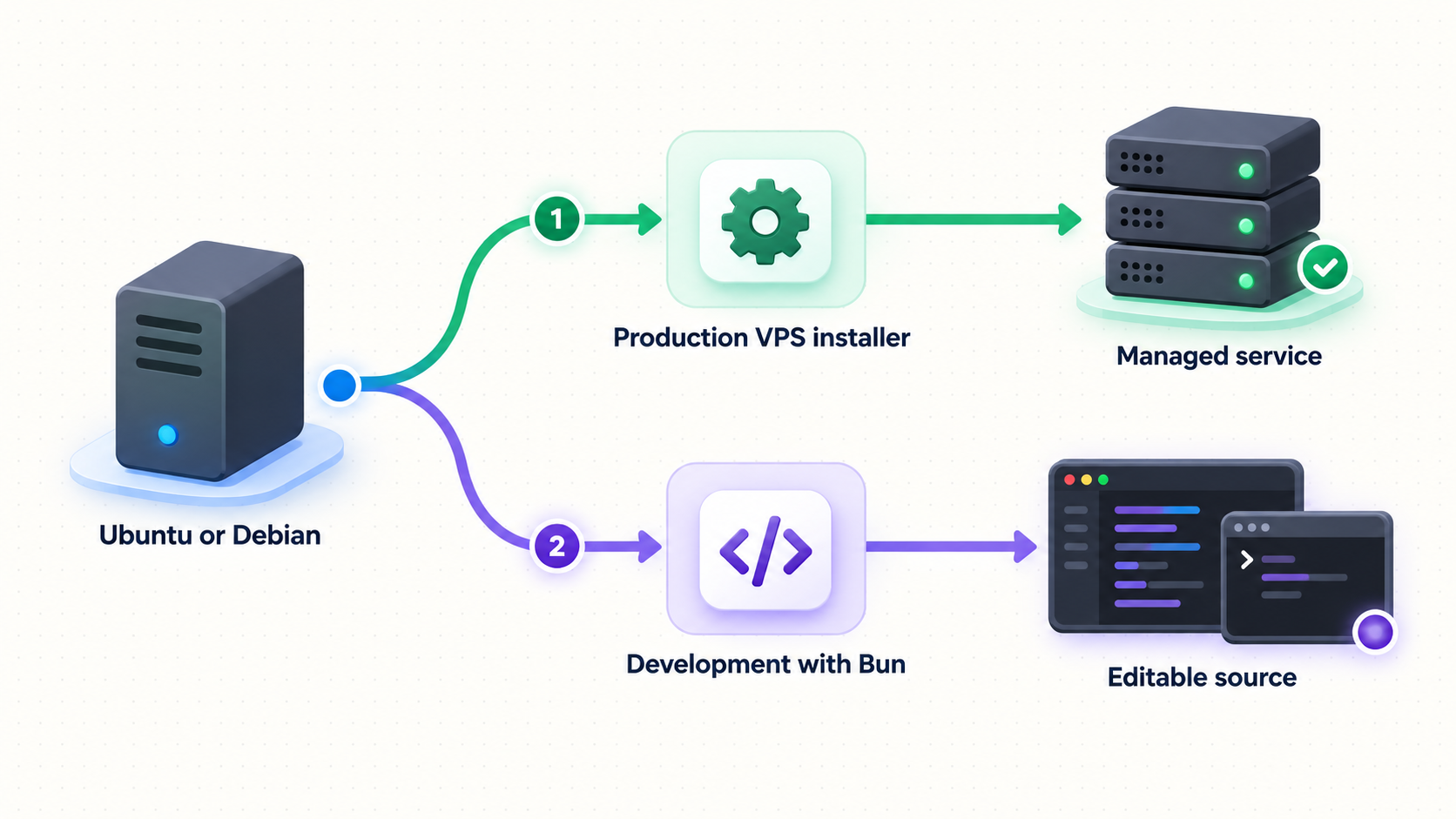
Reloop documents two relevant ways to get started. The production path deploys the complete stack on a fresh supported Ubuntu or Debian server. The development path clones the repository, prepares it with Bun, and starts the development environment. Choose before making changes to the machine because the two workflows serve different purposes.
| Path | Supported or documented environment | Best fit | Startup method |
|---|---|---|---|
| Production VPS installer | Fresh Ubuntu 22.04 or 24.04, or Debian 12 or 13 server | A complete deployment intended to run as a server | Official installation script |
| Bun development setup | A development machine with Git, Bun, and the dependencies required by the repository setup | Evaluation, development, contribution, and local code changes | bun setup followed by bun dev |
| Existing deployment | A Reloop installation that is already running and locally reachable | Adding remote dashboard or API access without reinstalling | Use the deployment's existing service management process |
Use the VPS installer when you want the project to perform its documented production preparation, including preflight checks, Docker installation, domain prompting, production-secret generation, complete service deployment, health verification, and DNS-record output. The installer is specifically documented for a fresh server. Running it on a machine that already hosts unrelated applications could introduce package, container, port, reverse-proxy, or domain conflicts.
Use the Bun workflow when your primary goal is to inspect or modify the project. Development mode is not automatically equivalent to a hardened production deployment. It may expose development tooling, produce verbose logs, or expect supporting services to remain available in the local development environment. Treat it as a development workflow unless Reloop's current documentation explicitly instructs otherwise for your use case.
The repository identifies the project as Apache License 2.0 with additional Reloop Labs use restrictions. Review the current LICENSE file before redistributing the software, modifying it for distribution, or offering it as a hosted service. Open source availability does not remove the need to understand the complete license terms.
Prepare Ubuntu or Debian
The production installer has the narrowest documented platform requirements: a fresh server running Ubuntu 22.04, Ubuntu 24.04, Debian 12, or Debian 13. Do not assume that an older Ubuntu or Debian release will behave identically. The supplied evidence does not establish support for other Linux distributions in this one-command production workflow.
Production server checklist
Before running the installer, confirm that you have administrative access through sudo, outbound internet connectivity for retrieving packages and container images, and control of the domain you intend to provide when prompted. The installer prints DNS records after deployment, so you must also be able to update that domain's authoritative DNS configuration if you intend to complete Reloop's domain setup.
A fresh machine is the safest interpretation of the official instruction. If the server already runs Docker, a web server, a database, an SMTP service, or another control panel, inventory those workloads first. The available evidence does not define how the installer resolves conflicts with an existing stack.
Confirm the operating system and release before proceeding:
cat /etc/os-release
Read the ID and VERSION_ID values and compare them with the supported production list. This command only inspects the machine; it does not change the system.
Development machine checklist
The documented quick start requires Git to clone the repository and Bun to run the setup and development commands. The repository also states that the full setup includes environment configuration, Docker services, and database setup. Have Docker available where required by the current setup process, and make sure the account running the commands can use it.
The supplied evidence does not specify a Bun version, Docker version, minimum CPU count, memory requirement, storage requirement, or package-by-package installation procedure. We will not invent those values. If bun setup reports a missing runtime or incompatible version, follow the version requirement printed by the current repository or its setup documentation rather than selecting an arbitrary release.
Plan the network boundary
Decide which Reloop interface you actually need to reach. For browser administration, identify the dashboard or web application. For programmatic HTTP requests, identify the REST API or its gateway route. Do not assume that the first listening port belongs to the desired component, and do not expose every listener merely because it is present.
Also decide where the Localtonet client will run. It must run on a device that can reach the selected Reloop HTTP address and port. This can be the same Ubuntu or Debian machine, or another device with network access to the service. A target bound only to 127.0.0.1 normally requires the client to run on that same host.
Install Reloop with the production VPS installer
The official production workflow uses a script served from reloop.sh. A shell command downloaded over the network executes with elevated privileges, so run it only after confirming that the URL is the official one and that you intend to let the installer modify the server.
The documented command pipes the retrieved script directly to sudo bash. On managed infrastructure, your policy may require downloading and reviewing a script before privileged execution. Do not run a remote installer merely because a command is convenient.
Confirm that the server matches the documented platform
Use a fresh Ubuntu 22.04, Ubuntu 24.04, Debian 12, or Debian 13 server. Confirm that you have sudo access, outbound connectivity, and control of the domain that will be entered during installation.
Run the official installer
Execute the documented production command from a shell on the server:
curl -fsSL https://reloop.sh/install.sh | sudo bashAllow the preflight checks to complete
The installer checks the server before deployment and installs Docker as part of the documented process. If a preflight check fails, stop and correct the reported condition instead of attempting to work around it blindly.
Enter the requested domain
Supply the domain you control when the installer prompts for it. Use the exact value intended for this deployment. The supplied evidence does not document a safe placeholder domain or a domain-free production mode.
Let the installer generate secrets and deploy the services
The installer generates production secrets and deploys the full service set. Do not copy generated secrets into tickets, chat messages, screenshots, shell transcripts shared with others, or the Localtonet tunnel configuration.
Review the health-verification result
The installer performs health verification after deployment. Treat a failed check as an incomplete installation even if some containers appear to be running. Record the failing component and examine its logs before creating remote access.
Apply the printed DNS records
At completion, the installer prints the DNS records needed by the deployment. Add those exact records through your DNS provider. Do not substitute examples from another installation because domain-verification and email-authentication records are deployment-specific.
Preserve a secure copy of the non-secret operational output, including health results and the required DNS record names. If output includes credentials or generated secrets, store it only in an approved secret-management location. Never place a Reloop API key, SMTP password, database credential, or Localtonet device token in this article's example commands.
DNS propagation and email-domain verification are separate from checking whether the web interface works locally. You can investigate the local HTTP service immediately after deployment, but sending and inbound-mail functionality may remain incomplete until the exact printed DNS records are published and recognized.
Set up Reloop for development with Bun
The repository's quick start is concise: clone the project, enter its directory, run the setup task, and start development mode. Run these commands as your normal development user rather than as root unless the current project documentation explicitly requires elevated privileges for a particular dependency.
Clone the Reloop repository
Retrieve the current repository with Git:
git clone https://github.com/reloop-labs/reloop.gitEnter the project directory
Change into the cloned repository before running its workspace commands:
cd reloopRun the repository setup task
Start the documented setup workflow:
bun setupWatch the output for missing prerequisites, environment configuration requirements, Docker failures, or database setup errors. Do not continue merely because part of the task completed.
Start the development environment
Run the documented development command from the repository directory:
bun devKeep this process running while testing. Its terminal output is also one of the best places to identify the URLs and listeners selected by the current project version.
The commands above are the complete quick-start sequence established by the supplied project evidence. They do not establish one fixed port for the dashboard or REST API. Reloop maintains a port reference for its local services and gateway routes, and the active development output may also show the selected URLs. Use those current values rather than copying a port from an old tutorial.
If bun dev is stopped, the development services it controls may stop as well. A Localtonet tunnel cannot keep an underlying Reloop process alive. Process supervision and automatic startup are separate operational responsibilities.
Identify and verify the HTTP endpoint locally
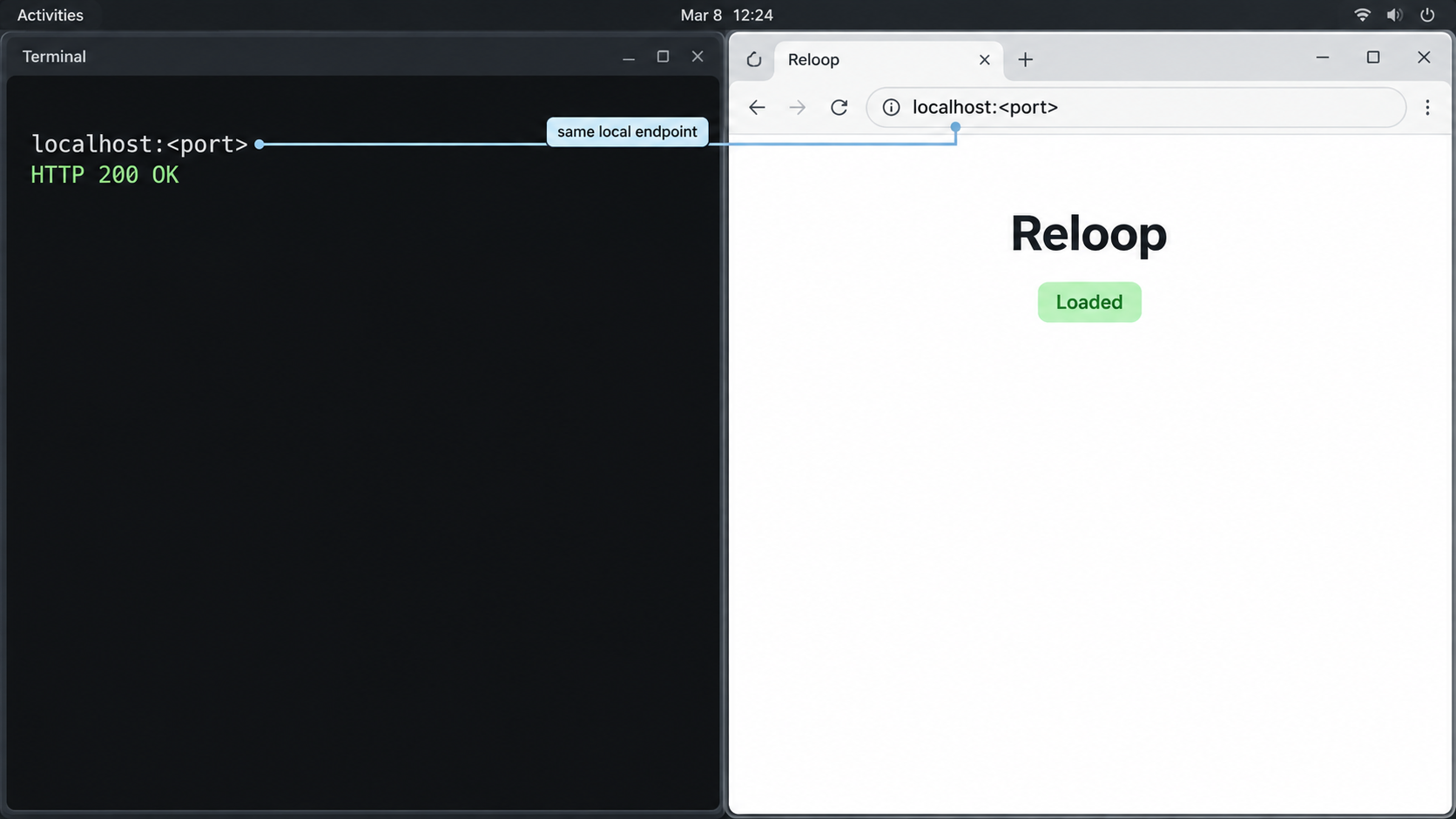
Verification should happen before remote exposure. The immediate goal is to answer four questions: which process is the dashboard or API, which address it is bound to, which TCP port it uses, and whether an HTTP request succeeds from the device that will run the Localtonet client.
Start with Reloop's own output
For a production deployment, read the installer completion output and health-verification result. For development, read the output from bun dev. Look for a dashboard URL, web URL, API URL, gateway route, or a line that identifies a listening host and port.
If the output does not identify the required endpoint, use the port reference for the exact Reloop revision you installed. The supplied evidence confirms that Reloop maintains a port reference, but it does not include its values. Hardcoding an unverified port here would make the guide less reliable as the project evolves.
Inspect listening TCP services
On Ubuntu or Debian, the following system command can help identify listening TCP sockets:
sudo ss -ltnpThis displays listening addresses, ports, and process information where permissions allow. It does not prove that a listener is Reloop's dashboard, so correlate the process with the installer output, container mapping, development logs, or current port reference. Avoid selecting a database, queue, SMTP, or internal service merely because it responds on TCP.
Pay attention to the listening address:
| Observed binding | Meaning | Localtonet placement implication |
|---|---|---|
127.0.0.1:PORT |
The service accepts connections through the local IPv4 loopback interface | Run the Localtonet client on the same machine and target the loopback address |
0.0.0.0:PORT |
The service is listening on available IPv4 interfaces | The same host can use loopback; another client device may use a reachable private address if network policy permits |
PRIVATE_IP:PORT |
The service is bound to one selected network interface | The Localtonet client must be able to route to that exact private address |
Test the selected HTTP endpoint
After obtaining the documented port, replace RELOOP_HTTP_PORT below with the real numeric value. This placeholder is intentional because the supplied project evidence does not establish one universal port:
curl -I http://127.0.0.1:RELOOP_HTTP_PORT/
Use the actual host instead of 127.0.0.1 if Reloop is bound elsewhere. An HTTP response confirms network reachability and protocol handling, even if the root route redirects or requires authentication. A connection-refused error usually means nothing is listening at that address and port. A timeout suggests a routing, binding, container-publishing, or firewall issue. A successful TCP connection followed by an unexpected protocol response may mean you selected a non-HTTP service.
Open the same endpoint in a browser when verifying the dashboard. For an API, use a documented, non-destructive route and the authentication method required by Reloop. Do not invent a health path, disable authentication, or paste a real API key into shared terminal history simply to prove that the service is reachable.
Reloop includes multiple service types. Selecting an internal database, SMTP listener, administrative backend, or development-only port can expose the wrong component. Confirm both the protocol and the application identity before proceeding.
Expose the verified Reloop HTTP service with Localtonet
Once the dashboard or REST API works from the Localtonet client device, an HTTP tunnel can give it a public HTTPS address. Our client establishes an outbound connection to a Localtonet relay server, so this workflow does not require inbound router port forwarding, a public IP address, firewall changes, or VPN setup.
The tunnel forwards requests to the local IP address and port you verified. It does not install Reloop, choose the correct service, configure Reloop DNS, create API credentials, or repair an unhealthy deployment. Keep those responsibilities separate to make troubleshooting predictable.
Install and run the Localtonet client
Run our client on the Ubuntu or Debian host, or on another device that can reach the verified Reloop HTTP endpoint. If Reloop listens only on loopback, place the client on the same machine.
Authenticate or select the client device
Use the device-specific token supplied through your Localtonet account. Treat that token as a secret. Do not paste it into documentation, screenshots, public repositories, or Reloop configuration files.
Select an available relay server
Choose a currently available server or region from the Localtonet dashboard. Available values can vary, so use the current product interface rather than copying a server code from an old guide.
Create an HTTP tunnel to the verified target
Enter the local IP address and exact HTTP port confirmed during local verification. For example, use the loopback address only when the client and Reloop service are on the same device. Select the appropriate HTTP process type from Random Sub Domain, Custom Sub Domain, or Custom Domain according to the options available to your account and current configuration.
Start the tunnel
Creating a tunnel does not start it. Use the Start button and wait until both the selected client device and tunnel are connected. The tunnel is available only while the client remains connected and the tunnel remains running.
Test the assigned public HTTPS address
Open the assigned public address from a separate browser or network. Confirm that it reaches the intended Reloop dashboard or API, that application authentication still works, and that no unintended internal service is visible. Stop or delete the tunnel when remote access is no longer required.
For the current product workflow and field names, consult our Localtonet HTTP tunnel documentation. Do not copy custom-domain DNS instructions from unrelated services. Exact custom-domain requirements should always be checked against the current Localtonet documentation before changing DNS.
Choose the public-address model deliberately
| Process type | Public behavior | Typical consideration |
|---|---|---|
| Random Sub Domain | Serves the local HTTP content at an assigned public HTTPS address | Useful when a generated address is sufficient |
| Custom Sub Domain | Serves the same local HTTP content through a selected subdomain where supported | Useful when a stable, recognizable subdomain is needed |
| Custom Domain | Serves the local HTTP content through a domain configured for the tunnel | Requires current Localtonet domain and DNS instructions |
These process types change how the HTTP service is addressed publicly. They do not change the underlying Reloop target and do not configure Reloop's sending-domain or inbound-email DNS records.
Secure remote dashboard and API access
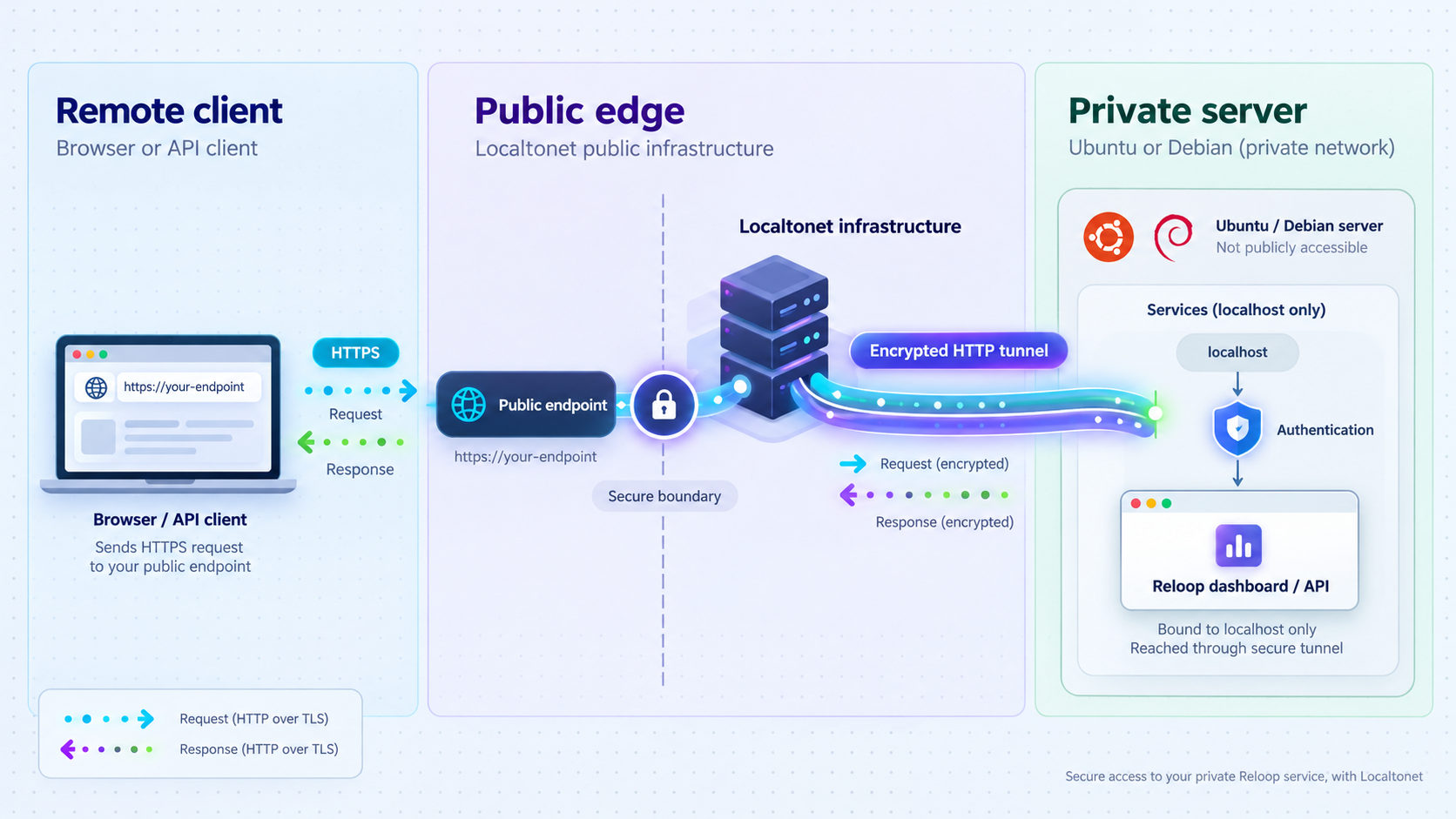
A public URL changes the threat model. A service previously reachable only from the host or private network can receive traffic from the internet while its tunnel is running. The public HTTPS address protects the browser-facing transport at the tunnel edge, but it does not replace Reloop authentication, authorization, API-key hygiene, secure session handling, or host maintenance.
Expose the smallest useful surface
Target only the dashboard or API listener required for the workflow. Do not expose Docker management sockets, PostgreSQL, internal queues, debugging interfaces, or every port listed by the project. If the dashboard and API are separated in the current architecture, evaluate them independently rather than assuming both must be public.
Keep authentication enabled
Preserve Reloop's account authentication and team permissions. API requests should continue to require Reloop's own API keys where documented. A difficult-to-guess public URL is not an authentication mechanism. Never embed a Reloop API key in the public URL, Localtonet target, browser bookmark, frontend source, or article example.
Use least privilege
Reloop documents granular API-key management with team-level permissions. Create credentials for the narrowest intended function, rotate them when exposure is suspected, and avoid using broad administrative credentials in application code. The tunnel controls reachability, while Reloop controls what an authenticated identity may do.
Separate temporary access from permanent publishing
For maintenance, start the tunnel only when needed and stop it afterward. If the endpoint must remain available continuously, plan process supervision for both Reloop and the Localtonet client, monitor connectivity, and keep the host patched. A created tunnel that is stopped does not provide access, and a running tunnel becomes unavailable when its selected device disconnects.
Protect both token families
Localtonet device tokens identify the client that runs a tunnel. Reloop API keys authorize actions within Reloop. They are unrelated secrets and should not be reused, exchanged, or stored together casually. If either is exposed, rotate or replace it through the system that issued it.
Do not point an HTTP tunnel at an SMTP port. Reloop's SMTP relay and inbound email functions involve separate listeners, credentials, mail routing, domain authentication, and DNS configuration. This guide intentionally exposes only the verified browser or REST API endpoint.
Routine operations and troubleshooting
Starting and stopping the development deployment
In the documented development workflow, run bun dev from the cloned reloop directory and keep the process active. Stop it through the terminal when development is complete. If supporting Docker services were started by the setup process, manage them according to the current repository instructions shown by the setup tooling. The supplied evidence does not establish exact container names or a universal shutdown command, so this guide does not guess them.
Operating the production deployment
The VPS installer deploys the full stack and performs health verification, but the supplied evidence does not specify exact service names, Compose file paths, systemd units, upgrade commands, backup commands, or uninstall commands. Preserve the installer output and use the current deployment documentation for those version-specific operations. Do not assume generic names such as reloop.service or an arbitrary Compose directory.
Updating safely
Before updating, read the current release notes and deployment guidance, back up persistent data and configuration using the project's documented method, and confirm that the new release supports your current environment. Avoid running the installation script again as an assumed upgrade mechanism unless Reloop explicitly documents that behavior for the installed version.
The installer exits during preflight checks
Read the first reported failure rather than rerunning the script repeatedly. Confirm the operating-system release, administrative privileges, outbound connectivity, available system resources, and whether existing services conflict with the expected deployment. Because the installer targets a fresh server, an existing Docker or web stack may require a migration plan rather than an installation retry.
bun setup fails
Confirm that git and bun are available in the current shell and that any required Docker service is running. Use the exact runtime requirements reported by the repository. If setup created some resources before failing, read its output before deleting or recreating anything, especially databases or generated environment files.
bun dev starts, but the browser cannot connect
Keep the development terminal open and look for service-level errors. Confirm the printed URL and compare it with sudo ss -ltnp. Test from the same machine first. A loopback-bound service will not accept direct connections to the server's private LAN address, but it can still be reached by a Localtonet client running on that machine.
The local endpoint works, but the public URL does not
Verify that the Localtonet client is connected, the correct device token was selected, the tunnel has been started, and its local target exactly matches the working host and port. If the client runs in a different container, virtual machine, or physical device, remember that 127.0.0.1 refers to the client device itself, not automatically to the Reloop server.
Also check whether the service expects a particular host name, redirect target, or application base URL. The supplied Reloop evidence does not define those settings, so use the current Reloop configuration reference instead of inventing environment-variable names.
The public address opens the wrong service
Stop the tunnel immediately. Recheck the selected port against Reloop's current port reference and active process information. Multiple listeners are expected in a platform with web applications, APIs, SMTP, databases, and supporting services. Recreate or correct the HTTP target only after the intended application responds locally.
The dashboard loads, but API calls fail
Separate transport errors from application errors. A browser-visible dashboard confirms that one HTTP route is reachable, but it does not prove that an API route, gateway mapping, authentication header, or application base URL is correct. Use Reloop's documented API route and credentials. A Localtonet tunnel forwards the connection to the target; it does not generate Reloop API keys or change Reloop authorization rules.
Email sending or inbound delivery still fails
Remote dashboard access does not complete email infrastructure setup. Confirm that the DNS records printed by the installer were added exactly, that Reloop recognizes the domain, and that the relevant sending, SMTP, or inbound configuration is healthy. Avoid changing the HTTP tunnel while diagnosing an unrelated mail-routing problem.
The tunnel disconnects unexpectedly
A Localtonet tunnel remains available only while its selected client device is connected and the tunnel is running. Check whether the client process stopped, the machine entered sleep, the network connection failed, or the tunnel was manually stopped. For status automation, Localtonet platform-wide Token/Tunnel webhooks can report Connected and Disconnected changes for a selected Token Group. Those status notifications are not Reloop email-delivery webhooks.
Check Reloop process health first, then local HTTP reachability, then reachability from the Localtonet client device, then Localtonet client connectivity, then tunnel status, and finally the public URL. This order identifies the failing layer without changing several configurations at once.
Frequently asked questions
Which Ubuntu and Debian versions does the Reloop production installer support?
The documented one-command production installer targets a fresh server running Ubuntu 22.04, Ubuntu 24.04, Debian 12, or Debian 13. Support for other distributions or releases is not established by the supplied evidence.
What port does the Reloop dashboard use?
The supplied installation evidence does not state one universal dashboard port. Obtain the active value from the installer or development output and Reloop's port reference for the exact revision you installed. Confirm it locally before entering it as a tunnel target.
Should I use the production installer or the Bun quick start?
Use the VPS installer for the documented complete deployment on a fresh supported Ubuntu or Debian server. Use the Bun workflow for development, evaluation, contribution, or code changes. Do not assume that a development process is a hardened production deployment.
Does Localtonet configure Reloop's DNS records?
No. The Reloop production installer prints the DNS records required by its deployment, and those records must be applied through your DNS provider. A Localtonet HTTP tunnel provides remote access to the chosen local web endpoint. It does not configure email-domain authentication or inbound mail routing.
Can I expose Reloop SMTP through the HTTP tunnel?
No. An HTTP tunnel should target Reloop's HTTP dashboard, web application, or REST API. SMTP is a different protocol. Localtonet supports raw TCP tunnels, but SMTP publishing requires its own security, authentication, DNS, deliverability, and operational design and is outside this HTTP-focused workflow.
Does creating a Localtonet tunnel start it automatically?
No. Creating the configuration does not mean the tunnel is running. Start it with the Start button. The public endpoint remains available only while the selected client device is connected and the tunnel is running.
Do I need router port forwarding or a public IP address?
No. Our client establishes an outbound connection to a Localtonet relay server. This allows the selected local HTTP service to receive traffic through its public address without inbound router port forwarding, firewall changes, VPN setup, or a public IP address.
Can the Localtonet client run on another machine?
Yes, if that device can reach the Reloop HTTP service over the local network. If Reloop listens only on 127.0.0.1, run the client on the same host or change the Reloop binding only through a documented and security-reviewed configuration.
Does a public HTTPS address remove the need for Reloop authentication?
No. Keep application login controls, team permissions, and API-key authentication enabled. Network reachability and application authorization are separate security layers. Use least-privilege Reloop credentials and stop the tunnel when remote access is no longer required.
Connect your verified Reloop HTTP service with Localtonet
Install and verify Reloop first, identify the exact dashboard or REST API listener, and then create an HTTP tunnel to that confirmed local target. Keep Reloop authentication enabled and expose only the interface your workflow requires.
Get Started Free →

