

Run an interactive Python app on your own machine and provide controlled remote access
Streamlit turns Python scripts into interactive browser applications without requiring a separate frontend. This guide builds a complete local environment, verifies a sample dashboard, and connects the working service to a Localtonet HTTP tunnel. It covers both same-host and separate-device network layouts, including the Streamlit bind configuration required for LAN access. It also provides a Docker deployment path, dependency pinning, health checks, logging, restart behavior, updates, and end-to-end testing of Streamlit's persistent browser connection.
📋 What's in this guide
How Streamlit self-hosting and remote access fit together
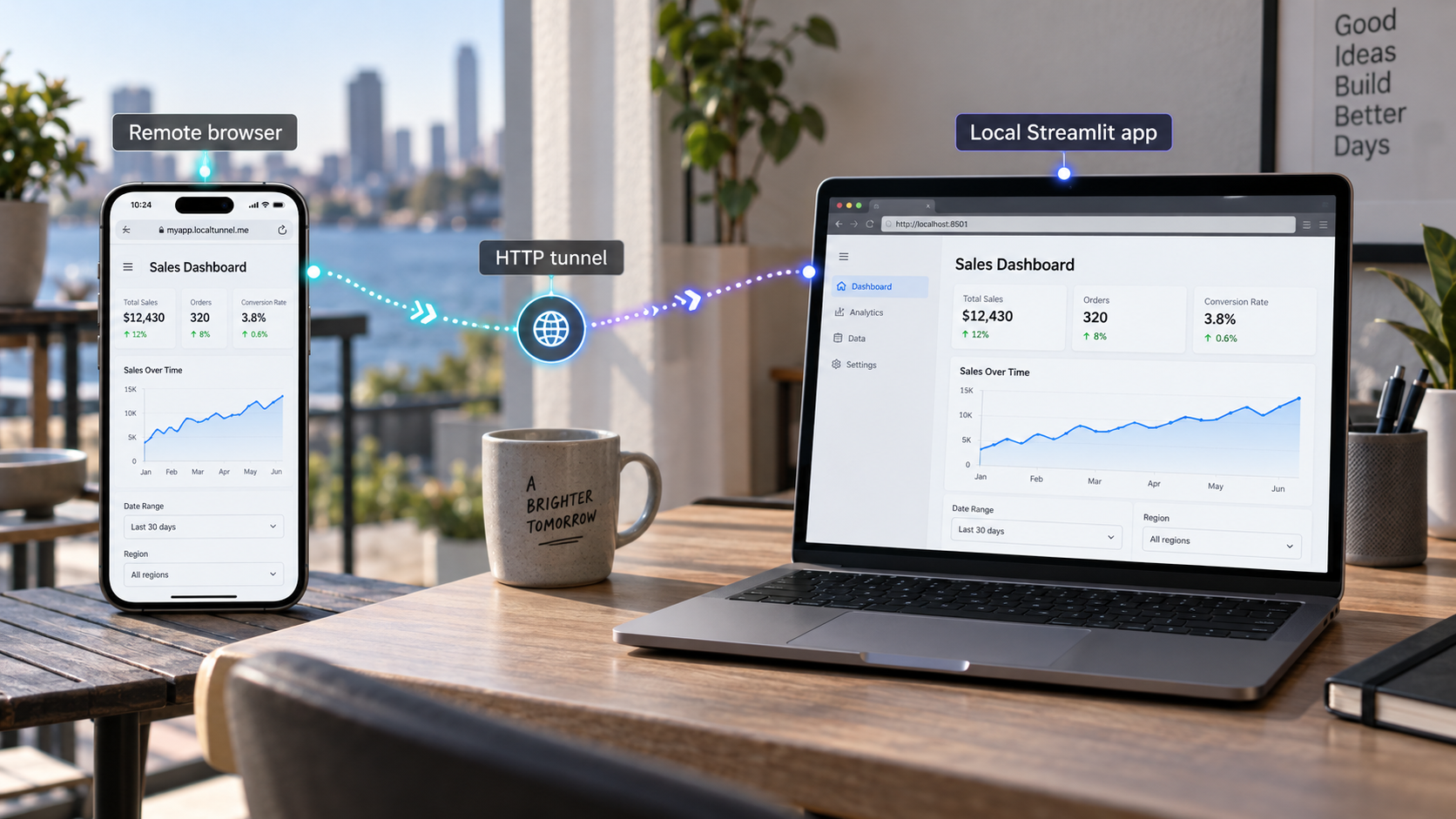
Streamlit is an open-source Python framework for transforming Python scripts into interactive web applications. A script can render text, tables, charts, media, forms, upload controls, chat interfaces, and other widgets. When a user changes a widget, Streamlit can rerun the Python script and update the browser interface without requiring you to build a separate JavaScript frontend or define conventional HTTP routes.
Self-hosting starts with a process running on a machine you control. The Streamlit process imports your code and dependencies, reads any required data, listens on a configured network address and port, and maintains browser sessions. If that process stops, the application stops. If the host restarts, you need a suitable startup and restart strategy before the app can be considered durable.
Remote access is a separate networking layer. A Streamlit app can work on its host while remaining unreachable from another device. Direct internet exposure often requires a publicly reachable IP address, inbound router port forwarding, and firewall changes. Those requirements can be unavailable or inappropriate on a development workstation, home network, temporary lab machine, or network behind carrier-grade NAT.
With Localtonet, our client runs on the Streamlit host or another device that can reach it. The client establishes an outbound connection to a Localtonet relay server. An HTTP tunnel provides a public HTTPS address and forwards requests to the configured local IP address and port. This workflow does not require inbound router port forwarding, a public IP address, or VPN setup.
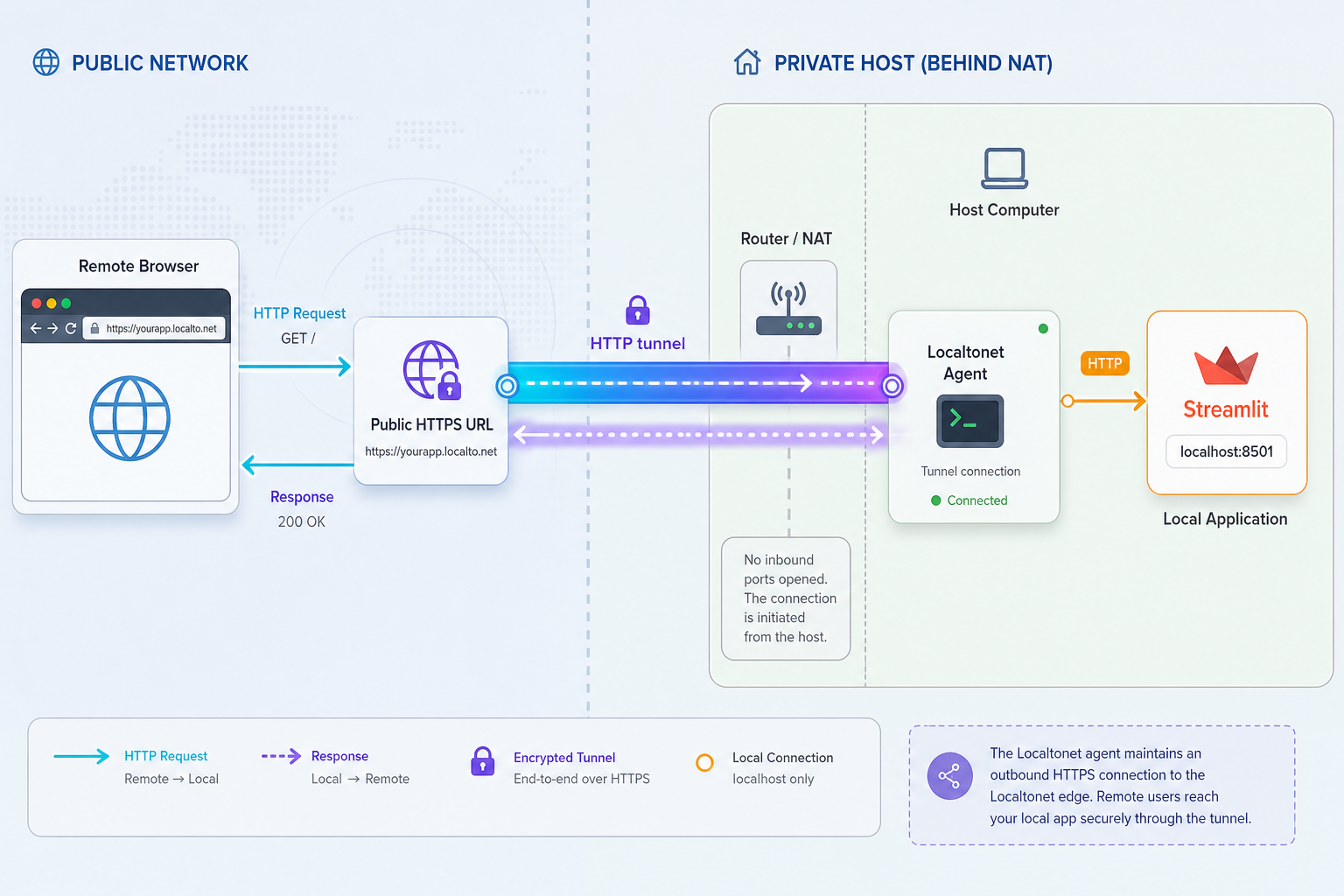
Keep application and tunnel responsibilities separate
Localtonet forwards requests to an existing service. It does not install Streamlit, resolve Python dependencies, start the dashboard, or repair application errors. Likewise, Streamlit does not create the public tunnel or keep the Localtonet client connected.
The most reliable sequence is to prepare Python, create an isolated environment, install and verify Streamlit, test the intended app locally, select the correct network target, and then create and start the tunnel. This gives you a known-good checkpoint at every layer.
Remote access works only while the Streamlit process is healthy, the selected Localtonet client is connected, and the HTTP tunnel is running. Creating a tunnel does not start it automatically.
Prerequisites and deployment decisions
Prepare the host before installing the application. At the time of this revision, Streamlit's official installation guidance supports Python 3.9 through Python 3.13, with Python 3.9.7 excluded because of a known compatibility issue. If you are following this tutorial after a new Streamlit release, confirm the supported range for that release before upgrading the interpreter.
- A supported 64-bit Python installation in the Streamlit-supported version range.
- The standard-library
venvmodule and thepippackage installer. - A terminal, PowerShell session, or command prompt.
- Permission to create files and install packages inside a project directory.
- A browser for local and remote verification.
- A Localtonet account and a supported Localtonet client on the device that will run the tunnel.
- Permission to expose the application and its data to the intended remote audience.
- Docker, only if you plan to use the container deployment path later in this guide.
Confirm which Python command your system uses
On macOS and Linux, the Python 3 interpreter is commonly available as python3. On Windows, the Python launcher is commonly available as py. Some systems also provide python. Use the command that reports the supported interpreter you intend to use.
On Windows:
py --version
py -m pip --version
On macOS or Linux:
python3 --version
python3 -m pip --version
The first command should report a supported Python version. The second should identify the pip installation associated with that interpreter. If Python or pip is unavailable, install a supported Python distribution for your operating system before continuing.
Choose where the Localtonet client will run
| Layout | Streamlit listener | Localtonet target | Firewall impact |
|---|---|---|---|
| Streamlit and Localtonet on the same host | Loopback can be used | 127.0.0.1 and the configured port |
No LAN listener is required |
| Localtonet on another LAN device | Streamlit must listen on a LAN-reachable interface | The Streamlit host's private LAN address and configured port | Allow only the required TCP traffic from the client device |
| Streamlit in Docker with Localtonet on the host | Container listens on 0.0.0.0; host publication can remain loopback-only |
The host-published loopback port | No LAN publication is required |
Same-host placement is the simplest and most restrictive option. A loopback address can be reached only from the same computer. If the Localtonet client runs on a separate device, 127.0.0.1 on that client refers to the client itself, not to the Streamlit host.
A public URL provides connectivity, not application-specific authentication or authorization. Review the dashboard for confidential data, upload controls, write operations, internal error details, model actions, and administrative functions before creating remote access.
Create a virtual environment and install Streamlit
A virtual environment isolates this application's packages from the operating system and from unrelated Python projects. It also makes dependency capture and updates easier to reason about. Create the environment inside a dedicated project directory and activate it before installing packages.
Create and enter the project directory
Choose a directory that will contain the application, virtual environment, dependency file, and optional container files.
Windows PowerShell:
mkdir streamlit-local
cd streamlit-local
macOS or Linux:
mkdir streamlit-local
cd streamlit-localCreate the virtual environment
On Windows, use the selected interpreter through the Python launcher:
py -m venv .venvOn macOS or Linux:
python3 -m venv .venvActivate the environment
Windows PowerShell:
.venv\Scripts\Activate.ps1Windows Command Prompt:
.venv\Scripts\activate.batmacOS or Linux:
source .venv/bin/activate
Your prompt will commonly show (.venv) after activation, although prompt appearance varies by shell.
Verify the active interpreter and pip
Use module-based commands so package installation is tied to the same interpreter that will run Streamlit.
python --version
python -c "import sys; print(sys.executable)"
python -m pip --version
The executable path should point inside the project's .venv directory.
Install Streamlit
Upgrade pip inside the environment, then install Streamlit.
python -m pip install --upgrade pip
python -m pip install streamlitVerify the installed package
Confirm that the active interpreter can import and launch the installed Streamlit package.
python -m streamlit --version
python -m pip show streamlitRun the included Hello application
Launch Streamlit's bundled example and interact with it. If a browser does not open automatically, use the local URL shown in the terminal.
python -m streamlit hello
The Hello test verifies that Streamlit can start from the active environment and serve an interactive application. Stop it with Ctrl+C before starting your own app.
Capture a reproducible dependency set
Installing an unpinned package is useful for an initial test, but a durable deployment should record the version that was tested. The current release identified during this revision is Streamlit 1.65.0. A minimal pinned dependency file for this tutorial is:
streamlit==1.65.0
Save that line as requirements.txt. If your real application imports additional third-party packages, add each direct dependency with a tested version. Recreate the environment with:
python -m pip install -r requirements.txtExact pins improve repeatability, but they also make updates an explicit maintenance task. Test updated versions locally before replacing a running deployment. For environments requiring stronger reproducibility, preserve the complete resolved dependency set produced by your chosen dependency-management process.
Create and verify the Streamlit dashboard
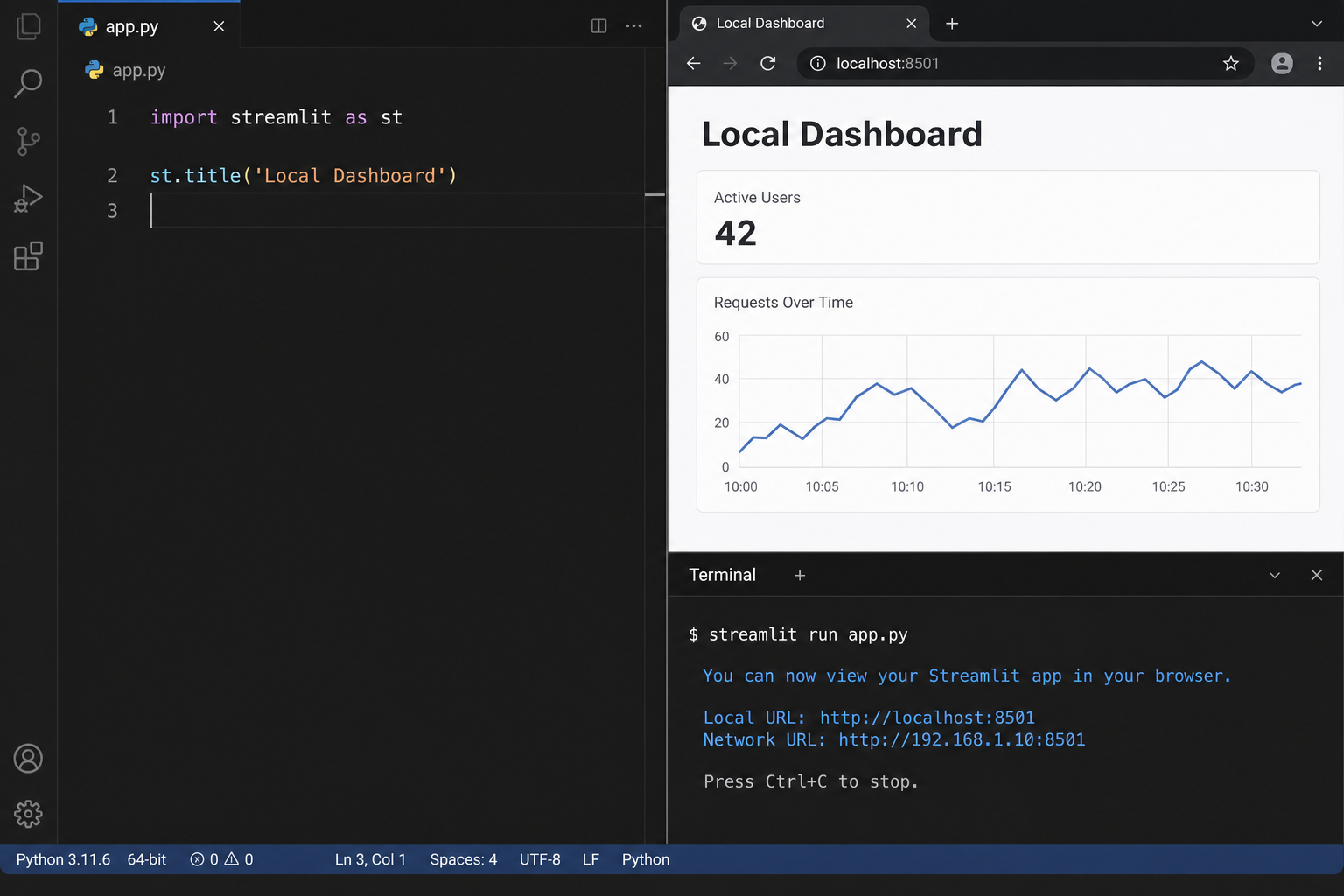
Create a file named streamlit_app.py in the project directory:
import streamlit as st

st.title("Local Streamlit dashboard")

x = st.slider("Select a value", min_value=0, max_value=100, value=10)
st.write(x, "squared is", x * x)
This small application is useful for end-to-end verification because moving the slider requires more than a one-time page download. The browser sends an interaction through Streamlit's persistent connection, the Python script reruns, and the displayed result changes.
Run it for same-host Localtonet access
When Streamlit and the Localtonet client run on the same machine, bind Streamlit to loopback and choose a fixed local port:
python -m streamlit run streamlit_app.py --server.address=127.0.0.1 --server.port=8501 --server.headless=trueThe port in this command is an explicit example used consistently throughout the tutorial. If it is occupied or your deployment standard uses another port, select another fixed port and use the same value in the Localtonet tunnel.
Open http://127.0.0.1:8501 on the host. Move the slider several times, verify that the square changes, reload the page, and watch the terminal for exceptions. Initial rendering alone is not sufficient because Streamlit depends on a persistent browser connection for interactive updates and session behavior.
Keep security protections enabled
Do not disable Streamlit's CORS or XSRF protections as a casual workaround for a networking problem. This tutorial leaves both protections enabled. If you maintain a project configuration file, the relevant values can remain explicit:
[server]
address = "127.0.0.1"
port = 8501
headless = true
enableCORS = true
enableXsrfProtection = true
Save project-level Streamlit configuration as .streamlit/config.toml. If you use this file, the shorter launch command is:
python -m streamlit run streamlit_app.pyDo not place database passwords, API keys, Localtonet device tokens, private service endpoints, or account details in the script. Before publishing a screenshot, inspect every visible field, terminal line, browser bar, and account panel. Redact usable tokens and private values rather than relying on a caption to make them safe.
Choose a same-host or separate-device target
The correct target depends on where our client runs. Treat these as two distinct network designs rather than interchangeable variations.
Option 1: Localtonet and Streamlit on the same host
Use loopback whenever practical. Start Streamlit with --server.address=127.0.0.1 and configure the Localtonet HTTP tunnel to target 127.0.0.1 with the selected port. The service does not need to accept direct connections from other LAN devices.
Confirm the target from the same host before creating the tunnel:
curl -fsS http://127.0.0.1:8501/_stcore/healthStreamlit's health endpoint should return a successful response while the server is healthy. This checks server availability, but it does not verify every dependency, data source, user action, or persistent browser session. Keep the interactive browser test as a separate requirement.
Option 2: The Localtonet client runs on another LAN device
A separate client cannot reach Streamlit through the Streamlit host's loopback interface. Configure Streamlit to listen on a LAN-reachable interface:
[server]
address = "0.0.0.0"
port = 8501
headless = true
enableCORS = true
enableXsrfProtection = true
Alternatively, supply the server address and port at launch:
python -m streamlit run streamlit_app.py --server.address=0.0.0.0 --server.port=8501 --server.headless=true
The address 0.0.0.0 is a bind address, not the destination you enter in a browser or in Localtonet. Determine the Streamlit host's private LAN address and test http://LAN-IP:8501 from the device running our client.
If the connection is blocked, add only the host firewall rule needed to permit TCP traffic on the selected port from the Localtonet client device or a narrowly scoped trusted subnet. Do not create an unrestricted internet-facing firewall rule. The exact firewall interface differs by operating system, so verify the source restriction after creating the rule.
Listening on 0.0.0.0 can make Streamlit reachable through every suitable host interface allowed by the firewall. Prefer same-host loopback when possible. For a separate client, combine the LAN bind with a narrowly scoped firewall rule and test from the intended client device.
Only after the browser and health checks succeed from the Localtonet client device should you use the Streamlit host's LAN IP address as the tunnel target.
Create and test the Localtonet HTTP tunnel
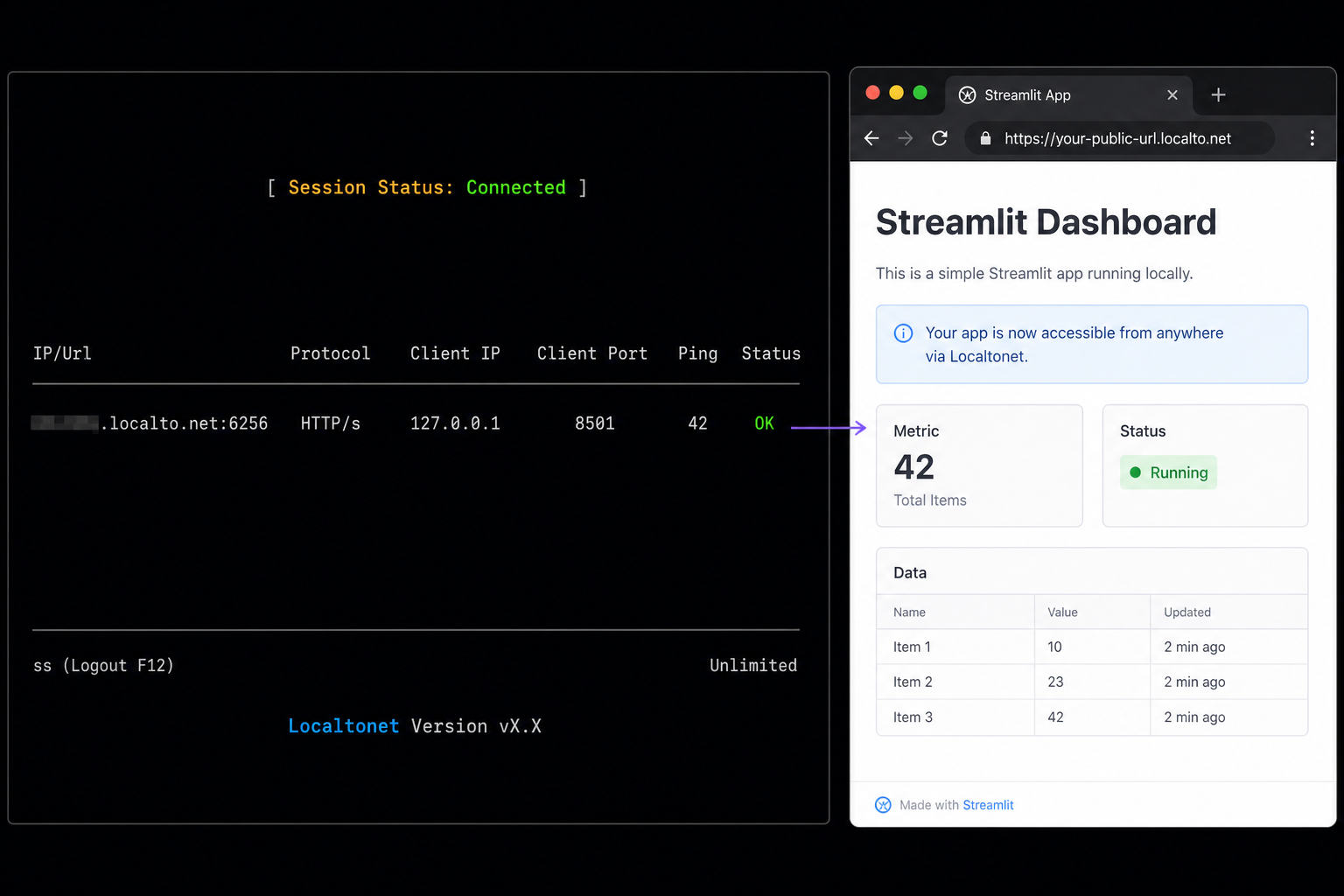
Use an HTTP tunnel because Streamlit serves a browser application. Standard HTTP tunneling is not a VPN. Localtonet VPN Manager is the separate feature for private mesh networking and LAN bridging.
Install and run the Localtonet client
Run our client on the Streamlit host or on the LAN device from which you successfully tested the Streamlit target. The client must remain running while remote access is required.
Authenticate or select the intended device
Use the device-specific Localtonet authentication token for that client. Treat the token as a secret and never place it in the Streamlit application, a repository, a shared command, or a screenshot.
Select an available relay server
Choose a currently available server or region in the dashboard. Obtain the value from the current interface because availability can vary and should not be hardcoded from an older tutorial.
Create an HTTP tunnel to the verified target
For same-host placement, enter the verified loopback address and port. For a separate client device, enter the Streamlit host's verified private LAN address and port.
Start the tunnel
Creating the configuration does not make it active. Use the Start button, confirm that the selected client is connected, and obtain the public HTTPS address assigned to the tunnel.
Test the public endpoint and lifecycle
Open the public address from another device or network. Verify loading, repeated widget changes, reruns, refresh behavior, and any application-specific workflow. Stop or delete the tunnel when remote access is no longer needed.
For the current dashboard workflow, see the Localtonet HTTP tunnel documentation. Use the documentation as a supplement to the tested local target, not as a replacement for local verification.
Verify Streamlit's persistent browser behavior
A successful HTML response proves only that the first request reached something. Streamlit keeps a persistent browser connection for session updates, widget events, and reruns. Complete an end-to-end remote test:
- Open the public HTTPS address in a new browser session.
- Wait for the complete dashboard to render.
- Move the slider several times and confirm that each result updates.
- Leave the page open for several minutes and interact again.
- Reload the page and verify that a new session can initialize.
- Test any file upload, data load, model request, or write action with non-sensitive test data.
- Watch the Streamlit logs for exceptions or repeated reconnects.
- Test from outside the Streamlit host's LAN so the request definitely uses the public endpoint.
Do not respond to a failed persistent connection by disabling CORS or XSRF protection. First verify the running process, target address, target port, client reachability, tunnel state, browser behavior, and Streamlit logs.
Run Streamlit as a durable Docker deployment
A terminal-based virtual-environment session is appropriate for development and controlled temporary access. Closing the terminal, signing out, or restarting the host may stop it. For a more durable self-hosted process, Streamlit documents container deployment with Docker.
The container still needs operational ownership. Docker does not automatically provide application authentication, backups, monitoring, or safe updates. It does provide a repeatable runtime image, a restart policy, a defined port, health status, and a standard log stream.
Create the container files
Keep the pinned requirements.txt in the project directory:
streamlit==1.65.0Create a file named Dockerfile:
FROM python:3.13-slim

WORKDIR /app

ENV PYTHONDONTWRITEBYTECODE=1
ENV PYTHONUNBUFFERED=1

COPY requirements.txt .
RUN python -m pip install --no-cache-dir -r requirements.txt

COPY streamlit_app.py .

EXPOSE 8501

HEALTHCHECK --interval=30s --timeout=5s --start-period=10s --retries=3 \
  CMD python -c "import urllib.request; urllib.request.urlopen('http://127.0.0.1:8501/_stcore/health', timeout=3)"

ENTRYPOINT ["python", "-m", "streamlit", "run", "streamlit_app.py", "--server.address=0.0.0.0", "--server.port=8501", "--server.headless=true"]
Streamlit listens on 0.0.0.0 inside the container because Docker forwards traffic from the host into the container. You can still restrict publication to host loopback when the Localtonet client runs on that host.
Build and run for same-host Localtonet access
docker build -t streamlit-local:1 .
docker run -d \
  --name streamlit-app \
  --restart unless-stopped \
  -p 127.0.0.1:8501:8501 \
  streamlit-local:1
The host-side listener remains on 127.0.0.1:8501. Configure the same-host Localtonet client to target that address. Inspect logs and health with:
docker logs -f streamlit-app
curl -fsS http://127.0.0.1:8501/_stcore/health
docker inspect streamlit-app
Stop following logs with Ctrl+C. This does not stop the container. Stop and start the application explicitly with:
docker stop streamlit-app
docker start streamlit-app
The unless-stopped policy asks Docker to restart the container after eligible failures or daemon restarts unless an operator explicitly stopped it. Docker itself must be configured to start with the host if availability after a host restart is required.
Publish to a separate Localtonet client device
If the Localtonet client runs on another LAN device, publish the container port on a LAN-reachable host interface:
docker run -d \
  --name streamlit-app \
  --restart unless-stopped \
  -p 8501:8501 \
  streamlit-local:1
Restrict the host firewall so only the intended client device or trusted subnet can connect to TCP port 8501. Test the host's private LAN address from the Localtonet client device before changing the tunnel target.
Update without losing the previous build
Use versioned image tags and retain the last tested image until the update succeeds:
- Update application code and intentional dependency pins.
- Build a new tag, such as
streamlit-local:2. - Run the new image temporarily on another host port.
- Test its health endpoint and important browser workflows.
- Stop and remove the old container.
- Start the new image with the original container name and production port mapping.
- Verify locally, then verify the Localtonet public endpoint.
- Retain the prior image tag until rollback is no longer required.
docker build -t streamlit-local:2 .
docker run --rm -p 127.0.0.1:8502:8501 streamlit-local:2
After testing on port 8502, stop the temporary container with Ctrl+C. Replace the running container only when validation passes:
docker stop streamlit-app
docker rm streamlit-app
docker run -d \
  --name streamlit-app \
  --restart unless-stopped \
  -p 127.0.0.1:8501:8501 \
  streamlit-local:2
Restarting Streamlit terminates existing browser sessions. Perform planned updates during an appropriate maintenance window and tell active users to reload after the new process starts.
The /_stcore/health endpoint confirms that the Streamlit server is responding. It does not prove that a database is available, a model can load, an upload succeeds, or the public persistent connection remains healthy. Combine it with log monitoring and a real browser workflow.
Secure the application and its remote access
A public address changes the risk profile of a dashboard. Do not treat an unlisted URL as authentication. URLs can be copied into messages, stored in browser history, recorded in logs, included in screenshots, or shared accidentally.
Review failure paths as well as successful behavior. Python exceptions, missing files, failed database queries, and debugging output can reveal details that were harmless during local development. Present safe errors to remote users and retain detailed diagnostics only in appropriately protected logs.
The Localtonet device token identifies the client that runs the tunnel. It is not a visitor credential and should never be sent to dashboard users. If a token may have been exposed, use the current Localtonet account workflow to replace or revoke it.
Troubleshoot each layer in order
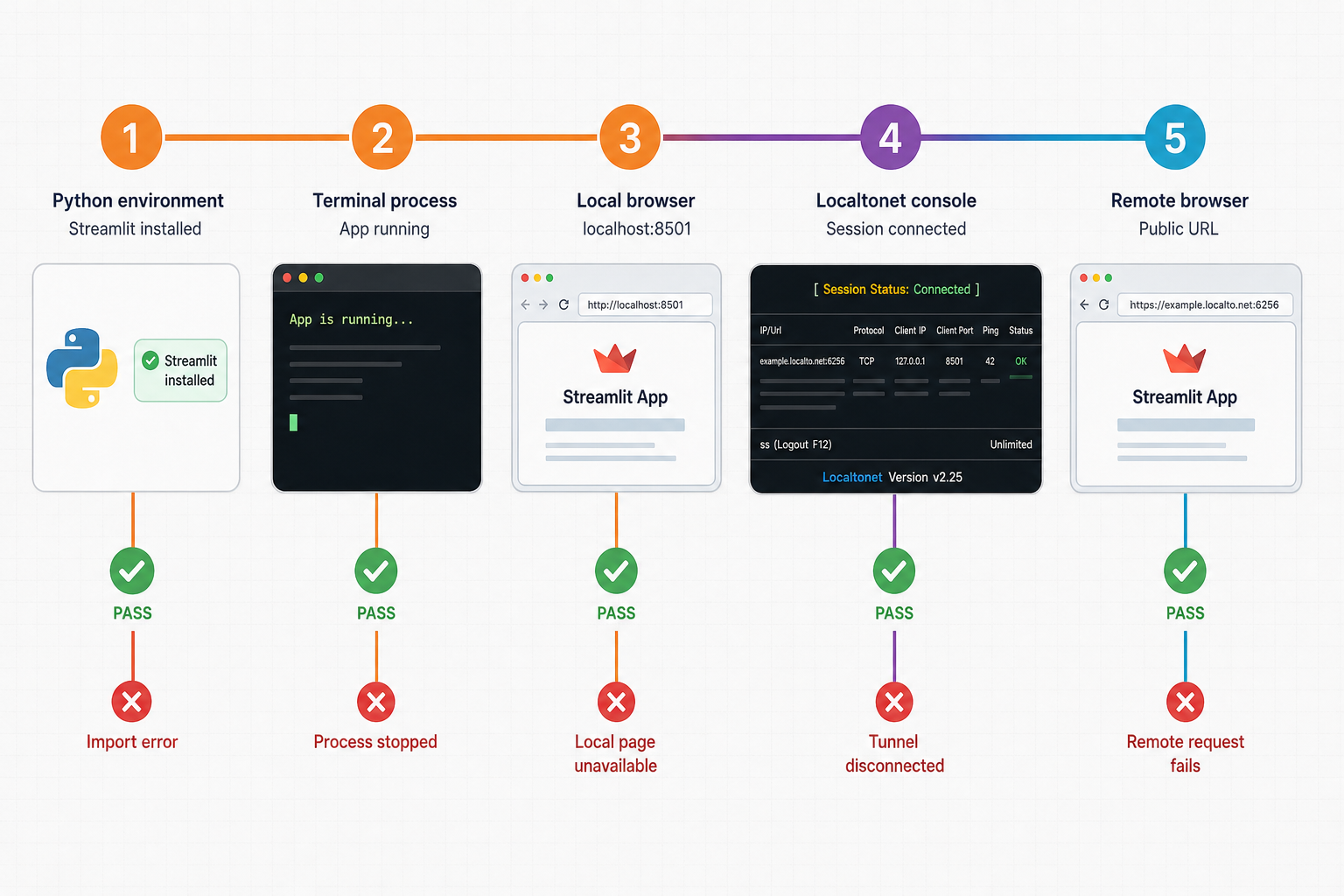
Python reports an unsupported or unexpected version
Deactivate the current environment if necessary, select a supported Python installation, delete only the disposable .venv directory, and recreate it with that interpreter. Confirm the executable path before reinstalling dependencies.
Installation succeeds, but the Streamlit command is unavailable
Reactivate the virtual environment and use the module form:
python -m streamlit --versionIf this works, the package is installed for the active interpreter even if the standalone executable is not available through the shell's command search path.
The sample works, but the real app fails
The base installation is healthy, but a project-specific import, file, data source, or code path is failing. Reproduce the action locally while reading the terminal or container logs. Confirm that every imported third-party package appears in requirements.txt.
The health endpoint works, but the dashboard does not
A healthy server can still have broken application logic. Open the browser interface, trigger the failing widget or data operation, and inspect the logs. Verify external services separately and avoid testing with confidential data.
The app works on its host but not from the separate client device
Confirm that Streamlit is bound to 0.0.0.0, use the host's private LAN address rather than loopback, and verify that the selected port is listening. Then inspect the host firewall. Limit any firewall permission to the Localtonet client device or trusted subnet rather than allowing arbitrary sources.
The public page does not open
- Confirm that the Streamlit process or container is running.
- Test the Streamlit health endpoint from the Localtonet client device.
- Open the complete app from that device when using a separate-host layout.
- Confirm that the selected Localtonet client is connected.
- Confirm that the device token belongs to the intended client.
- Verify that the HTTP tunnel target matches the tested address and port.
- Confirm that the tunnel was started after it was created.
- Use the public HTTPS address assigned to that tunnel.
The page appears, but widgets stop responding
Test the same widget locally. If it fails locally, investigate application code, dependencies, resource usage, or an unavailable data source. If only the public session fails, watch for reconnect messages and exceptions while testing through the public endpoint. Confirm that you are reaching the intended process and that it was not restarted during the session.
Do not disable CORS or XSRF protection as a general fix. A page that renders but cannot maintain interaction requires diagnosis of the process, persistent connection, target, logs, and tunnel state.
Access disappears after a restart
Check the components separately. Confirm that Docker or the selected process manager started, that the Streamlit container is healthy, that the Localtonet client reconnected, and that the tunnel is in the running state. A tunnel configuration can continue to exist while the actual tunnel is stopped.
The tunnel disconnects while the host is idle
A tunnel is available only while the selected client is connected and the tunnel is running. Check whether the client device slept, restarted, lost network access, or stopped the client application. Host power-management settings should match the required availability.
Frequently asked questions
Which Python versions can I use with Streamlit?
At the time of this revision, Streamlit's installation guidance supports Python 3.9 through Python 3.13, except Python 3.9.7. Confirm the supported range before adopting a later Streamlit release.
Why use python -m pip and python -m streamlit?
Module-based commands tie package installation and Streamlit startup to the selected Python interpreter. This reduces confusion when a system has multiple Python installations or virtual environments.
Which address should I use when Localtonet runs on the Streamlit host?
Use a verified loopback target such as 127.0.0.1 and the fixed Streamlit port. Binding to loopback avoids exposing Streamlit directly to other LAN devices.
Can the Localtonet client run on another computer?
Yes. Streamlit must listen on a LAN-reachable interface, the host firewall must permit narrowly scoped TCP access, and the client device must successfully reach the Streamlit host's private LAN address and port before you configure the tunnel.
Should I disable CORS or XSRF protection for the tunnel?
No. Keep both protections enabled. Diagnose the Streamlit listener, local target, client reachability, tunnel state, persistent connection, and logs instead of weakening protections as a general workaround.
How do I know the public Streamlit connection really works?
Test more than initial rendering. Change widgets repeatedly, leave the session open, interact again, reload the page, and exercise important application workflows while monitoring Streamlit logs. This verifies the persistent browser connection as well as the first request.
Does Localtonet start or host Streamlit?
No. Streamlit runs on your machine or in your container. Our client forwards remote HTTP traffic to that service. The application must remain running and reachable from the client device.
Does creating a tunnel start it automatically?
No. After creating the tunnel, use the Start button and keep the selected client connected. You can later stop the tunnel or delete its configuration.
Is the Streamlit health endpoint a complete monitoring test?
No. It confirms that the Streamlit server responds, but it does not validate every dependency, data source, widget, model request, upload, or public browser session. Combine health checks with logs and an end-to-end browser test.
Do I need router port forwarding or a public IP address?
No. The Localtonet client establishes an outbound connection to our relay, so this workflow does not require inbound router port forwarding or a public IP address.
Connect your verified Streamlit deployment with Localtonet
Build the app in an isolated environment, verify its health and interactive behavior, and choose the correct loopback or LAN target. Then create and start a Localtonet HTTP tunnel using the exact address and port you tested.
Get Started Free →

