

Run the VoiceMem interactive demo locally, verify it on port 8787, and provide temporary remote browser access
VoiceMem is an open-source memory system for real-time voice agents. Its architecture separates informational memory from emotion, persona, and relationship-oriented memory, while its streaming interfaces begin retrieval during a spoken turn. This guide installs the repository-hosted interactive demo, downloads its model assets, verifies the service locally, and then connects it to a Localtonet HTTP tunnel. The web application is documented as an interactive demo rather than a hardened production service, so remote exposure should use synthetic data and remain temporary.
📋 What's in this guide
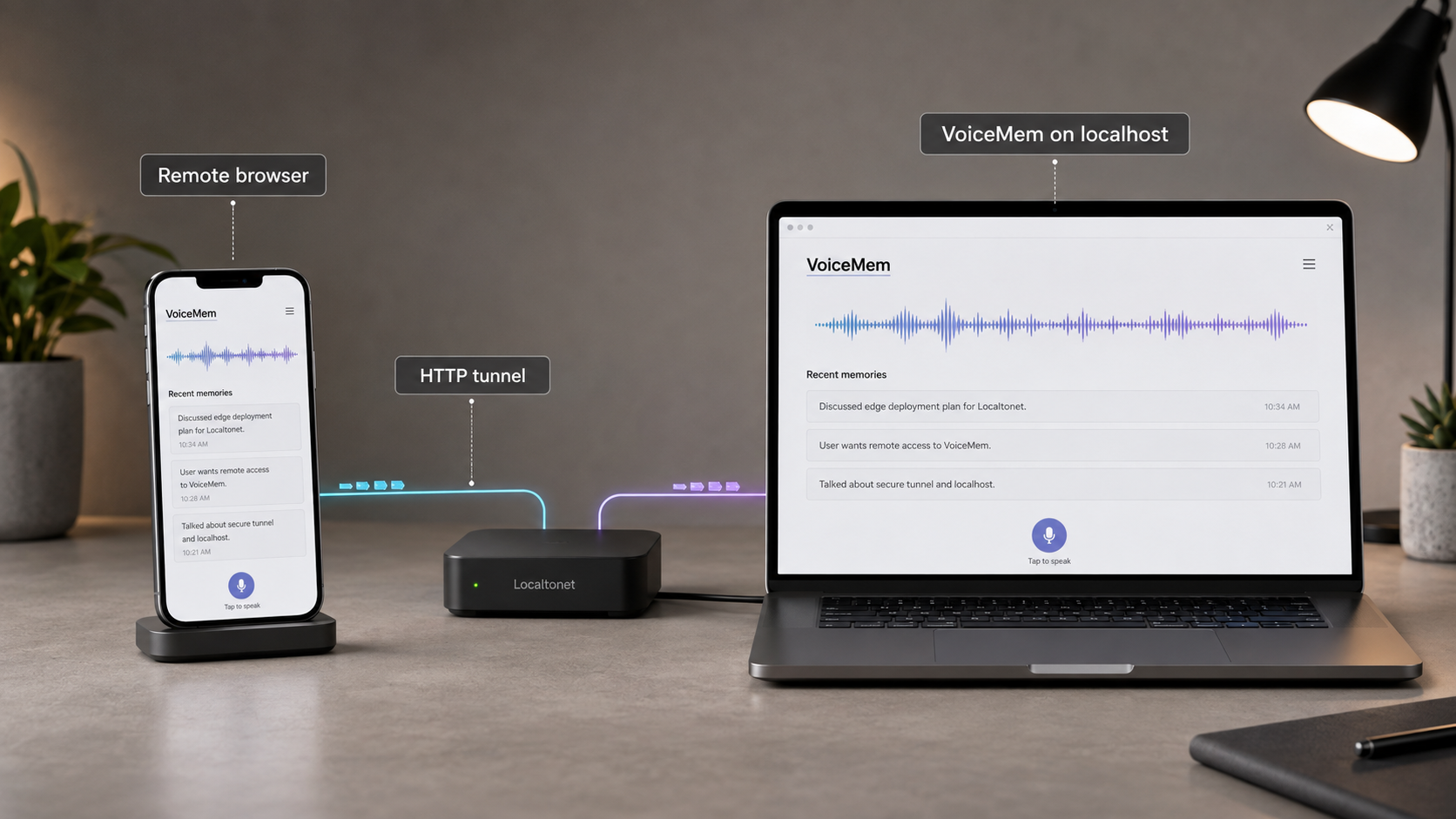
Why self-host the VoiceMem interactive demo?
Voice agents often need more than the transcript of the current conversation. A long-running assistant may need to retrieve facts, recognize recurring preferences, and account for emotional or relationship context without sending an entire conversation history to the response model for every turn. VoiceMem approaches this problem as a dedicated memory layer for real-time spoken interaction.
According to the official VoiceMem repository, the project divides memory into two cooperating areas. Its informational left brain organizes factual memories through schema and entity structures. Its emotional right brain represents persona, emotion, and relationship-oriented information. The project also supplies streaming interfaces designed to begin memory retrieval while a person is still speaking.
The accompanying VoiceMem technical paper describes the broader streaming dual-brain design, including informational retrieval, emotional and persona modeling, and decoupled memory backends. Those research results explain the project architecture, but they should not be treated as a promise about the performance of every computer, model configuration, or interactive demo session.
Self-hosting the repository's web demo is useful when you want to evaluate this workflow on your own machine, observe the application logs, inspect the project, or demonstrate the interface to a collaborator. The documented demo runs at http://localhost:8787. That loopback address is available to software on the same machine, but it is not automatically reachable from another network.
With Localtonet, we can publish the already working HTTP service through a public HTTPS address. Our client establishes an outbound connection to a Localtonet relay, so this workflow does not require inbound router port forwarding, a public IP address, VPN setup, or a new inbound firewall rule. The tunnel remains available only while the selected Localtonet client is connected and the tunnel is running.
The available upstream evidence does not establish built-in authentication, production deployment hardening, a stable public API contract, or production support guarantees for the interactive demo. Successful startup does not prove that the service is safe for unrestricted internet exposure.
How VoiceMem fits into a voice-agent architecture
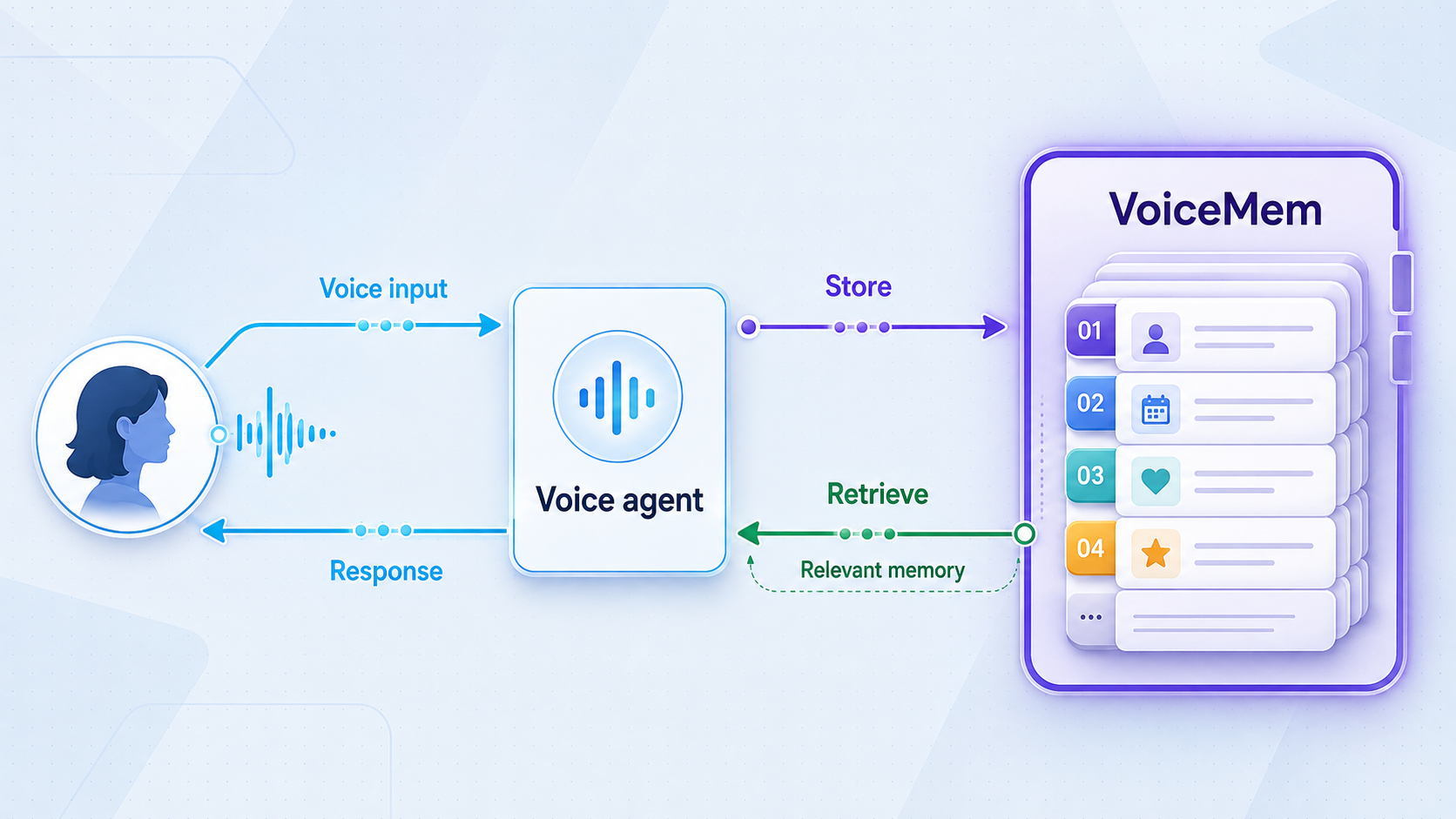
VoiceMem is a memory component rather than a complete hosted voice-agent platform. Its role is to ingest information, structure memory, retrieve relevant context, and make that context available to a response model or application. The official repository includes the Python library, examples, evaluation code, model-related tools, and an interactive web demo for experimentation.
Informational memory
The left-brain side manages factual information. The repository and technical paper describe a schema and entity organization used to route and rank memories. Instead of injecting an unrestricted historical transcript, the system is designed to retrieve a small collection of relevant memory items for the current query.
Emotion and persona memory
The right-brain side is intended to preserve information related to emotion, persona, and relationships. This distinction matters because a factual event and an emotional response are not always useful under the same storage or retrieval rules. A preference, identity-related detail, or recurring response pattern can require different treatment from a simple factual record.
Streaming behavior
The repository's streaming example treats VoiceMem as a continuously fed audio-processing interface. It combines voice activity detection, partial transcripts, and speculative retrieval while the person is speaking. Once the turn ends, the application can use the prepared retrieval result and decide whether the completed utterance should be written into memory.
This tutorial does not extend that programmatic integration. Its scope is deliberately narrower: install the documented package and model assets, start the repository's interactive demo, verify its local HTTP endpoint, and provide temporary access through an HTTP tunnel.
| Component | Role | How this guide uses it |
|---|---|---|
| VoiceMem Python package | Provides the memory library and processing components | Installs it using the upstream pip command |
| Downloaded model assets | Supplies the default local models expected by the project | Downloads them into the documented ./models directory |
| Repository web directory | Contains the interactive demo code | Runs web/run.py from the cloned repository |
| Local HTTP endpoint | Serves the demo to a browser on the host machine | Verifies http://localhost:8787 before exposure |
| Localtonet HTTP tunnel | Maps a public HTTPS address to the local HTTP service | Adds remote access only after the local endpoint is healthy |
Prerequisites, credentials, and version planning
Complete the installation on the machine that will run VoiceMem. The Localtonet client should also run on that machine for this tutorial. Keeping both processes together allows the tunnel to target the loopback address directly and avoids relying on an undocumented VoiceMem LAN-binding configuration.
The upstream quick-start commands require Git, Python, pip, internet access for Python packages, and the Hugging Face command-line tool used to download the default model collection. You also need storage and memory for the selected dependencies and model assets. The supplied VoiceMem documentation does not establish a universal minimum Python version, supported operating-system matrix, CPU requirement, GPU requirement, memory requirement, or model download size for this exact demo workflow.
- Git is installed and available as
git. - Python is installed and available as
python. - The selected Python environment can run
pip. - The machine can reach GitHub, the Python package index, and Hugging Face.
- You can create files in the directory where the repository will be cloned.
- You have sufficient disk space for the repository, dependencies, logs, and models.
- Port
8787is not already occupied by another process. - You can install and run the Localtonet client when remote access is required.
Version baseline and reproducibility
This workflow was reviewed against the upstream repository documentation with
VoiceMem v0.0.2
as its tagged release baseline. That release identifies commit 1b7cc9a. At the time of the supplied evidence, the moving main branch already contained 25 additional commits after that release.
This distinction matters because the upstream quick start combines two independently moving inputs: a Git checkout from the repository and a separately published package installed with pip install voicemem. Cloning main today and installing whatever package release pip currently resolves can produce repository code and package code from different development points.
Before debugging or sharing a reproduction, record the checked-out Git commit and the installed voicemem package metadata. The supplied upstream quick start does not provide a package-version pin that proves a one-to-one match with every repository commit. Do not assume that a moving main checkout and the latest separately released package are automatically synchronized.
You can record the repository commit and inspect the installed package version with standard Git and pip commands:
git rev-parse HEAD
python -m pip show voicemem
If you choose the v0.0.2 repository baseline, check out its tag after cloning:
git checkout v0.0.2
A Git tag pins the repository files, but it does not by itself pin the package selected by an unversioned pip command. If exact reproducibility is required, verify the package version expected by the selected upstream revision before combining the two. If you intentionally use current main, record its commit hash and follow the documentation in that same checkout.
An isolated environment can prevent VoiceMem dependencies from conflicting with unrelated Python applications. The supplied quick start does not prescribe a particular environment manager, so use the isolation method approved for your operating system or development workflow.
Do you need the optional SLM extra?
No, not for the basic installation sequence. The repository lists the slm extra for its optional fine-tuned Qwen response-model support. In Python packaging, installing an extra installs the base package together with the optional dependency set selected by that extra. Therefore, pip install "voicemem[slm]" can be used instead of pip install voicemem when you intentionally want the SLM dependencies.
The extra does not replace the separate repository clone or the documented model download. For an initial evaluation, the smaller basic installation is easier to diagnose because it avoids introducing optional response-model dependencies before the base demo has been tested.
What credentials does VoiceMem require?
The official repository's library examples construct VoiceMem with an OpenAI key. The example comments state that OpenAI is used for fact extraction when writing memories, while memory retrieval itself runs locally. This means that describing VoiceMem as completely offline would be misleading for the documented memory-write example.
The supplied upstream evidence does not fully document every provider, environment variable, or credential required by every path through the interactive web demo. The current demo also has response and speech components that may vary by revision or selected backend. Start it from a clean terminal and use the error output from your checked-out version to identify missing configuration.
Do not invent an environment-variable name for an undocumented demo setting. Do not place provider keys in source files, browser-visible fields, screenshots, tunnel URLs, shell history, or public issue reports unless the current upstream instructions explicitly require that location and your security policy permits it.
Install VoiceMem and download its models
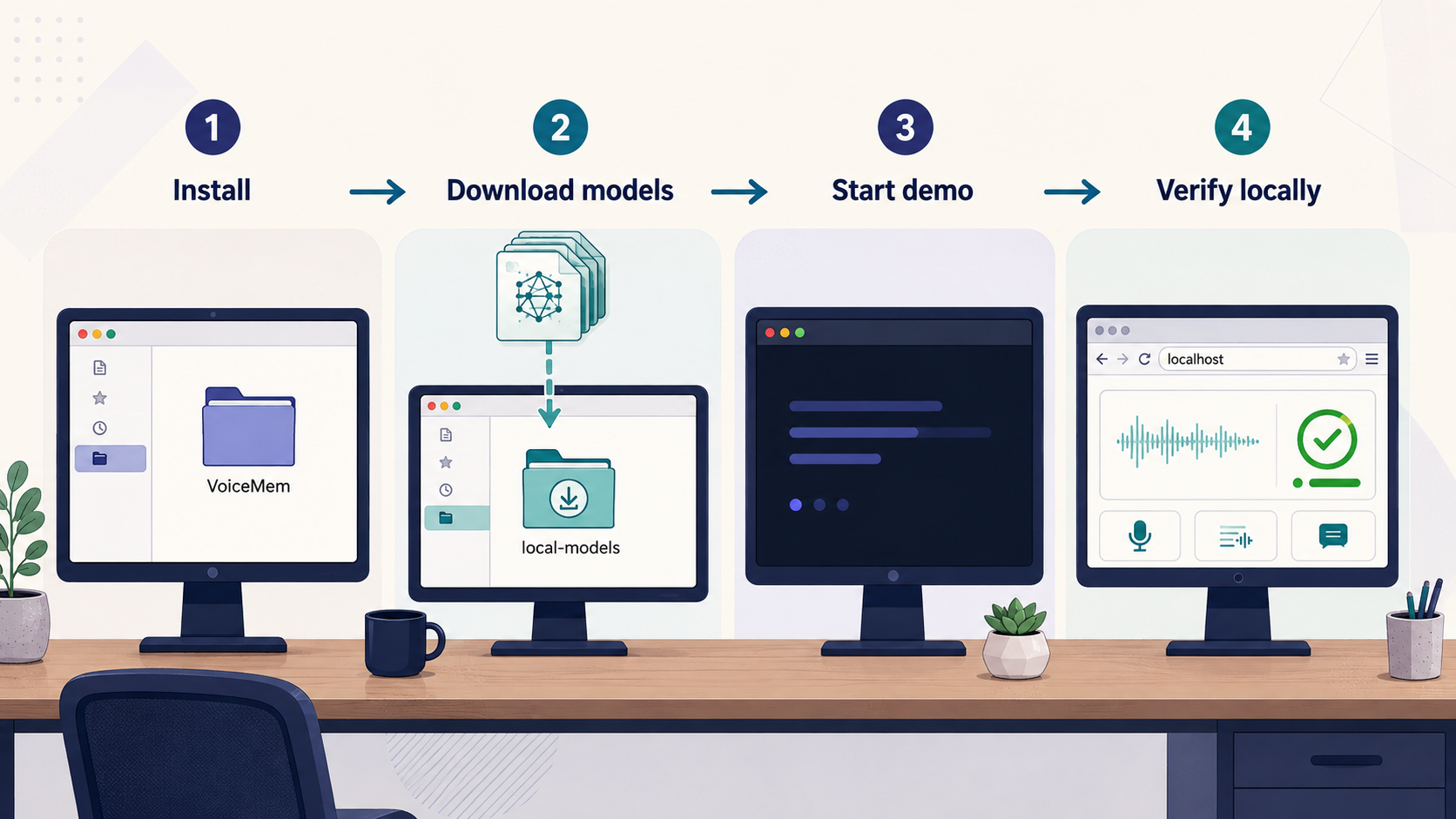
The
official VoiceMem quick start
clones the repository, enters its directory, installs the published package, installs the Hugging Face client, and downloads the default model collection into ./models. Cloning is essential for this tutorial because the interactive demo lives in the repository.
Clone the official VoiceMem repository
Open a terminal in the parent directory where you want to store the project, then clone the upstream repository.
git clone https://github.com/xzf-thu/VoiceMem.gitEnter the repository directory
The model-download and demo commands use paths relative to the repository root.
cd VoiceMemInstall the VoiceMem package
Run the upstream basic installation command in the Python environment that will launch the demo.
pip install voicememInstall the Hugging Face client and download the models
Install or update huggingface_hub, then download the default model collection into the repository's models directory.
pip install -U huggingface_hub
hf download zhifeixie/VoiceMem_Default_Models_Env --local-dir ./models
Keep the downloaded files under ./models unless the documentation for your selected VoiceMem revision explicitly explains how to change model discovery. The supplied evidence does not state a definitive file count or total byte size, so neither should be used as an invented completion test.
Optional SLM installation
If you need the optional fine-tuned Qwen response-model dependencies, install the extra instead of the basic package command:
pip install "voicemem[slm]"
This installs the base VoiceMem package plus the optional slm dependency set. It does not provide web/run.py, replace the repository clone, or remove the need for the documented default-model download.
Confirm that the model download completed
The Hugging Face command should return to the prompt without a fatal error. Confirm that a models directory exists beneath the repository root, but also review the command output. A directory may be created before a transfer fails.
If the download stops early, preserve the terminal output and investigate the reported cause. Relevant categories include insufficient storage, interrupted network access, DNS failure, proxy restrictions, file permissions, or a missing or outdated hf command. Resolve the model download before starting the demo.
The published package supplies the library, while the interactive demo code is stored in the Git repository. Keep the repository checkout, run commands from its root, and download the required model assets before launching web/run.py.
Start the VoiceMem interactive web demo
Run the demo from the root of the cloned repository. The working directory matters because the startup script and model directory are referenced through the project structure.
Confirm the working directory
The current directory should contain the web directory and the downloaded models directory. If you opened a new terminal, return to the repository root.
Launch the web process
Start the documented interactive demo and keep the terminal open.
python web/run.pyOpen the local URL
On the same machine, open the documented endpoint in a browser.
http://localhost:8787Keep the terminal visible during the first launch. Model initialization can take longer than an ordinary static web page, and startup failures are usually easier to diagnose from process output than from the browser. Do not create a public tunnel while the terminal is reporting a fatal exception or repeatedly restarting.
Understand the documented file logging
The current repository documentation says that the demo saves a copy of terminal output by default, including Python logging and Uvicorn output. The documented generated path follows this pattern:
results/logs/voicemem-time-PID.logEach line includes a timestamp and a standard-output or standard-error marker. The startup terminal prints the actual path, which is more reliable than trying to predict the generated filename.
To choose a specific file, the current upstream documentation provides:
python web/run.py --log-file results/logs/debug.logTo disable persistent file logging for that launch, it provides:
python web/run.py --no-file-logThese options are documented in the current repository evidence. If you use an older tag and the command is rejected, consult the README and help behavior from that checked-out revision rather than assuming that options added later are available.
Voice interactions, transcripts, memory content, local paths, provider errors, and configuration details may appear in application logs. Do not publish raw logs or send them to another person without checking for personal information and secrets.
Verify VoiceMem locally before creating a tunnel
Local verification separates application failures from tunnel failures. If http://localhost:8787 does not work on the VoiceMem host, a public tunnel cannot repair the Python process. It can only forward traffic to the configured local target.
1. Confirm that the process remains active
After executing python web/run.py, the process should remain active because it is serving the application. If it immediately returns to the shell, find the first meaningful exception in the terminal and inspect the generated log when available.
2. Load the exact documented endpoint
Open http://localhost:8787 on the same machine. Use the explicit http:// scheme for this local test. If the browser rewrites the URL or attempts another port, re-enter it exactly.
3. Test function, not only reachability
A TCP connection or rendered page shell is only the first verification layer. Confirm that the interface loads its expected controls and that the action you intend to demonstrate can be initiated. Watch the terminal while interacting with the page because model, provider, or audio errors may appear only after the first action.
4. Review browser permissions
Microphone-dependent functions may trigger a browser permission request. Grant access only to the origin you intend to test and only for the required session. Permission behavior can differ between a local HTTP origin and a public HTTPS origin, so repeat this check after creating the tunnel.
5. Establish a baseline
Record what succeeds locally before adding remote access. Note whether the page loads, whether the intended action completes, whether the terminal reports an exception, and whether a deliberate stop and restart returns the application to the same state. This baseline prevents a model or provider problem from being misidentified as a Localtonet problem.
| Check | Expected observation | If it fails |
|---|---|---|
| Python process | The server remains active after startup | Read the terminal and generated log for the first exception |
| Local URL | http://localhost:8787 opens on the host |
Check startup errors, port conflicts, and the working directory |
| Interface rendering | The demo UI loads instead of an error response | Inspect browser developer output and the server log |
| Interactive action | The selected function completes without a fatal server error | Check models, dependencies, provider configuration, permissions, and logs |
| Restart test | The demo returns after a deliberate stop and restart | Confirm the same environment, commit, and repository directory are used |
Expose the working VoiceMem demo with a Localtonet HTTP tunnel
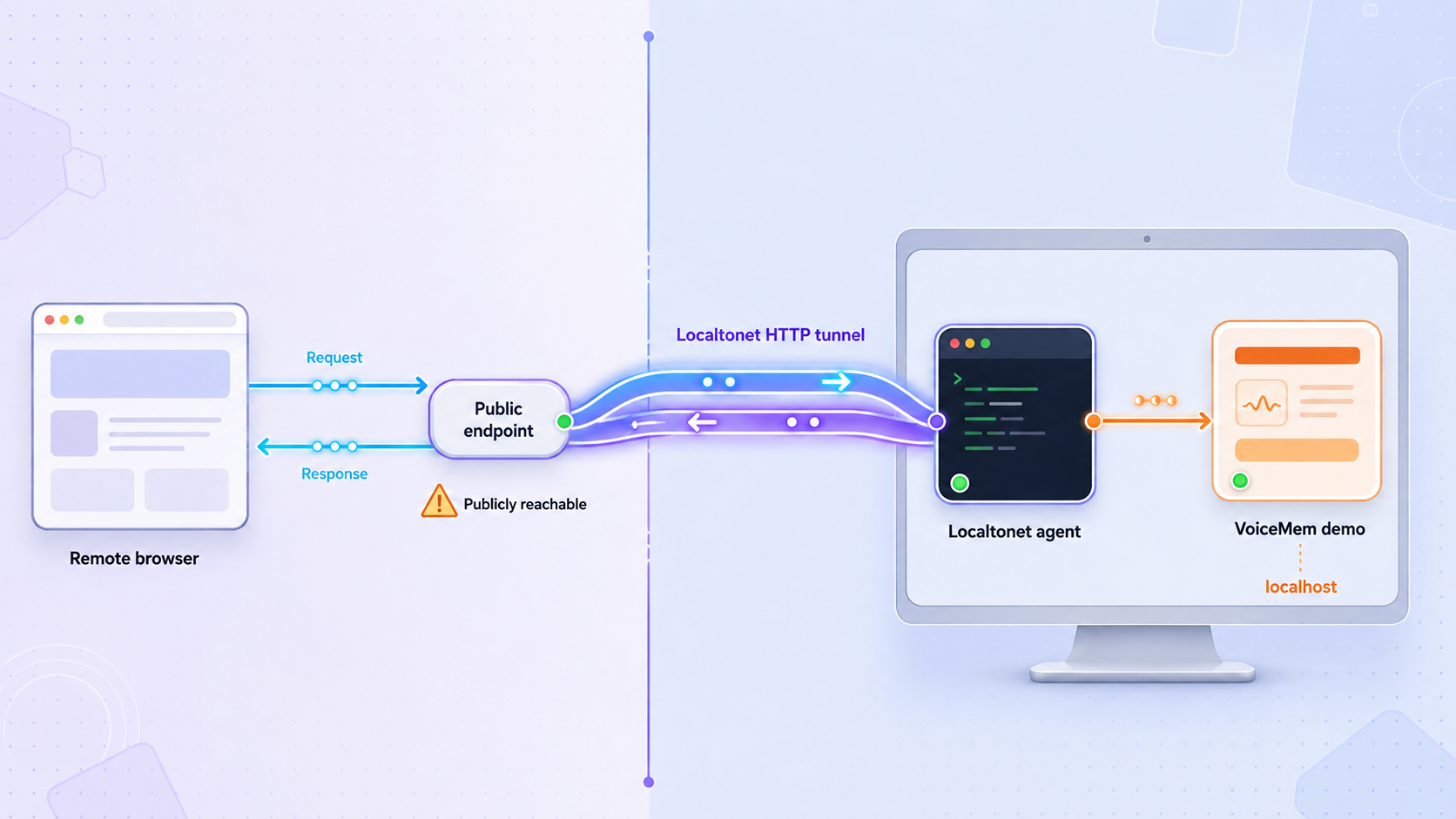
Once the local browser test succeeds, configure remote access. An HTTP tunnel is appropriate because VoiceMem exposes a browser-facing HTTP service. A raw TCP tunnel is not required simply to open this web interface.
Our client creates an outbound connection to a Localtonet relay and forwards requests from the assigned public address to the local target. In the simplest setup, VoiceMem and Localtonet run on the same machine, so the target is 127.0.0.1 on port 8787.
Install and run the Localtonet client
Install the Localtonet application for the operating system on the VoiceMem host, then run it while the VoiceMem process is active.
Authenticate or select the correct device
Use the device-specific authentication token assigned through our platform and select that device for the tunnel. Never put the token in the VoiceMem interface, a screenshot, a public repository, or a shared log.
Select an available relay server
Choose a server or region currently available in the Localtonet dashboard. Use the values shown in your account rather than copying a hardcoded server code from a tutorial.
Create the HTTP tunnel configuration
Select an HTTP tunnel and configure the local target as 127.0.0.1 with port 8787. Choose the available HTTP Process Type appropriate for your workflow, such as Random Sub Domain, Custom Sub Domain, or Custom Domain. Check current dashboard guidance before configuring custom-domain DNS.
Start the tunnel and test the assigned address
Creating a tunnel does not start it. Press the Start button, wait for the client and tunnel to show as connected, then open the assigned public HTTPS address from another browser or network.
Stop or delete the tunnel after testing
Stop the tunnel when remote access is no longer required. Delete it if you do not plan to reuse the configuration. The endpoint is available only while the selected client is connected and the tunnel is running.
If the Localtonet client runs on another device, 127.0.0.1 refers to that other device rather than the VoiceMem host. The tunnel target would need to be an address and port reachable from the client device. The supplied VoiceMem instructions establish a localhost endpoint but do not establish a supported LAN-listening procedure, so this guide does not invent a bind-address flag. Running both processes on the same machine avoids that uncertainty.
For the current tunnel fields and workflow, use the Localtonet HTTP tunnel documentation.
Leave http://localhost:8787 open while testing the public URL. If local and remote access fail together, investigate VoiceMem first. If local access works while the public address fails, investigate the Localtonet client, selected device, tunnel state, relay selection, and local target.
Security boundaries for remote VoiceMem access
A public HTTPS address protects the browser-facing connection at the tunnel edge, but it does not turn an unauthenticated demo into an authenticated application. Transport protection and application authorization solve different problems. The available VoiceMem evidence does not confirm a built-in login system, production role model, hardened session management, tenant isolation, or production-ready abuse controls for the demo.
Assume that anyone who obtains a reachable public URL may attempt to load it. Voice-memory data can include transcripts, preferences, emotional context, inferred relationships, voice-related information, and provider responses. A demo populated with real personal data therefore creates substantially more risk than an empty test instance.
Use synthetic data
Test with invented names, fictional preferences, and disposable audio. Avoid health information, financial data, confidential business discussions, biometric material, customer conversations, and private relationship details. Synthetic data reduces the effect of accidental exposure and makes diagnostic logs safer to review.
Keep exposure temporary
Start the tunnel immediately before the remote session and stop it when the session ends. Do not leave the demo publicly reachable because it might be useful later. Localtonet allows you to stop the tunnel without deleting its reusable configuration.
Protect all credentials
A Localtonet authentication token identifies its client device and must remain secret. Model-provider credentials require the same care. Never place either type of secret in a public URL, browser query string, screenshot, issue report, source commit, or shared application log. Revoke or rotate any credential that is accidentally exposed.
Add an application access layer before production use
If your intended deployment requires public or multi-user access, place a properly designed application layer in front of the memory engine. It should implement authentication, authorization, input validation, session handling, request limits, audit policy, secret management, and data-retention controls appropriate to your environment. These protections are application responsibilities and are not created by making the demo reachable through HTTPS.
The safest use of this workflow is a short evaluation with synthetic data. Before handling real users, review the selected VoiceMem code revision, map provider data flows, define who can access each memory, establish deletion and retention procedures, and deploy an authenticated application designed for that purpose.
Common operations after setup
Starting a remote test session
Start VoiceMem first and confirm the localhost URL. Then start the Localtonet client, verify that the intended device is connected, and start the existing HTTP tunnel. This order prevents the public endpoint from forwarding to an unavailable local process.
Stopping access cleanly
Stop the Localtonet tunnel first to remove the public path. Then stop the VoiceMem process in its terminal. Stopping only VoiceMem leaves the tunnel active but without a healthy upstream target. Stopping only the tunnel removes public access while preserving local use of the demo.
Updating the repository or package
Treat repository and package updates as a coordinated change. Record the current Git commit and installed package version before modifying either. Stop the demo, apply the intended update, review the upstream release notes or README for that revision, and verify locally before restarting the tunnel.
Do not troubleshoot an update by repeatedly installing unspecified versions over the same environment. If behavior changes, compare the repository commit, package version, model directory, startup command, and provider configuration with the last working baseline.
Managing logs
Use the default timestamped log when you need a record of each launch. Use --log-file when reproducing a problem and a predictable output path is useful. Use --no-file-log when your selected revision supports it and persistent output is undesirable. Establish a retention and deletion policy whenever the demo may process sensitive content.
Changing the public address
Localtonet HTTP tunnels can use Random Sub Domain, Custom Sub Domain, or Custom Domain Process Types. They serve the same target through a public HTTPS address. Availability can vary by current account configuration or plan, and exact custom-domain DNS requirements should be taken from the current dashboard and documentation.
Repeating a test reliably
Keep a short run record containing the Git commit, package version, startup command, whether file logging was enabled, local URL result, tunnel target, and time the tunnel was stopped. Do not include credentials or private public URLs in records that will be broadly shared.
Troubleshooting VoiceMem and Localtonet access
Troubleshoot from the inside out: Python environment, repository files, models, localhost endpoint, Localtonet client, tunnel state, and public URL. This sequence isolates each layer and avoids changing the tunnel to compensate for an application failure.
| Symptom | Likely area | What to check |
|---|---|---|
git, python, pip, or hf is not recognized |
Host prerequisites | Install the missing tool and confirm it is available in the current terminal environment |
web/run.py cannot be found |
Working directory or clone | Enter the official VoiceMem checkout and confirm that its web directory exists |
| A Python module cannot be imported | Python environment or version mismatch | Confirm the demo uses the environment where VoiceMem was installed and record the package version |
| Repository code and package behavior disagree | Mixed upstream versions | Compare the Git commit with python -m pip show voicemem and use a coherent upstream baseline |
| Model-related file error | Model download or path | Confirm the download completed and that ./models is beneath the repository root |
| Port 8787 is already in use | Local process conflict | Stop the existing process or previous VoiceMem instance rather than inventing an undocumented port flag |
| Local page never opens | VoiceMem server | Check whether Python exited, inspect terminal output, and review the generated log |
| Page loads but memory writing fails | Models, OpenAI configuration, or application code | Review the server error and remember that the documented ingestion example uses OpenAI for fact extraction |
| Local URL works but public URL does not | Localtonet configuration | Confirm the client is connected, the tunnel is started, and the target is 127.0.0.1:8787 when both run on one host |
| Public page loads but microphone behavior differs | Browser permissions | Review microphone permission for the public HTTPS origin and repeat the test in a supported browser configuration |
| The public endpoint becomes unavailable | Tunnel lifecycle or client connectivity | Confirm the selected client remains connected and the tunnel still shows as running |
Installation works in one terminal but startup fails in another
The terminals may be using different Python environments or command search paths. Return to the environment where the package was installed, enter the same repository checkout, verify its commit, and start the demo there.
The model download appears incomplete
Review the complete hf download output rather than relying on the existence of the directory. Resolve storage, network, proxy, or permission errors, then repeat the documented command from the repository root.
The public URL reports an upstream connection error
Reload http://localhost:8787 on the VoiceMem host. If it fails, repair VoiceMem first. If it succeeds, confirm that Localtonet runs on the same host when the target is 127.0.0.1, verify that the correct device was selected, and confirm that the tunnel was started after creation.
The demo option is rejected
Check the Git revision. Logging flags documented on the current repository may not exist in an older release. Follow the README associated with the checked-out tag or commit rather than mixing commands from current main with an older checkout.
The page works locally but not directly from another LAN device
The documented endpoint is localhost, which is scoped to the VoiceMem host. The supplied instructions do not establish direct LAN listening. This does not prevent a Localtonet client on the same host from reaching the loopback service. Do not apply an undocumented bind flag merely to make direct LAN access work.
Frequently asked questions
Is the VoiceMem interactive demo a production server?
It is documented as an interactive demo. The available evidence does not establish built-in authentication, production hardening, a stable public API contract, or production deployment guarantees. Use it for controlled evaluation unless you have independently reviewed and hardened the application.
Which VoiceMem version does this guide use as its baseline?
The tagged baseline is VoiceMem v0.0.2 at commit 1b7cc9a, with current repository documentation also reviewed for the demonstrated commands and logging behavior. Record your actual Git commit and installed package version because main and the separately published package can move independently.
Why must I clone the repository if VoiceMem is installed with pip?
The pip package supplies the library, while the interactive demo code is stored in the repository. Cloning provides web/run.py and the surrounding project files required by this workflow.
Does the SLM extra also install the base VoiceMem package?
Yes. In Python packaging, pip install "voicemem[slm]" installs the base package plus the selected optional dependencies. It can replace the basic package-install command when the SLM dependencies are wanted, but it does not replace the repository clone or model download.
Does VoiceMem require an OpenAI key?
The documented library and agent examples use OpenAI for fact extraction during memory writes, while retrieval is described as local. The supplied evidence does not fully document every provider setting required by every interactive-demo feature, so use the configuration instructions and errors from your selected repository revision rather than guessing.
What port does the VoiceMem web demo use?
The documented endpoint is http://localhost:8787. When VoiceMem and Localtonet run on the same machine, configure the HTTP tunnel target as 127.0.0.1:8787.
Does Localtonet require router port forwarding?
No. Our client establishes an outbound connection to a Localtonet relay. The tunnel can reach the local service without inbound router port forwarding, a public IP address, VPN setup, or a new inbound firewall rule.
Does the public HTTPS address add a VoiceMem login?
No. HTTPS protects browser-facing transport, but it does not create application authentication or authorization. If the underlying demo has no access-control layer, tunneling it does not add one automatically.
Can the Localtonet client run on another device?
A Localtonet client can target a service reachable from its device, but 127.0.0.1 always means the client's own machine. The supplied VoiceMem evidence establishes only a localhost endpoint, not a LAN-binding procedure. Running both components on the same machine is therefore the predictable arrangement for this guide.
How long does the public VoiceMem address remain available?
It remains available only while the selected Localtonet client is connected and the tunnel is running. VoiceMem must also remain active and reachable at the configured local target.
Access your verified VoiceMem demo with Localtonet
Install VoiceMem from a recorded upstream revision, confirm the interactive interface at localhost:8787, and then create a temporary Localtonet HTTP tunnel for controlled remote testing without inbound router port forwarding.
Get Started Free →

