

Build a persistent paste service locally, test recovery, then expose only the HTTP endpoint you intend to share
This guide deploys Wastebin with Docker Compose, stores its SQLite database outside the container, preserves deployment secrets, verifies persistence, and adds remote access through a Localtonet HTTP tunnel. The reproducible baseline is Wastebin 3.8.0, a released version identified by commit 3e2f142 and dated October 2, 2026. Wastebin's default-branch documentation explicitly describes an unreleased version, so this guide distinguishes release-confirmed behavior from settings that appear only in the current development documentation. Wastebin does not provide application-wide authentication or comprehensive denial-of-service protection, which remains important when deciding whether and how long to expose it.
📋 What's in this guide
Wastebin version, documentation scope, and deployment model
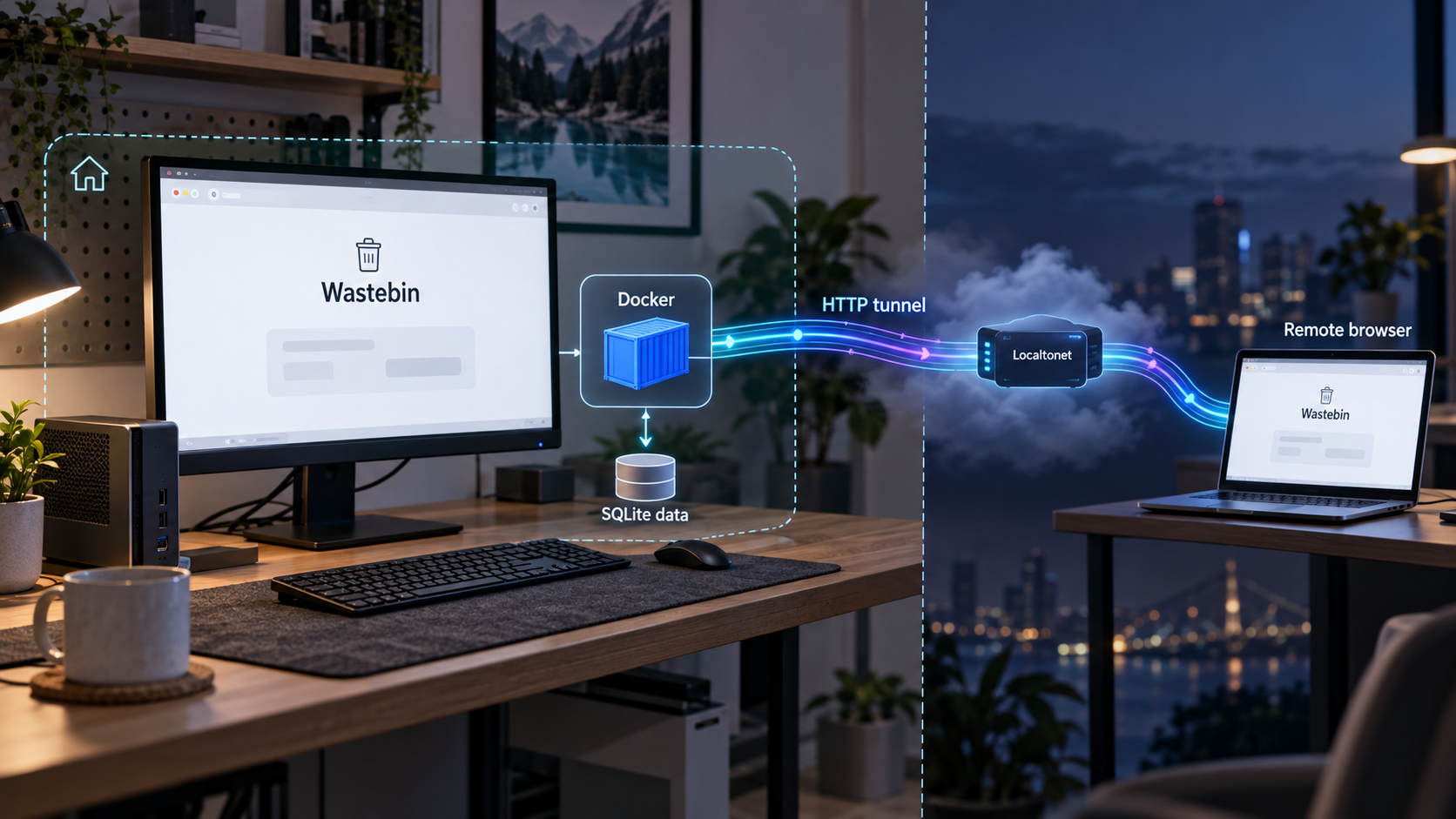
Wastebin is a compact pastebin backed by SQLite. The deployment in this guide consists of one Wastebin container, one bind-mounted host directory for persistent state, and an optional Localtonet HTTP tunnel. The tunnel forwards web requests to Wastebin. It does not expose the Docker socket or SQLite file.
The reproducible baseline
The Compose example pins quxfoo/wastebin:3.8.0. Wastebin's installation documentation identifies quxfoo/wastebin:<VERSION> as the versioned image naming pattern, and the project's release record confirms that 3.8.0 is a released version. The version and associated release notes were verified on October 2, 2026.
The repository also lists newer releases, including 3.9.0, but the evidence available for this revision does not include that release's complete version-specific README or release notes. We therefore do not silently substitute it for the reviewed baseline. Before selecting a different tag, review that release's documentation and repeat the local, persistence, cookie, backup, and remote-access tests in this guide.
The Wastebin repository explicitly labels its default-branch documentation as unreleased. Detailed claims found there can describe behavior that differs from a published image. This guide uses the released 3.8.0 image and labels development-documentation details instead of presenting them as unqualified release facts.
What is confirmed for the selected release
Wastebin 3.8.0's release notes specifically confirm the Rosé Pine theme selected with WASTEBIN_THEME=rosepine, Markdown-rendering behavior, secure owner-token cookies, and a change from SameSite=Strict to SameSite=Lax for the owner cookie. Deletion remains restricted to POST and DELETE requests.
The current default-branch documentation additionally describes SQLite storage, zstd compression, syntax highlighting for more than 170 languages, GitHub-flavored Markdown, nine theme families, paste expiration, deletion after reading, QR-code display, anonymous-owner deletion, and encrypted entries using ChaCha20Poly1305 with Argon2-hashed passwords. These are useful descriptions of the current project, but the supplied 3.8.0 release record does not independently enumerate every one of them. Treat any feature beyond the basic deployment path as something to verify in your pinned image before making it part of an operational requirement.
| Claim or setting | Evidence status | How this guide handles it |
|---|---|---|
quxfoo/wastebin:3.8.0 |
Released version plus documented version-tag pattern | Pinned as the deployment baseline |
| Rosé Pine theme and owner-cookie changes | Explicitly recorded in the 3.8.0 release notes | Treated as release-confirmed behavior |
| Compose layout, port 8088, SQLite path, and writable data directory | Documented by the current default branch | Used with an explicit local verification gate |
| All nine themes, sanitizer details, shortcuts, and broad feature list | Described by unreleased default-branch documentation | Not required for successful deployment and not assumed without testing |
latest image tag |
Official example, but mutable | Explained but not used in the reproducible Compose file |
Application security boundary
Wastebin identifies user authentication, administrator functionality, arbitrary file uploads, and comprehensive denial-of-service mitigations as non-features. Password protection for an individual paste is not an application login. Anyone who can reach the application can potentially submit requests unless another component enforces access policy before traffic reaches Wastebin.
A Localtonet HTTP tunnel provides a public HTTPS address, but it does not turn Wastebin into an authenticated application. Wastebin's maintainers advise against placing it directly on the internet without inbound rate limiting through firewall rules or a properly configured reverse proxy. For persistent public availability, place an appropriate protective layer in front of Wastebin and point the tunnel at that protected endpoint.
Prerequisites and network plan
Prepare a machine with Docker Engine or Docker Desktop and the docker compose command. The available evidence does not define minimum CPU, memory, or disk requirements, so capacity must be based on your workload and retention policy rather than an invented minimum.
- Docker with Compose support.
- A dedicated project directory on persistent storage.
- Permission to create directories and manage their ownership.
- Host TCP port
8088, or another chosen host-side port, available. - A browser and, optionally,
curlfor local checks. - A non-sensitive sample paste for persistence and restoration testing.
- For remote access, a Localtonet client on the Docker host or another device that can reach the published Wastebin port.
Choose where Docker publishes the port
Wastebin's documented internal listener is 0.0.0.0:8088. A Docker mapping of 8088:8088 commonly publishes that service through the host's available interfaces, subject to Docker networking, the operating system, and host firewall rules.
If Docker and our Localtonet client run on the same machine, publish the port only on loopback:
ports:
  - "127.0.0.1:8088:8088"
The browser and Localtonet client on that host can use 127.0.0.1:8088, while other LAN devices cannot connect through the host's LAN address. This is a Docker port-publication choice, not a Wastebin authentication feature.
If our client runs on another device, a loopback-only mapping will not work. In that topology, publish the host port on an interface reachable from the client device, test that route locally, and restrict the path with host firewall rules where possible. Never configure a client on another computer to target 127.0.0.1 unless Wastebin is running on that same computer.
Install Wastebin 3.8.0 with Docker Compose
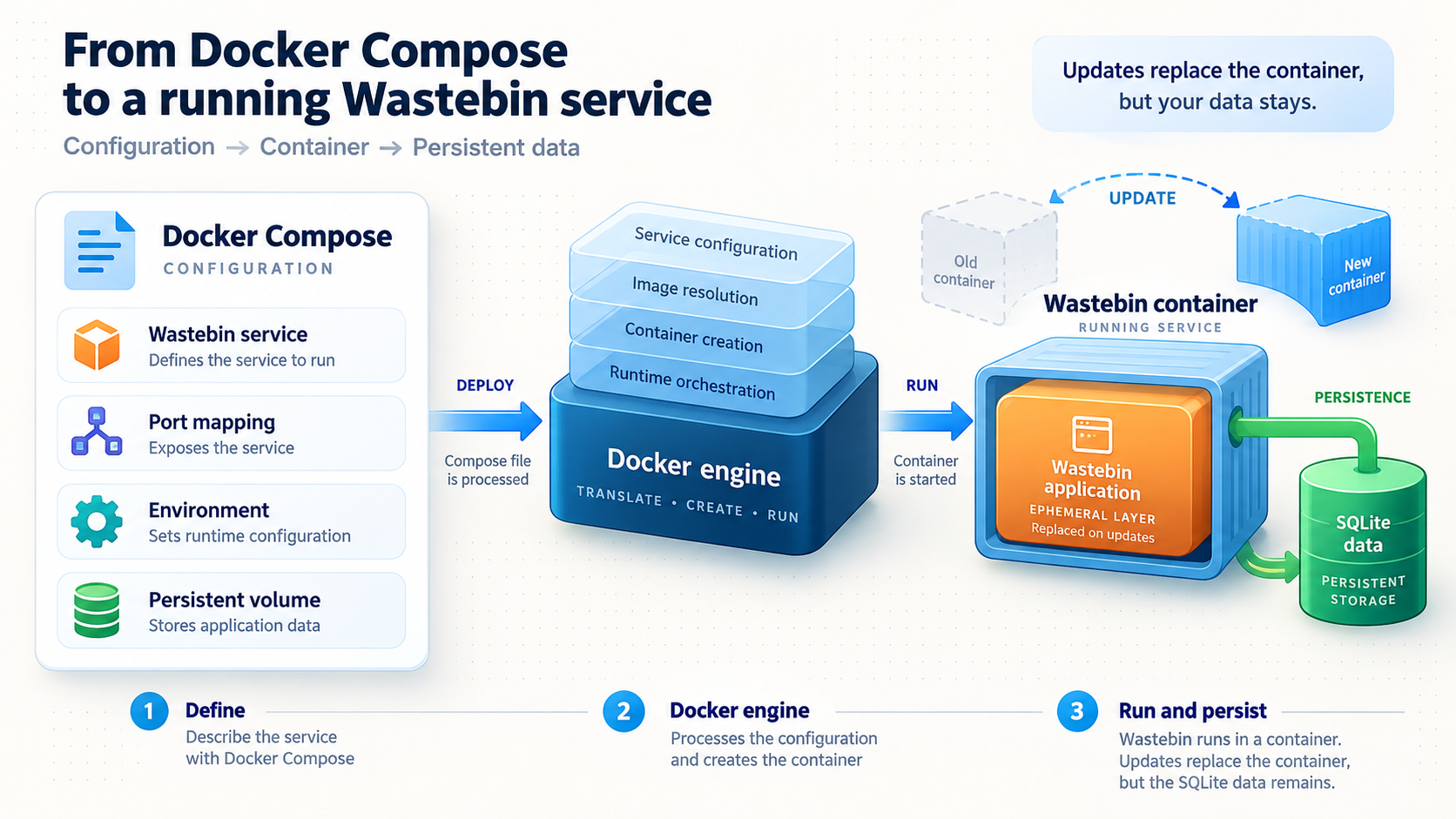
The current project documentation uses latest in its Compose example. We retain its service layout but replace the mutable tag with the released 3.8.0 tag. The database is placed at /data/state.db, and the host's ./data directory is mounted at /data.
Create the project and persistent data directories
Keep the Compose file, private environment file, and persistent data under one controlled project directory. Run subsequent Compose commands from that directory.
Make the data directory writable by the container
The current project documentation says the Compose bind mount must be writable by numeric user ID 10001. Apply the narrowest ownership adjustment appropriate for your host rather than making the directory world-writable.
Create the pinned Compose definition
Configure the persistent database path, loopback port publication, secret interpolation, bind mount, restart policy, and exact image tag.
Validate the resolved Compose model
Use docker compose config to catch YAML and interpolation errors before launching the service. Its output contains resolved environment values, so do not publish or paste that output into support channels.
Start the pinned image
Pull and start the service in detached mode, then confirm that the container remains running.
Inspect startup logs
Look for database, migration, permission, environment, or port-binding failures before creating any real paste.
Create the directories
mkdir wastebin
cd wastebin
mkdir data
mkdir backups
chmod 700 data backups
ls -ldn data backups
On a native Linux host, one documented-compatible ownership approach is:
sudo chown 10001 data
chmod 700 data
The supplied evidence establishes user ID 10001 for the documented Compose workflow but does not establish a required numeric group. The command therefore changes only the owner. Docker Desktop and rootless Docker can handle bind-mount permissions differently, so inspect the actual startup result before broadening permissions.
Create compose.yaml
services:
  wastebin:
    image: "quxfoo/wastebin:3.8.0"
    restart: always
    environment:
      WASTEBIN_DATABASE_PATH: "/data/state.db"
      WASTEBIN_SIGNING_KEY: "${WASTEBIN_SIGNING_KEY}"
      WASTEBIN_PASSWORD_SALT: "${WASTEBIN_PASSWORD_SALT}"
    ports:
      - "127.0.0.1:8088:8088"
    volumes:
      - "./data:/data"
If our Localtonet client must reach Wastebin from another machine, replace the loopback mapping with:
ports:
  - "8088:8088"
Keep only one port mapping. Use local firewall controls to restrict a LAN-published port to the source that needs it.
Generate, inject, preserve, and rotate Wastebin secrets
Wastebin's current documentation describes WASTEBIN_SIGNING_KEY as a cookie-signing key that must be at least 64 bytes long. If it is not configured, Wastebin generates a random key at startup, which invalidates existing owner cookies after a restart. It also documents WASTEBIN_PASSWORD_SALT with the public default somesalt.
Those variable descriptions come from the unreleased default-branch documentation. The 3.8.0 release notes independently confirm owner-token cookies but do not reproduce the complete environment-variable table. The startup and cookie tests below are therefore part of the compatibility gate for the pinned image.
Create a private Compose environment file
This workflow uses Compose variable interpolation because Wastebin's documented interface accepts environment variables. It does not claim that Wastebin supports Docker secret files or _FILE variants.
umask 077
printf 'WASTEBIN_SIGNING_KEY=%s\n' "$(openssl rand -hex 64)" > .env
printf 'WASTEBIN_PASSWORD_SALT=%s\n' "$(openssl rand -hex 32)" >> .env
chmod 600 .env
openssl rand -hex 64 generates 64 random bytes and prints them as 128 hexadecimal characters, satisfying the documented minimum of 64 bytes for the signing key. The password salt is also generated from random bytes instead of reusing the public default.
Check only the file permissions and variable names. Do not print the values:
ls -l .env
cut -d= -f1 .env
Add the file to the project's ignore rules before using a source repository:
.env
data/
backups/
The private .env file prevents accidental inclusion in the Compose file, but values injected as container environment variables can be visible to administrators and tools with Docker access. Protect access to the host, Docker daemon, project directory, backups, and diagnostic output. Never publish the output of docker compose config because it can contain the resolved values.
Preserve the same values
Back up .env separately in an encrypted credential or secret-management system. Recovery requires the database, Compose definition, image version, and deployment secrets. Replacing the signing key invalidates existing owner cookies. Changing the password salt can also affect password-related behavior, so do not rotate either value casually on a live installation.
This guide does not prescribe a particular external secret manager because none is required by Wastebin and available products differ. The operational requirement is straightforward: restrict the file, keep it out of public source control, preserve it separately from the host, and restore the same values with the database.
Validate and start
docker compose config > /dev/null
docker compose pull
docker compose up -d
docker compose ps
docker compose logs wastebin
Redirecting the normalized configuration to /dev/null avoids printing resolved secret values to the terminal. The logs should not show an invalid signing-key length, an inability to create the database, a migration failure, or a port conflict.
latest out of a reproducible deployment
The official example uses quxfoo/wastebin:latest, but that tag can resolve to a different release after a pull. Use an explicitly published version tag, review its release information, and test it before updating. A tag pin improves repeatability but does not replace backups or verification.
Verify the local installation and persistence
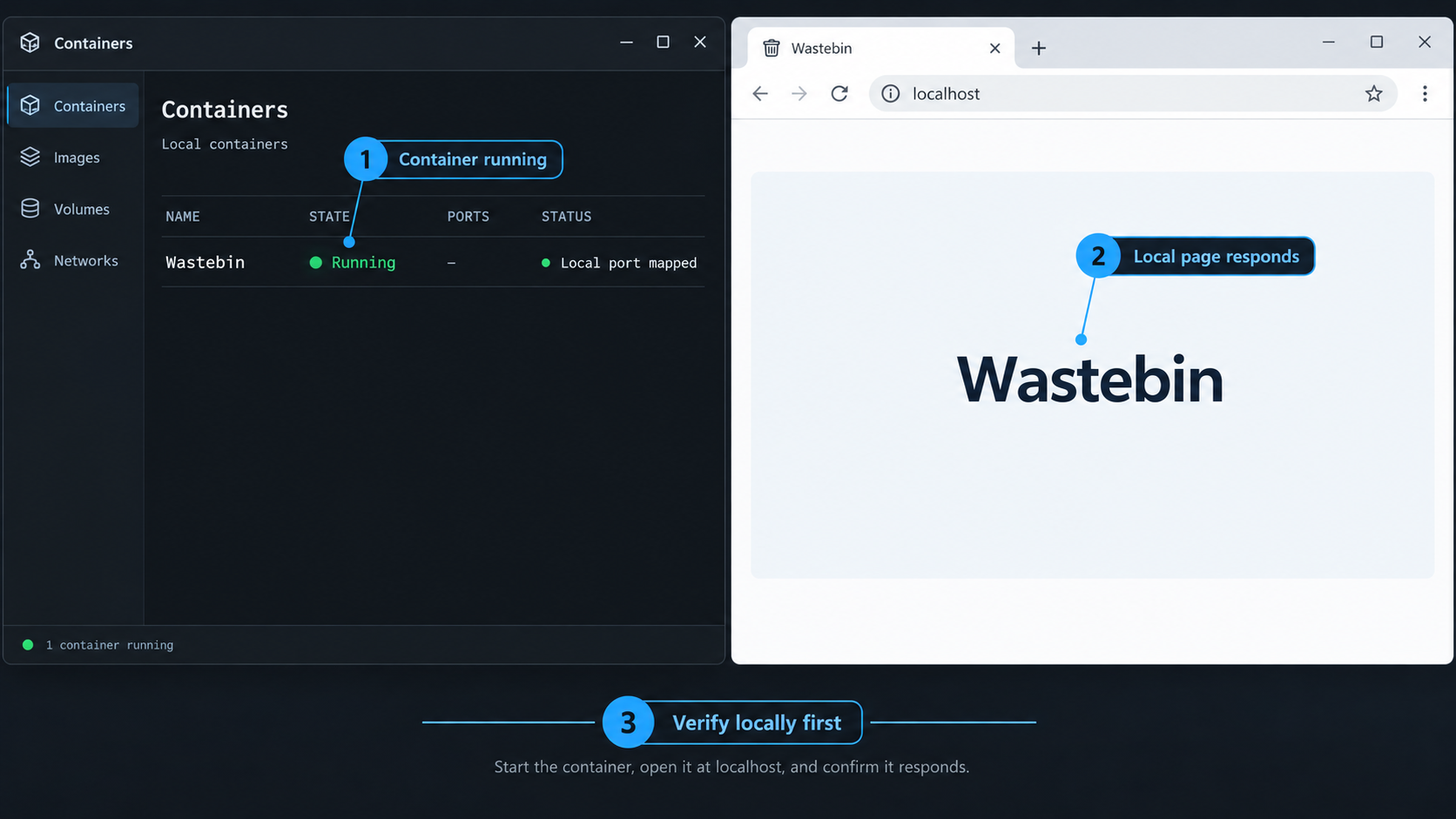
Test Wastebin locally before introducing a tunnel. This separates application and storage problems from Localtonet connectivity.
Confirm that the container remains running
Run docker compose ps. If the service exits or restarts repeatedly, inspect the logs before continuing.
Open the local interface
On the Docker host, open http://127.0.0.1:8088/. Confirm that the response is Wastebin rather than another service using the port.
Create a non-sensitive test paste
Use a distinctive value such as wastebin-persistence-test, submit it without burn-after-reading behavior, and save its URL.
Confirm that the database exists on the host
Verify that data/state.db was created. This confirms that the configured database path and bind mount are being used.
Test restart persistence and owner cookies
Stop and start the service, revisit the saved paste URL, and confirm that the paste remains. Also verify that an owner action still recognizes the original browser cookie, without deleting the test paste yet.
docker compose ps
curl http://127.0.0.1:8088/
ls -ln data
docker compose stop
docker compose start
docker compose ps
A successful HTTP GET confirms reachability but not the complete workflow. The browser test verifies creation, retrieval, cookie continuity, and persistence. If a setting or feature described by development documentation is important to your deployment, test it now against 3.8.0 rather than assuming parity with the default branch.
Create and test an offline SQLite backup
Persistence is not backup. A bind mount protects data from ordinary container replacement, but it does not protect against accidental deletion, filesystem failure, corruption, or an incorrect migration.
The procedure below deliberately stops Wastebin before copying its data directory. That gives SQLite a clean shutdown and avoids presenting an unverified live file copy as safe. It is an offline procedure, so Wastebin is unavailable during the copy and restoration test.
Create a clean backup
Verify the recovery paste
Confirm that the saved non-sensitive test paste is readable immediately before the backup. Record its URL.
Stop Wastebin cleanly
Stop the service and confirm that the container is no longer running before copying the SQLite directory.
Copy the complete data directory
Use an archive-preserving copy so the database and any SQLite companion files present in the directory are captured together.
Restart and recheck the live instance
Start Wastebin, inspect its logs, and verify the same test paste before moving the backup to separate protected storage.
docker compose stop wastebin
docker compose ps
backup_dir="backups/data-$(date +%Y%m%d-%H%M%S)"
sudo cp -a data "$backup_dir"
docker compose start wastebin
docker compose ps
docker compose logs wastebin
A backup held only on the same disk is vulnerable to the same disk failure as the live database. Copy the completed backup to protected storage on another device or storage system. Preserve the corresponding compose.yaml, exact image tag, and secret values as part of the recovery set.
Perform a restoration test
A copied directory is not a proven backup until you restore and read it. The following test temporarily swaps the live data directory for the backup. Run it during a maintenance window, and do not accept new writes between the backup and test if you need the restored copy to represent current state.
docker compose stop wastebin
sudo mv data data.before-restore
sudo cp -a backups/data-YYYYMMDD-HHMMSS data
docker compose start wastebin
docker compose ps
docker compose logs wastebin
Replace data-YYYYMMDD-HHMMSS with the actual backup directory. Open the saved recovery-paste URL and confirm that its content is correct. Create and retrieve another disposable paste to confirm that the restored database is writable.
If the restoration test succeeds, stop Wastebin and decide whether to keep the restored copy or return to the original live directory:
docker compose stop wastebin
sudo rm -rf data
sudo mv data.before-restore data
docker compose start wastebin
docker compose ps
docker compose logs wastebin
The restoration commands rename and remove directories. Confirm the current working directory, backup name, and existence of data.before-restore before running them. Keep an independent copy off the host. If your environment requires online backups, point-in-time recovery, or automated retention, that is outside this tested offline procedure and should use a separately validated SQLite-aware design.
Update only after a verified backup
To update, first choose and document a released target tag. Create and test a backup, change only the image tag in compose.yaml, and then run:
docker compose config > /dev/null
docker compose pull
docker compose up -d
docker compose ps
docker compose logs wastebin
Repeat paste creation, retrieval, cookie, restart, and restoration checks. Do not delete the pre-update backup until the updated instance has passed those tests.
Expose the verified HTTP service with Localtonet
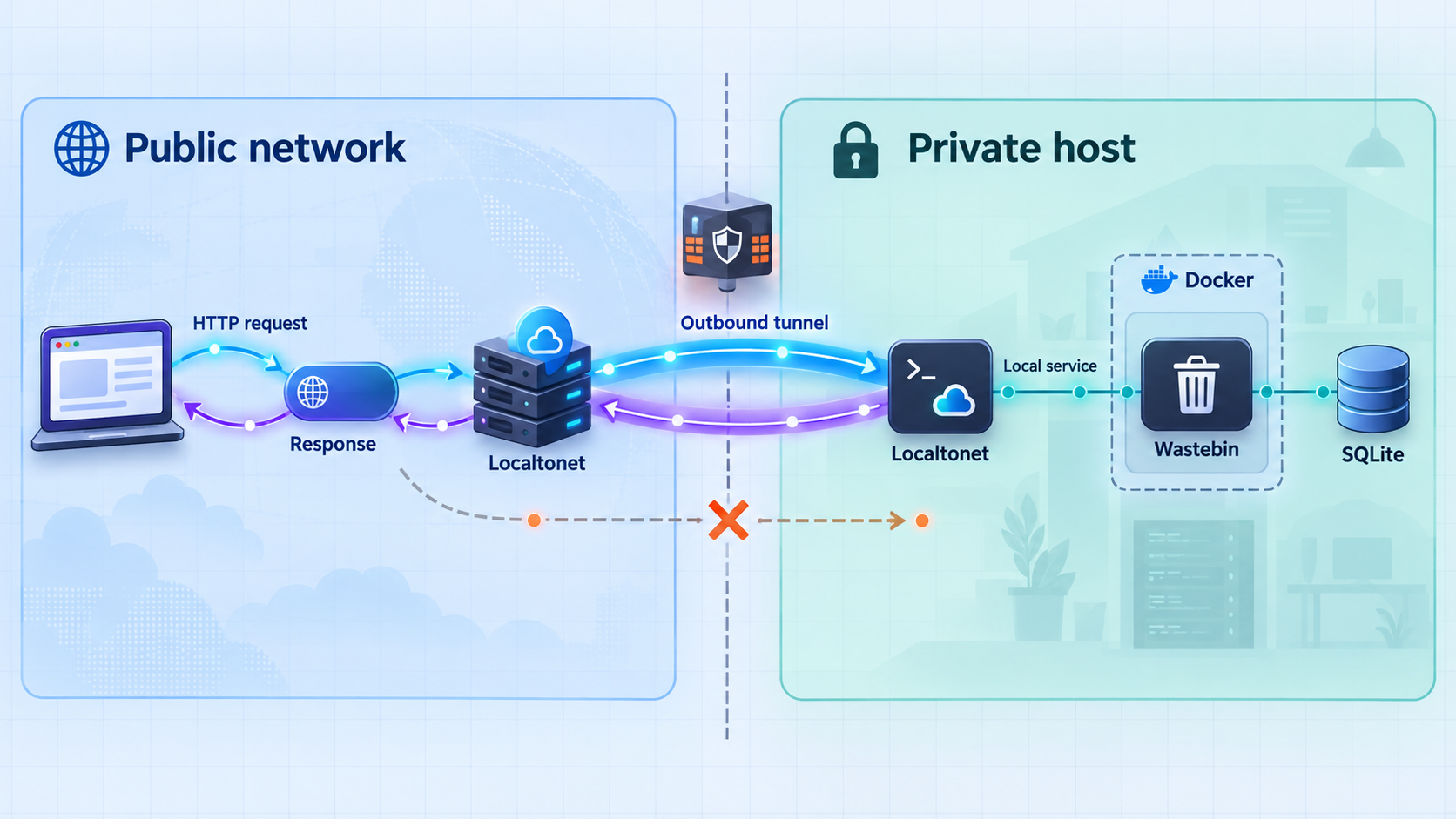
After the local and recovery tests pass, Localtonet can expose Wastebin through a public HTTPS address. Our client establishes an outbound connection to a Localtonet relay server, so this workflow does not require inbound router port forwarding, a public IP address, VPN setup, or inbound firewall changes.
The current documented HTTP workflow uses an HTTP tunnel, a Process Type, an AuthToken representing the client device, an available relay server, and a local IP address and port. Creating the tunnel is not enough. You must press Start, and the selected client must remain connected.
Install and run the Localtonet client
Install the current Localtonet application on the Docker host or another device that can reach Wastebin. Keep the client running and connected.
Open the HTTP Tunnel page and select Process Type
Choose Random Sub Domain, Custom Sub Domain, or Custom Domain as appropriate and available. These process types expose the same local HTTP content at a public HTTPS address. Custom-domain DNS details must follow the current dashboard documentation.
Select the AuthToken
Select the device-specific AuthToken for the client that can reach Wastebin. Do not place the token in Compose, source control, screenshots, logs, or this article.
Select an available server
Choose a relay server from the values currently offered in the dashboard. Server codes and regional availability must be taken from the current product rather than copied from another deployment.
Enter Wastebin's local IP address and port
For a same-host client, use local IP address 127.0.0.1 and port 8088. For a client on another device, use the Wastebin host address and published port that you already verified from that client device.
Press Start and verify the public URL
Start the tunnel, wait for it to run, and open the assigned public HTTPS address. Create and retrieve a disposable, non-sensitive paste through that same public origin.
For the current field layout and domain-specific requirements, see our Localtonet HTTP tunnel documentation.
The public endpoint is available only while the selected Localtonet client is connected and the tunnel is started. Stop the tunnel when remote Wastebin access is no longer required, or delete it when the configuration is no longer needed.
Verify each network layer separately
- Open
http://127.0.0.1:8088/on the Docker host. - If our client is on another device, open the exact Wastebin host address and port from that device.
- Confirm that the selected Localtonet client is connected.
- Confirm that the HTTP tunnel has been started.
- Open the assigned public HTTPS URL from a different browser or network.
- Create and retrieve a disposable test paste through the public URL.
This sequence distinguishes a Wastebin failure from a Docker publication problem, a LAN routing or firewall problem, a disconnected client, an incorrect target, or a stopped tunnel.
Security boundaries and safer exposure patterns
Temporary personal access
For occasional use, keep Docker bound to loopback, start the Localtonet tunnel only when required, share no sensitive material, and stop the tunnel afterward. Treat the public URL as reachable, not secret.
Persistent or multi-user access
Place a properly configured reverse proxy or access-control layer in front of Wastebin. Apply authentication, rate limiting, request-size restrictions, connection controls, logging, and IP policy as appropriate for your users. Configure Localtonet to target that protected local endpoint rather than bypassing it.
This guide does not invent a universal reverse-proxy configuration or rate-limit value. Those settings depend on the chosen proxy, expected traffic, host capacity, and threat model.
Limit direct exposure
When all components run on one host, bind Docker to 127.0.0.1. If another Localtonet client needs LAN access, restrict the host firewall to that source where possible. Do not add router port forwarding alongside the tunnel, since that creates a second public route outside the intended workflow.
Do not paste production secrets
Avoid placing authentication tokens, signing keys, recovery codes, production credentials, private endpoints, or customer data into Wastebin. Paste-level encryption can reduce some risks, but it does not eliminate endpoint compromise, weak passwords, backups, retention, operator access, metadata, or availability concerns.
Troubleshooting the container, database, and tunnel
The container exits or repeatedly restarts
docker compose ps
docker compose logs wastebin
Look for a database write failure, migration error, invalid signing-key length, missing interpolated variable, or occupied port. Re-run docker compose config > /dev/null. A restart policy retries the process but cannot repair invalid configuration.
Wastebin cannot create state.db
Confirm that WASTEBIN_DATABASE_PATH resolves to /data/state.db, the mount maps ./data to /data, and the host directory is writable by the documented user ID 10001.
ls -ldn data
ls -ln data
Confirm that data is a directory and avoid making it world-writable.
A migration fails with extended SQLite error 6410
The current Wastebin documentation says its image is based on scratch, contains no shell, and does not set TMPDIR. It recommends setting TMPDIR to a writable location if a migration fails with extended SQLite error 6410. This advice comes from the unreleased default-branch documentation, so apply it only when that exact failure occurs and verify it against the pinned image.
environment:
  WASTEBIN_DATABASE_PATH: "/data/state.db"
  WASTEBIN_SIGNING_KEY: "${WASTEBIN_SIGNING_KEY}"
  WASTEBIN_PASSWORD_SALT: "${WASTEBIN_PASSWORD_SALT}"
  TMPDIR: "/data"
docker compose config > /dev/null
docker compose up -d
docker compose logs wastebinPort 8088 is already allocated
Stop the conflicting service or change only the host side of the mapping:
ports:
  - "127.0.0.1:8090:8088"
You would then test http://127.0.0.1:8090/ and configure Localtonet to use port 8090. Wastebin can continue listening on container port 8088.
Pastes disappear after restart
Verify that the database path is /data/state.db and that the bind mount is active. The current documentation lists :memory: as the application default, which cannot persist after process exit. Also confirm that the paste did not expire and was not configured for deletion after reading.
Owner actions stop working after restart
Verify that .env still contains the original signing key and that Compose injects it. Replacing or omitting the key invalidates cookies signed with the previous value. Do not print the secret while diagnosing the problem.
The restored database is not writable
Stop Wastebin and compare numeric ownership of the restored directory with the original backup. An ordinary copy made without sufficient privileges can change ownership. Restore with an archive-preserving method and ensure the directory remains writable by the container's documented user ID.
Local access works but the public URL fails
- Confirm that our client is running and connected.
- Confirm that the selected AuthToken belongs to that device.
- Confirm that the selected server is currently available.
- Confirm that the tunnel type is HTTP.
- Confirm that the tunnel was started rather than merely created.
- Test the configured local IP address and port from the client device.
- Check whether a host firewall blocks a separate client device.
- Confirm that the target uses Docker's host-side port.
Frequently asked questions
Why does this guide use Wastebin 3.8.0 instead of latest?
Version 3.8.0 has a specific published release record, while latest is mutable. Pinning the image makes the installation repeatable. The repository lists newer releases, but they should be reviewed and tested explicitly before replacing the baseline.
Does Wastebin require PostgreSQL or MySQL?
No. Wastebin uses SQLite. This deployment stores the database at /data/state.db and persists the complete /data directory through a host bind mount.
Why must I preserve the signing key?
Wastebin uses the signing key for cookies. Its current documentation says that an automatically generated key changes after restart, invalidating existing owner cookies. Preserve the same deployment-specific key if owner actions must remain valid.
Can I back up the SQLite file while Wastebin is running?
This guide does not claim that an ordinary live file copy is safe. Its tested scope is an offline procedure: stop Wastebin cleanly, copy the complete data directory, restart it, and perform a restoration test. Use a separately validated SQLite-aware process if downtime is unacceptable.
Does Wastebin provide user accounts or an administrator login?
No. User authentication and administrator functionality are documented non-features. Password protection for an individual paste does not restrict access to the overall application.
Is the Localtonet public URL private because it is hard to guess?
No. URL secrecy is not authentication. While the client is connected and the tunnel is running, its public address forwards requests to the configured local target. Add an appropriate protective layer for persistent access.
Do I need router port forwarding?
No. Our client creates an outbound connection to a Localtonet relay server. This workflow does not require an inbound router port forward, a public IP address, VPN setup, or an inbound firewall change.
Can the Localtonet client run on another computer?
Yes, if that device can reach Wastebin's host address and published port. In that topology, use the Wastebin host's reachable address rather than 127.0.0.1, and restrict the LAN path appropriately.
Connect your verified Wastebin deployment with Localtonet
Pin the Wastebin image, preserve its database and secrets, complete a restoration test, and verify the application locally. Then create an HTTP tunnel to the tested host port and start it only when you are ready for remote access.
Get Started Free →

