

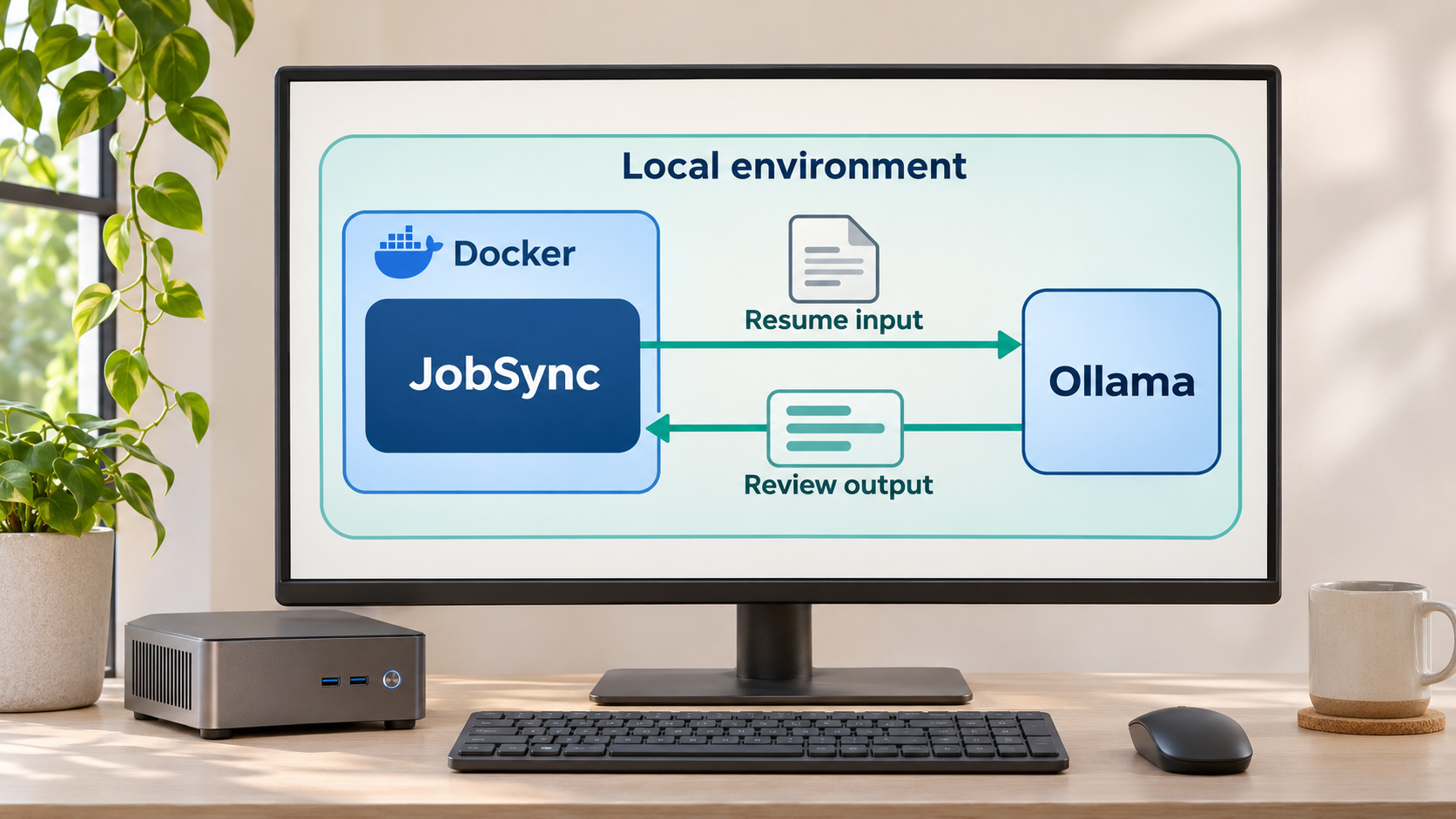
Run your job-search workspace and AI resume tools on infrastructure you control
JobSync combines application tracking, resume review, job matching, interview preparation, and related job-search workflows in one self-hosted web application. In this guide, we install the official Docker deployment, review its optional configuration, start the application, and verify the web interface at http://localhost:3737. We also explain what is known about its Ollama integration, how to approach updates and backups, and how to troubleshoot the initial deployment. After JobSync works locally, we configure a separate Localtonet HTTP tunnel so an authorized user can reach it remotely without opening an inbound router port.
📋 What's in this guide
What you are building
JobSync is an open-source, self-hostable job application tracker and AI-assisted job-search workspace. Its documented features cover more than a simple list of applications. The application can organize jobs, statuses, dates, companies, contacts, interview rounds, questions, tasks, activity, daily goals, and resumes. It also supports workflows such as matching a resume against a job posting, reviewing resume sections, producing cover letters, discovering positions from supported job boards, and tracking AI usage.
The official installation path used in this guide is Docker Compose. You clone the JobSync repository, enter its directory, and run docker compose up. On the first startup, Docker downloads the prebuilt application image, so that initial launch can take longer than later starts. Once the service is ready, its documented local web address is http://localhost:3737. You then open that address and create the first JobSync account.
JobSync uses Ollama by default for local AI functionality. This is useful when you want AI processing to run through an Ollama service under your control instead of automatically sending prompts to a hosted AI provider. JobSync can also work with providers such as OpenAI, Gemini, DeepSeek, and OpenRouter when configured with the required provider credentials, but those hosted-provider configurations are outside this Ollama-focused workflow.
Self-hosting does not make every part of the system automatically private or secure. The actual data path depends on the AI provider you configure, the network location of Ollama, any external job-discovery services used by the application, and whether you expose the web interface remotely. Treat resumes, contact details, interview notes, application history, and generated documents as sensitive personal data.
Local access and remote access are separate stages
Keep installation and remote access separate while diagnosing the deployment. Docker starts JobSync locally, and JobSync must answer correctly on port 3737 before a tunnel can help. A Localtonet tunnel does not install JobSync, repair its container, configure Ollama, or create a JobSync account. It carries requests from a public address to an already working local HTTP target.
With Localtonet, the client on the host establishes an outbound connection to one of our relay servers. That approach avoids inbound router port forwarding, firewall rule changes, VPN setup, and the requirement for a public IP address. The resulting tunnel remains available only while the selected Localtonet client or device is connected and the tunnel is running.
First make JobSync work at http://localhost:3737. Next test its account, resume, and Ollama-backed workflows locally. Configure the public application URL if required, restart and retest, and only then start the Localtonet HTTP tunnel.
Prerequisites for self-hosting JobSync
Choose a host that can remain online whenever you need JobSync. This may be a workstation, home server, or another Docker-capable machine. The official workflow requires Docker to be installed and running. It also uses Git to clone the repository. Because the supplied project material does not establish a complete operating-system support matrix or minimum CPU, memory, and disk requirements, we do not invent those limits here.
The host must have enough free storage for Docker, the JobSync image, application data, backups, and any local Ollama models. AI model storage and memory requirements vary substantially by model. Confirm those requirements against the exact Ollama model you intend to run rather than relying on a generic estimate.
| Requirement | Why it is needed | How to verify it safely |
|---|---|---|
| Docker with Compose support | Runs the official container-based JobSync deployment. | Confirm that Docker is running and that the docker compose command is available. |
| Git | Clones the official JobSync repository and its deployment files. | Confirm that the git command is available in your terminal. |
| Network access during installation | Git must retrieve the repository, and Docker must download the prebuilt image on first startup. | Check outbound DNS and HTTPS access from the host if cloning or image download fails. |
| Available local TCP port 3737 | The documented JobSync web interface is served at localhost:3737. |
Make sure another application is not already listening on port 3737. |
| Ollama for local AI | Provides JobSync's default local AI path. | Install Ollama through its supported process and verify the intended model independently before testing JobSync AI features. |
| Localtonet client, optional | Creates the outbound connection used for remote HTTP access. | Install it only on a device that can reach the JobSync service, then select that device with its own authentication token. |
Docker and Git checks
Before cloning JobSync, open a terminal on the host and confirm that the required command-line tools respond:
docker --version
docker compose version
git --version
These checks do not prove that the Docker engine is running, but they establish that the command-line tools are installed. If docker compose version fails, install or repair a current Docker distribution that includes Compose support. The JobSync instructions use the two-word docker compose command, not the older standalone docker-compose spelling.
Prepare Ollama separately
JobSync's public project information establishes that Ollama is its default AI option, but the evidence supplied for this tutorial does not provide a complete Ollama installation command, a verified JobSync-to-Ollama address setting, or a universally required model pull command. Those values can change with the JobSync release, Ollama deployment method, and selected model. For that reason, this guide does not guess them.
Install Ollama using the supported method for your host, start its service, and make sure the model you want to use can answer a local test before attributing an AI failure to JobSync. The JobSync v1.1.22 release information says the default AI model changed from llama3.1 to qwen3.5:9b. Treat that as release-specific information. Check the version you actually deploy and its current example environment file before downloading a large model or changing a model name.
If JobSync and Ollama share one host or a private network, keep the Ollama API limited to the interfaces that need it. This tutorial exposes only the authenticated JobSync web application. It does not require a public Ollama endpoint, and it does not establish a public MCP endpoint.
Install JobSync with Docker Compose
The official quick-start sequence contains three commands. Run them from a terminal on the Docker host. The first command clones the current repository, the second selects its directory, and the third starts the Compose deployment.
Clone the official JobSync repository
Retrieve the application and its deployment files directly from the documented repository:
git clone https://github.com/Gsync/jobsync.gitEnter the project directory
Change into the directory created by Git so Docker Compose can read the project's Compose configuration:
cd jobsyncStart JobSync
Launch the documented Docker Compose deployment:
docker compose upLeave this terminal open during the first verification. The foreground output provides the most immediate indication of image-download, startup, configuration, database, and port-binding errors.
The first startup downloads a prebuilt application image. Download time depends on the host's connection and whether any image layers are already cached. Do not repeatedly interrupt the process merely because the web page is not available immediately. Watch the terminal for an explicit failure or for output indicating that the service has started.
Running in the foreground is particularly useful for the first deployment because container output remains visible. If the process exits, read the first relevant error rather than only the final shutdown message. Common categories include an unavailable Docker engine, a failed image download, a malformed environment value, a port conflict, a permissions problem, or a service dependency that did not become ready.
For this documented quick start, docker compose up is both the launch command and the source of foreground logs. Once JobSync is verified, you can decide how to integrate the Compose deployment with your host's normal service-management and startup practices.
Configure JobSync, authentication, and Ollama
JobSync supports optional configuration through a .env file, and the repository contains a .env.example file. Review that example from the exact revision you cloned before creating or editing your local environment file. Environment names and expected formats can evolve between releases, so the checked-out example is more authoritative for your deployment than copied values from an older tutorial.
The documented optional variables relevant to this workflow include TZ, AUTH_SECRET, ENCRYPTION_KEY, NEXTAUTH_URL, MCP_ENABLED, and DATABASE_URL. Their names communicate their broad purpose, but names alone do not establish acceptable formats, generation requirements, defaults, or migration consequences. Follow the comments and validation rules in the repository version you deploy.
| Variable | Role in the deployment | Safe handling guidance |
|---|---|---|
TZ |
Sets the deployment's intended time-zone context where supported by the application configuration. | Use a value accepted by the current example and application. Verify dates, scheduled work, and daily goals after startup. |
AUTH_SECRET |
Supports the application's authentication configuration. | Use a strong private value in the format required by the current release. Never commit it or include it in support screenshots. |
ENCRYPTION_KEY |
Provides key material for application functionality that relies on encrypted values. | Generate and preserve it according to current project instructions. Do not casually rotate or lose it without understanding the effect on stored data. |
NEXTAUTH_URL |
Identifies the address used to open JobSync for authentication-related URL handling. | Set it to the address users actually use, then test sign-in, sign-out, redirects, and a fresh browser session. |
MCP_ENABLED |
Controls the built-in MCP capability. The project documentation describes MCP as enabled by default. | Disable it if it is not part of your deployment. Do not expose an unknown MCP port or path. |
DATABASE_URL |
Selects the application's database connection according to the supported project configuration. | Do not substitute an unverified database URL. Back up existing data before changing database configuration. |
Generate secrets rather than copying examples
Placeholder values in sample files are not production secrets. Generate unique values with a trusted secret-generation method that meets the current JobSync format requirements. Keep the resulting .env file out of source control, backups intended for public sharing, terminal screenshots, and issue reports. A Localtonet device token is also a secret and belongs in the Localtonet client workflow, not in JobSync's environment file.
Preserve important secrets in your own secure credential store. Losing an authentication or encryption value can have more serious effects than forgetting an ordinary preference. Because the supplied project evidence does not define the exact rotation behavior for these settings, do not change them on an active deployment without checking the documentation associated with your installed JobSync version and taking a verified backup first.
Set the application URL deliberately
JobSync's documentation says that NEXTAUTH_URL should be the address used to open the application. During a local-only evaluation, that address is http://localhost:3737. When users primarily open JobSync through a Localtonet public HTTPS URL, the public URL may need to become the configured value.
The exact interaction between a particular JobSync release and a Localtonet-assigned URL is not established by the supplied evidence, so treat this as a testable configuration step rather than an automatic promise. After changing NEXTAUTH_URL, restart the deployment through the project's supported process and verify account creation or sign-in, redirects, sign-out, and a new private browser session through the final address.
Do not assume that a page loading proves authentication is fully configured. A mismatched application URL may appear only during sign-in, callback, redirect, cookie, or sign-out operations. Keep local access available while testing the public URL so you have a recovery path.
Connect and test Ollama
Start with Ollama working independently. Then open JobSync's current AI settings and confirm the selected provider and model against the version you installed. The release evidence identifies qwen3.5:9b as the default model introduced in v1.1.22, but it does not establish that every newer checkout keeps that default or that the model is downloaded automatically.
Use a small, non-sensitive test before importing a real resume. A successful test should prove that JobSync can contact Ollama, that Ollama recognizes the configured model, and that the model returns a response. If it fails, distinguish among three layers: the JobSync web application, network access from the container to Ollama, and the Ollama model itself.
A host-local address can be misleading from inside a container. Within a container, localhost normally refers to that container, not automatically to another process running on the Docker host. The correct address depends on the host operating system, Docker networking, and whether Ollama runs on the host, in another container, or on another private machine. Since the supplied JobSync evidence does not establish one universal Ollama endpoint setting, use the networking method documented for your exact Docker and Ollama arrangement.
Decide whether to keep MCP enabled
JobSync includes a built-in MCP server for compatible AI agents such as Claude Desktop, and its documented configuration says it is enabled by default. The available evidence mentions token generation but does not establish the server's listening port, endpoint path, complete client configuration, or remote-exposure design. We therefore do not guess an MCP URL or combine it with the HTTP tunnel in this guide.
If you do not use MCP, disabling it reduces the number of enabled application capabilities. If you do use it, follow the documentation for your installed JobSync version, protect its token as a credential, and test it on a trusted network before considering any broader reachability. A Localtonet HTTP tunnel to port 3737 should be treated as access to the documented web UI, not as proof that an MCP client is correctly or safely connected.
Verify JobSync locally before remote access
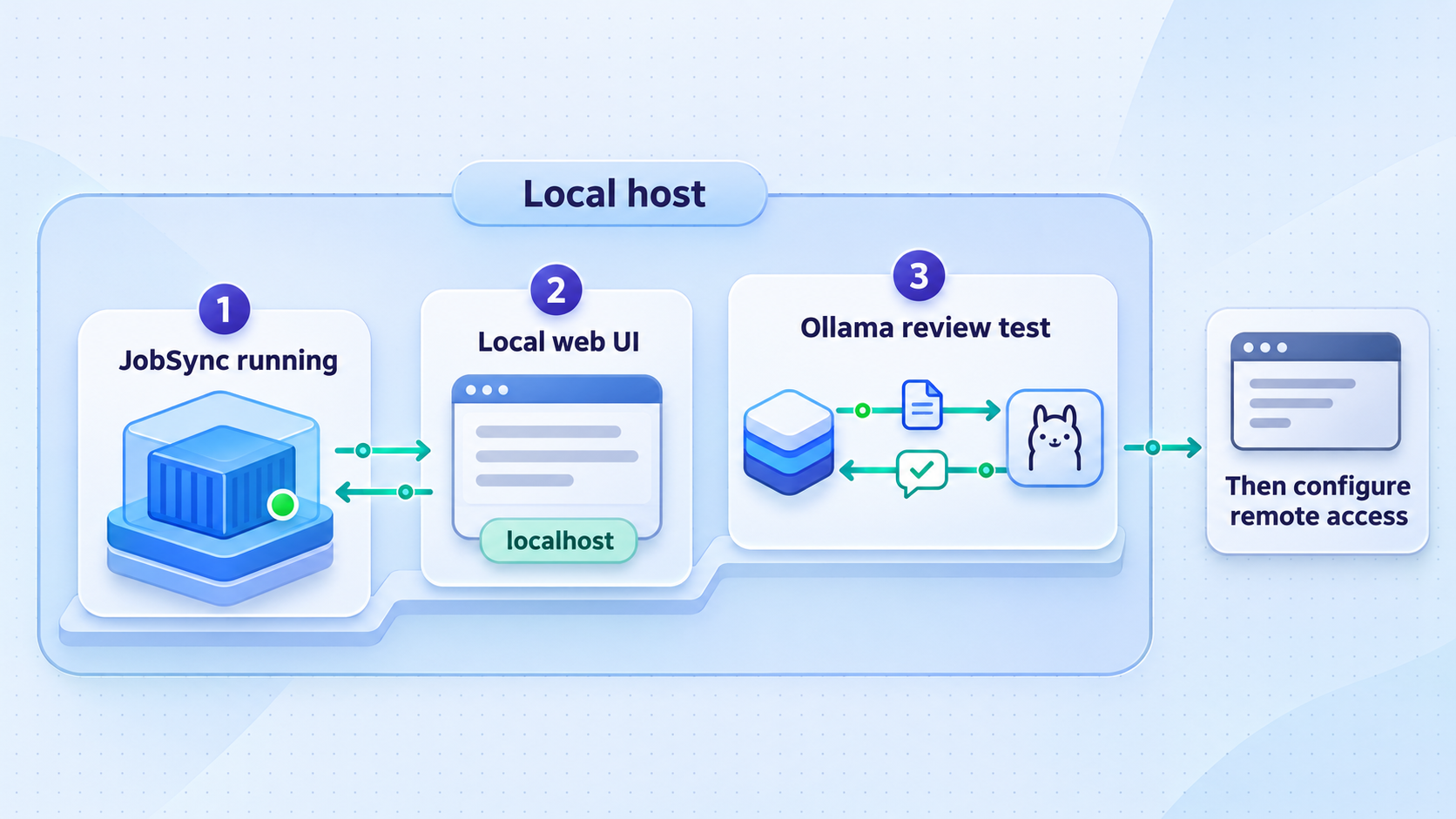
Open the documented address from a browser on the Docker host:
http://localhost:3737The initial page should allow you to create an account. Complete that process locally before adding a public route. If the page does not load, do not create a Localtonet tunnel yet. A tunnel cannot correct an application that is not listening, a failed container, or a local port conflict.
Open the local web interface
Visit http://localhost:3737 on the Docker host and confirm that the JobSync page renders without a browser connection error.
Create and test the first account
Create the account through the application interface. Sign out and sign in again so the test covers authentication rather than only initial page rendering.
Create a disposable test record
Add a non-sensitive sample job or task, reload the page, and confirm that the record remains available. This tests a basic write and read path without exposing real personal data.
Test one Ollama-backed action
Use harmless sample content for a resume review, match, or another available AI action. Confirm that the configured local model responds and review the application's AI usage information where available.
Test from another private device if needed
If the service is intended to work across your LAN, verify it using the host's private address and port 3737 only if your Docker publishing and local firewall policy permit that connection. Do not weaken the firewall merely to complete this optional test.
What a complete local check should prove
A strong verification covers page rendering, account authentication, persistent application data, and at least one AI request. These tests isolate different failure modes. A rendered sign-in page proves only that an HTTP response arrived. It does not prove that credentials work, that the database can store records, that Ollama is reachable, or that a chosen model fits the host's resources.
JobSync v1.1.22 includes AI usage information such as token, call, response-time, provider and model, feature, context-limit, and failure details. Where your installed version provides this view, use it to distinguish a rejected provider request from a timeout, interruption, or model issue. Do not publish screenshots of prompts or resume-derived content when asking for help.
Updates, backups, and routine operation
A self-hosted productivity system becomes important once it contains application dates, recruiter contacts, interview notes, resume versions, and follow-up tasks. Plan backup and update procedures before relying on it as the only copy of that information.
Use JobSync's backup and restore workflow
JobSync provides application-level backup and restore as a single ZIP archive. Create a backup after initial configuration and before updates, database changes, secret changes, or major imports. Store copies somewhere separate from the Docker host so a disk failure does not remove both the live deployment and its only backup.
Treat backup archives as sensitive. They may contain resumes, contact details, notes, application history, and other personal records. Encrypt backup storage where appropriate, limit who can download archives, and do not attach a real backup to a public issue. A backup is not proven until you have also confirmed that the corresponding restore workflow is understandable and usable.
Update through the supplied deployment scripts
The repository includes deploy.sh for shell-based environments and deploy.ps1 for PowerShell. These scripts are the documented update path. Before running either one, create a current JobSync backup, preserve your environment configuration, and review script changes in the revision you plan to execute.
From the JobSync directory, the script names correspond to the following platform-appropriate invocations:
./deploy.sh.\deploy.ps1Run only the script appropriate for your environment. The supplied evidence does not establish additional arguments, unattended scheduling behavior, or a guaranteed rollback command, so none are invented here. After an update, repeat the local checks for account access, persistent records, AI responses, backups, and the public URL.
Application images, database schemas, defaults, and environment expectations can change between releases. Back up JobSync first, retain the environment values required by the current installation, and read the release information for the version you are adopting.
Understand the availability chain
Local JobSync access depends on the host, Docker, the JobSync container, its storage, and the local network. AI features additionally depend on Ollama and the selected model. Remote access adds the Localtonet client, its outbound connection, the selected relay, and the running HTTP tunnel. If any required component stops, the corresponding functionality becomes unavailable.
This dependency chain helps with diagnosis. If local JobSync works but AI does not, investigate the provider and model path. If local JobSync works but the public URL does not, investigate the Localtonet client and tunnel. If neither local nor remote access works, repair the local application first.
Expose the verified JobSync web UI with Localtonet
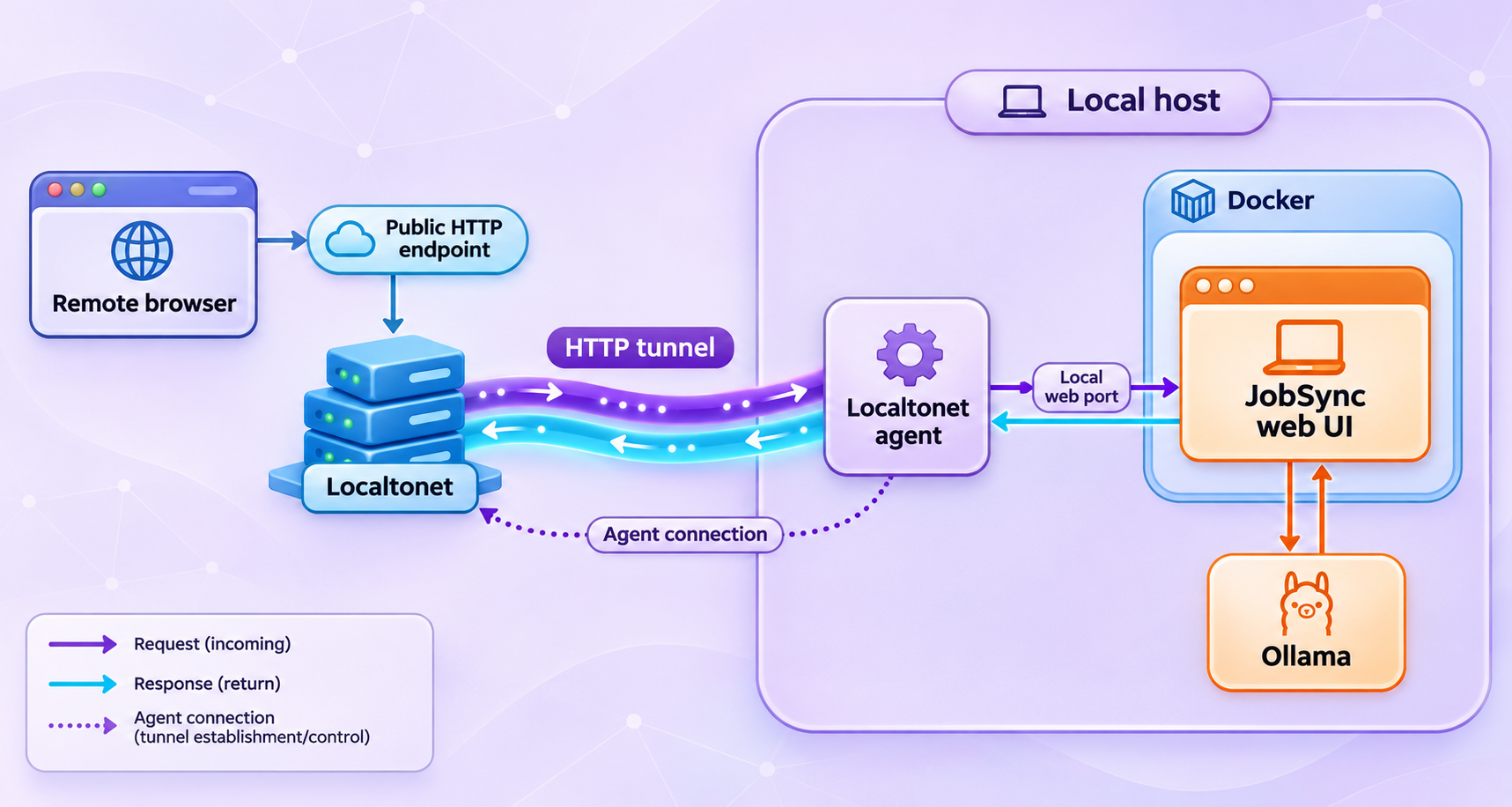
Once http://localhost:3737 works reliably, you can add remote HTTP access. Install and run our client on the JobSync host or on another device that can reach the JobSync service. The simplest target is usually the same host because the client can forward to the local service without requiring JobSync to be reachable across the LAN.
An HTTP tunnel is appropriate because JobSync provides a browser-based HTTP web interface. HTTP tunnels can use a generated random subdomain, a selected custom subdomain where supported, or a custom domain. All three process types serve the content at a public HTTPS address. Availability can vary by plan and current product configuration, so select only options shown in your dashboard.
Install and run the Localtonet client
Install our client for the operating system on the device that can reach JobSync. Keep the client running because the tunnel is available only while that selected device is connected.
Authenticate or select the client device
Use the device-specific authentication token associated with that client. Do not copy it into JobSync, source control, screenshots, or this article. Tokens must be obtained from your account and must never be guessed.
Select an available relay server or region
Choose from the current values presented by our dashboard. Server codes and regional availability can change, so do not use a hardcoded value copied from an unrelated tutorial.
Create an HTTP tunnel to JobSync
Configure the local target as the JobSync address reachable from the Localtonet client. When both run on the same host, use the loopback address 127.0.0.1 and port 3737. If the client runs elsewhere, use a private address that the client device can actually reach and that your network policy permits.
Start the tunnel
Creating a tunnel does not start it. Use the Start control, then wait for the selected client and tunnel to report a connected or running state.
Test the assigned public HTTPS address
Open the assigned URL in a private browser window or on a separate device. Test the JobSync sign-in flow, redirects, sign-out, and a normal page reload rather than checking only the landing page.
For the current dashboard workflow and field names, consult our Localtonet documentation. Exact relay values, domain options, and plan availability should always come from the current product rather than a hardcoded example.
Reconcile the public URL with JobSync
After the Localtonet tunnel assigns a public HTTPS URL, compare it with JobSync's configured NEXTAUTH_URL. The JobSync guidance says this setting should identify the address used to open the application. If remote users will use the Localtonet URL, update the value according to the current JobSync environment-file instructions, restart JobSync through its supported workflow, and retest both local recovery access and public authentication.
Use a stable public address before treating the deployment as permanent. A generated or changed address can require another NEXTAUTH_URL adjustment. Custom-domain DNS instructions are not included here because exact requirements must be checked against current Localtonet documentation before changing DNS.
The public URL works only while the chosen Localtonet client is connected and the tunnel is running. Stopping or deleting the tunnel removes that route but does not stop the local JobSync container.
Security guidance for resumes and job-search data
Remote access changes the threat model. A service that was reachable only from the local host now has a public URL, even though it is still forwarded to a private machine. Keep JobSync's own account protection enabled and use strong, unique credentials. Do not share the initial account, application URL, device token, environment secrets, MCP token, provider keys, or backup archives casually.
Avoid placing real resumes into the system until installation and AI tests succeed with sample content. A resume can contain an address, telephone number, employment history, education, and other identifying details. Interview notes and contact records can add information about other people. Limit access according to the sensitivity of the combined dataset.
Keep Docker, the host operating system, JobSync, and Ollama maintained. Review JobSync release notes before updating because features, defaults, model choices, and migrations can change. In particular, do not assume that an AI model named by one release remains the best or default choice in every later release.
A Localtonet tunnel provides connectivity to the configured target. It does not replace JobSync authentication, host hardening, least-privilege access, secret management, backups, or your organization's security policy. Expose only the intended web service and never publish unverified database, Ollama, or MCP ports.
Troubleshooting JobSync, Ollama, and the HTTP tunnel
The Git clone fails
Confirm that Git is installed, the repository URL was entered exactly, DNS works, and the host has outbound HTTPS access. If a partial jobsync directory was created, inspect it before rerunning the command. Do not overwrite local configuration or data from a previous deployment accidentally.
docker compose up cannot connect to Docker
The Docker command-line client may be installed while the engine is stopped or inaccessible to the current user. Start Docker using the host's normal mechanism and verify access under the same account that will run JobSync. Avoid solving a permissions error by applying broad, unexplained privileges to application files or sockets.
The image download fails
The first startup requires Docker to download a prebuilt image. Check outbound connectivity, DNS resolution, available disk space, and any authenticated registry or network policy indicated by the actual Docker error. Preserve the complete error text, but remove credentials and private addresses before sharing it.
Port 3737 is already in use
Another process may already be bound to the documented JobSync port. Identify that process before stopping it. The supplied evidence does not establish a supported JobSync port-remapping procedure, so this guide does not invent a Compose edit. Prefer freeing the documented port or follow the current JobSync deployment documentation if it explicitly supports another mapping.
The page does not open at localhost
Keep docker compose up running and inspect its foreground output. Make sure you are opening http://localhost:3737 on the Docker host. If you are browsing from another computer, localhost refers to that other computer, not the server. Use the host's private address only if the service is published to the LAN and local firewall rules permit it.
JobSync opens, but AI actions fail
First prove that Ollama is running and that the configured model can respond outside JobSync. Next verify the provider and model selected in the installed JobSync version. Then check whether the container can reach Ollama at the configured address. If JobSync points to localhost, remember that container-local loopback may not be the Docker host.
Also check model resource requirements. A model may be installed correctly but respond slowly, fail to load, or time out when the host lacks sufficient memory or other resources. Use JobSync's AI usage and failure information if your installed version provides it. Do not switch to a hosted provider with real resume data until you understand that provider's data path and have intentionally configured its credentials.
The public URL returns an error, but localhost works
Confirm that the Localtonet client is connected, that the correct device token was selected, and that the HTTP tunnel was started after creation. Verify that its local target is the address reachable from the client device and that the port is 3737. If the client and JobSync run on the same host, test 127.0.0.1:3737 locally from that host.
Do not hardcode a relay server code from an old guide. Select a currently available server or region from the dashboard. If the tunnel works intermittently, determine whether the host sleeps, Docker stops, the client disconnects, or the tunnel itself is stopped.
The public page loads, but authentication redirects incorrectly
Compare the browser address with NEXTAUTH_URL. JobSync says this value should match the address used to open the application. After correcting it according to the current example environment file, restart the application using its supported workflow. Clear only the relevant test session or use a private browser window, then repeat sign-in and sign-out.
A successful home-page request is not enough. Test a full authentication cycle through the exact public HTTPS URL. If local and public URLs must coexist, verify that your JobSync release supports the intended arrangement rather than assuming multiple origins will work.
The MCP client cannot connect
Do not infer an MCP endpoint from port 3737 or from the web application's public URL. The evidence available for this guide does not establish the MCP port, route, transport configuration, or complete client setup. Check the documentation shipped with the exact JobSync version, generate and protect the required token, and test MCP on a trusted network. Keep the MCP integration disabled if it is not required.
An update completes, but behavior changes
Review the release notes between your old and new versions. Check environment-file changes, defaults, database expectations, selected AI provider, and model name. Repeat local verification before blaming the public tunnel. If restoration is required, use a backup created before the update and the restore process supported by that JobSync version.
Frequently asked questions
What URL does JobSync use after installation?
The documented local web interface is http://localhost:3737. Open it on the Docker host after docker compose up starts successfully. If you browse from another device, localhost refers to that device, so you need a permitted private address or the configured Localtonet public URL.
Does JobSync require a hosted AI API?
No. JobSync uses Ollama by default, so its AI features can run through a locally managed model service. It also supports hosted providers such as OpenAI, Gemini, DeepSeek, and OpenRouter when intentionally configured. Selecting a hosted provider changes the data path and requires the appropriate provider credentials.
Which Ollama model should I install?
JobSync v1.1.22 changed its default model from llama3.1 to qwen3.5:9b. Defaults can change, so inspect the settings and example environment file for the exact release you deploy before downloading a model. Also confirm that the host meets the chosen model's storage and memory requirements.
Does using Ollama guarantee that all JobSync data stays local?
Ollama provides a local AI path, but the complete answer depends on your configuration and the features you use. Selecting a hosted AI provider sends relevant requests to that provider. Job-discovery and other external integrations can also involve network requests. Review each configured integration instead of treating self-hosting as an automatic guarantee about every data flow.
Do I need router port forwarding for remote JobSync access?
No. The Localtonet client establishes an outbound connection to our relay infrastructure, so the normal tunnel workflow does not require inbound router port forwarding, a public IP address, firewall changes, or VPN setup. The client must remain connected and the tunnel must remain running.
Should NEXTAUTH_URL use localhost or the Localtonet URL?
JobSync says NEXTAUTH_URL should be the address used to open the application. Use the local address during a local-only deployment. If users primarily access JobSync through the Localtonet public HTTPS URL, configure and test that address according to the current JobSync instructions. Always verify sign-in, redirects, sign-out, and a fresh session after changing it.
Can I expose JobSync's MCP server through the same instructions?
This guide exposes only the documented JobSync web interface on port 3737. The available evidence does not establish the MCP server's port, endpoint path, transport, or full client configuration. Do not guess those values or assume the web tunnel is an MCP tunnel. Follow the documentation for your exact JobSync release and protect any generated MCP token.
Does creating a Localtonet tunnel make it active immediately?
No. Creating a tunnel does not mean it is running. Start it with the Start control and confirm that the selected device is connected. You can later stop the tunnel to remove remote reachability or delete it if the configuration is no longer needed.
How should I back up JobSync?
Use JobSync's built-in backup workflow to export the application data as a single ZIP archive. Create a backup before updates or configuration changes, keep a copy away from the Docker host, and protect it as sensitive personal data. Confirm that you understand the matching restore workflow before relying on the backup.
Can the Localtonet client run on another device?
Yes, provided that device can reach the JobSync host and port over a permitted local network path. Running both on the same host is often simpler because the tunnel can target 127.0.0.1:3737. If the client runs elsewhere, use the JobSync host's reachable private address and keep local firewall access limited to what is necessary.
Connect your verified JobSync deployment with Localtonet
Start JobSync locally, confirm its account and Ollama workflows, then create an HTTP tunnel to port 3737 for controlled remote access without inbound router port forwarding.
Get Started Free →