

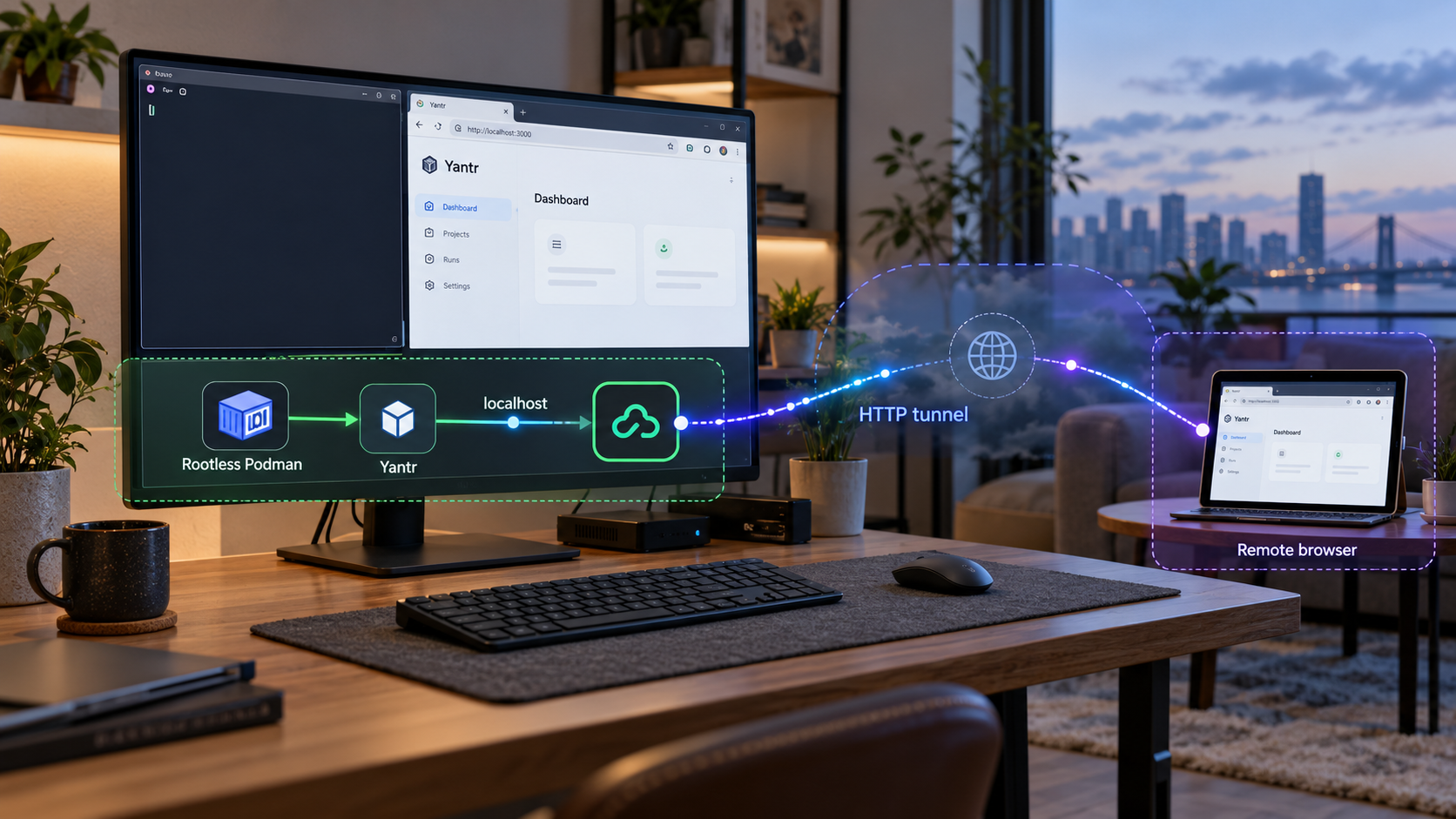
Run a rootless homelab app store on Linux, verify it locally, and publish its web interface only when remote access is needed
Yantr is a self-hosted application manager designed to run alongside an existing Linux installation instead of replacing it. It uses rootless Podman to manage isolated application stacks and provides a browser interface at a documented local endpoint. This guide covers the verified requirements, the supported installer, local account setup, service management, troubleshooting, and an optional Localtonet HTTP tunnel for remote browser access. Where the available project evidence does not establish an exact manual container flag, volume, or socket mapping, we say so rather than inventing a command that could produce an incomplete installation.
📋 What's in this guide
What Yantr installs and how the architecture works
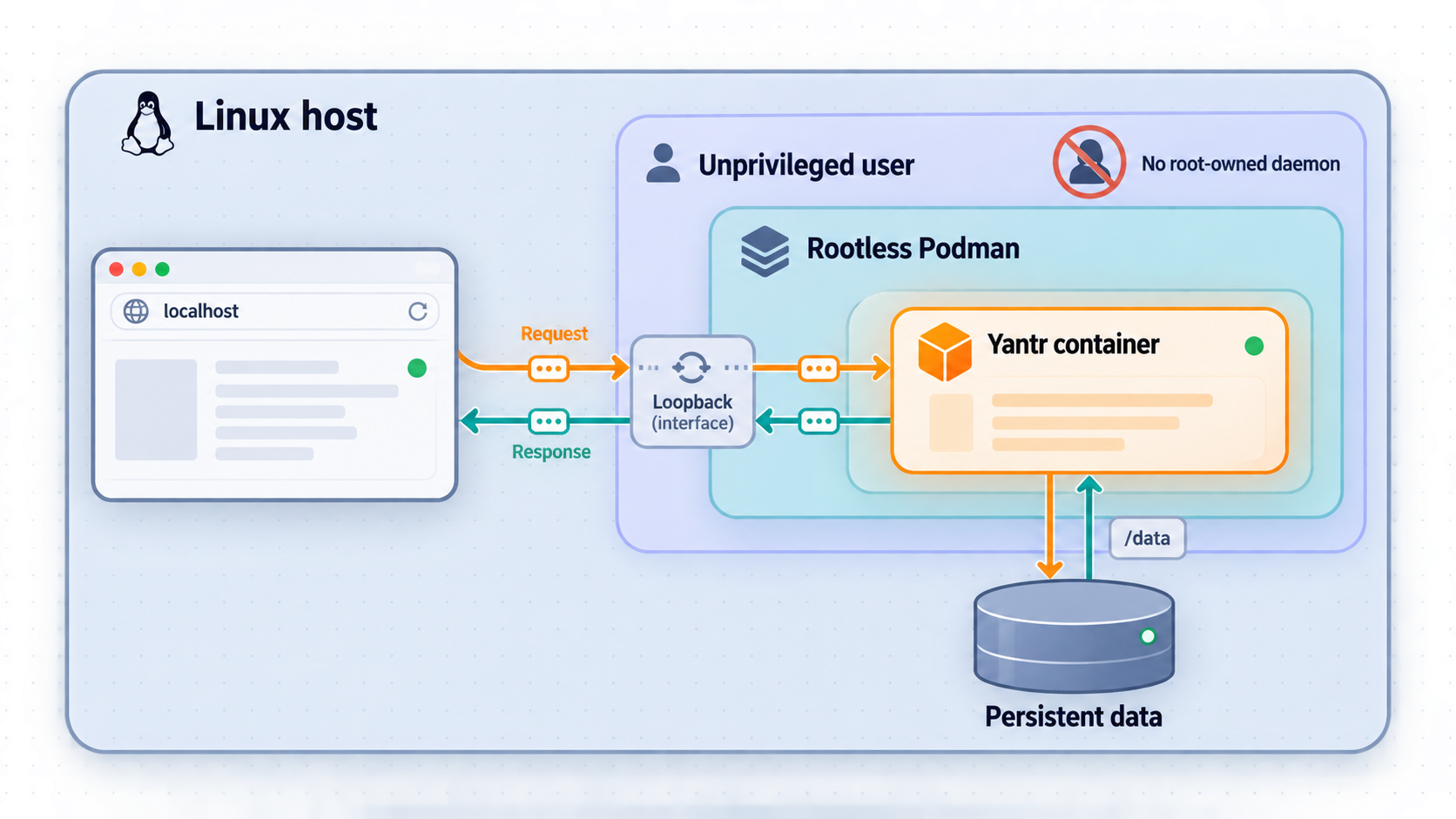
Yantr is a self-hosted homelab app store and Podman management interface. It is intended for a Linux machine that continues to perform its normal role, such as a laptop, Raspberry Pi, old computer, workstation, home server, or virtual private server. Yantr adds an application layer to that machine rather than asking the operator to re-image it with a dedicated appliance operating system.
The Yantr service itself runs as a rootless container. It communicates with the current user's Podman environment and manages application stacks there. The project's documented architecture uses Linux user namespaces, the unprivileged Podman socket, and systemd Quadlet for service supervision. Container data remains in user-space storage rather than requiring a root-owned Docker data directory.
Rootless does not mean that every possible application is automatically harmless. It means the container engine and its workloads operate under an unprivileged host account rather than through a root-level container daemon. An application can still read data deliberately mounted into it, consume host resources, contain vulnerabilities, or expose an unsafe network service. Review every application definition and every requested mount, environment variable, port, and credential before deployment.
http://localhost:5252. The first visit is used to create the operator account.
Yantr and Localtonet have separate responsibilities
Yantr installs and manages self-hosted applications. Localtonet does not replace Podman, systemd, Yantr, or Yantr's own account controls. Our role in this workflow begins after the web interface is functioning locally. The Localtonet client creates an outbound connection to one of our relay servers, and an HTTP tunnel forwards requests from its assigned public address to the configured local IP address and port.
Keeping those responsibilities separate makes troubleshooting much easier. If http://localhost:5252 does not work on the Yantr host, creating a tunnel will not repair Yantr. The application must be installed, running, and reachable locally before remote access is configured.
Prerequisites and planning
The verified Yantr requirements describe Linux as the host environment and Podman 4.4 or later as the container engine. The project's published minimum is one CPU core and 140 MB of RAM for the Yantr core and a couple of basic applications. Actual capacity depends much more heavily on the applications installed through Yantr. Media servers, synchronization platforms, databases, and AI workloads can require substantially more CPU, memory, and storage than the management interface itself.
For a more comfortable daily-use homelab, the project recommends at least four CPU cores, 2 GB of RAM, and SSD or NVMe storage. Ubuntu 22.04 or later and Debian 12 or later are listed as recommended host environments. The project also identifies Raspberry Pi 4 and 5 systems, Intel NUCs, old laptops, cloud virtual servers, Synology NAS systems, and Proxmox or LXC environments as known deployment targets. Compatibility can still depend on processor architecture, distribution packaging, kernel configuration, user namespaces, systemd availability, and the requirements of each application image.
| Requirement | Documented baseline | Planning guidance |
|---|---|---|
| Host operating system | Linux with rootless operation | Use a normal user account with a functioning home directory and user-level systemd support. |
| Container engine | Podman 4.4 or later | Confirm the installed version before assuming an older distribution package is sufficient. |
| Minimum compute | 1 CPU core and 140 MB RAM | Treat this as a minimum for Yantr and a few basic apps, not as sizing for every workload in the catalog. |
| Recommended compute | 4 or more CPU cores and 2 GB or more RAM | Allocate additional resources for databases, media processing, synchronization, and other demanding services. |
| Recommended storage | SSD or NVMe | Capacity and backup requirements depend on the deployed applications and their persistent data. |
| Local web endpoint | http://localhost:5252 |
Verify this endpoint directly on the host before adding any remote-access layer. |
Check the host before installation
Start from a Linux user account that will own and operate the Yantr deployment. Avoid switching casually between users because rootless Podman storage, sockets, systemd user services, and container ownership are tied to the account running them. Running one command as a normal user and another with sudo can create a second, separate container environment and make a healthy service appear to be missing.
If Podman is already installed, check its version in the same account that will run Yantr:
podman --version
The result must report Podman 4.4 or later for the documented Yantr requirement. Package installation commands differ between Linux distributions and releases, so this guide does not provide a universal package-manager command. Use the package source appropriate for the host distribution, and confirm the resulting version instead of assuming that a package named podman is recent enough.
The supported installer is designed to configure rootless Podman and the systemd Quadlet service. The host therefore also needs the platform capabilities that workflow uses, including systemd user services. If the machine is a minimal container, unusual NAS environment, or Linux distribution without the expected service manager, do not assume that the automatic workflow will behave like it does on a conventional Linux host.
Install, inspect, and operate Yantr consistently as the same non-root Linux user. Do not add sudo to rootless Podman or systemctl --user commands unless the project's current instructions explicitly require a separate administrative action. Root and a normal user have different container storage and service contexts.
Install Yantr with rootless Podman
Yantr documents two installation approaches: a one-line Linux installer that configures rootless Podman and a systemd Quadlet service, and a manual rootless Podman container launch. The supplied verified project extract includes the complete installer command, but it does not include the full manual podman run command or its required mounts, socket mapping, environment values, labels, and persistence settings.
Those omitted details are operationally important. A shortened container command might launch an image while silently losing access to the correct Podman socket, failing to persist state, publishing the wrong interface, or behaving differently across SELinux-enabled hosts. We therefore do not reconstruct or guess the missing flags. The reproducible workflow below uses the complete installer command that is present in the project's published quick start.
The currently verified release identifies ghcr.io/besoeasy/yantr:2026.10.15 as a container image, but an image name alone is not a complete installation specification. It does not establish the required volumes, socket access, network publishing, environment configuration, or restart behavior. Reviewers should verify the current manual command directly against Yantr's maintained README before adding it to a published version of this tutorial.
Open a shell as the intended Yantr user
Sign in as the non-root Linux account that will own Yantr, its Podman storage, and its systemd user service. Keep using this account throughout installation and routine management.
Review the remote installer before executing it
The quick-start command downloads a script and sends it directly to Bash. For a controlled environment, retrieve and inspect the script before execution, confirm that the URL is still the one published by the Yantr project, and understand the changes it will make to the user account and service configuration.
Run the documented Linux installer
When satisfied with the script, run Yantr's documented quick-start command as the selected user. The project describes this installer as configuring rootless Podman and a systemd Quadlet service.
Verify the user service and local endpoint
Inspect the yantr user service, then open the documented local URL. Do not continue to Localtonet until the service is active and the page loads locally.
curl -fsSL https://cdn.jsdelivr.net/gh/besoeasy/yantr@latest/install.sh | bash
The @latest path is convenient, but it is mutable. A command reviewed today may download different content in the future. For repeatable production or lab automation, preserve the exact reviewed script or use a project-supported version-pinning method after confirming it in the current Yantr documentation. Do not infer that replacing latest with an arbitrary value is supported.
What the installer is expected to configure
According to the project's quick-start description, the Linux installer configures rootless Podman and a systemd Quadlet service. Quadlet translates container declarations into systemd units, allowing Yantr to be managed as a user service. The project identifies the corresponding unit as yantr for commands such as status, restart, stop, and log inspection.
The project also describes user lingering as part of boot-time operation. Lingering allows a user's service manager to run without requiring an interactive login session. Whether the installer successfully enables every required setting depends on the host environment and its permissions. Confirm behavior after installation rather than assuming that a successful script exit means the service will necessarily survive logout and reboot.
Verify Yantr locally and create the first account
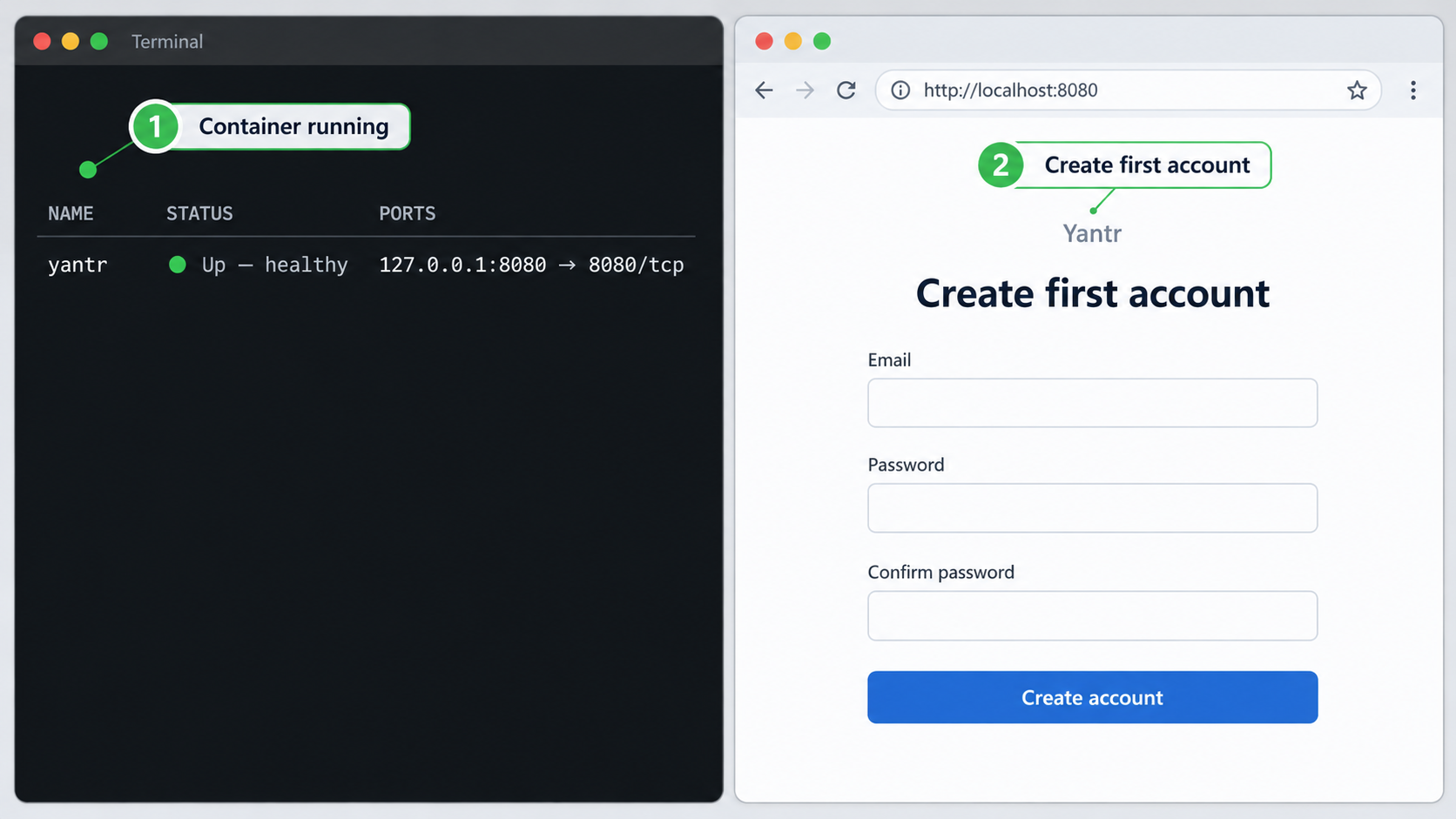
Local verification is the most important checkpoint in the entire workflow. It separates application problems from tunnel problems and prevents an uninitialized management page from being exposed remotely. Perform the initial visit from the Yantr host whenever possible.
Check the systemd user service
Ask systemd for the current state of the Yantr user service. Run the command as the same account used during installation.
Request the local web interface
Open http://localhost:5252 in a browser running on the host. If the host has no desktop browser, use a local HTTP request to confirm that the service responds, then use an appropriately secured local administration path for the interactive setup.
Create the operator account
Yantr prompts for account creation on the first visit. Complete that process locally before permitting remote traffic. Use a unique credential and store it safely.
Confirm a normal authenticated session
Reload the page and confirm that the interface behaves as expected. If practical, sign out and sign back in before adding external access so that account access is tested independently of the tunnel.
systemctl --user status yantrThe documented browser endpoint is:
http://localhost:5252A command-line request can help distinguish a browser issue from a service issue:
curl -I http://localhost:5252The precise HTTP status and headers can vary with application state, redirects, and future versions. The useful signal is that a TCP connection succeeds and Yantr returns an HTTP response. A connection-refused error usually means that nothing is listening at the address and port. A timeout can indicate a different address, a stalled process, or a network namespace issue. An HTTP error page still proves that the listener is reachable, although the application problem shown by the page must be resolved.
Do not publish an uninitialized Yantr interface. If the first visitor is allowed to create the operator account, exposing the page beforehand could allow an unintended visitor to claim that account. Create and test the account locally, then start the Localtonet tunnel.
Operate, restart, and inspect Yantr
Once Yantr is installed as a Quadlet-managed user service, use systemd's user commands from the owning Linux account. This keeps service state, logs, and ownership aligned with the rootless deployment.
Check service state
systemctl --user status yantrStatus output should indicate whether the unit is active, inactive, starting, or failed. It also includes recent journal messages that can reveal immediate startup failures.
Restart after a configuration or runtime problem
systemctl --user restart yantrRestarting the Yantr management service should not be treated as a universal repair. Inspect the logs if it fails again. The project states that application stacks managed by Yantr continue running if Yantr itself stops or updates, but verify the state of important workloads rather than relying solely on that architectural expectation.
Stop the management service
systemctl --user stop yantrStopping Yantr removes access to its interface until the service is started again. It is also sensible to stop the Localtonet tunnel when the web interface is intentionally unavailable, preventing remote users from reaching a dead target.
Follow live logs
journalctl --user -u yantr -fKeep the log stream open while reproducing a problem in another terminal or browser. This is especially useful when the systemd unit is active but the browser receives an error. Logs can expose port conflicts, image failures, storage permission issues, socket-access problems, or application startup errors.
Start the service again
systemctl --user start yantr
After starting or restarting, repeat the local browser or curl check. A green service state alone does not prove that the HTTP interface is returning usable content.
Plan updates and backups separately
Yantr supports checking for current application images, updating on demand, and recreating application containers when the operator chooses. Avoid treating every available image update as automatically safe. Read application release information, understand database migration requirements, and back up persistent application data before significant changes.
Rootless Podman commonly keeps container storage within the user's home-based container storage, and Yantr describes user-space named volumes under ~/.local/share/containers/. That does not mean copying the entire directory while applications are running is always an application-consistent backup. Databases and stateful services may require their own export, snapshot, or quiescing procedure. Yantr's interface, each deployed application, and the host operating system can all have different backup requirements.
Expose the verified Yantr web UI through Localtonet
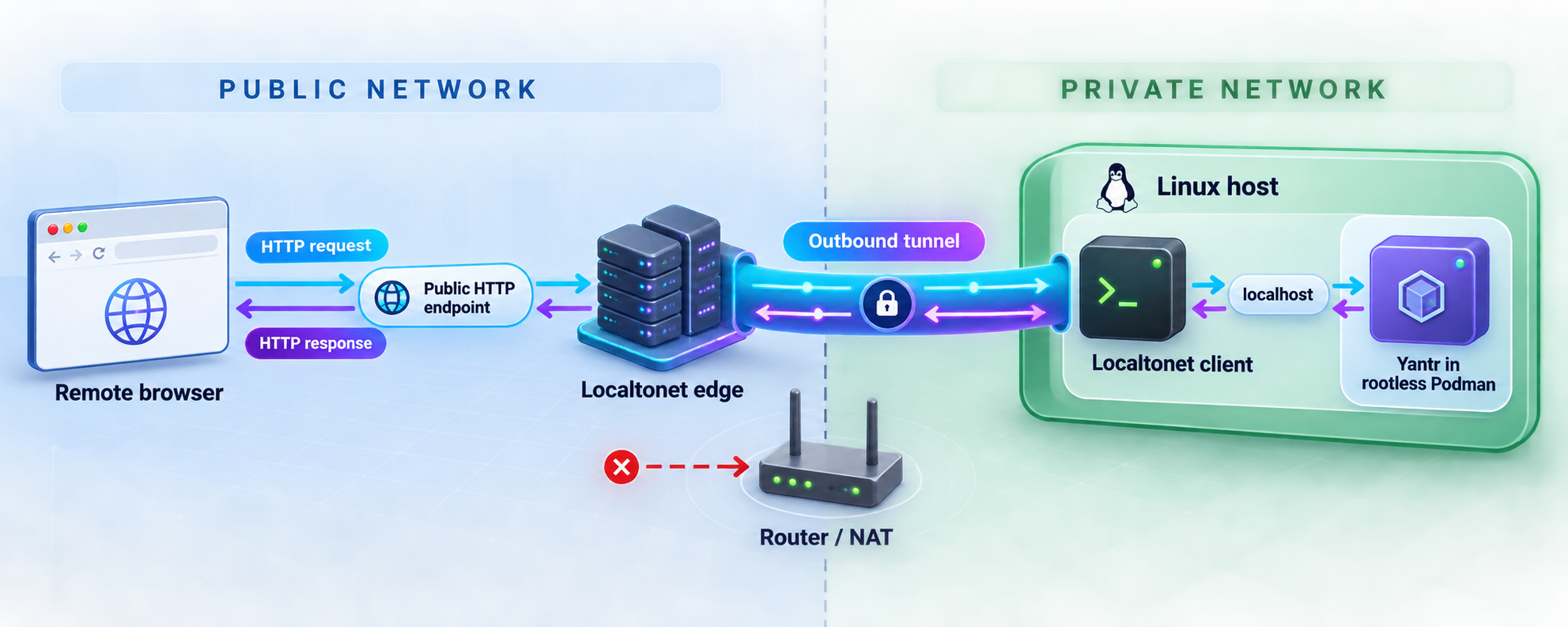
After Yantr responds at http://localhost:5252 and the first account has been created, an HTTP tunnel can provide remote browser access. The Localtonet client must run on the Yantr host or on another device that can reach the Yantr endpoint. Running it on the same host is usually the simplest arrangement because the local target can remain the loopback address and port.
Our client establishes an outbound connection to a Localtonet relay server. This means the workflow does not require an inbound router port-forwarding rule, a public IP address, firewall changes, or VPN setup. The tunnel remains available only while the selected client device is connected and that tunnel is running.
Install and run the Localtonet client
Install the Localtonet application on the Yantr machine, or on a device that can reach it over the local network. Keep Yantr's local test working before proceeding.
Authenticate or select the client device
Use the device-specific authentication token provided through the Localtonet workflow. Treat that token as a secret. Do not place it in screenshots, shell history, public configuration files, or this article's example commands.
Select an available relay server
Choose from the server or region values currently available in the dashboard. Availability can vary, so this guide does not hardcode a server code or claim that every option is included with every plan.
Create an HTTP tunnel to Yantr
Set the local target to the Yantr service. When the Localtonet client runs on the same host, use the loopback target with port 5252. Select the appropriate HTTP process type for a generated random subdomain, a supported custom subdomain, or a custom domain.
Start the tunnel
Creating a tunnel does not make it active. Use the Start control, then wait for the selected client and tunnel to show a connected state.
Test the assigned public HTTPS address
Open the assigned address from a separate browser session or an external network. Confirm that Yantr loads and requires the expected account access. Stop or delete the tunnel when remote access is no longer required.
For the product workflow and current interface details, consult our Localtonet HTTP tunnel documentation. Dashboard fields, server availability, and plan-specific options can change, so use the values presented in the current dashboard rather than copying identifiers from an old tutorial.
Choose the correct local target
If both clients run on the same Linux host, the intended target is the local Yantr endpoint on port 5252. If the Localtonet client runs on another device, localhost would refer to that other device, not to the Yantr machine. In that arrangement, Yantr must be reachable from the client device through an appropriate LAN address and permitted listening configuration.
The supplied Yantr evidence establishes the localhost endpoint but does not establish a supported procedure for changing Yantr's bind address. We therefore do not invent a bind variable or command-line flag. If a separate tunnel device cannot reach Yantr, the safest supported design is to run the Localtonet client on the Yantr host unless current Yantr documentation provides an explicit remote-listening configuration.
Yantr can continue listening locally at http://localhost:5252 while an HTTP tunnel provides a public HTTPS address. The local target does not need to become a public listener. HTTP process types such as Random Sub Domain, Custom Sub Domain, and Custom Domain serve the same target content through a public HTTPS address.
Security checklist for remote Yantr administration
A Yantr dashboard controls application deployment and configuration, so it should be treated as an administrative interface. Rootless containers reduce host-level privilege, but they do not make public access risk-free. A compromised account or vulnerable management application could still affect the containers, files, secrets, and network resources available to the Yantr user.
Share the address only with intended administrators, use a unique Yantr credential, and avoid exposing unnecessary services. If an application offers additional access restrictions, use them according to your threat model. Do not interpret outbound tunneling as permission to disregard organizational network policies or authorization requirements.
Also consider operational separation. The Linux account running Yantr should have only the host access it genuinely needs. Avoid placing unrelated secrets in directories mounted into managed containers. Application environment variables can contain passwords and API keys, so handle exports, screenshots, logs, and support bundles as potentially sensitive material.
Stop the Localtonet tunnel before performing maintenance that leaves Yantr in a partially initialized, failed, or recovery state. Start it again only after local verification succeeds. This small discipline prevents internal error pages or setup flows from being presented to remote visitors.
Troubleshooting Yantr and Localtonet
The installer command fails immediately
Confirm that the host can resolve and reach the script URL, that curl and Bash are available, and that the command is being run as the intended non-root user. A failed download should not be worked around by disabling certificate checks. Inspect the returned content before executing it, especially if the response looks like an HTML error page rather than a shell script.
Podman is installed but too old
Yantr documents Podman 4.4 or later. If podman --version reports an older version, use a package source supported by the host distribution to obtain a compatible release. Avoid copying package instructions from a different Linux release because repository names, signing methods, and supported versions differ.
systemctl --user cannot find the service
First confirm that the command is running under the same account used for installation. Root and each normal user have separate user-service contexts. If the account is correct, review the installer output and inspect the expected Quadlet configuration area. Yantr describes Quadlet declarations under ~/.config/containers/systemd/, but the exact generated filename and content should come from the current installer rather than being fabricated manually.
The service is failed or repeatedly restarting
Use both status and journal output:
systemctl --user status yantr
journalctl --user -u yantr -f
Look for the first meaningful failure rather than only the final restart message. Common categories include an unavailable image, insufficient storage, permissions, an unavailable Podman user socket, or a port already in use. The exact remedy depends on the logged error.
Port 5252 does not answer locally
Verify that the service is active, then test http://localhost:5252 from the Yantr host. If the connection is refused, inspect the logs and confirm that no other application occupies the port. Do not change the tunnel target to a guessed port. The documented Yantr endpoint for this workflow is port 5252.
The page works locally but not through Localtonet
Check the problem in layers:
- Confirm Yantr still responds at
http://localhost:5252. - Confirm the Localtonet client is connected on the selected device.
- Confirm the HTTP tunnel points to the correct local IP and port.
- Confirm the tunnel was started, not merely created.
- Confirm the public address being tested belongs to the active tunnel.
If the Localtonet client is on another machine, remember that its own localhost is not the Yantr host. Either run our client on the Yantr host or use a Yantr listening configuration explicitly supported by the project and reachable from the client device.
The public URL opens, but Yantr shows a setup screen
Stop the tunnel and complete initial account setup locally. Do not leave the public endpoint running while an unclaimed administrative account is available. If an unknown account appears to have been created, treat the installation as potentially compromised and follow an appropriate recovery process before exposing it again.
The tunnel disappears after a reboot
Check both sides of the workflow. Yantr's user service must start correctly, and the selected Localtonet client must reconnect and run the tunnel. Tunnel availability requires the selected device to remain connected and the tunnel to be running. Creating a tunnel once does not establish that every component will automatically start after every reboot.
Yantr works while logged in but stops after logout
The project describes systemd user lingering as part of automatic boot operation. Inspect whether the user service manager remains available without an interactive login and whether the installer successfully configured the required behavior. Do not repeatedly launch a second root-owned container as a workaround because that creates a separate deployment and undermines the intended rootless design.
Frequently asked questions
What URL does Yantr use locally?
The documented local endpoint is http://localhost:5252. Test it on the Yantr host and complete first-run account creation before configuring remote access.
Does Yantr require Docker?
No. Yantr is designed around rootless Podman and documents Podman 4.4 or later as a requirement. Its architecture uses an unprivileged Podman environment and systemd Quadlet rather than a root-level Docker daemon.
Can I install Yantr with a manual podman run command?
Yantr documents a manual rootless Podman method, but the evidence available for this draft does not contain the complete command and all required flags. Because socket mappings, volumes, network publishing, and persistence are essential, this article does not guess them. The verified workflow here uses the project's complete Linux installer command. A manual command should be added only after it is checked against the current maintained README.
Does Localtonet replace Yantr authentication?
No. An HTTP tunnel provides connectivity from a public address to the local service. Yantr remains responsible for its own account and application-level controls. Create the first account locally and verify authentication before starting the tunnel.
Do I need router port forwarding or a public IP address?
No. The Localtonet client establishes an outbound connection to our relay server, so this workflow does not require inbound router port forwarding, firewall changes, VPN setup, or a public IP address.
Should the Localtonet client run on the same machine as Yantr?
It is the simplest arrangement because the tunnel can target Yantr through the host's local endpoint on port 5252. A client on another device must be able to reach Yantr over the LAN, and the supplied project evidence does not establish an exact supported bind-address configuration for that arrangement.
Is the Yantr tunnel always available after it is created?
No. Creating a tunnel does not start it. The tunnel is available only while the selected Localtonet client device is connected and the tunnel is running. Yantr itself must also remain active and reachable at the configured local target.
Is rootless Podman enough to make an exposed admin dashboard safe?
No. Rootless execution reduces host-level privileges, but the dashboard can still control applications and access resources granted to the Yantr user. Use strong account security, minimize mounts and secrets, maintain the software, limit exposure time, and stop the tunnel during setup or recovery.
Connect your verified Yantr interface with Localtonet
Install Yantr, create the first account locally, and confirm that port 5252 responds. Then use a Localtonet HTTP tunnel to reach the working interface remotely without opening an inbound router port.
Get Started Free →

