

Run parallel coding agents locally, verify the browser cockpit, and open it securely from your phone
Cezar is an open-source orchestrator for running Claude Code, Codex, OpenCode, Pi, and other coding-agent CLIs from a browser-based cockpit. In this guide, we install the prerequisites, start Cezar inside an existing Git repository, verify its local cockpit at http://localhost:4321, and cover the first operational checks that help distinguish a Cezar issue from an agent or repository issue. Once the local setup works, we connect it to a Localtonet HTTP tunnel as a separate step so the cockpit can be reached from a phone or another remote device. We also explain when Cezar's own Ubuntu VPS installation is the more appropriate alternative.
📋 What's in this guide
How Cezar and Localtonet fit together
Cezar is an open-source orchestration environment for AI coding agents. Instead of managing every task in a separate terminal, you use a browser cockpit to queue work, inspect runs, answer questions, review changes, and coordinate supported agent CLIs. Cezar can run agents in parallel, assign work to separate Git worktrees, apply workflow checks, and leave changed runs at a review gate rather than merging them automatically.
The important architectural point is that Cezar does not replace Claude Code, Codex, or another supported agent. It drives an agent CLI that is already installed and authenticated on the machine. The agent's own subscription, account, permissions, model availability, and usage limits continue to apply. Cezar itself does not require a Cezar account or database for the documented local workflow.
For a local installation, the Cezar process serves its cockpit at http://localhost:4321. A service bound to localhost is normally intended for the same machine. That is ideal while installing and testing because it does not expose an unfinished setup to other networks. It is less convenient when you want to check a run from your phone away from your desk.
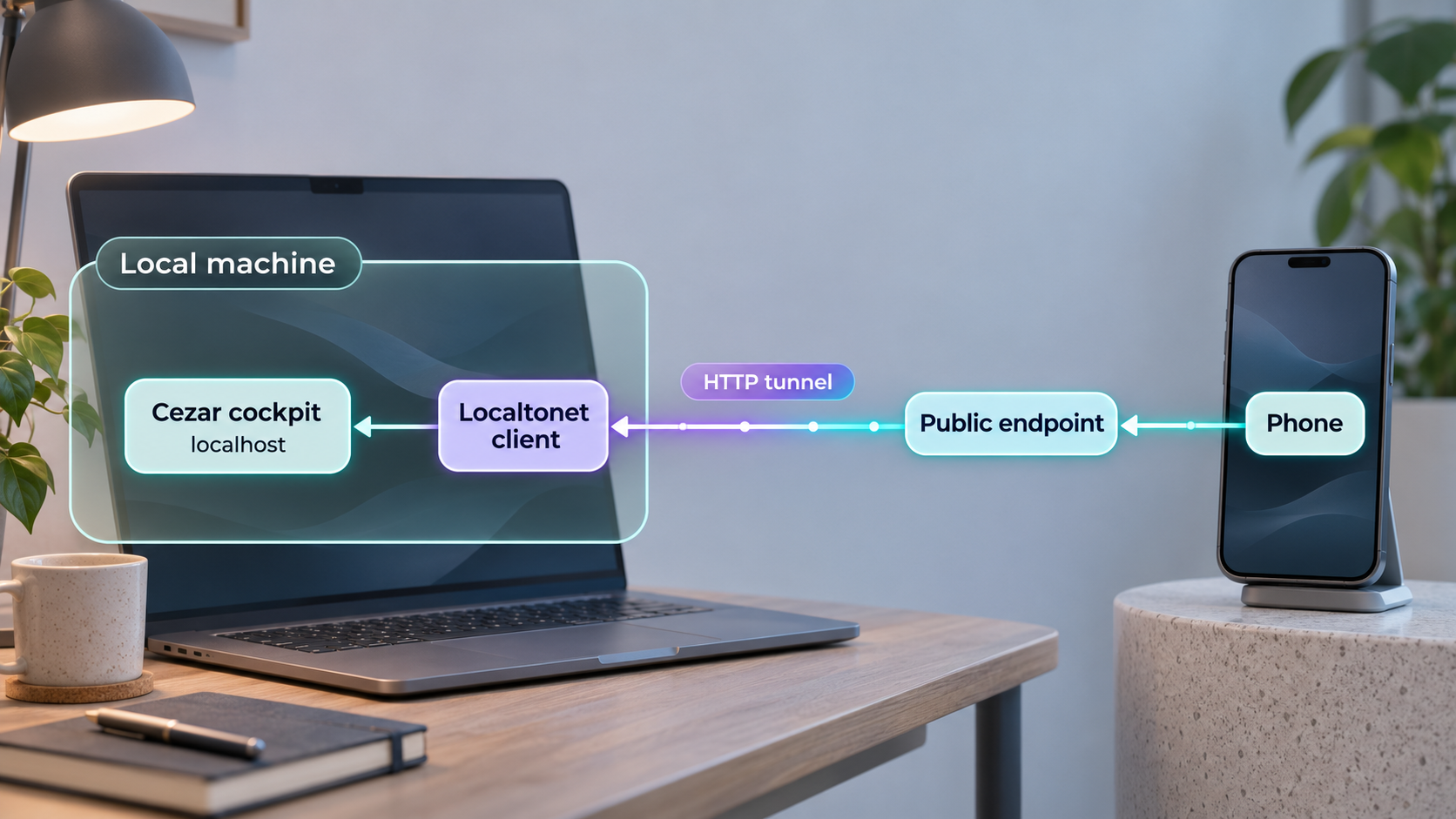
With Localtonet, the client running on the Cezar machine establishes an outbound connection to one of our relay servers. An HTTP tunnel can then point to the local Cezar address and port, producing a public HTTPS URL. This does not require inbound router port forwarding, a public IP address, firewall changes, or VPN setup. The tunnel remains available only while the selected Localtonet client is connected and the tunnel is running.
Keep Cezar local until the cockpit loads, the intended repository is recognized, and at least one agent CLI is available. Adding a tunnel cannot repair a missing Node.js runtime, an unauthenticated agent, a failed Cezar process, or an incorrect project directory.
Prerequisites for the local Cezar setup
The documented command-line path has a small set of prerequisites, but each one matters. Prepare them on the same computer that will run Cezar:
- Node.js 20 or newer. The Cezar command is launched through
npx, which is supplied with a normal Node.js installation. - A supported operating environment. Cezar documents macOS, Linux, and WSL2 for its local experience. Its site also offers desktop packages for macOS, Windows, and Linux, but this guide uses the documented
npxworkflow because it is direct and easy to verify. - At least one supported agent CLI. Examples include Claude Code and Codex. The chosen CLI must already be logged in.
- An existing code project. Use a Git repository that you are comfortable allowing an AI coding agent to inspect and modify.
- A browser. You will use it to open the local cockpit at
http://localhost:4321. - Localtonet only for the remote-access stage. Cezar should work locally before you install or configure the tunnel.
Confirm Node.js and npx
Open a terminal in the environment where Cezar will run and check the Node.js version:
node --version
The reported major version must be 20 or newer. Then confirm that npx is available:
npx --versionIf either command is unavailable, install a current supported Node.js release using the installation method appropriate for your operating system. Avoid mixing a Windows Node.js installation with a WSL project environment. If the repository and agent CLI run inside WSL2, install and execute Node.js and Cezar inside that same WSL2 environment.
Prepare the repository deliberately
Before involving an agent, inspect the repository's current state:
git statusCommit, stash, or otherwise account for existing changes according to your normal development workflow. This makes later review easier and reduces the chance that pre-existing edits are mistaken for agent output. Confirm that the repository's own dependency installation and test commands work when practical. Cezar can run configured checks and return failures to an agent, but it cannot make a fundamentally broken local toolchain reliable.
A coding agent may read files, edit source code, invoke development tools, and run shell commands according to its permissions. Start with a non-production repository, review the agent CLI's permission model, protect credentials, and avoid placing production secrets in files the agent can access. Keep human review and repository branch protections in place.
Prepare Claude Code or Codex before starting Cezar
Cezar discovers and drives compatible agent CLIs. It does not authenticate to an agent service on your behalf, and a successful Cezar startup does not prove that the selected agent can run. Verify the CLI directly first.
Option A: Install and authenticate Claude Code
Claude Code's native installer is documented for macOS, Linux, and WSL. Run:
curl -fsSL https://claude.ai/install.sh | bashWhen installation finishes, open a new terminal if necessary and confirm that the executable is available:
claude --versionA working installation prints a version number. Next, move into the repository and start Claude Code:
cd /path/to/your/project
claude
Replace /path/to/your/project with the real project path. On first use, Claude Code prompts you to authenticate. Follow the browser flow for your supported Claude account, Console account, enterprise cloud provider, or organization-configured gateway. Once the interactive prompt appears, you can enter /help to confirm the session is responsive, then exit according to the CLI's normal interface.
Windows users should follow the installer intended for their actual shell. PowerShell and Command Prompt use different syntax, and WSL uses the Linux path shown above. This guide does not combine those environments because Cezar, the repository, and the agent executable should be reachable from the same runtime context.
Option B: Use Codex
Cezar also documents Codex as a supported agent. Install Codex using its current official installation instructions, then authenticate it and verify that its command works directly in the same terminal environment where you will launch Cezar. We do not reproduce a Codex installation command here because the supplied evidence does not establish one, and guessing a package name or login command would make the guide unreliable.
What a successful agent check establishes
Directly opening the chosen agent confirms three separate things: the executable can be found, authentication is valid, and the project directory can be read. If the CLI fails here, troubleshoot it before launching Cezar. Otherwise, an agent authentication error can look like a Cezar orchestration problem even though the cockpit itself is healthy.
| Check | What success means | If it fails |
|---|---|---|
node --version |
Node.js is installed and reports version 20 or newer. | Install or select a supported Node.js release in the same environment. |
npx --version |
The package runner needed for npx cezar-run is available. |
Repair the Node.js installation or shell path. |
| Agent version command | The selected agent executable is on the current shell's path. | Install the CLI correctly or reopen the terminal after installation. |
| Interactive agent session | The agent is authenticated and can open the intended project. | Complete login, resolve account access, or correct the project path. |
git status |
The directory is a Git repository and its current changes are understood. | Move to the correct repository or initialize and prepare it appropriately. |
Install and start Cezar in your repository
The command-line setup uses npx, so you do not need to invent a global package installation step. Run Cezar from the repository you want it to manage.
Open a terminal in your project
Change to the Git repository that Cezar should use. The path below is a placeholder and must be replaced with your actual repository location.
cd /path/to/your/projectStart Cezar with npx
Launch the current published Cezar command from that repository:
npx cezar-runAllow the package runner to obtain the package if it prompts you. Keep the terminal open while using the local cockpit because stopping the process also stops the local service.
Complete the first-run experience
Current Cezar releases provide onboarding that can help select or create a project, sign in to an agent, and connect GitHub. Follow only the integrations you intend to use. A GitHub connection is not required merely to prove that the local cockpit loads.
Open the local cockpit
In a browser on the same machine, visit http://localhost:4321. Do not configure remote access until this local address responds correctly.
The published v0.18.0 release can also be invoked explicitly when a reproducible test requires that exact version:
npx cezar-run@0.18.0
Pinning can help when a team needs to reproduce behavior observed with that release. For an ordinary installation, the documented command remains npx cezar-run. Release-specific behavior can change over time, so record the version when reporting a defect or comparing two machines.
Verify the cockpit before exposing it
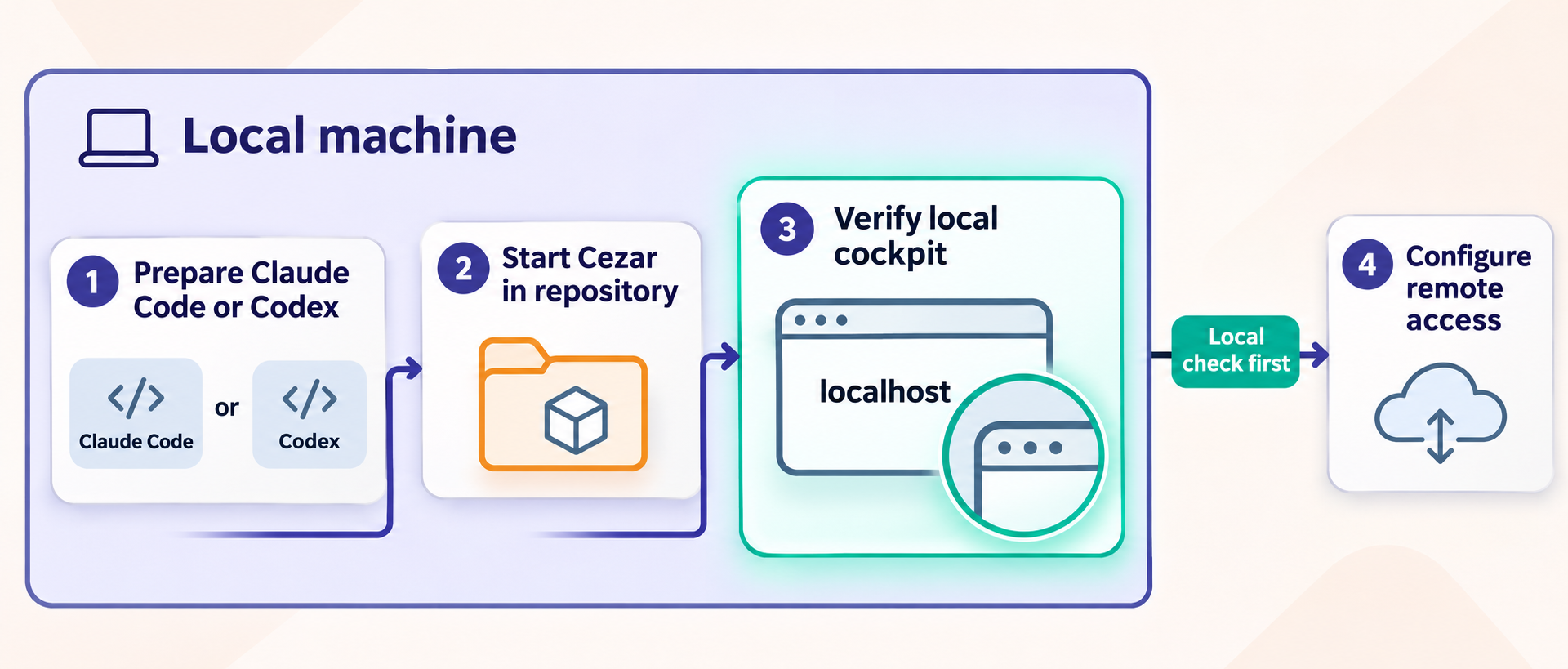
A loaded page is only the first level of verification. Check the process, browser interface, project association, agent discovery, and a controlled task separately. This produces a clear failure boundary if something goes wrong later.
1. Confirm the local HTTP endpoint
Open the following address on the Cezar machine:
http://localhost:4321The cockpit should load without relying on Localtonet. If the browser reports that it cannot connect, return to the terminal that launched Cezar. Look for an immediate startup error, package download failure, unsupported Node.js version, occupied port, or terminated process. The supplied project evidence establishes port 4321 as the documented local cockpit address, but it does not document an alternative-port flag, so this guide does not invent one.
2. Confirm the intended project
Check that the cockpit refers to the repository you intended to manage. If it shows an unexpected project, stop and relaunch Cezar from the correct directory or use the available onboarding controls to select the intended project. Do not dispatch work until you have verified the project path.
3. Confirm agent availability
Verify that the agent you prepared is available for selection. If Claude Code or Codex worked directly but does not appear in Cezar, make sure Cezar was launched from the same user account, shell environment, and operating environment. A CLI installed on Windows is not automatically available inside WSL2, and the reverse is also true.
4. Run a low-risk inspection task
Begin with a read-oriented request, such as asking for a summary of the repository structure or identification of the test framework. Review what the agent proposes before assigning a broad modification. This validates communication among the cockpit, orchestrator, agent CLI, and repository without making a large change.
5. Test the review loop
When you are comfortable with the inspection result, use a small, reversible task on a development branch. Examine the diff, run the project's normal checks, and confirm that the result reaches the expected review stage. Cezar supports workflow checks where an exit status of zero represents a pass, and failures can be sent back to the agent for another attempt. Those checks complement human review rather than replacing it.
If http://localhost:4321 does not work on the host, the Localtonet tunnel will have no healthy service to forward to. Always establish local success first, then test the public address as a separate layer.
Operate Cezar safely after installation
Cezar is designed for more than a single interactive prompt. It can queue work, run agents in parallel, use separate worktrees, apply checks, and coordinate automated starts. Those capabilities make routine operational controls important.
Set a realistic parallel limit
Cezar allows parallel limits at workspace or project level, with additional work waiting in a queue. The right value depends on the machine, repository, agent behavior, and available memory. Begin conservatively. Multiple worktrees and simultaneous test suites can consume significant CPU, memory, disk space, and external service allowance even when the cockpit remains responsive.
Keep review gates meaningful
The documented workflow leaves runs with changes for review and does not merge them automatically. Preserve that boundary. Inspect diffs, test results, generated files, dependency changes, and configuration edits. Repository branch protection and required CI checks remain valuable even if Cezar's local checks pass.
Understand queued and blocked work
A task may be waiting because the parallel limit has been reached, because the selected account has a usage limit, because the agent asked a question, or because a check failed. A responsive cockpit does not imply that every task is actively executing. Inspect the individual run state before restarting services.
Manage the process lifecycle
In the local npx workflow, keep the Cezar terminal and host machine running. Closing the laptop, losing power, terminating the process, or allowing the machine to sleep can interrupt local operation. If you need unattended 24/7 operation, use the documented Ubuntu VPS installation described later rather than treating a laptop tunnel as a server replacement.
Update deliberately
Running the unpinned npx cezar-run command follows the package's currently published version. For a controlled team environment, note the version that was tested with your repositories and agent CLIs. Review release information before changing a long-running environment, especially when workflows or authentication integrations are involved.
Access the Cezar cockpit remotely with Localtonet
Once Cezar works at http://localhost:4321, you can publish that local HTTP service through Localtonet. Use an HTTP tunnel because the cockpit is a browser application served over HTTP. Do not use a raw TCP or UDP tunnel merely because a port number is involved.
Install and run the Localtonet client
Install our client on the same device that runs Cezar, or on a device that can reach the Cezar service. For the straightforward local setup in this guide, use the Cezar host itself.
Authenticate or select the device
Use the device-specific token associated with the client. Keep the token private and never place it in screenshots, articles, repositories, or shared shell history.
Select an available relay server
Choose a currently available server or region from the Localtonet dashboard. Available server codes can change, so obtain the value from the current product instead of copying a hardcoded example.
Create an HTTP tunnel to the Cezar service
Configure the local target with the loopback address and Cezar's documented port: local IP 127.0.0.1 and local port 4321. Select the appropriate HTTP process type available to your account, such as a generated subdomain or another supported domain option.
Start the tunnel
Creating the configuration does not start it. Use the Start button, then wait for the tunnel and selected client to show that they are connected.
Test the assigned public URL
Open the assigned HTTPS address from your phone using a different network when possible. Confirm that the expected Cezar cockpit loads, then stop or delete the tunnel when remote access is no longer required.
HTTP and File Server tunnels can use a random subdomain, a supported custom subdomain, or a custom domain, and each option serves content through a public HTTPS address. Exact custom-domain DNS requirements must be checked against the current dashboard and documentation before configuring DNS. They are intentionally not guessed here.
For the maintained product workflow, consult our
Localtonet HTTP tunnel documentation.
The essential target for this installation remains 127.0.0.1:4321.
Anyone who can reach the public URL can attempt to connect to the application behind it. Before sharing the URL, verify the authentication and authorization behavior provided by your installed Cezar version, use the narrowest practical access, and avoid exposing repositories or agent controls to untrusted users. A hard-to-guess URL is not a substitute for authentication. Stop the tunnel when remote access is not needed.
The public address works only while Cezar is listening locally, the selected Localtonet client is connected, and the tunnel is running. If any one of these stops, remote access stops as well.
Troubleshoot Cezar and remote cockpit access
npx cezar-run is not recognized
Confirm that Node.js and npx are installed in the current environment. Reopen the terminal after installation and repeat node --version and npx --version. If you use WSL2, run all related commands inside WSL2 rather than alternating between Windows and Linux terminals.
Cezar reports a Node.js compatibility problem
Check the major version returned by node --version. Cezar documents Node.js 20 or newer. If several Node.js installations exist, the shell may be finding an older executable first. Correct the active runtime before retrying Cezar.
The cockpit does not load at localhost:4321
Verify that the npx cezar-run process is still running and inspect its terminal output. Confirm that the browser address is exactly http://localhost:4321. Another process may already be using the port, or Cezar may have terminated during startup. Because the available evidence does not document a supported custom-port argument, do not assume a flag name. Resolve the conflicting process or check the current Cezar documentation for a verified configuration option.
Cezar cannot find Claude Code or Codex
Run the agent's version command from the same terminal where you start Cezar. If the command is missing there, repair the shell path or install the agent in that environment. If the executable exists but tasks cannot begin, launch the agent directly and confirm that authentication is still valid.
The wrong repository appears
Stop the local process and inspect the terminal's current directory. Use pwd on macOS, Linux, or WSL2, then run git status. Relaunch Cezar only after confirming the intended repository.
The local cockpit works but the public URL does not
Check the layers in order. First, reload http://localhost:4321 on the host. Second, confirm that the Localtonet client associated with the selected token is connected. Third, confirm that the HTTP tunnel has actually been started. Fourth, inspect the target values and ensure they are 127.0.0.1 and 4321. Finally, use the currently assigned public HTTPS URL rather than an address from an old or deleted tunnel.
The public page loads and then becomes unavailable
Determine which lifecycle ended. The Cezar process may have stopped, the computer may have slept, the network connection may have changed, the Localtonet client may have disconnected, or the tunnel may have been stopped. A tunnel does not keep a laptop awake and does not convert an interactive local process into a system service.
An agent task remains queued or paused
Inspect its state in the cockpit. All configured parallel slots may be occupied, the agent may be waiting for an answer, an account may have reached a usage limit, or a workflow check may have failed. Avoid restarting Cezar until you understand the state, since the issue may be expected queue behavior rather than a server failure.
Choose between a local HTTP tunnel and Cezar's VPS installer
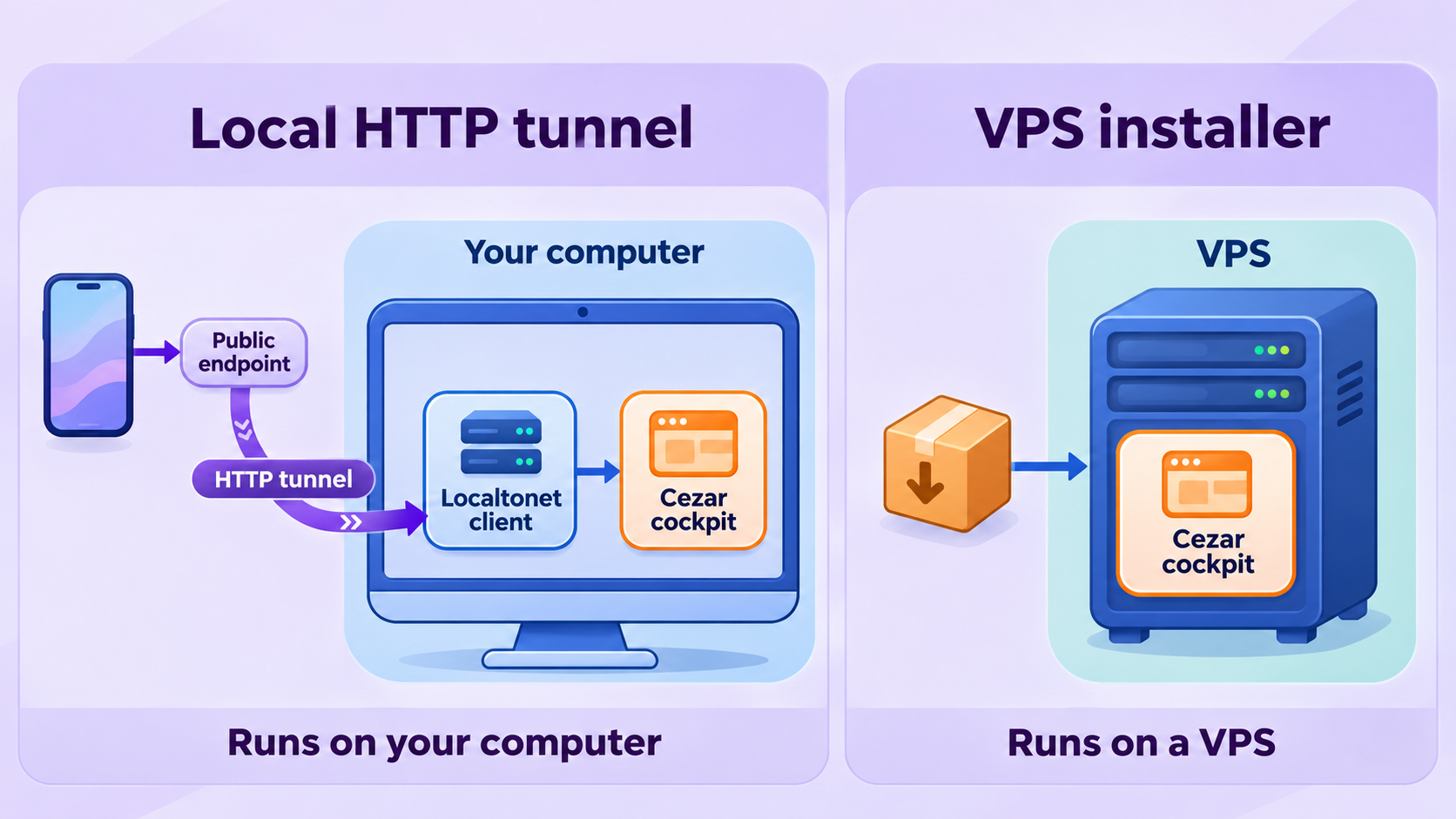
Localtonet is especially useful when Cezar already runs on a laptop, workstation, homelab machine, or private device and you want controlled remote reachability without inbound router configuration. It preserves the local installation model and adds a public route to the existing cockpit.
Cezar also documents a dedicated Ubuntu VPS installation command:
npx cezar-run server-install --platform ubuntu-vpsThat installer is documented to configure HTTPS, a login, and a system service. It is the stronger fit for an always-on server whose primary purpose is to keep agent orchestration running when your laptop is closed. Since it already addresses remote access, HTTPS, login, and service management, adding a Localtonet HTTP tunnel to that same VPS is not normally required for the basic documented workflow.
| Deployment | Best fit | Important behavior |
|---|---|---|
| Local Cezar only | Installation, evaluation, and work from the same machine | The cockpit stays at http://localhost:4321 and is not intentionally published for remote use. |
| Local Cezar with Localtonet | Temporary or ongoing phone access to an existing local setup | No inbound router port forwarding is required, but Cezar, the host, our client, and the tunnel must remain running. |
| Cezar Ubuntu VPS installer | 24/7 operation on a dedicated server | The documented installer sets up HTTPS, a login, and a system service for server-based use. |
The choice is operational rather than purely technical. Use a local tunnel when the workstation should remain the execution environment and remote access is the missing piece. Use the VPS path when continuous operation is the main requirement. In either case, maintain least-privilege credentials, protect repository secrets, preserve human review, and keep the host and agent CLIs updated.
Frequently asked questions
What is the minimum Node.js version for Cezar?
Cezar documents Node.js 20 or newer. Confirm the active version with node --version in the same terminal environment where you will run npx cezar-run.
Does Cezar replace Claude Code or Codex?
No. Cezar orchestrates supported agent CLIs that are already installed and logged in. The selected agent still performs the coding work and uses its own account, subscription, permissions, models, and usage limits.
What command starts Cezar locally?
Change into the intended Git repository and run npx cezar-run. Keep that process running, then open http://localhost:4321 in a browser on the same machine.
Which Localtonet tunnel type should I use for the Cezar cockpit?
Use an HTTP tunnel targeting local IP 127.0.0.1 and local port 4321. The cockpit is a browser-based HTTP application, so a raw UDP tunnel is not appropriate for this workflow.
Does creating a Localtonet tunnel make it run immediately?
No. After creating the configuration, start it with the Start button. The public URL is available only while the selected client is connected and the tunnel is running.
Will Localtonet keep Cezar running after I close my laptop?
No. Localtonet publishes a reachable service but does not keep the host awake or turn Cezar into a background system service. If the laptop sleeps or the Cezar process stops, the public cockpit becomes unavailable. For always-on operation, consider Cezar's documented Ubuntu VPS installer.
Do I need router port forwarding or a public IP address?
Not for the Localtonet workflow. Our client establishes an outbound connection to a relay server, so the Cezar host does not need inbound router port forwarding, firewall changes, VPN setup, or its own public IP address.
Is the assigned public URL enough to secure the cockpit?
No. A public URL should not be treated as an authentication mechanism. Verify the authentication and authorization behavior of your installed Cezar version, avoid sharing the URL broadly, protect repository and agent credentials, and stop the tunnel when remote access is unnecessary.
Should I use Localtonet with the Cezar Ubuntu VPS installer?
Not necessarily. Cezar's documented Ubuntu VPS installer already sets up HTTPS, a login, and a system service. Localtonet adds the clearest value to the local workflow where the cockpit works on localhost but needs remote reachability without inbound network configuration.
Open your verified Cezar cockpit with Localtonet
Start Cezar locally, confirm that http://localhost:4321 works, then create an HTTP tunnel to access the cockpit from your phone without configuring inbound router port forwarding.