

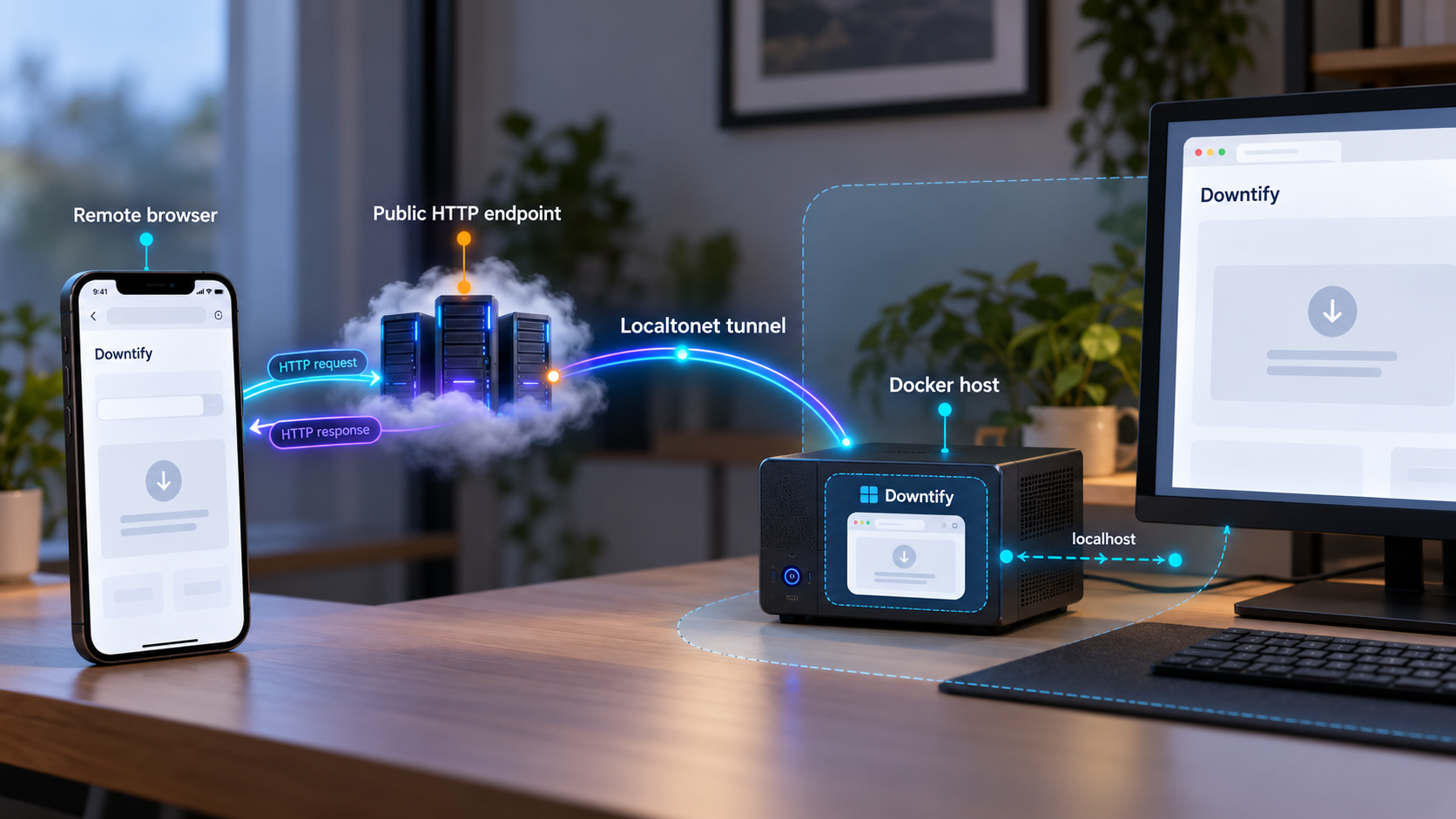
Build a private music workflow at home, verify it locally, then open only the web interface you intend to use remotely
Downtify packages its downloader, music library, and browser-based player into a single Docker container. In this guide, we install that container with persistent storage, sign in with the documented initial administrator account, change the default password, and verify the complete workflow on the local network. After the application is working safely, we connect its HTTP service to Localtonet so it can be reached without inbound router port forwarding, firewall changes, a VPN, or a public IP address. We also cover routine Docker operations, storage planning, exposure risks, and practical troubleshooting.
📋 What's in this guide
How Downtify and Localtonet fit together
Downtify is a self-hosted music downloader and web application. It accepts supported Spotify and YouTube Music links, free-text searches, and selected library imports. Its documented processing pipeline reads publicly available metadata, searches for matching audio, downloads through yt-dlp, converts audio with ffmpeg, and writes metadata with mutagen. The resulting library can be browsed and played from its web interface.
The application runs in one Docker container and listens on an HTTP service that is available at http://localhost:8000 in the standard installation. The container uses /downloads for audio files and /data for application data. Persisting both locations is important because containers are replaceable. Files written only to a container's temporary writable layer can disappear when that container is removed.
Installing Downtify and exposing Downtify are separate tasks. The first part of this guide creates and verifies a working local service. The second part adds remote access with Localtonet. Our client runs on the machine that can reach Downtify and establishes an outbound connection to a Localtonet relay server. The HTTP tunnel then provides a public HTTPS address for the local web service. No inbound router port forwarding, public IP address, firewall change, or VPN setup is required.
/downloads for downloaded audio and /data for application state. Both should remain persistent across container recreation.
Self-hosting software does not change the rights attached to music, podcasts, or other media. Download only material that you own, that is licensed for download, or that you otherwise have permission to obtain and use. You are responsible for complying with applicable terms and copyright law.
Prerequisites and deployment decisions
Downtify's documented quick start requires Docker. The host can be a home server, a small always-on computer, or another system on which Docker can run the published container image. The selected machine also needs outbound internet access for Docker image retrieval, Downtify's supported metadata and media workflows, and the later Localtonet relay connection.
Before running the installation command, decide where downloaded music should live. The official command deliberately uses a placeholder named /path/to/downloads. Replace it with an absolute host directory that has enough available capacity for the library you expect to build. Audio collections can grow quickly, especially when lossless formats are selected.
The standard deployment uses a Docker named volume called downtify_data for /data. Docker creates that named volume automatically when the container starts. Application data and downloaded music have different purposes, so keeping them as separate mounts makes backup and storage policies easier to reason about.
| Requirement or decision | Why it matters | What to prepare |
|---|---|---|
| Docker | Downtify's documented quick start runs the application as a single container. | Install Docker using the supported procedure for the host operating system and confirm that the Docker service is running. |
| Music directory | The host directory mounted at /downloads receives downloaded audio files. |
Choose an absolute path with suitable capacity, ownership, permissions, and backup coverage. |
| Application-data volume | The /data mount preserves Downtify's application state independently of the container. |
Use the documented downtify_data named volume unless you have a tested reason to choose another storage arrangement. |
| Local TCP port 8000 | The standard command publishes the Downtify HTTP service at localhost:8000. |
Confirm that another application is not already using port 8000 on the Docker host. |
| Secure administrator credentials | The documented initial credentials are public knowledge and are unsafe for continuing use. | Plan to change the password immediately after the first successful sign-in and before creating a public tunnel. |
| Localtonet client | The client must run on a device that can reach the Downtify HTTP service. | Install our client on the Docker host or another trusted device with network access to that host. |
Check Docker before installing Downtify
Open a terminal on the intended server and ask Docker for its installed version:
docker --versionA version response confirms that the command-line client is installed. It does not by itself prove that the Docker engine is available to the current user. The following command asks the engine for its current container list:
docker psIf that command returns a table, even an empty one, Docker is responding. If it reports that it cannot connect to the daemon, resolve the Docker service or user-permission issue before continuing. Downtify cannot start until the engine is working.
Choose storage carefully
For a Linux-style host, an absolute path might look like /srv/music/downtify or a directory beneath a user's home folder. These are examples of host path shapes, not mandatory Downtify locations. Use the path appropriate for your own storage layout. The account under which Docker operates must be able to use the selected directory.
Docker mount syntax and host path conventions vary across Linux, macOS, and Windows. To avoid corrupting a path by copying syntax intended for another operating system, retain the official placeholder until you have selected a valid absolute path for your host. On systems where Docker runs inside a desktop virtual machine, the chosen directory may also need to be shared with Docker according to that Docker installation's settings.
Downtify documents DOWNTIFY_PORT for changing the application port. This guide keeps the standard container and host port at 8000 so the Docker publishing rule, browser address, and Localtonet target remain consistent. If you change the application port, update every related container, host, firewall, browser, and tunnel setting together. Consult the current Downtify documentation for the exact configuration expected by the version you deploy.
Install Downtify with Docker
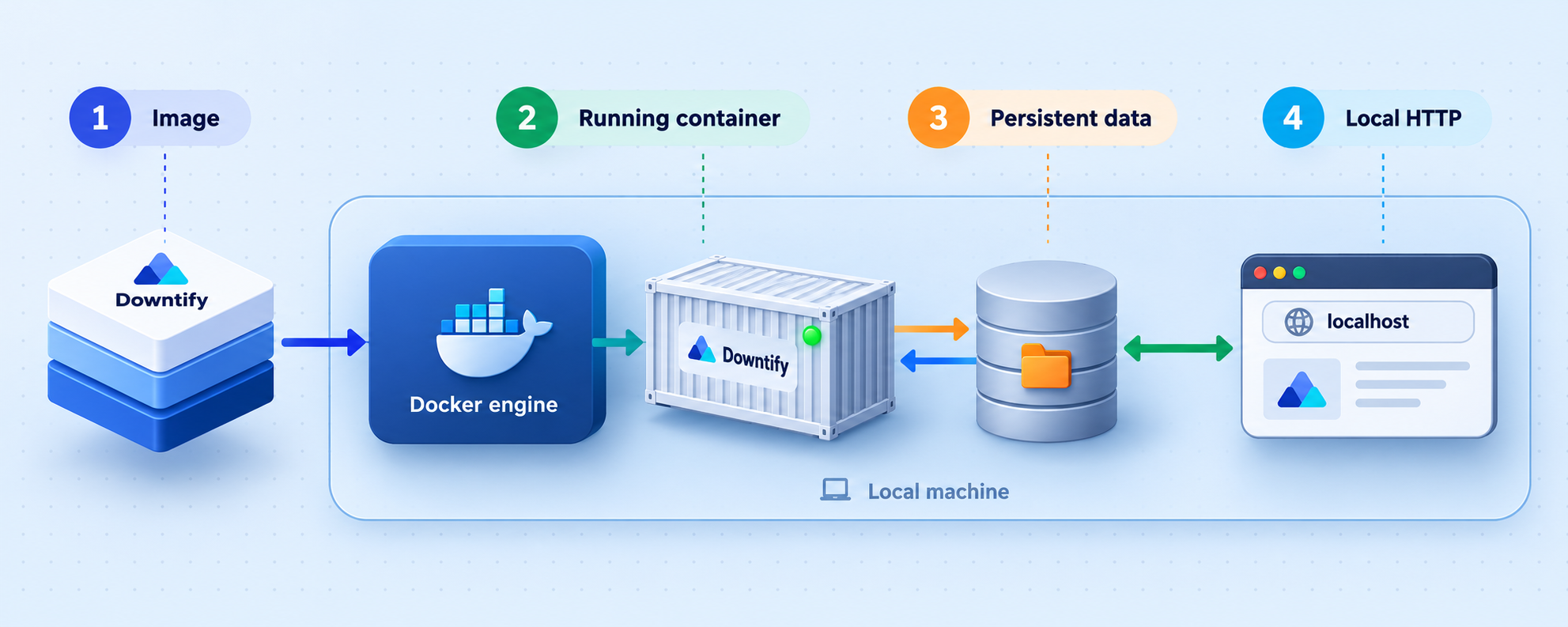
The direct Docker command is the clearest installation route because all important networking and persistence choices are visible in one place. It names the container downtify, publishes port 8000, maps a host music directory to /downloads, creates or reuses the downtify_data volume at /data, and starts the published container image in detached mode.
Choose and prepare the downloads directory
Select the absolute host path where downloaded audio should remain. Make sure the underlying disk has enough free space and that the directory is included in your backup plan. Do not leave /path/to/downloads unchanged in the installation command.
Run the official single-container command
Replace only the host-side /path/to/downloads placeholder with your chosen directory, then run the command. Preserve the container-side /downloads and /data paths because those are the locations Downtify expects.
Confirm that the container remains running
Query Docker for the named container. A running status means the process has stayed up, while a missing or exited container indicates that its logs should be inspected before opening the web application.
Open the local web interface
On the Docker host, visit http://localhost:8000. If browsing from another device on the same trusted LAN, use the Docker host's LAN address with port 8000, provided the host and local network permit that connection.
Run the documented container command below after substituting your real downloads directory:
docker run -d -p 8000:8000 --name downtify \
  -v /path/to/downloads:/downloads \
  -v downtify_data:/data \
  ghcr.io/henriquesebastiao/downtify
Each argument has a specific role:
docker runcreates and starts a new container from the specified image.-druns it in detached mode so the service continues after the terminal command completes.-p 8000:8000publishes host port 8000 to the container's port 8000.--name downtifygives the container a stable, readable name for later operations.-v /path/to/downloads:/downloadsstores downloaded media in the host directory you selected.-v downtify_data:/datastores application data in a persistent Docker named volume.ghcr.io/henriquesebastiao/downtifyis the published container image used by the official quick start.
Confirm the resulting status:
docker ps --filter name=downtify
The result should identify the downtify container as running and show its port publication. If the container is absent from the running list, include stopped containers in the query:
docker ps -a --filter name=downtifyThen inspect its output:
docker logs downtify
Deleting and recreating a container is different from deleting its data. Avoid commands that remove the downtify_data volume or erase the host downloads directory unless you intentionally want to destroy that information and have a verified backup. Read any cleanup command before running it.
Docker Compose as an alternative
Downtify also supports Docker Compose, and its repository includes a docker-compose.yml file. Compose can be useful when the deployment is managed as a project rather than as a single shell command. It records container settings in a file and makes repeatable startup and shutdown easier.
The exact contents of the project's Compose file can change with releases. Because mount values and optional settings must match the deployed version, review the Compose file included with the specific Downtify release you select instead of copying an unverified configuration from an older tutorial. At minimum, verify the host path mapped to /downloads, persistence for /data, the published HTTP port, and any optional environment settings before starting it.
Once a reviewed Compose file is present in the current directory, the standard command to start that declared project in detached mode is:
docker compose up -dYou can then inspect the services declared in that project:
docker compose ps
This article uses the direct docker run installation for the remaining examples because its container name, mounts, and port are explicit. If you choose Compose, use Compose service operations consistently and use the service name declared by the current project file.
Complete the first sign-in and secure Downtify
A running container is not yet ready for internet exposure. The documented first-run credentials are the username admin and password downtify. Since these values are published in the project's quick start, they must be treated as setup credentials rather than a secret.
Open Downtify only through the local address
Visit http://localhost:8000 from the Docker host. Keep the Localtonet tunnel stopped or uncreated during this initial configuration.
Sign in with the documented initial account
Use admin as the username and downtify as the initial password. If these credentials do not work on a previously used data volume, the application may already have been configured.
Change the administrator password
Open Settings → General and replace the initial password with a unique, strong password. Store it in a password manager and do not reuse a credential from another service.
Review user and download settings
Configure only the formats, bitrate, file organization, and household accounts you actually intend to use. When multiple people need access, provide separate application accounts instead of sharing the administrator credential.
Sign out and test the new credentials
End the initial session, sign in again with the updated password, and confirm that the administrator account works before proceeding to remote access.
Downtify documents DOWNTIFY_DISABLE_AUTH=true as an option for a server that only its operator can reach. That assumption no longer applies when the web interface is published through a public HTTP tunnel. Keep application authentication enabled for the workflow in this guide. A public URL should never be treated as a password.
Downtify's account model is useful for a household installation. Administrators can create other accounts, each user sees the tracks, likes, and playlists they added, and administrators can see everything. The underlying files are not duplicated for each user. Apply least privilege in practice: reserve the administrator account for configuration and give routine users their own credentials.
Review optional integrations separately before enabling them. Downtify can integrate with services such as a separately operated slskd server and Navidrome, but those integrations introduce additional credentials and network relationships. They are not required for the basic installation or for Localtonet access. Do not expose another application's port merely because Downtify can connect to it internally.
Verify the application locally before creating a tunnel
Local verification should test more than whether a login page appears. It should establish that the container remains healthy, storage is persistent, authentication works, and the intended application operation reaches the host directory. This gives you a reliable baseline. If remote access later fails, you can compare the tunnel behavior against a known working local service.
Verify container state and logs
Check the running container:
docker ps --filter name=downtifyReview recent application output:
docker logs --tail 100 downtifyA container can be running while a particular application operation still fails, so interpret logs together with browser testing. Warnings related to an optional integration are different from a failure that prevents the web server from starting.
Verify sign-in and browser behavior
Open http://localhost:8000, sign in with the changed administrator password, and move through the library and settings pages. Refresh the page and sign in again. If another trusted device on the same LAN is meant to use the service, test the Docker host's LAN address from that device as well.
A successful loopback test proves that the service is available on the Docker host. A successful LAN test additionally proves that the host's published port can be reached from another machine. Localtonet can run directly on the Docker host, in which case the loopback result is the most relevant test. If our client runs on another device, that device must be able to reach the host's LAN address and port.
Verify the downloads mount
Use a link or search for media you are authorized to download. Queue a small test item, wait for it to complete, and inspect the host directory that you mounted at /downloads. The resulting file should appear in that host directory, not only in the browser library.
If Downtify reports success but the expected host folder remains empty, stop before building a larger library. Recheck the exact -v argument used when the container was created. A typo can cause Docker to mount a different directory than the one you are inspecting.
Verify persistence with a controlled restart
Restart the container:
docker restart downtifyWait for it to return to a running state, reopen the web application, and confirm that the account configuration and test library entry remain present. Confirm that the downloaded file still exists in the host directory. This does not replace a backup test, but it catches obvious persistence mistakes before remote users depend on the service.
| Check | Expected result | If it fails |
|---|---|---|
| Container status | downtify remains in the running list. |
Read docker logs downtify and look for startup, storage, or port errors. |
| Local web page | http://localhost:8000 loads from the Docker host. |
Confirm the port publication and check whether another process uses host port 8000. |
| Authentication | The changed administrator password works and the initial password no longer does. | Keep the service local while resolving account configuration. |
| Download storage | An authorized test download appears in the selected host directory. | Inspect the mount mapping and host directory permissions. |
| Restart persistence | Configuration and library information remain after docker restart. |
Verify that /data is attached to the intended persistent volume. |
Connect the working Downtify web app through Localtonet
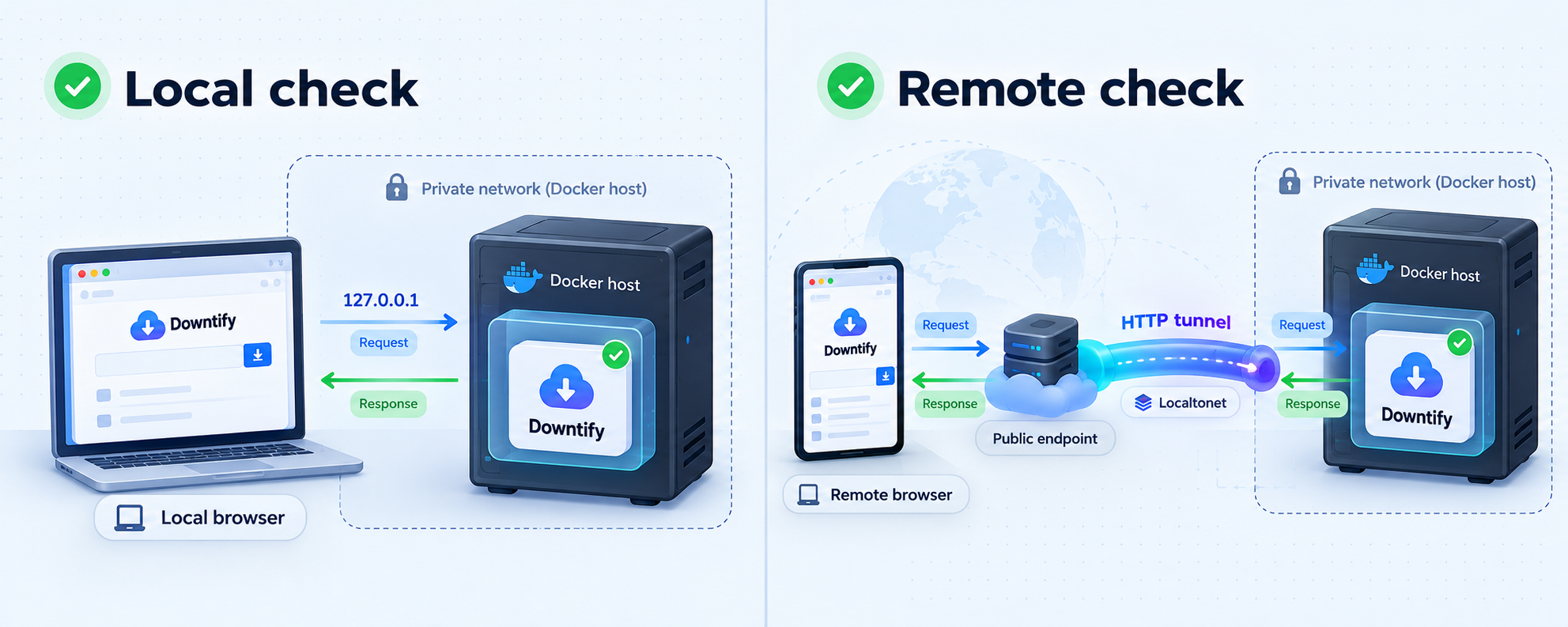
Once the local checks pass and the administrator password has been changed, Downtify is ready to become the target of an HTTP tunnel. The Localtonet client should run on the Docker host whenever practical. That arrangement allows the tunnel target to remain 127.0.0.1 on port 8000, limiting the number of network paths involved.
If the Localtonet client runs on another machine, do not use that second machine's 127.0.0.1. Loopback always means the machine on which the client is running. In that topology, the tunnel target must be the Docker host's reachable private address and port 8000. Verify that exact address from the Localtonet client device before creating the tunnel.
Creating a tunnel and starting it are separate actions. The public address works only while the selected Localtonet client is connected and the tunnel is running. Stopping the tunnel removes that access path without stopping the Downtify container.
Install and run the Localtonet client
Install our client on the Docker host or another trusted device that can reach the verified Downtify service. Start the client and associate it with its device-specific authentication token. Keep that token private and never place it in screenshots, shell history examples, or shared configuration.
Create an HTTP tunnel
In the Localtonet dashboard, create the HTTP tunnel type for the Downtify web application. HTTP is appropriate because the local target is a browser-based HTTP service, not a raw TCP or UDP application.
Select the process type
Choose the available HTTP process type appropriate for the address you want to use: Random Sub Domain, Custom Sub Domain, or Custom Domain. These process types serve the same local content at a public HTTPS address. Availability can vary, so use the options currently shown for your account.
Select the device token and relay server
Select the connected client device that can reach Downtify, then select an available relay server or region from the current dashboard. Do not copy a server code from an old tutorial because available values can change.
Enter the local Downtify target
If our client runs on the Docker host, use local IP address 127.0.0.1 and port 8000. If it runs elsewhere, use the Docker host address that was successfully tested from the client device, with port 8000.
Start the tunnel and test its assigned address
Start the tunnel, copy the assigned public HTTPS URL, and open it in a private browser window or on a separate network. Confirm that Downtify presents its sign-in screen and accepts the new password, not the original default credential.
The current dashboard is authoritative for available relay servers, regions, process types, and account-specific options. For the product workflow, consult our HTTP tunnel documentation while reviewing the current interface. Do not guess a relay code or authentication token from an article.
Test the public path safely
Use a private browser session so an existing local login cookie does not hide an authentication problem. The public URL should present Downtify's sign-in flow. Sign in with a non-administrator account when testing routine household access, if you created one. Confirm that playback and the pages you need work through the tunnel, but avoid beginning a large download merely to test connectivity.
Then stop the tunnel in the Localtonet dashboard and refresh the public address. It should no longer provide the active route. Start it again and verify that access returns. This confirms that you understand the tunnel lifecycle and have an immediate way to withdraw remote access without taking the local music service offline.
Keep Downtify authentication enabled, use unique passwords, provide separate user accounts, and stop the tunnel when remote access is not required. Do not share the public URL broadly. Review application logs and account activity for unexpected sign-ins, and keep the container current using the project's release guidance. Localtonet provides the network path, but the application remains responsible for authenticating its users.
Routine operation, backups, and updates
A self-hosted application needs a small operational routine. The most important boundaries are the Docker container, the downtify_data volume, the host downloads directory, and the Localtonet tunnel. Treat them as separate components so an action on one does not accidentally affect another.
Start, stop, and restart Downtify
The direct Docker installation uses the fixed container name downtify. Standard lifecycle commands are:
docker stop downtify
docker start downtify
docker restart downtify
Stopping the container makes the local application unavailable. A running Localtonet tunnel cannot serve Downtify while the target is stopped, so remote visitors will encounter a failed target rather than a working application. Starting the existing container reuses its configured mounts and port publication.
Read logs without exposing sensitive information
Show the latest lines:
docker logs --tail 100 downtifyFollow new output during a test:
docker logs --follow downtifyStop following with the terminal's normal interrupt action. Before sharing logs, inspect them for usernames, media queries, URLs, host paths, integration details, and other private information. Redact sensitive values rather than posting a complete unreviewed log.
Back up both persistent storage areas
The music directory and application-data volume serve different recovery needs. Back up the host directory mounted at /downloads using a method appropriate for its filesystem and size. Also back up the downtify_data named volume so application state is not lost.
A file existing on the same physical disk is not a backup. Keep at least one recoverable copy on separate storage, and test restoration. The exact volume-backup command depends on the host, Docker environment, backup product, and desired consistency procedure. This evidence does not establish one universally safe command, so this guide does not invent one. If a backup system requires the application to be quiescent, stop Downtify for the backup window.
Approach updates as a controlled container replacement
Container updates usually involve obtaining a newer image and recreating the application container while retaining persistent mounts. However, release-specific migration requirements can change. Before updating, read the release notes for the target version, verify backups, record the current image and configuration, and confirm that your persistent storage is healthy.
Do not assume that pulling an image changes an already running container. Also do not remove the named volume as part of routine container replacement. If the current Downtify release changes environment variables, ports, storage expectations, or Compose configuration, follow that release's documented procedure rather than forcing an older command onto the new version.
Coordinate maintenance with tunnel state
Stop the Localtonet tunnel before planned maintenance if you do not want remote users reaching a partially available application. Update or repair Downtify locally, complete the verification checklist again, and then restart the tunnel. This sequence prevents a local application failure from being mistaken for a relay problem.
| Operation | Downtify effect | Localtonet effect |
|---|---|---|
| Stop the Downtify container | The web app and player become unavailable locally. | The tunnel may remain running, but its local target cannot answer. |
| Stop the Localtonet tunnel | Downtify continues working locally. | The assigned public route is no longer active. |
| Disconnect the selected Localtonet client | Downtify can continue running. | The tunnel is unavailable until the selected client reconnects and the tunnel is running. |
| Restart the host | Availability depends on the host and container startup configuration. | Remote access returns only after our client reconnects and the tunnel is running. |
| Delete the tunnel | No local data or container is deleted. | That tunnel configuration and its remote route are removed. |
Troubleshooting Downtify and the remote connection
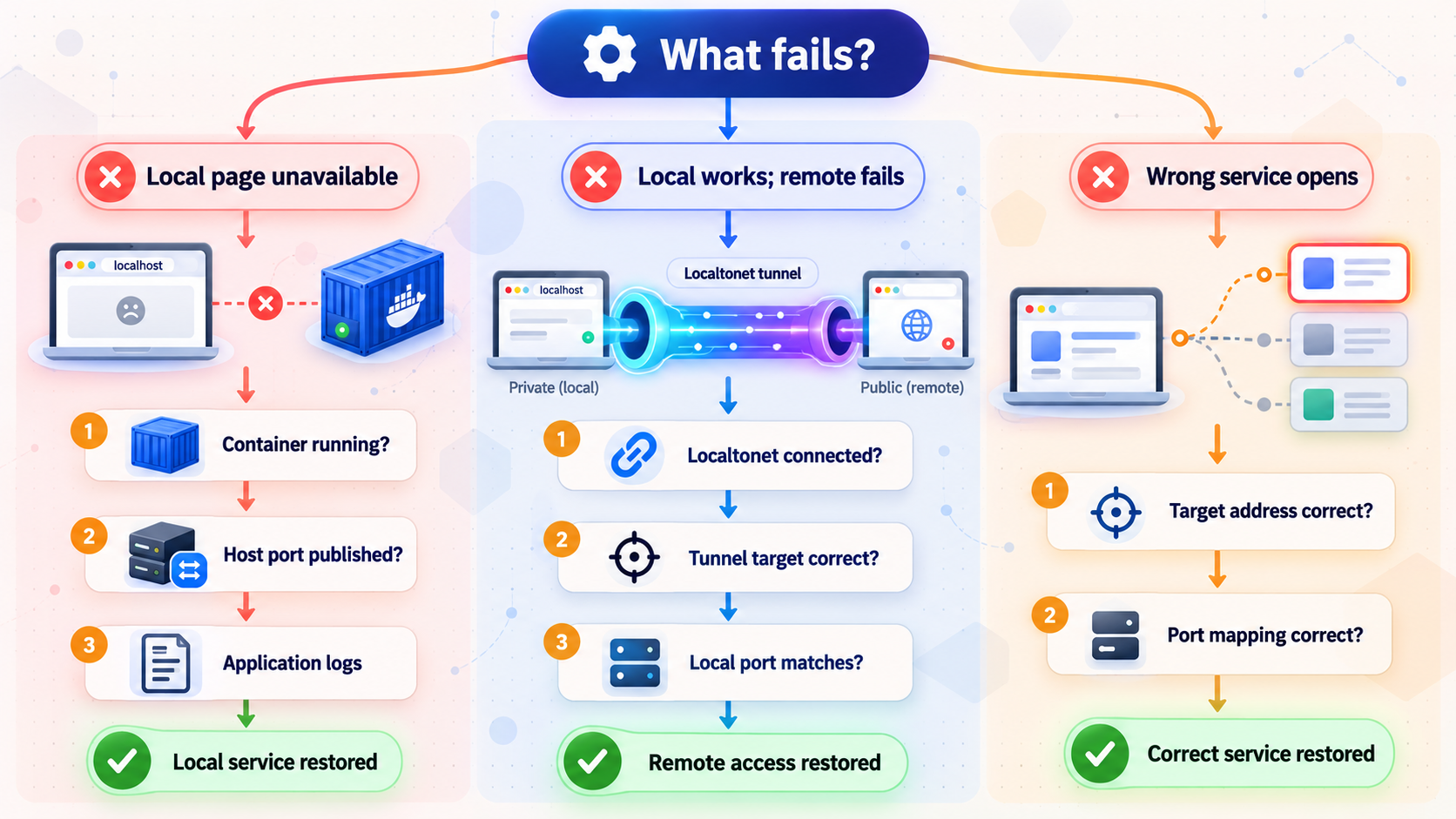
Troubleshoot from the inside out. First verify the container, then the local HTTP service, then access from the Localtonet client device, and only then the public tunnel. This order prevents unrelated layers from obscuring the original failure.
The container name is already in use
Docker will not create a second container named downtify. Inspect the existing object:
docker ps -a --filter name=downtifyIf it is the intended installation and is stopped, start it instead of running the installation command again:
docker start downtifyDo not remove an existing container until you understand which mounts and configuration it uses. A name conflict often means the installation already exists.
Port 8000 is already allocated
A Docker error indicating that the host port is already allocated means another process or container is listening there. Identify that service using the administration tools for your operating system. Stop or reconfigure the conflicting service only if it is safe to do so.
Downtify supports changing its application port with DOWNTIFY_PORT, but all related settings must remain aligned. Since exact deployment details may vary with the selected release, follow the current Downtify port documentation rather than changing only one side of the Docker mapping. Whatever host port you ultimately verify is also the port that Localtonet must target.
The container exits immediately
Include stopped containers in the status output and read the logs:
docker ps -a --filter name=downtify
docker logs downtify
Look for a clear failure involving startup, storage access, configuration, or port binding. Correct the first concrete error rather than repeatedly restarting the same configuration. If the image cannot be pulled, verify outbound connectivity and access to the image registry.
The page does not load at localhost
Confirm that the test is being performed on the Docker host. On a different computer, localhost refers to that computer, not the server. From another LAN device, use the server's private address and the published host port.
If the test is on the Docker host, confirm that the container is running and that Docker shows a port mapping for port 8000. Review logs for application startup failures. Host firewall rules can also affect access from other LAN devices even when loopback access works.
Downloads do not appear in the expected folder
Recheck the exact host path supplied before :/downloads. Relative paths, typographical errors, and operating-system path conversion can direct files somewhere unexpected. Confirm that the host directory is writable in the Docker environment.
Also distinguish between an application download failure and a mount failure. If Downtify reports an error before completing the download, consult its logs and browser message. If it reports success and the library can play the item but the expected host folder is empty, investigate the mount selection.
Authentication still accepts the default password
Do not start the tunnel. Return to Settings → General, change the administrator password, sign out, and explicitly test both the new and old credentials. If account changes disappear after a container restart, investigate the /data persistence configuration.
The public URL fails but localhost works
Confirm that the selected Localtonet client is connected and that the tunnel has been started. Then check the target from the client device itself. If our client runs on the Docker host, test http://127.0.0.1:8000 there. If the client runs elsewhere, test the Docker host's private address and port from that machine.
Verify that the tunnel type is HTTP and that the configured target port matches the locally verified host port. Do not change relay servers or multiple settings at once. A one-change-at-a-time approach makes the cause visible.
The public URL loads the wrong service
This usually indicates that the target address or port points to another local application. Stop the tunnel, verify the intended Downtify address in a browser on the Localtonet client device, and correct the tunnel target. Never leave an unintended administrative interface exposed while investigating.
The tunnel works only while a terminal or desktop session is open
Both the Downtify container and the selected Localtonet client must remain operational. Check how Docker and our client are started on that host after logout or reboot. Startup behavior varies by operating system and installation method, so use the supported service-management procedure for the deployed platform. After a reboot, independently verify Docker, Downtify, the Localtonet client connection, and the tunnel state.
Frequently asked questions
What URL does Downtify use after the standard Docker installation?
The documented standard installation is available at http://localhost:8000 on the Docker host. From another trusted LAN device, use the Docker host's reachable private address with port 8000, subject to local network and host firewall rules.
What are Downtify's initial administrator credentials?
The documented initial username is admin and the initial password is downtify. Change the password in Settings → General immediately. Do not create a public tunnel until the old password has been replaced and the new one has been tested.
Which Downtify directories must be persistent?
Persist /downloads for downloaded audio and /data for application data. The official quick start maps a chosen host directory to /downloads and the Docker named volume downtify_data to /data.
Should I disable Downtify authentication when using Localtonet?
No. Downtify documents authentication disabling only for a server that no one else can reach. A Localtonet HTTP tunnel creates a public route to the application, so keep authentication enabled, use a strong unique password, and provide separate accounts where appropriate.
Does Localtonet require router port forwarding for this setup?
No. Our client establishes an outbound connection to a Localtonet relay server. This allows the local Downtify service to receive traffic through the tunnel without inbound router port forwarding, a public IP address, firewall changes, or VPN setup.
Which Localtonet tunnel type should I use for Downtify?
Use an HTTP tunnel because Downtify provides a browser-based HTTP service. With the standard deployment and our client on the same host, the local target is 127.0.0.1 on port 8000.
Does creating a Localtonet tunnel start remote access immediately?
No. Creating a tunnel does not mean it is running. Start it from the dashboard after configuration. The public route remains available only while the selected client is connected and the tunnel is running.
Can the Localtonet client run on a different machine?
Yes, provided that machine can reach the Downtify host over the local network. In that arrangement, configure the tunnel with the Docker host's reachable private address rather than 127.0.0.1. Test that address directly from the client machine before starting the tunnel.
Can I change Downtify from port 8000?
Downtify supports changing its application port with DOWNTIFY_PORT. The container listener, Docker publication, browser address, and Localtonet target must remain consistent. Because exact release configuration can change, follow the current Downtify documentation for the version being deployed rather than changing only the tunnel port.
Will stopping the Localtonet tunnel delete my Downtify library?
No. Stopping the tunnel removes the active remote route but does not stop or delete the Downtify container, its named volume, or the host downloads directory. Local access can continue while the tunnel is stopped.
Connect your verified Downtify server with Localtonet
Once Downtify works locally, its default administrator password has been changed, and both persistent storage areas have been verified, create an HTTP tunnel for the local web service. Keep authentication enabled and start the tunnel only when you are ready for remote access.
Get Started Free →

