

Run Magic locally, verify its backend, and publish only the HTTP endpoint you actually need
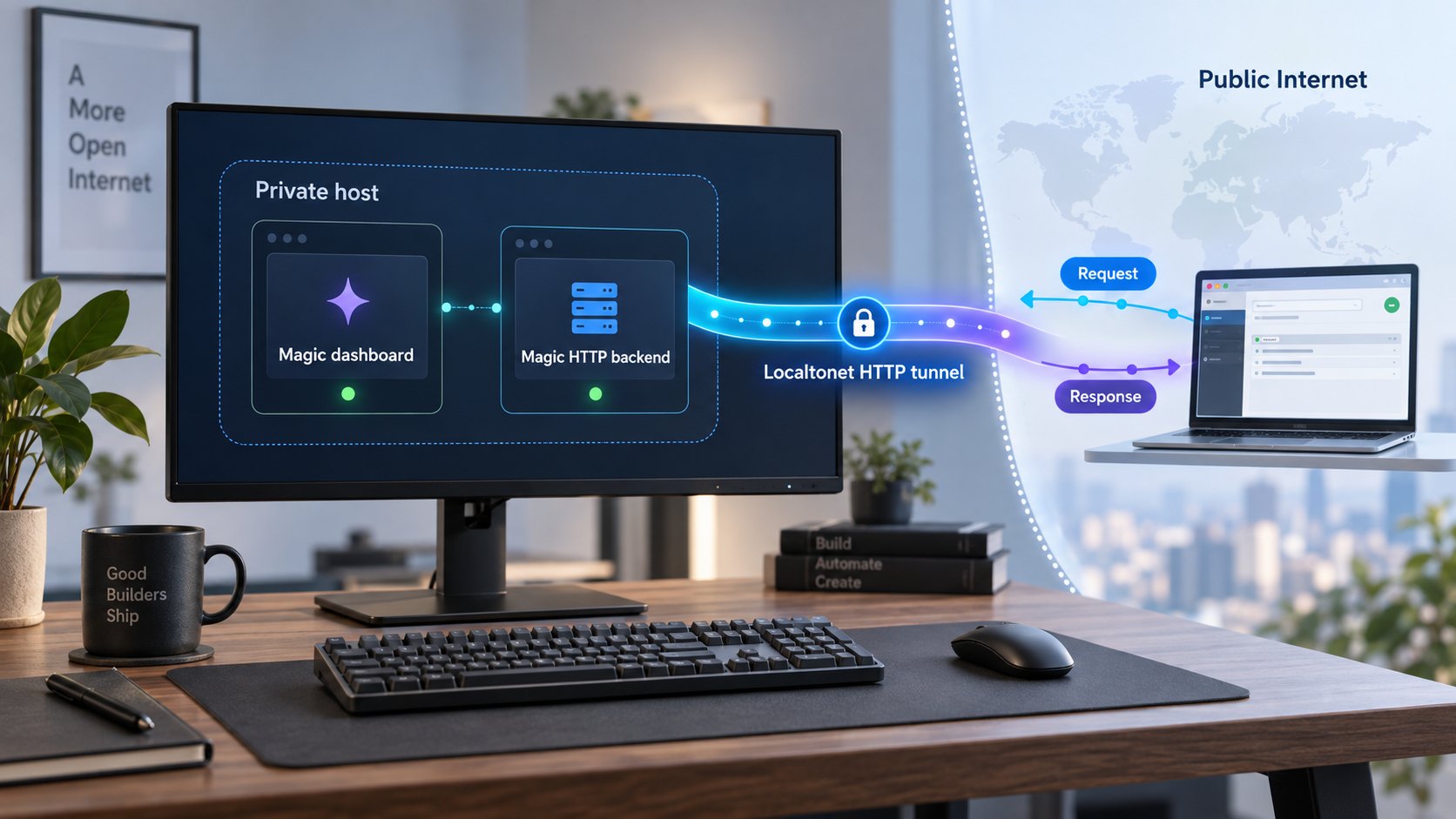
Magic is a self-hosted platform for building applications, secured REST APIs, database-backed tools, and AI-agent workflows. This guide starts with the documented Docker Compose installation, explains how the dashboard and backend ports relate to each other, and shows how to verify the service on the host before allowing remote traffic. After the local installation works, we connect the Magic HTTP backend through Localtonet without requiring inbound router port forwarding, firewall changes, a public IP address, or a VPN. We also cover credential safety, endpoint testing, routine operation, and the most likely failure points.
📋 What's in this guide
How the Magic installation is structured
Magic is an open-source, self-hosted platform that combines backend development, REST APIs, database tooling, authentication, role-based access control, frontend hosting, automation, and AI-agent-oriented workflows. Its documented quick-start installation uses Docker Compose, which makes it possible to start the required application components with one command rather than assembling the runtime manually.
The quick-start workflow exposes two important local HTTP addresses. The browser dashboard is opened at http://localhost:5555. After opening it, the documented setup tells you to point the dashboard at localhost:4444, which is the Magic backend. These ports serve different purposes and should not be treated as interchangeable.
http://localhost:5555.
For most integrations, the safer design is to keep the administrative dashboard local and expose only the backend on port 4444. A remote application, webhook sender, integration, or authorized API consumer generally needs the API endpoint, not the development and administration interface. Reducing the number of published interfaces reduces the public attack surface and makes access policies easier to reason about.
In the Magic quick start, localhost means the machine running Docker. In Localtonet configuration, the local target is evaluated from the device running the Localtonet client. If Docker and our client run on the same machine, 127.0.0.1 can normally represent that host. If they run on different devices, the target must instead be an address that the Localtonet client device can reach.
Why local verification comes before tunneling
A public tunnel cannot repair an application that is not running, a container that failed to start, an incorrect backend address, or an API endpoint that does not exist. Testing locally first separates application problems from connectivity problems. Once a request succeeds directly against the local service, the same target can be placed behind the tunnel and tested again through the assigned public URL.
This sequence is particularly important with an application platform such as Magic because the backend may be running even though a specific generated endpoint is unavailable, requires authentication, or rejects the HTTP method being used. A successful connection to the base service proves network reachability. It does not prove that every application endpoint is correctly configured.
Prerequisites for installing Magic
Prepare a machine on which you are authorized to run containers and expose services. The documented quick start requires Docker with Docker Compose support and curl. The command downloads the project-provided Compose definition and sends it directly to docker compose.
Before running the installation, confirm the following:
- Docker is installed and its daemon or service is running.
- The current user is permitted to execute Docker commands.
- The Docker Compose subcommand is available as
docker compose. curlis installed and can retrieve content over HTTPS.- Local ports 5555 and 4444 are not already occupied by unrelated services.
- The host can reach
hyperlambda.devto download the Compose definition. - You have a browser available for opening the dashboard.
- You have authority to publish any API, data source, or application that you later connect through Localtonet.
You can confirm that the required executables are available without changing the system:
docker --version
docker compose version
curl --version
These checks only confirm that the commands can be invoked. They do not guarantee that the Docker service is running or that the current account has permission to use it. If a subsequent Docker command reports a daemon connection or permission error, resolve that host-level Docker issue before troubleshooting Magic.
| Requirement | Why it is needed | What to verify |
|---|---|---|
| Docker | Runs the Magic application containers | The Docker service is active and available to the current user |
| Docker Compose | Reads and starts the provided multi-container definition | docker compose version returns successfully |
| curl | Downloads the documented Compose definition | curl --version returns successfully |
| Ports 5555 and 4444 | Provide the local dashboard and backend addresses | No unrelated process is already bound to either required port |
| Localtonet client | Creates the outbound connection for later remote access | Install it on the Magic host or another authorized device that can reach the backend |
Reviewing the streamed installation method
The official quick-start command streams a remotely downloaded Compose file directly into Docker Compose. This is convenient, but it also means the downloaded configuration is executed without first being retained for manual inspection. In environments with formal change control, package review, or software supply-chain requirements, review the current project configuration and your organization’s policies before running it.
This guide does not invent an alternative installation command because the supplied project evidence establishes the streamed Docker Compose workflow. It also does not prescribe CPU, memory, disk, operating system, container names, volume locations, or persistence guarantees because those details are not established by the available evidence. Check the current project release and deployment documentation when sizing a production host or designing backups.
Install and start Magic with Docker Compose
The official quick start uses the following command:
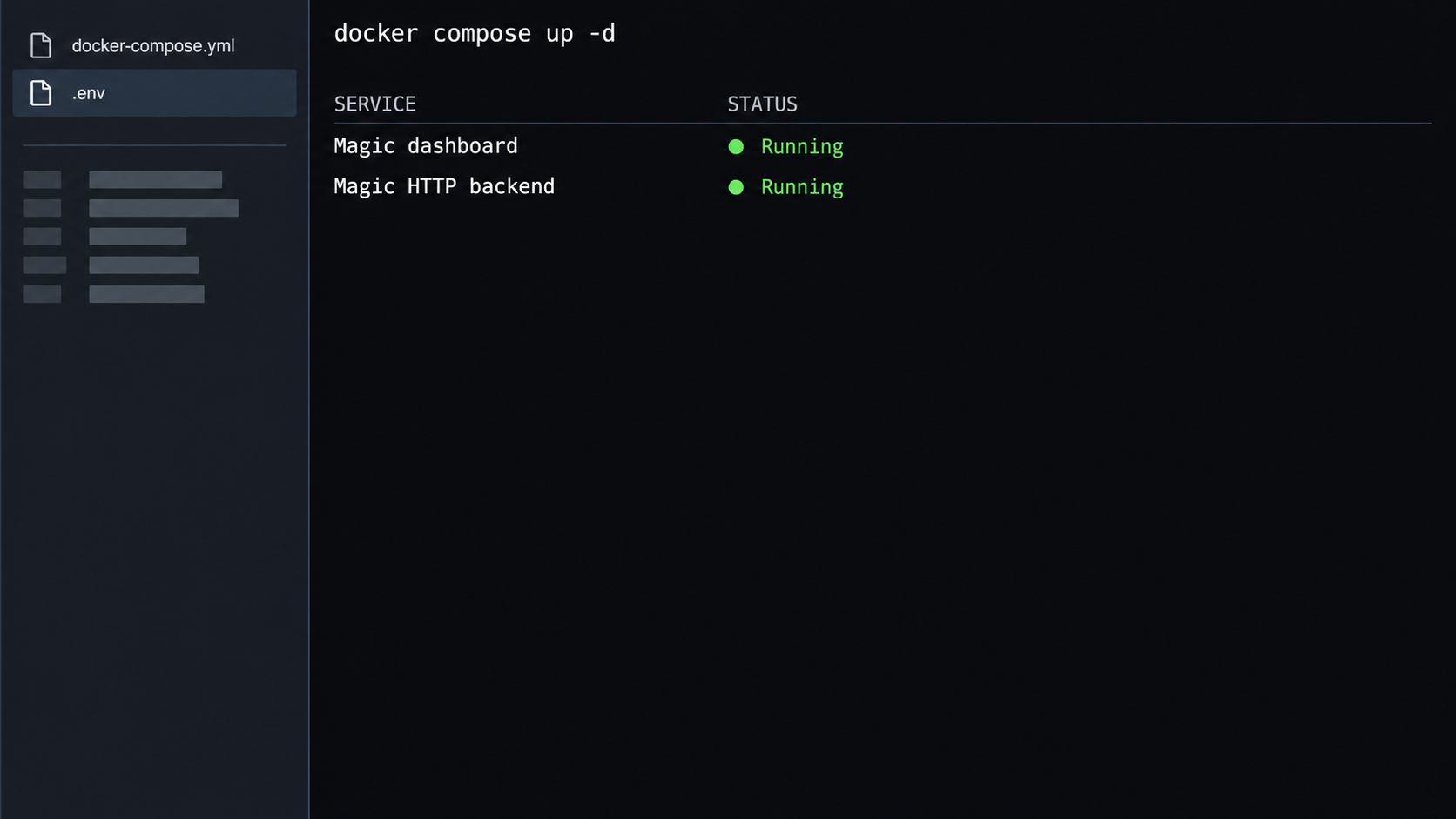
curl -fsSL https://hyperlambda.dev/docker-compose.yaml | docker compose -f - up
The curl portion retrieves the Compose YAML document. The pipe passes that document to Docker Compose through standard input. The -f - argument tells Docker Compose to read its configuration from standard input, and up creates and starts the services described by that configuration.
The documented command runs in the foreground. Keep the terminal open while you perform the initial verification because its output can reveal image download failures, startup errors, port conflicts, and runtime exceptions. Do not assume the installation is healthy merely because container images began downloading.
Open a terminal on the intended Magic host
Use the machine that will run the Docker workload. Confirm Docker, Docker Compose, and curl are available, and make sure you are operating in an authorized environment.
Run the documented Docker Compose command
Execute curl -fsSL https://hyperlambda.dev/docker-compose.yaml | docker compose -f - up. Docker may need time to download images during the first run.
Watch the foreground output
Wait for the services to initialize. If the command exits or reports a port, image, permission, or runtime error, resolve that issue before opening a tunnel.
Open the local dashboard
On the Docker host, open http://localhost:5555 in a browser. This verifies that the dashboard is reachable through its documented local address.
Point the dashboard to the backend
Configure the dashboard to use localhost:4444, following the project’s quick-start instruction. The backend must be running and reachable for the dashboard to operate against it.
Sign in locally
The documented initial credentials are username root and password root. Use them only for the first local sign-in, then replace the default password before permitting internet access.
The initial Magic login is root with password root. Anyone who knows the project defaults can try those credentials against a publicly reachable login. Change the password through Magic’s supported account-management workflow before starting a public tunnel. If you cannot confirm that the default credential has been replaced, keep both ports local.
The exact password-management screens are not established by the supplied evidence, so this guide does not invent menu names or dashboard buttons. The security requirement is still clear: complete the credential change locally using the controls provided by the installed Magic version, verify that the old password no longer works, and only then continue.
Verify the dashboard and backend locally
Local verification should cover both interfaces independently. First, confirm that the dashboard loads at http://localhost:5555. Second, confirm that the backend is reachable at http://localhost:4444. Testing the two ports separately helps identify whether a failure belongs to the user interface, the backend, or the connection between them.
Verify the dashboard
Open the following address in a browser running on the Docker host:
http://localhost:5555
A successful result is a usable Magic dashboard rather than a browser connection error. Complete the backend address configuration using localhost:4444, sign in locally, and make sure the dashboard can interact with the backend.
If the browser runs on a different computer, localhost refers to that computer rather than the Docker host. For initial testing, using a browser directly on the host avoids that ambiguity. If the host has no desktop environment, test with an authorized host-reachable address according to your network policy. The supplied project evidence does not define remote dashboard binding rules, so do not assume that port 5555 is reachable from another LAN device.
Verify the backend transport
From the Docker host, you can ask an HTTP client to connect to the backend:
curl -i http://localhost:4444The exact status code and response body at the backend root are not established here. A response such as an authentication challenge, redirect, application message, or even a route-specific not-found result can still demonstrate that an HTTP server answered on the port. A connection-refused or connection-timeout error indicates that the backend is not reachable at that address.
Do not use the root response as the only API test. Once you have created or identified a real REST endpoint in Magic, test that exact path with the correct HTTP method, request body, content type, and application credentials. Those values depend on the endpoint you configured and must not be guessed.
Verify a real REST API route
Magic can generate secured REST APIs over supported databases and can expose application endpoints created in the platform. The safest test is a known, non-destructive route created for your application. Use a read-only operation where possible, especially when validating remote access for the first time.
The following is intentionally a pattern rather than a ready-to-run command because the route and authorization mechanism belong to your Magic application:
curl -i \
  -H "Authorization: Bearer YOUR_APPLICATION_CREDENTIAL" \
  http://localhost:4444/YOUR_API_PATH
Replace the placeholders only with values issued or configured by your Magic installation. Never place a real bearer token in documentation, shell history shared with others, screenshots, support tickets, or a public repository. If your endpoint uses another supported authentication scheme, use that scheme instead of assuming bearer authentication.
An HTTP 401 or 403 response can prove that the request reached Magic while also proving that the caller was not authorized. An HTTP 404 can mean the server is reachable but the path is wrong. Read the status code and application response before concluding that the tunnel or service has failed.
Secure Magic before publishing an endpoint
Internet reachability changes the threat model. A service that previously accepted traffic only from the local host may receive automated scans, malformed requests, repeated login attempts, and calls from unexpected clients after publication. The tunnel should therefore be the final connectivity step, not the first security step.
root/root login locally and verify that the old password is rejected before starting remote access.
Separate connectivity from authorization
Localtonet provides a network path from a public URL to the selected local HTTP service. That path does not automatically make a Magic route public, private, read-only, or administrator-only. The application still needs to authenticate callers and authorize each requested operation.
Avoid designing a public endpoint that trusts callers merely because they know the URL. URLs can be copied, logged, forwarded, or discovered. Use Magic’s own supported authentication and role-based controls for protected resources. If an integration credential is exposed, revoke or replace it using the application’s supported mechanism.
Decide whether the dashboard should remain private
The dashboard is an administrative and development surface. It can be used to work with backend functionality, databases, endpoints, roles, scheduled tasks, and other platform capabilities. Publishing it creates a different risk profile from publishing one intentionally designed API route.
For a typical remote API integration, leave port 5555 local and tunnel port 4444. Administrators can continue to use the dashboard from the host or through a separately approved access method. If your workflow truly requires a remotely loaded dashboard, review that decision independently and test how the browser-based interface reaches its backend.
A dashboard opened on another computer cannot use that computer’s localhost:4444 to reach the Magic host. It would need an appropriate backend address, and the deployment may also need compatible origin and browser-security behavior. The supplied evidence does not establish Magic’s cross-origin configuration or remote dashboard requirements, so this guide does not claim that tunneling both ports is sufficient.
Connect the Magic HTTP backend through Localtonet
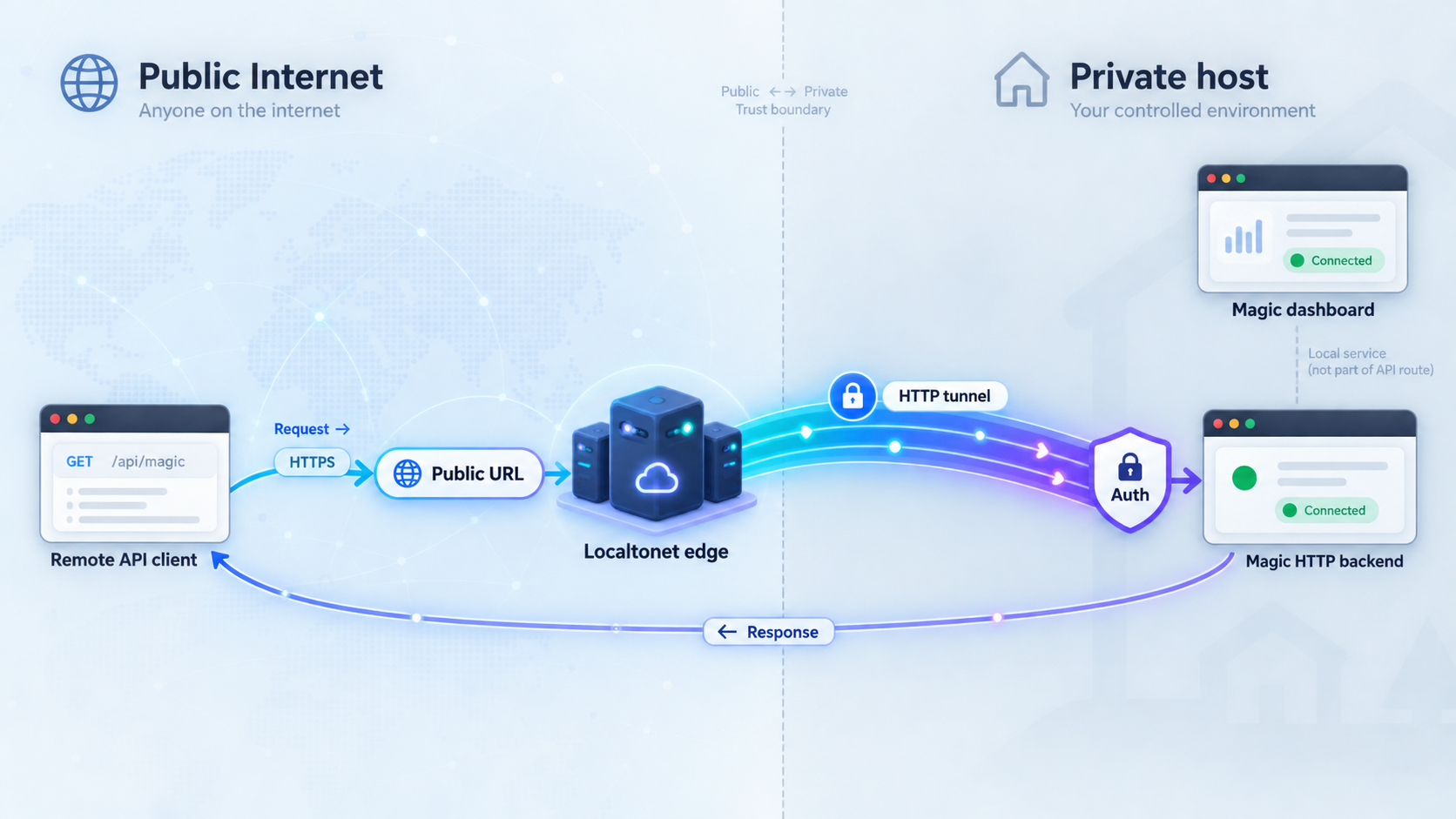
Once http://localhost:4444 works on the Magic host and the default credential has been changed, you can create an HTTP tunnel. Install and run the Localtonet client on the Magic machine or on another authorized device that can reach the backend. The client initiates an outbound connection to our relay, so this workflow does not require inbound router port forwarding, firewall changes, VPN setup, or a public IP address.
An HTTP tunnel is the appropriate family for a Magic REST API because the target is an HTTP service. The local target consists of an IP address and port reachable from the client device. HTTP tunnels can use a random subdomain, a custom subdomain, or a custom domain through the available Process Type options. All three serve the selected content at a public HTTPS address. Availability and domain requirements can vary, so use the options shown in the current dashboard and verify current DNS instructions before configuring a custom domain.
| Target | Recommended exposure | Reason |
|---|---|---|
| Magic backend, port 4444 | Expose when an authorized remote API client needs it | This is the documented backend address and the likely target for REST API calls |
| Magic dashboard, port 5555 | Keep local by default | It is an administrative and development interface with broader capabilities |
| A specific API route | Protect through Magic authorization | The tunnel forwards to the HTTP service; route-level access remains an application responsibility |
| Database port | Do not expose for this workflow | Remote API consumers should call the secured application API rather than receive direct database connectivity |
The exact labels and available relay choices can change with the current dashboard, client version, region, and subscription. Obtain the relay server or server code from the live Localtonet product instead of copying a hardcoded value from an article. Device authentication tokens are device-specific and must never be published or guessed.
Install and run the Localtonet client
Run our client on the Magic host or on an authorized device that can reach 127.0.0.1:4444 or the appropriate host-reachable address. Confirm that the selected device is connected before continuing.
Authenticate or select the client device
Use the device-specific authentication token through the supported Localtonet workflow. Treat the token as a secret and do not paste it into documentation, code, screenshots, or public issue reports.
Select a current relay server or region
Choose from the values currently available in the dashboard. Do not reuse an assumed server code because available values can vary over time and by deployment or plan.
Create an HTTP tunnel for the backend
Select an HTTP tunnel and the desired Process Type. Use a random subdomain for a straightforward initial test, or another currently available domain option when your deployment requires it.
Set the local Magic target
If our client runs on the Docker host and the backend is available through the documented host port, target 127.0.0.1 on port 4444. If the client runs elsewhere, enter an authorized address that it can actually reach and verify that route locally first.
Start the tunnel and copy the assigned URL
Creating a tunnel does not start it. Use the Start control, wait until the tunnel is running, and then use the assigned public HTTPS URL as the base address for authorized Magic API requests.
You can consult the current Localtonet documentation when checking dashboard-specific options. The important target for this workflow remains the verified Magic backend address rather than the dashboard port.
Remote access works only while the selected Localtonet client or device is connected and the tunnel is running. Magic must also remain healthy on the configured local address. A public URL can therefore stop responding when Magic stops, the Localtonet client disconnects, or the tunnel is stopped.
Test the Magic API through its public URL
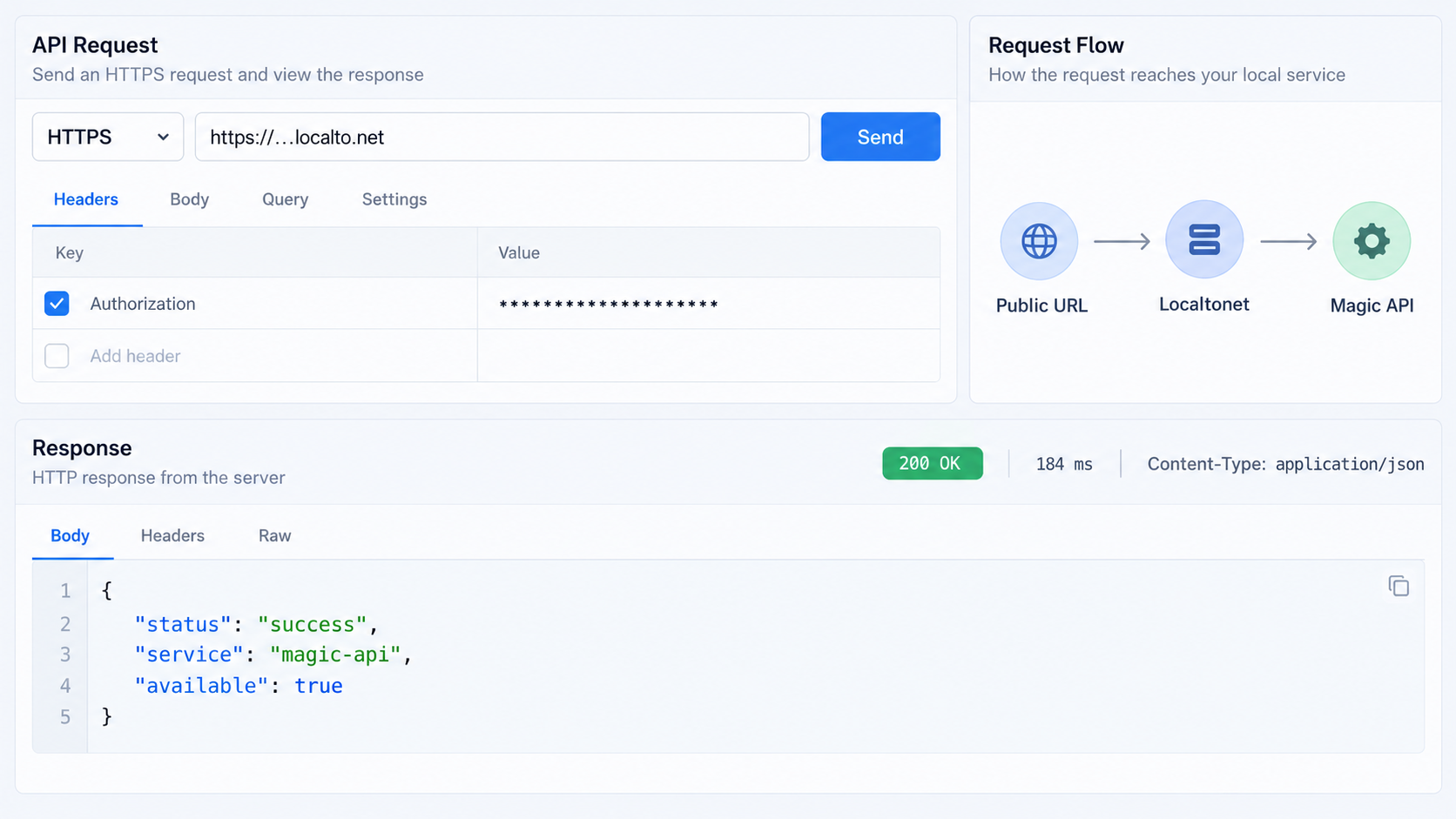
Begin with a network-level request to the assigned public URL. Replace the placeholder below with the URL displayed for your running tunnel:
curl -i https://YOUR_ASSIGNED_PUBLIC_URL
Do not infer too much from the root path. The useful result is evidence that the request reached an HTTP application. Depending on Magic’s root behavior, you might receive an application response, redirect, authorization response, or route-not-found response. Compare it with the local request to http://localhost:4444.
Next, call the same known API path that you already tested locally:
curl -i \
  -H "Authorization: Bearer YOUR_APPLICATION_CREDENTIAL" \
  https://YOUR_ASSIGNED_PUBLIC_URL/YOUR_API_PATH
Use the same HTTP method, headers, query parameters, and body that succeeded locally. Change only the base URL. This controlled comparison makes failures easier to isolate.
Interpret common HTTP outcomes
| Observed result | Likely meaning | Next check |
|---|---|---|
| Successful application response | The public request reached the expected route and was accepted | Confirm that returned data and permissions match the intended caller |
| 401 Unauthorized | The service is reachable, but valid authentication was not accepted | Check the application credential and authentication scheme without exposing the secret |
| 403 Forbidden | The caller may be authenticated but lacks permission | Review Magic roles and endpoint-level authorization |
| 404 Not Found | The service may be reachable, but the requested path is unavailable | Compare the path exactly with the locally verified endpoint |
| Method not allowed | The route exists but does not accept the chosen HTTP method | Use the method defined for that endpoint |
| Gateway or upstream failure | The tunnel may be running while its local target is unavailable | Retest 127.0.0.1:4444 from the Localtonet client device |
| Connection or name failure | The tunnel may be stopped, the client may be disconnected, or the URL may be incorrect | Check tunnel status, device status, and the exact assigned URL |
Test from outside the host network
A request from the Docker host confirms that the public URL resolves and accepts a request from that machine, but an external test more closely represents the intended workflow. Use an authorized client on another network and repeat a non-destructive API request. Confirm both the expected response and the expected denial behavior.
Negative tests are valuable. A missing credential should not accidentally receive protected data. A low-privilege account should not gain administrator capabilities. An unsupported method should not modify data. These checks validate the application’s security policy, not merely tunnel connectivity.
Routine operation, shutdown, and troubleshooting
Starting and stopping the initial Docker Compose process
The documented Magic command runs Docker Compose in the foreground. While it is attached to the terminal, the standard terminal interrupt, commonly Ctrl+C, asks the foreground Compose process to stop. Observe the output to confirm that the containers shut down cleanly.
The evidence supplied for this guide does not establish a canonical detached-mode command, a production service definition, container restart policy, upgrade command, backup procedure, or exact data-volume layout. Do not assume that restarting with a newly downloaded Compose definition is a complete or lossless upgrade process. Before production use, identify where your installed version stores databases, configuration, uploaded files, credentials, generated applications, and other persistent state, then build a tested backup and recovery process around that verified layout.
Stopping remote access
Stop the tunnel in the Localtonet dashboard when remote access is temporarily unnecessary. Delete it when the public endpoint should no longer exist. Stopping Magic alone also makes the upstream unavailable, but leaving an unused tunnel configured can create confusion during later troubleshooting. Manage the application and tunnel lifecycles intentionally.
Troubleshooting the Magic installation
If http://localhost:5555 does not load, inspect the terminal running Docker Compose. Typical categories include failure to retrieve an image, inability to contact Docker, insufficient Docker permissions, a required port already being used, or an application container exiting during startup. Use the actual error text to guide the fix rather than changing multiple settings at once.
If the dashboard loads but cannot use the backend, verify that it was pointed at localhost:4444 for the documented local workflow. Then request http://localhost:4444 directly from the host. If there is no response, the problem is below the dashboard layer and should be resolved before Localtonet is involved.
Troubleshooting the tunnel target
The most common target mistake is misunderstanding localhost. If the Localtonet client runs in a different environment from the Magic host, its 127.0.0.1 is not the Magic machine. The client must target an address reachable from its own network context.
Container networking can add another layer. The project’s documented quick start provides host-facing addresses on ports 5555 and 4444, so a Localtonet client running directly on that host can target the host address. A client placed inside another container has its own loopback namespace. This guide does not prescribe a container-network target because the current Compose network names and service names are not established by the evidence.
Troubleshooting local success but remote failure
- Confirm that the exact API path still succeeds locally.
- Confirm that the Localtonet client is connected.
- Confirm that the HTTP tunnel has been started, not merely created.
- Confirm that the tunnel targets the Magic backend port 4444 rather than dashboard port 5555.
- Confirm that the target IP is reachable from the Localtonet client device.
- Copy the current assigned public URL again and check for path or hostname mistakes.
- Compare the remote status code and body with the local response.
- Verify that the request preserves the required HTTP method, headers, content type, and authorization.
If the public base URL responds but a specific endpoint does not, the tunnel is usually no longer the first suspect. Compare routing, authentication, authorization, method, and request-body details. If neither the root nor the endpoint responds, return to device connectivity, tunnel state, and the local target.
Handling API credentials safely
Avoid placing credentials directly in scripts committed to version control. Use the secret-management mechanism appropriate to the client environment. Limit credentials to the required roles, rotate them according to your operational policy, and remove access when an integration is retired.
The Localtonet device token serves a different purpose from a Magic application credential. The device token identifies the client device that runs a tunnel. The Magic credential identifies or authorizes an application caller. Do not substitute one for the other, and do not expose either value.
Planning for availability
End-to-end availability depends on several components: the Magic process, its containers and dependencies, the Docker host, local networking, the Localtonet client, and the running tunnel. Monitor the layers separately so that an unavailable API can be traced to the correct component.
Localtonet supports platform-wide Token and Tunnel webhooks that can report Connected or Disconnected status changes for a selected Token Group. These lifecycle notifications concern Localtonet devices and tunnels. They are not Magic API events and should not be treated as application-level request monitoring.
The supplied project evidence does not define the persistence and migration procedure for this exact deployment. Do not remove containers, volumes, or host files while assuming that application data is disposable. Identify and test the project’s current backup and upgrade process before changing a production installation.
Frequently asked questions
Which Magic port should I expose through Localtonet?
For remote REST API access, target the Magic backend on port 4444. Port 5555 is the browser dashboard and should normally remain local unless you have a separately reviewed need for remote administrative access.
What are the initial Magic login credentials?
The documented quick start uses username root and password root. Use them only for the first local sign-in, change the password through the installed version’s supported account controls, and verify that the old password no longer works before exposing any interface.
Does an HTTP tunnel replace Magic authentication?
No. The tunnel provides network connectivity to the local HTTP service. Magic must still authenticate callers and enforce roles and endpoint permissions. Use least-privilege application credentials for every remote integration.
Do I need router port forwarding or a public IP address?
No. The Localtonet client establishes an outbound connection to our relay. This allows the running tunnel to provide a public URL without inbound router port forwarding, firewall changes, VPN setup, or a public IP address.
Why does localhost work for Magic but fail in my tunnel?
localhost always refers to the environment in which the client process runs. If the Localtonet client runs directly on the Magic host, 127.0.0.1:4444 can represent the backend. If it runs on another device or inside a separate container, its loopback address points somewhere else. Use an address that is reachable from the Localtonet client’s actual network context.
Can I expose both the Magic dashboard and backend?
Separate HTTP services can be considered separately, but exposing the dashboard broadens the public attack surface. A remotely loaded dashboard may also need a public backend address and compatible browser-origin behavior. Those Magic-specific remote dashboard requirements are not established by the supplied evidence, so keep port 5555 local unless you have verified and secured the complete workflow.
Why does the public URL return 401, 403, or 404?
These responses often show that the request reached an HTTP application. A 401 usually indicates missing or rejected authentication, a 403 indicates insufficient authorization, and a 404 indicates that the requested path was not found. Compare the same request against the locally verified endpoint and check its method, path, headers, and credentials.
Does creating a Localtonet tunnel make it immediately available?
No. Creating the configuration does not mean the tunnel is running. Start it using the Start control. The public endpoint remains available only while the selected client device is connected, the tunnel is running, and the Magic backend remains reachable.
Can I use a custom domain for the Magic API?
Localtonet HTTP tunnels support Random Sub Domain, Custom Sub Domain, and Custom Domain Process Types, with availability depending on the current product and plan. Custom-domain DNS requirements should be checked against the current Localtonet documentation before making changes because this guide does not hardcode potentially changing DNS instructions.
Connect your verified Magic API with Localtonet
Install Magic, test the backend locally on port 4444, replace the default credentials, and then create an HTTP tunnel for the authorized API access your workflow requires.
Get Started Free →

