

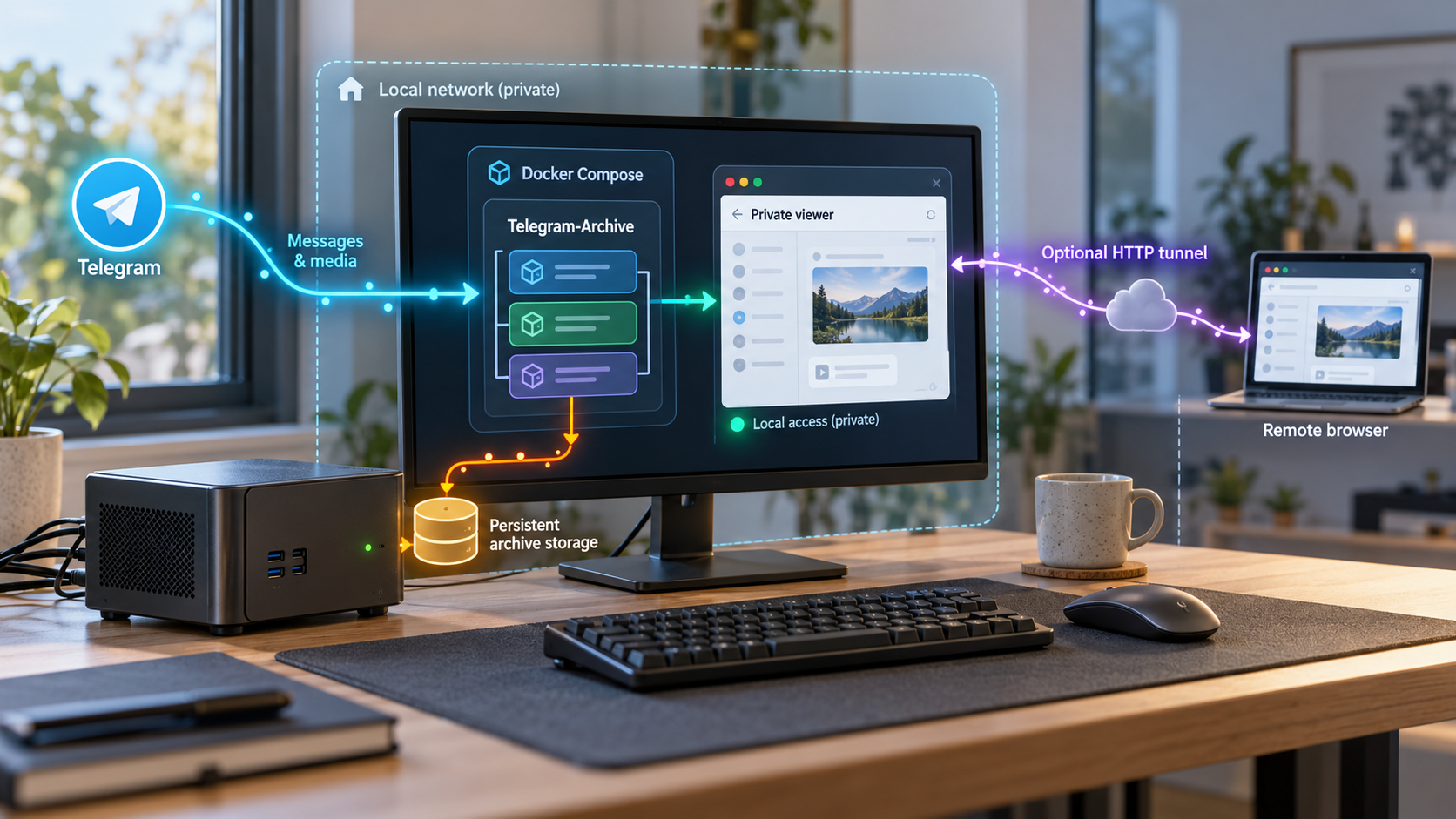
Keep an incremental Telegram archive on your own machine and reach its authenticated viewer when you are away
Telegram-Archive saves messages, media, edits, deletions, and other supported account data to storage you control, then presents the archive through a local browser-based viewer. This guide walks through the documented Docker Compose installation, Telegram authentication, startup, first-backup verification, everyday operation, and troubleshooting. After the viewer works locally at http://127.0.0.1:8000, we show how to expose that existing HTTP service with Localtonet without configuring inbound router port forwarding, changing firewall rules, setting up a VPN, or requiring a public IP address.
📋 What's in this guide
How Telegram-Archive works
Telegram-Archive is a self-hosted archival system for one or more Telegram accounts. Its backup component connects to Telegram and stores supported account history in a local archive. The separate viewer reads the resulting database and media files, but the viewer itself does not communicate with Telegram. This separation is useful when deciding which component needs account credentials and which component can be made available to a browser.
The archive uses SQLite by default, with PostgreSQL available as an alternative. It can save messages, formatting, replies, forwards, reactions, pinned messages, polls, service messages, and supported media such as photos, videos, voice notes, audio, GIFs, stickers, documents, and link previews. Identical media can be stored once even when it appears in multiple chats. Files larger than 100 MB are skipped by default, although media behavior can be configured.
Telegram-Archive combines a real-time listener with scheduled passes. The listener records new messages, edits, and reactions as they happen while the backup service is connected. A full backup starts when the container starts and then runs on a cron schedule, once per day by default. The full pass fetches only what is new and helps fill gaps that the live connection did not capture.
What the archive cannot recover
The first backup establishes an important boundary. Telegram-Archive cannot recover messages that were deleted before that first backup captured them. It also does not save secret chats. The normal backup process does not send messages or modify the Telegram account. A separate restore script exists for posting archived messages back to a chat, but that is outside this backup-and-viewer workflow and should not be confused with normal archival operation.
The viewer is English-only and does not provide an offline mode. A browser must be able to reach the running viewer service, either locally or through an access method such as the Localtonet HTTP tunnel configured later in this guide.
Only the backup component communicates with Telegram. The web viewer reads the archive. Exposing the viewer does not require exposing the backup service or Telegram authentication process.
Prerequisites and decisions before installation
The documented quick-start path uses Docker Compose. Install Docker with Compose support on the machine that will hold the archive, and make sure your user can run Docker commands. The published container images support amd64 and arm64. The backup and viewer images share a version number, so their image pins should remain aligned when you install or upgrade.
You also need a Telegram api_id and api_hash for your account from my.telegram.org/apps. These values identify the Telegram API application used by the backup component. They are not the same as the one-time login code that Telegram sends during authentication.
Prepare the following before creating the deployment:
- A machine that can remain online whenever continuous listening or scheduled backups are expected to run.
- Docker Compose and enough disk space for the database and the media you choose to download.
- Your Telegram API ID, API hash, and account phone number.
- Access to Telegram so you can receive the login code during initial authentication.
- Your Telegram two-step verification password, if two-step verification is enabled.
- A unique viewer username and a long, unique viewer password.
- A valid timezone name for the viewer, such as the documented example
Europe/London.
| Component or value | Purpose | Security treatment |
|---|---|---|
| Telegram API ID and API hash | Allow the backup client to authenticate through Telegram's API | Keep them out of screenshots, source control, logs shared publicly, and article examples |
| Telegram phone number | Identifies the account during the authentication flow | Treat it as personal information and restrict access to the environment file |
| Telegram session | Allows subsequent backup runs after interactive login | Protect the persistent data directory and its backups |
| Viewer username and password | Authenticate browser users to the archive viewer | Use a unique, long password, especially before enabling remote access |
| Persistent data directory | Holds archive state and data needed across container restarts | Apply host permissions, backups, and disk protection appropriate for private message history |
The .env file contains account identifiers and viewer credentials. Do not commit it to a public repository, paste it into support tickets, or expose it through a web server. Use real values only on the host where Telegram-Archive will run.
Choose the host carefully
The host becomes the storage location for potentially sensitive message history and media. Use an account with limited administrative access, keep the operating system and Docker installation maintained, and ensure that unrelated users cannot browse the project directory. Disk usage depends on the selected chats, archive age, and media policy. The default 100 MB per-file media limit does not establish a total archive limit, so free space still needs monitoring.
The quick-start ownership command assigns the data directory to numeric user and group ID 1000:1000, matching the documented container runtime user. The exact host permission behavior can differ on Docker Desktop, Colima, Podman, and native Linux. This guide follows the documented Docker Compose quick start. If your platform does not support the shown sudo chown operation, do not substitute arbitrary permissions such as world-writable access. Use the project guidance for your specific container runtime.
Install Telegram-Archive with Docker Compose
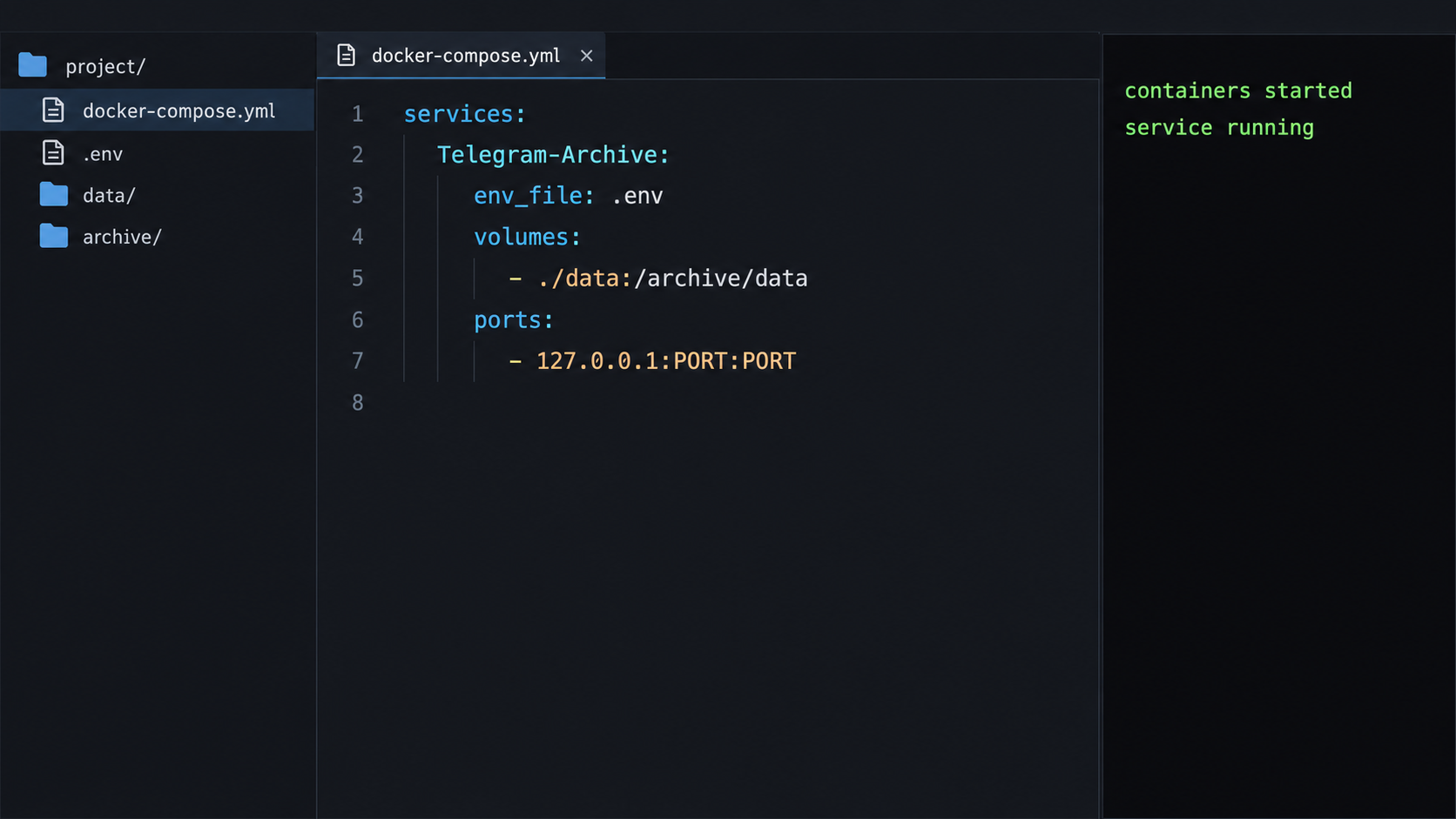
Perform the installation in a dedicated directory. The commands below download the project's current Compose file, create the required environment configuration, prepare persistent storage, authenticate the Telegram account, and start the backup and viewer services.
Create and enter a dedicated project directory
Keep the Compose file, environment configuration, and persistent data together in a directory whose access you can restrict. The directory name is local to your machine and does not affect Telegram-Archive.
Download the official Docker Compose file
Download the Compose definition from the project's main branch while you are inside the deployment directory. Review the downloaded file before running it, including its image names, image version pins, mounts, and published ports.
Create the environment file
Set the documented Telegram API values, phone number, viewer login, and timezone. Replace every placeholder with your own value and do not retain placeholder credentials.
Create persistent storage with the documented ownership
Create the data directory and, on a compatible Unix-like host, assign it to user and group ID 1000:1000. This matches the documented container user.
Authenticate the Telegram account interactively
Run the authentication command through the telegram-backup service. Enter the code Telegram sends you. If the account uses two-step verification, enter that password when prompted.
Start the backup and viewer containers
Start the Compose deployment in detached mode. The backup performs migrations and begins a full backup at startup, while the viewer becomes available on the documented local endpoint.
Run the installation commands
Create a directory in a location suitable for persistent application data, then download the Compose file:
mkdir telegram-archive
cd telegram-archive
curl -fsSLO https://raw.githubusercontent.com/GeiserX/Telegram-Archive/main/docker-compose.yml
Before proceeding, inspect docker-compose.yml. The evidence used for this guide identifies coordinated backup and viewer image version 9.3.3. Because the command downloads the file from the project's main branch, the pins in the retrieved file can change after this guide is reviewed. Use the matching versions present in the official Compose file you actually download rather than mixing unrelated backup and viewer versions.
Create .env with the documented variables. This template deliberately contains placeholders rather than usable credentials:
cat > .env << 'EOF'
TELEGRAM_API_ID=REPLACE_WITH_YOUR_API_ID
TELEGRAM_API_HASH=REPLACE_WITH_YOUR_API_HASH
TELEGRAM_PHONE=REPLACE_WITH_YOUR_PHONE_NUMBER
VIEWER_USERNAME=REPLACE_WITH_YOUR_VIEWER_USERNAME
VIEWER_PASSWORD=REPLACE_WITH_A_LONG_UNIQUE_PASSWORD
VIEWER_TIMEZONE=REPLACE_WITH_YOUR_TIMEZONE
EOF
Replace every value. The phone number should correspond to the Telegram account being archived. Do not add quotation marks or change the variable names unless the current project documentation specifically requires it for your value.
On a compatible Unix-like Docker host, create the data directory and apply the documented ownership:
mkdir -p data && sudo chown -R 1000:1000 dataAuthenticate the Telegram account:
docker compose run --rm telegram-backup python -m telegram_archive auth
Follow the interactive prompts. Telegram sends an authentication code to the account. Enter that code only into the local authentication process. If Telegram requests the account's two-step verification password, enter it there as well. Do not place the one-time code or two-step password into .env unless current official documentation explicitly introduces a supported variable for that purpose.
After authentication succeeds, start the services:
docker compose up -dAt startup, the backup service applies required database migrations and begins its first full backup. The viewer can become reachable before the initial archive is complete, so an initially sparse chat list is not automatically an error.
Telegram-Archive can also be installed with pip install telegram-archive. The extracted evidence confirms that package name but does not provide enough verified detail here to reproduce the complete virtual environment, configuration, authentication, service supervision, viewer startup, and persistence workflow. To avoid inventing commands or paths, this guide uses the fully evidenced Docker Compose quick start.
Verify the first backup and local viewer
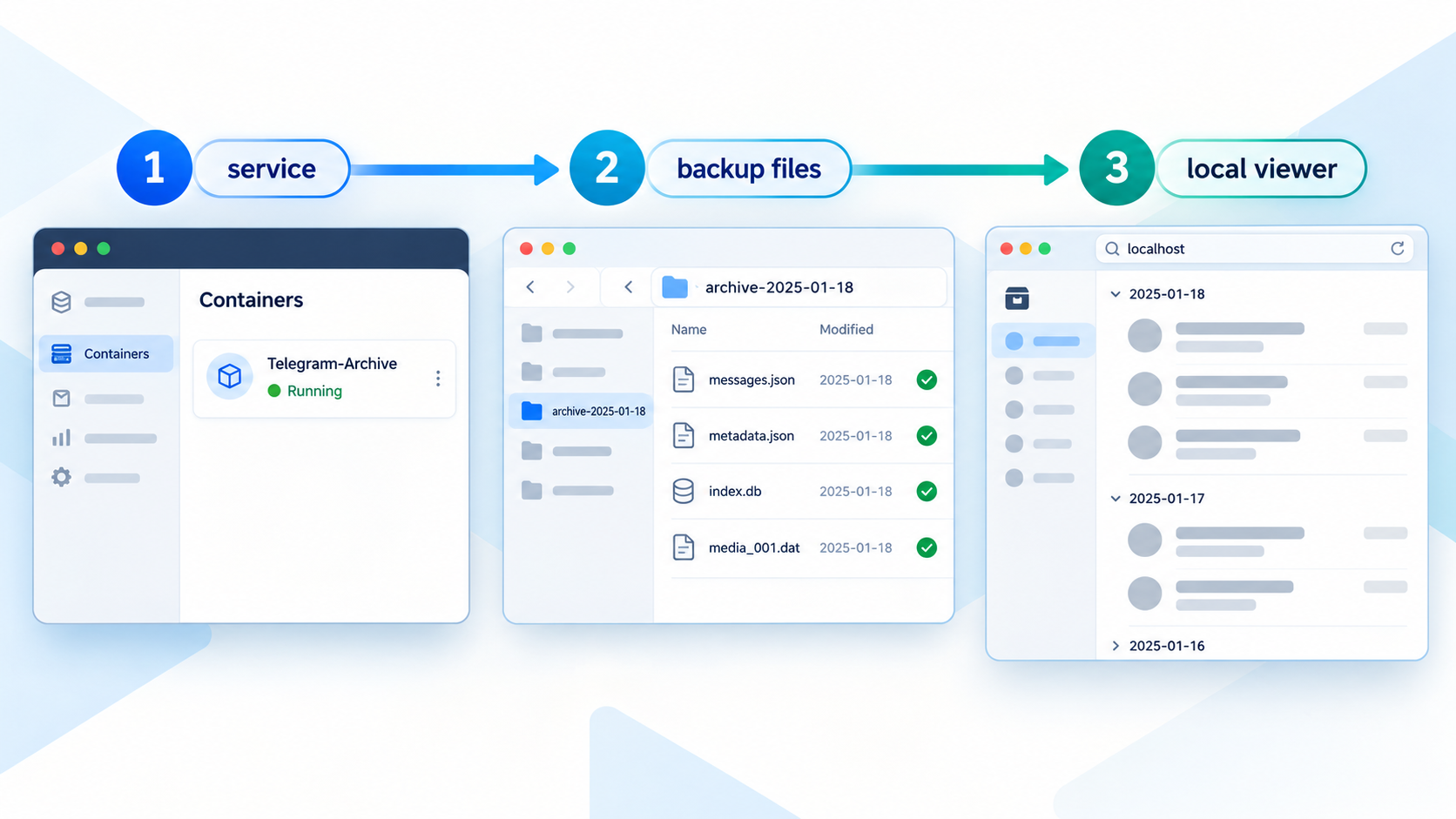
Verify the deployment locally before adding any remote connectivity. This isolates application issues from tunnel issues and confirms that authentication, storage, database initialization, and the web viewer are all functioning on the host.
Confirm that the Compose services are running
Use Docker Compose to view service state. A service that repeatedly restarts requires log inspection before remote access is configured.
Open the local viewer endpoint
On the host running Telegram-Archive, open http://127.0.0.1:8000. This is the documented local HTTP address.
Sign in with the viewer credentials
Use the VIEWER_USERNAME and VIEWER_PASSWORD values configured in .env. These are viewer credentials, not Telegram account credentials.
Watch the first archive populate
Confirm that chats begin appearing and that messages can be opened. Large archives and media collections can require additional time to fill.
Inspect container output for errors
Review Compose logs for authentication, migration, database, filesystem permission, or network errors. Resolve repeated errors before treating the installation as complete.
These standard Docker Compose checks help establish the current state:
docker compose ps
docker compose logs
Open the viewer from the archive host:
http://127.0.0.1:8000Successful local verification should demonstrate all of the following:
- The Compose services remain running rather than entering a restart loop.
- The local endpoint responds with the viewer login page.
- The configured viewer username and password are accepted.
- Chats begin appearing during the first backup.
- Archived messages can be opened and searched as data becomes available.
- The data remains available after an ordinary container restart because it is stored in the persistent deployment data.
You can also examine viewer behavior that is specific to archival use. Edited messages can retain earlier text, deleted messages captured after archival can remain marked as deleted, and the viewer's change feed can show edits, deletions, and new transcripts. These results depend on what Telegram-Archive has observed. A message deleted before the first backup cannot be reconstructed merely by enabling the archive later.
A tunnel forwards traffic to an existing service. It cannot repair failed Telegram authentication, a stopped container, a database migration error, incorrect host permissions, or a viewer that is not listening at the configured local target.
Operate, update, and protect the archive
Understand the normal backup cycle
The backup service performs a full pass at container startup and then follows its configured cron schedule, once daily by default. The real-time listener captures supported new messages, edits, and reactions while connected. These mechanisms complement each other: the listener provides timely updates, while scheduled passes fill data that the listener might have missed.
Stopping the containers also stops listening and scheduled backup work. Data already written to persistent storage should remain, but new Telegram activity cannot be captured in real time while the backup service is offline. When the service starts again, its full pass is designed to fetch what is new, subject to Telegram-Archive's supported behavior and the availability of that history.
Monitor container state and storage
Use docker compose ps to check whether the services remain up and docker compose logs to inspect recent application output. Also monitor the host filesystem separately. Archive growth can come from database history, downloaded media, multiple accounts, and imported Telegram Desktop exports.
The default behavior skips individual media files larger than 100 MB, but that does not prevent many smaller files from consuming substantial space. Set monitoring thresholds appropriate for the disk and decide how much media the archive should retain before space becomes constrained.
Stop and start the deployment
To stop and remove the running Compose containers while retaining persistent files in the project directory, use the ordinary Compose shutdown command:
docker compose downStart the deployment again with:
docker compose up -dA startup initiates migrations and a full backup pass. Review logs after a version change or an unexpected shutdown instead of assuming that every migration and backup completed successfully.
Back up the archive itself
Telegram-Archive is a backup of Telegram data, but it also needs its own backup plan. Protect the persistent data, database, downloaded media, Compose definition, and configuration needed to recreate the deployment. Store backup copies somewhere separate from the primary archive disk.
Database-consistent backup details differ between the default SQLite deployment and optional PostgreSQL deployments. The extracted installation evidence does not establish one universal live-copy command for both database engines, so this guide does not invent one. Follow the project's documented archive-backup procedure for the database engine you selected, and test restoring into a separate location before relying on the copy.
Periodically test that your protected database and media can be restored into an isolated deployment. Keep credential-bearing files encrypted and access-controlled wherever they are stored.
Upgrade the backup and viewer together
The two published images share one version number. An upgrade is normally performed by changing the image pins and restarting, with migrations running at startup. Do not update only one image to an unrelated version. Read the release notes for the target version, preserve a recoverable archive backup, update both coordinated pins, and inspect startup logs.
Version 9.3.3, which was the release identified in the supplied evidence, includes a startup migration numbered 041. A database already created by an unaffected release requires no special manual action from that migration. Future releases can introduce different requirements, so treat version-specific notes as time-sensitive.
Expose the working viewer with a Localtonet HTTP tunnel
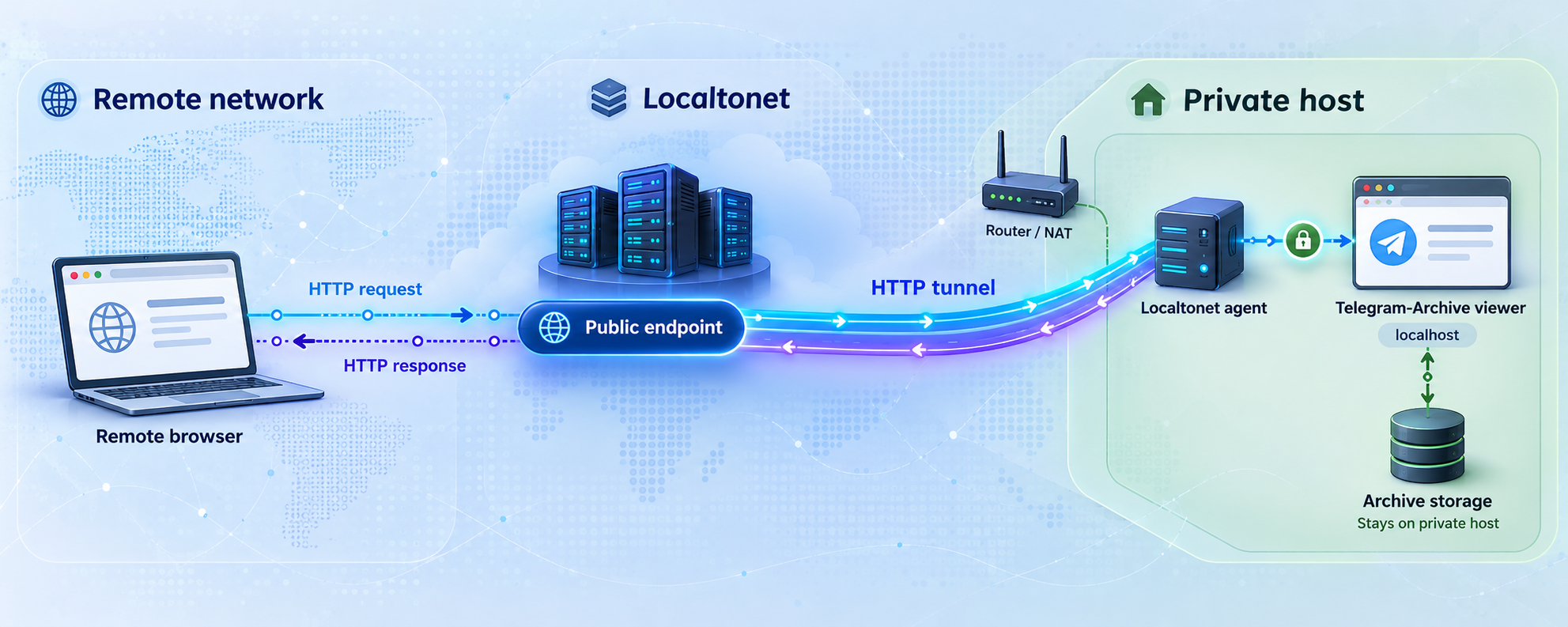
Once http://127.0.0.1:8000 works on the archive host, you can make that HTTP service reachable remotely with Localtonet. Our client on the device establishes an outbound connection to a Localtonet relay server. The resulting HTTP tunnel provides a public HTTPS address without requiring inbound router port forwarding, firewall changes, VPN setup, or a public IP address.
This is a distinct step after Telegram-Archive installation. Localtonet does not perform Telegram authentication, create the archive, operate the database, or replace viewer login controls. It forwards requests from the assigned public address to the local HTTP service.
Install and run the Localtonet client
Install our client on the Telegram-Archive host, or on another device that can reach the viewer's local address. Running it on the same host makes 127.0.0.1:8000 a suitable target for this documented setup.
Authenticate and select the client device
Use the device-specific authentication token supplied through your Localtonet account and select that connected device. Never copy the token into public documentation, screenshots, or shared configuration examples.
Select an available relay server
Choose a currently available server or region from the dashboard. Availability can vary, so obtain the value from the current product rather than copying a hardcoded server code from an old tutorial.
Create an HTTP tunnel to the viewer
Configure the HTTP tunnel's local target as IP address 127.0.0.1 and port 8000 when the Localtonet client runs on the same host. If it runs elsewhere, 127.0.0.1 would refer to that other device, so use an address that the client device can actually reach.
Choose the appropriate HTTP Process Type
Select Random Sub Domain, Custom Sub Domain, or Custom Domain according to what your current dashboard and plan make available. All three process types serve the same local viewer content at a public HTTPS address. Check current documentation before configuring custom-domain DNS because exact DNS requirements are not established in this guide.
Start and test the tunnel
Press Start, then open the assigned public HTTPS address from a separate network or device. Confirm that the Telegram-Archive login page appears and that unauthenticated visitors cannot browse the archive.
For current dashboard details, consult our HTTP tunnel documentation. The public endpoint remains available only while the selected Localtonet client is connected and the tunnel is running. If the client, tunnel, Telegram-Archive viewer, or host stops, remote access stops.
| HTTP Process Type | Address model | Important consideration |
|---|---|---|
| Random Sub Domain | Uses an assigned subdomain | Useful when you do not need to select a specific public name |
| Custom Sub Domain | Uses a selected subdomain where supported | Availability can depend on current product and plan options |
| Custom Domain | Uses a domain you control | Verify current Localtonet DNS instructions before making records |
After saving the configuration, use the Start action. The tunnel can later be stopped or deleted. Stopping it is a practical way to remove public reachability when you do not need remote viewer access.
Security considerations for a private Telegram viewer
A viewer reachable through a public URL is not private merely because its address is hard to guess. Privacy depends on authentication, credential handling, host security, archive permissions, and deliberate control over when the tunnel runs.
Keep viewer authentication enabled
Set a long, unique viewer password and avoid reusing a password from Telegram, email, or another service. Test the public URL in a private browser session to confirm that it presents the login page before showing any archive content. Do not share the administrator login when a narrower project-supported viewer account or chat-specific sharing mechanism would satisfy the use case.
Protect Telegram credentials and sessions
The Telegram API hash, phone number, authenticated session, and two-step verification process deserve protection independent of the viewer password. Restrict access to the project directory and any system backups containing it. Never expose the Docker socket, project filesystem, .env, database, or media directory through the HTTP tunnel.
Expose only the viewer port
The Localtonet HTTP tunnel should target the viewer at 127.0.0.1:8000 when our client runs on the same host. Do not tunnel database ports, Docker management endpoints, or an entire host administration panel just because they are reachable locally. Use the least amount of network exposure required for the viewer.
Understand optional data egress
The base archive remains on your disk, but some optional Telegram-Archive features send specific data to other systems you configure. Voice transcription sends audio, its filename, and its content hash to the configured transcription server. The event webhook sends edits or deletions, including message text, to the configured URL. Full web push notifications send the chat title, sender, and first 100 characters of a new message through the browser's push service, encrypted for that browser.
Do not enable optional integrations until you understand their destination, retention, authentication, and disclosure implications. These Telegram-Archive event webhooks are unrelated to Localtonet platform Token/Tunnel webhooks.
Treat the viewer as sensitive personal data. Keep its login enabled, use a unique password, limit account privileges where the project supports it, stop the tunnel when remote access is unnecessary, and do not assume an unadvertised URL is an authorization mechanism.
Troubleshooting the installation and tunnel
The authentication command does not complete
Confirm that TELEGRAM_API_ID, TELEGRAM_API_HASH, and TELEGRAM_PHONE contain your real values and that the API ID and API hash came from your Telegram application settings. Make sure the machine can reach Telegram. Enter the code sent by Telegram into the active terminal prompt and supply the two-step verification password if requested.
If authentication failed partway through, inspect the output rather than repeatedly requesting new codes. Do not publish the terminal output without checking it for personal identifiers or authentication-related details.
The containers restart or exit
Run:
docker compose ps
docker compose logs
Look for a specific error involving the environment configuration, persistent directory permissions, database migration, image compatibility, or network connectivity. Confirm that the downloaded Compose file is intact and that the backup and viewer image pins use the same version.
The viewer does not open at 127.0.0.1:8000
Check that the Compose services are running and that another process is not already occupying port 8000. Review the Compose file to confirm the published viewer port has not been changed. Test from the same host first because 127.0.0.1 always refers to the device where the request originates.
If you are entering http://127.0.0.1:8000 on a different computer, you are asking that other computer for its own port 8000, not contacting the archive host. Either test directly on the host or use the properly configured remote-access path.
The viewer opens but no chats appear
The first backup may still be running. Inspect logs for progress or errors and allow time for the initial archive to fill. Large accounts and media-heavy chats can take longer. Telegram-Archive also skips bot chats unless they are explicitly added, and it cannot retrieve secret chats or messages deleted before the first backup.
The local viewer works but the public URL does not
Check each layer in order:
- Confirm that
http://127.0.0.1:8000still works on the archive host. - Confirm that the selected Localtonet client device is connected.
- Confirm that the HTTP tunnel has been started, not merely created.
- Confirm that the tunnel targets the correct local IP address and port.
- Confirm that the chosen relay server remains available in the current dashboard.
- If our client runs on another device, verify that the target address is reachable from that device and is not incorrectly set to its own loopback address.
The public URL shows a login page, but login fails
Test the same credentials against the local viewer. If local login also fails, correct the Telegram-Archive viewer configuration rather than changing the tunnel. If local login succeeds but remote login does not, inspect browser behavior and application logs without disabling authentication as a shortcut.
Media is missing
Determine whether the initial backup is still in progress, whether the source media remains available through Telegram, and whether it exceeds the configured media size policy. Files over 100 MB are skipped by default. Disk exhaustion and filesystem permissions can also prevent downloads from being written.
Messages deleted before installation are absent
This is an expected limitation. Telegram-Archive can retain deletions it observes after archival, but it cannot reconstruct content that had already disappeared before the first backup. Restoring such content requires another copy that already contains it, such as an earlier export or backup.
Frequently asked questions
Does the Telegram-Archive viewer connect directly to Telegram?
No. The backup component communicates with Telegram, while the separate viewer reads the archive database and media. This separation means the Localtonet tunnel can target only the viewer's local HTTP service.
Where is the Telegram archive stored?
The archive is stored on disk attached to the host you operate. SQLite is the default database, while PostgreSQL is optional. The Docker Compose quick start creates a persistent data directory with ownership assigned to user and group ID 1000:1000 on compatible hosts.
Can Telegram-Archive recover messages deleted before installation?
No. It can retain edits and deletions it captures after archival, but it cannot recover messages that were already deleted before the first backup. It also does not save secret chats.
How often does Telegram-Archive run?
A full backup runs when the backup container starts and then follows a cron schedule, once per day by default. A real-time listener records supported new messages, edits, and reactions while the service is connected.
Can I use PostgreSQL instead of SQLite?
Yes. SQLite is the default and PostgreSQL is an optional database backend. This quick-start guide retains the default Compose workflow because the supplied evidence does not establish all PostgreSQL-specific environment values and deployment steps needed for a safe copy-and-paste configuration.
Does Localtonet replace the Telegram-Archive viewer password?
No. Localtonet provides connectivity from a public HTTPS address to the local HTTP viewer. Telegram-Archive remains responsible for its viewer authentication, accounts, and chat-sharing behavior. Keep viewer authentication enabled when the tunnel is public.
Does remote access require router port forwarding or a public IP address?
Not with the Localtonet workflow described here. Our client establishes an outbound connection to a relay server, so the viewer can receive a public URL without inbound router port forwarding, firewall changes, VPN setup, or a public IP address.
Why does the Localtonet tunnel stop working when the host is offline?
The public endpoint depends on the selected client device being connected, the tunnel being started, and the local viewer being available. If any of those components stops, the public address cannot reach the archive.
Can the Localtonet client run on a different machine?
Yes, provided that device can reach the Telegram-Archive viewer over the local network. In that arrangement, do not use 127.0.0.1 as the tunnel target unless the viewer also runs on the client device. Loopback always refers to the machine on which the Localtonet client is running.
Connect your verified Telegram-Archive viewer with Localtonet
After the viewer works locally at 127.0.0.1:8000, create an HTTP tunnel, keep Telegram-Archive authentication enabled, and start remote access only when you need it.


