

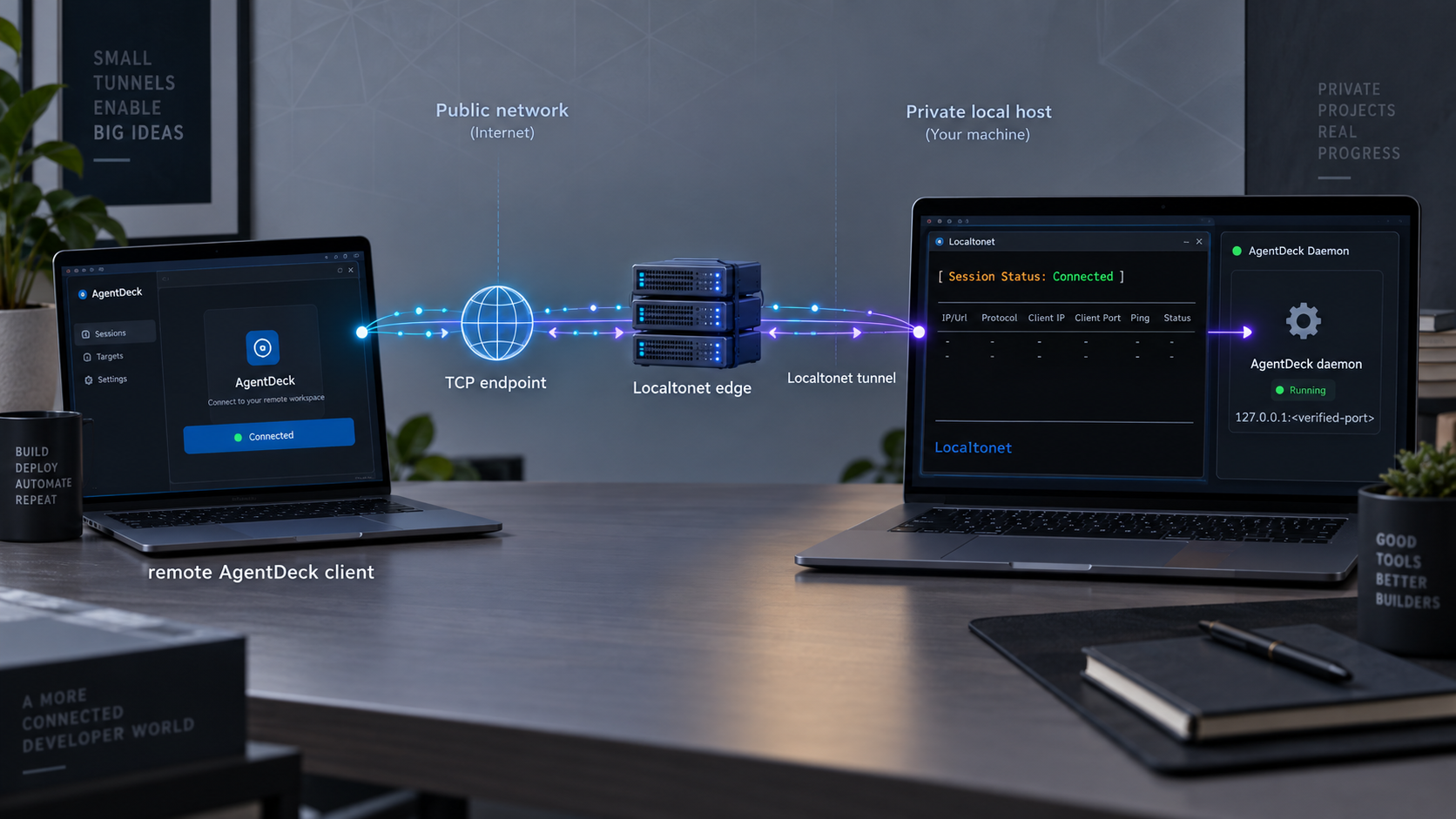
Run AgentDeck locally first, verify its daemon, then evaluate controlled remote attach
AgentDeck provides local dashboards and companion surfaces for monitoring AI coding-agent sessions. This guide installs its Node.js CLI daemon, confirms that normal local observation works, identifies the daemon's actual listening port, and then adds a Localtonet TCP tunnel as a separate remote-access step. Because AgentDeck describes cross-machine remote attach as a legacy managed compatibility feature, we keep the preferred daemon-first workflow separate from the optional tunnel workflow. We also identify the authentication, bind-address, encryption, and public-port questions that must be resolved before exposing the daemon beyond a trusted local network.
📋 What's in this guide
Understand the AgentDeck and Localtonet architecture
AgentDeck is an open-source monitoring and control environment for AI coding agents. Its documented integrations include Claude Code, Codex CLI, OpenCode, Kiro CLI or IDE, Antigravity, and an experimental OpenClaw Gateway integration. The available observation method varies by agent. For example, Claude Code uses lifecycle hooks as its primary supported integration, while other integrations may use rollout logs, plugins, native events, transcript observation, or passive observation.
For the terminal, Windows, Linux, and external-integration path covered here, the AgentDeck Node CLI installs a daemon on the computer running the coding agents. Normal local sessions should use that daemon while the developer starts an agent through its ordinary command. AgentDeck reads the supported agent's native events instead of relying on terminal-screen scraping. A separate terminal can run the AgentDeck dashboard to show live sessions, usage information where the connected provider supplies it, the aquarium view, and the timeline.
This local workflow is important because remote networking should not be the first diagnostic step. If AgentDeck cannot observe a session on the same machine, adding a public TCP path will not repair the hooks, agent integration, daemon installation, or local process state. The reliable order is to install AgentDeck, confirm local observation, inspect the daemon listener, and only then introduce remote transport.
With Localtonet, the client initiates the relay connection outbound. The tunnel is available only while the selected client device remains connected and the tunnel is running. Creating a tunnel record is not enough by itself. It must also be started, and it can later be stopped or deleted.
AgentDeck states that ordinary local sessions should use its daemon with normal agent commands. Commands such as agentdeck claude, managed-only remote attach, terminal steering, weight controls, and agent argument overrides remain available as compatibility features, but remote attach is not presented as the preferred daemon-first workflow.
Check prerequisites before installation
The documented AgentDeck Node CLI path requires Node.js 22, 24, or 26. The supported operating-system baseline is macOS 15 or later, Windows 11, or Linux. You also need at least one supported AI coding agent if you want to verify actual session observation rather than merely confirm that a process is listening.
This tutorial concerns the Node CLI daemon. It does not apply to the standalone macOS App Store installation in the same way. AgentDeck's Mac app includes its own daemon and does not require Node.js. The project also documents newer Apple platform requirements for its native Apple applications, but those are separate from the Node CLI requirements used in this guide.
| Requirement | Documented value | Why it matters |
|---|---|---|
| Node.js | Version 22, 24, or 26 | The setup package and Node CLI daemon depend on a supported Node.js release. |
| Operating system | macOS 15+, Windows 11, or Linux | These are the documented platforms for the terminal and external-integration path. |
| AI coding agent | A supported AgentDeck integration | A real session is needed to verify that hooks or another documented observation mechanism are working. |
| Localtonet client | Installed on the AgentDeck host or a device that can reach it | The client must be able to connect to the daemon's actual local IP address and listening port. |
| Remote machine | Compatible AgentDeck CLI environment | The remote machine invokes the managed remote-attach command after transport compatibility is confirmed. |
| Security review | Required before public exposure | The supplied AgentDeck evidence does not establish daemon authentication, application-layer encryption, or a safe non-loopback bind policy. |
Check the active Node.js version before running the installer:
node --versionContinue only if the output reports a supported major version. If Node.js is missing or the major version is outside 22, 24, or 26, install a supported release through the method appropriate for your operating system or existing Node version manager. The AgentDeck evidence supplied for this tutorial does not prescribe one universal Node.js installation command, so we do not provide a guessed package-manager command.
Also decide where the Localtonet client will run. Running it on the same computer as AgentDeck usually gives the clearest local target because the client can connect directly to the daemon listener. A different device can be used only if that device can reach the daemon over the local network and AgentDeck is actually listening on a suitable non-loopback interface. Do not assume that it is.
A known port number does not establish that the protocol has authentication, authorization, or application-layer encryption. Before creating a public tunnel, verify the current AgentDeck security model and inspect the listener's bind address on your installation. If those properties cannot be confirmed, keep the service local or use a separately authenticated private access method.
Install and start the AgentDeck Node CLI daemon
AgentDeck publishes a one-command setup package for the CLI and daemon path. Run the installation from a terminal associated with the user account that will operate the coding agents. Avoid switching casually between administrator, root, and ordinary user contexts because hooks, configuration files, background services, and command paths can then belong to different accounts.
Run the AgentDeck setup package
Use the documented setup command. Review any interactive output and errors rather than assuming the installation completed only because the process exited.
Install the daemon
Run the documented daemon installation command. This refreshes the relevant hooks and starts the observation service for the supported local workflow.
Start a supported agent normally
Open a session using the ordinary command for your installed agent, such as Claude Code. The preferred AgentDeck workflow observes the agent through its supported integration rather than requiring a managed launcher.
Open the AgentDeck dashboard
In another terminal, launch the terminal dashboard and confirm that the local session appears with meaningful activity and state changes.
The corresponding documented commands are:
npx @agentdeck/setup
agentdeck daemon install
Next, run a supported agent normally. For Claude Code, the documented example is:
claude
Other documented agent examples include codex, opencode, and kiro-cli, but support behavior is not identical across agents. Kiro, for example, uses transcript observation and can report delayed, idle-only activity. Do not interpret every integration as providing the same event timing or control capabilities.
In a second terminal on the same computer, start the terminal dashboard:
agentdeck dashboardGenerate a small, non-sensitive test interaction in the agent session. Confirm that AgentDeck sees the session and that the displayed state changes when the agent works, waits for input, or finishes. Do not use confidential workspace content merely to test remote networking.
AgentDeck states that components with the same major version work together. A 1.0 device can connect to a 1.5 daemon, and minor or patch releases do not require every companion device to be upgraded at the same time. That policy does not remove the need to check release notes when diagnosing a specific regression.
Verify local observation and identify the real listener
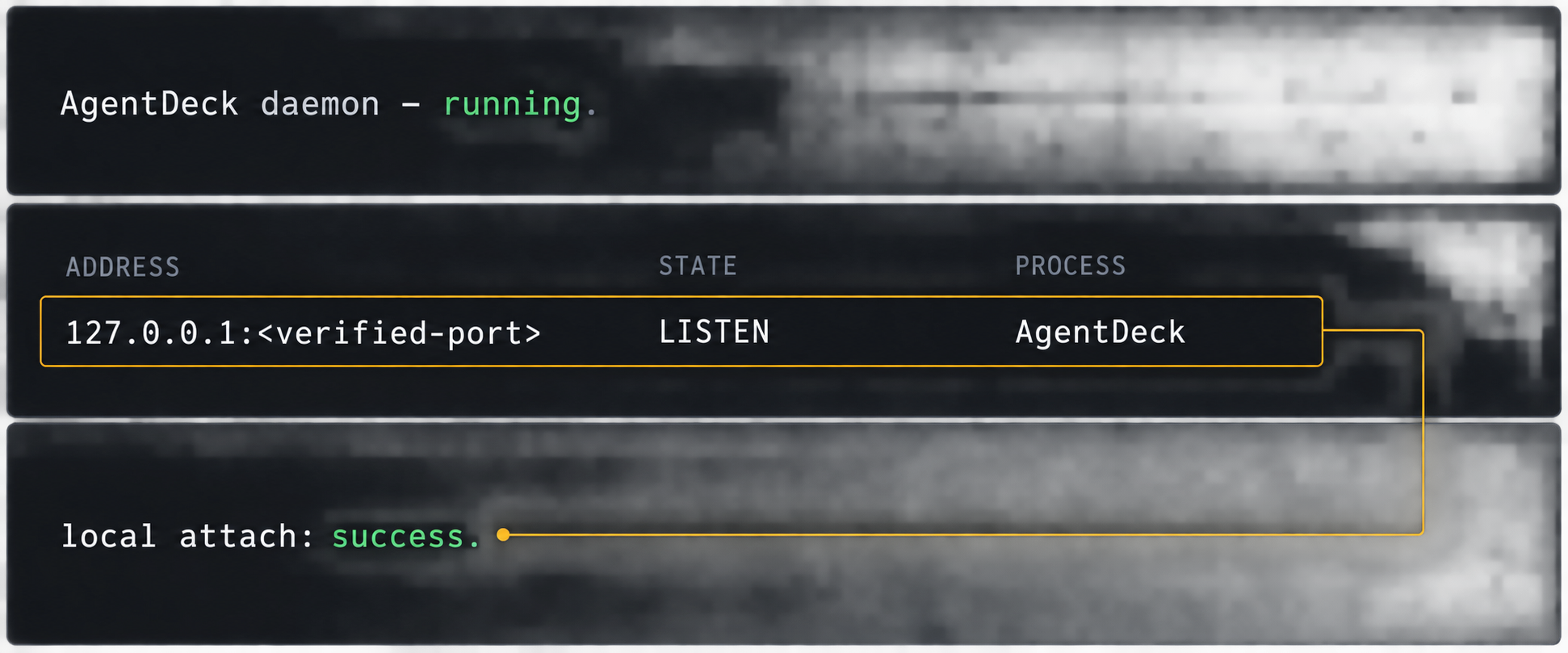
Local verification has two layers. First, verify the application workflow by confirming that the dashboard receives a real session. Second, verify the network layer by finding the daemon's listening address and port. Both checks matter. A listening socket alone does not prove that hooks are delivering useful agent events, while a working dashboard does not tell you whether a different machine can reach the daemon.
Run the AgentDeck diagnostic command
If an expected session does not appear, run the documented agent diagnostic:
agentdeck diag agentsUse its output to investigate agent discovery and integration problems before working on the tunnel. A Localtonet TCP tunnel forwards traffic to a reachable socket. It does not install AgentDeck hooks, repair an unsupported Node.js version, grant transcript permissions, or turn an unsupported agent into a supported integration.
Inspect port 9120 without assuming the bind address
AgentDeck documents port 9120 for its legacy remote-attach flow. Inspect the host to confirm whether a process is actually listening there and which local address owns the listener. The following operating-system tools are examples. Availability can vary by installation, and elevated privileges may be needed to display process ownership.
On Linux, a common check is:
ss -ltnp | grep ':9120'
On macOS or a Linux system with lsof installed:
lsof -nP -iTCP:9120 -sTCP:LISTENIn Windows PowerShell:
Get-NetTCPConnection -State Listen -LocalPort 9120
Record the exact local address and port. A listener on 127.0.0.1:9120 is reachable only from the same host under normal networking behavior. In that case, a Localtonet client running on the same host can potentially use the loopback address as its local target. A Localtonet client on another LAN device cannot reach the AgentDeck host's loopback interface.
A listener on a LAN address or a wildcard address may be reachable from another local device, subject to the operating-system firewall and network policy. Wider binding also increases the local attack surface, so it should not be enabled merely for convenience. The supplied AgentDeck documentation does not establish a supported bind-address setting, so this guide does not invent one.
Check for the documented macOS fallback port
AgentDeck npm v1.4.2 records a known macOS handoff limitation. If the CLI starts immediately after the macOS app is closed, port 9120 may remain unavailable after an existing 20-second wait. The CLI can then select fallback port 9121. Once port 9120 is released, the documented restart command targets 9120 again:
agentdeck daemon restartIf nothing is listening on 9120, inspect 9121 before concluding that the daemon failed. Do not configure Localtonet against 9120 while the daemon is actually using 9121. Restarting and confirming the listener is safer than relying on a stale assumption.
Understand the legacy cross-machine remote-attach requirement
AgentDeck documents a managed remote-attach command using a host on the local network:
agentdeck claude --remote-daemon --daemon-host mainnode.lanThe example demonstrates the intended roles. The main node runs the daemon, and a worker invokes a managed Claude session while identifying the daemon host. AgentDeck also documents forwarding port 9120 over SSH as a remote-access pattern. This confirms that a TCP forwarding layer is relevant to the compatibility workflow.
A Localtonet TCP tunnel can provide a public host and port that forwards to the daemon without requiring inbound router port forwarding, a public IP address, firewall rule changes at the router, or a VPN. However, one compatibility detail must be resolved before claiming the AgentDeck command can use any assigned tunnel endpoint: the documented --daemon-host example contains a hostname but no port argument.
Localtonet TCP tunnels provide a public host and port. The AgentDeck evidence supplied for this tutorial does not document a remote-daemon port option, a host-and-port syntax, or an environment variable that changes the expected remote port. If your assigned public port is not the port AgentDeck expects, do not guess a CLI flag or assume that DNS can translate ports. Check the current AgentDeck CLI help or documentation for a supported port mechanism. If none exists, use a documented alternative such as AgentDeck's SSH forwarding workflow instead of forcing an incompatible tunnel arrangement.
This distinction prevents a common troubleshooting trap. A generic TCP probe may successfully connect to the Localtonet public endpoint, proving that the tunnel reaches a socket, while the AgentDeck command still fails because it tries a different destination port. Transport availability and application compatibility are separate tests.
| Access pattern | Appropriate situation | Important limitation |
|---|---|---|
| Normal local daemon workflow | Agent and AgentDeck run on the same computer | This is the preferred ordinary-session workflow, but it does not provide internet access. |
| Direct LAN remote attach | The worker can resolve and reach the daemon host on a trusted network | The daemon must listen on a reachable interface and local firewall policy must permit the connection. |
| SSH forwarding | An authenticated SSH path exists between the machines | SSH setup and account management remain separate operational responsibilities. |
| Localtonet TCP tunnel | The machines cannot communicate directly and the AgentDeck client can address the assigned public endpoint | Authentication, encryption, exposure policy, and public-port compatibility must be verified first. |
Create a Localtonet TCP tunnel to the verified daemon
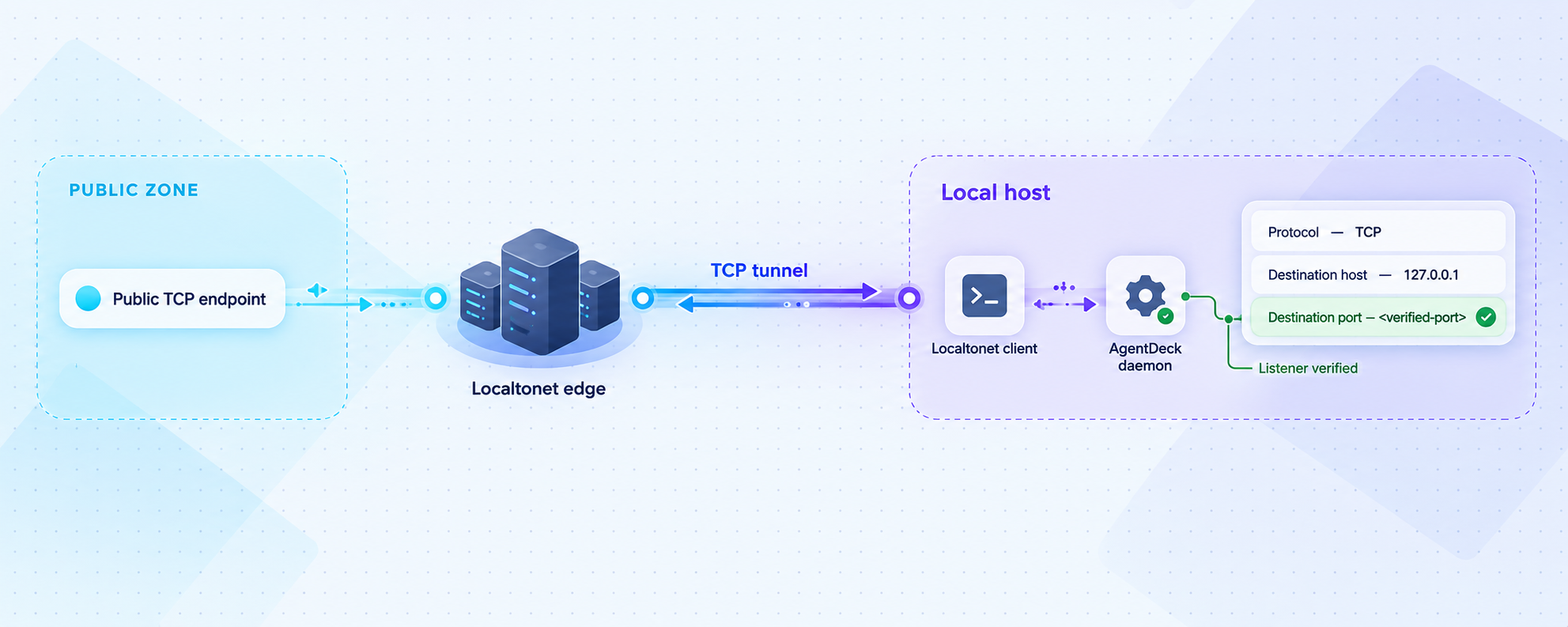
Continue only after AgentDeck works locally, the daemon listener is known, and the remote client's port behavior is understood. A TCP tunnel is the appropriate Localtonet family because this workflow needs raw port forwarding rather than an HTTP public URL. Do not configure it as an HTTP tunnel merely because a hostname is involved.
The Localtonet client should run on the AgentDeck host whenever practical. This allows the local target to use the verified same-machine address and avoids changing AgentDeck to listen on a wider LAN interface. If the client must run elsewhere, first prove that the client device can reach the AgentDeck listener over the private network.
Install and run the Localtonet client
Install our client on the AgentDeck computer or another device that can reach the verified daemon listener. Keep the client running because the tunnel depends on its outbound connection.
Authenticate or select the client device
Use the device-specific authentication token associated with the client that will run the tunnel. Do not place that token in shell history, screenshots, shared notes, or tutorial examples.
Select an available relay server
Choose from the server or region values currently available in the Localtonet dashboard. Availability can vary, so this guide does not hardcode a server code.
Create a TCP configuration
Select the TCP tunnel family and enter the exact local IP address and port found during verification. Use port 9120 only when AgentDeck is actually listening there. If the daemon is temporarily on 9121, resolve that condition before relying on a permanent remote workflow.
Start the tunnel
Creating the configuration does not make it active. Use the Start button, then confirm that both the selected Localtonet device and the tunnel report a connected or running state.
Record the assigned public endpoint
Copy the public host and port shown for the running TCP tunnel. Treat the endpoint as operational information and verify that its port is compatible with AgentDeck before attempting managed remote attach.
Current server selections and device tokens must come from your account and dashboard. We do not publish guessed relay codes or placeholder credentials. For an overview of the currently documented tunnel families, use the Localtonet documentation.
The public endpoint is usable only while the selected Localtonet client is connected and the tunnel is running. If the host sleeps, the client exits, the network changes, or the tunnel is stopped, remote access will fail even if AgentDeck itself remains correctly installed.
Test transport and AgentDeck remote attach separately
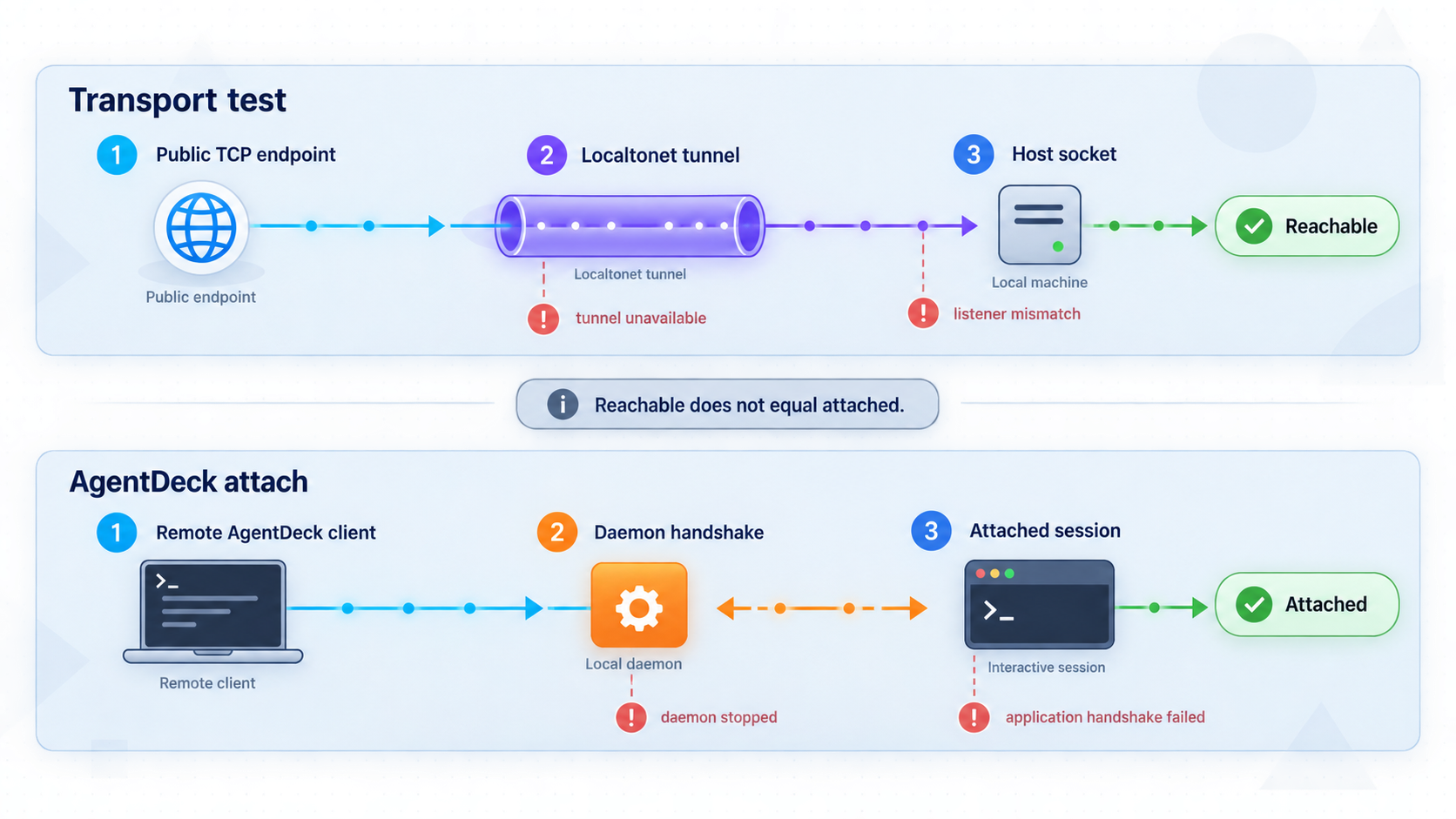
Use a staged test so that failures have a clear meaning. Start with a TCP reachability probe from the remote machine. This only checks whether the public host and port accept a connection. It does not prove that AgentDeck authentication exists, that the application protocol completed, or that the remote CLI used the same port.
On a system with Netcat installed, a typical TCP probe is:
nc -vz YOUR_PUBLIC_HOST YOUR_PUBLIC_PORTIn Windows PowerShell, use:
Test-NetConnection -ComputerName YOUR_PUBLIC_HOST -Port YOUR_PUBLIC_PORTReplace both placeholders with the endpoint displayed for the running Localtonet TCP tunnel. A successful result means that a TCP connection reached the public endpoint. A failed result can indicate an inactive tunnel, disconnected Localtonet client, wrong host or port, unreachable local target, local firewall rejection, or a daemon that is no longer listening.
Attempt managed remote attach only after endpoint compatibility is confirmed
If the current AgentDeck CLI documentation confirms that the assigned public endpoint can be represented correctly, replace the example LAN hostname with the public host using the supported syntax. The documented host-only shape is:
agentdeck claude --remote-daemon --daemon-host YOUR_PUBLIC_HOST
Do not append a port with a colon, invent a --daemon-port flag, or set an undocumented environment variable based on intuition. Those forms are not established by the supplied evidence. If AgentDeck expects port 9120 but the tunnel presents another public port and there is no documented override, the command will not necessarily reach the tested endpoint.
Once the managed session starts, return to the dashboard on the daemon host. Verify that the remote session appears, transitions through expected states, and corresponds to the test session you launched. If the TCP probe works but no AgentDeck session appears, focus on application-level compatibility rather than recreating the tunnel immediately.
Test interruption and shutdown behavior as well. Stop the managed session, verify that AgentDeck updates its state, and then stop the Localtonet tunnel. Confirm that a new TCP probe fails after the tunnel is stopped. This final check proves that your intended access revocation action actually removes the public path.
Apply a conservative security model
Exposing an AI-agent control or monitoring endpoint deserves more scrutiny than exposing a disposable demonstration service. AgentDeck can display session names, tool activity, timelines, requests for input, and usage information where providers supply it. Supported surfaces may also offer answer or interruption controls when a real control path exists. The exact data and controls depend on the integration, but the potential impact is enough to require a least-exposure approach.
The supplied AgentDeck material does not establish four critical properties for the legacy daemon endpoint: its authentication mechanism, authorization model, application-layer encryption behavior, and configurable bind-address policy. Localtonet provides the network path, but this article does not claim that creating a raw TCP tunnel adds application authentication or end-to-end encryption to an otherwise unauthenticated protocol.
A public hostname is not an access-control policy. Avoid sharing it unnecessarily, but do not treat obscurity as authentication. If your organization requires authenticated private networking, source-address restrictions, audited access, or specific encryption controls, verify that the complete design satisfies those policies before deployment. Localtonet also offers VPN Manager for private mesh networking, but standard TCP tunneling is not itself VPN functionality.
The safest response to an undocumented authentication or encryption model is not to assume favorable behavior. Keep AgentDeck local, use its documented LAN model on a trusted network, or use its documented SSH-forwarding approach while you obtain authoritative confirmation for the daemon version being deployed.
Operate the installation after the initial setup
Day-to-day operation should preserve the same separation used during installation. AgentDeck owns agent observation and session state. Localtonet owns the TCP path from the public endpoint to the selected local target. Diagnose each layer independently.
Starting a normal work session
Keep the daemon running, start your supported coding agent through its ordinary command, and use agentdeck dashboard when you want the terminal view. Reserve managed remote attach for the cross-machine compatibility case. This avoids turning every local session into a more complex remote workflow.
Restarting after a daemon or port problem
Use the documented restart command:
agentdeck daemon restartAfter restarting, inspect the listener again. Do not assume the local port stayed the same during the macOS app-to-CLI handoff condition. If the local target changes, update or recreate the tunnel configuration before testing remotely.
Stopping remote access
Stop the Localtonet tunnel when the remote session is finished. If the tunnel is temporary and will not be reused, delete it. Remember that stopping the tunnel removes the public path but does not necessarily stop the AgentDeck daemon or an existing local coding-agent process. Terminate those separately when appropriate.
Updating AgentDeck
The documented installation and update channel for the CLI and daemon is the setup package:
npx @agentdeck/setupAfter an update, repeat local dashboard verification before reopening the TCP tunnel. AgentDeck's same-major compatibility policy helps companion components advance independently, but release-specific behavior can still affect hooks, process state, or port handling.
Troubleshoot by isolating each layer
The setup command does not complete
Confirm that node --version reports Node.js 22, 24, or 26 and that the terminal can invoke npx. Review the setup output for permissions or path errors. Run installation and later AgentDeck commands under the same intended user account unless the project documentation explicitly requires otherwise.
The dashboard opens, but no agent session appears
First confirm that the agent is one of the documented integrations and that you started it normally after daemon installation. Run:
agentdeck diag agentsConsider integration-specific behavior. Kiro observation can be delayed and idle-only. A missing session at this stage is an AgentDeck installation or integration issue, not a Localtonet problem.
Nothing is listening on port 9120
Verify that the daemon installation completed and restart it. On macOS, check whether a recent handoff from the native app caused the CLI to use 9121 temporarily. Inspect both ports, then restart once 9120 is free. Do not point a persistent tunnel at a fallback port without understanding how the remote client selects its destination.
The Localtonet tunnel will not start
Confirm that the selected device is connected, the device-specific token belongs to the intended client, and the relay server selection is currently available. Recheck the local IP address and port. A tunnel record must be started after creation, so also confirm that its lifecycle state is running rather than merely configured.
The public TCP probe fails
Check the path in order: public host and port, tunnel running state, Localtonet client connectivity, local target address, local target port, daemon listener, and host firewall behavior. If Localtonet runs on another LAN device, ensure that the daemon listener is reachable from that device rather than bound only to loopback.
The TCP probe succeeds, but AgentDeck remote attach fails
This commonly indicates a distinction between transport and application behavior. Verify that AgentDeck is connecting to the same public port you tested. The documented command shows a host option but no port option, so an assigned public port mismatch can remain even when the tunnel is healthy. Also verify version compatibility, current remote-attach syntax, daemon protocol expectations, and any documented pairing or authentication requirements.
The remote session connects but does not appear correctly
Check the local dashboard and diagnostic output. Confirm that the managed command corresponds to the intended supported agent and that the relevant hooks are installed. If the issue began after an update, review the applicable AgentDeck release information and repeat the test with a local ordinary session. This separates a hook or session-state regression from a remote transport problem.
The tunnel stops working after the host sleeps or changes networks
The tunnel depends on the Localtonet client maintaining its outbound relay connection. Wake the host, restore its network, confirm that the client reconnects, and verify the tunnel state. Then confirm that AgentDeck still listens on the configured local target before repeating the remote test.
The daemon moved to port 9121 on macOS
This can happen when the CLI starts immediately after the macOS app closes and port 9120 remains occupied after the documented wait. Once 9120 is released, run agentdeck daemon restart, verify that the listener returns to 9120, and confirm that the tunnel targets the correct port.
Frequently asked questions
Does AgentDeck require Node.js?
The terminal, Windows, Linux, and external-integration path in this guide requires Node.js 22, 24, or 26. The standalone macOS App Store app includes its own daemon and does not require Node.js, so the requirement depends on the installation path.
Which local port does the AgentDeck daemon use?
The documented legacy remote-attach endpoint uses port 9120. AgentDeck npm v1.4.2 also records a macOS handoff condition in which the CLI can temporarily choose port 9121 when 9120 remains occupied after the native app closes. Always inspect the actual listener before configuring a tunnel.
Can a Localtonet client on another computer forward to AgentDeck?
Only if that computer can reach the AgentDeck listener over the local network. A daemon bound to 127.0.0.1 is normally reachable only from the AgentDeck host, so a different Localtonet device cannot target that loopback address. Running our client on the AgentDeck host avoids this problem without requiring a wider daemon bind.
Can I put the Localtonet public host directly into the AgentDeck command?
Potentially, but only after confirming public-port compatibility. The documented AgentDeck example accepts a daemon host and does not show a separate port option. A Localtonet TCP endpoint includes both a public host and a public port. If the assigned port differs from the port AgentDeck expects, consult the current AgentDeck CLI documentation for a supported port mechanism rather than guessing syntax.
Does a TCP tunnel authenticate AgentDeck users?
This guide does not make that claim. A TCP tunnel provides network forwarding to the configured local service. The supplied AgentDeck evidence does not establish the legacy daemon endpoint's authentication, authorization, or application-layer encryption behavior. Verify those properties before exposing it publicly.
Is a Localtonet TCP tunnel the same as a VPN?
No. A TCP tunnel forwards a selected public host and port to a particular local IP address and port. Localtonet VPN Manager is our separate private mesh VPN feature. Standard TCP tunneling should not be described or treated as VPN connectivity.
Why should I verify AgentDeck locally before creating the tunnel?
Local verification proves that Node.js, the daemon, hooks, agent integration, and dashboard work before another networking layer is introduced. If the local dashboard cannot see a session, a TCP tunnel will only forward traffic to an already incomplete installation.
What happens when I stop the Localtonet tunnel?
The public forwarding path stops. The AgentDeck daemon and local agent processes may continue running because their lifecycle is separate. Stop those processes independently if the operational goal is to end both remote access and local observation.
Create a controlled TCP path with Localtonet
Once AgentDeck works locally and you have verified its listener, security model, and public-port compatibility, use Localtonet to create an on-demand TCP tunnel without opening an inbound router port. Start it only for the required remote session and stop it when access is complete.
Get Started Free →