

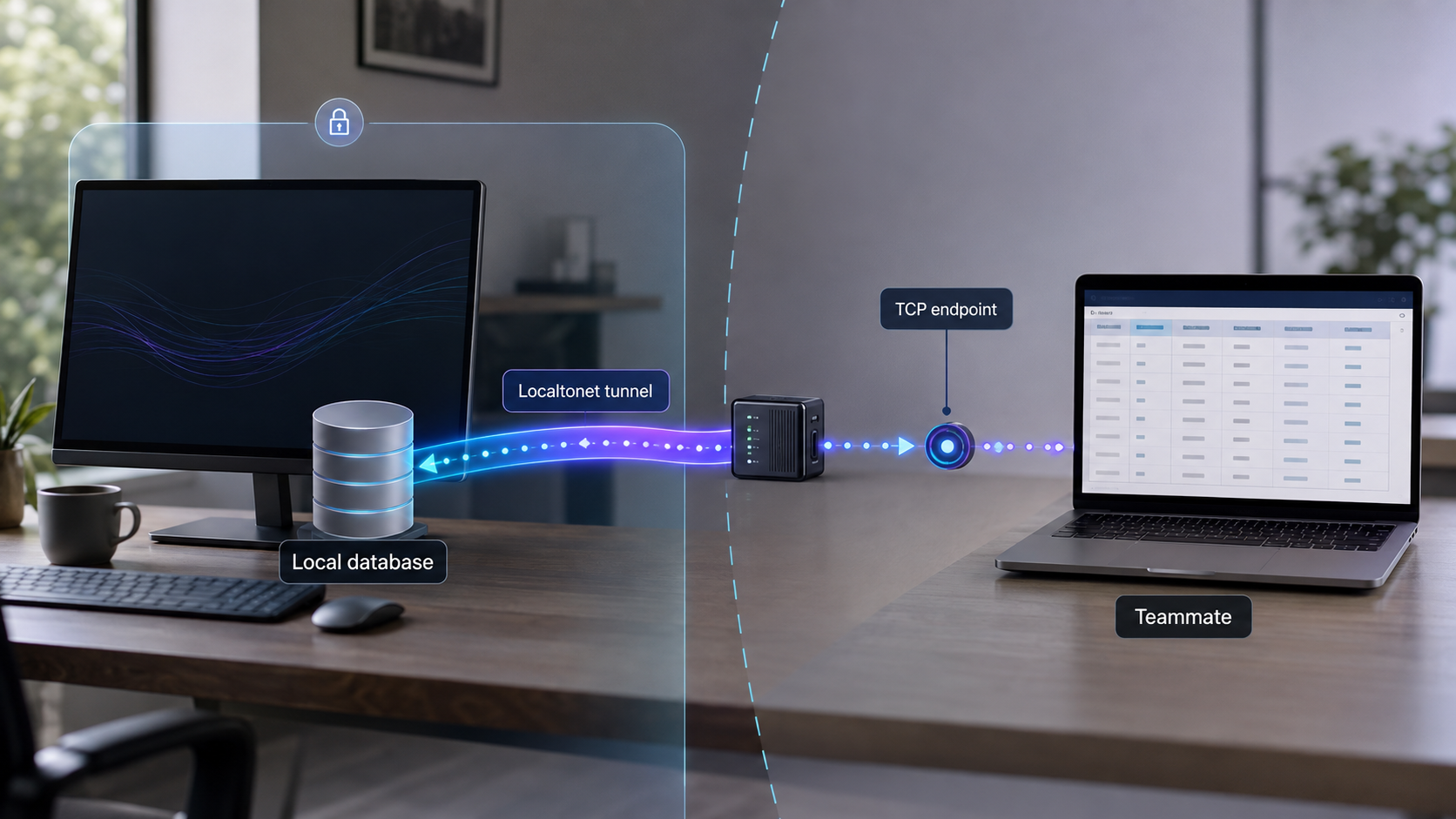
Give an authorized teammate temporary access to the database running on your machine
A short debugging or review session does not always justify provisioning a staging database. With a Localtonet TCP tunnel, an authorized teammate can connect through a public host and port that forwards to a database reachable from the Localtonet client device. This guide covers PostgreSQL, MySQL or MariaDB, MongoDB, and Microsoft SQL Server, including database-specific authentication, local and remote verification, safe credential handling, troubleshooting, and session cleanup.
📋 What's in this guide
When sharing a local database is appropriate
A temporary tunnel can be useful when a teammate needs to reproduce a bug against your current development state, inspect a migration result, review generated test records, or collaborate during a controlled troubleshooting session. The teammate reaches the same database process you are using, so you do not need to copy that state into a newly deployed environment first.
This workflow is best treated as temporary, supervised access. Your machine, database process, Localtonet client, and tunnel must remain available throughout the session. If the selected client disconnects or the tunnel stops, the public address no longer provides access to the local service.
A deployed development or staging database is usually the better choice when access must be persistent, several teams need an independently managed environment, automated systems depend on it, or destructive testing must be isolated from a developer's active workspace. A database export can also be safer when the recipient needs a fixed snapshot rather than a live connection.
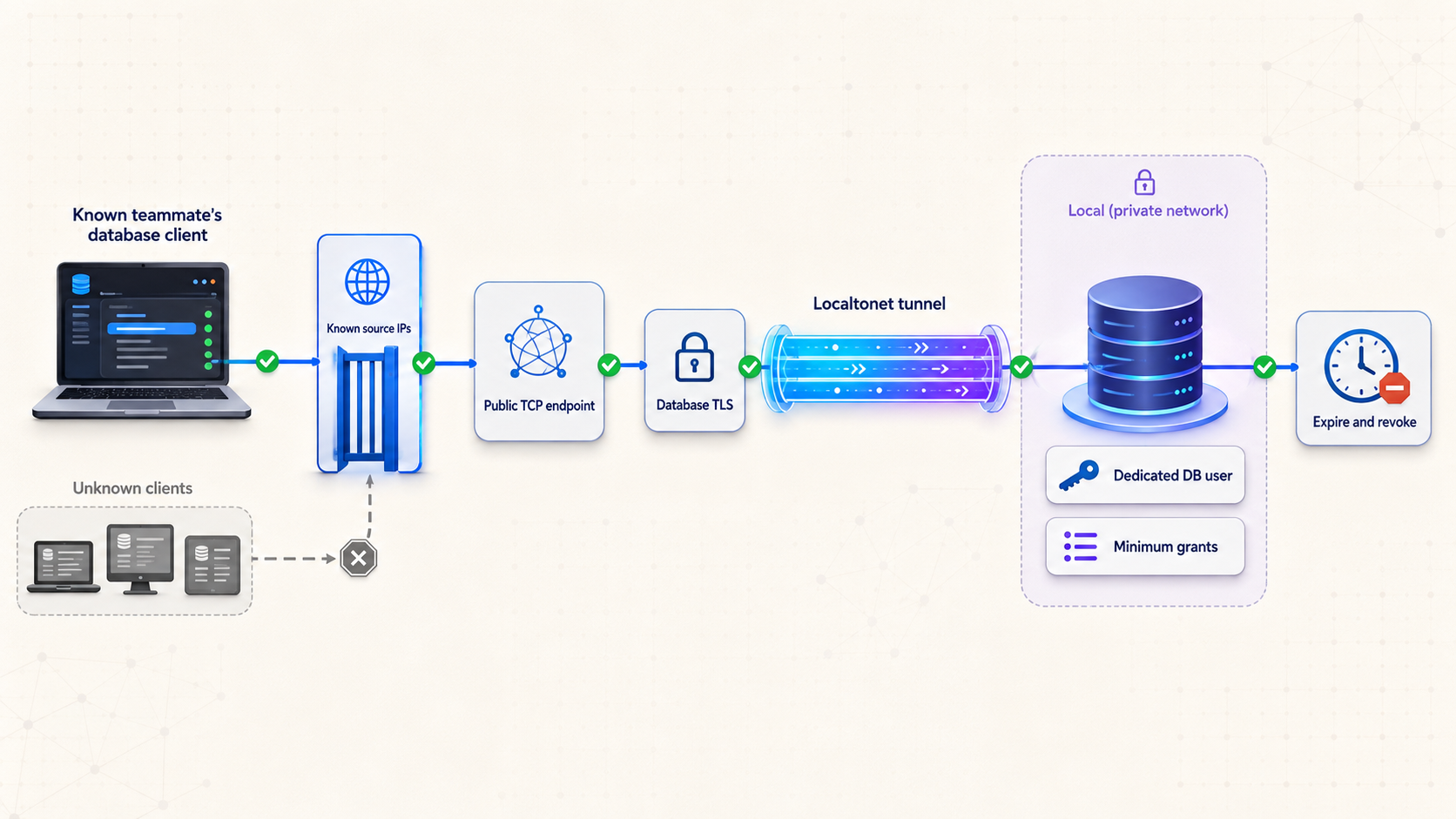
While the tunnel is running, its assigned public host and port can receive connection attempts from the internet. A hard-to-guess address is not an access-control mechanism. Use a dedicated least-privilege database account, native database TLS with certificate validation where applicable, IP Restrictions when available on your Localtonet plan, anonymized test data, and prompt shutdown and credential revocation.
How a Localtonet database tunnel works
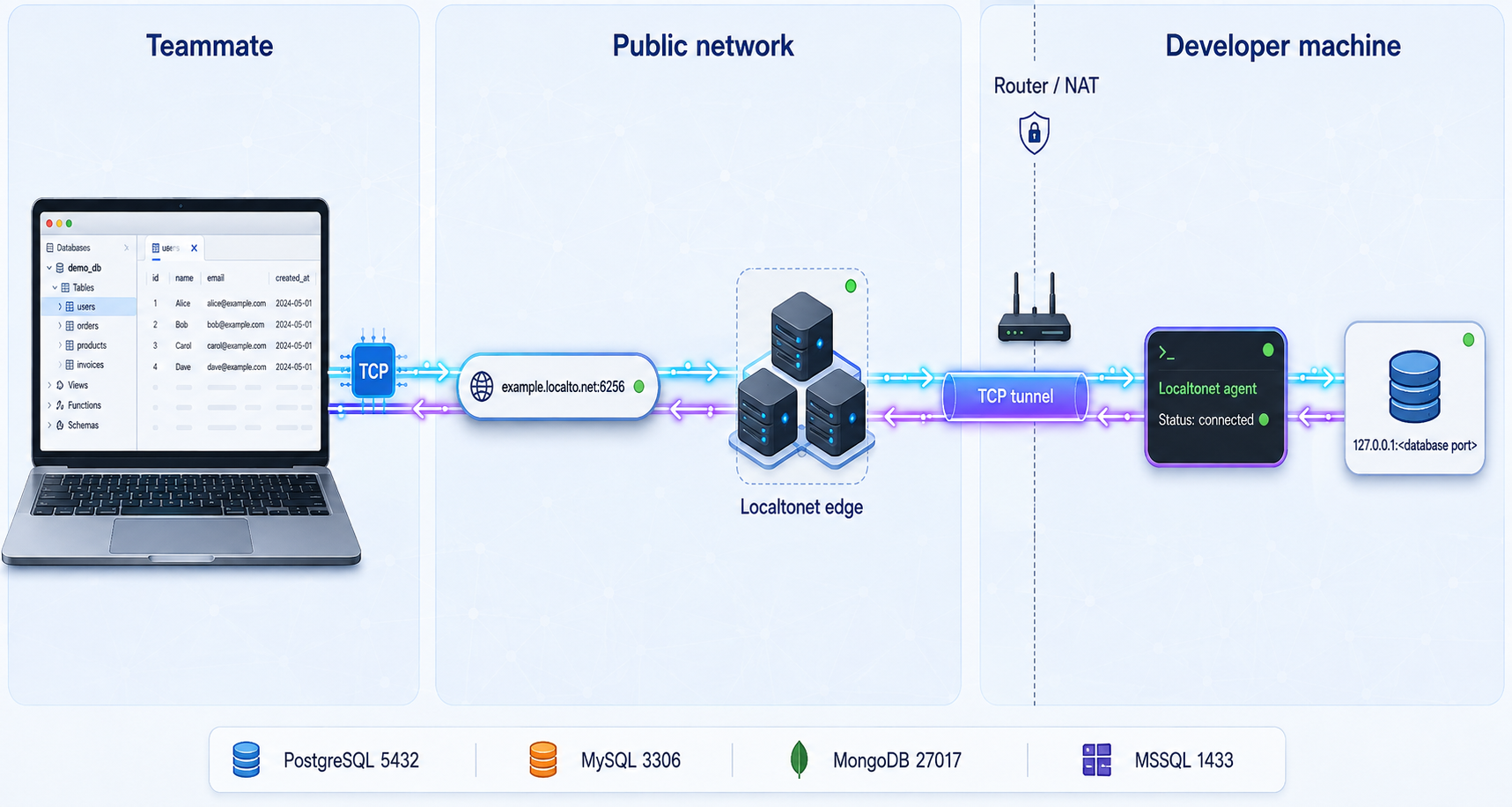
Network database clients commonly connect over TCP, but databases do not use TCP in every local scenario. For example, a PostgreSQL command run without a host can use a Unix-domain socket, and local database tools may select another transport automatically. A Localtonet TCP tunnel requires a real TCP listener that the Localtonet client device can reach.
The traffic path for this tutorial is:
- Your teammate's database client connects to the public Localtonet relay hostname and port.
- The relay associates that connection with the running TCP tunnel.
- The Localtonet client maintains an outbound connection from your device to the relay.
- The client forwards the TCP connection to the configured local target, such as
127.0.0.1:5432. - The local database performs its normal authentication, authorization, transaction, and optional TLS processing.
Localtonet does not replace database authentication. It also does not grant a database user permissions that the database has not assigned. The public address changes how the teammate reaches the listener, while the database continues to decide whether the login is accepted and what that login may do.
A target of 127.0.0.1 refers to the device running the selected Localtonet client. If the database runs on another LAN host, use an address reachable from that client device. If it runs in a container, publish or otherwise make the container port reachable from the host before pointing the tunnel at it.
This outbound connection model avoids inbound router port forwarding and does not require a public IP address. It must still comply with your employer's network, data-handling, and security policies. Do not use a tunnel to evade organizational controls. Some managed networks can block outbound traffic or prohibit public exposure, so obtain authorization before beginning.
Prerequisites and decisions to make first
Prepare the database and the sharing policy before creating a public endpoint. This prevents a tunnel from being started while authentication, permissions, or test data are still unsafe.
Identify the actual TCP port
Common default ports are 5432 for PostgreSQL, 3306 for MySQL and MariaDB, 27017 for MongoDB, and 1433 for a default SQL Server TCP configuration. These are defaults, not guarantees. Configuration files, containers, named SQL Server instances, and multiple local installations can use different ports.
| Database | Common default TCP port | Important qualification |
|---|---|---|
| PostgreSQL | 5432 |
A local client may be using a Unix socket unless you explicitly test a TCP host. |
| MySQL or MariaDB | 3306 |
Account matching depends on both the username and the source host observed by the server. |
| MongoDB | 27017 |
Self-managed MongoDB does not necessarily enable access control by default. |
| Microsoft SQL Server | 1433 |
Named instances can use dynamic or nondefault ports unless a static TCP port is configured. |
Prepare safe data and credentials
Prefer generated, seeded, or anonymized records. Remove or transform personal data, access tokens, API credentials, payment information, private documents, and production secrets. Anonymization should preserve only the relationships and formats required for the test.
Do not share an administrator, root, owner, or application superuser account. Decide whether the teammate needs read-only access, data modification rights, migration privileges, or schema changes. Read-only is the safer default. Schema-destructive permissions should normally remain unavailable during a live sharing session.
Verify TCP connectivity before exposing anything
Test from the same device that will run the Localtonet client. This separates database configuration problems from tunnel problems. Use 127.0.0.1 explicitly when the target is local so the client cannot silently fall back to a Unix socket or another transport.
Every value in the following examples is a placeholder. Replace LOCAL_PORT, DATABASE_NAME, and TEAM_USERNAME with your actual local values. Let the client prompt for the password instead of putting it directly on the command line.
PostgreSQL local test
psql -h 127.0.0.1 -p LOCAL_PORT -U TEAM_USERNAME -d DATABASE_NAMEAfter connecting, run a harmless query:
SELECT 1;MySQL or MariaDB local test
mysql -h 127.0.0.1 -P LOCAL_PORT -u TEAM_USERNAME -p DATABASE_NAMESELECT 1;MongoDB local test
mongosh --host 127.0.0.1 --port LOCAL_PORT --username TEAM_USERNAME --authenticationDatabase AUTH_DATABASE DATABASE_NAMEdb.runCommand({ ping: 1 })SQL Server local test
sqlcmd -S 127.0.0.1,LOCAL_PORT -U TEAM_USERNAME -d DATABASE_NAMESELECT 1;
GOPassword arguments can be retained in shell history, process listings, logs, screenshots, clipboard managers, and support transcripts. Use an interactive prompt, an approved secret manager, or your database client's protected credential storage. Never commit a connection string containing a password to source control.
Do not start the tunnel until the intended account can connect locally over TCP and a disallowed account or operation is rejected as expected. A local authentication failure will not be repaired by adding a relay.
Configure the Localtonet TCP tunnel
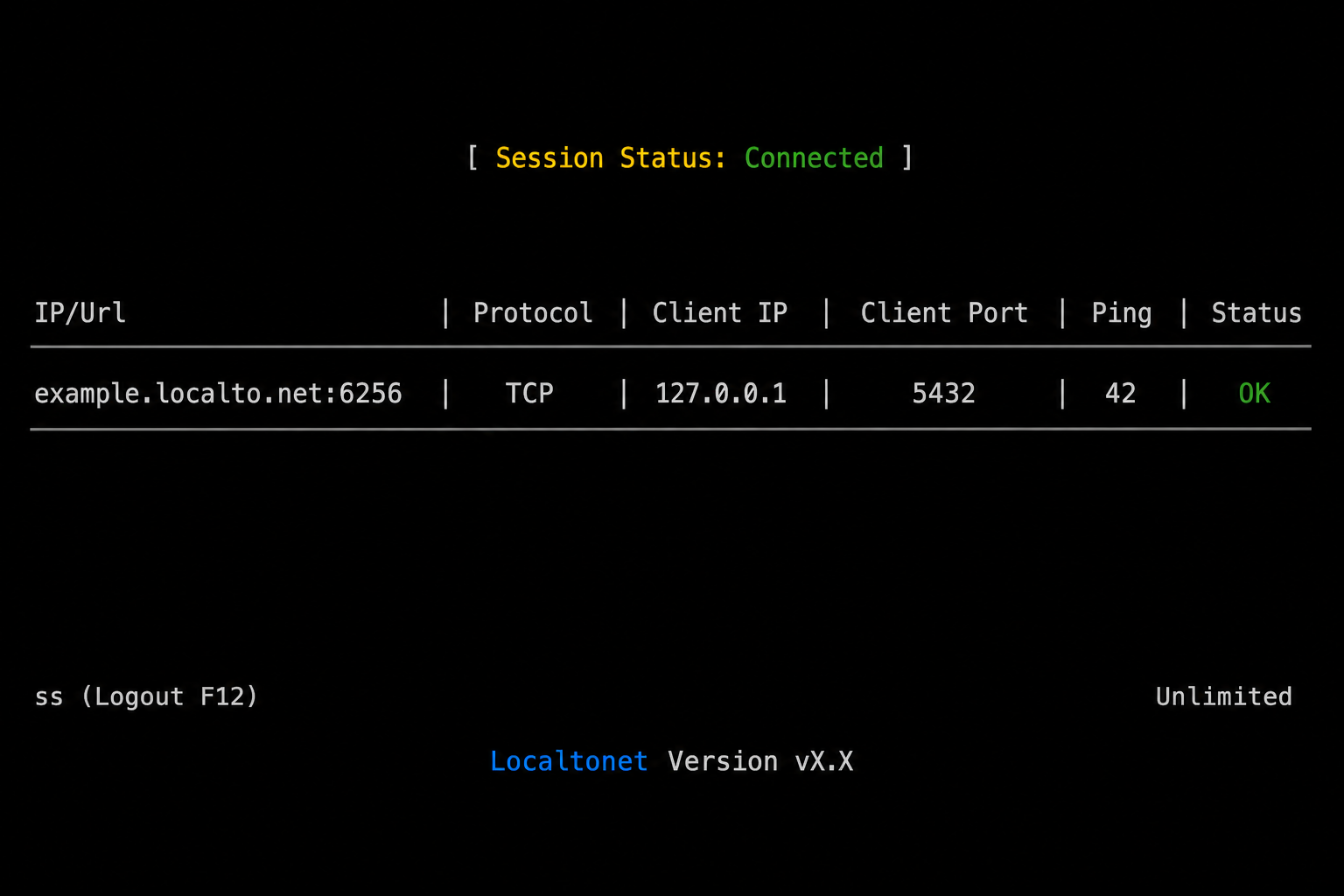
The same Localtonet workflow applies to all four database families. Complete it once using the actual TCP port verified in the previous section. For database-specific examples, see our documentation for PostgreSQL, MySQL, MongoDB, or Microsoft SQL Server.
Install and run the Localtonet application
Install the Localtonet app for the operating system on the device that can reach the database. Run the client and configure its device-specific AuthToken. Keep the client running for the entire sharing session.
Open the TCP-UDP page
In the Localtonet application or dashboard workflow, go to the TCP-UDP tunnel page.
Select TCP as the Protocol Type
Choose TCP because the teammate's database client will connect to a TCP host and port.
Select the correct AuthToken
Choose the device AuthToken configured in the running Localtonet client. Selecting a token for another or disconnected device will prevent the intended database host from serving the tunnel.
Choose an available server
Select a currently available Localtonet relay server from the product. Do not rely on a server code copied from an old guide because availability can change.
Enter the local database IP address and port
For a database listening on the same device, the IP is typically 127.0.0.1. Enter the verified TCP port, such as the database's default port only if your installation actually uses it.
Press Start
Start the tunnel and confirm that it enters a running state. Saving or creating a configuration alone does not make the database reachable.
Record the assigned public TCP address
Once the tunnel is active, Localtonet provides a public hostname and port. Use those two assigned values in the teammate's database client. Continue confirming that the selected client remains connected and the tunnel remains running.
The local target port belongs to the database on your device. The assigned public relay port is the port your teammate enters. These values do not need to be identical. Always copy the assigned host and port from the running tunnel.
Database-specific authentication and permissions
Configure the database separately from the tunnel. The examples below use team_share, development_db, and other obvious sample values. They are placeholders, not credentials to reuse. Generate a unique password and deliver it through an approved secure channel rather than embedding it in source code, chat, tickets, or screenshots.
PostgreSQL
PostgreSQL host authentication is controlled by pg_hba.conf in addition to role attributes and grants. A TCP connection does not universally imply password authentication. PostgreSQL selects the first matching pg_hba.conf rule, which may require SCRAM, another password method, certificates, or a different supported authentication mechanism.
Confirm that the local TCP source used by the Localtonet client matches an appropriate host rule. Keep that rule as narrow as your installation allows and reload PostgreSQL after an approved pg_hba.conf change. Do not replace a specific rule with an unrestricted network rule merely to make the tunnel work.
A read-only role for one database and schema can be prepared as follows by an authorized administrator:
CREATE ROLE team_share LOGIN PASSWORD 'GENERATE_AND_DELIVER_SECURELY';

GRANT CONNECT ON DATABASE development_db TO team_share;

-- Run the following while connected to development_db.
GRANT USAGE ON SCHEMA public TO team_share;
GRANT SELECT ON ALL TABLES IN SCHEMA public TO team_share;
The table grant covers existing tables in that schema. It does not automatically cover future tables. An owner that creates future objects can set default privileges for that creating role:
ALTER DEFAULT PRIVILEGES FOR ROLE OBJECT_OWNER IN SCHEMA public
GRANT SELECT ON TABLES TO team_share;
Write access needs more analysis than adding table privileges. Inserts into tables backed by sequences can require sequence privileges. Future objects require suitable default privileges for each relevant owner, and functions or additional schemas may have their own permissions.
GRANT INSERT, UPDATE, DELETE ON ALL TABLES IN SCHEMA public TO team_share;
GRANT USAGE, SELECT ON ALL SEQUENCES IN SCHEMA public TO team_share;
Before dropping the role, terminate or allow its active sessions to close, revoke default privileges that mention it, and inspect ownership and dependency information. DROP ROLE can fail if the role owns objects or still has privileges in databases. Commands such as REASSIGN OWNED and DROP OWNED have broad consequences and must be reviewed in every affected database rather than copied blindly.
MySQL and MariaDB
MySQL-family accounts are identified by both user and host. Do not automatically create 'team_share'@'%'. The correct host portion depends on the source address MySQL observes and the server's account-matching configuration.
Establish the expected source using an administrator-approved test, existing diagnostics, or a temporary narrowly scoped account. During an authenticated test, USER() reports the presented client identity while CURRENT_USER() reports the account entry that matched. Then create or retain the narrowest host pattern that works in your environment.
SELECT USER(), CURRENT_USER();

CREATE USER 'team_share'@'OBSERVED_HOST'
IDENTIFIED BY 'GENERATE_AND_DELIVER_SECURELY';

GRANT SELECT ON development_db.* TO 'team_share'@'OBSERVED_HOST';

SHOW GRANTS FOR 'team_share'@'OBSERVED_HOST';
Replace OBSERVED_HOST with the administrator-approved host value. If write access is genuinely required, grant only the required operations:
GRANT SELECT, INSERT, UPDATE, DELETE
ON development_db.*
TO 'team_share'@'OBSERVED_HOST';
CREATE USER and GRANT take effect without running FLUSH PRIVILEGES. That command is not needed for account changes made through these statements.
At cleanup, use the exact host portion that was created:
DROP USER 'team_share'@'OBSERVED_HOST';MongoDB
A default self-managed MongoDB deployment does not necessarily require authentication. Access control must be explicitly enabled and tested. Do not expose a MongoDB listener through a public tunnel if a client can connect and read data without authenticating.
Enable access control according to the deployment's approved MongoDB configuration and ensure an administrative user already exists before enforcing it. Configuration locations and service restart procedures vary by operating system, package, container, and orchestration platform, so use the process appropriate to that deployment. Verify the result locally with an invalid login as well as the intended account.
An administrator can create a database-scoped read-only user in the target database:
use development_db

db.createUser({
  user: "team_share",
  pwd: passwordPrompt(),
  roles: [
    { role: "read", db: "development_db" }
  ]
})
If the installed shell or administrative workflow does not support interactive password collection in this form, use an approved secret-input method. Avoid pasting the password into recorded shell history or screenshots. Use readWrite only when modification is required.
MongoDB credentials are associated with an authentication database. A user created in development_db normally authenticates against that database, while a centrally managed user may authenticate against admin. Set the client's authentication database to match where the user was created.
After the session, connect to the correct authentication database and remove the temporary user:
use development_db
db.dropUser("team_share")
Microsoft SQL Server
SQL Server must have TCP/IP enabled for the instance. Enabling TCP/IP through SQL Server Configuration Manager can require restarting the SQL Server service before the listener becomes available. Confirm the impact and schedule that restart appropriately.
Do not assume every instance listens on 1433. Named instances may use dynamic ports. For a predictable TCP tunnel, determine the active port or configure an approved static TCP port, restart the service if required, and test that exact port locally. The teammate should connect directly to the assigned Localtonet host and port rather than depending on SQL Server Browser discovery.
If the teammate will use a SQL login, SQL Server must permit SQL Server authentication. An installation configured only for Windows authentication may need mixed-mode authentication enabled, with a service restart depending on the configuration change. Do not change the authentication mode without administrator approval.
CREATE LOGIN [team_share]
WITH PASSWORD = 'GENERATE_AND_DELIVER_SECURELY';

USE [development_db];
CREATE USER [team_share] FOR LOGIN [team_share];

GRANT SELECT ON SCHEMA::[dbo] TO [team_share];
Adjust the schema and permissions to the actual requirement. Avoid adding the login to broad fixed database or server roles merely for convenience.
Current SQL Server clients and drivers can have different encryption defaults. Some current Microsoft drivers enable encryption by default, which can expose certificate name or trust errors that older configurations did not show. Prefer a database certificate that the client trusts and validate the server certificate. Do not make TrustServerCertificate=true or disabled encryption a routine workaround.
Cleanup requires removing the database user and then the server login after active sessions and dependencies are handled:
USE [development_db];
DROP USER [team_share];

USE [master];
DROP LOGIN [team_share];
Connect from the teammate's device and verify safely
Use the assigned relay hostname and relay port from the running tunnel. Do not send the AuthToken. The teammate needs only the public connection details, database name, database username, approved TLS settings, and password delivered through a separate secure mechanism.
The following values are placeholders:
RELAY_HOST: the public hostname assigned by LocaltonetRELAY_PORT: the public port assigned by LocaltonetTEAM_USERNAME: the restricted database accountDATABASE_NAME: the authorized databaseAUTH_DATABASE: the MongoDB database containing the user
| Database client example | Host and port format | Harmless verification |
|---|---|---|
psql |
-h RELAY_HOST -p RELAY_PORT |
SELECT 1; |
mysql |
-h RELAY_HOST -P RELAY_PORT |
SELECT 1; |
mongosh |
--host RELAY_HOST --port RELAY_PORT |
db.runCommand({ ping: 1 }) |
SSMS or sqlcmd |
RELAY_HOST,RELAY_PORT |
SELECT 1; |
Connect using the native client's protected password prompt or credential store. After the harmless query succeeds, test one explicitly permitted read. If the account is intended to be read-only, also confirm that a write attempt is rejected, using an operation that cannot damage data.
Connection URI handling
URI-style connection strings can break when usernames, passwords, database names, or options contain reserved characters such as @, :, /, ?, #, or %. Percent-encode each URI component according to the database driver's rules. Do not encode the entire URI as one value.
postgresql://TEAM_USERNAME:ENCODED_PASSWORD@RELAY_HOST:RELAY_PORT/DATABASE_NAME

mysql://TEAM_USERNAME:ENCODED_PASSWORD@RELAY_HOST:RELAY_PORT/DATABASE_NAME

mongodb://TEAM_USERNAME:ENCODED_PASSWORD@RELAY_HOST:RELAY_PORT/DATABASE_NAME?authSource=AUTH_DATABASE
These lines are structural templates only. Do not paste a real password into a shell, code repository, screenshot, or team chat. Prefer separate host, port, username, and password fields where the client can protect the credential.
Security controls for a publicly reachable database endpoint
Use database-native TLS and validate certificates
A raw TCP tunnel carries the database protocol. Configure the database and client to use the protocol's native TLS support where applicable, and validate the server certificate rather than accepting any certificate. Certificate trust, hostname matching, and supported TLS options depend on the database server and client driver.
The public relay hostname may not match a certificate originally issued only for localhost or an internal server name. Do not suppress hostname validation without understanding the resulting risk. If you cannot establish an approved, correctly validated native TLS configuration for the intended client path, do not expose sensitive data through that configuration.
This article does not claim an unverified transport-encryption property for a Localtonet TCP tunnel. Treat database-native TLS as a separate requirement when confidentiality and server identity validation are necessary.
Restrict who can reach the endpoint
Localtonet database tunnels are publicly accessible by default. If IP Restrictions are available on your plan, restrict the tunnel to trusted public source IP addresses. Confirm the teammate's current egress IP, especially if their organization uses a VPN, secure web gateway, or changing residential address.
An IP restriction supplements database authentication. It does not replace a password, certificate, least-privilege account, or organizational approval.
Deliver credentials separately
Send the relay host and port through the normal collaboration channel only if policy permits. Deliver the password through an approved password manager or secret-sharing system, preferably separately from the connection details. Never send the Localtonet AuthToken because it identifies the client device and is not needed by the teammate.
Limit the data and privileges
Use anonymized or synthetic data whenever possible. Grant only the schemas, tables, collections, and operations required for the session. Avoid administrative privileges, user-management rights, file-system access, replication permissions, server roles, extension installation, and schema ownership.
A tunnel is not a snapshot. If the account can write, remote inserts, updates, deletes, DDL, long-running transactions, and locking operations affect the same database used locally. Back up important development state and agree on permitted operations before sharing.
Operate, monitor, and close the sharing session
Monitor the session
Keep the session time-bounded and supervised. Confirm periodically that the expected Localtonet client is connected and that the intended tunnel is running. Monitor database-native connection and query activity using tools appropriate to your database and organizational policy.
Ask the teammate to disconnect when the task is complete. Avoid leaving a GUI client idle overnight because it may retain a connection or reconnect automatically. Do not assume that closing a query tab terminates every pooled or background connection.
Avoid destructive or disruptive work
Coordinate writes, migrations, locks, bulk imports, index operations, and schema changes. A harmless query can still become expensive if it scans a large collection or table. If the teammate only needs to inspect data, maintain read-only permissions throughout the session.
Database-native transaction and locking behavior still applies. Simultaneous clients may block each other, observe transaction-specific states, or conflict during writes. Localtonet forwards the connection but does not alter those database rules.
Close access in the right order
- Ask the teammate to finish work, commit or roll back intentional transactions, and close the database client.
- Review active sessions and terminate remaining remote sessions through an approved database administration process if necessary.
- Stop the Localtonet tunnel. Confirm it is no longer running.
- Delete the tunnel configuration if it will not be reused.
- Revoke or drop the temporary database account after resolving ownership, grants, and dependencies.
- Remove temporary IP restrictions, shared secrets, exported files, or copied connection profiles that are no longer needed.
Stopping the tunnel removes the public path while it is stopped, but it does not erase a password already shared or revoke database permissions. Credential cleanup remains necessary. If a reusable account was exposed more broadly than intended, rotate its credential according to your database and organizational procedures.
Troubleshooting common connection failures
The public host times out or refuses the connection
Confirm that the Localtonet client is running and connected on the selected device. Then confirm that the tunnel itself is in a running state. Creating or saving a tunnel does not start it. If the device is asleep, offline, or running a client associated with a different AuthToken, the configured local service will not be available through that tunnel.
Verify that the selected AuthToken belongs to the database host or to a device that can reach the database. Also verify the selected relay server and copy the currently assigned public hostname and port again instead of relying on an old connection profile.
The tunnel runs, but the database is unreachable
Repeat the local TCP test from the Localtonet client device using the exact target IP and port configured in the tunnel. Check that the database service is running, listening on TCP, and listening on the expected address. A PostgreSQL client that works through a Unix socket does not prove that 127.0.0.1:5432 is available.
Check custom ports rather than assuming defaults. For SQL Server, inspect whether the instance uses a dynamic port. For multiple PostgreSQL or MySQL installations, verify which process owns the configured port.
The database runs in Docker
The host's 127.0.0.1 reaches a containerized database only if the container port is published or another reachable networking path has been configured. Verify the host-side mapping and use the host-side port as the Localtonet target.
For example, a mapping conceptually represented as HOST_PORT:CONTAINER_PORT means the tunnel should normally target 127.0.0.1:HOST_PORT, not an unpublished container-only port. Container networking differs across Docker Desktop, native Linux, Compose, and orchestration environments, so confirm with a local client test.
Authentication fails
For PostgreSQL, inspect the first matching pg_hba.conf rule and the role's login status. For MySQL or MariaDB, inspect the user-and-host account match and compare USER() with CURRENT_USER(). For MongoDB, confirm that access control is enabled, the user exists, and the client uses the correct authentication database. For SQL Server, confirm that the selected authentication mode allows the login and that a database user maps to it.
Also check password copying, keyboard layout, expired credentials, account lockouts, and reserved URI characters. If separate client fields work but a URI fails, percent-encoding is a likely cause.
Access works locally but is blocked remotely
Review Localtonet IP Restrictions if configured. The teammate's apparent public IP may differ when using a corporate VPN or gateway. Update restrictions only after verifying and authorizing the correct source address. Do not disable restrictions permanently merely to diagnose a changing IP.
The teammate's organization may also block outbound connections to unfamiliar ports or public database services. Follow the organization's approval and firewall-change process. Do not represent tunneling as a way to bypass corporate policy.
The client reports a TLS or certificate error
Read the full error before changing settings. Common categories include an untrusted certificate authority, an expired certificate, a hostname mismatch, an unsupported protocol version, or a client requiring encryption when the server does not support the expected configuration.
Correct the server certificate, trust chain, hostname, and database TLS configuration where possible. SQL Server users should check the encryption defaults of the exact SSMS, sqlcmd, or driver version in use. PostgreSQL users should distinguish encryption from hostname-verifying modes. Do not normalize disabling validation as a fix.
The connection succeeds but access is denied
Authentication and authorization are separate. A successful login can still lack permission to connect to a database, use a schema, query a table, access a sequence, read a collection, or select from a SQL Server schema. Review the exact error and add only the missing privilege.
Conversely, if a supposedly read-only account can modify data, stop the session and correct the grants before continuing.
Frequently asked questions
Does the database need to listen beyond localhost?
Not when the Localtonet client runs on the same device and can reach the database at 127.0.0.1. The database must still have a working TCP listener. A successful local socket connection alone is not enough. If the client runs on another device, the database must be reachable from that device through an authorized network address.
Can I share a database running in Docker?
Yes, if the Localtonet client device can reach the container's database port. When the client runs on the Docker host, this commonly means publishing the container port to a host port and targeting that host port. Verify the mapping with a local TCP connection before starting the tunnel.
Can two people use the database at the same time?
The database can accept concurrent connections if its own configuration and limits permit them. Those clients remain subject to normal transactions, locks, isolation behavior, connection limits, and permissions. Coordinate write operations because both people are working against the same live database state.
Is a database password enough to secure the tunnel?
No. Use layered controls: organizational authorization, anonymized data, a dedicated least-privilege account, a unique secret, database-native TLS with certificate validation where applicable, and IP Restrictions when available on your plan. Stop the tunnel and revoke access promptly after the session.
Should I send my teammate the Localtonet AuthToken?
No. The AuthToken identifies the client device that runs the tunnel and must remain secret. The teammate uses the assigned public relay hostname and port plus the restricted database credentials and approved TLS settings.
Why does PostgreSQL work locally without a password but fail through TCP?
Your local command may be using a Unix-domain socket and a socket-specific authentication rule. A TCP connection matches a host rule in pg_hba.conf, which can require a different authentication method. Test explicitly with -h 127.0.0.1 and inspect the first matching host rule.
Why does SQL Server not use port 1433 on my machine?
Port 1433 is a common default, but named instances can use dynamic or custom ports. Determine the active TCP port or configure an approved static port, restart the service if the change requires it, verify locally, and then use that actual port as the tunnel target.
Is stopping the tunnel sufficient cleanup?
Stopping the tunnel closes the Localtonet path while it remains stopped, but it does not revoke database permissions or erase credentials already distributed. Close active sessions, stop or delete the tunnel, then revoke or drop temporary accounts and remove saved connection profiles as appropriate.
Prepare a controlled database sharing session
Verify your database over local TCP, create a least-privilege account, install and run the Localtonet client, and start a TCP tunnel only for the authorized session. Keep the client connected, monitor access, and close both the tunnel and database credentials when the work is complete.
Get Started Free →

