

Pin a Bindery revision, review its Helm chart, preserve SQLite state, and validate temporary remote access safely
Bindery is a self-hosted ebook and audiobook automation application built as a Go binary with an embedded React interface and SQLite storage. Its official repository includes a Kubernetes Helm chart, but a reliable deployment still requires revision pinning, chart inspection, durable storage, authentication testing, backups, and careful upgrade planning. This guide provides the complete evidence-backed workflow available from the reviewed materials, including an explicit Git checkout, manifest verification, local testing, temporary Localtonet access, rollback, backup, restore, and uninstall procedures. Where the supplied evidence does not establish an exact chart key or current authentication setting, the guide tells you how to obtain it from the pinned source instead of inventing configuration.
📋 What's in this guide
Understand the deployment architecture
Bindery's official repository describes the application as an automated ebook and audiobook manager for self-hosting. It monitors authors, searches configured indexers, sends releases to supported download clients, imports completed files, and organizes library content. Bindery supports Usenet and torrent-oriented workflows through separately operated download clients.
The application is packaged as a single Go binary with its React interface embedded. It uses SQLite and does not require an external database, separate frontend, nginx container, or application sidecar. The repository publishes a container image and includes an official Helm chart under charts/bindery.
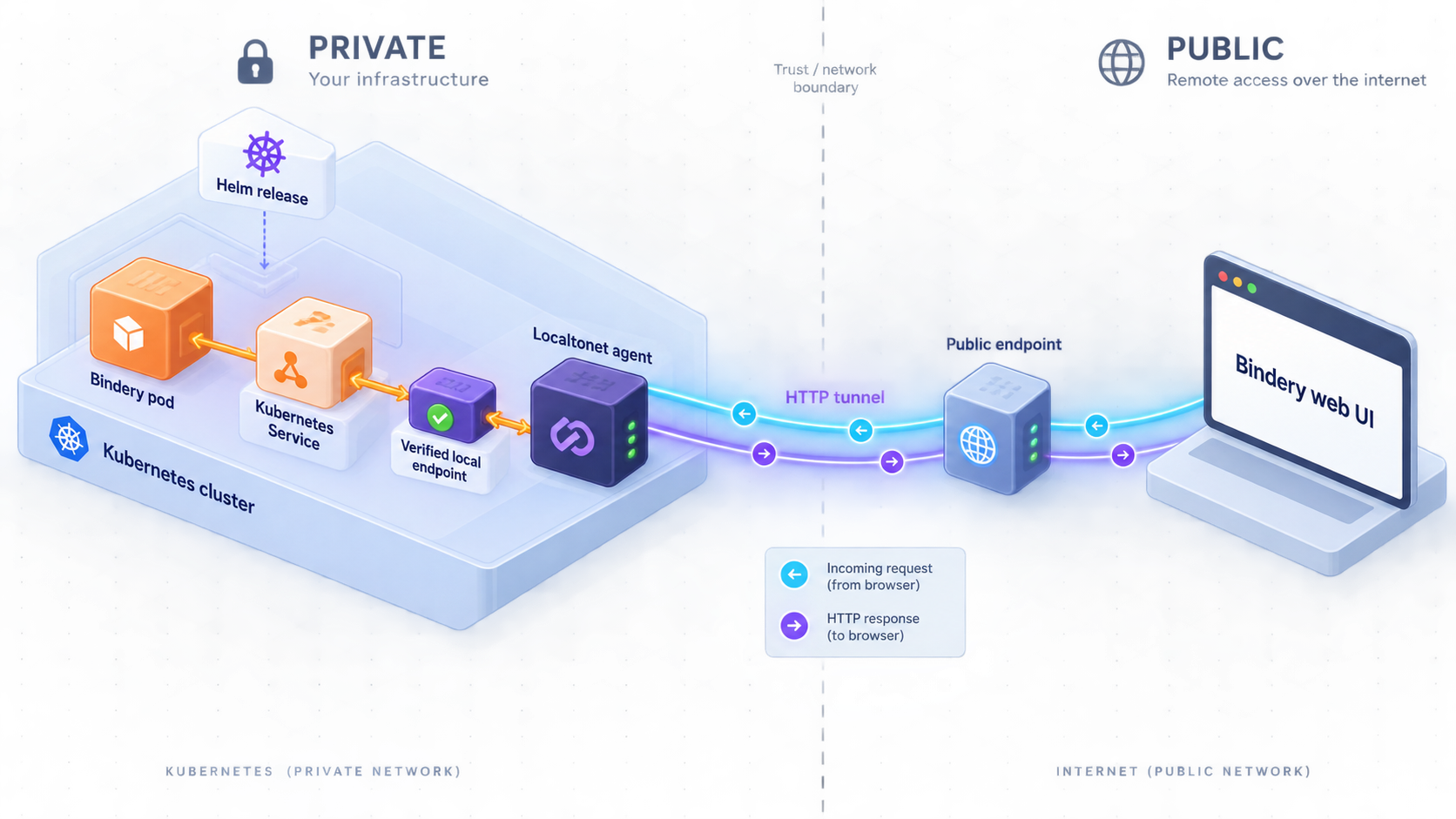
Kubernetes adds declarative deployment, scheduling, restart behavior, storage abstractions, and Helm release history. It does not automatically make SQLite durable, align media paths with download clients, configure Bindery authentication, or make a public administration interface safe.
| Path or component | Purpose | Required verification |
|---|---|---|
| Bindery data path | SQLite and application state | Confirm the exact mount path from the pinned chart and prove that data survives pod replacement |
| Ebook mount | Ebook library and import access | Confirm read and write permissions plus agreement with download-client paths |
| Audiobook mount | Audiobook library and import access | Confirm folder handling, permissions, and path remapping where necessary |
| Kubernetes Service | Stable network access to the web UI | Confirm its selector, endpoint, type, target port, and exposed Service port |
| Localtonet HTTP target | Optional remote browser access | Confirm that the client device can reach the target and that authentication is enforced |
Prepare the cluster and deployment plan
You need a functioning Kubernetes cluster, a configured kubectl client, Helm, Git, and permissions to create namespaced resources. Consult the official Kubernetes documentation and Helm documentation if those tools are not already installed and connected to your cluster.
The reviewed repository evidence confirms that a Helm chart exists, but it does not reproduce the current Chart.yaml or declare a Kubernetes and Helm compatibility matrix. Do not infer compatibility from this article. After pinning the source revision, inspect Chart.yaml for a kubeVersion constraint, chart dependencies, chart type, chart version, and application version. If no kubeVersion field is present, that means the chart metadata does not declare a Kubernetes version constraint. It does not guarantee compatibility with every Kubernetes release.
Select stable working names
export NAMESPACE=bindery
export RELEASE=bindery
export CHART=./charts/bindery
export VALUES=bindery-values.yaml
export REVISION=v1.37.0
The examples use v1.37.0 because the supplied release evidence documents that tag and its authentication-related behavior. It is not presented as the current release. Before publication or deployment, compare it with the repository's current releases and choose the revision that you have reviewed and tested.
If you choose another tag or an immutable commit SHA, update REVISION. A commit SHA is useful when you need to identify the exact source even if tags are managed later.
Plan three distinct storage concerns
Treat application data, ebooks, and audiobooks as separate concerns even if your eventual storage design combines some of them. The application-data volume must preserve SQLite and Bindery configuration. Media volumes must provide the library and import paths Bindery uses. Download clients may report completed-download paths from a different filesystem namespace, so path remapping may still be required.
Cloning a repository and setting a shell variable does not pin the working tree. You must check out the selected tag or commit before inspecting the chart, exporting values, rendering manifests, or installing the release.
Pin and inspect the official Helm chart
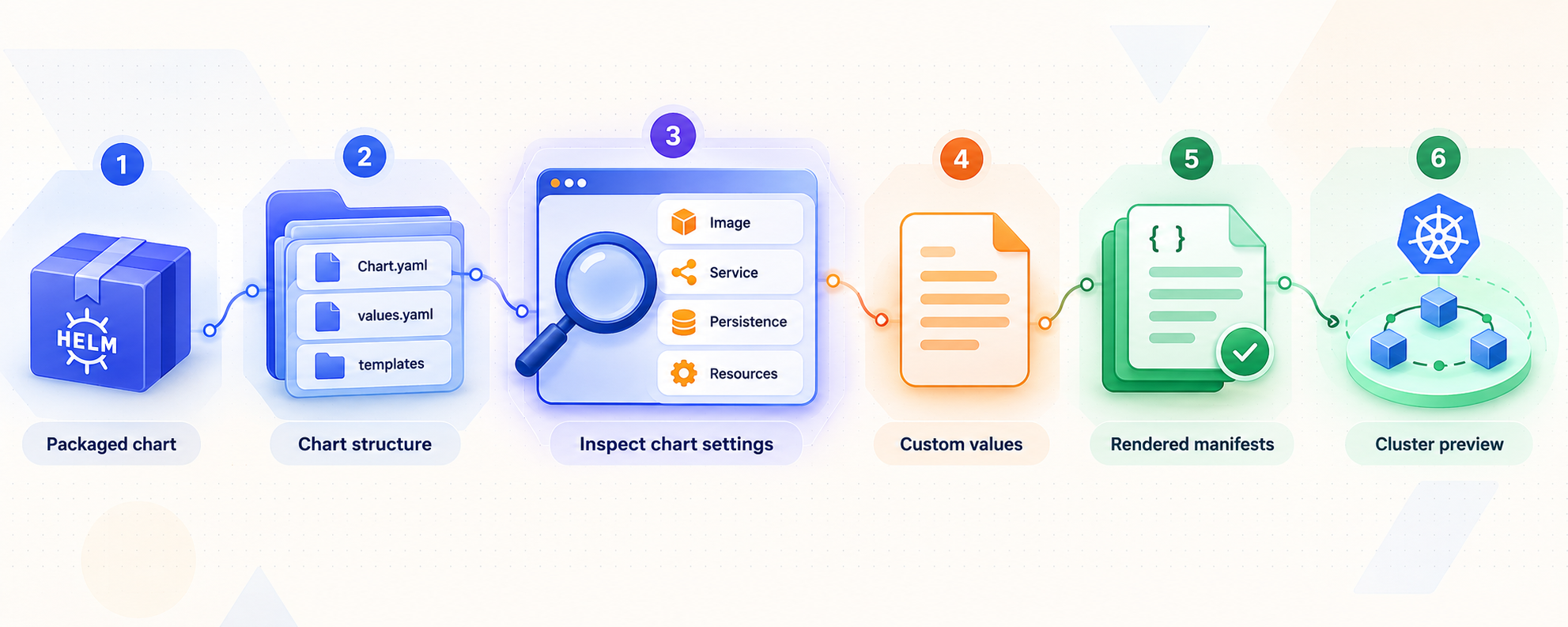
Clone the official repository
Retrieve the chart directly from Bindery's official source repository.
Check out the selected revision
Fetch tags and detach the working tree at the exact tag or commit selected for deployment.
Inspect metadata, defaults, and templates
Read Chart.yaml, values.yaml, and every template involved in workloads, Services, claims, volumes, security contexts, and configuration.
Export the exact defaults
Generate a values file from the checked-out chart instead of copying keys from another chart version.
Render the proposed resources
Lint and render the chart, then compare every important value with the resulting Kubernetes objects.
git clone https://github.com/vavallee/bindery.git
cd bindery

git fetch --tags --force
git checkout --detach "$REVISION"

git status --short --branch
git rev-parse HEAD
git describe --tags --always --dirty
For the reviewed tag, git describe should identify v1.37.0 without a dirty suffix. If you select a commit SHA, record the output of git rev-parse HEAD with your deployment records.
sed -n '1,240p' "$CHART/Chart.yaml"
sed -n '1,320p' "$CHART/values.yaml"
find "$CHART/templates" -maxdepth 2 -type f -print

grep -RniE \
  'image|service|port|persistence|claim|mountPath|volume|ebook|audiobook|securityContext|resources|auth' \
  "$CHART/Chart.yaml" "$CHART/values.yaml" "$CHART/templates"
This inspection is where you establish the real image fields, persistence switch, data path, ebook and audiobook volume configuration, Service port, resource settings, and supported pod or container security controls. The private evidence supplied for this revision does not include those files, so reproducing exact keys here would be fabrication. The commands above read them from the same immutable revision you will deploy.
helm show chart "$CHART"
helm show values "$CHART" > "$VALUES"

helm lint "$CHART" -f "$VALUES"

helm template "$RELEASE" "$CHART" \
  --namespace "$NAMESPACE" \
  -f "$VALUES" \
  > rendered-bindery.yaml
Review rendered-bindery.yaml for the effective image repository and tag, image pull policy, Service type and port, workload selectors, container port, persistent volume claims, volume mounts, probes, environment settings, resource requests and limits, and security contexts.
The repository revision identifies the source tree you reviewed. Chart.yaml identifies the chart and application versions declared by that source. The rendered workload identifies the image Kubernetes will actually pull. Record all three.
Create a reviewed values file without guessing keys
Start with the defaults exported from the pinned chart. Edit only fields that exist in that file or are demonstrably consumed by its templates. This is safer than writing a generic values document whose names happen to resemble another Helm chart.
Your reviewed file must make each of the following decisions explicit:
- The image repository, image tag, and pull policy defined by the chart.
- The chart's persistence switch and the claim settings for Bindery application data.
- The exact SQLite data mount expected by Bindery in that revision.
- The ebook and audiobook volumes and their container mount paths.
- The Kubernetes Service type and Service port.
- CPU and memory requests and limits suitable for your environment.
- Pod and container security controls actually supported by the templates.
- Authentication-related configuration documented by the selected Bindery revision.
Use the following validation commands after every values-file change:
helm lint "$CHART" -f "$VALUES"

helm template "$RELEASE" "$CHART" \
  --namespace "$NAMESPACE" \
  -f "$VALUES" \
  > rendered-bindery.yaml

grep -nE \
  'image:|imagePullPolicy:|containerPort:|mountPath:|claimName:|kind: Service|port:|targetPort:|resources:|securityContext:' \
  rendered-bindery.yaml
The rendered manifest is the final test of whether a value is connected to a template. A field present in values.yaml but absent from the relevant rendered object may be disabled, conditional, or unused in your selected configuration.
Validate storage ownership and lifecycle
Identify whether the chart creates claims or expects existing claims. If it creates a claim, inspect its storage class, access mode, requested capacity, and Helm resource policy. If media is stored outside Bindery's application-data claim, verify whether it is mounted through existing persistent volume claims, network storage, or another chart-supported mechanism.
Never put the SQLite database on ephemeral container storage. Do not assume that an ebook or audiobook mount also contains Bindery's database. Confirm the mapping from each claim to each container path in the rendered workload.
Configure authentication before exposure
The reviewed Bindery v1.37.0 release evidence names disabled, local-only, enabled, and proxy authentication modes. It also states that a requester who is signed in remains restricted, but in disabled and local-only modes a signed-out visitor can be served as an administrator. That makes disabled and local-only modes unsuitable for the public tunnel workflow described here.
For public reachability, use Bindery's enabled authentication mode or a correctly secured proxy authentication mode. The supplied evidence does not contain the current settings screen procedure, environment-variable names, trusted-proxy rules, or proxy-header contract, so this article does not invent them. Inspect the authentication documentation and configuration included in the exact checked-out revision. Do not start a public tunnel until a signed-out private-browser test produces the expected login or denial behavior.
Do not select proxy mode merely because the name appears convenient. The upstream proxy must authenticate users, sanitize identity headers from untrusted clients, and be the only path to Bindery. If that topology has not been verified, use Bindery's enabled authentication mode instead.
Install the reviewed Bindery release with Helm
Confirm the cluster context
Verify both the active cluster and the intended namespace before creating resources.
Install the pinned chart
Use the checked-out local chart and reviewed values file, not a moving repository branch.
Inspect created resources
Confirm the release, workload, Service, endpoints, claims, and recent namespace events.
Wait for readiness
Do not proceed to application setup until the relevant pod is ready and stable.
kubectl config current-context
kubectl get namespace "$NAMESPACE" 2>/dev/null || true

helm upgrade --install "$RELEASE" "$CHART" \
  --namespace "$NAMESPACE" \
  --create-namespace \
  -f "$VALUES" \
  --wait \
  --timeout 10m

helm status "$RELEASE" --namespace "$NAMESPACE"
kubectl get all --namespace "$NAMESPACE"
kubectl get persistentvolumeclaims --namespace "$NAMESPACE"
kubectl get events --namespace "$NAMESPACE" --sort-by=.lastTimestamp
If the installation times out, inspect the pod and event output before changing the values file. A pending claim, denied security context, image pull failure, unsuitable node architecture, missing volume, or failed readiness probe requires a different correction.
Verify the workload, storage, and authentication locally
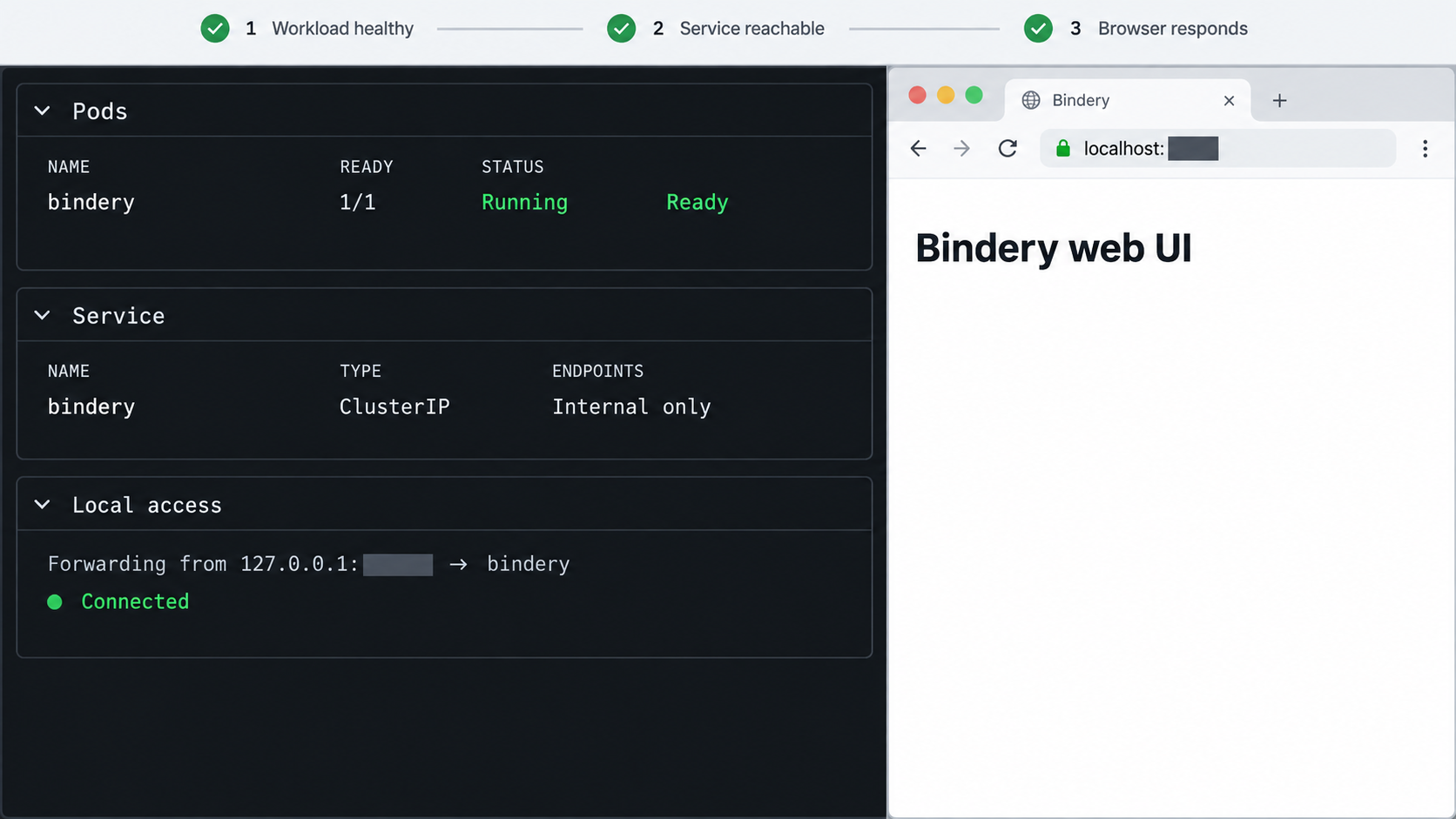
Discover the real Service and port
kubectl get services --namespace "$NAMESPACE"
kubectl get endpoints --namespace "$NAMESPACE"
kubectl describe service <service-name> --namespace "$NAMESPACE"
Record the Service name and Service port reported by Kubernetes. Do not substitute the container port unless the port-forward syntax specifically requires it.
Create a temporary workstation endpoint
kubectl port-forward \
  --namespace "$NAMESPACE" \
  service/<service-name> \
  18080:<service-port>
Keep the process running and open http://127.0.0.1:18080. The local port 18080 is an example chosen for this guide. It is not claimed to be Bindery's native port.
Confirm that the web interface loads, navigation works, the expected authentication flow appears, and application configuration can be saved. Configure library roots and download clients with paths as they appear inside the Bindery container.
Test signed-out behavior
- Open a private browsing window with no Bindery cookies.
- Visit the local forwarded address.
- Confirm that an anonymous visitor cannot reach administrative pages or perform administrative actions.
- Sign in with a deliberately non-administrative account where the selected release supports one.
- Confirm that the account cannot open settings or perform prohibited administrative actions.
- Sign in as an administrator and confirm that required administrative workflows remain available.
Bindery v1.37.0 introduced a requester role. Its release notes state that requesters can browse the library, search for a book or author, submit requests, and follow their requests. They cannot grab, download, delete, use OPDS, or see settings. The same release supports setting the default role for new OIDC logins with BINDERY_OIDC_DEFAULT_ROLE=requester. These statements are version-scoped to Bindery v1.37.0 and must be rechecked for another revision.
Prove persistence
kubectl get deployments,statefulsets --namespace "$NAMESPACE"
kubectl get pods --namespace "$NAMESPACE" -o wide
kubectl get persistentvolumeclaims --namespace "$NAMESPACE"
Save a small non-sensitive configuration change, restart the workload using the resource type and name created by the chart, and wait for readiness. For a Deployment, the command is:
kubectl rollout restart deployment/<deployment-name> \
  --namespace "$NAMESPACE"

kubectl rollout status deployment/<deployment-name> \
  --namespace "$NAMESPACE" \
  --timeout=10m
Reopen the port-forward and confirm that the saved setting remains. Also verify that ebook and audiobook paths are readable and writable by the workload's runtime identity.
In v1.37.0, the Diagnose action for a saved download client checks saved settings, connectivity, category behavior, resulting ebook and audiobook paths, applicable path remapping, read and write access, and hardlink capability into configured library folders. It cannot determine whether the download client can reach its indexers.
Add temporary Localtonet access
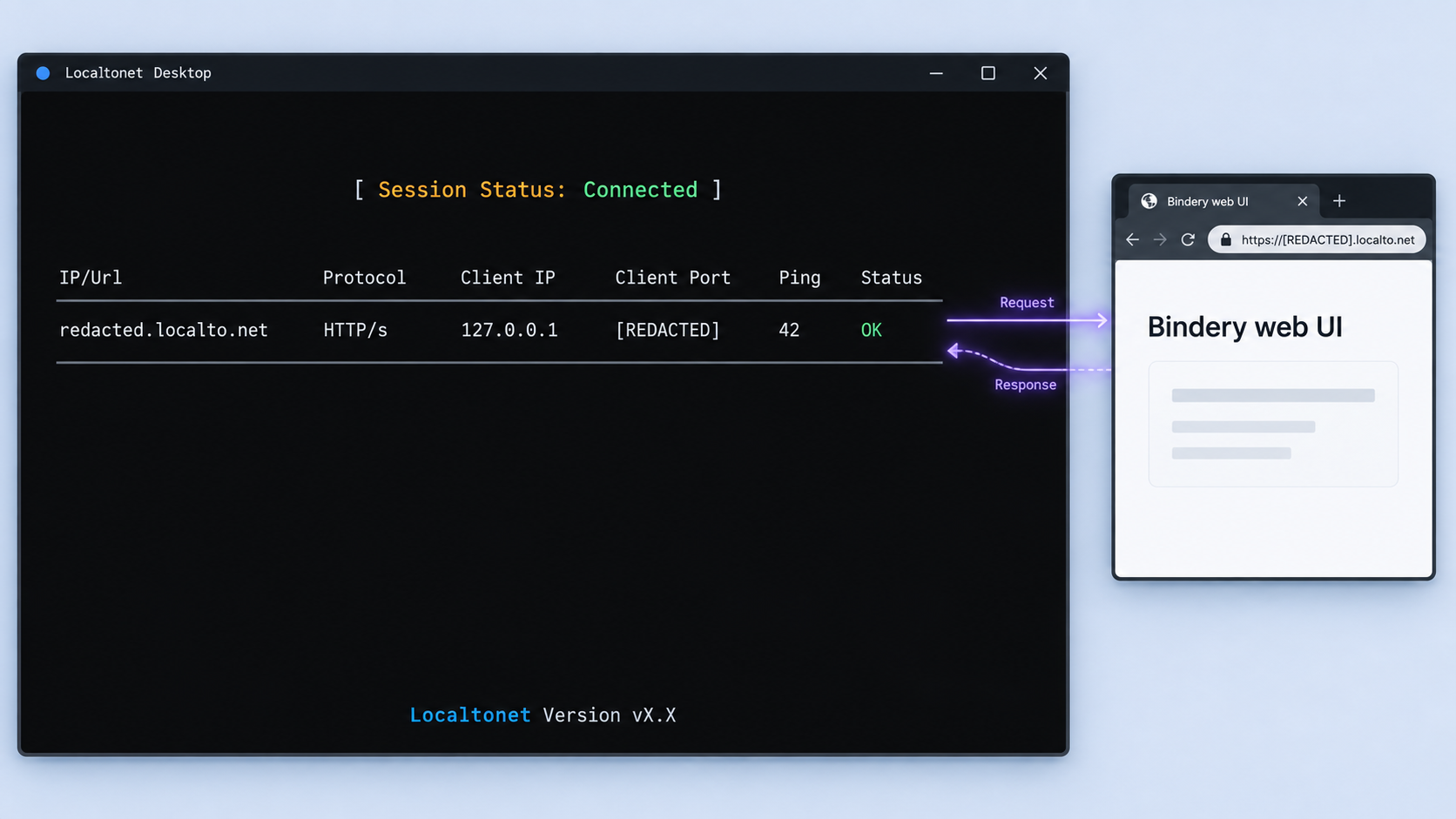
Localtonet can expose the verified workstation endpoint without inbound router port forwarding, firewall changes, VPN setup, or a public IP address. Our client establishes an outbound connection to a Localtonet relay and provides a public URL for the configured HTTP target.
This guide deliberately scopes the demonstrated topology to temporary access. The reviewed evidence does not document an official Bindery-specific or Localtonet-in-Kubernetes deployment pattern that can be presented here as a supported durable topology. The tunnel in this section stops working when the kubectl port-forward process exits.
Keep the local verification endpoint running
Leave the successful port-forward process active on the workstation.
Install and run the Localtonet client
Run our client on the same workstation so that 127.0.0.1:18080 refers to the verified endpoint.
Select the client device and relay
Select the device using its device-specific token, then choose a currently available relay server from the dashboard. Keep the token secret.
Create the HTTP tunnel
Configure the local target as 127.0.0.1 with port 18080, or use the alternate local port selected for your working port-forward.
Start the tunnel
Creating a tunnel does not start it. Use the Start button and confirm that the selected client is connected and the tunnel is running.
Verify from a signed-out remote session
Open the assigned public URL on another device or network. Confirm that authentication is required and that anonymous access cannot reach administration functions.
See the Localtonet HTTP tunnel documentation for the current product workflow. HTTP tunnels can use a generated subdomain, a selected subdomain where supported, or a custom domain. Check current documentation before configuring custom-domain DNS.
The public URL depends on the Localtonet client, the tunnel, the workstation, its Kubernetes credentials, and the foreground port-forward process. Closing the terminal or interrupting the port-forward removes the local target. Stop or delete the tunnel after the temporary session.
Upgrade, roll back, back up, restore, and uninstall
Observe the release
helm list --namespace "$NAMESPACE"
helm status "$RELEASE" --namespace "$NAMESPACE"
helm get values "$RELEASE" --namespace "$NAMESPACE" --all
helm get manifest "$RELEASE" --namespace "$NAMESPACE"
kubectl get pods,services,endpoints,persistentvolumeclaims \
  --namespace "$NAMESPACE"
Store the checked-out Git commit, chart metadata, reviewed values file, and rendered manifest with your deployment records. Protect any file containing credentials or private endpoints.
Back up SQLite consistently
A raw copy of a SQLite database while Bindery is writing can be inconsistent, especially if associated journal or write-ahead-log files are not captured correctly. The supplied evidence does not document an application-native Bindery backup command. A storage snapshot taken after stopping writes is therefore the conservative Kubernetes procedure.
- Stop the Localtonet tunnel so that no remote user changes application state.
- Record the workload's current replica count.
- Scale the workload to zero and confirm that no Bindery pod remains.
- Snapshot or copy the complete application-data volume, not only one presumed database filename.
- Retain the values file, chart revision, secrets, and storage metadata needed for restoration.
- Scale the workload back to its previous replica count and verify the application.
For a Deployment with one replica:
kubectl scale deployment/<deployment-name> \
  --namespace "$NAMESPACE" \
  --replicas=0

kubectl wait \
  --namespace "$NAMESPACE" \
  --for=delete pod \
  -l app.kubernetes.io/instance="$RELEASE" \
  --timeout=5m
Create a volume snapshot only if your cluster has a CSI snapshot driver and an appropriate VolumeSnapshotClass. The exact class is cluster-specific and must not be guessed.
apiVersion: snapshot.storage.k8s.io/v1
kind: VolumeSnapshot
metadata:
  name: bindery-data-backup
  namespace: bindery
spec:
  volumeSnapshotClassName: REPLACE_WITH_YOUR_SNAPSHOT_CLASS
  source:
    persistentVolumeClaimName: REPLACE_WITH_BINDERY_DATA_PVC
kubectl apply -f bindery-volume-snapshot.yaml
kubectl get volumesnapshot --namespace "$NAMESPACE"
kubectl scale deployment/<deployment-name> \
--namespace "$NAMESPACE" \
--replicas=1
kubectl rollout status deployment/<deployment-name> \
--namespace "$NAMESPACE" \
--timeout=10mMedia storage may require a separate backup policy. Snapshotting the SQLite volume does not back up ebooks or audiobooks stored on different claims, network shares, or host storage.
Restore into an isolated namespace first
Restore the full application-data volume from a known snapshot or storage backup, deploy the same reviewed chart and application revision against that restored volume, and verify the result in a separate namespace. Keep the original deployment stopped if both copies would otherwise access the same writable media paths or download clients.
After restoration, verify startup logs, authentication, library metadata, application settings, download-client configuration, and access to ebook and audiobook roots. A backup is not considered proven until this test succeeds.
Upgrade to another pinned revision
git fetch --tags --force
git checkout --detach <target-tag-or-commit>

helm show chart "$CHART"
helm show values "$CHART" > target-default-values.yaml

helm lint "$CHART" -f "$VALUES"

helm template "$RELEASE" "$CHART" \
  --namespace "$NAMESPACE" \
  -f "$VALUES" \
  > rendered-bindery-target.yaml
Compare the target chart's defaults and templates with your current revision. Reconcile renamed or removed values instead of assuming the existing file remains valid. Take a verified storage-consistent backup before applying the upgrade.
helm upgrade "$RELEASE" "$CHART" \
  --namespace "$NAMESPACE" \
  -f "$VALUES" \
  --wait \
  --timeout 10m
Roll back a Helm release
helm history "$RELEASE" --namespace "$NAMESPACE"

helm rollback "$RELEASE" <revision-number> \
  --namespace "$NAMESPACE" \
  --wait \
--timeout 10mHelm restores an earlier set of Kubernetes manifests. It does not necessarily reverse SQLite schema or data migrations performed by a newer Bindery version. Check the Bindery release notes between versions and preserve a pre-upgrade data backup. If a migration is not backward-compatible, restore the matching data backup along with the older application revision.
Uninstall without accidentally losing retained data
Before uninstalling, stop the tunnel, take a verified backup, and inspect every claim. Helm normally removes resources that belong to the release unless the chart or resource has an applicable retention policy. A storage class reclaim policy concerns the underlying volume after claim deletion and is not a substitute for protecting the claim itself.
kubectl get persistentvolumeclaims \
  --namespace "$NAMESPACE" \
  -o wide

kubectl get persistentvolumeclaims \
  --namespace "$NAMESPACE" \
  -o yaml > bindery-pvcs-before-uninstall.yaml
If you intend to retain a chart-managed application-data claim and have confirmed the claim name, annotate it for Helm retention before uninstalling:
kubectl annotate persistentvolumeclaim <data-pvc-name> \
  --namespace "$NAMESPACE" \
  helm.sh/resource-policy=keep \
  --overwrite

helm uninstall "$RELEASE" --namespace "$NAMESPACE"

kubectl get persistentvolumeclaims --namespace "$NAMESPACE"
Do not delete the namespace until you have confirmed that every required retained claim and media resource is safe. Delete retained claims only after their backups have been tested and you have made an intentional data-destruction decision.
Security checklist before remote access
Expose only the Bindery web interface. Do not point the same tunnel at Kubernetes dashboards, SQLite files, download clients, storage browsers, debugging servers, or cluster administration endpoints.
Localtonet provides network reachability through an outbound client connection. It does not replace Bindery authentication, Kubernetes authorization, storage permissions, or application-level access control.
Troubleshoot the deployment in layers
The working tree is still on the default branch
git status --short --branch
git rev-parse HEAD
git describe --tags --always --dirty
If the output does not identify the intended tag or commit, stop. Run git checkout --detach "$REVISION", regenerate the values export and rendered manifest, then repeat the review.
The pod remains pending
kubectl describe pod <pod-name> --namespace "$NAMESPACE"
kubectl get persistentvolumeclaims --namespace "$NAMESPACE"
kubectl get events --namespace "$NAMESPACE" --sort-by=.lastTimestamp
Check for unbound claims, unavailable storage classes, node scheduling constraints, image architecture problems, resource pressure, and policy rejection.
The pod repeatedly restarts
kubectl logs <pod-name> --namespace "$NAMESPACE"
kubectl logs <pod-name> --namespace "$NAMESPACE" --previous
kubectl describe pod <pod-name> --namespace "$NAMESPACE"
Compare failures with the rendered image, environment, volume mounts, permissions, probes, and security context. A distroless application image may not contain interactive troubleshooting tools.
The Service has no usable endpoint
kubectl get pods,services,endpoints --namespace "$NAMESPACE"
kubectl describe service <service-name> --namespace "$NAMESPACE"
Confirm that the Service selector matches the pod labels and that the selected pods are ready. Verify the Service port and target port against the rendered manifest.
The local UI works but the public URL does not
Confirm that kubectl port-forward is still running, the Localtonet client runs on that same workstation, the selected device is connected, the tunnel is started, and its target is exactly 127.0.0.1:18080 or the alternate working local port.
If the Localtonet client runs on another device, its 127.0.0.1 is a different loopback interface and cannot reach the workstation's port-forward.
Configuration disappears after pod replacement
Stop configuring the application and inspect the generated workload, mounts, claims, and actual Bindery data location. A healthy pod does not prove that SQLite is stored on persistent media. Restore from a verified backup if state has already been lost.
Frequently asked questions
Does Bindery require an external database or frontend?
No external database or separate frontend is identified as a requirement. Bindery is described as a Go application with an embedded React interface and SQLite storage. Its SQLite data still requires persistent storage and a tested backup procedure.
Why must I run git checkout after cloning?
Cloning normally leaves the working tree on the repository's default branch. Setting a revision variable or listing tags does not change that working tree. git checkout --detach "$REVISION" ensures the inspected and installed chart comes from the selected tag or commit.
Is Bindery v1.37.0 the current release?
This article does not claim that it is current. The tag is used because supplied evidence documents its requester role, authentication warning, and Diagnose behavior. Check the official repository's releases before deployment and pin the revision you actually review.
Which Bindery authentication modes are safe for public access?
The v1.37.0 release evidence says that disabled and local-only modes can serve a signed-out visitor as an administrator. Use enabled authentication or a correctly secured proxy-authentication deployment, then verify the signed-out experience before starting a public tunnel.
Do I need a Kubernetes Ingress for the demonstrated Localtonet workflow?
No. The temporary workflow forwards the Kubernetes Service to a workstation port and points the Localtonet HTTP tunnel at that local endpoint. It does not require a public Kubernetes Ingress.
Will the public URL keep working after I close kubectl port-forward?
No. The demonstrated tunnel targets the temporary forwarded port. Closing that process removes the local endpoint even if the Localtonet tunnel remains configured.
Does Helm rollback restore an older SQLite database?
No. Helm rollback restores Kubernetes release manifests. It does not reverse application database migrations. Preserve a matching pre-upgrade data backup and review Bindery's version-specific migration notes.
Can I uninstall Bindery without deleting its data?
Yes, but only after identifying and deliberately retaining the required claims or external storage. Take a verified backup, inspect the claims, add an appropriate Helm keep annotation to a chart-managed claim when needed, uninstall the release, and confirm that the retained storage still exists before deleting the namespace.
Test your verified Bindery interface with Localtonet
After the pinned Helm release is healthy, persistent, backed up, and protected by an appropriate Bindery authentication mode, use our HTTP tunnel workflow for a controlled temporary remote-access session.
Get Started Free →

