

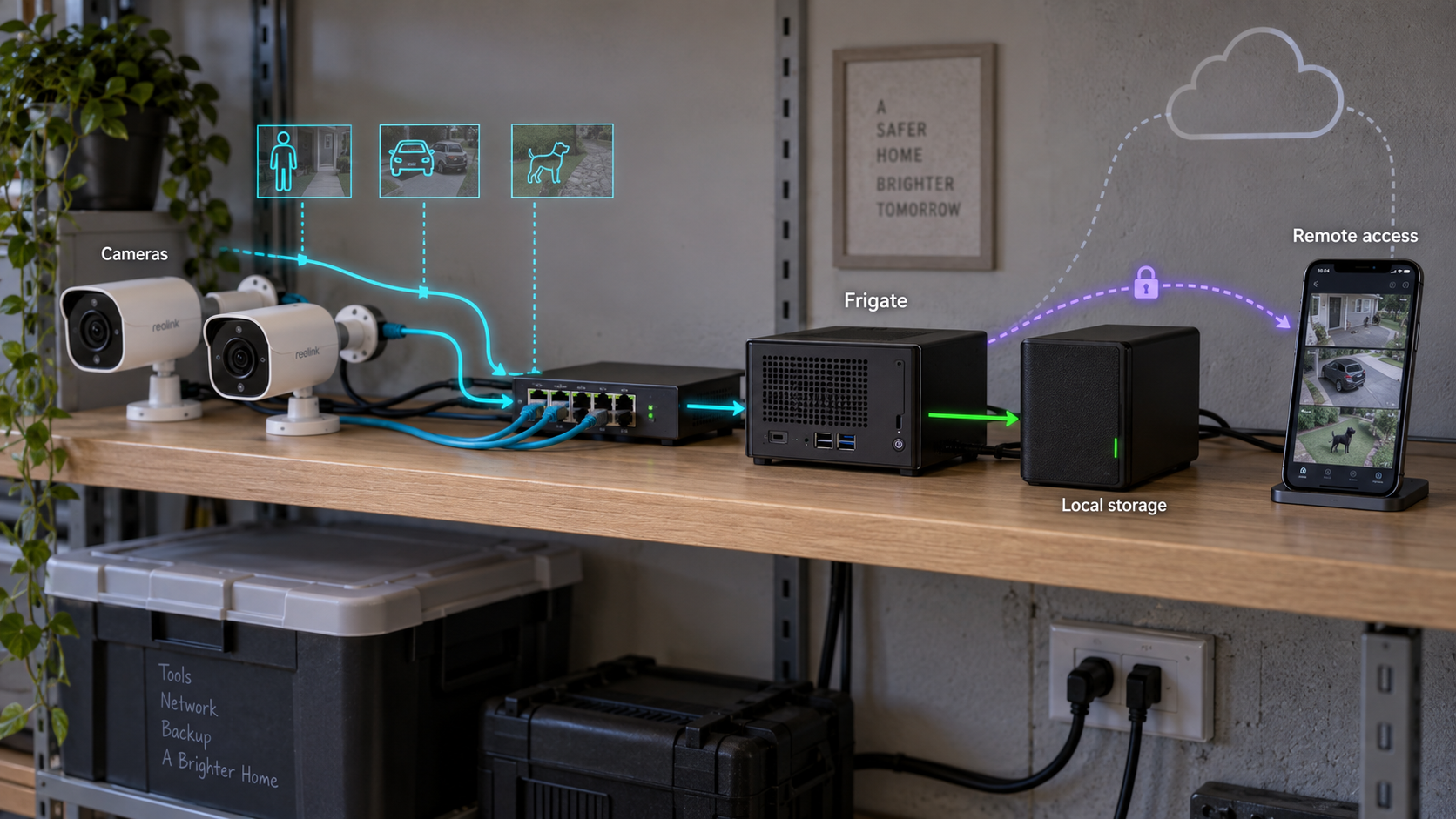
Build a private camera system with local recording, object detection, and carefully controlled remote access
Frigate is a self-hosted network video recorder designed around local camera streams and object detection. This guide builds a security-first Docker deployment, verifies each camera before enabling recording, protects Frigate's authenticated interface on port 8971, and keeps the internal unauthenticated interface on port 5000 private. It also explains storage planning, MQTT and Home Assistant integration, backups, upgrades, and remote access through a Localtonet HTTP tunnel without inbound router port forwarding.
📋 What's in this guide
Understand the Frigate architecture before installing it
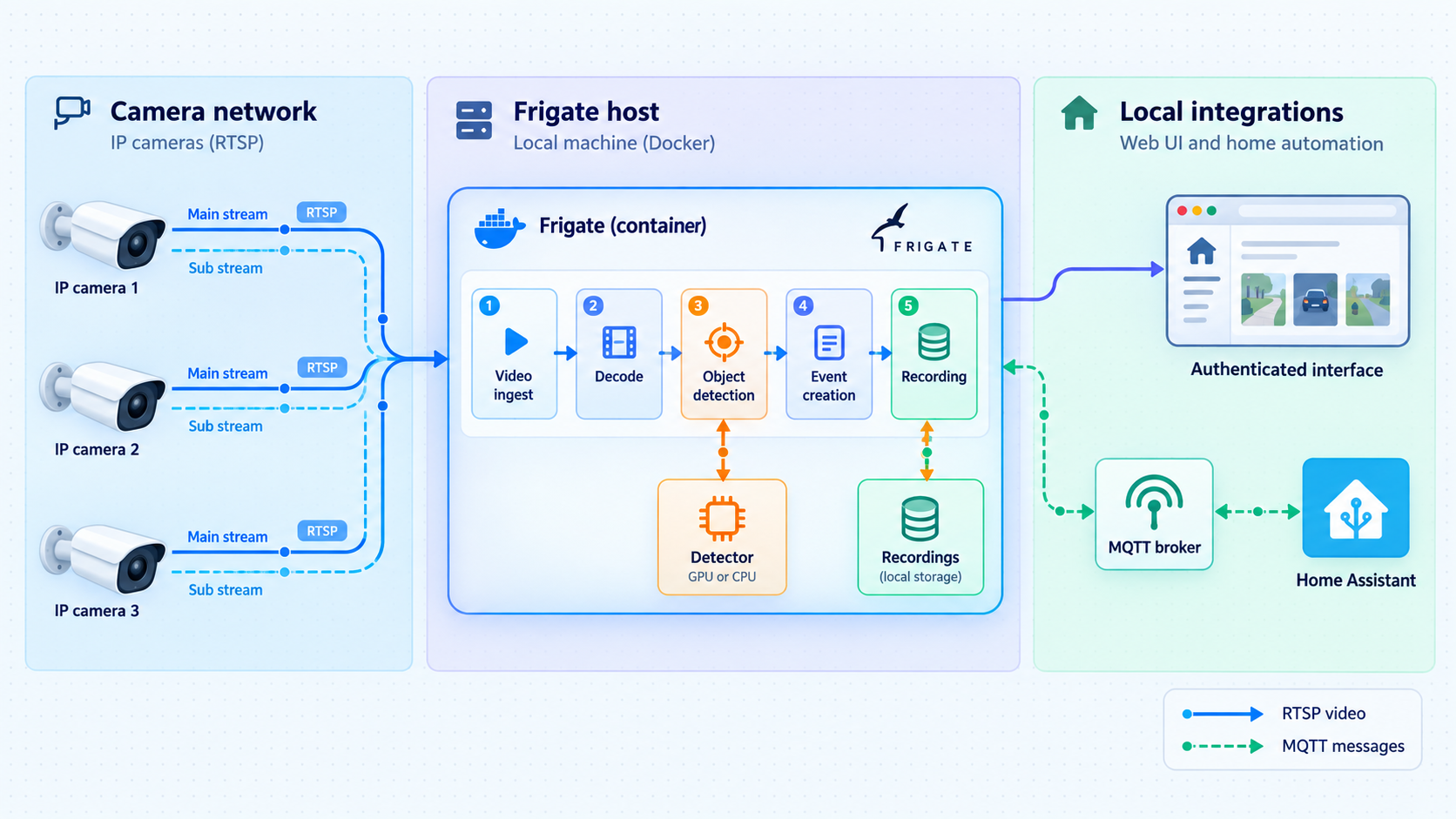
Frigate receives video from IP cameras, analyzes selected frames, records video according to your configuration, and presents cameras and events through a browser interface. Processing and storage stay on hardware you control unless you deliberately connect an optional external service.
A reliable design separates the camera, application, storage, and remote-access responsibilities. Cameras should provide stable local streams. Frigate should run on a host with enough decoding, detection, memory, and storage capacity for the actual workload. Remote users should reach the authenticated web interface rather than an internal application port.
/config and media under /media/frigate. These paths should use persistent host storage.
Frigate ports and their roles
| Port | Purpose | Recommended exposure |
|---|---|---|
8971 |
Authenticated Frigate web interface | Bind locally or to a trusted LAN. Use this as the Localtonet HTTP/s tunnel target. |
5000 |
Internal unauthenticated interface | Do not publish to the internet. Do not use it as the remote-access target. |
8554 |
go2rtc RTSP restreaming | Keep private unless a specifically authorized local client needs it. |
8555/tcp and 8555/udp |
WebRTC media transport | Expose only after understanding the network and access implications. An HTTP tunnel to 8971 does not automatically forward these ports. |
Port 5000 remains unauthenticated even when authentication is enabled for the normal Frigate interface. Publishing it can expose live feeds and administrative functions without requiring a Frigate login. Keep it inside the container network or otherwise restricted to explicitly trusted internal components.
Remote browser access also needs one important qualification. Frigate can use different paths for the web application, recordings, and live media. Tunneling the authenticated web interface on port 8971 does not automatically forward the separate WebRTC TCP and UDP service on port 8555. The dashboard and recordings may work while a particular live-view mode does not.
Test remote live view with every browser and camera codec you plan to use. MSE-based playback may work through the web application when the camera codec is compatible, but behavior depends on the selected Frigate release, browser, stream configuration, and go2rtc setup. Do not assume that an HTTP tunnel alone provides every Frigate media transport.
Choose the host and collect the prerequisites
This tutorial uses Docker Engine with the Docker Compose plugin on a Linux host. The baseline deployment deliberately starts without detector-specific or GPU-specific configuration. That makes it possible to verify networking, credentials, storage, and authentication before introducing hardware passthrough.
Before selecting a machine, confirm that the current Frigate container image supports its CPU architecture. Also confirm that any accelerator you intend to use is supported by the selected Frigate release, host kernel, vendor driver, and container image. Do not copy a Coral, OpenVINO, Nvidia, Hailo, or other detector block from an older release without checking the current Frigate documentation.
Required hardware and information
- A Linux host that can remain powered on while recording is required.
- The host must have reliable network access to each camera.
- Persistent storage is required for configuration, the database, recordings, and snapshots.
- Each camera needs a known IP address or stable local hostname.
- You need the camera's RTSP stream paths, codec, resolution, frame rate, username, and password.
- For dual-stream cameras, collect both the lower-resolution detection stream and higher-quality recording stream.
- Administrative access to the Linux host is needed for Docker installation and device permissions.
- A Localtonet account and connected client device are required only if remote public access is wanted.
Install Docker Engine on Ubuntu
The following commands install Docker Engine from Docker's official Ubuntu repository. If you use Debian, Fedora, another Linux distribution, or a managed NAS, follow the installation path for that platform instead of adapting Ubuntu package commands blindly.
sudo apt update
sudo apt install -y ca-certificates curl

sudo install -m 0755 -d /etc/apt/keyrings
sudo curl -fsSL https://download.docker.com/linux/ubuntu/gpg \
  -o /etc/apt/keyrings/docker.asc
sudo chmod a+r /etc/apt/keyrings/docker.asc

echo \
  "deb [arch=$(dpkg --print-architecture) signed-by=/etc/apt/keyrings/docker.asc] https://download.docker.com/linux/ubuntu \
  $(. /etc/os-release && echo "${UBUNTU_CODENAME:-$VERSION_CODENAME}") stable" \
  | sudo tee /etc/apt/sources.list.d/docker.list > /dev/null

sudo apt update
sudo apt install -y docker-ce docker-ce-cli containerd.io \
  docker-buildx-plugin docker-compose-plugin

sudo docker run --rm hello-world
sudo docker compose version
The commands in this guide use Use a local filesystem that can sustain continuous writes. Avoid placing active recordings on an unreliable network mount until you have confirmed its disconnect and recovery behavior. Frigate's configuration and database should also be protected by a backup routine. Estimate storage from measured camera bitrate rather than camera resolution alone. For continuous recording, a practical decimal estimate is: For example, insert the measured bitrate of every stream assigned the Leave free space for the operating system, database activity, temporary files, exports, and unusually busy periods. Configure storage monitoring instead of relying only on a theoretical estimate. Do not begin by adding every camera to Frigate. Verify one camera and one stream at a time. This separates camera or network problems from Frigate configuration problems. Assign stable camera addresses Use static camera addresses or DHCP reservations. Record the address, management interface, and stream paths in your private system documentation. Create a dedicated camera account Use a unique account for Frigate when the camera supports it. Grant only the permissions required for streaming. PTZ, audio, or administrative features may require additional privileges, so enable them only when needed. Configure the camera streams Use a stable lower-resolution stream for detection and a higher-quality stream for recording when the camera supports both. Confirm the actual codec, resolution, and frame rate in the camera interface. Test RTSP outside Frigate Open each stream in a trusted player such as VLC or inspect it with FFmpeg tools. A stream that fails independently will not become reliable after adding it to Frigate. Isolate the camera network Place cameras on a separate network or VLAN where practical. Permit the Frigate host to reach required camera services, and restrict camera internet access unless a documented function genuinely requires it. On Ubuntu, install To avoid placing credentials directly in shell history, read the complete RTSP URL into a temporary shell variable: Confirm that the output identifies the expected video stream, codec, resolution, and frame rate. Repeat the test for the detection and recording URLs. Let each stream run in a player long enough to reveal periodic disconnects. Do not paste real camera URLs into tickets, public forums, screenshots, Compose files committed to source control, or shared shell transcripts. RTSP URLs often contain usernames and passwords. Use unique credentials and rotate them if they are exposed. The safest installation sequence is to start with one camera, persistent storage, the authenticated interface, and no optional device mappings. After the baseline works, add hardware decoding and a supported detector separately. Do not make these directories world-writable. If Docker later reports a permission error, correct ownership or access for the runtime model you are using rather than applying Create Notice what is not published: port 5000, RTSP restreaming on 8554, and WebRTC on 8555. Add a port only when a documented use case requires it and the surrounding firewall and authentication model are understood. If trusted LAN devices must access Frigate directly, replace Create a local Restrict access to it: If the password contains characters with special meaning inside a URL, encode or handle them according to the camera and Frigate documentation. Do not weaken a password merely to make URL parsing easier. Create The path suffixes in this example are descriptive placeholders, not universal RTSP paths. Camera vendors and models use different URL formats. Use only the paths you tested successfully. This minimal configuration avoids release-sensitive retention and detector options. Once the container is healthy, use the configuration editor and documentation for your selected Frigate release to add retention, snapshots, zones, masks, review settings, semantic search, face recognition, license-plate recognition, or other enrichment features. Those features can require additional configuration, models, hardware, or services and should not be assumed to work merely because Frigate starts. First ask Docker Compose to render and validate the Compose model: This validates the Compose structure and variable expansion. It does not prove that every Frigate setting or camera URL is correct. Start the container and inspect the application logs for Frigate-level validation: Do not rely on fabricated example startup output. The actual logs are the source of truth for your image, hardware, configuration, and camera connections. Resolve configuration errors, permission errors, and stream failures before adding more cameras. Before creating any public tunnel, prove that port 8971 works locally and requires authentication. From the Frigate host, request the authenticated interface: The If you bound port 8971 only to loopback and need to use a browser on another trusted computer, create a temporary SSH port forward: While that SSH session is open, visit On an initial installation, Frigate generates administrator credentials and records the initial password in its startup logs. Review the local logs privately: Find the initial credential message, sign in through port 8971, and change the password through the authenticated account-management interface. If the selected release presents a different first-login flow, follow that release's login screen and documentation. Open a private browsing window and visit the port 8971 interface. Confirm that an unauthenticated visitor receives a login prompt and cannot see cameras, recordings, settings, or administrative functions. Do not create the public tunnel until this test passes. Video decoding and object detection should be tuned independently. A supported GPU may decode camera video without serving as the object detector, while another device performs detection. Treat them as separate configuration changes. After each change, check the Frigate logs and compare host load with Localtonet exposes a service without requiring inbound router port forwarding, firewall changes, VPN setup, or a public IP address. The Localtonet client on the Frigate host creates an outbound connection to one of our relay servers. The resulting HTTP tunnel provides a public address while the selected client is connected and the tunnel is running. This tutorial exposes only Frigate's authenticated interface on port 8971. It does not expose the internal interface on port 5000, the RTSP restream on port 8554, or the separate WebRTC transport on port 8555. Install and run the Localtonet client Install the current Localtonet application for the Frigate host's operating system and architecture. Run it on the same host when possible so the tunnel can target the loopback-bound Frigate service. Use the current download and installation instructions rather than unverified command-line flags. Select the Frigate host's device token In the Localtonet dashboard, select the AuthToken belonging to the connected Frigate host. Tokens identify devices and must not be guessed, published, or copied into an article, ticket, or public command transcript. Select an available relay server Choose from the server or region values currently offered in your dashboard. Available values can vary, so this guide does not hardcode a relay code or geographic location. Create the HTTP/s tunnel configuration Choose the appropriate HTTP/s tunnel type and Process Type, then set the local target to Start the tunnel explicitly Creating a tunnel does not start it. Press Start and confirm that the selected client remains connected and the tunnel reports that it is running. Verify, stop, or delete the tunnel Open the assigned public HTTPS address in a private browser window and verify that Frigate requires authentication. Test cameras, events, recordings, and live view. Stop the tunnel when remote access is not needed, or delete it when the configuration is no longer required. For the current dashboard workflow, consult the Localtonet HTTP tunnel documentation. The public hostname is assigned or selected during configuration, so do not assume a fixed domain format. The Localtonet HTTP tunnel can provide an HTTPS address at the public edge. That should not be described as verified end-to-end encryption of every Frigate media path. The local origin scheme, Frigate certificate behavior, media mode, and any separately exposed ports must each be evaluated on their own. Run the following tests over a mobile connection rather than your home Wi-Fi: If the interface and recordings work but live video does not, do not change the tunnel target to port 5000. The likely issue is a media transport, browser codec, go2rtc, or WebRTC path. Port 8555 is a separate TCP and UDP service and is not automatically carried by one HTTP tunnel to port 8971. Keep the authenticated web tunnel intact while diagnosing the media path. Frigate can run without Home Assistant and without MQTT. Add MQTT only when you want integrations or automations that consume Frigate events. The Frigate integration for Home Assistant is installed through HACS. It also requires MQTT to be configured in both Frigate and Home Assistant. The Mosquitto Broker add-on is convenient for Home Assistant OS or a compatible supervised deployment, but add-ons are not available in every Home Assistant installation method. Container and Core installations require an independently managed MQTT broker. Then replace the disabled MQTT block in Add the corresponding secret to the container environment rather than writing the actual password in Add After MQTT is healthy, install the Frigate integration through HACS and add it in Home Assistant. Keep Home Assistant, the broker, and Frigate on trusted internal networks. The public Frigate URL is not a replacement for the local MQTT connection. A self-hosted NVR needs routine maintenance. Review camera health, container restarts, storage use, time synchronization, and failed logins. Test playback periodically rather than discovering a recording problem after an incident. Check whether every camera is still producing current recordings. A running container alone does not prove that streams are healthy or that media is being retained. The Store the archive on another system and protect it because configuration data may reveal camera addresses, usernames, zones, and operational details. Back up the Recording backups need a separate policy because media can be large. Decide whether you need all recordings, only exported evidence, or a short replicated window. Test restoration rather than assuming an archive is usable. The moving If the new release fails, restore the previous exact image tag. If the upgrade migrated the database or configuration incompatibly, stop the container and restore the matching pre-upgrade backup before starting the older image. Do not point two Frigate containers at the same writable configuration database or recording directory during a rollback test. That can create conflicting writes and complicate recovery. Port 5000 is not a safe fallback for remote browser access. Keep the tunnel on the authenticated interface and diagnose the origin protocol, browser codec, MSE behavior, go2rtc configuration, or separate WebRTC path. Use the authenticated Frigate web interface on port 8971. Do not publish or tunnel port 5000 because it is an internal unauthenticated interface. Enabling Frigate authentication does not add protection to port 5000. Not necessarily. The tunnel carries the web interface configured on port 8971. Frigate's WebRTC media transport uses separate TCP and UDP service on port 8555, which one HTTP tunnel does not automatically forward. The dashboard, recordings, and an MSE-compatible live mode may work while a WebRTC-specific path does not. Test the complete remote experience with your cameras and browsers. For an initial installation, inspect the Frigate startup logs locally. Frigate records the generated initial administrator credentials there. Sign in through port 8971, change the password, and verify authentication in a private browser window before enabling remote access. No. A baseline deployment can be used to verify camera streams, authentication, storage, and recording before adding an accelerator. Production capacity depends on camera workload and host hardware. Add only a detector supported by your selected Frigate release, architecture, drivers, and container image. There is no responsible universal camera count. Capacity depends on codecs, resolutions, frame rates, activity, video decoding, detector hardware, model choice, storage throughput, and enabled enrichment features. Start with one camera, measure resource use, and add cameras gradually while monitoring logs, playback reliability, detector latency, and disk growth. Yes. Frigate has its own web interface and can operate without Home Assistant or MQTT. Add MQTT and the HACS Frigate integration only when you want Home Assistant entities, events, or automations. Avoid writing reusable credentials directly into configuration that may be copied or committed. This guide passes dedicated camera credentials through protected environment variables and references them from the Frigate configuration. Protect backups and rotate any credential that is accidentally disclosed. Yes. The Localtonet client establishes an outbound connection to our relay, so the workflow does not require a public IP address or inbound router port forwarding. The tunnel remains available only while the selected device is connected and the tunnel is running. After port 8971 requires a Frigate login and the local deployment passes its health checks, create an HTTP/s tunnel to that authenticated interface. Keep port 5000 private, start the tunnel explicitly, and verify the result from an external network.sudo docker
Decide where recordings will live
Storage in GB per day = aggregate recorded bitrate in Mbps × 10.8record role, add them together, and multiply by 10.8. Motion-based or event-based retention uses less storage, but the reduction depends on actual activity and configuration. Measure real disk growth over several representative days before setting a long retention period.Prepare and test each camera independently
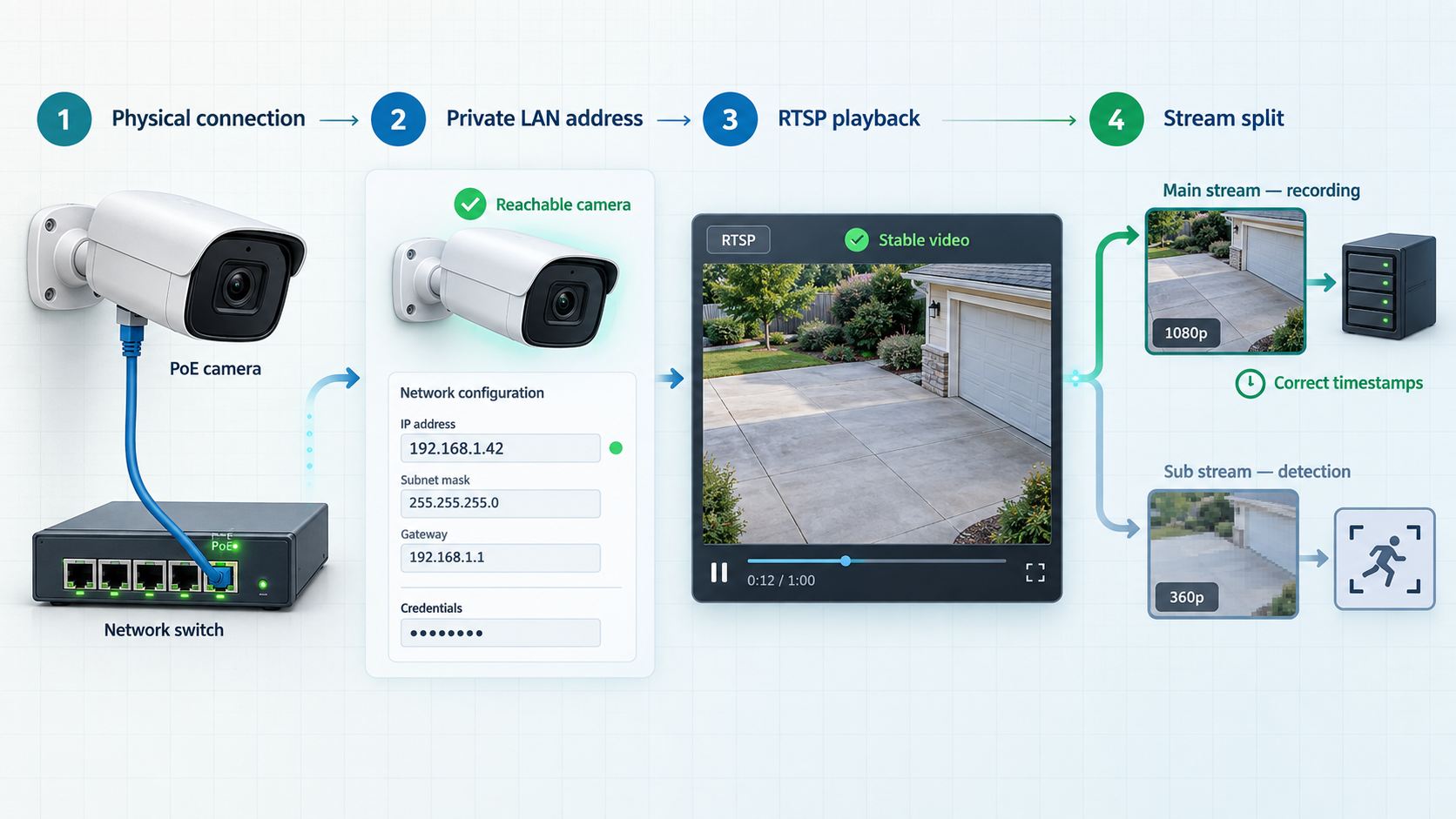
ffprobe through the FFmpeg package:sudo apt update
sudo apt install -y ffmpegread -rsp "RTSP URL: " RTSP_URL
echo
ffprobe -v error -rtsp_transport tcp -show_streams "$RTSP_URL"
unset RTSP_URLDeploy a security-first Frigate baseline with Docker Compose
1. Create the directory structure
mkdir -p "$HOME/frigate/config"
mkdir -p "$HOME/frigate/storage"
cd "$HOME/frigate"chmod 777.2. Create the Compose file
compose.yaml with the following baseline. It binds port 8971 to the host loopback address, which means only software on the Frigate host can reach it directly. That is appropriate when the Localtonet client runs on the same host.services:
frigate:
container_name: frigate
image: ${FRIGATE_IMAGE:-ghcr.io/blakeblackshear/frigate:stable}
restart: unless-stopped
stop_grace_period: 30s
shm_size: "512mb"
ports:
- "127.0.0.1:8971:8971"
environment:
FRIGATE_RTSP_USER: "${FRIGATE_RTSP_USER}"
FRIGATE_RTSP_PASSWORD: "${FRIGATE_RTSP_PASSWORD}"
volumes:
- /etc/localtime:/etc/localtime:ro
- ./config:/config
- ./storage:/media/frigate
- type: tmpfs
target: /tmp/cache
tmpfs:
size: 1000000000127.0.0.1 with the Frigate host's specific trusted LAN address. Do not use a broad public bind on a host that is directly reachable from the internet.3. Store the camera credentials outside the Frigate YAML file
.env file. The values below are placeholders:FRIGATE_IMAGE=ghcr.io/blakeblackshear/frigate:stable
FRIGATE_RTSP_USER=frigate_camera_user
FRIGATE_RTSP_PASSWORD=replace_with_camera_passwordchmod 600 .env4. Create a minimal Frigate configuration
config/config.yml. Replace the camera address and stream paths with values verified during the RTSP test:mqtt:
enabled: false
cameras:
front_door:
enabled: true
ffmpeg:
inputs:
- path: rtsp://{FRIGATE_RTSP_USER}:{FRIGATE_RTSP_PASSWORD}@CAMERA_IP/detect-stream
roles:
- detect
- path: rtsp://{FRIGATE_RTSP_USER}:{FRIGATE_RTSP_PASSWORD}@CAMERA_IP/record-stream
roles:
- record
detect:
enabled: true
record:
enabled: true
objects:
track:
- person
- car5. Validate Compose and start Frigate
cd "$HOME/frigate"
sudo docker compose config -qsudo docker compose pull
sudo docker compose up -d
sudo docker compose ps
sudo docker compose logs --tail=200 frigateVerify the authenticated interface and complete the first login
Check the local web endpoint
curl -kI https://127.0.0.1:8971/-k option is used only for this local test because a local certificate may not be trusted by the command-line client. It is not a recommendation to disable certificate validation generally.ssh -L 8971:127.0.0.1:8971 your-user@FRIGATE_HOSThttps://127.0.0.1:8971 in the browser on your computer.Retrieve the generated initial credentials
sudo docker compose logs frigate | lessVerify the application and camera health
storage.sudo docker compose restart frigate
sudo docker compose ps
sudo docker compose logs --since=10m frigate
sudo du -sh "$HOME/frigate/storage"Add hardware acceleration only after the baseline works
Component
What must be verified
Safe rollout method
Intel graphics or NPU
Host generation, kernel driver, device node, supported OpenVINO configuration, and image compatibility
Add the required device mapping, then the documented preset or detector configuration for the selected release.
Nvidia GPU
Supported driver, container toolkit, compatible Frigate image, device access, and detector model
Verify GPU access in a test container before changing Frigate. Use only the documented image and schema.
Google Coral
USB or PCIe device visibility, host drivers where required, container mapping, detector type, and model compatibility
Confirm the host sees the device before passing it to Frigate. Check logs after enabling one detector.
Hailo or another accelerator
Exact hardware model, host architecture, driver version, Frigate image, and supported detector configuration
Follow the documentation for the exact Frigate release and accelerator instead of reusing older examples.
docker stats. Do not infer hardware acceleration merely from a low CPU percentage. Confirm that Frigate reports the intended decoder or detector and that camera feeds remain stable.Configure authenticated remote access with Localtonet
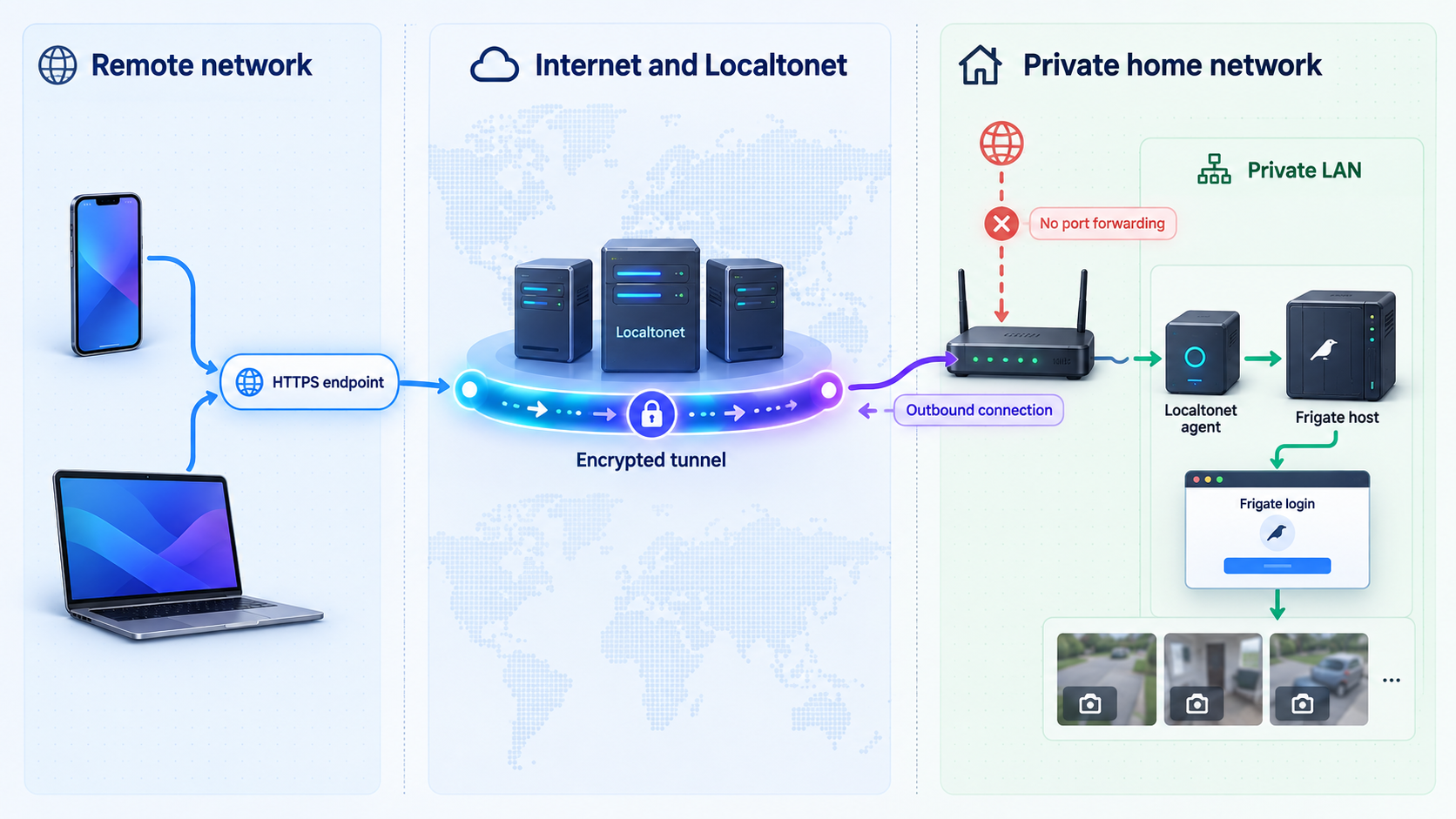
127.0.0.1 and port 8971. Match the local origin scheme to the authenticated Frigate service shown by your release. Use a generated subdomain, supported custom subdomain, or custom domain according to the options available to your account and the current dashboard.Test the remote experience instead of assuming it
Connect Frigate to MQTT and Home Assistant safely
Prepare the MQTT broker
config.yml with settings appropriate for your broker:mqtt:
enabled: true
host: MQTT_BROKER_IP
port: 1883
user: frigate_mqtt
password: "{FRIGATE_MQTT_PASSWORD}"config.yml:environment:
FRIGATE_RTSP_USER: "${FRIGATE_RTSP_USER}"
FRIGATE_RTSP_PASSWORD: "${FRIGATE_RTSP_PASSWORD}"
FRIGATE_MQTT_PASSWORD: "${FRIGATE_MQTT_PASSWORD}"FRIGATE_MQTT_PASSWORD to the protected .env file, recreate the container, and inspect the logs:sudo docker compose config -q
sudo docker compose up -d
sudo docker compose logs --since=10m frigateOperate, back up, upgrade, and recover Frigate
Routine checks
cd "$HOME/frigate"
sudo docker compose ps
sudo docker compose logs --since=24h frigate
sudo docker stats --no-stream frigate
df -h "$HOME/frigate/storage"
sudo du -sh "$HOME/frigate/storage"Back up configuration and metadata
config directory contains configuration and application data that are needed to reconstruct the deployment. For a consistent backup, stop Frigate briefly before archiving it:cd "$HOME/frigate"
sudo docker compose stop frigate
sudo tar -czf "$HOME/frigate-config-$(date +%F).tar.gz" \
compose.yaml config
sudo docker compose start frigate.env secrets separately using encrypted secret storage. Do not place an unencrypted copy in a general-purpose cloud folder.Use a controlled upgrade process
stable tag is convenient for an initial deployment but does not create a reproducible rollback point. Before production use, select and pin an exact Frigate release that you have reviewed against the current release notes and hardware documentation.
config.cd "$HOME/frigate"
sudo docker compose pull
sudo docker compose up -d
sudo docker compose ps
sudo docker compose logs --tail=300 frigatePlan rollback before upgrading
Troubleshoot common installation and remote-access problems
Symptom
Likely area
What to check
Container exits immediately
Configuration or permissions
Run
docker compose config -q, then inspect complete Frigate startup logs. Check YAML indentation, required fields, and access to bind mounts.
Camera reports authentication failures
RTSP credentials or URL encoding
Retest the same stream outside Frigate. Confirm the dedicated account, password, stream path, and special-character handling.
Camera connects and disconnects repeatedly
Camera, network, codec, or stream stability
Run the stream in VLC or FFmpeg for an extended period. Check packet loss, camera firmware, PoE power, bitrate, and simultaneous-client limits.
Recordings are missing
Record role, storage, or permissions
Confirm a tested input has the
record role, recording is enabled, disk space is available, and /media/frigate is writable.
Port 8971 does not respond
Container state or bind address
Check
docker compose ps, logs, and the host binding. If bound to 127.0.0.1, remote LAN devices cannot connect without a tunnel or SSH forward.
Localtonet cannot reach Frigate
Client location, target, or origin scheme
Confirm the Localtonet client runs on the selected device, Frigate responds locally on port 8971, the local target is correct, and the tunnel has been explicitly started.
Public URL shows Frigate without a login
Wrong target port
Stop the tunnel immediately. Confirm it targets port 8971, not port 5000. Recheck Frigate authentication locally before restarting the tunnel.
Dashboard works remotely but live view is blank
Media transport or codec
Test recordings and MSE-compatible live playback. Remember that an HTTP tunnel to 8971 does not forward WebRTC TCP and UDP port 8555.
High CPU usage
Software video decoding or CPU detection
Confirm stream resolution and frame rate, then follow the selected release's documented hardware-acceleration configuration. Add decoding and detection acceleration separately.
Disk fills unexpectedly
Bitrate, retention, or excessive activity
Measure actual recorded bitrate and daily growth. Review recording and retention settings for the installed release, then add free-space monitoring.
MQTT integration is unavailable
Broker connectivity or installation method
Confirm Frigate and Home Assistant use the same broker, credentials work, and the Frigate integration was installed through HACS.
Frequently asked questions
Which Frigate port should I use for remote access?
Does a Localtonet HTTP tunnel provide full Frigate live view automatically?
Where do I find the initial Frigate password?
Do I need an AI accelerator to start using Frigate?
How many cameras can one Frigate server handle?
Can I use Frigate without Home Assistant?
Should camera credentials be stored directly in config.yml?
Will Localtonet work behind CGNAT?
Publish the authenticated Frigate interface with Localtonet


