

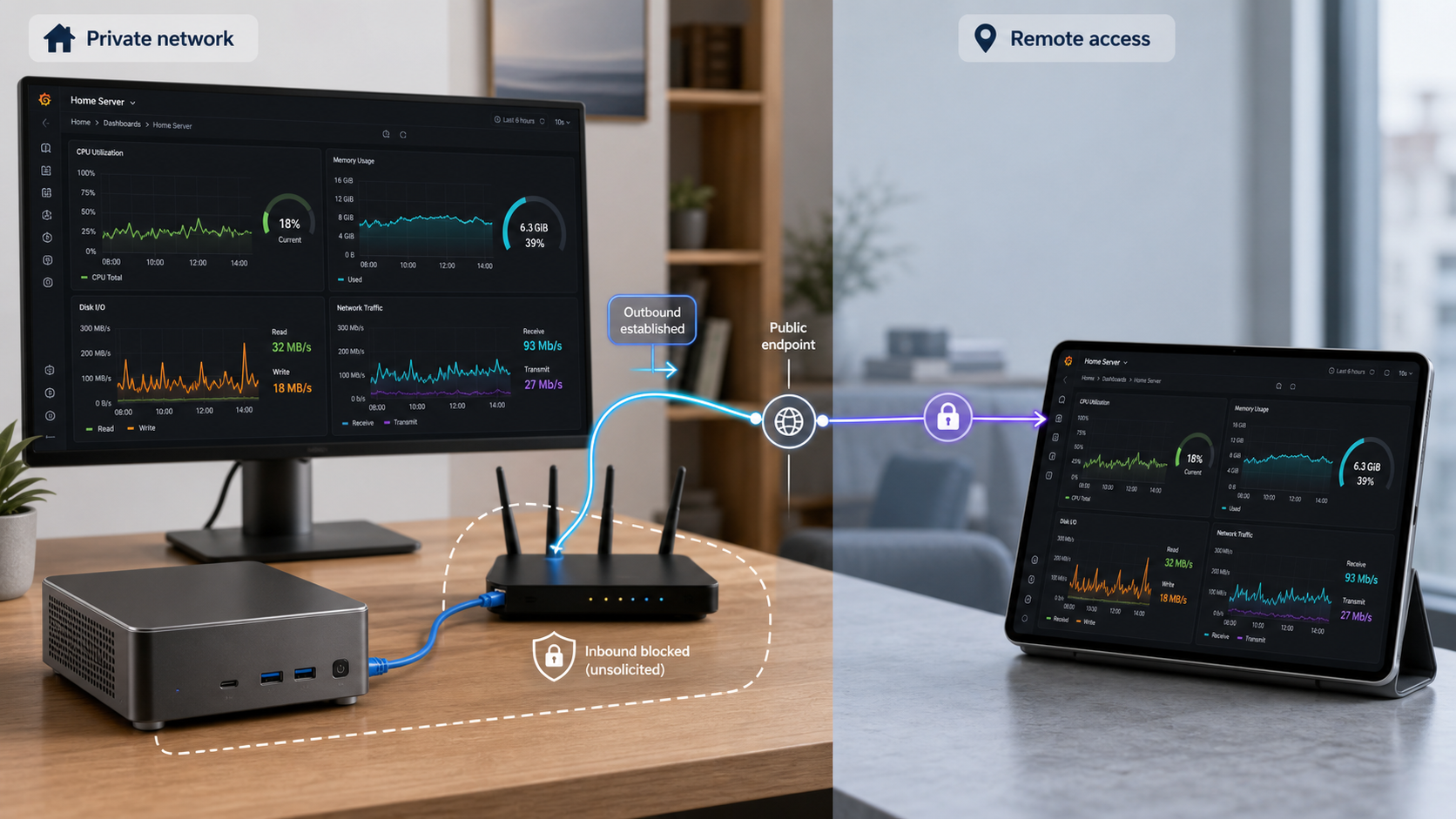
Build a private monitoring stack, verify its metrics, and publish only the dashboard endpoint you intend to share
Self-hosting Grafana gives you control over the dashboard server, its configuration, and where its persistent data is stored. This tutorial provides two complete Ubuntu and Debian installation paths: native system packages or a Docker Compose stack containing Grafana, Prometheus, and Node Exporter. It also explains loopback binding, container DNS, backups, upgrades, local health checks, and remote access through a Localtonet HTTP tunnel. The result is a functional host-monitoring stack rather than an empty dashboard server.
📋 What's in this guide
Understand the Grafana monitoring architecture
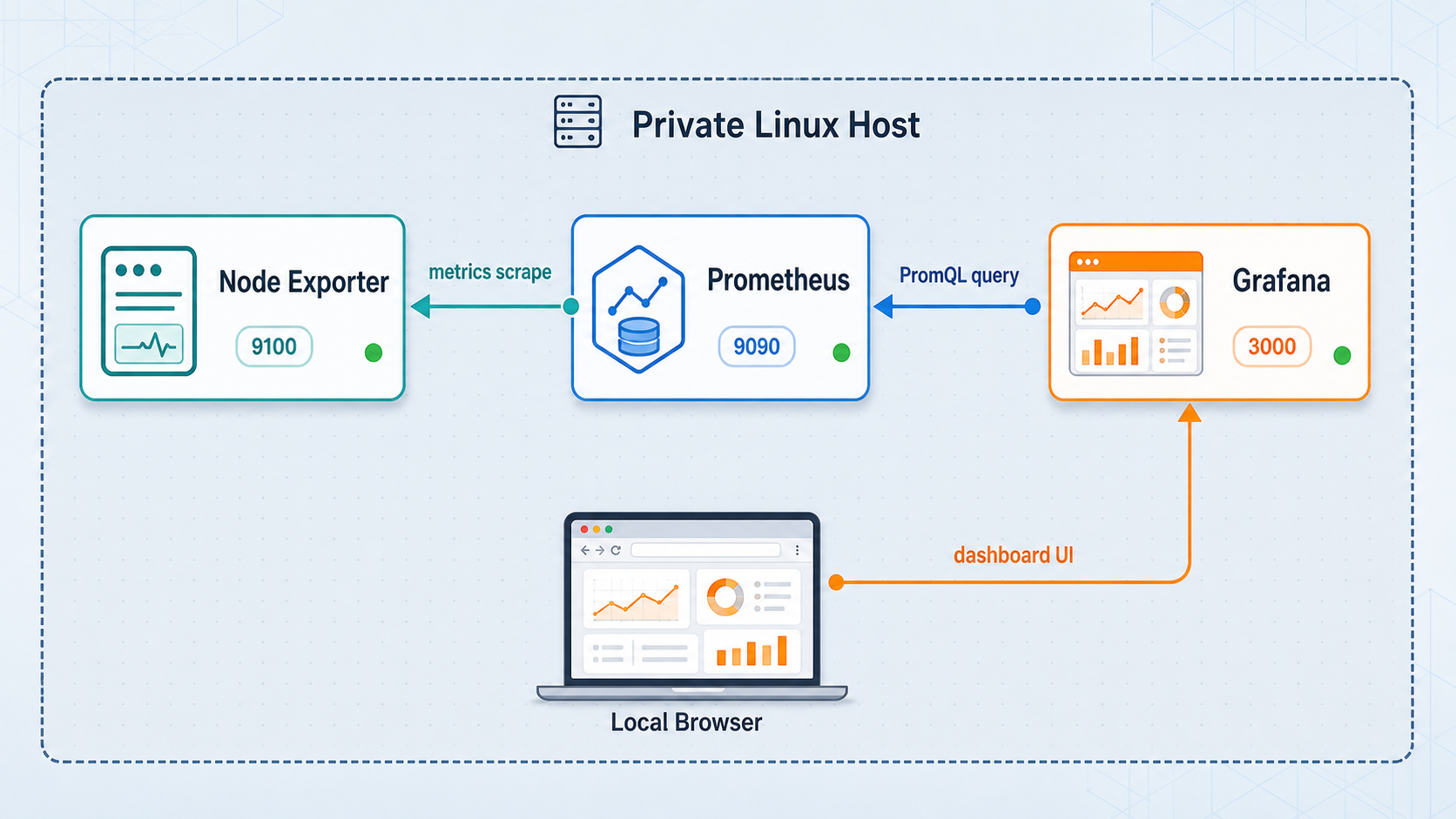
Grafana is an analytics and visualization application. It displays data obtained from configured data sources, but installing Grafana alone does not automatically collect operating-system metrics. In the stack built here, Prometheus stores time-series metrics and Node Exporter exposes Linux host measurements such as CPU, memory, filesystem, and network activity. Grafana queries Prometheus and turns those measurements into dashboards.
Remote access is a separate concern. The Grafana process listens on TCP port 3000, but this tutorial restricts that listener to the host's loopback interface. The Localtonet client runs on the same device, establishes an outbound connection to a Localtonet relay server, and forwards an assigned public HTTPS address to 127.0.0.1:3000. This does not make Prometheus or Node Exporter public.
9100. Prometheus scrapes this endpoint, while browsers do not need to access it.
| Connection | Native installation | Docker Compose installation |
|---|---|---|
| Local browser to Grafana | http://127.0.0.1:3000 |
http://127.0.0.1:3000 through the loopback-only published port |
| Grafana to Prometheus | http://127.0.0.1:9090 |
http://prometheus:9090 through Compose DNS |
| Prometheus to Node Exporter | 127.0.0.1:9100 |
node-exporter:9100 through Compose DNS |
| Remote browser to Grafana | Assigned Localtonet HTTPS URL | Assigned Localtonet HTTPS URL |
Inside the Grafana container, localhost refers to that Grafana container. It does not refer to Prometheus in another container or to the physical host. Containers in the same Compose project can reach one another by service name, which is why the Docker data-source URL is http://prometheus:9090.
Prerequisites and sizing
The native path below targets a currently supported Ubuntu or Debian installation using systemd. Grafana also documents support for RHEL or Fedora, SUSE or openSUSE, macOS, and Windows, but package commands and service configuration differ. Use the Docker path on a Linux host when you prefer containerized lifecycle and storage management.
Grafana's published minimum recommendation is 512 MB of memory and one CPU core for the Grafana process. That minimum does not include Prometheus, Node Exporter, the operating system, image rendering, or other workloads. Current Grafana sizing guidance suggests that a small deployment should start with two CPU cores, 2 to 4 GB of memory, and 10 to 20 GB of SSD storage for the Grafana database host. Concurrent users, alert rules, data-source type, dashboard panel count, and refresh intervals all affect actual resource use.
Prometheus needs separate capacity planning. Its disk use depends on the number of active time series, scrape interval, retention period, and label cardinality. The example uses one Node Exporter and a 15-second scrape interval, but no single disk estimate is valid for every host. Monitor the Prometheus data directory, leave free disk headroom, and adjust retention only after observing your workload.
Before installation
- A supported 64-bit Ubuntu or Debian host with administrative access.
- At least the Grafana minimum resources, plus separate memory and storage for Prometheus.
- Reliable storage for Grafana configuration and Prometheus time-series data.
- For Docker: a maintained Docker Engine installation with the Compose plugin, verified by running
docker compose version. - Outbound internet access to retrieve packages or container images and to connect the Localtonet client to a relay server.
- A current browser and a strong, unique Grafana administrator password.
- A backup location separate from the live Grafana and Prometheus data directories.
Choose one installation path. Do not run both examples unchanged on the same host because both attempt to use ports 3000, 9090, and 9100.
| Path | Best fit | Persistent data | Service management |
|---|---|---|---|
| Native packages | A dedicated Ubuntu or Debian server managed with system packages | Distribution-managed directories, including Grafana's data directory and Prometheus storage | systemctl and journalctl |
| Docker Compose | A host already managed with Docker and Compose | Named Docker volumes | docker compose commands and container logs |
| Grafana OSS image | Open-source Grafana functionality | Same Grafana volume requirements | Use the official Grafana OSS image |
| Grafana Enterprise image | Deployments intentionally using Enterprise packaging or licensed features | Same Grafana volume requirements | Use the Enterprise image only when that edition is the deliberate choice |
This tutorial uses Grafana OSS. Before production deployment, select explicit tested image versions instead of relying indefinitely on floating image tags. Read release notes and test upgrades against a restored backup before updating the live stack.
Option A: Install Grafana, Prometheus, and Node Exporter natively
This path installs Grafana from Grafana's APT repository and installs Prometheus and Node Exporter from the Ubuntu or Debian package repositories. Repository versions vary by operating-system release, so review the package versions offered by your distribution before using this method in production.
Install repository prerequisites
Refresh the package index and install the tools required to retrieve and verify the Grafana repository key.
sudo apt-get update
sudo apt-get install -y apt-transport-https software-properties-common wget gpgAdd the Grafana APT repository
Store the repository key in the system keyring directory, add the stable repository, and refresh package metadata.
sudo mkdir -p /etc/apt/keyrings
wget -q -O - https://apt.grafana.com/gpg.key \
  | gpg --dearmor \
  | sudo tee /etc/apt/keyrings/grafana.gpg > /dev/null

echo "deb [signed-by=/etc/apt/keyrings/grafana.gpg] https://apt.grafana.com stable main" \
  | sudo tee /etc/apt/sources.list.d/grafana.list

sudo apt-get updateInstall all three services
Install Grafana, Prometheus, and the Linux Node Exporter package.
sudo apt-get install -y grafana prometheus prometheus-node-exporterBind Grafana to loopback
Open /etc/grafana/grafana.ini, find the [server] section, and set http_addr to 127.0.0.1. Remove the leading semicolon if the setting is commented.
[server]
http_addr = 127.0.0.1
http_port = 3000
An empty Grafana http_addr can allow listening on more than loopback. Setting it explicitly avoids relying on a default that may expose port 3000 to another interface.
Configure Prometheus scrape targets
Back up the distribution configuration, then edit /etc/prometheus/prometheus.yml so Prometheus scrapes both itself and Node Exporter.
sudo cp /etc/prometheus/prometheus.yml /etc/prometheus/prometheus.yml.backup
sudo editor /etc/prometheus/prometheus.yml
global:
scrape_interval: 15s
evaluation_interval: 15s
scrape_configs:
- job_name: "prometheus"
static_configs:
- targets: ["127.0.0.1:9090"]
- job_name: "node"
static_configs:
- targets: ["127.0.0.1:9100"]Validate the file before restarting Prometheus:
promtool check config /etc/prometheus/prometheus.ymlRestrict the metrics endpoints
Keep Prometheus and Node Exporter reachable only from the host. On Ubuntu and Debian packages that read service arguments from /etc/default, set the following values and confirm the active command line after restart.
sudo editor /etc/default/prometheus
sudo editor /etc/default/prometheus-node-exporter
In the Prometheus defaults file, set:
ARGS="--web.listen-address=127.0.0.1:9090"In the Node Exporter defaults file, set:
ARGS="--web.listen-address=127.0.0.1:9100"
Package unit files can vary by operating-system release. Inspect them with systemctl cat prometheus and systemctl cat prometheus-node-exporter. After restarting, use ss to confirm that ports 9090 and 9100 are actually bound to 127.0.0.1. If your unit does not read the defaults file, use a properly reviewed systemd override for that package rather than assuming the restriction applied.
Enable and start the services
Start all three services now and enable them for future boots.
sudo systemctl daemon-reload
sudo systemctl enable --now grafana-server
sudo systemctl enable --now prometheus
sudo systemctl enable --now prometheus-node-exporter

sudo systemctl status grafana-server --no-pager
sudo systemctl status prometheus --no-pager
sudo systemctl status prometheus-node-exporter --no-pagerConfirm the listeners and sign in locally
Verify the actual bound addresses before creating remote access. Then open Grafana locally and complete the initial password change.
sudo ss -lntp | grep -E ':(3000|9090|9100)\b'
curl -f http://127.0.0.1:3000/api/health
curl -f http://127.0.0.1:9090/-/ready
curl -f http://127.0.0.1:9100/metrics > /dev/null
Open http://127.0.0.1:3000 from a browser on the host. A fresh Grafana package installation commonly begins with the administrator username admin and password admin, then requires a password change. If the package or an administrator has changed the initial credentials, use the credentials defined for that installation.
Option B: Run the complete stack with Docker Compose
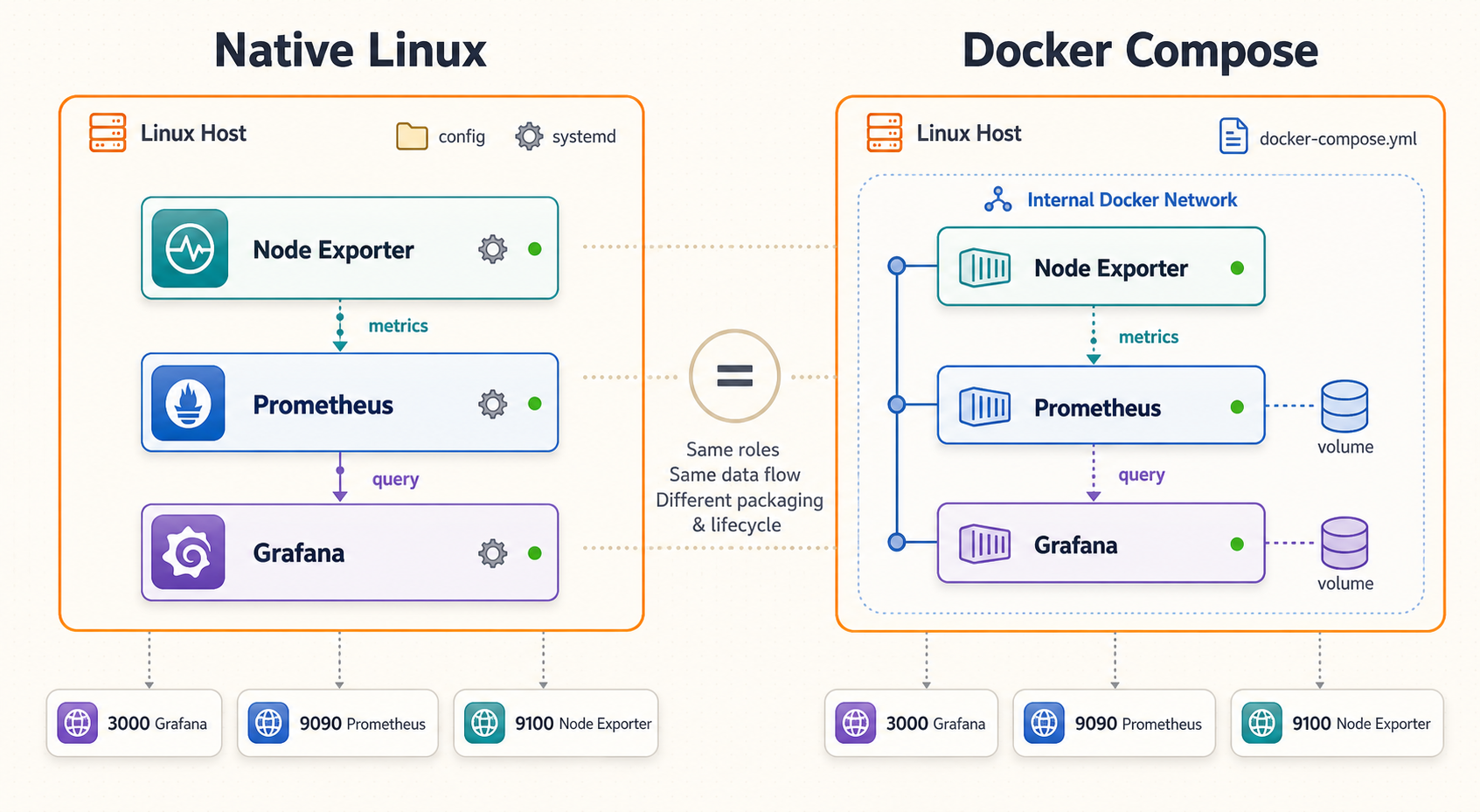
Install a maintained Docker Engine release and the Docker Compose plugin using the installation method appropriate for your operating system. Confirm that both are available before continuing:
docker version
docker compose version
The following stack uses the official Grafana OSS image, Prometheus, and Node Exporter. Grafana and Prometheus are published only on host loopback for local testing. Node Exporter has no published host port because Prometheus reaches it through the private Compose network.
Node Exporter needs read access to host filesystems to report host metrics from inside a container. The example mounts the host root filesystem read-only and uses the host PID namespace. Treat that access as security-sensitive, keep the exporter image updated, and do not publish its port to an untrusted network.
Create the project and secret directories
Store Compose configuration separately from the persistent named volumes. Generate or enter a strong, unique password without committing it to source control.
mkdir -p grafana-stack/secrets
cd grafana-stack
chmod 700 secrets
editor secrets/admin_password
chmod 600 secrets/admin_password
The password file should contain only the initial Grafana administrator password. Add secrets/ to your repository ignore rules if this project is stored in version control.
Create the Prometheus configuration
Use Compose service names as targets because Prometheus and Node Exporter are separate containers.
editor prometheus.ymlglobal:
scrape_interval: 15s
evaluation_interval: 15s
scrape_configs:
- job_name: "prometheus"
static_configs:
- targets: ["prometheus:9090"]
- job_name: "node"
static_configs:
- targets: ["node-exporter:9100"]Create the Compose file
Bind published ports explicitly to 127.0.0.1. The shorter mapping 3000:3000 can publish Grafana on every host interface and is intentionally not used.
editor compose.ymlservices:
grafana:
image: grafana/grafana:latest
restart: unless-stopped
ports:
- "127.0.0.1:3000:3000"
environment:
GF_SECURITY_ADMIN_USER: admin
GF_SECURITY_ADMIN_PASSWORD__FILE: /run/secrets/admin_password
GF_USERS_ALLOW_SIGN_UP: "false"
GF_AUTH_ANONYMOUS_ENABLED: "false"
secrets:
- admin_password
volumes:
- grafana_data:/var/lib/grafana
depends_on:
- prometheus
prometheus:
image: prom/prometheus:latest
restart: unless-stopped
ports:
- "127.0.0.1:9090:9090"
command:
- "--config.file=/etc/prometheus/prometheus.yml"
- "--storage.tsdb.path=/prometheus"
volumes:
- ./prometheus.yml:/etc/prometheus/prometheus.yml:ro
- prometheus_data:/prometheus
node-exporter:
image: quay.io/prometheus/node-exporter:latest
restart: unless-stopped
pid: host
command:
- "--path.rootfs=/host"
volumes:
- "/:/host:ro,rslave"
secrets:
admin_password:
file: ./secrets/admin_password
volumes:
grafana_data:
prometheus_data:The example uses the Grafana OSS image. Grafana also publishes an Enterprise image for deployments that intentionally choose that edition. Enterprise packaging is not required for this tutorial. Confirm current image names and choose explicit tested version tags from Grafana's current documentation before promoting the stack to production.
Validate and start the stack
Ask Compose to render the final configuration, pull the selected images, and start the containers.
docker compose -f compose.yml config
docker compose -f compose.yml pull
docker compose -f compose.yml up -d
docker compose -f compose.yml psCheck startup logs and local endpoints
Do not proceed until the containers remain running and both local health checks succeed.
docker compose -f compose.yml logs --tail=100 grafana
docker compose -f compose.yml logs --tail=100 prometheus
docker compose -f compose.yml logs --tail=100 node-exporter

curl -f http://127.0.0.1:3000/api/health
curl -f http://127.0.0.1:9090/-/ready
Open http://127.0.0.1:3000 and sign in as admin with the password stored in secrets/admin_password. Change and protect credentials according to your account policy. Do not delete the named volumes when merely restarting or recreating the containers.
Connect Grafana to Prometheus and create a host dashboard
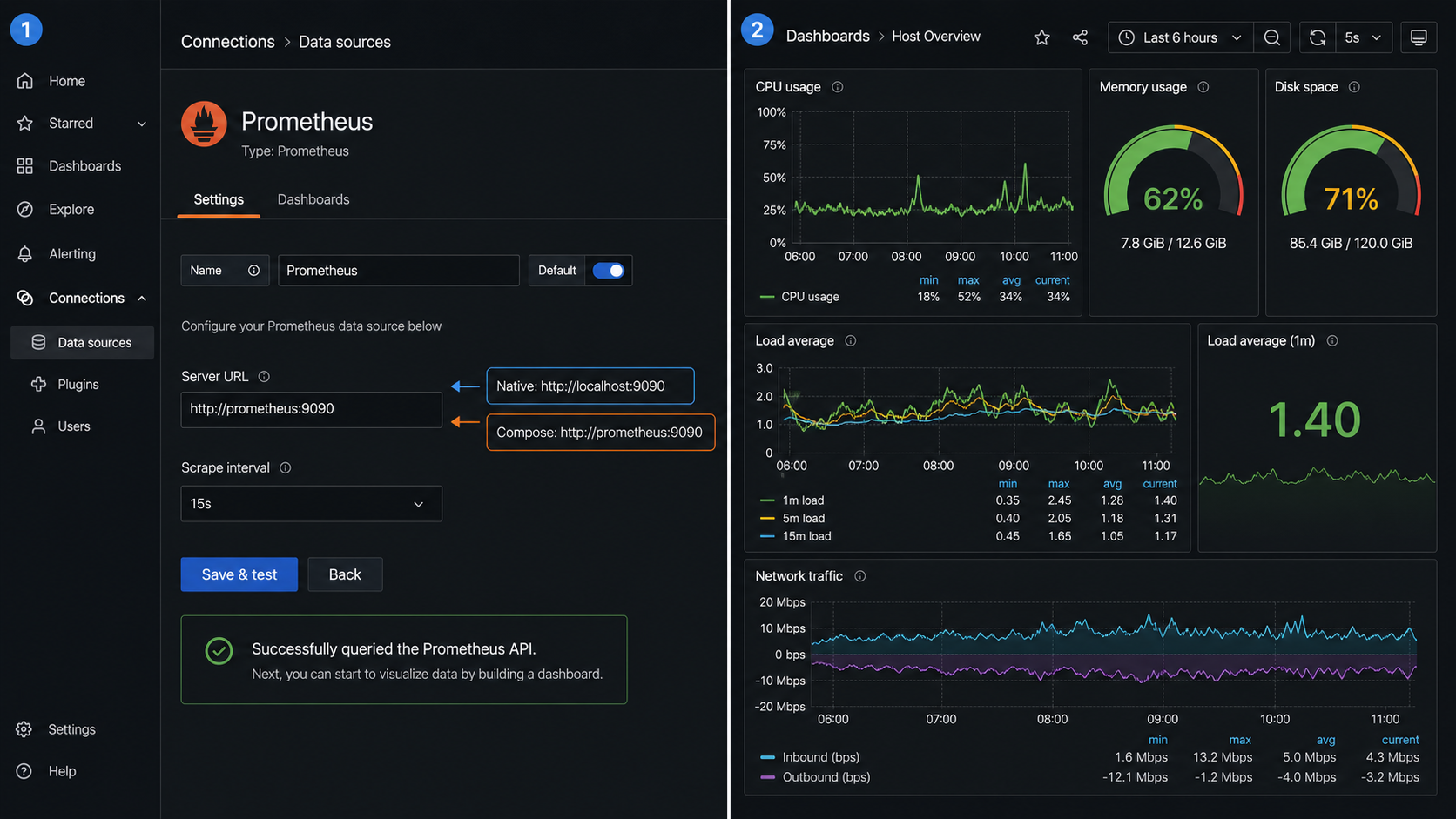
The correct Prometheus URL depends on where Grafana runs. A native Grafana service can use http://127.0.0.1:9090 because Prometheus is another process on the same host. The Compose deployment must use http://prometheus:9090, where prometheus is the service name resolved by Docker's internal DNS.
Open the data-source configuration
In Grafana, open Connections, choose Data sources, select Add new data source, and choose Prometheus. Labels can change between Grafana releases, so use the data-source search if the navigation wording differs.
Enter the environment-specific URL
Use http://127.0.0.1:9090 for the native path or http://prometheus:9090 for the Compose path. Do not use the host's public address.
Save and test
Save the data source and run Grafana's connection test. A successful result confirms that the Grafana server, not merely your browser, can reach Prometheus.
Confirm queryable metrics
Open Grafana Explore, select the Prometheus data source, and query up. You should see series for both the prometheus and node jobs with a value of 1.
Build or import a compatible dashboard
You can create panels from Node Exporter metrics or choose a compatible dashboard from the Grafana dashboard library. When importing community content, review its queries, variables, plugins, and permissions before use. Select the Prometheus data source created above during import.
Review community dashboards before deploying them. A dashboard may expect different metric labels, exporter flags, recording rules, or plugins. Do not install an unreviewed plugin solely because an imported dashboard requests it.
Verify local health, scrape targets, and dashboard data
Verification should cover each boundary separately. A working Grafana login does not prove that Prometheus is collecting metrics, and an active Localtonet tunnel does not prove that Grafana authentication or redirects work correctly.
1. Verify Grafana locally
Run the health request on the Grafana host:
curl -f http://127.0.0.1:3000/api/health
Then sign in through http://127.0.0.1:3000. Confirm that anonymous visitors cannot see dashboards and that the account you intend to use remotely has only the required role.
2. Verify Prometheus readiness and targets
For both installation paths, Prometheus is locally available at http://127.0.0.1:9090. Check readiness:
curl -f http://127.0.0.1:9090/-/ready
Open http://127.0.0.1:9090/targets from the host. The prometheus and node targets should both be shown as healthy. A target marked down includes a scrape error that usually identifies a DNS, networking, or exporter problem.
3. Verify queryable host metrics
In the Prometheus expression browser or Grafana Explore, query:
upNext, query a Node Exporter metric:
node_uname_infoThe first query confirms target availability. The second confirms that Node Exporter host metrics are present. If a dashboard remains empty while these queries return data, inspect the dashboard's expected job name, labels, variables, and selected data source.
4. Confirm that ports are not broadly published
On Linux, inspect listening sockets:
sudo ss -lntp | grep -E ':(3000|9090|9100)\b'
Grafana should be associated with 127.0.0.1:3000. In the Docker path, Prometheus should be associated with 127.0.0.1:9090, while Node Exporter is not published as a host port by Compose. Also apply an appropriate host firewall policy because loopback binding and firewall rules provide separate safeguards.
Access Grafana remotely with Localtonet
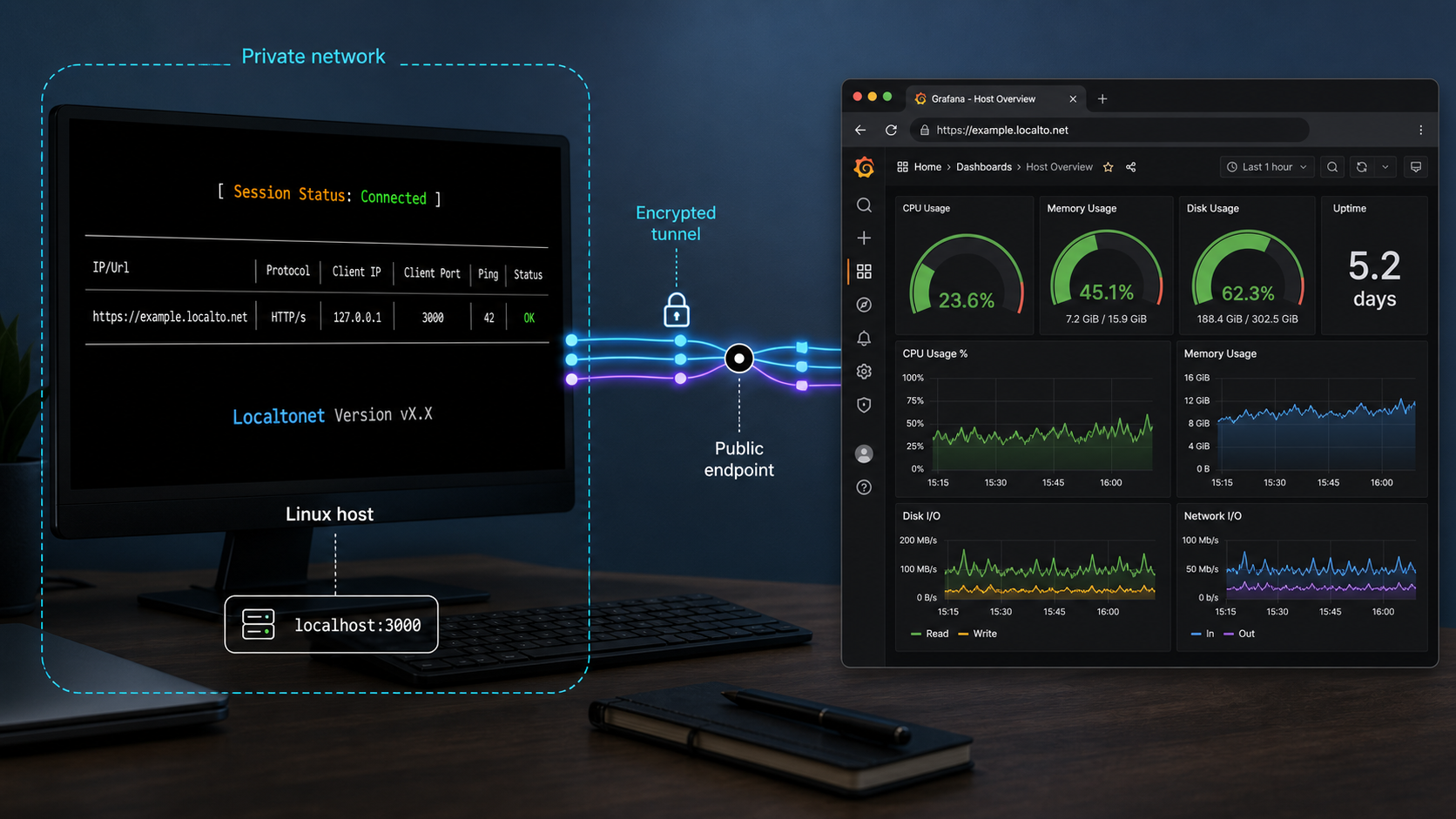
With Localtonet, the client application on the Grafana host establishes an outbound connection to one of our relay servers. An HTTP tunnel then provides a public HTTPS address that forwards to the local Grafana target. This avoids inbound router port forwarding, firewall changes, VPN setup, and the requirement for a public IP address.
The public address changes the exposure boundary. Anyone who can reach that URL can interact with Grafana's login surface, so Grafana authentication, role assignment, session controls, and patching remain essential. Localtonet does not replace Grafana authorization.
Install the Localtonet client
Download the supported client for the Grafana host from the Localtonet download page. Run the client on the device that can reach 127.0.0.1:3000.
Authenticate the device
Authenticate using that device's Localtonet token, either through the client screen or the documented command for your platform. Treat the token as a secret and never place it in screenshots, shell history shared with others, source control, or article examples.
Open the HTTP tunnel configuration
In the Localtonet dashboard, create an HTTP tunnel. HTTP tunnels provide a public HTTPS address suitable for Grafana's browser interface.
Select the process type, device, and relay server
Select the required HTTP Process Type, such as Random Sub Domain, Custom Sub Domain, or Custom Domain where available. Choose the authenticated device token that identifies the Grafana host, then select an available relay server from the current dashboard. Available choices can vary, so do not copy a hardcoded server code from another deployment.
Enter the local Grafana target
Set the local IP address to 127.0.0.1 and the local port to 3000. This works for both tutorial paths because Docker publishes its Grafana port on host loopback.
Create the tunnel
Save or create the tunnel after reviewing the selected device and target. Creating a tunnel records its configuration, but does not mean the tunnel is running.
Start the tunnel
Press Start for the newly created tunnel. The selected Localtonet client must remain connected, Grafana must be running, and the tunnel itself must remain started.
Verify the assigned HTTPS URL remotely
Copy the assigned public HTTPS address from the dashboard and open it from a device that is not relying on the Grafana host's local network. Confirm that Grafana's login page appears, sign in with a non-administrator account where practical, and verify that the Prometheus dashboard loads.
Point the HTTP tunnel only to 127.0.0.1:3000. Prometheus supports TLS and basic authentication through its web configuration, but it is not a full identity and authorization system like Grafana. There is normally no reason for dashboard viewers to reach Prometheus directly.
Stop the tunnel when remote access is no longer needed. Stopping preserves the configuration for later use, while deleting removes it. A tunnel is available only while the selected client is connected and the tunnel is running.
Optional Localtonet service mode
If continuous access is intentional, Localtonet can run as a background service on supported platforms. On a Linux host with systemd, the current download instructions provide these commands:
sudo localtonet --install-service --authtoken <YOUR_TOKEN>
sudo localtonet --start-service --authtoken <YOUR_TOKEN>
Replace the placeholder privately on the host. Do not publish the resulting command with a real token. Check the service and its logs with:
systemctl status localtonet
journalctl -u localtonet -f
Service mode keeps the client available after logout or reboot, but the configured tunnel must still be in its started state. Use service mode only when persistent remote availability matches your security policy.
Secure a publicly reachable Grafana deployment
A loopback listener reduces direct network exposure, but the Localtonet HTTPS URL intentionally makes Grafana reachable through the relay. Security therefore depends on the complete chain: Localtonet device-token handling, Grafana login security, user roles, session settings, updates, data-source credentials, and the dashboards or sharing features enabled inside Grafana.
Review session and sharing behavior
Use Grafana's current security documentation to set session lifetime and cookie behavior appropriate for your deployment. Do not treat a personal device as permanently trusted merely because the public endpoint uses HTTPS. Sign out on shared devices, revoke accounts promptly, and review active users after staffing or access changes.
Audit dashboard sharing features before publication. A public dashboard or externally shared snapshot can bypass the normal expectation that every viewer signs in. Disable or avoid sharing modes that do not match the sensitivity of infrastructure names, labels, annotations, queries, and alert details.
Limit access to monitoring backends
Keep Prometheus and Node Exporter on loopback or a private container network. Prometheus can be configured with TLS and basic authentication through its web configuration, but those controls do not provide Grafana's complete user and role model. Backend restrictions are still appropriate even when authentication is configured.
Understand data movement
Self-hosting does not guarantee that all information always remains on one machine. Grafana queries configured data sources and may contact notification endpoints, plugin repositories, external renderers, or other integrations you enable. A remote browser also receives dashboard data through the public endpoint. Inventory integrations and network destinations rather than making a blanket assumption that no data leaves the environment.
Routine operations, backups, restores, and upgrades
Service and container management
For the native installation, use:
sudo systemctl status grafana-server prometheus prometheus-node-exporter
sudo systemctl restart grafana-server
sudo systemctl restart prometheus
sudo systemctl restart prometheus-node-exporter

sudo journalctl -u grafana-server -n 100 --no-pager
sudo journalctl -u prometheus -n 100 --no-pager
sudo journalctl -u prometheus-node-exporter -n 100 --no-pager
For Compose:
docker compose -f compose.yml ps
docker compose -f compose.yml logs --tail=100
docker compose -f compose.yml restart grafana
docker compose -f compose.yml restart prometheus
docker compose -f compose.yml stop
docker compose -f compose.yml start
The restart: unless-stopped policy requests container restart after failures and Docker restarts, unless an operator deliberately stopped the container. It does not replace health monitoring, backups, or post-reboot verification.
Back up the native installation
Back up Grafana's configuration and data, including /etc/grafana and the Grafana data directory used by your package. Back up Prometheus configuration separately. Prometheus storage needs a consistent backup procedure designed for its time-series database. Do not assume that copying live storage files produces a reliable restore.
Before a backup or restore, confirm the actual paths from the active service configuration. Stop the affected service when your backup method requires an offline copy. Protect backup archives because Grafana configuration can contain data-source details and other sensitive metadata.
Back up Docker volumes
The Compose file stores Grafana and Prometheus data in the grafana_data and prometheus_data named volumes. A database-consistent backup should be created using a tested process while writes are stopped or through an application-supported snapshot procedure. At minimum, retain copies of compose.yml, prometheus.yml, the protected secret material, and the persistent volume data.
docker compose down -v casually
The -v option deletes named volumes associated with the project. A normal docker compose down preserves named volumes, while down -v can remove Grafana dashboards, users, configuration, and Prometheus data.
Test restoration
A backup is not complete until it has been restored successfully in an isolated environment. Verify that Grafana starts, users can sign in, dashboards and data sources exist, Prometheus opens its data, and the up query returns current targets. Keep restoration credentials and encryption keys separate from the backup where appropriate.
Upgrade native packages
Read the Grafana, Prometheus, and distribution release notes first. Create and verify a backup, record the installed versions, update package metadata, and upgrade in a maintenance window. Afterward, inspect logs, run the local health checks, query Prometheus, and test the Localtonet URL.
dpkg-query -W grafana prometheus prometheus-node-exporter
sudo apt-get update
sudo apt-get install --only-upgrade grafana prometheus prometheus-node-exporter
Upgrade containers
Replace floating tags with explicit tested version tags for production. Back up the volumes, edit the image tags, pull the new images, and recreate the stack:
docker compose -f compose.yml pull
docker compose -f compose.yml up -d
docker compose -f compose.yml ps
docker compose -f compose.yml logs --tail=100
If an upgrade fails, use your tested rollback and restore procedure. Do not assume that data-format changes are reversible simply by selecting an older image.
Troubleshooting common Grafana and tunnel problems
Port 3000 is already in use
Identify the listener before changing ports:
sudo ss -lntp | grep ':3000'
sudo lsof -iTCP:3000 -sTCP:LISTEN
Stop the unintended process or deliberately assign Grafana another local port. If you change it, update the Localtonet target and local verification commands. Do not solve the conflict by publishing Docker on an unrestricted interface.
A native service will not start
Inspect its status and recent logs:
sudo systemctl status grafana-server --no-pager
sudo journalctl -u grafana-server -n 200 --no-pager
sudo journalctl -u prometheus -n 200 --no-pager
Common causes include malformed configuration, an occupied port, unreadable files, insufficient disk space, or incorrect ownership. Validate Prometheus configuration with promtool check config before restarting it.
A container exits or repeatedly restarts
docker compose -f compose.yml ps -a
docker compose -f compose.yml logs --tail=200 grafana
docker compose -f compose.yml logs --tail=200 prometheus
docker inspect grafana-stack-grafana-1
Look for invalid YAML, an unreadable secret, storage permission errors, incompatible image changes, or a malformed Prometheus configuration. Compose-generated container names may differ, so obtain the actual name from docker compose ps.
Grafana cannot reach Prometheus
First confirm which installation path you used. Native Grafana should use http://127.0.0.1:9090. Compose Grafana should use http://prometheus:9090. Using localhost:9090 inside the Grafana container points back to Grafana's own container and normally fails.
For Compose, verify that both services share the Compose network and that Prometheus is listening:
docker compose -f compose.yml ps
docker compose -f compose.yml logs --tail=100 prometheus
docker compose -f compose.yml exec grafana getent hosts prometheus
Prometheus shows Node Exporter as down
Open the Prometheus targets page and read the scrape error. In the native path, confirm that Node Exporter is running on 127.0.0.1:9100. In Compose, the target must be node-exporter:9100, not localhost:9100.
sudo systemctl status prometheus-node-exporter --no-pager
curl -f http://127.0.0.1:9100/metrics > /dev/null

docker compose -f compose.yml ps node-exporter
docker compose -f compose.yml logs --tail=100 node-exporter
The dashboard loads but has no data
Query up and node_uname_info in Grafana Explore. If they return values, inspect the dashboard variables, selected data source, expected job label, and query filters. Imported dashboards may expect a job name other than node or additional recording rules.
Grafana reports permission errors
Native packages normally create and manage the Grafana service account and data directories. Do not run Grafana as root to hide an ownership problem. Inspect the configured data and log paths, then compare their owner and mode with the package defaults.
For Docker, the named volume usually avoids host bind-mount ownership issues. If you replace it with a bind mount, ensure that the Grafana process inside the container can write to it. Review container logs before changing permissions, and avoid broad modes such as world-writable access.
The Localtonet URL does not open
Test http://127.0.0.1:3000 on the host first. Then confirm that the selected Localtonet device is connected, the HTTP tunnel targets 127.0.0.1:3000, and the tunnel has been explicitly started. Creating it is not enough. If the client runs as a Linux service, inspect:
systemctl status localtonet
journalctl -u localtonet -n 200 --no-pager
If local Grafana works but the remote URL fails, review the tunnel status and selected device in the dashboard. Stop and start the tunnel after correcting its target. Delete and recreate it only when you no longer need the existing configuration.
Grafana redirects to localhost or an incorrect URL
Grafana normally works through a straightforward HTTP forwarding URL, but absolute redirects, cookie behavior, or links can be affected by its configured server root URL. Check the active [server] settings and any GF_SERVER_ROOT_URL environment value. If you set a root URL, it must match the public HTTPS address users actually open.
Do not copy an old public URL into Grafana after the tunnel address changes. Remove an unnecessary override or update it deliberately, restart Grafana, and test both login and logout remotely. Custom-domain DNS and availability can vary by current configuration and plan, so consult current Localtonet dashboard guidance before relying on exact domain behavior.
The stack fails after reboot
For native services, check whether Grafana, Prometheus, Node Exporter, and Localtonet are enabled and active. For Docker, confirm that Docker started and inspect Compose container state. The Grafana stack and the Localtonet client have separate lifecycles, and the tunnel must also remain started.
Frequently asked questions
Does installing Grafana automatically collect Linux host metrics?
No. Grafana visualizes data from configured sources. This tutorial deploys Prometheus to store metrics and Node Exporter to expose Linux host measurements. Prometheus must successfully scrape Node Exporter before a host dashboard can display those measurements.
Why is the Docker Prometheus URL not localhost?
Each container has its own network namespace. Inside the Grafana container, localhost refers to Grafana itself. Compose DNS resolves the Prometheus service name, so Grafana should use http://prometheus:9090.
Will Docker container restarts delete my dashboards?
Not when Grafana data is stored in the named grafana_data volume. Recreating a container does not normally remove that volume. However, commands such as docker compose down -v can delete named volumes, so maintain protected backups and test restoration.
Does Localtonet make Grafana private?
Localtonet avoids directly opening an inbound router or firewall port and forwards an assigned public HTTPS address to the selected local target. That address is still publicly reachable while the client is connected and the tunnel is running. Keep Grafana authentication enabled, disable unintended anonymous or public sharing, and use least-privilege accounts.
Should Prometheus also have a public tunnel?
Usually not. Grafana reaches Prometheus locally or over the private Compose network, and dashboard viewers only need Grafana. Prometheus supports TLS and basic authentication through its web configuration, but direct remote exposure should be justified and separately protected.
Why does creating a Localtonet tunnel not make the URL available?
Creation saves the tunnel configuration. You must also press Start, and the selected Localtonet client must remain connected. Grafana itself must be running and reachable at the configured local IP address and port.
Can I use other Grafana data sources?
Yes. Grafana supports multiple data-source types, including metrics, logs, traces, and databases. Each source has its own networking, authentication, capacity, and backup requirements. Keep backend services private where possible and store their credentials securely.
Is self-hosting Grafana free of infrastructure costs?
No blanket cost claim applies. Grafana OSS is open-source software, but the host, storage, backups, electricity, network usage, maintenance time, and any optional services or licensed components can still have costs.
Publish your verified Grafana endpoint with Localtonet
After Grafana, Prometheus, and Node Exporter pass their local checks, create a Localtonet HTTP tunnel to 127.0.0.1:3000. Keep Grafana authentication enabled, start the tunnel only when intended, and verify the assigned HTTPS address from a remote device.


