

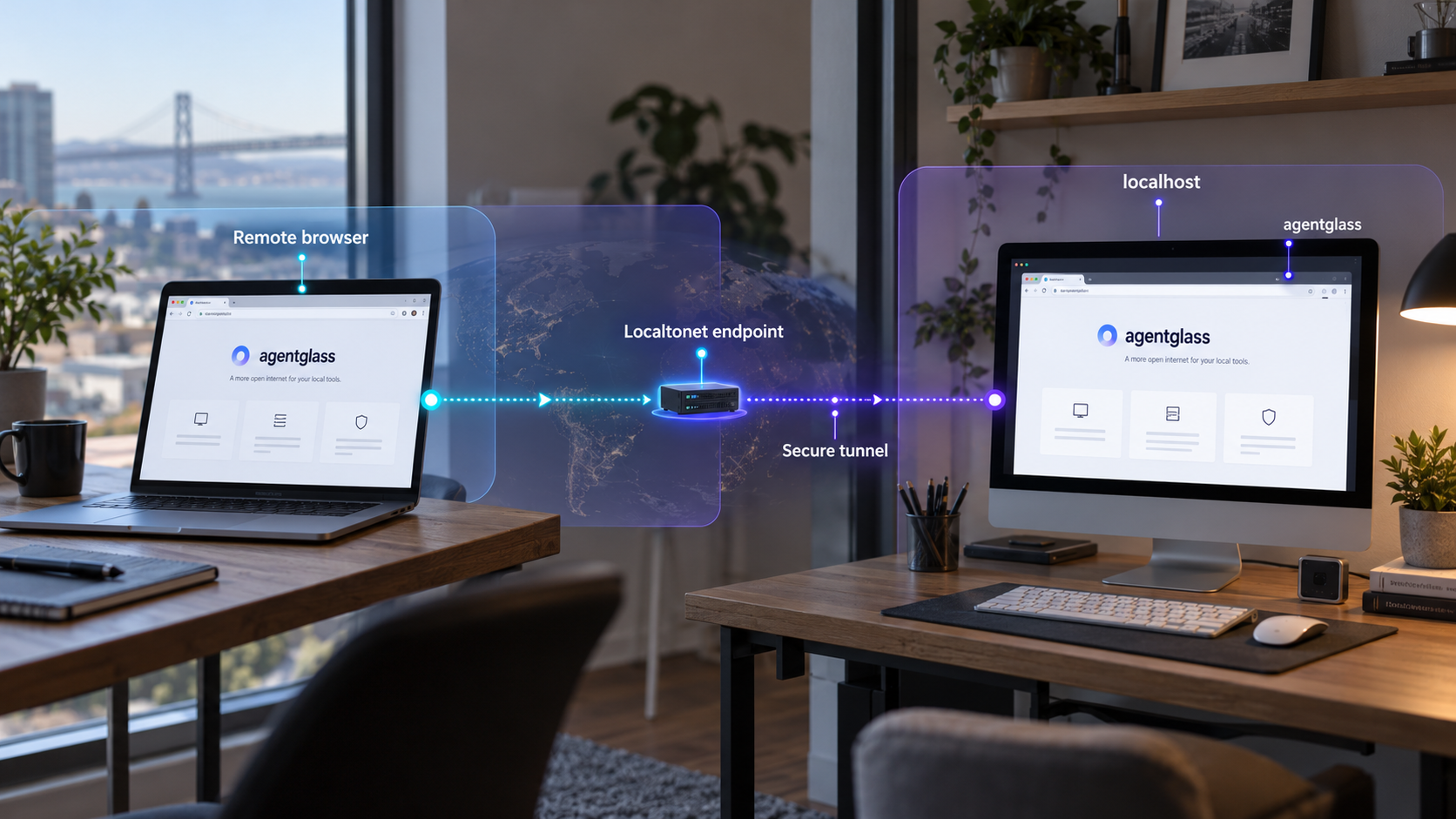
Build a local workspace for coding agents, verify it on your machine, and only then decide whether to make it remotely reachable
agentglass is a self-hosted workspace for monitoring and controlling AI coding agents, terminals, worktrees, source changes, pull requests, and approval gates from one interface. This guide covers both documented installation paths: downloading the packaged desktop application and running the project from source with Bun. We then verify the local service, explain the operational and security implications, and connect the documented source-mode HTTP endpoint to a Localtonet HTTP tunnel. The desktop build is treated separately because it includes its own server but does not document a browser-accessible port.
📋 What's in this guide
What agentglass does
agentglass is a workspace that brings local AI coding-agent activity into one application. It is not a replacement for an agent CLI. The supported agents continue running on the developer's machine, in their existing repositories and tmux sessions, while agentglass provides a consolidated interface around those processes.
The project documentation describes integrations with Claude Code, Codex, Gemini CLI, and OpenCode. Its interface can present agent sessions, terminals, tool calls, worktrees, source changes, pull requests, containers, listening ports, files, resource information, and cost or token data. It can also start agents in separate worktrees so parallel tasks do not operate in the same checkout.
A particularly sensitive capability is the approval workflow. Commands selected for gating can be held until a user explicitly allows or denies them. The interface can show the literal command, repository, requesting agent, model, and waiting time. The approval queue is stored on disk so that an application crash does not silently approve a queued action.
These capabilities make agentglass useful for developer observability, but they also make its interface more sensitive than an ordinary read-only status page. A person who can reach a fully privileged deployment may be able to inspect terminal output, review source changes, interact with agents, handle approval requests, or use other enabled workspace functions. Remote access therefore requires deliberate authentication, authorization, and exposure decisions.
Choose the correct installation path
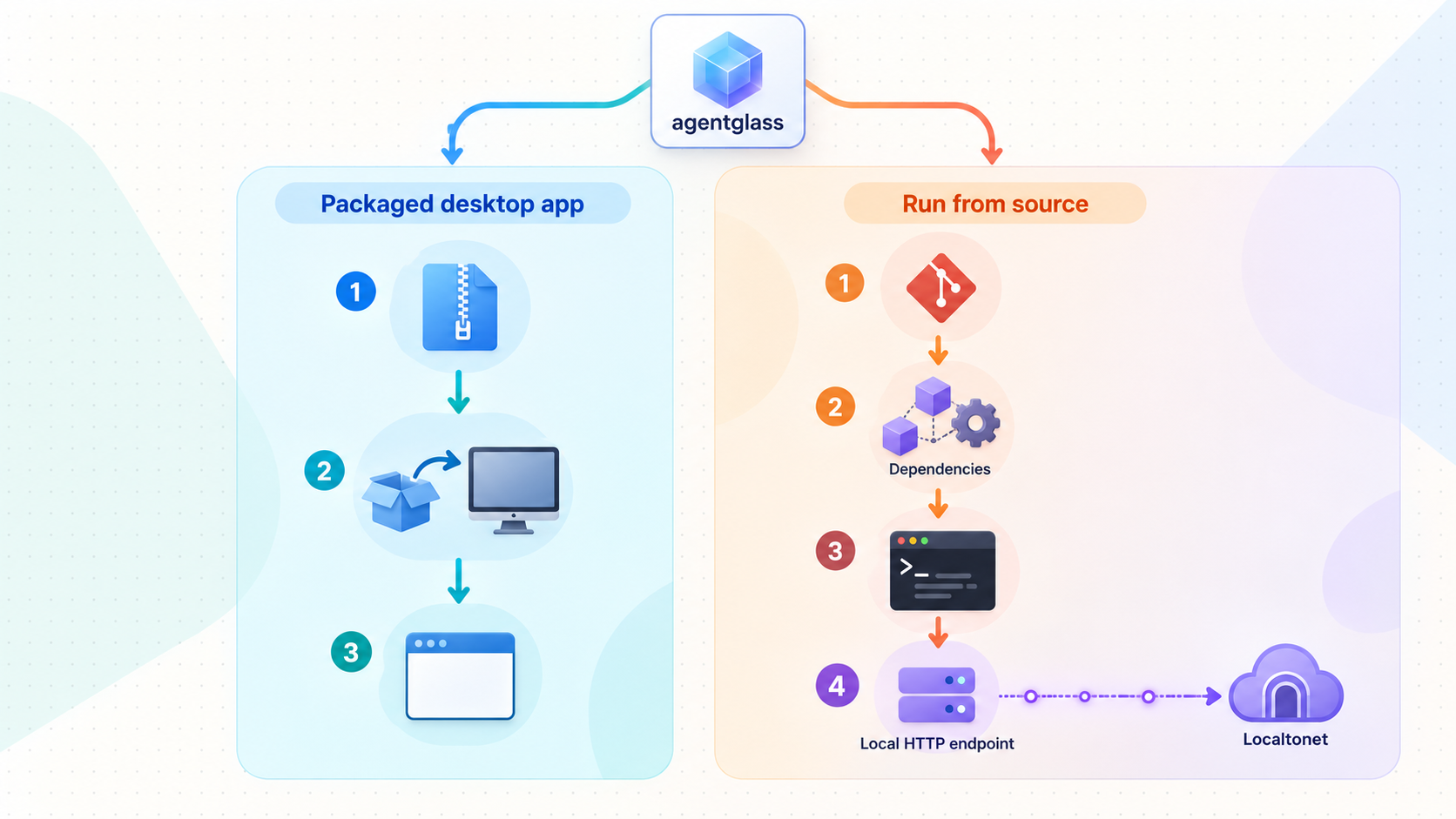
The first decision is whether to use a packaged desktop build or run agentglass from source. Both paths run on your own machine, but they are not interchangeable when the goal is browser-based remote access.
| Installation path | Best for | Documented local interface | Remote-access implication |
|---|---|---|---|
| Linux desktop release | Users who prefer a packaged AppImage or Debian package | Desktop application with an internal server | No browser port is documented, so this guide does not attach an HTTP tunnel to it |
| macOS desktop release | Apple silicon or Intel Mac users who want the packaged application | Desktop application with an internal server | No connectable browser port is documented; the current build is also unsigned |
| Windows desktop release | Windows users evaluating the packaged executable | Desktop application with an internal server | No browser port is documented, and the project marks real-hardware verification as incomplete |
| Source installation | Developers who want the repository, development workflow, or a documented HTTP endpoint | http://localhost:4000 |
This is the installation path that can be connected to a Localtonet HTTP tunnel using the documented endpoint |
The packaged desktop application contains its own server, but the project explicitly describes it as requiring no port to open in a browser. Because no connectable port is documented for that installation path, we do not recommend guessing one or scanning the application for an undocumented listener. Use source mode when you specifically need the documented HTTP endpoint covered by this guide.
If your goal is simply to use agentglass on the same computer, the packaged build is the shorter route. If your goal is to access the workspace through a browser from another location, source mode provides the evidence-backed integration point: localhost:4000.
Prerequisites and optional integrations
Requirements depend on the installation method and the features you intend to use. The current project README identifies Git, the Claude Code CLI, and Python 3 as baseline requirements. Running from source additionally requires Bun because the documented setup uses bun install and bun run dev.
agentglass supports several agent CLIs, but the project's stated baseline still names the Claude Code CLI. Install and authenticate any agent CLI you plan to operate before expecting agentglass to discover or launch it. Authentication remains with the underlying CLI and provider. agentglass does not replace that login.
Required for the documented source workflow
- Git: used to clone the agentglass repository and required by the project's documented baseline.
- Bun: used to install repository dependencies and start the development service.
- Python 3: used by the documented hook installer.
- Claude Code CLI: named by the project as a baseline requirement, particularly for its Claude Code reporting workflow.
- A local browser: used to verify the source-mode service at
http://localhost:4000.
Optional tools that activate related features
- tmux: supports chats as live panes, existing tmux windows as tabs, and theme synchronization.
- GitHub CLI: supports the pull-request panel. It must also be logged in, not merely installed.
- Docker: enables container, image, volume, and log views.
Missing an optional tool should not be treated as a general installation failure. Instead, the corresponding feature may stand down. After installation, the project's Settings ▸ Requirements view checks the local environment and identifies unavailable integrations.
Agent-provider credentials, GitHub credentials, Localtonet device tokens, and other secrets should remain in their intended credential stores. Never place them in screenshots, shell history shared with others, committed environment files, public issue reports, or a public tunnel URL.
Install the packaged desktop application
The release path is appropriate when you want a conventional desktop application and do not need the documented browser endpoint. The project publishes builds for Linux, macOS, and Windows through GitHub Releases. Obtain the build from the project's official release page rather than an unverified mirror.
Open the official agentglass release page
Visit the agentglass GitHub Releases page and review the release notes before downloading. Confirm that the selected release and asset correspond to the project and your operating system.
Select the build for your platform
Linux builds are documented as AppImage and Debian package formats. macOS builds use DMG packages for Apple silicon and Intel systems. Windows builds use an executable package, but the project currently labels Windows as not verified on physical hardware even though it builds and passes CI.
Install or launch the downloaded package
Use the normal installation process for the selected package format. Review operating-system warnings carefully and verify that the file came from the official project release before allowing it to run.
Handle the documented macOS quarantine issue if necessary
The macOS build is currently unsigned. If Gatekeeper reports the application as damaged, the project documents the quarantine-removal command shown below. Run it once only after verifying that the application was downloaded from the official release.
Open agentglass and run its requirement checks
Launch the application, open Settings ▸ Requirements, and review which local integrations are available. Install or authenticate optional tools only for the features you intend to use.
xattr -dr com.apple.quarantine /Applications/agentglass.appRemoving the quarantine attribute changes how macOS treats the application. It does not sign or notarize the build. Confirm the download origin and review the current project release information before applying the command.
The packaged application is designed to open as a desktop window. Do not expect http://localhost:4000 merely because that address is used by the source development workflow. The available evidence does not document that port for packaged builds.
Run agentglass from source
Source mode is the appropriate path for this guide's HTTP remote-access workflow. It clones the official repository, installs dependencies with Bun, starts the development service with a dedicated state directory, and optionally installs the documented hooks so Claude Code can report activity to agentglass.
The command below uses a POSIX-style inline environment assignment and a home-directory path. It is suitable for shells that support that syntax. The supplied project evidence does not establish an equivalent PowerShell or Command Prompt command, so we do not invent one here. Windows users should either use a compatible environment or consult the project's current platform instructions before adapting the source workflow.
Clone the official repository
Use Git to clone the project from its official GitHub repository. This creates a local agentglass directory containing the server, web interface, hooks, Electron application, and shared project files.
Enter the repository directory
Change into the cloned directory before installing dependencies or running project scripts.
Install dependencies with Bun
Run the documented Bun installation command from the repository root. If this step fails, resolve the local Bun, network, permission, or dependency error before attempting to start the application.
Start the development service
Start agentglass with the documented development state directory. Keep this process running while using the application. The project identifies the resulting local endpoint as http://localhost:4000.
Install the reporting hooks
In another terminal opened at the repository root, run the documented Python hook installer so Claude Code can report to agentglass. Treat hook installation as a system-affecting action and review the script if required by your development or organizational policy.
git clone https://github.com/SirAllap/agentglass
cd agentglass
bun install
AGENTGLASS_STATE_DIR=~/.local/state/agentglass-dev bun run dev
With the development process still running, open another terminal in the same repository directory and install the hooks:
python3 hooks/install_hooks.py
The explicit AGENTGLASS_STATE_DIR value keeps development state under ~/.local/state/agentglass-dev for this documented workflow. The project states that its data is stored locally in SQLite. Do not delete, expose, synchronize publicly, or modify the state directory casually, especially while the service is running.
The hook command is relevant to Claude Code reporting. It should not be interpreted as installing or authenticating every supported agent. Each agent CLI remains responsible for its own installation, login, configuration, and runtime process.
Verify the installation locally before exposing it
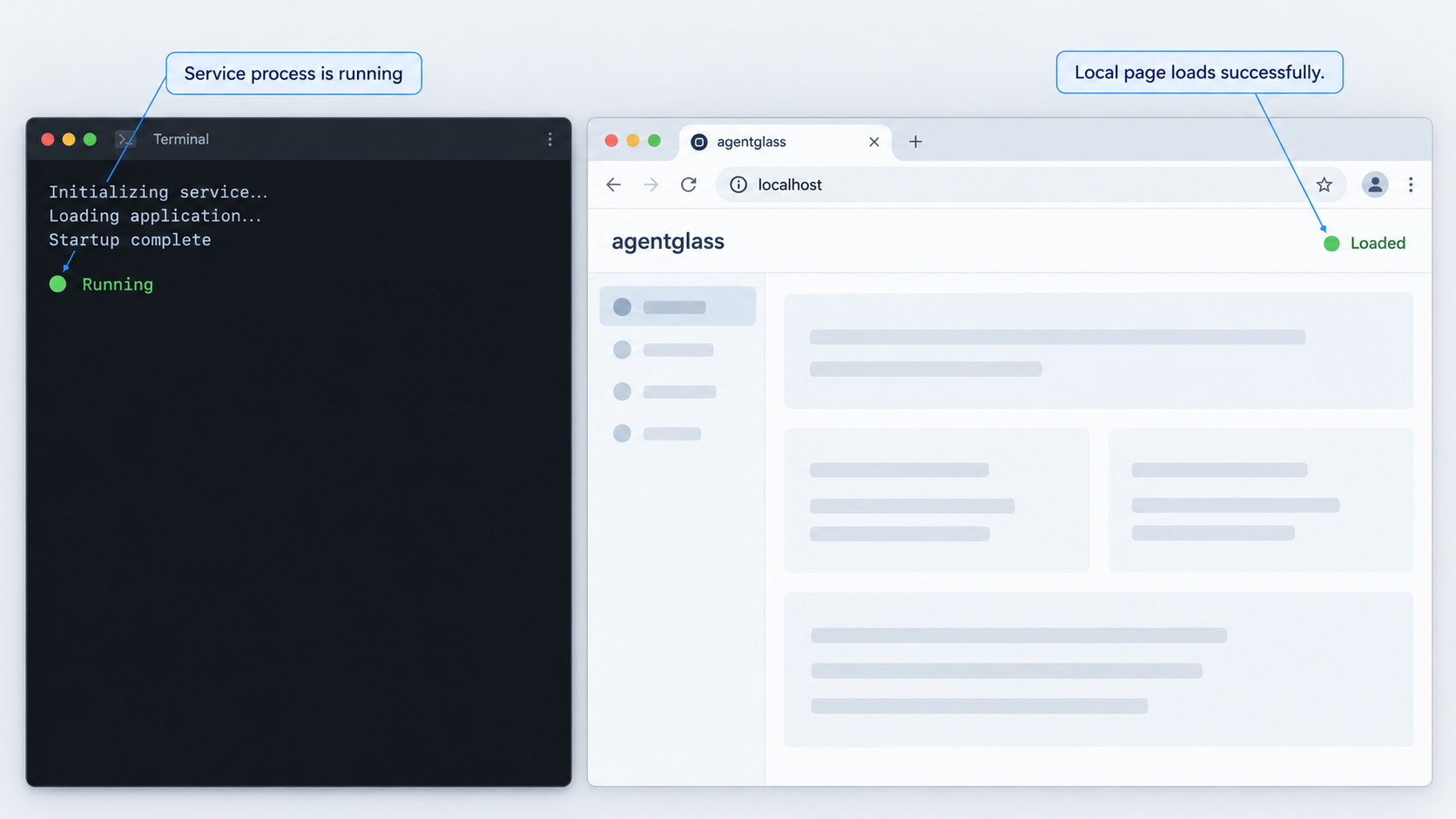
Local verification separates application problems from tunnel problems. Do not configure remote access until agentglass starts successfully and responds on the same machine.
Verify a packaged desktop build
Launch the application and confirm that its main workspace opens. Navigate to Settings ▸ Requirements and inspect the detected tools. If tmux, GitHub CLI, or Docker is absent, determine whether you actually need the related feature before treating the result as an error.
If an expected agent or repository is missing, confirm that the underlying CLI or repository is usable independently. agentglass does not replace provider authentication, repair a broken Git checkout, or automatically log the GitHub CLI into an account.
Verify a source installation
Keep the bun run dev process active and open the following address in a browser on the same machine:
http://localhost:4000A successful result is the agentglass web interface loading from that address. Explore the requirements view and confirm that the expected local integrations are detected. If you installed the hooks, start or use the relevant Claude Code workflow and verify that expected activity appears without assuming that every historical session will be imported.
The service must remain available locally for remote access to work. If the development process exits, crashes, or is stopped, Localtonet may still have a configured tunnel, but there will be no healthy application behind its local target.
Perform a functional safety check
- Confirm that the interface shows only the repositories and sessions you expect.
- Review enabled capabilities before granting another person access.
- Confirm the scope of any phone pairing or plugin token.
- Inspect pending approval behavior with a harmless test rather than a destructive command.
- Review whether webhook or Explain functionality is enabled, since those are documented opt-in paths by which selected data can leave the machine.
- Read the project's security settings before connecting the service to any public endpoint.
Security planning for an agent-control dashboard
The project states that agentglass requires no cloud account, uses a local SQLite file, and does not send telemetry. It documents two opt-in paths that can transmit information away from the machine: a webhook configured by the user and the Explain function, which sends selected hunks to a model. Those local-first properties do not make a remotely published interface automatically safe.
An HTTP tunnel changes network reachability. It can make a service that was previously available only through loopback reachable through a public URL. It does not reduce the privileges of the underlying application, sanitize terminal output, redact source code, or decide who should be allowed to approve an agent action.
Before remote exposure, apply strong authentication and the narrowest practical authorization controls in the application, surrounding access layer, or deployment environment. Use network or IP restrictions where appropriate. If you cannot establish adequate protection, keep the service local rather than relying on URL secrecy.
Remote approval is convenient precisely because it can affect work while you are away from the machine. Treat it like access to a privileged development console. Review each request in context, and do not approve destructive commands merely because they appear in a familiar interface.
Expose the source-mode HTTP endpoint with Localtonet
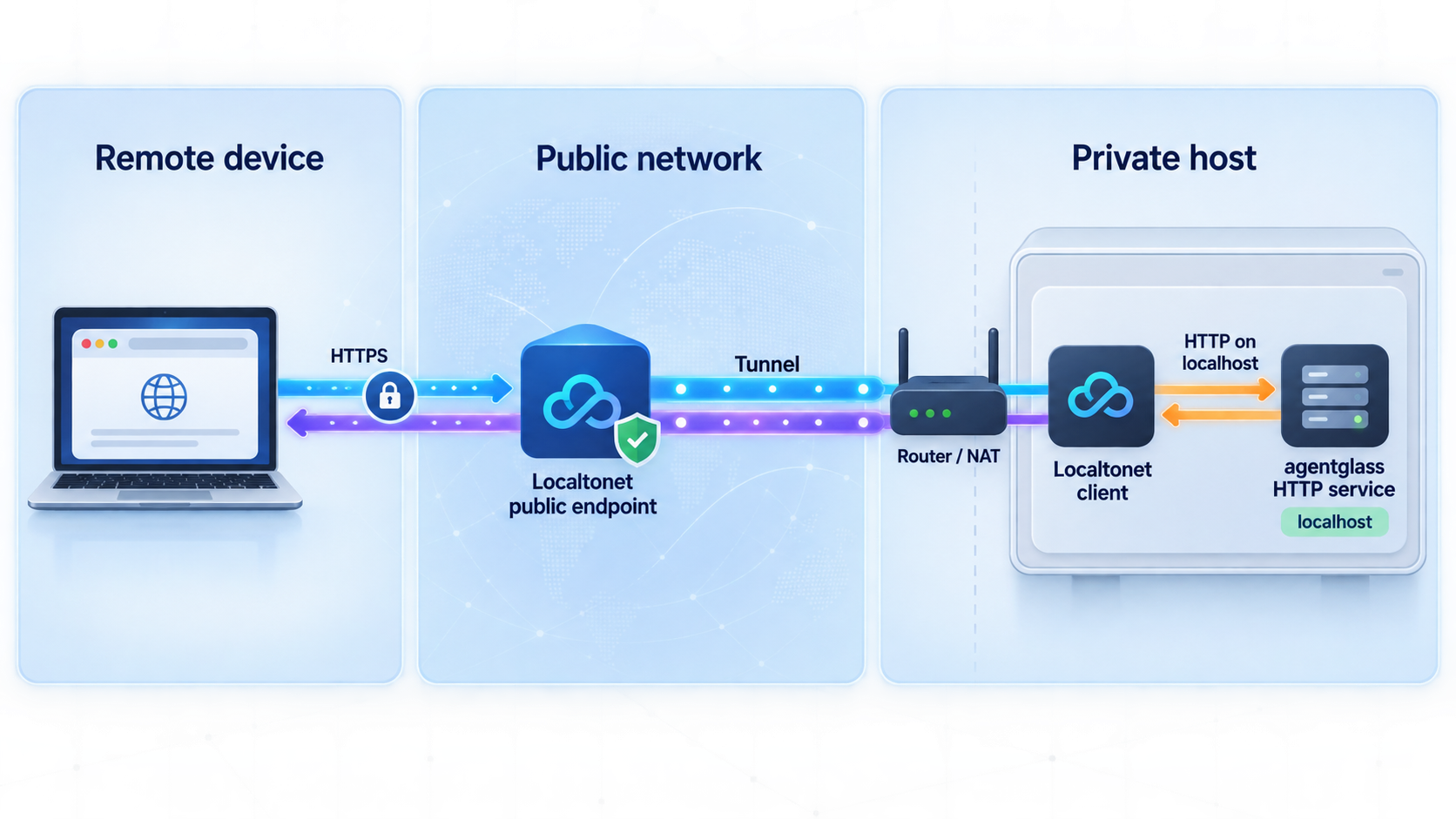
Once http://localhost:4000 works locally and your access controls are ready, you can create an HTTP tunnel with Localtonet. Our client establishes an outbound connection to a Localtonet relay server, so the workflow does not require inbound router port forwarding, a public IP address, VPN setup, or an inbound firewall change.
Run the Localtonet client on the same machine as agentglass, or on a device that can reach the selected local target. For the exact workflow in this article, the simplest target is the loopback service on port 4000 from the same machine.
Install and run the Localtonet client
Install the Localtonet application for the operating system on the device that can reach agentglass. Start the client and keep it connected while remote access is required.
Authenticate or select the client device
Use the device-specific authentication token provided through your Localtonet account and select that device for the tunnel. Keep the token private and never include it in documentation, screenshots, source code, or shared shell output.
Select an available relay server
Choose a relay server or region currently offered in the dashboard. Availability can vary, so use the live product values rather than copying a hardcoded server code from an article.
Create an HTTP tunnel to agentglass
Create an HTTP tunnel and set its local target to the IP address and port where the source-mode service is reachable. When Localtonet runs on the same machine, use the loopback target with port 4000. Choose the available process type appropriate to your account, such as a generated subdomain, supported custom subdomain, or custom domain.
Start the tunnel
Creating a tunnel does not start it. Press Start, wait for the selected client and tunnel to be connected, and copy the assigned public URL from the dashboard.
Test remotely, then stop or delete when finished
Test the public address from a separate network or device and confirm that the intended authentication and authorization controls are enforced. Stop the tunnel when remote access is no longer required, or delete it if the configuration will not be reused.
For the current dashboard workflow, consult our Localtonet HTTP tunnel documentation. Exact relay choices, account options, and domain configuration can change, so the dashboard remains authoritative for values available to your account.
Saving the configuration is not the same as running it. The public endpoint works only while the selected Localtonet client is connected, the tunnel is started, and the agentglass source service remains available at its local target.
Verify the complete remote path
Test each layer in order. First, confirm that http://localhost:4000 still works on the host. Second, confirm that the Localtonet client is connected. Third, confirm that the tunnel has been started. Finally, open the assigned public URL from a different network.
Do not stop after seeing the login or landing interface. Verify that unauthorized access is rejected, authorized access receives only the intended scope, and highly sensitive controls behave as expected. If the interface exposes more than intended, stop the tunnel immediately and correct the authorization design locally.
Troubleshooting installation and remote access
The packaged macOS application is reported as damaged
The project documents that its macOS build is currently unsigned, which can cause Gatekeeper to describe it as damaged. Verify that the application came from the official project release, then use the documented xattr command shown earlier. This removes the quarantine attribute but does not sign the application.
The Windows desktop build behaves unexpectedly
The project marks Windows as experimental because the executable builds and passes CI but has not been verified on real hardware according to the supplied project information. Record the release version, Windows version, and exact failure without including secrets. Do not assume behavior observed on Linux or macOS must be identical.
bun install fails
Confirm that Bun is installed and available in the current shell, that you are inside the cloned repository, and that the dependency installation can reach its required package sources. Resolve this step before running the development command. Repeatedly starting the application cannot compensate for an incomplete dependency installation.
The source service does not load on localhost:4000
Check whether the bun run dev process is still active and review its terminal output for the first reported error. Confirm that you launched it from the repository root with the documented state-directory assignment. Also check whether another local process is already using port 4000. The supplied evidence does not document an alternative agentglass port-setting command, so this guide does not invent one.
The interface loads, but an integration is missing
Open Settings ▸ Requirements. tmux, GitHub CLI, and Docker are feature-specific dependencies. For pull-request functionality, verify that GitHub CLI is both installed and logged in. For agent functionality, verify the corresponding agent CLI independently of agentglass.
Claude Code activity does not appear
Confirm that Python 3 successfully ran hooks/install_hooks.py from the repository root. Then verify that Claude Code itself is installed and usable. If organizational policy restricts hooks, review what the installer changes before rerunning it rather than bypassing the policy.
The Localtonet URL does not open
Work from the inside out. Verify http://localhost:4000 on the host, then verify that the Localtonet client is connected, the correct device is selected, and the tunnel is running. Confirm that the tunnel points to the correct local IP address and port. A running tunnel cannot return a healthy application if agentglass has stopped.
The URL opens locally but not from another device
Make sure you are testing the assigned public Localtonet URL rather than localhost. The name localhost always refers to the device on which the browser is running. On a phone or remote computer, it does not refer to the agentglass host.
The public page exposes too much functionality
Stop the tunnel immediately. Review agentglass scope settings, paired-device permissions, plugin permissions, authentication controls, and any surrounding access restrictions. Restart remote access only when the exposed capabilities match the intended user and task.
An older installation will not update in the application
Release v0.23.2 addressed an update-signature issue affecting versions from v0.20.0 through v0.23.1. The release notes document a one-time manual update from a repository clone using the following command:
make desktop-installThis is a version-specific recovery instruction, not the general installation method used elsewhere in this guide. Review the current release notes before applying it to a newer or differently installed version.
Frequently asked questions
Does agentglass replace Claude Code, Codex, Gemini CLI, or OpenCode?
No. The underlying agents remain their normal command-line tools running on your machine with their existing provider logins. agentglass attaches to and organizes those local sessions. Closing agentglass does not inherently stop agents already running in tmux.
Can I expose the packaged desktop build through an HTTP tunnel?
Not from the documented information used by this guide. The packaged application includes its own server, but the project says there is no port to open in a browser and does not document a connectable port. Do not guess one. Use the source workflow when you need the documented endpoint at http://localhost:4000.
Does agentglass send my repository data to a cloud service?
The project states that it uses local SQLite storage, requires no account or cloud service, and sends no telemetry. It documents two opt-in paths that can transmit data: a user-configured webhook and the Explain function, which sends selected hunks to a model. Review those settings before handling sensitive repositories.
Does Localtonet require router port forwarding or a public IP address?
No. Our client establishes an outbound connection to a Localtonet relay server. This allows the configured local service to receive traffic through its assigned public endpoint without inbound router port forwarding, a public IP address, VPN setup, or an inbound firewall change.
Is the Localtonet tunnel available after I close agentglass?
The tunnel configuration may remain in the dashboard, but remote agentglass access requires every layer to be active. The source service must be running, the Localtonet client must be connected, and the tunnel must be started. If agentglass stops, the tunnel has no healthy local service to reach.
Can I rely on a hard-to-guess public URL for security?
No. URL secrecy is not a substitute for authentication and authorization. Because agentglass can expose terminals, source changes, agent controls, and approval decisions, apply strong access controls and least privilege before starting a public tunnel.
Do I need tmux, GitHub CLI, and Docker to start agentglass?
They are feature-specific requirements rather than one combined prerequisite for every view. tmux enables live-pane functionality, GitHub CLI supports the pull-request panel and must be logged in, and Docker enables container-related views. Use Settings ▸ Requirements to see which features are available.
Should I leave the tunnel running permanently?
Only if persistent remote access is genuinely required and protected appropriately. For occasional monitoring or approvals, a shorter exposure window reduces unnecessary reachability. Stop the tunnel when it is not needed and delete configurations that will not be reused.
Connect your verified agentglass service with Localtonet
Start agentglass from source, verify localhost:4000, apply appropriate access controls, and then create an HTTP tunnel from the device that can reach it.


