

Install the desktop or terminal client, create a verified Kubernetes TCP forward, and make it available to an authorized remote client
kftray and kftui manage Kubernetes port forwards from a desktop or terminal without requiring you to type a separate kubectl command for every connection. This guide covers artifact selection, installation, kubeconfig discovery, the fields required for a first TCP forward, local verification, and controlled remote access through a Localtonet TCP tunnel. The procedure is aligned with the currently supplied kftray v0.30.4 release evidence, but interface labels and release assets can change, so compare them with the documentation packaged or published for the version you install. UDP is intentionally excluded from the executable workflow because kftray implements UDP forwarding through the additional kftray-server component.
📋 What's in this guide
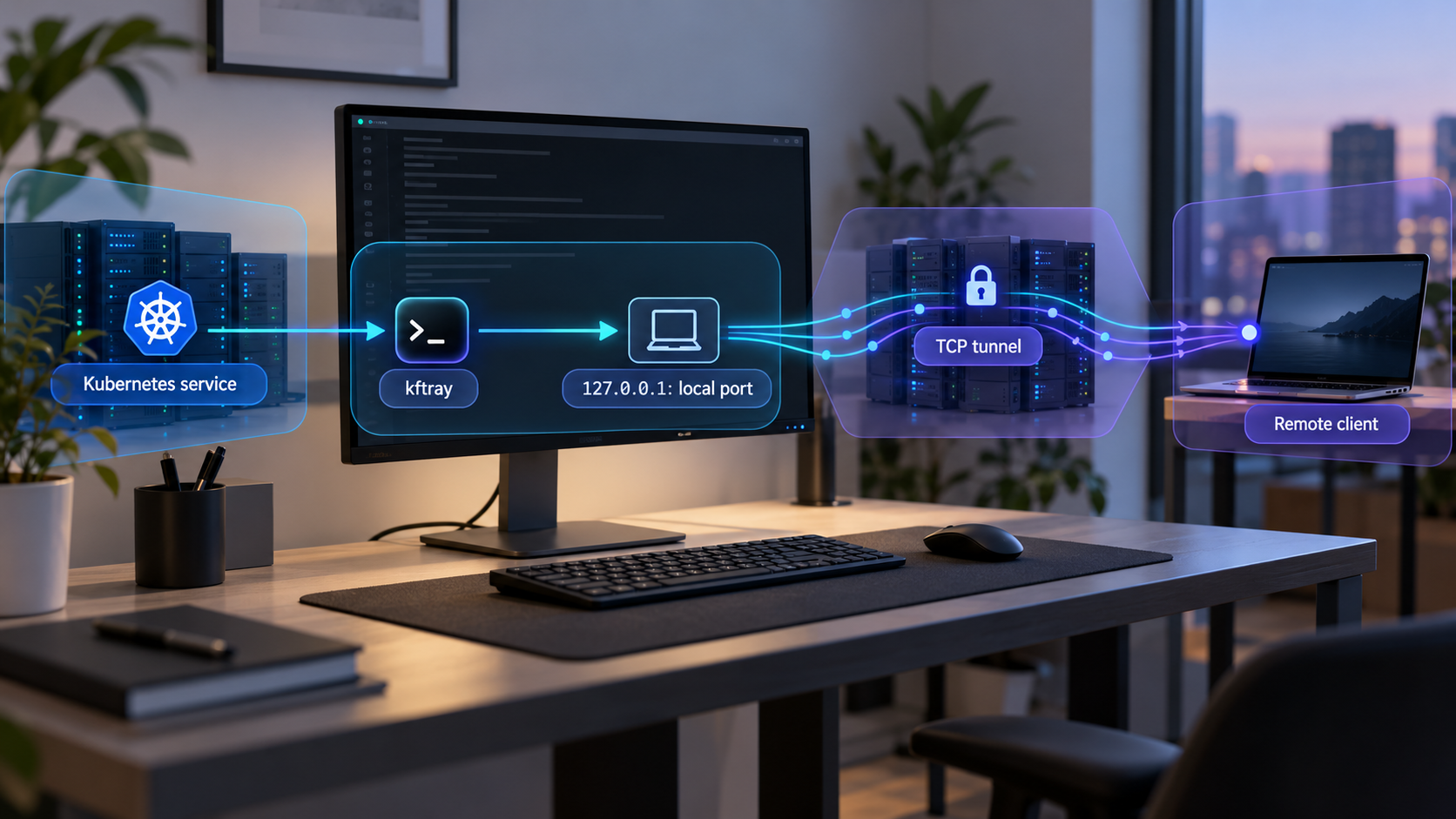
How kftray and Localtonet fit together
Kubernetes services and pods normally live behind cluster networking. A developer who needs to inspect an internal web application, query a database, call an API, or connect a debugging tool can use port forwarding to create a listener on a local machine. Connections sent to that listener are carried through the authenticated Kubernetes connection to the selected service or pod.
kftray is the graphical desktop application with system tray integration. kftui is the terminal application and also provides CLI functionality for scripts and headless environments. According to the current project documentation, both applications share configurations and a Rust backend. They can manage multiple forwards across Kubernetes contexts and reconnect forwards when pods restart or connections drop.
Localtonet enters the workflow only after kftray has created a working local TCP endpoint. Our client establishes an outbound connection to a Localtonet relay server. A Localtonet TCP tunnel then provides a public host and port that carries incoming TCP connections to the address and port where the kftray forward is listening. This does not require inbound router port forwarding, a public IP address, VPN setup, or an inbound firewall change.
The complete path used in this tutorial is:
Remote TCP client → Localtonet public host and port → Localtonet client → local kftray TCP listener → Kubernetes service or pod.
kftray includes reverse-tunneling and public-exposure capabilities of its own. Use Localtonet when you specifically want our outbound client, relay selection, dashboard-managed tunnel lifecycle, and assigned public endpoint. Avoid running two public-exposure methods for the same service unless you have a documented operational reason.
Why this tutorial is limited to TCP
The kftray project supports TCP and UDP, but they are not identical configuration paths. The project describes UDP forwarding as operating through kftray-server. That introduces another component with its own deployment, reachability, and security requirements. Selecting “UDP” in a client interface is therefore not, by itself, a complete UDP setup.
To keep the instructions executable and avoid implying that ordinary Kubernetes port forwarding transparently handles UDP, the procedure below uses TCP only. Do not apply it unchanged to a UDP workload. For UDP, follow the current kftray-server deployment documentation, verify that component inside the cluster, and then use a matching end-to-end UDP path.
Prerequisites and values to collect
Begin on the machine that will run kftray or kftui. That machine must be able to reach the Kubernetes API through your normal network path and must have valid Kubernetes credentials. Localtonet cannot repair cluster authentication, Kubernetes authorization, an invalid context, a missing workload, or an incorrect service port.
Kubernetes access
kftray obtains cluster choices from the kubeconfig information available to the application process. In a conventional setup, this includes the contexts in the user’s Kubernetes configuration. Environments that use a nondefault kubeconfig location or a composed kubeconfig must make that configuration available to the launched application in the same way they do for other Kubernetes clients.
Before creating a forward, confirm that the required context exists, the credentials are current, and your identity is authorized to access the intended namespace and workload. If kftray’s context selector is empty or does not include the expected cluster, treat that as a kubeconfig discovery problem. Do not create a guessed context name inside the forwarding form.
Graphical applications may not inherit every environment variable from an interactive shell. If a context appears in a terminal-based Kubernetes tool but not in kftray, compare how the desktop application was launched and where the kubeconfig is stored. kftui, when launched from the same terminal environment, can also help distinguish an application-launch environment issue from a malformed kubeconfig.
Application and workload details
Determine whether the destination is a Kubernetes Service or an individual Pod. A Service is generally the more stable application abstraction, while a Pod identifies a specific workload instance that can be replaced. kftray supports both workload types, but the correct choice depends on the purpose of the connection.
Record the namespace, resource name, and destination TCP port. Do not infer a port from the application name. A web application can listen on a nonstandard port, and a database can be configured differently from its familiar default.
Local endpoint details
Choose an unused local TCP port. The worked example below uses 18080 only to keep the mapping easy to recognize. It is a replaceable tutorial value, not a kftray default. If another process already owns that port, select a different unused port and use the same replacement consistently in the local test and Localtonet configuration.
For a same-machine Localtonet deployment, a loopback listener such as 127.0.0.1 provides a narrower local exposure boundary than a listener on every network interface. If kftray and the Localtonet client run on different devices, loopback will not be reachable from the second device. That topology requires a deliberately reachable local address and appropriate local network controls.
| Item | Example used below | What to replace |
|---|---|---|
| Kubernetes context | development-cluster |
Select a real context discovered from your kubeconfig. |
| Namespace | demo |
Use the namespace containing your target. |
| Workload type | Service |
Choose Service or Pod according to the actual target. |
| Workload name | demo-api |
Use the exact resource name in the selected namespace. |
| Remote port | 8080 |
Use the TCP port exposed by the workload. |
| Local address | 127.0.0.1 |
Keep loopback when both clients run on the same machine. |
| Local port | 18080 |
Choose an unused local TCP port. |
| Protocol | TCP |
Keep TCP for this tutorial. |
Install kftray or kftui
Choose the interface before downloading an artifact. Install kftray when you want the graphical system tray application. Install kftui when you want an interactive terminal interface, a headless workflow, or its documented CLI capabilities. Both use the project’s shared configuration and backend, but the release artifact for one application is not automatically the artifact for the other.
The project publishes downloads and installation guidance through the official kftray website and its official GitHub repository. The supplied current release evidence identifies v0.30.4 and shows that its release tag was signed with the maintainer’s verified signature. That release contains many assets, so select by application, operating system, and processor architecture rather than downloading the first file in the list.
| Platform | Desktop choice | Terminal choice | Installation action |
|---|---|---|---|
| Windows | Select the kftray Windows artifact matching the machine architecture. | Select the kftui Windows artifact matching the machine architecture. | Use the installation or extraction method stated for that exact asset, then launch kftray from the installed application location or kftui from a terminal. |
| macOS | Select the kftray macOS artifact for the Mac’s processor architecture. | Select the matching kftui macOS artifact. | Apply the installation action documented for the downloaded artifact, then open kftray as an application or invoke kftui from a terminal. |
| Linux | Select a kftray Linux artifact compatible with the distribution and architecture. The current release notes explicitly refer to the AppImage build. | Select the kftui Linux artifact matching the architecture. | Follow the artifact-specific package or executable instructions. For an AppImage, use the project’s current AppImage launch instructions rather than assuming a package-manager command. |
The supplied official evidence confirms the cross-platform applications, release assets, and an AppImage build, but it does not expose the complete current asset list or a verified package-manager command for every operating system. Commands copied from an old issue, third-party package, or unrelated repository may install the wrong binary. Use the installation action attached to the selected official release artifact.
Open the official download or release page
Start from the kftray website or official repository. If you use the supplied v0.30.4 release, confirm that the browser is displaying the hcavarsan/kftray repository and the expected release tag before downloading anything.
Select the application
Choose a kftray asset for the graphical system tray application or a kftui asset for terminal use. Do not substitute a source archive unless you intend to follow the project’s separate build-from-source procedure.
Match the operating system and architecture
Match Windows, macOS, or Linux and the architecture reported by your machine. On macOS, distinguish between the processor architectures offered by the release. On Windows and Linux, likewise choose the architecture represented by the artifact label.
Verify the release identity
Confirm the tag, repository, and publisher before installation. The supplied v0.30.4 page reports a verified signature for the release commit. If the selected release publishes additional checksum or signature instructions, follow those exact instructions. Do not assume a checksum algorithm or signature filename that is not present on the release page.
Install or extract the selected artifact
Follow the action documented for that specific artifact. A desktop installer, application bundle, distribution package, AppImage, and standalone terminal executable have different installation and launch behavior. Apply your organization’s software approval requirements before running the file.
Launch and verify the application
Open kftray and confirm that its application or tray interface appears, or start kftui and confirm that its terminal interface renders. Check the displayed version through the application’s available version or about information when present, and compare it with the release you selected. This verifies installation only, not cluster connectivity.
If the operating system blocks the application, do not disable security controls globally. Confirm that the artifact came from the official release, then use the operating system’s documented approval workflow and your organization’s policy. If a downloaded terminal binary is not found, verify where it was extracted and whether that location is available to the shell.
Create the first Kubernetes TCP forward
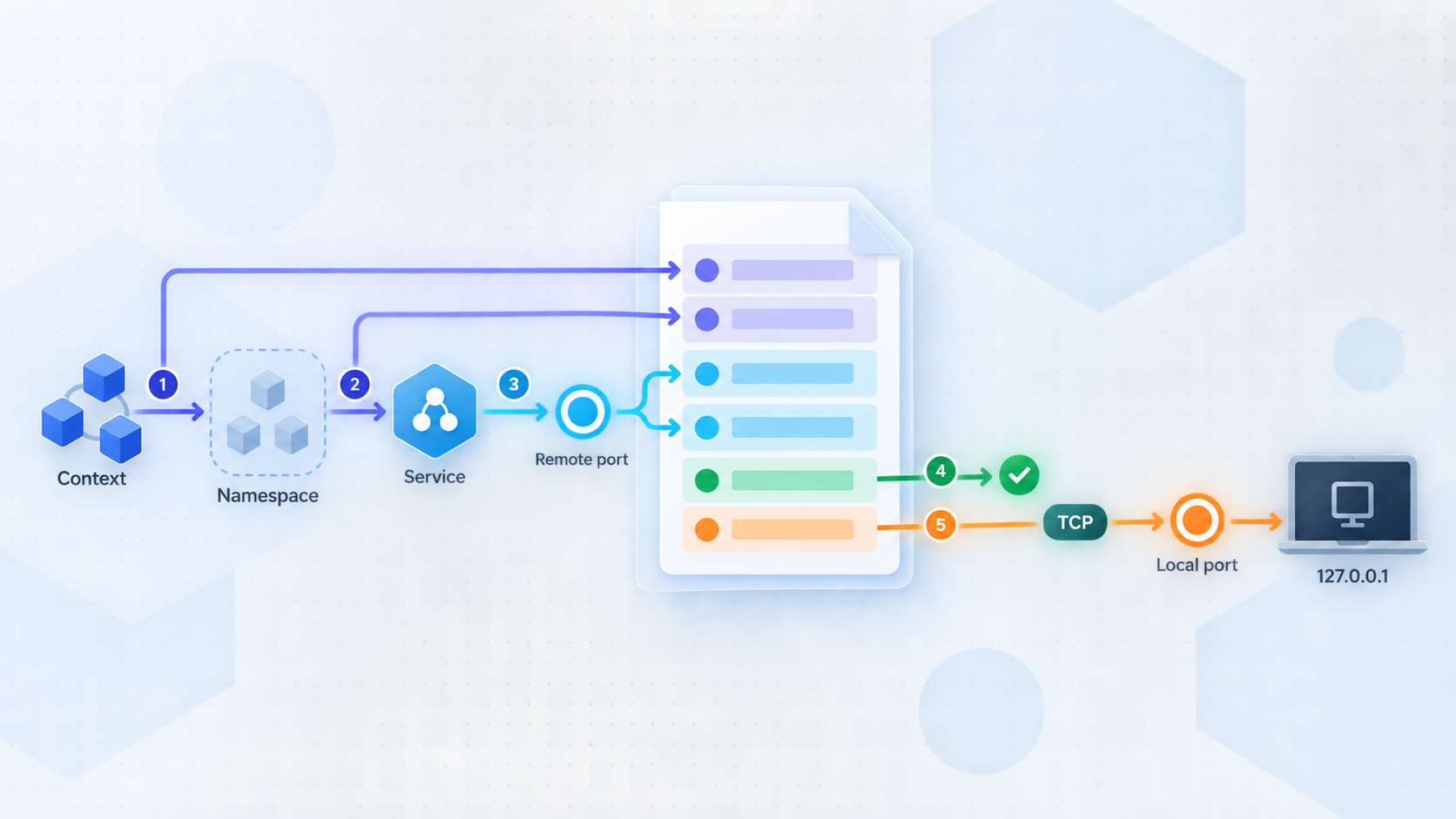
The current configuration model requires the cluster context, namespace, workload type, workload, local port, remote port, and protocol needed to describe the forward. Depending on the installed release and interface, optional labels, aliases, tags, proxy settings, and other controls may also appear. The sequence below covers the fields needed for the ordinary TCP example and leaves optional behavior disabled.
This procedure is aligned with the supplied v0.30.4 evidence. A later release may rearrange controls or use a slightly different label for the add, save, start, or stop action. Preserve the field mapping rather than guessing a new value. Consult the configuration documentation associated with the installed release when a label differs.
Open the configuration interface
In kftray, open the application from its tray interface and use the action for adding a port-forward configuration. In kftui, open the interactive configuration view and choose the add action. Begin with one forward so that its status and local port are unambiguous.
Select the kubeconfig context
Choose development-cluster for the worked example, replacing it with a context actually discovered from your kubeconfig. If the expected context is missing, stop and correct kubeconfig discovery rather than typing a similar cluster name.
Select the namespace and workload type
Set the namespace to demo and the workload type to Service for this example. Replace both values with the namespace and resource type used by your application. Choose Pod only when you intentionally need a specific pod rather than a service abstraction.
Choose the workload
Select the service named demo-api in the example. Use the exact workload discovered for your selected context and namespace. An empty workload list can indicate the wrong context, wrong namespace, insufficient permission, or unavailable cluster access.
Enter the local and remote ports
Set the local port to 18080 and the remote port to 8080. The local port belongs to your computer. The remote port belongs to the Kubernetes target. Replace both values as required and do not assume they must be identical.
Select TCP and save the configuration
Select TCP as the protocol, add a recognizable alias if the installed interface offers one, and save the configuration. Do not enable UDP, proxy, reverse-tunnel, ingress, or public-exposure options for this workflow.
Start the forward
Select the saved configuration and activate its start control. In either interface, confirm that the entry changes to its running or active state and does not immediately return to a stopped or error state. Keep the application running while you test the local endpoint.
The resulting example mapping is:
Context:       development-cluster
Namespace:     demo
Workload type: Service
Workload:      demo-api
Protocol:      TCP
Local address: 127.0.0.1
Local port:    18080
Remote port:   8080
Every value in that block is illustrative except the decision to use TCP for this tutorial. Replace the context, namespace, workload, and ports with real values. Use the local address actually reported or configured by your installed version.
How to stop and restart the forward
Select the active configuration and use its stop control. Confirm that its state changes from running or active to stopped and that the local endpoint no longer accepts a connection. To restart it, select the same saved configuration and use the start control again. The endpoint should return without requiring you to recreate the configuration.
This stop-and-start test matters because it proves that the listener belongs to the selected kftray configuration. Without it, another process already bound to the same port could produce a misleading successful test.
Sharing configurations safely
kftray can import and export configurations as JSON and can share configurations through Git. Review an imported configuration before starting it. A teammate’s context, namespace, workload, local port, or optional proxy setting may be invalid or inappropriate on your machine. Configuration sharing does not share valid Kubernetes credentials or grant cluster authorization.
Verify the TCP forward locally
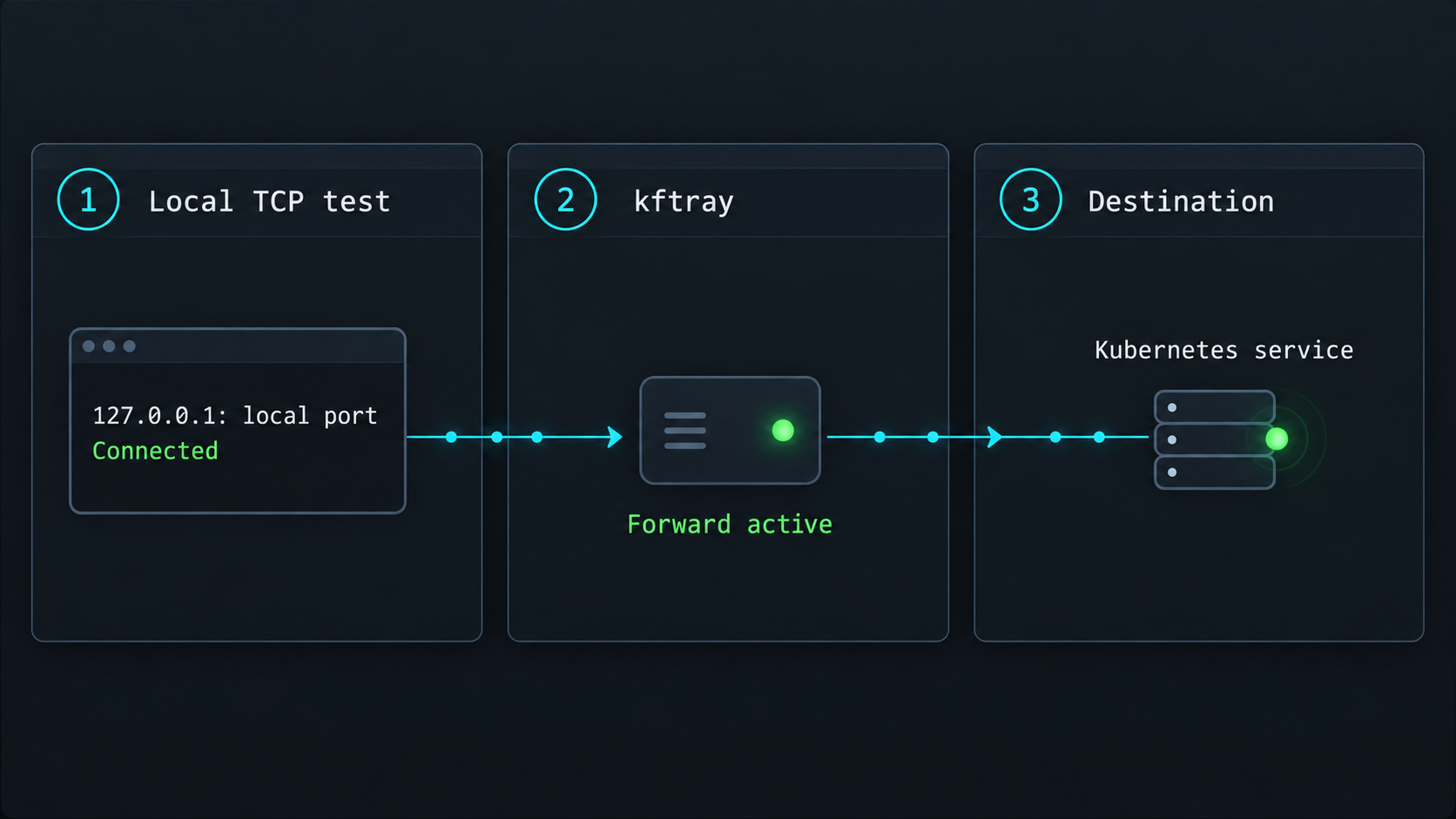
Local verification is the most important diagnostic boundary in this workflow. If the application does not respond through the kftray listener from the same machine, a public tunnel will not solve the problem. It will only add another network segment.
Reproducible HTTP example
If the Kubernetes target is an HTTP application and has a known health or read-only endpoint, keep the forward running and test the local listener. With the tutorial values, a possible test is:
curl -v http://127.0.0.1:18080/health
Replace 18080 with your configured local port and replace /health with a path that actually exists in your application. Do not treat /health as a kftray requirement. A successful result should include an HTTP response from the intended workload, not merely evidence that a TCP socket opened.
If the application requires a hostname, authentication header, TLS, or a different request path, use the same settings you would use when connecting to it normally. Do not disable certificate validation or authentication solely to make the test pass.
Non-HTTP TCP applications
For a database or another raw TCP protocol, use its normal client and perform a harmless operation. A database connection should use the required database name, authentication, and transport security. A protocol banner or successful read-only query is better evidence than a generic port probe because it confirms that the intended application answered.
Verify all of the following before creating a Localtonet tunnel:
- kftray or kftui reports the selected configuration as running or active.
- The configured local address and port accept the expected TCP protocol.
- The application-level response comes from the intended Kubernetes workload.
- Application authentication and TLS behavior match the workload’s requirements.
- Stopping the forward makes the local test fail.
- Restarting the same forward restores the expected response.
Interpret local failures before moving on
A connection-refused result usually means no process is listening at the tested address and port, the forward stopped, or the address is wrong. A timeout can indicate cluster connectivity trouble, a network policy, an unavailable workload, or a target that does not respond. An application error often means the transport path works but the protocol, hostname, credentials, request path, or TLS configuration is wrong.
If the forward does not start, recheck the context, namespace, workload type, resource name, remote port, and local port. Confirm that the workload is ready and your Kubernetes identity has the required authorization. Do not grant a broad cluster role merely to make the test pass. Obtain the narrow permissions required for the forwarding operation.
Expose the verified endpoint with a Localtonet TCP tunnel
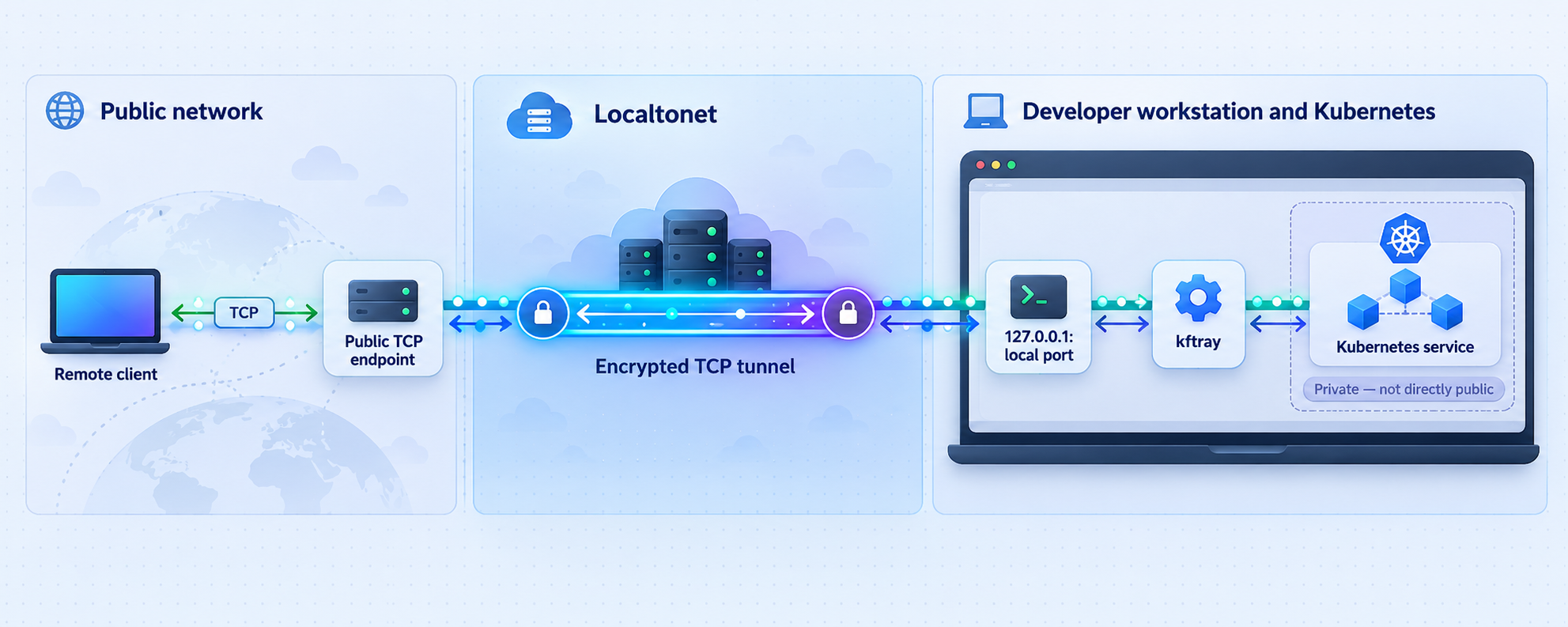
Proceed only after the local application-level test succeeds. The Localtonet client should run on the same machine as kftray when the listener is bound to 127.0.0.1. It can run on another device only when that device can reach the chosen listener address through the local network.
The current product sequence is documented in our TCP tunnel documentation. Use the supported client installation path shown there for your operating system. Client installation details can change by platform and client version, so do not substitute an unverified package or command.
Install and run the Localtonet client
Follow the operating-system installation path in the current TCP tunnel documentation. Run our client on the device that can reach the verified kftray listener. The client creates the outbound connection used by the tunnel.
Select the client device with its authentication token
In the dashboard, select the device-specific authentication token associated with the client that will run this tunnel. Treat the token as a secret. Do not expose it in screenshots, shell history, source control, or shared configuration.
Select an available server
Choose an available Localtonet relay server or region from the current dashboard. Available values can vary, so use the options presented to your account rather than copying a server code from an article.
Enter the verified local IP address
For the same-machine example, enter 127.0.0.1. If your kftray listener uses another address, enter the exact address that the Localtonet client device successfully tested. Do not enter a Kubernetes ClusterIP, pod IP, or public Localtonet address here.
Enter the verified local port
Enter 18080 for the worked example, replacing it with your actual kftray local port. This is not necessarily the same as the Kubernetes remote port. Save or create the TCP tunnel using the dashboard’s documented action.
Press Start
Creating a tunnel does not mean it is running. Press Start and confirm that the selected Localtonet client remains connected. Record the public host and port assigned to the running TCP tunnel.
Test with the real remote client
From an authorized remote system, connect the application’s normal client to the assigned Localtonet public host and port. Verify an application-level response, authentication, and expected authorization rather than relying only on the tunnel status.
Stop or delete the tunnel when finished
Stop the tunnel to remove active public access while retaining the configuration, or delete it when the configuration is no longer required. Stop the kftray forward as well if local access is no longer needed.
In the example, Kubernetes receives traffic on remote port 8080, while Localtonet targets kftray’s local port 18080. Localtonet must point to the local listener, not directly to the Kubernetes port or resource address.
The assigned public host and port do not replace application-specific settings. A database client still needs its protocol options, database name, username, password, and required transport security. Localtonet carries the TCP connection to the local target, while the destination application remains responsible for authentication and authorization.
Security practices for remote Kubernetes access
A public tunnel changes the exposure boundary. A service that was previously reachable only through your Kubernetes credentials and local machine can now receive traffic through an assigned public endpoint. Treat that as a deliberate access-control decision.
Do not expose an unauthenticated administrative interface, development console, database, metrics endpoint, or debugging service merely because the tunnel is convenient. Keep suitable application authentication enabled, use least-privilege accounts, limit the exposure period, and stop the tunnel as soon as the remote task is complete.
Keep permissions narrow at both layers. The Kubernetes identity used by kftray should have only the authorization required for the forwarding workflow. The remote application user should receive only the application-level permissions required for the task. Do not compensate for a configuration problem by granting broad cluster roles or disabling application controls.
Protect the Localtonet device token. It identifies the client device that runs the tunnel and must not be published or committed to a repository. Review exported kftray configurations as well. Even if they contain no credentials, they can disclose context names, namespaces, service names, ports, or internal workflow details.
Match application transport security to the protocol. A raw TCP tunnel transports TCP connections, but it does not mean that every application automatically gains end-to-end application encryption. If the destination requires TLS, configure and verify TLS using that application’s normal client and server settings.
Minimize the exposure window. Start the kftray forward, verify it locally, start the Localtonet tunnel, complete the remote task, and then stop the Localtonet tunnel before stopping the local forward. If credentials were shared more broadly than intended, stop access and rotate the affected credentials according to your incident process.
Routine operation and troubleshooting
Start a normal session
- Confirm that the intended kubeconfig context is available.
- Start the saved kftray or kftui TCP configuration.
- Repeat the local application-level test.
- Confirm that the Localtonet client is connected.
- Start the corresponding Localtonet TCP tunnel.
- Test through the assigned public host and port.
This order separates Kubernetes, local forwarding, and public tunneling. It prevents a stale public configuration from hiding a broken local endpoint.
Stop a normal session
Stop the Localtonet tunnel first so that new public connections cannot arrive. Then stop the kftray forward if it is no longer needed locally. Delete temporary configurations only after confirming that they are not needed for another authorized session. Stopping a Localtonet tunnel and deleting it are different lifecycle actions.
No Kubernetes contexts appear
Confirm that the user running the application has access to the intended kubeconfig. If you use a nondefault kubeconfig path or a composed configuration, confirm that it is available to the application process. A desktop launch and terminal launch can inherit different environments. Compare kftray and kftui behavior before changing the cluster configuration.
The target service or pod does not appear
Recheck the selected context, namespace, and workload type. Confirm that the resource exists and that the Kubernetes identity can discover or access it. Do not assume an empty list means the resource should be recreated. It may indicate authorization or connectivity trouble.
The forward will not start
Confirm the context, namespace, workload, remote port, protocol, and local port. Check whether another process already owns the local port. Verify that the workload is ready and that your identity has the permissions required for the operation. Use the specific error reported by kftray or kftui to narrow the investigation.
The local port is already in use
Stop the conflicting process only after identifying it, or edit the kftray configuration to use another unused local port. If you change the local port, update the local verification command and the Localtonet tunnel target. The Kubernetes remote port does not need to change merely because the local port changes.
The local endpoint opens but the application fails
This usually means at least part of the TCP path is working. Check the application protocol, hostname behavior, credentials, request path, database selection, and required TLS settings. Confirm that the response belongs to the intended workload rather than another process listening on the same local port.
Local access works but remote access fails
Confirm that the Localtonet client remains connected and that the tunnel was explicitly started. Compare the tunnel’s local IP address and port with the endpoint that passed the local test. Verify that the selected Localtonet device is the device on which the listener is reachable.
If Localtonet runs on another machine, test the kftray endpoint from that machine before troubleshooting the public side. A listener on 127.0.0.1 is reachable only on its own host. Do not broaden the binding or local firewall rules without evaluating the additional local-network exposure.
The connection breaks after a pod restart
kftray’s shared backend is designed to reconnect forwards when pods restart or connections drop. Allow recovery to occur, then repeat the local application test. If recovery does not succeed, verify that the target still exists, is ready, and matches the saved configuration. A Localtonet tunnel can remain running while its local target is unavailable, but remote connections will not produce a valid application session until the local forward recovers.
A shared configuration works for one teammate but not another
Imported JSON and Git-synchronized configurations can align forwarding definitions, but they do not create identical environments. Compare kubeconfig contexts, credentials, namespace access, local port availability, operating-system behavior, and application client settings. Review every imported configuration before starting it, especially when it points to a production workload.
Why a UDP selection is not enough
kftray’s UDP support uses kftray-server. If a UDP attempt fails, do not troubleshoot it as though it were the TCP procedure above. Confirm that the current kftray-server workflow has been deployed and configured according to the matching project documentation, that the server component can reach the workload, and that every subsequent tunnel and client uses UDP. This article intentionally does not provide a partial kftray-server deployment.
Frequently asked questions
What is the difference between kftray and kftui?
kftray is the graphical desktop application with system tray integration. kftui runs in a terminal and includes CLI functionality for scripts and headless use. They share configurations and a Rust backend, but you must select the correct release artifact for the interface you want to install.
Where do the context choices come from?
They come from the kubeconfig information available to the application process. If an expected context is missing, verify the kubeconfig location and the environment from which kftray or kftui was launched. Do not substitute a guessed context.
Does kftray require me to run kubectl port-forward separately?
The project is designed to manage multiple Kubernetes port forwards without requiring a separate manual kubectl port-forward command for each one. You still need valid kubeconfig credentials, network access to the cluster, and sufficient Kubernetes authorization.
Can I use this exact procedure for UDP?
No. kftray describes UDP forwarding as operating through kftray-server, which is an additional component with a distinct workflow. This tutorial is intentionally limited to ordinary TCP forwarding. A complete UDP deployment must follow the current kftray-server documentation and use UDP throughout the path.
Which port should I enter in Localtonet?
Enter the local listening port created by the working kftray configuration. In the example that is 18080. Do not enter the Kubernetes remote port unless you intentionally configured both ports to the same number. Always verify the local endpoint first.
Must Localtonet run on the same machine as kftray?
No, but the Localtonet client device must be able to reach the exact kftray listener. A listener bound to 127.0.0.1 is available only on the same machine. Running both clients together is usually the simplest and narrowest topology.
Will Localtonet fix a broken Kubernetes forward?
No. Localtonet carries connections to the configured local target. It does not correct kubeconfig discovery, cluster authentication, Kubernetes authorization, resource selection, workload readiness, local port conflicts, or application configuration.
Is a Localtonet tunnel active immediately after creation?
No. Creating a tunnel does not start it. You must press Start, and the selected Localtonet client device must remain connected. The kftray forward and Kubernetes workload must also remain available for end-to-end access.
Does the public host and port replace application authentication?
No. Keep the destination application’s authentication, authorization, and required transport security enabled. Use least-privilege credentials and expose the service only for as long as needed.
Connect your verified kftray TCP endpoint with Localtonet
Install the appropriate kftray or kftui release, create one TCP forward, and prove that the application responds through the local listener. Then run our client on a device that can reach that listener and start a Localtonet TCP tunnel without configuring inbound router port forwarding.
Get Started Free →

