

Build and verify a local code graph before connecting Arbor to an AI coding assistant
Arbor is an open-source code-intelligence CLI that represents source symbols and their relationships as a graph. This guide covers Rust and Cargo preparation, installation of the arbor-graph-cli package, repository setup, local graph verification, and the documented stdio MCP configuration for Claude Code, Cursor, and VS Code. It also separates the behavior documented for the v3.0.0 release from claims on Arbor's current main branch. Remote HTTP access is discussed conditionally because the reviewed Arbor documentation does not define enough transport details to publish a universal endpoint safely.
📋 What's in this guide
What Arbor does and where Localtonet fits
Arbor analyzes source code as a semantic graph rather than treating a repository only as a collection of text fragments. Functions, classes, modules, and other program entities can become nodes. Calls, imports, and other detected relationships become edges. That structure can support questions such as who calls a function, which symbols are reachable from another symbol, and what code may be affected by a proposed change.
This approach is useful when a developer or coding assistant needs structural context. A text search can find matching strings, but it does not necessarily distinguish definitions from references or explain how matching symbols relate to one another. Arbor's graph is intended to make those relationships directly queryable from the terminal and through the Model Context Protocol, or MCP.
The current Arbor project is available in the official Arbor repository. Its public website also presents the open-source Arbor engine, CLI, and MCP integration as available today. Arbor Cloud is described there as still in development, so this tutorial covers the local open-source workflow rather than an assumed cloud service.

Localtonet is not required for Arbor's command-line workflow or its documented local stdio MCP bridge. A Localtonet tunnel becomes relevant only if Arbor provides a working HTTP service and a remote MCP client must reach it. Our client can then create an outbound connection to a Localtonet relay and forward a public HTTPS address to the local service without inbound router port forwarding, firewall changes, VPN setup, or a public IP address.
If the coding assistant and Arbor run on the same device, use the documented stdio bridge. It avoids a listening network service, public URL, endpoint-path decision, and an additional access-control boundary.
Separate v3.0.0 behavior from the current main branch
Version scope matters for Arbor because its graph construction and symbol-resolution behavior are evolving. The Arbor v3.0.0 release notes describe a focused correction to symbol resolution. When a bare name matched definitions in several modules, earlier behavior could attach an edge to a same-directory definition instead of the symbol actually imported by the caller.
In v3.0.0, resolution consults the importing file between the same-file and same-directory checks. This lets a local definition continue to shadow an import while allowing a written import to outweigh directory proximity. The release assigns ViaImport resolution a confidence of 0.93 and same-directory resolution a confidence of 0.55.
The release notes also warn that corrected edges can land on different nodes. Cached graphs, stored node identifiers, centrality baselines, caller counts, and blast-radius results from v2.6.0 can therefore differ after an upgrade. A changed result is not automatically a regression. It may reflect correction of an earlier misrouted relationship.
| Behavior | v3.0.0 release notes | Current main-branch description |
|---|---|---|
| Import-aware resolution | Explicitly added for colliding bare names across modules | Described as part of Arbor's current resolution model |
| Edge confidence | Edges carry confidence based on how a reference was resolved | The repository continues to advertise confidence and visible ambiguity |
| Inheritance edges | Explicitly listed as absent | The current repository overview describes inheritance as an edge type |
| Small-target impact | Can over-report and is documented as not yet correct | Current behavior must be checked against the exact build in use |
| Dynamic imports | Dynamic and reflective imports are described as unresolvable by construction | Do not assume a main-branch build can infer arbitrary runtime loading |
The inheritance distinction deserves particular attention. The v3.0.0 release says that inheritance produces no edges, using a base-class change with zero blast radius as an example of the limitation. The current repository overview advertises calls, imports, and inheritance as graph edges. That may reflect work after v3.0.0 or main-branch behavior that has not been captured by the latest tag.
Do not combine these two statements into a claim that every Arbor installation supports inheritance edges. If reproducibility matters, record whether you installed the tagged v3.0.0 package or built a specific main-branch commit. For a tagged v3.0.0 installation, treat inheritance as a known graph gap. For a newer build, verify inheritance against a small repository with a known base-class relationship before depending on it.
Supported-language claims require the same discipline. The primary pages reviewed for this 2026 revision do not provide a single authoritative compatibility table that establishes every supported language for the tagged package. The repository shows examples involving Python, TypeScript, and JavaScript behavior, but examples and implementation discussions are not a universal support guarantee. Test your actual repository language and constructs with known symbols before relying on broad graph results.
Dynamic calls, reflective loading, generated code, framework conventions, incomplete indexing, and release-specific graph gaps can all affect results. Use Arbor to identify investigation paths, then apply source review, tests, and runtime validation before shipping a change.
Prepare Rust, Cargo, and a repository
The documented package installation path uses Cargo, Rust's package manager and build tool. Install Rust and Cargo through the official Rust installation guidance. The recommended installer and platform-specific requirements can change, so follow the current instructions for your operating system rather than copying an old shell command from a third-party tutorial.
Rust's official Cargo installation documentation explains that installing Rust through the standard toolchain installer also installs Cargo. Arbor's reviewed public material does not state a minimum supported Rust version, so this guide does not invent one. Use a maintained toolchain and let Cargo report any compiler or dependency incompatibility.
Confirm that Cargo is available
Open a new terminal after installing Rust and run:
cargo --versionA version response confirms that the current shell can find Cargo. If the command is missing, revisit the official installation guidance, confirm that installation completed for the current user, and open a new terminal so environment changes take effect.
You also need a local source repository that you are authorized to analyze. Run Arbor's repository setup from the project you intend to index, not from a home directory or an unrelated parent folder. If the code is confidential, review the data-handling behavior and permissions of every MCP client that will receive Arbor's output.
| Requirement | Purpose | Verification |
|---|---|---|
| Rust and Cargo | Build and install the published Arbor CLI package | Run cargo --version |
| Writable Cargo installation directory | Store the installed executable for the current user | Allow cargo install to complete without a permission error |
| Authorized source repository | Provide the code Arbor will index | Confirm the terminal is in the intended repository root |
| Known test symbol | Provide a predictable local verification target | Choose a function whose callers you can inspect directly |
| Compatible MCP client | Use Arbor through an AI coding assistant | Confirm that the client supports local stdio servers |
Install the Arbor CLI with Cargo
Arbor's published Cargo package is named
arbor-graph-cli on crates.io.
The package name and executable name differ: Cargo installs the arbor-graph-cli package, while the user-facing command is arbor.
Open a Cargo-enabled terminal
Use a shell where cargo --version succeeds. Cargo installs the binary for the current user's Rust environment.
Install the published package
Run cargo install arbor-graph-cli. Cargo will download the package and dependencies, compile them locally, and install the resulting executable.
Confirm that the executable is discoverable
Invoke arbor from the terminal. If the shell cannot find it, reopen the terminal and inspect the PATH configuration created by your Rust installation.
cargo install arbor-graph-cliCargo installation compiles software locally. Normal dependency and compiler messages can be extensive and do not necessarily indicate failure. Read the final result and, if the build fails, return to the first relevant compiler, dependency, network, or permission error.
For release-specific reproducibility, inspect the package version selected by Cargo and compare it with the v3.0.0 release notes. Do not assume that a package installed at a later date behaves exactly like the current repository's main branch. The main branch can contain commits that are newer than the latest tag.
The Arbor repository contains container-related files, but the primary material reviewed here does not establish a complete, versioned container procedure with a supported image, persistence model, repository mount, and transport configuration. Using Cargo avoids inventing a container workflow.
Initialize Arbor in the repository you want to analyze
Installing the executable and preparing a repository are separate tasks. Installation makes the command available to your user. Repository setup initializes Arbor's analysis for the project in which the command is run.
Change into the root of the repository you want to inspect, then run Arbor's setup command:
cd /path/to/your/repository
arbor setup
Replace the placeholder path with the real repository location on your machine. The Arbor repository and README are the primary place to check for current setup behavior, supported options, and release-specific changes.
Open the intended repository root
Confirm the current directory and make sure it contains the project you are authorized to analyze.
Run Arbor setup
Execute arbor setup in that repository and allow the command to complete. Read the output from your installed version instead of assuming that prompts or generated files match another release.
Review diagnostics before continuing
Investigate warnings about unsupported syntax, unresolved relationships, incomplete indexing, or project structure. Keep those limitations in mind when interpreting later graph queries.
Arbor's current public overview does not provide a complete, tagged compatibility matrix for every language, generated-file rule, ignore pattern, setup prompt, or file created during initialization. The installed command's output is therefore part of the verification process. Do not silently assume that a successful process exit means every relevant construct was indexed.
Verify Arbor locally with a known relationship
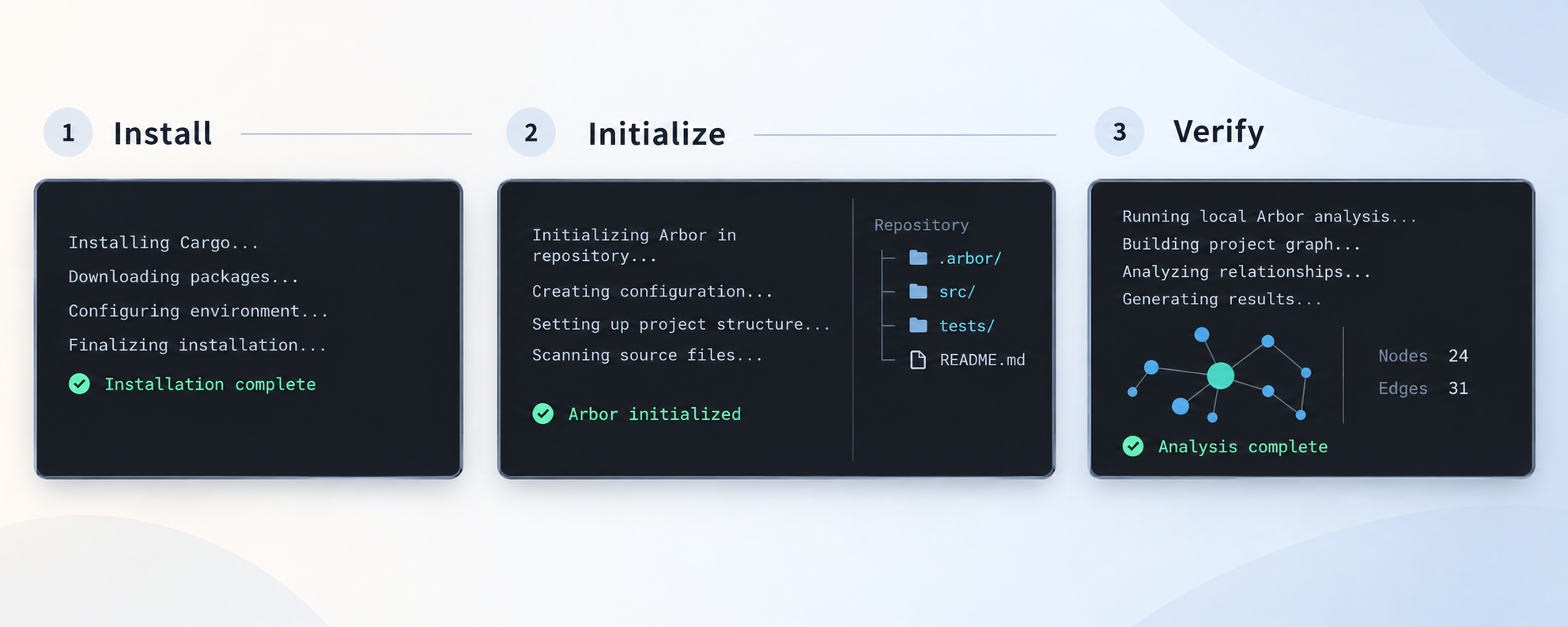
Start with a local CLI query. This isolates package installation, repository initialization, parsing, and graph construction from MCP client configuration. A tunnel or remote endpoint cannot correct a graph that was initialized against the wrong directory or failed to resolve the symbols you need.
Arbor's public website gives the following callers-query form:
arbor callers your_function
Replace your_function with a real symbol from the initialized repository. Choose a function whose callers you already understand. A known symbol creates a practical test: you can compare Arbor's result with direct inspection of the source instead of accepting unfamiliar output at face value.
Evaluate the result
- Confirm that the command is running in the repository initialized with
arbor setup. - Check whether at least one expected caller appears.
- Open the relevant source and verify that the reported relationship is real.
- Inspect import and module context when several definitions share the same bare name.
- Note the confidence or ambiguity reported for inferred relationships where that information is available.
- Expect possible gaps around dynamic loading, reflection, generated behavior, and version-specific limitations.
- Use tests and runtime checks before using a blast-radius result as a release decision.
For v3.0.0, import-aware resolution should improve collisions where several modules define the same function name. However, the release notes also report over-counting for small targets and no inheritance edges. A result can therefore be much more accurate for one relationship class while remaining incomplete or conservative for another.
If a known caller is absent, determine whether the relationship is statically visible. Calls made through reflection, runtime imports, generated code, or framework registration can be difficult or impossible to resolve from source alone. If the wrong same-named symbol appears, record the Arbor version and compare the importing file with the selected target. That is the exact class of issue v3.0.0 was designed to improve.
A zero or small result describes the graph Arbor built, not every possible runtime path. The v3.0.0 inheritance limitation is a concrete example: changing a base class can affect subclasses even when the tagged graph contains no inheritance edge.
Configure Arbor as a local stdio MCP server
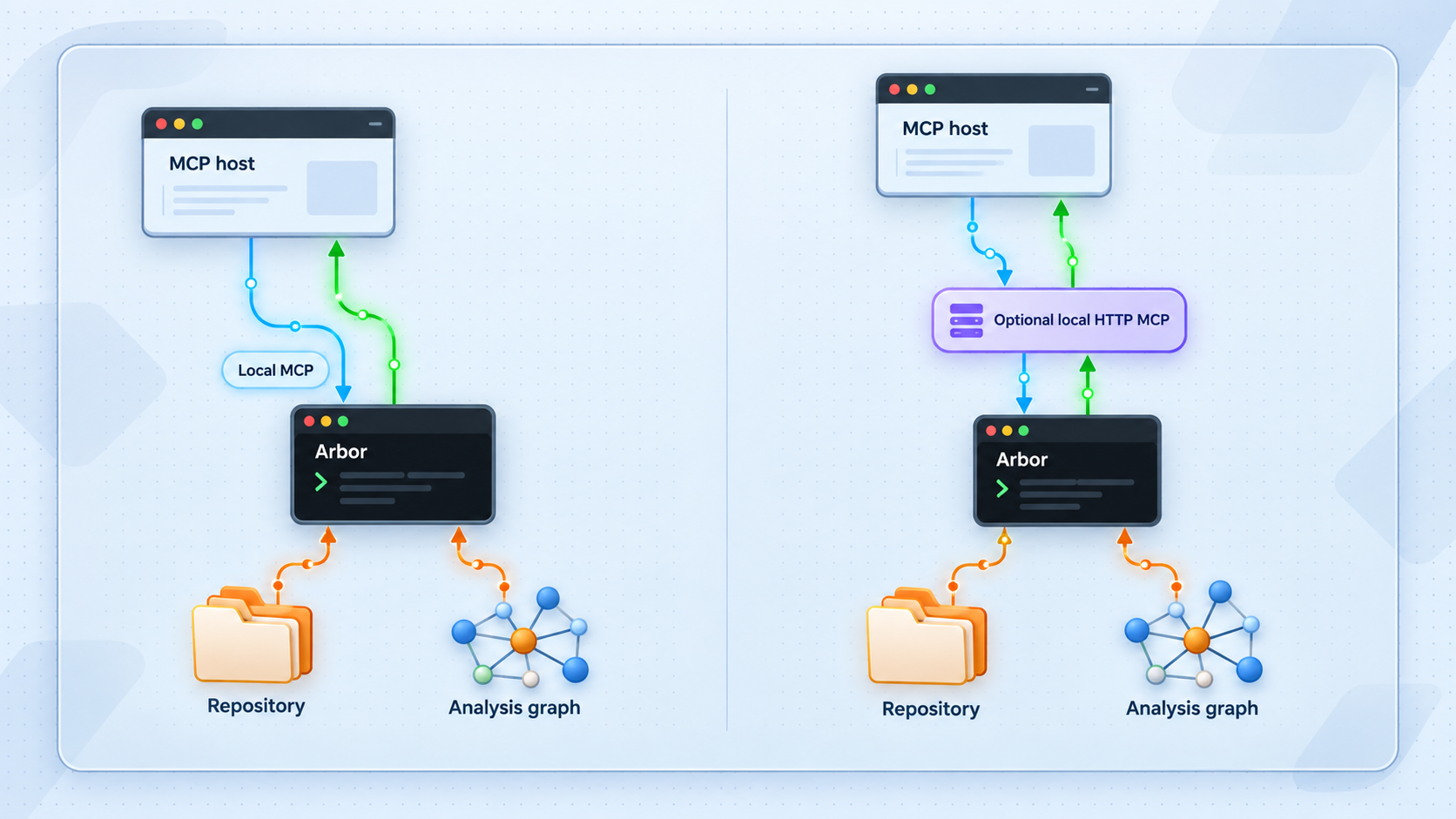
After the CLI query works, connect Arbor to a compatible coding assistant using the stdio bridge documented in the v3.0.0 release:
arbor bridgeIn stdio mode, the MCP host launches Arbor as a local child process and exchanges protocol messages through the process streams. There is no public URL and no HTTP listener to expose. This is the preferred architecture when the assistant runs on the same device and supports stdio.
Claude Code project configuration
The v3.0.0 release documents this project-scoped registration:
claude mcp add --transport stdio --scope project arbor -- arbor bridge
claude mcp list
The first command adds Arbor as a project-scoped MCP server. The second lists the configured servers. Arbor's release notes also direct Claude Code users to run /mcp inside the client to inspect MCP connectivity.
Cursor project configuration
The documented Cursor configuration uses .cursor/mcp.json:
{
  "mcpServers": {
    "arbor": {
      "command": "arbor",
      "args": ["bridge"]
    }
  }
}
VS Code project configuration
The documented VS Code configuration uses .vscode/mcp.json:
{
  "servers": {
    "arbor": {
      "type": "stdio",
      "command": "arbor",
      "args": ["bridge"]
    }
  },
  "inputs": []
}
These configurations are reproduced from the v3.0.0 MCP quick-install instructions. Check your MCP client's current configuration format as well, since client schemas can evolve independently from Arbor.
Verify the local MCP connection
- Confirm that the local CLI query succeeds in the intended repository.
- Add the stdio configuration for your client.
- Restart or reload the client if it does not automatically detect project configuration changes.
- Open the client's MCP status interface and confirm that Arbor starts without an executable or protocol error.
- Ask the client to perform a harmless query against a known symbol.
- Compare the response with the local CLI result and the source code.
A frequent failure occurs when a graphical application has a different PATH from the terminal in which Cargo works. If the client cannot find arbor, first verify that the executable works in a fresh terminal. Then correct the graphical application's environment using a path appropriate to your operating system and Rust installation. Do not copy another user's absolute path into a shared project configuration.
The stdio bridge assumes that a trusted local MCP client launches the Arbor process. Wrapping it in an unauthenticated command-execution service would introduce a different and much broader security risk.
Do not tunnel Arbor until its HTTP transport is verified
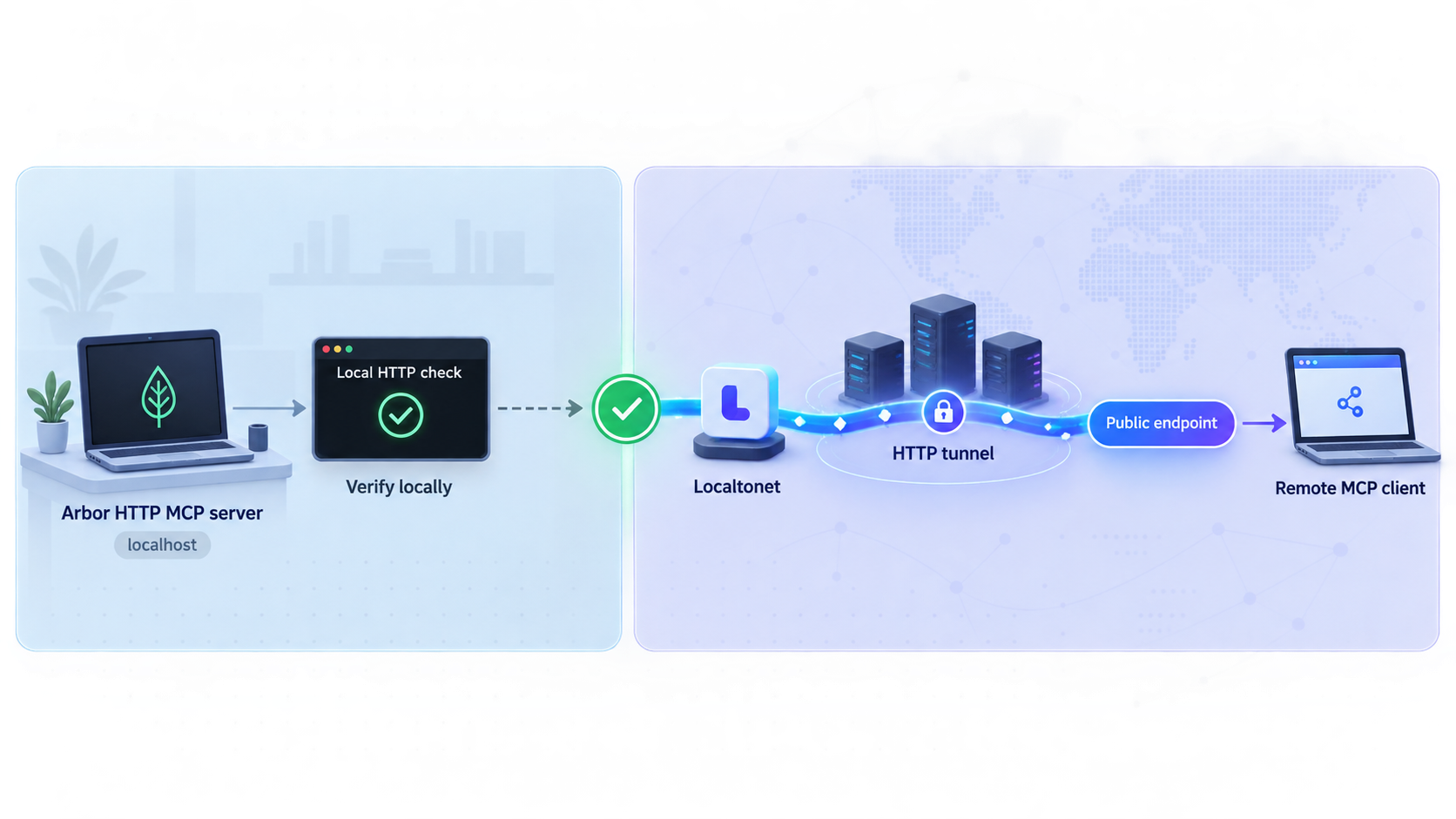
A remote Localtonet workflow requires a real local HTTP listener. For a safe and reproducible configuration, you must know all of the following:
- The Arbor release or commit that provides HTTP MCP transport.
- The exact supported command and options used to start it.
- The bind address, such as loopback-only or all network interfaces.
- The listening port.
- The complete MCP endpoint path.
- The MCP HTTP transport type and protocol version expected by clients.
- Whether sessions, streaming, specific headers, or multiple routes are required.
- Which MCP clients are known to be compatible.
- Whether Arbor authenticates requests and how credentials are configured.
The current repository overview and the v3.0.0 release notes reviewed for this revision document the local stdio bridge, but they do not establish those HTTP details. In particular, they do not define a universal HTTP endpoint path, bind address, authentication mechanism, protocol-level verification request, or compatible-client matrix.
A previously circulated example, arbor bridge --http --port 3333, is not enough on its own to build a safe remote tutorial. A port number does not reveal whether Arbor binds to loopback, which URL path implements MCP, whether the transport is streamable HTTP or another MCP HTTP pattern, or whether arbitrary callers can use the service. This guide therefore does not instruct readers to publish port 3333 based only on that example.
Before attempting HTTP mode, consult the current Arbor documentation directory, the repository README, and the documentation for the exact tagged release or commit you installed. If those sources still do not identify the endpoint and protocol behavior, remote HTTP setup cannot be prescribed safely or universally.
How to verify a documented HTTP mode locally
If a future or specifically documented Arbor build provides HTTP transport, keep the test local first:
Record the exact Arbor version
Record the package version or source commit whose HTTP documentation you are following. Do not combine commands and paths from different releases.
Start the documented HTTP transport
Use only the command and flags defined by that version's primary documentation. Run it in the intended repository context.
Confirm the actual listening address
Read Arbor's startup output and inspect the operating system's listening sockets. Confirm both the address and port instead of inferring them from a flag.
Configure a compatible local MCP client
Use the exact endpoint path and HTTP MCP transport type documented for that Arbor build. A browser request to the server root is not a protocol-level MCP test.
Run a harmless graph request
Query a known symbol through the local HTTP endpoint and compare the response with the verified CLI result.
On Linux, a general socket inspection command such as the following can show TCP listeners:
ss -ltnp
On macOS or another system with lsof, you can inspect listening TCP processes with:
lsof -nP -iTCP -sTCP:LISTENThese commands confirm the operating-system listener. They do not prove that the endpoint speaks compatible MCP. Protocol verification still requires an MCP client configured with the documented HTTP transport and exact URL.
Do not guess paths such as /mcp, /sse, or /health. Do not assume that a listener authenticates callers. If the installed Arbor version does not define its remote transport precisely, keep Arbor on local stdio instead of exposing an uncertain interface.
Conditional Localtonet workflow after HTTP is verified
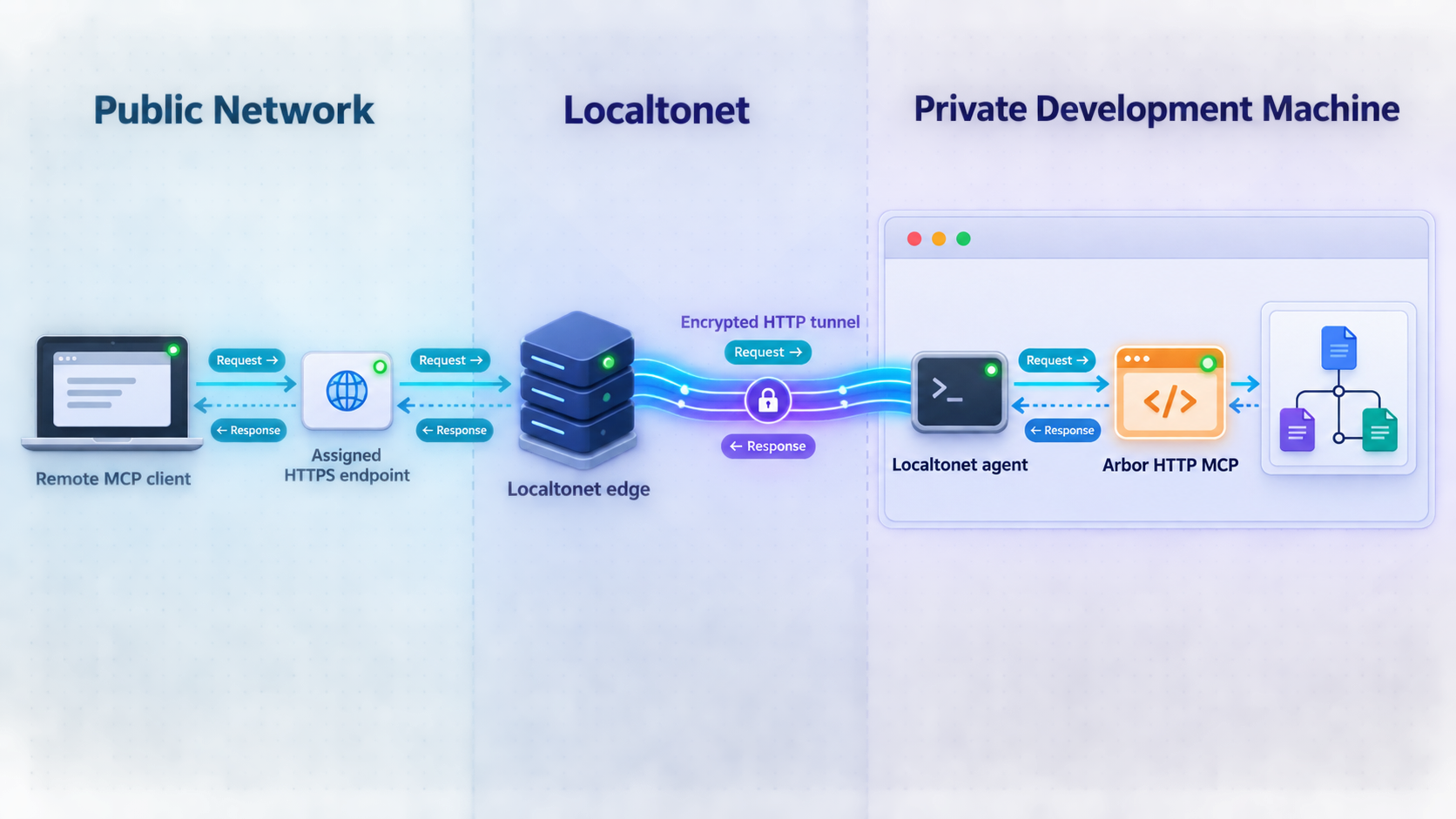
Once a specific Arbor build has passed local protocol-level verification, Localtonet can provide connectivity to that HTTP listener. Follow the current Localtonet HTTP tunnel documentation and preserve the verified Arbor address, port, and path.
Install and run the Localtonet client
Run our client on the device that can reach the verified Arbor HTTP service.
Authenticate or select the device
Use the device-specific authentication token associated with that client. Never place the token in source code, screenshots, logs, MCP configuration, or a public URL.
Select an available relay server
Choose an available server or region from the current dashboard. Do not copy a hardcoded server code from a tutorial.
Create the HTTP tunnel
Set the local target to the exact IP address and port confirmed during local verification. Choose the HTTP process type available for your intended public address.
Start the tunnel
Creating a tunnel does not start it. Use the Start button and confirm that the selected device is connected and the tunnel is running.
Repeat the MCP test through the public URL
Preserve the verified endpoint path and use the same compatible MCP client. Run a harmless query before relying on remote access.
A Localtonet HTTP tunnel supplies a public HTTPS address and forwards traffic to the configured local target. It does not add missing Arbor application authentication, validate MCP clients, or decide who is authorized to inspect a repository. If Arbor's verified HTTP mode lacks authentication, place an appropriate authenticated application gateway in front of it or keep the service local.
The public service remains available only while Arbor is listening, the Localtonet client device is connected, and the tunnel is running. Stop or delete the tunnel when remote access is no longer required.
Operate, upgrade, troubleshoot, and shut down safely
Keep Arbor's layers separate during routine operation. Verify the repository and CLI first, the local stdio MCP bridge second, and any documented HTTP transport third. Add a Localtonet tunnel only as the final connectivity layer.
Installation and executable problems
If cargo --version fails, install or repair Rust using the official Rust guidance and reopen the terminal. If Cargo builds Arbor successfully but arbor is not found, inspect the current user's PATH. A graphical MCP client may inherit a different environment from your interactive terminal.
If compilation fails, begin with the first relevant compiler, dependency, network, or permission error. Arbor does not publish a minimum Rust version in the primary pages reviewed here, so the error from your actual toolchain is more useful than a guessed version requirement.
Repository and graph problems
If the graph appears to describe the wrong project, verify the working directory and rerun the documented setup in the intended repository. If a known caller is missing, inspect dynamic imports, reflection, generated code, unsupported constructs, and release-specific graph limitations.
If a same-named symbol resolves to the wrong definition, record the installed Arbor version and inspect the caller's imports. Version 3.0.0 specifically improved this case. If you upgraded from v2.6.0, expect some edges, node identifiers, centrality results, and blast-radius values to change.
MCP startup problems
When a local MCP client cannot start Arbor, run arbor bridge from a fresh terminal first. Then inspect the client's MCP status and logs. Confirm that the project configuration uses the documented stdio schema for that client and that the client can find the same arbor executable.
HTTP and tunnel problems
If you are using a specifically documented Arbor HTTP build, troubleshoot from the inside out:
- Confirm the Arbor process is still running.
- Confirm the operating system shows the expected listening address and port.
- Confirm a compatible local MCP client can complete a request through the exact endpoint.
- Confirm the Localtonet device is connected.
- Confirm the HTTP tunnel targets the verified local address and port.
- Confirm the tunnel was started rather than merely created.
- Confirm the remote client preserves Arbor's required path and transport behavior.
Upgrade verification
After upgrading Arbor, repeat queries against known symbols. Record the old and new versions and compare relationships rather than only comparing totals. A correction can move an edge to the right node while leaving the overall edge count almost unchanged.
Recheck version-specific assumptions after every upgrade. Inheritance behavior is a prominent example because v3.0.0 documents no inheritance edges while the current repository advertises them. Verify the behavior of the exact build you deploy.
Safe shutdown
- Stop or delete the Localtonet tunnel if one was created.
- Confirm that the public URL no longer provides access.
- Stop the Arbor HTTP process, if a verified HTTP mode was in use.
- Close or disable the local MCP integration if it is no longer needed.
- Keep device tokens, repository paths, public endpoints, and logs out of screenshots and shared issue reports.
CLI analysis, local stdio MCP, local HTTP MCP, and public tunneling are separate layers. Test them in that order so a networking problem does not hide an indexing problem, and an Arbor problem is not misdiagnosed as a tunnel failure.
Frequently asked questions
What package installs the Arbor CLI?
Install the arbor-graph-cli package with cargo install arbor-graph-cli. The resulting command used by the documented examples is arbor.
Does Arbor publish a minimum Rust version?
The primary Arbor pages reviewed for this guide do not state a minimum supported Rust version. Install a maintained Rust toolchain through the official Rust installation guidance and use Cargo's actual compiler output to diagnose incompatibilities.
Does Arbor require Localtonet for MCP?
No. Arbor v3.0.0 documents a local stdio bridge started with arbor bridge. Localtonet is relevant only for a separately verified HTTP service that a remote client must reach.
Which programming languages does Arbor support?
The reviewed primary pages do not provide a single tagged compatibility table covering every supported language and construct. Test the exact Arbor version against known symbols in your repository rather than inferring universal support from examples.
Does Arbor v3.0.0 create inheritance edges?
No. The v3.0.0 release notes explicitly list inheritance as producing no edges. The current main-branch description advertises inheritance edges, so newer or unreleased behavior may differ. Verify the exact build you use.
What Arbor HTTP endpoint should I give to an MCP client?
The current repository overview and v3.0.0 release notes reviewed here do not define a universal HTTP endpoint path, bind address, transport type, or compatible-client procedure. Do not guess a path. Use local stdio unless the documentation for your exact Arbor build defines and verifies HTTP transport.
Does a Localtonet HTTP tunnel authenticate Arbor users?
No. A Localtonet tunnel provides connectivity to the configured local target. Application authorization remains separate. Do not expose Arbor remotely unless the application or an appropriate gateway verifies who may use it.
Can Arbor prove that a code change is safe?
No. Arbor can identify static relationships and possible impact, but dynamic behavior, incomplete indexing, generated code, reflection, and release-specific graph gaps still require tests and human review.
Use Localtonet after the Arbor service is verified
Install Arbor, validate its graph locally, and prefer the documented stdio bridge for same-device MCP clients. If a specific Arbor release later provides a fully documented and authenticated HTTP endpoint, Localtonet can connect that verified listener to a remote client without opening an inbound router port.
Get Started Free →

