

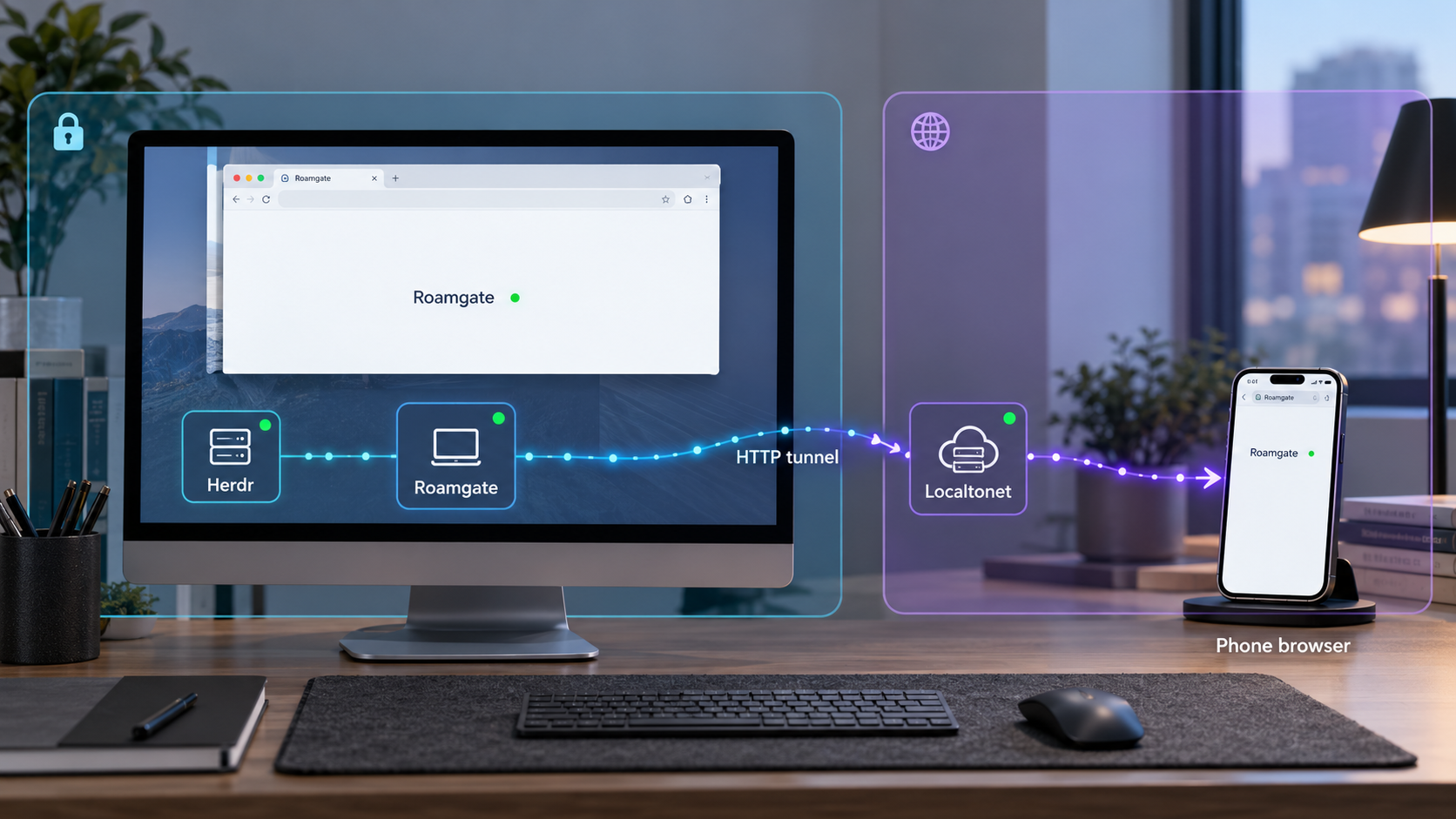
Keep your Herdr workspace within reach from a desktop browser or phone
Roamgate provides a browser and PWA interface for Herdr workspaces, terminals, files, agent sessions, and code reviews. This guide installs Roamgate using its documented release methods, connects it to a running Herdr server, verifies the browser interface locally, and explains normal operation and troubleshooting. Once the local service works, we will configure a Localtonet HTTP tunnel as a separate remote-access step. The result is a practical workflow for reaching Roamgate from your phone without configuring inbound router port forwarding or requiring a public IP address.
📋 What's in this guide
What Roamgate does and how the components fit together
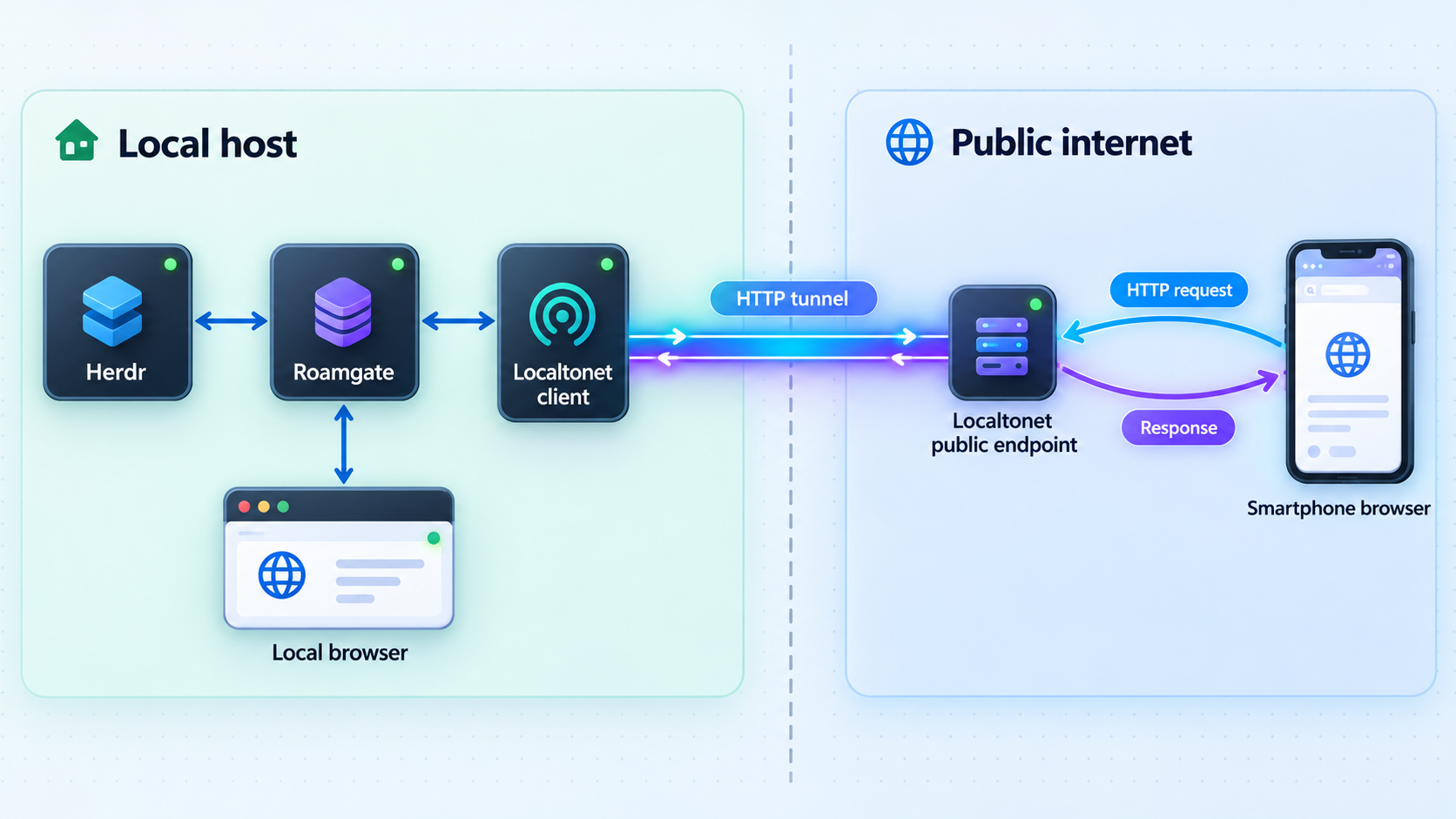
Roamgate is a self-hosted browser and Progressive Web App client for Herdr. It brings Herdr workspaces, recognized coding-agent sessions, terminals, files, changes, diffs, and session information into a browser-oriented interface that works on desktop and mobile screens. A typical use case is starting work on a computer, leaving the relevant Herdr sessions running, and later opening the same workspace from a phone.
Roamgate does not replace Herdr or independently keep terminal sessions alive. Herdr owns the running terminal sessions, while Roamgate acts as the bridge and browser interface around that runtime. This distinction matters during installation and troubleshooting: a working Roamgate process is not sufficient if it cannot communicate with the required Herdr server.
The normal deployment uses a standalone Roamgate binary. You start it with the roamgate command, or roamgate.exe on Windows, and it prints the URL for its browser interface. That printed URL is the authoritative endpoint for the installed release. This guide does not assume a fixed production port because the supplied official installation evidence does not establish one.
After confirming that URL works locally, the Localtonet client can connect the local Roamgate HTTP endpoint to a public HTTP tunnel. Our client establishes an outbound connection to a Localtonet relay server, so this workflow does not require an inbound router port-forwarding rule, firewall change, VPN setup, or public IP address. The tunnel is available only while the selected Localtonet client is connected and the tunnel is running.
Request path from phone to workspace
In the completed workflow, your phone opens the public address assigned to the HTTP tunnel. Traffic reaches the Localtonet relay and travels over the connection established by the Localtonet client to the local Roamgate HTTP listener. Roamgate then communicates with Herdr to display and control the relevant workspace resources.
This architecture creates several independent health checks. The phone needs internet access, the Localtonet tunnel must be running, the Localtonet client must remain connected, Roamgate must be listening locally, and Herdr must be running and reachable by Roamgate. Testing each layer separately is more effective than treating the system as one opaque service.
The documented http://localhost:5173 address belongs to Roamgate's Bun development workflow. It must not be assumed to be the endpoint for the standalone production installation. Start roamgate, record the URL it prints, and use that actual host and port for local verification and the Localtonet target.
Prerequisites for the complete setup
Prepare the machine that will run Roamgate before installing anything. It needs to remain powered on and connected whenever you want remote access. Herdr must also continue running because closing a browser or PWA does not transfer ownership of sessions to Roamgate.
The documented release installation supports Linux and macOS through an installer script downloaded with curl and passed to sh. Windows users are directed to download an x64 or ARM64 archive from the latest Roamgate release. The evidence supplied for this guide does not specify additional operating-system versions, archive extraction paths, service-manager requirements, or Windows installation directories, so those details should not be inferred.
| Requirement | Why it is needed | What to confirm |
|---|---|---|
| Supported installation platform | Roamgate provides an installer workflow for Linux and macOS and release archives for Windows. | On Windows, identify whether the machine uses x64 or ARM64 before selecting an archive. |
| Running Herdr server | Roamgate is a Herdr client and cannot provide complete workspace functionality without Herdr. | Either start an existing Herdr installation or plan to use roamgate herdr setup. |
| Local browser | The first verification should happen on the Roamgate host before any public tunnel is added. | Confirm that the browser can open the exact URL printed by Roamgate. |
| Localtonet client | Our client establishes the outbound connection used by the HTTP tunnel. | Install it on the Roamgate host or another device that can reach the Roamgate endpoint. |
| Localtonet device token | The token identifies the client device that will run the tunnel. | Use the device-specific token from your account and do not publish or embed it in scripts. |
| Phone browser | The remote test confirms that the complete public route works. | Use a current browser and test through a network that is not dependent on the host's local LAN. |
Choose where to run the Localtonet client
The simplest arrangement is to run the Localtonet client on the same machine as Roamgate. Roamgate recommends keeping its default loopback binding, and a client on that same host can reach a loopback listener directly. This avoids changing Roamgate to listen broadly on the LAN merely to support the tunnel.
A Localtonet client on a different device can target a service reachable over the network, but it cannot reach another machine's 127.0.0.1 or localhost. Those addresses always refer to the device making the connection. If Roamgate is listening only on loopback, keep the client on the Roamgate host unless you have a deliberately secured and supported alternative configuration.
Roamgate controls terminals and real files. Its security guidance recommends retaining the default loopback binding and reviewing the project's security documentation before granting another device access. Running our client on the same host normally lets you preserve that boundary while still creating an outbound tunnel.
Install Roamgate on Linux, macOS, or Windows
Use the release installation path for a normal self-hosted deployment. The separate Bun development environment is intended for source development and uses different commands and behavior. It should not be substituted for the standalone installation unless you are intentionally developing Roamgate.
Linux and macOS release installation
On Linux or macOS, the documented quick-start command downloads the latest release installer and sends it to sh:
curl -fsSL \
  https://github.com/powerfooI/roamgate/releases/latest/download/install-roamgate.sh \
  | sh
A downloaded script executes with your user account's permissions, so review the installer before running it if that is required by your security policy. You can download it to a file, inspect it, and execute it only after approval. Do not replace the official release URL with a mirror you do not control.
The installer supports pinning a specific Roamgate version by placing the ROAMGATE_VERSION environment assignment after the pipe and before sh. Replace X.Y.Z with an actual published release version:
curl -fsSL \
  https://github.com/powerfooI/roamgate/releases/latest/download/install-roamgate.sh \
  | ROAMGATE_VERSION=X.Y.Z sh
Pinning can make a controlled deployment more predictable, while installing from the latest URL follows the current published release. Before pinning, confirm that the selected version exists in the official Roamgate releases. This guide does not prescribe a particular version because release availability changes.
On Linux and macOS, ensure that ~/.local/bin is included in the shell's PATH. If installation reports success but the shell says that roamgate cannot be found, a missing PATH entry is one of the first conditions to check. You can also start a fresh shell after changing your environment.
Windows release installation
Windows users should download the x64 or ARM64 archive from the latest official Roamgate release. Choose the archive that matches the machine's architecture. Extract the archive using the normal Windows archive tools and locate roamgate.exe.
The supplied official evidence does not define a required extraction directory, a Windows package-manager command, or an automatic PATH modification. Do not assume that the executable will become globally available after extraction. If its directory is not on PATH, run roamgate.exe from the extracted location or add that directory through your normal, reviewed Windows administration process.
Roamgate source development requires Bun 1.4.3 or newer and a running Herdr server. The documented development commands are bun install --frozen-lockfile, bun run dev:server, and bun run dev:web in separate terminals, followed by opening http://localhost:5173. That loopback development server differs from normal runtime security behavior and must not be used as the assumed production endpoint.
Optional source-development commands
Most readers should skip this subsection. It is included to prevent confusion when repository instructions mention port 5173. If you are intentionally developing Roamgate from source, install the dependencies and then run the server and web processes in separate terminals:
bun install --frozen-lockfilebun run dev:serverbun run dev:webThe documented development interface is then available at:
http://localhost:5173
Normal Roamgate runtime requires login even when it is reached through loopback. The loopback development server started with bun run dev:server is the documented exception that skips login. For remote access, use the normal release runtime unless you have a controlled development reason and understand the additional exposure risk.
Start Herdr and connect Roamgate
Roamgate requires a running Herdr server. If Herdr is already installed and running in your environment, keep it available while starting Roamgate. Roamgate can work with local or SSH-connected Herdr hosts, but the exact profile and host configuration depends on the Herdr deployment and is not established by the supplied installation excerpt.
If you have not installed Herdr yet, Roamgate documents a setup command that can perform that setup later:
roamgate herdr setupRun this command from the environment where the Roamgate executable is available. Follow the prompts shown by your installed release. Prompt names, generated paths, selected ports, service-manager behavior, and Herdr defaults are intentionally not reproduced here because those exact values are not present in the verified evidence and may vary by release or platform.
Once Herdr is running, start the standalone Roamgate process:
roamgateOn Windows, run:
roamgate.exe
Roamgate prints a URL after startup. Keep the terminal open for the initial test so that you can see startup messages and errors. Record the printed URL exactly, including its scheme, host, and port. Do not substitute localhost:5173 unless you are deliberately using the documented Bun development environment.
Prepare or start Herdr
Start your existing Herdr server. If Herdr is not yet installed, run roamgate herdr setup and complete the prompts presented by the installed release.
Start the Roamgate release binary
Run roamgate on Linux or macOS, or roamgate.exe on Windows. Leave the process running during setup and verification.
Capture the printed URL
Copy the exact local URL emitted at startup. Its host and port are the values to verify before creating the Localtonet tunnel.
Understand Roamgate authentication
The normal Roamgate runtime requires login, including when the service is available only on loopback. Complete the login setup shown by your installed version and use a strong, unique credential. Do not treat the Localtonet public URL as a replacement for application authentication.
Roamgate can control terminals, issue commands, display conversations, inspect files, and review repository changes. An unauthorized login can therefore have consequences beyond viewing a status dashboard. Protect the credential in a password manager, avoid reusing it elsewhere, and sign out of shared mobile or desktop devices.
Verify Roamgate locally before exposing it
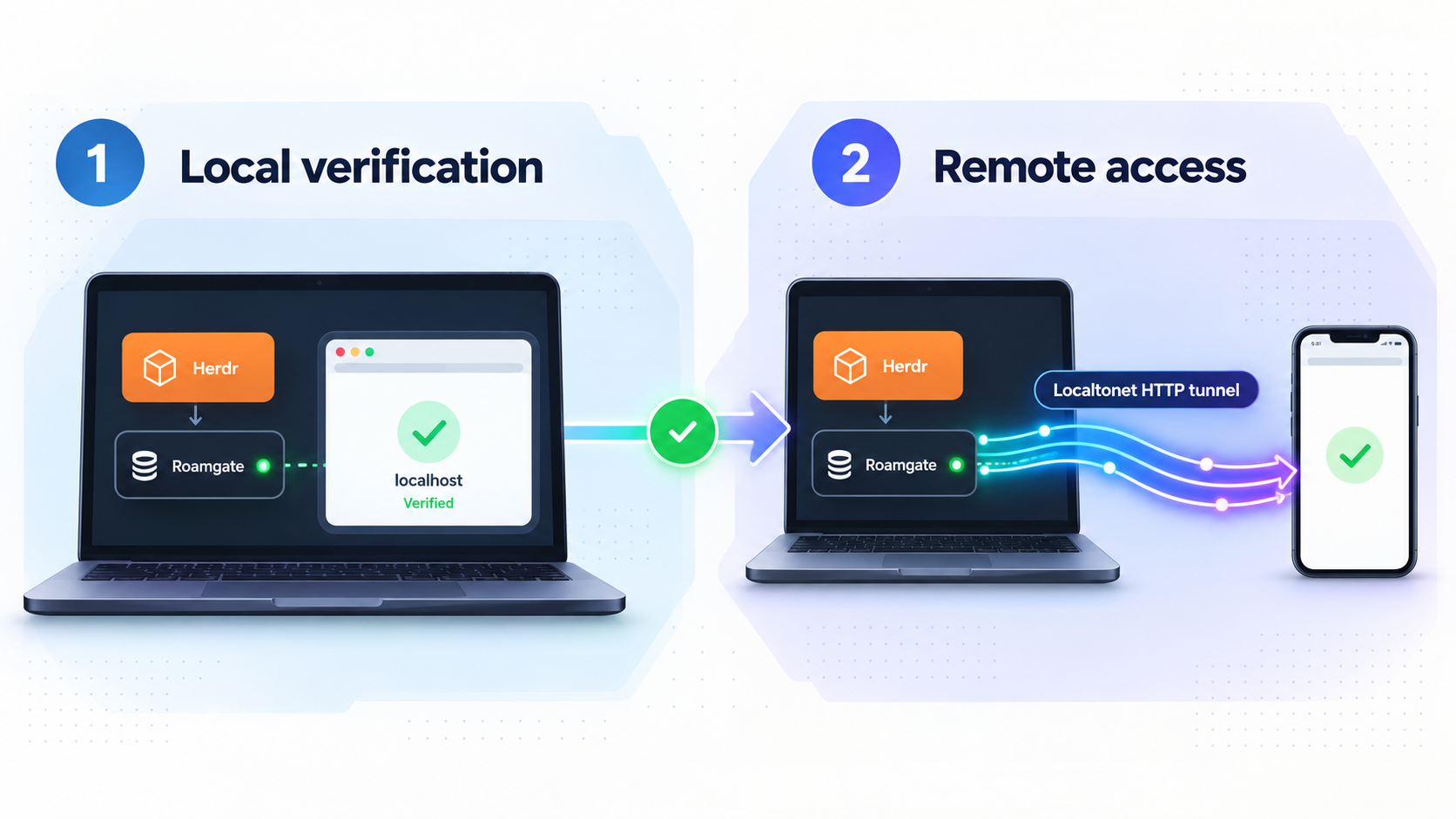
Local verification separates Roamgate or Herdr problems from tunnel problems. Do not create the public route until the printed URL opens successfully on the host running Roamgate.
Open the printed URL on the Roamgate host
Copy the URL printed by the running process into a browser on the same machine. Preserve the scheme and port exactly.
Complete the normal login
Sign in through Roamgate's runtime authentication. A login prompt during normal operation is expected, even when the listener uses loopback.
Confirm Herdr workspace data appears
Verify that the expected workspace, sessions, terminal information, files, or changes are visible. An interface that loads without Herdr data may indicate a separate Herdr connection problem.
Test a low-risk browser operation
Navigate between workspace views or inspect non-sensitive status information. Avoid issuing consequential terminal commands merely to test connectivity.
Roamgate also provides two useful operational commands. The first displays a QR code intended to help open its URL from a phone:
roamgate url --qrA QR code does not make an otherwise unreachable address public. If the encoded address is loopback-only, a phone cannot use that address to reach the computer. After creating a Localtonet tunnel, use the assigned public address for remote access rather than assuming the original local QR code crosses network boundaries.
The second command diagnoses problems:
roamgate doctorRun the diagnostic when the process starts but the interface or Herdr integration does not behave as expected. Review the output locally and redact secrets, private paths, hostnames, repository names, or session details before sharing diagnostic information with anyone.
A tunnel cannot repair a stopped Roamgate process, a failed Herdr connection, an incorrect login, or a local listener problem. Resolve those conditions first. Adding public routing before the application is healthy makes troubleshooting harder and can expose an incomplete configuration.
Expose the verified Roamgate interface with a Localtonet HTTP tunnel
Once Roamgate works locally, create an HTTP tunnel for the exact endpoint it printed. HTTP is appropriate because Roamgate presents a browser interface. Raw TCP or UDP tunneling is not needed for this browser workflow.
With Localtonet, the client device establishes an outbound connection to our relay. The tunnel then provides a public address for the local service. HTTP tunnels can use a random subdomain, a custom subdomain where supported, or a custom domain. These process types serve the same local content at a public HTTPS address. Availability can vary, so use the choices currently shown for your account and do not assume that every option is included in every plan.
Install and run the Localtonet client
Install our client on the machine that can reach the verified Roamgate endpoint. Running it on the same host is the clearest choice when Roamgate retains its default loopback binding.
Authenticate or select the client device
Use the device-specific authentication token from your Localtonet account. Treat the token as a secret, and never include it in screenshots, public configuration examples, source control, or support posts.
Select an available relay server
Choose a server or region currently available in the dashboard. Server codes and regional availability can change, so this guide does not hardcode a value.
Create an HTTP tunnel to Roamgate
Select the HTTP tunnel family and enter the local IP address and port from the URL printed by Roamgate. If the URL uses localhost and our client runs on the same machine, target that same loopback service. Select the process type available for the public address you intend to use.
Start the tunnel and use its assigned address
Creating the tunnel does not start it. Press Start, wait for the tunnel and selected device to be connected, and then copy the assigned public URL for the phone test.
If the Roamgate URL is expressed as a hostname and port, transfer those two target values into the HTTP tunnel configuration rather than copying the entire URL into a field that expects only an IP address or only a port. Use the exact current dashboard labels and validation guidance. The precise production host and port come from Roamgate itself, not from this article.
For current client downloads and dashboard instructions, use the Localtonet documentation. Exact installation commands for our client are not included here because they are not established in the supplied product context and can vary by operating system and client version.
Test from your phone
Open the Localtonet public URL in your phone's browser. For a meaningful remote test, temporarily disconnect the phone from the same Wi-Fi network and use cellular data or another independent connection. This confirms that you are using the public tunnel rather than a local route.
The Roamgate login screen should appear. Sign in and check that the expected workspace information loads. Test navigation, terminal rendering, file views, or a low-risk operation appropriate to your environment. Avoid using a destructive command as a connectivity test.
If the public URL opens while the local URL does not, revisit the test because that result is unusual for a tunnel targeting the same endpoint. If the local URL works but the public URL does not, check the Localtonet client, selected device, target values, relay selection, and tunnel state.
The Localtonet tunnel works only while its selected client device is connected and the tunnel is running. Creating or saving the tunnel is separate from starting it. Roamgate and Herdr must also remain running behind the tunnel.
Install Roamgate as a PWA
After remote browser access works, you can install Roamgate as a PWA for a focused app-like window. Log in to Roamgate first, then use the installation method documented for your browser:
- On iPhone or iPad Safari, open the Share menu and choose Add to Home Screen.
- On macOS Safari 17 or newer, choose File, then Add to Dock.
- In Chrome or Edge, open the browser menu and choose Install app.
A PWA is not an offline copy of the workspace. It still needs a working network connection to the public URL, a running Localtonet tunnel and client, a running Roamgate process, and an available Herdr server. If any layer stops, the installed PWA cannot independently continue the remote session.
Secure remote Roamgate access
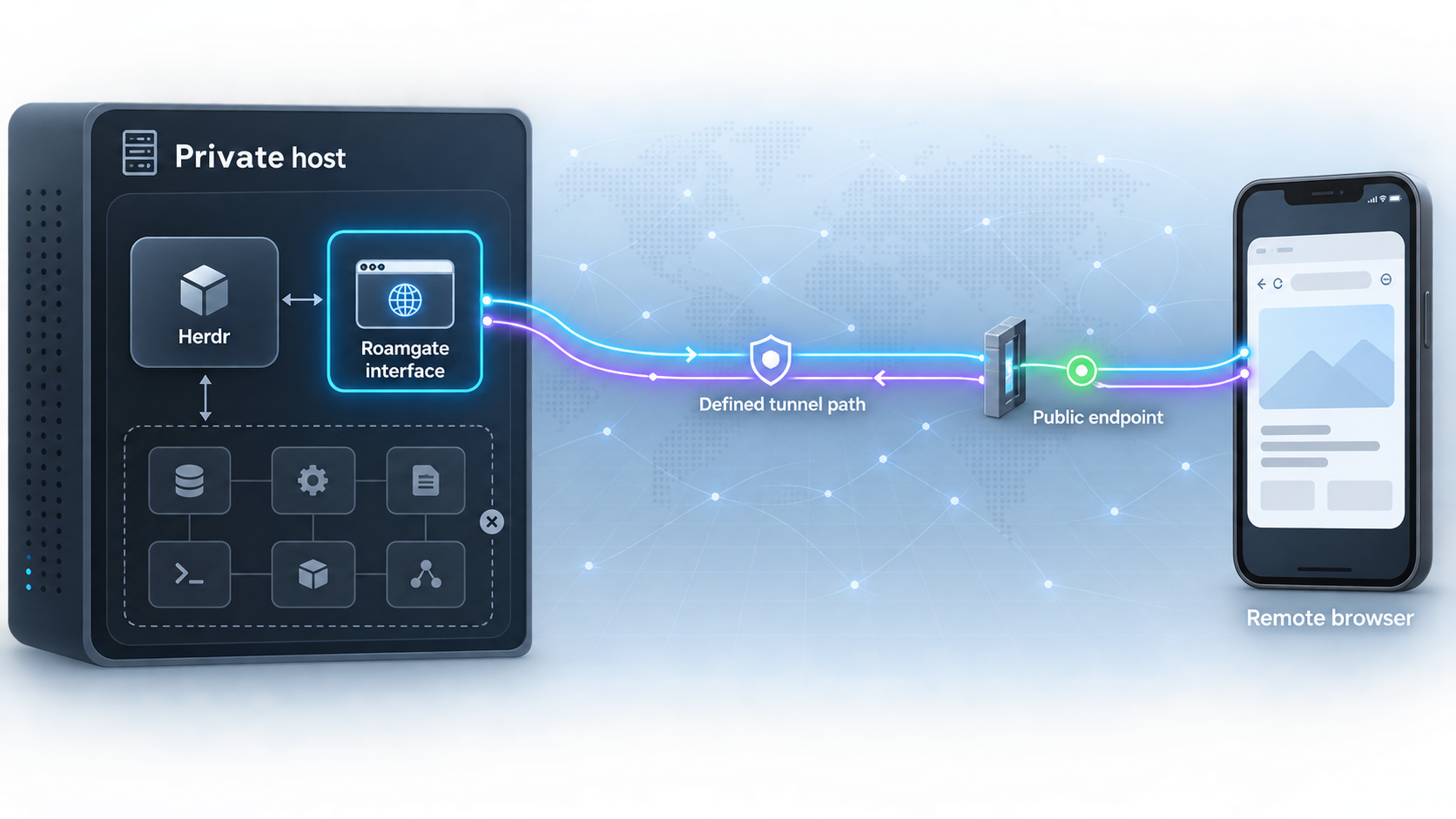
Remote access to Roamgate deserves the same care as remote access to a development workstation. The interface can expose terminal streams, conversations with coding agents, repository files, diffs, worktrees, and commands. A public URL makes the login surface internet-reachable, even if the address is difficult to guess.
Use layered controls
The public tunnel supplies network reachability, while Roamgate supplies application-level login. Preserve both concepts instead of assuming that an unlisted URL is private. Use a unique Roamgate credential, restrict who receives the public address, and stop the tunnel outside the required access window.
If your organization applies additional identity, access-control, logging, or device-management requirements, review those requirements before publishing the interface. Do not use tunneling to evade network policy or authorization. The person operating the tunnel should be authorized to expose the underlying workstation and development data.
Avoid exposing a workspace containing secrets that do not need to be available remotely. Terminal output, source files, agent transcripts, and diffs can reveal credentials or sensitive implementation details. Apply least privilege to the operating-system account, repositories, SSH credentials, and services used by Herdr and Roamgate.
Treat Roamgate as an administrative surface, not a read-only project status page. Use normal release authentication, retain the safest practical listener scope, protect the public URL and device token, and stop the tunnel when remote control is not required.
Routine operation, updates, and troubleshooting
Starting a remote work session
Begin by making sure Herdr is running and owns the sessions you want to access. Start Roamgate and confirm that it prints its URL without an error. Start the Localtonet client, verify that the intended device appears connected, and then start the configured HTTP tunnel. Finally, open the public URL from the phone and authenticate to Roamgate.
This order makes failures easier to isolate. If Herdr or Roamgate is unavailable, there is little value in starting the public route. If local access works, the troubleshooting boundary moves to the Localtonet client and tunnel.
Ending a remote work session
Sign out of Roamgate on devices that should not keep an authenticated session. Stop the Localtonet tunnel when it is not needed. Stop Roamgate if no local user requires it, and manage Herdr according to whether its sessions should continue running.
Stopping the tunnel removes public reachability through that tunnel but does not stop Roamgate or Herdr. Conversely, stopping Roamgate makes the local target unavailable but does not necessarily delete or stop the configured tunnel. Manage each lifecycle explicitly.
Updating Roamgate
Use Roamgate's current deployment guidance and official releases when planning an update. If you pinned a version during installation, review and select a newer published version deliberately rather than assuming the pinned deployment will advance automatically. Back up relevant configuration and understand release-specific migration guidance before replacing a working installation.
Roamgate was formerly known as Herdr Studio or herdr-gui. The project states that users moving from the older interface should follow its migration guide and that automatic upgrades are not supported. Do not overwrite an older deployment while assuming its state and configuration will be migrated automatically.
Troubleshooting reference
| Symptom | Likely area | Checks and corrective action |
|---|---|---|
roamgate is not found on Linux or macOS |
Shell path | Confirm installation completed and ensure ~/.local/bin is on PATH. Start a new shell after changing the environment. |
roamgate.exe is not found on Windows |
Archive location or PATH | Confirm the correct x64 or ARM64 archive was extracted. Run the executable from that directory or add the reviewed directory to PATH. |
| Roamgate starts but no expected workspaces appear | Herdr connection | Confirm Herdr is running and reachable by Roamgate. Run roamgate doctor and inspect its output locally. |
| The browser cannot open the printed local URL | Roamgate process or listener | Verify the process is still running, copy the printed scheme and port exactly, and check startup output for errors. |
| The Localtonet client is on another computer and cannot reach Roamgate | Loopback scope | Remember that localhost refers to the client machine itself. Prefer running our client on the Roamgate host rather than broadening the listener without a security review. |
| The public URL does not open | Tunnel lifecycle | Confirm the selected device is connected, the HTTP tunnel has been started, and the host and port match the locally verified Roamgate URL. |
| The public page opens but login fails | Roamgate authentication | Test the same credentials through the local URL. A tunnel changes reachability, not Roamgate's authentication rules. |
| The PWA opens but cannot load data | Network or backend availability | Confirm internet connectivity, tunnel state, client connectivity, Roamgate status, and Herdr status. The PWA does not work offline. |
| Port 5173 does not show the installed service | Development and release confusion | Use the URL printed by the standalone roamgate process. Port 5173 is documented for the Bun development environment. |
Diagnose the system one layer at a time
First, check Herdr. If its server or sessions are unavailable, fix that layer before investigating browser access. Second, check Roamgate locally using its printed URL. Third, verify the Localtonet client connection and selected device. Fourth, verify that the HTTP tunnel is started and targets the correct local host and port. Fifth, test the public URL from a separate network.
This sequence prevents a common mistake: changing several components at once. For example, changing Roamgate's binding, selecting a different tunnel target, restarting Herdr, and switching relay servers simultaneously can hide the original cause and introduce new risks.
If you need diagnostic help, record which layer failed and what succeeded immediately before it. Share sanitized error text rather than credentials, authentication tokens, public URLs intended to remain private, repository contents, or terminal transcripts containing secrets.
Frequently asked questions
Does Roamgate work without Herdr?
No. Roamgate is a browser and PWA client for Herdr and requires a running Herdr server. If Herdr is not installed, the documented roamgate herdr setup command can start the setup workflow. Follow the prompts shown by your installed release.
What port does Roamgate use in a normal installation?
Use the host and port in the URL printed when you run roamgate. The verified installation evidence does not establish a fixed production port. http://localhost:5173 is documented only for the separate Bun development workflow and should not be assumed for a release installation.
Should the Localtonet client run on the same computer as Roamgate?
That is normally the simplest and safest arrangement when Roamgate uses its recommended loopback binding. A client on the same host can reach the loopback endpoint. A client on another device cannot reach the Roamgate computer through localhost, because that name refers to the device making the connection.
Does the Localtonet tunnel replace Roamgate login?
No. The tunnel provides network reachability to the local HTTP service. Roamgate's normal runtime authentication remains necessary. Keep it enabled and use a strong, unique credential because Roamgate can interact with terminals, files, sessions, and code changes.
Do I need router port forwarding or a public IP address?
No. Our client establishes an outbound connection to a Localtonet relay server. The resulting HTTP tunnel provides a public address without requiring inbound router port forwarding, firewall changes, VPN setup, or a public IP address.
Can I use the Roamgate QR code instead of configuring a tunnel?
The roamgate url --qr command displays a QR code for a Roamgate URL, but a QR code does not change network reachability. A loopback or otherwise private local address will not become internet-accessible merely because it is encoded as a QR code. Use the Localtonet public URL for remote access.
Does installing Roamgate as a PWA make it work offline?
No. The PWA provides a focused app-like interface, but Roamgate must remain running and reachable. Herdr, the Localtonet client, the HTTP tunnel, and the phone's network connection must also remain available for remote use.
Can I expose the Bun development server instead?
It is not the recommended workflow for ordinary remote access. The documented loopback development server skips the login required by normal runtime. Use the standalone release installation for this guide and do not publish a login-skipping development endpoint without a specific, controlled development requirement and an appropriate security review.
Why did remote access stop working even though the tunnel still exists in the dashboard?
A saved tunnel configuration is not the same as an active route. The selected Localtonet client must be connected and the tunnel must be running. Roamgate and Herdr must also remain available. Check those layers in order, beginning with local Roamgate access.
Connect your verified Roamgate service with Localtonet
Install and verify Roamgate locally first, keep its normal authentication enabled, and then create an HTTP tunnel to the exact host and port it prints. With the client connected and the tunnel running, you can open the assigned public address from your phone without configuring inbound router port forwarding.
Get Started Free →

