

Run a verified DramaClaw deployment locally before opening remote access
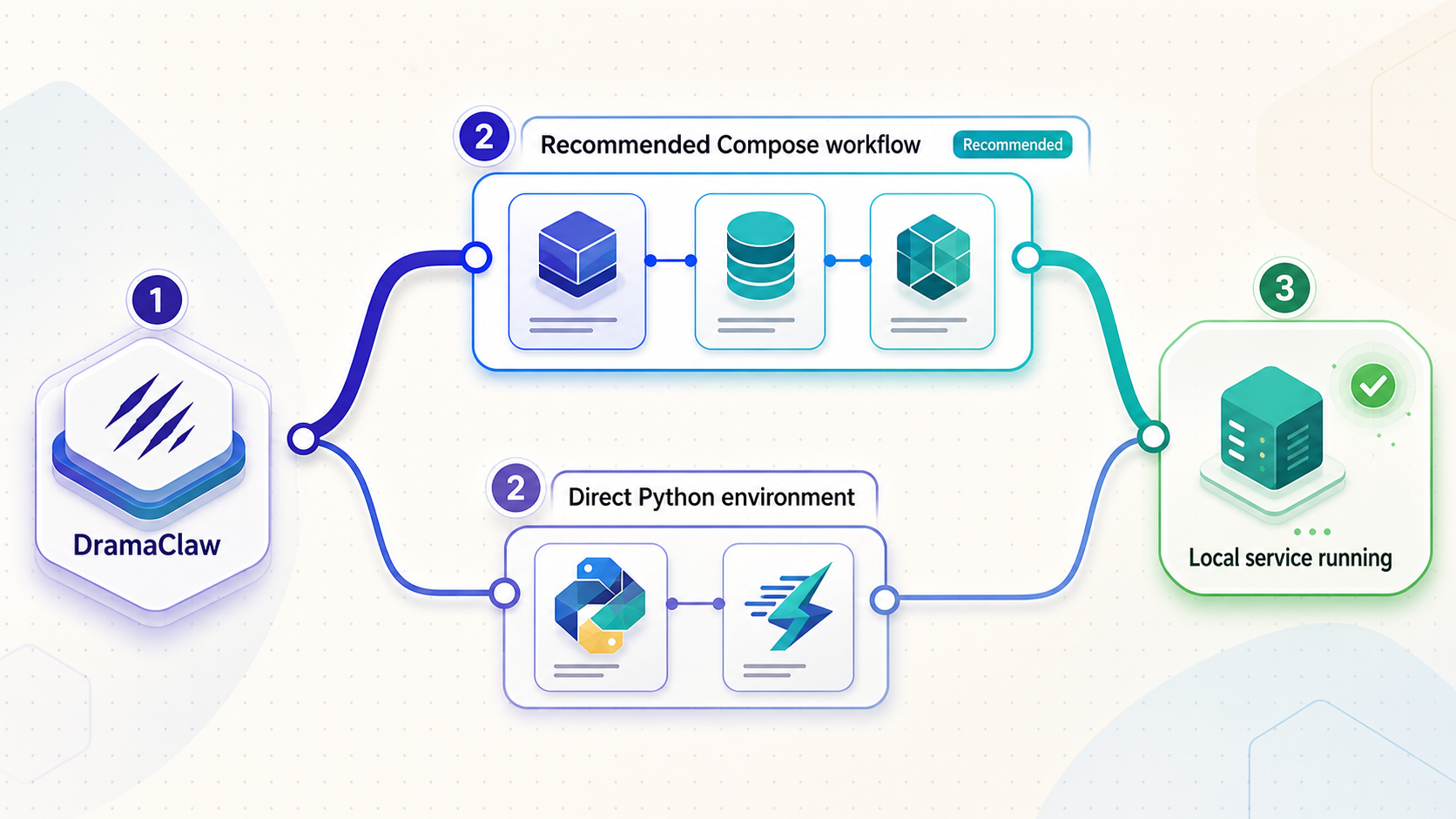
DramaClaw supports a non-Docker development environment based on Python 3.11 to 3.12, uv, and ffmpeg, but the available primary evidence does not establish the exact dependency groups, frontend installation procedure, configuration variables, entry points, or startup commands for that path. Rather than inventing a uv workflow, this corrected guide uses DramaClaw’s documented Docker Compose installation and treats uv as a development path that requires additional upstream verification. You will install a pinned release, verify the web interface and REST service locally, operate and update the deployment, troubleshoot common failures, and then connect the intended endpoint through a Localtonet HTTP tunnel.
📋 What's in this guide
What is verified, and why this is a Compose installation
DramaClaw is a source-available AIGC video production engine. It provides a pipeline for manuscript parsing, asset management, episode planning, scripts, storyboards, first frames, voice-over, video composition, and export. Its browser interface supports interactive production work, while its REST API can support programmatic integrations.
The current DramaClaw repository identifies Docker Compose as the normal self-hosting route. It also states that local non-Docker development requires Python 3.11 to 3.12, uv, and ffmpeg. Those prerequisites alone are not enough to publish a reliable uv installation tutorial. A complete direct-development procedure would also need verified dependency synchronization commands, dependency-group selection, frontend package installation, environment configuration, backend and frontend entry points, process order, and shutdown behavior.
The supplied primary evidence does not contain the commands needed to install and start DramaClaw with uv. This article therefore does not present an assumed uv sync, optional dependency group, Python module, frontend command, or development server command. The page should be titled and indexed as a Docker Compose installation guide unless the complete current uv workflow is independently verified from DramaClaw’s maintained self-hosting documentation and repository files.
This distinction protects readers from an installation that appears plausible but does not match the project. The presence of pyproject.toml and uv.lock confirms that uv participates in dependency management. It does not prove which dependency groups are required or which command starts a complete DramaClaw environment.
For the verified route, this guide checks out a specific release tag rather than silently following a changing development branch. The supplied release evidence identifies v2.0.1 as the latest release at the time of review. Before installing, compare that tag with the repository’s current release page. If a newer release is available, read its migration notes and substitute that reviewed tag. Avoid deploying an unreviewed moving branch for a persistent environment.
| Path | Verified prerequisites | Appropriate use | Status in this guide |
|---|---|---|---|
| Version-pinned source build with Docker Compose | Git, Docker, and Docker Compose | Self-hosting from a reviewed repository release | Documented step by step |
| Release-image Compose definitions | Docker and Docker Compose | Project-provided image deployment where the selected release documents the exact Compose file | Not substituted for the verified source-build command |
| Direct development with uv | Python 3.11 to 3.12, uv, and ffmpeg | Development, testing, and source changes | Prerequisites acknowledged, startup procedure not guessed |
Understand the architecture and system requirements
DramaClaw runs application state and media handling on your host, but its standard pipeline does not run AI models locally. Inference requests go to a configured OpenAI-compatible model gateway. The host therefore needs outbound connectivity to that gateway even if every browser session reaches DramaClaw through the local network.
The repository recommends at least 2 vCPU and 4 GB of RAM, excluding model inference. A GPU is not required for the standard pipeline. The optional world extra for voxel or panorama-to-3D functionality requires a GPU and a CUDA image, so it should not be assumed to work in the standard installation described here.
Disk usage depends on the amount of generated media and retained project state. DramaClaw stores state using SQLite and files, with generated media and state under the ce-data volume. The documented standard deployment does not require separate Postgres, Redis, Celery, or Ray services.
8080 in the documented deployment.
8780 and should be evaluated separately from the web interface.
ce-data volume make backups and update planning important.
3000 is associated with the bundled gateway in the self-hosted variant only. It is not the DramaClaw browser UI and should not be tunneled by default.
Check Docker and Compose before cloning
Install Docker using the supported method for your operating system. On Windows, use Docker Desktop with its WSL2 backend. On Linux, use Docker Engine and the Docker Compose plugin. On macOS, use a Docker installation that provides the docker compose command. Installation screens and package names vary by platform, so verify the result from a terminal:
git --version
docker --version
docker compose version
Each command should return version information. If docker works but docker compose does not, install or enable the Compose plugin before continuing. If the Docker daemon is unavailable, start Docker Desktop or the Docker service and repeat the checks.
Check host resources and port availability
Ensure that the host meets the recommended CPU and memory baseline and has room for generated assets. Ports 8080 and 8780 must be available for the standard published endpoints. If another application already occupies either port, DramaClaw may fail to start or Docker may report a port-allocation error.
On the DramaClaw host, localhost:8080 means that host’s web interface. If a Localtonet client runs on another device, localhost refers to the Localtonet device instead. In that topology, the tunnel target must use an address through which the Localtonet device can actually reach the DramaClaw host.
Install DramaClaw with Docker Compose
The following workflow uses the verified source-build Compose command and a pinned release. It avoids mixing files from a moving branch with production state. Keep the repository directory because its Compose definition and local environment file are needed for routine operations.
Review and select a release
Check the DramaClaw releases page. The evidence reviewed for this revision identifies v2.0.1 as the latest release. Use that tag only if it remains the release you intend to deploy, or replace it with a newer tag after reviewing its notes.
Clone the selected release
Clone the repository at the reviewed tag and enter the project directory. Pinning the tag makes the installed source easier to identify and reproduce.
git clone --branch v2.0.1 --depth 1 https://github.com/dramaclaw/dramaclaw.git
cd dramaclawCreate the local environment file
Copy the repository’s supplied example to .env. On Windows, perform the equivalent copy operation in File Explorer, PowerShell, or your preferred shell.
cp .env.example .envReview the required configuration
Open .env locally and follow the comments shipped with the selected release. Configure the required OpenAI-compatible gateway endpoint and credential values. Do not copy settings from an unrelated release, commit the completed file, or paste its secrets into terminal commands. The supplied evidence does not expose a stable, complete list of variable names, so this guide does not invent them.
Build and start the deployment
Use the repository’s default Compose definition to build the application and start it in detached mode.
docker compose up -d --buildDramaClaw gateway credentials belong only in the configuration location expected by the selected release. Localtonet device tokens are also sensitive and device-specific. Never commit either type of secret, place it in a public URL, show it in screenshots, or include it in support logs without redaction.
Verify the deployment locally
Local verification should happen before a tunnel is created. This establishes whether the containers, port publishing, application configuration, and outbound model connection work independently of Localtonet.
Confirm container status
Display the Compose services and their current state:
docker compose psLook for services that are running rather than repeatedly restarting or exiting. The exact service names can vary with the selected release, so use the names shown by this command rather than relying on names copied from an older guide.
Inspect startup logs
Read the current logs if startup takes longer than expected or a service exits:
docker compose logsTo follow new output while reproducing a problem, use:
docker compose logs -f
Stop following the stream with Ctrl+C. This interrupts the log viewer, not the detached containers. Before sharing logs, redact gateway credentials, tokens, private URLs, user data, project names, and media paths.
Verify the browser interface
On the DramaClaw host, open:
http://localhost:8080A rendered DramaClaw page confirms that an HTTP service is reachable on the documented UI port. It does not by itself prove that user authentication, project authorization, media generation, or the model gateway works. Complete the login or first-run flow presented by the installed release, then perform an authorized application operation that uses the configured gateway.
Verify basic REST reachability
Test the documented API port from the DramaClaw host:
curl -i http://localhost:8780The response at the API root depends on the release and route configuration. A success response, redirect, authentication response, or route-not-found response can all demonstrate that an HTTP server answered. None of them proves that a protected API operation is authorized or functional. A functional API test requires a route, method, request body, and authentication scheme documented for the installed DramaClaw release.
Verify model-dependent behavior
Loading the UI is only a transport test. Use an authorized workflow in DramaClaw that requires the configured OpenAI-compatible gateway. If that operation fails while the interface remains responsive, investigate gateway configuration, credentials, outbound connectivity, provider restrictions, model availability, and content checks rather than changing the Localtonet tunnel.
Start, stop, back up, and update DramaClaw
Routine operations should be performed from the repository directory containing the Compose file and the configured .env. Running Compose from another directory can select a different project or fail to locate the expected definition.
| Task | Command | Effect |
|---|---|---|
| Show service state | docker compose ps |
Lists services in the current Compose project and their status |
| Follow logs | docker compose logs -f |
Streams output without stopping detached services |
| Stop containers | docker compose stop |
Stops the deployment while keeping its containers available for restart |
| Restart stopped containers | docker compose start |
Starts the existing containers without rebuilding them |
| Recreate after configuration changes | docker compose up -d --build |
Builds from the selected source and reconciles the deployment |
| Remove containers and network | docker compose down |
Stops and removes Compose containers and the project network |
DramaClaw stores SQLite data, files, generated media, and state under its persistent storage, including the documented ce-data volume. Back up the deployment before upgrades or destructive maintenance. Do not add volume-removal options to docker compose down unless you intentionally want to remove persistent data and have verified backups.
Controlled shutdown and startup
Stop remote access first if the service is entering maintenance. Then stop DramaClaw:
docker compose stopRestart the existing containers later with:
docker compose start
docker compose ps
After startup, repeat the local UI and API checks. Start the Localtonet tunnel only when the intended local endpoint is healthy.
Updating to another release
Do not run an uncontrolled pull against an unidentified branch. A safer release-oriented process is to record the current tag and configuration, back up persistent state, review the target release notes, fetch tags, check out the approved tag, and rebuild.
git status
git fetch --tags
git checkout v2.0.1
docker compose up -d --build
docker compose ps
Replace v2.0.1 with the reviewed target release when updating. If git status reports local source changes, preserve or resolve them before switching versions. Never overwrite the active .env without comparing it with the new release’s .env.example. New releases can add or change required configuration.
After rebuilding, inspect logs and repeat a functional local test. If the release includes migrations or other special update instructions, follow those release-specific requirements before restoring remote access.
Connect DramaClaw through a Localtonet HTTP tunnel
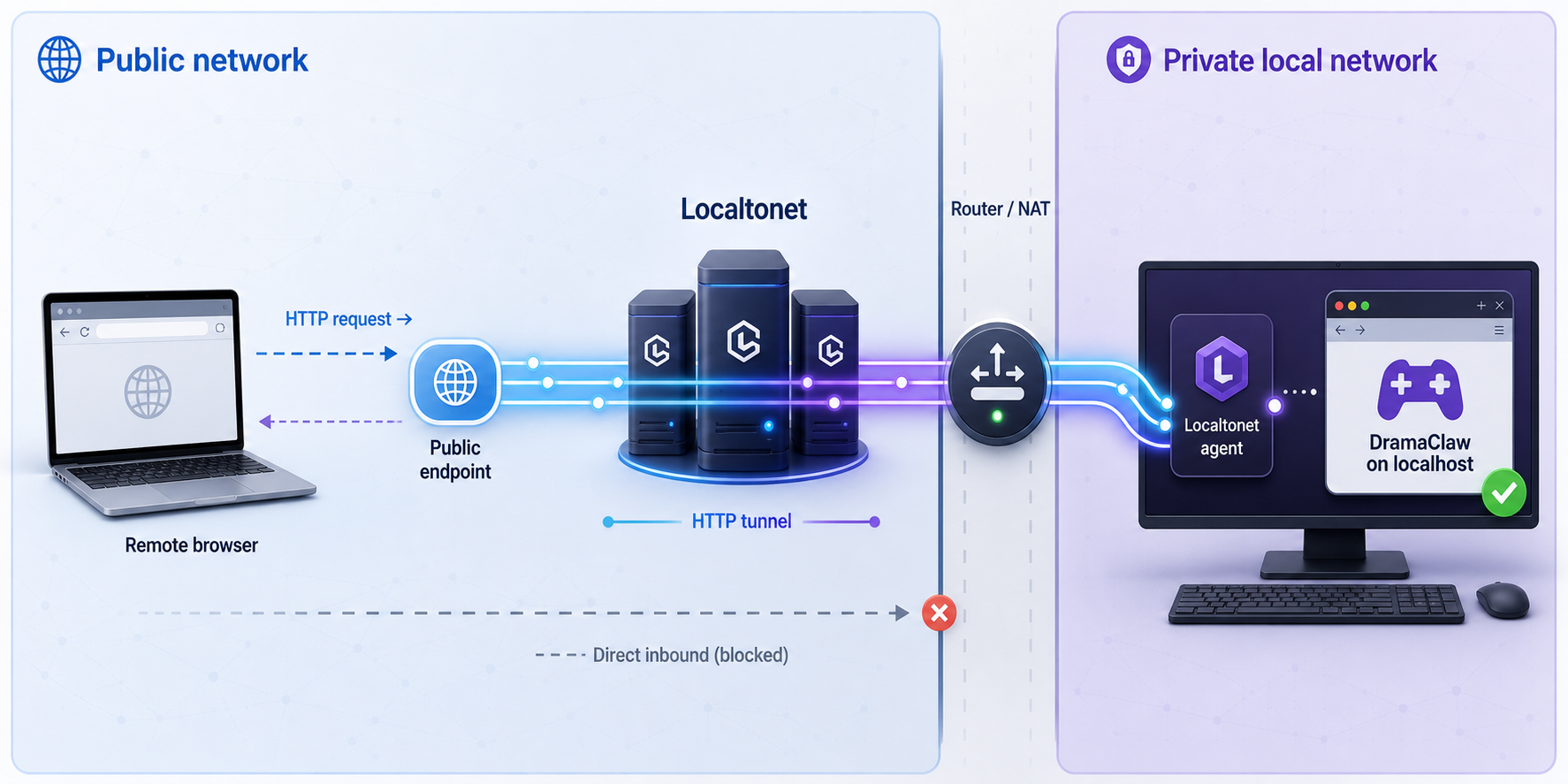
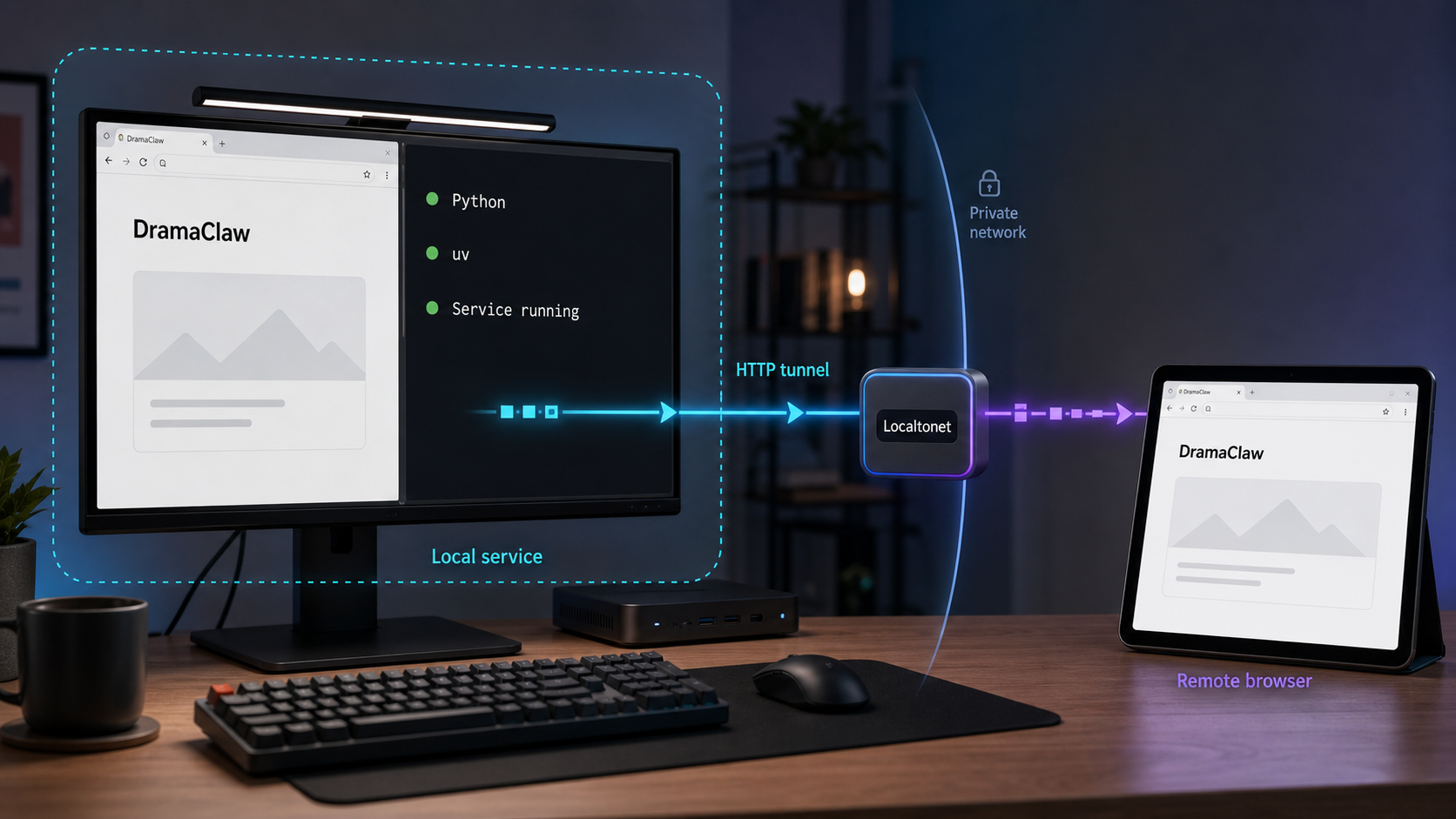
Once the local service is healthy, our HTTP tunnel can provide a public HTTPS address without inbound router port forwarding, firewall changes, VPN setup, or a public IP address. The Localtonet client establishes an outbound connection to a Localtonet relay. The public endpoint remains available only while the selected client is connected and the tunnel is running.
Decide first which endpoint is actually needed. Use the web UI on port 8080 for browser-based work. Treat the REST API on port 8780 as a separate service and expose it only when a specific remote integration requires it. Port 3000 is associated with the bundled gateway in the self-hosted variant only and is not a substitute for the DramaClaw UI.
Choose the correct local target address
| Client location | UI target | API target | Requirement |
|---|---|---|---|
| Localtonet runs on the DramaClaw host | 127.0.0.1:8080 |
127.0.0.1:8780 |
The Compose ports must respond on that host |
| Localtonet runs on another LAN device | DramaClaw host LAN address with port 8080 |
DramaClaw host LAN address with port 8780 |
The client device must already be able to reach that address and port |
| Localtonet runs in an unrelated container | An address reachable from that container | An address reachable from that container | Do not assume container-local localhost reaches the host or another container |
When using a separate Localtonet device, test the target from that device before creating the tunnel. For example, replace the address below with the DramaClaw host’s actual reachable LAN address:
curl -i http://192.168.1.50:8080The example address is illustrative. Use the address assigned on your own network. If this request fails from the Localtonet device, the tunnel cannot repair the underlying host binding, routing, or local firewall problem.
Configure the HTTP tunnel in documented order
Install and run the Localtonet client
Install our client on the DramaClaw host or another device that can reach it. Keep the client connected whenever the public endpoint should remain available.
Open the HTTP tunnel configuration
Create an HTTP tunnel for the intended DramaClaw endpoint. HTTP is appropriate because the documented UI and API listen as local HTTP services.
Select the Process Type
Choose Random Sub Domain, Custom Sub Domain, or Custom Domain according to the options currently available to your account. Each process type serves the selected content at a public HTTPS address. Check current documentation before making custom-domain DNS changes.
Select the device AuthToken
Select the device-specific token for the Localtonet client that can reach DramaClaw. Do not type a guessed token or expose its value.
Select an available relay server
Choose a server or region from the values currently displayed by Localtonet. Availability can vary, so do not copy a hardcoded server code from an old tutorial.
Enter the local IP address and port
For a same-host client, use 127.0.0.1 with port 8080 for the UI. For a client on another device, use a DramaClaw host address reachable from that device. If an approved integration needs the API, create a separate HTTP tunnel using port 8780.
Start the tunnel
Creating the configuration does not make it active. Press Start and confirm that both the tunnel and selected client show a connected state.
The Localtonet HTTP tunnel documentation is a useful supplement for current dashboard behavior. The instructions above still cover the complete target-selection logic required for this DramaClaw deployment.
Verify from outside the local network
Copy the assigned public HTTPS address without exposing your device token. Test it from a browser or device on a different network, such as a phone using mobile data. You can also perform a basic HTTP check after assigning the public address to a shell variable:
PUBLIC_URL='paste the assigned public HTTPS address here'
curl -i "$PUBLIC_URL"
This proves only that the public address can return an HTTP response through the tunnel. It does not prove that DramaClaw login, project permissions, API authorization, file uploads, generation jobs, or model-gateway requests work correctly. Complete a permitted browser workflow to verify the UI. For the API, use only a documented route with the authentication required by the installed release.
Stop the tunnel after testing if continuous access is not required. Delete the tunnel if the configuration will not be reused. Stopping DramaClaw alone does not remove the tunnel configuration, and creating a tunnel alone does not start it.
Review authentication and exposure boundaries
Current DramaClaw release material confirms that the project has a login interface and project-sharing behavior. The supplied evidence does not establish the complete authentication model, default credentials, anonymous-access behavior, session controls, role definitions, API authentication scheme, or authorization guarantees for every self-hosted route. A login screen is not sufficient evidence that every page and API operation is protected.
A Localtonet HTTP tunnel transports requests to the target service and provides a public HTTPS address. HTTP reachability does not establish DramaClaw user identity, project membership, route authorization, or safe handling of write-capable API operations. Before public exposure, verify those behaviors directly against the installed release and your own test accounts.
Apply least privilege to the exposure itself. If a collaborator only needs the browser interface, tunnel port 8080 and leave port 8780 private. Do not expose the model gateway port merely because it appears in the Compose deployment. Keep tunnel duration limited to the actual collaboration or integration window.
Use non-production sample content while evaluating remote access. Check whether an unauthenticated browser can reach projects, media, settings, administrative controls, or API endpoints. Sign in with accounts representing each intended role and verify that one account cannot read or modify another user’s projects unless sharing was deliberately configured.
Also test logout and session behavior. Confirm that a logged-out browser loses access, that copied API requests fail without valid authentication, and that sensitive configuration is not returned to the browser. If these controls cannot be verified, keep the service private or use an access architecture that supplies the required restrictions.
Troubleshoot DramaClaw and Localtonet separately
Docker is installed but Compose is unavailable
Run docker compose version. If the command is missing, install or enable the Docker Compose plugin. Older examples that use a separate docker-compose executable do not match the verified command used by this guide.
A container exits or keeps restarting
Inspect status and logs:
docker compose ps
docker compose logs
Review the earliest relevant error rather than only the last retry. Common categories include incomplete environment configuration, unavailable files, port conflicts, build failures, and inability to reach an external dependency. Correct the underlying issue, then reconcile the deployment:
docker compose up -d --build
docker compose ps
Docker reports that a port is already allocated
Another process is using port 8080 or 8780. Stop the conflicting process or review the selected DramaClaw release’s supported port configuration before changing mappings. Do not point Localtonet to an arbitrary replacement port unless the service is actually listening there.
The UI does not load on the DramaClaw host
Confirm that the containers are running, then request http://localhost:8080 from the host itself. If the local request fails, keep the Localtonet tunnel stopped. Check Compose logs and the environment file before investigating public connectivity.
The UI loads, but generation fails
This usually separates application reachability from model functionality. Verify the configured OpenAI-compatible gateway endpoint, credential validity, outbound DNS and network access, provider availability, model selection, request limits, and any content or reference-image checks reported by DramaClaw. A working UI or Localtonet URL cannot prove that inference is available.
The API root returns 404 or another non-success status
A response can confirm that an HTTP server is listening even when the root is not an application route. Use an API path documented by the installed release for a functional test. Do not assume a route name or send credentials to guessed endpoints.
Local access works, but the public address does not
Confirm that the Localtonet client is connected, the correct device AuthToken is selected, an available relay server is configured, and the tunnel was explicitly started. Then test the target from the same device running the Localtonet client. If that client is remote from DramaClaw, replace 127.0.0.1 with an address that reaches the DramaClaw host.
The public address shows the wrong service
Stop the tunnel and check its local IP address and port. DramaClaw’s UI uses port 8080; its REST API uses port 8780. Keep the endpoints in separate tunnel configurations so each can be reviewed, tested, stopped, and deleted independently.
The public URL responds, but login or API operations fail
HTTP transport is working, so examine DramaClaw’s own login flow, cookies, session behavior, route permissions, API authentication, and release logs. Do not weaken authentication simply to make a remote test pass. Compare local and remote behavior using the same authorized account and operation.
An update starts but existing data is missing
Stop further changes and verify that the deployment is using the expected Compose project and persistent volume. Do not remove or recreate volumes while investigating. Restore only from a verified backup and follow any migration procedure associated with the target release.
Frequently asked questions
Can I install DramaClaw with uv using this guide?
No. The verified evidence confirms Python 3.11 to 3.12, uv, and ffmpeg as non-Docker prerequisites, but it does not establish the exact dependency groups, frontend setup, entry points, or startup sequence. This guide uses the complete evidence-backed Docker Compose path instead of inventing those commands.
Does DramaClaw require a local GPU?
The standard pipeline does not require a local GPU because inference uses a remote OpenAI-compatible gateway. The optional world extra for voxel or panorama-to-3D work requires a GPU and a CUDA image.
Which DramaClaw port should I expose?
Use port 8080 for the browser interface. Port 8780 is the REST API and should have a separate tunnel only when an approved integration needs it and its authentication and authorization have been verified. Do not expose port 3000 as though it were the UI.
Should the Localtonet target use localhost?
Use 127.0.0.1 when the Localtonet client runs on the same host as DramaClaw. If the client runs on another device, use a DramaClaw host address that the client device can reach. On the other device, localhost refers to that device rather than the DramaClaw host.
Does a successful public HTTP response prove DramaClaw works?
No. It proves basic HTTP reachability through the tunnel. It does not prove login, project authorization, API permissions, media generation, or outbound model-gateway functionality. Test those behaviors separately with authorized accounts and documented API operations.
Does Localtonet replace the model gateway?
No. Our HTTP tunnel provides inbound remote access to the selected local DramaClaw endpoint. DramaClaw still needs outbound access to its configured OpenAI-compatible gateway for standard inference.
Will Docker Compose preserve DramaClaw data when containers stop?
Stopping containers does not normally require deleting their persistent storage. DramaClaw documents state and generated media under persistent storage including the ce-data volume. Back it up before updates and avoid volume-removal options unless permanent deletion is intended.
Do I need router port forwarding for remote access?
No. The Localtonet client establishes an outbound connection to our relay, so this workflow does not require inbound router port forwarding, firewall changes, VPN setup, or a public IP address.
Connect your verified DramaClaw interface with Localtonet
Start with a version-pinned DramaClaw deployment, confirm the intended endpoint locally, test the installed release’s authentication behavior, and then create an HTTP tunnel for only the service that needs remote access.
Get Started Free →

