

Install the community application center, verify it on your LAN, and publish only the interface you intend to manage
The fnOS Apps Store is a web application center for browsing, installing, and updating third-party packages on an fnOS NAS. This guide separates the application center from the larger package catalog, explains how to select an x86 or ARM .fpk installer, qualifies the version-dependent fnOS manual-install workflow, and verifies the local HTTP service on port 8011. After local access works, we show how to place a Localtonet client on a supported Windows, Linux, or macOS device that can reach the NAS and create an HTTP tunnel without inbound router port forwarding, firewall changes, VPN setup, or a public IP address.
📋 What's in this guide
Understand the fnOS Apps catalog and fnOS Apps Store
Several related names appear in this workflow, but they refer to different project layers. The
fnOS Apps catalog repository
tracks and packages third-party self-hosted applications for fnOS. It publishes directly installable .fpk assets for applications such as media servers, monitoring tools, download clients, automation platforms, file services, and networking utilities. The catalog is not itself the web application center.
The separate
fnOS Apps Store source repository
contains the browser-based application center. Its documented features include browsing and installing third-party applications, detecting updates, displaying live installation progress through server-sent events, supporting batch updates, and providing a dark interface mode. Its backend is written in Go, its frontend uses React and TypeScript, and its default listener is :8011.
Installable builds of that application center are published among the catalog repository's many releases. To avoid confusing the store with an individual catalog package, use the
releases filtered to fnOS Apps Store packages.
At the time the supplied release evidence was reviewed, the filtered results listed fnOS Apps Store 1.9.4 as the latest store package, with separate x86 and ARM .fpk assets. Releases change over time, so confirm the current result instead of assuming that version remains latest.
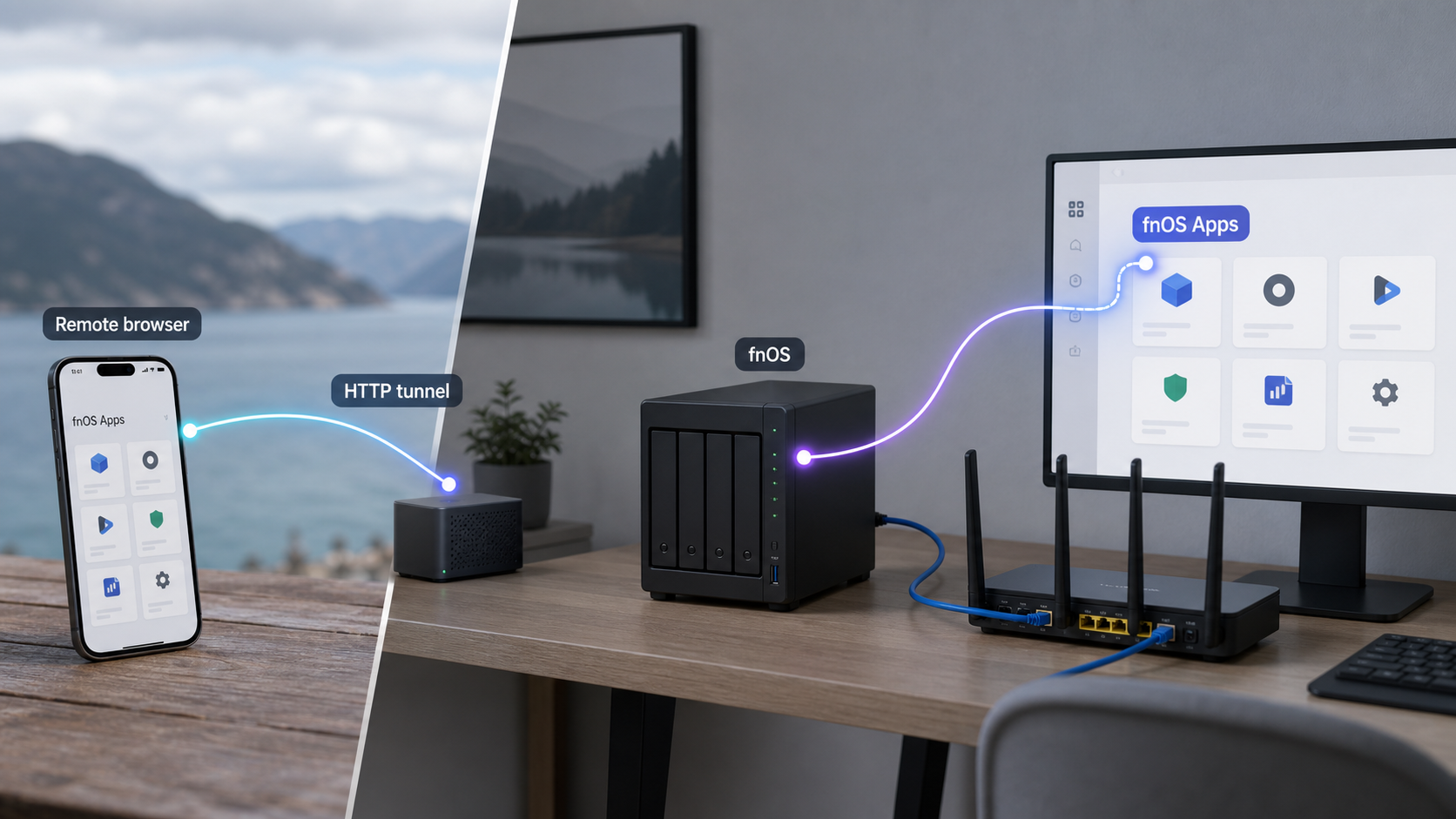
fnos-apps repository builds and publishes fnOS-compatible packages for many independent third-party applications.
fnos-store repository contains the web application center used to browse, install, and update catalog packages.
.fpk packages, including distinct x86 and ARM builds.
8011 by default, making an HTTP tunnel suitable for this interface.
Installing the fnOS Apps Store does not install every application in the catalog. It installs the management interface from which you can select individual applications. Each selected application remains an independent service with its own architecture support, package version, persistent data, account setup, ports, protocols, and upgrade considerations.
This distinction is especially important for remote access. A tunnel directed to port 8011 reaches the fnOS Apps Store only. It does not automatically expose Jellyfin, Grafana, a download client, the main fnOS administration interface, Docker, SSH, or the NAS as a whole. If you later need remote access to another application, identify that application's actual local endpoint and evaluate its authentication before creating a separate tunnel.
Use the catalog repository to inspect available packages, the store repository to review the application-center project, and the filtered store releases to download an installable fnOS Apps Store package. Source archives from either repository are not substitutes for the architecture-specific .fpk installer.
Prepare the fnOS NAS and a Localtonet client device
Complete the NAS installation and LAN verification before configuring remote access. You need administrative permission on fnOS, the correct package architecture, a known NAS address, and a separate recovery plan for important application data. You also need a device that can run the Localtonet client and reach port 8011 on the NAS.
Administrative access to fnOS
Sign in with an account permitted to install local application packages. The fnOS Apps Store is distributed as an .fpk package rather than through an installation shell command.
The available evidence for the generic fnOS upload sequence is community and application documentation, not current official fnOS platform documentation supplied for this audit. That evidence describes the route as App Center, followed by Local install, with some fnOS versions using the label Manual install. Treat those labels as version-dependent. If your fnOS interface does not show either control, consult the documentation or support information for your installed fnOS release instead of enabling undocumented settings.
The NAS processor architecture
Current store-package releases include separate x86 and ARM assets. Determine the NAS architecture through its system-information screen or the hardware manufacturer's specifications. Do not infer it from the age of the device, its interface, or the architecture of another computer on the network.
The release asset should have the .fpk extension and should identify x86 or arm. Do not extract the package before uploading it. If the architecture cannot be established confidently, stop before installation.
A stable LAN endpoint
You need the NAS's private IP address or resolvable local hostname. A stable DHCP reservation can make later tunnel operation easier because a changing NAS address can leave the Localtonet configuration pointing at the wrong host. Any DHCP change should be followed by a fresh local test before remote access is used again.
A supported Localtonet host
Localtonet must run on a device that can reach the fnOS Apps Store. Our current general client workflow supports installing the Localtonet application on a suitable Windows, Linux, or macOS device, authenticating that installation as a device, and keeping it connected while the tunnel is needed. Obtain the client through the current Localtonet download or installation path presented in our dashboard and documentation, because package formats and installation commands can change by operating system and client version.
Direct installation of the Localtonet client inside fnOS is not verified by the evidence available for this article. fnOS is described by third-party material as Debian-based, but that alone does not establish that a generic Linux client package is supported inside the NAS application environment. It also does not establish the correct architecture, service manager, persistence behavior, package permissions, or survival across fnOS updates. Do not treat Linux compatibility as automatic fnOS-native compatibility.
The verified and more portable arrangement is to run Localtonet on another always-on Windows, Linux, or macOS computer on the same LAN. A small home server, workstation, or other managed computer is suitable if it can remain powered on, maintain outbound internet access, and open the NAS URL directly.
Prepare an always-on LAN device
On the selected computer, complete its normal operating-system updates, download the appropriate Localtonet client using the current official installation flow, install or extract it as directed for that platform, and launch it. Authenticate the device using its device-specific token without exposing that token in screenshots, terminal history shared with others, or public configuration files.
Before creating a tunnel, open the following address from that same computer:
http://NAS-LAN-ADDRESS:8011/If this request fails from the Localtonet host, the tunnel will fail as well. Resolve routing, client isolation, NAS addressing, or application startup first. The client device must stay awake and connected whenever remote access is expected to work.
| Requirement | How to validate it | Why it matters |
|---|---|---|
| fnOS installation permission | Confirm that App Center offers a local or manual package action | The fnOS Apps Store is delivered as an .fpk package |
| Correct CPU architecture | Check fnOS system information or the NAS hardware documentation | x86 and ARM store assets are separate |
| Known NAS address | Reach an existing NAS service from another LAN computer | The address becomes part of local verification and possibly the tunnel target |
| Local access to port 8011 | Open the store URL from the LAN after installation | A tunnel cannot repair an unavailable local service |
| Supported Localtonet host | Use a maintained Windows, Linux, or macOS computer that reaches the NAS | Direct fnOS client installation is not verified here |
| Backup and recovery plan | Review fnOS and application-specific backup procedures | Package installation and upgrades can affect persistent services |
Upload only the fnOS Apps Store package built for the NAS architecture. For Localtonet, use a separate supported LAN device unless you have current, platform-specific confirmation that your exact fnOS environment can run and persist the client safely.
Install the fnOS Apps Store package
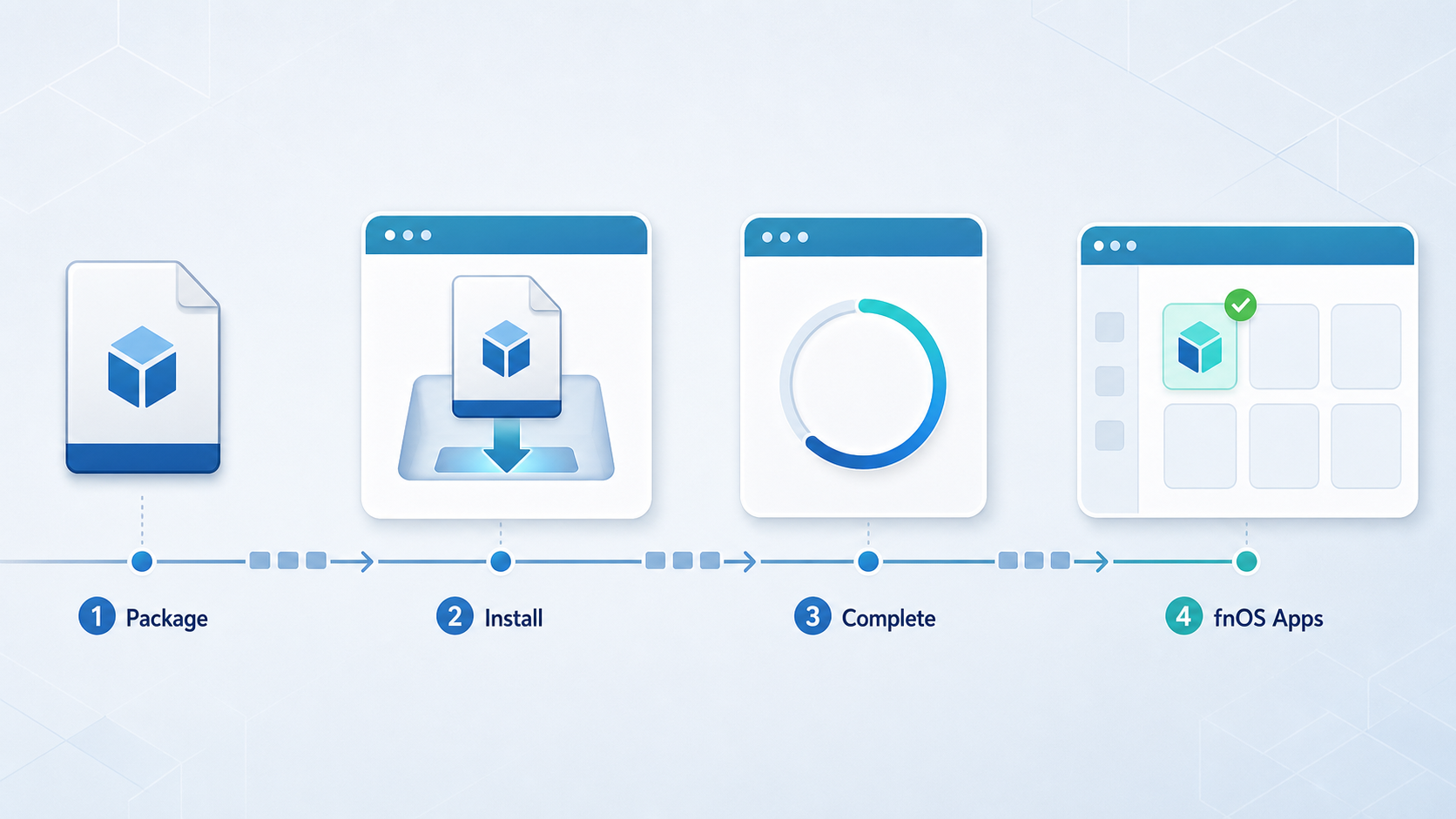
The project publishes architecture-specific, installable packages and recommends the fnOS Apps Store as the central way to manage its catalog. The exact fnOS controls and confirmation prompts remain version-dependent. The following procedure combines the project's verified package format with the community-evidenced App Center upload workflow, while avoiding claims about wizard fields that have not been established for every fnOS release.
Confirm the NAS architecture
Open the NAS system-information area or consult the hardware documentation. Record whether the system uses the x86 or ARM architecture before opening the release assets.
Download the matching store package
Open the filtered fnOS Apps Store releases. Select the current release and download its .fpk asset for the confirmed architecture. Do not download the repository source archive or an individual catalog application's package.
Open the fnOS local-package control
Sign in to the fnOS desktop, open App Center, and locate the action labeled Local install or Manual install. These labels come from community application documentation and can differ by fnOS version.
Upload the unmodified file
Select the downloaded fnOS Apps Store .fpk. Let fnOS parse the package, then verify that the displayed package name refers to the store rather than Grafana, Jellyfin, or another individual catalog application.
Review the prompts shown by your fnOS version
Read the package details, requested permissions, storage choices, and any warning presented by fnOS. The evidence does not establish one fixed set of store-installation prompts. Do not force installation if fnOS reports an incompatible architecture, unsupported release, invalid package, or signing problem.
Wait for fnOS to report completion
Keep the installation session open while the package is processed. Do not reboot the NAS or interrupt its storage. When installation finishes, locate the fnOS Apps Store in the installed-applications area or on the fnOS desktop.
No production SSH installer is established for this package workflow. The store source repository contains development commands for starting a Go backend on port 8011 and a separate frontend development server on port 5173. Those commands are intended for source development and do not replace installation of the packaged fnOS application.
The installable file has an .fpk extension and identifies its architecture. A GitHub-generated source archive contains project code and is not a package that fnOS App Center can install through this workflow.
Start and verify the fnOS Apps Store locally
Do not make the store public as soon as package processing finishes. First establish that fnOS recognizes the application, its process is running, and its HTTP interface responds on the local network.
Check the application state
Locate the fnOS Apps Store among installed applications. If fnOS displays a stopped state and provides a start action, start it there. Successful package installation does not always prove that an application process is currently accepting connections.
Open the default local endpoint
The store repository documents an HTTP backend with LISTEN_ADDR defaulting to :8011. From another computer on the same LAN, open:
http://NAS-LAN-ADDRESS:8011/
Replace NAS-LAN-ADDRESS with the NAS's actual private address or local hostname. A successful test loads the fnOS Apps Store interface. Confirm that its page assets render, the catalog can be browsed, and the interface remains responsive.
The first view may need time to retrieve catalog information. A temporarily empty list is different from a refused connection. Allow the page to complete its initial work before declaring the application unavailable.
Interpret the result before changing anything
| Observed result | What it establishes | Next check |
|---|---|---|
| The store interface loads | The NAS address, port, process, and local HTTP path are working | Browse the catalog and note the installed store version |
| Connection refused | The host may be reachable, but no service is accepting the connection on that endpoint | Check the application's running state and configured listener |
| Connection times out | The browser cannot complete a connection to the NAS and port | Verify the address, LAN routing, network isolation, and NAS availability |
| An HTTP error page appears | A web process answered the request | Review the application state and available fnOS logs |
| The interface loads without catalog entries | The local frontend may be available while catalog retrieval is incomplete | Wait, refresh once, and verify the NAS has the network access the store requires |
| The page partially renders | The backend may be reachable while frontend resources or data requests are failing | Compare another browser and inspect the application state before reinstalling |
Repeat the same test from the computer that will run Localtonet. This second test is essential when the client is not on the NAS. It proves that the tunnel host can reach the exact local target that will be configured in the dashboard.
A Localtonet tunnel forwards traffic to an existing local service. It does not start the fnOS Apps Store, correct an architecture mismatch, repair a failed package, or make an unreachable NAS address routable from the client device.
Install and update catalog applications safely
Once local verification succeeds, the fnOS Apps Store can manage packages from the broader catalog. The current project description documents application browsing and installation, automatic update detection, live installation progress through server-sent events, and batch updates.
Each catalog entry remains an independent application. Before installing one, review its release entry for architecture support, service ports, dependencies, storage behavior, first-run credentials, and special hardware requirements. A package can be x86-only even when the fnOS Apps Store itself is available for both x86 and ARM.
Review the application before installing it
Select the application in the store and read the information presented by the current package. Catalog ports are useful starting points, but they do not all describe browser interfaces. A package can expose an HTTP interface, an API, a peer port, DNS, a media protocol, or multiple services. Some driver and system-tool packages have no startable service port.
Verify that sufficient storage is available and that you understand where persistent data will live. The store simplifies package delivery, but it cannot make every upstream application's backup, authentication, and migration behavior identical.
Handle installation wizards carefully
The fnOS Apps Store 1.8.1 release introduced retrieval and rendering of installation forms declared by packages. The store can submit wizard answers through the fnOS application-center service, including required values such as paths, passwords, tokens, or package-specific options. Local validation can check requirements such as mandatory fields and minimum lengths.
The same release states that a failed wizard lookup falls back to treating the package as having no wizard so that the installation is not automatically blocked. That fallback does not prove that default values are safe for every package. If an application is known to require a secret, path, account, or integration value and no form appears, stop and review its current package information.
Watch server-sent event progress
Installation progress is delivered through server-sent events. Keep the browser page open while a package is downloaded and installed. Large images, slow storage, and remote registry response times can extend an otherwise healthy installation.
Avoid submitting the install action twice or refreshing repeatedly. If progress appears to stop, determine whether fnOS still reports an active operation before trying to recover. A page-rendering problem and a package installation failure are separate conditions.
Understand the current installation channel
Release 1.8.2 changed new installations to use the native fnOS application-center daemon path by default, including packages without an installation wizard. The older install-local route remains described as a fallback when the daemon is unavailable for a new installation. This change addressed failures observed on some fnOS builds.
Release 1.8.3 also adjusted handling for driver and tool packages with service_port=0. Such packages may have no service to start. A failed start action should therefore not automatically cause a correctly installed driver package to be reported as an installation failure.
Understand the data-preserving update channel
Store release 1.8.0 restored in-store updates through the fnOS application-center daemon's upgrade path. The release notes describe a data-preserving process that identifies and retains the application's existing storage volume and avoids using install-local for upgrades. The project reported device testing with several applications whose data remained intact.
Earlier release 1.7.17 displayed a disabled manual-update state when that upgrade capability was unavailable, directing the user toward the native fnOS App Center. Later listed store packages include 1.9.2, 1.9.3, and 1.9.4, but the supplied release summaries for those versions provide no additional behavioral details. Therefore, use the capability and status reported by your installed store rather than assuming that every NAS and fnOS build exposes the same update route.
Store updates and catalog-application updates are separate operations. Back up important application data, read package and upstream release information, and avoid forcing an update through an undocumented local-install shortcut when the store reports that a manual native update is required.
Add remote access with a Localtonet HTTP tunnel
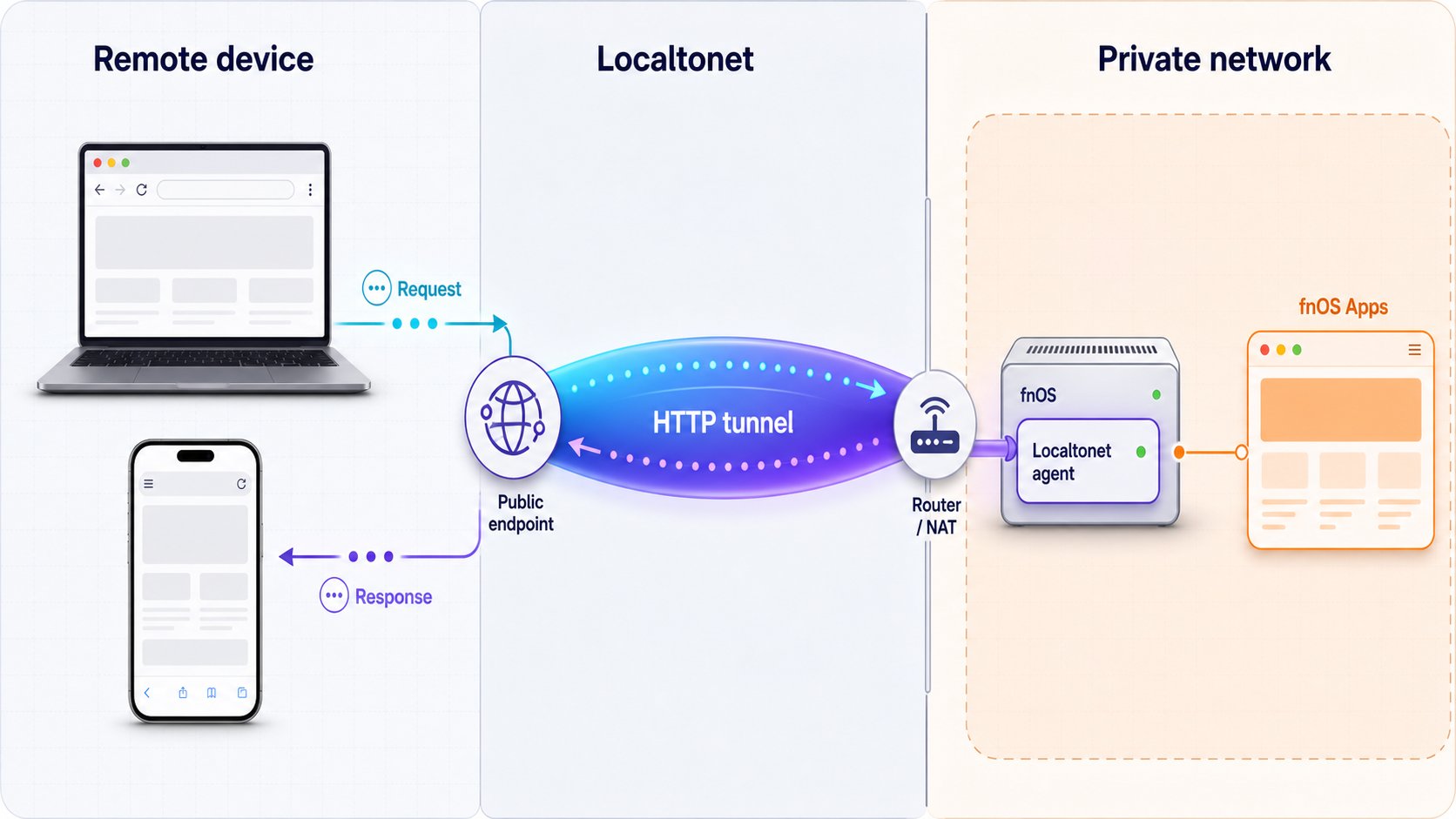
After the store works from the Localtonet host, create an HTTP tunnel. Our client establishes an outbound connection to a Localtonet relay server. The tunnel provides a public HTTPS URL without requiring inbound router port forwarding, firewall changes, VPN setup, or a public IP address.
The recommended topology for this guide places the Localtonet client on a supported Windows, Linux, or macOS computer on the same LAN as the NAS. Direct fnOS-native installation is not verified here. From the client computer's point of view, the target is the NAS LAN address and port 8011.
8011, not to the complete NAS or every installed application.
Install and run Localtonet on a supported LAN device
Use the current Localtonet installation path for Windows, Linux, or macOS on an always-on computer that can reach the NAS. Launch the client and confirm that the computer can open http://NAS-LAN-ADDRESS:8011/.
Authenticate or select the client device
Use the device-specific authentication token for that client, then select the connected device in the dashboard. Keep the token private and never place it in a public article, screenshot, repository, or support transcript.
Select an available relay server
Choose a relay server or region currently offered in your dashboard. Available values can vary by account, plan, client version, and deployment, so do not copy a hardcoded server code from an older tutorial.
Create an HTTP tunnel to the NAS
Choose the HTTP tunnel family. Set the local IP address to the NAS address that worked from the client computer, set the local port to 8011, and select the required process type from the options available in the dashboard.
Start the tunnel
Save or create the configuration, then press Start. Creation and startup are separate lifecycle actions. The public endpoint is available only while this tunnel is running and the selected Localtonet client remains connected.
Test the public URL from another network
Open the assigned public HTTPS address using a separate connection, such as mobile data with Wi-Fi disabled. Confirm that it reaches only the fnOS Apps Store. Stop or delete the tunnel when remote administration is no longer required.
For the current dashboard sequence and available options, consult our Localtonet HTTP tunnel documentation. If you choose a custom domain, follow the current Localtonet DNS guidance rather than copying records from another provider or an old tutorial.
On a separate LAN computer, 127.0.0.1 points back to that computer, not to the NAS. Use the NAS LAN address. A loopback target is appropriate only if the Localtonet client and the store share the same network namespace and direct fnOS execution has been separately verified.
Protect a remotely reachable application center
The fnOS Apps Store is an administrative interface capable of initiating software installation and update operations. Publishing it carries more risk than exposing a read-only status page. The public Localtonet address uses HTTPS, but transport security does not by itself provide application accounts, authorization, session controls, or protection from every application-layer vulnerability.
The supplied project evidence does not establish a default authentication guarantee for the store. Test the public URL using a private browser session with no existing fnOS cookies. If the interface opens directly and permits management operations, treat it as unauthenticated and do not leave the tunnel running publicly.
Verify strong authentication or an appropriate authenticated access layer before maintaining remote access to an administrative service. Use least privilege, avoid shared credentials, and prefer temporary tunnel sessions when continuous access is unnecessary.
Prefer temporary administration windows
Start the tunnel when remote maintenance is needed, complete the task, sign out, and stop the tunnel. Stopping a Localtonet tunnel removes the public route without uninstalling the fnOS Apps Store or changing local access.
Protect the Localtonet device token
The token identifies the client device. Do not place it in the local target URL, a bookmark, a public configuration file, a screenshot, or a command copied into an issue report. If exposure is suspected, use the controls available in the current Localtonet dashboard to replace or invalidate the affected credential.
Expose only port 8011 for this task
Do not substitute the main fnOS management port, an SSH service, a Docker socket, or an unrestricted reverse proxy. A tunnel for the store should target only the verified HTTP endpoint. Other applications require separate evaluation and, if justified, separate tunnel configurations.
Check installed applications independently
Installing an application through the store does not place it behind the store tunnel. Before remotely exposing another application, change documented default credentials, verify its local protocol, inspect its upload and API behavior, and decide whether remote publication is appropriate.
Maintain backups and test after upgrades
Keep fnOS, the store, and installed applications maintained. Back up persistent data before meaningful upgrades and test locally afterward. If an update changes a port or listener, verify the new endpoint from the LAN before modifying any tunnel.
Troubleshoot installation, local access, and remote access
The package is rejected
Confirm that the file came from the filtered fnOS Apps Store release results and ends in .fpk. Recheck x86 versus ARM. Make sure you did not download a GitHub source archive, checksum, standalone server binary, or an individual catalog package. If fnOS reports a compatibility or signing error, preserve the exact message and do not repeatedly force the upload.
The package installs but port 8011 does not open
Check whether fnOS shows the application as running. Confirm the current NAS address and use HTTP rather than HTTPS for the default local endpoint. If the NAS receives a dynamic address, verify that it has not changed. Test from another LAN device before investigating Localtonet.
The page works on the NAS but not from another LAN computer
The service may be bound only to loopback, the devices may be on isolated network segments, or local policy may prevent access. Although the source configuration defaults to :8011, the packaged runtime determines the actual listener. Review application state and package information before changing firewall or network settings.
The store loads but an application does not install
Separate store availability from package installation. A healthy web interface can coexist with a failed image download, insufficient storage, a package-specific wizard problem, or an unavailable upstream service. Record the application name, version, architecture, and exact progress message.
A wizard does not appear
Wizard support depends on the package declaration, store version, and successful form retrieval. The documented fallback can proceed as though no wizard exists. If the application requires a token, password, path, or other mandatory configuration, stop and inspect its package guidance rather than trusting defaults.
An update is marked as manual
Respect that state and use the native fnOS App Center when directed. The store detects whether its data-preserving daemon upgrade path is available. Do not overwrite an existing application with an undocumented local-install action merely to bypass a disabled button.
The Localtonet client is connected but the public URL fails
Confirm that the client is connected, the tunnel exists, and the tunnel has been started. Then open http://NAS-LAN-ADDRESS:8011/ from the same computer that runs Localtonet. If that direct request fails, correct local reachability before changing relay settings.
The target is configured as 127.0.0.1
On a separate Localtonet host, that address refers to the host itself. Replace it with the NAS LAN address and test again. Do not use loopback based on the assumption that Localtonet is running natively inside fnOS.
The page opens but live progress fails remotely
Test the same operation through the local URL first. The store uses server-sent events for progress, so initial HTML can load even when a longer-lived progress connection is interrupted. Record the browser-visible failure and compare local and remote behavior without resubmitting the operation repeatedly.
The public URL reaches the wrong service
Stop the tunnel immediately and inspect its local address and port. Confirm that the target belongs to the intended NAS and uses port 8011. A stale DHCP address can point to another device, especially on a network with multiple NAS systems.
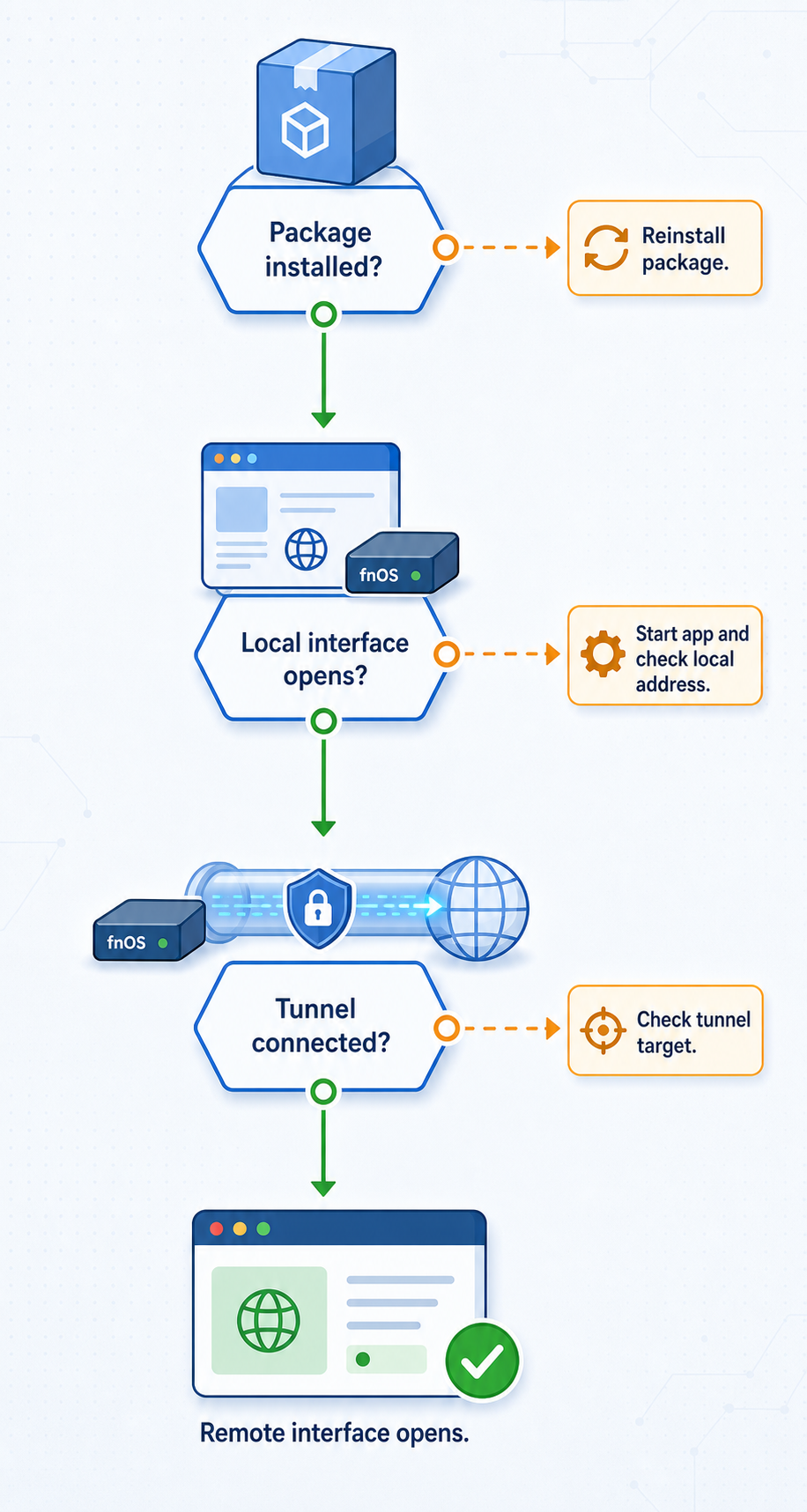
Check the package, application state, direct LAN access, reachability from the Localtonet host, client connection, tunnel start state, and public URL in that order. This isolates the failing layer without hiding a local problem behind repeated tunnel changes.
Frequently asked questions
What is the difference between fnOS Apps and fnOS Apps Store?
The fnos-apps repository is the package catalog. The fnos-store project is the web application center used to browse and manage those packages. Installable fnOS Apps Store assets are published in the catalog repository's releases.
What is the default port for fnOS Apps Store?
The documented default backend listener is port 8011. Test http://NAS-LAN-ADDRESS:8011/ from the LAN. If the installed package reports another runtime port, verify and use that value instead.
Is the local port HTTP or HTTPS?
The store source documents an HTTP server on :8011, so the default local target is HTTP. A Localtonet HTTP tunnel provides a public HTTPS address. Do not configure local HTTPS unless your installed package explicitly accepts it.
Should I download the x86 or ARM package?
Match the package to the NAS processor architecture. Confirm it through fnOS system information or the hardware documentation. The two assets are not interchangeable.
Is the Local install label official and identical on every fnOS release?
No such universal claim is made here. Community application documentation describes App Center followed by Local install, with some versions using Manual install. Current official fnOS documentation was not supplied to verify one fixed label across releases.
Does installing fnOS Apps Store install every catalog application?
No. It installs the application-center interface. You then select individual applications, each with its own package, requirements, data, ports, and update lifecycle.
Can Localtonet be installed directly on fnOS?
Direct fnOS installation is not verified by the evidence available for this tutorial. Use a supported Windows, Linux, or macOS computer on the same LAN unless current platform-specific documentation confirms compatibility with your exact fnOS release and architecture.
Does one Localtonet tunnel expose all installed applications?
No. A tunnel targeting port 8011 reaches only the fnOS Apps Store. Other applications use their own ports or protocols and require separate local verification and security review.
Do I need router port forwarding or a public IP address?
No. Our client establishes an outbound connection to a Localtonet relay. This workflow does not require inbound router port forwarding, firewall changes, VPN setup, or a public IP address.
Why does creating a tunnel not make its URL work?
Tunnel creation and startup are separate actions. The selected Localtonet client must be connected, the tunnel must be started, and port 8011 must remain reachable from the client computer.
Is it safe to leave fnOS Apps Store publicly accessible?
Treat it as a sensitive administrative interface. The supplied project evidence does not establish a default authentication guarantee. Verify access controls, use strong authentication or an authenticated access layer where supported, and stop the tunnel when remote administration is not needed.
Connect your verified fnOS Apps Store with Localtonet
After the store works locally on port 8011, place our client on a supported LAN device, confirm that device can reach the NAS, and create an HTTP tunnel for temporary remote administration. Test the assigned public HTTPS address carefully and stop the tunnel when the task is complete.


