

Run Income Generator on an always-on Raspberry Pi and manage its dashboard remotely
Income Generator, also known as IGM, manages containerized bandwidth-sharing applications through a command-line interface, terminal UI, or browser dashboard. This guide covers the documented Linux installation, container runtime, WebUI startup, local verification, updates, Raspberry Pi compatibility, and a persistent Localtonet ARM64 installation for Debian or Ubuntu. After the dashboard works locally at http://localhost:4747, you can create a separate HTTP tunnel for controlled remote administration. Earnings are never guaranteed, and because the available IGM documentation does not establish a WebUI authentication boundary, public exposure requires particular care.
📋 What's in this guide
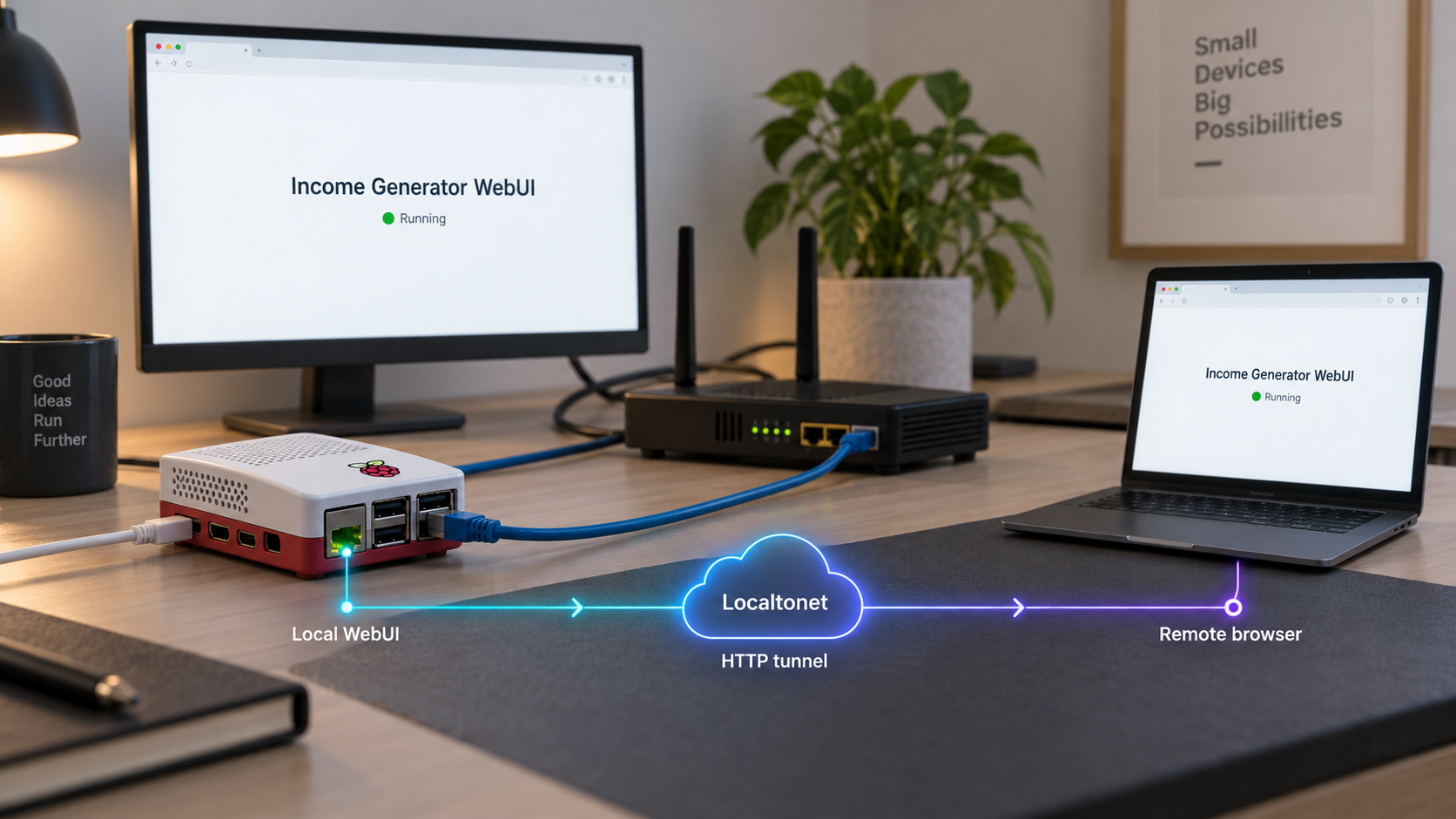
What this Raspberry Pi workflow does
Income Generator's public repository describes IGM as a manager for deploying and operating passive-income and bandwidth-sharing applications in a containerized runtime. The manager provides a command-line interface, terminal UI, and browser-based WebUI. Its documented features include configurable resource limits, application updates, multi-proxy deployments, fleet management, and encrypted storage for managed application credentials.
A Raspberry Pi can be a practical host because it is compact, consumes relatively little power, and can remain online without dedicating a desktop computer to the task. The project lists Ubuntu and Debian on arm64 and amd64 among its tested Linux environments, and identifies Raspberry Pi 4 as fully supported. It also says older devices such as Raspberry Pi 3 using arm32v7 can run IGM, but warns that some applications may not work and that overall performance may be reduced.
That distinction matters. Installing the IGM management layer does not guarantee that every managed application has a compatible image for every ARM architecture. QEMU emulation can improve compatibility for some container workloads, but emulation is not the same as native support and does not guarantee acceptable performance.
IGM also cannot guarantee earnings. Results depend on the rules and demand of each managed application, the type and location of your internet connection, account and device limits, uptime, bandwidth availability, electricity costs, hardware reliability, and payout eligibility. Treat this as a software self-hosting project, not as a guaranteed revenue source.
igm runtime command prepares the required runtime when it is not already available.
http://localhost:4747. The dashboard can also be opened through the host's LAN IP when that path is reachable.
Bandwidth-sharing software sends third-party traffic through your internet connection. Before deploying any managed application, verify local law, your internet service provider's contract, the network owner's policies, and the application's terms. You are responsible for understanding how your public IP address, bandwidth allowance, electricity use, account information, and device may be affected.
Why local installation comes before tunneling
A tunnel does not install, repair, or authenticate the application behind it. Localtonet forwards requests to a service that must already be running and reachable from the Localtonet client. The correct order is to install IGM, prepare its container runtime, start its WebUI, and test the dashboard directly before creating any public route.
This order also creates a clear troubleshooting boundary. If http://localhost:4747 does not work on the Pi, the problem is local to Income Generator, its runtime, or the host. If the page works locally but not through the public address, you can focus on the Localtonet service, selected device, local target, relay selection, or tunnel state.
Prerequisites and compatibility checks
This tutorial targets a Raspberry Pi running a maintained ARM64 edition of Debian or Ubuntu. That choice matches both IGM's tested Linux environments and Localtonet's documented ARM64 DEB package path. For the packaged Localtonet service, the host needs systemd 247 or newer and OpenSSL 3. The Localtonet documentation identifies Debian 12 and Ubuntu 22.04 or newer as examples that meet those package requirements.
Verify the operating system and architecture before downloading packages. The package used later is specifically named localtonet-linux-arm64.deb. Do not install it on an ARMv7 or arm32v7 operating system, and do not assume that an older 32-bit Raspberry Pi image satisfies the ARM64 package requirements.
| Requirement | What is established | What to verify |
|---|---|---|
| Raspberry Pi model | Raspberry Pi 4 is listed by IGM as tested and fully supported. | Older Raspberry Pi 3 devices can run IGM, but performance and application compatibility may be reduced. |
| Operating system | IGM lists Ubuntu and Debian as tested Linux environments. | For the Localtonet ARM64 DEB workflow, use an environment with systemd 247 or newer and OpenSSL 3, such as Debian 12 or Ubuntu 22.04+. |
| Architecture | IGM's tested Linux list includes arm64 and amd64. |
Confirm that the Pi is running ARM64 before installing localtonet-linux-arm64.deb. |
| Container runtime | The IGM WebUI requires a container runtime, and the project provides igm runtime to set it up. |
Allow runtime setup to finish before starting or testing the WebUI. |
| Network permission | Installation and managed applications require outbound network access. | Confirm that bandwidth-sharing is allowed by law, contract, and network policy. |
| Local administration | The documented installation paths require terminal access and system-level changes. | Use an account authorized to install software and manage services on the Pi. |
| Localtonet account and token | The headless client uses a device-specific authentication token. | Obtain the token from your own Localtonet account and never publish or reuse an example token. |
Plan resources conservatively
IGM itself is described as lightweight, but it orchestrates other applications. Those workloads determine much of the actual CPU, memory, storage, and network consumption. Configurable resource limits are especially relevant on a single-board computer. Start with a small deployment, observe stability, and add workloads only when the host has sufficient capacity.
Temperature, power quality, storage reliability, and network stability are practical concerns for any continuously running Raspberry Pi. The available IGM evidence does not define universal thermal thresholds, minimum memory, storage endurance, or power-supply specifications. Follow the Raspberry Pi hardware guidance applicable to your model instead of assuming one value fits every device.
IGM's quick-start command downloads a shell script and pipes it directly to sh. This is convenient, but it executes the retrieved content immediately. If your security policy requires inspection, review the installer in the official repository before running it. Do not use similarly named scripts from unofficial mirrors.
Install Income Generator on the Raspberry Pi
The following procedure uses the Linux installer published in the official Income Generator repository. Run it in a terminal on the Raspberry Pi itself or through an administrative shell connected to the Pi. The separate Windows installer and WSL path do not apply to this Linux ARM64 workflow.
Open a terminal on the Raspberry Pi
Sign in to the Linux environment where IGM will run. Confirm that this is the intended host and that it has outbound internet connectivity.
Run the documented Linux installer
Execute the official installation command below. Review the output and allow the process to complete before invoking IGM.
Open the IGM terminal interface
Run igm. Reaching the terminal interface confirms that the command is available in the current environment, although it does not yet prove that the WebUI runtime is ready.
curl -fsSL https://raw.githubusercontent.com/XternA/income-generator/installer/install.sh | shAfter installation, launch IGM:
igmIf the command does not open, review the installer's output before proceeding. Avoid inventing an executable path or moving files manually unless the project's documentation for your installed release instructs you to do so.
Installing the IGM command is only the first stage. The browser interface requires a container runtime and must be started explicitly. Complete the next section before testing port 4747.
Set up the runtime and start the IGM WebUI
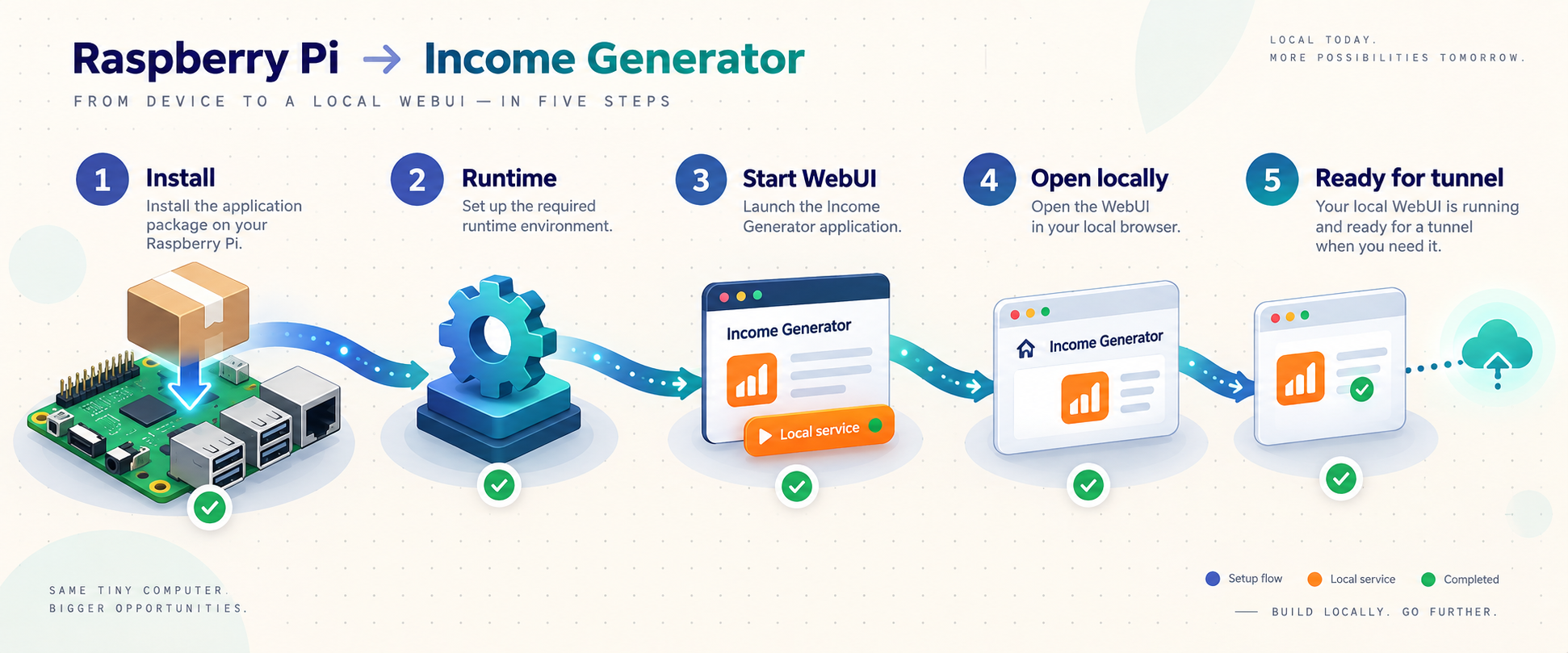
IGM's documented setup places the container runtime before WebUI startup. Preserve that order. On ARM devices, the project says QEMU is configured automatically during container runtime installation. This can support applications that need emulation, but it does not guarantee that every application will work or perform well.
Set up the container runtime
Run igm runtime. This is the project's documented setup path when the required container runtime is not already available.
Start the WebUI with boot startup enabled
Run igm web start --auto. The documented --auto option configures the WebUI to start when the host boots.
Open the local dashboard
On the Raspberry Pi, browse to http://localhost:4747. The project also documents access through the host's LAN IP when another trusted device can reach it.
igm runtimeWait for the runtime setup to complete, then start the dashboard:
igm web start --autoOpen the documented endpoint:
http://localhost:4747The dashboard is used to configure, deploy, monitor, and manage supported applications. Account registration, credentials, device limits, IP eligibility, and payout rules vary by application. Register only through the official service associated with each application, follow its limits, and never paste application credentials into unrelated websites or support requests.
Do not infer dashboard authentication from credential encryption
The available IGM documentation confirms the dashboard address and states that managed application credentials are encrypted at rest. It does not establish a default WebUI username, default password, authentication mechanism, role model, authorization policy, CSRF protection, or built-in HTTPS listener.
These are separate security boundaries. Encryption at rest concerns how managed application secrets are stored. WebUI authentication determines who can open the management interface and issue actions. One does not replace the other.
Verify Income Generator locally before remote access
Local verification should establish that the IGM command works, the runtime is available, the WebUI has started, and the dashboard responds at the expected endpoint. Do this before installing or troubleshooting a public tunnel.
Confirm the installed IGM version
Run igm version. Record the installed version so that release-specific instructions and security behavior can be evaluated accurately.
Load the dashboard on the Pi
Open http://localhost:4747 in a browser on the Raspberry Pi. Confirm that the interface loads instead of relying only on a startup message.
Test trusted LAN access when needed
From another device on the same trusted network, open http://LAN-IP:4747, replacing LAN-IP with the Raspberry Pi's actual address. This is necessary when Localtonet will run on another device.
Check WebUI startup after a planned reboot
If you used --auto, reboot during a maintenance window and verify that the dashboard returns. This tests persistence in your actual environment.
igm version
If Localtonet runs on the same Raspberry Pi, the HTTP tunnel can target 127.0.0.1:4747. If Localtonet runs on another device, it must target a Raspberry Pi LAN address reachable from that device. On another machine, 127.0.0.1 refers to that other machine, not the Pi.
Install Localtonet as an ARM64 system service
For an ARM64 Raspberry Pi running a compatible Debian or Ubuntu release, Localtonet provides an installable DEB package. The documented package workflow creates a persistent systemd service, reads the device token from a protected file, validates the configuration before startup, and preserves the configuration during package upgrades.
Before continuing, confirm that the host has systemd 247 or newer and OpenSSL 3. Debian 12 and Ubuntu 22.04 or newer are documented examples. Download the current localtonet-linux-arm64.deb package from the Localtonet installation documentation. Open a terminal in the directory containing that downloaded file.
The authentication token identifies the client device. Put your own token only in the protected file on the Raspberry Pi. Do not publish it, commit it to a repository, include it in screenshots, or substitute it into commands that may be copied into public logs.
Install the downloaded ARM64 DEB package
From the directory containing localtonet-linux-arm64.deb, install the package with APT. Confirm that the filename and host architecture are correct before proceeding.
Set the device AuthToken
Edit /etc/localtonet/auth-token as root. Replace DUMMY_AUTH_TOKEN with your device-specific token on a single line. Do not add explanatory text or expose the resulting file.
Protect and validate the token configuration
Set file permissions to 600, then run the documented headless configuration check. Do not start the service until this check succeeds.
Enable and start the Localtonet service
Use systemd to enable the service for future boots and start it immediately. This makes the Localtonet client persistent independently of an interactive terminal session.
Inspect the service journal
Review the Localtonet systemd journal for startup or authentication errors. Keep tokens and private endpoint details out of copied log excerpts.
Install the package
sudo apt install ./localtonet-linux-arm64.debConfigure the protected token file
Edit /etc/localtonet/auth-token as root and replace the package's DUMMY_AUTH_TOKEN value with your own token on one line. The exact editor is an administrative preference, so no particular editor command is required by this workflow.
Protect the file and validate the configuration:
sudo chmod 600 /etc/localtonet/auth-token
sudo localtonet --headless --authtoken-file /etc/localtonet/auth-token --check-config
The permissions limit normal access to the root-owned credential file. The --check-config operation verifies the documented headless configuration before the persistent service is started.
Enable persistence and inspect startup
After the configuration check succeeds, enable and start the standard tunneling service:
sudo systemctl enable --now localtonet.service
sudo journalctl -u localtonet.service
Enabling the unit configures it to start through systemd after future boots. Starting the service does not automatically make every tunnel public. A tunnel must still exist in your account, be associated with the connected client device, and be placed in its running state.
The IGM dashboard requires an HTTP tunnel. Do not switch to localtonet-vpn.service for this workflow. VPN Manager is a separate feature and standard HTTP tunneling should not be described or configured as a VPN.
Upgrade the Localtonet package safely
When a newer compatible ARM64 package is available, install the new DEB package and restart the standard service. The documented package workflow preserves your configuration:
sudo apt install ./localtonet-linux-arm64.deb
sudo systemctl restart localtonet
After upgrading, inspect the journal again and verify that the intended device appears connected before relying on remote access:
sudo journalctl -u localtonet.serviceCreate the Localtonet HTTP tunnel
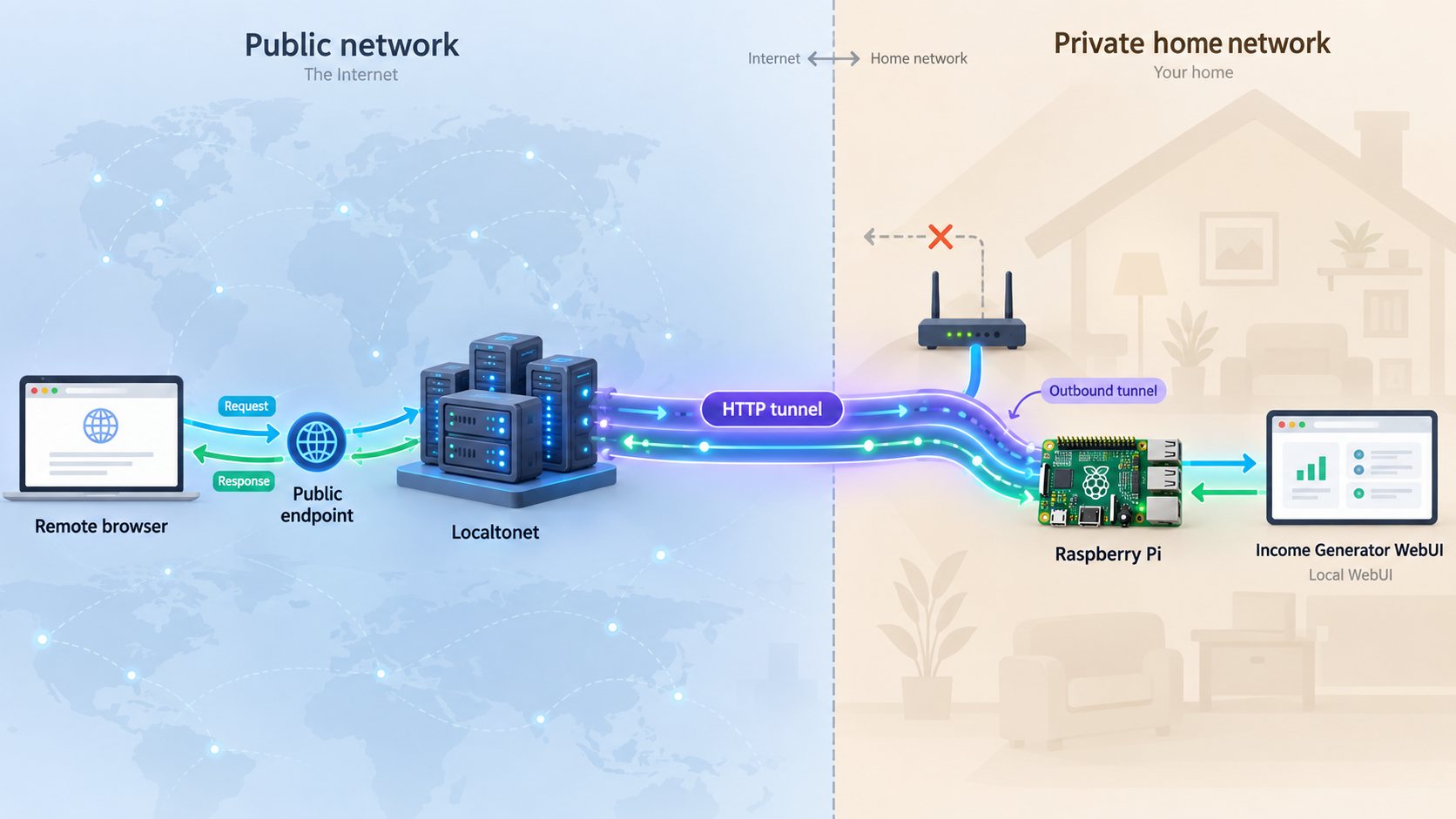
Once the WebUI works locally and the Localtonet service is connected, create an HTTP tunnel. Our client establishes an outbound connection to a Localtonet relay server, so this workflow does not require inbound router port forwarding, an inbound firewall change, a public IP address, or VPN setup.
For the same-device configuration covered by this guide, the local target is 127.0.0.1 on port 4747. If the Localtonet client is installed on another trusted machine, use the Raspberry Pi's verified LAN address and port 4747 instead.
The available Income Generator documentation does not establish WebUI authentication, authorization, or an access-control layer suitable for a public management console. A Localtonet tunnel provides connectivity and a public address, but it does not automatically add an IGM login. Unless you have independently verified suitable protection for the version you installed, use only temporary exposure and stop the tunnel immediately after administration.
Open the HTTP tunnel configuration
In the Localtonet dashboard, begin creating an HTTP tunnel. The tunnel type must match the browser-based HTTP service listening on port 4747.
Choose the process type
Select Random Sub Domain, Custom Sub Domain, or Custom Domain according to the options currently available to your account. All three process types serve the target through a public HTTPS address.
Select the connected Raspberry Pi and relay server
Select the AuthToken or device corresponding to the Raspberry Pi service, then choose an available relay server. Obtain current server or region values from the dashboard rather than copying a server code from an older tutorial.
Enter the verified local IP address and port
Use 127.0.0.1 and port 4747 when Localtonet runs on the Pi. If the client runs elsewhere, use the Pi's reachable LAN IP and port 4747.
Create and start the tunnel
Save the configuration, then press Start. Creating a tunnel does not mean it is running. Use the assigned public HTTPS address only after the selected client is connected and the tunnel is running.
Stop or delete access when finished
Stop the tunnel as soon as remote administration is complete, especially while the IGM authentication boundary remains unverified. Delete the configuration if it is no longer needed.
Consult the current Localtonet HTTP tunnel documentation alongside your dashboard when process-type availability or custom-domain requirements matter. In particular, verify current DNS instructions before modifying records for a custom domain.
Choosing the HTTP process type
| Process type | Appropriate use | Important consideration |
|---|---|---|
| Random Sub Domain | Temporary testing or occasional administration | Use the assigned public HTTPS address and stop the tunnel after the session. |
| Custom Sub Domain | A selected subdomain where currently supported | Availability can vary by current product configuration or plan. |
| Custom Domain | A domain controlled by the operator | Check current DNS requirements before changing records. Do not guess the required record type or target. |
The public route remains available only while the selected Localtonet client is connected and the tunnel is running. The IGM WebUI must also remain active. If the WebUI, Localtonet system service, device connection, or tunnel stops, the public endpoint cannot deliver the dashboard.
Routine operation, updates, and maintenance
A self-hosted node needs maintenance after installation. Perform updates locally whenever possible, and stop the public tunnel during maintenance unless remote access is required for the work.
Understand the version-specific IGM instructions
The update commands below are documented by the project's 3.0.0-beta.7 release. That release is explicitly a beta build. This does not prove that every earlier or later IGM release is beta, so use igm version to identify what is actually installed and review instructions applicable to that release.
igm versionUpdate IGM
For the cited 3.0.0-beta.7 release, the documented update command is:
igm updateCheck the resulting installed version:
igm versionIf the WebUI still displays an earlier version, that release instructs users to restart the WebUI:
igm web restartIf its normal update does not work, the same release instructs Linux users to rerun the installer:
curl -fsSL https://raw.githubusercontent.com/XternA/income-generator/installer/install.sh | shRestart the WebUI afterward when required:
igm web restartFuture releases may publish different update steps. Do not assume a command documented for 3.0.0-beta.7 remains the permanent procedure without checking the release you are using.
Use a controlled maintenance sequence
Stop the public Localtonet tunnel, update IGM locally, check the installed version, restart the WebUI when needed, and load http://localhost:4747. Re-enable remote access only after the local dashboard passes verification.
For Localtonet package maintenance, install the newer ARM64 DEB, restart localtonet, inspect journalctl -u localtonet.service, and confirm that the intended device reconnects. The tunnel configuration is separate from the package process, so also verify that only the intended tunnels are running.
Monitor workloads conservatively
Add managed applications gradually and observe CPU use, memory pressure, storage activity, temperature, and network consumption with the normal monitoring tools for your Linux environment. IGM supports configurable resource limits, but the available evidence does not provide one universal Raspberry Pi profile.
Be equally careful with multi-proxy scaling. Technical support for multiple instances does not override an application's device limits, per-IP limits, account rules, geographic restrictions, or a proxy provider's terms. Capability is not permission.
Security and exposure checklist
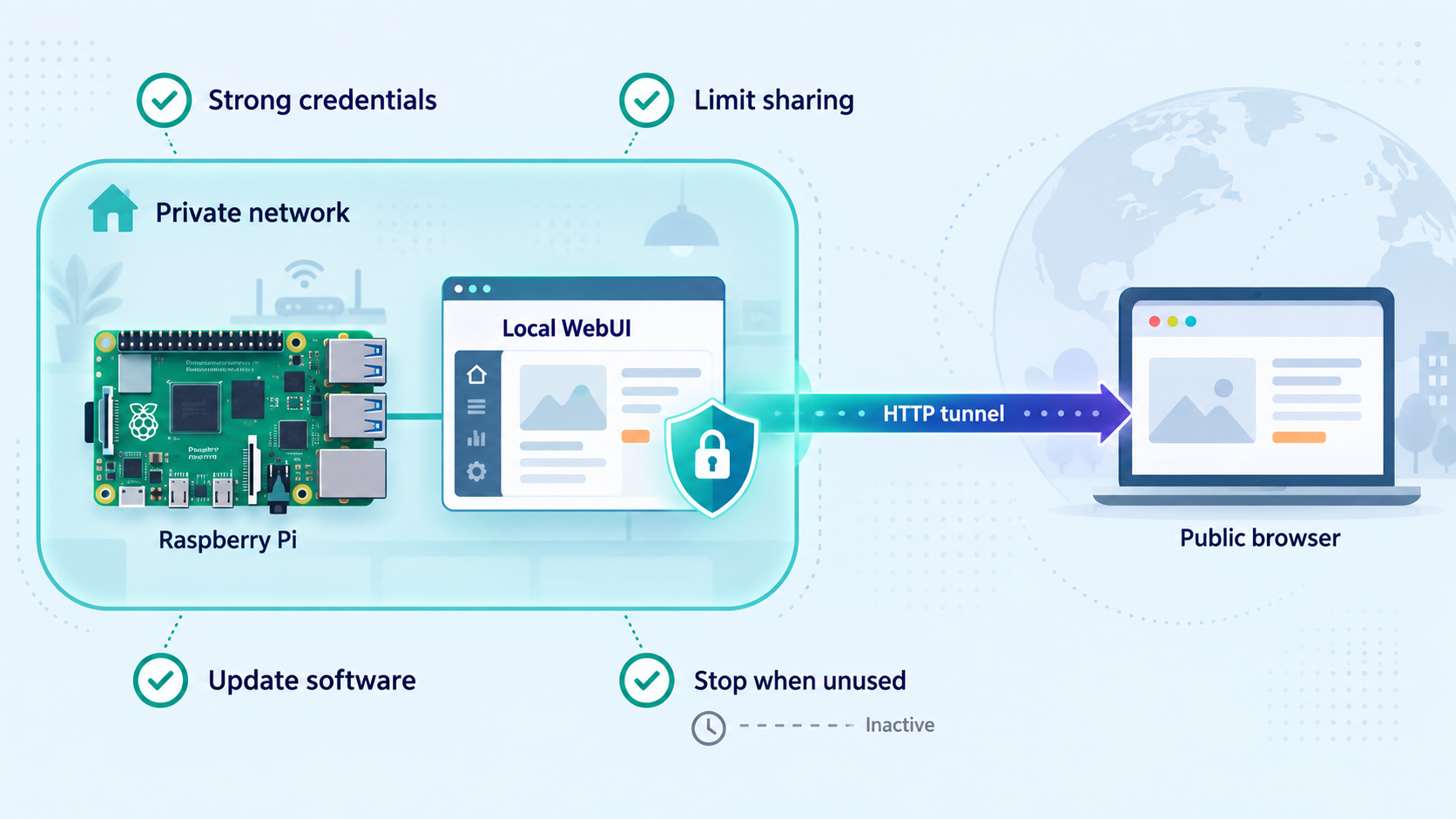
This workflow combines three distinct boundaries: the Raspberry Pi host, the IGM management application, and the Localtonet tunnel. Each requires separate controls. A public HTTPS address does not prove that the underlying dashboard requires a login or authorizes every sensitive action.
/etc/localtonet/auth-token, protect it with mode 600, and never publish its contents.
Localtonet transports browser requests to the configured local service. IGM must decide whether a requester may view credentials, deploy applications, change proxy settings, or perform management actions. If the installed WebUI does not enforce suitable authentication and authorization, keep it private rather than relying on an unguessable URL.
A safer exposure decision
First, verify whether the exact IGM version you installed requires authentication before showing dashboard content. Second, confirm that sensitive actions are protected, not merely the landing page. Third, apply any appropriate access restrictions available in your current environment. Finally, expose the interface only for the minimum time and audience required.
If you cannot establish these properties, defer public exposure. You can still manage IGM locally from the Raspberry Pi or through another trusted administrative path. Convenience should not take priority over protecting a dashboard that controls network-sharing workloads and stored account information.
Troubleshooting the installation and tunnel
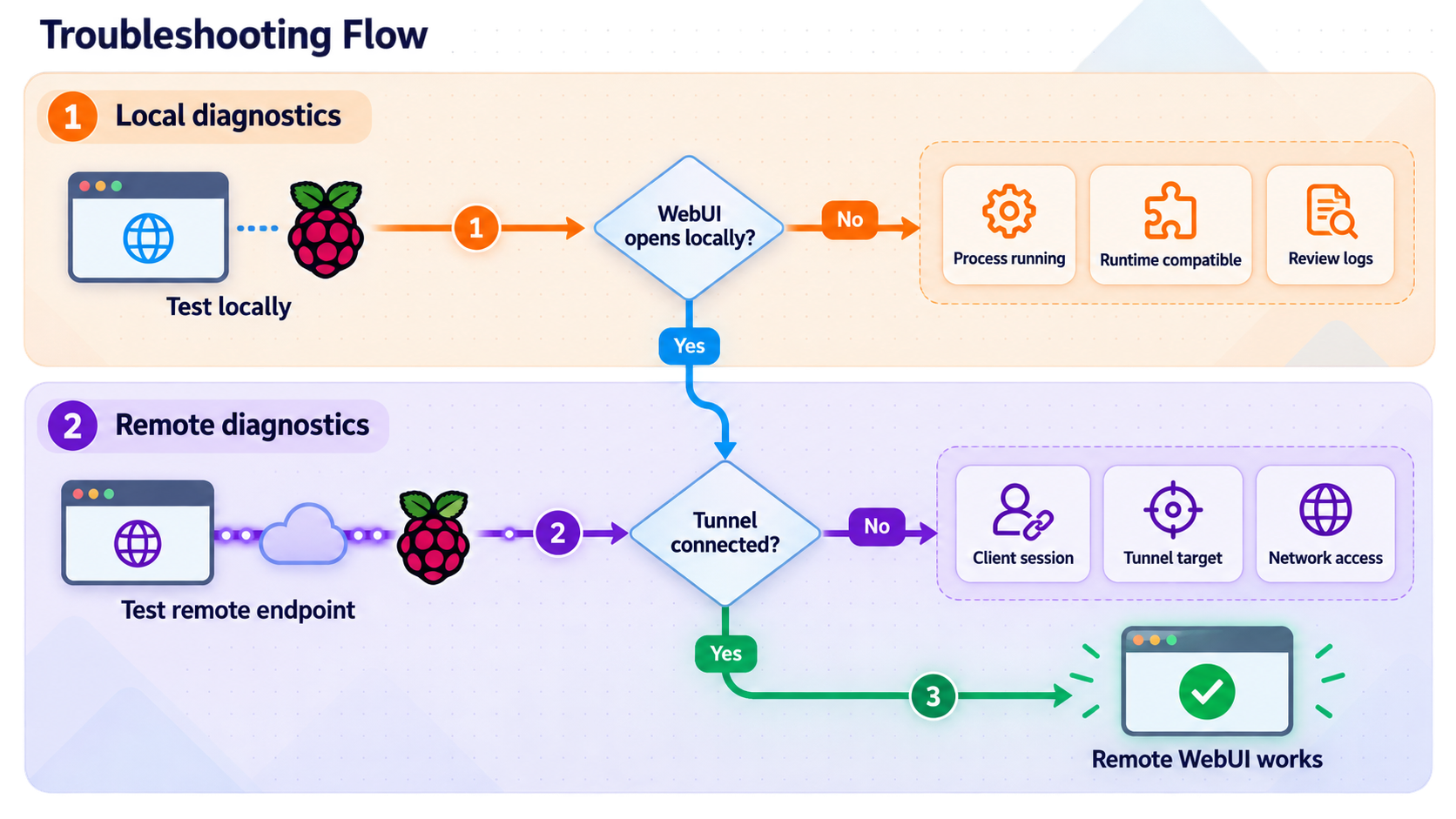
Troubleshoot from the inside out. Start with the IGM command, then the container runtime, local WebUI, LAN reachability if applicable, Localtonet configuration check, systemd service, tunnel state, and finally the public address.
| Symptom | Likely boundary | Recommended check |
|---|---|---|
igm does not launch |
IGM installation | Review the installer's output and confirm completion. If appropriate for the installed release, rerun the official installer. |
| The WebUI does not start | Runtime or WebUI startup | Run igm runtime, let it finish, then run igm web start --auto. |
localhost:4747 does not load |
Local IGM WebUI | Confirm the startup command completed. Run igm web restart when applicable, then retest locally. |
| The WebUI shows an older IGM version | WebUI process lifecycle | Use igm version to check the installed build, then restart the WebUI according to the relevant release instructions. |
| The Localtonet package will not install | OS, architecture, or dependency mismatch | Confirm ARM64, systemd 247 or newer, OpenSSL 3, and a compatible Debian or Ubuntu release. Verify that the package is localtonet-linux-arm64.deb. |
| The Localtonet configuration check fails | Token-file configuration | Confirm that /etc/localtonet/auth-token contains the correct device token on one line and has mode 600. Do not expose the token while seeking help. |
| The Localtonet service does not connect | systemd service or authentication | Inspect sudo journalctl -u localtonet.service and resolve package, network, or authentication errors before creating the tunnel. |
| The dashboard works on the Pi but not over the LAN | LAN reachability | Use the Pi's real LAN IP and port 4747. Review host and network policy without disabling security controls indiscriminately. |
The tunnel targets 127.0.0.1:4747 from another device |
Incorrect local target | Replace loopback with the Raspberry Pi's reachable LAN address. Loopback always refers to the machine running the Localtonet client. |
| The dashboard works locally but not publicly | Tunnel configuration or lifecycle | Confirm that the intended device is connected, the relay selection is current, the local IP and port are correct, and the created tunnel has been started. |
| The public URL stops working after a reboot | WebUI, Localtonet service, or tunnel state | Check that IGM was started with --auto, verify localtonet.service, inspect its journal, and confirm that the tunnel is running. |
| An application performs poorly on Raspberry Pi 3 | Hardware or architecture limits | The project warns that older arm32v7 devices may have reduced performance and unsupported applications. Reduce the workload or use supported hardware. |
Separate service failures from tunnel failures
If the local dashboard is unavailable, stop troubleshooting the public address and repair IGM first. Localtonet cannot forward to a service that is not responding. Once the dashboard loads locally, verify the target from the machine running Localtonet.
If the target is reachable but the public address fails, inspect localtonet.service, confirm that the correct device is selected, and verify that creation was followed by Start. A tunnel associated with an offline or different device cannot reach the Raspberry Pi dashboard.
Frequently asked questions
Does Income Generator officially support Raspberry Pi?
The project lists Raspberry Pi 4 among its tested and fully supported Linux environments. It says older devices such as Raspberry Pi 3 with arm32v7 can run IGM, but some applications may not work and performance may be reduced.
Is Income Generator always beta software?
The cited 3.0.0-beta.7 release is explicitly a beta release. That historical tag does not establish the status of every current or future version. Run igm version and review the release information for the version actually installed.
What port does the Income Generator WebUI use?
The documented dashboard endpoint is http://localhost:4747, so the WebUI uses local TCP port 4747. The project also documents access through the Raspberry Pi's LAN IP.
Does the WebUI require a container runtime?
Yes. Run igm runtime to prepare the required runtime before starting the dashboard with igm web start --auto.
What does the Localtonet ARM64 package require?
The documented Debian and Ubuntu ARM64 package path requires systemd 247 or newer and OpenSSL 3. Debian 12 and Ubuntu 22.04 or newer are listed as examples. The package filename is localtonet-linux-arm64.deb.
How is the Localtonet token protected?
The package reads the token from /etc/localtonet/auth-token. Put the device-specific token on one line, apply sudo chmod 600 /etc/localtonet/auth-token, and validate it with the documented --check-config command before starting the service.
Do I need router port forwarding?
No. Our client creates an outbound connection to a Localtonet relay server. The HTTP tunnel can provide a public address without inbound router port forwarding, a public IP address, VPN setup, or inbound firewall changes.
Should the tunnel target localhost or the Raspberry Pi's LAN IP?
Use 127.0.0.1:4747 when Localtonet runs directly on the Raspberry Pi. If it runs on another device, use a Raspberry Pi LAN address reachable from that device. Loopback on another machine does not point to the Pi.
Does Localtonet add a password to the IGM dashboard?
No application-level password should be assumed. An HTTP tunnel provides connectivity to the configured target. The available IGM documentation does not establish WebUI authentication, so verify the installed version independently and avoid persistent public exposure while protection is uncertain.
Does running Income Generator guarantee passive income?
No. Results depend on application eligibility, network type, geographic demand, account and device limits, uptime, bandwidth, electricity costs, and each service's rules. Installation does not guarantee acceptance, traffic, payouts, or profit.
Connect your verified Raspberry Pi dashboard with Localtonet
Install and test Income Generator locally, configure the protected Localtonet ARM64 system service, and verify how the IGM WebUI is protected. Then create a temporary HTTP tunnel to 127.0.0.1:4747 from the same Raspberry Pi and stop it when remote administration is complete.


