

Build a lightweight Linux dashboard, validate every local layer, and publish it only when the content is safe to share
Glance is a self-hosted dashboard that combines feeds, status information, releases, videos, weather, markets, and other widgets in a configurable web interface. This guide installs the v0.8.5 precompiled Linux binary, pairs it with configuration from the same release tag, verifies the service locally, and creates a persistent systemd service. After Glance is working, we connect its HTTP endpoint to Localtonet as a separate remote-access layer. The guide also explains an important access-control limitation before you make the dashboard public.
📋 What's in this guide
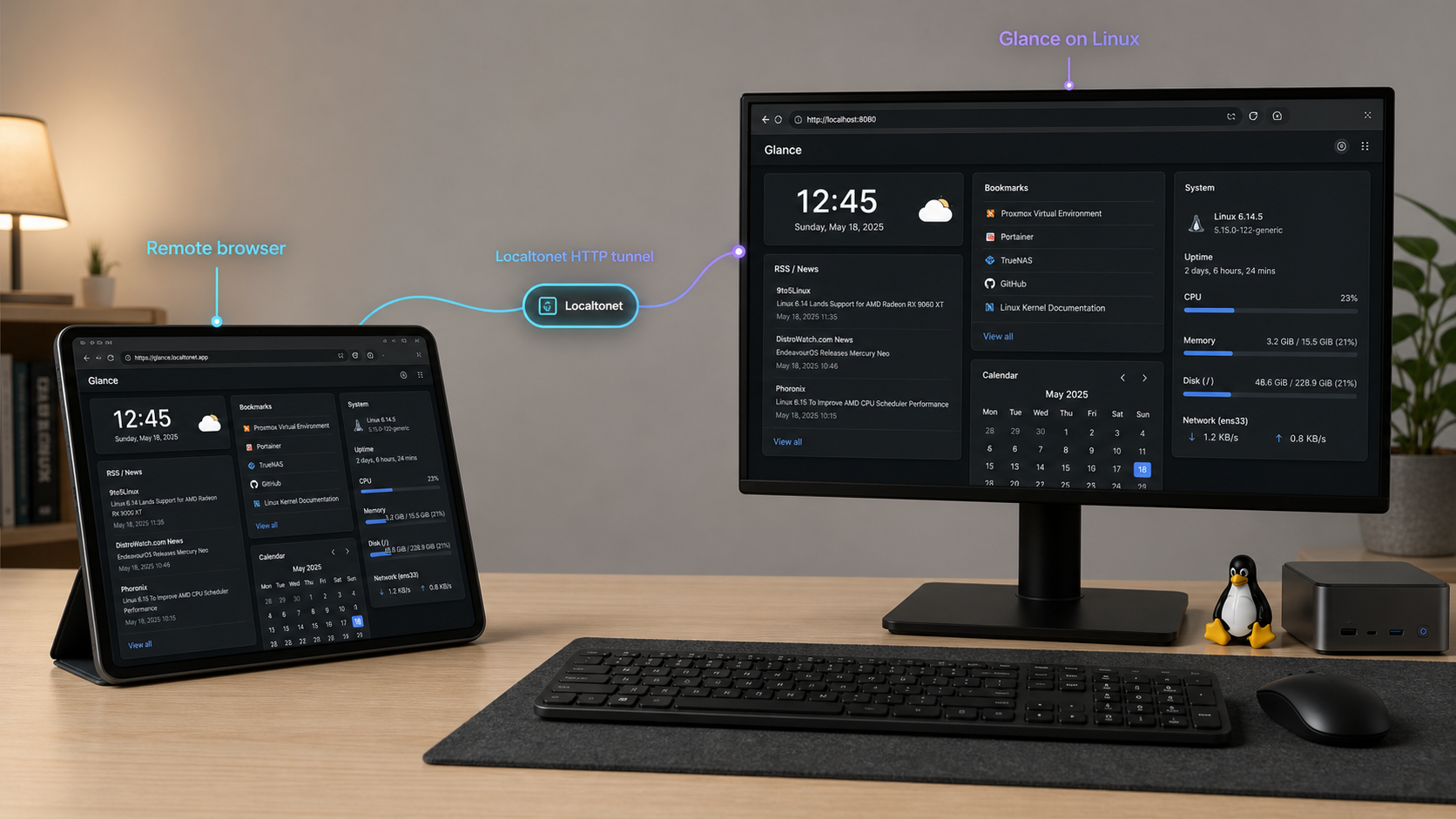
What Glance is and how this deployment works
Glance is an open-source, self-hosted dashboard designed to display multiple information sources in a streamlined browser interface. Its available widgets include RSS feeds, subreddit posts, Hacker News, weather forecasts, YouTube uploads, Twitch channels, market prices, Docker container status, server statistics, software releases, and custom data. Pages, columns, themes, and widget-specific options are defined through YAML configuration.
The project offers several installation paths. Docker Compose is its recommended method, but it also publishes precompiled binaries for Linux, Windows, and macOS across x86, x86_64, ARM, and ARM64 architectures. This tutorial deliberately uses a Linux binary. That approach is suitable when you already manage native host services, want to avoid adding a container runtime solely for a dashboard, or need direct control over the executable and its service definition.
This walkthrough is pinned to Glance v0.8.5. Pinning matters because the repository's main branch can advance after a release. At the time covered by the supplied project evidence, main was already many commits ahead of v0.8.5. Downloading a v0.8.5 binary while taking a configuration template from mutable main could introduce settings intended for newer code. We avoid that mismatch by downloading both the executable and starting configuration from the v0.8.5 release context.
There are three operational layers:
- Glance process: the Linux executable reads the YAML configuration and starts its web service.
- Local HTTP endpoint: the dashboard must respond at the verified local address and port. The documented default example is
http://localhost:8080. - Localtonet HTTP tunnel: after local verification, our client creates an outbound connection to a Localtonet relay and forwards a public HTTPS address to the local Glance endpoint.
Keeping these layers separate is essential. A tunnel cannot repair an architecture mismatch, invalid YAML, unavailable widget source, or stopped Glance process. Conversely, a working local dashboard does not prove that the Localtonet client is connected or that the tunnel has been started.
127.0.0.1:8080.
Keep Glance local during installation. Verify the binary, configuration, HTTP response, browser rendering, and service restart behavior before creating a public tunnel.
Prerequisites and deployment decisions
Use a Linux account that can download files and run commands. Installing under /opt, creating a service account, and registering a systemd unit normally require sudo or equivalent administrative access. The machine must remain online whenever you expect the dashboard to be available.
The extraction examples use tar for .tar.gz or .tgz files and unzip for .zip files. Install the corresponding standard utility through your distribution if it is absent. You will also need curl or wget, the file utility, and a browser or HTTP client for verification.
For remote access, install the Localtonet client on the Glance host or on another device that can reach Glance over the local network. Running both processes on the same host is the simplest arrangement because the tunnel can target loopback without exposing port 8080 to the LAN.
Identify the processor architecture
Run this command on the Linux machine where Glance will execute:
uname -mUse the result to select the corresponding Linux asset on the v0.8.5 release page. The following mapping explains the common kernel names without pretending that every release uses one permanent filename:
uname -m result |
Release architecture to select | Important note |
|---|---|---|
x86_64 |
x86_64 or AMD64 | This is the usual 64-bit Intel and AMD Linux architecture. |
aarch64 or arm64 |
ARM64 | Do not substitute a 32-bit ARM build. |
armv7l or another 32-bit ARM result |
ARM | Confirm that the release asset supports the exact ARM generation used by the host. |
i386, i486, i586, or i686 |
x86 | Use the 32-bit x86 build rather than x86_64. |
If the output does not clearly match an asset listed by Glance, stop rather than selecting the nearest-looking archive. The project supports the architecture families listed above, but a release asset still has to match the operating system and processor on the target machine.
Use one consistent filesystem layout
This guide places both the executable and its release-matched configuration in /opt/glance:
/opt/glance/
├── glance
└── glance.yml
Glance normally looks for glance.yml in the directory containing its binary. We will still pass an absolute configuration path to systemd. That removes uncertainty about the service's working directory and makes the active configuration visible in the unit definition.
This tutorial uses Glance v0.8.5 and the configuration template stored under the v0.8.5 Git tag. If you intentionally install another release, obtain its binary and configuration documentation from that same tag, then review its release notes before continuing.
Select, extract, and install the Glance Linux binary
Open the v0.8.5 release page, expand its Assets list, and download the Linux archive whose architecture matches the mapping above. The release contains multiple assets, so confirm both the operating system and architecture before downloading.
If you want to determine whether a newer release now exists, use the project's latest-release page. Do not silently substitute that newer binary into the commands below. A different release should be paired with its own tagged template and reviewed for configuration changes.
Record the host architecture
Run uname -m on the target host and map the result to x86, x86_64, ARM, or ARM64. Select only a Linux asset that matches that architecture.
Download the v0.8.5 release archive
Download the selected asset from the v0.8.5 Assets list into ~/Downloads or another known directory. Keep the filename assigned by the release page so that its archive extension remains visible.
Set the exact downloaded path
List the download directory, copy the exact filename shown there, and assign it to ARCHIVE. This avoids guessing a release asset name in a command.
Extract according to the real format
Inspect the file and use the matching extraction branch below. The command handles .tar.gz, .tgz, and .zip archives without assuming which packaging format your selected asset uses.
Locate and inspect the executable
Find the extracted file named glance, inspect it with file, and compare the reported executable architecture with uname -m.
Install it under /opt/glance
Create the installation directory and copy the verified executable to /opt/glance/glance with executable permissions.
First list your downloads and identify the exact archive:
ls -lh "$HOME/Downloads"
Assign the complete path you actually downloaded. Replace the placeholder below with the filename displayed by ls:
ARCHIVE="$HOME/Downloads/PASTE-THE-EXACT-DOWNLOADED-FILENAME-HERE"
test -f "$ARCHIVE" || { echo "Archive not found: $ARCHIVE"; exit 1; }
file "$ARCHIVE"
Create a clean extraction directory and extract based on the real filename:
EXTRACT_DIR="$HOME/glance-v0.8.5-extract"
rm -rf "$EXTRACT_DIR"
mkdir -p "$EXTRACT_DIR"

case "$ARCHIVE" in
  *.tar.gz|*.tgz)
    tar -xzf "$ARCHIVE" -C "$EXTRACT_DIR"
    ;;
  *.zip)
    unzip "$ARCHIVE" -d "$EXTRACT_DIR"
    ;;
  *)
    echo "Unsupported or unrecognized archive extension."
    echo "Inspect the file output and the release asset before continuing."
    exit 1
    ;;
esac
Locate the executable:
find "$EXTRACT_DIR" -type f -name glance -print
If exactly one path is returned, assign that exact path to GLANCE_EXTRACTED. Replace the placeholder rather than copying a guessed directory structure:
GLANCE_EXTRACTED="PASTE-THE-EXACT-PATH-RETURNED-BY-FIND"
test -f "$GLANCE_EXTRACTED" || { echo "Glance executable not found"; exit 1; }

chmod u+x "$GLANCE_EXTRACTED"
file "$GLANCE_EXTRACTED"
uname -m
The file output should identify a Linux executable whose architecture corresponds to the host. If it reports a different architecture, delete the extraction directory and download the correct asset. Do not install an incompatible file merely because its name contains linux.
Install the verified executable:
sudo mkdir -p /opt/glance
sudo install -o root -g root -m 0755 "$GLANCE_EXTRACTED" /opt/glance/glance
ls -l /opt/glance/glance
file /opt/glance/glance
You can also record a local SHA-256 digest for later comparison:
sha256sum "$ARCHIVE"
sha256sum /opt/glance/glance
A locally calculated digest detects later changes to the same file, but it is not publisher verification by itself. Compare it with an official checksum only if the selected release supplies one. Do not treat a checksum copied from an unrelated site as authoritative.
An Exec format error normally means the executable does not match the processor or operating system. Return to the v0.8.5 Assets list and select the correct Linux architecture instead of changing permissions repeatedly.
Install a release-matched glance.yml
The Glance repository includes a starting configuration under docs/glance.yml. For this v0.8.5 installation, use the template from the v0.8.5 tag, not the mutable copy on main.
Download the tagged file and make the command fail if GitHub returns an HTTP error:
curl -fL \
  https://raw.githubusercontent.com/glanceapp/glance/v0.8.5/docs/glance.yml \
  -o /tmp/glance-v0.8.5.yml

test -s /tmp/glance-v0.8.5.yml
sudo install -o root -g root -m 0644 \
  /tmp/glance-v0.8.5.yml \
  /opt/glance/glance.yml
If curl reports a non-success status or the file is empty, do not substitute the main URL. Open the tagged template link, confirm that the file exists under v0.8.5, and save that exact revision manually.
Edit the installed file with your preferred text editor:
sudo nano /opt/glance/glance.ymlYAML is indentation-sensitive. Use spaces, avoid tabs, and preserve the hierarchy between pages, columns, and widgets. The following small example reflects the documented Glance structure and is useful when you want to reduce the initial configuration to a few easy-to-check widgets:
pages:
  - name: Home
    columns:
      - size: small
        widgets:
          - type: calendar
            first-day-of-week: monday

      - size: full
        widgets:
          - type: hacker-news

      - size: small
        widgets:
          - type: weather
            location: London, United Kingdom
            units: metric
            hour-format: 12h
Replace the example location and widget choices with information appropriate for your dashboard. Begin with a small configuration. After the service starts reliably, add feeds and integrations in small groups so that a syntax error or unavailable upstream service is easier to identify.
Configuration and external network activity
Many widgets retrieve data from external services. Glance can therefore serve its page successfully while an individual feed, DNS lookup, or upstream API fails. During verification, separate basic dashboard availability from widget availability. First confirm that the web page responds. Then investigate any widget-specific message.
The Glance project identifies low DNS rate limits in Pi-hole, AdGuard Home, and similar filtering resolvers as a common cause of request timeouts. A dashboard containing many widgets can generate enough DNS lookups to exceed a restrictive limit. If the interface opens but multiple data-backed widgets time out, inspect the resolver used by the Glance host.
Protect sensitive configuration values
Review the YAML before storing it in version control or sharing it for troubleshooting. Custom widgets and external integrations can involve credentials, private URLs, or other sensitive values. Do not place a Localtonet device token in glance.yml. Glance configuration and Localtonet client authentication are separate concerns.
A public tunnel can expose rendered widget content as well as information intentionally placed in the page. Remove credentials, private endpoints, internal hostnames, personal feeds, and operational details that should not be visible to an unauthenticated internet visitor.
Start Glance in the foreground and verify it locally
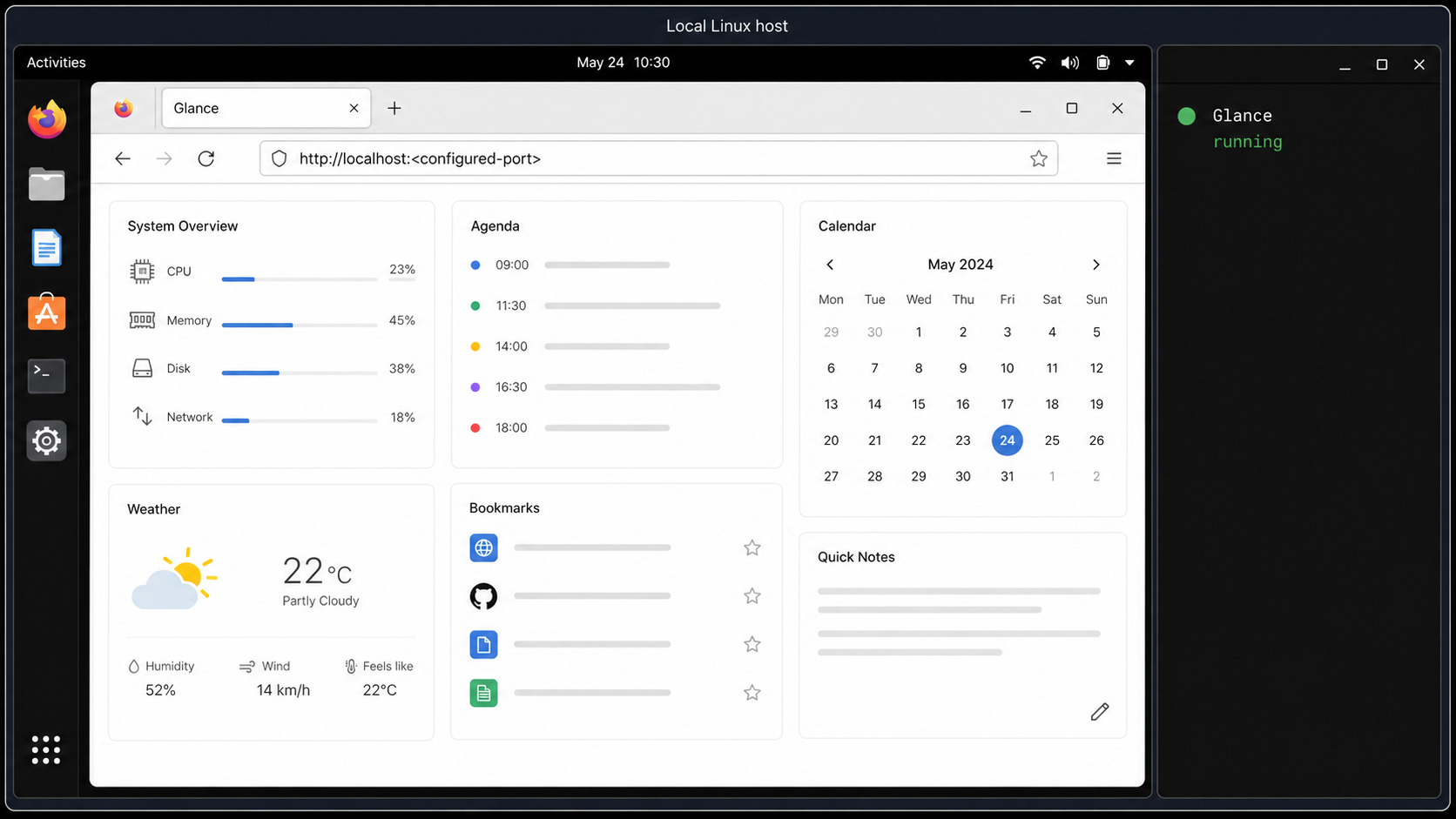
Foreground execution is the first meaningful binary test. It verifies that the kernel can execute the file, the application can read the selected configuration, and the local service can start. Run the exact command that the systemd service will later use:
cd /opt/glance
./glance --config /opt/glance/glance.yml
Leave that terminal open. If Glance exits, read the displayed error before changing anything. A startup failure at this stage is local and should be resolved before systemd or Localtonet is introduced.
From another terminal on the same host, request the documented local endpoint:
curl -I http://127.0.0.1:8080Then open the full interface in a browser:
http://localhost:8080An HTTP response confirms that something is listening at the endpoint, but browser inspection confirms more. Check that the expected page name appears, columns render correctly, and the configured widgets are present. Return to the foreground terminal and look for configuration or upstream request errors.
You can inspect the listener with:
ss -ltn | grep ':8080'A matching line confirms that a process is listening, but it does not identify Glance by itself. Combine this check with the foreground process and browser result.
| Layer | Expected result | If it fails |
|---|---|---|
| Executable | Glance starts without an execution-format or permission error. | Recheck the release architecture, file type, and executable permissions. |
| Configuration | The process accepts /opt/glance/glance.yml. |
Inspect YAML indentation and confirm that the template matches v0.8.5. |
| Local HTTP | 127.0.0.1:8080 returns an HTTP response. |
Confirm that Glance is still running and that the port is available. |
| Browser rendering | The configured page, columns, and widgets appear. | Review the browser result and foreground process output. |
| Widget data | External data loads where its upstream source is available. | Check outbound access, DNS, resolver rate limits, and upstream availability. |
Stop the foreground process with Ctrl+C only after these checks pass. Foreground execution is not a persistent deployment. Closing the terminal or rebooting the host stops the dashboard, which is why the next section creates a supervised service.
When the Localtonet client will run on this same Linux host, the verified target for this setup is 127.0.0.1 and port 8080. If the client will run elsewhere, test the appropriate LAN address from that other device before creating the tunnel.
Run Glance persistently with systemd
The Glance project states that the binary can be placed in /opt/glance and started with the server through systemd, but the supplied primary project evidence does not include an authoritative unit file. The following is therefore a clearly labeled, distribution-neutral example for this exact filesystem layout. Review it against your distribution's service policy before production use.
Create a dedicated service account
A dashboard does not need to run as root merely because its binary is installed under /opt. Create a system account with no interactive login. The command locates the host's nologin program and falls back to /bin/false if necessary:
NOLOGIN="$(command -v nologin || true)"
[ -n "$NOLOGIN" ] || NOLOGIN=/bin/false

sudo useradd \
  --system \
  --home-dir /opt/glance \
  --shell "$NOLOGIN" \
  glance
If your distribution reports that the user already exists, confirm that it is the intended service account before continuing. Some distributions provide a different account-management command, so follow local administrative policy if useradd is unavailable.
Keep the executable owned by root and allow the glance group to read the configuration:
sudo chown root:root /opt/glance/glance
sudo chmod 0755 /opt/glance/glance

sudo chown root:glance /opt/glance/glance.yml
sudo chmod 0640 /opt/glance/glance.yml

sudo chown root:glance /opt/glance
sudo chmod 0750 /opt/glance
Create the service unit
Write the following unit to /etc/systemd/system/glance.service:
[Unit]
Description=Glance self-hosted dashboard
Wants=network-online.target
After=network-online.target

[Service]
Type=simple
User=glance
Group=glance
WorkingDirectory=/opt/glance
ExecStart=/opt/glance/glance --config /opt/glance/glance.yml
Restart=on-failure
RestartSec=5
NoNewPrivileges=true
PrivateTmp=true
UMask=0027

[Install]
WantedBy=multi-user.target
You can create it from the shell without exposing credentials:
sudo tee /etc/systemd/system/glance.service >/dev/null <<'EOF'
[Unit]
Description=Glance self-hosted dashboard
Wants=network-online.target
After=network-online.target

[Service]
Type=simple
User=glance
Group=glance
WorkingDirectory=/opt/glance
ExecStart=/opt/glance/glance --config /opt/glance/glance.yml
Restart=on-failure
RestartSec=5
NoNewPrivileges=true
PrivateTmp=true
UMask=0027

[Install]
WantedBy=multi-user.target
EOF
Validate the unit syntax, reload systemd, enable startup at boot, and start Glance:
sudo systemd-analyze verify /etc/systemd/system/glance.service
sudo systemctl daemon-reload
sudo systemctl enable --now glance.service
Verify startup and inspect logs
Check the service state:
sudo systemctl status glance.service --no-pager
sudo systemctl is-enabled glance.service
sudo systemctl is-active glance.service
Inspect recent process output from the system journal:
sudo journalctl -u glance.service -n 100 --no-pagerFollow new log messages while testing the dashboard:
sudo journalctl -u glance.service -fIn another terminal, repeat the local request:
curl -I http://127.0.0.1:8080This repeated check proves that the systemd-managed process, rather than the earlier foreground process, is serving the endpoint.
Restart after configuration changes
The supplied v0.8.5 evidence does not establish a supported hot-reload signal or automatic configuration reload behavior. For this deployment, treat configuration changes as requiring a service restart. Edit the file, restart the service, then inspect its status and logs:
sudo nano /opt/glance/glance.yml
sudo systemctl restart glance.service
sudo systemctl status glance.service --no-pager
sudo journalctl -u glance.service -n 100 --no-pager
curl -I http://127.0.0.1:8080
If a new configuration prevents startup, restore your known-good copy and restart again. Do not use systemctl reload unless a future Glance release explicitly documents reload support and the unit is updated with an appropriate ExecReload action.
Routine service commands
# Stop Glance
sudo systemctl stop glance.service

# Start Glance
sudo systemctl start glance.service

# Restart after a configuration or binary change
sudo systemctl restart glance.service

# Disable automatic startup and stop it now
sudo systemctl disable --now glance.serviceStarting Glance does not start a Localtonet tunnel. Likewise, starting a tunnel does not start Glance. Verify both independently when diagnosing availability.
Connect the working dashboard through Localtonet
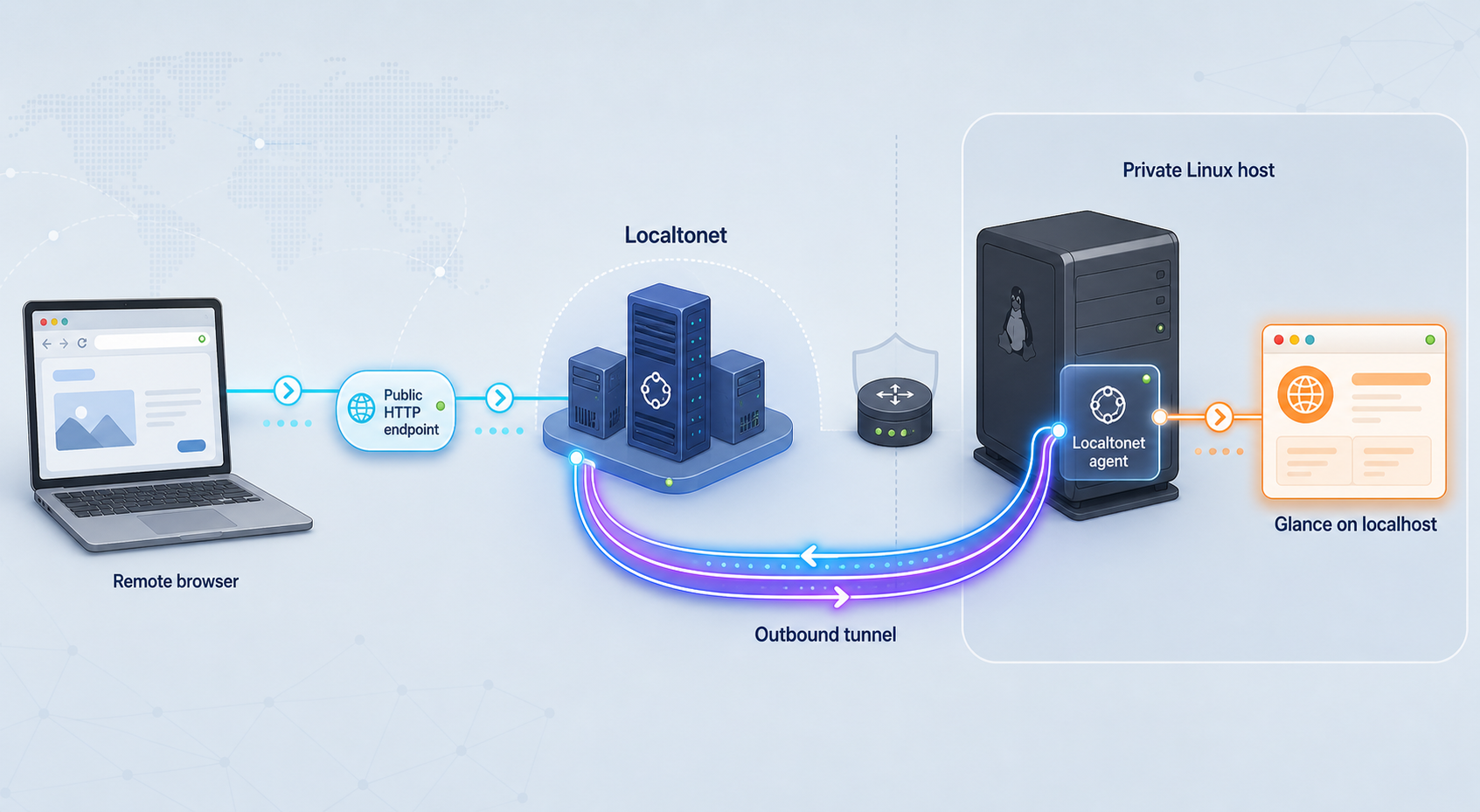
Once the systemd-managed service responds locally, an HTTP tunnel can make it reachable outside the LAN. The Localtonet client establishes an outbound connection to our relay infrastructure. This workflow does not require inbound router port forwarding, firewall changes, a public IP address, or VPN setup.
Download the appropriate Linux client from our Localtonet getting-started and download page. It lists Linux builds for 64-bit, ARM, ARM64, and MUSL variants. Choose the build that matches both the host architecture and C library environment shown for your system. Use the installation instructions presented with the current download rather than copying an unverified client command from an old tutorial.
The tunnel configuration follows our documented HTTP workflow. You can also keep the Localtonet HTTP tunnel documentation open while completing these steps.
Install and run the Localtonet client
Download the current Linux client appropriate for the host and run it on the Glance machine. Alternatively, use another connected device only if that device can already reach the Glance HTTP endpoint over the LAN.
Authenticate and select the client device
Use the device-specific authentication token for the client that will carry the tunnel. Treat the token as a credential. Never include it in screenshots, documentation, shell examples, or public support messages.
Select an available relay server
Choose a server or region currently available in the Localtonet dashboard. Availability can vary, so obtain the selection from the live product instead of copying a hardcoded server code.
Create the HTTP tunnel configuration
Select an HTTP tunnel and enter the verified Glance target. When both processes run on the same Linux host, use local IP address 127.0.0.1 and port 8080. Select the available Process Type appropriate to your setup: Random Sub Domain, Custom Sub Domain, or Custom Domain. Each serves the forwarded content at a public HTTPS address.
Start the tunnel
Creating a tunnel does not start it. Press the Start button and confirm that the selected client is connected. The tunnel works only while the tunnel is running, its selected client remains connected, and Glance is responding.
Test the assigned public address
Open the assigned public HTTPS URL from outside the local network, such as a phone using mobile data. Confirm that the same Glance page loads. Stop the tunnel when remote access is no longer intended.
If the Localtonet client runs on another computer, 127.0.0.1 points to that other computer, not to the Glance host. Before creating the tunnel, open Glance through its LAN address from the client device. The Glance listener and host firewall must permit that local connection. The supplied v0.8.5 evidence does not establish one universal bind-address configuration for every deployment, so this guide does not invent a YAML key for it.
Custom-domain DNS requirements can change and must be checked against the current dashboard and documentation. A generated or selected subdomain is simpler for the initial test because it avoids introducing DNS as another troubleshooting layer.
Authentication, exposure boundaries, and safe publication
A public URL changes the dashboard's exposure boundary. Glance can reveal server names, container status, feed titles, watched software, market lists, custom API output, and other operational information. Review every page as if it were being viewed by an unknown internet visitor.
The supplied primary evidence for Glance v0.8.5 does not document built-in dashboard authentication. The supplied Localtonet HTTP tunnel evidence also does not establish a specific edge-authentication or IP-restriction option that can be safely configured in this tutorial. Therefore, treat the assigned public URL as potentially accessible to anyone who obtains it. Do not expose sensitive Glance content through this workflow.
A hard-to-guess URL is not a substitute for authentication. If your dashboard contains private or operational data, keep the tunnel stopped until you have implemented and tested an authentication layer supported by primary documentation for your chosen deployment. One architectural option is an authenticated reverse proxy placed in front of Glance, with Localtonet targeting that proxy rather than targeting Glance directly. That is a separate deployment requiring its own reviewed configuration, credential storage, update process, and security testing, so it is not represented here as an already configured feature.
For the workflow documented in this article, the safe strategy is to expose only a deliberately public dashboard containing no secrets or sensitive operational details, use the shortest practical exposure window, and stop the tunnel afterward. If those conditions are not acceptable, leave Glance local.
Keep client identity separate from dashboard configuration
A Localtonet authentication token identifies a specific client device. Never store it in glance.yml, publish it in a repository, or include it in screenshots. Restrict access to any local file or service configuration that contains the token.
Prefer loopback when both processes share a host
When the Localtonet client and Glance run on the same Linux machine, targeting 127.0.0.1:8080 keeps the local HTTP hop on loopback. If the client runs on another device, traffic crosses the LAN and the Glance listener must be reachable there. Account for that additional exposure and the security of the local network.
Stop temporary access explicitly
A configured tunnel and a running tunnel are different states. Start it only when remote access is intended. Stop it when access is complete, or delete it if the configuration will not be reused. Remember that a future Glance restart can restore dashboard availability behind a tunnel that was left running.
Updates, backups, and routine operation
Back up configuration before editing
Create a dated copy before significant changes:
sudo cp \
  /opt/glance/glance.yml \
  "/opt/glance/glance.yml.backup.$(date +%Y%m%d-%H%M%S)"
Make a small group of edits, restart Glance, inspect the journal, and verify the page. If startup fails, restore the known-good file and restart:
sudo cp /opt/glance/glance.yml.backup.YYYYMMDD-HHMMSS /opt/glance/glance.yml
sudo chown root:glance /opt/glance/glance.yml
sudo chmod 0640 /opt/glance/glance.yml
sudo systemctl restart glance.service
Update the binary as a controlled change
Before upgrading, read the target release notes and confirm whether configuration behavior changed. Glance v0.8.5 included a change intended to bypass Reddit API restrictions and also updated Go and Alpine versions. The release notes warn that upstream Reddit behavior can change independently, so a release note does not guarantee permanent widget availability.
For an upgrade, download the correct Linux architecture, pair it with documentation from that release, retain the old executable and YAML, stop the service, install the replacement, and test it in the foreground. Only then return it to systemd:
sudo systemctl stop glance.service
sudo cp /opt/glance/glance /opt/glance/glance.previous
sudo cp /opt/glance/glance.yml /opt/glance/glance.yml.previous

# Install the already extracted and architecture-verified replacement:
sudo install -o root -g root -m 0755 \
  /path/to/verified/new/glance \
  /opt/glance/glance

cd /opt/glance
sudo -u glance ./glance --config /opt/glance/glance.yml
After foreground verification, stop it with Ctrl+C, start the service, inspect logs, and repeat the local HTTP test:
sudo systemctl start glance.service
sudo systemctl status glance.service --no-pager
sudo journalctl -u glance.service -n 100 --no-pager
curl -I http://127.0.0.1:8080
Understand combined availability
| Glance | Localtonet client | Tunnel | Remote result |
|---|---|---|---|
| Running | Connected | Running | The public address can forward requests to Glance. |
| Stopped | Connected | Running | The public endpoint cannot obtain a working response from Glance. |
| Running | Disconnected | Configured | Remote forwarding is unavailable until the selected client reconnects. |
| Running | Connected | Stopped | Glance remains locally available, but the public tunnel is unavailable. |
Troubleshooting Glance and Localtonet access
The binary does not execute
Inspect the exact message and file metadata:
ls -l /opt/glance/glance
file /opt/glance/glance
uname -m
A permission error can indicate a missing executable bit or filesystem execution restriction. An Exec format error normally indicates an operating-system or architecture mismatch. Download the matching Linux asset rather than attempting to modify an incompatible binary.
Glance cannot read the configuration
Confirm the path and permissions:
sudo ls -l /opt/glance/glance.yml
sudo -u glance test -r /opt/glance/glance.yml && echo readable
The systemd unit passes --config /opt/glance/glance.yml, so it does not depend on implicit configuration discovery. If the service account cannot read the file, restore ownership and mode:
sudo chown root:glance /opt/glance/glance.yml
sudo chmod 0640 /opt/glance/glance.yml
Glance reports a YAML error
Check indentation and the hierarchy of pages, columns, and widgets. Tabs and inconsistent spacing can change YAML structure. Compare the file with the v0.8.5 tagged template, remove the latest edits, or restore a known-good backup.
Restart and read the journal after each correction:
sudo systemctl restart glance.service
sudo journalctl -u glance.service -n 100 --no-pager
The service fails under systemd but works in the foreground
Compare the commands and identities. The unit runs as the glance user with an explicit configuration path. Test that same combination manually after stopping the service:
sudo systemctl stop glance.service
cd /opt/glance
sudo -u glance ./glance --config /opt/glance/glance.yml
If this fails, inspect file and directory permissions. If it succeeds, validate the unit again and inspect its journal:
sudo systemd-analyze verify /etc/systemd/system/glance.service
sudo systemctl daemon-reload
sudo systemctl start glance.service
sudo journalctl -u glance.service -n 100 --no-pager
Port 8080 does not respond
Confirm that the service is active and inspect the listener:
sudo systemctl status glance.service --no-pager
sudo journalctl -u glance.service -n 100 --no-pager
ss -ltn | grep ':8080'
curl -I http://127.0.0.1:8080
Another application may already occupy the port. A matching listener does not prove that Glance owns it. The supplied evidence establishes port 8080 for the documented example but does not establish a universal v0.8.5 port-setting key, so this article does not provide an invented YAML option.
The page opens but widgets time out
Treat this as a data-source problem rather than a basic web-service failure. Test DNS and outbound connectivity from the Linux host. If you use Pi-hole, AdGuard Home, or another filtering resolver, inspect its request-rate limits. Also consider upstream outages, API restrictions, and service-specific configuration.
Glance works locally but the public URL fails
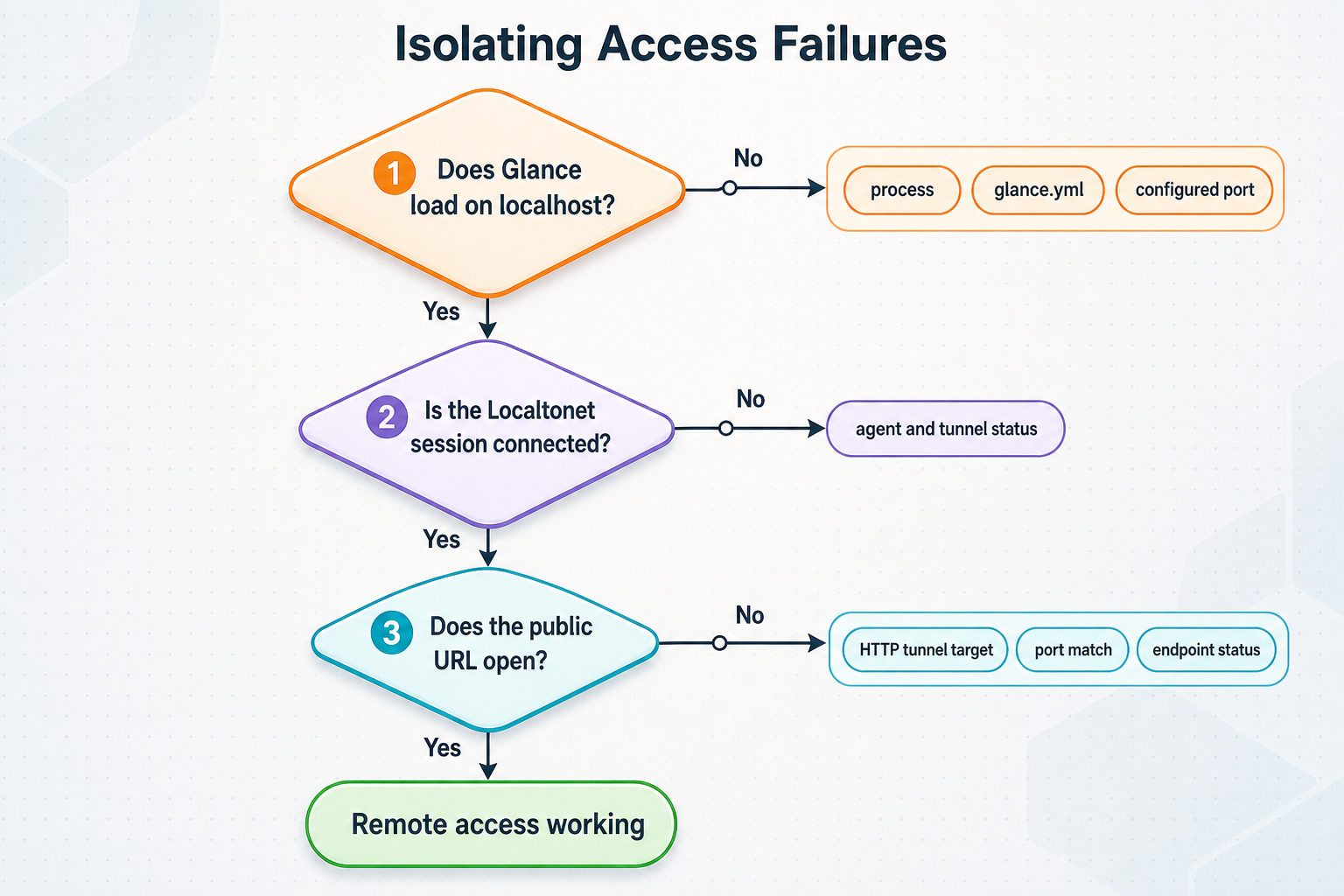
Check each layer in order:
- Run
curl -I http://127.0.0.1:8080on the Glance host. - Confirm that
glance.serviceis active. - Confirm that the Localtonet client is connected.
- Confirm that the tunnel is assigned to that same client device.
- Verify the tunnel's local IP address and port.
- Confirm that the tunnel was started, not merely created.
- Test the currently assigned public HTTPS URL.
If the client is on another computer, do not use 127.0.0.1. Test the Glance host's LAN address from the client device first. If that local test fails, resolve the Glance bind behavior, LAN routing, or host firewall before troubleshooting the public tunnel.
The public page opens but looks incomplete
Compare it directly with the local page. If the same widgets fail locally, investigate Glance, DNS, or the upstream source. If the problem appears only remotely, confirm that the browser is using the current assigned HTTPS address. Avoid changing several tunnel and dashboard settings at once.
Test in this order: downloaded asset, executable architecture, YAML configuration, foreground startup, local HTTP response, browser rendering, individual widgets, systemd service, Localtonet client connection, tunnel state, and external browser access.
Frequently asked questions
Does Glance require Docker on Linux?
No. Docker Compose is the project's recommended installation method, but Glance also publishes precompiled Linux binaries for x86, x86_64, ARM, and ARM64. This guide installs a native binary under /opt/glance.
Why does this guide use the v0.8.5 configuration instead of main?
The repository's main branch can contain configuration intended for code newer than the installed release. Pairing the v0.8.5 binary with the template from the v0.8.5 Git tag reduces that compatibility risk.
How do I choose the correct release asset?
Run uname -m on the target host and select the Linux asset for the corresponding architecture. Typical mappings are x86_64 to x86_64 or AMD64, aarch64 to ARM64, and armv7l to ARM. Verify the extracted executable with file before installing it.
Where does Glance read its configuration?
By default, Glance looks for glance.yml beside its binary. This deployment passes the explicit path --config /opt/glance/glance.yml for both foreground and systemd startup.
Does Glance reload configuration automatically?
The supplied v0.8.5 evidence does not establish a supported hot-reload mechanism. This guide treats every configuration change as requiring sudo systemctl restart glance.service, followed by status, log, and HTTP checks.
Which Localtonet tunnel type should I use?
Use an HTTP tunnel because Glance provides a browser-based HTTP service. When Glance and the Localtonet client run on the same host, point the tunnel to the verified target 127.0.0.1:8080.
Does this setup provide authentication for Glance?
This guide does not establish built-in authentication in Glance v0.8.5 or a specific Localtonet HTTP edge-authentication mechanism. Treat the public URL as potentially accessible to anyone who obtains it. Publish only non-sensitive content, or keep the tunnel stopped until a separately documented authentication layer has been implemented and tested.
Do I need router port forwarding or a public IP address?
No. The Localtonet client establishes an outbound connection to our relay infrastructure. The HTTP tunnel can provide a public address without inbound router port forwarding, firewall changes, VPN setup, or a public IP address.
Why does 127.0.0.1 fail when the Localtonet client runs elsewhere?
Loopback always points to the computer using it. If the Localtonet client runs on another device, 127.0.0.1 refers to that device rather than the Glance server. Use a verified Glance LAN address that is reachable from the client device.
Does creating a Localtonet tunnel start it automatically?
No. Creating and starting are separate tunnel lifecycle actions. Press Start after creating the configuration. Availability also depends on the selected client remaining connected and Glance continuing to run.
Connect your verified Glance dashboard with Localtonet
Install Glance from a matching release asset, verify the systemd-managed service locally, and review every widget before creating public access. When the dashboard contains only information that is safe to expose without authentication, connect its HTTP endpoint through Localtonet without opening an inbound router port.
Get Started Free →

