

Automate container image updates and deliver authenticated Harbor events to a private Kubernetes cluster
Keel is a self-hosted Kubernetes operator that updates opted-in workloads when acceptable container images become available. This guide installs Keel from its maintained Helm chart, verifies the operator and Service, applies a complete example Deployment, and confirms Keel policy discovery. It then configures a Harbor webhook policy and publishes a protected webhook route through a Localtonet HTTP tunnel, without opening an inbound router port or assigning a public IP address to the cluster. The workflow discovers installed resource names and ports instead of relying on values that may change between chart versions.
📋 What's in this guide
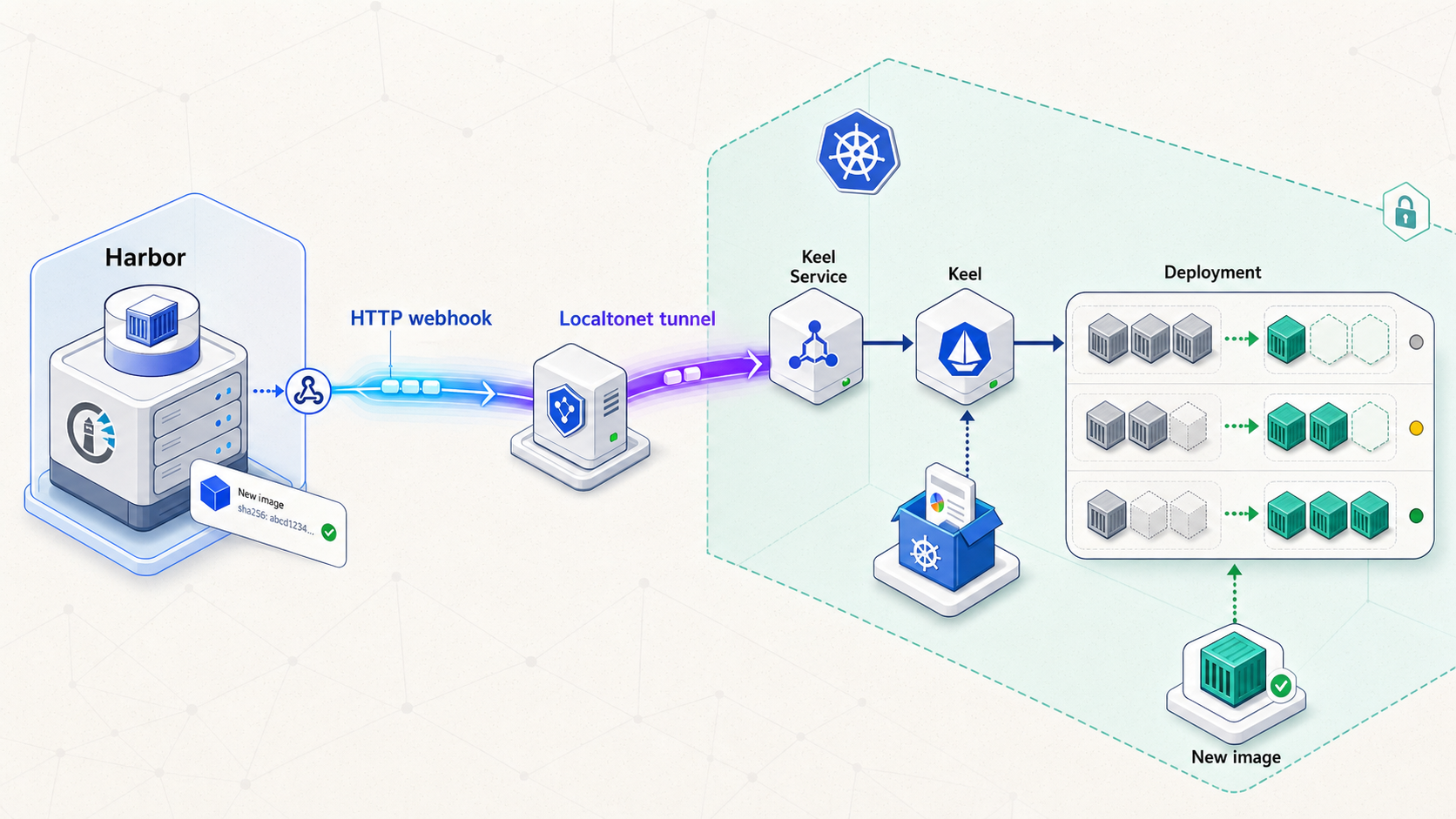
How Keel, Harbor, Kubernetes, and Localtonet fit together
Keel's maintained source repository describes Keel as a Kubernetes operator for automating updates to Deployments, StatefulSets, DaemonSets, and supported Helm releases. It uses providers to update resources and triggers to discover candidate images. Kubernetes and Helm providers determine what Keel can manage, while registry webhooks, polling, and supported pub/sub integrations determine how Keel learns that an image may have changed.
A trigger does not decide whether every discovered image should be deployed. Keel evaluates policy metadata on an opted-in workload. For example, a semantic-version policy can accept patch or minor releases while rejecting a major release. A force policy can work with a mutable tag, but it requires more careful change tracking because the tag itself does not identify immutable image content.
Harbor can send an HTTP notification after an artifact is pushed. Keel's native Harbor route is POST /v1/webhooks/harbor. Keel uses the event's repository and artifact information to find relevant workloads, then evaluates their annotations and update policy. Installing Keel alone does not enroll every workload in the cluster.
The Keel Service normally remains inside the Kubernetes network. In this tutorial, kubectl port-forward connects a listener on a trusted management host to that internal Service. A protective local reverse proxy sits in front of the listener for the internet-facing stage. It accepts only authenticated POST requests to the Harbor path and forwards accepted requests to Keel. The Localtonet HTTP tunnel targets the proxy's local port, not the Kubernetes API server, a worker node, or a broad cluster ingress.
Our Localtonet client creates an outbound connection to a selected relay server. A running HTTP tunnel provides a public HTTPS address without inbound router port forwarding, firewall changes, VPN setup, or a public IP address. Harbor calls that address, our relay forwards the request to the local proxy, and the proxy validates the request before sending it through the port forward to Keel.
A Localtonet HTTP tunnel forwards to a local IP address and port. It does not automatically expose only /v1/webhooks/harbor. For the public Harbor integration in this guide, place an authenticated route-filtering reverse proxy in front of Keel and configure Harbor's Auth Header to match the credential expected by that proxy. Do not start the public tunnel until an unauthenticated request is rejected.
Prerequisites and decisions to make first
Perform the installation from a trusted management workstation or host that can reach the target Kubernetes cluster. The examples assume that the same host runs kubectl port-forward, the protective reverse proxy, and the Localtonet client. Another device can run the Localtonet client only if it can reach the proxy's listener. A loopback-only listener is reachable only on the machine where it runs.
Required tools and access
You need a working Kubernetes cluster, kubectl configured for that cluster, and Helm. Consult the primary kubectl documentation and Helm documentation if these tools are not already installed and connected to your environment.
kubectl version --client
helm version
kubectl config current-context
kubectl cluster-info
The first two commands confirm that the clients are available. kubectl cluster-info is the important connectivity check because it contacts the selected cluster. If you manage several clusters, compare the current context with the intended environment before installing an operator.
The supplied evidence does not establish a universal minimum Kubernetes or Helm version for every Keel release. Check the chart, the selected Keel release, and your cluster version before production installation. Do not infer compatibility from a successful repository-add command.
Permissions and namespace selection
The Helm identity must be allowed to create and manage the resources rendered by the Keel chart. Verification requires permission to inspect Helm releases, Deployments, Pods, Services, endpoints, events, and logs. Keel also needs the Kubernetes permissions created by the chart so it can inspect and update enrolled workloads.
The maintained Keel repository's default quick start installs the release named keel into kube-system. That namespace normally exists. This guide preserves that documented path. If organizational policy does not allow application operators in kube-system, review the chart's current namespace and provider requirements before changing the command.
Registry and workload information
Identify the exact Harbor project, repository, image tags, and Kubernetes workloads that Keel should manage. Harbor project names remain part of repository paths. An image in the library project is addressed as something like harbor.example.com/library/example-app:1.2.3, not harbor.example.com/example-app:1.2.3.
Private projects require valid registry access. The workload can reference a Kubernetes Docker registry pull secret through imagePullSecrets, and Keel also documents an image-pull-secret annotation. Keep registry passwords out of manifests, ordinary annotations, shell history, screenshots, and public logs.
Harbor and reverse-proxy administration
You need permission to manage webhooks for the relevant Harbor project. Harbor documentation places project webhook configuration under the project's Webhooks page. The exact interface can vary by Harbor release, so compare the labels in this tutorial with the current Harbor webhook documentation.
You also need an approved HTTP reverse proxy that can listen locally, validate an Authorization header, restrict requests to POST /v1/webhooks/harbor, and forward accepted requests to the local Keel port. Proxy-specific syntax is intentionally not invented here. Configure it according to the selected proxy's official documentation and your organization's credential-management standard.
Localtonet requirements
You need a Localtonet account, a device-specific authentication token, and the current Localtonet client for the host that can reach the protected proxy listener. Tokens identify client devices and must remain secret. Obtain available relay server or region values from the current dashboard rather than copying a hardcoded value from an article.
| Component | Purpose | Pre-installation check |
|---|---|---|
| Kubernetes and kubectl | Run and inspect Keel and its managed workloads | kubectl cluster-info reaches the intended cluster |
| Helm | Install, upgrade, and uninstall the Keel release | helm version succeeds |
| Harbor | Store images and send artifact events | The project, repository, and webhook administration access are known |
| Protective proxy | Authenticate and narrow public webhook requests | Unauthorized requests are rejected before the tunnel starts |
| Localtonet client | Create the outbound connection for the HTTP tunnel | The selected device can reach the proxy's local IP and port |
Install Keel on Kubernetes with Helm
The maintained Keel repository publishes its chart repository at https://keel-hq.github.io/keel/ and describes the Helm chart as the recommended installation method. The older keel.sh documentation site remains useful for concepts, but it visibly includes historical repository addresses, Helm 2 and Tiller guidance, old Kubernetes API examples, and commands that should not be mixed with the maintained repository instructions.
Use the following internally consistent Helm 3 workflow from the current repository:
Confirm the Kubernetes context
Run kubectl config current-context and verify that it identifies the cluster where Keel should run.
Add the maintained Keel chart repository
Register https://keel-hq.github.io/keel/ under the local Helm repository name keel.
Refresh repository metadata
Run helm repo update so Helm has current chart metadata.
Install or upgrade the release
Install the release named keel into kube-system. The Helm provider is enabled by default and targets Helm 3. Helm 2 and Tiller are not supported by the maintained installation path.
kubectl config current-context
helm repo add keel https://keel-hq.github.io/keel/
helm repo update
helm upgrade --install keel --namespace=kube-system keel/keel
A successful Helm command confirms that Helm accepted the release operation. It does not prove that the Keel Pod is ready, that the Service has endpoints, or that registry access works. Complete the verification section before enrolling workloads.
The quick-start command resolves a chart version from the configured repository. For production change control, inspect available chart versions and values, select and record an approved version, render or review the resulting manifests, and test the release outside production. This tutorial does not invent a chart pin because the appropriate version depends on the releases currently available and your cluster.
Alternative installation without the Helm provider
Teams that manage ordinary Kubernetes manifests and do not need Keel to update Helm releases can use the alternative maintained command. Unlike kube-system, the keel namespace might not exist. Ensure it exists explicitly before targeting it:
kubectl create namespace keel
helm upgrade --install keel --namespace=keel keel/keel --set helmProvider.enabled="false"
If kubectl create namespace keel reports that the namespace already exists, inspect that namespace and confirm that it is the intended target before continuing. This is an alternative to the default installation, not an additional release to install afterward. Commands in the remaining tutorial use the default kube-system path. Substitute the namespace consistently if you chose the alternative.
Keel is stateless for its core operation and obtains required workload information from the cluster. It does not require a database or persistent disk for that core workflow. Optional audit or historical features can have separate persistence considerations, so inspect current chart values before assuming all records survive a restart.
Verify the Keel release, Pod, and Service
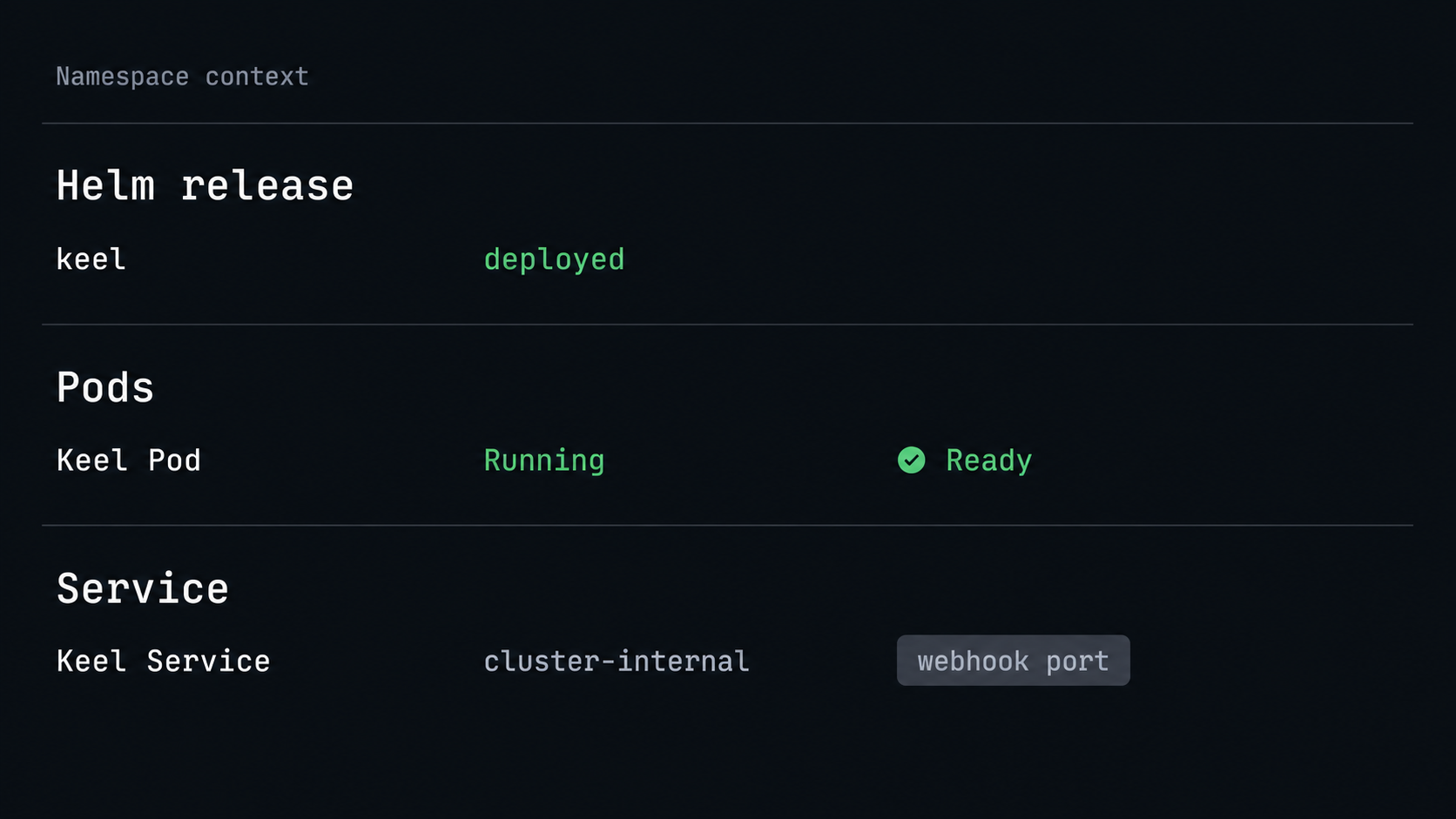
Inspect the Helm release
helm status keel --namespace kube-system
helm list --namespace kube-system
Confirm that the release appears in kube-system and review its status and chart notes. If Helm cannot find it, check the active Kubernetes context and namespace before repeating the installation.
Inspect Kubernetes resources
kubectl -n kube-system get deployments
kubectl -n kube-system get pods
kubectl -n kube-system get services
kubectl -n kube-system get all -l app.kubernetes.io/instance=keel
Discover generated resource names from the output instead of assuming them. A healthy Pod should eventually be running with its expected containers ready. If the chart version does not expose every resource through the Helm label selector, use the unfiltered commands and inspect the rendered release:
helm get manifest keel --namespace kube-systemWait for the Deployment and read logs
Copy the Keel Deployment name from kubectl -n kube-system get deployments, then substitute it below:
kubectl -n kube-system rollout status deployment/<keel-deployment-name>
kubectl -n kube-system logs deployment/<keel-deployment-name>
Do not paste the angle brackets literally. If the Pod has multiple containers, select the relevant container as prompted by kubectl. For startup failures, inspect detailed status and events:
kubectl -n kube-system describe pod <keel-pod-name>Discover the Service and endpoints
kubectl -n kube-system get services
kubectl -n kube-system describe service <keel-service-name>
kubectl -n kube-system get service <keel-service-name> -o yaml
kubectl -n kube-system get endpoints <keel-service-name>
Record the actual Service name and applicable value under spec.ports. The installed Service is the source of truth. An empty endpoint list usually means the Service selector does not match a ready Pod. Resolve that condition before adding a port forward.
Create and test a loopback port forward
Choose an unused local port and map it to the discovered Service port:
kubectl -n kube-system port-forward service/<keel-service-name> <local-keel-port>:<service-port>Keep the process running. In another terminal, make a harmless reachability request:
curl -i http://127.0.0.1:<local-keel-port>/v1/webhooks/harbor
The integration expects POST, so a GET might return 404, 405 Method Not Allowed, or another application response. Such a response can demonstrate that an HTTP server answered, but it does not validate a Harbor event. Connection refused indicates that the listener is absent or the wrong local port was used.
Use Harbor's own webhook test or a controlled Artifact pushed event after configuration. A hand-written payload can omit fields Keel expects, produce misleading results, or accidentally exercise update logic in a way that differs from Harbor.
Configure and verify a workload for Keel updates
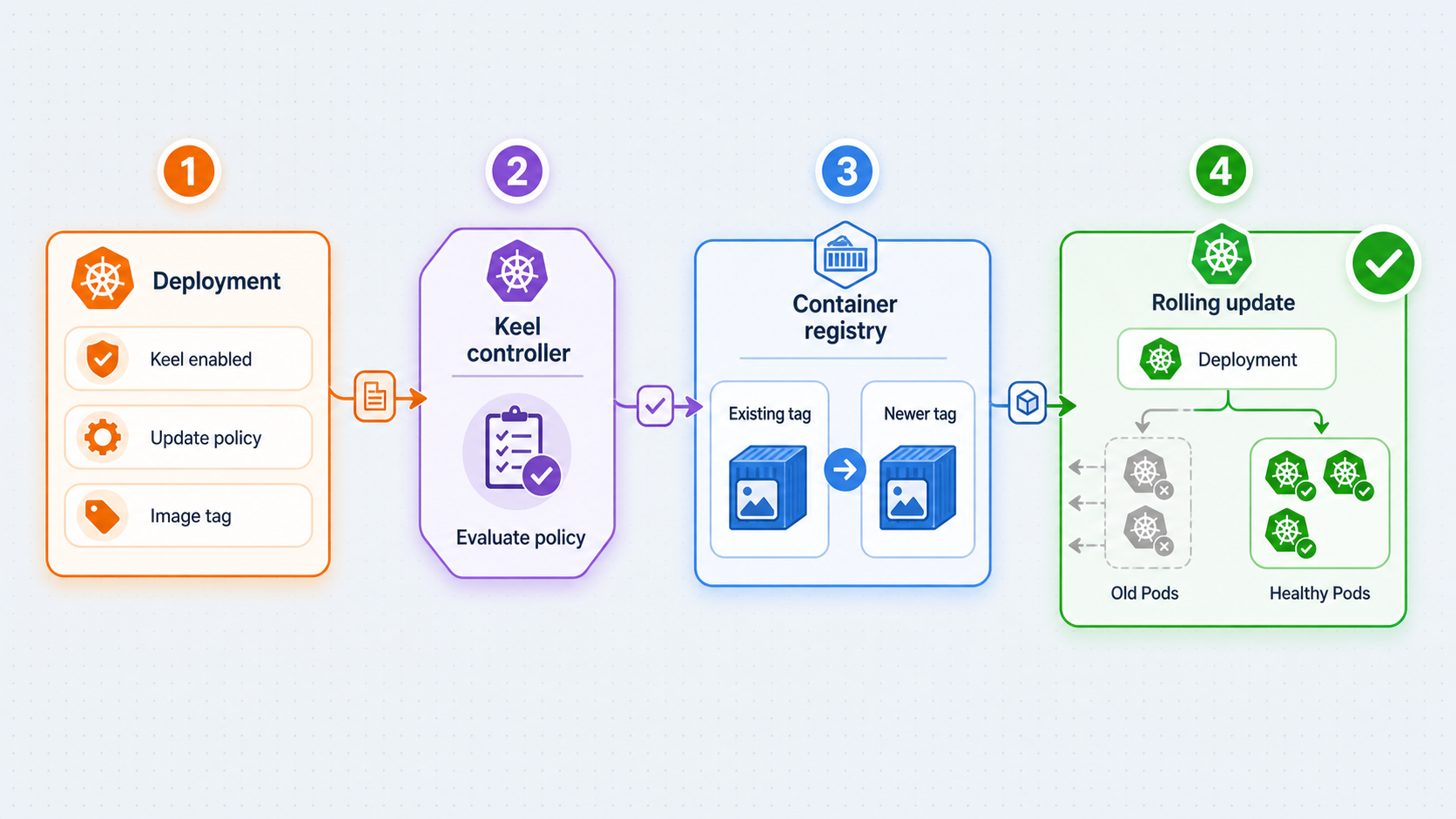
Keel supports Kubernetes Deployments, StatefulSets, and DaemonSets, plus Helm releases through its Helm provider. The following complete Deployment uses a public semantic-versioned image and polling so you can apply and inspect a real workload before introducing Harbor. It includes the required selector and matching Pod-template labels.
Apply a complete semantic-version example
apiVersion: apps/v1
kind: Deployment
metadata:
  name: keel-example
  namespace: default
  labels:
    app.kubernetes.io/name: keel-example
  annotations:
    keel.sh/policy: minor
    keel.sh/trigger: poll
spec:
  replicas: 1
  selector:
    matchLabels:
      app.kubernetes.io/name: keel-example
  template:
    metadata:
      labels:
        app.kubernetes.io/name: keel-example
    spec:
      containers:
        - name: nginx
          image: nginx:1.27.0
          imagePullPolicy: Always
          ports:
            - name: http
              containerPort: 80
          readinessProbe:
            httpGet:
              path: /
              port: http
            initialDelaySeconds: 3
            periodSeconds: 5
Save the manifest as keel-example.yaml, then apply it using the standard Kubernetes declarative workflow documented for Deployments:
kubectl apply -f keel-example.yaml
kubectl rollout status deployment/keel-example --namespace default
Verify the image, annotations, selector, and Pod-template labels:
kubectl get deployment keel-example --namespace default \
  -o jsonpath='{.spec.template.spec.containers[*].image}{"\n"}'

kubectl get deployment keel-example --namespace default \
  -o jsonpath='{.metadata.annotations}{"\n"}'

kubectl get deployment keel-example --namespace default \
  -o jsonpath='{.spec.selector.matchLabels}{"\n"}'

kubectl get deployment keel-example --namespace default \
  -o jsonpath='{.spec.template.metadata.labels}{"\n"}'
The image output should contain nginx:1.27.0. The annotations should include keel.sh/policy: minor and keel.sh/trigger: poll. The selector and Pod-template label must match. Kubernetes rejects a Deployment when its selector does not match the template labels, which is why abbreviated examples must not be presented as directly applicable manifests.
Inspect Keel logs after applying the workload:
kubectl -n kube-system logs deployment/<keel-deployment-name> --since=10m
Log wording can differ by Keel version. Look for discovery, polling, image, policy, or workload messages associated with keel-example or nginx. Absence of an immediate update is not a failure. A candidate image must exist and satisfy the policy before Keel changes the Deployment.
Use a Harbor image for the webhook workflow
After verifying the public-image example, copy the manifest to a non-production test workload and replace the image with your complete Harbor path:
image: harbor.example.com/library/example-app:1.2.3
Remove keel.sh/trigger: poll if the workload should rely on Harbor webhooks. Keel documents webhook behavior as the default when the polling trigger is not specified. Apply the revised manifest, confirm that Kubernetes can pull the current Harbor image, and wait for its rollout before testing a new push.
Select an update policy deliberately
| Policy | Version behavior | Operational consideration |
|---|---|---|
all |
Accepts version increases and new prereleases | Can include prerelease versions |
major |
Allows major, minor, and patch updates | Can accept breaking semantic-version changes |
minor |
Allows minor and patch updates | Requires consistent semantic-version tags |
patch |
Allows patch updates only | Narrower, but still requires testing and rollback planning |
force |
Supports non-semantic or mutable tags | Use same-tag matching when only a digest change for the current tag should qualify |
Configure mutable tags with the correct annotation
For a mutable tag such as latest, Keel documents force with the hyphenated annotation key keel.sh/match-tag:
metadata:
  annotations:
    keel.sh/policy: force
    keel.sh/trigger: poll
    keel.sh/match-tag: "true"
The key is keel.sh/match-tag, not keel.sh/matchTag. With same-tag matching enabled, Keel can evaluate a changed digest while keeping the tag fixed. Mutable tags reduce auditability because a tag no longer uniquely identifies content. Record deployed digests and preserve previous images for rollback.
Verify a Keel-driven update
After a valid candidate image is published or a controlled Harbor event is delivered, inspect the Deployment image and rollout:
kubectl get deployment <managed-deployment> --namespace <workload-namespace> \
  -o jsonpath='{.spec.template.spec.containers[*].image}{"\n"}'

kubectl rollout status deployment/<managed-deployment> \
  --namespace <workload-namespace>

kubectl rollout history deployment/<managed-deployment> \
  --namespace <workload-namespace>

kubectl -n kube-system logs deployment/<keel-deployment-name> --since=15m
Also inspect the workload annotations directly:
kubectl get deployment <managed-deployment> \
  --namespace <workload-namespace> \
-o jsonpath='{.metadata.annotations}{"\n"}'Use least privilege, narrowly scoped policies, readiness and health checks, staged testing, image scanning, and a tested rollback procedure. A valid registry event establishes only that a candidate artifact exists. It does not prove compatibility with your application, data, or cluster.
Configure and verify the Harbor webhook
Keel's Harbor receiver is:
POST /v1/webhooks/harborThe final destination combines that path with the public HTTPS address assigned to the running Localtonet tunnel:
https://<assigned-public-host>/v1/webhooks/harborComplete the reverse-proxy and Localtonet sections before saving the active Harbor policy. Do not use the placeholder host.
Establish the authenticated proxy boundary
Configure the selected reverse proxy to implement all of these requirements:
- Listen on a local IP address and dedicated local port reachable by the Localtonet client.
- Accept only
POST /v1/webhooks/harbor. - Reject requests with a missing or incorrect
Authorizationheader using401 Unauthorizedor403 Forbidden. - Reject unrelated paths and methods.
- Forward accepted requests to
http://127.0.0.1:<local-keel-port>/v1/webhooks/harbor. - Use a long, randomly generated credential stored through an approved secret-management mechanism.
- Avoid logging the authorization value or unnecessary webhook payload content.
Harbor's webhook policy supports an Auth Header value for HTTP notifications. Configure the same complete authorization value in Harbor that the proxy expects, such as an organization-approved bearer-style value. The proxy is the enforcement point in this architecture. Do not assume that a header becomes protective merely because Harbor sends it.
Before starting the tunnel, verify that an unauthenticated request to the proxy is rejected:
curl -i -X POST http://127.0.0.1:<proxy-port>/v1/webhooks/harbor
A 401 or 403 response confirms the expected unauthenticated behavior. Do not place the real authorization value directly in a shared command transcript or article. Test the authenticated path using your proxy's secure operational procedure, then confirm that the request reaches Keel without exposing the credential in shell history.
Create the Harbor webhook policy
Open the relevant Harbor project
Sign in to Harbor with permission to manage the project, open Projects, and select the project containing the image used by the test workload.
Open the Webhooks page
Select Webhooks in the project navigation and choose the control for creating a new webhook policy.
Choose an HTTP notification
Enter a descriptive policy name and select the HTTP notification type rather than Slack.
Select the Artifact pushed event
Enable the image or artifact push event relevant to new image publication. Avoid subscribing Keel to unrelated project events unless you have a documented need for them.
Enter the protected endpoint
Use the exact public Localtonet HTTPS address followed by /v1/webhooks/harbor. Confirm that there is no missing or duplicated slash.
Configure the Auth Header
Enter the authorization value expected by the reverse proxy. Store and rotate the underlying credential according to your secret-management policy.
Keep certificate verification enabled
Use the public HTTPS endpoint and retain remote certificate verification. Do not weaken TLS verification to work around a hostname, trust, or endpoint configuration error.
Save and test the policy
Save the policy, then use Harbor's available test action or push a controlled image to the project so Harbor generates a real delivery.
Inspect the Harbor delivery result
Return to the project's Webhooks page and open the policy's delivery, execution, or history view. Harbor labels differ somewhat between releases, but the policy record should provide delivery status and execution details. Confirm the event type, destination URL, creation time, HTTP result, and any reported error.
Interpret the outcome by layer:
- A DNS, connection, or timeout error indicates that Harbor did not complete the public transport path.
401or403indicates that the request reached the authentication boundary but its Auth Header was missing or incorrect.404suggests a wrong path or route-filtering mismatch.- A successful HTTP delivery proves transport and request acceptance, but not workload update eligibility.
- A successful delivery with no update requires inspection of Keel logs, repository matching, annotations, policy, tags, and registry credentials.
Correlate Harbor's delivery time with Keel logs:
kubectl -n kube-system logs deployment/<keel-deployment-name> --since=15mThen inspect the managed workload's image, rollout status, rollout history, and Kubernetes events. This establishes whether Harbor delivered the event, Keel accepted and evaluated it, and Kubernetes completed any resulting update.
Expose the protected endpoint with Localtonet
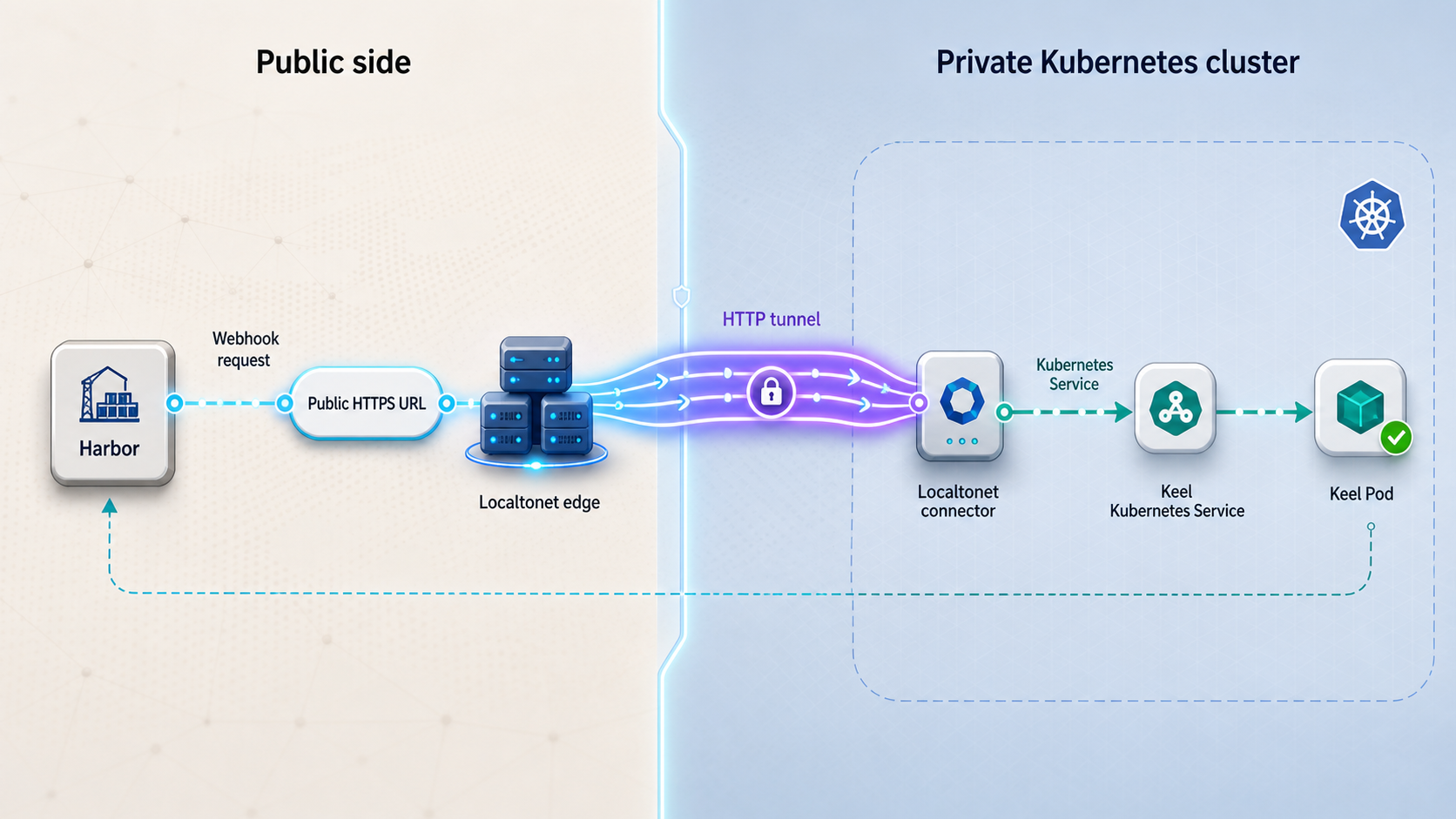
Complete this section only after Keel works through the local port forward and the proxy rejects unauthenticated requests. This order separates Kubernetes, application, proxy, and tunnel failures.
Install and run the current Localtonet client on the device that can reach the proxy. Obtain current installation details through our platform and follow the Localtonet HTTP tunnel documentation for the current dashboard workflow.
Install and run the Localtonet client
Run the current client on the trusted device that can reach the authenticated proxy's local listener.
Open the HTTP tunnel configuration
Create an HTTP tunnel and select the required Process Type: Random Sub Domain, Custom Sub Domain, or Custom Domain. Each process type serves the target through a public HTTPS address. Availability and custom-domain requirements can vary, so use options currently shown for your account.
Select the device authentication token
Choose the device-specific AuthToken for the client running on the host that can reach the proxy. Do not expose or copy the token into Harbor, Kubernetes manifests, screenshots, or logs.
Select a relay server
Choose an available Localtonet server or region from the current dashboard. Do not hardcode a value from an older tutorial.
Enter the local target
Set the local IP address and port to the authenticated reverse proxy listener. Do not target the Kubernetes API server, the Keel Service address, or the remote Service port unless that value is genuinely listening on the Localtonet client device.
Create the tunnel
Save or create the HTTP tunnel after reviewing the Process Type, AuthToken, relay server, local IP address, and local port.
Start the tunnel
Creating a tunnel does not make it run. Use the Start button, confirm that the selected client is connected, and copy the public HTTPS address assigned to the running tunnel.
If Keel is forwarded to local port 18080 and the protective proxy listens on local port 19090, the Localtonet target is the proxy listener on 19090. These numbers are illustrative. Use the ports you actually configured and verified.
Verify the public security boundary
Before adding the Harbor credential, make an unauthenticated request through the public address:
curl -i -X POST https://<assigned-public-host>/v1/webhooks/harbor
The expected result is 401 Unauthorized or 403 Forbidden from the protective boundary. That result demonstrates that the public transport path is reachable and that an unauthenticated request is not forwarded as an accepted Harbor event.
Also test an unrelated route and a disallowed method. Both should be rejected rather than exposing other Keel routes. Do not place the real authorization credential in a command that will be retained in shared shell history.
Understand the lifecycle and availability chain
The endpoint is available only while every required component is operational:
- The Keel Pod is ready.
- The Keel Service selects a healthy endpoint.
- The
kubectl port-forwardprocess is running. - The protective reverse proxy is running and has the expected credential.
- The Localtonet client is connected.
- The HTTP tunnel is started.
- Harbor can resolve, authenticate to, and reach the public HTTPS address.
A tunnel saved in the dashboard is not necessarily running. A connected Localtonet client does not imply that every tunnel assigned to it is started. Monitor client and tunnel states separately.
Routine operations, upgrades, removal, and troubleshooting
Keep long-running components supervised
This topology includes kubectl port-forward, a protective proxy, and the Localtonet client. Terminal closure, host sleep, network interruption, loss of Kubernetes API connectivity, proxy failure, a disconnected client, or a stopped tunnel can interrupt Harbor delivery.
For durable operation, run these components on a trusted host under an approved process supervisor. The supervisor should restart failures, protect credentials, retain bounded logs, and keep internal listeners restricted to the necessary interfaces. Process-manager commands vary by operating system and deployment policy, so use the official procedure for your selected environment.
Troubleshoot from the cluster outward
helm status keel --namespace kube-system
kubectl -n kube-system get pods
kubectl -n kube-system get services
kubectl -n kube-system get endpoints <keel-service-name>
kubectl -n kube-system logs deployment/<keel-deployment-name>
curl -i http://127.0.0.1:<local-keel-port>/v1/webhooks/harbor
curl -i -X POST http://127.0.0.1:<proxy-port>/v1/webhooks/harbor
curl -i -X POST https://<assigned-public-host>/v1/webhooks/harbor| Symptom | Likely layer | Checks |
|---|---|---|
| Keel Pod is pending or restarting | Kubernetes or chart configuration | Describe the Pod and inspect scheduling, image pulls, probes, events, and logs |
| Service has no endpoints | Service selector or Pod readiness | Compare Service selectors with Pod labels and inspect readiness conditions |
| Direct local request is refused | Port forward | Confirm the process, local port, Service name, and Service port |
| Proxy does not reject unauthenticated requests | Security boundary | Stop the tunnel and correct authentication, method, and path rules |
| Local proxy works but public request fails | Localtonet client or tunnel | Check the selected device, client state, tunnel state, Process Type, local IP, and local port |
| Harbor receives 401 or 403 | Harbor Auth Header or proxy | Confirm the complete authorization value and proxy credential configuration without logging the secret |
| Harbor delivery succeeds but no update occurs | Keel matching or policy evaluation | Inspect repository paths, annotations, policy, tags, registry access, and Keel logs |
| Update starts but rollout fails | Application or Kubernetes workload | Inspect rollout status, events, readiness probes, image pulls, and application logs |
Upgrade Keel deliberately
helm get values keel --namespace kube-system
helm get manifest keel --namespace kube-system
helm repo update
helm upgrade --install keel --namespace=kube-system keel/keel
Review chart changes, release notes, image versions, values, and rendered resources before a production upgrade. Configuration output can contain sensitive values, so store it according to your secret-handling policy. After upgrading, verify the Deployment, Pod, Service, endpoints, local port forward, protected public route, and controlled Harbor delivery again.
Stop remote access without uninstalling Keel
Stop the Localtonet tunnel when Harbor no longer needs the callback. Stopping the port-forward process or proxy also breaks the path while leaving Keel installed. Stop and delete are separate tunnel lifecycle actions. Stop for a temporary suspension and delete when the public tunnel configuration is no longer needed.
If deleting and recreating a tunnel changes its public address, update the Harbor policy. Disable or remove retired Harbor policies so Harbor does not continue attempting delivery to an intentionally unavailable endpoint. Revoke the webhook credential when the integration is retired or when exposure is suspected.
Uninstall Keel
helm uninstall keel --namespace kube-system
helm list --namespace kube-system
kubectl -n kube-system get all -l app.kubernetes.io/instance=keel
Never delete kube-system to remove this release. It contains essential Kubernetes components unrelated to Keel. If you used the dedicated keel namespace alternative, verify that no other resources use that namespace before considering namespace removal.
Uninstalling Keel does not necessarily revert image changes it previously made. Review managed workloads and Helm releases separately. Remove or revise Keel annotations when automation is no longer desired.
Security checklist
- Publish the webhook only when event-driven delivery is required.
- Keep Kubernetes API servers, nodes, and internal Service addresses private.
- Require an authenticated proxy before starting the public tunnel.
- Permit only
POST /v1/webhooks/harborthrough that proxy. - Reject missing or incorrect authorization headers.
- Keep TLS certificate verification enabled in Harbor.
- Protect Localtonet device tokens, Harbor webhook credentials, registry credentials, and pull secrets.
- Apply least privilege to Keel's service account and registry access.
- Monitor Harbor delivery failures, unexpected routes, repeated requests, Keel decisions, and Kubernetes rollouts.
- Rotate credentials and stop or delete the tunnel when the integration is retired.
- Use Keel polling instead if a public endpoint cannot meet your security requirements.
Frequently asked questions
Does installing Keel update every workload automatically?
No. Workloads or Helm releases must be configured for Keel, and their policies determine which candidate images qualify. Installing the operator does not enroll every resource.
What is the correct mutable-tag annotation?
Use keel.sh/match-tag: "true" with the force policy when same-tag digest changes should qualify. The documented key contains a hyphen.
What Harbor event should the policy send?
Select the Artifact pushed event for the project containing the managed image. Set the HTTP endpoint to the Localtonet public address plus /v1/webhooks/harbor, and configure the Auth Header expected by the protective proxy.
Can Harbor work with Keel without a public webhook?
Yes. Keel supports registry polling. Polling avoids publishing a callback endpoint, although discovery then depends on polling rather than immediate Harbor delivery. Private repositories still require appropriate registry access.
Which port should the Localtonet tunnel target?
Target the local IP address and port where the authenticated reverse proxy listens. The proxy then forwards accepted requests to the Keel port-forward listener. Do not assume that the proxy port, local Keel port, Service port, and container port are identical.
Does creating a Localtonet tunnel start it?
No. After creating the tunnel, use the Start button. The selected Localtonet client must also remain connected. A saved but stopped tunnel does not provide Harbor connectivity.
Why did Harbor report success without a Kubernetes update?
Successful HTTP delivery and update eligibility are separate. Keel may find no matching workload, reject the candidate under its policy, encounter a project or repository-path mismatch, or lack registry access. Correlate Harbor history with Keel logs, workload annotations, image values, and Kubernetes events.
Should I follow the Helm 2 instructions on the older Keel site?
No. Use the maintained Keel repository and its current chart repository instructions. The older site contains historical Helm 2, Tiller, repository, and Kubernetes API guidance. Keel's maintained Helm provider targets Helm 3.
Connect your protected Keel webhook with Localtonet
After Keel is healthy, the example workload is verified, and your proxy rejects unauthenticated requests, create a Localtonet HTTP tunnel to the protected local listener. Use the assigned HTTPS address in Harbor, inspect a controlled delivery, and stop the tunnel when webhook access is no longer required.
Get Started Free →

