

Run adaptive Hue lighting at home and reach its management interface securely when you are away
Kelvin is a self-hosted automation service that adjusts supported Philips Hue lights according to sunrise, sunset, and room-specific schedules. This guide installs Kelvin with persistent Docker storage from the first startup, pairs it with a configured Hue bridge, verifies local operation, and prepares it to restart after a host reboot. It then shows two deliberate network layouts and the documented Localtonet HTTP tunnel workflow for remote browser access without inbound router port forwarding or a public IP address.
📋 What's in this guide
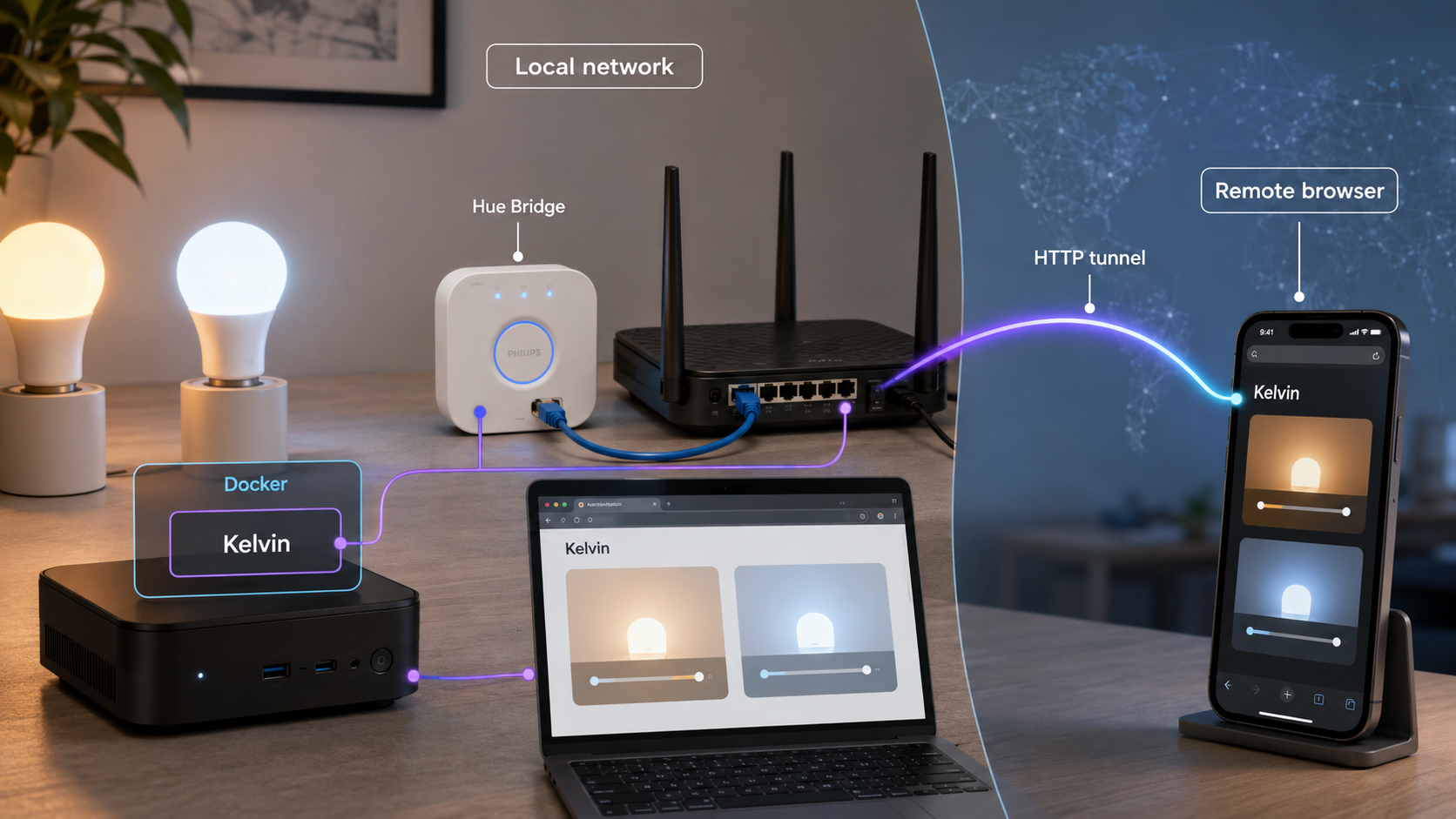
What Kelvin does for Philips Hue lighting
Kelvin is an open-source Hue automation project that adjusts light color temperature and brightness according to local sunrise and sunset times and custom intervals. It is intended to run continuously on a computer that can communicate with a configured Philips Hue bridge.
A schedule can use a cooler setting in the morning, move toward a daylight-oriented temperature around sunrise, become warmer after sunset, and reduce brightness at night. These are examples of the pattern Kelvin supports, not required values. You decide which rooms Kelvin manages and how their schedules should behave.
Kelvin supports fine-grained daily schedules for individual rooms, default startup color and brightness, gradual transitions, smart and conventional switches, activation through a Hue scene, and automatic behavior when a managed light is switched on. It also respects a manual light adjustment until the affected light is switched off and on again. That lets a temporary adjustment take precedence without permanently replacing the schedule.
The computer running Kelvin must remain available whenever you want the automation to operate. Docker is the primary installation path in this tutorial because Kelvin documents its container image, configuration directory, web port, and restart behavior. Standalone binaries are also available through the project's release history.
The available release information identifies Kelvin v1.3.9 and mentions a health endpoint for container monitoring and support for HEAD requests on the root path. Review the current release history, compatibility, open issues, and behavior in your own Hue environment before relying on Kelvin for long-term automation.
Prerequisites and preparation
Complete the local Hue setup before installing Kelvin. A remote tunnel cannot repair bridge discovery, container storage, or schedule problems, so each layer should be tested separately.
- A configured Philips Hue bridge reachable from the Docker host.
- Supported Philips Hue or compatible lights associated with that bridge.
- Physical access to the bridge for its blue-button registration step.
- A computer that can remain running while Kelvin automation is required.
- Docker installed and able to start Linux containers.
- A browser for opening the Kelvin interface.
- A persistent host directory for Kelvin configuration and protected backups.
- A Localtonet account and client only after the local deployment has been verified.
Confirm that Docker is available
Verify that the Docker client can communicate with the Docker engine:
docker versionIf that command fails, resolve the Docker installation, service, or user-permission problem before diagnosing Kelvin. The official Docker Engine installation documentation provides platform-specific installation choices.
Select the correct timezone
Kelvin's Docker example passes the local timezone through the TZ environment variable. The commands below use Europe/Berlin only as a placeholder from the project example. Replace it with the timezone for the home where the Hue bridge is installed.
Correct local time matters because Kelvin uses time-dependent schedules and local sunrise and sunset behavior. Do not keep the example timezone merely because the container starts successfully.
Create persistent storage before first startup
Kelvin stores its configuration under /etc/opt/kelvin/ inside the container. That configuration can include the generated web-interface password, Hue bridge registration, and schedules. If it exists only in the container's writable layer, removing that container can discard the information and force a new setup.
Create a dedicated directory on the Docker host before Kelvin starts for the first time. The exact path depends on your operating system and backup policy. On a Linux host, an administrator might choose a location such as /srv/kelvin/config. Create the selected directory and make sure the account or Docker service running the container can use it.
sudo mkdir -p /srv/kelvin/configIf you choose another path, substitute it in every later command. Docker's bind-mount documentation explains host-path behavior, including the strong dependency a bind-mounted container has on the selected host directory.
Kelvin generates its web-interface password during first startup and exposes it in the startup log and the password field of config.json. Restrict access to the mapped directory, Docker logs, backups, and administrative shell accounts. The available Kelvin documentation does not provide a verified password-change procedure, so this guide does not claim that the generated password can be rotated through a particular control.
Docker or a standalone binary
Kelvin's alternative installation path is to download an archive from the Kelvin releases page, extract it, and start kelvin.exe on Windows or ./kelvin on macOS, Linux, and other Unix-like systems. On first start, Kelvin generates default configuration, discovers a bridge, and begins registration.
This tutorial uses Docker because the project explicitly documents the Docker web interface at http://{DOCKER_HOST_IP}:8080/. The supplied project evidence does not establish the listener address and port for every standalone binary deployment, so do not assume that every binary installation is automatically an appropriate target for the Docker-specific tunnel instructions.
| Installation path | Documented startup | Use in this tutorial |
|---|---|---|
| Docker image | Run stefanwichmann/kelvin and publish container port 8080 |
Recommended because the web port and configuration directory are documented |
| Windows binary | Extract the archive and start kelvin.exe |
Suitable for local evaluation, but verify its actual listener before creating a tunnel |
| macOS, Linux, or Unix binary | Extract the archive and run ./kelvin |
Suitable for local evaluation, but do not infer Docker's port mapping |
Choose the safest Docker port binding
Docker's short publication form, -p 8080:8080, publishes the port on all host addresses by default. That commonly means the service can be reached through every applicable host network interface, not only through 127.0.0.1. The Docker port-publishing documentation warns that published ports are externally accessible unless their host address is restricted.
The correct binding depends on where the Localtonet client runs. Decide this before starting Kelvin because the bind address is part of the container's port-publication configuration.
| Layout | Recommended host binding | Localtonet target |
|---|---|---|
| Localtonet client on the Docker host | 127.0.0.1:8080 |
127.0.0.1, port 8080 |
| Localtonet client on another LAN device | The Docker host's specific LAN address on port 8080 | That same Docker-host LAN address and port 8080 |
| Unrestricted Docker publication | 0.0.0.0:8080 or an omitted host address |
Not recommended when a narrower binding is practical |
Preferred layout: Localtonet on the Docker host
When both applications run on the same host, bind Kelvin to loopback with 127.0.0.1:8080:8080. Other LAN devices cannot connect directly through the Docker host's LAN address. The Localtonet client can still forward requests because it reaches Kelvin locally.
This is the safest default for this tutorial. It reduces local exposure and does not require a LAN firewall allowance for Kelvin.
Alternative layout: Localtonet on another LAN device
If the Localtonet client runs on a different device, loopback will not work because 127.0.0.1 always refers to the device making the connection. Bind Docker to the Docker host's specific LAN address instead. For example, if the Docker host is deliberately assigned 192.168.1.50, publish 192.168.1.50:8080:8080.
Give the host a stable LAN address through an appropriate network configuration or DHCP reservation. Configure the Docker host's firewall to allow TCP port 8080 only from the Localtonet client device, or from the smallest trusted local scope your environment supports. Firewall syntax differs across operating systems, so verify the effective rule rather than copying an unrelated firewall command.
The separate-client layout requires Kelvin to be reachable across the local network, but it does not require an inbound router forwarding rule. Do not forward TCP port 8080 from your router to the Docker host. Also avoid binding to every host interface when a specific loopback or LAN address meets the requirement.
Install Kelvin with Docker and persistent storage
The initial deployment should include the bind mount, deliberate host address, a stable container name, and a restart policy. Pairing occurs only after this durable container is running, so its generated password and Hue registration are written to host-backed storage from the beginning.
Pull the Kelvin image
Download the official image identified by the Kelvin project. Pulling the image does not start a container.
docker pull stefanwichmann/kelvinStart Kelvin with the appropriate network layout
Choose exactly one of the following commands. Replace the timezone and host storage path before running it.
Command A: Localtonet will run on the Docker host
docker run -d \
  --name kelvin \
  --restart unless-stopped \
  -e TZ=Europe/Berlin \
  -p 127.0.0.1:8080:8080 \
  --mount type=bind,src=/srv/kelvin/config,dst=/etc/opt/kelvin \
  stefanwichmann/kelvin
This publishes Kelvin only on the Docker host's loopback interface. Use this version unless another LAN device must connect directly to port 8080.
Command B: Localtonet will run on another LAN device
docker run -d \
  --name kelvin \
  --restart unless-stopped \
  -e TZ=Europe/Berlin \
  -p 192.168.1.50:8080:8080 \
  --mount type=bind,src=/srv/kelvin/config,dst=/etc/opt/kelvin \
  stefanwichmann/kelvin
Replace 192.168.1.50 with the actual stable LAN address assigned to the Docker host. Do not copy that example address unless it is genuinely the correct address in your network. Apply the host-firewall restriction described above.
Confirm the container and restart policy
Verify that the named container is running and that Docker recorded the intended unless-stopped policy.
docker ps
docker inspect -f '{{.HostConfig.RestartPolicy.Name}}' kelvinInspect startup output
Watch for configuration creation, bridge discovery, registration instructions, detected devices, location handling, and the generated web-interface password.
docker logs kelvinConfirm that host-backed configuration was created
Inspect the selected host directory without publishing its contents. It should no longer be empty after Kelvin creates its configuration. Do not paste config.json or its password into public support messages.
The --restart unless-stopped policy tells Docker to restart Kelvin after Docker itself restarts, unless an administrator deliberately stopped the container. Docker documents restart-policy behavior in its guide to starting containers automatically.
Both commands create a container named kelvin and publish host port 8080. Select the command matching your deployment. Starting both would cause a name conflict, a port conflict, or both.
Pair Kelvin with the Hue bridge
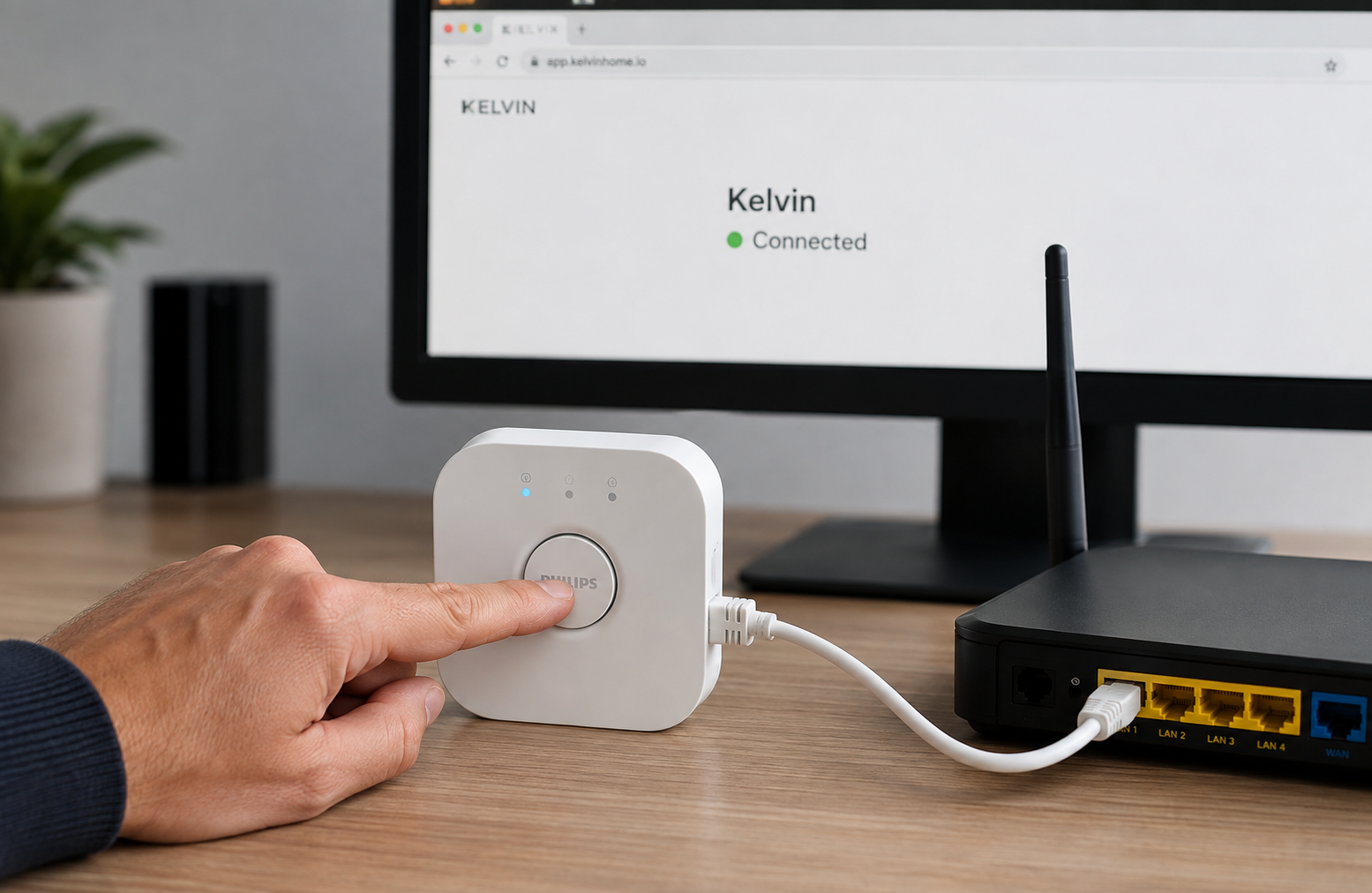
Initial pairing requires local bridge discovery and physical authorization. Because persistent storage is already mounted, the resulting bridge registration and generated configuration can survive routine container replacement.
Follow bridge discovery in the log
Run docker logs -f kelvin. Kelvin should report that it is generating default configuration, looking for a bridge, and beginning user registration.
docker logs -f kelvinPress the physical blue button
When Kelvin asks for authorization, press the blue button on top of the Hue bridge. Kelvin waits one minute for this action.
Retry if the registration window expires
If the button was not pressed in time, restart Kelvin and repeat registration. Do not create a public tunnel as a workaround for failed local discovery.
docker restart kelvin
docker logs -f kelvinConfirm detected devices
Successful output lists devices discovered through the bridge and their relevant capabilities. Devices that do not support functionality Kelvin uses may be excluded from unnecessary polling.
Review location detection and cyclic updates
If no location is configured, Kelvin can detect one by IP. Confirm that the detected location is suitable for the installation and that the log reports cyclic updates starting.
Press the Hue bridge button only when you intentionally started Kelvin registration. If an unexpected application asks for bridge authorization, stop and identify it before pressing the button.
Open the web interface and obtain the password
If you used the loopback binding, open http://127.0.0.1:8080/ from a browser on the Docker host. If you used the separate-client layout, open http://{DOCKER_HOST_LAN_IP}:8080/ from an allowed local device.
The interface accepts any username and requests Kelvin's generated password. Retrieve the password from the protected startup log:
docker logs kelvin
It is also stored in the password field of config.json within the mapped configuration directory. Do not copy the complete configuration file into an issue, chat, or screenshot.
Configure room schedules
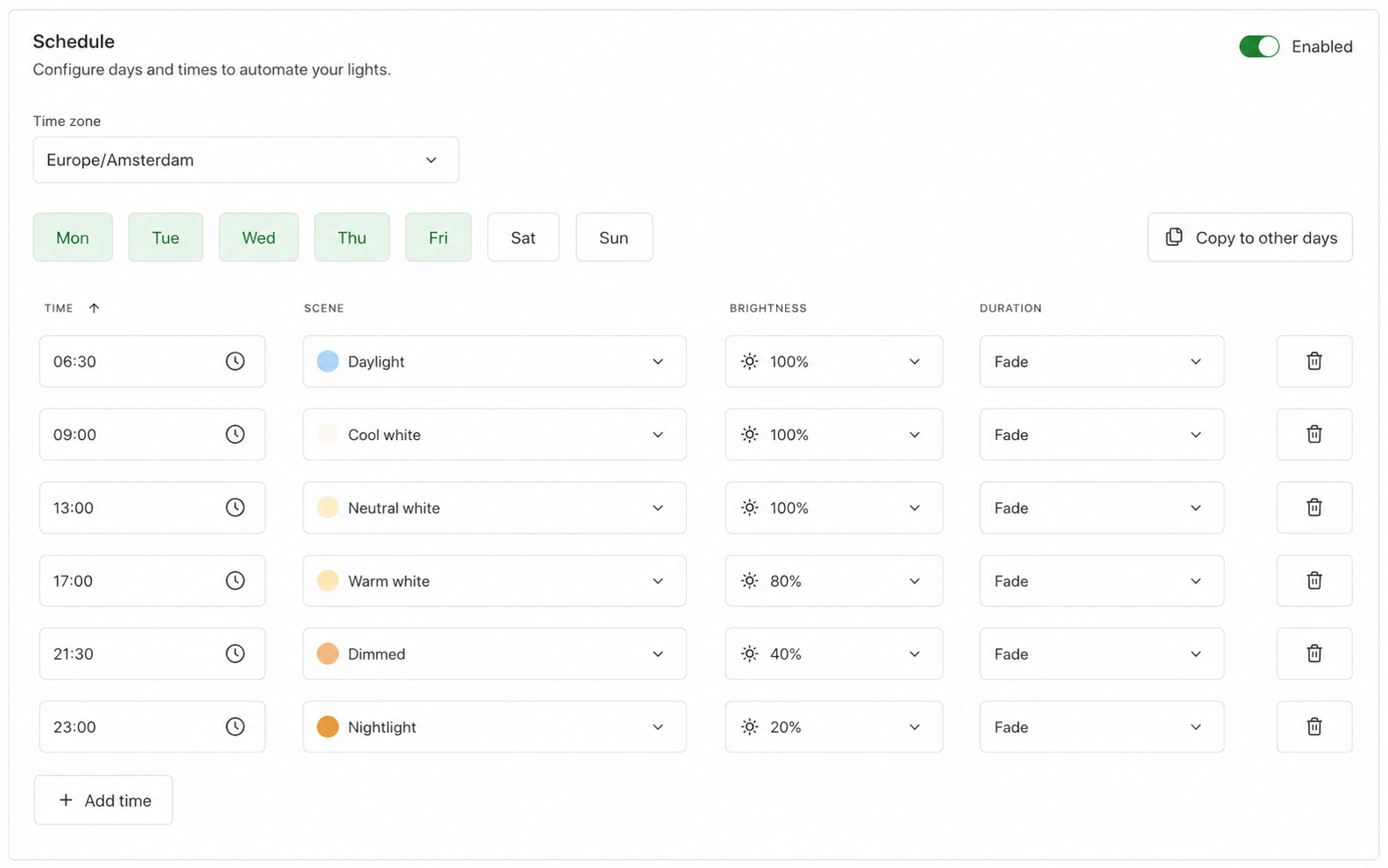
Use the interface to identify managed rooms, set daily brightness and color-temperature behavior, choose startup behavior, and coordinate changes with sunrise and sunset. Start with a small set of lights and observe normal operation before applying broad household changes.
- Confirm that the expected rooms and supported lights appear.
- Decide how lighting should change through morning, daytime, evening, and night.
- Choose scene-based or automatic activation according to the available Kelvin controls.
- Check the timezone and detected location before evaluating solar-time behavior.
- Account for manual overrides while testing.
- Make a backup before substantial schedule changes.
Current labels may vary by Kelvin release. The available evidence confirms the capabilities but does not establish a complete field-by-field specification for every web-interface version, so this guide does not invent menu labels, schedule syntax, ranges, or save controls.
Kelvin requires a restart after configuration changes. Use the web-interface restart option when available or run:
docker restart kelvinReopen the interface and inspect the logs after restarting. A successful Docker restart confirms that the container started, but you should still verify that Kelvin accepted the configuration and resumed bridge communication.
Verify the complete local deployment
Do not create a public tunnel until container storage, bridge registration, authentication, and real lighting behavior all work locally. This keeps application faults separate from tunnel faults.
Check container status
Run docker ps and verify that the named Kelvin container remains running.
Review application startup
Confirm bridge registration, relevant device discovery, location handling, and cyclic updates in docker logs kelvin.
Open the interface through the intended local path
Use http://127.0.0.1:8080/ for a co-located client or the restricted Docker-host LAN address for a separate client.
Authenticate with Kelvin
Enter any username and the generated Kelvin password. Confirm that configuration data is not displayed before the password is accepted.
Observe real Hue behavior
Test a managed light and confirm that Kelvin communicates with the bridge. Remember that a manual change remains active until the light is switched off and on again.
Verify restart behavior
Restart the container, then confirm that the prior password, bridge registration, and schedule remain available from the bind-mounted directory.
docker restart kelvin
docker logs kelvinVerify behavior after a planned host reboot
During an appropriate maintenance window, reboot the Docker host. After it returns, run docker ps, inspect the Kelvin log, open the interface, and confirm that automation resumes. This validates the restart policy rather than merely confirming that it was configured.
Kelvin v1.3.9 release information mentions a health endpoint, but the supplied evidence does not establish its path or response contract. Do not guess a monitoring URL. Use container status, the documented root interface, logs, persistent configuration, and observed Hue behavior unless you independently verify the health endpoint for the installed release.
Create a Localtonet HTTP tunnel to Kelvin
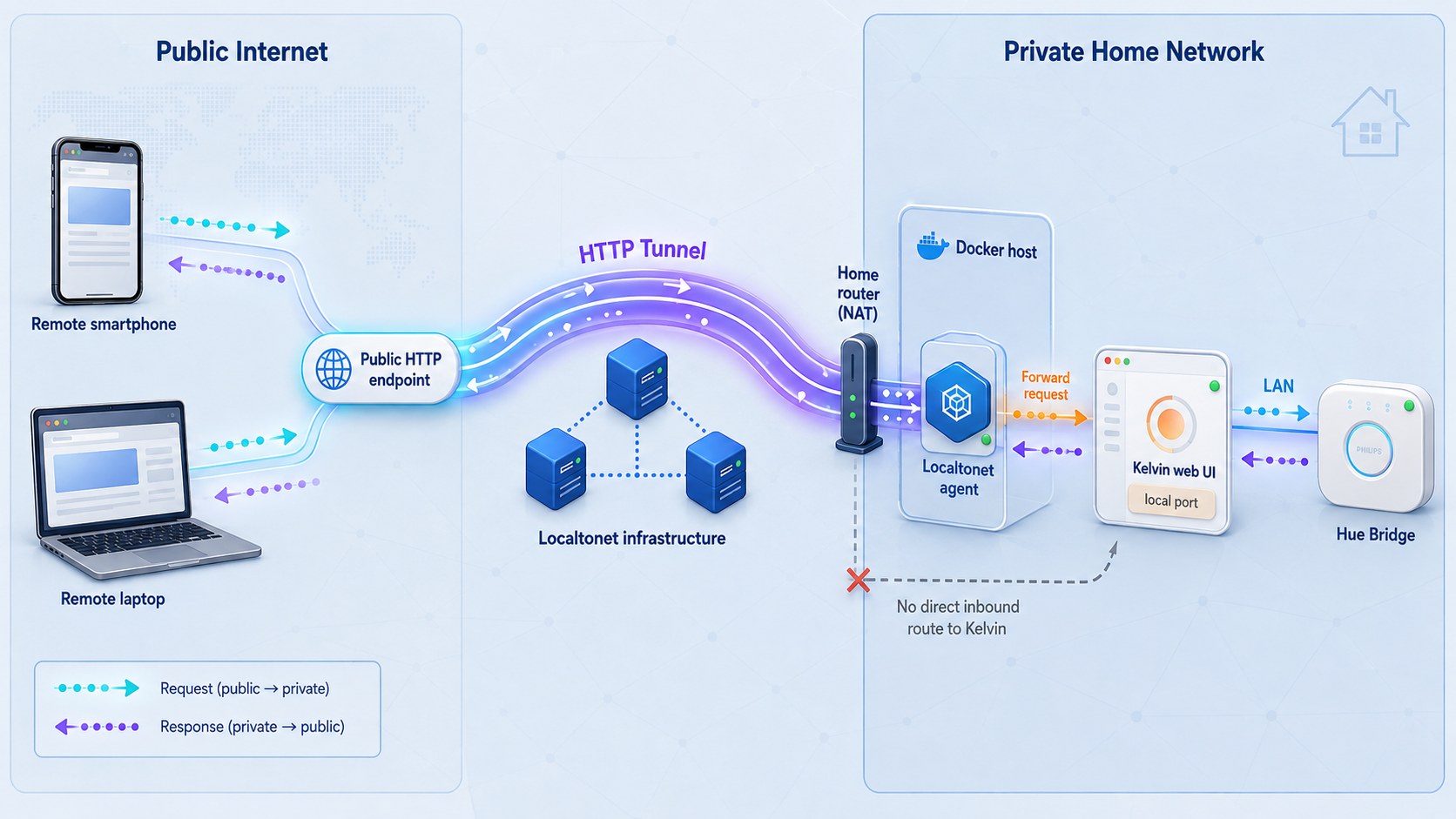
Our client establishes an outbound connection to a Localtonet relay server. This provides a public HTTPS address for the local Kelvin service without an inbound router port-forwarding rule, VPN setup, or a public IP address. The selected Localtonet device must remain connected, and the tunnel must be running.
Install the Localtonet client
Install Localtonet on the Docker host whenever practical. That lets Kelvin stay bound to 127.0.0.1. The Localtonet getting-started documentation provides current downloads for Windows, Linux, macOS, Docker, Android, and other documented platforms.
On supported Debian or Ubuntu x64 systems, the current package workflow is:
- Download the current x64 DEB package from our documentation.
- Open a terminal in the directory containing the package and install it.
- Place the device-specific AuthToken in
/etc/localtonet/auth-tokenas a single protected line. - Check the configuration before starting the system service.
- Enable and start the service, then inspect its journal.
sudo apt install ./localtonet-linux-x64.deb
sudo chmod 600 /etc/localtonet/auth-token
sudo localtonet --headless --authtoken-file /etc/localtonet/auth-token --check-config
sudo systemctl enable --now localtonet.service
sudo journalctl -u localtonet.service
Edit the token file locally before running the check. Never paste the real AuthToken into an article, shell history example, screenshot, or support post. If your host uses another operating system or architecture, select the matching current installation path instead of changing package names by guesswork.
Before creating the tunnel, open Kelvin from the exact device running Localtonet. A co-located client should reach http://127.0.0.1:8080/. A separate LAN client should reach the Docker host's restricted LAN address on port 8080.
Follow the documented HTTP tunnel sequence
Use the Localtonet HTTP tunnel documentation alongside the current dashboard. Available relay servers and some process-type choices can vary, so select current values shown in your account rather than copying a server code from an old tutorial.
Open the HTTP Tunnel page
Sign in to the Localtonet dashboard and open the HTTP Tunnel configuration page.
Select the Process Type
Choose Random Sub Domain, Custom Sub Domain, or Custom Domain according to the options available to your account and your intended URL. All three process types serve the local content at a public HTTPS address.
Select the AuthToken
Choose the device-specific token belonging to the connected client that can reach Kelvin. A token identifies the device that will run the tunnel.
Select an available server
Choose a currently available Localtonet relay server or region from the dashboard. Do not hardcode a server code from this article.
Enter Kelvin's local IP address and port
For a client on the Docker host, enter 127.0.0.1 and port 8080. For a client on another LAN device, enter the verified Docker-host LAN address and port 8080.
Start the tunnel
Creating the configuration does not make it active. Press Start, confirm that the selected client is connected, and use the assigned public HTTPS address.
Anyone who knows or discovers the public URL can reach Kelvin's login endpoint. The public HTTPS address protects the remote transport to the Localtonet edge, but it does not replace Kelvin's application authentication. Kelvin still accepts any username and relies on its generated password. Keep that password, the startup log, and config.json confidential, and stop the tunnel when remote administration is not needed.
Verify from a genuinely external network
Disconnect the test device from the home Wi-Fi network or use another external connection. Open the assigned public HTTPS address and confirm that Kelvin requests credentials before displaying its management interface.
Authenticate with the Kelvin password and perform a low-impact action, such as reviewing the schedule. Avoid disruptive lighting changes during the first remote test. Connectivity, application authentication, and automation behavior should be verified separately.
If the public address fails, return to the local-first sequence. Test Kelvin from the Localtonet client device, confirm the client connection, confirm the selected token and relay, verify that the tunnel is started, and then retry the public URL.
Routine operation, backup, replacement, and updates
Understand the independent service layers
| Layer | Required components | Typical failure |
|---|---|---|
| Hue automation | Kelvin container and reachable Hue bridge | Schedules stop affecting lights |
| Local management | Kelvin and the intended Docker port binding | The local web interface does not load |
| Remote management | Kelvin, Localtonet client, and a started HTTP tunnel | Local access works but the public URL fails |
| Configuration persistence | Correct bind mount for /etc/opt/kelvin/ |
Settings, password, or registration change after replacement |
Check status and restart Kelvin
docker ps
docker logs kelvin
docker restart kelvin
After a restart, verify bridge communication, configuration loading, and cyclic updates. For remote access, also verify the Localtonet client and tunnel because they have a separate lifecycle.
Create a protected backup
Stop Kelvin before taking a file-level backup if you want to avoid capturing configuration while the application may be writing it. Archive the mapped host directory to protected storage:
docker stop kelvin
sudo tar -C /srv/kelvin -czf /protected/backup/location/kelvin-config-backup.tar.gz config
docker start kelvin
Replace the paths with the directories actually used on your host. The backup contains credential-bearing configuration, so restrict access to it. Verify that the archive exists and can be read before treating it as a successful backup.
Test restoration during a planned maintenance window or on a noncritical instance. A backup process is incomplete until you know which host directory must be restored and have confirmed that Kelvin can read it.
Replace the container without losing configuration
Container replacement is safe only when the configuration is already outside the container and has been backed up. Do not delete the mapped host directory. Use this sequence:
- Confirm the current interface, password, schedules, and bridge communication.
- Stop Kelvin and back up the mapped configuration directory.
- Record the current container configuration and image details.
- Pull the intended image after reviewing the Kelvin release history.
- Remove only the stopped container, not the host configuration directory.
- Recreate the container with the same bind mount, timezone, port binding, name, and restart policy.
- Verify the previous password, schedules, bridge registration, and Localtonet target.
docker inspect kelvin
docker pull stefanwichmann/kelvin
docker stop kelvin
docker rm kelvin
After removal, rerun the appropriate Docker command from the installation section. The bind-mounted host directory should preserve the existing state. If Kelvin generates a new default configuration, stop immediately and check the source path, mount destination, permissions, and backup before making new changes.
If an older Kelvin container was started without persistent storage, do not remove it before preserving its configuration. This tutorial intentionally mounts storage before first pairing. A reliable migration from an existing unmounted container requires validating the files copied from that specific container and release, so keep the original container intact until its data has been independently backed up and tested.
Approach updates deliberately
Review the Kelvin release notes before replacing an image. This guide does not claim that every future release will preserve every previous configuration without change. Keep a backup and a record of the last working image before updating.
After an update, test container startup, the existing password, Hue registration, room schedules, local access, actual light behavior, reboot recovery, and the Localtonet tunnel. Do not treat a successful image pull as proof that the application update is complete.
Troubleshooting Kelvin and remote access
The image does not download
Run docker version and confirm that the engine is available. Then retry docker pull stefanwichmann/kelvin. Failures here concern Docker connectivity, permissions, image retrieval, or platform compatibility rather than Hue pairing or Localtonet.
The container is missing from docker ps
Inspect all containers and read the named container's log:
docker ps -a
docker logs kelvin
Do not repeatedly create replacement containers without understanding the first failure. Confirm the mount source, timezone, host address, port availability, and Docker error message.
Docker says port 8080 is already allocated
Another process or container is using the selected host address and port. Identify it before changing Kelvin's mapping. If you deliberately select another host port, verify the resulting local URL and use that verified host port in the Localtonet tunnel.
Docker cannot bind to the chosen LAN address
Confirm that the address is actually assigned to the Docker host. An address copied from an example or belonging to another device cannot be used as the host side of the publication. If DHCP changed the host address, correct the network assignment or reservation before recreating Kelvin.
Kelvin does not find the Hue bridge
Verify that the bridge is configured, powered, and reachable from the Docker host. Review the Kelvin log for its discovery state. The available evidence does not document alternative bridge-address flags or special Docker network modes, so this guide does not prescribe unverified options.
The blue-button registration expires
Kelvin waits one minute. Restart the container, follow the log, and press the button when registration is requested. Pressing it long before or after the prompt may not authorize the intended request.
The Kelvin password is unknown
Inspect docker logs kelvin or the password field in the mapped config.json. If neither location contains the expected state, verify that the correct host directory is mounted at /etc/opt/kelvin/. An unexpected new password can indicate that Kelvin started with an empty or incorrect mount.
The interface does not open on the Docker host
Confirm that the container is running and that its published-port configuration matches the intended layout. For a loopback deployment, test http://127.0.0.1:8080/ on the Docker host itself. A different device cannot use its own 127.0.0.1 to reach the Docker host.
The interface works locally but not from the separate Localtonet device
Confirm that Docker is bound to the Docker host's correct LAN address rather than loopback. Verify the host firewall, local routing, and client address. Allow only the required Localtonet client device where practical. Do not solve a LAN reachability problem by adding an internet-facing router rule.
A schedule appears not to affect a light
Check the light's capabilities, room assignment, current power state, timezone, location, schedule interval, and application log. Determine whether the light was manually changed. Kelvin respects manual changes until the light is switched off and on again.
The public URL fails while local access works
Confirm that the Localtonet client is connected, the correct AuthToken is selected, the chosen relay is available, and the tunnel was started. Test the local target from the client device. If Localtonet runs on another computer, 127.0.0.1 refers to that other computer, not the Docker host.
The public page opens but login fails
Use Kelvin's generated password from the protected log or persistent config.json. The project says the interface accepts any username, so focus on the password and configuration continuity. If credentials changed unexpectedly, investigate the bind mount before recreating anything.
Remote access stops after a reboot
Check each dependency in order: Docker service, Kelvin container, local Kelvin URL, Localtonet service, selected device connection, and tunnel status. Kelvin's restart policy does not start an inactive Localtonet tunnel, and a running tunnel cannot forward to a stopped Kelvin container.
Start with the Kelvin container and Hue behavior. Next test the local interface from the Localtonet client device. Then check the Localtonet client connection and tunnel status. Test the public address last. This order isolates the failing layer without changing a correct tunnel to compensate for a broken local service.
Frequently asked questions
What is Kelvin for Philips Hue?
Kelvin is a self-hosted automation service that adjusts supported Hue lighting according to local sunrise and sunset times and custom daily intervals. It supports room schedules, gradual transitions, startup settings, scene or automatic activation, and temporary manual overrides.
Why must persistent storage be configured before pairing?
Kelvin stores configuration under /etc/opt/kelvin/. Mounting that directory before first startup preserves the generated password, schedules, and bridge-related configuration outside the container's disposable writable layer.
Should Docker publish Kelvin on every network interface?
No, not when a narrower binding is practical. Bind to 127.0.0.1:8080 when Localtonet runs on the Docker host. If Localtonet runs elsewhere on the LAN, bind to the Docker host's specific LAN address and restrict access with the host firewall.
Where is the Kelvin web-interface password?
Kelvin generates it on first startup. Find it in docker logs kelvin or in the password field of config.json within the persistent configuration directory. Protect both locations.
Will Kelvin start after the Docker host reboots?
The deployment in this guide uses Docker's unless-stopped restart policy. Verify it with docker inspect and perform a planned reboot test because configured policy and proven recovery are not the same thing.
Does Localtonet replace Kelvin's password?
No. Localtonet provides the remote transport and public HTTPS address. Kelvin remains responsible for application login, and its login endpoint is publicly reachable while the tunnel is running.
Does Localtonet require router port forwarding?
No. Our client creates an outbound connection to a Localtonet relay. A separate-client layout may require a narrowly scoped LAN firewall allowance on the Docker host, but it does not require forwarding port 8080 from the internet through the router.
Does creating a tunnel make it active immediately?
No. The selected client device must be connected and the tunnel must be started with the Start button. You can later stop or delete it when remote Kelvin access is not required.
Can Kelvin be installed without Docker?
Yes. Kelvin provides release archives for standalone use. Start kelvin.exe on Windows or ./kelvin on macOS, Linux, and other Unix-like systems. Verify the binary's actual listener before adapting the Docker-specific remote-access steps.
Access your verified Kelvin interface with Localtonet
Once Kelvin is persistent, locally verified, and recovering correctly after restarts, create a Localtonet HTTP tunnel to the appropriate loopback or restricted LAN target. Test the public login from an external network and stop the tunnel whenever remote administration is not needed.
Get Started Free →

