

Prepare, validate, protect, and remotely reach a release-pinned EdgeEver deployment without guessing project settings
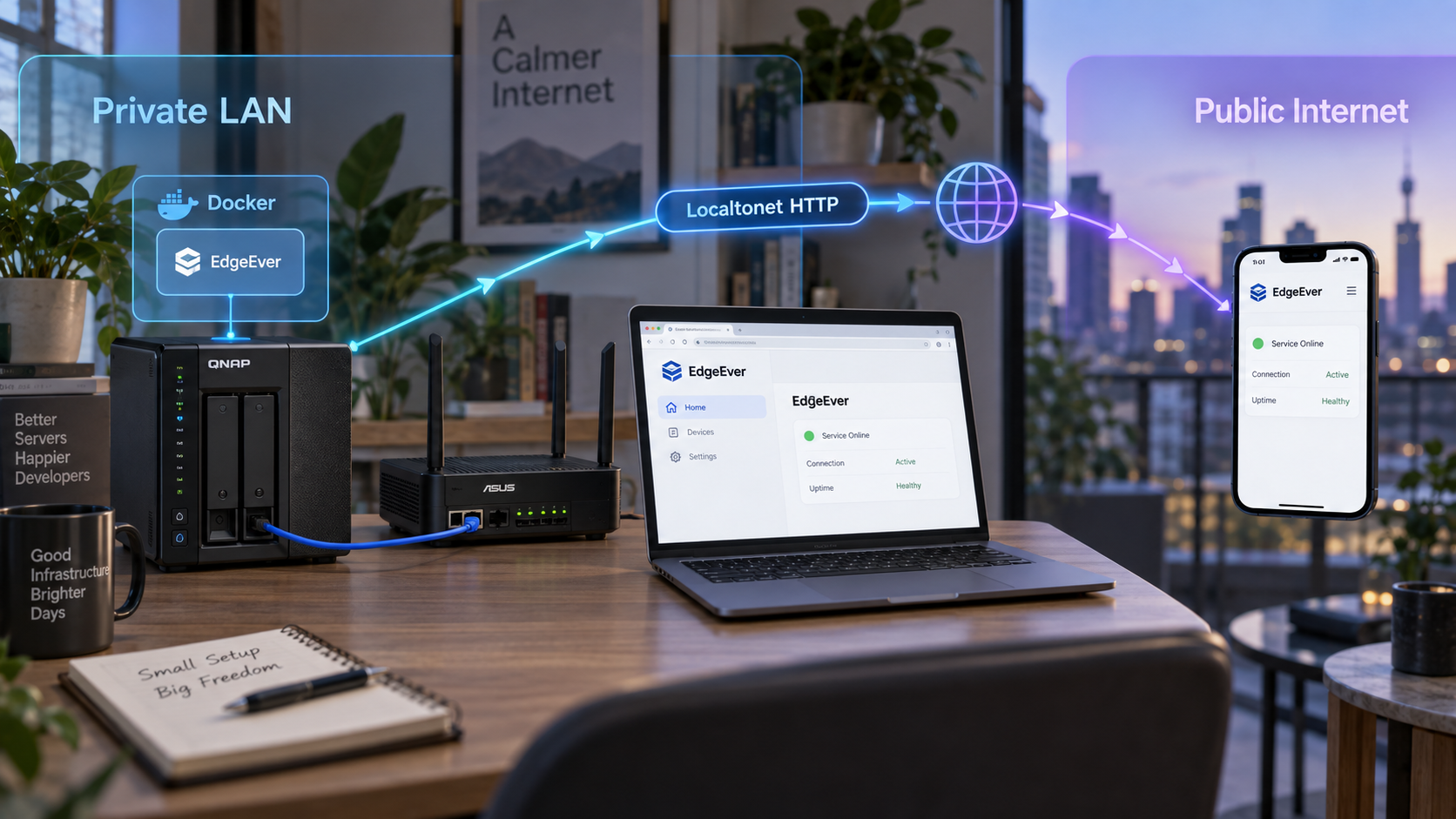
EdgeEver is an open-source notes and knowledge workspace that supports Docker deployment on a VPS, NAS, or home server. This revision is scoped to the EdgeEver v1.86.0 repository and release material reviewed on September 24, 2026. The available verified material confirms the repository, release tag, Dockerfile, Compose file, environment examples, SQLite architecture, and ZIP export capability, but it does not expose the contents needed to reproduce EdgeEver's one-line installer, exact environment variables, volume paths, published port, or initial administrator flow safely. Rather than invent those release-specific values, this guide shows how to pin and inspect the official deployment, establish a verified local endpoint, protect SQLite data, and connect that endpoint through a Localtonet HTTP tunnel only after authentication has been confirmed.
📋 What's in this guide
Verified scope and important evidence boundary
EdgeEver describes itself as an open-source, AI-native knowledge base and portable Evernote alternative. Its documented features include a three-pane workspace, rich-text and Markdown editing, nested notebooks, multi-device synchronization, REST API access, CLI access, Model Context Protocol integration, version history, attachments, and lossless ZIP export. The application uses SQLite as part of its open data architecture.
The project supports two distinct deployment models. Cloudflare is the serverless deployment path. Docker is the self-hosted path intended for a VPS, NAS, or home server. A Localtonet tunnel is relevant to the second model when the Docker service is reachable only on a private network. A Cloudflare deployment is already hosted on public infrastructure and ordinarily does not need this tunnel arrangement.
The official repository contains a Dockerfile, compose.yaml, several environment examples, migrations, source code, and release tags. EdgeEver's website also advertises a one-line Docker installer. The evidence supplied for this revision does not include the contents of those deployment files or the installer command. It therefore does not establish the exact container image, build targets, service names, environment keys, volume mappings, internal port, host port, health-check route, administrator defaults, public-base-URL setting, or application-specific upgrade command.
Printing guessed Docker settings would make the deployment less safe, not more complete. The procedures below can pin, inspect, start, observe, back up, and tunnel an official release checkout, but the exact EdgeEver configuration values must be taken from the deployment files in that checkout. Do not expose the application publicly unless the installed release's authentication behavior and local endpoint have both been verified.
This guide is pinned to release v1.86.0, which the supplied release page identifies as commit b49c5c5. Pinning matters because following the moving main branch can silently change deployment files between installation, backup, and rollback. It does not mean every command below has been executed against every host operating system or NAS interface.
Understand the deployment architecture
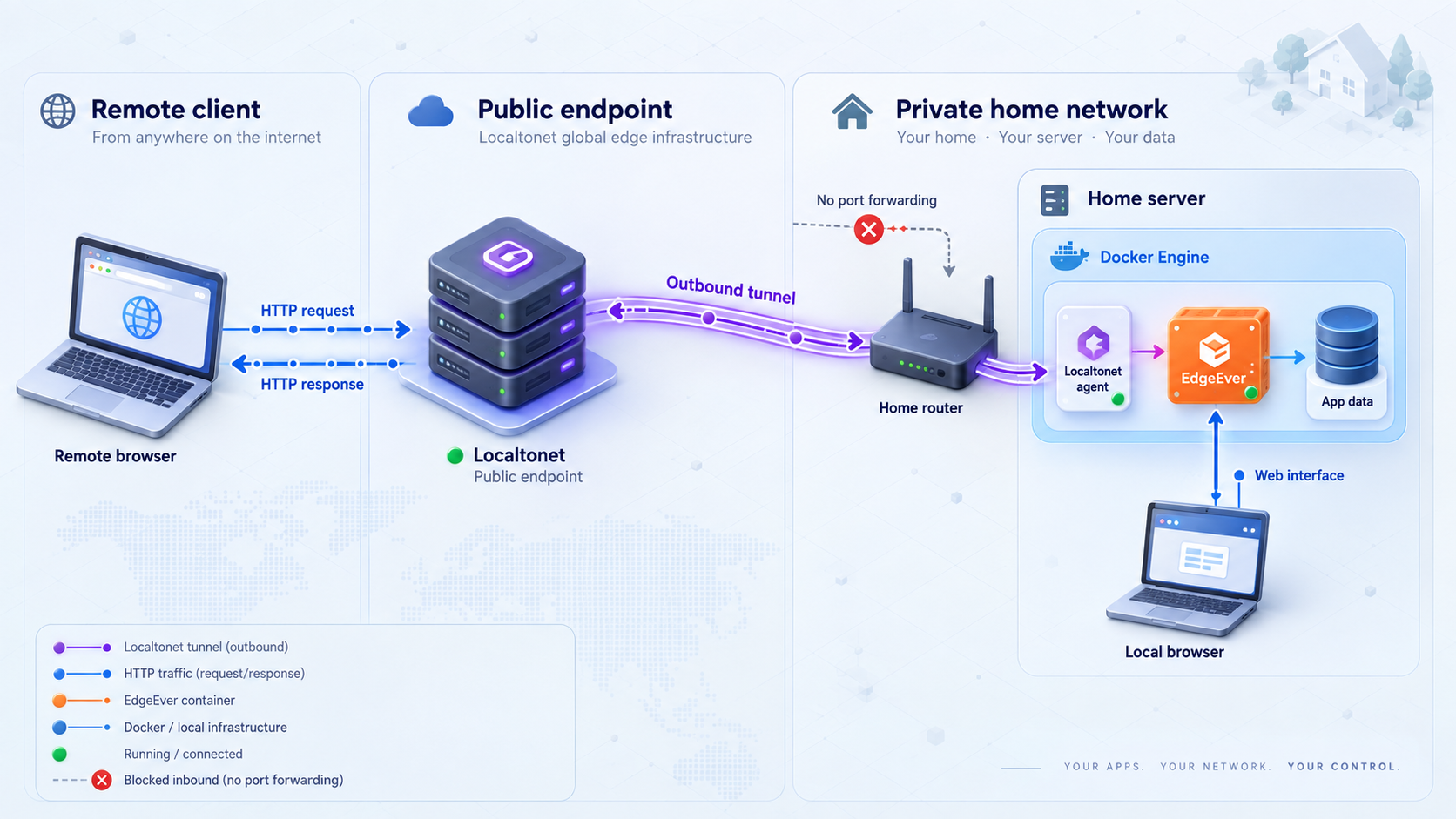
EdgeEver and Localtonet have separate responsibilities. Docker runs the application and attaches its persistent storage. A Docker port mapping makes the web service available through an address on the host. The Localtonet client runs on that host or another trusted device with network access to it. The client then forwards requests from a public HTTPS address to the verified local HTTP address and port.
Remote browser
    |
Public HTTPS URL assigned to the Localtonet HTTP tunnel
    |
Localtonet relay
    |
Outbound connection from the selected Localtonet client
    |
Verified EdgeEver host IP address and published HTTP port
    |
EdgeEver Docker service
    |
Persistent SQLite and application data
The Docker container, its persistent data, the Localtonet client, and the Localtonet tunnel each have an independent lifecycle. Creating a tunnel does not start it. Stopping a tunnel does not stop EdgeEver. Stopping EdgeEver makes the application unavailable both locally and through the tunnel.
| Layer | Responsibility | Required verification |
|---|---|---|
| EdgeEver | Notes, authentication, synchronization, exports, and application APIs | The interface loads, sign-in rules work, and saved notes persist |
| Docker Compose | Builds or obtains images, starts services, maps ports, and attaches storage | Resolved configuration matches the release files and services remain running |
| Persistent storage | Holds SQLite and any other durable application data | Data survives a controlled restart and can be restored from backup |
| Local endpoint | Makes EdgeEver reachable from the host or trusted LAN | The host-side address and port work from the Localtonet client device |
| Localtonet client | Creates an outbound connection to our relay | The selected device is connected and its token remains private |
| HTTP tunnel | Maps a public HTTPS URL to the local EdgeEver endpoint | The tunnel is started and an unauthenticated external test behaves safely |
Prerequisites and deployment decisions
A supported Docker environment
Use a host on which you are authorized to run a persistent service. The verified project material names VPS, NAS, and home-server systems as Docker targets, but it does not define a minimum CPU count, minimum memory amount, supported CPU architecture list, required Docker version, required Compose version, or supported NAS vendor list. Confirm host compatibility before depending on the deployment.
On a conventional Docker installation, verify that the engine and Compose plugin are available:
docker version
docker compose version
git --version
These commands only validate the tools. They do not confirm that your architecture is supported by EdgeEver or that the host has enough capacity. A NAS with a graphical container manager may expose equivalent information through its administration interface.
A release and project directory
The examples use /srv/edgeever as an administrator-selected installation directory. This path is a local choice, not an EdgeEver requirement. Choose a location with appropriate ownership, free space, and backup coverage.
Do not clone directly into a directory that already contains an unverified deployment. Preserve the current configuration and data first. Never assume that deleting a project directory leaves named Docker volumes intact or that retaining the directory preserves every named volume.
A secret-handling plan
Environment files may contain administrator credentials, signing secrets, AI-provider keys, object-storage credentials, integration tokens, or other sensitive values. Restrict their filesystem permissions, exclude them from public repositories, and avoid printing them in terminal transcripts or screenshots.
chmod 600 .env 2>/dev/null || true
Run this only if the inspected EdgeEver deployment actually uses a file named .env. Do not rename an upstream environment file merely to match this example.
A local-only validation phase
Keep the Localtonet tunnel stopped until the Docker service is stable, the local URL is known, persistent data survives restart, the initial administrator flow has been completed, and a signed-out browser cannot read protected content. If the application has no effective authentication in the installed configuration, do not publish it through a public URL.
Check out and start the release-pinned Docker deployment
The following sequence obtains the official repository at the verified v1.86.0 tag. It does not replace EdgeEver's unpublished one-line installer. It uses the repository's own Dockerfile and Compose file so that Docker can resolve what the release actually defines.
Create the installation parent directory
Choose a durable location on the Docker host. The path below is an operator-selected example.
sudo mkdir -p /srv
sudo chown "$(id -u):$(id -g)" /srvClone the official repository at v1.86.0
The tag prevents later changes to the main branch from altering the deployment unexpectedly.
git clone --branch v1.86.0 --depth 1 https://github.com/tianma-if/edgeever.git /srv/edgeever
cd /srv/edgeever
git rev-parse HEAD
git describe --tags --exact-match
For the reviewed release, the checked-out commit should correspond to b49c5c5, subject to Git displaying the complete commit identifier. The exact-tag command should report v1.86.0. Stop if the checkout resolves to an unexpected tag or repository.
Inspect the deployment inputs before executing them
Review the Compose file, Dockerfile, and environment examples from the pinned checkout. Identify required substitutions, build context, service names, restart policies, health checks, host ports, container ports, and persistent mounts.
cd /srv/edgeever
sed -n '1,240p' compose.yaml
sed -n '1,260p' Dockerfile
find . -maxdepth 1 -type f \( -name '.env*.example' -o -name '*.env.example' \) -print
Pay particular attention to Compose expressions such as ${VARIABLE}, bind mounts, named volumes, and port mappings. A mapping written as HOST_PORT:CONTAINER_PORT exposes the host-side value to browsers and Localtonet. Do not substitute a container-only port into the tunnel.
Prepare only the environment file documented by the release
If the release's README or Compose file instructs you to copy a specific example, copy that exact file and replace only documented placeholders. Several environment examples exist for different workflows, so selecting one by filename alone is unsafe.
Use this pattern only after replacing both bracketed placeholders with filenames verified in the release documentation:
cp "[DOCUMENTED_SOURCE_EXAMPLE]" "[DOCUMENTED_RUNTIME_ENV_FILE]"
chmod 600 "[DOCUMENTED_RUNTIME_ENV_FILE]"
The bracketed values are required operator substitutions. Do not type the brackets literally. If Compose supplies complete defaults and does not require an environment file, do not create one unnecessarily.
Resolve the Compose configuration
Ask Compose to merge and validate the release configuration before building anything. This catches missing substitutions and malformed configuration.
cd /srv/edgeever
docker compose config --services
docker compose config
Review the output carefully because it can contain resolved secret values. Do not paste it into a public issue or support message. Confirm the final service names, ports, mounts, and restart behavior.
Build and start the pinned Compose project
This asks Compose to build services that use the checked-out Dockerfile and start the release definition in detached mode.
cd /srv/edgeever
docker compose up --build -dRead the resulting service state and published ports
Use the running deployment rather than an assumed port number as the source of truth.
cd /srv/edgeever
docker compose ps
docker compose logs --tail=200
In the PORTS column, identify the host-side HTTP port. If the output shows a binding such as 127.0.0.1:HOST_PORT, only the Docker host can reach it. If it shows a LAN-reachable bind, another trusted device may be able to connect subject to the host firewall and network policy.
The supplied verified evidence does not contain EdgeEver v1.86.0's port mapping. The correct local URL is the host address combined with the host-side HTTP port reported by the resolved Compose configuration and docker compose ps. Publishing a guessed port would undermine the release-pinned procedure.
Verify EdgeEver locally before creating a tunnel
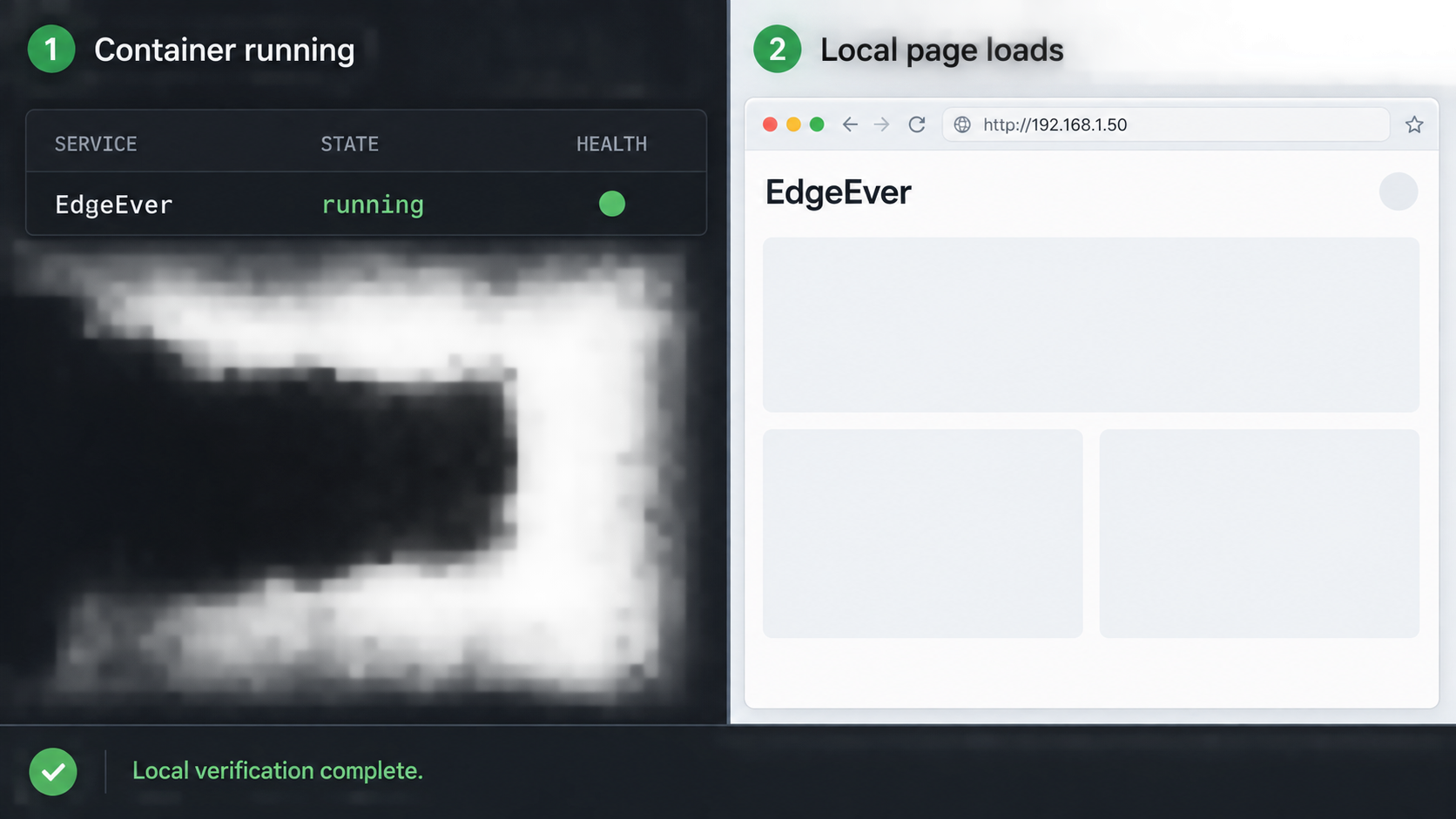
Check every Compose service
cd /srv/edgeever
docker compose ps
docker compose logs --tail=200
A service that exits, repeatedly restarts, or reports migration, configuration, permission, or storage failures is not ready for exposure. If the Compose definition includes a health check, inspect its state through docker compose ps and Docker inspection. The evidence does not establish a project-specific health URL, so do not assume that a conventional path such as /health exists.
Build the correct local URL
Use http://127.0.0.1:HOST_PORT when testing from the Docker host, replacing HOST_PORT with the actual published HTTP port. If the Localtonet client will run on a separate trusted device, test http://SERVER_LAN_IP:HOST_PORT from that device. Both uppercase values are required substitutions.
curl -I "http://127.0.0.1:[HOST_PORT]"
Replace [HOST_PORT] before running the command. An HTTP response confirms that a web server answered, but it does not prove that EdgeEver is fully operational or securely configured.
Complete the release's initial application flow
Open the verified URL in a browser. The available evidence does not define whether Docker release v1.86.0 creates an administrator from environment values, displays a first-run registration screen, or uses another setup mechanism. Follow only the flow presented by the installed release and its pinned documentation. Use a unique password and do not reuse the Localtonet device token as an application credential.
Perform an application-level persistence test
- Create a temporary notebook or note.
- Add recognizable non-sensitive text and save it.
- Refresh the browser and confirm the content remains.
- If attachments are important to your workflow, upload a non-sensitive test file and reopen it.
- Sign out, sign back in, and confirm that the test content is still present.
Next, perform a controlled restart through Compose:
cd /srv/edgeever
docker compose restart
docker compose ps
docker compose logs --tail=200
Reopen the application and verify that the test note and attachment remain. Missing data after restart indicates a storage, migration, or permissions problem that must be resolved before remote access.
Verify reboot expectations
Inspect the resolved Compose configuration for each service's restart policy:
cd /srv/edgeever
docker compose config
A Compose service does not necessarily restart after a host reboot unless the deployment defines an appropriate restart policy and Docker itself starts successfully. Do not claim automatic recovery until you have tested a scheduled host reboot and confirmed EdgeEver's application-level behavior afterward.
Verify authentication and public behavior
The supplied EdgeEver evidence confirms application features but does not document the Docker release's default administrator, session lifetime, cookie attributes, failed-login limits, password reset behavior, reverse-proxy trust configuration, or public-base-URL setting. These omissions have a direct security consequence: the instance should remain local until you have observed and validated the installed release.
Run a signed-out local test
- Sign out of EdgeEver in the normal browser session.
- Open a private or incognito browser window.
- Navigate directly to the verified local URL.
- Attempt to open a previously copied note URL.
- Confirm that note content and protected attachments are not readable without authentication.
- Close the private session, open another one, and confirm no prior authenticated session remains.
A login page may remain publicly reachable after tunneling. Static application assets and any deliberately public routes may also be reachable. The exact route set is defined by EdgeEver, not by the tunnel. Localtonet forwards traffic to the configured HTTP service and should not be treated as a substitute for application authorization.
Check browser and application behavior behind another hostname
After the tunnel is created, the browser will use the Localtonet-assigned hostname rather than the local host address. Test sign-in, sign-out, redirects, asset loading, API requests, attachment access, and any absolute links. If EdgeEver v1.86.0 requires a reverse-proxy or public-base-URL value, configure only the documented setting from that release. No such setting is established by the supplied evidence, so none is invented here.
A hard-to-guess URL is not an authentication control. If a signed-out browser can read private notes, attachments, exports, administrative pages, or protected APIs, stop the tunnel and correct the application configuration before continuing.
Logs, updates, restart behavior, and rollback
Routine status and log commands
cd /srv/edgeever
docker compose ps
docker compose logs --tail=200
docker compose logs --follow
The first command reports current service state and port mappings. The second prints recent logs. The third follows new log output until interrupted. Logs can contain usernames, internal paths, request information, or configuration details, so redact sensitive information before sharing them.
Stop and start the application
cd /srv/edgeever
docker compose stop
docker compose start
stop preserves the containers and attached storage while halting application processes. start starts those existing containers. By contrast, docker compose down removes the Compose containers and networks. Do not add --volumes unless you deliberately intend to remove named volumes and understand the data consequences.
Prepare a release update
Do not update a working knowledge base by pulling the latest main branch and immediately recreating containers. Record the current state, create both an EdgeEver ZIP export and a consistent infrastructure backup, and identify the exact destination release.
cd /srv/edgeever
git describe --tags --exact-match
git rev-parse HEAD
docker compose config --services
docker compose ps
Preserve the active environment file outside the Git repository with restrictive permissions. Never commit secrets merely to make rollback easier.
Check out a chosen release
Replace [NEW_TAG] with an EdgeEver release tag you have reviewed:
cd /srv/edgeever
git fetch --tags
git switch --detach "[NEW_TAG]"
docker compose config
docker compose up --build -d
docker compose ps
docker compose logs --tail=200
Repeat sign-in, note retrieval, note creation, attachment, export, and restart tests after the update. Also retest the Localtonet URL because application redirects or hostname handling may have changed.
Rollback safely
A code rollback is not always a data rollback. If an update changed the SQLite schema, starting an older application against newly migrated data may fail or corrupt expectations. The safest rollback restores both the previous release and the consistent pre-upgrade data backup.
cd /srv/edgeever
docker compose stop
git switch --detach v1.86.0
docker compose config
docker compose up --build -d
docker compose ps
docker compose logs --tail=200
The commands above return the code and deployment files to v1.86.0. Restore the matching pre-upgrade data while the application is stopped if the failed update modified persistent state. Then validate login, note counts, attachments, recent notes, exports, and a controlled restart.
Create and test consistent EdgeEver backups
EdgeEver's lossless ZIP export and an infrastructure backup solve different problems. The ZIP export is application-level and portable. It contains Markdown, Front Matter, nested folders, relative attachment links, and version histories according to the project. An infrastructure backup preserves the deployment's persistent data so the Docker instance can be reconstructed.
Create an EdgeEver ZIP export
Use the export function presented by the installed EdgeEver release. Save the resulting archive outside the Docker host, record the export date and application version, and verify that the archive opens. Inspect a sample of Markdown files, nested directories, attachments, Front Matter, and version-history content.
Do not assume that merely downloading an archive proves restoration. A periodic test import into an isolated EdgeEver deployment provides stronger evidence that the export remains usable.
Do not make an arbitrary live SQLite copy
SQLite may use a rollback journal or write-ahead log alongside the primary database. Copying only the main database file while EdgeEver is writing can create an inconsistent backup or omit committed data still represented in a journal file. The evidence does not establish that EdgeEver v1.86.0 exposes a project-specific online backup command, so the conservative infrastructure method is to quiesce the Compose project before copying all persistent paths.
Identify every persistent mount
cd /srv/edgeever
docker compose config
Record every named volume and bind mount attached to the EdgeEver services. Include the SQLite database, attachments, configuration, and any other durable path defined by the release. If object storage is enabled, its own backup and versioning policy must be considered separately.
Create a quiesced backup
- Finish active edits and stop client synchronization temporarily.
- Create an EdgeEver ZIP export.
- Stop the Compose services.
- Confirm that every service is stopped.
- Back up all persistent bind mounts and named volumes identified in the resolved Compose configuration.
- Start the application and repeat the local health checks.
cd /srv/edgeever
docker compose stop
docker compose ps
For a bind-mounted host directory, use your normal backup system to copy the complete directory while the application is stopped. Replace both bracketed paths below:
sudo tar --numeric-owner -czf "[BACKUP_ARCHIVE_PATH]" -C "[PERSISTENT_DATA_PARENT]" "[PERSISTENT_DATA_DIRECTORY]"
Each bracketed value is operator-selected and must refer to the actual mount discovered in docker compose config. This command is not suitable for a named Docker volume without first locating or mounting that volume through a controlled backup process. Do not browse directly into Docker's internal volume directory while the daemon is active and assume the result is portable.
Start EdgeEver after the copy:
cd /srv/edgeever
docker compose start
docker compose ps
docker compose logs --tail=200
Validate restoration
Restore into an isolated test location rather than overwriting the only working instance. Use the same EdgeEver release and deployment definition as the backup. Keep the test instance disconnected from Localtonet and avoid pointing it at the same writable object storage as production.
A successful restoration test should verify:
- The expected administrator can sign in.
- Notebook and note counts are plausible.
- Several recent and older notes open correctly.
- Attachments can be downloaded or displayed.
- Version histories are present where expected.
- A new test note can be saved.
- The restored instance survives a controlled restart.
- A fresh ZIP export can be created from the restored instance.
The EdgeEver ZIP export provides portable application content. A quiesced backup of all deployment-defined persistent storage supports infrastructure recovery. Keeping both copies off the Docker host reduces dependence on a single disk, machine, or recovery path.
Expose the verified endpoint with a Localtonet HTTP tunnel
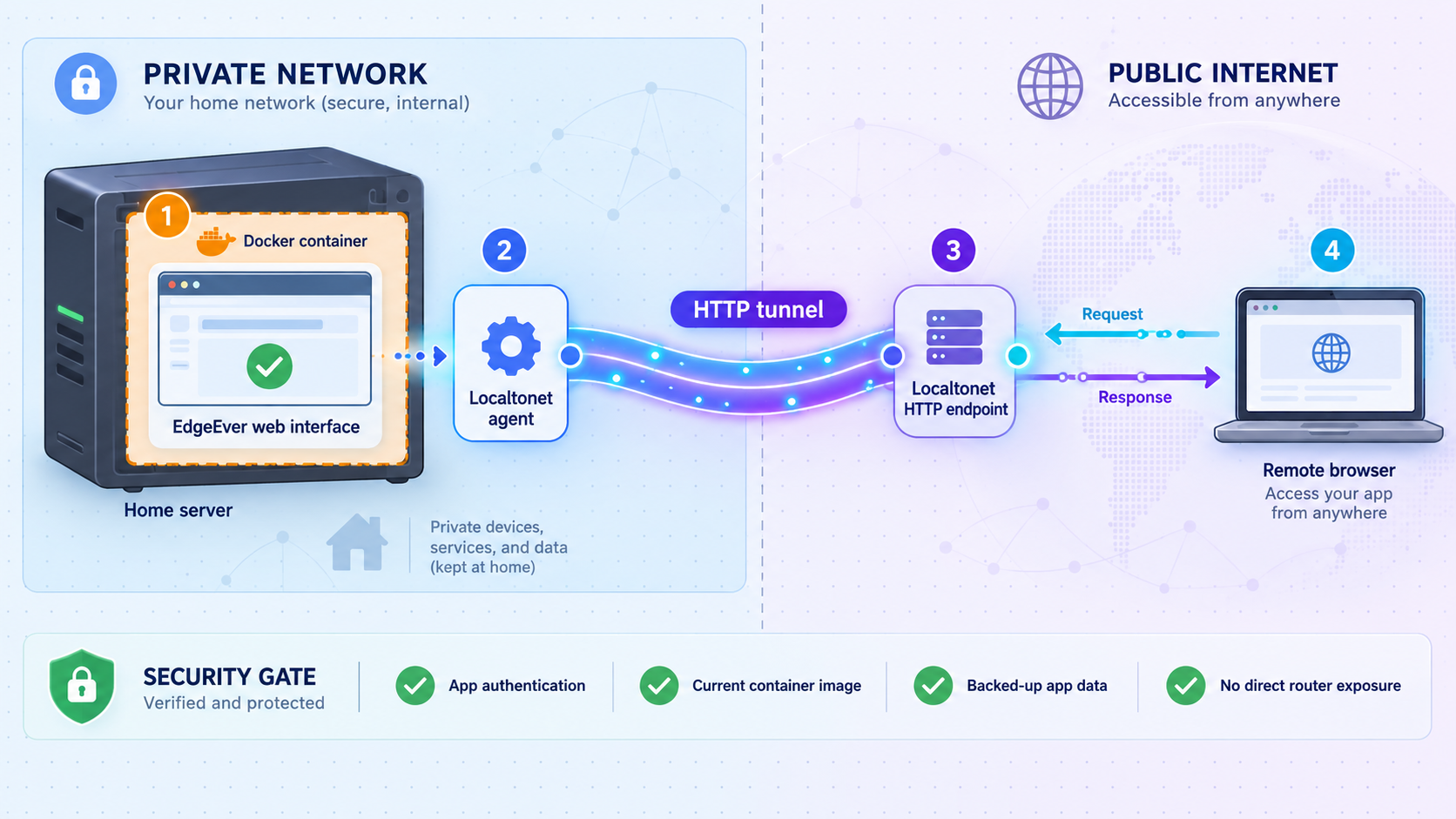
Use a Localtonet HTTP tunnel for EdgeEver's browser interface. Our client can run on the Docker host or another device that can reach the verified host-side HTTP endpoint. The tunnel remains available only while the selected client is connected and the tunnel is running.
Client packages and installation paths vary by operating system and client version. Obtain the current supported Localtonet client from our application or current documentation rather than copying an unverified shell command. After installation, follow this order.
Install and run the Localtonet client
Install the supported client on the Docker host or another trusted device that can reach the verified EdgeEver URL. Test that URL from the client device before creating the tunnel.
Select the device authentication token
Use the device-specific token associated with the client that will run the tunnel. Keep the token private. Do not place it in EdgeEver environment files, Compose files, screenshots, or support posts.
Select an available relay server
Choose a relay server or region currently available in the Localtonet dashboard. This guide does not hardcode a server code, region, or plan entitlement because availability can vary.
Enter the verified local IP address and port
Create an HTTP tunnel and enter the host-side address and HTTP port that succeeded during local testing. If the client runs on another machine, use the EdgeEver server's reachable LAN address. Do not use 127.0.0.1 from a separate client device because that address refers to the client device itself.
Select the HTTP Process Type
Choose Random Sub Domain, Custom Sub Domain, or Custom Domain according to the options currently available to you. All three serve the configured content at a public HTTPS address. Check current documentation before making custom-domain DNS changes.
Start the tunnel
Review the target and press Start. Creating the configuration alone does not make it run. When the client is connected and the tunnel is started, use the public address assigned in the dashboard.
Verify from an external connection
Open the public URL from a phone using mobile data or another connection outside the local network. Test the signed-out view first, then authenticate and perform a non-sensitive note operation.
Stop or delete the tunnel when appropriate
Stop the tunnel to remove the public route while retaining its configuration. Delete it when the mapping is no longer needed. EdgeEver can remain available locally after the tunnel is stopped or deleted.
For the current dashboard fields and supported client paths, consult the Localtonet HTTP tunnel documentation. The documentation supplements the workflow above but does not replace local EdgeEver verification.
Perform the unauthenticated external test first
- Copy the assigned Localtonet URL without signing in.
- Open a private browser session on an external connection.
- Load the public root URL.
- Attempt to open a direct note or attachment URL copied from an authenticated session.
- Confirm that protected content is not returned.
- Close the private session and repeat the test to rule out retained state.
The public URL itself, the login page, static assets, and any routes EdgeEver intentionally exposes remain reachable through the tunnel. Localtonet does not make the public hostname secret and should not be described as adding application authorization that EdgeEver does not provide.
Plan for restarts
After a host reboot, check EdgeEver, the Localtonet client, and the tunnel separately. EdgeEver's restart behavior comes from its Compose definition. The Localtonet client must reconnect, and the tunnel must be running. A saved tunnel can still be stopped in the dashboard.
Never point this tunnel at the Docker socket, Docker API, SSH, a NAS administration page, an SQLite file, a host filesystem browser, or an unrelated management interface. The target should be only the tested host-side EdgeEver web endpoint.
Security checklist before ongoing public access
Troubleshooting EdgeEver and Localtonet
Compose reports a missing variable
Return to the pinned release's Compose file and environment examples. Do not create a plausible variable name or borrow values from a Cloudflare deployment. Run docker compose config after adding only the documented value. Remember that its output may expose resolved secrets.
The build fails
Confirm that the checkout is exactly the intended tag and that the Docker build context has not been partially copied. Inspect available disk space and the complete build error. Avoid deleting persistent volumes while investigating a build failure.
cd /srv/edgeever
git status
git describe --tags --exact-match
docker system df
docker compose build
A service starts and immediately exits
Read logs for the affected service. The service names come from docker compose config --services, so no name needs to be guessed:
cd /srv/edgeever
docker compose config --services
docker compose ps
docker compose logs --tail=300
Common Docker-level causes include unresolved configuration, unwritable mounts, occupied host ports, failed migrations, unavailable object storage, and insufficient disk space. Use the actual log message to distinguish them.
The page works on the Docker host but not on the Localtonet client device
Check the published bind address and host firewall. A port bound to 127.0.0.1 is available only on the Docker host. If the Localtonet client runs elsewhere, it needs a LAN-reachable address permitted by your local security policy. Do not disable the firewall broadly.
The public URL returns an error
Test the local EdgeEver URL from the Localtonet client device. Confirm the tunnel's local IP address, port, selected device, relay, and Start state. If the client is separate from the Docker host, 127.0.0.1 points to the wrong machine.
The login redirects incorrectly through the public URL
Verify that local login still works, then inspect browser network requests and EdgeEver logs. The application may be generating an absolute URL or making assumptions about the request hostname. Use only reverse-proxy or public-URL settings documented by the installed EdgeEver release. Do not invent headers or environment variables.
Content disappears after container recreation
Stop making changes and preserve the remaining host and container state. Compare the active mounts with the previous resolved Compose configuration. The replacement may be using a different bind path or named volume, or the original content may have been written into the disposable container layer. Restore from the matching tested backup if necessary.
The public URL stopped working after reboot
Check each lifecycle separately:
cd /srv/edgeever
docker compose ps
docker compose logs --tail=100
Then confirm that the Localtonet client is connected and the tunnel is started. A healthy local application does not prove that the client or tunnel resumed.
| Symptom | Likely layer | First check |
|---|---|---|
| Compose cannot resolve configuration | EdgeEver deployment files | Documented environment example and docker compose config |
| Container exits or restarts repeatedly | Application, migration, permissions, or storage | docker compose logs --tail=300 |
| Works on host but not from another LAN device | Bind address, firewall, or network isolation | Published host address and reachability from the client device |
| Works locally but not through Localtonet | Tunnel target or lifecycle | Selected device, local IP, host port, and Start state |
| Login redirects to the wrong hostname | EdgeEver proxy or public URL handling | Installed-release documentation and application logs |
| Data is missing after recreation | Persistent storage | Resolved volume mappings and tested backups |
Frequently asked questions
What exact port does EdgeEver v1.86.0 publish?
The supplied verified evidence does not include the v1.86.0 Compose contents, so it does not establish a fixed port. Obtain the host-side HTTP port from docker compose config and docker compose ps, test it locally, and use that verified value in Localtonet.
Why does this guide clone a tag instead of the main branch?
A tag gives installation, backup, and rollback a stable reference. The main branch can change its Dockerfile, Compose definition, environment requirements, migrations, and application behavior after you have reviewed them.
What is EdgeEver's default administrator password?
No default Docker administrator password is established by the supplied evidence, so none should be assumed or published. Follow the initial setup flow and environment requirements documented by the pinned release, then verify signed-out behavior before exposing the instance.
Can I copy the live SQLite file as my backup?
Do not assume that an arbitrary live copy is consistent. EdgeEver may be writing to SQLite, and journal or write-ahead-log files may be involved. Use EdgeEver's ZIP export and create the infrastructure backup while the Compose services are stopped unless the installed release documents a supported online backup method.
Should EdgeEver use an HTTP or TCP tunnel?
Use an HTTP tunnel for the browser interface described in this guide. Configure its local target with the exact host-side IP address and HTTP port that passed local testing.
Must the Localtonet client run on the Docker host?
No. It can run on another trusted device that can reach the EdgeEver host-side endpoint. In that arrangement, use the server's reachable LAN address rather than 127.0.0.1.
Does Localtonet add authentication to EdgeEver?
This workflow does not claim that. The tunnel provides connectivity to the configured local service. EdgeEver must enforce the authorization required for notes, attachments, exports, and administrative functions.
Do I need router port forwarding or a public IP address?
No. The Localtonet client establishes an outbound connection to our relay. The tunnel can provide a public URL without an inbound router port-forwarding rule, firewall changes for inbound forwarding, a public IP address, or a VPN setup.
Will the public URL work if the host or Localtonet client is offline?
No. EdgeEver must be running, the local target must be reachable, the selected Localtonet client must be connected, and the tunnel must be started.
Connect EdgeEver only after local verification
Once your release-pinned EdgeEver deployment passes authentication, persistence, restart, backup, and restoration checks, create a Localtonet HTTP tunnel to its verified host-side endpoint. Keep the device token private and stop the tunnel whenever public access is unnecessary.
Get Started Free →

