

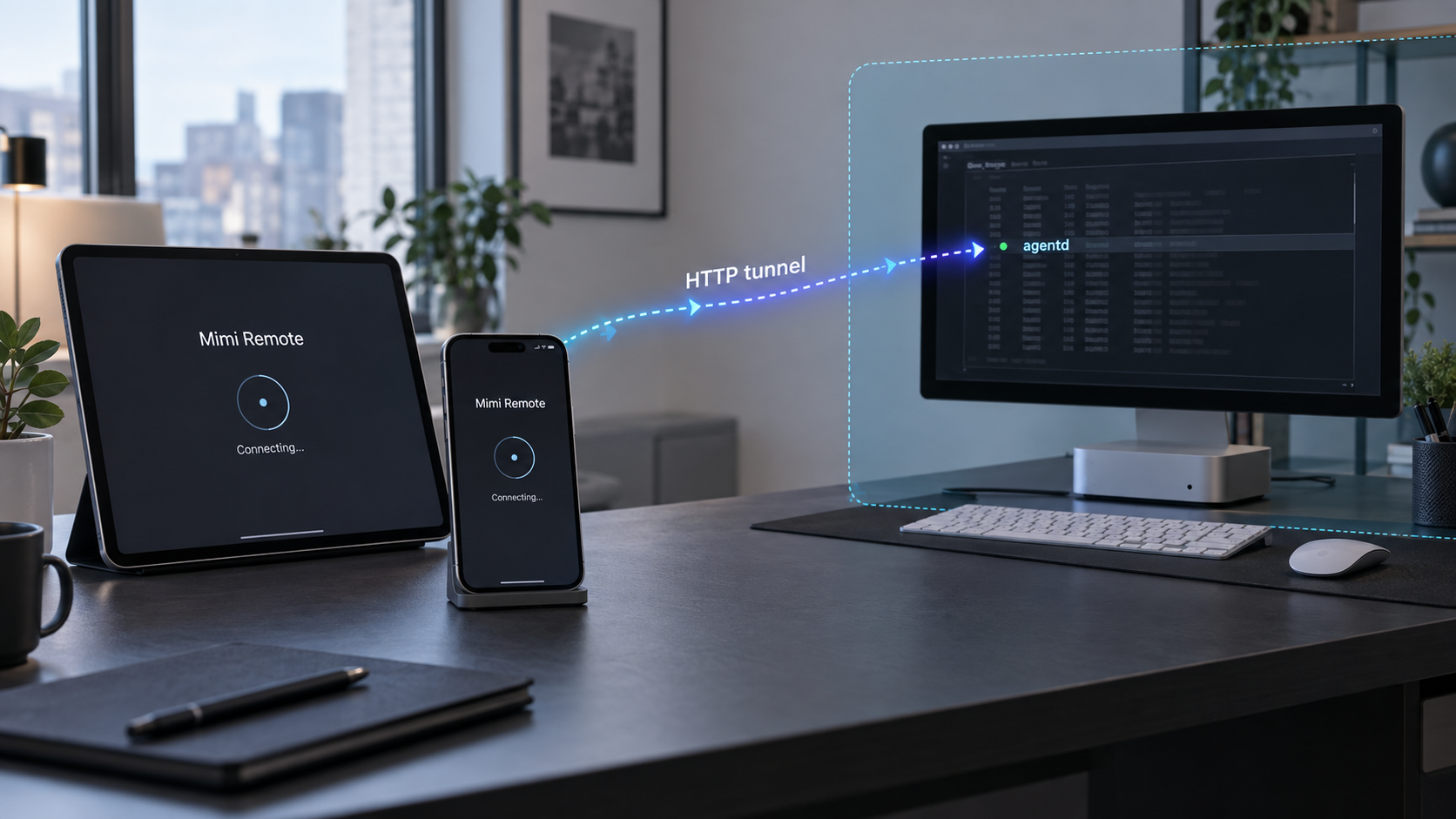
Continue agent sessions from iPhone or iPad after confirming the host gateway works
Mimi Remote is an open-source native mobile workspace for continuing Codex sessions and experimental Claude Code sessions running on a computer. The mobile app communicates with the project’s host-side agentd gateway through HTTP-based REST and WebSocket traffic. This guide explains the verified iPhone and iPad installation choices, the host information you must obtain, how to test the service locally, and how to add a Localtonet HTTP tunnel as a separate remote-access step. Where the available project documentation does not establish an installation command, port, bind address, endpoint path, or credential format, we identify that limitation instead of guessing.
📋 What's in this guide
How Mimi Remote and agentd fit together
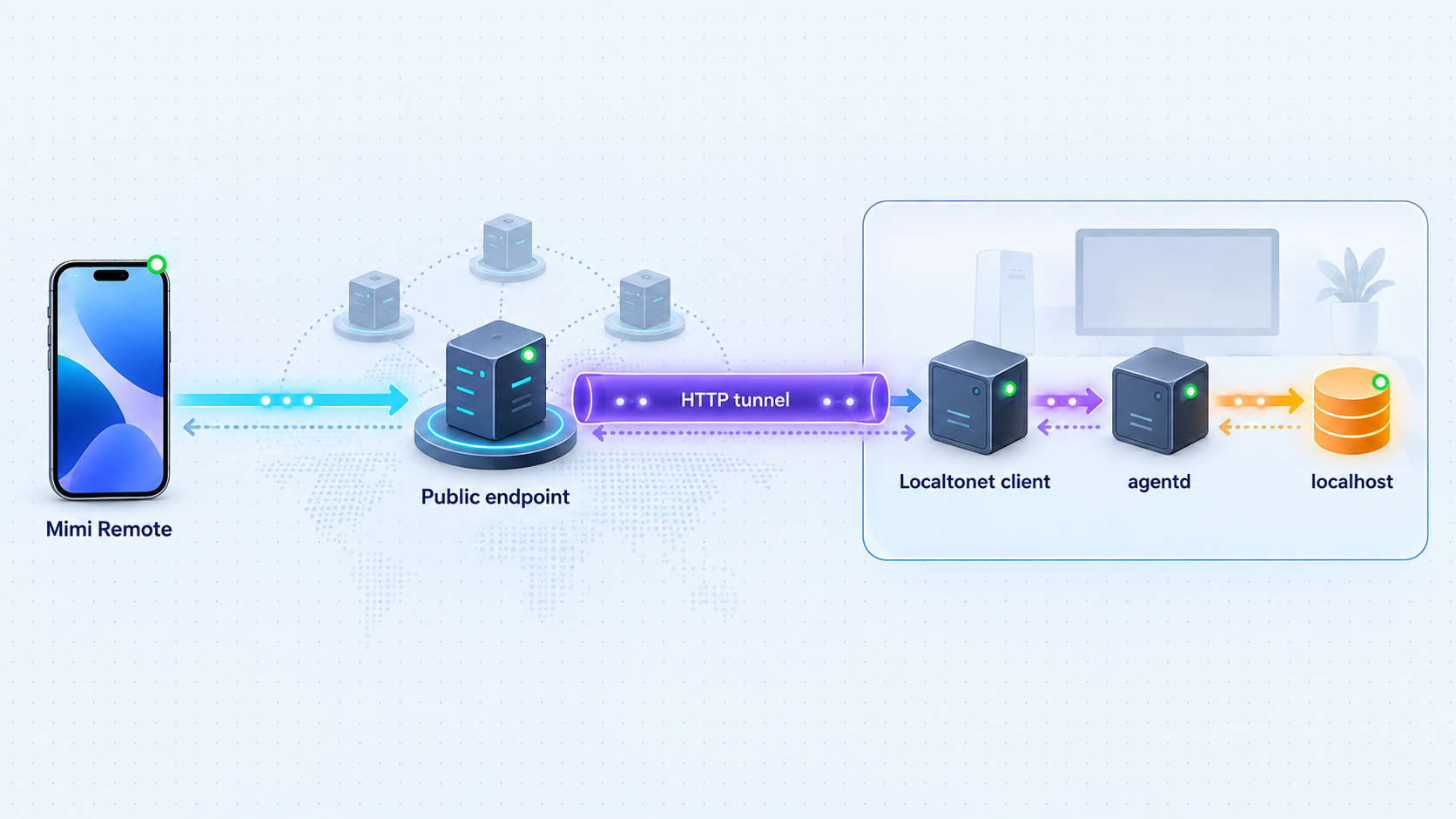
Mimi Remote is not a hosted agent service and does not move the primary development environment onto the phone or tablet. The host computer remains the control plane. It runs the agent runtime, retains the project workspace, and provides the host-side gateway used by the mobile app. The iPhone or iPad presents a native interface for following work, continuing a conversation, responding to prompts, handling approvals, and controlling supported session actions.
This distinction matters when planning remote access. Installing the iOS or iPadOS app is only one part of the deployment. A usable connection also requires a functioning agentd service on the macOS, Windows, or Linux computer, a network route from the mobile device to that service, and whatever host pairing or authentication Mimi Remote requires. A tunnel cannot compensate for a missing or unhealthy host service.
Mimi Remote’s project documentation describes direct connections over the same trusted local network or through Tailscale. It also makes clear that the project does not operate its own relay, account system, or hosted session service. If you use Localtonet, our HTTP tunnel becomes the optional public route to an already working agentd HTTP endpoint. The agent sessions still run on your computer.
agentd. It must remain powered on, connected, and healthy for the mobile workspace to function.
Mimi Remote is designed around continuing context rather than providing a general-purpose mobile terminal. Its documented interface can display structured replies, execution progress, messages, reasoning, commands, tool calls, and approval requests. Supported controls include adding context, queuing instructions, changing model or reasoning settings, answering prompts, approving an action, and interrupting a turn. More advanced tools can inspect diffs, work with Worktrees, stage changes, commit, push, and open a draft pull request, although those tools are not required for basic use.
Codex is the project’s primary supported runtime. The Claude Code bridge is identified as experimental, so a successful Codex connection does not automatically prove that every Claude Code workflow will behave identically. When diagnosing a problem, separate mobile-to-host connectivity from runtime-specific behavior.
First prove that agentd starts and that Mimi Remote can connect over a trusted local route. Only then add a Localtonet tunnel. This sequence keeps host installation, authentication, application behavior, and public routing from becoming one difficult troubleshooting problem.
Prerequisites and information to collect
Before installation, prepare the mobile device, host computer, agent runtime, and connection details. The project supports an iPhone or iPad client and includes host-side work for macOS, Windows, and Linux. The supplied project material does not define minimum iOS or iPadOS versions, minimum desktop operating-system versions, or a complete compatibility matrix, so confirm those requirements in the current App Store listing, TestFlight build notes, or repository before committing to a specific device.
Mobile prerequisites
- An iPhone or iPad compatible with the currently distributed Mimi Remote build.
- Access to the App Store release where it is available, access to the project’s TestFlight beta, or a Mac with Xcode 26 if building the iOS app from source.
- Network access to the host through the same LAN for initial testing.
- The host profile and pairing information generated by the Mimi Remote host workflow.
Mimi Remote supports English and Simplified Chinese. It stores tokens for separate host profiles in the Apple Keychain and uses one active connection at a time. Treat every pairing token or host credential as a secret. Do not paste it into screenshots, tunnel names, support messages, shell history, or public issue reports.
Host prerequisites
- A macOS, Windows, or Linux computer that will remain online while mobile access is needed.
- A working Codex environment, or the project’s experimental Claude Code bridge if that is the intended runtime.
- The project’s
agentdgateway installed and running. - The real local bind address, listening port, and applicable endpoint or base URL reported by the installed host component.
- The project’s pairing or authentication material for the mobile client.
The available evidence says that the repository includes agentd for macOS, Windows, and Linux, but it does not provide the complete official installation procedure for that component. It also does not establish a default port, default bind address, service path, startup command, configuration path, environment variable, or credential format. We therefore do not publish speculative commands or defaults in this guide.
Localtonet prerequisites
- A Localtonet account.
- The Localtonet client installed on the computer running
agentd, or on another device that can reliably reach its local address and port. - A device-specific Localtonet authentication token selected without disclosing it.
- A currently available relay server or region selected from our dashboard.
- The verified local IP address and port on which
agentdis actually listening.
| Component | What must be working | How to verify it |
|---|---|---|
| Mimi Remote | The app installs and opens on the iPhone or iPad | Open the app and reach its host connection or pairing interface |
| Agent runtime | Codex, or the experimental Claude Code bridge, is usable on the host | Start or resume a session directly on the computer |
agentd |
The gateway remains running and listens on a known address and port | Use host status, logs, or the operating system’s network inspection tools |
| Local route | The mobile device can reach the host before a public tunnel is introduced | Pair and connect over the same trusted network where possible |
| Localtonet client | The selected Localtonet device is connected and can reach agentd | Confirm device connectivity in our dashboard and test the exact local target |
Install Mimi Remote on iPhone or iPad
There are three documented installation paths: the public App Store release where available, TestFlight for beta builds, and a source build for developers. Choose one path rather than installing multiple variants without a specific testing need. Release and beta builds may not behave identically, and a locally built app can reflect repository changes that have not reached a distributed version.
Choose a documented distribution path
Prefer the public App Store release when it is available for your account and region. Use TestFlight when you intentionally need a beta build. Choose a source build only when you have a Mac, Xcode 26, and a reason to build or modify the project yourself.
Install the selected build
Install the public release through the App Store or the beta through the project’s TestFlight invitation. For a source build, obtain the project from its official repository and follow its current iOS build guide in Xcode 26. The supplied evidence does not include the exact scheme, signing settings, bundle configuration, or build sequence, so those details must be taken from the checked-out revision rather than inferred here.
Open Mimi Remote and review permissions
Launch the app and respond to operating-system permission prompts according to the features you intend to use. Do not grant broader device permissions merely to solve an unrelated network failure. A connection problem should be diagnosed through host status, address, port, authentication, and routing first.
Add the host using project-generated details
Enter or pair with the host information produced by the Mimi Remote host setup. Use the actual address, URL, token, and pairing workflow shown by the installed version. Never substitute a guessed port or a token copied from an unrelated host profile.
Confirm the mobile interface is ready
Check that the host profile appears and that the app can report connection or readiness state. At this point, a disconnected status may be expected if agentd has not yet been installed, started, or paired.
App Store installation
The public release is the simplest option for most users because iOS or iPadOS handles application installation and updates. Availability can vary, so the wording “where available” is important. If the app does not appear in your App Store, do not install an unrelated application with a similar name. Confirm the official listing through the project’s current repository documentation.
TestFlight installation
TestFlight is intended for beta builds. A beta can contain newer fixes or features, but it can also introduce behavior that differs from the public release. Record the exact app version when reporting a problem, especially when the host package and mobile app were installed at different times.
Building from source
The documented high-level requirement for building the iOS app is a Mac with Xcode 26. The extracted project material does not contain enough information to reproduce the complete source-build procedure safely. In particular, it does not establish the exact Xcode workspace or project file, scheme, signing team setup, package resolution procedure, deployment target, or device registration steps.
For that reason, this guide does not invent a terminal command or pretend that opening an arbitrary project file is sufficient. Use the iOS build guide from the exact repository revision you check out. After the build succeeds, install it on a registered device through Xcode and record the commit or release version so that mobile and host compatibility can be investigated later.
Use the App Store listing linked by the project, its TestFlight channel, or a source build you produce from the official repository. Mobile and host credentials can control development sessions, approvals, and repository actions, so package provenance matters.
Prepare the host computer and agentd
A remote-development client is only as reliable as its host service. Before working on internet access, make sure the agent runtime works directly on the computer and that agentd stays running. The repository covers macOS, Windows, and Linux, but the supplied evidence does not contain a general-purpose installation command for all three systems.
Start with the agent runtime
Open the host computer and verify that the intended agent can start or resume a session there. Codex is the primary supported runtime. If you are using Claude Code, remember that Mimi Remote labels that bridge experimental. Runtime authentication, model access, quotas, repository permissions, and provider behavior remain separate from the mobile connection.
If the runtime cannot work locally, stop and repair that environment before continuing. Exposing agentd will not fix expired provider credentials, a missing executable, repository permission errors, or an unavailable model.
Install and start agentd using the current project workflow
Use the host package or setup workflow provided by the current Mimi Remote release for your operating system. After installation, use its status interface, logs, or diagnostics to identify all of the following:
- The installed
agentdversion. - Whether the service is running continuously rather than repeatedly exiting.
- The actual bind address.
- The actual listening port.
- Whether the endpoint uses plain HTTP locally.
- The mobile pairing or authentication state.
Do not assume that a port seen in an old screenshot, issue, or community post applies to your version. Do not assume that a service bound only to loopback is reachable from another computer on the LAN. Conversely, do not broaden the bind address to every network interface unless the project instructs you to do so and the host firewall is appropriately restricted.
macOS upgrade issue affecting older packages
The v1.0.0 release documents a specific recovery case for users of v0.3.16 or earlier packages. The reported symptoms include the Mac app repeatedly saying that the background service failed during its first start or could not recover after automatic registration. Another symptom is the menu bar app being unable to connect while launchd attempts to restart agentd every three seconds and the process exits immediately with code 1.
The documented cause is version drift. A newer version may have written the configuration for the macOS shared local connection, while an older installed package does not understand that value or its migration. In that case, re-registering the service or reinstalling the same old package does not repair the mismatch.
The release guidance is to install the v1.0.0 Mac DMG over the existing application without deleting the app or configuration directory first. The documented overwrite installation preserves configuration and pairing credentials and does not rotate the token. This advice applies to that identified older-package condition, not to every possible agentd startup failure.
Record the mobile app version, host package version, operating system, service status, and relevant diagnostic output. Mimi Remote includes readiness checks, reconnection support, diagnostics, and bounded log export. Remove tokens, private paths, repository data, and private endpoint information before sharing logs.
Verify agentd locally before creating a tunnel
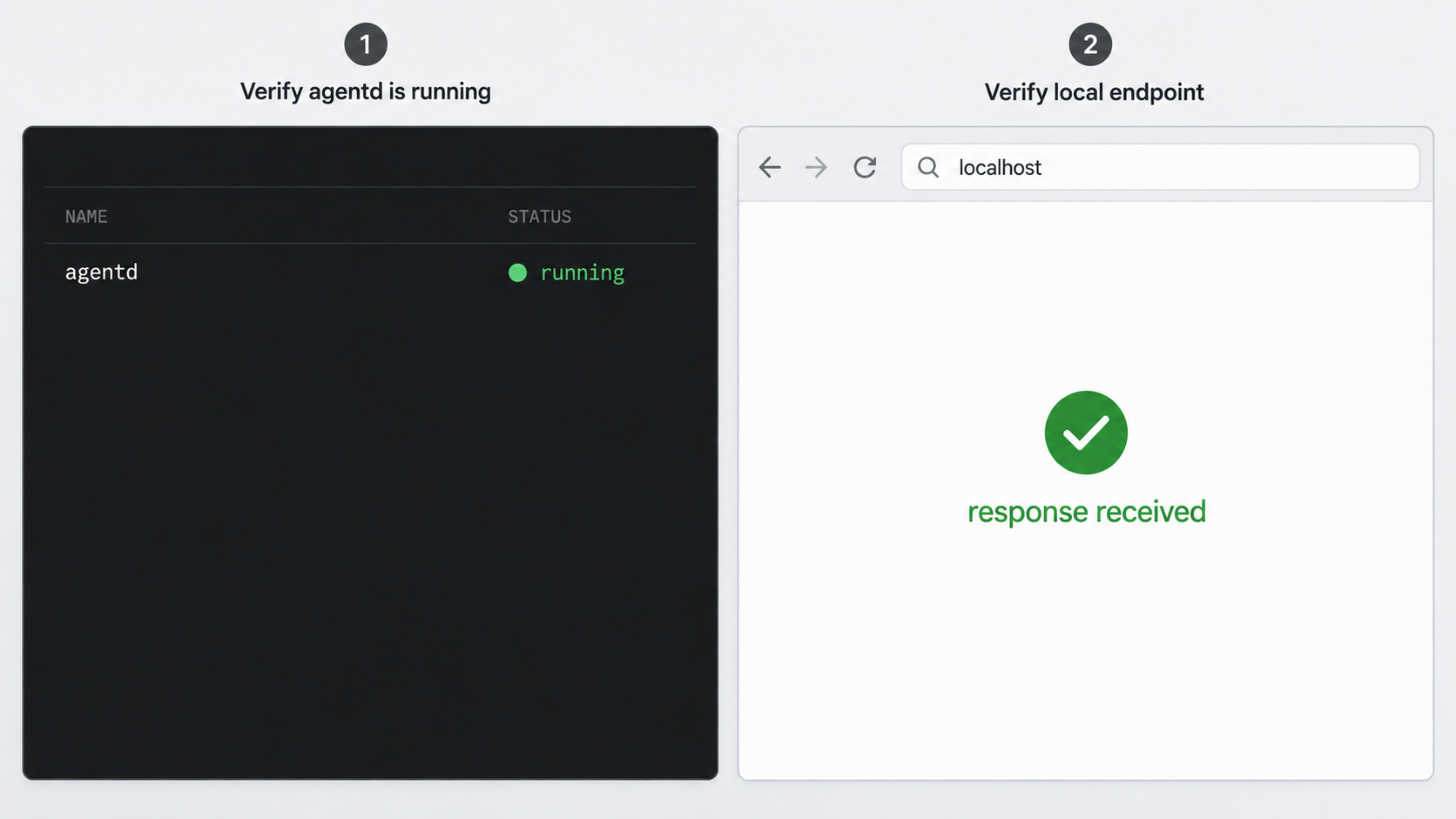
Local verification should answer four separate questions: is the service process running, is it listening where expected, does authentication work, and can Mimi Remote maintain its live session connection? A single successful page load does not necessarily prove all four.
Confirm the process remains healthy
Use the host application’s status display, service manager, logs, or diagnostics. Observe it long enough to distinguish a stable service from one that starts and immediately exits.
Record the real listening address and port
Obtain these values from the installed host component or operating-system inspection. The available project excerpt does not publish a default, so use only values demonstrated by your running instance.
Test from the host itself
Use the project’s documented health, readiness, or connection test if your installed version exposes one. A response at the expected local address proves basic HTTP reachability, while the host diagnostics should establish whether the gateway is actually ready.
Test from the same trusted network
Connect the iPhone or iPad to the same trusted network and use the project-generated host profile or pairing flow. This test reveals LAN routing, host firewall, bind-address, and authentication problems before Localtonet is involved.
Exercise an actual session
Open an existing session or a safe test session, observe live progress, send a harmless instruction, and confirm that state continues updating. This tests more than a one-time HTTP response and helps reveal a WebSocket or reconnection problem.
If you use a generic HTTP client for a low-level check, substitute only values obtained from your running installation:
curl -i "http://<AGENTD_ADDRESS>:<AGENTD_PORT>/<DOCUMENTED_ENDPOINT>"The placeholders above are intentional. The available evidence does not establish an endpoint path, and requesting the root path may legitimately return a not-found response even when the service is listening. Use a health or readiness path only if the installed project documentation provides one. Also avoid placing credentials directly in a command because shell history and process inspection can expose them.
A connection refusal usually means that nothing is reachable at the selected address and port. A timeout often points to routing or firewall behavior. An HTTP 401 or 403 can prove that a server responded while also showing that authorization failed. An HTTP 404 can mean the service is reachable but the requested path is wrong. Validate the result against Mimi Remote’s own readiness and connection state.
Create the Localtonet HTTP tunnel
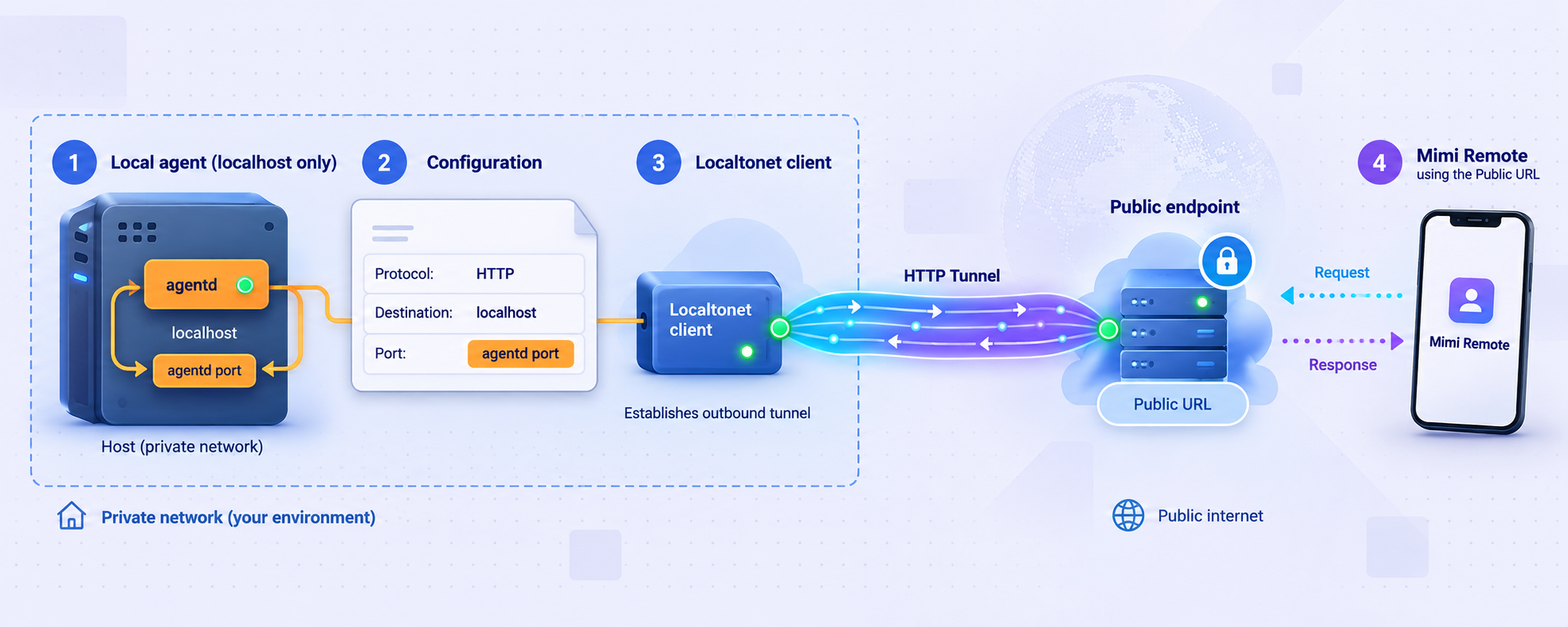
Once Mimi Remote works over the trusted local route, Localtonet can provide a public address without inbound router port forwarding, a public IP address, firewall reconfiguration, or VPN setup. Our client establishes an outbound connection to a Localtonet relay server. The tunnel remains available only while the selected client device is connected and the tunnel is running.
An HTTP tunnel is the appropriate starting category because agentd is described as a plain HTTP endpoint and the client uses HTTP-based REST and WebSocket communication. The public side of an HTTP tunnel can use an HTTPS address. However, the evidence supplied for this article does not separately document WebSocket compatibility details for every Localtonet client version or configuration. Test live updates, approvals, and reconnection after creating the tunnel rather than relying only on an ordinary HTTP response.
Install and run the Localtonet client
Install our client on the computer running agentd, or on another trusted device that can reach the verified local address and port. Running both on the same computer usually keeps the target route simpler, but use the topology that matches your controlled environment.
Authenticate the correct device
Select the device-specific authentication token for the client that will run the tunnel. Do not paste the token into this article’s commands, a public issue, or a mobile host URL. Tokens identify Localtonet client devices and must remain private.
Select an available relay server
Choose a currently available server or region from our dashboard. Available values can vary, so use the current product interface rather than copying a server code from an old tutorial.
Create an HTTP tunnel to agentd
Select the HTTP tunnel type and enter the exact local IP address and port verified for agentd. Choose the appropriate HTTP Process Type offered by the current dashboard: Random Sub Domain, Custom Sub Domain, or Custom Domain. These options serve the same target content at a public HTTPS address.
Start the tunnel
Creating the tunnel does not make it active. Press Start and confirm that the selected Localtonet device remains connected. Record the assigned public HTTPS address without publishing embedded secrets or private pairing information.
Update the Mimi Remote host profile carefully
Use the assigned public HTTPS address only in the host URL field expected by your installed Mimi Remote version. Preserve the project’s pairing and authentication material. Do not add an invented path, port, or URL scheme if the app provides a generated profile or pairing flow.
For the current dashboard workflow, consult our Localtonet HTTP tunnel documentation alongside the instructions above. Exact field availability can change by client version, configuration, or plan, so use the current dashboard rather than assuming that every domain option or relay location is available in every subscription.
| Process Type | Public address behavior | Important consideration |
|---|---|---|
| Random Sub Domain | Uses a generated public HTTPS subdomain | Useful for initial testing when a stable custom name is not required |
| Custom Sub Domain | Uses a selected subdomain where supported | Availability can depend on the current dashboard and plan |
| Custom Domain | Uses a domain controlled by the user | Follow current Localtonet DNS instructions rather than guessing records |
Validate the public route
Switch the iPhone or iPad away from the original LAN, such as by using a different trusted network, and reconnect through the public HTTPS address. Verify the following behaviors individually:
- The host profile reaches the intended computer rather than an old or duplicate host.
- Pairing or authentication succeeds without putting a token in the public URL.
- Projects and sessions load.
- Live progress continues updating for more than a brief initial request.
- A harmless instruction can be queued and its result appears.
- An approval prompt can be received and handled according to the selected permission mode.
- Temporary network loss results in an understandable disconnect and recovery behavior.
If initial data loads but live updates stop, investigate the persistent connection separately. That pattern often distinguishes basic HTTP reachability from WebSocket, proxy, idle-connection, or reconnection behavior. Capture sanitized Mimi Remote diagnostics and Localtonet tunnel state before changing multiple settings.
Secure remote access to an agent control plane
An agent gateway is more sensitive than a read-only status page. Mimi Remote can expose session content, commands, approval decisions, repository state, and advanced Git actions. A public URL therefore needs deliberate authentication and operational controls even when the public side uses HTTPS.
HTTPS protects the public transport path to the tunnel endpoint, but it is not a substitute for application authorization. Anyone who can reach a public endpoint can attempt to interact with it. Confirm that Mimi Remote’s pairing or authentication remains enforced through the tunnel and that unauthenticated requests do not expose session data or control actions.
Keep provider credentials and Localtonet device tokens separate. Mimi Remote’s project documentation notes that data intentionally sent to Codex, Claude Code, GitHub, voice transcription, or MCP remains handled by those services under their own terms. Localtonet supplies the network route described here; it does not change the data-handling rules of those connected services.
Avoid leaving broad approval modes enabled merely because the mobile interface makes approvals convenient. Before approving an action, inspect the command, affected files, repository state, and current host. The host computer continues to perform the operation with the permissions available to its local account and agent runtime.
A service that was previously reachable only on a trusted LAN can receive internet-originated traffic once a tunnel is started. Verify host authentication first, keep all credentials private, use least privilege, monitor connection state, and stop the tunnel when it is not needed. Do not use tunneling to bypass organizational authorization or network policy.
Routine operating checklist
- Confirm the expected host and repository before sending instructions.
- Review the active model, reasoning setting, permission mode, and queued turns.
- Keep the host operating system, Mimi Remote components, and agent runtime updated through their official channels.
- After an update, retest local connectivity before blaming the public route.
- Stop the tunnel during long periods when mobile access is unnecessary.
- Rotate affected credentials if a token, pairing code, or private host profile is exposed.
- Preserve sanitized diagnostics before reinstalling or deleting configuration.
Troubleshooting Mimi Remote and Localtonet
The app installs but no host appears
Installation alone does not discover or provision agentd. Confirm that the host package is installed, the gateway is running, and the project’s pairing workflow has been completed. Check that the mobile device is using the intended host profile and that its stored token belongs to that host.
Agentd is not listening
Inspect host status and logs first. A missing process, immediate exit, or restart loop is a host installation problem. Do not create a tunnel to an address and port until an operating-system inspection or project status view proves that something is listening there.
On macOS with a v0.3.16 or earlier package, compare the symptoms with the documented version-drift issue. If they match, use the v1.0.0 release guidance: overwrite the existing app with the release DMG without deleting the app or configuration directory first. If the symptoms do not match, preserve the original error because the same release notes explain that other configuration problems should surface the underlying agentd error rather than be treated as the known version mismatch.
Local access works, but the Localtonet URL fails
Confirm that the Localtonet client is connected, the correct device token was selected, and the tunnel was explicitly started. Then compare the tunnel target with the exact local address and port that succeeded during verification. If Localtonet runs on a different computer, remember that loopback on the Localtonet client refers to that computer, not the computer hosting agentd.
Also check whether a host firewall allows the Localtonet client device to reach the target. We do not require inbound router port forwarding, but the selected client still needs ordinary local connectivity to agentd.
The public endpoint responds, but Mimi Remote will not authenticate
Separate routing from authorization. An HTTP response proves that some service answered, not that the mobile profile contains the right pairing credential. Confirm the selected host profile, token, URL scheme, and any project-required path. Do not disable authentication to test the tunnel. Instead, compare the public profile with the known-working local profile and change only the network address where the project permits it.
Sessions load, but live updates stop
This can indicate that ordinary REST requests work while the persistent connection does not. Reproduce the issue with a safe test session, note how long updates continue, and inspect Mimi Remote’s connection diagnostics. Confirm the tunnel remains running and the Localtonet client has not disconnected. Because the supplied Localtonet context does not establish every WebSocket behavior or timeout for every configuration, retain diagnostics for review rather than inventing a timeout adjustment.
Codex works, but Claude Code does not
Treat this as a runtime-specific issue after confirming that the same mobile-to-host route works for Codex. The Claude Code bridge is experimental, so check bridge readiness, host logs, and compatibility for the exact versions installed. Rebuilding the tunnel is unlikely to fix a bridge configuration problem when ordinary communication already succeeds.
The tunnel worked and then became unavailable
A Localtonet tunnel is available only while its selected client device is connected and the tunnel is running. Check whether the host slept, rebooted, lost connectivity, stopped the Localtonet client, or stopped agentd. Also confirm that the tunnel still targets the same local address and port after host updates or network changes.
A reinstall did not fix the problem
Reinstallation can obscure useful evidence and does not repair every configuration or version mismatch. Record versions and diagnostics first. For the documented older macOS package issue, reinstalling the same old package is specifically not the remedy. Follow the applicable release guidance and avoid deleting pairing data unless the project’s recovery instructions require it.
Frequently asked questions
Can I install Mimi Remote directly from the App Store?
Yes, the project documents a public App Store release where available. TestFlight remains an option for beta builds, and developers can build the iOS app from source using a Mac and Xcode 26. Confirm the official listing through the project because regional or device availability is not established by the supplied evidence.
What is the default agentd port?
The available project evidence does not establish a default port or bind address. Obtain both values from the installed host application, service logs, diagnostics, configuration, or operating-system network inspection. Do not copy an unverified port from an old screenshot or community post.
Should I use an HTTP or TCP tunnel for agentd?
Start with a Localtonet HTTP tunnel because agentd is identified as a plain HTTP endpoint and Mimi Remote uses REST and WebSocket communication. Validate both ordinary requests and live session updates. Do not switch protocols merely to hide an unresolved host, authentication, or application error.
Does Localtonet install or configure agentd?
No. The Localtonet integration described here exposes an already running local HTTP service. Install, start, pair, and verify agentd through the Mimi Remote project’s host workflow before creating the tunnel.
Does the Localtonet tunnel remain online permanently?
The tunnel is available only while the selected Localtonet client device is connected and the tunnel is running. The host computer and agentd must also remain available. Creating a tunnel entry is not enough; it must be started.
Does HTTPS remove the need for Mimi Remote authentication?
No. HTTPS protects network transport to the public endpoint, while application authentication determines who may access sessions and control actions. Keep Mimi Remote’s documented pairing or authorization enabled and protect all tokens.
Can I use Mimi Remote with Claude Code?
The project includes an optional Claude Code bridge, but describes it as experimental. Codex is the primary supported runtime. Test Claude Code separately and distinguish bridge problems from network connectivity problems.
Why should I test on the LAN before using Localtonet?
A successful LAN test proves that the host process, address, port, pairing, authentication, and mobile application can work without a public route. If that baseline fails, adding a tunnel creates another variable without repairing the underlying problem.
Connect your verified agentd service with Localtonet
After Mimi Remote works on your trusted local network, install our client, create an HTTP tunnel to the verified agentd address and port, start the tunnel, and test the assigned HTTPS address from your iPhone or iPad. Keep authentication enabled and stop the tunnel whenever remote agent access is not needed.


