

Install a Linux media server, validate both browser interfaces, and prepare a controlled path for remote access
VuIO is an open-source media server written in Rust for video, audio, and image libraries. This guide installs VuIO on an Ubuntu or Debian system through the project's APT repository, verifies the local service, explains the separate web interfaces on ports 8080 and 8090, and covers optional Docker deployment. It also shows how a verified HTTP interface can connect to Localtonet without inbound router port forwarding, firewall changes for a public listener, VPN setup, or a public IP address. Because public access changes the security boundary, the tunnel workflow is gated behind authentication, session, and unauthenticated-access checks.
📋 What's in this guide
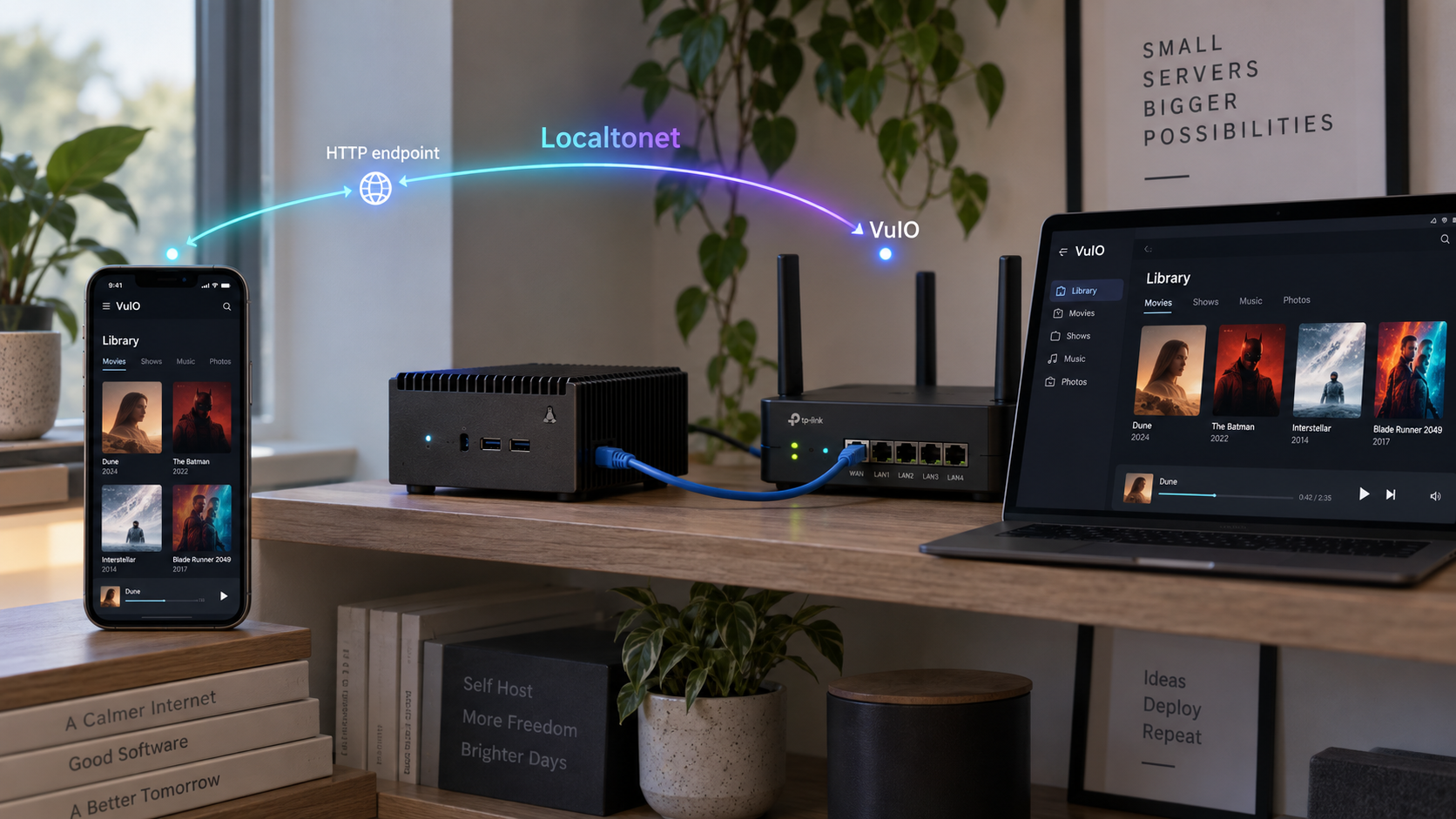
How VuIO and Localtonet fit together
VuIO indexes a media directory and serves compatible video, audio, and image content. The project documents DLNA and UPnP streaming, SSDP and mDNS discovery, Chromecast and Google TV support, and support for compatible AirPlay video receivers. Its listed media formats include MKV, MP4, AVI, WebM, MP3, FLAC, WAV, AAC, OGG, JPEG, and PNG. VuIO also provides HTTP Range streaming for seeking, HLS browser playback, playlist discovery, metadata extraction, live filesystem monitoring, and sidecar SRT conversion to WebVTT.
VuIO has two distinct browser interfaces. Its lightweight built-in dashboard uses port 8080 by default. The modern Svelte interface uses port 8090. The command-line --port option controls the listener whose documented default is 8080. The current summary documentation does not establish that this option also relocates the modern interface, so do not assume that changing one port changes both listeners.
Localtonet can publish one of these HTTP interfaces through a public HTTPS address. Our client establishes an outbound connection to a Localtonet relay and forwards requests to the configured local IP address and port. A tunnel exists only while the selected client is connected and that tunnel is running.
This HTTP workflow does not extend local multicast discovery. SSDP and mDNS are local-network discovery mechanisms, while a Localtonet HTTP tunnel publishes an HTTP application endpoint. A remote browser can open the tunnel URL, but a television on another network should not be expected to discover VuIO automatically through an ordinary HTTP tunnel.
Ports 8080 and 8090 are separate endpoints. Start by publishing only the interface remote users actually need. Publishing both requires separate tunnel targets and increases the application surface that must be authenticated, tested, monitored, and maintained.
Compatibility and prerequisites for Ubuntu or Debian
The VuIO project publishes an APT workflow for Ubuntu and Debian and describes native Linux builds for x64 and ARM. It does not provide a supported Ubuntu or Debian release matrix in the supplied current evidence, and the general x64 and ARM statement does not by itself guarantee that every APT package is published for every architecture. Confirm package availability on the exact operating-system release and architecture you intend to use before treating the deployment as supported.
Record the system details before installation:
cat /etc/os-release
dpkg --print-architecture
uname -m
The host needs APT, internet access to the VuIO repository, and an account permitted to run sudo. The published package is described as a single binary without separate runtime dependencies, but APT still resolves and reports the package metadata applicable to the current system.
Choose a media directory that the VuIO runtime can traverse and read. This guide uses $HOME/media as an example, not as a required path:
mkdir -p "$HOME/media"
ls -ld "$HOME" "$HOME/media"
ls -la "$HOME/media"
Put a small, known-good media file in the directory before the first test. Beginning with a small library makes it easier to separate startup and permission problems from indexing time or an individual media-file problem.
For Localtonet access, install our client on the VuIO host or on another trusted device that can reach the selected VuIO listener. When both processes run on the same machine, the tunnel can target loopback without opening VuIO directly to the LAN. When they run on different machines, VuIO must be reachable from the Localtonet client through an appropriate private address and existing network policy.
| Requirement | Why it matters | Verification |
|---|---|---|
| Ubuntu or Debian with APT | The native installation uses VuIO's APT repository | Inspect /etc/os-release and confirm APT is available |
| Compatible architecture | VuIO documents Linux x64 and ARM generally, but package availability can differ | Record dpkg --print-architecture and let APT confirm the package |
| Administrative access | Repository and package installation commands use sudo |
Confirm the account is authorized to install software |
| Readable media directory | VuIO must traverse, index, and read the selected files | Test directory and file access as the runtime account |
| Available ports | VuIO uses 8080 and 8090 for its documented interfaces | Check existing listeners before startup |
| Docker Engine for the container path | The optional container command requires a working Docker installation | Run docker version and confirm permission to use the daemon |
| Localtonet client and device token | The authenticated client creates the outbound relay connection | Keep the device-specific token private |
VuIO's repository is the primary project entry point for its installation and documentation index. Review the project's release history when deciding which version to deploy. The supplied evidence identifies release v0.0.50 as the current release at the time of review, but package repositories and release status can change.
Install VuIO from the official APT repository
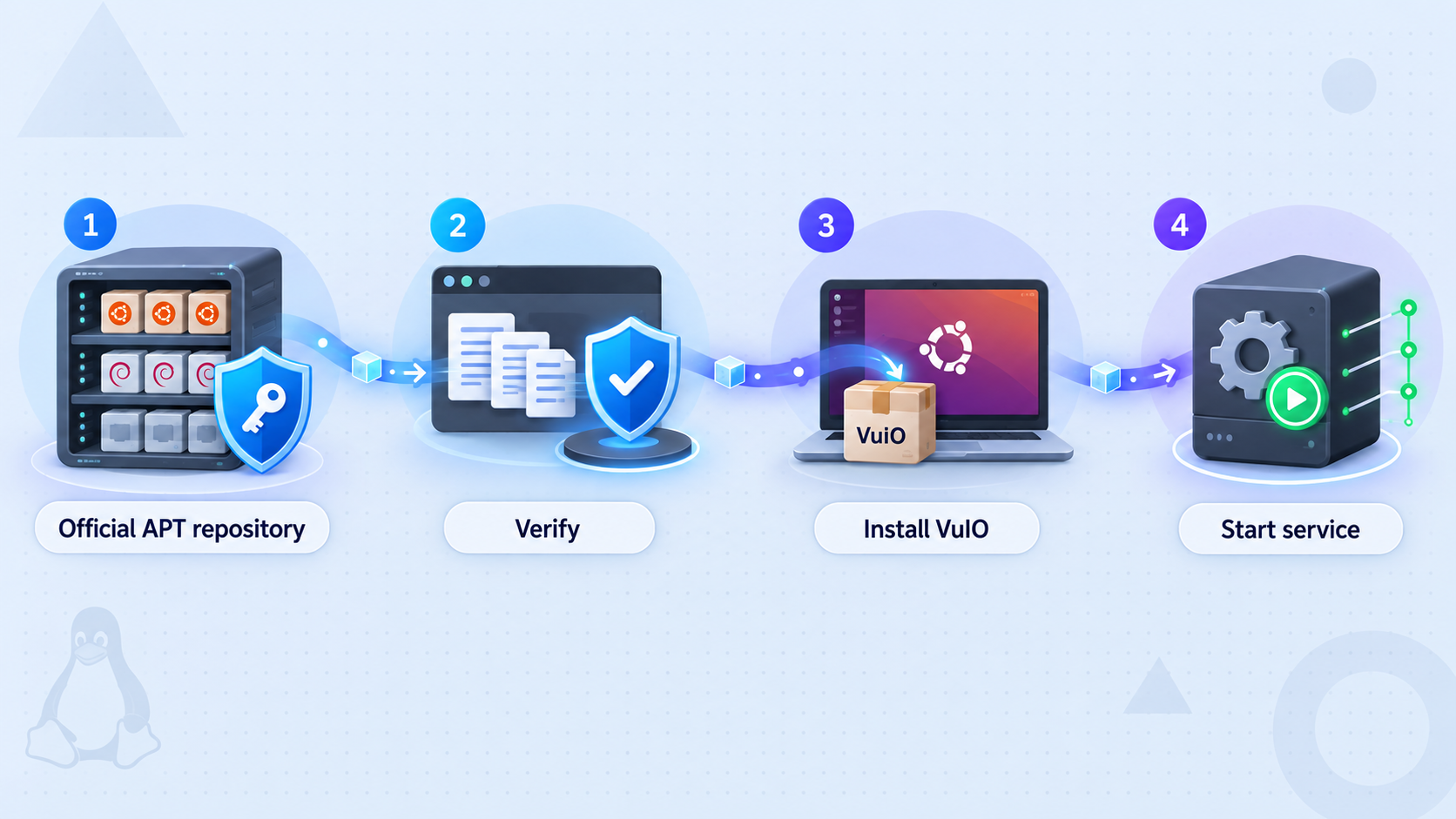
The VuIO quick start publishes the following two-step APT installation. The first command creates a repository entry in /etc/apt/sources.list.d/vuio.list. The second refreshes package metadata and installs the package named vuio.
Add the VuIO APT repository
Create the repository definition using the command published by the VuIO project.
echo "deb [trusted=yes] https://vuiodev.github.io/vuio/apt stable main" | sudo tee /etc/apt/sources.list.d/vuio.listRefresh APT and install VuIO
Update the local package index and ask APT to install the VuIO package available for this system.
sudo apt update && sudo apt install vuio
The project's published repository entry uses [trusted=yes]. This tells APT to trust packages from that repository without the normal repository-signature authentication check. We reproduce the official command accurately, but administrators should evaluate it against their security policy before installing VuIO on a production host. Do not substitute an unverified signing key or silently weaken an organizational package policy.
Confirm that the package installed and that the executable is visible:
dpkg -l vuio
command -v vuio
vuio --help
The current command-line summary documents an optional positional MEDIA_DIR argument and a -p or --port option whose default is 8080. Start the first test in the foreground so startup output and errors remain visible:
vuio "$HOME/media"Keep this terminal open. Foreground execution is appropriate for initial validation, but it stops when the process receives an interrupt or the terminal session ends. Do not create a Localtonet tunnel yet.
If port 8080 is occupied, the documented port option can move the default listener. This example uses 8081 only as an operator-selected alternative:
vuio --port 8081 "$HOME/media"Use the same selected port in local tests and in the eventual tunnel target. Do not assume that this option also moves port 8090. Verify both listeners after every port-related change.
Configure VuIO authentication and session protection
VuIO documents TOML configuration through a file named config.toml, live configuration for 21 of 25 settings, optional administrative token protection, secure session management, and CIDR restrictions through allowed_networks. The repository also includes a project-maintained example configuration.
The current evidence supplied for this revision identifies the configuration filename and security capabilities, but it does not expose the exact authentication keys, session keys, accepted values, or native package configuration path from VuIO's detailed security guide. Inventing those values would create an unsafe tutorial. Before public exposure, use the Security & Authentication and Configuration Guide entries in the VuIO documentation index, compare them with the example configuration for the installed release, and confirm from VuIO's startup output that the intended file was loaded.
This limitation creates a firm safety boundary: if you cannot identify the loaded config.toml, enable the documented administrative token, configure the documented session behavior, and verify the result, keep VuIO local. Do not assume that a token-looking value placed under an invented key has taken effect.
Use a release-matched configuration workflow
- Run
vuio --helpand inspect the installed release's documented configuration options. - Open the project configuration guide through the repository documentation index and select the version that matches the installed package.
- Compare the release documentation with
config.example.toml. Do not copy credentials or example secrets unchanged. - Place
config.tomlonly at the native package location documented for that release, or use its documented configuration-path option if one exists. - Set a new administrative token with sufficient entropy using the exact documented key.
- Apply the documented session lifetime and secure-session settings. Do not infer names or units.
- Restrict
allowed_networksonly after considering how the selected listener sees requests forwarded by Localtonet. - Restart VuIO if the documentation marks any changed security setting as restart-required.
- Read the startup output and confirm that the intended configuration was accepted rather than ignored or rejected.
VuIO's live configuration support does not mean every setting changes without a restart. The project states that 21 of 25 settings apply dynamically, which leaves settings that require restart behavior. Authentication and session changes must be tested rather than assumed to be active.
Run the required unauthenticated test
After configuring authentication, use a private or incognito browser window that has no existing VuIO cookies. Open the exact interface you intend to publish. Verify that protected administration, settings, logs, metrics, library-management functions, and other sensitive routes do not become available without the required sign-in or token flow.
Repeat the test with a command-line client. A header-only request is useful for observing redirects, authorization responses, and cookies without printing an entire page:
curl -I http://127.0.0.1:8080/
curl -I http://127.0.0.1:8090/
VuIO's supplied summary does not promise one universal status code for every protected route, so this test should not be reduced to expecting only 401 or only 403. The required result is that an unauthenticated client cannot retrieve protected functionality or inherit an existing administrator session.
Next, sign in through the documented flow and confirm that an authorized session works. Close the private window, open a new private session, and verify that authentication is required again. If the release documentation defines a session expiration interval, wait or test according to that interval and confirm that an expired session no longer grants access.
If the configuration location, token setting, session behavior, or unauthenticated result is uncertain, stop here. A public HTTPS URL protects transport to the tunnel edge, but it cannot compensate for missing application authentication or an incorrectly loaded VuIO configuration.
Verify both VuIO interfaces locally
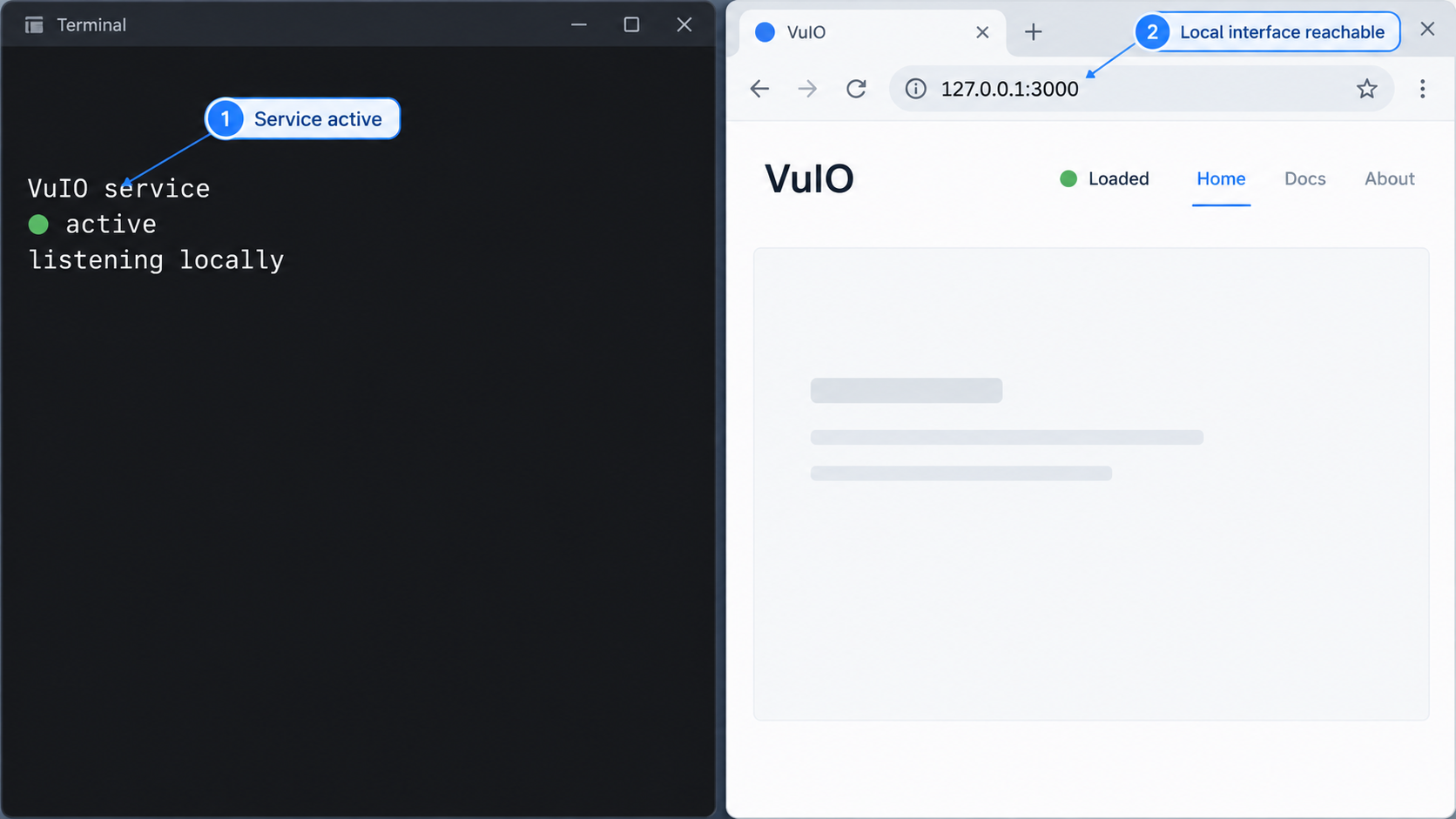
A tunnel cannot repair an application that is not listening, a directory that cannot be read, or an authentication configuration that was never loaded. Complete local verification while the foreground process remains visible.
Confirm that VuIO remains running
Check the foreground terminal. If the process exited, read the actual startup error before changing ports, paths, or configuration.
Inspect the listeners
Confirm which addresses and ports the installed release opened.
sudo ss -ltnp | grep -E ':(8080|8090)\b'Open the built-in dashboard
Visit http://127.0.0.1:8080, or the replacement port supplied through --port. Verify its authentication behavior.
Open the modern interface
Visit http://127.0.0.1:8090. Treat success on port 8080 and success on port 8090 as separate tests.
Test a real media item
Confirm that a file from the selected directory appears and can be opened or played through the interface intended for remote users.
Repeat the unauthenticated test
Use a fresh private browser session and confirm that protected functionality is unavailable until the documented authentication flow succeeds.
Health, readiness, metrics, and logs
VuIO documents /healthz, /readyz, /metrics, and /logs. The current summary evidence does not establish that every path is attached to both web listeners, nor does it define all authentication behavior for those paths. Test each intended listener explicitly instead of inferring that a path available on 8080 must also be available on 8090.
for port in 8080 8090; do
  for path in healthz readyz metrics logs; do
    printf '\nTesting http://127.0.0.1:%s/%s\n' "$port" "$path"
    curl -sS -o /dev/null -D - "http://127.0.0.1:${port}/${path}"
  done
done
Record which combinations return a response, redirect to authentication, reject access, or do not exist. Health and readiness are not interchangeable: health generally answers whether the process is alive, while readiness is intended to indicate whether it is ready to serve. Use the exact response semantics documented by your VuIO release rather than assigning your own meaning to an HTTP status.
Do not assume that metrics and log endpoints are harmless because they are not media pages. They can expose application behavior, filenames, request details, or other operational information. Confirm their access controls before publishing the listener that contains them.
Foreground operation and systemd persistence
A foreground command is suitable for installation testing, but it stops when its terminal closes. Persistent remote access requires VuIO and the Localtonet client to continue running independently of an interactive shell.
The current VuIO documentation index states that its Installation Guide covers systemd. However, the supplied evidence does not expose the current unit filename, package-created user, environment file, configuration location, or installation command. Those details cannot safely be reconstructed from the README summary. This tutorial therefore scopes native commands to foreground operation unless the installed package or release-matched VuIO Installation Guide provides the actual service unit.
First check whether the package installed a unit, without assuming its name:
dpkg -L vuio | grep -E '/systemd/|\.service$'
systemctl list-unit-files | grep -i vuio
If these commands do not identify a VuIO unit, do not run guessed commands such as systemctl enable vuio. Continue with foreground operation or follow the project's current systemd installation procedure from the VuIO Installation Guide listed in its documentation index.
If the package output identifies a real unit, substitute that exact unit name for <vuio-unit> in the standard lifecycle commands below:
sudo systemctl start <vuio-unit>
sudo systemctl enable <vuio-unit>
systemctl status <vuio-unit>
journalctl -u <vuio-unit> -n 100 --no-pager
sudo systemctl restart <vuio-unit>
sudo systemctl stop <vuio-unit>
These are systemd lifecycle commands, not a claim about VuIO's unit name or package defaults. Before enabling the service, inspect its effective definition and confirm its runtime account, media directory, configuration path, restart policy, and network arguments:
systemctl cat <vuio-unit>Start the service, verify its status and logs, and then repeat every local listener, media, authentication, and unauthenticated-access test. A process running under systemd can have different filesystem permissions and environment values from the shell account used during foreground testing.
If you cannot verify an official unit and its configuration, the safe scope is foreground use. In that mode, both VuIO and the tunnel stop when their processes stop. Do not represent a terminal-bound test deployment as an unattended server.
Optional Docker deployment
VuIO also publishes ghcr.io/vuiodev/vuio:latest. Before using the container path, install Docker Engine through a method appropriate for the host and confirm that the daemon is running:
docker version
docker info
The account running the command must be allowed to communicate with the Docker daemon. Docker daemon access is highly privileged. Do not add users to a Docker-capable group merely to avoid understanding that security consequence. Use your organization's approved root or daemon-access workflow.
Confirm that the media path exists and that Docker can read it. Also create or select persistent configuration and data directories whose ownership and permissions match the container's documented runtime expectations.
The project's current quick start uses host networking, a read-only media mount, persistent configuration and data mounts, and an address supplied through VUIO_IP:
docker run -d \
  --name vuio-server \
  --restart unless-stopped \
  --network host \
  -v /path/to/media:/media:ro \
  -v ./vuio-config:/config \
  -v ./vuio-data:/data \
  -e VUIO_IP=192.168.1.100 \
  ghcr.io/vuiodev/vuio:latest
Replace /path/to/media with the real host directory and replace 192.168.1.100 with the address appropriate for the VuIO host. Do not copy the example address unchanged. The media mount is read-only, while the configuration and data directories persist outside the container.
Host networking gives the container direct use of the host network namespace. That arrangement is relevant to multicast-oriented discovery, but it also means you must review host port conflicts and listener exposure. The example does not use individual -p mappings because --network host bypasses Docker's normal port-publishing model.
The repository provides its Docker quick start and a detailed Docker Deployment entry through the VuIO project documentation index. Use the detailed guide for environment-variable, Compose, volume, and network-mode behavior that is not established by the summary command.
Verify the container before opening a browser:
docker ps --filter name=vuio-server
docker logs --tail 100 vuio-server
sudo ss -ltnp | grep -E ':(8080|8090)\b'
Then repeat the local interface, media, authentication, session, and unauthenticated tests. The presence of a running container is not proof that the application is configured securely.
The documented quick start uses the moving latest tag. A later pull can retrieve a different image. For a controlled deployment, select a project-published version only after confirming that the corresponding image tag exists. This guide does not invent a container tag from the release number.
Expose one verified VuIO interface with Localtonet
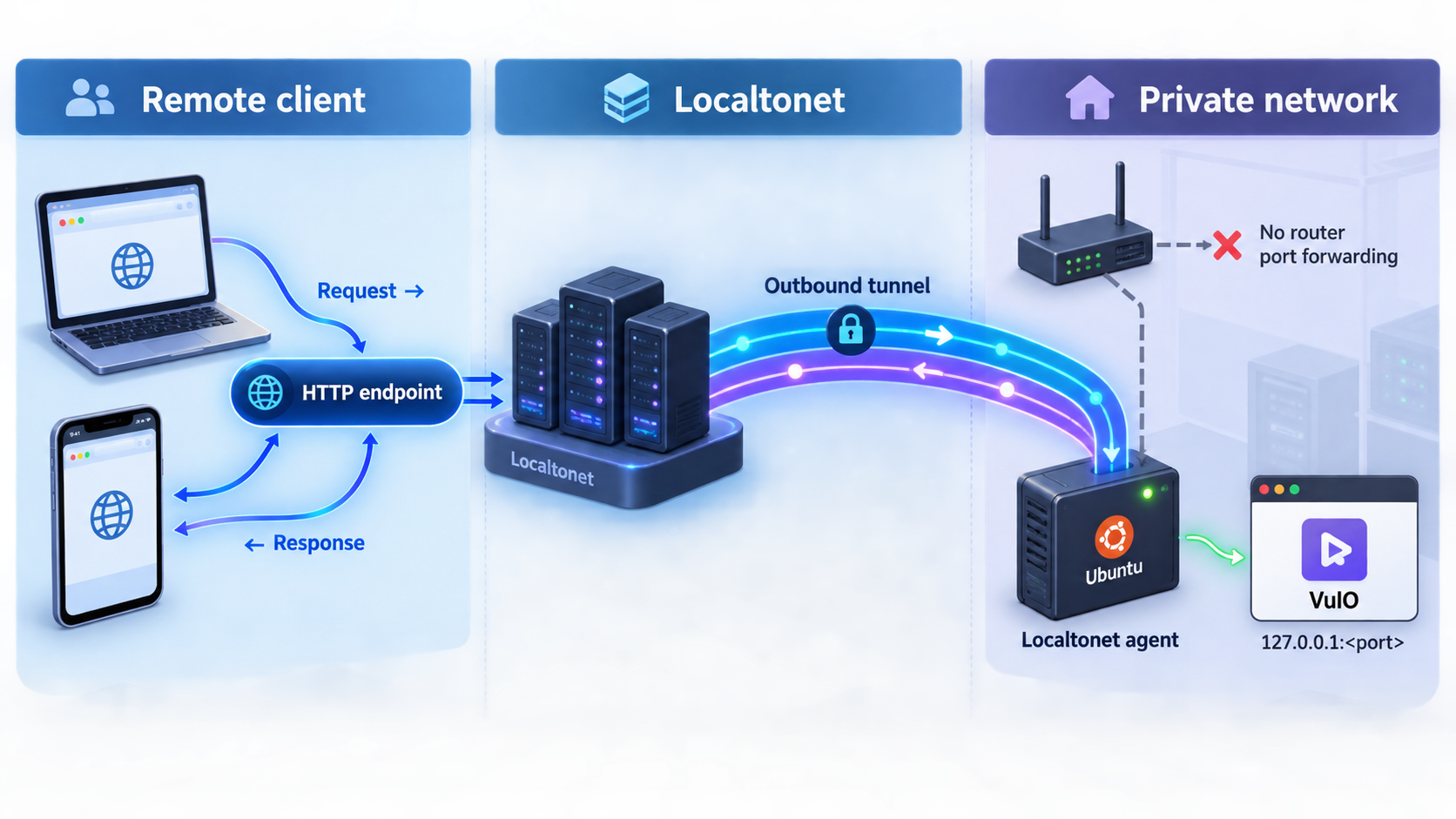
Proceed only after VuIO works locally, authentication is active, session behavior has been tested, and a fresh unauthenticated client cannot reach protected functionality. Localtonet provides connectivity to the chosen application listener. It does not configure or replace VuIO's authorization controls.
The current Localtonet HTTP workflow follows the dashboard field order below. Creating the tunnel configuration does not start it. The tunnel becomes available only after you press Start and remains available only while the selected client is connected and the tunnel is running.
Install and run the Localtonet client
Run our client on the VuIO host or on another trusted device that can reach VuIO. Authenticate it with its device-specific token. Never place that token in article examples, screenshots, shared shell history, or public configuration.
Open the HTTP tunnel configuration and select Process Type
Choose Random Sub Domain, Custom Sub Domain, or Custom Domain according to the options currently available to your account. All three process types serve the selected local content through a public HTTPS address. Follow current documentation rather than guessed DNS records when using a custom domain.
Select the AuthToken device
Select the token for the connected Localtonet client that will run this tunnel. The selected device must be able to reach the VuIO listener.
Select an available relay server
Choose a server or region from the current dashboard. Availability can vary, so do not copy a hardcoded server code from an article.
Enter the local IP address and port
When Localtonet and VuIO run on the same host, use 127.0.0.1 with port 8090 for the modern interface or port 8080 for the default built-in dashboard. Use the replacement port if you changed it. When our client runs elsewhere, enter a private address that the client device has already verified it can reach.
Start the tunnel and test the public URL
Press Start, open the assigned URL in a new private browser session, and repeat the unauthenticated and authenticated checks. Test media browsing and playback only after access control behaves correctly. Stop or delete the tunnel when it is no longer required.
See our HTTP tunnel documentation for the current dashboard workflow. Current regions, process options, plan availability, and custom-domain requirements must come from the product rather than a copied historical value.
An existing local administrator session can hide an authentication failure. Open the Localtonet URL in a separate private browser, preferably from another network. Verify that anonymous access is blocked where required, sign-in succeeds through the documented VuIO flow, sessions expire as configured, and sensitive monitoring or administration routes are not unintentionally public.
Routine operation, updates, logs, and shutdown
Foreground installation
Return to the terminal and press Ctrl+C to stop a foreground VuIO process. Restart it with the same media directory, port, and documented configuration options. Closing the terminal can also terminate the process, so foreground operation is not an unattended persistence method.
Verified systemd installation
Use the actual unit found in the installed package or the release-matched systemd guide:
systemctl status <vuio-unit>
journalctl -u <vuio-unit> -f
sudo systemctl restart <vuio-unit>
sudo systemctl stop <vuio-unit>
sudo systemctl start <vuio-unit>
After a configuration change, restart only when required by the documented setting behavior. Even when a setting supports live reload, verify the new behavior from a fresh client.
Docker installation
docker logs --tail 100 vuio-server
docker stop vuio-server
docker start vuio-server
docker restart vuio-server
Before an update, record the working image, media mount, configuration and data paths, authentication behavior, ports, and Localtonet target. Review the VuIO release notes, protect persistent data, and plan a rollback.
After every update, repeat the following checks:
- Confirm the process or container remains running.
- Confirm the expected ports and bind addresses.
- Inspect startup output for rejected or renamed configuration settings.
- Open both web interfaces that should exist.
- Test authentication from a clean private session.
- Test session expiration and sign-out.
- Confirm a real media item can be indexed and played.
- Retest health, readiness, metrics, and logs on the exact listener where they are expected.
- Confirm the Localtonet target still points to the intended interface.
Stop the Localtonet tunnel before disruptive maintenance when remote users should not reach a partially upgraded service. Start it again only after local validation succeeds.
Security checklist for remote media access
Never publish Localtonet device tokens, VuIO administrative tokens, metadata-provider credentials, session secrets, or private endpoints. If a credential appears in a screenshot, log excerpt, repository, or public message, remove the material and rotate the credential through the relevant application's supported process.
Review the media library itself. Point VuIO at a dedicated directory rather than an entire home directory or storage root. Confirm that you are authorized to store, stream, and share the selected content. Use operating-system permissions or separate libraries when different people should have different access.
Troubleshooting installation, service, and tunnel problems
APT cannot retrieve or install VuIO
cat /etc/apt/sources.list.d/vuio.list
sudo apt update
apt-cache policy vuio
Read the complete APT error. DNS failures, TLS problems, repository availability, unsupported architectures, and organizational trust policy require different remedies. If no package candidate appears for the current system, do not claim that the architecture or distribution release is supported by APT.
The vuio command is missing
dpkg -l vuio
dpkg -L vuio
command -v vuio
If the package is absent, return to the APT error. If it is installed, inspect the package file list and the current account's PATH rather than inventing an executable location.
Port 8080 or 8090 is already occupied
sudo ss -ltnp | grep -E ':(8080|8090)\b'
Identify the existing process before stopping anything. Port 8080 can be changed with VuIO's documented --port option. The supplied summary does not establish a matching command-line option for relocating port 8090, so use the installed release documentation for that listener.
The systemd service cannot read the media directory
A service may run as a different account from the interactive shell. Inspect the real unit with systemctl cat, identify its runtime user, and check traversal permissions on every parent directory. Do not solve the problem by making an entire home directory world-readable.
Port 8080 works but port 8090 does not
Treat the listeners separately. Confirm the installed release includes the modern interface, inspect logs, and check whether anything is listening on 8090. Do not target 8090 with Localtonet until a local request succeeds.
Health works on one port but not the other
The current summary documentation names the probe paths but does not prove attachment to both listeners. Use the listener documented by the installed version. A missing probe on the modern interface does not necessarily mean the process is unhealthy if the probe is intentionally hosted elsewhere.
The interface works locally but the Localtonet URL fails
Confirm that the Localtonet client is connected, the intended device token was selected, and the tunnel was started rather than merely created. Test the exact target from the Localtonet client device. If that client runs on another machine, 127.0.0.1 refers to the client machine, not the VuIO host.
The public interface opens without authentication
Stop the tunnel immediately. Confirm that the correct configuration file was loaded, that the security keys match the installed release, and that restart-required settings were followed by a restart. Clear cookies or use a new private session before retesting. Do not reopen public access until anonymous protected access is blocked.
The public page opens but playback fails
Test the same media item locally with the same browser type. If local playback fails, inspect indexing, file readability, format support, HLS requests, and application logs. If only public playback fails, inspect the browser's network requests and verify that media, playlist, subtitle, and ranged requests remain authorized through the selected interface.
A remote television cannot discover VuIO
This is expected when only an HTTP tunnel has been configured. Local discovery uses multicast-oriented mechanisms such as SSDP and mDNS. A Localtonet HTTP tunnel publishes a browser endpoint and does not claim to carry those discovery protocols.
Frequently asked questions
Which VuIO port should I expose?
Use port 8090 for the modern Svelte interface or port 8080 for the lightweight built-in dashboard. Test the exact port locally, including authentication and media playback, before creating the tunnel.
Which Ubuntu and Debian versions does VuIO support?
The project publishes an Ubuntu and Debian APT workflow, but the supplied current evidence does not define a release-by-release support matrix. Record your distribution and architecture, run apt-cache policy vuio, and confirm that the repository offers a package for that exact system.
Does the APT package automatically create a systemd service?
The project documentation index includes systemd guidance, but the supplied summary does not establish the current unit name or package behavior. Inspect dpkg -L vuio and systemctl list-unit-files. Use only a unit actually supplied by the package or documented for the installed release.
Is HTTPS enough to protect VuIO?
No. A Localtonet HTTP tunnel provides a public HTTPS address, but transport protection does not replace VuIO authentication, authorization, session controls, filesystem permissions, or protected monitoring endpoints.
Can Localtonet make remote DLNA discovery work?
This guide makes no such claim. The HTTP tunnel publishes a VuIO web interface. SSDP and mDNS discovery remain separate multicast-oriented networking functions.
Can the Localtonet client run on another computer?
Yes, if that computer can reach the VuIO listener. Use VuIO's reachable private address rather than 127.0.0.1, because loopback on the Localtonet client refers to the client computer itself.
Should I use APT or Docker?
Use APT for the direct Ubuntu or Debian package workflow. Use Docker when container lifecycle, explicit mounts, and container isolation fit your environment. Docker requires Docker Engine, permission to use its daemon, persistent configuration and data paths, and the same authentication verification as a native installation.
Can I expose both VuIO web interfaces?
You can create separate HTTP tunnels when both interfaces are genuinely necessary. Each tunnel has its own target and public endpoint, so both interfaces must be authenticated, tested, monitored, and maintained independently. Start with one.
Connect a protected VuIO interface with Localtonet
After VuIO works locally, persists through your chosen runtime method, and blocks unauthenticated access to protected functions, connect the selected listener to a Localtonet HTTP tunnel. Keep both applications running, protect every credential, and stop the tunnel whenever remote access is not required.
Get Started Free →

