

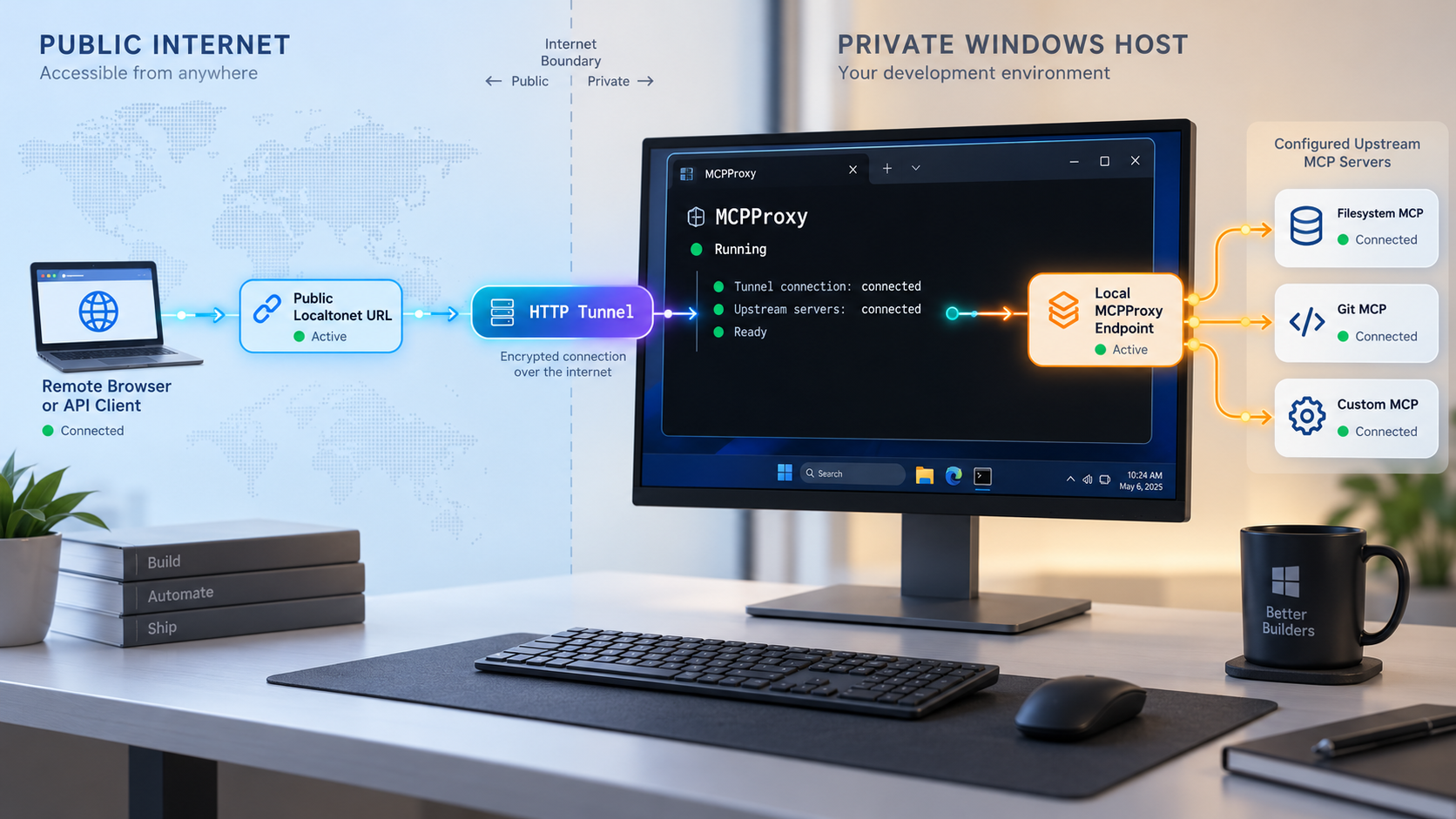
Run one local MCP endpoint on Windows, verify it, and make it available to authorized remote clients
MCPProxy consolidates local and remote MCP servers behind a shared HTTP endpoint for AI clients. This guide walks through installing the mcpproxy-go Windows build, starting its embedded HTTP server, configuring upstream servers, and verifying the local MCP endpoint before introducing any remote access. Once the local service works, we connect it to a Localtonet HTTP tunnel without inbound router port forwarding, firewall changes, VPN setup, or a public IP address. We also explain the authentication boundary, safe exposure practices, routine operation, and common troubleshooting checks.
📋 What's in this guide
What MCPProxy does and how this setup works
MCPProxy is an open-source, local-first MCP proxy for connecting AI clients to multiple Model Context Protocol servers through one managed endpoint. Instead of repeating every upstream server definition in every AI client, you configure the upstream servers in MCPProxy and point compatible clients at the proxy. Its core is distributed as a single binary for Windows, macOS, and Linux, and its web interface is embedded in that binary rather than requiring a separate web application.
On Windows, the recommended installer installs both mcpproxy.exe, which runs the core service, and mcpproxy-tray.exe, which provides a system tray interface. The installer places them under Program Files, adds MCPProxy to the system PATH for command-line access, and creates Start Menu shortcuts. Official Windows installers are available for x64 and ARM64 systems.
Running mcpproxy serve starts the documented HTTP service on port 8080. The example configuration binds it to 127.0.0.1:8080, which limits direct connections to applications on the same Windows computer. The MCP client endpoint is:
http://localhost:8080/mcp/The embedded web interface is served by the same HTTP server. This means you can install, configure, start, and verify MCPProxy entirely on the Windows host before deciding whether remote access is necessary.
Local access comes first
Keep the installation and remote-access stages separate. If the local endpoint does not work at localhost:8080, adding a tunnel will not repair the application configuration. A tunnel forwards traffic to a target that must already be running and reachable from the device hosting the Localtonet client.
This separation also makes troubleshooting clearer. During the first stage, you only need to reason about the Windows process, its configuration, the listening address, and the upstream MCP servers. During the second stage, you add the Localtonet client, device token, relay selection, tunnel lifecycle, and public address.
MCPProxy runs on your computer, but an upstream MCP server or connected AI client may still communicate with remote services. Review every upstream server, tool, credential, and client according to its actual behavior.
Prerequisites for installing MCPProxy on Windows
Before installing, identify the processor architecture of the Windows device. MCPProxy provides separate Windows installers for x64 and ARM64. Most conventional Intel and AMD Windows computers use x64. Windows devices built around an ARM processor require the ARM64 installer. Selecting the matching package avoids attempting to run a binary compiled for a different architecture.
You also need permission to install software into Program Files. In managed business environments, installation may require an administrator or approval through the organization's software deployment process. Do not work around endpoint management, application controls, or network policy.
Prepare the following items:
- A supported Windows x64 or Windows ARM64 computer.
- Permission to run the signed MCPProxy installer and install into Program Files.
- A terminal such as PowerShell or Windows Terminal.
- A browser for checking the embedded web interface.
- Details for any upstream MCP servers you intend to configure.
- The runtime required by each upstream server. For example, a Python stdio server requires a working Python installation and the referenced Python module.
- A compatible AI client if you intend to test the MCP endpoint beyond the web interface.
- A Localtonet account and client installation only when you are ready to add remote access.
Go is not required when using the Windows installer. Building or installing through Go is an alternative path for environments with Go 1.26 or later, but the signed Windows installer is the documented recommended approach for normal Windows installations.
| Installation option | When to use it | Important behavior |
|---|---|---|
| Windows x64 installer | Intel or AMD 64-bit Windows computers | Installs the server and tray application, updates PATH, and creates Start Menu shortcuts. |
| Windows ARM64 installer | Windows devices using an ARM64 processor | Provides the same Windows installation workflow for the ARM architecture. |
| Manual Windows archive | Users who intentionally need a standalone binary workflow | Requires manual placement and process management. Do not assume the installer conveniences are present. |
| Go installation | Developers with Go 1.26 or later who prefer the Go toolchain | Installs the command from source through the documented Go module path. |
Prerelease builds contain newer features but may be unstable. For a persistent or remotely reachable service, use the current stable release unless you have a specific test requirement and a rollback plan.
Install MCPProxy on Windows
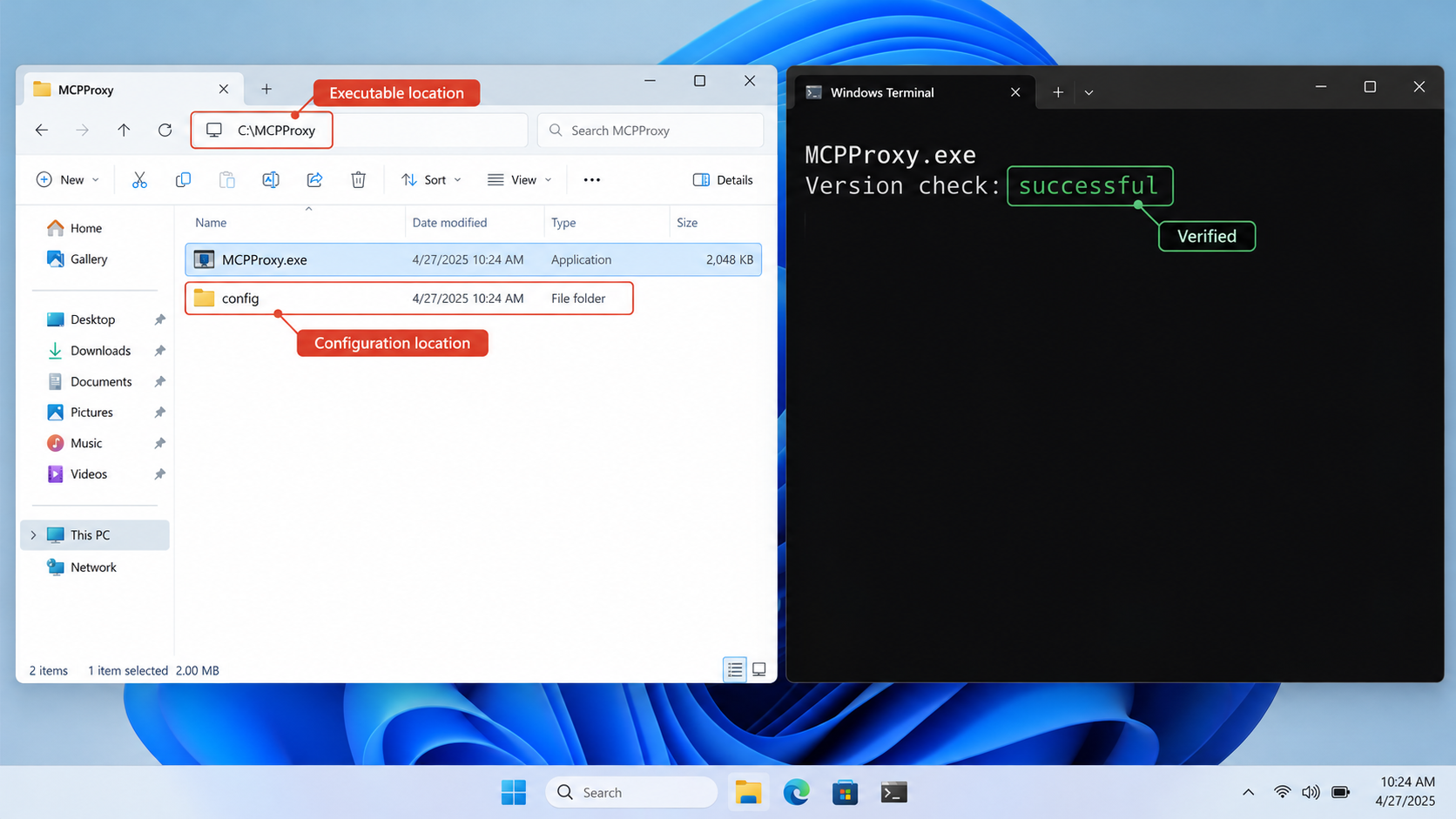
The standard setup wizard is the most direct Windows installation method. Download the current installer from the official MCPProxy website or the project's current release page, selecting x64 or ARM64 to match the computer. Avoid downloading executable files from unofficial mirrors.
Choose the correct Windows installer
Select the current x64 installer for a 64-bit Intel or AMD computer, or the ARM64 installer for an ARM-based Windows device. Confirm the architecture before running the package.
Run the setup wizard
Open the downloaded installer and follow its prompts. Approve the installation only if the publisher and package match the official distribution you intended to download.
Allow the installer to add the packaged components
The installer places mcpproxy.exe and mcpproxy-tray.exe in Program Files, adds MCPProxy to the system PATH, and creates Start Menu shortcuts.
Open a new terminal session
Open a new PowerShell or Windows Terminal window after setup. Existing terminals may not immediately see an updated PATH because they inherited their environment before installation completed.
Start the MCPProxy service
Run the documented serve command. It starts the HTTP server on port 8080 and presents the tray integration included with the Windows installation.
mcpproxy serveKeep the terminal visible during the first run so that startup messages and errors are available for diagnosis. Do not create a public tunnel yet. First verify that the process starts normally and that the local HTTP interface responds.
Silent installation
The Windows installer supports silent installation through the following documented switch:
.\mcpproxy-setup.exe /VERYSILENTThe downloaded filename may include a version and architecture rather than exactly matching the generic filename in this example. Use the actual filename you downloaded. Silent installation is useful for controlled automation, but it should not be used to bypass organizational approval or software management requirements.
Alternative installation with Go
If the computer already has Go 1.26 or later and you intentionally prefer the Go installation path, the documented command is:
go install github.com/smart-mcp-proxy/mcpproxy-go/cmd/mcpproxy@latestThis is an alternative to the Windows setup wizard. When using it, PATH behavior depends on the local Go environment rather than the Windows installer. The installer-specific tray application, Start Menu entries, and Program Files placement should not be assumed for a Go-based installation.
Configure MCPProxy and add upstream servers
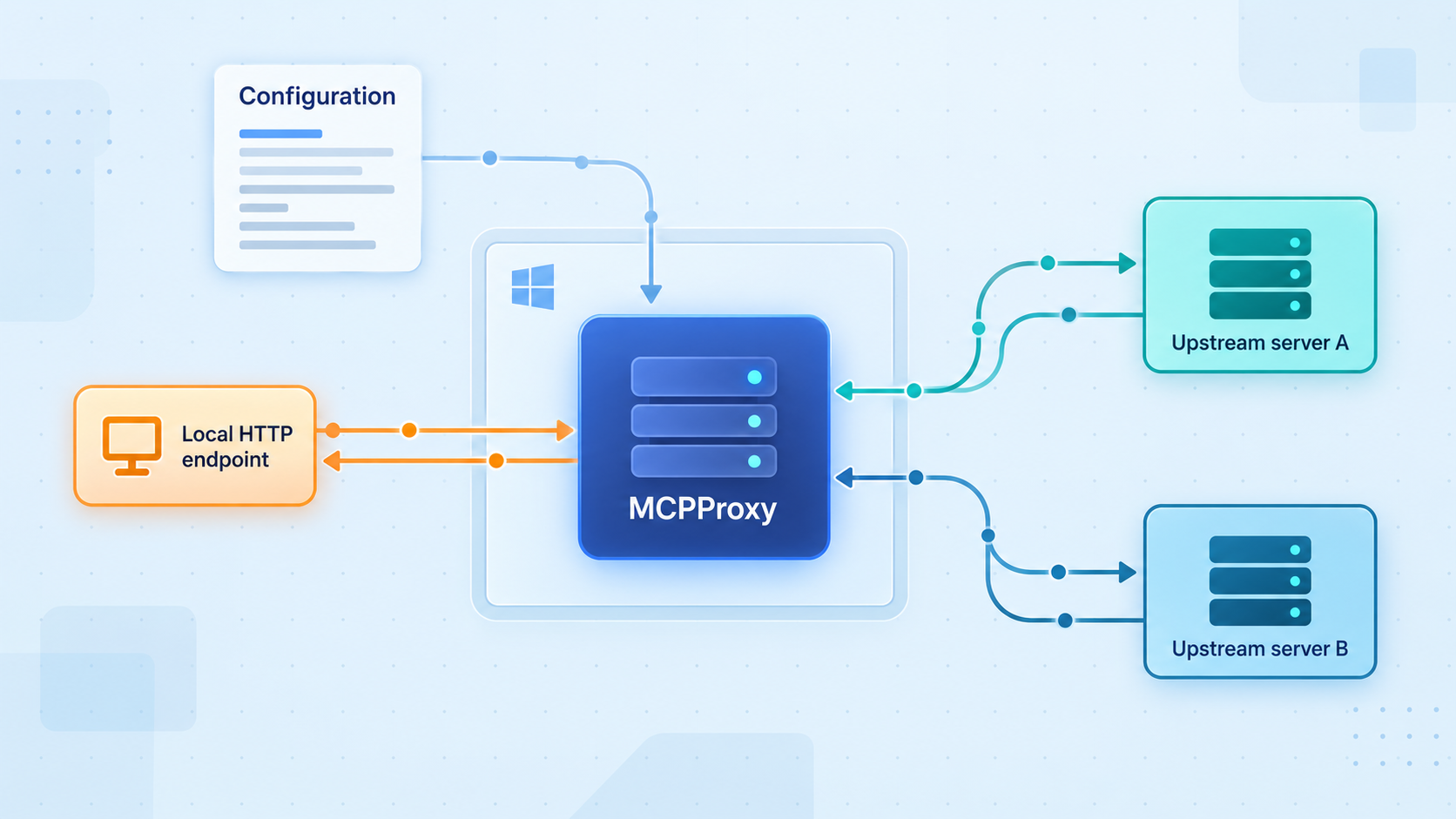
MCPProxy reads its example server configuration from ~/.mcpproxy/mcp_config.json. On Windows, the tilde represents the current user's home directory. Keep the configuration associated with the same Windows account that runs MCPProxy.
The documented configuration example binds the service to the loopback interface and defines two types of upstream MCP server:
- A local stdio server launched as a child process.
- A remote or separately running HTTP server addressed by URL.
{
  "listen": "127.0.0.1:8080",
  "mcpServers": [
    {
      "name": "local-python",
      "command": "python",
      "args": [
        "-m",
        "my_server"
      ],
      "protocol": "stdio",
      "enabled": true
    },
    {
      "name": "remote-http",
      "url": "http://localhost:3001",
      "protocol": "http",
      "enabled": true
    }
  ]
}
Treat these server entries as structural examples, not as ready-to-run dependencies. The local-python entry succeeds only when the python command exists for the MCPProxy process and the my_server module is installed and implements the expected server. The remote-http entry succeeds only when a compatible server is actually listening at http://localhost:3001.
Replace the examples with the real command, arguments, protocol, or URL documented by your upstream MCP server. Avoid copying credentials directly into a configuration file unless the upstream project's supported configuration explicitly requires it and you have protected the file appropriately. MCPProxy supports OS keyring-backed secrets, which can help keep supported secret values out of ordinary configuration text.
Understand the listening address
The value 127.0.0.1:8080 has two parts. 127.0.0.1 is the IPv4 loopback address, and 8080 is the TCP port. A loopback listener accepts connections originating on the same computer but is not directly reachable from another LAN device.
This is a useful default for the workflow in this guide. If the Localtonet client runs on the same Windows computer, it can target the loopback service without changing MCPProxy to listen on every network interface. That avoids unnecessarily opening a LAN listener merely to support remote access.
Binding an application to an address such as every available interface can expose it to other devices on the local network and can change Windows Firewall behavior. For this same-host Localtonet workflow, retain the documented loopback target unless your architecture has a separate, reviewed requirement.
Connect an AI client
A compatible AI client should be configured to use MCPProxy's documented MCP endpoint:
{
  "type": "http",
  "url": "http://localhost:8080/mcp/"
}
The exact location and schema of an AI client's configuration are client-specific. For example, the documented Cursor workflow opens Settings, selects Tools & Integrations, and adds an MCP server named MCPProxy with the HTTP endpoint above. Do not assume that another client uses the same screen, property names, or authentication fields.
Current MCPProxy releases provide profiles and scoped, revocable client credentials. Profiles can group servers and place boundaries around the tools available to a client. A client credential can be associated with a profile so that the connection does not gain broader access merely because the proxy manages additional servers.
Use the current MCPProxy interface to create and manage credentials rather than placing an administrator credential into client configurations. Release behavior and configuration schemas can change, so this guide does not invent a token-generation command or authentication field that is not established by the supplied installation evidence.
Verify MCPProxy locally before creating a tunnel
Local verification should prove three separate things: the MCPProxy process is running, its HTTP server is reachable, and the intended AI client can complete an MCP connection with the appropriate access. A successful browser page alone does not prove that every upstream server or tool works.
Confirm that the serve command stays running
Start mcpproxy serve in a terminal and inspect its output. If the process exits immediately, resolve the reported startup, configuration, or port error before continuing.
Open the local HTTP service
On the same Windows computer, open http://localhost:8080 in a browser. The embedded web interface is delivered by MCPProxy's HTTP server.
Check the MCP client endpoint
Configure a compatible MCP client to use http://localhost:8080/mcp/. Test through an actual MCP client rather than treating a normal browser request to the MCP route as a complete protocol test.
Review upstream server state
Use the embedded interface to confirm that intended upstream servers are configured and inspect any server requiring review. A reachable proxy does not imply that a missing executable, invalid URL, or failed upstream process is healthy.
Make a limited test request
Use a low-risk tool allowed by the selected profile and review the recorded outcome. Avoid beginning with destructive or write-capable tools merely to test connectivity.
What a successful local test establishes
A successful local test shows that Windows can run the binary, port 8080 is available, the HTTP service responds, and the selected AI client can communicate with the MCP endpoint. If an upstream tool also completes successfully, it establishes that the proxy can reach and invoke that particular upstream server under the active policy.
It does not establish that every configured tool is safe, that every upstream service is continuously available, or that a future public connection will have the correct authentication boundary. Those concerns require separate review.
The embedded web interface is useful for validating the HTTP service and reviewing configuration. The /mcp/ route speaks MCP over its supported HTTP transport, so use a compatible AI or MCP client for protocol-level verification.
Expose the working MCPProxy endpoint with Localtonet
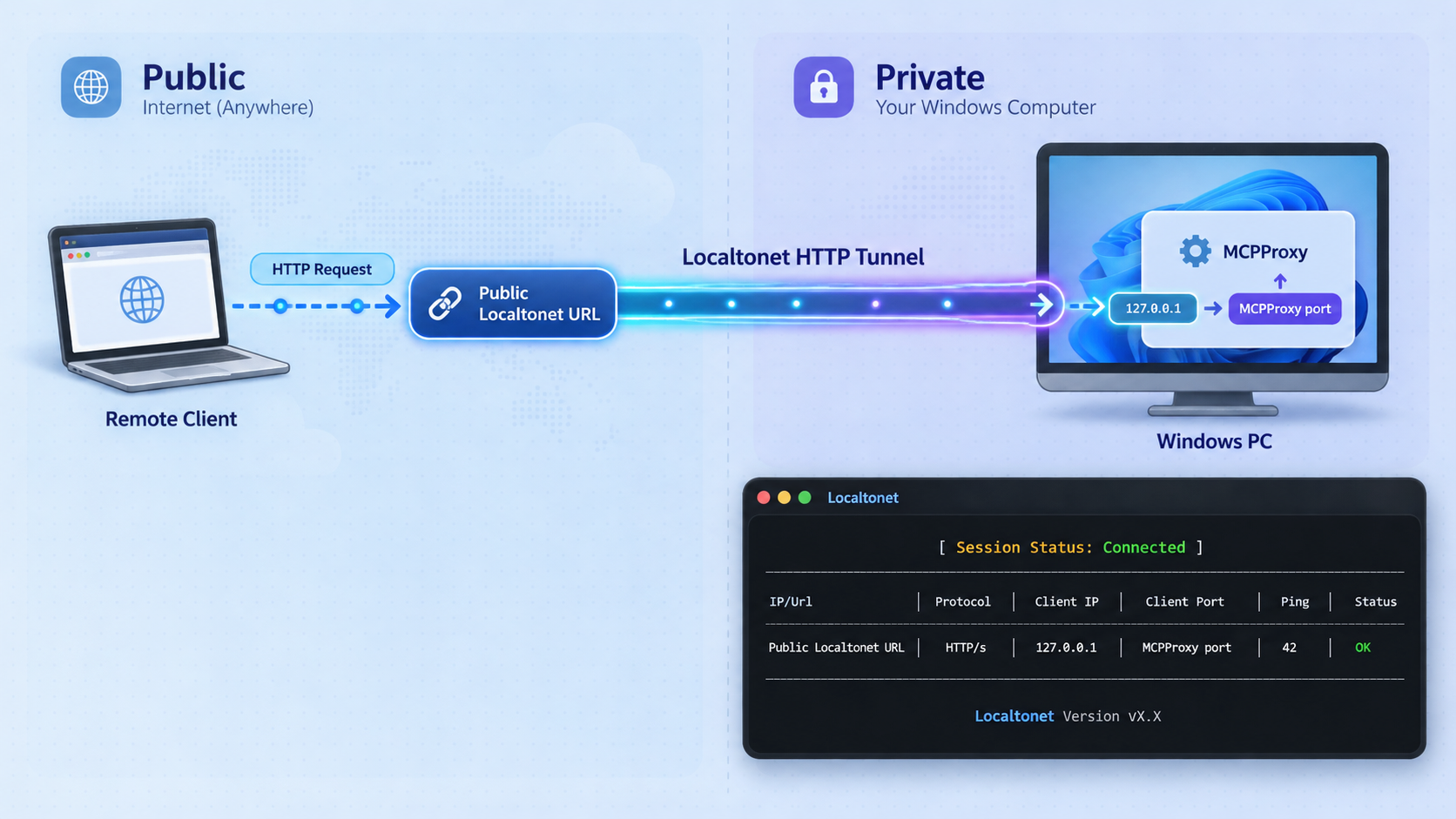
Once http://localhost:8080 works locally, Localtonet can make the HTTP service reachable from outside the Windows computer. Our client establishes an outbound connection to a Localtonet relay server. This removes the need to configure inbound router port forwarding, obtain a public IP address, set up a VPN, or make an inbound firewall change for the tunnel itself.
An HTTP tunnel is the appropriate tunnel family because MCPProxy exposes an HTTP server. The Localtonet client should run on the Windows computer hosting MCPProxy, or on another device that can reach the configured local target. Running both on the same computer allows the tunnel target to remain 127.0.0.1 on port 8080.
The currently available relay server codes, regions, and dashboard options must be obtained from the live Localtonet dashboard. They should not be copied from an old tutorial or guessed. Availability can vary, and this article does not claim that every option is included with every subscription plan.
Install and run the Localtonet client
Install the Localtonet client on the Windows device that can reach MCPProxy. Keep MCPProxy running and locally verified before configuring the tunnel.
Authenticate or select the Windows device
Use the device-specific authentication token supplied through your Localtonet account. Never place that token in an article, shared script, screenshot, source repository, or AI prompt.
Select an available relay server
Choose from the server or region options currently presented by the dashboard. Do not hardcode a server code taken from another account or an outdated example.
Create an HTTP tunnel to MCPProxy
Create an HTTP tunnel whose local target is IP address 127.0.0.1 and port 8080. For the public address, select an available HTTP Process Type such as a random subdomain, supported custom subdomain, or custom domain according to your current dashboard options.
Start the tunnel
Press Start after reviewing the target. Creating a tunnel does not start it automatically. The tunnel is available only while the selected Localtonet client is connected and the tunnel is running.
Test the assigned public address
Use the public HTTPS address assigned to the HTTP tunnel. First verify the expected MCPProxy web service, then configure an authorized remote MCP client with the corresponding MCP path. Preserve the documented trailing slash in the /mcp/ endpoint unless the current MCPProxy documentation for your version says otherwise.
For the current dashboard workflow and field names, consult our Localtonet HTTP tunnel documentation. Dashboard labels can evolve, so the live product and current documentation are authoritative for exact interface details.
A loopback-only service is normally reachable only from the same computer. An active Localtonet HTTP tunnel intentionally makes the target reachable through a public address. Require appropriate MCPProxy client authentication, use narrowly scoped profiles and credentials, review exposed tools, and stop the tunnel when remote access is not needed.
Public endpoint format
Localtonet HTTP Process Types provide a public HTTPS address. If the assigned base address is represented as https://your-assigned-address.example, the MCP route would normally be formed by appending MCPProxy's documented path:
https://your-assigned-address.example/mcp/The hostname above is deliberately a placeholder, not a real Localtonet endpoint. Use only the address shown for your running tunnel. Do not publish a private client credential alongside that address.
Secure remote MCPProxy access
Remote MCP infrastructure can provide access to tools that read files, contact APIs, execute local commands, modify external systems, or handle credentials. The exact risk depends on the configured upstream servers and their tool implementations. Treat the public endpoint as an application security boundary, not merely a networking convenience.
Authentication belongs at the application boundary
The public HTTPS address transports requests to MCPProxy, but a public address is not itself proof that a caller is authorized. Configure current MCPProxy authentication and client credentials before relying on the endpoint outside a trusted local workflow.
We do not provide guessed MCPProxy token-generation commands in this guide because the supplied installation evidence does not establish a stable command sequence for creating them. Use the credential and client-management workflow provided by the installed MCPProxy version, and validate it locally before changing a remote client's endpoint.
Review tool capability, not only connectivity
A read-only discovery tool and a destructive infrastructure tool do not have the same risk. Current MCPProxy profiles can cap tool tiers, allow or deny particular tools, determine how unannotated tools are treated, and restrict code execution or management capabilities. Use those controls to create a purpose-specific remote profile.
Do not assume quarantine, schema checks, sensitive-data detection, or security scanners can prove that a tool is harmless. An implementation can behave dangerously even when its visible definition appears normal. Tool approval should consider the upstream code, required secrets, filesystem reach, network destinations, and possible side effects.
Protect both token types
This workflow can involve two unrelated credential categories:
- The Localtonet device authentication token identifies the client device that runs the tunnel.
- MCPProxy client credentials authorize an AI or MCP client to use the application endpoint.
Do not interchange or combine them. Never expose either value in screenshots, logs shared publicly, repositories, example configuration, support posts, or article text. If a credential is disclosed, revoke or rotate it through the system that issued it.
Routine operation and troubleshooting
A working deployment depends on two processes: MCPProxy and the Localtonet client. It also depends on the HTTP tunnel being in its running state. If any one of those components stops, remote clients will lose access even if the saved configurations remain present.
Recommended startup order
- Start MCPProxy with
mcpproxy serve. - Verify the local web service at
http://localhost:8080. - Confirm the intended upstream servers and client policy.
- Start or confirm the Localtonet client on the same Windows device.
- Start the configured Localtonet HTTP tunnel.
- Test the public endpoint using an authorized remote client.
This order prevents tunnel troubleshooting from obscuring an application startup problem. For planned shutdown, stop the public tunnel first when you want to remove remote reachability, then stop the local service according to how you launched it.
| Symptom | Likely layer | Checks |
|---|---|---|
mcpproxy is not recognized |
Installation or PATH | Confirm installation completed, open a new terminal, and verify that the matching Windows installer was used. |
| The serve command exits immediately | MCPProxy startup | Read the terminal error, validate the JSON configuration, and check whether port 8080 is already occupied. |
| The browser cannot open localhost:8080 | Local HTTP listener | Confirm MCPProxy is still running and that the configuration listens on 127.0.0.1:8080. |
| The web interface works but an upstream is unhealthy | Upstream MCP server | Check the upstream command, runtime, arguments, URL, credentials, and review state. The proxy can be healthy while an upstream fails. |
| Local access works but the public address does not | Localtonet tunnel | Confirm the Localtonet client is connected, the tunnel is started, and its target is 127.0.0.1 on port 8080. |
| The public web interface opens but the MCP client fails | Client URL, protocol, or authentication | Confirm the client uses the /mcp/ path, supports the required HTTP transport, and presents the current MCPProxy credential correctly. |
| A client connects but cannot find a tool | MCPProxy policy or discovery | Review the client's assigned profile, upstream availability, quarantine status, tool policy, and credential scope. |
| Remote access stops unexpectedly | Process or tunnel lifecycle | Check whether MCPProxy is still running, the Localtonet client remains connected, and the tunnel remains started. |
Port 8080 is already in use
Another application may already be listening on port 8080. Review the startup message rather than assuming MCPProxy started successfully. If you intentionally select another MCPProxy listen port using the current project's supported configuration, update all dependent locations together: the local browser URL, AI client endpoint, and Localtonet tunnel target.
This article does not invent a command-line port flag because the supplied evidence establishes the JSON listen setting but not a stable CLI override. Use the supported configuration field for the installed release.
Configuration file errors
JSON requires double-quoted property names and string values, commas between entries, and matching braces and brackets. It does not permit ordinary comments. A copied example can also be syntactically valid while referring to a command or URL that does not exist.
If MCPProxy fails after an edit, restore a known valid configuration, start with a minimal set of upstreams, and add entries individually. This makes it easier to distinguish malformed JSON from an upstream-specific startup problem.
Localtonet target errors
The target address is interpreted from the Localtonet client's device. If the client and MCPProxy run on the same Windows computer, 127.0.0.1:8080 refers to MCPProxy. If the Localtonet client runs on another computer, its own 127.0.0.1 points back to that other computer, not to the Windows MCPProxy host.
For the simplest and narrowest setup, run our client on the MCPProxy computer. If your architecture requires a separate tunneling device, MCPProxy must be reachable from that device through an explicitly reviewed network address, and the local firewall and LAN policy must permit the connection.
Updating MCPProxy
Check the current stable release notes before updating, especially when an installation uses authentication, profiles, quarantine, or automation. Releases can introduce migration behavior and security-related upgrade notes. Back up the configuration and understand credential changes before replacing a working installation.
The supplied evidence confirms the Windows installer path but does not establish a universal unattended update mechanism for Windows. Do not assume that a package-manager command from Linux or Homebrew applies to Windows. Follow the current Windows release instructions for the version you are deploying.
Before updating either component, record the installed MCPProxy version, local listen address, upstream state, Localtonet target, and a successful local test. This gives you a clear comparison point if behavior changes after an upgrade.
Frequently asked questions
Does MCPProxy support Windows x64 and ARM64?
Yes. Official Windows installers are available for x64 and ARM64. Choose the installer matching the processor architecture of the Windows computer.
Do I need Go to install MCPProxy on Windows?
No. The recommended Windows installer provides the core executable and tray application. Go 1.26 or later is required only if you intentionally choose the documented go install alternative.
Which local address does MCPProxy use?
The documented example listens on 127.0.0.1:8080. Its MCP endpoint is http://localhost:8080/mcp/, and the embedded web UI is served by the same HTTP server.
Must I change MCPProxy to listen on the LAN before using Localtonet?
No, not when the Localtonet client runs on the same Windows computer. In that arrangement, the HTTP tunnel can target 127.0.0.1 on port 8080, allowing MCPProxy to retain its loopback listener.
Does creating a Localtonet tunnel make it active immediately?
No. Creating a tunnel does not mean it is running. Start it with the Start button. The public endpoint remains available only while the selected client device is connected and the tunnel is running.
Does a Localtonet public HTTPS address replace MCPProxy authentication?
No. The tunnel provides network reachability to the local HTTP service. Configure MCPProxy authentication, scoped client credentials, profiles, and tool policy for authorization at the application layer.
Can MCPProxy guarantee that every connected tool is safe?
No. Quarantine, tool review, scanners, sensitive-data detection, schema checks, profiles, and scoped credentials provide useful controls, but they cannot guarantee safe implementation behavior. Review upstream code, permissions, secrets, and side effects before approval.
Why does MCPProxy work locally but fail through the tunnel?
Check that the Localtonet client is connected on the correct device, the HTTP tunnel is started, and the target is 127.0.0.1:8080 when both applications run on the same host. Then verify that the remote client uses the public URL with the /mcp/ path and the required MCPProxy credentials.
Connect your verified MCPProxy service with Localtonet
Install MCPProxy, confirm its local HTTP endpoint, apply appropriate client authentication and tool policy, then use a Localtonet HTTP tunnel to provide controlled remote reachability without inbound router port forwarding.
Get Started Free →

