

Build a working local commerce backend, verify the bundled admin, and publish only the service you need
This tutorial installs a Medusa v2 application with the official create-medusa-app workflow, connects it to PostgreSQL, starts the backend and bundled admin, and verifies the result on localhost. It then shows how to expose the backend or a separately installed storefront through Localtonet. The tutorial uses Medusa v2.21.2 as its selected release reference while following the current Medusa v2 application structure. Because the official creation command uses the current scaffolder, record the versions installed in your project and review Medusa release notes before repeating the procedure after a future update.
📋 What's in this guide
Understand the Medusa services you are installing
Medusa is an open-source commerce platform with a framework and reusable commerce modules. A standard Medusa v2 application provides the backend HTTP server and a bundled admin dashboard. The admin is served by the backend application under /app, so it is not a second server that needs its own port or Localtonet tunnel.
A customer-facing storefront is different. The official project creator can optionally install Medusa's Next.js starter storefront, but that storefront is a separate application with its own process and local port. In the standard development setup used here, the Medusa backend listens on http://localhost:9000, its bundled admin is available at http://localhost:9000/app, and the optional Next.js storefront runs at http://localhost:8000.
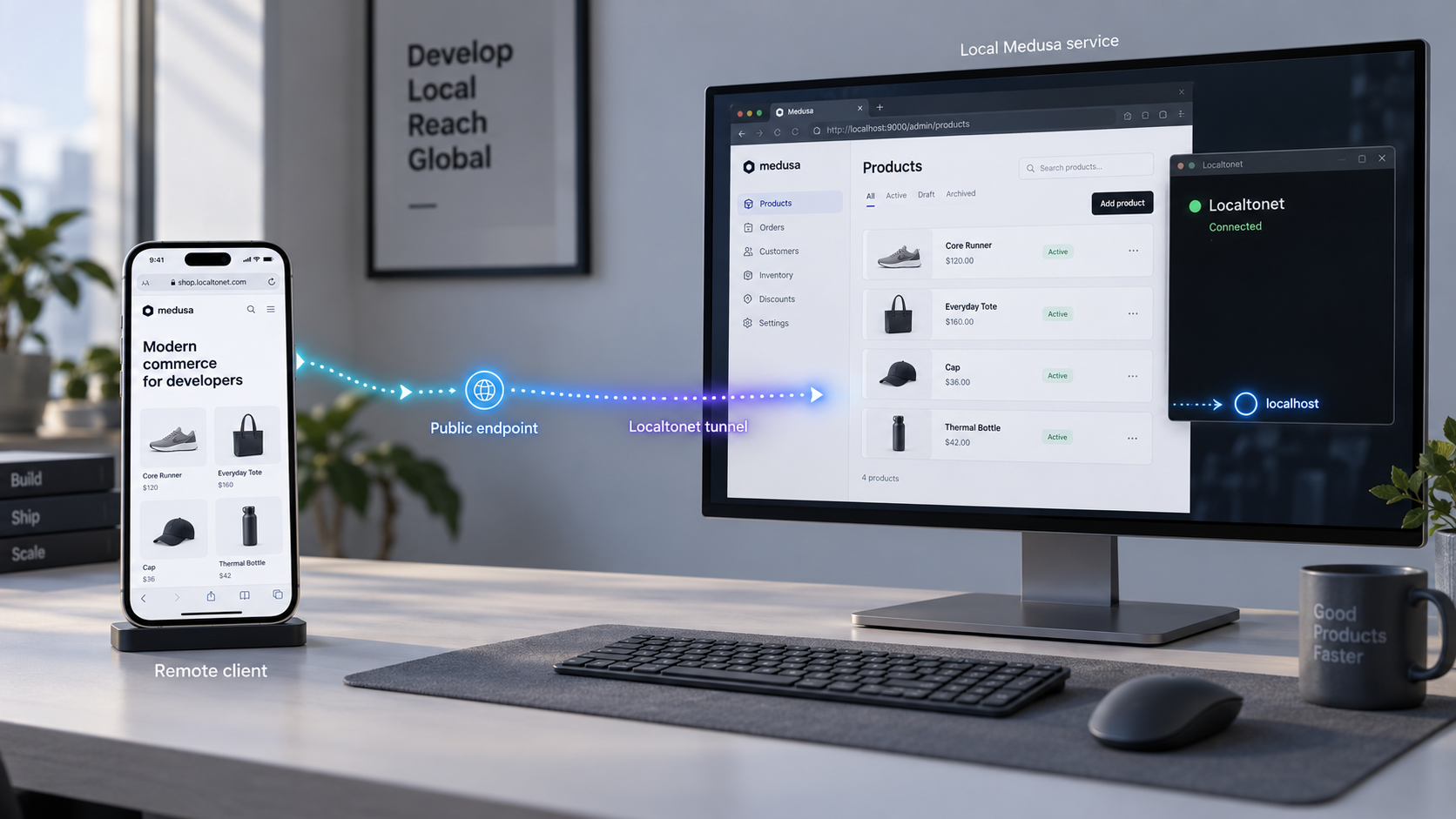
| Component | Standard local address | What it provides | Localtonet target |
|---|---|---|---|
| Medusa backend | http://localhost:9000 |
Commerce APIs, application logic, health endpoint, and the bundled admin | Local IP 127.0.0.1, port 9000, when our client runs on the same host |
| Bundled Medusa admin | http://localhost:9000/app |
Administrative interface served by the backend | The same port 9000 tunnel as the backend |
| Optional Next.js storefront | http://localhost:8000 |
Customer-facing storefront that calls the Medusa backend | A separate HTTP tunnel targeting port 8000 |
| PostgreSQL | Usually a local or privately reachable PostgreSQL listener | Persistent application data | Do not expose it for this workflow |
/app route reachable. Consider that exposure before sharing the URL.
Medusa and Localtonet do not start each other. The Medusa process must be running, the Localtonet client must be connected, and the configured tunnel must be explicitly started. Stopping any required part makes the public application unavailable.
Install the supported runtime and PostgreSQL prerequisites
This tutorial follows the official Medusa v2 local application path and uses v2.21.2 as the selected release reference. Medusa's local installation requires Node.js 20 or later, Git, and PostgreSQL. Use an actively supported Node.js 20 or newer release that satisfies the project requirements. On Windows, use WSL2 for the documented Linux-compatible development environment rather than mixing Windows and WSL package installations in one project.
The examples use npm because it is available with Node.js and is used by the generated project workflow. Run the following checks before creating the application:
node --version
npm --version
git --version
psql --version
The first command must report Node.js 20 or newer. The PostgreSQL client version does not prove that the database server is running, so check server readiness as well:
pg_isreadyA successful result reports that PostgreSQL is accepting connections. If PostgreSQL runs on another permitted host or non-default port, pass the corresponding host and port to your PostgreSQL tools. Keep that database private. This tutorial exposes Medusa's HTTP service, not PostgreSQL.
Prepare a dedicated PostgreSQL role and database
The Medusa project creator asks for PostgreSQL connection information and can use those details during setup. You can supply an existing development role with permission to create the project database, or prepare a dedicated role and database first. The latter makes ownership and troubleshooting easier.
Open psql as a PostgreSQL administrator. The method depends on how PostgreSQL was installed. For example, many Linux installations provide a local postgres operating-system account:
sudo -u postgres psql
Inside psql, create a development role and database. Replace the example password before running this and do not commit the real value:
CREATE ROLE medusa_user WITH LOGIN PASSWORD 'replace-with-a-strong-local-password';
CREATE DATABASE medusa_store OWNER medusa_user;
\q
Verify that the new role can connect:
psql "postgres://medusa_user:replace-with-a-strong-local-password@localhost:5432/medusa_store" -c "select 1;"
The expected result includes one row containing 1. If authentication fails here, fix PostgreSQL before running the Medusa installer. Common causes include an incorrect password, a stopped database server, an unexpected port, or PostgreSQL authentication rules that do not permit the attempted connection.
A database URL contains a username and usually a password. Avoid pasting it into screenshots, tickets, public repositories, or shell examples. Use the generated environment file for local configuration, keep that file out of version control, and rotate any credential that becomes public.
Choose the project directories
Use a normal development directory that is writable by your user. Do not run the project creator with elevated privileges merely to work around directory permissions. The examples create a backend named my-medusa-store. If you accept installation of the Next.js starter, the installer creates and reports a separate storefront directory. Record that exact path because backend and storefront commands must be run from their respective directories.
Create the Medusa application with create-medusa-app
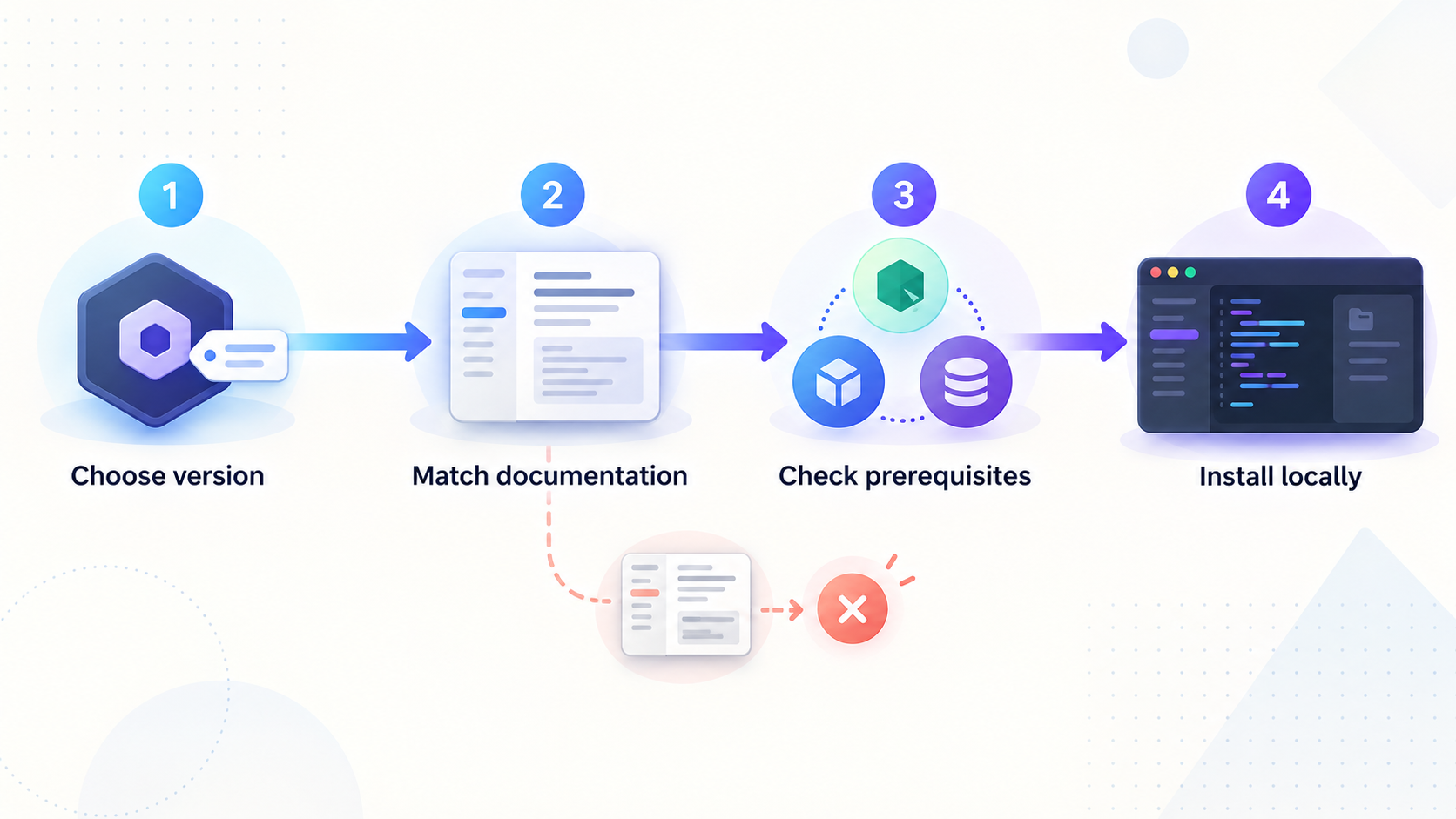
From the parent directory where you want the project created, run the current official Medusa project creation command:
npx create-medusa-app@latest my-medusa-store
The @latest suffix selects the current official project creator. This article is scoped to the Medusa v2 application structure represented by v2.21.2, but the scaffolder and dependency versions can move forward. After installation, preserve the generated lockfile and inspect the generated package.json so you know exactly what was installed.
Answer the setup prompts
Follow the interactive prompts in the terminal. The wording can vary slightly with the current project creator, but the setup requires the PostgreSQL information established above:
- Use
medusa_useras the PostgreSQL username if you created the example role. - Enter the role's actual password when prompted.
- Use
medusa_storeas the database name if you created the example database. - When asked whether to install the Next.js starter, choose yes only if you want a separate customer-facing storefront.
The project creator installs dependencies, writes the application's local configuration, connects to PostgreSQL, and initializes the Medusa project. Let it finish before opening another command in the generated directory. If it reports a database error, do not repeatedly rerun the complete installer without fixing the connection problem first.
Run the project creator
Execute npx create-medusa-app@latest my-medusa-store from the directory that should contain the new backend project.
Provide the PostgreSQL connection details
Enter the verified PostgreSQL username, password, and database name. Use development credentials rather than production database access.
Choose whether to install the storefront
Install the Next.js starter only when you need it. It is a separate project and process, not part of the backend listener on port 9000.
Wait for project initialization
Allow dependency installation and database initialization to complete. Record the backend and storefront directories printed by the installer.
Confirm the generated database configuration
In a standard generated Medusa v2 project, the database connection is supplied through DATABASE_URL and consumed by medusa-config.ts. Do not replace the generated configuration with an older Medusa v1 example. Confirm that your local environment file contains a URL for the database you tested:
DATABASE_URL=postgres://medusa_user:your-url-encoded-password@localhost:5432/medusa_storeThis is a format example, not a credential to reuse. Characters with special meaning in URLs must be encoded. If your password makes the URL difficult to construct, compare the generated value with a connection string produced by your PostgreSQL environment rather than weakening the password.
Start Medusa and verify the backend and admin locally
Enter the generated backend directory and start development mode:
cd my-medusa-store
npm run dev
Keep this terminal running. The backend should start on http://localhost:9000. Its admin dashboard is bundled with the backend and is available at:
http://localhost:9000/app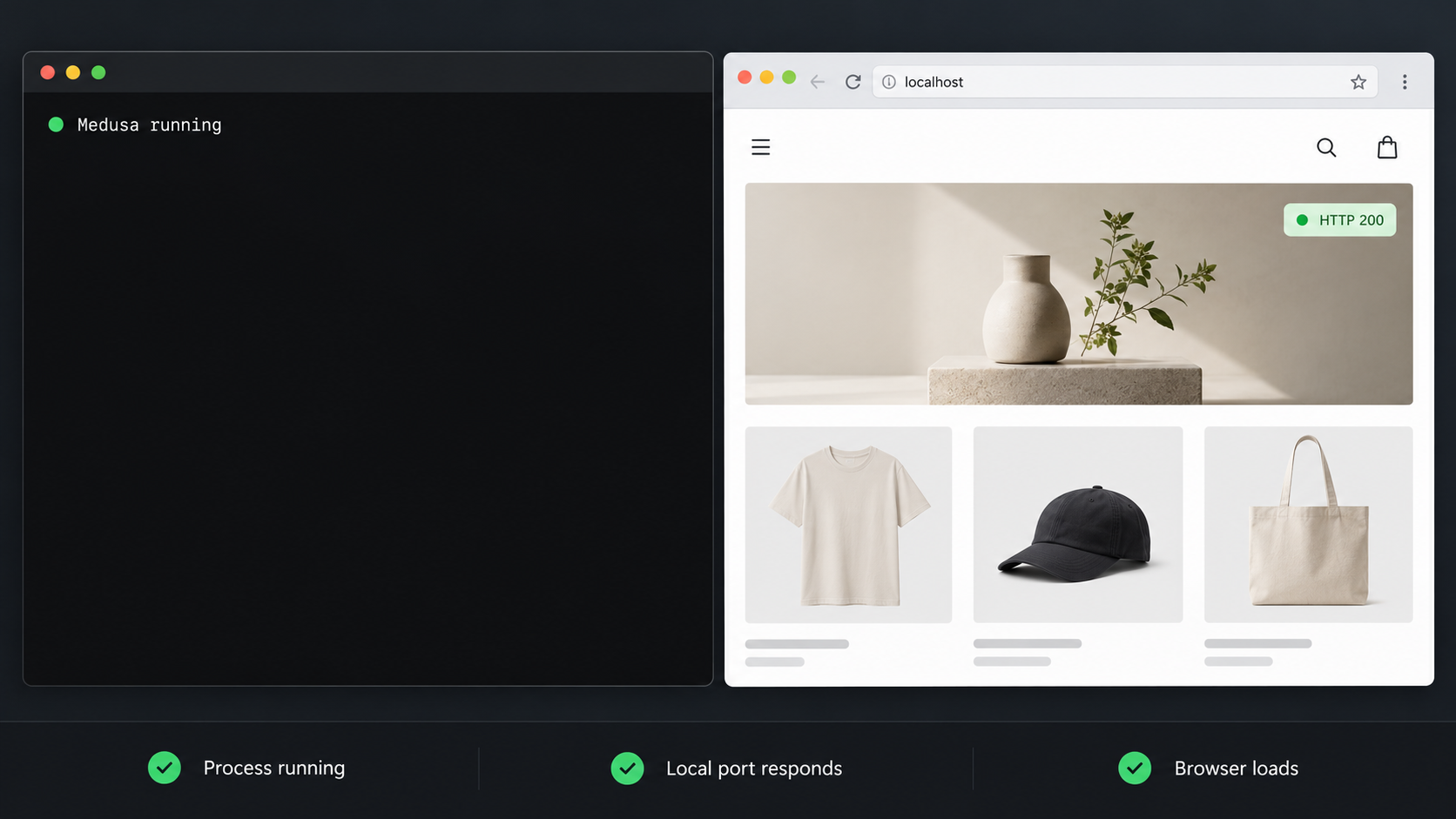
Create the initial administrator
Open http://localhost:9000/app in a browser. A new application presents the initial administrator workflow. Create the administrator using an email address you control and a strong password. After creation, sign in and confirm that the admin dashboard loads.
If you need to create an administrator from the project command line instead, Medusa provides the user command from the backend directory:
npx medusa user -e admin@example.com -p 'replace-with-a-strong-password'Avoid putting a real password into shared shell history or screenshots. Use the browser workflow when that is more appropriate for your environment.
Run an executable backend health check
In a second terminal, request Medusa's health endpoint:
curl -i http://localhost:9000/health
A healthy backend returns an HTTP 200 response and an OK body. This check proves that the expected Medusa HTTP process is answering on port 9000. It does not by itself prove that every commerce workflow or external integration is configured.
Verify the admin route as well:
curl -I http://localhost:9000/appThe response should be an HTTP success or redirect associated with the admin application. Complete the browser test because a header-only request cannot prove that JavaScript assets and authenticated API requests work.
Start and verify the optional storefront
If you selected the Next.js starter, open another terminal, change into the storefront directory reported by the installer, and start its development server:
cd my-medusa-store-storefront
npm run dev
If your generated directory has a different name, use that exact name. The standard starter is available at:
http://localhost:8000Open it in a browser and confirm that the page renders. Also inspect the storefront terminal and browser developer tools for failed requests to the backend. The storefront can render an error page even while its own port is open, so verify that its Medusa API requests succeed.
Tunnel port 9000 when a remote user needs the Medusa API or bundled admin. Tunnel port 8000 when the user needs the optional storefront. A public storefront still needs a backend URL it can reach, so a complete remote storefront demonstration commonly requires separate public addresses for both ports.
Configure Medusa for the public Localtonet origins
A browser applies origin rules to requests made from one scheme and hostname to another. After Localtonet assigns a public HTTPS address, that origin differs from http://localhost:8000 and http://localhost:9000. Medusa must explicitly allow the browser origins that need to call its store, admin, or authentication routes.
A generated Medusa v2 project uses the following HTTP configuration values:
STORE_CORScontrols browser origins permitted to call Store API routes.ADMIN_CORScontrols origins permitted to call Admin API routes.AUTH_CORScontrols origins permitted to use authentication routes.
The generated medusa-config.ts reads these values under projectConfig.http. Retain that generated structure:
projectConfig: {
  databaseUrl: process.env.DATABASE_URL,
  http: {
    storeCors: process.env.STORE_CORS!,
    adminCors: process.env.ADMIN_CORS!,
    authCors: process.env.AUTH_CORS!,
    jwtSecret: process.env.JWT_SECRET || "supersecret",
    cookieSecret: process.env.COOKIE_SECRET || "supersecret",
  },
}
Preserve the generated secret handling and replace development placeholder secrets with strong private values before sharing the application. Do not copy the literal fallback values into an exposed environment.
Scenario 1: Share the backend and bundled admin
Suppose the port 9000 tunnel receives https://backend-example.localtonet.com. Use the actual HTTPS origin assigned by Localtonet, without a trailing path. Add it to the existing admin and authentication origin lists while retaining localhost for local development:
ADMIN_CORS=http://localhost:9000,https://backend-example.localtonet.com
AUTH_CORS=http://localhost:9000,http://localhost:8000,https://backend-example.localtonet.com
Replace the example hostname with your real public address. Do not use * for admin or authentication access. Restart Medusa after changing its environment configuration.
Scenario 2: Share a separate storefront
If the storefront receives https://store-example.localtonet.com and the backend receives https://backend-example.localtonet.com, add the storefront origin to the backend's Store API and authentication CORS lists:
STORE_CORS=http://localhost:8000,https://store-example.localtonet.com
AUTH_CORS=http://localhost:9000,http://localhost:8000,https://backend-example.localtonet.com,https://store-example.localtonet.com
ADMIN_CORS=http://localhost:9000,https://backend-example.localtonet.com
The storefront must also call a backend address reachable by the remote browser. Set its public backend URL using the variable supplied by the generated Medusa starter:
NEXT_PUBLIC_MEDUSA_BACKEND_URL=https://backend-example.localtonet.comRestart both applications after changing public environment variables:
# Run in the backend directory
npm run dev

# Run separately in the storefront directory
npm run dev
Variables prefixed with NEXT_PUBLIC_ are included in browser-facing storefront code. Never put a database password, JWT secret, cookie secret, Localtonet token, or private credential into such a variable.
An origin consists of the scheme, hostname, and non-default port. It does not contain /app or another path. Add only the Localtonet HTTPS origins you actually use. If a random subdomain changes during a later session, update the relevant CORS values and restart the affected Medusa process.
Share the verified Medusa service with Localtonet
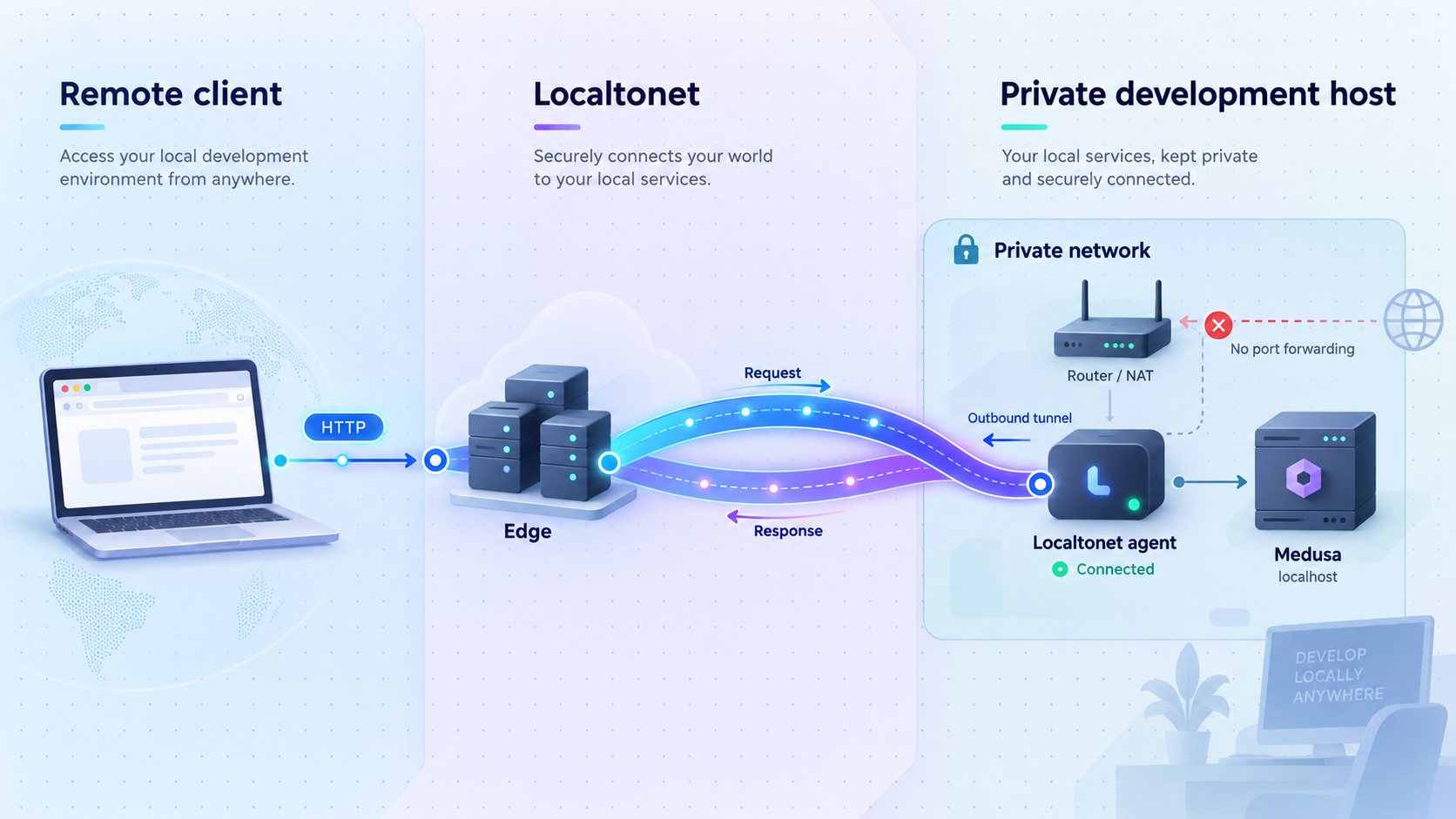
Our client establishes an outbound connection from your device to a Localtonet relay server. This provides a public URL without inbound router port forwarding, firewall port-opening changes, VPN setup, or a public IP address. The target service must already be reachable from the device running our client.
For the simplest setup, run Localtonet on the same computer as Medusa. Use 127.0.0.1 and port 9000 for the backend. If you also need the storefront, create a second HTTP tunnel using 127.0.0.1 and port 8000.
Install and run the Localtonet client
Install our client on the device that can reach Medusa. Start it and keep it running for the entire remote session.
Authenticate or select the client device
Use the device-specific authentication token through the supported client workflow, then select that device for the tunnel. Keep the token secret.
Select an available relay server
Choose a currently available server or region from the dashboard. Available values can vary, so do not copy a server code from an unrelated setup.
Create the backend HTTP tunnel
Select an HTTP tunnel and set the local target to 127.0.0.1 on port 9000. Choose an available process type such as Random Sub Domain, Custom Sub Domain, or Custom Domain. A random subdomain is convenient for temporary testing.
Start the tunnel
Creating the configuration does not start it. Use the Start button and confirm that both the selected device and tunnel show as connected or running.
Verify the public backend
Open the assigned HTTPS address and request its /health path. Then test /app if remote admin access is intentional. Apply the exact public origin to Medusa's CORS configuration when browser requests require it.
You can perform a concrete remote health check by replacing the hostname below:
curl -i https://backend-example.localtonet.com/health
The expected result is the same as the local test: HTTP 200 with an OK body. If local health succeeds but public health fails, inspect the Localtonet device, tunnel status, and configured target. If both return 200 but the browser admin fails, inspect CORS, authentication, cookies, and browser console messages.
Expose the optional storefront
Create a second HTTP tunnel when remote users need the Next.js storefront:
- Target
127.0.0.1on port8000. - Start the storefront tunnel separately.
- Set
NEXT_PUBLIC_MEDUSA_BACKEND_URLto the public backend URL. - Add the public storefront origin to
STORE_CORSandAUTH_CORS. - Restart the backend and storefront after changing their environment values.
Test the storefront from another browser profile or network. Confirm that product and region requests reach the public backend rather than trying to call localhost:9000 on the visitor's device.
For current dashboard details, see our HTTP tunnel documentation.
Connectivity alone is not enough for a browser-based multi-service application. The storefront must know the public backend address, and the backend must allow the exact storefront, admin, and authentication origins that apply to your scenario.
Secure a publicly reachable Medusa development environment
A local development server usually has a narrow exposure boundary. A public tunnel changes that boundary. Anyone who can reach the URL can send requests to the target, even when you shared the address with only one intended collaborator.
Remember that port 9000 includes the admin
The bundled admin is served at /app on the same origin as the backend. You cannot treat a port 9000 tunnel as an API-only route merely because you share only an API path. Keep admin authentication enabled, use strong credentials, and stop the tunnel when remote administration is no longer required.
Use development data
Avoid copying production customer, order, payment, or credential data into the exposed development database. Use synthetic products and customers where possible. Do not expose PostgreSQL, a debugger, an internal metrics listener, or another supporting service simply because the backend needs it locally.
Protect every secret
Keep DATABASE_URL, JWT secrets, cookie secrets, provider credentials, admin passwords, and Localtonet device tokens out of source control and browser-facing environment variables. A Localtonet token identifies a client device and must not appear in a Medusa repository, public command example, or screenshot.
Apply least privilege and a short lifecycle
Expose only the component required for the current task. A storefront review may need ports 8000 and 9000, while an API integration may need only port 9000. Stop an unnecessary tunnel rather than relying on an unadvertised URL. Delete the tunnel configuration when it is no longer useful.
Localtonet provides reachability to the configured service. Medusa must continue to enforce authentication and authorization. Do not disable admin login, broaden CORS to every origin, or remove application controls to make a remote test pass.
Run and restart the development stack predictably
Start the stack from its dependencies outward. This sequence makes each failure visible before another layer is added:
- Start PostgreSQL and confirm it accepts connections.
- From the backend directory, run
npm run dev. - Verify
http://localhost:9000/healthandhttp://localhost:9000/app. - If installed, start the storefront with
npm run devin its own directory. - Verify
http://localhost:8000and its browser API requests. - Start or confirm the Localtonet client.
- Start the backend tunnel and, when needed, the storefront tunnel.
- Test the public health endpoint, admin, and storefront.
Environment changes require process restarts. Stop the development process with Ctrl+C, update the appropriate environment file, and run npm run dev again. Restart both backend and storefront after changing the backend public URL or origins used by both applications.
Preserve the generated lockfiles. Before upgrading Medusa, review its release notes for runtime requirements, database migrations, configuration changes, and integration compatibility. Verify the upgraded application locally before restarting public access.
Troubleshoot Medusa, PostgreSQL, ports, and public requests
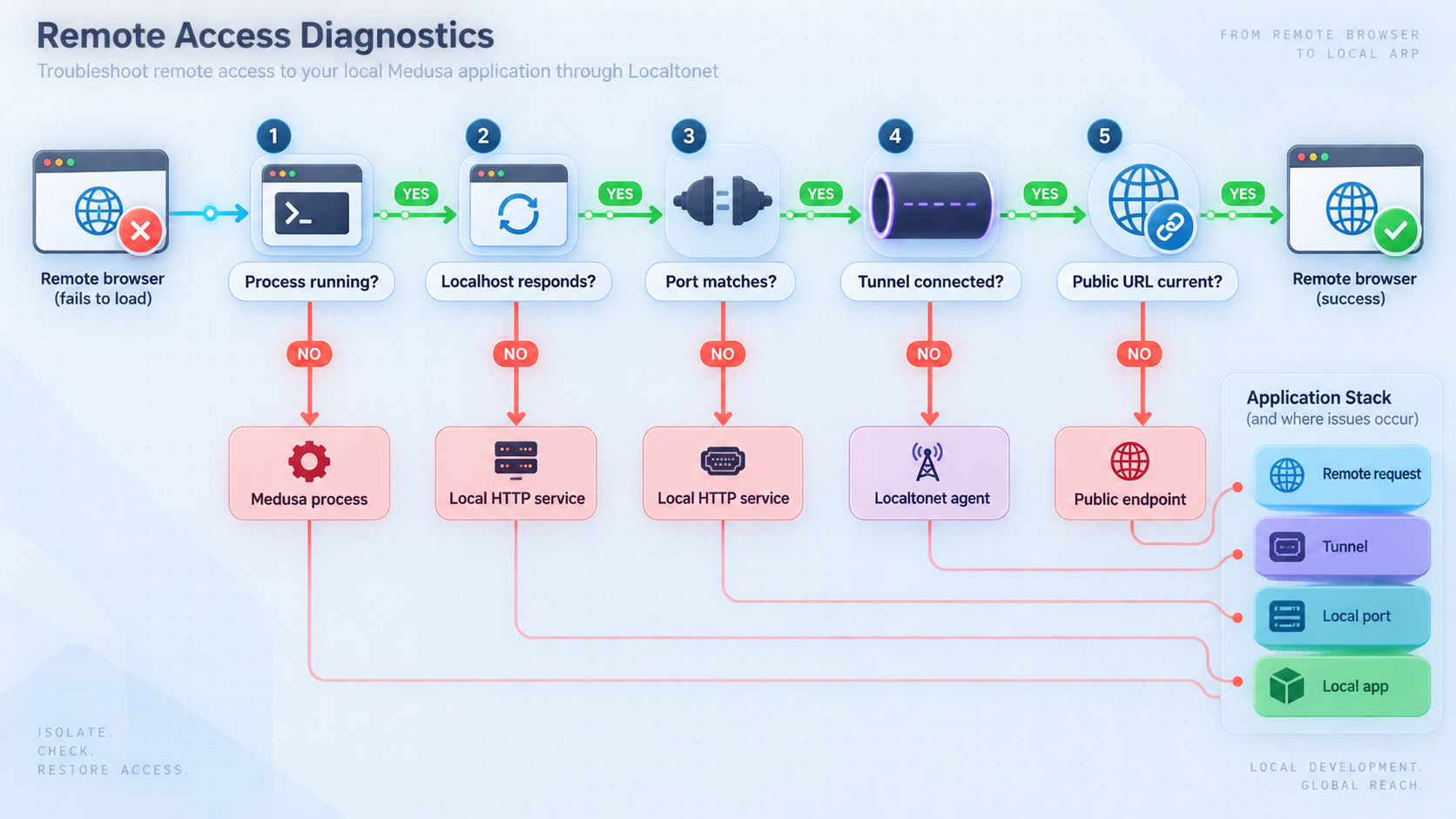
Node.js is unsupported or dependency installation fails
Check the active runtime in the same terminal where you run the installer:
node --version
npm --version
which node
which npm
Node.js must be version 20 or newer for this workflow. If a version manager is installed, activate the intended version before rerunning npm commands. On Windows with WSL2, install and run Node.js, PostgreSQL tools, and the project inside the same WSL environment. Avoid creating the project with one Node installation and starting it with another.
If installation was interrupted, read the first npm or project-creator error. Do not delete the lockfile from an otherwise successful installation merely to hide a compatibility problem.
PostgreSQL connection fails
Check readiness and then test the exact connection independently:
pg_isready
psql "$DATABASE_URL" -c "select current_database(), current_user;"
Confirm the database name, role, password, hostname, and port. If the password contains characters such as @, :, /, or #, ensure it is correctly URL-encoded in DATABASE_URL. A successful psql test followed by a Medusa failure usually indicates that Medusa is reading a different environment value or project directory.
Database migrations fail or the schema is incomplete
Stop the backend, confirm that DATABASE_URL points to the intended development database, and run Medusa's migration command from the backend directory:
npx medusa db:migrateRead the first migration error. Verify database ownership and permissions rather than granting broad administrative access. Do not drop a database containing important data as a routine first response. After a successful migration, start the backend again:
npm run devPort 9000 or 8000 is already occupied
On Linux, macOS, or WSL, identify the process using the port:
lsof -i :9000
lsof -i :8000
If lsof is unavailable, use:
ss -ltnp | grep ':9000\|:8000'Stop the obsolete process or configure the application according to its current documentation. If you intentionally change a local port, update the corresponding Localtonet target and all dependent application URLs. Do not assume the tunnel follows a process to its new port.
The local health endpoint fails
Confirm that npm run dev is still active and inspect the backend terminal. Then retry:
curl -v http://localhost:9000/health
A connection refusal means nothing is listening at that address. An HTTP error means a server answered, so inspect the response and Medusa logs. Do not continue to Localtonet configuration until this command returns HTTP 200 with OK.
The tunnel is running but the public health check fails
Compare the tunnel target with the verified local listener. For a same-host backend setup it should be 127.0.0.1:9000. Confirm that the selected Localtonet device is connected and that the tunnel was explicitly started. Creating or saving it is not enough.
If our client runs on another device, 127.0.0.1 refers to that other device, not the Medusa host. The Medusa service must listen on an address reachable from the client, and the tunnel must target that reachable host address. Change listener and firewall settings only when allowed by your network policy.
The admin or storefront loads but API calls fail
Open the browser developer tools and inspect the failed request. Check these values:
- The request uses the public backend URL rather than the visitor's
localhost:9000. - The public storefront origin appears in
STORE_CORS. - The relevant storefront and backend origins appear in
AUTH_CORS. - The public admin origin appears in
ADMIN_CORS. - The origins include the correct
https://scheme and no route path. - Medusa was restarted after the environment values changed.
You can inspect a browser preflight response by replacing the example origins:
curl -i -X OPTIONS \
  -H "Origin: https://store-example.localtonet.com" \
  -H "Access-Control-Request-Method: GET" \
  https://backend-example.localtonet.com/store/regions
Review the response headers for the allowed origin. The route itself may also require Medusa-specific client headers or configuration, but a missing matching CORS header indicates that the browser origin has not been permitted correctly.
Authentication works locally but not through HTTPS
First verify that the public backend or admin origin is included in AUTH_CORS. Then inspect browser cookies and the exact authentication response. Do not respond by allowing every origin or disabling authentication. Hostname, scheme, cookie policy, stale browser state, and an outdated public URL can all affect the result.
The storefront still uses the old backend address
Stop the storefront process, verify NEXT_PUBLIC_MEDUSA_BACKEND_URL, and start it again with npm run dev. Public Next.js variables are incorporated into browser-facing output, so an already running process may continue serving the previous value.
| Symptom | Most likely layer | First check |
|---|---|---|
npm run dev exits immediately |
Runtime, environment, database, or migration | Read the first backend error and verify Node.js plus DATABASE_URL |
Local /health refuses the connection |
Backend process or port | Confirm the process remains active and inspect port 9000 |
Public /health fails while local succeeds |
Localtonet target or lifecycle | Confirm device connection, target 127.0.0.1:9000, and Start status |
| Admin HTML opens but login requests fail | Admin or authentication origin | Check ADMIN_CORS, AUTH_CORS, browser errors, and process restart |
| Storefront tries to call localhost | Storefront backend URL | Set NEXT_PUBLIC_MEDUSA_BACKEND_URL to the public backend origin and restart |
| Storefront receives a browser CORS error | Backend origin configuration | Add the exact storefront HTTPS origin to STORE_CORS and usually AUTH_CORS |
| Access disappears after closing terminals | Process availability | Restart PostgreSQL if needed, Medusa, the storefront, our client, and each tunnel |
Frequently asked questions
What command installs Medusa locally?
For the current Medusa v2 application workflow, run npx create-medusa-app@latest my-medusa-store. The creator asks for PostgreSQL details and whether to install the optional Next.js starter. This tutorial uses v2.21.2 as its selected release reference, while @latest means the scaffolder can install newer compatible project packages in the future.
Which Node.js version does this Medusa setup require?
Use Node.js 20 or newer for this Medusa v2 workflow. Confirm the active runtime with node --version in the same terminal used to create and start the project.
Does Medusa require PostgreSQL?
Yes. The local application needs a reachable PostgreSQL database. Verify the connection independently with psql before diagnosing Medusa or Localtonet.
What are the default local Medusa URLs?
The standard Medusa backend is available at http://localhost:9000, its health endpoint is http://localhost:9000/health, and the bundled admin is at http://localhost:9000/app. The optional Next.js starter storefront runs separately at http://localhost:8000.
Which port should I enter in Localtonet?
Use port 9000 for the Medusa backend and bundled admin. Use a separate tunnel targeting port 8000 for the optional Next.js storefront. Confirm both locally before creating their tunnels.
Does the Medusa installer always include a storefront?
No. The Next.js starter is optional and is installed as a separate project when selected. The backend and its bundled admin can run without that storefront.
Why do I need two public URLs for a remote storefront demonstration?
The storefront and backend are separate HTTP processes. A remote browser needs the storefront URL on port 8000 and a reachable backend URL on port 9000. The storefront must be configured with the public backend URL, and the backend must allow the public storefront origin through STORE_CORS and relevant authentication CORS settings.
Should I allow every origin to avoid CORS errors?
No. Add the exact Localtonet HTTPS origins to STORE_CORS, ADMIN_CORS, and AUTH_CORS according to the service using them. Do not use unrestricted origins for administrative or authentication traffic.
Does Localtonet start Medusa or PostgreSQL?
No. PostgreSQL and Medusa must be running independently. Creating a Localtonet tunnel also does not start it automatically. The selected client must be connected and the tunnel must be started with the Start button.
Do I need router port forwarding or a public IP address?
No. The Localtonet client establishes an outbound connection to our relay server. This HTTP tunnel workflow does not require inbound router port forwarding, a public IP address, firewall port-opening changes, or VPN setup.
Share your verified Medusa application with Localtonet
Start with a healthy Medusa backend on port 9000, add the exact public origins required by your admin or storefront workflow, and then create a Localtonet HTTP tunnel for each service that remote users actually need.
Get Started Free →

