

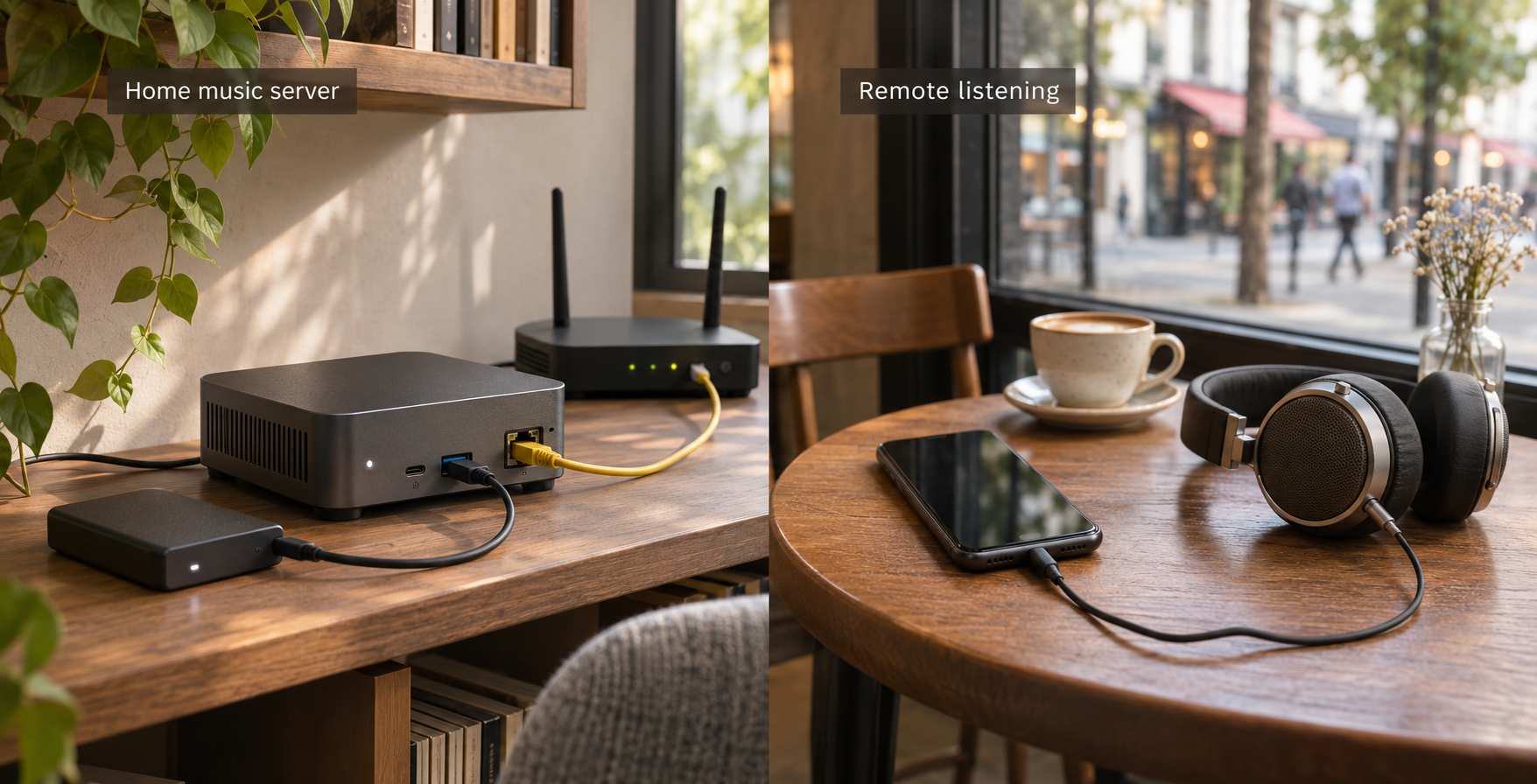
Build a private browser-based music server, verify playback, then reach it securely from outside your home network
Aurral combines self-hosted music discovery, library management, downloads, playlists, and browser playback in one application. In this guide, we install Aurral with Docker Compose, configure its persistent storage, create the first administrator account, add music, and verify local playback before introducing any remote-access layer. After the local service works correctly, we connect it to a Localtonet HTTP tunnel so it can be reached without inbound router port forwarding, firewall changes, a VPN, or a public IP address. We also cover authentication, storage health checks, updates, backups, routine operations, and practical troubleshooting.
📋 What's in this guide
What Aurral provides and how this deployment works
Aurral is a self-hosted application for music discovery, downloads, library management, playlists, and playback. Its built-in web interface can play indexed music directly in a browser. It can also serve a music library to compatible Subsonic clients through its /rest endpoint. Optional integrations include services such as Lidarr, Navidrome, Plex, Jellyfin, Last.fm, ListenBrainz, Koito, and several download clients, but those integrations are not required to complete the basic installation in this guide.
The deployment has two deliberately separate stages. First, Docker Compose starts Aurral on the host and publishes its web service on TCP port 3001. You open the local interface, create an administrator account, choose where music will live, run Aurral's storage checks, and confirm that a track plays. This local verification matters because a tunnel cannot repair an application that is not running, cannot read its files, or is listening on the wrong port.
Second, the Localtonet client runs on the Aurral host or on another device that can reach it. The client establishes an outbound connection to one of our relay servers. An HTTP tunnel then maps a public HTTPS address to Aurral's local HTTP endpoint. The public tunnel remains available only while the selected Localtonet device is connected and the tunnel is running.
./config and ./data directories to /config and /data inside the container.
/rest. Compatible clients can connect using an Aurral account after local storage and playback are configured.
What this guide does not assume
You do not need Lidarr just to run Aurral. Without Lidarr, Aurral can keep music in its own Library folder and manage that library itself. You also do not need Navidrome, Plex, or Jellyfin for browser playback because Aurral includes its own player. If you already run one of those servers, you can add Aurral's Library folder to it later.
This guide does not prescribe a particular operating system, CPU architecture, storage capacity, or memory allocation because the supplied project documentation does not establish universal requirements for those details. The host must support Docker and the Docker Compose command used below. Storage requirements depend on the size of the music library, downloads, artwork, application data, and backups.
The available project evidence identifies an Aurral v2.13.0 release, while one project landing page still displays v2.10.0. The Compose example uses the moving latest image tag, so its contents can change over time. Check the running version after installation and review the current release notes before an upgrade. We cannot infer a maintenance cadence from a single release page.
Prerequisites and deployment decisions
Prepare the host and storage plan before starting the container. Changing mounts after Aurral has indexed a library can create unnecessary path mismatches, so it is better to decide where the files live first.
| Requirement | Why it is needed | What to confirm |
|---|---|---|
| Docker with Compose support | Runs the official container configuration | The docker compose command is available to the account performing the installation |
| Persistent host storage | Preserves configuration, database information, artwork, and music-related data across container replacement | The chosen filesystem has enough free space and is included in the host backup plan |
| TCP port 3001 | Publishes Aurral's web interface on the Docker host | No other host process is already using port 3001 |
| A modern web browser | Completes onboarding and verifies browser playback | The browser can reach the Docker host locally |
| Music files or a writable Library location | Provides content for playback and a destination for music Aurral manages | The container can read existing media and write to the selected Library folder |
| A Localtonet device token | Identifies the device that will run the remote-access tunnel | The token is obtained from the current dashboard and is kept private |
Plan the shared filesystem
Aurral must be able to read the files that its connected services write. The project documentation recommends mounting the same host media folder into Aurral and the other relevant containers at the same container path, commonly /data. If Lidarr manages a root folder, that root should be mounted into Aurral at the same container path that Lidarr uses. Keep Aurral's /config mount separate from the shared media location.
The documented minimal Compose example maps ./data on the host to /data in Aurral. That is sufficient for a clean standalone installation in which Aurral's media-related files are stored beneath that directory. If an existing collection lives somewhere else, add an explicit Docker mount for that location before onboarding. Do not enter a host-only path in Aurral's interface. Aurral must receive the path as it appears inside its container.
During onboarding, Aurral offers two approaches for existing music:
- Read in place: Aurral plays files from their existing location and does not change them.
- Import: Aurral copies the files into its Library folder while leaving the originals in place.
Choose based on ownership and storage expectations. Read in place is appropriate when another application or an established folder structure owns the collection. Import is appropriate when you want Aurral's Library location to contain its own copy. Either option still requires a correct container mount.
Understand PUID and PGID
The official Compose example sets PUID=1000 and PGID=1000. These values represent the user and group identity used for file access in the documented deployment. The values must correspond to an identity that can read and write the relevant host directories. Do not assume that 1000 is correct on every host. If the host uses a different owner for the installation directories, determine the appropriate numeric user and group IDs and update the values before startup.
Self-hosting does not change copyright, licensing, privacy, or acceptable-use obligations. Only import, download, stream, or share media when you have the necessary rights. If other people receive accounts, configure their permissions according to what they are authorized to access.
Install Aurral with Docker Compose
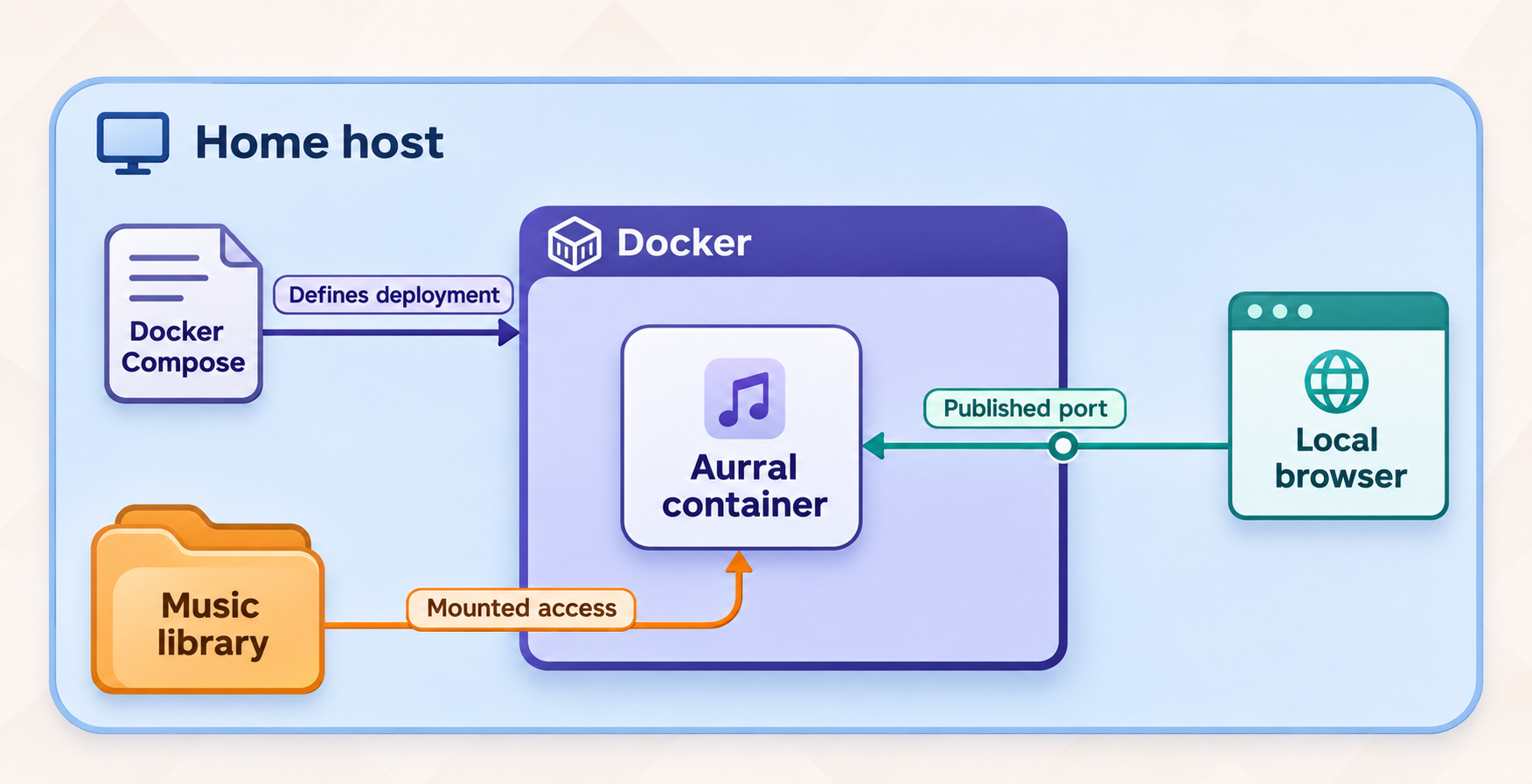
The following installation follows the project's documented Compose configuration. Choose a dedicated directory on the Docker host, create a file named compose.yaml in it, and place the configuration below in that file. The relative host paths are resolved from the Compose project directory.
services:
  aurral:
    image: ghcr.io/lklynet/aurral:latest
    restart: unless-stopped
    ports:
      - "3001:3001"
    environment:
      - PUID=1000
      - PGID=1000
    volumes:
      - ./config:/config
      - ./data:/data
Before starting the service, adjust PUID and PGID if the documented values do not match the host identity that should own the files. If you need to expose an existing music directory to Aurral, define that mount now and use a container path consistent with the other services that read or write the same media. The exact host path is deployment-specific and should not be copied from an unrelated example.
Create the Compose project directory
Select a persistent location on the Docker host. The documented relative volume mappings will place Aurral's configuration in ./config and data in ./data beneath this project directory.
Save the documented Compose configuration
Create compose.yaml with the service definition shown above. Review the user and group IDs, port mapping, and storage mounts before continuing.
Start Aurral
From the directory containing compose.yaml, run the documented startup command:
docker compose up -dOpen the local web interface
On the Docker host, open http://localhost:3001. From another device on the same network, use the Docker host's reachable LAN address with port 3001. Do not proceed to remote exposure until this page loads reliably.
What the Compose file does
The image ghcr.io/lklynet/aurral:latest is pulled from the project's GitHub Container Registry namespace. The restart policy unless-stopped allows Docker to bring the container back after a Docker or host restart unless an operator explicitly stopped it. The mapping 3001:3001 publishes the container's Aurral service on port 3001 of the host.
The ./config:/config mapping is the persistent configuration mount. The ./data:/data mapping provides persistent data and a shared filesystem location. Recreating the container does not remove those host directories, but deleting, overwriting, or failing to back up the host directories can still cause data loss.
Publishing 3001:3001 can make the service reachable on network interfaces allowed by the host's Docker and firewall configuration. Treat the Aurral login page as a protected service, create the administrator account promptly, and do not add router port forwarding. Localtonet does not need an inbound router rule for the remote-access workflow in this guide.
Complete Aurral's first-run configuration
The first-run process creates the administrator account, identifies where music lives, and offers optional service connections. Complete the filesystem plan before this stage. Although most integration choices can be changed later in Settings, a correct storage layout is foundational.
Create the administrator account
Open Aurral and enter a username and a strong, unique password for the administrator. This account is separate from accounts used by Navidrome, Plex, Jellyfin, or other connected services.
Decide whether to enable local-network auto-login
Aurral offers an Auto-login on local network option for a single-user home-network setup. For a service that will be exposed through a public tunnel, leave this disabled unless you have tested exactly how Aurral classifies tunneled requests and are satisfied that remote visitors cannot inherit local-network access.
Choose how to handle existing music
Under Your music, select Read in place to leave existing files unchanged, or Import to copy them into Aurral's Library folder. The original files remain in place when importing.
Set the Library folder
Choose a writable path inside the mounted data filesystem. The project documentation gives /data/downloads/aurral as an example. Aurral stores music that it adds in this Library folder.
Add optional connections
If needed, add listening history from Last.fm, ListenBrainz, or Spotify, import plays from Navidrome, Plex, or Jellyfin, or connect Lidarr. Each selection opens the relevant Settings page. These connections are optional and can be completed later.
Enter Aurral and run storage checks
Select Go to Aurral, then open Settings > Status > Storage and select Run checks. Correct every failed check before relying on playback or adding remote access.
What the storage checks validate
Aurral's storage health checks confirm that it can read accessible files and write to the configured Library folder. If Lidarr is connected, a separate section checks Lidarr library files. Aurral skips that section when Lidarr is not connected. The Aurral-native playback check confirms that the built-in player can read indexed media.
A failed check is usually a mount, path, ownership, or permission problem. Fixing it at this stage is safer than continuing with a partially functional system. For example, a folder can appear in the interface while the container still lacks permission to read individual tracks or write downloaded files.
Optional service connections
Download clients are configured under Settings > Downloads. The documented options include slskd, SABnzbd, NZBGet, Tidarr, and deemix. The built-in yt-dlp source does not require a separate service. Any connected download client should place completed files beneath the shared media mount so Aurral can see them.
If you use Navidrome, Plex, or Jellyfin, add Aurral's Library folder to a music library in that server. Navidrome and Jellyfin can also import Aurral's playlist files. Lidarr remains optional and is connected under Settings > Library > Lidarr when you want it to manage some or all artists and albums.
When two containers refer to the same media, use the same container path wherever possible. If one service reports a file as /data/music/album/track.flac but that path does not exist inside Aurral, the shared host directory alone is not enough. Mount the folder inside Aurral before configuring any necessary path mapping.
Verify Aurral locally before creating a tunnel
A successful login page proves only that the web process is running. The objective is to verify the complete playback path: browser to Aurral, Aurral to its index, and the container to the underlying audio file.
Confirm the interface remains available
Reload http://localhost:3001 on the host, or the corresponding host LAN address from another local device. Sign in with the administrator account and confirm that navigation works without repeated connection errors.
Confirm storage health
Return to Settings > Status > Storage, run the checks, and verify that Aurral can read its indexed media and write to the Library folder.
Locate an indexed track
Open Library or Search and select a track that exists in a mounted folder. If nothing is available, revisit the first-run music selection and verify that the relevant directory is mounted inside the container.
Test browser playback
Start the track and listen long enough to establish that audio is being delivered consistently. Test seeking if that operation is important to your normal listening workflow.
Test from the future tunnel device
If the Localtonet client will run on another machine, open Aurral from that machine using the Aurral host's reachable LAN address and port 3001. A tunnel device cannot forward traffic to a local target it cannot reach.
Do not interpret a successful page load as a successful music deployment. Artwork and metadata may load while audio fails because the underlying path is unavailable. The native playback storage check and an actual listening test are both important.
Optional Subsonic verification
Aurral exposes a Subsonic-compatible service at /rest. A compatible player can connect with an Aurral account. The exact fields and compatibility behavior depend on the client, so use the client's current instructions and the Aurral server address. Subsonic testing is optional for this browser-focused guide and should not delay validation of the built-in player.
Access Aurral remotely with a Localtonet HTTP tunnel
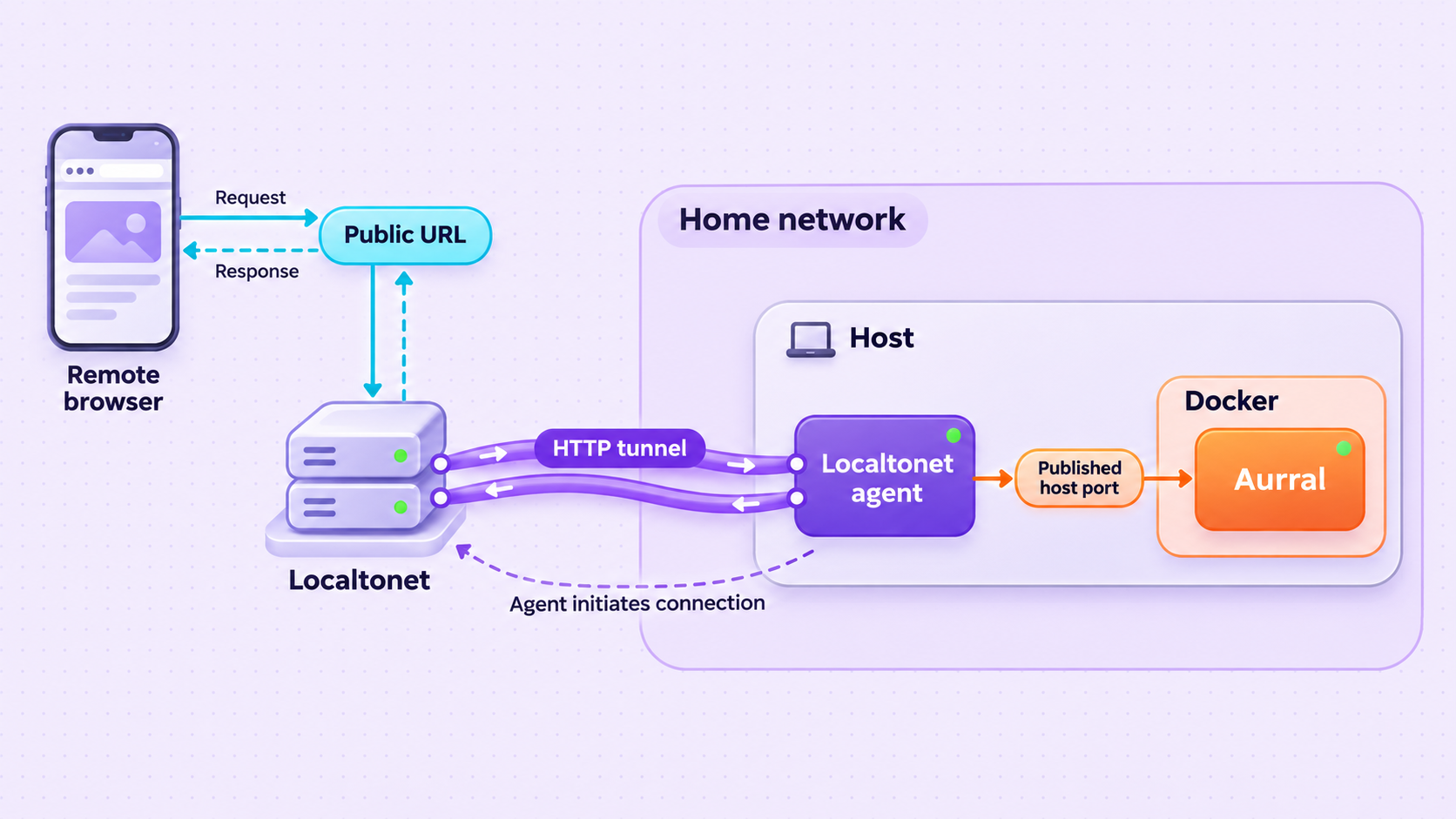
Once local playback works, an HTTP tunnel is the appropriate Localtonet tunnel family for Aurral's browser interface. The Localtonet client must run on the Aurral host or on a device that can reach Aurral's local IP address and port. It creates an outbound connection to our relay infrastructure and provides a public HTTPS address for the local web service.
HTTP and File Server tunnels support Random Sub Domain, Custom Sub Domain, and Custom Domain process types. Each serves the configured content at a public HTTPS address. Availability can vary by current plan or product configuration, so choose from the process types and relay servers displayed in your dashboard. Do not copy a server code, domain, or device token from another deployment.
Install and run the Localtonet client
Install the current Localtonet application on the Aurral host or another device that can reach it. Authenticate the device with its own token, and keep that token private.
Select the authenticated device
In the Localtonet dashboard, choose the connected device that will carry the tunnel. Creating a configuration for an offline or unreachable device will not make Aurral available.
Select an available relay server
Choose a server or region from the values currently offered in the dashboard. Available values can change and should not be hardcoded from an article.
Create an HTTP tunnel to Aurral
Choose the HTTP tunnel family and an available process type. Set the local target to the IP address and port where the selected Localtonet device reaches Aurral. Use 127.0.0.1 with port 3001 when both clients run on the same host and Aurral is reachable there. If Localtonet runs on another device, use the Aurral host's reachable LAN address and port 3001.
Start the tunnel
Creating a tunnel does not start it. Use the Start button, then wait for the dashboard to show the running connection and assigned public address.
Test the public HTTPS address
Open the assigned URL from a network outside the home LAN, such as a mobile connection. Confirm that the Aurral login page appears, sign in, and play a track. Stop or delete the tunnel when remote access is no longer required.
For the current dashboard workflow and field names, consult our Localtonet HTTP tunnel documentation. The dashboard is authoritative for available relay selections and process types in your account.
The public address works only while the selected Localtonet device is connected and the tunnel is running. A saved tunnel configuration is not the same as an active tunnel. If remote access stops, check both the device connection and the tunnel status before changing Aurral.
Choosing the correct local target
| Localtonet client location | Typical Aurral target | Required verification |
|---|---|---|
| On the same host as Docker | 127.0.0.1:3001 |
A browser on that host can open http://localhost:3001 |
| On another LAN device | Aurral host LAN address with port 3001 |
The Localtonet device can open that exact address locally |
| On a device connected through another routed network | An address for Aurral that is reachable from that device | Routing and local access policies permit the connection before tunneling |
Do not use localhost when Localtonet runs on a different physical or virtual machine. On that device, localhost refers to the Localtonet device itself, not the Docker host. Test the exact target from the client device before creating the tunnel.
Secure a remotely accessible music server
A public URL changes the risk profile of a service. The absence of router port forwarding simplifies connectivity, but it does not replace application authentication, account hygiene, host patching, least privilege, or careful sharing. Treat the public Aurral login page as an internet-facing service.
A Localtonet device token identifies the client device and must remain private. Credentials for Aurral integrations, download clients, Lidarr, listening services, SSO, or other systems should also be treated as secrets. Do not place real credentials in screenshots, Compose files committed to public repositories, support posts, or shared logs.
Authentication and account design
Aurral supports multiple users, permissions, SSO, and native OIDC. Whether to use local accounts or centralized authentication depends on the deployment. For a small personal server, a strong local account may be sufficient. For a multi-user environment, individual accounts make it easier to remove access without changing a shared password. Do not provide administrator access simply because a person needs playback.
Aurral also supports sharing links for music. A share link and a full account are different access mechanisms. Review active shares, stop shares that are no longer required, and remember that anyone who receives a functioning share link may be able to use it according to Aurral's sharing behavior.
Exposure scope
The HTTP tunnel forwards the Aurral web application selected as the local target. It does not automatically expose Docker management, SSH, unrelated containers, or the host filesystem. Keep those services on separate interfaces and ports, and do not create additional tunnels unless there is a specific authorized need.
Localtonet standard HTTP tunneling is not a VPN. If the goal is to bridge private networks rather than publish one web application, that is a different architecture. Our VPN Manager is the Localtonet feature intended for private mesh VPN use cases.
Routine operation, updates, and backups
A self-hosted music service needs more than a successful first startup. Establish a small operational routine covering container state, storage capacity, backups, account review, and tunnel status.
Useful Docker Compose operations
Run these commands from the directory containing compose.yaml. They are standard Docker Compose operations for inspecting and controlling the service defined in this guide.
docker compose ps
docker compose logs aurral
docker compose restart aurral
docker compose stop
docker compose up -d
Use docker compose ps to inspect whether the container is running. Use the logs when the web interface fails to load or Aurral reports a backend error. Restarting the service can recover from a transient process problem, but repeated failures should be diagnosed rather than hidden by restarts.
Stopping the Aurral container makes the local target unavailable. A Localtonet tunnel may still appear configured, but requests cannot complete while the application is stopped. Similarly, stopping the Localtonet client or tunnel removes remote access without stopping local Aurral playback.
Updating the moving image tag
The documented Compose file uses ghcr.io/lklynet/aurral:latest. Re-running docker compose up -d does not necessarily fetch a newer image if the current image already exists locally. A common Compose update workflow is to pull the configured image and recreate the service:
docker compose pull
docker compose up -d
Before doing this, read the release notes for the version being introduced, back up persistent data, and confirm that connected integrations meet any new version requirements. Because latest moves, it does not by itself provide a reproducible version pin. If your operational policy requires pinned versions, use only an image tag confirmed by the project's current registry and documentation rather than inventing a tag from an unrelated page.
Back up persistent data
At minimum, include the host directories mapped to /config and /data in the backup plan. Also include any separately mounted media folder that is not already protected elsewhere. A backup is useful only if its retention, permissions, and restore process have been tested.
Aurral v2.13.0 release information describes an application backup under Settings > General > Backup. That backup is a single ZIP containing settings, users, playlists, flows, history, and custom artwork. Restoring it restarts Aurral and preserves replaced data under a dated /config/before-restore-<date> location. The unless-stopped restart policy allows Docker to bring Aurral back after that restart.
The documented backup contents list settings and application data, not the underlying audio collection. Protect music files and mounted media directories with a separate filesystem or storage backup. Confirm that a restored deployment can read the same container paths before declaring recovery complete.
Review storage and access regularly
Monitor free space in the host directories backing /config, /data, and any imported library. Music downloads, artwork, generated playlists, and backups can increase storage use. Run Aurral's storage checks after moving media, changing permissions, reconnecting Lidarr, or altering mounts.
Periodically review Aurral users, permissions, integrations, API credentials, and active shares. In Localtonet, review the selected device, relay, target, and tunnel status. Stop or delete configurations that are no longer needed. If a device token may have been exposed, replace it through the current account workflow rather than continuing to use it.
Troubleshooting Aurral and Localtonet access
Troubleshoot in layers. Start with the container, then verify local HTTP access, storage, playback, connectivity from the Localtonet device, and finally the public tunnel. This order avoids changing a working tunnel to compensate for an application problem.
| Symptom | Likely area | What to check |
|---|---|---|
http://localhost:3001 does not open |
Container or host port | Check docker compose ps, inspect logs, and confirm no other process occupies host port 3001 |
| Aurral opens but the library is empty | Mount or indexing configuration | Confirm the music directory is mounted inside the container and that Aurral was given the container path, not a host-only path |
| Tracks appear but do not play | File readability or path mismatch | Run Settings > Status > Storage > Run checks and verify the native playback check |
| Aurral cannot write to the Library folder | Ownership or permissions | Review the host directory owner, the configured PUID and PGID, and whether the mount is writable |
| Lidarr files are unavailable | Cross-container path mismatch | Mount the Lidarr root into Aurral at the same container path and rerun the Lidarr storage checks |
| Local access works, but the tunnel target fails | Target address | From the Localtonet device, open the exact local IP and port configured in the tunnel |
| The tunnel exists but no public connection is available | Tunnel lifecycle | Confirm the selected device is connected and use the Start button because creation alone does not run the tunnel |
| The public page loads, but audio is unreliable | Application, storage, or network path | Retest the same track locally, inspect Aurral logs, check host resources and storage, then compare remote behavior |
| Remote access stops after a reboot | Service startup | Confirm Docker, Aurral, the Localtonet client, the authenticated device connection, and the tunnel are all running |
localhost:3001 fails from another device |
Address interpretation | Use the Docker host's reachable LAN address because localhost refers to the device making the request |
Container starts and then stops
Inspect the Aurral service logs rather than repeatedly issuing restart commands. Validate the Compose syntax, volume availability, and directory permissions. A missing host mount, inaccessible filesystem, or invalid ownership can prevent initialization. If an update introduced the behavior, preserve the existing data and review the relevant release notes before attempting rollback or manual database changes.
Storage checks fail after moving music
A container sees only paths explicitly mounted into it. Moving a host folder without updating the Compose mount can leave Aurral pointing to a valid-looking container path backed by nothing useful. Restore the original host path or update the mount carefully, then confirm that the same container path remains valid for Aurral and any connected service.
The public URL shows a connection error
First open Aurral locally. If local access fails, repair Aurral before touching the tunnel. If local access succeeds, test the configured target from the device running Localtonet. Then confirm that the device is connected, the correct HTTP tunnel is selected, and the tunnel is started. Avoid changing several layers simultaneously because that makes the original fault difficult to identify.
Login behavior is different remotely
Review Aurral's account settings and local-network auto-login configuration. Do not assume that a request delivered through a tunnel will be classified the same way as a browser directly attached to the LAN. The safe baseline is to require authentication remotely and verify behavior from an external network before sharing the URL.
Frequently asked questions
Does Aurral require Lidarr?
No. Lidarr is optional. Without it, Aurral can keep music in its own Library folder and manage that library itself. Connect Lidarr only when you want Lidarr to manage some or all artists and albums, and mount its root folder into Aurral at the same container path.
Can Aurral play music without Navidrome, Plex, or Jellyfin?
Yes. Aurral includes a browser-based player for Library tracks and runs its own Subsonic-compatible service at /rest. Navidrome, Plex, and Jellyfin are optional integrations for deployments that already use those media servers.
Which port does Aurral use in the documented Docker Compose setup?
The documented Compose configuration maps host port 3001 to container port 3001. Local access on the Docker host is therefore available at http://localhost:3001 when the service is running correctly.
Do I need to forward port 3001 on my router?
No. With Localtonet, the client establishes an outbound connection to our relay infrastructure. The Aurral HTTP tunnel can provide a public address without an inbound router port-forwarding rule, firewall change, VPN setup, or public IP address.
Should the Localtonet target use localhost or the Aurral host's LAN address?
Use 127.0.0.1:3001 when the Localtonet client and Aurral are reachable on the same host. If Localtonet runs on another device, use an Aurral host address that is reachable from that device, normally the host's LAN address with port 3001. Test the exact target locally first.
Is the Aurral tunnel always online after I create it?
No. Creating a tunnel does not start it. The selected Localtonet device must be connected and the tunnel must be running. Aurral itself must also remain available at the configured local target.
What should I back up?
Back up the host directories mapped to /config and /data, plus every separately mounted media directory. If the installed Aurral version provides its application backup feature, use it as an additional recovery layer, not as a presumed backup of the audio files themselves.
Can I use a custom domain for remote Aurral access?
Localtonet HTTP tunnels support Random Sub Domain, Custom Sub Domain, and Custom Domain process types. Availability can vary, and custom-domain DNS requirements should be taken from the current dashboard and documentation. Do not apply DNS values from an unrelated deployment.
Make your working Aurral server available remotely
After local storage checks and browser playback succeed, create a Localtonet HTTP tunnel to Aurral's port 3001. Keep application authentication enabled, protect your device token, and stop the tunnel whenever remote access is no longer needed.