

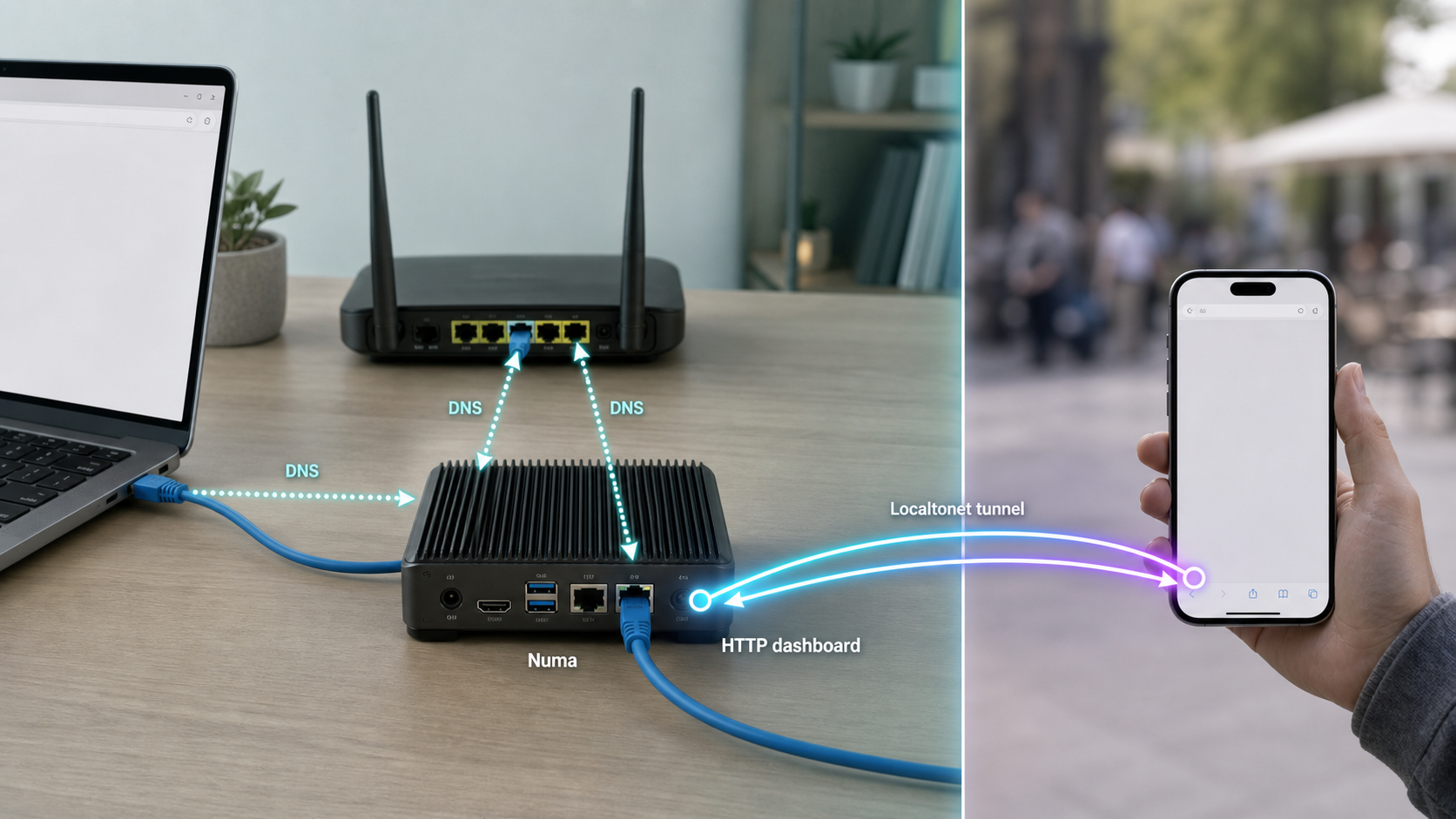
Run a portable DNS resolver locally, verify its web interface, and make the dashboard reachable when you are away
Numa is a self-hosted DNS resolver written in Rust that combines DNS caching, local service names, developer overrides, ad blocking, and multiple resolution modes in a single binary. This installation-first guide covers the documented setup paths for macOS, Linux, Arch Linux, Windows, Cargo, Nix, and Docker. We then verify the local dashboard at http://localhost:5380, review safe operating practices, and expose that HTTP endpoint through Localtonet as a separate remote-access step. The DNS listeners themselves are intentionally kept outside the public tunnel workflow because publishing a resolver requires additional access-control, certificate, and abuse-prevention planning.
📋 What's in this guide
What Numa runs and what this guide exposes
Numa is a portable DNS resolver distributed as a single Rust binary. Its documented capabilities include caching, ad and tracker blocking, local .numa service names, hostname overrides, optional recursive resolution, DNSSEC validation in recursive mode when enabled, and a DNS-over-TLS listener. It can also provide an HTTP dashboard and REST API on port 5380.
Those endpoints do not all have the same security profile. The dashboard is an HTTP application intended for management and observation. Traditional DNS uses UDP and TCP port 53, while Numa's optional DNS-over-TLS listener uses port 853. Publishing a DNS listener to the internet can create an open-resolver risk if access is not restricted correctly. It can also require firewall policy, abuse controls, certificate planning, and careful resolver configuration.
For that reason, this tutorial uses the documented dashboard endpoint at http://localhost:5380 for the Localtonet integration. We do not expose port 53 or port 853. The result is a clear separation between Numa's DNS work and its web management surface:
http://localhost:5380 while Numa is running and the endpoint is reachable.
This workflow publishes only the HTTP dashboard. Do not substitute ports 53 or 853 unless you have independently designed resolver access controls, abuse prevention, certificate handling, and network policy for that use case.
Prerequisites and installation choices
Choose one installation path rather than combining several. A native installation is appropriate when Numa should integrate directly with the host operating system and run as a system service. Docker provides an isolated deployment and is especially convenient when you already operate containers. Cargo is an all-platform source-based installation path for systems with a working Rust toolchain. Nix can run Numa directly from its repository.
Before starting, confirm the following:
- You have administrator or root access if Numa will bind DNS port
53or install itself as a system service. - Port
5380is not already occupied by another local application. - If you choose Docker, Docker is installed and the daemon or Docker Desktop is running.
- If you choose Cargo, a functional Rust and Cargo toolchain is already installed.
- If you choose Nix, the
nixcommand is already available. - You can run the Localtonet client on the Numa host or on another device that can reach the dashboard's local IP address and port.
| Installation path | Documented platform or environment | Important consideration |
|---|---|---|
| Homebrew | macOS | Installs Numa from its documented Homebrew tap. |
| Installation script | Linux | Downloads and executes the project's installation script. Review remote scripts before execution when required by your security policy. |
| pacman | Arch Linux | Uses the documented numa package name. |
| GitHub release asset | Windows | Requires selecting the appropriate release download. The supplied evidence does not establish an exact asset filename. |
| Cargo | All supported Rust environments | Builds and installs through Cargo, so a working Rust toolchain is required. |
| Nix | Nix environment | Runs Numa from the documented repository reference. |
| Docker | Linux, macOS, or Windows container environment | Linux can use host networking. Docker Desktop uses explicit port mappings in the documented example. |
Numa's documented container image supports linux/amd64 and linux/arm64. Native package and release support can change between versions, so check that the selected download matches your operating system and processor architecture. This guide does not guess an asset filename or an unverified minimum operating-system version.
The supplied release evidence identifies Numa v0.23.0 as the latest tagged release at the time of editorial research. Package managers and container tags can move independently. Record the installed version in your own deployment notes and review release changes before upgrading a production resolver.
Install and start Numa
Use the subsection for your chosen platform. The foreground startup command is useful for an initial test because it keeps output visible in the current terminal. Installing Numa as a persistent operating-system service is covered separately.
macOS with Homebrew
Install Numa from its documented Homebrew tap:
brew install razvandimescu/tap/numaStart it in the foreground with administrator privileges:
sudo numa
Administrator privileges are relevant because the standard DNS listener uses port 53. Keep the terminal open during this initial run, then visit http://localhost:5380 from the same Mac.
Linux with the installation script
The project documents this command for a standard Linux installation:
curl -fsSL https://raw.githubusercontent.com/razvandimescu/numa/main/install.sh | shA pipe-to-shell command retrieves the current script from the project's main branch and immediately executes it. In controlled environments, retrieve and inspect the script before running it instead of piping it directly to the shell. The supplied evidence documents the one-line command but does not specify every file that the script writes, so do not build automation around assumed paths without reviewing the current script.
After installation, start Numa in the foreground:
sudo numaArch Linux with pacman
Install the documented package:
pacman -S numaDepending on the current user's permissions and the system's package-management policy, the package command may need to be run with elevated privileges. The authoritative command in the supplied project evidence is shown above. Start the resolver for an initial foreground test with:
sudo numaWindows from a release download
For Windows, the documented path is to download Numa from the project's GitHub Releases page. Select a release asset that matches the Windows system and processor architecture, extract it if the asset is archived, and place the executable in a controlled location.
The available evidence does not establish an exact current Windows asset filename, archive layout, installation directory, or whether the download automatically modifies PATH. We therefore do not invent those details. Run the executable from its actual extracted directory, or add that directory to PATH using your normal Windows administration process.
Start Numa from an elevated terminal for a foreground test:
numa
Windows has a special DNS binding behavior. The built-in DNS cache service owns 127.0.0.1:53, so Numa binds 127.0.0.2:53 and installs a Name Resolution Policy Table rule when configured through its system installation workflow. If you edit bind_addr or api_bind_addr for that setup, use the documented Windows behavior as your reference rather than assuming that every Numa endpoint must bind to 127.0.0.1.
All-platform Cargo installation
If a working Rust toolchain and Cargo are already installed, use:
cargo install numa
After Cargo completes, make sure Cargo's binary directory is available through the current shell's PATH. The evidence does not specify a minimum Rust version for end-user source installation, so if compilation fails, inspect the error and the current project requirements rather than guessing a toolchain version.
Start Numa with:
sudo numa
On Windows, run the command in an administrator terminal instead of using sudo.
Nix
Run the documented repository target through Nix:
nix run github:razvandimescu/numa
Whether additional privileges are needed depends on the resulting listener configuration, especially binding port 53. The project quick start also documents running Numa with administrator privileges for the default DNS port.
Docker on Linux with host networking
The recommended documented Linux container command uses host networking:
docker run -d --name numa --network host ghcr.io/razvandimescu/numa
With host networking, the container shares the host network namespace. The dashboard should then be reachable on the host at http://localhost:5380, assuming Numa starts successfully and no conflicting service owns the required ports.
Docker Desktop on macOS or Windows
The documented Docker Desktop command explicitly publishes both DNS transports and the HTTP dashboard:
docker run -d --name numa -p 53:53/udp -p 53:53/tcp -p 5380:5380 ghcr.io/razvandimescu/numa
This maps host UDP port 53, host TCP port 53, and host TCP port 5380 to the corresponding container ports. The image binds its API and proxy to 0.0.0.0 by default. Port mapping makes the dashboard available through http://localhost:5380 on the Docker host.
Another resolver or operating-system component may already own port 53. If Docker reports a bind or address-in-use error, do not arbitrarily remap DNS and assume the host will use it automatically. Decide how the host and clients should reach the resolver, then configure that design explicitly. Port 5380 must also be free for the documented dashboard mapping.
Docker with a custom configuration file
On a Linux host using host networking, the project documents mounting a custom configuration file at the following container path:
docker run -d --name numa --network host \
  -v /path/to/numa.toml:/root/.config/numa/numa.toml \
  ghcr.io/razvandimescu/numa
Replace /path/to/numa.toml with the real host path to your configuration. Do not copy a placeholder literally. This exact mount target is documented for the container workflow. Native configuration paths can differ, so use Numa's effective-configuration commands rather than assuming that a native installation reads the container path.
Install Numa as a persistent system service
A foreground process is useful for initial diagnostics, but it ends when the terminal closes or the process is interrupted. Once local verification succeeds, Numa can install itself into the operating system's startup mechanism. On macOS and Linux it runs as a service through launchd or systemd. On Windows it is configured to start automatically at login through the registry.
Stop the foreground test
If Numa is still running in the current terminal, stop that foreground process before installing or starting a second instance. Running duplicate instances can produce port conflicts on 53 or 5380.
Install the operating-system integration
On macOS or Linux, run sudo numa install. On Windows, run numa install from an administrator terminal.
Complete the Windows restart requirement
The documented Windows installation workflow requires a reboot. macOS and Linux use their native service managers and do not have that documented reboot step.
Verify the service after installation
Open http://localhost:5380 on the Numa host. Do not assume that a successful install command proves the process is listening. Verify the actual endpoint before creating remote access.
To remove the operating-system integration on macOS or Linux, use:
sudo numa uninstallOn Windows, run the following from an administrator terminal and then reboot:
numa uninstallUninstalling the service integration and deleting configuration or data are not necessarily the same operation. The supplied evidence does not define a universal data-removal procedure, so inspect your effective configuration and preserve any files you need before removing a deployment.
Verify Numa locally before adding remote access
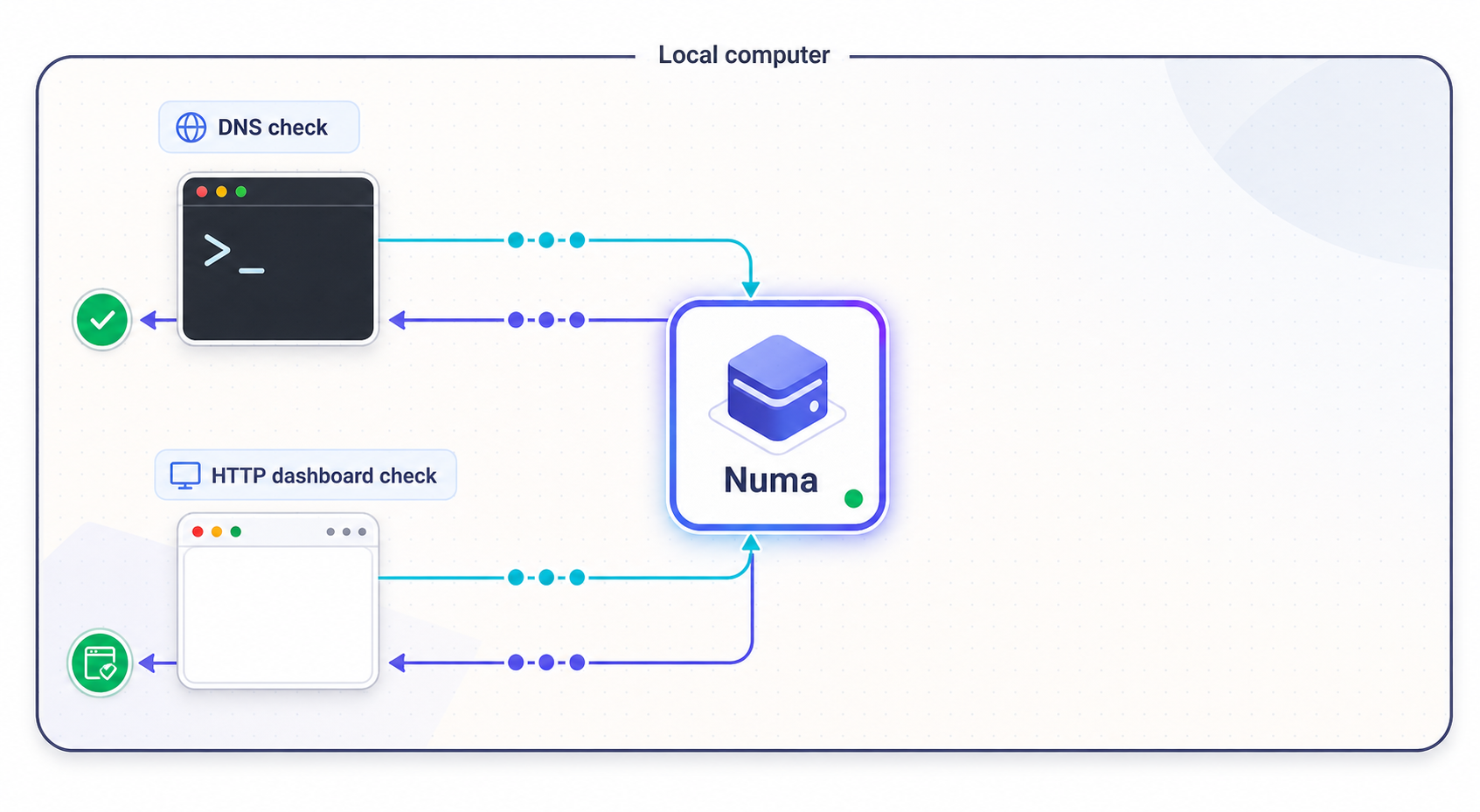
Local verification isolates Numa issues from tunnel issues. If the dashboard does not work on the host, a Localtonet tunnel cannot make it healthy. Confirm the process, HTTP endpoint, and installation mode in that order.
Confirm that Numa is running
Keep the foreground process open, verify the installed service is active through the operating system, or confirm that the Docker container is running. Review visible startup errors before continuing.
Open the local dashboard
From a browser on the Numa host, open http://localhost:5380. The project also documents http://numa.numa, but localhost:5380 is the direct endpoint used for this tunnel workflow.
Test the HTTP response from the terminal
If curl is available, request the documented dashboard address with curl http://localhost:5380. An HTTP response confirms that a process is reachable at the target even if browser behavior is affected by extensions or cached state.
Confirm the dashboard is the expected Numa instance
Make sure the page belongs to the instance you just installed. This catches cases where another process was already using port 5380.
Record the reachable target
If the Localtonet client will run on the same host, the target can be the loopback address and port 5380. If it runs on another device, first verify that the second device can reach the actual LAN address and port exposed by Numa's bind configuration.
curl http://localhost:5380The exact HTML returned by the dashboard can change between Numa releases, so this guide does not prescribe a fragile text match. The useful result is a successful HTTP response from the expected service rather than a connection-refused, timeout, or unrelated application response.
127.0.0.1 and localhost refer to the device on which a program is running. If the Localtonet client and Numa run on different machines, configuring the tunnel target as 127.0.0.1:5380 points to the Localtonet client machine, not automatically to the Numa host.
Configuration, upgrades, and routine operation
Find the effective configuration
Numa v0.23.0 includes commands for identifying and editing the configuration used by the running service:
numa config path
numa config edit
This is safer than assuming a native configuration path based on another operating system or on the Docker example. Use numa config path to identify the effective file. Use numa config edit when you intend to modify that configuration.
Configuration changes can affect DNS binding, API binding, recursive behavior, DNSSEC, DNS-over-TLS, mobile setup, local services, and other capabilities. Change one concern at a time, restart through the appropriate service or container workflow, and repeat local dashboard verification.
Understand the resolution modes
| Mode | Documented behavior | Operational implication |
|---|---|---|
forward |
Default mode that forwards to the existing system DNS while adding Numa caching and ad blocking. | Designed to preserve compatibility with captive portals, VPNs, and corporate DNS behavior. |
recursive |
Resolves from root nameservers without relying on one upstream resolver. | Requires direct reachability to the relevant DNS infrastructure. DNSSEC chain validation can be enabled in configuration. |
auto |
Probes root-server reachability at startup, uses recursive resolution when reachable, and falls back to encrypted DNS-over-HTTPS when blocked. | Behavior can differ between networks based on the startup probe and available connectivity. |
Create a local developer service mapping
Numa can associate a local service name with a development port through its REST API. The documented example creates frontend.numa for a service on port 5173:
curl -X POST localhost:5380/services \
  -d ' {"name":"frontend","target_port":5173} '
This is separate from the Localtonet tunnel. A .numa name is handled by Numa for local service discovery and proxying, while the Localtonet HTTP tunnel creates a public address for the dashboard target. Do not assume that a remote browser can resolve a local .numa name merely because the dashboard is tunneled.
Operate the Docker container
Use normal Docker lifecycle commands to inspect and control the container:
docker ps
docker logs numa
docker stop numa
docker start numa
Before replacing a container during an upgrade, identify whether configuration or other persistent state is mounted outside the container. The documented custom configuration example mounts numa.toml, but the supplied evidence does not define a complete persistence and backup policy for every Numa data file. Do not delete a container on the assumption that all relevant state is external.
Review release notes before upgrading
Resolver software is security-sensitive infrastructure. Numa v0.23.0 included recursive-resolver hardening, stricter reply validation, protections around referrals and nameserver addresses, query-work limits, and corrections to ad-blocking list handling. It also added per-source blocking health reporting and retained a last-known-good copy of remote lists.
If an existing numa.toml explicitly pins an older HaGeZi hosts/ or domains/ URL, the release notes state that it must be changed to the corresponding wildcard/ source. The newer default applies automatically only when the source was not overridden. This is an example of why an upgrade should include configuration review and dashboard verification rather than only replacing the binary.
Access the Numa dashboard remotely with Localtonet
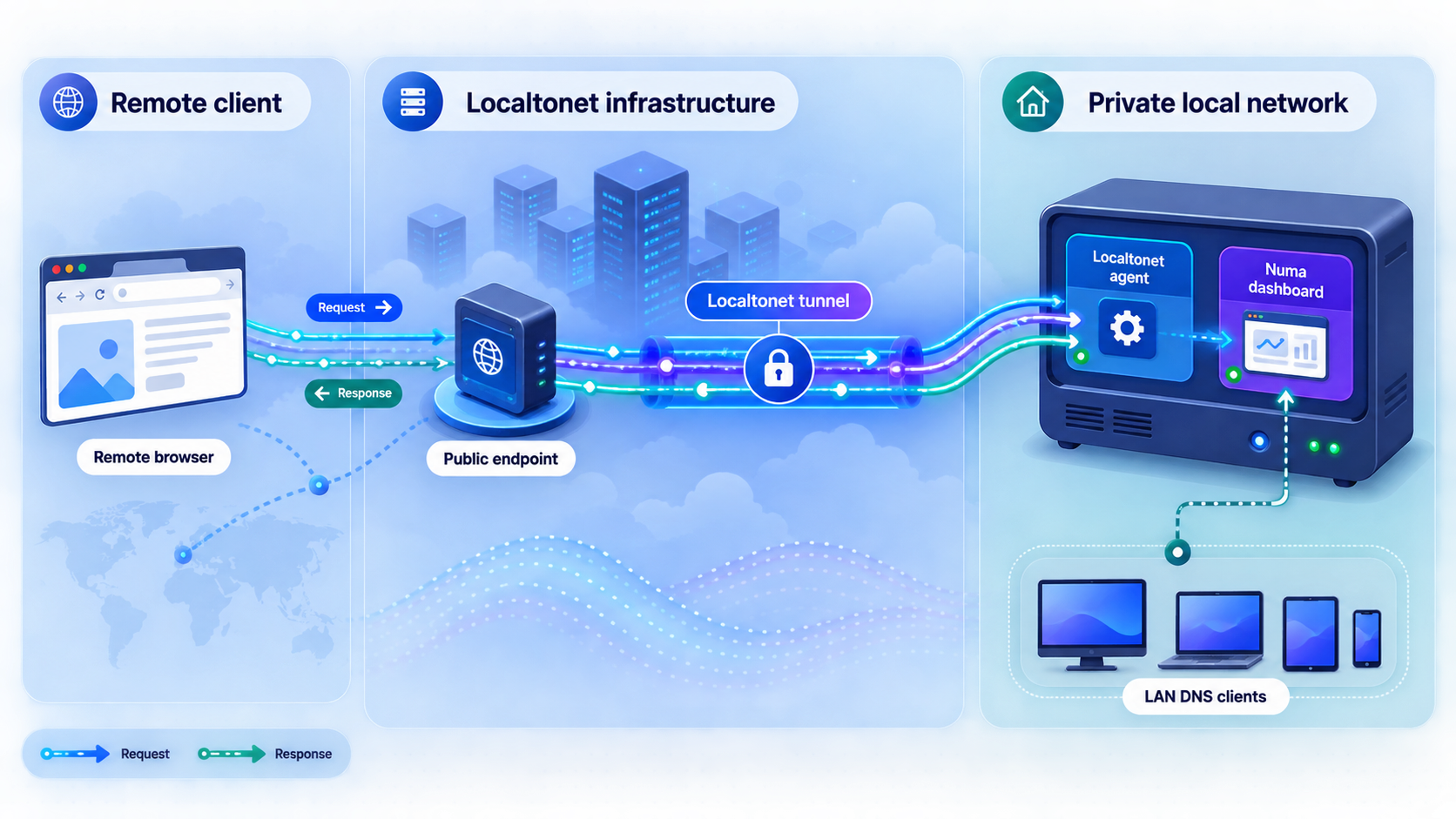
Once http://localhost:5380 works locally, the HTTP dashboard can be exposed through Localtonet. Our client establishes an outbound connection to a Localtonet relay server, so this workflow does not require inbound router port forwarding, a public IP address, VPN setup, or inbound firewall changes.
An HTTP tunnel points a public HTTPS address to the Numa HTTP service. Creating the tunnel configuration does not automatically make it active. The selected Localtonet device must be connected and the tunnel must be started. The public address remains available only while that client is connected and the tunnel is running.
Install and run the Localtonet client
Run our client on the Numa host or on another device that can reach Numa's HTTP dashboard. Verify the Numa endpoint from that same device before configuring the tunnel.
Authenticate or select the client device
Use the device-specific Localtonet authentication token through the supported client and dashboard workflow. Never place the token in screenshots, shell history shared with others, article examples, or public configuration repositories.
Select an available relay server
Choose a currently available server or region in the Localtonet dashboard. Available server codes can vary, so obtain the value from the current product rather than copying a hardcoded example.
Create an HTTP tunnel to the dashboard
Select the HTTP tunnel family and point the local target to Numa's reachable IP address on port 5380. When the client runs on the Numa host and the dashboard responds through loopback, use the local loopback target. When the client runs elsewhere, use the verified reachable address instead.
Choose the supported HTTP process type
HTTP tunnels can use Random Sub Domain, Custom Sub Domain, or Custom Domain. These process types serve the target at a public HTTPS address. Availability can vary, and exact custom-domain DNS requirements must be checked against the current dashboard and documentation rather than inferred.
Start and test the tunnel
Press Start, copy the assigned public HTTPS address, and test it from a network that is not relying on the Numa host's local loopback. Confirm that the expected dashboard loads. Stop or delete the tunnel when remote access is no longer needed.
For the current dashboard fields and supported HTTP options, consult the
Localtonet HTTP tunnel documentation
while configuring the tunnel. The essential target for this workflow is Numa's HTTP service on port 5380, not its DNS listeners.
A service that was reachable only through localhost becomes reachable through the assigned public address while the tunnel is active. The supplied Numa evidence does not establish a universal dashboard authentication default, and a Localtonet HTTP tunnel should not be assumed to add application-level authorization. Review Numa's current access controls, expose only what you intend to share, use least privilege, and stop the tunnel when it is not required.
Security boundaries and a safer exposure model
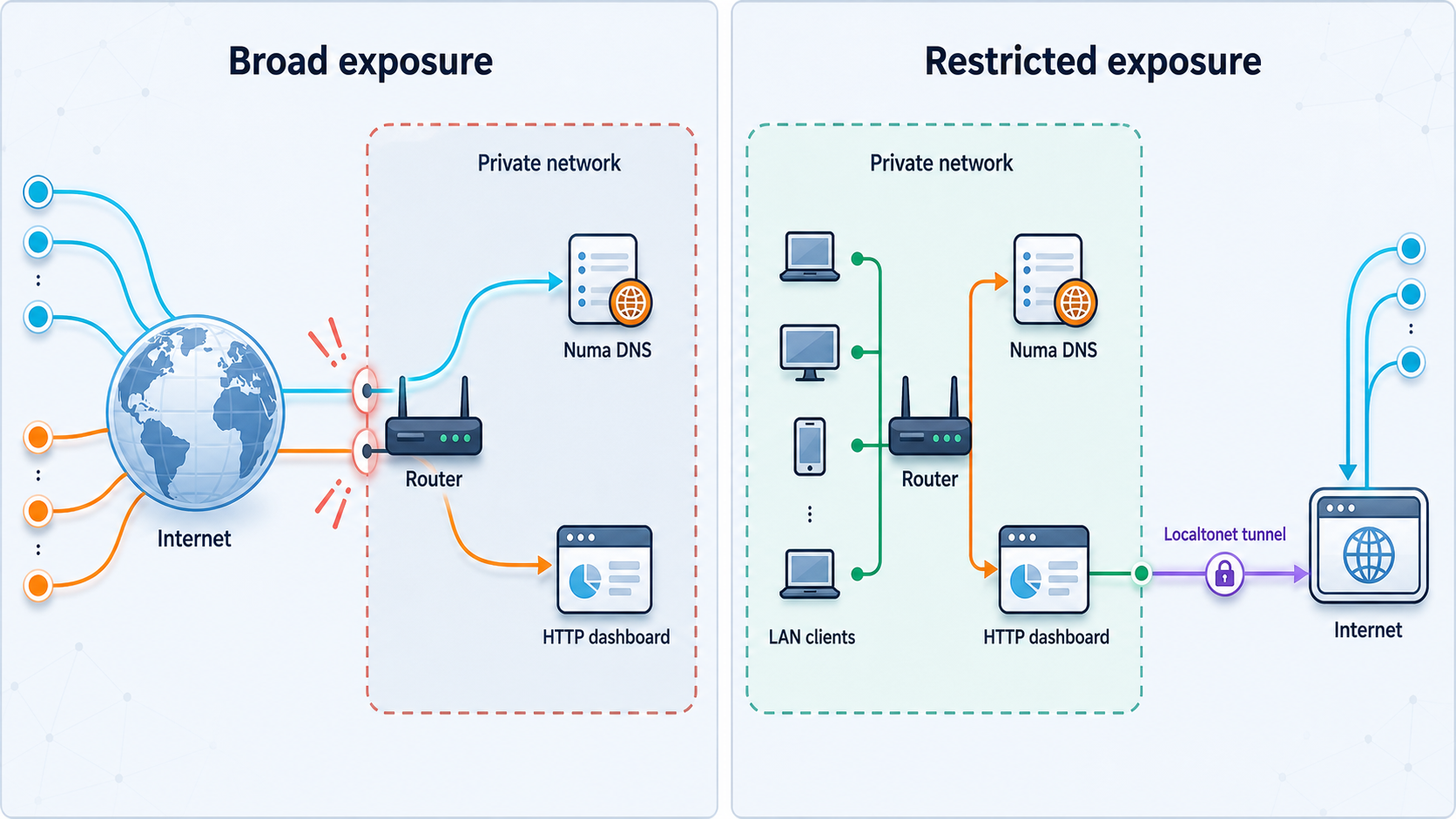
The safest workflow starts with the narrowest required endpoint. Remote dashboard access requires HTTP port 5380. It does not require publishing raw DNS on port 53, DNS-over-TLS on port 853, unrelated local services, or the whole host network.
Localtonet terminates the public HTTP process type at a public HTTPS address and forwards traffic to the configured local HTTP target. This protects the public browser connection at the tunnel edge, but it does not answer whether every user should be authorized to administer Numa. Authorization remains a separate application and deployment decision.
If the dashboard cannot be adequately restricted for your threat model, do not leave it publicly reachable. Start the tunnel only for short administrative sessions, share the address only with intended operators, and stop it immediately afterward. If your requirements call for private network membership rather than a public URL, evaluate that architecture separately instead of presenting a standard HTTP tunnel as a VPN.
Troubleshooting Numa and Localtonet
The dashboard does not open locally
First confirm that Numa is still running. A foreground process ends when its terminal closes. A system installation can fail to start because a required port is occupied or the configuration is invalid. A Docker container may start and then exit immediately.
For Docker, inspect the container and its logs:
docker ps
docker logs numa
Then test the direct endpoint:
curl http://localhost:5380
A connection-refused error usually means nothing is listening at that address and port. A timeout can indicate an address, bind, container, or filtering problem. An unexpected page suggests another application may own port 5380.
Numa reports that an address is already in use
The most likely conflicts are the DNS listener on port 53 or the dashboard on port 5380. Stop duplicate Numa processes and identify whether another resolver, web application, or container owns the port. On Windows, remember that the built-in DNS cache service owns 127.0.0.1:53 and Numa's documented installed behavior uses 127.0.0.2:53.
Do not change ports blindly. A nonstandard DNS port will not automatically be used by operating-system clients. If only the dashboard port changes, the Localtonet tunnel target must be updated to match the verified endpoint.
The Docker container works internally but not from the host
On Linux, use the documented host-network command when that network mode fits your environment. On Docker Desktop, confirm that -p 5380:5380 is present. The documented image binds the API and proxy to 0.0.0.0 by default, but a custom configuration can alter binding behavior.
If a custom numa.toml is mounted, verify the mount path and inspect the effective settings rather than assuming the defaults still apply.
The Localtonet tunnel starts but the public address fails
Test the target from the device running the Localtonet client. If the client runs on the Numa host, verify http://localhost:5380 there. If the client runs on a different device, test the actual Numa host address from that device. A loopback address on the second machine will not reach Numa on the first machine.
Also confirm that the selected Localtonet device is connected, the correct HTTP tunnel is running, and the target port is 5380. Creating a tunnel does not start it. The public endpoint works only while the selected client remains connected and the tunnel remains active.
The public page is not the expected dashboard
Stop the tunnel and confirm the local target. Check whether a different application is listening on port 5380, whether the target IP belongs to the intended Numa host, and whether multiple Numa environments are running. Restart the tunnel only after the local response clearly identifies the expected instance.
Numa works in forward mode but recursive mode does not
Forward and recursive modes have different network requirements. Forward mode uses the existing system DNS and is designed to preserve captive portal, VPN, and corporate DNS behavior. Recursive mode contacts root and authoritative DNS infrastructure directly. Networks can block or interfere with that traffic.
Numa's auto mode probes root-server reachability at startup, uses recursive resolution when available, and falls back to encrypted DNS-over-HTTPS when direct recursion is blocked. Changing resolution mode is a Numa configuration decision and is independent of the Localtonet dashboard tunnel.
Ad blocking appears empty or unhealthy after an upgrade
Numa v0.23.0 changed the default HaGeZi source after older hosts/ and domains/ formats were discontinued. If your configuration pins one of those older URLs, update it to the documented wildcard/ source. The newer release reports per-source health through /blocking/stats and retains a last-known-good disk copy for upstream outages.
Do not assume that upgrading the binary replaces an explicit custom source. Review the effective configuration with numa config path or numa config edit.
Frequently asked questions
Which Numa endpoint should I expose with Localtonet?
For this workflow, expose the documented HTTP dashboard and REST API on port 5380 through an HTTP tunnel. Do not expose DNS port 53 or DNS-over-TLS port 853 merely to reach the dashboard.
Does Numa need administrator privileges?
Binding the standard DNS port 53 requires root or administrator privileges in the documented foreground workflow. System installation also requires elevated privileges. Requirements can differ if you deliberately configure different listeners, but clients must then be configured to reach that design.
Can the Localtonet client run on a different machine?
Yes, if that device can reach Numa's dashboard over the local network. Configure the tunnel with the verified Numa host address and port 5380. Do not use 127.0.0.1 unless Numa is running on the same device as the Localtonet client.
Does creating a Localtonet tunnel immediately make Numa public?
No. Creating the configuration and running it are separate lifecycle actions. The selected client device must be connected and the tunnel must be started. The endpoint becomes unavailable when the tunnel stops or the selected client disconnects.
Does the public HTTPS address automatically secure dashboard administration?
HTTPS protects the public browser connection to the tunnel edge, but transport security is not the same as application authorization. The supplied Numa evidence does not establish a universal dashboard authentication default. Review the current Numa controls, use least privilege, and avoid leaving the tunnel active when it is unnecessary.
Should I install Numa natively or use Docker?
Native installation integrates with the host's service mechanism and is suitable when Numa should manage host DNS directly. Docker provides container isolation and a reproducible image, but networking and port ownership must be handled explicitly. Both documented approaches expose the dashboard at http://localhost:5380 when configured successfully.
Why does Windows use 127.0.0.2 for DNS?
Windows' built-in DNS cache service owns 127.0.0.1:53. Numa's documented installed workflow binds DNS to 127.0.0.2:53 and installs an NRPT rule to route queries. This special DNS behavior should not be confused with the dashboard address, which must be verified from the running installation.
Can I use a custom domain for the Numa dashboard tunnel?
Localtonet HTTP tunnels support Random Sub Domain, Custom Sub Domain, and Custom Domain process types. Availability can vary by current product configuration or plan. Check the dashboard and current documentation for the exact custom-domain DNS requirements rather than using guessed records.
Connect your verified Numa dashboard with Localtonet
Install Numa using the platform-appropriate method, confirm that http://localhost:5380 works, and then create a narrowly scoped HTTP tunnel for remote administration. Keep device tokens private and stop the tunnel when access is no longer required.


