

Run Numa as a private DNS resolver, then provide controlled remote access to its web dashboard
Numa is a self-hostable DNS resolver with caching, ad blocking, local service names, hostname overrides, and several resolution modes. This guide installs Numa on Linux, tests DNS before changing the operating system resolver, optionally registers Numa as a system service, and verifies its dashboard at http://localhost:5380. After the local installation works, we connect only the HTTP dashboard to Localtonet. This procedure does not expose Numa's DNS listeners or turn the resolver into a public DNS service.
📋 What's in this guide
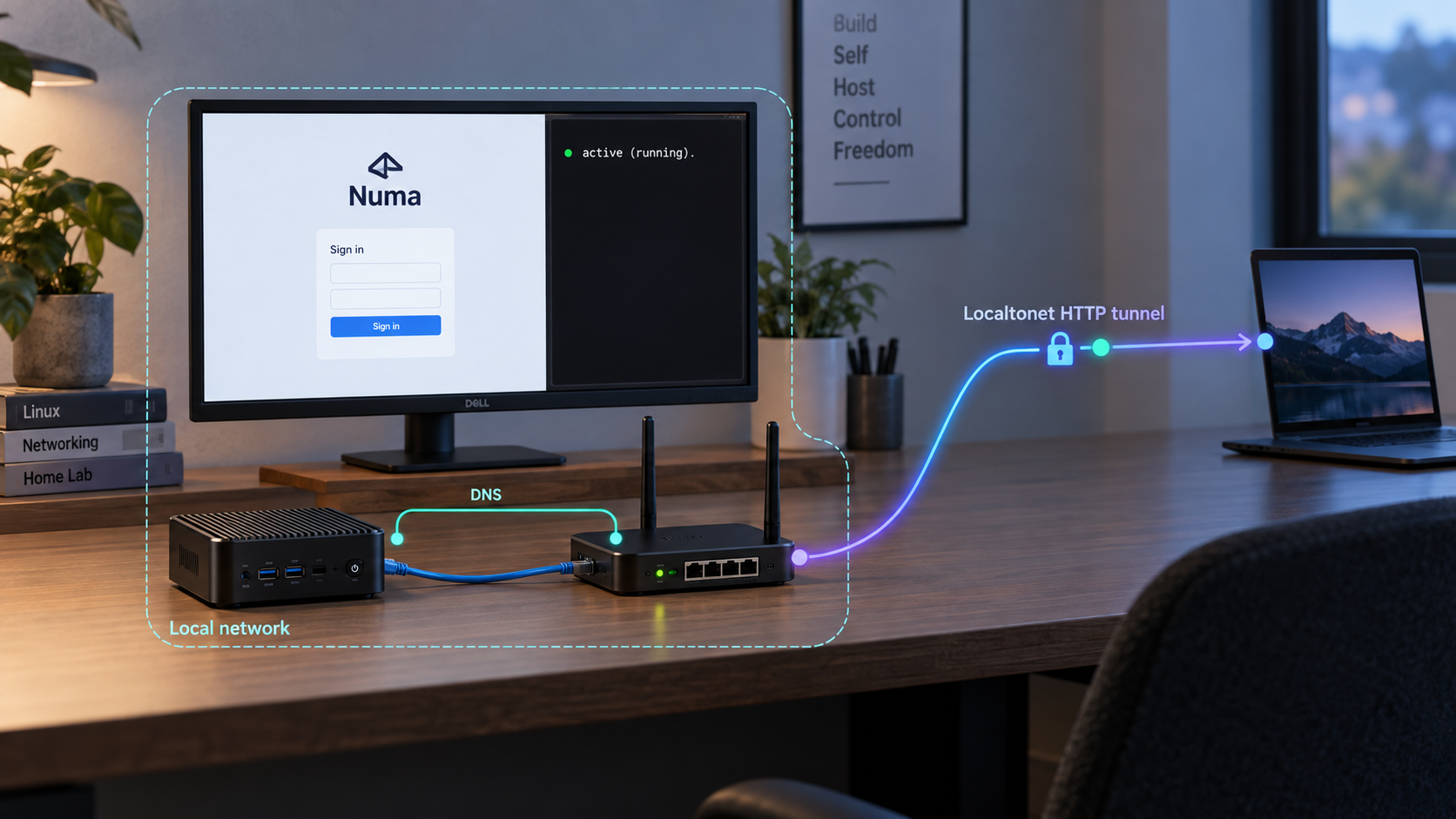
Understand what Numa runs and what this guide exposes
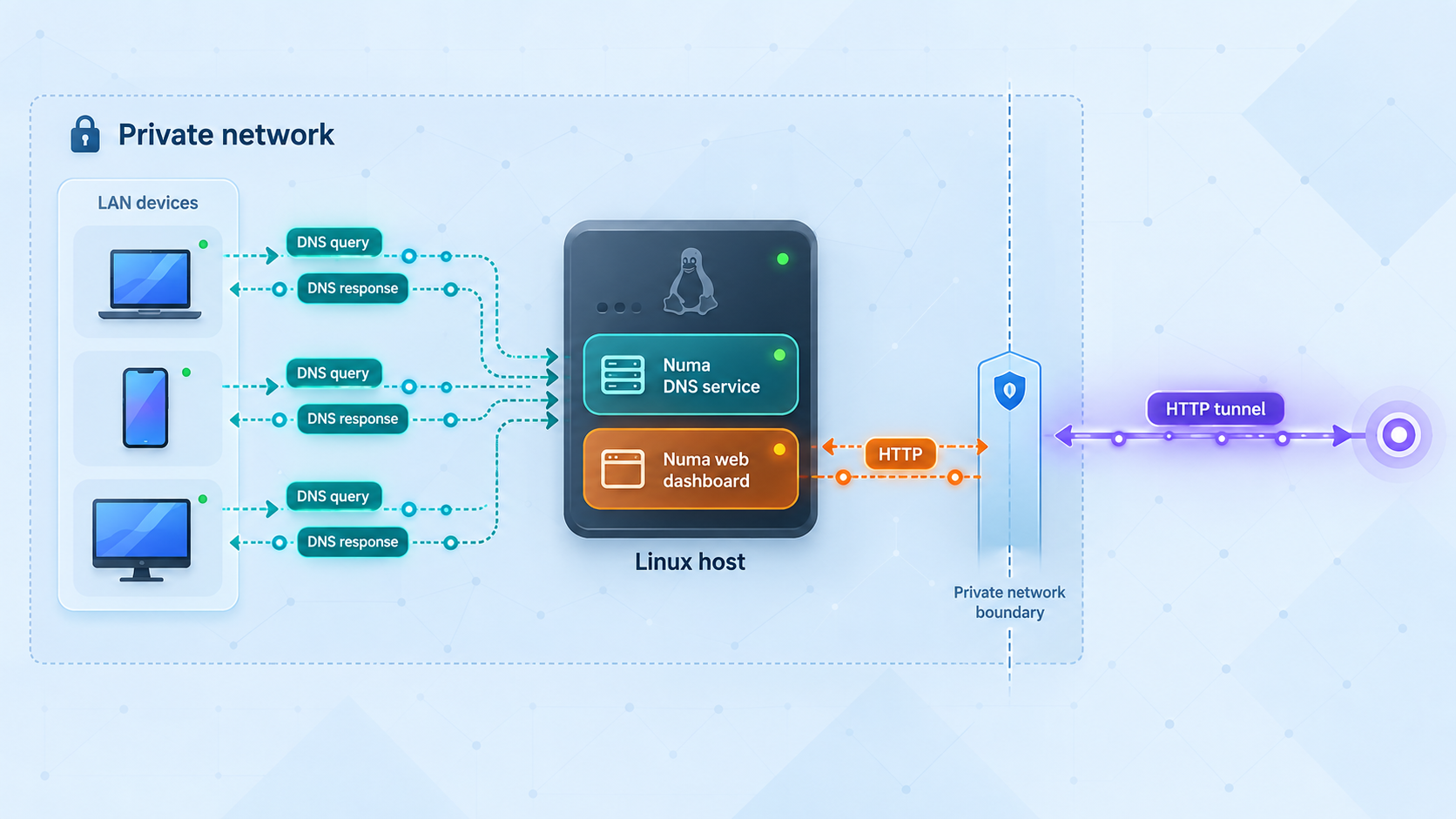
A DNS resolver and a web dashboard serve different protocols and create different security boundaries. Numa normally listens for conventional DNS queries on UDP and TCP port 53. It also supports a DNS-over-TLS listener on TCP port 853. Its administrative dashboard and REST API are served over HTTP on port 5380, with the documented local address http://localhost:5380.
This distinction determines the Localtonet integration. The dashboard is an HTTP application, so an HTTP tunnel can forward requests to its local address and port. DNS on port 53 is not HTTP. It involves UDP and TCP behavior, recursion policy, client authorization, monitoring, and abuse prevention that should not be treated as ordinary web publishing.
Our workflow therefore has two phases. First, Numa must operate correctly on the Linux host. Second, after local verification succeeds, the Localtonet client on that host establishes an outbound connection to one of our relay servers and publishes the dashboard through a public HTTPS address. The Localtonet workflow does not require inbound router port forwarding, inbound firewall changes, VPN setup, or a public IP address.
The Numa commands and version-specific behavior described here were checked against Numa v0.24.0. In particular, the numa token command, foreign-Host authentication protection, operating-system resolver information in numa service status, Linux search-domain fixes, and five-second API-port retry behavior are documented for that release. Review the current Numa README and the Numa v0.24.0 release notes if your installed version differs.
sudo numa starts the resolver without automatically replacing the host's current system resolver. This provides a controlled test stage.
sudo numa install registers a systemd service, points system DNS at Numa, and installs trust for Numa's local certificate authority.
sudo numa token prints the current token and reports where it was loaded from.
Why the dashboard is the only remote target in this tutorial
An unrestricted public recursive DNS server can be abused by arbitrary internet clients, including in reflection or amplification activity. It can also reveal policies and operational information intended for trusted clients. Publishing DNS safely requires an explicit design for client authorization, recursion policy, transports, monitoring, and abuse prevention. An HTTP dashboard tunnel does not solve those DNS-service concerns.
The dashboard is still sensitive. Numa's HTTP control plane can read query-related information and modify how DNS resolution behaves. It is not merely a public status page. The narrowly scoped objective here is to make that administrative HTTP interface reachable when needed, verify that Numa challenges an unauthenticated remote visitor, and stop the tunnel whenever remote administration is not required.
The HTTP tunnel must target Numa's dashboard, not UDP or TCP port 53 and not DNS-over-TLS port 853. This guide does not make the DNS resolver public. If your objective is network-wide DNS, configure trusted LAN clients or another explicitly secured private-network design instead.
| Interface | Documented port | Role in this guide |
|---|---|---|
| DNS over UDP | 53/udp |
Test locally with dig; do not publish through the dashboard tunnel. |
| DNS over TCP | 53/tcp |
Part of normal DNS behavior; keep private in this workflow. |
| DNS over TLS | 853/tcp |
An optional encrypted DNS listener for compatible clients, outside this HTTP dashboard workflow. |
| Dashboard and REST API | 5380/tcp |
Verify locally, then use it as the HTTP target only after reviewing the authentication boundary. |
Check the Linux host and prerequisites
Choose a Linux machine that can remain online whenever Numa or remote dashboard access is needed. A tunnel is not independent hosting. The Numa process, the Localtonet client, the selected Localtonet device connection, and the tunnel must all be running for the public address to work.
You need administrative privileges because binding to port 53 normally requires elevated capability and because system service installation modifies resolver and trust configuration. You also need a shell, internet access for the selected installation method, and a DNS query utility such as dig. Package names for dig differ across Linux distributions, so install the appropriate DNS utility package if it is missing.
Before installing, check whether another process already owns port 53. Ubuntu, Linux Mint, NetworkManager configurations, systemd-resolved, dnsmasq, another DNS server, or an earlier resolver installation may already use it. Numa's documentation notes that systemd-resolved commonly occupies port 53 on Ubuntu and Mint. Numa's service installer can reconfigure systemd-resolved, but another process such as dnsmasq may need separate attention.
If ss is available, this read-only command can identify current listeners:
sudo ss -lntup | grep ':53 'An empty result does not guarantee that a later bind will succeed, but output naming another process is a clear reason to investigate. Do not stop a resolver blindly on a remotely administered machine. Doing so can break name resolution, package downloads, monitoring, and remote management.
Choose the least disruptive installation path
Numa documents several installation methods. This Linux guide covers the project installation script, the Arch Linux package, Cargo, and a disposable Docker evaluation. The Docker route is especially useful when port 53 is occupied or when you want to evaluate Numa without changing host DNS.
| Method | Best suited to | Important behavior |
|---|---|---|
| Linux installation script | A direct Linux binary installation | The documented cleanup information places its binary at /usr/local/bin/numa. |
| Arch package | Arch Linux users who prefer package management | Uses pacman -S numa; package removal uses pacman -R numa. |
| Cargo | Users with an existing compatible Rust toolchain | Uses cargo install numa. Service installation may copy the binary into /usr/local/bin/numa. |
| Docker | Isolated evaluation without replacing host DNS | Maps container DNS port 53 to host loopback port 5553 and maps the dashboard to host loopback port 5380. |
The documented Linux command downloads the current project install.sh and pipes it to a shell. In a controlled or security-sensitive environment, download and inspect the script first, confirm that it comes from the expected repository, and run the reviewed copy according to your software-installation policy.
Install and start Numa on Linux
The safest sequence is to install the binary, check its version, run Numa in the foreground, test it directly, and only then decide whether it should become the machine's system resolver. This keeps the first test reversible and separates installation problems from system DNS changes.
Option A: Use the documented Linux installation script
curl -fsSL https://raw.githubusercontent.com/razvandimescu/numa/main/install.sh | shConfirm that the shell can find the executable:
command -v numa
The documented cleanup details identify /usr/local/bin/numa as the binary location used by the Linux installation script. If command -v cannot find it, inspect the installer result rather than guessing another path.
Option B: Install on Arch Linux
sudo pacman -S numa
command -v numa
Option C: Install through Cargo
If a compatible Rust toolchain and Cargo are already installed, use the documented Cargo installation:
cargo install numa
command -v numa
Cargo normally places user-installed binaries in the Cargo binary directory configured for that account. Do not assume that directory is in the root user's path. Run command -v numa as the user who installed it and use the discovered executable when testing.
The project notes that numa install can copy a Linux binary that cannot run from its original location, such as one under ~/.cargo/bin, into /usr/local/bin/numa. The uninstall operation leaves that copied binary behind, which matters during complete removal.
Check the installed Numa version
Before relying on the version-specific commands and security behavior in this guide, inspect the installed version:
numa --version
This tutorial was verified against v0.24.0. If your output identifies an older release, do not assume that numa token, foreign-Host protection, resolver-status reporting, Linux search-domain handling, or dashboard bind retries behave as described here. Upgrade through the installation method appropriate to your environment or consult the README and release notes for your exact version before proceeding.
Start Numa in the foreground without changing system DNS
sudo numa
Port 53 normally requires elevated privileges. At this stage, Numa listens for explicit DNS queries, but the operating system continues using its existing resolver because you have not run numa install. Keep this terminal open and use a second terminal for testing. Press Ctrl-C to stop the foreground process.
Installing the binary is not the same as making Numa the system resolver. Running sudo numa lets you query it explicitly at 127.0.0.1 while ordinary applications continue using the host's current DNS configuration. Use this stage to validate startup, port availability, query handling, and local dashboard access.
Optional Docker evaluation
If port 53 is occupied or you want a disposable trial, the documented Docker command binds Numa's DNS service to host loopback port 5553 and its dashboard to host loopback port 5380:
docker run -d --name numa -p 127.0.0.1:5553:53/udp -p 127.0.0.1:5553:53/tcp \
  -p 127.0.0.1:5380:5380 ghcr.io/razvandimescu/numa
Test containerized DNS through the mapped port:
dig @127.0.0.1 -p 5553 example.comFor Numa v0.24.0, retrieve the dashboard token from the container with:
docker exec numa numa token
Open http://localhost:5380. Under the documented Docker behavior, Numa asks for authentication. Enter any username and use the generated token as the password. Because the host is not using the container as its system resolver in this trial, the special numa.numa name will not resolve from the host.
Remove the trial container when finished:
docker rm -f numaChoose whether Numa should become the system DNS service
Do not change system DNS merely because the foreground process started. First confirm that direct DNS queries return valid answers and that the dashboard opens locally. Once those tests pass, decide whether this Linux host should route its ordinary DNS queries through Numa.
Numa documents three resolution modes. The default forward mode proxies requests through the existing system DNS while adding Numa's caching and blocking behavior. This is intended to preserve compatibility with captive portals, VPNs, corporate DNS, and local search domains. The recursive mode resolves from root nameservers and can optionally enable full DNSSEC chain-of-trust validation. The auto mode probes root-server reachability at startup, uses recursive resolution when available, and otherwise falls back to DNS over HTTPS through Quad9.
Those modes affect how Numa resolves a query after receiving it. They do not change the Localtonet dashboard workflow. Avoid changing advanced resolver settings and remote-access behavior at the same time. Establish a working baseline, then make one controlled change at a time.
Install the Linux system service
When you are ready for persistent operation, stop the foreground process with Ctrl-C and run:
sudo numa install
On Linux, this registers Numa as a systemd service, configures the system to use Numa for DNS, and trusts Numa's local certificate authority. The service starts on boot and is configured to restart automatically. The documented systemd unit uses DynamicUser=yes and only the CAP_NET_BIND_SERVICE capability instead of running the resolver as an unrestricted root process.
The installer reconfigures systemd-resolved through a drop-in, and numa uninstall removes that drop-in. A separate program holding port 53, including some dnsmasq or NetworkManager arrangements, must be handled manually. Do not disable another network service until you understand its purpose on that host.
Know what configuration persists
Numa's Linux root daemon stores persistent data under /var/lib/numa. The project also documents /etc/numa among the Linux paths left after uninstall, and a user-created configuration can exist under ~/.config/numa. If you explicitly set a different data_dir, include that custom path in backup and removal planning.
Uninstalling the service restores DNS configuration but intentionally retains application data. A later reinstall can therefore retain the same generated token and local certificate authority unless you deliberately delete the retained data. Service removal alone is not credential erasure.
Complete the foreground test before running sudo numa install, especially on a remotely administered Linux machine. Keep an existing administrative session open while validating the new resolver. If name resolution fails, use sudo numa uninstall to reverse Numa's service, DNS, and trust-store changes instead of deleting resolver files manually.
Verify DNS, service state, dashboard access, and the authentication boundary
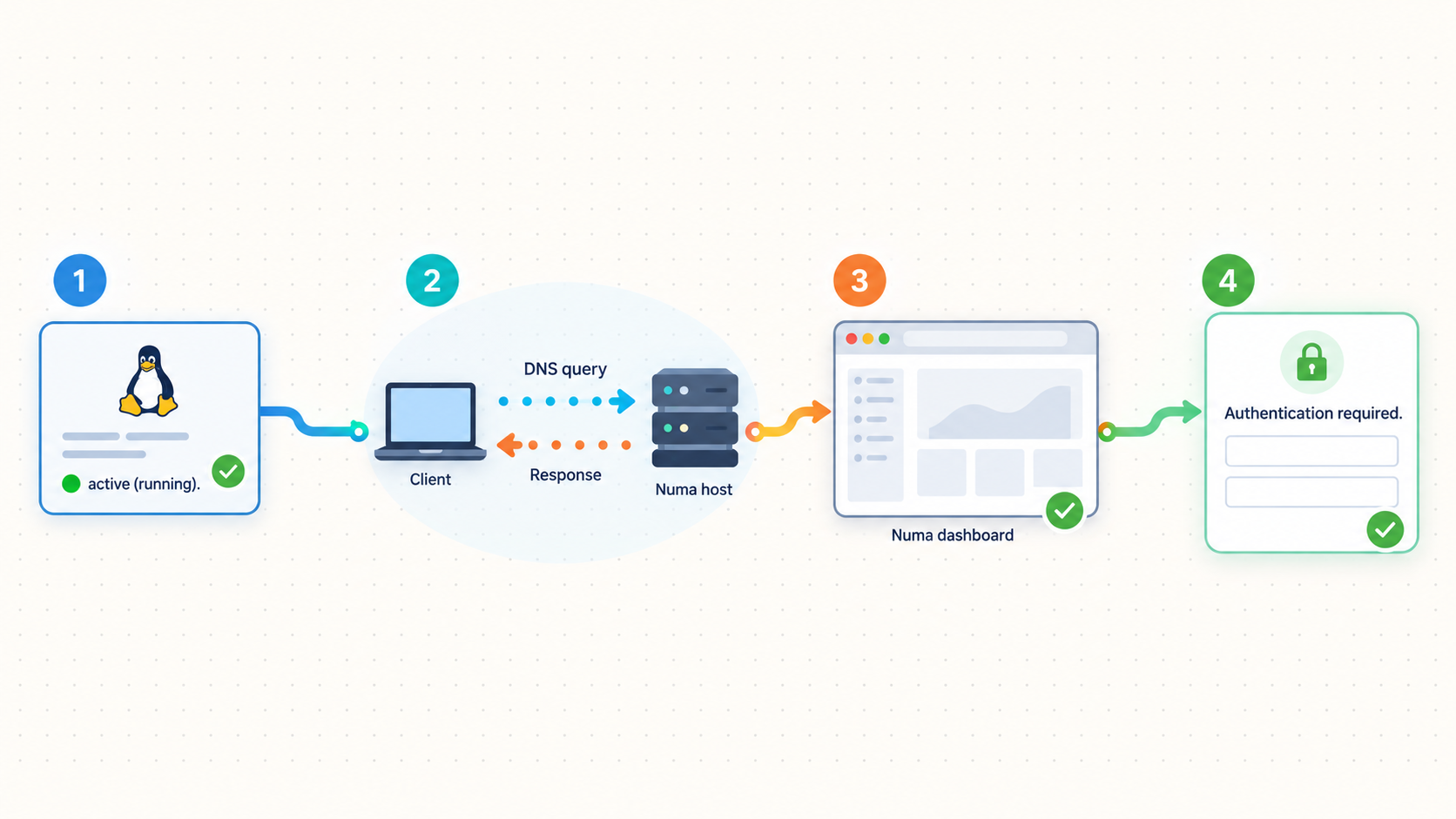
Verification should be layered. A successful process start does not prove that DNS answers correctly. A successful direct query does not prove that the host uses Numa as its normal resolver. A dashboard that works on loopback does not prove that a proxied request will require authentication.
Query Numa directly
While Numa runs in the foreground, execute dig @127.0.0.1 example.com. For the documented Docker mapping, use dig @127.0.0.1 -p 5553 example.com. A valid response confirms that the listener accepted and processed the explicit query.
Open the local dashboard
On the Linux host, open http://localhost:5380. If the host has no graphical browser, use an SSH forwarding method approved for your environment or an HTTP client to confirm that the endpoint responds. Do not create a public tunnel merely to diagnose a broken local service.
Retrieve and protect the token
With Numa v0.24.0, run sudo numa token for a native service or docker exec numa numa token for the documented container. Treat the output as a credential. Do not put it in screenshots, shell transcripts, tunnel names, URLs, repositories, or public support tickets.
Confirm system resolver state
After sudo numa install, run numa service status. In v0.24.0, the status output reports the nameserver the operating system actually uses. This can reveal a host where Numa is running but normal system queries are no longer being sent to it.
Test an ordinary lookup
Run dig example.com without specifying a server. Compare the result with the direct query and service-status output. This checks the host's normal resolver path rather than only Numa's listener.
numa --version
dig @127.0.0.1 example.com
sudo numa token
numa service status
dig example.com
Understand how Numa decides whether to require authentication
Numa's HTTP control plane uses a loopback exemption for recognized local access. Its documentation identifies local hosts such as localhost, *.localhost, IP literals, and .numa names. Other requests must present the API token through HTTP Basic or Bearer authentication. Browser login accepts any username and uses the token as the password.
Starting with v0.24.0, a connection that reaches the API through loopback does not automatically receive the exemption when its HTTP Host value names a foreign domain. This change addresses a DNS-rebinding weakness. A same-host reverse proxy that preserves the original public Host value should therefore receive a 401 response unless it supplies the token.
There is an important limitation. Numa's API documentation warns that a same-host TLS terminator or proxy pointed at the loopback API can forward unauthenticated requests if it makes the request appear local, such as by presenting a local upstream Host value. Authentication therefore depends not only on the TCP destination but also on the Host value that reaches Numa.
The exact upstream Host handling used by Localtonet is not established by the evidence available for this article. We therefore do not claim that targeting 127.0.0.1:5380 guarantees a Numa token challenge. You must verify the behavior from outside the host before using the tunnel.
Open the public URL in a private browser window before entering any credentials. Use a browser profile or device that has never authenticated to Numa. The expected safe result is a credential challenge before dashboard content appears. If the dashboard opens without a challenge, stop the Localtonet tunnel immediately and keep it stopped. Do not use or share the public URL until the authentication boundary has been corrected and the external test succeeds.
Numa's API documentation recommends using a non-loopback API binding when a proxy would otherwise trigger the loopback exemption. That is the appropriate upstream mitigation when a same-host proxy makes external requests appear local. The exact configuration path and bind value depend on the Numa deployment, and the supplied evidence does not establish a universal command or file location for changing it. Follow the configuration guidance for your installed Numa version, then point the HTTP tunnel at the resulting address that is reachable from the Localtonet client. Repeat the unauthenticated private-window test before use.
Numa documents the API token as protection against unauthorized control-plane use, not as encryption for plain HTTP. The public side of a Localtonet HTTP tunnel uses an HTTPS address, while the configured upstream target is Numa's HTTP endpoint. Do not treat the token as a replacement for secure transport, host security, least privilege, or exposure testing.
Connect the verified Numa dashboard to Localtonet
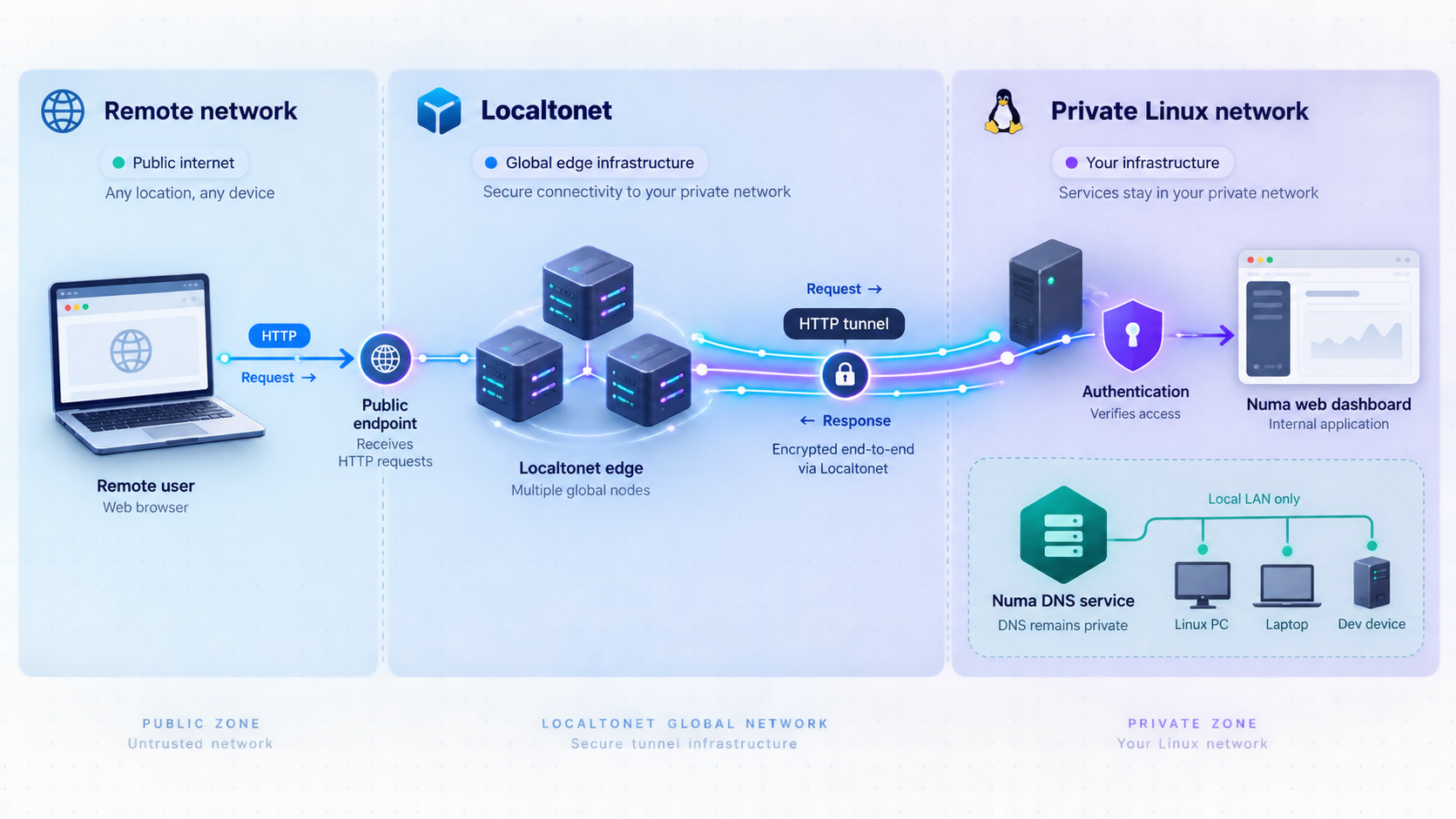
Begin this phase only after the dashboard works on the device that will run our client. Localtonet forwards traffic to a target that the connected device can reach. It does not start Numa, resolve a local port conflict, change Numa's authentication policy, or configure its API binding.
Select an HTTP tunnel for this use case. HTTP tunnels can use Random Sub Domain, Custom Sub Domain, or Custom Domain process types, with exact availability depending on the current dashboard and plan. These process types serve the target at a public HTTPS address. Select a relay server or region from the current Localtonet dashboard rather than copying a hardcoded server code from an article.
Tunnel creation and tunnel startup are separate lifecycle actions. Creating the configuration does not make the public endpoint live. You must start the tunnel, and the selected Localtonet device must remain connected.
Install and run the Localtonet client
Install our client on the Linux device that runs Numa, or on another device that can reliably reach the selected dashboard binding. Start the client before creating the tunnel. Use the current Localtonet installation instructions for your Linux distribution rather than copying an unverified installation command.
Authenticate or select the device
Use the device-specific authentication token through the supported client or dashboard workflow. Do not place that token in Numa's configuration, screenshots, repositories, article notes, or the public tunnel address.
Select an available relay server
Choose from the relay servers or regions currently shown in your Localtonet dashboard. Availability can vary, so this guide does not hardcode a server code.
Create an HTTP tunnel to the dashboard
Choose an HTTP tunnel and enter the Numa dashboard address reachable from the Localtonet client. A native same-host installation initially uses 127.0.0.1 and port 5380, but that target is acceptable only if the required external test receives an authentication challenge. If loopback proxying bypasses the challenge, follow Numa's recommendation to use a non-loopback API binding before retrying.
Start the tunnel
Use the Start button after creating the tunnel. Wait until the selected client device and tunnel show their connected or running state. Do not distribute the assigned URL yet.
Test anonymously before logging in
From another network, use a private browser window or a device with no saved Numa credentials. Confirm that the public HTTPS address displays an authentication challenge before any dashboard content. If no challenge appears, stop the tunnel immediately and leave it stopped. If the challenge appears, enter any username and use the Numa API token as the password.
For the current Localtonet interface and field sequence, see our HTTP tunnel documentation. The correct local target depends on where both processes run and on the Numa authentication test. Never assume that a page being reachable means it is safely protected.
Account for container networking
The supplied Docker command publishes container port 5380 on the host's 127.0.0.1:5380. If the Localtonet client runs directly on that host, it can reach the published loopback target. If our client runs in another container, 127.0.0.1 refers to the Localtonet client's container rather than the Numa container.
The correct inter-container address depends on the container network you created. This guide does not invent a Docker Compose service name or container hostname because none is established by the standalone command. Either run the Localtonet client on the host and use the published address, or deliberately create and document a container network where the dashboard is reachable through a known internal name.
Regardless of the network path, complete the same anonymous external test. Container port mapping, a reverse proxy, or a tunnel can affect the peer address and Host value that Numa sees. The only acceptable result is an authentication challenge before an unauthenticated remote visitor receives dashboard content.
Validate positive and negative cases
After the challenge appears, authenticate and confirm that the page belongs to the intended Numa instance. Check that expected administrative functions load normally. Do not embed the token in the URL, and do not save it in a publicly synchronized browser profile.
Then test the lifecycle. Stop the Localtonet tunnel and confirm that the public endpoint no longer reaches the dashboard. Start it again and repeat the anonymous challenge test. Stop Numa and confirm that the tunnel cannot present a misleadingly functional control plane. If persistent operation is required, restart the Linux host and verify the Numa service, local dashboard, Localtonet client connection, tunnel state, and authentication challenge separately.
A difficult-to-guess URL provides no substitute for authentication. Protect the Numa token, limit who receives the public address, and never embed the token in that address. Anyone who can reach an unprotected dashboard may be able to inspect or change DNS behavior. Repeat the anonymous authentication test after Numa upgrades or changes to its binding, reverse proxy, container network, or tunnel configuration.
Operate, update, stop, and remove the deployment safely
Routine operation should preserve the separation between the DNS service and dashboard access. Numa can continue serving as the host's resolver while the Localtonet HTTP tunnel is stopped. Keeping the tunnel stopped until remote administration is needed reduces unnecessary exposure.
Start and stop remote dashboard access
Start the tunnel only when the selected Localtonet device is connected, the dashboard responds at its intended local target, and the unauthenticated external request receives a challenge. When maintenance is complete, use the Stop action. Delete the tunnel if the endpoint is no longer part of the intended deployment.
Stopping or deleting the tunnel does not uninstall Numa and does not restore the host's prior DNS settings. Conversely, stopping Numa does not delete the Localtonet tunnel configuration. Treat the two lifecycles separately.
Check service and resolver health
For Numa v0.24.0, use the service-status command after network changes, operating-system updates, or resolver configuration changes:
numa service statusVersion 0.24.0 reports the nameserver the operating system actually uses. This helps distinguish between a running Numa service that ordinary applications are not querying and a host configured to query Numa while the service itself is unavailable. Repeat both direct and ordinary queries:
dig @127.0.0.1 example.com
dig example.com
Recover the dashboard token
On a native v0.24.0 Linux installation:
sudo numa tokenFor the documented container:
docker exec numa numa token
Numa can also pin a token through the [server] api_token setting or the NUMA_API_TOKEN environment variable. Do not change token-management methods during an incident unless you understand the active source. In v0.24.0, the token command reports where the active value was loaded from, which helps diagnose unexpected credentials.
Review updates before reopening the tunnel
Check the installed version after an update. Read the release notes for authentication, API binding, proxy, and service changes before restarting remote access. After every relevant update, leave the tunnel stopped until local DNS tests pass and an anonymous external request receives the expected dashboard challenge.
Uninstall the system integration
To unregister the Linux service and reverse the DNS and trust-store changes made by installation, run:
sudo numa uninstall
This restores DNS configuration and removes the local certificate-authority trust installed by Numa, but it retains application data. Linux locations left behind can include /var/lib/numa, /etc/numa, a user-created ~/.config/numa, and any custom [server] data_dir. The binary may also remain, depending on the installation method.
If you used the installation script, its binary is documented at /usr/local/bin/numa. If you used Cargo, cargo uninstall numa removes the Cargo-managed binary, but a copy placed at /usr/local/bin/numa during service installation can remain. Arch Linux users can remove the package with:
sudo pacman -R numaRemove retained data only after uninstalling and only when you intentionally want to delete the token, local certificate authority, configuration, and persistent Numa state. Verify every path before deletion and preserve any material required for rollback or audit.
Troubleshoot installation, DNS, dashboard, and tunnel failures
Numa cannot bind to port 53
Another resolver probably owns the port. Inspect the listeners and identify the process. On Ubuntu or Linux Mint, systemd-resolved is a common cause. During persistent installation, Numa configures systemd-resolved through a drop-in. Other holders, including dnsmasq, may require separate changes.
For an evaluation, the documented Docker mapping uses host port 5553 and avoids the conflict. Numa also supports changing bind_addr in numa.toml, but the active configuration path can depend on how and under which account Numa runs. Use the configuration location for your actual installation rather than guessing.
Direct queries work, but ordinary applications do not use Numa
This is expected before sudo numa install. Foreground execution starts Numa but leaves system DNS untouched. If service installation is complete, run numa service status and compare dig @127.0.0.1 example.com with dig example.com. A difference indicates that the system resolver path, rather than Numa's query engine, needs investigation.
The dashboard does not open on port 5380
Confirm that Numa is still running, then check whether another application owns port 5380. Technitium commonly uses the same port. In Numa v0.24.0, DNS continues serving if the API port is occupied and the API bind retries every five seconds. Working DNS therefore does not prove that the dashboard is available.
Resolve the conflict before creating a tunnel. The supplied evidence does not establish one universal alternative API binding for every Numa installation, so this guide does not provide a guessed configuration path. Consult the configuration guidance for your installed version.
The local dashboard works, but the Localtonet URL fails
Confirm that the Localtonet client is connected, the intended device is selected, and the tunnel was started rather than merely created. Check the configured dashboard address from the exact host or network namespace where our client runs. If Numa or Localtonet runs in a container, remember that loopback refers to that specific container.
A browser on your workstation reaching a remote Linux server through SSH does not prove that the Localtonet client process can reach the same target. Test from the client device itself.
The public dashboard presents an authentication challenge
This is the required result for the anonymous external test. For Numa v0.24.0, enter any username and use the output of sudo numa token as the password. If it fails, verify that the token came from the same Numa instance exposed by the tunnel. A reinstall that retained the data directory can retain the previous token.
The public dashboard opens without authentication
Stop the tunnel immediately and leave it stopped. Confirm the Numa version and make sure the tunnel reaches the intended instance. Investigate whether an intermediary rewrites the HTTP Host to localhost, an IP literal, a .localhost name, or a .numa name that Numa treats as local.
Numa's API documentation warns that a same-host proxy targeting the loopback API can forward unauthenticated requests when the upstream request appears local. Its recommendation is to place the API on a non-loopback binding for that proxy arrangement. Follow Numa's version-appropriate configuration guidance, update the tunnel target to the reachable non-loopback address, and repeat the anonymous external test. Do not restart normal remote use until the challenge appears.
DNS fails after installing the system service
Keep the diagnosis local and reversible. Check numa service status, query Numa directly, and identify whether it owns port 53. If name resolution remains unreliable and the cause is not immediately clear, use the documented reversal command:
sudo numa uninstallThis reverses service registration, system DNS changes, and local certificate-authority trust. Avoid manually overwriting resolver configuration unless you have a distribution-specific recovery procedure and understand which service manages it.
Local network search names fail
Numa v0.24.0 changed Linux search-domain handling so domains from resolv.conf, such as lan or fritz.box, are forwarded to the system resolver. If these names fail, check the installed Numa version, verify that the underlying system resolver can answer them, and confirm that the relevant search-domain configuration exists.
On Linux systems without systemd-resolved, v0.24.0 moves the resolv.conf backup to /var/lib/numa so the unprivileged service can read it. Existing backups are documented to migrate automatically.
Remote access disappears after a reboot
Check each layer independently. Verify that the Numa system service started, that the dashboard responds at its configured address, that the Localtonet client is running and authenticated as the expected device, and that the tunnel is running. A persistent Numa service does not guarantee that the Localtonet client or tunnel is active.
Frequently asked questions
Does this guide make Numa DNS publicly accessible?
No. It exposes only Numa's HTTP dashboard after an authentication test. DNS ports 53 and 853 remain private. Publishing a recursive DNS resolver requires a separate security and access-control design that this tutorial does not provide.
Does running Numa automatically change Linux system DNS?
No. Running sudo numa starts Numa in the foreground while the host retains its existing resolver. Query it directly with dig @127.0.0.1 example.com. The documented sudo numa install command registers the service, points system DNS at Numa, and installs trust for its local certificate authority.
Which Numa port should the HTTP tunnel target?
The dashboard uses HTTP port 5380. A native same-host installation can initially target 127.0.0.1:5380, but you must confirm from an unauthenticated external browser that Numa presents a credential challenge. If proxy behavior triggers Numa's loopback exemption, keep the tunnel stopped and follow Numa's recommendation to use a non-loopback API binding.
Is a Numa token challenge guaranteed through Localtonet?
No guarantee is made here because the exact upstream Host value presented to Numa by the tunnel is not established by the available evidence. Numa's authentication decision can depend on that Host value. Test the public URL anonymously before use, and leave the tunnel stopped if the dashboard appears without a challenge.
Why can localhost open without a login while a remote hostname asks for one?
Numa has a local-access exemption. In v0.24.0, loopback requests using a foreign Host no longer receive that exemption, which helps protect against DNS rebinding. A proxy that rewrites the Host to a value Numa considers local can still affect the result, which is why the external anonymous test is mandatory.
Does creating a Localtonet tunnel make it immediately available?
No. Creating and starting a tunnel are separate actions. Use the Start button after creating the HTTP tunnel. The selected Localtonet device must remain connected, the tunnel must remain running, and Numa must continue serving its dashboard.
Why does the Docker example use port 5553 for DNS?
The container listens on port 53, but the documented command maps it to host loopback port 5553. This avoids a collision with a host resolver already using port 53. Test it with dig @127.0.0.1 -p 5553 example.com. The dashboard is mapped separately to 127.0.0.1:5380.
Does uninstalling Numa delete its token and data?
No. sudo numa uninstall reverses service, DNS, and trust-store integration but retains application data. A reinstall can therefore keep the same token and certificate authority. Complete removal requires a deliberate review of retained Linux paths, user configuration, custom data directories, and binaries left by the chosen installation method.
Do I need router port forwarding or a public IP address?
Not for the Localtonet dashboard tunnel. Our client establishes an outbound connection to a Localtonet relay server, so this workflow does not require inbound router port forwarding, inbound firewall changes, VPN setup, or a public IP address. Organizational authorization and normal security policies still apply.
Connect your verified Numa dashboard with Localtonet
Install and test Numa locally, check that you are using the expected version, and create an HTTP tunnel only for the dashboard. Before entering credentials or sharing the address, confirm in a private external browser session that Numa presents an authentication challenge. Keep DNS ports private and stop the tunnel whenever remote administration is not required.
Get Started Free →

