


Build a local Pitaya cluster, verify the connector, and make it reachable from another network
Pitaya is a Go framework for distributed multiplayer game servers and server-side applications. In this guide, we install the framework from its official repository, start the documented cluster_grpc example with an etcd container, run its frontend connector and backend room services, and test the local connector on port 3250. Once the local setup works, we configure a Localtonet TCP tunnel as a separate remote-access step. We also explain the protocol uncertainty around the example port, safe exposure practices, routine operations, and common failure modes.
📋 What's in this guide
What this Pitaya setup contains
Pitaya provides a development framework for distributed multiplayer games and other server-side applications. Its repository describes support for clustering and client libraries for platforms such as iOS, Android, and Unity through its C SDK. The documented example used in this guide demonstrates two Pitaya server roles: a frontend connector and a backend room.
The connector is the client-facing part of the example. The documented REPL session connects to localhost:3250, then sends a request to room.room.entry. Pitaya routes that request to the room service, which returns a JSON result. This gives us a small but meaningful test of the complete example rather than merely confirming that a process started.
The example also uses etcd for service discovery. Although the project lists etcd as an optional Pitaya dependency in general, it is part of the documented cluster example workflow. Docker is likewise optional for Pitaya as a whole, but the documented command starts etcd in a container with Docker Compose. You may operate etcd without Docker, but the repository excerpt does not provide that alternative installation procedure, so this guide follows the container-based path.
localhost:3250 and provides the network endpoint that we test locally before considering remote access.
room.room.entry route and returns the successful {"code":0,"result":"ok"} response in the example.
Local first, remote second
Treat installation and remote exposure as two independent milestones. First, prove that Go, the Pitaya dependencies, etcd, the connector, the room process, and a local client all work together. Only then should you add a tunnel. This separation makes diagnosis much easier: a failed local request points to the application stack, while a successful local request followed by a failed remote request points toward tunnel targeting, listener binding, firewall behavior, or client configuration.
A Localtonet tunnel does not install Pitaya, start etcd, or repair application-level routing. Our client establishes an outbound connection to a Localtonet relay and forwards traffic to the local target you configure. The tunnel is available only while the selected device is connected and the tunnel is running.
The Pitaya material supplied for this tutorial demonstrates a client connecting to a host and port at localhost:3250, but it does not explicitly label that listener's underlying transport. We use a Localtonet TCP tunnel as the practical choice for this host-and-port connector workflow. Confirm that the connector configuration and the client you actually deploy use TCP before relying on this tunnel type. The repository also mentions a WebSocket chat demo, but the supplied evidence does not document that demo's installation procedure or listening port, so it is not substituted for the cluster example here.
Prerequisites for the documented installation
The Pitaya repository explicitly requires Go 1.16 or newer. It lists etcd, NATS, and Docker as optional dependencies because their necessity depends on how Pitaya is used. For this particular cluster example, etcd is required by the documented workflow, and Docker with Docker Compose is the documented way to start it. NATS is not included in the commands used by this example, so do not add it merely because it appears in the general prerequisite list.
You also need Git to clone the repository and Make to run its setup and example targets. Those tools are implied directly by the documented commands. The supplied project evidence does not state a supported operating-system matrix or provide platform-specific installation commands for Go, Git, Make, Docker, or Docker Compose. Install current versions appropriate for your operating system, while ensuring that the Go version remains at least 1.16.
| Requirement | Why it is needed here | What to verify |
|---|---|---|
| Go 1.16 or newer | Required by the Pitaya project | The Go executable is available and reports a qualifying version |
| Git | Clones the official Pitaya repository | The Git executable is available in the shell |
| Make | Runs make setup and both documented example targets |
The make command is available in each terminal |
| Docker Engine | Runs the example's etcd container | The Docker daemon is running and your user can access it |
| Docker Compose | Starts the named etcd service from the example configuration | The docker compose subcommand is available |
| Pitaya REPL client | Performs the repository's documented request test | pitaya-cli is installed and can be launched |
| Localtonet client | Provides the later remote TCP forwarding step | The client runs on a device that can reach the Pitaya connector |
Check the command-line tools
Run the following version checks before cloning Pitaya. These checks do not modify the system. The exact output varies by operating system and installed release.
go version
git --version
make --version
docker --version
docker compose version
Stop and fix any missing command before continuing. In particular, having the Docker client installed is not enough if its daemon is stopped or inaccessible. Docker Compose must also be available in the two-word docker compose form used by the Pitaya instructions.
The remote-access target in this guide is the frontend connector, not etcd and not the backend room service. Service-discovery systems and internal game-server components should remain private unless you have a separately designed and secured reason to publish them. Pointing a public tunnel at the wrong local port can expose an administrative or internal service.
Install Pitaya from the official repository
The official installation path is concise: clone the repository and run its setup target. Run these commands in a working directory where you want the pitaya source directory to be created.
Clone the Pitaya repository
Clone the official topfreegames/pitaya repository. Git creates a new directory named pitaya.
Enter the repository root
Change into the cloned directory. The setup and example Make targets later in this guide are run from this repository root unless a step explicitly says otherwise.
Set up the Pitaya dependencies
Run the project's documented make setup target and allow it to finish. If it exits with an error, resolve that error before starting the cluster example.
git clone https://github.com/topfreegames/pitaya.git
cd pitaya
make setup
The setup target belongs to the repository and may evolve as the project changes. Read its terminal output rather than assuming that silence, a partial download, or an interrupted process means success. A successful shell exit without a reported error is the minimum signal to continue.
Using the default branch or a release
The clone command above checks out the repository's default branch as provided at clone time. That is the path shown by the installation documentation. For repeatable production builds, teams often evaluate and pin a specific release rather than building an indefinitely moving branch. The supplied evidence identifies v2.11.24 as the latest release at the time it was captured, but release status can change. Review the current project release state and test your chosen version before treating it as a production baseline.
Release v2.11.24 includes a fix for a shutdown race involving the NATS connection handler. The reported failure could send to a closed channel when NATS became unreachable at the same time the server was terminating, causing a process panic and interrupting graceful shutdown. This matters to operators who use NATS, even though NATS is not part of the cluster example commands in this guide. It is a useful reminder to evaluate release notes for operational fixes instead of selecting a version only by feature requirements.
Record the Pitaya revision or release used by your environment, along with its Go and Docker versions. This guide does not prescribe a Git checkout command because the official installation excerpt follows the repository's default branch, while the correct release policy depends on your own testing and deployment process.
Run the Pitaya cluster_grpc example
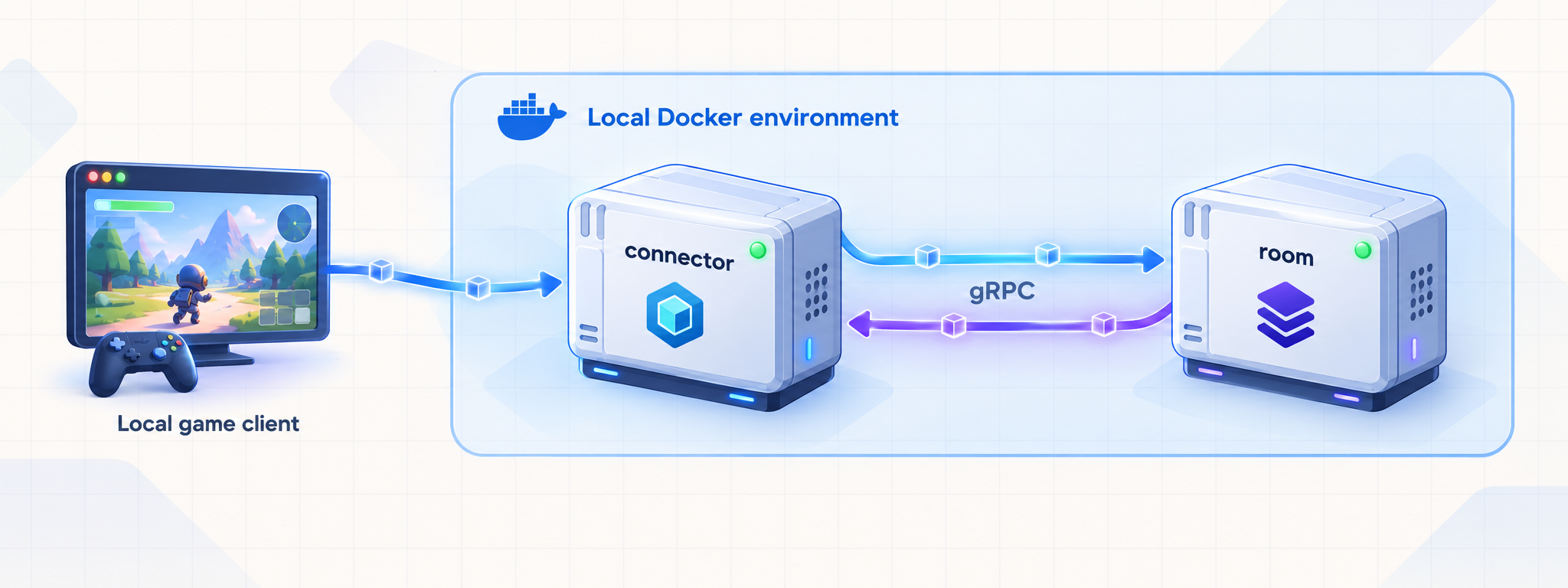
The documented example needs three active components: etcd, the frontend connector, and the backend room. etcd runs in Docker. The two Pitaya server targets should be launched in separate terminals because each server remains active while serving requests.
Begin in the root of the cloned pitaya repository. Keep track of the current directory in every terminal. Running a Make target from examples/testing instead of the repository root is a common and avoidable source of “target not found” errors.
Start the etcd container
From the repository root, enter examples/testing and use the documented Docker Compose command to start the service named etcd in detached mode.
Start the frontend connector
Open a new terminal, return to the Pitaya repository root, and run the connector Make target. Leave this process running and watch its logs for startup errors.
Start the backend room
Open another terminal at the repository root and run the room Make target. Keep this process running as well. The expected result is one frontend connector and one backend room server.
Terminal 1: start etcd
cd pitaya
cd ./examples/testing
docker compose up -d etcd
If your original shell is already inside the repository root after installation, omit the first cd pitaya. The important condition is that docker compose up -d etcd runs from examples/testing, where the example's Compose configuration is expected.
You can inspect the state and logs of that named Compose service from the same directory:
docker compose ps etcd
docker compose logs etcd
These are standard Docker Compose operational checks. Do not continue if the etcd container repeatedly exits or reports an unrecoverable startup problem.
Terminal 2: start the connector
cd pitaya
make run-cluster-grpc-example-connector
Run this target from the repository root. The process should remain active. Keep the terminal visible during initial verification because an immediate exit, dependency error, or service-discovery failure needs to be solved before a remote tunnel can help.
Terminal 3: start the room
cd pitaya
make run-cluster-grpc-example-room
This target also runs from the repository root and should remain active. At this point, the documented expected state is two Pitaya servers: a frontend connector and a backend room.
A running process is not proof that the cluster works. The connector can be alive while the room is unavailable, etcd registration is incomplete, or application routing fails. Complete the local request test before configuring public access.
Verify the connector and room locally
Pitaya's documented verification uses the pitaya-cli REPL client. It connects to localhost:3250, sends a request to room.room.entry, and expects an OK result from the server.
The supplied repository excerpt names pitaya-cli but does not provide its installation command. We therefore cannot responsibly invent a package name, Go installation path, binary URL, or platform-specific procedure. Have the Pitaya REPL client available before this stage, using the installation method verified for the version you selected. If it is unavailable, use a compatible Pitaya client from your own application, but do not substitute a generic port probe for an application-level request test.
Launch the Pitaya REPL client
Open a fourth terminal and start pitaya-cli. This terminal does not need to run either server process.
Connect to the local frontend
At the REPL prompt, connect to localhost:3250. A successful connection confirms that the client can reach the local connector listener.
Send the room entry request
Request room.room.entry. The expected response contains code 0 and result ok, demonstrating that the request reaches the room service and returns through the connector.
pitaya-cliconnect localhost:3250
request room.room.entryThe expected interaction is equivalent to the following:
connected!
sv-> {"code":0,"result":"ok"}
There are two distinct success levels here. Seeing connected! verifies the connector connection. Receiving {"code":0,"result":"ok"} verifies more of the distributed path because the named room route responds successfully. Use the request result, not just the initial connection, as your readiness gate.
Run the test suite separately
Pitaya also documents a repository test target that runs both unit and end-to-end tests:
make testRun this from the repository root. Passing tests are useful evidence that the checked-out source works in your build environment, but they do not replace the live example request. Conversely, a successful example request should not be used to dismiss failing unit or end-to-end tests. Investigate test failures before adopting the build for a long-lived environment.
| Check | What it proves | What it does not prove |
|---|---|---|
| Connector process remains running | The frontend did not immediately terminate | That a client can connect or a room request works |
connect localhost:3250 |
The REPL can reach and connect to the local frontend | That backend application routing succeeds |
request room.room.entry |
The documented route returns through the example cluster | That every application route or production workload is healthy |
make test |
The repository's unit and end-to-end test target completes | That your public tunnel or external client configuration works |
Provide remote connector access with Localtonet
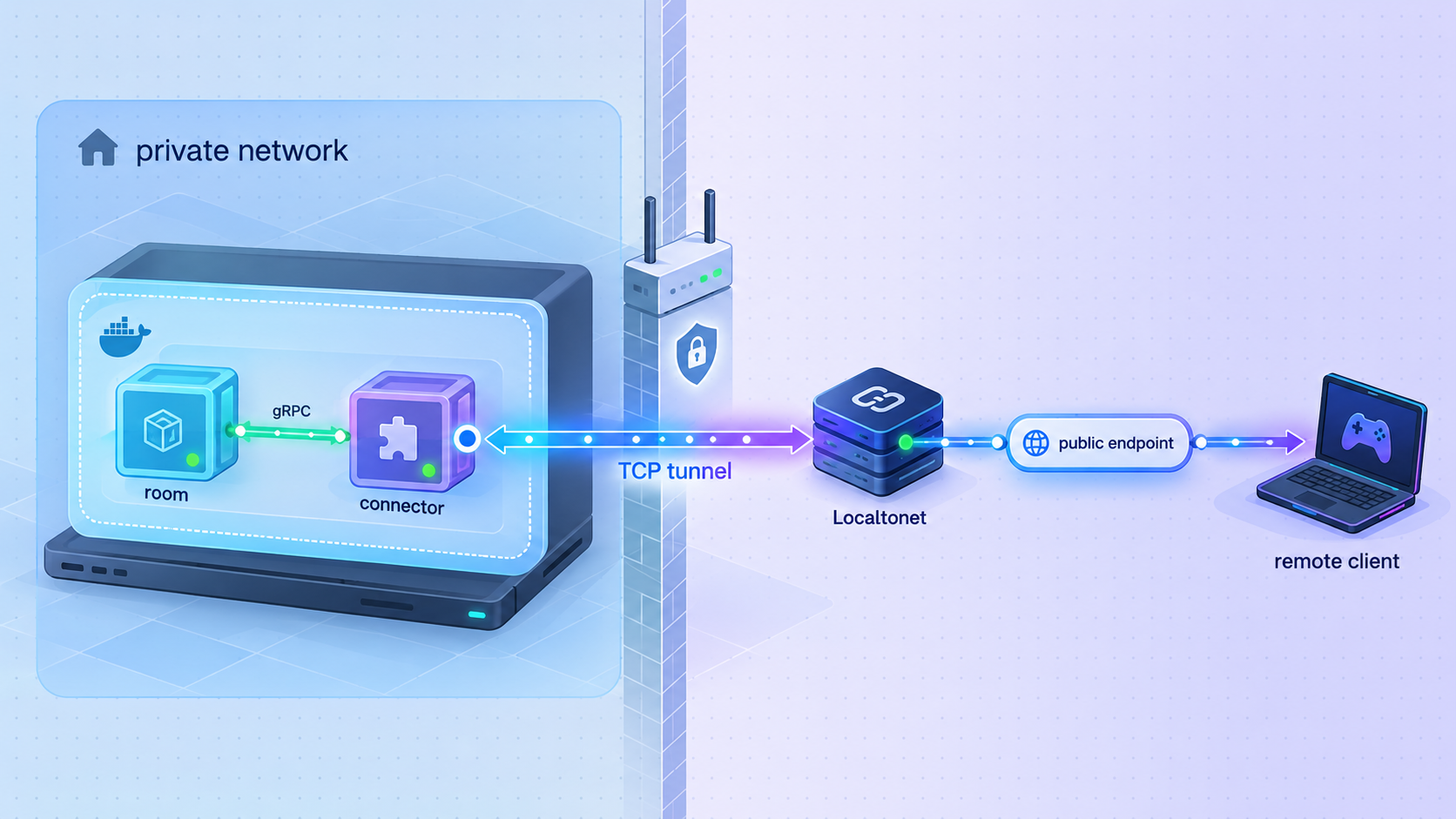
After the local request succeeds, you can make the connector reachable from another network with a Localtonet TCP tunnel. Our client runs on the Pitaya host or another device that can reach it. The client establishes an outbound connection to a Localtonet relay, so this workflow does not require inbound router port forwarding, a public IP address, firewall rule changes for an inbound internet listener, or VPN setup.
A TCP tunnel points to a local IP address and port. For the exact same-machine example demonstrated above, the target is localhost on port 3250. If our client runs on another device, localhost would refer to that other device, not the Pitaya server. In that topology, use an address reachable from the Localtonet device and confirm that the Pitaya connector is intentionally listening on an appropriate interface. The supplied Pitaya evidence does not document alternate bind settings, so this guide does not invent them.
Available relay server or region values can vary and must be selected from the current product or dashboard. Do not copy a server code from another user's configuration, and never publish an authentication token.
Install and run the Localtonet client
Install our client on the Pitaya machine or on a device that can reach the connector. Keep the client running because the tunnel is available only while the selected device remains connected and the tunnel is running.
Authenticate or select the device
Use the device-specific authentication token associated with the client that will carry the traffic. Treat the token as a secret. Do not paste it into documentation, source control, screenshots, support posts, or client configuration distributed to players.
Select an available relay server
Choose an available server or region from the current Localtonet dashboard. Values can change, so obtain the selection from the product rather than hardcoding a server code from this article.
Create the TCP tunnel configuration
Select a TCP tunnel and set its local target to the connector's reachable IP address and port 3250. For a client on the same machine as this unchanged example, use the local loopback target. Do not target etcd or the backend room.
Start the tunnel
Creating a tunnel does not start it. Use the Start action, then obtain the assigned public host and port from the active tunnel. The public endpoint is the address the remote Pitaya client must use.
Stop or delete access when finished
Stop the tunnel when remote access is no longer required. Delete it if the configuration is obsolete. Stopping Pitaya alone is not the same lifecycle action as stopping or deleting the tunnel.
Current tunnel families and general product guidance are available in the Localtonet documentation. Exact dashboard availability can vary by plan, client version, region, and current product configuration, so use the options shown in your account.
Test through the public endpoint
Keep the known-good local test available. From a genuinely remote network, configure the compatible Pitaya client to connect to the public host and port assigned to the active TCP tunnel. Do not append the local port automatically. The public port is the assigned Localtonet port, while 3250 remains the local target port behind the tunnel.
After connecting, send the same room.room.entry request. A successful response demonstrates that the external client reached the public endpoint, the tunnel forwarded the connection to the local connector, and the connector routed the request to the room service.
The supplied evidence only documents the REPL command with localhost:3250. It does not document the exact pitaya-cli syntax for every hostname format, IPv6 address, DNS name, or remote endpoint variation. Supply the assigned public host and port using the input format supported by your installed client version rather than guessing from an outdated example.
Saving a TCP tunnel configuration does not make it active. The selected Localtonet device must be connected, and the tunnel itself must be started. If either condition is false, the public host and port will not provide the intended route to Pitaya.
Security considerations for a public game connector
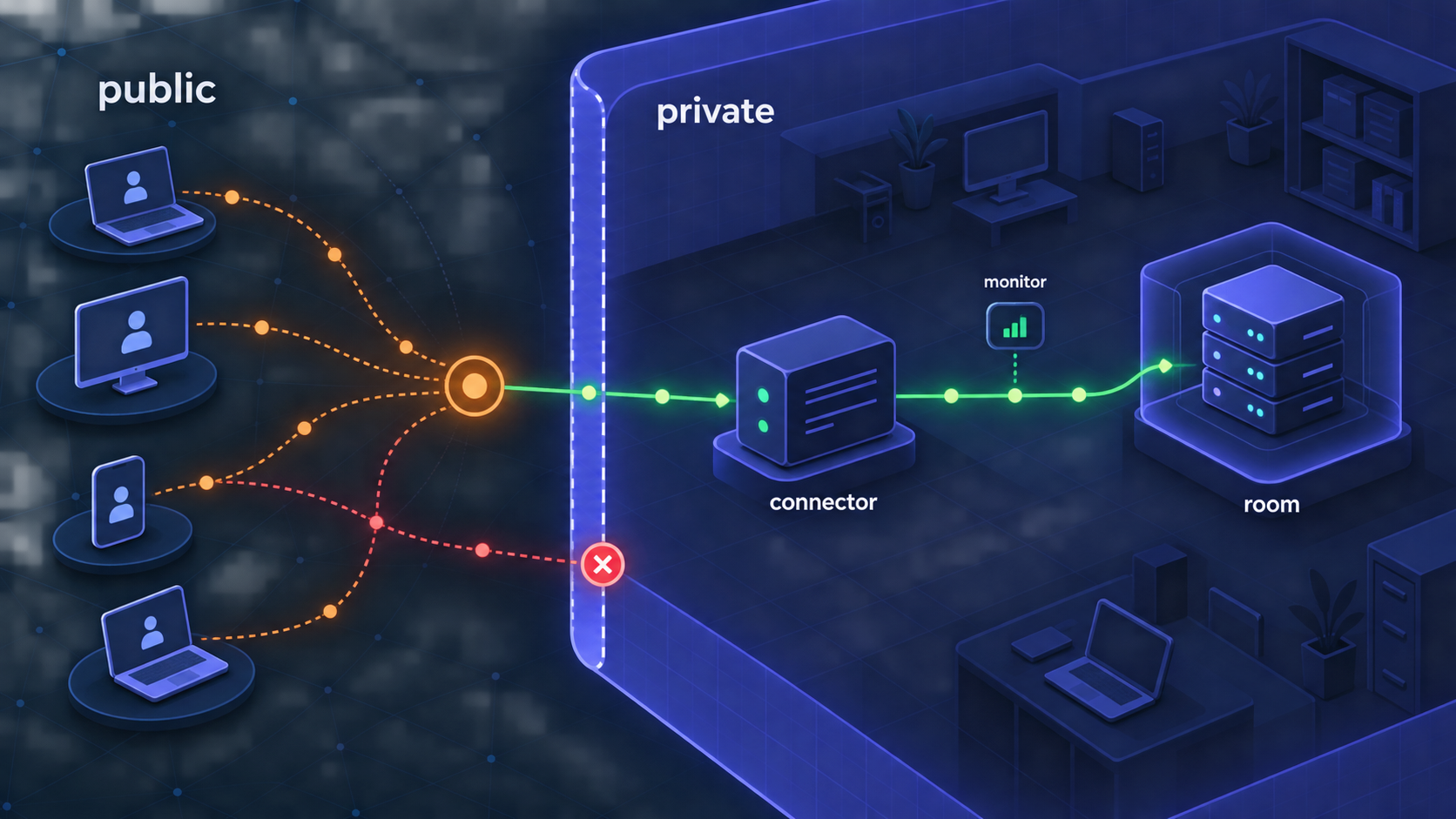
A tunnel solves reachability, not application authorization. Once started, a public TCP endpoint can receive connection attempts from the internet. Your Pitaya application remains responsible for deciding who may authenticate, which messages are valid, which routes a client may call, and how abusive or malformed traffic is handled.
Do not assume that a working development example is production hardened. The demonstrated route returns a basic success result, but the supplied evidence does not establish player authentication, application encryption, rate limiting, message-level authorization, denial-of-service controls, or production capacity. Design and test those controls according to your game and client protocol before offering broad access.
Do not infer end-to-end encryption, player authentication, or message confidentiality merely because the service is reached through a public TCP tunnel. The protocol spoken between your Pitaya client and connector determines the application-level security properties. The supplied project excerpt does not establish those properties for the example on port 3250.
Development access versus production architecture
This workflow is especially useful for development, remote testing, demonstrations, and controlled integration work where a connector already functions locally. A production multiplayer deployment needs broader engineering decisions, including process supervision, configuration management, dependency availability, release pinning, observability, backups where applicable, capacity planning, authentication, abuse handling, and safe rollout and shutdown procedures.
Pitaya's v2.11.24 shutdown fix illustrates why lifecycle behavior matters in a clustered service. In the reported race, a NATS failure concurrent with shutdown could terminate the process before graceful cleanup, including etcd service-discovery deregistration. Although that specific fix concerns a NATS-enabled path not exercised by this tutorial, production operators should test both normal and degraded shutdown conditions for the release they deploy.
Routine operation and troubleshooting
Recommended startup order
For this example, start etcd first, then the connector and room processes. Confirm that both server processes remain active, perform the local REPL request, and only then start the Localtonet tunnel. This ordering reduces ambiguous failures because each layer is tested before the next one is introduced.
For shutdown, first prevent unwanted new remote connections by stopping the tunnel. Then stop the Pitaya processes using the normal interruption and shutdown behavior available in their terminals. Finally, stop the example's etcd container when no running service needs it. From examples/testing, the standard Compose command for the named service is:
docker compose stop etcdIf you need to start that stopped service again from the same directory, use the documented startup command:
docker compose up -d etcdThe clone command fails
Confirm that Git is installed, that the destination directory is writable, and that the machine can reach the official repository. If a partial pitaya directory was created, inspect it before retrying so that you do not overwrite unrelated work or accidentally run commands in an incomplete checkout.
make setup fails
Check go version first and confirm it is Go 1.16 or newer. Then read the first meaningful error in the Make output. Later messages are often consequences of the original failure. Confirm that make is available, the current directory is the Pitaya repository root, and required downloads are not being blocked by your environment.
Docker Compose cannot start etcd
Verify that the Docker daemon is running and that your account can communicate with it. Confirm that docker compose version succeeds. Run the command from examples/testing, not from an arbitrary directory, and inspect:
docker compose ps etcd
docker compose logs etcd
If the service exits, use its logs to diagnose the actual container failure. Do not work around it by tunneling an internal dependency or by assuming the connector will discover the room without the example's service-discovery component.
A Make target is not found
The connector and room targets must run from the repository root:
make run-cluster-grpc-example-connector
make run-cluster-grpc-example-room
If your terminal is still in examples/testing after starting etcd, return to the repository root or open a fresh terminal there. Also confirm that your checked-out Pitaya revision contains the documented targets. A substantially different project revision may have changed its examples.
The REPL cannot connect to localhost:3250
First confirm that the connector process is still running and has not reported a startup failure. Make sure the REPL runs on the same host when using localhost. If the REPL is inside a container, virtual machine, or another computer, its own localhost is not the Pitaya host.
Also confirm that you are testing the documented connector rather than the room process. Port 3250 is demonstrated for the frontend connector in this example. The supplied evidence does not establish that every Pitaya application or example uses this port, so do not generalize it to unrelated configurations.
The client connects, but the room request fails
A successful connector connection followed by a failed room.room.entry request suggests that the frontend path works but the application route or clustered backend path does not. Check that the room target remains running, inspect both Pitaya terminals for errors, and confirm that etcd remains healthy. Restarting the public tunnel is unlikely to fix a route that already fails locally.
Local access works, but remote access fails
Work through the forwarding chain in order:
- Confirm the local
room.room.entryrequest still succeeds. - Confirm the Localtonet client is connected on the intended device.
- Confirm the TCP tunnel has been started, not merely created.
- Confirm the local target points to the connector-reachable address and port
3250. - Confirm the remote client uses the assigned public host and public port.
- Confirm the client protocol actually uses TCP for this connector configuration.
- Inspect the Pitaya connector terminal for evidence that the remote attempt arrived.
If our client runs on the same host as Pitaya, a loopback target matches the documented local setup. If it runs elsewhere, a loopback target points at the wrong machine. Correct that topology before investigating more complex causes.
The public connection succeeds, but requests behave incorrectly
At that stage, basic reachability probably exists. Compare the remote request with the known-good local request, including the route name and client compatibility. Check application logs and validate that the remote client uses the protocol expected by the connector. A TCP tunnel forwards the byte stream; it does not translate an incompatible client protocol into Pitaya's protocol.
The tunnel stops unexpectedly
Verify that the selected Localtonet device is still connected and that the client process remains running. The tunnel also needs to remain in its started state. Separately verify that Pitaya is still listening locally. A live public tunnel cannot deliver useful requests to a connector that has stopped, and a healthy local connector is not remotely reachable through a stopped tunnel.
Diagnose in this order: dependencies, Pitaya processes, local connection, local application request, Localtonet device connection, tunnel state, public connection, then remote application request. Skipping directly to the public endpoint usually hides which layer actually failed.
Frequently asked questions
What version of Go does Pitaya require?
The official Pitaya repository states that Go 1.16 or newer is required. Check with go version before running make setup. Your organization may choose a newer tested Go release, but this guide does not claim compatibility details beyond the project's documented minimum.
Are Docker, etcd, and NATS all required?
Pitaya lists all three as optional in general. For the exact cluster_grpc workflow covered here, etcd is part of the example and Docker Compose is the documented way to run it. NATS is optional for Pitaya and is not included in the commands for this example.
Which Pitaya port should the Localtonet tunnel target?
For the unchanged example in the supplied Pitaya documentation, the REPL connects to the frontend connector at localhost:3250. A same-host Localtonet client can therefore target the loopback address and port 3250. Do not assume that every Pitaya application uses this port, and do not target etcd or the backend room.
Why use a TCP tunnel if the project excerpt does not name the transport?
The documented client workflow connects directly to a host and port, making raw TCP forwarding the practical recommendation for this tutorial. However, the supplied excerpt does not explicitly declare the transport used by port 3250. Confirm the connector and client configuration before deployment. If your application uses another transport, choose a matching tunnel type rather than forcing it through this example.
Can I use the WebSocket chat demo instead?
Pitaya lists a chat-room demo using WebSocket, but the evidence supplied for this article does not include its installation steps, startup commands, configuration, or listening port. This guide therefore does not invent those details. Follow verified instructions for that specific demo if WebSocket is your intended application transport.
Does creating a Localtonet tunnel start it automatically?
No. Creating the configuration and running it are separate lifecycle actions. The selected Localtonet device must be connected, and you must start the tunnel. You can later stop it temporarily or delete an obsolete configuration.
Does the TCP tunnel secure or authenticate Pitaya players?
No application-level authentication should be inferred from forwarding the connector. Your game must validate players, authorize actions, reject malformed messages, and implement any required protocol security. The project evidence supplied here does not establish those controls for the example.
Can the Localtonet client run on a different machine?
Yes, provided that device can reach the Pitaya connector. In that arrangement, do not use localhost unless Pitaya also runs on that same device. Configure a reachable local-network address and ensure the connector intentionally accepts that connection. The supplied Pitaya excerpt does not document alternate listener binding settings, so verify them against the version and application configuration you use.
How do I know whether a failure belongs to Pitaya or the tunnel?
Repeat the local REPL test. If connect localhost:3250 or request room.room.entry fails locally, repair the Pitaya stack first. If the complete local request succeeds, check the Localtonet device connection, tunnel state, local target, public host and port, and remote client protocol.
Make your verified Pitaya connector remotely reachable
Once the connector and room request work locally, create a Localtonet account, connect the device that can reach Pitaya, and start a TCP tunnel to the verified connector target. Keep internal dependencies private and stop the tunnel when remote access is no longer required.
Get Started Free →

