

Install the coding agent, authenticate it, verify a safe local workflow, and understand when its experimental Web UI or daemon belongs in your setup
Qwen Code is an open-source coding agent for terminals, editors, desktop applications, browsers, automation, and chat integrations. This guide covers the supported standalone, npm, and Homebrew installation paths for Linux, macOS, and Windows, followed by first-run authentication, local verification, offline installation, updates, and removal. It also explains how qwen serve --open launches the experimental browser interface and how that workflow relates to the lower-level qwen serve HTTP, Server-Sent Events, and ACP daemon. Daemon guidance was reviewed against Qwen Code v0.22.3 and the current documentation available in August 2026, so revalidate experimental behavior after upgrading.
📋 What's in this guide
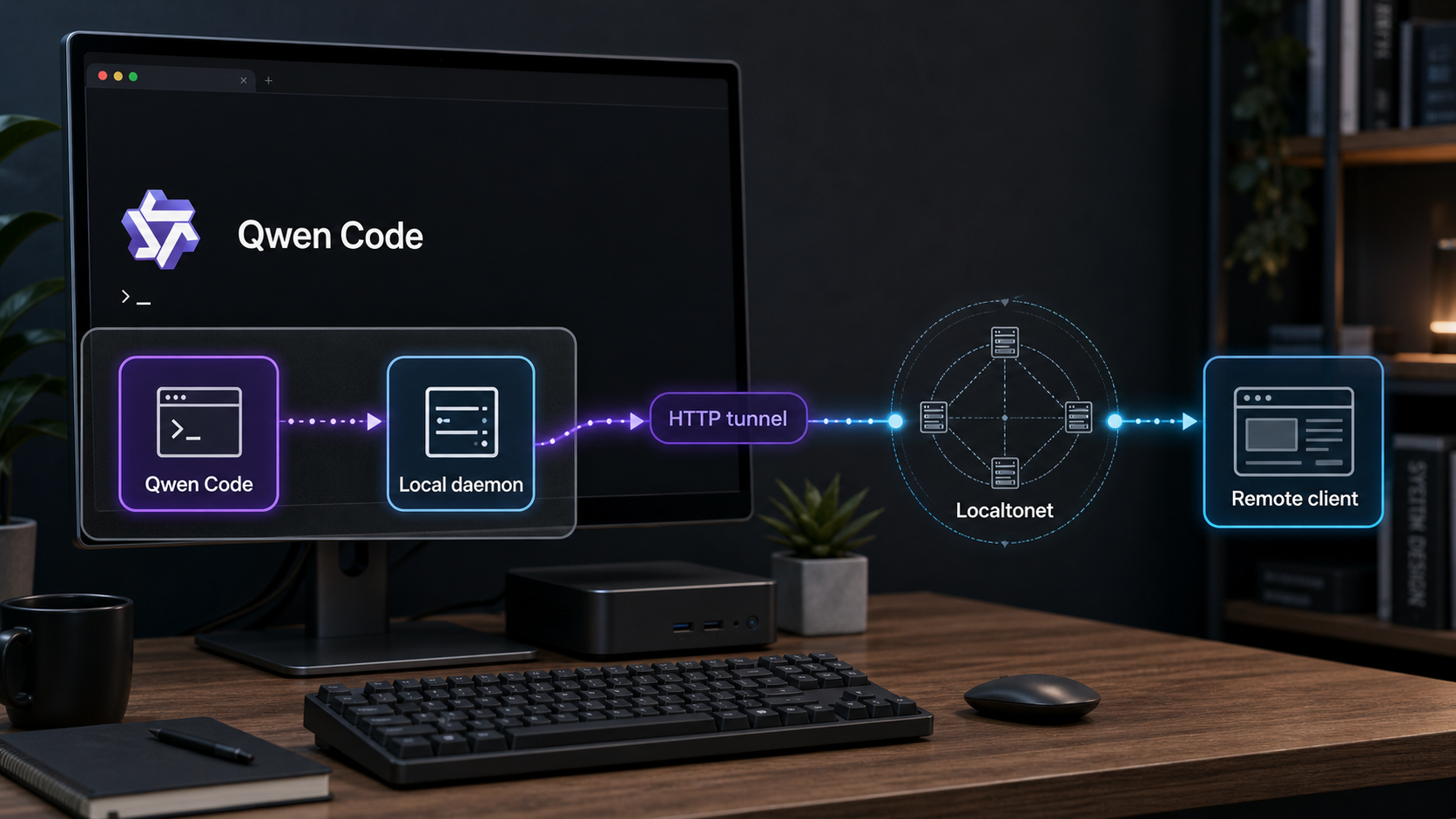
Choose the right Qwen Code workflow and installation method
The normal Qwen Code workflow begins in a terminal. Open the project you want the agent to understand, run qwen, authenticate a model provider, and interact with the terminal interface. Installing the command-line application does not automatically start a web server or expose a network port.
Qwen Code also offers other interfaces for different use cases. The current project documentation lists desktop applications, editor integrations, a browser Web UI, SDKs, chat channels, headless execution, and an experimental daemon. These interfaces share the broader Qwen Code ecosystem, but they do not all have the same stability, security boundary, or network behavior.
qwen in a project directory for the primary terminal-based agent experience.
qwen -p "..." for noninteractive scripts, batch processing, and CI/CD workflows.
qwen serve --open to start the serve runtime and open its browser interface locally.
qwen serve when a compatible client needs the HTTP, SSE, and ACP service without automatically opening a browser.
This article validates stable installation instructions against the current Qwen Code repository and release v0.22.3. The daemon and Web UI remain explicitly experimental. Even when a release reports no known breaking changes, integrations that depend on daemon routes, events, authentication, session behavior, or client adapters should be tested again after every upgrade.
For the project’s current starting point, installation summary, and interface list, consult the Qwen Code repository and the Qwen Code user overview. The release used for the version-sensitive portions of this guide is Qwen Code v0.22.3.
Installation methods at a glance
| Method | Platforms | Requirement | Maintenance model |
|---|---|---|---|
| Standalone installer | Linux, macOS, Windows | A shell and access to the official installer asset | Use the current official installer for the standalone installation |
| npm | Supported Node.js environments | Node.js 22 or later and npm on PATH |
Update and uninstall through npm |
| Homebrew | macOS and Linux | A working Homebrew installation | Update and uninstall through Homebrew |
| Offline release archive | Where a matching official archive is available | Release archive, matching SHA256SUMS, and installer |
Stage and verify each replacement release explicitly |
Qwen documents that the recommended installer uses a standalone archive when one is available for the platform. If it falls back to npm, Node.js 22 or later and npm must be available on PATH. A fallback failure can therefore be a Node.js or npm problem even though you started with the standalone installer.
The convenient standalone commands send an installer from the official Qwen Code asset host directly to a shell. Confirm the hostname, use a trusted network, and follow your organization’s software approval policy. In controlled environments, download and inspect the script before executing it or use the documented offline archive process.
Install Qwen Code on Linux, macOS, or Windows
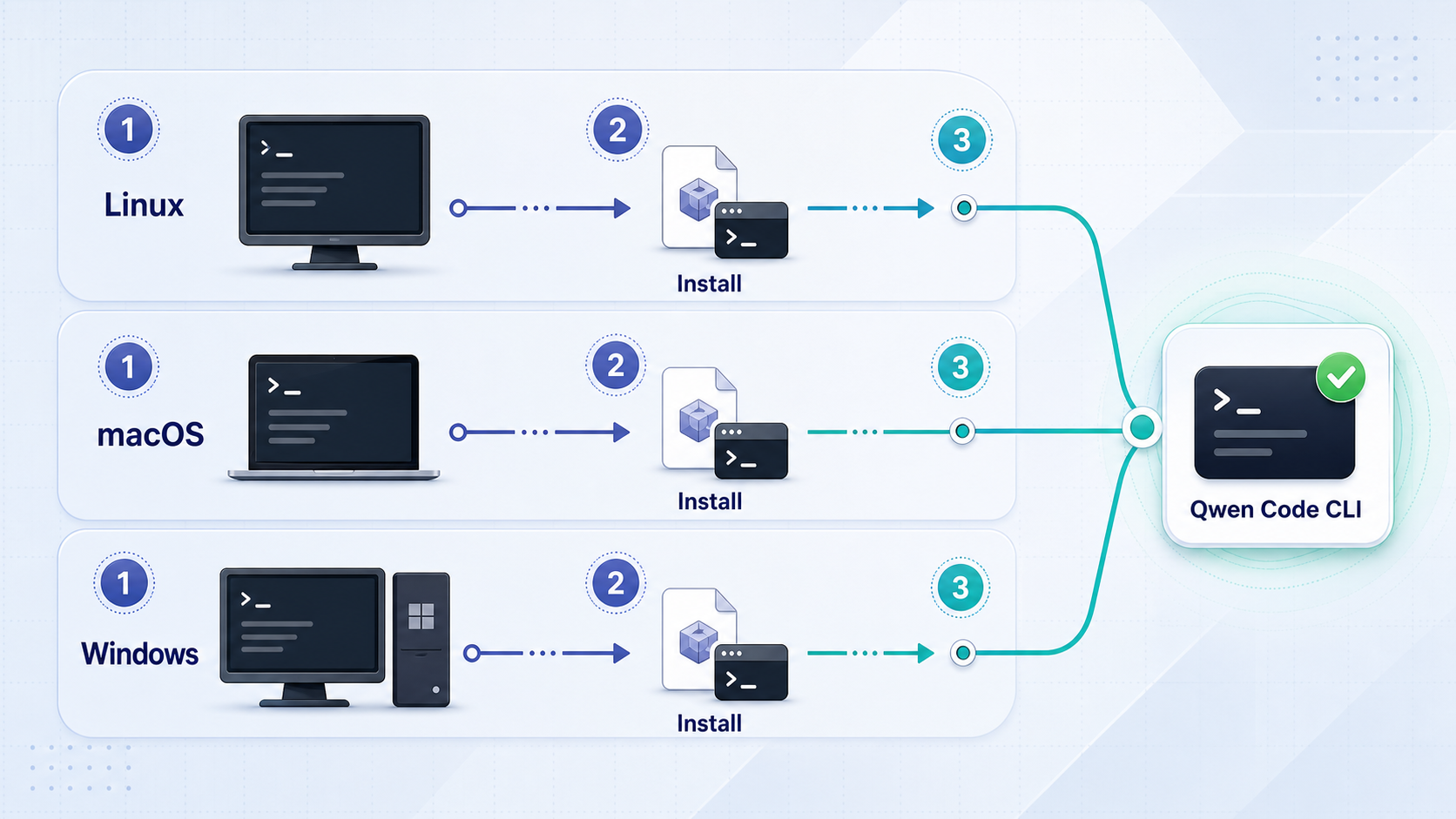
Choose one installation path. Installing Qwen Code through several package managers can leave multiple qwen executables on the same computer. That makes updates and troubleshooting harder because the shell may launch a different copy from the one you just installed.
Linux or macOS: standalone installer
Open a terminal and run the official standalone installer:
curl -fsSL https://qwen-code-assets.oss-cn-hangzhou.aliyuncs.com/installation/install-qwen-standalone.sh | bashRestart the terminal when the installer finishes. This reloads any environment changes and gives the new shell an opportunity to discover the installed executable.
Windows: standalone installer
Open PowerShell and run:
irm https://qwen-code-assets.oss-cn-hangzhou.aliyuncs.com/installation/install-qwen-standalone.ps1 | iex
Close and reopen PowerShell, Windows Terminal, or the terminal inside your editor after installation. If qwen remains unavailable, investigate command discovery and PATH before installing a second copy.
Linux, macOS, or Windows: npm
The npm installation path requires Node.js 22 or later. Check the active runtime first:
node --version
npm --version
Then install the current Qwen Code package globally:
npm install -g @qwen-code/qwen-code@latestNode.js version managers and npm prefix settings can change where global commands are installed. If npm reports success but the command is missing, check the global executable directory and the active Node.js environment instead of repeatedly reinstalling the package.
macOS or Linux: Homebrew
If Homebrew already manages your command-line tools, run:
brew install qwen-codeContinue to use Homebrew for upgrades and removal. Do not overlay an npm installation unless you intentionally understand and manage the resulting command precedence.
Confirm that the shell finds Qwen Code
Open a new terminal and request help:
qwen --helpHelp output confirms that the shell can locate and execute Qwen Code. It does not confirm model-provider authentication or access to a specific project. Those checks come next.
Authenticate a model provider on first launch
Qwen Code needs a configured model provider before it can complete coding requests. Start it from the project directory that should form the initial workspace context:
cd /path/to/your-project
qwen
On first launch, Qwen Code prompts you to connect a provider. The documented choices include Alibaba ModelStudio, third-party providers, and a custom provider. Alibaba ModelStudio includes documented Coding Plan, Token Plan, and Standard API Key paths. Built-in third-party choices can include providers such as DeepSeek, MiniMax, Z.AI, Kimi, and OpenRouter. A custom provider can represent a compatible local server, proxy, or provider not represented by a built-in choice.
Review the workspace
Inspect the directory before launching the agent. Identify environment files, private keys, production data, generated artifacts, and other content that should not be available to the session.
Start the interactive interface
Run qwen from the intended project. Starting it from the wrong directory can provide the agent with unintended workspace context.
Open authentication settings
Follow the first-run prompt. If the prompt is no longer visible, enter /auth inside the Qwen Code session.
Choose the correct provider category
Select Alibaba ModelStudio, a listed third-party provider, or Custom Provider according to the service you actually use. Do not copy endpoint or credential formats from an unrelated provider.
Complete the provider’s credential flow
Supply credentials through the supported prompt or provider-specific configuration. Keep API keys out of repositories, shell history, screenshots, public URLs, and support posts.
Begin with a read-oriented request
Ask a low-risk question such as what does this project do? or Explain this repository and show me where to start. Confirm that the response refers to the intended workspace before permitting edits or command execution.
The Qwen Code user documentation links onward to its current Authentication Guide, Settings Reference, troubleshooting guidance, and provider-specific setup. Use those version-current pages when a provider requires account, endpoint, model, or regional details beyond the common flow above.
A provider credential authorizes Qwen Code to call a model service. It should not be treated as proof that an incoming browser, ACP client, or HTTP request is authorized to control a running daemon. Daemon access control is a separate security boundary.
Verify interactive and headless operation locally
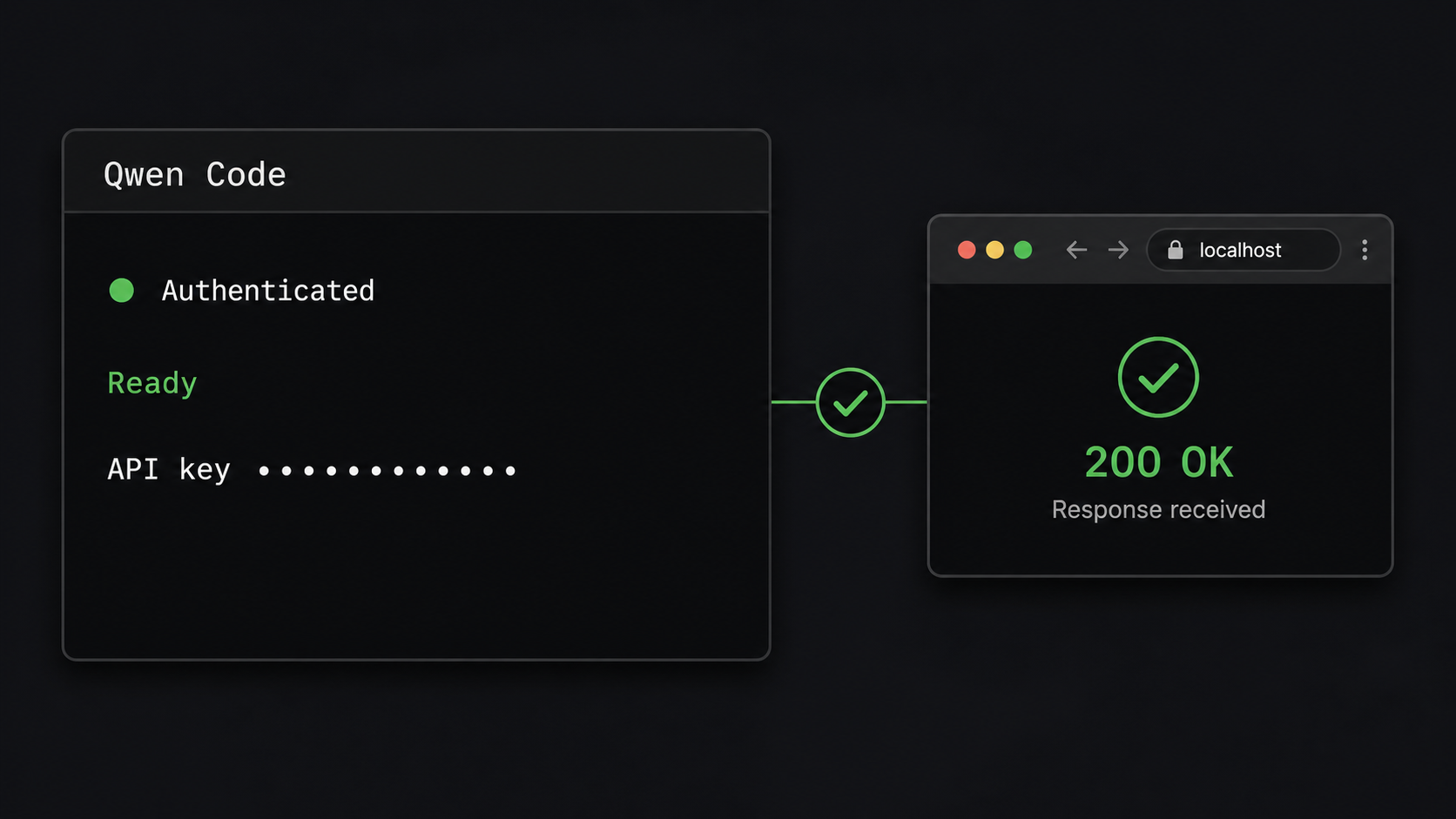
A complete local verification separates installation, authentication, workspace selection, and model execution. This prevents a daemon or tunnel from hiding the original source of a problem.
Check command discovery
qwen --help
If help appears, the shell can launch the executable. If it does not, restart the terminal, check PATH, and determine whether standalone, npm, or Homebrew installed the active copy.
Check an interactive request
cd /path/to/a/test-project
qwen
Authenticate if prompted and ask Qwen Code to summarize the test project. Verify that the answer reflects the intended directory. Use a disposable repository for the first test if you have not yet reviewed trusted-folder behavior, ignored files, approval settings, sandboxing, and tool permissions.
Check headless execution
Qwen documents the -p form for scripts, CI/CD, and batch jobs:
qwen -p "Summarize this project."Run the command inside a non-sensitive test project. Headless mode can inherit the process working directory, environment, provider configuration, and operating-system permissions. Do not assume that removing the interactive interface also removes the need for approvals, isolation, credential protection, or output review.
Test qwen --help, then interactive authentication, then a harmless project request, and finally headless mode if you need automation. Only test qwen serve after these checks pass.
Prepare and verify an offline installation
Qwen’s current overview documents offline installation using an official release archive and the installer’s --archive PATH option. It also instructs users to keep the matching SHA256SUMS file beside the archive. The archive, checksum list, and installer must belong to the same release.
Use an internet-connected staging computer to obtain the official files. Record the release tag, target operating system, CPU architecture, archive filename, and source URL. Transfer the files through an approved method to the offline computer without renaming the checksum list.
Verify the archive checksum
On Linux, GNU sha256sum can verify entries in a checksum file:
sha256sum -c SHA256SUMS
If the checksum list contains artifacts that are not present in the directory, verify the selected archive’s digest directly and compare it with that archive’s exact entry in SHA256SUMS:
sha256sum /path/to/qwen-code-release-archiveOn macOS, calculate the SHA-256 digest with:
shasum -a 256 /path/to/qwen-code-release-archiveOn Windows PowerShell, use:
Get-FileHash -Algorithm SHA256 C:\path\to\qwen-code-release-archive
Compare the entire hexadecimal digest with the exact archive entry in the official SHA256SUMS file. Do not proceed if the filename, release, architecture, or checksum differs.
Run the installer against the verified archive
The documented offline interface is --archive PATH. Preserve the downloaded installer as a local file, inspect it if required, and pass the verified archive path to that installer. Do not pipe a network response into a shell on the offline machine.
Platform-specific script invocation and archive filenames can change with a release. The current primary evidence establishes the --archive PATH interface but does not provide a universal Windows parameter spelling or a permanent archive filename. Use the installer’s local help or the manual-installation instructions linked from the
current Qwen Code overview
for the exact downloaded installer version. This limitation is preferable to presenting an unverified PowerShell parameter or obsolete artifact name.
After installation, open a new terminal and repeat:
qwen --helpRemember that installing the client offline does not guarantee offline model operation. A cloud model provider still needs outbound network connectivity. Fully local operation requires a compatible custom provider that is reachable from the Qwen Code computer.
Update, identify, and remove Qwen Code
Keep the original package source authoritative. Before an update, determine whether the active command came from npm, Homebrew, or a standalone installation. Shell-specific command-location tools can help identify duplicate executables.
On Linux or macOS:
command -v qwenIn PowerShell:
Get-Command qwen| Installation source | Update | Remove |
|---|---|---|
| npm | npm install -g @qwen-code/qwen-code@latest |
npm uninstall -g @qwen-code/qwen-code |
| Homebrew | brew upgrade qwen-code |
brew uninstall qwen-code |
| Standalone | Run the current official installer and verify the resulting executable | Follow the current Qwen uninstall guidance for the standalone layout installed on that operating system |
| Offline archive | Stage, verify, and install the desired official release archive | Follow the uninstall procedure associated with that standalone release and platform |
The supplied current evidence provides exact npm and Homebrew removal commands through their package-manager conventions, but it does not provide one verified cross-platform standalone removal command or fixed installation directory. Deleting a guessed directory could remove the wrong copy or leave configuration behind. Use the Uninstall page available from the current Qwen Code documentation for the installed standalone release and operating system.
After updating, open a new terminal and repeat the help, authentication, and low-risk workspace tests. If you use the experimental Web UI or daemon, also repeat local listener, client compatibility, session, and authorization tests before restoring any remote access.
Open the experimental Qwen Code Web UI
The documented browser workflow is:
cd /path/to/your-project
qwen serve --open
This command starts the experimental serve runtime and opens the Qwen Code Web UI in your browser. It is not a separate server implementation from daemon mode. The --open option adds the browser-opening workflow to qwen serve, while plain qwen serve is appropriate when a separate daemon client will connect or when you do not want the command to open a local browser automatically.
| Command | Primary use | Browser behavior | Stability |
|---|---|---|---|
qwen |
Interactive terminal session | Does not start the Web UI | Primary CLI workflow |
qwen -p "..." |
Headless automation | No browser interface | Documented automation workflow |
qwen serve --open |
Local browser Web UI | Opens the UI automatically | Experimental |
qwen serve |
Daemon clients and integrations | Does not request automatic browser opening | Experimental |
Verify the Web UI locally
Use a reviewed test workspace
Change into a disposable or deliberately selected project before starting the serve runtime.
Start the Web UI
Run qwen serve --open and keep the terminal visible so startup messages and errors remain available.
Confirm the browser origin
Verify that the browser opened the origin reported by the running Qwen process. Do not substitute a guessed port or route.
Run a harmless request
Ask the Web UI to explain the test project. Confirm that it uses the intended workspace and provider before allowing modifications or shell commands.
Stop the serve process
End the process from its terminal when testing is complete, then confirm that the local Web UI is no longer reachable.
qwen serve --open is a convenient local launch workflow. It should not be interpreted as evidence that the listener is safe for public internet access. Review the daemon’s authentication, security, workspace, permission, and configuration documentation before changing its exposure.
Understand the experimental daemon before integrating a client
Qwen documents qwen serve as an experimental shared-agent daemon that clients can reach over HTTP and Server-Sent Events using ACP. In v0.22.3, the surrounding daemon documentation is substantially broader than a single startup command. It includes system architecture, serve runtime behavior, the ACP bridge, permission mediation, MCP transport pooling and budget guardrails, workspace file-system handling, session lifecycle and identity, typed events, SSE backpressure, capability negotiation, protocol versioning, authentication, security, configuration, remediation, observability, debugging, and operations.
These areas matter because a coding-agent daemon is stateful. A client is not merely downloading a static web page. It can participate in sessions that have identities, capabilities, events, permissions, workspace access, model operations, and lifecycle transitions. Qwen Code v0.22.3 also introduced a standalone daemon session API covering creation, listing, resumption, archiving, and deletion of top-level sessions.
HTTP, SSE, and ACP have different roles
- HTTP carries requests to the daemon’s documented protocol routes.
- Server-Sent Events provide a long-lived server-to-client event stream and require correct reconnect and backpressure behavior.
- ACP defines the agent-client interaction expected by compatible clients and adapters.
- Typed event schemas let clients interpret events according to a documented version rather than guessing message fields.
- Capability and protocol negotiation help a client determine which operations are supported by the running daemon version.
A generic browser request or a successful TCP connection does not verify all of these layers. The Web UI started by qwen serve --open is the easiest documented local browser client. A custom client must implement the current HTTP protocol, ACP behavior, event handling, session identity, and authorization requirements described by the version-matched daemon documentation.
Security and permission mediation
The daemon documentation includes a dedicated authentication and security model as well as permission mediation. Treat those mechanisms as distinct from model-provider authentication. Review how the daemon identifies owners and sessions, how clients present authorization, which operations require permission, and what happens when authorization is missing or invalid.
Permission mediation also does not replace operating-system isolation. Start Qwen Code as an unprivileged account, limit the workspace to the files needed for the task, avoid storing credentials in the repository, and review enabled tools, MCP servers, extensions, shell access, and approval behavior. If the agent can read or execute something locally, a successfully authorized remote session may be able to request that capability through the daemon.
Session lifecycle and identity
Do not treat every connection as an anonymous, disposable chat. Current daemon documentation includes session lifecycle and identity, and v0.22.3 exposes standalone session operations for creating, listing, resuming, archiving, and deleting top-level sessions. A remote client should preserve the session identifiers and ownership information required by the protocol rather than generating or reusing values arbitrarily.
Test initial connection, disconnect, reconnect, session resumption, archive behavior, deletion, and concurrent access before relying on a shared-agent workflow. Verify that one user or client cannot resume, inspect, or alter a session outside its intended scope.
SSE event handling and backpressure
Server-Sent Events are long-lived HTTP responses. A compatible client must parse the documented event schema, handle interruptions, reconnect according to the protocol, and avoid processing duplicated or stale events incorrectly. Qwen’s current daemon documentation specifically addresses the SSE event bus and backpressure, so custom clients should implement those rules rather than assuming that a basic EventSource connection is sufficient.
Configuration, observability, and remediation
Use the daemon configuration reference matching the installed version for listener, authentication, security, workspace, and operational settings. Do not copy an address, port, route, header, or environment variable from a different release without confirming that it remains supported.
Keep daemon logs visible during local validation. The current documentation includes error taxonomy and remediation plus observability and debugging guidance. Use those categories to separate startup configuration failures, authorization failures, protocol-version mismatches, session errors, event-stream problems, provider failures, permission denials, and workspace problems.
This daemon overview was checked against Qwen Code v0.22.3 and the current documentation in August 2026. The feature remains experimental. Confirm listener options, HTTP routes, authorization requirements, event schema, capability negotiation, and client-adapter behavior against the release you actually run.
Evaluate remote access without turning installation into unsafe public exposure
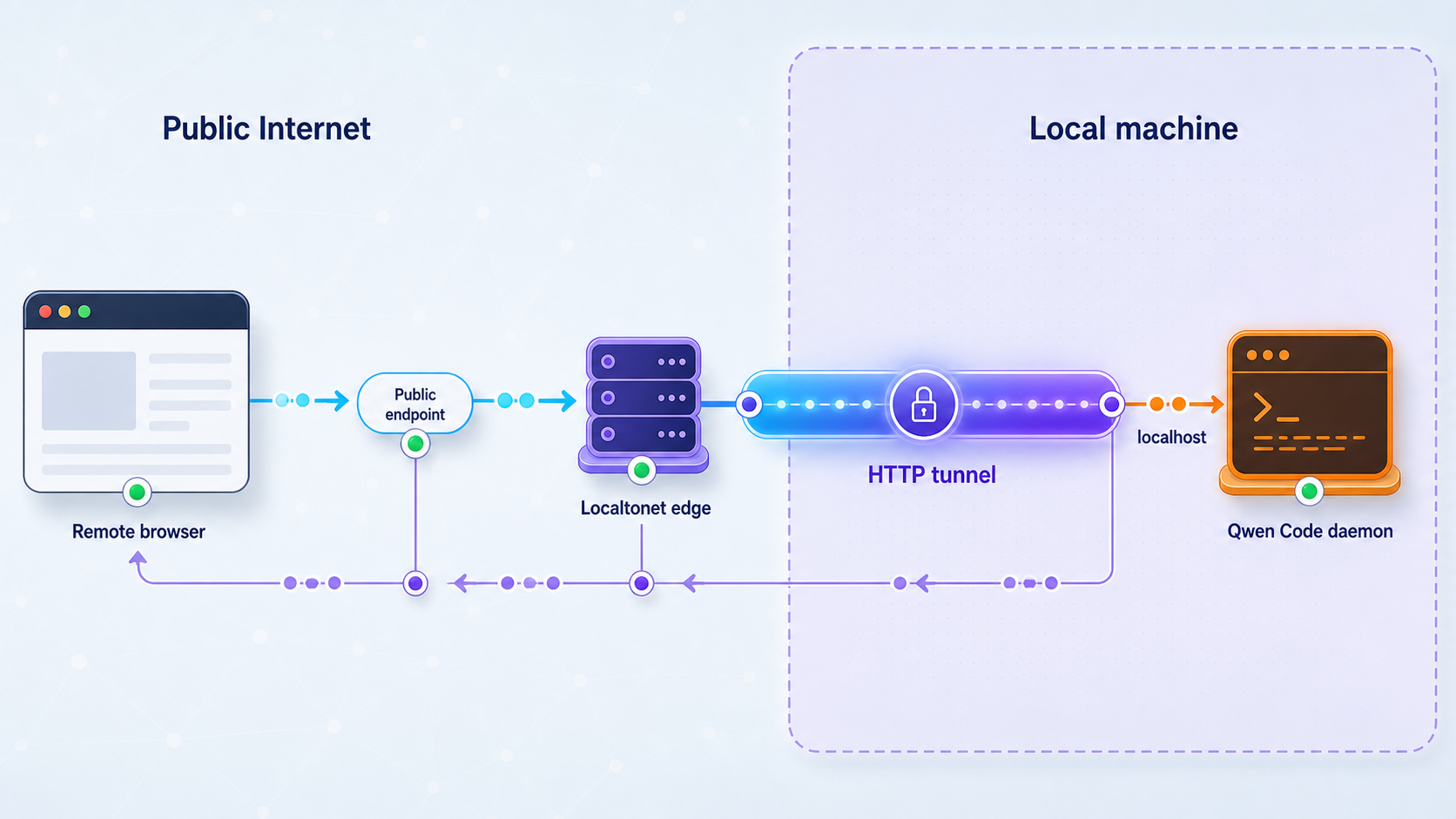
This is primarily an installation guide, not a complete public-daemon deployment recipe. The current evidence supplied for this revision does not include verified operating-system-specific Localtonet client installation commands or a canonical client download URL. For that reason, this section deliberately limits itself to architecture, prerequisites, and the documented Localtonet HTTP tunnel sequence. It does not claim that a reader can safely publish Qwen Code merely by copying a target port.
After Qwen Code works locally, our Localtonet client can run on the same device or another device that can reach the verified daemon listener. The client establishes an outbound connection to a Localtonet relay server. This provides a public URL without inbound router port forwarding, firewall changes, VPN setup, or a public IP address.
An HTTP tunnel is the relevant tunnel family because the Qwen daemon uses HTTP and SSE. The tunnel forwards traffic to a local IP address and port. It does not start Qwen Code, discover the listener, select an ACP route, configure daemon authentication, create session authorization, or make an incompatible client understand the protocol.
Prerequisites before creating any tunnel
qwenworks interactively in the intended project.- The model provider is authenticated and a harmless request succeeds.
qwen serve --openworks locally if the Web UI is the intended client.- Plain
qwen serveworks with the intended ACP client if a custom integration is required. - The listener address and port come from the installed version’s runtime or configuration, not from a guessed default.
- Daemon authentication and permission mediation are configured and tested.
- Session ownership, reconnect behavior, protocol versions, and SSE handling have been validated.
- The daemon runs as an unprivileged account with a deliberately limited workspace.
Documented Localtonet tunnel sequence
Install and run the Localtonet client
Use the current Localtonet application for the operating system on a device that can reach the verified Qwen Code listener. Because verified platform-specific client installation instructions were not supplied for this revision, obtain the current client through the Localtonet product rather than copying an unverified command from this article.
Authenticate or select the device
Select the device-specific authentication token belonging to the client that will run the tunnel. Treat the token as a secret and never include it in code, screenshots, logs, or public documentation.
Select an available relay server
Choose a currently available server or region in the Localtonet dashboard. Server codes and availability can vary, so do not copy a hardcoded value from an article.
Create the HTTP tunnel
Enter the local IP address and port verified for the running Qwen daemon. For HTTP tunnels, select the appropriate process type available to you: Random Sub Domain, Custom Sub Domain, or Custom Domain. These process types serve the target at a public HTTPS address.
Start the tunnel
Creating a tunnel does not make it active. Press Start, confirm that the chosen client device is connected, and verify that the tunnel reports a running state.
Test with the intended authenticated client
Use the Qwen Web UI or ACP-compatible client supported by the installed release. Confirm authorization, session identity, event delivery, reconnect behavior, and a harmless read-only request before permitting edits or commands.
Review the current Localtonet HTTP tunnel documentation for the dashboard workflow and field definitions. Creating the tunnel and starting it remain separate actions. The assigned public address is available only while the selected Localtonet client is connected and the tunnel is running.
Do not rely on an obscure public URL as authorization. A remotely controlled coding agent may have access to source code, local files, shell tools, extensions, MCP servers, provider-backed operations, and stored sessions. Apply Qwen Code’s documented authentication and permission mediation, use least privilege, limit the workspace, and stop the tunnel when remote access is no longer needed. If the current experimental daemon cannot meet your access-control requirements, keep it local or use an approved private-access design.
Reproducible tunnel verification
Verify the dependency chain in order. First confirm that the daemon remains running. Next verify the local Web UI or ACP client. Then confirm that the Localtonet device is connected and the tunnel is running. Finally, connect through the public HTTPS origin with the same supported client and authorization model.
- If no request reaches the daemon log, check the Localtonet client, selected device, tunnel state, local target, public origin, and network path.
- If the daemon returns an HTTP error, check the documented route, method, protocol version, headers, authorization, and session operation.
- If authorization fails, correct the daemon’s access-control configuration rather than placing provider credentials in the public URL.
- If SSE connects and drops, inspect client reconnect behavior, event-schema compatibility, backpressure handling, tunnel state, and daemon logs.
- If the connection works but model calls fail, troubleshoot provider authentication and outbound access separately.
- If the wrong files appear, stop immediately and verify the daemon’s workspace, process directory, and session identity.
Troubleshoot installation, authentication, Web UI, and daemon problems
qwen is not found
Restart the terminal first. If the command remains unavailable, inspect PATH and determine where the selected installer placed the executable. For npm, verify Node.js 22 or later, npm’s global prefix, and the active version-manager environment. For Homebrew, confirm that the appropriate Homebrew binary directory is on PATH.
The standalone installer fails during npm fallback
Install or activate Node.js 22 or later and ensure npm is available on PATH. Open a new terminal and retry the official installer. In a restricted network, verify access to both the official Qwen asset host and any package endpoints required by the fallback.
Authentication succeeds, but model requests fail
Enter /auth and confirm the selected provider. Check the provider credential, account state, endpoint, region, model availability, and outbound network policy. For a custom provider, verify its documented protocol compatibility instead of assuming that any model-related HTTP endpoint is compatible.
Headless output differs from the interactive session
Confirm that both commands use the same working directory, operating-system account, environment, provider configuration, and Qwen executable. Automation shells often load a different environment from interactive terminals.
qwen serve --open does not open a browser
Keep the terminal visible and inspect the startup output. The serve runtime may still have started even if the operating system could not launch a browser. Use only the local origin reported by the process. Do not guess a port or route. Also verify that ordinary qwen authentication works before debugging the Web UI.
qwen serve exits immediately
Read the first daemon error and classify it before changing network settings. Check configuration, workspace access, provider authentication, unsupported options, extension configuration, and occupied listener resources. A Localtonet tunnel cannot keep a failed daemon process alive.
A custom daemon client receives protocol errors
Confirm that the client and daemon use compatible ACP and HTTP protocol versions. Check capability negotiation, required headers, session identity, request sequencing, and the typed event schema. Do not infer the current protocol from an older example or from the behavior of the built-in Web UI.
The SSE stream repeatedly reconnects
Inspect daemon and client logs around the interruption. Check event parsing, reconnection state, duplicate handling, backpressure, authorization lifetime, session state, and network continuity. If a tunnel is present, repeat the same test locally to determine whether the interruption exists without the tunnel.
An update appears to have had no effect
The shell may be running a different copy of qwen from the one you updated. Use command -v qwen on Linux or macOS, or Get-Command qwen in PowerShell. Remove obsolete copies through their original package managers after confirming which installation should remain.
The public URL opens, but the agent is not usable
A reachable HTTPS origin proves only part of the path. Confirm daemon authorization, protocol routes, Web UI asset loading, SSE connectivity, ACP compatibility, session creation or resumption, provider operation, and workspace permissions. Avoid sending destructive requests merely to test connectivity.
Frequently asked questions
Does Qwen Code require Node.js?
The npm installation requires Node.js 22 or later. The standalone installer uses a standalone archive when one is available, but it can fall back to npm. Node.js 22 or later and npm must be on PATH for that fallback.
How do I authenticate Qwen Code?
Run qwen and follow the first-launch provider prompt. You can reopen authentication settings with /auth. Select Alibaba ModelStudio, a supported third-party provider, or a compatible custom provider and complete its credential flow.
What does qwen serve --open do?
qwen serve --open starts the experimental serve runtime and opens the Qwen Code Web UI in a browser. It is the browser-oriented form of the same serve capability used by daemon mode, not an unrelated server.
What is the difference between qwen serve and qwen serve --open?
Both use the experimental serve runtime. Plain qwen serve is suitable for daemon clients and integrations without requesting automatic browser launch. Adding --open opens the built-in Web UI for a local browser workflow.
Is Qwen Code daemon mode stable?
No. Qwen currently labels qwen serve and the Web UI workflow experimental. Pin the Qwen Code release used by an integration and revalidate configuration, routes, authorization, sessions, events, and client compatibility after updating.
Can I install Qwen Code offline?
Yes, where an appropriate official release archive is available. Download the archive and matching SHA256SUMS, verify the SHA-256 digest, transfer the files, and run the installer with its documented --archive PATH interface. Cloud model providers may still require network access.
How do I uninstall Qwen Code?
For npm, run npm uninstall -g @qwen-code/qwen-code. For Homebrew, run brew uninstall qwen-code. Standalone locations and cleanup can vary by platform and release, so follow the current Qwen uninstall instructions for that installation rather than deleting a guessed directory.
Does Localtonet authenticate Qwen Code daemon users automatically?
This guide makes no such claim. A Localtonet HTTP tunnel forwards the daemon’s HTTP traffic to a verified local target. Configure and test Qwen Code’s own current authentication, security, identity, and permission model before any remote exposure.
Does creating a Localtonet tunnel start it immediately?
No. After creating the tunnel, press Start. The public address remains available only while the selected Localtonet client is connected and the tunnel is running. Stop or delete it when remote access is no longer required.
Connect only after Qwen Code passes local verification
Install and authenticate Qwen Code, validate the intended workspace, and test the experimental Web UI or daemon locally. If its version-specific security model is suitable for your use case, Localtonet can provide an outbound HTTP tunnel to the confirmed listener without opening an inbound router port.
Get Started Free →

