

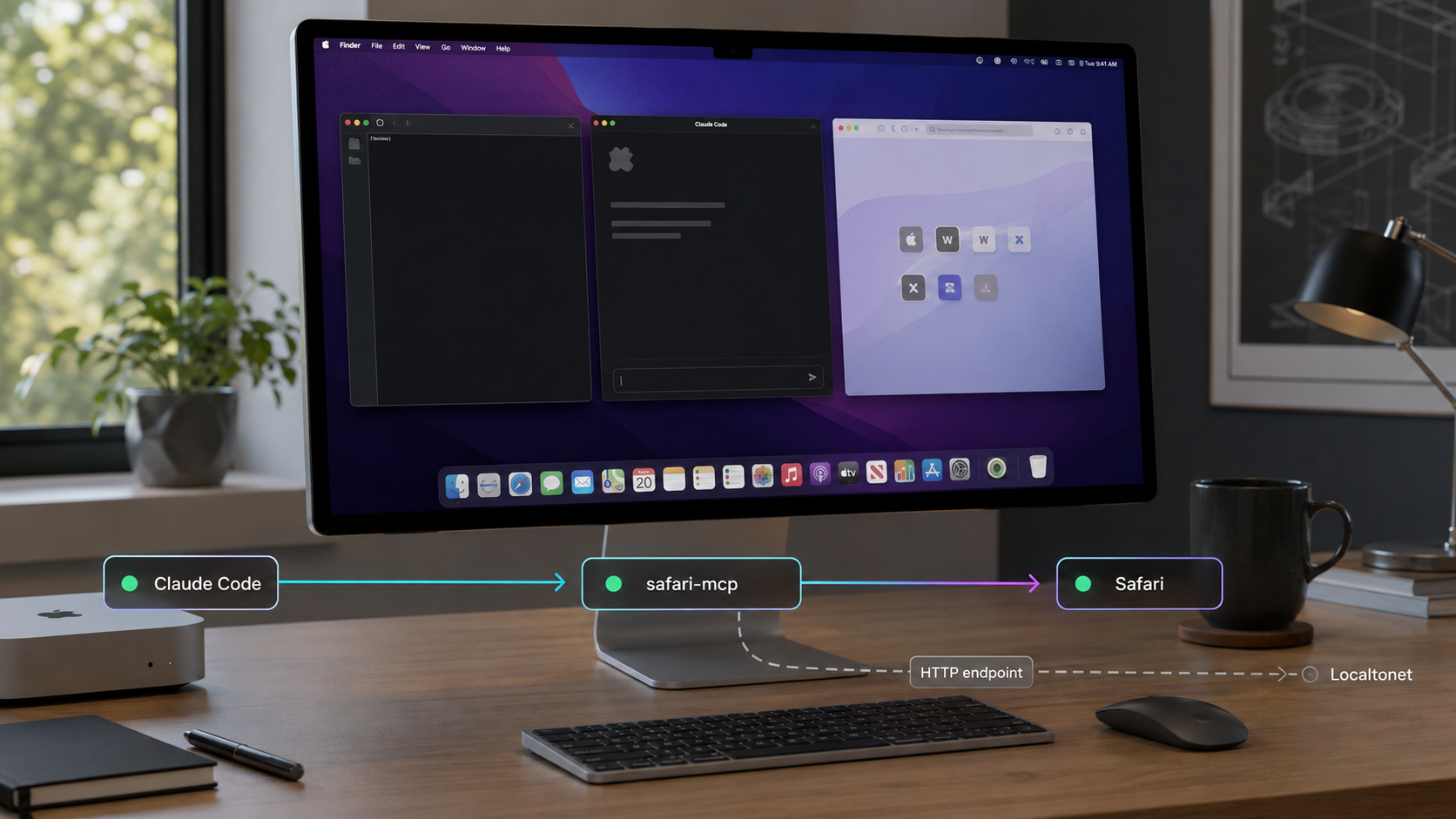
Give Claude Code controlled access to your real Safari session on macOS
Safari MCP connects an MCP-compatible coding assistant to Safari through native macOS automation. This guide walks through the documented prerequisites, the recommended npx installation path, Claude Code configuration, local verification, and common troubleshooting. It then treats the optional HTTP daemon as a separate advanced workflow and explains how to connect that local endpoint through Localtonet. Because Safari MCP can interact with real browser tabs, cookies, sessions, and logged-in websites, the remote-access section emphasizes authorization and limited exposure rather than simply making the endpoint public.
📋 What's in this guide
What Safari MCP does
Safari MCP is a macOS-only Model Context Protocol server for controlling Safari from an MCP-compatible client such as Claude Code. Instead of launching a separate headless browser, it operates against Safari on the Mac. That distinction matters because the browser may already contain active sessions, cookies, saved state, and authenticated access to websites.
The normal Claude Code integration uses the standard input and output transport. Claude Code starts npx safari-mcp as a child process and exchanges MCP messages with it directly. There is no network port involved in that default workflow, and no Localtonet tunnel is needed when Claude Code and Safari run on the same Mac.
Safari MCP also documents an optional shared HTTP daemon. That mode starts a local HTTP service on a configurable port, with the documented example using port 9225 and an MCP endpoint at http://127.0.0.1:9225/mcp. The HTTP mode is useful when an MCP client needs to connect to a persistent process rather than launch its own stdio process. It is also the mode that creates a network service suitable for an HTTP tunnel.
npx safari-mcp. This is the simplest configuration and keeps the MCP connection local to the process boundary.
9225 and serves MCP at the /mcp path. Use this only when a network-accessible transport is actually required.
If Claude Code and Safari are on the same Mac, use the documented stdio setup first. It requires fewer moving parts and does not create a listening HTTP service. Add HTTP mode and Localtonet only after the local integration works and only when a remote MCP client is a genuine requirement.
Prerequisites for Safari MCP on macOS
Complete the prerequisites before adding the MCP server to Claude Code. A missing Node.js version or disabled Safari automation setting can look like a Claude configuration problem even though the failure occurs before Claude Code can communicate with the server.
| Requirement | Documented value | Why it matters |
|---|---|---|
| Operating system | macOS | Safari MCP is documented as macOS-only and depends on Safari and macOS automation. |
| Browser | Safari | The server controls Safari rather than launching a separate Chromium browser. |
| Node.js | Version 20 or later | The package is launched through npx or installed through npm. |
| Safari developer features | Show features for web developers | This makes Safari's developer controls available. |
| Apple Events JavaScript | Allow JavaScript from Apple Events | Safari MCP requires this Safari Develop-menu permission for its automation workflow. |
| MCP client | Claude Code for this guide | Claude Code launches the server and presents its tools to the coding assistant. |
Check the installed Node.js version
Open Terminal and print the active Node.js version:
node --version
The reported major version must be 20 or later. If the shell reports that node is not found, or if it reports an older major version, install or update Node.js using your normal macOS package-management policy before proceeding. The Safari MCP evidence establishes the minimum version but does not prescribe one specific Node.js installer or version manager, so this guide does not invent one.
Confirm that npx is also available:
npx --version
If node works but npx does not, review the Node.js installation used by the current shell. Claude Code must be able to find the same executable when it launches the MCP server.
Enable Safari developer features
Open Safari and follow the documented settings path:
- Open Safari.
- Open Safari → Settings.
- Select Advanced.
- Enable Show features for web developers.
After the developer features are visible, use Safari's Develop menu and enable Allow JavaScript from Apple Events. The wording is important because enabling the Develop menu alone does not complete the documented prerequisite.
Enable this setting only on a Mac where you understand and trust the processes allowed to automate Safari. Safari MCP is intended to control the real browser, so its permissions should not be treated like access to an isolated test browser.
Install and start Safari MCP
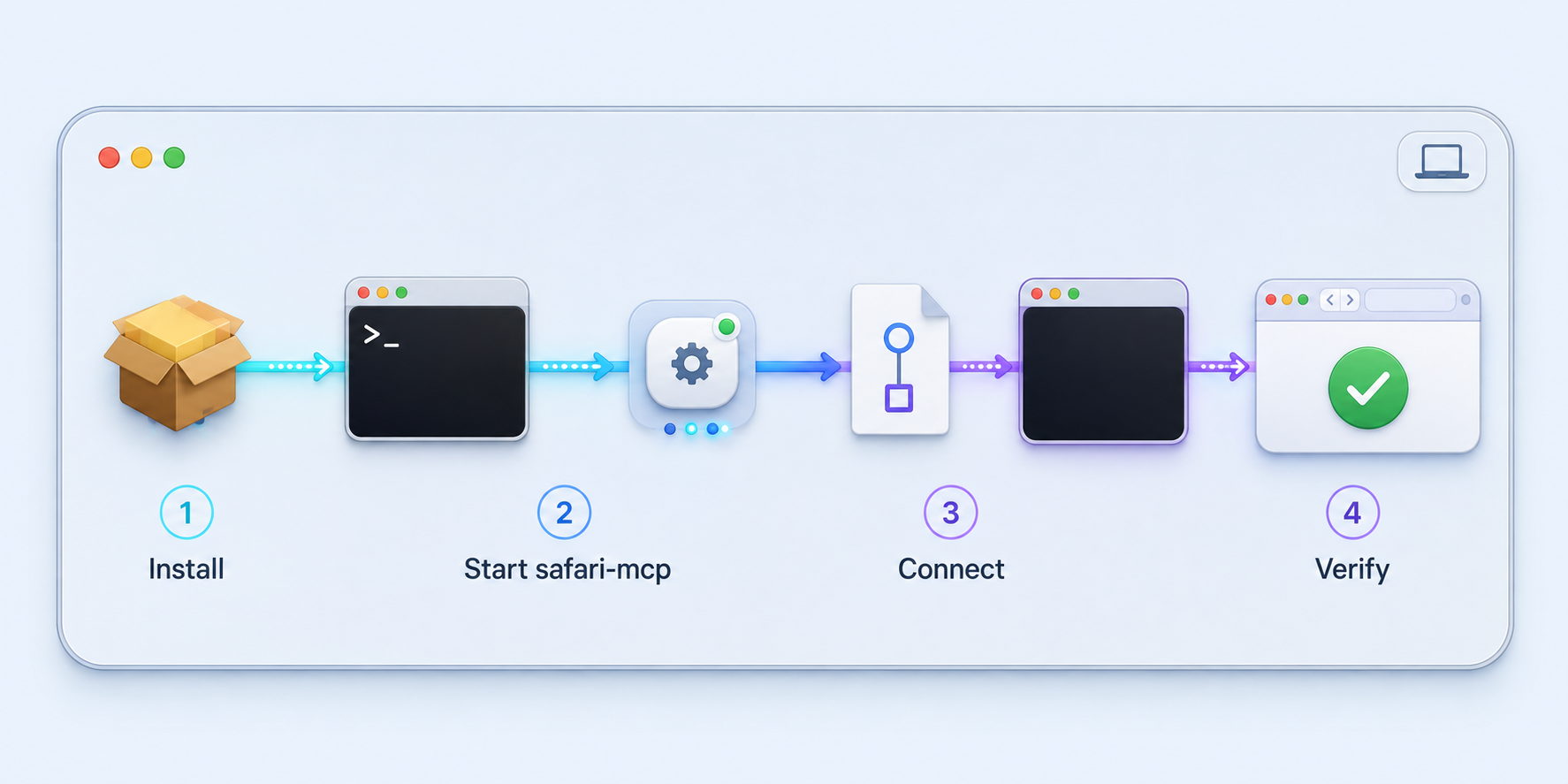
The recommended installation path does not require a permanent global package installation. The project documents npx safari-mcp as its one-command quick start. A global npm installation, Homebrew installation, and installation from source are listed as alternatives, but the extracted evidence available for this guide contains only the exact command for the npx and global npm paths. We do not reproduce unverified Homebrew or source commands.
Open Terminal on the Mac that runs Safari
The MCP process and Safari must run in the macOS environment where browser automation is enabled. Use the same user account that will run Claude Code unless you have deliberately designed a different permission model.
Run Safari MCP with npx
Execute npx safari-mcp. This is the project's documented quick-start command and does not require a global package installation.
Allow required macOS prompts
If macOS displays an automation or privacy prompt, read it carefully and approve only the access needed for the trusted Terminal or Claude Code process you are using. Prompt behavior can vary with macOS state and previous permissions.
npx safari-mcpAn MCP server using stdio may appear to wait after it starts because it is expecting an MCP client to exchange messages over standard input and output. Do not assume that an apparently idle terminal means installation failed. The decisive test is whether Claude Code can start the configured process and use the Safari MCP tools.
Optional global npm installation
If you intentionally prefer a global package installation, the project documents:
npm install -g safari-mcp
The Claude Code configuration supplied by the project still uses npx safari-mcp. Therefore, a global installation is not required for the workflow in this article. Using the recommended npx configuration also avoids depending on an assumed global executable path.
Homebrew and source installations
Safari MCP lists Homebrew and source installation as alternatives. Exact commands and build steps for those methods were not included in the evidence supplied for this draft. Package names, repository build procedures, generated extension artifacts, and permissions can change, so guessing those commands would make the guide unreliable.
Use the npx path above for the self-contained documented workflow. If your organization requires Homebrew or a source build, verify the current instructions in the project's repository before adopting that method.
Configure Safari MCP for Claude Code
Claude Code can register Safari MCP with one documented command. Run it from a terminal where the claude, npx, and node commands are available:
claude mcp add safari -- npx safari-mcp
This tells Claude Code to register an MCP server named safari. When needed, Claude Code launches npx with safari-mcp as its argument. The separator before npx indicates that the remaining values describe the server command rather than options for the registration command.
The project also documents a file-based configuration in ~/.mcp.json:
{
  "mcpServers": {
    "safari": {
      "command": "npx",
      "args": [
        "safari-mcp"
      ]
    }
  }
}
Use either the Claude Code registration command or a deliberate edit to the configuration file. Avoid creating duplicate entries for the same server unless you understand how your installed Claude Code version resolves them.
The project documents ~/.mcp.json for the file-based Claude Code setup. If your environment already has project-specific MCP configuration or managed settings, check which configuration Claude Code is actually loading. This guide does not assume undocumented precedence rules for a particular Claude Code release.
Why the local configuration should come first
The stdio configuration eliminates several possible failure points. There is no HTTP listener, remote hostname, relay connection, path rewrite, or network authorization layer to diagnose. If Safari automation does not work in this mode, exposing an HTTP daemon will not fix the underlying Node.js, Safari, Apple Events, or macOS permission problem.
Local verification also establishes a clean security baseline. Once Claude Code can use Safari MCP locally, you can decide whether another machine truly needs access and which controls must be added before creating a public address.
Verify the local Claude Code integration
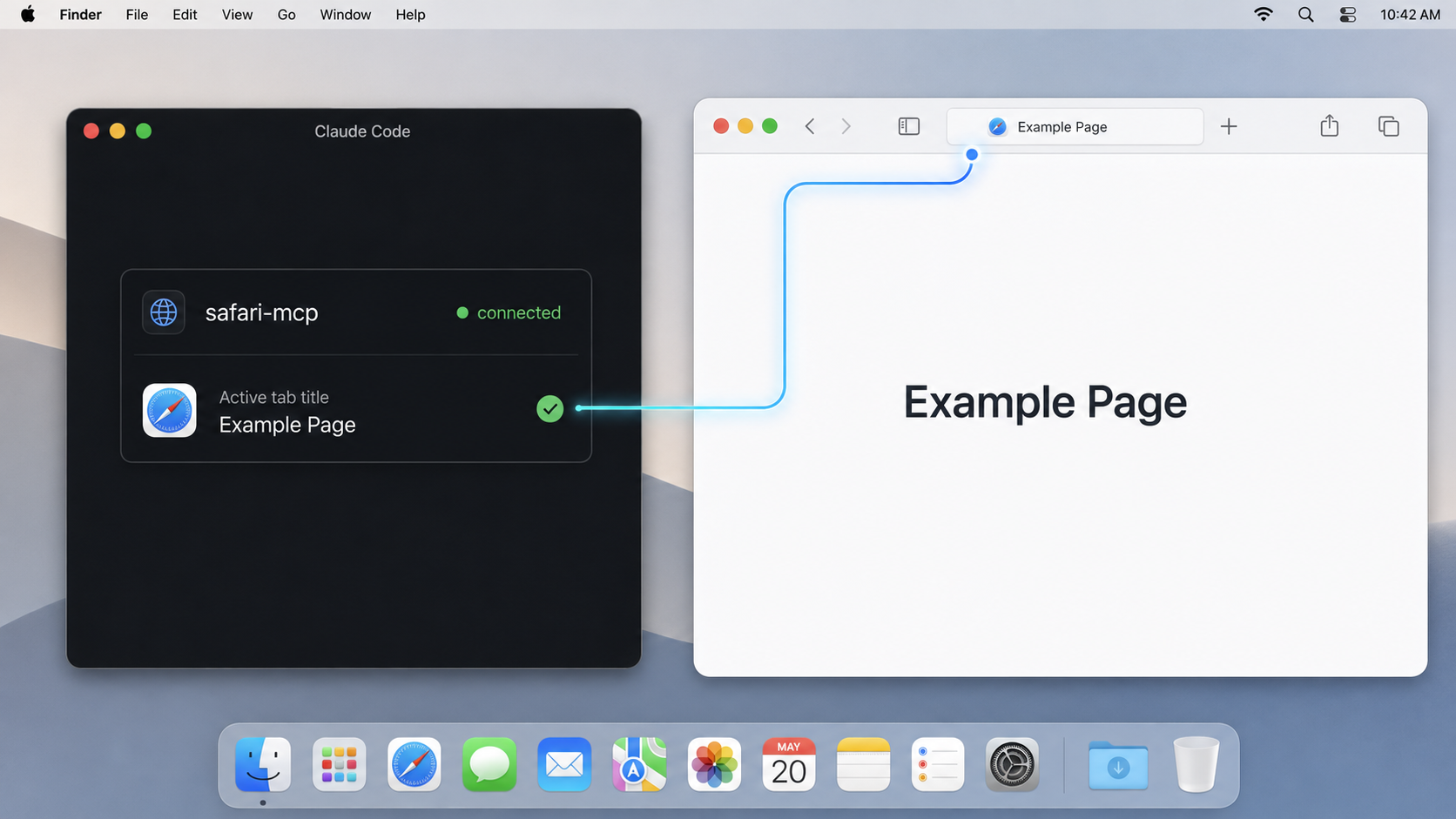
Verification should progress from the least privileged check to a controlled browser action. Avoid beginning with a banking page, administrative console, production dashboard, private email account, or any website where an unintended click could have serious consequences.
Open a harmless test page in Safari
Use a non-sensitive page that you are comfortable allowing an automation tool to inspect. Keep unrelated sensitive tabs closed while performing the initial test.
Start a fresh Claude Code session
Starting a new session helps ensure Claude Code loads the newly registered MCP server. If Claude Code was already running when you changed its configuration, restart it before diagnosing a missing server.
Confirm that the Safari server is available
Inspect the MCP integrations presented by your installed Claude Code version and confirm that the server named safari loaded without a process-start error. The exact status interface can vary, so this guide does not invent a version-specific menu or command.
Request a read-only browser task
Ask Claude Code to use the Safari MCP integration to inspect or summarize the harmless page already open in Safari. Review any tool approval request before allowing it.
Try one controlled interaction
After read-only access works, test a low-risk navigation or interaction on a disposable page. Confirm that Safari performs the intended action and that Claude Code receives the result.
A successful end-to-end test demonstrates that Node.js can launch the package, Claude Code can establish the MCP transport, macOS permits the automation process, Safari's developer settings are enabled, and Safari responds to a tool request.
If the server appears registered but cannot operate Safari, revisit the two Safari settings and macOS privacy permissions before changing the MCP JSON. If the process cannot start at all, test node --version, npx --version, and npx safari-mcp in the same shell environment.
Routine local operation
With the documented Claude Code configuration, Claude Code starts Safari MCP through npx when it needs the server. Keep Safari available and preserve the required developer setting. macOS permission changes, a different user account, a changed Node.js installation, or a shell environment that no longer exposes npx can interrupt startup.
Treat browser state as part of the operating environment. If sensitive tabs or authenticated sessions do not need to be available to the agent, close them, sign out, or use a deliberately limited Safari state before granting tool access. Browser automation safety should not depend only on the wording of a prompt.
Run the optional Safari MCP HTTP daemon
HTTP mode is separate from the standard Claude Code setup. Do not replace a working local stdio configuration merely to add a tunnel. Use HTTP mode when a compatible MCP client specifically needs to connect to a persistent HTTP endpoint.
The documented command sets two environment variables for one process:
SAFARI_MCP_HTTP=1 SAFARI_MCP_HTTP_PORT=9225 npx safari-mcp
In this example, HTTP mode is enabled and the selected port is 9225. The documented local MCP URL is:
http://127.0.0.1:9225/mcpKeep the terminal process running while testing. Stopping it also stops the local HTTP service. The environment-variable syntax shown above applies the settings only to that command invocation, which is useful for testing because it does not require permanently adding them to a shell profile.
The supplied Safari MCP evidence establishes how to enable the HTTP daemon, select port 9225, and connect to /mcp. It does not establish built-in authentication, authorization, or an access-token requirement for that daemon. Do not assume that an unknown security control exists. Until you have independently verified an effective authorization layer, treat any client that can reach the endpoint as potentially able to request browser-control operations.
Verify HTTP mode before tunneling it
Confirm that the process remains running and that the intended MCP client is configured for the complete local URL, including /mcp. An ordinary browser visit or generic HTTP request is not necessarily a complete MCP test because MCP clients use protocol-specific requests and sessions. The useful verification is a compatible MCP client successfully connecting and performing a low-risk Safari operation.
Test locally first with http://127.0.0.1:9225/mcp. If the local MCP client cannot connect, do not create a Localtonet tunnel yet. A tunnel forwards traffic to the configured local target, but it does not repair a stopped daemon, incorrect port, missing /mcp path, unsupported client transport, or Safari permission failure.
Connect the Safari MCP HTTP endpoint with Localtonet
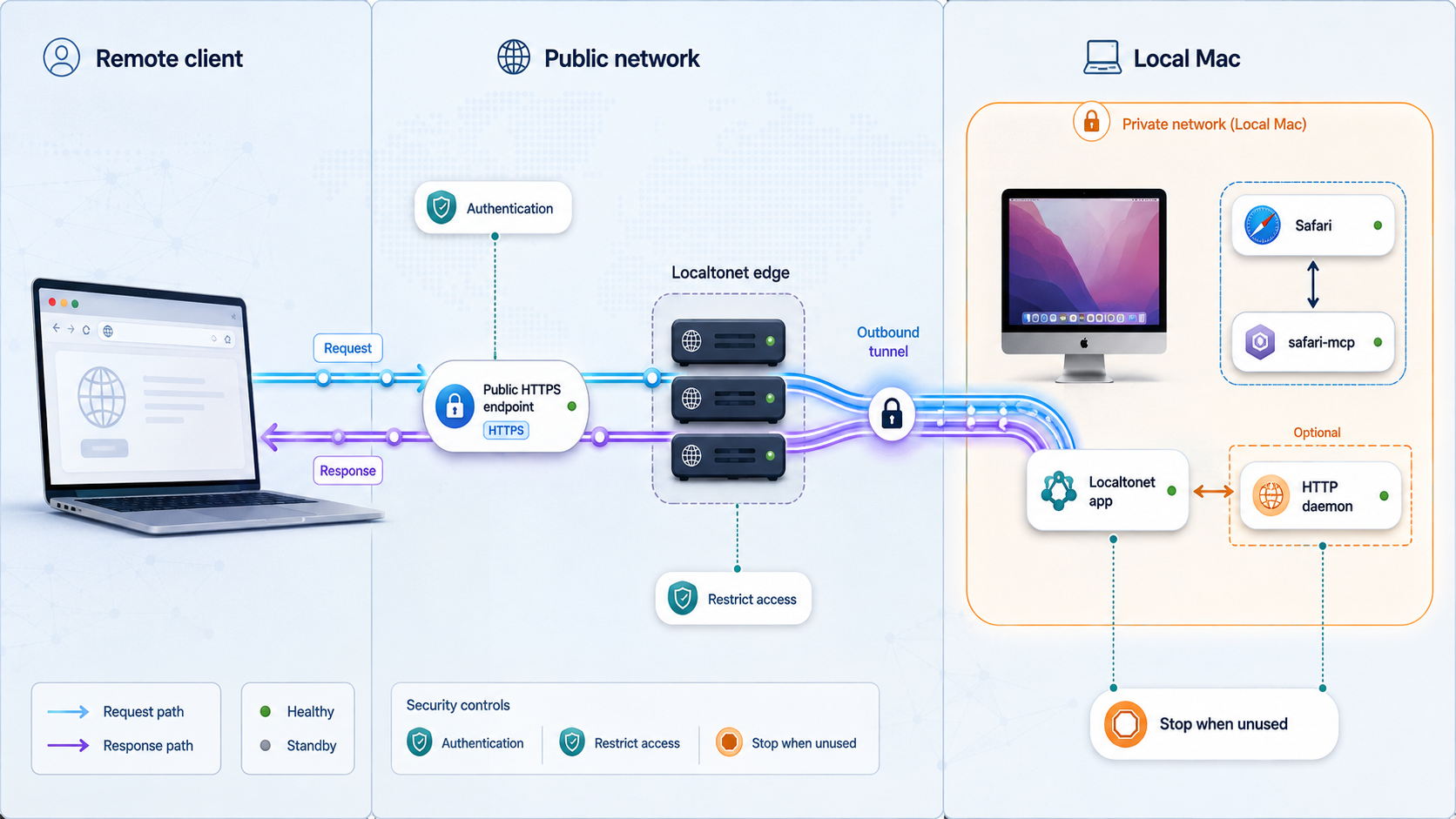
Once the HTTP daemon works locally, Localtonet can provide a public HTTPS address for the local service without inbound router port forwarding, firewall changes, VPN setup, or a public IP address. Our client on the Mac establishes an outbound connection to a Localtonet relay server. The HTTP tunnel then points to the Safari MCP service at local IP 127.0.0.1 and port 9225.
Creating a tunnel does not automatically mean that it is running. The selected Localtonet device must be connected, the Safari MCP HTTP process must be running, and the tunnel must be started. The public address remains available only while the required client and tunnel are running.
The maintained product context does not include a verified macOS installation command for the current Localtonet client. Install the client using the current instructions presented by our platform rather than copying an old or guessed command. Device tokens are device-specific and must never be placed in an article, script, screenshot, or shared terminal transcript.
Install and run the Localtonet client on the Mac
Install our current macOS client on the same Mac that runs Safari MCP, then keep it running. The client must be on the device that can reach 127.0.0.1:9225.
Authenticate or select the Mac by its device token
Use the device-specific token supplied through the Localtonet workflow. Keep it private. Do not reuse an example token or expose the real value in configuration shared with other users.
Select an available relay server
Choose from the server or region values currently available in the dashboard. Availability can vary, so this guide does not hardcode a server code or region name.
Create an HTTP tunnel to the local daemon
Configure the HTTP tunnel's local target as IP address 127.0.0.1 and port 9225. For HTTP tunnels, select the appropriate available Process Type. A generated subdomain is the simplest option when you do not need custom DNS.
Start the tunnel
Use the Start button after reviewing the target. Tunnel creation and tunnel startup are separate lifecycle actions. Keep both the Localtonet client and Safari MCP HTTP daemon running.
Use the assigned public HTTPS address with the MCP path
Configure the authorized remote MCP client with the public HTTPS address assigned by Localtonet and retain the Safari MCP /mcp path. Do not publish or casually share the resulting endpoint.
For the current dashboard workflow, consult our Localtonet HTTP tunnel documentation. Exact available relay values and account-dependent options should always be taken from the current dashboard rather than hardcoded.
Understand the complete request path
The remote MCP client connects to the public HTTPS URL supplied by Localtonet. Our relay receives that connection and forwards it through the outbound client connection to 127.0.0.1:9225 on the Mac. Safari MCP then handles requests sent to its /mcp path and performs allowed operations against Safari.
This design removes the need to open an inbound router port, but it does not reduce the privilege of Safari MCP. Network reachability and application authorization are different controls. A public HTTPS URL provides an address and encrypted web access at the tunnel edge, but the URL itself should not be treated as proof that a caller is authorized to control Safari.
Safari MCP's optional HTTP daemon is a project-provided MCP endpoint. Pointing an HTTP tunnel at it does not turn it into a McpNet Gateway or change its authentication behavior. Keep the Safari MCP HTTP workflow separate from our documented MCP Gateway tunnel feature.
Security guidance for remote browser control
Remote access to Safari MCP deserves a stricter threat model than publishing a static development page. The service can operate a real browser that may contain authenticated access to email, source control, cloud consoles, internal applications, social accounts, billing systems, and personal data. An unauthorized MCP client could potentially request actions in the context of those sessions.
Prefer private reachability when public reachability is unnecessary
If the only consumers are controlled devices, evaluate whether a private network design is more appropriate than a public HTTP endpoint. Localtonet VPN Manager provides a private mesh VPN with granular firewall rules and can bridge local LANs. That is a distinct product workflow from an HTTP tunnel and should not be described as ordinary tunneling.
A private network still does not replace application authorization. It narrows who can reach the service, but every reachable client should still be treated according to least privilege. Also verify how the Safari MCP daemon listens before designing a private-network connection. The documented client URL uses 127.0.0.1, and the supplied evidence does not establish broader bind-address behavior.
Protect Localtonet device tokens
A Localtonet authentication token identifies the client device. Do not store it in a public repository, include it in MCP configuration examples, paste it into support screenshots, or send it as part of an HTTP URL. If a token is exposed, use the current dashboard controls to address the exposure rather than continuing to rely on it.
Stop both layers when finished
Stop the Localtonet tunnel when remote access is no longer needed. Then terminate the Safari MCP HTTP daemon. These are separate processes, so stopping only one does not necessarily stop the other. You can later restart the required components for another controlled session or delete a tunnel that no longer has an operational purpose.
Troubleshooting Safari MCP, Claude Code, and Localtonet
node or npx is not found
Safari MCP requires Node.js 20 or later. Run node --version and npx --version in the terminal where you use Claude Code. If the commands work in one shell but Claude Code cannot launch them, the processes may have different executable search paths. Resolve the Node.js environment before changing Safari settings or tunnel configuration.
Claude Code does not show the Safari MCP server
Re-run the documented registration command carefully:
claude mcp add safari -- npx safari-mcp
Alternatively, validate the JSON structure in ~/.mcp.json. JSON does not allow trailing commas or comments. Restart Claude Code after changing configuration. If you maintain multiple MCP configuration scopes, confirm that the edited file is the one your current session loads.
The MCP process starts but Safari does not respond
Confirm both Safari settings: Show features for web developers and Develop → Allow JavaScript from Apple Events. Then review macOS automation and privacy prompts for the process launching Safari MCP. A successful Node.js process start does not prove that macOS has granted browser automation.
The terminal appears to hang after running npx safari-mcp
In default mode, Safari MCP uses stdio and may be waiting for an MCP client. Test through Claude Code rather than expecting a conventional web-server response. If you intended to start HTTP mode, use the documented environment variables and keep that process running:
SAFARI_MCP_HTTP=1 SAFARI_MCP_HTTP_PORT=9225 npx safari-mcpA local HTTP client cannot connect
Check that the HTTP-mode process is still running, that it was started with SAFARI_MCP_HTTP=1, and that the client uses port 9225 and path /mcp. The documented URL is http://127.0.0.1:9225/mcp. Do not proceed to remote testing until a compatible local MCP client can connect successfully.
The Localtonet URL is unavailable
Verify each component in order:
- Safari MCP HTTP mode is running.
- The local endpoint uses port
9225. - The Localtonet client is connected on the Mac.
- The HTTP tunnel points to
127.0.0.1and port9225. - The tunnel has been started, not merely created.
- The remote MCP client retains the
/mcppath.
Test from the inside out. First verify Safari MCP through Claude Code over stdio, then verify the HTTP daemon locally, and only then test the public HTTPS address. This sequence identifies which layer is failing instead of treating every problem as a tunnel problem.
The public address opens but the MCP client fails
A generic HTTP response does not prove MCP compatibility. Confirm that the remote client supports the transport implemented by Safari MCP's documented HTTP daemon and that it is using the complete endpoint path. The supplied evidence does not establish compatibility with every MCP client or every HTTP transport variation, so do not infer universal support from the existence of an HTTP URL.
Safari performs unexpected actions
Stop the MCP request, terminate Safari MCP, and stop the Localtonet tunnel. Review which client connected, what permissions it had, and which browser sessions were available. Do not restart remote access until you understand the behavior and have limited the accessible browser context.
Frequently asked questions
Does Safari MCP work on Windows or Linux?
No supported Windows or Linux workflow is established by the project evidence used here. Safari MCP is documented as macOS-only and depends on Safari and macOS automation.
What version of Node.js does Safari MCP require?
Safari MCP requires Node.js 20 or later. Check the active version with node --version before configuring Claude Code.
Do I need to install Safari MCP globally?
No. The recommended quick start is npx safari-mcp, and the documented Claude Code configuration launches that same command. A global installation with npm install -g safari-mcp is optional.
Does the normal Claude Code setup require Localtonet?
No. When Claude Code and Safari run on the same Mac, Claude Code can launch Safari MCP over stdio with npx safari-mcp. Localtonet becomes relevant only when you deliberately run the optional HTTP daemon and need controlled remote connectivity.
What is the documented Safari MCP HTTP endpoint?
The documented example starts HTTP mode on port 9225. A local client connects to http://127.0.0.1:9225/mcp. When using a Localtonet HTTP tunnel, retain the /mcp path on the assigned public HTTPS address.
Does Localtonet start Safari MCP automatically?
No such behavior is established. Start Safari MCP HTTP mode separately, run the Localtonet client, and start the configured tunnel. The tunnel cannot forward requests to a local service that is not running.
Is the Safari MCP HTTP daemon authenticated?
Authentication and authorization for the daemon are not established by the supplied project evidence. Do not assume they exist. Before remote exposure, verify the current project behavior and place effective access controls in front of the endpoint when necessary.
Why is exposing Safari MCP riskier than exposing a local test website?
Safari MCP can control a real browser containing cookies, active sessions, and logged-in websites. A caller may be able to request navigation, clicks, form interactions, or other browser operations. Limit the browser context, require authorization, monitor activity, and stop remote access when it is not needed.
Connect your verified Safari MCP endpoint with Localtonet
First confirm that Safari MCP works locally with Claude Code. If a remote MCP client genuinely needs the optional HTTP endpoint, use Localtonet to connect the working local service without inbound router port forwarding, then protect that browser-control endpoint with appropriate authorization and limited exposure.
Get Started Free →

