

Build a persistent SiYuan workspace, verify it locally, and publish only the network path you intend
SiYuan can run as a self-hosted knowledge workspace through its official Docker image. This tutorial prepares persistent storage, configures application authentication, binds Docker to an intentional host interface, verifies the local HTTP service, and tests data persistence before remote access is enabled. It then connects the working service to a Localtonet HTTP tunnel using either a same-host or narrowly controlled LAN target. The final sections cover routine operation, backups, upgrades, rollback planning, and layered troubleshooting.
📋 What's in this guide
What this deployment includes
SiYuan is a privacy-first personal knowledge management system based on content blocks. Its documented capabilities include block-level references, two-way links, and a Markdown WYSIWYG editor. The upstream project identifies Docker as the easiest way to serve SiYuan on a server and publishes the image as b3log/siyuan.
Since SiYuan v3.7.0, Docker deployments must pass the serve subcommand explicitly. A command that only starts the image without serve does not follow the current documented startup pattern. The service also needs a workspace path and an access authentication configuration before it is suitable for remote access.
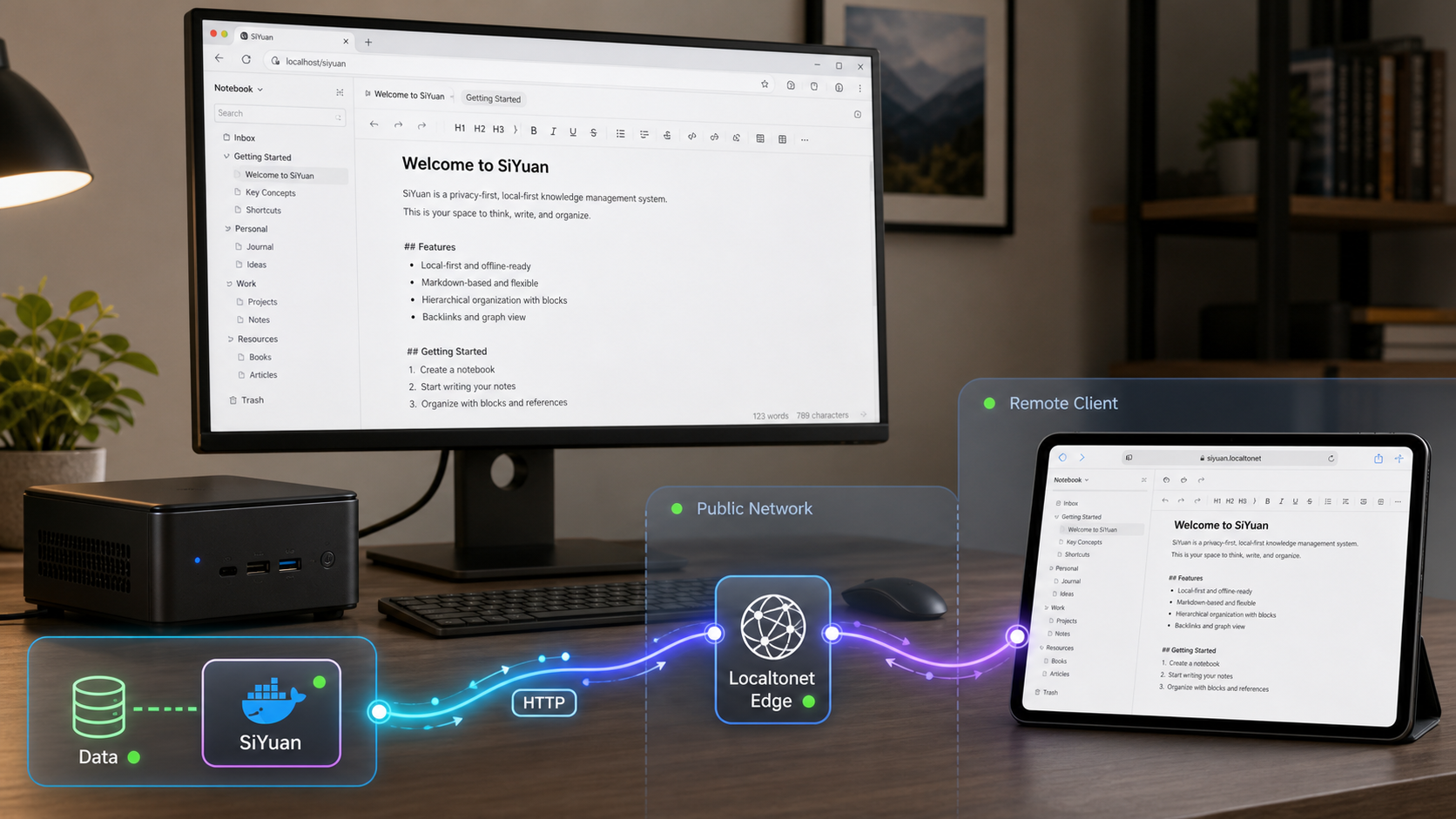
There are four distinct layers in this design:
- The SiYuan process runs inside a named Docker container.
- The workspace is stored in an absolute host directory mounted into the container.
- SiYuan authentication protects the application interface with an access code or an independently validated advanced authentication configuration.
- Localtonet provides remote HTTP access by forwarding a public HTTPS address to the already working local service.
Keeping these layers separate makes installation and troubleshooting safer. Docker must be healthy before SiYuan can start. SiYuan must work locally before a tunnel can work. The Localtonet client must then be able to reach the exact local address and port configured as the tunnel target.
b3log/siyuan and explicitly invoke the required serve subcommand.
/siyuan/workspace, avoiding an ambiguous placeholder that Docker could interpret as a named volume.
SIYUAN_ACCESS_AUTH_CODE environment variable supplies the lock-screen password without placing the secret directly in the command arguments.
6806 only on 127.0.0.1 instead of every host interface.
Prerequisites and security decisions
Use a host that can remain powered on whenever SiYuan is needed. Docker installation varies by operating system and Linux distribution, so install Docker through the supported method for your host. On Windows, use Docker in its Linux-container configuration because the SiYuan image is a Linux container.
You also need enough storage for the workspace and its backups, permission to start containers, and a Localtonet account when you are ready to add remote access. The Localtonet client can run on the Docker host or on another trusted device that can reach the Docker host over a restricted local network path.
Check the Docker client and daemon
Run both checks before preparing the workspace:
docker --version
docker info
The first command confirms that the Docker client is installed. The second contacts the Docker daemon and returns runtime information. If docker info fails, fix the daemon, Docker Desktop, socket permission, or service configuration before continuing.
On a Linux host that uses systemd, this additional check can show whether the Docker service is active:
systemctl is-active dockerA host that does not use systemd will need its platform-specific service check instead.
Choose where the Localtonet client will run
This choice determines how Docker should publish SiYuan:
- Same Docker host: bind SiYuan to
127.0.0.1:6806. This is the preferred example because the service is not published on the host's LAN interfaces. - Another LAN device: bind SiYuan to one specific LAN address on the Docker host, allow port
6806only from the Localtonet client device where practical, and test the path from that device.
Docker's short publication syntax -p 6806:6806 normally binds the port on all host interfaces. Depending on the host and network, that can make SiYuan reachable by other LAN clients or through another routed interface. Use 127.0.0.1:6806:6806 when our client runs on the Docker host. Use a specific LAN address only when a separate Localtonet device genuinely needs it.
Choose an image version policy
A production-minded deployment should not change versions accidentally during an unrelated container recreation. The commands below pin the image to b3log/siyuan:v3.8.1, which corresponds to the reviewed upstream release evidence for this tutorial. Before deploying, confirm that the matching container tag remains available and review any newer release that you intend to use.
Pinning does not mean that a version should never be upgraded. It means that upgrades happen during a planned maintenance action, after release review and backup, rather than because an unpinned image reference changed.
Plan how to supply the access code
SiYuan supports the --accessAuthCode command-line option and the SIYUAN_ACCESS_AUTH_CODE environment variable. Command-line values take priority if both are supplied. This guide uses the environment-variable alternative and prompts for the value interactively, so the access code is not written literally into the shell command.
This avoids one common shell-history leak, but it is not a general secret vault. Environment variables may be visible to privileged host administrators and can be retained in Docker container configuration metadata. Use a strong, unique value, protect administrative access to the Docker host, avoid screenshots containing configuration details, and do not commit secrets to source control.
SiYuan documents SIYUAN_ACCESS_AUTH_CODE_BYPASS=true as a way to disable the lock-screen password. Do not use that bypass for this remotely accessible deployment. A Localtonet tunnel provides connectivity, but it does not replace application-level authorization.
Install SiYuan with Docker
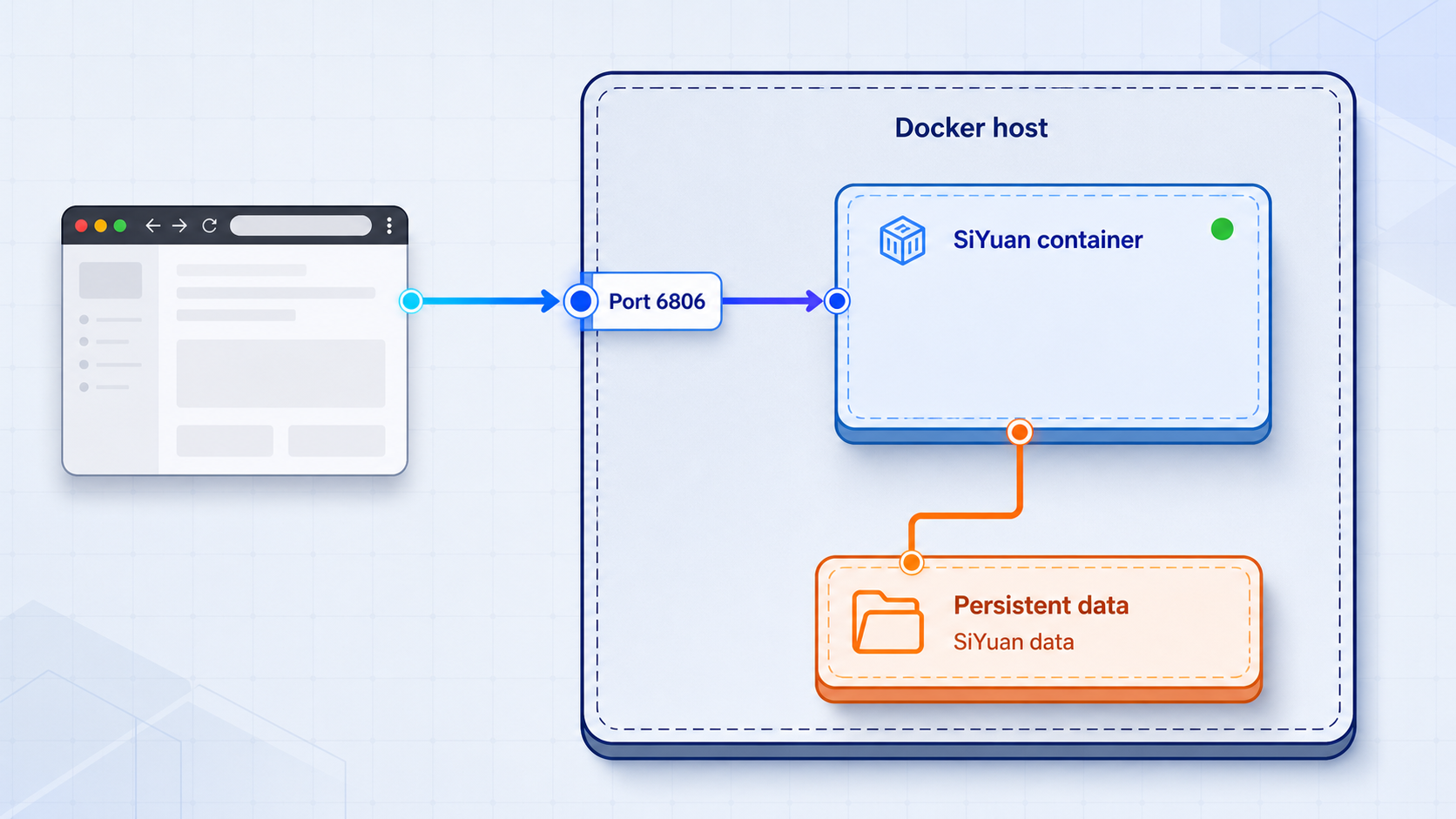
Follow either the Linux or Windows procedure. Both create a named container called siyuan, use an absolute bind-mount path, publish the service only on loopback, set a restart policy, and explicitly invoke serve.
Linux installation
Create the host workspace directory
Create a directory under the current user's home directory and verify that it resolves to an absolute path.
Discover the intended numeric user and group IDs
Use id -u and id -g instead of guessing PUID and PGID values. SiYuan documents defaults of 1000, but those defaults are not correct for every host.
Check directory ownership and write access
Confirm that the selected account owns or can write to the workspace. Do not grant broad world-writable permissions as a shortcut.
Prompt for a private access code
Read the value without echoing it and export it only for the container creation operation.
Create and start the container
Run the pinned image with the absolute bind mount, loopback-only port publication, validated PUID and PGID, and explicit serve arguments.
mkdir -p "$HOME/siyuan/workspace"

WORKSPACE="$(readlink -f "$HOME/siyuan/workspace")"
PUID_VALUE="$(id -u)"
PGID_VALUE="$(id -g)"

printf 'Workspace: %s\nPUID: %s\nPGID: %s\n' \
  "$WORKSPACE" "$PUID_VALUE" "$PGID_VALUE"

test -d "$WORKSPACE" && test -w "$WORKSPACE"

read -rsp "Enter a strong SiYuan access code: " SIYUAN_ACCESS_AUTH_CODE
printf '\n'
export SIYUAN_ACCESS_AUTH_CODE

docker run -d \
  --name siyuan \
  --restart unless-stopped \
  --mount "type=bind,source=$WORKSPACE,target=/siyuan/workspace" \
  -p 127.0.0.1:6806:6806 \
  -e PUID="$PUID_VALUE" \
  -e PGID="$PGID_VALUE" \
  -e SIYUAN_ACCESS_AUTH_CODE \
  b3log/siyuan:v3.8.1 \
  serve \
  --workspace=/siyuan/workspace

unset SIYUAN_ACCESS_AUTH_CODE
The test command returns successfully only if the workspace exists and the current account can write to it. If container logs later report a permission problem, compare the directory ownership with the PUID and PGID passed to the container:
ls -ld "$HOME/siyuan" "$HOME/siyuan/workspace"
id
Correct ownership for the intended service account rather than applying unrestricted permissions. The right ownership command depends on which account should administer the data.
Windows PowerShell installation
Start Docker Desktop and confirm that it is using Linux containers. The following PowerShell example creates the workspace under the current user's profile and resolves it to an absolute Windows path before passing it to Docker:
New-Item -ItemType Directory -Force -Path "$HOME\siyuan\workspace" | Out-Null
$Workspace = (Resolve-Path "$HOME\siyuan\workspace").Path

$SecureCode = Read-Host "Enter a strong SiYuan access code" -AsSecureString
$Bstr = [Runtime.InteropServices.Marshal]::SecureStringToBSTR($SecureCode)

try {
    $env:SIYUAN_ACCESS_AUTH_CODE =
        [Runtime.InteropServices.Marshal]::PtrToStringBSTR($Bstr)

    docker run -d `
      --name siyuan `
      --restart unless-stopped `
      --mount "type=bind,source=$Workspace,target=/siyuan/workspace" `
      -p 127.0.0.1:6806:6806 `
      -e SIYUAN_ACCESS_AUTH_CODE `
      b3log/siyuan:v3.8.1 `
      serve `
      --workspace=/siyuan/workspace
}
finally {
    Remove-Item Env:SIYUAN_ACCESS_AUTH_CODE -ErrorAction SilentlyContinue
    [Runtime.InteropServices.Marshal]::ZeroFreeBSTR($Bstr)
}
This keeps the literal access code out of the recorded command line, but the plain value must exist briefly in process memory and is passed into the container environment. Administrative control of the Windows host and Docker remains important.
If Docker cannot mount the directory, review Docker Desktop's current file-sharing permissions and confirm that the path exists. Do not replace the absolute path with a bare value such as siyuan-data unless you intentionally want a Docker-managed named volume rather than the host directory used by this tutorial.
Understand the important options
| Option | Purpose | Operational consequence |
|---|---|---|
--name siyuan |
Assigns a predictable container name | Status, logs, stop, start, and removal commands can consistently target siyuan |
--restart unless-stopped |
Requests restart after daemon or host recovery | An intentionally stopped container remains stopped until it is started again |
--mount type=bind |
Maps an absolute host directory to /siyuan/workspace |
The workspace is not stored only in the container's writable layer |
-p 127.0.0.1:6806:6806 |
Publishes SiYuan only on host loopback | A Localtonet client on the same host can target 127.0.0.1:6806 |
SIYUAN_ACCESS_AUTH_CODE |
Sets the documented lock-screen password | The secret is not typed as a visible command argument, but container environment access must still be protected |
serve |
Starts SiYuan in server mode | This subcommand has been required explicitly since v3.7.0 |
--workspace=/siyuan/workspace |
Selects the mounted workspace | The value must match the destination side of the bind mount |
SiYuan documents docker run --rm b3log/siyuan serve --help for displaying available serving options. Use the help output from the image version you plan to run rather than copying undocumented flags from an older deployment.
Optional advanced authentication with OIDC
Current upstream documentation allows OIDC to replace the lock-screen password as Docker access authentication. This is an advanced alternative, not a required part of the Localtonet setup. The documented configuration begins with SIYUAN_OIDC_ENABLED=true, a supported SIYUAN_OIDC_PROVIDER value, SIYUAN_OIDC_CLIENT_ID, and the provider-specific issuer or secret values.
The supported provider values described upstream are custom, google, microsoft, and github. Custom and Microsoft configurations require an issuer URL, while the GitHub OAuth adapter requires a client secret. Provider callback registration, issuer selection, account policy, and secret storage must all be validated against current SiYuan and identity-provider documentation. An invalid enabled configuration can stop Docker startup when no lock-screen password is available.
Keep the access-code configuration shown in this tutorial unless you already operate an identity provider and can test the complete OIDC sign-in and recovery path before publishing SiYuan.
Verify SiYuan locally and test persistence
Check container status
docker ps --filter "name=^/siyuan$"
docker inspect --format '{{.State.Status}}' siyuan
The container should appear in docker ps, and the inspected state should report running. If it is absent, include stopped containers in the search:
docker ps -a --filter "name=^/siyuan$"Review startup logs
docker logs --tail 100 siyuan
Look for repeated restarts, an omitted serve subcommand, an invalid option, bind-mount failures, or workspace permission errors. Follow new output during diagnosis with:
docker logs --follow siyuan
Stop following with Ctrl+C. This stops only the log display, not the container.
Test the actual local HTTP endpoint
On Linux, macOS, or a Windows environment with curl available, request the loopback endpoint:
curl -sS -o /dev/null \
  -w 'HTTP status: %{http_code}\n' \
  http://127.0.0.1:6806/
In Windows PowerShell, use:
$Response = Invoke-WebRequest -Uri "http://127.0.0.1:6806/" -UseBasicParsing
$Response.StatusCode
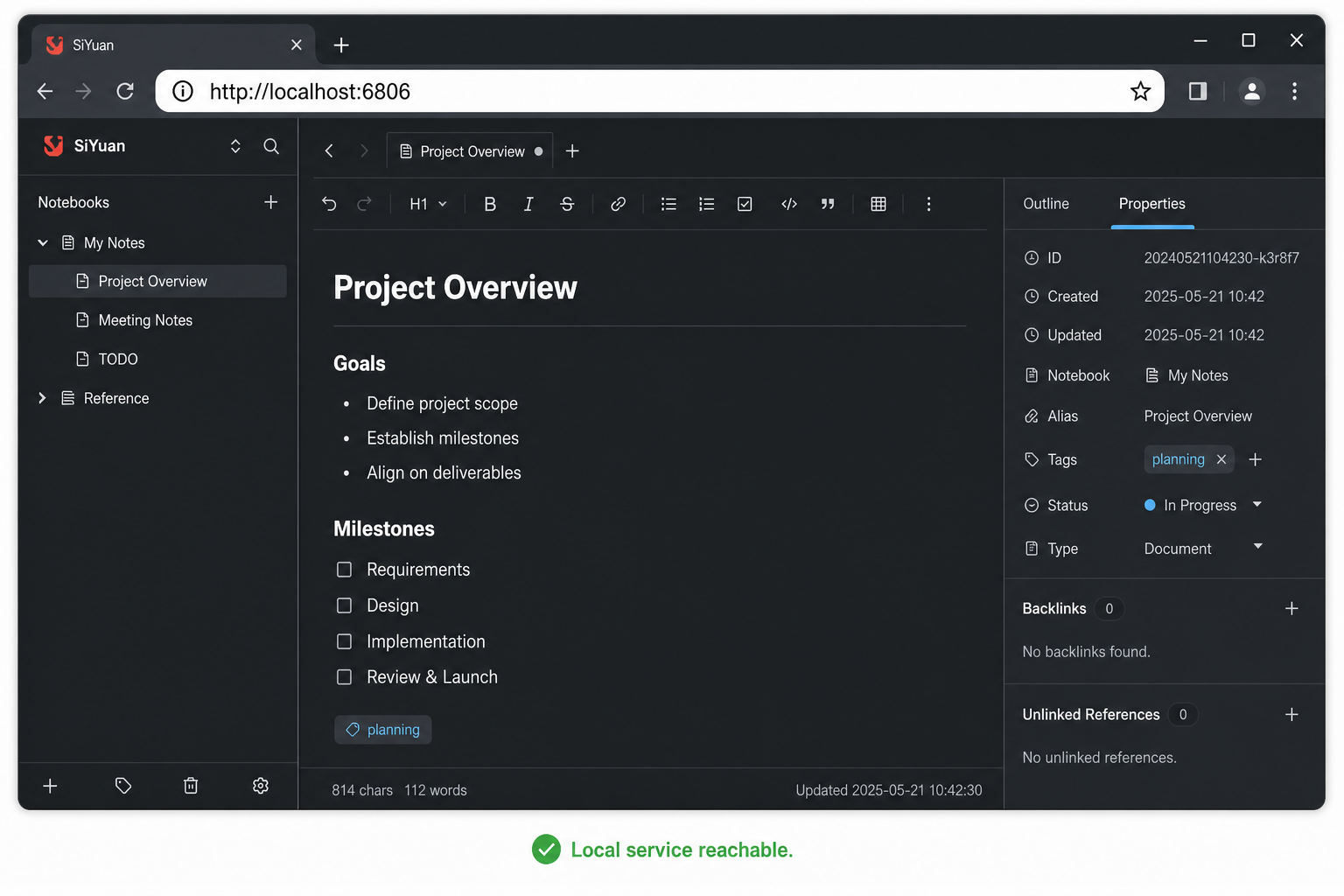
You can also open http://127.0.0.1:6806/ in a browser on the Docker host. Confirm that the SiYuan interface loads and that the configured authentication screen prevents access without the private code.
A returned HTTP response proves that something is listening, while the browser check confirms that the expected SiYuan interface and authentication behavior are present. Perform both checks before adding Localtonet.
Perform a controlled persistence test
Create a clearly named temporary note in SiYuan, such as Persistence test. Then stop and remove only the container:
docker stop siyuan
docker rm siyuan
Do not delete $HOME/siyuan/workspace on Linux or $HOME\siyuan\workspace on Windows. Recreate the container with the same host directory, container workspace path, authentication method, image tag, and port binding from the installation section.
After recreation, check the status, logs, local HTTP endpoint, and authentication screen again. Sign in and verify that the temporary note remains. This test demonstrates that the application is using the bind-mounted workspace rather than relying only on the removed container layer.
Persistence protects data from ordinary container removal only while the host workspace remains intact. It does not protect against accidental deletion, storage failure, corruption, theft, or an incompatible application change. Maintain a separate backup.
Choose the correct Localtonet target
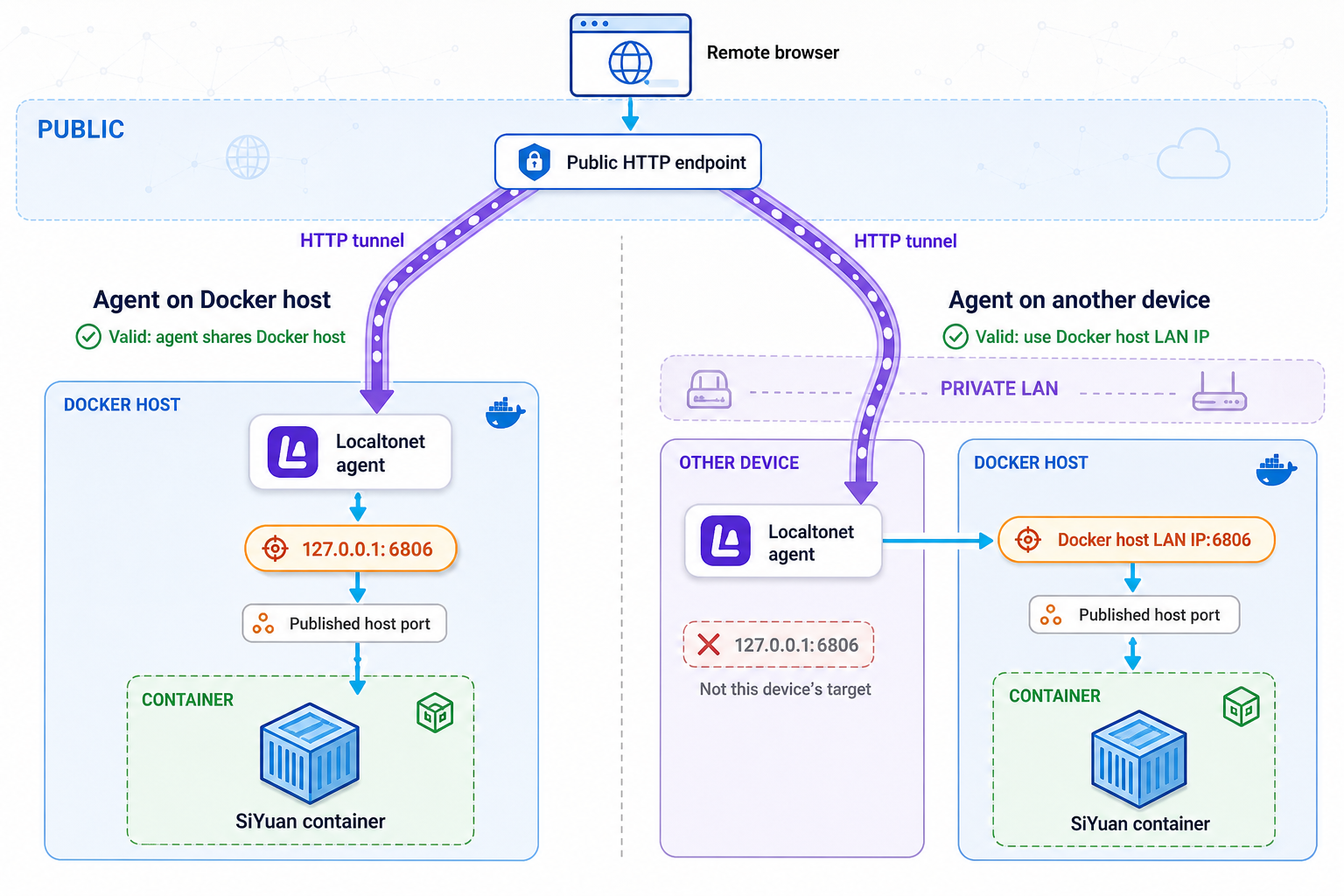
SiYuan presents a browser-based service, so use a Localtonet HTTP tunnel. An HTTP tunnel targets a local IP address and port on, or reachable from, the device running our client. Do not target a Docker-internal container address unless the client deliberately runs in a network context that can reach it and you have verified that path.
| Client location | Docker publication | Localtonet target | Security consideration |
|---|---|---|---|
| On the Docker host | 127.0.0.1:6806:6806 |
127.0.0.1, port 6806 |
SiYuan is not intentionally published on a LAN interface |
| On another trusted LAN device | DOCKER_HOST_LAN_IP:6806:6806 |
The Docker host's verified LAN IP, port 6806 |
Restrict the host firewall to the client device where practical |
| In a custom Docker network | Depends on the deliberate network design | A tested address reachable from the client container | Do not assume host loopback or a transient container IP will work |
Preferred same-host target
Install and run our client directly on the Docker host. Keep the loopback publication from the installation command and configure the HTTP tunnel target as:
- Local IP address:
127.0.0.1 - Local port:
6806
Test http://127.0.0.1:6806/ from that host before configuring the tunnel.
Restricted LAN target
If our client must run on another device, the loopback publication will not be reachable from it. Recreate the SiYuan container and replace the publication with the Docker host's specific LAN address:
-p <DOCKER_HOST_LAN_IP>:6806:6806
Replace the placeholder with the real address assigned to the intended LAN interface. Do not use 0.0.0.0 merely for convenience. Configure the Docker host firewall, where supported by the host's Docker networking behavior, to permit inbound TCP port 6806 only from the Localtonet client device. Do not add router port forwarding.
From the separate Localtonet device, test the path directly:
curl -sS -o /dev/null \
  -w 'HTTP status: %{http_code}\n' \
  http://<DOCKER_HOST_LAN_IP>:6806/
Only after that succeeds should the same LAN IP and port be entered as the Localtonet target. If the test fails, resolve routing, address selection, Docker publication, or firewall policy locally first.
Provide remote HTTP access with Localtonet
Our client establishes an outbound connection to a Localtonet relay server. The tunnel can therefore provide a public HTTPS address without inbound router port forwarding, firewall changes for internet-originated traffic, VPN setup, or a public IP address. In the separate-device design, the restricted LAN path described above is still required between our client and the Docker host.
Device authentication tokens identify the client that will run the tunnel. They are device-specific and must remain private. Available relay servers or regions must be selected from the current dashboard instead of copied from an old tutorial.
Install and run the Localtonet client
Install our client on the Docker host or on the trusted device that has already reached SiYuan over the LAN. Keep the client connected whenever public access is required.
Open the HTTP tunnel configuration and select Process Type
Create an HTTP tunnel and choose the appropriate Process Type: Random Sub Domain, Custom Sub Domain where supported, or Custom Domain. These options serve the same target content at a public HTTPS address. Check current DNS instructions before configuring a custom domain.
Select the AuthToken and current relay server
Select the device-specific AuthToken for the client that can reach SiYuan. Then select a relay server or region currently offered in the dashboard. Do not publish or share the token, and do not hardcode an old server code.
Enter the verified local target
For a same-host client, enter local IP 127.0.0.1 and port 6806. For a separate client, enter the Docker host's verified LAN IP and port 6806. Use the address that succeeded from the selected client device.
Start the tunnel
Use the Start button after the tunnel has been created. Creation alone does not make the tunnel available. The selected client device must also remain connected.
Verify the public address and manage its lifecycle
Open the assigned public URL from a separate network, confirm that it reaches SiYuan, and verify that authentication is required. Stop the tunnel when remote access is not needed, or delete it when the configuration is no longer required.
Testing from a separate network matters because opening the public URL from the server itself does not exercise the same path as an external browser. A mobile device with Wi-Fi temporarily disabled is one possible test client, provided its use complies with your network and data policies.
For current dashboard details, consult our Localtonet HTTP tunnel documentation. Exact custom-domain DNS requirements should be checked there before changing DNS records.
Anyone who obtains the public URL may be able to reach the SiYuan authentication screen. Keep application authentication enabled, use a strong access code or a fully validated SiYuan OIDC configuration, protect the Docker host, and expose only the required service. A tunnel provides connectivity and does not bypass or replace authorization, least privilege, firewall policy, backups, or security updates.
Routine operation, backup, restore, and upgrades
Inspect, restart, stop, and start SiYuan
docker ps --filter "name=^/siyuan$"
docker logs --tail 100 siyuan
docker restart siyuan
docker stop siyuan
docker start siyuan
docker restart siyuan performs a container restart. Use it after a controlled configuration-related operation only when a restart is appropriate. docker stop siyuan intentionally stops the application, and the unless-stopped restart policy does not override that administrative decision. Start it again with docker start siyuan.
The Localtonet tunnel remains usable only while the SiYuan container is running, the selected Localtonet client is connected, and the tunnel itself is started. If you stop SiYuan for maintenance, stop the tunnel as well when practical so the public address is not left pointing to an unavailable service.
Back up the complete workspace
The bind-mounted host workspace is the core backup scope for this deployment. Stop SiYuan before taking a simple filesystem-level archive so files are not changing during the copy. If you use storage snapshots or another backup product, follow that product's consistency requirements.
On Linux, create a dated compressed archive outside the live workspace:
docker stop siyuan

mkdir -p "$HOME/siyuan/backups"
tar -C "$HOME/siyuan" \
  -czf "$HOME/siyuan/backups/workspace-$(date +%Y%m%d-%H%M%S).tar.gz" \
  workspace

docker start siyuan
On Windows PowerShell, copy the stopped workspace to a dated backup directory:
docker stop siyuan

$Stamp = Get-Date -Format "yyyyMMdd-HHmmss"
$BackupRoot = "$HOME\siyuan\backups\$Stamp"
New-Item -ItemType Directory -Force -Path $BackupRoot | Out-Null
Copy-Item -Recurse -Force `
  "$HOME\siyuan\workspace" `
  "$BackupRoot\workspace"

docker start siyuan
Store at least one backup separately from the Docker host. A backup on the same disk does not protect against disk failure or loss of the host. Protect backup access because the workspace contains private knowledge data.
Test restoration periodically on a separate temporary directory and non-conflicting port. A backup that has never been restored is not yet a verified recovery path.
Restore a workspace
Stop and remove the current container before replacing workspace data. Preserve the existing workspace until the restored copy has been validated. A safe high-level sequence is:
- Stop the Localtonet tunnel so no public requests reach the maintenance operation.
- Stop the SiYuan container.
- Rename or move the current workspace instead of immediately deleting it.
- Restore the complete backed-up workspace into the configured host path.
- Check ownership and write permissions, especially on Linux.
- Start or recreate SiYuan with the image version appropriate for that backup.
- Review logs, test locally, sign in, and inspect representative data.
- Start the Localtonet tunnel only after local validation succeeds.
Do not merge arbitrary pieces from different workspace backups unless SiYuan documentation explicitly supports that recovery method. Restoring the complete workspace reduces the risk of creating an inconsistent set of application files.
Plan image upgrades
Before upgrading:
- Review the target SiYuan release and identify changes that affect Docker, authentication, storage, or browser access.
- Confirm that the exact target image tag exists.
- Record the currently configured image.
- Create and verify a fresh backup of the complete workspace.
- Record the current
docker runconfiguration, including mount, port binding, PUID and PGID where used, restart policy, and authentication method. - Schedule enough time for local validation before reopening the tunnel.
Record the current image reference with:
docker inspect --format '{{.Config.Image}}' siyuanPull the reviewed target only after replacing the placeholder with an exact verified version:
docker pull b3log/siyuan:<reviewed-version-tag>Stop the tunnel, stop and remove the old container, and recreate it with the new pinned tag and the same absolute workspace mount. Then repeat the container status, log, local HTTP, authentication, and representative-data checks.
Prepare for rollback
Keep the previous image reference and the pre-upgrade workspace backup until the new version has been validated. Do not assume that starting an older image against a workspace already modified by a newer release is safe. If rollback is required and compatibility is uncertain, restore the pre-upgrade workspace backup and recreate the container with the previous pinned image.
Rollback should therefore be treated as a pair: the previous application image plus data from before the upgrade. Reverting only the image may not reverse a data-format change.
Troubleshoot each layer separately
Docker commands fail before the container starts
Run docker info. If it cannot contact the daemon, the problem is below SiYuan. Start Docker Desktop or the platform's Docker service and verify that the current account is authorized to use it. On Linux, review the service status rather than changing socket permissions broadly.
The container exits immediately
Inspect its status and logs:
docker ps -a --filter "name=^/siyuan$"
docker inspect --format '{{.State.Status}} {{.State.ExitCode}}' siyuan
docker logs --tail 200 siyuan
Confirm that serve is present. Verify that --workspace=/siyuan/workspace matches the bind-mount destination. If OIDC was enabled, review every required provider-specific value because an invalid enabled configuration can prevent startup when no lock-screen password is available.
The logs report workspace permission errors
On Linux, compare id -u and id -g with the PUID and PGID used during container creation. Inspect the directory:
id
ls -ld "$HOME/siyuan/workspace"
find "$HOME/siyuan/workspace" -maxdepth 1 -printf '%u:%g %m %p\n' | head
Correct ownership for the intended service account. Avoid chmod 777 or other blanket permission changes. On Windows, confirm that the directory exists and Docker Desktop can access the drive and path.
The container runs but localhost does not respond
Confirm the port publication:
docker port siyuan
docker logs --tail 100 siyuan
curl -v http://127.0.0.1:6806/
If another process already owns host port 6806, Docker normally reports a bind error during creation. Identify the conflict according to your operating system rather than disabling unrelated services without review.
SiYuan works on the host but not from the separate Localtonet device
A loopback binding is intentionally unreachable from another device. Confirm that you recreated the container using the Docker host's specific LAN address, not 127.0.0.1. Then test http://DOCKER_HOST_LAN_IP:6806/ from the Localtonet client device.
If the request fails, inspect the host address, local routing, Docker publication, and firewall rule. Permit only the necessary trusted source where practical. Do not solve a LAN reachability problem by adding internet-facing router port forwarding.
The Localtonet tunnel starts but SiYuan is unavailable
Return to the selected Localtonet client device and request the exact target address entered in the tunnel. If that local request fails, the tunnel cannot make it succeed. Correct the target IP, port, Docker binding, or local network path first.
If the local request succeeds, confirm that the selected AuthToken belongs to that connected client, the current relay selection is valid, and the tunnel was explicitly started. Do not expose the token while collecting diagnostics.
The public URL opens but authentication is missing
Stop the tunnel immediately and inspect the SiYuan container configuration. Confirm that SIYUAN_ACCESS_AUTH_CODE was passed during container creation and that the bypass variable was not enabled. If using OIDC, validate that the expected identity-provider flow is actually enforced. Reopen remote access only after an unauthenticated browser session is denied locally.
The public URL stops responding later
Check the layers in order:
- Confirm the Docker host is online.
- Confirm the Docker daemon is available.
- Confirm the
siyuancontainer is running. - Request the local endpoint from the Localtonet client device.
- Confirm that our client is connected.
- Confirm that the HTTP tunnel is running.
This sequence avoids changing the tunnel when the real failure is the application, and avoids rebuilding the container when the real failure is the client or tunnel lifecycle.
Frequently asked questions
Which Docker image does SiYuan use?
The upstream project documents b3log/siyuan as the image name. This tutorial pins a reviewed version instead of relying on an image reference that can change unexpectedly.
Why is the serve subcommand included?
SiYuan has required the serve subcommand explicitly since v3.7.0. The workspace and authentication arguments follow that subcommand in the documented Docker startup pattern.
Why bind Docker to 127.0.0.1?
When our client runs on the Docker host, a loopback binding lets it reach SiYuan without intentionally publishing port 6806 on every LAN interface. The shorter -p 6806:6806 form normally binds all host interfaces.
Can the Localtonet client run on another computer?
Yes. Publish SiYuan on the Docker host's specific LAN address, restrict access to the trusted client device where practical, and verify the HTTP endpoint from that device. Use the verified LAN address and port as the tunnel target.
Are PUID and PGID required?
They are optional, and SiYuan documents defaults of 1000 for both. On Linux, setting them to the intended account's verified numeric IDs can help align container access with host-directory ownership. Do not assume that 1000 is correct for every server.
Is SIYUAN_ACCESS_AUTH_CODE completely hidden from Docker?
No. Prompting for it keeps the literal secret out of the typed command and ordinary shell history, but the value is still passed through the process and container environment. Privileged administrators may be able to inspect it. Protect the Docker host and use a strong, unique code.
Should I disable SiYuan authentication because Localtonet provides the URL?
No. Keep SiYuan authentication enabled. Localtonet provides connectivity to the local HTTP service, but the tunnel is not a replacement for application authorization.
Does Localtonet require router port forwarding or a public IP?
No. Our client establishes an outbound connection to a Localtonet relay, so inbound router port forwarding, VPN setup, and a public IP address are not required for this workflow.
Does creating a Localtonet tunnel start it automatically?
No. Select the device, relay, Process Type, and local target, then use the Start button. The tunnel remains available only while the selected client is connected, the tunnel is running, and SiYuan is reachable.
What must be backed up?
Back up the complete host workspace mounted at /siyuan/workspace, keep a copy separate from the Docker host, and test restoration. Before an upgrade, also record the current image tag and container configuration so application and data rollback can be planned together.
Connect your verified SiYuan workspace with Localtonet
After SiYuan is running with persistent storage, strong authentication, a restricted port binding, and a tested local endpoint, create an HTTP tunnel to reach it remotely without configuring inbound router port forwarding.
Get Started Free →

