

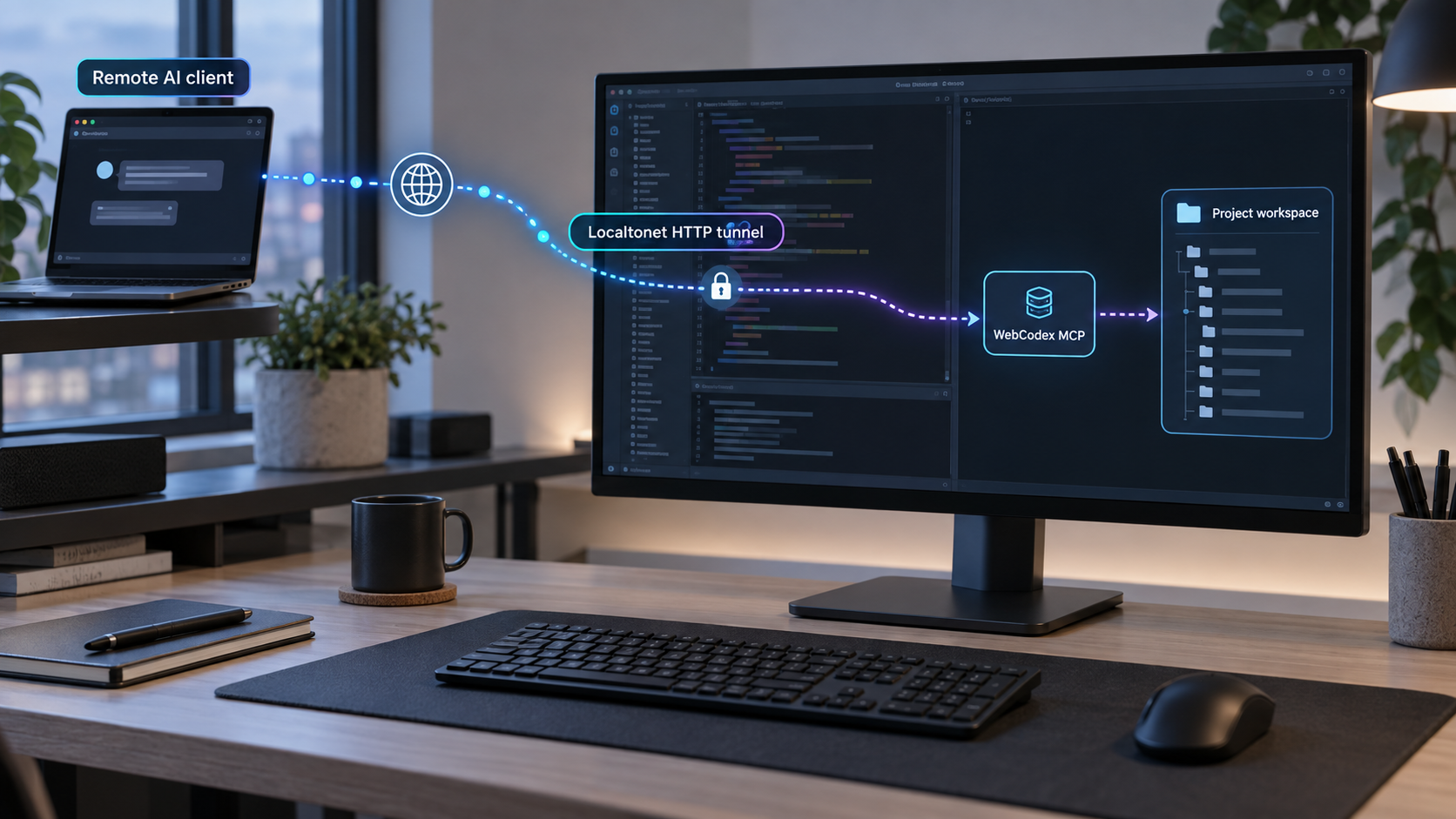
Build a working Linux AI development environment first, then make its MCP service reachable remotely
WebCodex lets remote AI clients work with repositories, Git, tests, compilers, and other developer tools on a machine you control. This guide explains the verified Linux setup choices, walks through the documented temporary trial, covers source compilation, and shows how to verify access without risking an important repository. Once a regular WebCodex Server and Runner deployment works locally, we explain how to publish its HTTP-based MCP endpoint through Localtonet. Because WebCodex determines its own bind address, port, endpoint path, and credentials, this guide shows you how to obtain those values from the active deployment instead of guessing them.
📋 What's in this guide
How WebCodex remote AI coding works
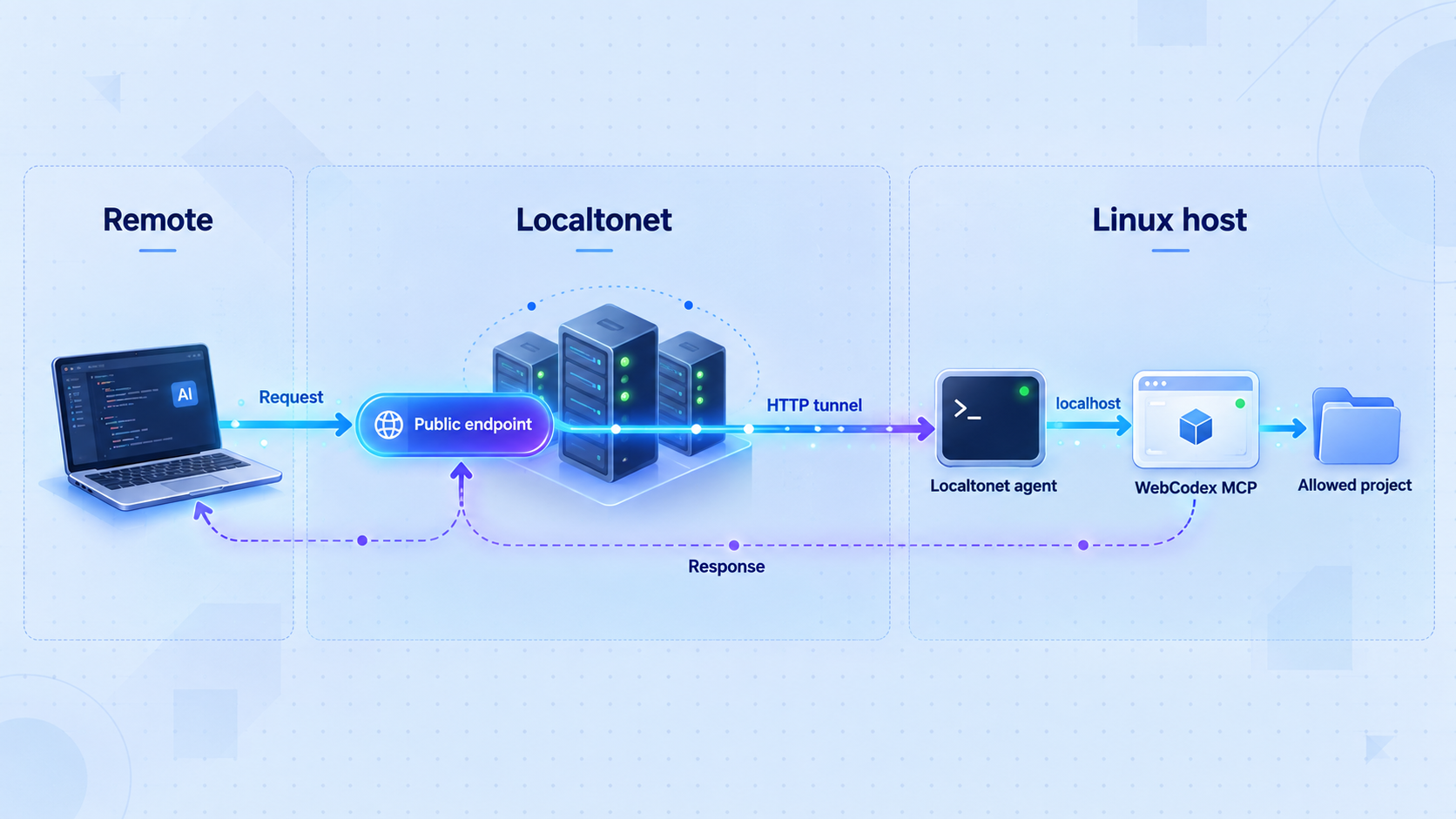
WebCodex is a self-hosted development service that gives an AI client controlled access to code and developer tools on your own machines. A connected assistant can inspect a configured repository, search files, make guarded edits, run commands and tests, use Git, and interact with the toolchain already installed on the development machine. The repository remains on that machine rather than being moved into a separate hosted development workspace merely to make remote AI coding possible.
The regular WebCodex architecture separates the Server from one or more Runners. The Server provides the remote-facing service, including its MCP over HTTP or HTTPS surface, while a Runner provides access to the configured development environment. This distinction matters when deciding where to run Localtonet. The Localtonet client must run on the Server machine or another device that can reach the Server's local listening address and port. It does not need direct access to every repository if the WebCodex Server and Runner relationship already handles that access.
A public tunnel is only a transport path to the Server. It does not install WebCodex, create a Runner, register a repository, or replace WebCodex authentication. That is why the correct order is to install and verify WebCodex first, identify the actual local endpoint, and only then add remote access.
The documented webcodex share workflow creates a restricted, temporary, single-project environment and already produces a temporary public HTTPS MCP endpoint. A regular Server and Runner deployment is the appropriate foundation for durable access to multiple projects and longer-running development work. Localtonet is most useful as the remote-access layer for a locally reachable regular Server, not as an additional tunnel around the temporary public share URL.
Prerequisites for WebCodex on Linux
Decide first whether you want a short evaluation, a durable Server and Runner deployment, or a source build. The documented quick trial has concrete prerequisites and commands. The regular Linux setup has additional configuration choices that depend on the current WebCodex Full Setup documentation and the values produced by your deployment. We do not invent service names, configuration paths, ports, or credentials where WebCodex does not establish them in the available setup evidence.
Requirements for the temporary trial
The temporary share workflow requires Node.js 18 or newer, Git, and a repository you are comfortable allowing an AI to inspect. Linux x64 and arm64 are listed as supported for local share, Server, and Runner workflows. Before using the command, confirm the installed tools:
node --version
npm --version
git --version
The Node.js version must be 18 or newer for the documented trial. The evidence does not prescribe a particular Linux package manager or Node.js distribution, so use the installation method maintained for your Linux distribution or organization. Avoid copying an unverified package command that might install an obsolete Node.js release.
Requirements for a regular Server and Runner setup
A durable installation needs a Linux machine for the WebCodex components, one or more project directories, Git if those projects use it, and the language toolchains required by the projects themselves. For example, WebCodex can invoke tests and compilers only when the corresponding commands are installed and usable by the Runner's operating-system account.
You also need to make several security decisions before registration: which project roots the Runner may access, which operating-system user should run it, where sensitive credentials are stored, and which AI client is allowed to connect. Register only the project roots that the assistant genuinely needs. A broad parent directory can unintentionally place unrelated repositories, configuration files, or secrets within the available boundary.
Requirements for a source build
WebCodex documents a Rust workspace build using Cargo. A source build therefore requires a working Rust and Cargo toolchain plus a local checkout of the WebCodex repository. The supplied evidence does not specify a minimum Rust version or Linux system-package list. Check the active repository toolchain and build diagnostics rather than guessing package names for your distribution.
Requirements for Localtonet
For remote access through our platform, install and run the Localtonet client on the Linux device hosting the WebCodex Server or on a device that can reach it. You will also need a device-specific authentication token, an available relay server selected from the current dashboard, and the actual local address and port used by WebCodex.
WebCodex can read and modify files and execute commands within configured project boundaries. Before creating a public tunnel, confirm that WebCodex authentication is enabled as intended, protect every credential, limit registered roots, and test with a disposable or version-controlled repository. Do not treat an unguessable URL as a substitute for authentication.
Install or run WebCodex on Linux
WebCodex documents several setup paths, but they serve different purposes. The temporary npx command is the most completely evidenced Linux onboarding path available here, so the steps below reproduce that workflow exactly. We then cover the documented source-build commands and explain what must be obtained from the current Full Setup workflow for a durable deployment.
| Setup path | Best for | Important behavior |
|---|---|---|
| Regular Server and Runner | Daily use, multiple projects, durable work | Provides the full WebCodex experience and is the appropriate deployment to verify locally before adding a Localtonet tunnel. |
npx --yes @yyjeqhc/webcodex share |
A short Linux evaluation | Creates a temporary, restricted, single-project environment. Its endpoint and temporary credential stop working when the command exits. |
| Source compilation | Developers who need locally built binaries | Builds the Rust workspace binaries. Building alone does not complete Server, Runner, project, authentication, or service configuration. |
| WebCodex Desktop | Windows and macOS personal installations | This is a documented recommended path on those systems, but it is not the Linux installation path used in this guide. |
Option 1: run the documented temporary Linux trial
Enter a repository you are willing to expose to the trial
Use a clean, version-controlled test repository where you can inspect and reverse changes. Replace the example path with the real repository path on your Linux machine.
Start the temporary WebCodex share
Run the documented npx command from inside that repository. This temporary trial does not require running separate setup, doctor, or run commands first.
Wait for the ready output
Keep the terminal open. WebCodex prints the MCP connection values needed by the client. On Linux it normally copies the MCP URL to the clipboard, but the printed values remain the source of truth.
Add the printed endpoint to the AI client
In a compatible client, create the MCP connection using the exact URL and temporary credential printed by WebCodex. For the default share, select the client's access-token, API-key, or equivalent Bearer-token option. Client labels and availability can vary by plan, workspace, rollout, and administrator policy.
Verify read-only access before allowing changes
Ask the client to inspect and summarize the repository without making changes. After that succeeds, try one small, reviewable modification and inspect the resulting Git diff and test output.
Run the trial with:
cd /path/to/your/repository
npx --yes @yyjeqhc/webcodex share
The command creates a temporary public HTTPS MCP endpoint protected by a credential generated for that run. Both stop working when the process exits. Keep the terminal open while testing and press Ctrl-C when you are finished.
If the AI client automatically attempts OAuth and reports that the endpoint does not implement OAuth, or if the client has no Bearer-token field, WebCodex documents an alternative query-token mode:
npx --yes @yyjeqhc/webcodex share --auth query-token
In that mode, paste the complete printed /mcp?token=... URL into the client and choose no authentication in the client because the temporary secret is already embedded in the URL. That complete URL is a credential. Do not paste it into tickets, shell transcripts, chat messages, screenshots, analytics, or public logs.
The default temporary share already creates its own public HTTPS endpoint. Pointing another tunnel at that public endpoint adds complexity without turning the restricted trial into a durable Server and Runner installation. Use the trial to evaluate WebCodex, then deploy the regular Server and Runner locally before following the Localtonet section.
Option 2: build WebCodex from source
From a checked-out WebCodex repository, the documented release build command is:
cargo build --release --workspace --binsThe documented optional PATH update makes the resulting release binaries available in the current shell:
export PATH="$PWD/target/release:$PATH"This PATH change applies only to the current shell unless you add an equivalent entry to your shell configuration. Review the path carefully before making it persistent.
Successful compilation proves that the workspace binaries were produced. It does not prove that a Server is configured, that a Runner is connected, that any project roots have been registered, or that an MCP client can authenticate. Those are separate deployment and verification stages.
Option 3: prepare a regular Linux Server and Runner deployment
For daily use, follow the current WebCodex Full Setup workflow for CLI, Linux, an existing Server, or an advanced installation. That workflow is the authoritative place for the current binary invocation, Server and Runner registration sequence, generated credentials, persistence choices, and effective runtime configuration.
The available evidence does not establish the exact Linux Server command, Runner command, configuration file path, service unit name, database path, default bind address, default port, or credential-generation command. Publishing guessed values would create an unreliable and potentially insecure installation. Record the exact commands and values shown by the current WebCodex setup and runtime on your machine.
At the end of the regular setup, you should have all of the following:
- A WebCodex Server process that starts successfully on Linux.
- A Runner connected through the documented Server and Runner workflow.
- Only the intended project roots registered or allowed.
- The authentication method and credential required by the chosen MCP client.
- The Server's effective local scheme, bind address, port, and MCP endpoint path.
- A local verification result obtained before any public tunnel is started.
Configure WebCodex for controlled project access
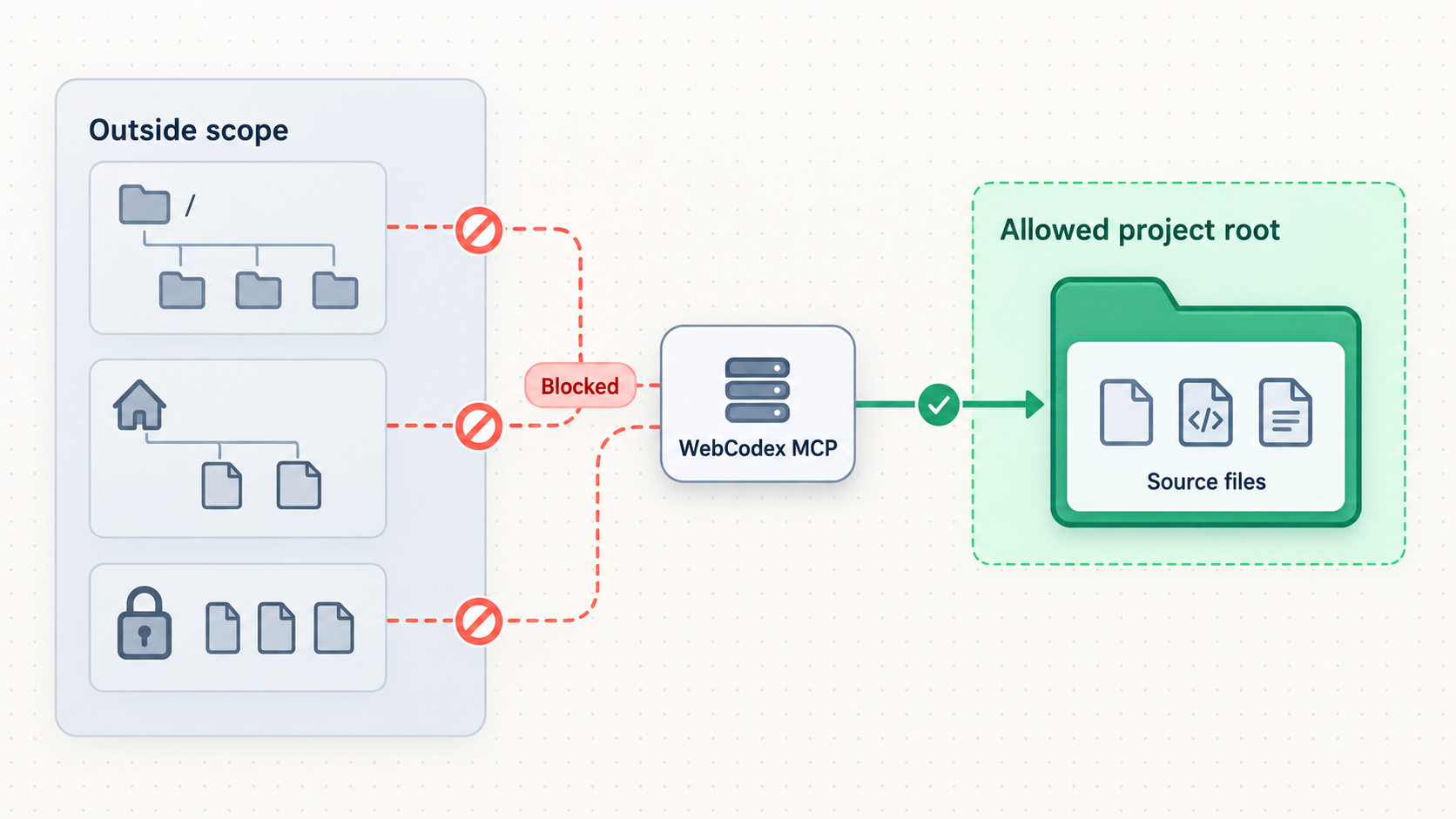
WebCodex is more sensitive than an ordinary read-only status page. Within its configured boundaries, it can inspect files, edit code, run commands, execute tests, use Git, and interact with development tools. Configuration should therefore begin with authority boundaries, not network exposure.
Choose the Runner account deliberately
Run the development environment under an operating-system account whose permissions match the intended work. If that account can read unrelated home directories, production credentials, deployment keys, or broad filesystem trees, those permissions may exceed what the AI workflow needs. Operating-system isolation and WebCodex project boundaries should reinforce each other.
Register narrow project roots
Prefer an individual repository path over a broad directory containing many repositories. Do not register your entire home directory for convenience. A narrow root improves reviewability and reduces the possibility that searches, commands, or edits reach unrelated data.
Keep generated and project credentials separate
The MCP connection credential controls access to WebCodex. Project credentials, such as cloud keys, package registry tokens, SSH keys, and signing material, control other systems. Protect both categories, but do not assume MCP authentication prevents a tool from reading credentials that are already visible inside an allowed project or process environment.
Prepare a safe verification repository
Start with a repository that has a clean Git status and no sensitive fixtures. Make an initial commit, run its tests manually, and note the expected output before connecting an AI client. This gives you a baseline for reviewing edits and command results.
Git does not replace access control, but it makes proposed file changes visible and reversible. Check the working tree before a session, inspect diffs during the session, and commit only after human review. Keep secrets out of Git, prompts, logs, and test fixtures.
Verify WebCodex before creating a tunnel
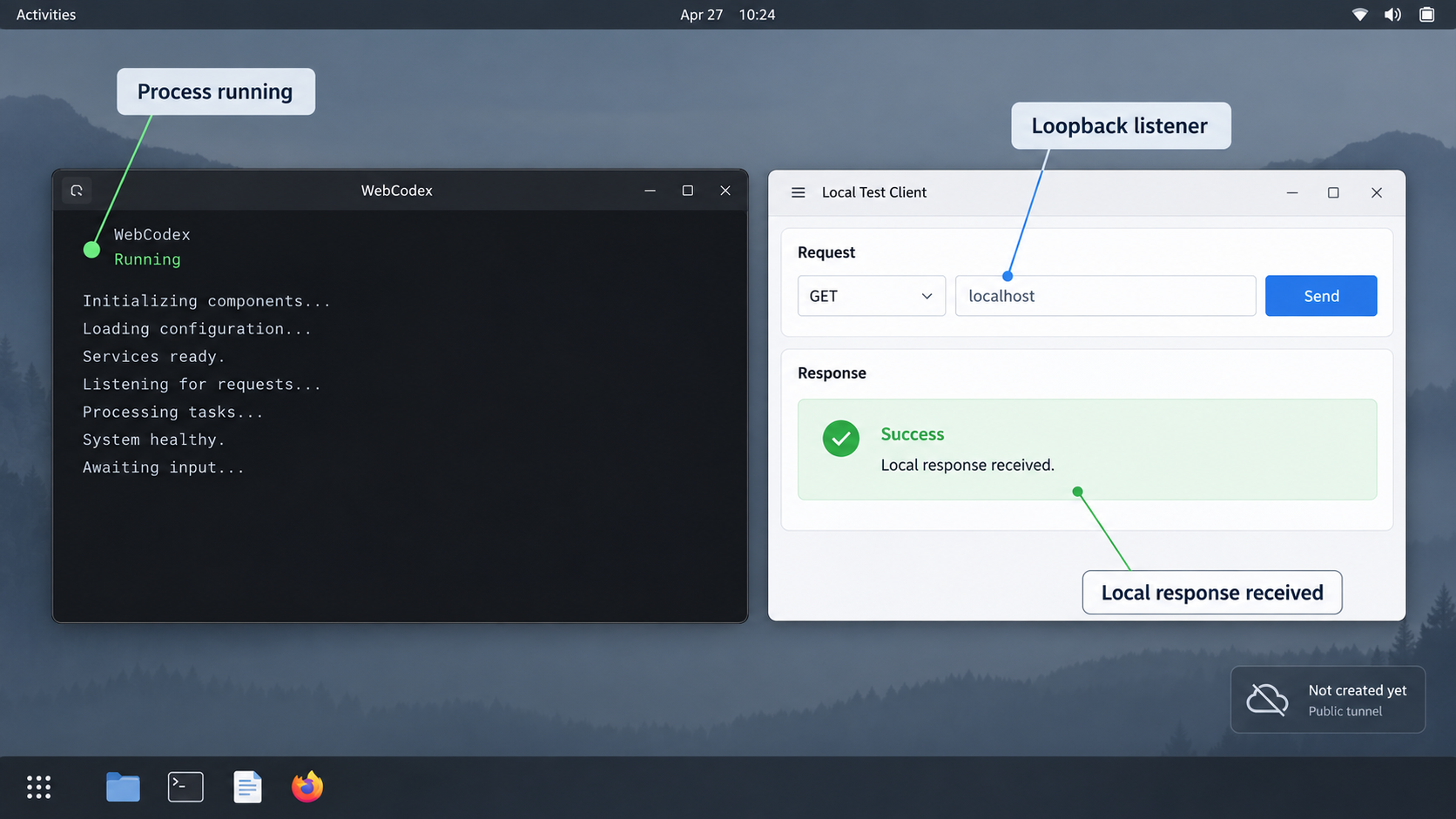
Remote networking should be the final variable you introduce. If local verification fails, adding a public URL will not fix a stopped Server, disconnected Runner, incorrect endpoint path, incompatible authentication selection, or missing project toolchain.
1. Confirm process readiness
Start the regular Server and Runner using the commands established by the current Full Setup workflow. Read their terminal output or service logs. Confirm that the Server reports a listening endpoint and that the Runner reports the expected connection or ready state. Record the exact effective values rather than assuming a conventional port.
2. Capture the effective local endpoint
You need four separate values:
- The local scheme, such as HTTP or HTTPS.
- The bind host or reachable local IP address.
- The listening port.
- The MCP route or endpoint path required by the client.
These values are not interchangeable. The Localtonet tunnel targets the local host and port, while the AI client generally needs the complete public URL including the correct MCP path. If WebCodex prints an effective runtime configuration, treat it as authoritative for that running instance.
3. Test from the Localtonet client device
If Localtonet will run on the same Linux machine, verify that the WebCodex endpoint is reachable locally from that machine. If our client will run on another device, test from that second device using the Server's reachable LAN address. A service bound only to loopback is normally reachable only from the same host.
This guide does not provide a fabricated curl command because the correct route, HTTP method, headers, authentication form, and expected MCP response depend on the effective WebCodex configuration. Use WebCodex's supported client connection or diagnostic workflow with the exact displayed values.
4. Run a read-only MCP request
Connect the intended AI client and begin with a narrowly scoped request:
Inspect this repository and summarize its structure. Do not make changes.A successful response establishes that the client can reach the Server, authenticate, discover the intended tools, communicate with the Runner, and access the expected project. It is stronger evidence than merely receiving an HTTP response.
5. Make one reviewable change
After read-only access succeeds, request a small change and require the relevant test:
Fix one small issue in this repository and run the relevant tests. Show me what changed.Inspect the Git diff, command output, and test result. Reject or revert anything unexpected. Do not begin with dependency upgrades, deployment changes, credential rotation, database migration, or a broad refactor.
Expose the verified WebCodex Server with Localtonet
Once the regular WebCodex Server and Runner deployment works locally, an HTTP tunnel can make its MCP service reachable from a remote AI client. Our client establishes an outbound connection to a Localtonet relay server, so the Linux host does not need inbound router port forwarding, firewall changes, VPN setup, or a public IP address.
The public address exists only while the selected Localtonet client is connected and the tunnel is running. Creating the tunnel configuration does not start it. You must start it explicitly, and you can later stop or delete it.
Install and run the Localtonet client
Install our client on the Linux device that hosts WebCodex or on a device that can reach the verified Server address. Keep the client running for as long as remote access is required.
Authenticate the intended device
Select or authenticate the device with its device-specific token. Treat that token as a secret, never place it in commands shown publicly, and do not reuse guessed values.
Select an available relay server
Choose a currently available relay server or region from the Localtonet dashboard. Availability can vary, so obtain the server value from the current product rather than copying a hardcoded code from a tutorial.
Create the HTTP tunnel configuration
Create an HTTP or HTTPS-appropriate tunnel for the WebCodex web-facing service and enter the actual local IP address and port captured during verification. Do not enter the temporary public share URL as the local target.
Start the tunnel and record its public address
Use the Start action after reviewing the target. Localtonet then provides the public URL. Preserve the WebCodex MCP route when constructing the complete client endpoint if the public base URL does not already include it.
Test remotely, then stop access when finished
Configure the AI client with the public endpoint and the authentication method required by WebCodex. Begin with the same read-only request used locally. Stop or delete the tunnel when remote access is no longer required.
For the current dashboard workflow, consult our Localtonet HTTP tunnel documentation. Exact options, available relay locations, and plan-dependent capabilities should be taken from the active dashboard rather than assumed.
How to map the local and public endpoints
Suppose WebCodex reports a local host, port, and MCP path. Enter only the verified host and port as the Localtonet local target. After the tunnel starts, combine the assigned public HTTPS base address with the same WebCodex path when the client requires a complete MCP URL. Do not copy an example port or route from another installation because those values are not established as universal defaults.
| Value | Where to obtain it | Where it is used |
|---|---|---|
| Local bind host or reachable IP | Active WebCodex runtime configuration or Server output | Localtonet tunnel target |
| Local listening port | Active WebCodex runtime configuration or Server output | Localtonet tunnel target |
| MCP endpoint path | WebCodex connection values | Appended to the public base URL when required |
| Public HTTPS address | Running Localtonet tunnel | Remote AI client connection |
| WebCodex credential | WebCodex authentication workflow | AI client authentication, never the Localtonet target field |
Target only the verified WebCodex Server endpoint intended for MCP or HTTPS client access. Server and Runner architecture does not imply that every listening socket is public-facing. If the runtime presents multiple ports, use WebCodex documentation and effective configuration to identify the correct one.
Security practices for remote AI coding
A tunnel changes reachability. It does not reduce the authority WebCodex already has on the development machine. Treat the combined system as a remotely reachable command-and-file access workflow, and use layered controls.
Keep authentication enabled
Continue using the WebCodex authentication mode selected during setup. Do not disable application authentication merely because the Localtonet URL is hard to guess. If a credential appears in a query URL, protect the complete URL as a secret because URLs can leak through browser history, screenshots, copied logs, and monitoring systems.
Apply least privilege to project roots
Grant access only to repositories needed for the current task. Separate personal, production, and experimental work where practical. Review allowed roots after moving or deleting projects so stale permissions do not remain part of the operating model.
Protect the development machine
Keep Linux, WebCodex, language runtimes, package managers, and project dependencies maintained. Use a dedicated non-root account where the workflow permits it. Do not run an AI-accessible development service with broad system privileges unless a documented requirement makes that unavoidable and you understand the consequences.
Review every consequential operation
Read-only exploration should come before modification. Small edits should come before broad refactors. Require tests where available, inspect Git status and diffs, and keep deployment, credential, billing, infrastructure, and destructive database actions outside the initial validation scope.
Limit tunnel lifetime
Stop the Localtonet tunnel when remote access is not needed. The assigned public endpoint is available only while the selected device is connected and the tunnel runs. A short exposure window reduces unnecessary reachability, although it does not replace authentication or project boundaries.
Routine operation and troubleshooting
Recommended startup order
- Confirm the repository is in the expected Git state.
- Start the WebCodex Server using the established deployment method.
- Start or verify the Runner and its intended allowed roots.
- Test the WebCodex connection locally.
- Start the Localtonet client.
- Start the configured HTTP tunnel.
- Run a read-only request from the remote AI client.
This order makes failures easier to isolate. If the local connection does not work, troubleshoot WebCodex. If local access succeeds but the public connection fails, inspect the tunnel target, Localtonet client state, public URL construction, and remote client authentication.
The temporary share exits immediately
Confirm that Node.js is version 18 or newer, that npm is available, and that you ran the command inside a repository. Read the terminal error rather than repeatedly restarting it. The temporary endpoint exists only while the process remains running.
The AI client reports an OAuth error
For the documented temporary trial, stop the share and use --auth query-token if the client cannot provide Bearer-token authentication. Paste the complete generated URL, choose no authentication in the client, and protect the URL as a temporary secret. For a regular deployment, use the authentication mode established by its current setup rather than assuming the trial option applies unchanged.
The tunnel is running but the endpoint is unreachable
Recheck the local target from the same device running our client. Confirm that the Server is still running and that its effective address and port have not changed. Verify that the tunnel itself was started, not merely created. If Localtonet runs on another LAN device, a loopback-only WebCodex listener will not be reachable from that device.
The public base URL responds but the MCP client cannot connect
Confirm the complete MCP endpoint path, authentication method, and credential. A response from the base web address does not prove that the client is using the correct MCP route. Compare the remote configuration with the locally verified WebCodex connection values.
The Server is reachable but no project tools work
Check Runner connectivity, allowed roots, filesystem permissions, and the project toolchain. The network path reaches the Server, but execution still depends on a functioning Runner and access to the intended repository.
Commands or tests fail inside the project
Reproduce the command manually under the same operating-system account and environment used by the Runner. Confirm that dependencies, compilers, environment variables, and working-directory assumptions are available there. A successful MCP connection cannot compensate for a missing compiler or broken project setup.
A credential was exposed
Stop the tunnel and affected WebCodex process, then invalidate or replace the exposed credential using the documented WebCodex workflow. Remove it from logs, screenshots, issue trackers, shell history, and shared messages where possible. If the credential was embedded in a URL, treat the complete URL as compromised.
Upgrade behavior changes
WebCodex 0.4.0 introduced intentional breaking cleanup, and existing users are advised to follow the current setup documentation instead of relying on older 0.3.x onboarding assumptions. Before upgrading, preserve any data required by the documented deployment, review current configuration guidance, and repeat local verification before restarting public access.
Frequently asked questions
Does WebCodex support Linux?
Yes. Linux x64 and arm64 are listed for local share, Server, and Runner workflows. The documented Desktop path is aimed at Windows and macOS, while Linux users should use the CLI, regular Server and Runner, temporary share, or source-build paths as appropriate.
Is webcodex share a permanent self-hosted installation?
No. It is a temporary, restricted, single-project trial. Its public endpoint and temporary credential stop working when the command exits. Use a regular Server and Runner deployment for durable access and the full development experience.
Which WebCodex port should I enter in Localtonet?
Enter the actual listening port reported by your regular WebCodex Server or its effective runtime configuration. The available evidence does not establish a universal default port, so copying an arbitrary example would be unsafe and unreliable.
Should I use an HTTP tunnel for WebCodex MCP access?
The documented remote-facing WebCodex surface is MCP over HTTP or HTTPS, so an HTTP-family tunnel is the closest match for a verified web endpoint. Use the scheme, local address, port, and path reported by the active WebCodex deployment. Do not expose an unidentified Runner or administrative port.
Does Localtonet replace WebCodex authentication?
No. Localtonet provides the network path from a public URL to the verified local service. Keep WebCodex authentication enabled and configure the AI client with the authentication method and credential generated by WebCodex.
Do I need router port forwarding or a public IP address?
No. Our client establishes an outbound connection to a Localtonet relay server. This lets you expose the local service without inbound router port forwarding, firewall changes, VPN setup, or a public IP address.
Why should I verify locally before starting the tunnel?
Local verification separates application problems from networking problems. It confirms that the Server is listening, the Runner is connected, authentication works, the intended project is available, and the AI client can discover and invoke the expected tools before public connectivity is introduced.
Can Localtonet run on a different Linux device from WebCodex?
Yes, provided that device can reach the WebCodex Server's local IP address and port. If WebCodex listens only on loopback, another device cannot reach it. Change bind behavior only according to WebCodex's documented configuration and your network security policy.
Connect your verified WebCodex Server with Localtonet
Get WebCodex working locally, record its real Server address and port, and then create an HTTP tunnel through our platform. Keep application authentication enabled, expose only the intended MCP service, and stop the tunnel whenever remote coding access is no longer needed.
Get Started Free →

